Converting HTML files or raw HTML strings to PDF is a common requirement for invoices, reports, and receipts. Rust has no built-in rendering engine for this, and writing one is not a realistic side project. HTML parsing is the easy part. CSS parsing, layout, and pagination are where the work never ends, which makes a browser a natural fit for PDF generation in Rust. This tutorial converts HTML to PDF in Rust with the open-source headless_chrome crate, which lets Chrome do the rendering and hands the finished PDF back to your Rust program.
Headless Chrome Crate for Rust
headless_chrome is an MIT-licensed Rust crate that controls a Chrome or Chromium browser through the Chrome DevTools Protocol. It can open pages, click elements, take screenshots, and call Chrome's built-in print-to-PDF function. Because the page is rendered by a real browser, CSS layouts, web fonts, and JavaScript work the same way they do in Chrome.
Chrome can also print a page straight from the command line with --print-to-pdf. That is just a CLI call, so the bytes land on disk instead of in your program, and the print settings you can reach are limited. Driving the DevTools Protocol instead keeps the bytes in your program and leaves the whole web platform doing the layout. It is the same protocol the equivalent libraries in any other language are built on. The crate is maintained by the Rust community, so support comes from its GitHub issue tracker.
Prerequisites
To create an HTML to PDF converter in Rust, make sure the following prerequisites are in place:
- Rust 1.85 or later. Install the Rust toolchain with rustup. On Windows, the MSVC toolchain also needs a Visual Studio installation, because
rustc uses its linker and libraries.
- Google Chrome, Chromium, or Microsoft Edge installed.
headless_chrome looks for the browser on the PATH, in the CHROME environment variable, and on Windows in the registry, with Edge as a fallback.
- Basic knowledge of Rust and Cargo.
This tutorial was tested with Rust 1.98.1, headless_chrome 1.0.22, and Chrome 153 on Windows 11. The same code runs on Linux and macOS.
Create a Rust HTML to PDF Project with Cargo
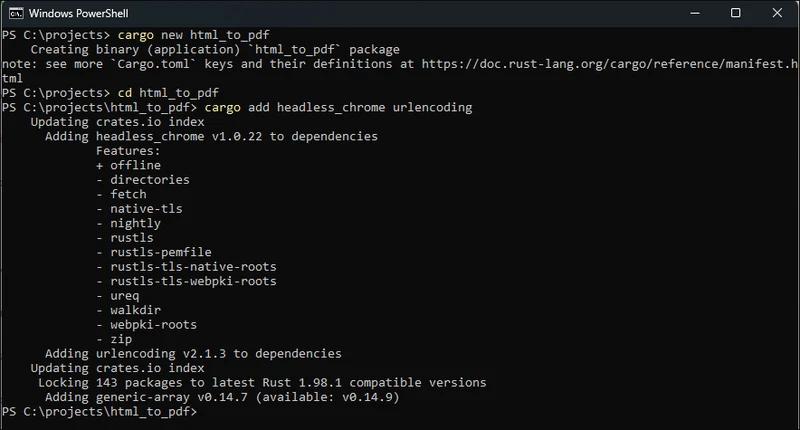
Create the binary project and add both dependencies from a terminal:
cargo new html_to_pdf
cd html_to_pdf
cargo add headless_chrome urlencoding
cargo new html_to_pdf
cd html_to_pdf
cargo add headless_chrome urlencoding
SHELL
Step 3 uses the urlencoding crate to pass the HTML string to Chrome as a data URL.
Checking Cargo.toml
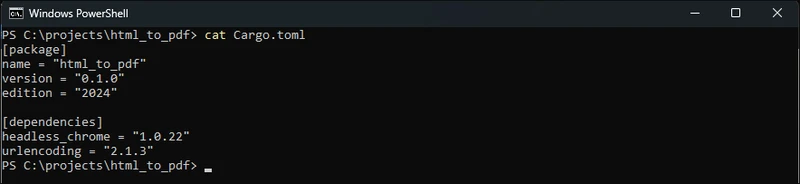
After running cargo add, both crates appear under [dependencies] in the Cargo.toml file:
[package]
name = "html_to_pdf"
version = "0.1.0"
edition = "2024"

[dependencies]
headless_chrome = "1.0.22"
urlencoding = "2.1.3"
[package]
name = "html_to_pdf"
version = "0.1.0"
edition = "2024"

[dependencies]
headless_chrome = "1.0.22"
urlencoding = "2.1.3"
Text
The crate's default offline feature uses an already installed browser. If the target machine has no Chrome, enable the fetch feature instead (cargo add headless_chrome --features fetch) and the crate can download a Chromium build for you.
Steps to Convert HTML to PDF in Rust
Step 1: Importing the Crates
Open src/main.rs and replace its contents with the imports the program needs. Browser and LaunchOptions start Chrome, and PrintToPdfOptions controls the PDF output:
use std::fs;

use headless_chrome::types::PrintToPdfOptions;
use headless_chrome::{Browser, LaunchOptions};
use std::fs;

use headless_chrome::types::PrintToPdfOptions;
use headless_chrome::{Browser, LaunchOptions};
Text
Step 2: Launching Headless Chrome
Next, start a headless browser and open a tab. main returns a Result so that every call can use the ? operator instead of unwrap:
fn main() -> Result<(), Box<dyn std::error::Error>> {
    // Launch a headless Chrome instance
    let browser = Browser::new(LaunchOptions {
        headless: true,
        ..Default::default()
    })?;

    // Open a new tab to load the HTML into
    let tab = browser.new_tab()?;
fn main() -> Result<(), Box<dyn std::error::Error>> {
    // Launch a headless Chrome instance
    let browser = Browser::new(LaunchOptions {
        headless: true,
        ..Default::default()
    })?;

    // Open a new tab to load the HTML into
    let tab = browser.new_tab()?;
Text
Browser::default() gives the same result with less code. LaunchOptions is shown here because it is where you set the window size, the Chrome path, or the sandbox flag when you need them.
Step 3: Setting the HTML Content
Now provide the HTML that should become the PDF. The Rust raw string syntax r#"..."# keeps the quotes in the HTML readable:
    let html = r#"
        <html>
        <head>
            <style>
                body { font-family: Arial, sans-serif; margin: 40px; }
                h1 { color: #2a5db0; }
                table { border-collapse: collapse; width: 100%; }
                th, td { border: 1px solid #ccc; padding: 8px; text-align: left; }
                th { background-color: #f0f4fa; }
            </style>
        </head>
        <body>
            <h1>Hello, World!</h1>
            <p>This PDF was generated from an HTML string in Rust.</p>
            <table>
                <tr><th>Item</th><th>Quantity</th><th>Price</th></tr>
                <tr><td>Widget</td><td>2</td><td>$10.00</td></tr>
                <tr><td>Gadget</td><td>1</td><td>$25.00</td></tr>
            </table>
        </body>
        </html>
    "#;

    // Load the HTML string as a data URL and wait for the page to finish loading
    let data_url = format!("data:text/html;charset=utf-8,{}", urlencoding::encode(html));
    tab.navigate_to(&data_url)?.wait_until_navigated()?;
    let html = r#"
        <html>
        <head>
            <style>
                body { font-family: Arial, sans-serif; margin: 40px; }
                h1 { color: #2a5db0; }
                table { border-collapse: collapse; width: 100%; }
                th, td { border: 1px solid #ccc; padding: 8px; text-align: left; }
                th { background-color: #f0f4fa; }
            </style>
        </head>
        <body>
            <h1>Hello, World!</h1>
            <p>This PDF was generated from an HTML string in Rust.</p>
            <table>
                <tr><th>Item</th><th>Quantity</th><th>Price</th></tr>
                <tr><td>Widget</td><td>2</td><td>$10.00</td></tr>
                <tr><td>Gadget</td><td>1</td><td>$25.00</td></tr>
            </table>
        </body>
        </html>
    "#;

    // Load the HTML string as a data URL and wait for the page to finish loading
    let data_url = format!("data:text/html;charset=utf-8,{}", urlencoding::encode(html));
    tab.navigate_to(&data_url)?.wait_until_navigated()?;
Text
print_to_pdf has no HTML option. It prints whatever the tab is showing, and the crate has no method for setting page content directly, so the HTML string is percent-encoded into a data: URL and the tab navigates to it.
wait_until_navigated then blocks until the page is ready, and it does not stop at the load event. The crate turns on Chrome's lifecycle events and clears its navigating flag at networkAlmostIdle, the browser lifecycle milestone that arrives once the requests the page fetched (network idle) have died down. By the time the tab reports navigation complete, late web fonts and images are usually in place.
Step 4: Converting HTML to PDF
With the page loaded, call print_to_pdf. PrintToPdfOptions maps to Chrome's print settings, and every field is optional:
    // Print the page to PDF with background colors and 0.4 inch margins
    let options = PrintToPdfOptions {
        print_background: Some(true),
        margin_top: Some(0.4),
        margin_bottom: Some(0.4),
        margin_left: Some(0.4),
        margin_right: Some(0.4),
        ..Default::default()
    };
    // Print the page to PDF with background colors and 0.4 inch margins
    let options = PrintToPdfOptions {
        print_background: Some(true),
        margin_top: Some(0.4),
        margin_bottom: Some(0.4),
        margin_left: Some(0.4),
        margin_right: Some(0.4),
        ..Default::default()
    };
Text
Margins and paper sizes are in inches. Without paper_width and paper_height, Chrome uses US Letter (8.5 x 11 inches). Chrome will not print background colors or images unless you ask. print_background is off by default, and without it the table header's shading is dropped from the PDF.
The page setup fields (landscape, scale, page_ranges, and the header and footer templates) get their own section later in this tutorial.
Step 5: Getting Output as a Byte Vector
print_to_pdf returns the finished document as a Vec<u8> held in memory. Nothing is written to disk yet, so the bytes can go to a file, an HTTP response body, or cloud storage:
let pdf_data: Vec<u8> = tab.print_to_pdf(Some(options))?;
let pdf_data: Vec<u8> = tab.print_to_pdf(Some(options))?;
Text
Step 6: Saving the PDF File
To save the PDF, write the byte vector to a file with std::fs::write, which creates the file, writes all the bytes, and closes it in one call:
    // Write the PDF bytes to disk
    fs::write("output.pdf", &pdf_data)?;
    println!("PDF saved successfully ({} bytes).", pdf_data.len());

    Ok(())
}
    // Write the PDF bytes to disk
    fs::write("output.pdf", &pdf_data)?;
    println!("PDF saved successfully ({} bytes).", pdf_data.len());

    Ok(())
}
Text
Step 7: Cleaning Up
Unlike the wkhtmltopdf C API, there are no destroy or deinit functions to call. When browser goes out of scope at the end of main, its Drop implementation shuts down the Chrome process and removes the temporary profile folder it created. If a step fails and ? returns early, the same cleanup still runs.
In a long-running service, keep one Browser alive and open a new tab per document instead of launching a new Chrome process for every request.
Step 8: Run the Code and Generate the PDF File
Build and run the project from the project folder:
The first build compiles 143 crates, which took 45 seconds on the machine used here. The program then prints the size of the generated file:

The output.pdf file is saved in the project folder. The CSS styles, including the header color and the table borders and background, are preserved:
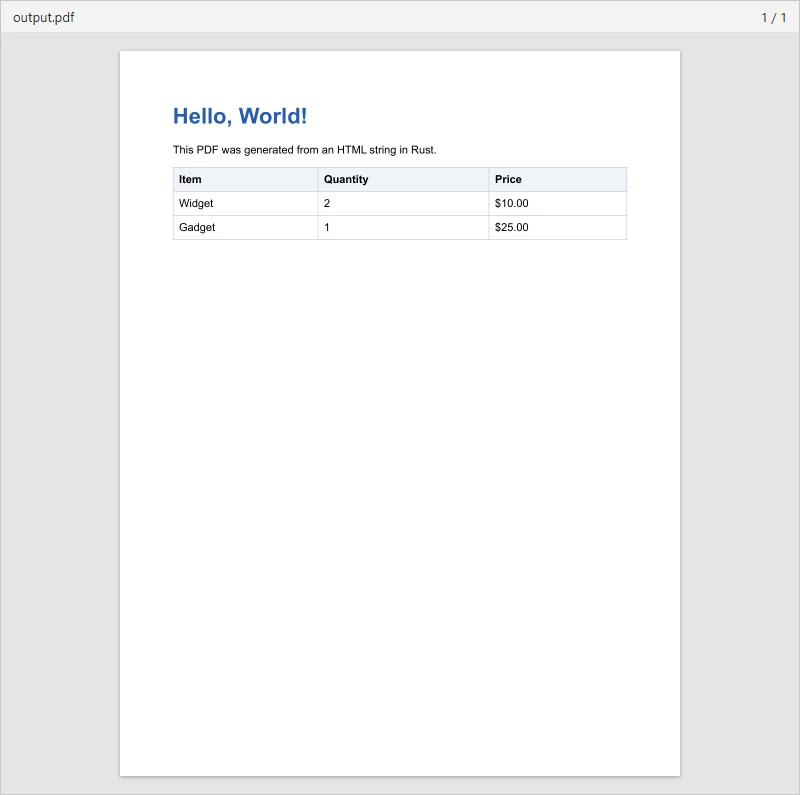
Here is the generated output.pdf itself:
Convert a URL or HTML File to PDF in Rust
The same navigate_to and print_to_pdf calls work for web pages and local HTML files. For local files, add the url crate with cargo add url so you can turn the file path into a valid file:// URL on every operating system.
The example below reads a local template, so save this next to Cargo.toml as invoice.html:
<html>
<head>
    <style>
        body { font-family: Arial, sans-serif; margin: 30px; }
        .box { background: #2a5db0; color: #fff; padding: 16px; }
    </style>
</head>
<body>
    <div class="box"><h2>Invoice #1024</h2></div>
    <p>Loaded from a local HTML file.</p>
</body>
</html>
<html>
<head>
    <style>
        body { font-family: Arial, sans-serif; margin: 30px; }
        .box { background: #2a5db0; color: #fff; padding: 16px; }
    </style>
</head>
<body>
    <div class="box"><h2>Invoice #1024</h2></div>
    <p>Loaded from a local HTML file.</p>
</body>
</html>
HTML
Save the program below as examples/url_and_file.rs and run it with cargo run --example url_and_file:
use std::fs;

use headless_chrome::types::PrintToPdfOptions;
use headless_chrome::Browser;
use url::Url;

fn main() -> Result<(), Box<dyn std::error::Error>> {
    let browser = Browser::default()?;
    let tab = browser.new_tab()?;

    // Convert a live web page to PDF
    tab.navigate_to("https://doc.rust-lang.org/book/")?
        .wait_until_navigated()?;
    let url_pdf = tab.print_to_pdf(None)?;
    fs::write("url.pdf", url_pdf)?;

    // Convert a local HTML file to PDF
    let path = fs::canonicalize("invoice.html")?;
    let file_url = Url::from_file_path(&path).map_err(|_| "invalid file path")?;
    tab.navigate_to(file_url.as_str())?.wait_until_navigated()?;

    let options = PrintToPdfOptions {
        landscape: Some(true),
        print_background: Some(true),
        ..Default::default()
    };
    fs::write("invoice.pdf", tab.print_to_pdf(Some(options))?)?;

    println!("Saved url.pdf and invoice.pdf");
    Ok(())
}
use std::fs;

use headless_chrome::types::PrintToPdfOptions;
use headless_chrome::Browser;
use url::Url;

fn main() -> Result<(), Box<dyn std::error::Error>> {
    let browser = Browser::default()?;
    let tab = browser.new_tab()?;

    // Convert a live web page to PDF
    tab.navigate_to("https://doc.rust-lang.org/book/")?
        .wait_until_navigated()?;
    let url_pdf = tab.print_to_pdf(None)?;
    fs::write("url.pdf", url_pdf)?;

    // Convert a local HTML file to PDF
    let path = fs::canonicalize("invoice.html")?;
    let file_url = Url::from_file_path(&path).map_err(|_| "invalid file path")?;
    tab.navigate_to(file_url.as_str())?.wait_until_navigated()?;

    let options = PrintToPdfOptions {
        landscape: Some(true),
        print_background: Some(true),
        ..Default::default()
    };
    fs::write("invoice.pdf", tab.print_to_pdf(Some(options))?)?;

    println!("Saved url.pdf and invoice.pdf");
    Ok(())
}
Text
One tab handles both documents one after the other. The URL is printed with Chrome's defaults, and the local invoice is printed in landscape with its background colors:
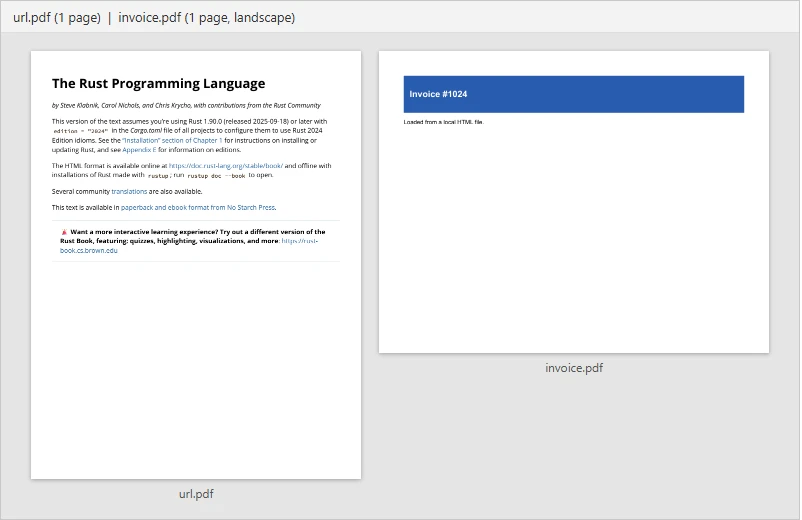
The web page captured to url.pdf:
And the local HTML file printed to invoice.pdf in landscape:
Save templates with an .html name, because Chrome decides how to treat a local file from the input extension. The same markup saved as .txt printed as visible tags instead of a rendered page.
Page Size, Page Numbers, and Page Breaks
PrintToPdfOptions mirrors Chrome's print dialog, and its supported values are the ones the dialog itself offers. landscape: Some(true) switches to landscape mode, scale takes a zoom factor where 1.0 is full size, and page_ranges takes a one-based string such as "1-5, 8, 11-13".
Page numbers can come from either side. Give Chrome a footer template and it substitutes pageNumber and totalPages on every page:
let options = PrintToPdfOptions {
    display_header_footer: Some(true),
    header_template: Some("<span></span>".into()),
    footer_template: Some(
        "<div style='font-size:10px;width:100%;text-align:center'>Page <span class='pageNumber'></span> of <span class='totalPages'></span></div>".into()),
    margin_bottom: Some(0.6),
    ..Default::default()
};
let options = PrintToPdfOptions {
    display_header_footer: Some(true),
    header_template: Some("<span></span>".into()),
    footer_template: Some(
        "<div style='font-size:10px;width:100%;text-align:center'>Page <span class='pageNumber'></span> of <span class='totalPages'></span></div>".into()),
    margin_bottom: Some(0.6),
    ..Default::default()
};
Text
The CSS route works too. Chrome Platform Status lists @page margin boxes against milestone 131, so guidance written before that is historical behaviour. On Chrome 153, this page counter rule alone numbered every page of a four page document:
@page { @bottom-center { content: "Page " counter(page); } }
@page { @bottom-center { content: "Page " counter(page); } }
Text
Controlling where a page break lands is ordinary CSS too. A six card test document showed the difference. Without the property, the first page ended halfway through the third card, and the rest of that card continued on page two. Adding the CSS break-inside property moved each card onto the next page whole, two per page, with none of them split:
.card { break-inside: avoid; }
.card { break-inside: avoid; }
Text
What Chrome Puts in the PDF
Two options change the structure of the file, not the look of the page:
let options = PrintToPdfOptions {
    generate_document_outline: Some(true),
    generate_tagged_pdf: Some(true),
    ..Default::default()
};
let options = PrintToPdfOptions {
    generate_document_outline: Some(true),
    generate_tagged_pdf: Some(true),
    ..Default::default()
};
Text
generate_document_outline turns your headings into PDF bookmarks. A report with one h1 and two h2 headings produced a three entry document outline with the option on, and no outline at all with it off.
generate_tagged_pdf asks for a tagged PDF, the structure that screen readers and PDF/UA checkers read. The DevTools Protocol documents its default as "embedder choice" instead of off, and the test here matched that. With both options off, the output still contained a structure tree and carried the document language from <html lang="en">. Set that attribute on your templates either way, and check your own output before relying on the flag.
Fonts are embedded with font subsetting, so a page set in Georgia produced AAAAAA+Georgia-Bold and BAAAAA+Georgia instead of the whole family. A JPEG photograph was stored as a JPEG, not re-encoded.
Headless Chrome Usage in a Rust Service
The crate is blocking, which is why none of the code above is written as an async fn main. If your service already has an async runtime such as Tokio, keep the browser off the reactor by calling it inside tokio::task::spawn_blocking, so one slow render cannot stall the executor.
Nothing polls forever. Every tab operation runs against a timeout and returns an error instead of hanging, so a page that never settles cannot tie up a worker.
Chrome start-up and shutdown lines appear in any service that installs a logger, because the crate reports through the log crate. To remove logs from the browser layer without silencing your own, filter by target, for example RUST_LOG=info,headless_chrome=warn.
Common Issues When Converting HTML to PDF in Rust
These are the failure modes that show up in production:
- JavaScript-rendered content:
wait_until_navigated returns once the network goes quiet, which is not the same as a chart finishing its draw. Call tab.wait_for_element("#report-ready") on an element the page adds when it is done, then print.
- Timeouts: tab operations time out after 20 seconds by default. Raise the limit with
tab.set_default_timeout(std::time::Duration::from_secs(60)) for slow pages.
- Large HTML strings: Chrome limits URLs to 2 MB, and that includes
data: URLs. For bigger documents, write the HTML to a temporary file and load it with a file:// URL as shown above.
- Docker and Linux containers: Chrome's sandbox fails to start when the process runs as root, and Puppeteer's troubleshooting guide calls running without a sandbox strongly discouraged. Add an unprivileged user to the image and keep the sandbox on, and set
sandbox: false in LaunchOptions only when you have no alternative. Either way, the image needs Chrome's system libraries.
- Deployment: every server that runs the program needs a compatible browser, so Chrome becomes part of your deployment even though the Rust code compiles to a single binary.
Other Ways to Convert HTML to PDF in Rust
headless_chrome is not the only route. Which one fits depends on whether your documents need JavaScript and how many you render at once.
Chromium-backed, like this tutorial
html2pdf calls itself just a CLI over the headless_chrome crate, and it also ships as a library whose API is async and runs on tokio, which saves writing the spawn_blocking wrapper yourself.
Gotenberg moves the browser out of your process entirely. It is a Docker-based API for converting documents to PDF: Chromium handles URLs, HTML, and Markdown, LibreOffice handles office formats, and your Rust service posts a file over HTTP and gets a PDF back. That keeps Chrome out of your binary's deployment at the cost of running a service next to it.
Browser-free Rust engines
Headless Chrome can be resource-intensive for concurrent PDF generation, because each conversion needs a browser process and the memory that comes with it. Two Rust projects target that directly.
htmltopdf is an MIT-licensed engine that renders in one thread with no subprocess, and its README describes it as built for high concurrency and low RAM usage. The README reports about 92 MB peak RAM against about 846 MB for Chromium's main process on a single 1.8 MB document. For 20 concurrent conversions it reports 12.75 PDF/s at 1.25 GiB against Chromium's 1.18 PDF/s at 9.35 GiB, measured with /usr/bin/time -l on Apple Silicon. These are the project's own benchmarks on its own fixtures, and they were not reproduced for this article. The crate is not on crates.io, so you install it from the repository, and its JavaScript handling is an opt-in, bounded pre-layout stage, not a full engine.
Fulgur is another HTML to PDF engine in Rust that skips the browser. It is Apache-2.0, and it integrates Blitz for HTML parsing, style resolution, and layout with Krilla for PDF generation. Fulgur supports a curated subset of HTML and CSS, tracked property by property in its CSS support document, and its feature list carries no JavaScript engine. What it does cover is the paged side, including page counters, running headers, margin boxes, break-inside, tagged PDF, and font subsetting. Fulgur's rendering pipeline includes a 2-pass render for accuracy, so cross references such as target-counter() are resolved before the PDF is written.
Commercial engines
Prince supports CSS Paged Media for complex PDF creation, including @page rules, page margin boxes, and a predefined page counter for running headers and footers. Prince is commercial software you license, not a crate you add with Cargo.
Which one fits
For years the rule of thumb was that Rust-native HTML to PDF options had limited CSS and JavaScript support, so pure Rust engines suited only simple documents. The CSS half of that has aged. htmltopdf lists flexbox, grid, tables with rowspans, and @font-face, and Fulgur covers paged media end to end. JavaScript is where the gap still sits.
What draws your document decides the choice. If a server renders the HTML and the styling is CSS, a browser-free engine takes Chrome out of your deployment along with its memory. If your pages draw charts in the browser or depend on a web app's own scripts, keep a browser in the pipeline, which is what this tutorial does.
HTML File to PDF File in C#
IronPDF
IronPDF HTML-to-PDF Conversion Library is a .NET and .NET Core C# library that generates PDF documents from HTML content. It ships its own Chrome rendering engine, so there is no separate browser to install, launch, or shut down.
IronPDF handles more than simple HTML documents. It renders complex web pages with CSS styling and JavaScript, and it also edits, merges, signs, and secures PDFs after they are created.
The same job with IronPDF, converting an HTML string to PDF in C#:
using IronPdf;

// Instantiate Renderer
var renderer = new ChromePdfRenderer();

// Create PDF content from an HTML string using C#
var pdf = renderer.RenderHtmlAsPdf("<h1>Hello World</h1>");

// Export to a file or Stream
pdf.SaveAs("output.pdf");
using IronPdf;

// Instantiate Renderer
var renderer = new ChromePdfRenderer();

// Create PDF content from an HTML string using C#
var pdf = renderer.RenderHtmlAsPdf("<h1>Hello World</h1>");

// Export to a file or Stream
pdf.SaveAs("output.pdf");
Imports IronPdf
' Instantiate Renderer
Private renderer = New ChromePdfRenderer()
' Create PDF content from an HTML string using C#
Private pdf = renderer.RenderHtmlAsPdf("<h1>Hello World</h1>")
' Export to a file or Stream
pdf.SaveAs("output.pdf")
Imports IronPdf

' Instantiate Renderer
Private renderer = New ChromePdfRenderer()

' Create PDF content from an HTML string using C#
Private pdf = renderer.RenderHtmlAsPdf("<h1>Hello World</h1>")

' Export to a file or Stream
pdf.SaveAs("output.pdf")
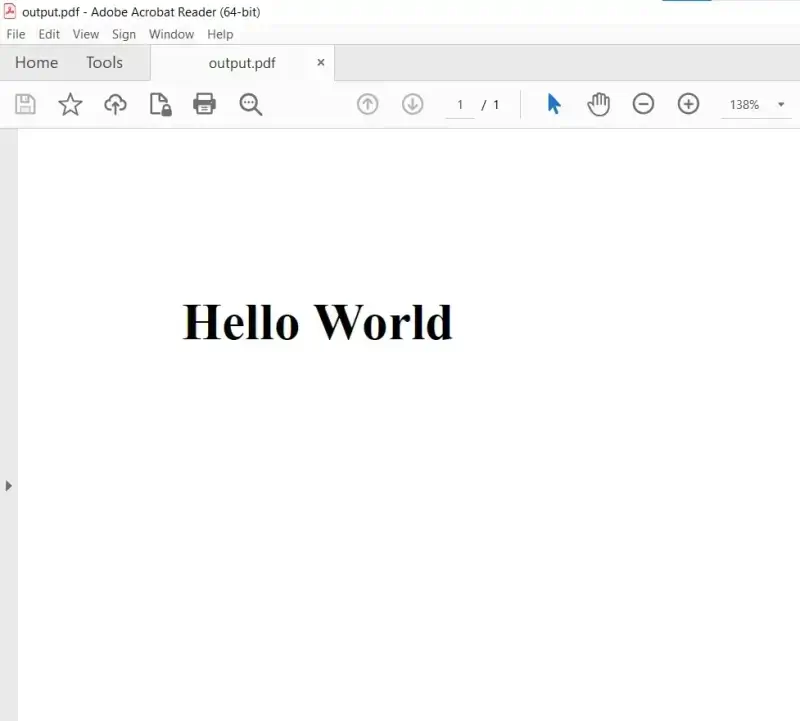
The PDF output:
The steps from this Rust tutorial map to single IronPDF settings. Page setup is covered in custom margins and custom paper size, and the JavaScript waiting problem is handled by the WaitFor rendering delays. Converting a URL to PDF or an HTML file to PDF takes one method call each, and headers and footers with page numbers need no HTML templates. For a full walkthrough, see the HTML to PDF tutorial, or read how the same task works in HTML to PDF in C++.
Rust developers can also follow IronPDF's progress through the IronPDF for Rust beta program.
You can try all of this with a Free Trial of IronPDF's Full Functionality. It runs for 30 days, needs no credit card, and works on live servers without watermarks while you evaluate it. Licensing after that is perpetual, with no recurring fees, sized by developers, projects, and locations, and backed by a 30-day money-back guarantee. To get started, download IronPDF.