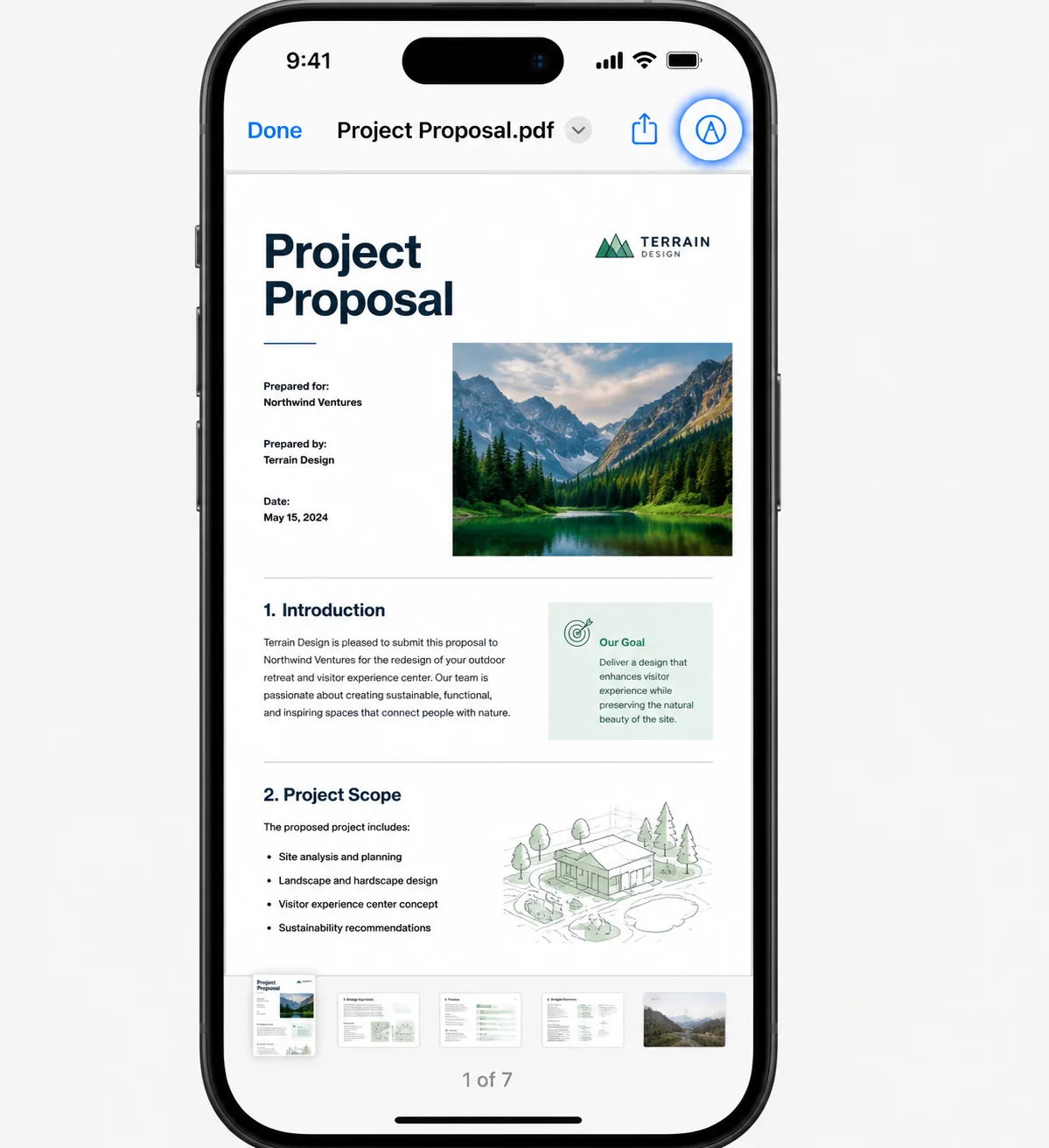
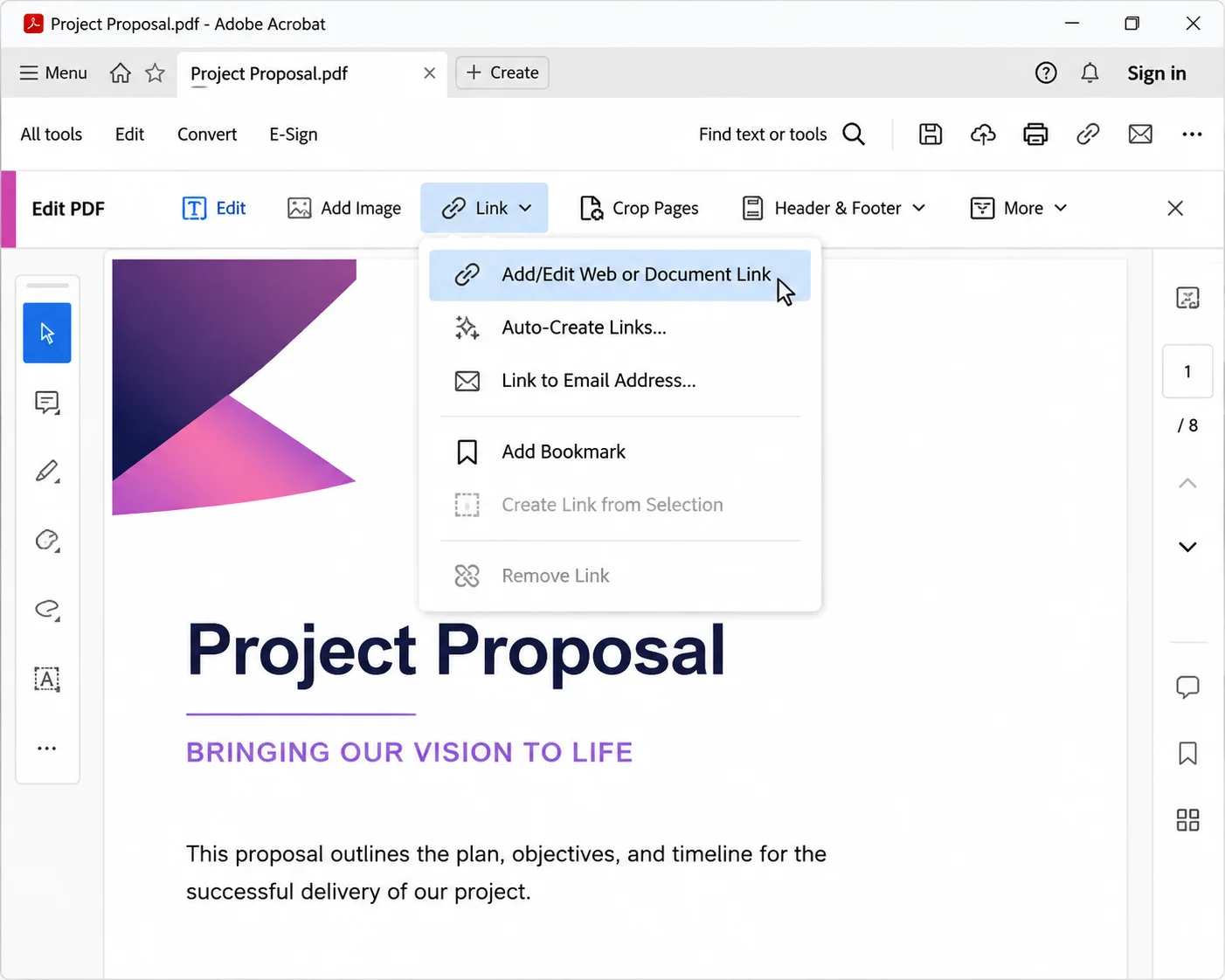
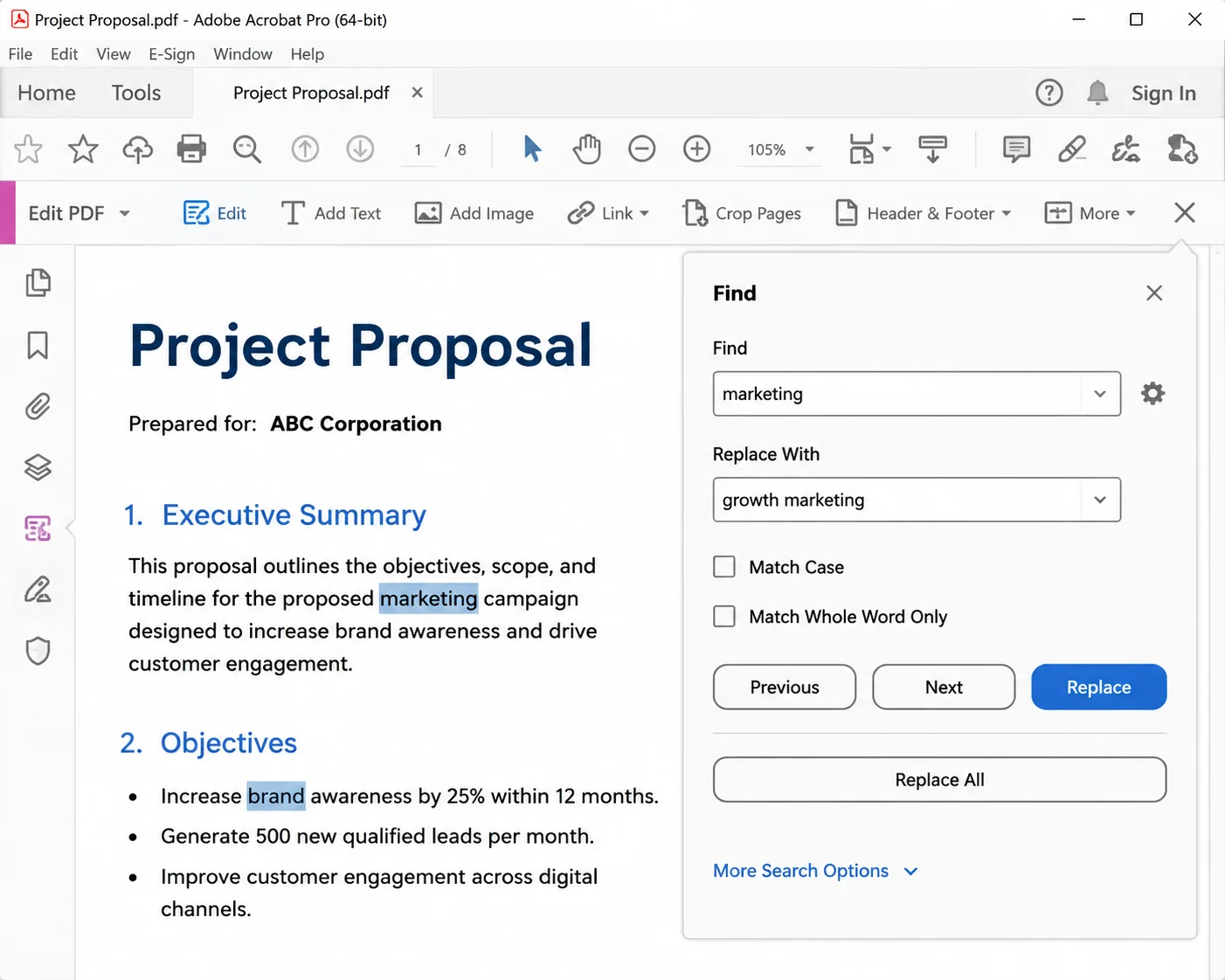
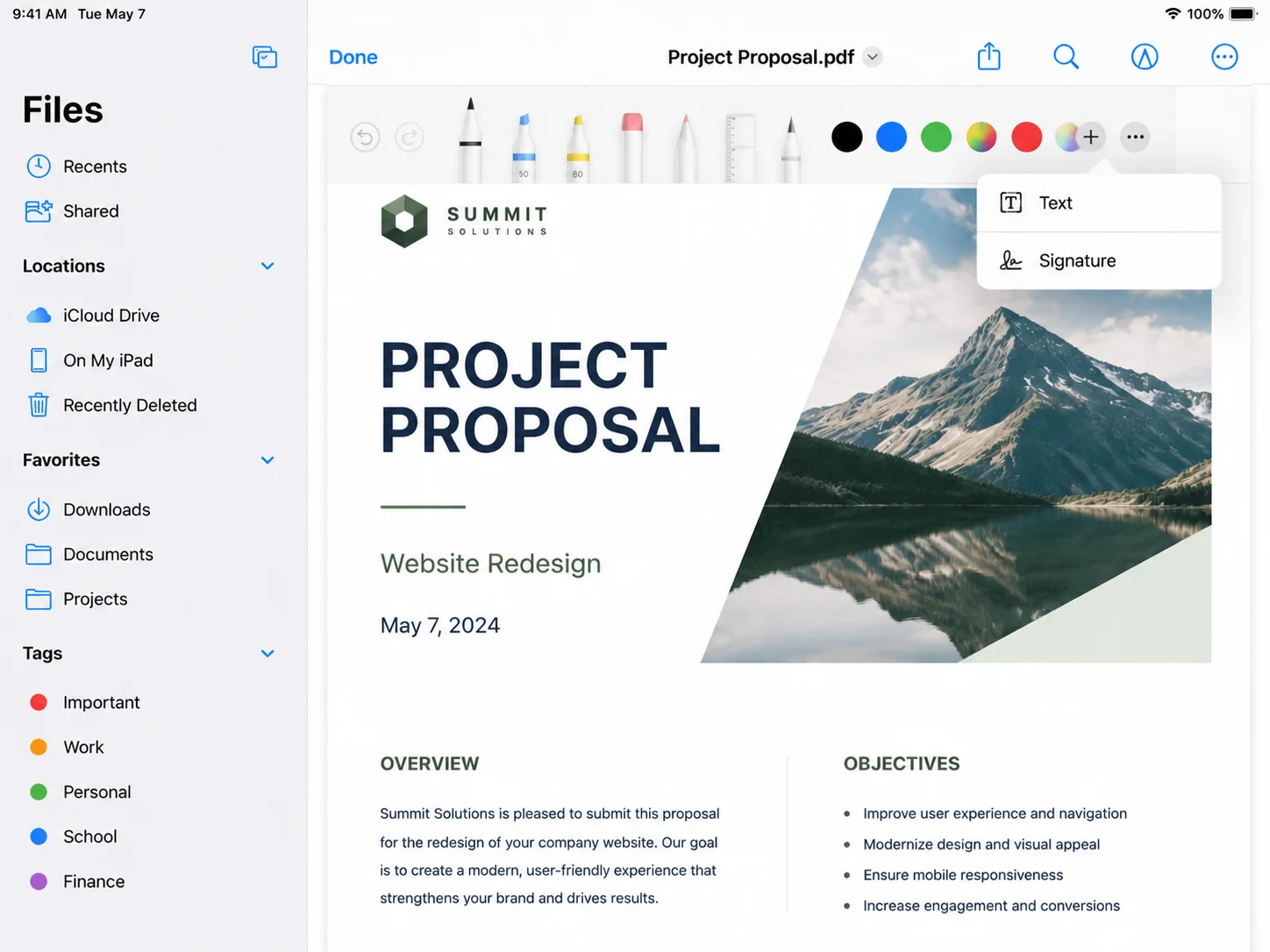
Learning how to edit PDF on iPhone starts with one built-in tool. The fastest way to edit a PDF on an iPhone is the Markup feature inside the Files app for quick changes like adding text, drawing, highlighting, and signing; if you need to change existing body text, reorder pages, or fix scanned documents, you’ll need a dedicated PDF app instead. Open the PDF file, tap the Markup icon (the pen tip inside a circle in the top corner), and you can make those quick edits directly on the page. Nothing to install, the iPhone includes it by default, and every change saves straight back to the original file.
That single tool covers the quick edits most people actually need on the go: sign contracts, fill in a form, highlight a clause, or add a note before sending a document back from a phone. If you’re an iPhone user managing forms, agreements, or other PDFs away from your desk, this is usually the quickest path. To edit PDFs more heavily, such as changing existing body text, reordering specific pages, or fixing scanned documents, a few extra apps do the job, and each one is covered below. Most PDF documents you handle on a phone fall into one of these two buckets.
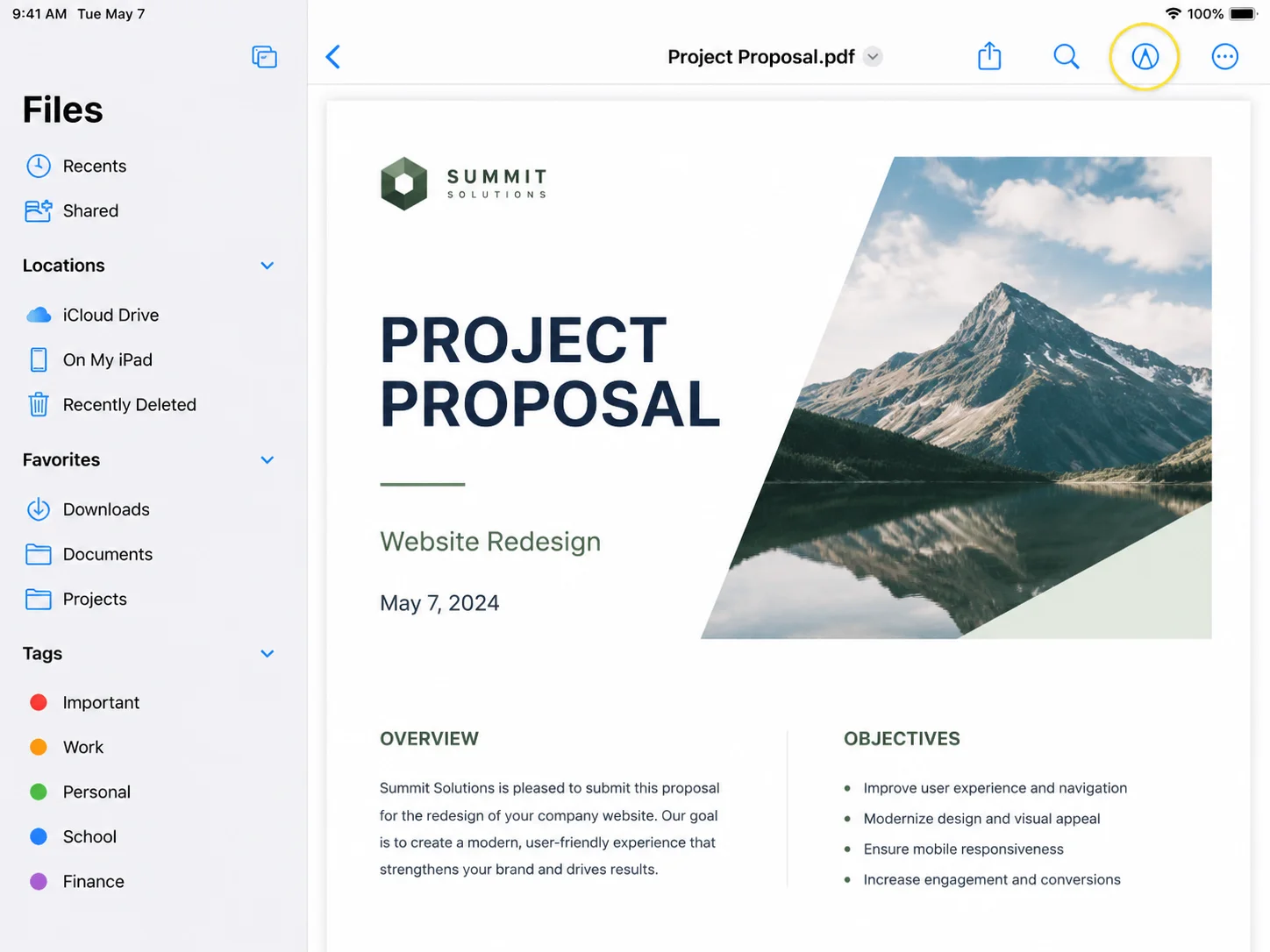 Before running through every method, it helps to separate two things that both get called "editing." Adding your own content on top of a PDF (a signature, comments, a highlight, a checkmark) is annotation, and the iPhone does this natively in Files as well as in places like Mail, Photos, Books, and Notes. These annotations sit on top of the page without touching the words underneath. Changing the text that is already baked into the document is content editing, and that usually needs a dedicated app, a web-based editor, or a workaround such as converting the file through Google Drive or Word. Knowing which one you need before you start editing PDFs on your iPhone saves a lot of time, especially when the goal is to keep documents moving without switching to a computer. If your task is closer to combining files or shrinking them for email, those are separate jobs with their own quick fixes, similar to how you would merge several PDFs into one or compress a large PDF on a computer.
Signing is the other request that comes up constantly. The iPhone stores a reusable signature once you draw it, so filling and returning a signed agreement takes seconds. The same principle scales up to automated document workflows, where teams apply digital signatures to PDFs in bulk or stamp approval marks and watermarks across hundreds of files at once. For a single document on your phone, though, the built-in signature tool is all you need. Below, you’ll see the native iPhone options, the apps and browser tools for deeper edits, a few automation and troubleshooting tips, and even a programmatic route with IronPDF if you need to handle PDFs at a developer level.
Method 1: Markup in the Files App (Fastest)
This is the default answer for quick edits.
- Open the Files app and tap the PDF to open it.
- Tap the Markup icon (pen tip in a circle).
- Use the toolbar to draw, highlight, or erase.
- Tap the plus (+) button to add Text, a Signature, a shape, or a magnifier.
- Drag any added element to reposition it, then tap Done to save.
Add text boxes anywhere on the page, then resize them, adjust font size, and recolor them by tapping and using the format options. To move around a long file, scroll with one finger, or pinch with two fingers to zoom before placing text. Signatures are saved after the first time you draw one, so future documents only need a tap. When finished editing, tap Done and the file updates in place.
Method 2: Markup Straight From Mail or Photos
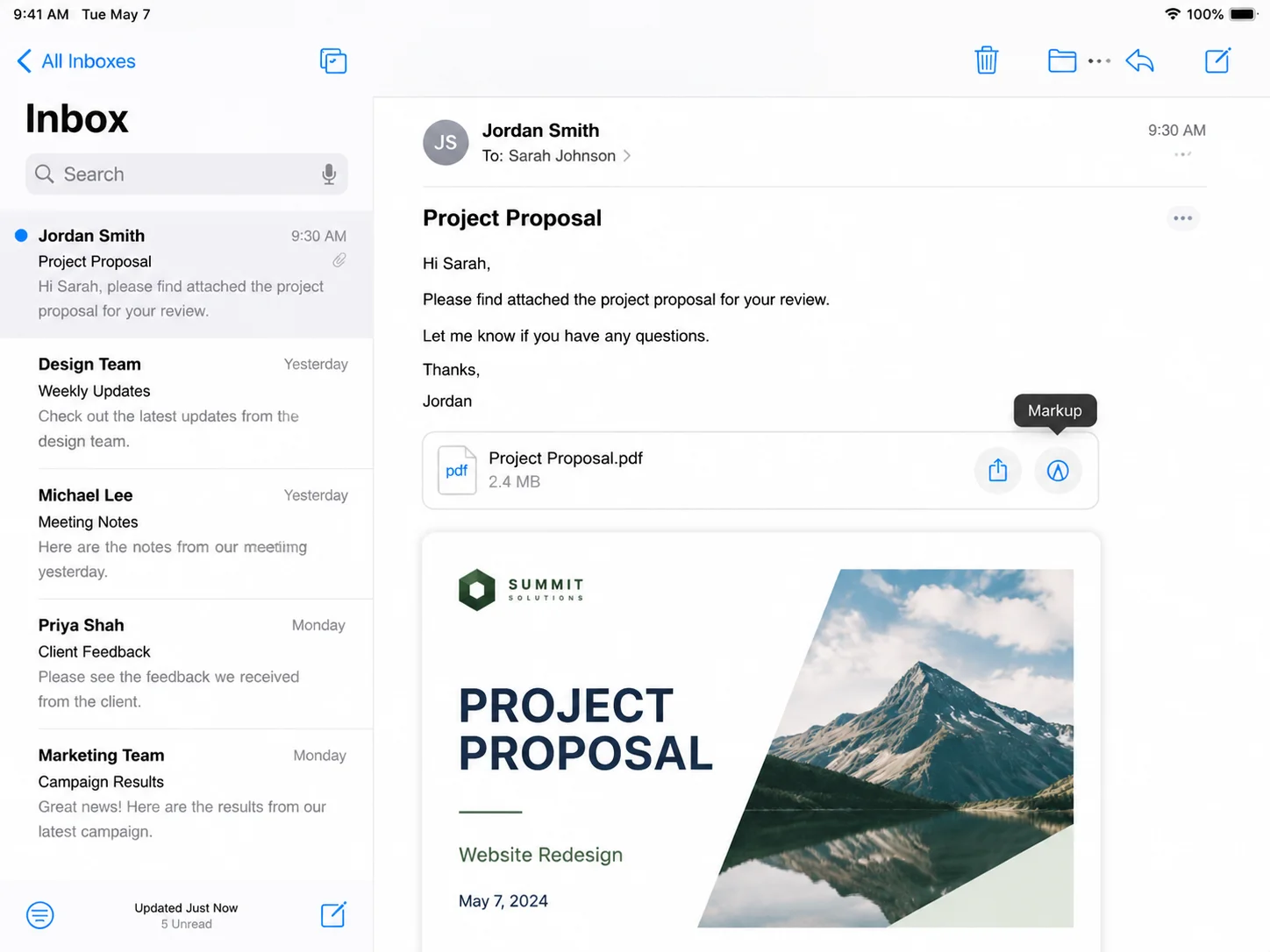
When a PDF arrives as an email attachment, there is no need to save it first.
- In Mail, tap and hold the attachment, then choose Markup (or tap the attachment and then the Markup icon).
- Annotate, sign, or complete PDF forms that include interactive fields.
- Tap Done, then tap Share to reply with the edited copy attached.
This is the quickest route for signing a document someone emailed you and sending it right back.
Method 3: The Books App for Reading and Highlighting
For longer documents such as reports or manuals, the Books app is comfortable for reading and marking up.
- Open the PDF and choose Share → Books, or open it directly if Books is your default PDF reader.
- Use the highlight and note tools to mark key passages, and add sticky notes as a quick way to add comments beside a paragraph.
- Highlights, sticky notes, and comments sync across your Apple devices through iCloud.
Books is built for annotation and review rather than editing text, so treat it as a markup and reading tool.
Method 4: The Notes App for Scanning and Combining
The Notes app doubles as a light PDF tool, especially for turning paper into a clean digital file.
- Open a note and tap the camera icon, then Scan Documents. You can also pull in an existing shot from the Photos app.
- Capture each page. Notes automatically straightens and crops them.
- Tap Save, then share the result as a PDF.
- Use the Markup tools inside Notes to sign or annotate the scan.
This is handy when you need to add a physical page to an existing PDF or digitize a signed form. To insert blank pages as a cover or divider, scan a plain sheet of paper, which drops a blank page into the sequence.
Method 5: Third-Party Apps for Real Text Editing
The native tools stop short of rewriting the existing text that is already in a PDF. For advanced PDF editing, where you need to edit text, change text in place, or replace images, a dedicated PDF editor app is the way to go. When native tools are not enough, PDF editing on an iPhone usually means using a third-party app such as Adobe Acrobat or PDFgear. Popular choices on the App Store include:
- Adobe Acrobat Reader – handles PDF text and lets you edit images with a paid subscription, and syncs with Adobe cloud storage.
- PDF Expert – strong text editing, page management, and annotation; automatically detects the original font and size while you edit, and can add images and links to PDFs.
- Xodo and PDFgear – free options, with PDFgear offering a free editor without watermark restrictions, text editing with custom colors and fonts, and simpler form filling and signing on iPhone.
- Foxit PDF Editor – full editing features plus e-signature support; you can find it with an App Store search before installing.
- Lumin PDF – supports annotation and signing for free on iPhone.
Most follow the same pattern: open the file, tap Edit, then tap the text block you want to change. The app will usually open a text box for editing. From there you can rewrite existing text, adjust font size, replace images, or delete a page you no longer need, and some apps also let you place symbols or stamps in forms. Free tiers usually cover annotation and form filling, while deeper text editing and adding images sit behind a subscription. If the job is large, some people mirror the file to a desktop editor for a bigger screen and finish there.
Method 6: Convert to a Document With Google Drive or Word
When a PDF needs heavy rewriting, converting it into an editable document first is often faster than fighting with a PDF editor.
Using Google Drive and Docs:
- Upload the PDF to Google Drive.
- Open it, then choose Open with → Google Docs.
- Docs converts the text into an editable document. Edit freely, then export back to PDF with File → Download → PDF.
Using the Microsoft Word app:
- Open the PDF inside the Word app.
- Word converts it to an editable layout.
- Make changes, then save or export as a PDF.
This route also helps when compiling reports from multiple PDFs, since the content lands in one editable document you can rearrange freely. Formatting can shift during conversion, especially with large PDFs, complex layouts, or tables, so review the result before sending.
Method 7: Web-Based Editors in Safari
If installing an app is off the table, browser tools handle one-off jobs.
- Open iLovePDF, Smallpdf, or Sejda in Safari.
- Upload the PDF from your Files app.
- Edit, merge, split, or compress in the browser.
- Download the finished file back to your phone.
These services are convenient for occasional tasks and offer easy sharing through a download link once you finish. For anything holding sensitive information, check the provider's data handling policy before uploading, since the file leaves your device.
Method 8: Automate With the Shortcuts App
For tasks you repeat often, the Shortcuts app can chain PDF actions together.
- Open Shortcuts and create a new shortcut.
- Add actions such as Make PDF, Combine Images, or Optimize File Size.
- Run the shortcut from the share sheet whenever you need it.
A common example is a shortcut that takes several photos and outputs a single merged PDF, saving several manual steps each time.
Troubleshooting Common Issues
The Markup icon is missing. Make sure the file is actually a PDF and that it opened in a viewer that supports Markup, such as Files, Mail, or Books. Some third-party viewers hide the native toolbar.
You can annotate but cannot edit the text. The native tools only add content on top of the page. Changing existing text requires a dedicated editor (Method 5) or a conversion step (Method 6).
The PDF is a scan, and nothing is selectable: A scanned document is an image, so there is no live text to edit. It needs Optical Character Recognition (OCR) to become searchable and editable. Adobe Scan and several PDF editors include OCR, and teams handling this at scale often turn to a library such as IronOCR to read text from scanned files automatically.
The file is password protected: Editing is blocked until the document is unlocked. Open it with the password first, and remember that some files also carry separate permission restrictions set by the sender.
The signature will not save or reposition - Draw the signature slowly and fully within the box. If placement is stubborn, zoom in before dragging, since small targets are easier to move at a larger scale.
The exported file is too large to email - Use the compress option in a web tool or a PDF editor before sending, or share it through a cloud link instead of an attachment.
Editing PDFs Programmatically With IronPDF
The methods above work well for one document at a time. When the same edit needs to run across hundreds or thousands of files, doing it by hand on a phone stops being practical. That is where a code-based approach fits, and it is the point where a developer on your team might get involved.
IronPDF is a .NET library that edits PDFs in code, so tasks like stamping a signature, adding a watermark, or inserting text can run automatically on a server or inside an app. A single stamp applied to one document is the same operation whether it runs once or ten thousand times.
using IronPdf;
using IronPdf.Editing;

// Open an existing PDF
var pdf = PdfDocument.FromFile("contract.pdf");

// Add a text stamp to every page, similar to Markup on iPhone
var stamp = new HtmlStamper("<h2 style='color:red'>APPROVED</h2>")
{
    VerticalAlignment = VerticalAlignment.Top,
    HorizontalAlignment = HorizontalAlignment.Right,
    Opacity = 80
};

pdf.ApplyStamp(stamp);
pdf.SaveAs("contract-approved.pdf");
using IronPdf;
using IronPdf.Editing;

// Open an existing PDF
var pdf = PdfDocument.FromFile("contract.pdf");

// Add a text stamp to every page, similar to Markup on iPhone
var stamp = new HtmlStamper("<h2 style='color:red'>APPROVED</h2>")
{
    VerticalAlignment = VerticalAlignment.Top,
    HorizontalAlignment = HorizontalAlignment.Right,
    Opacity = 80
};

pdf.ApplyStamp(stamp);
pdf.SaveAs("contract-approved.pdf");
C#
The same library handles merging, splitting, form filling, and signing, which turns the manual steps in this article into a repeatable, automated process. For a single contract on your phone, Markup wins. For an entire folder of them every week, code is the calmer path.
If your work regularly involves batches of PDFs that all need the same treatment, exploring a programmatic PDF editing approach is worth the time, and it slots neatly alongside the on-device tools covered above for everything else. You can also download a free trial to explore its features in your own projects.