using IronPdf;

// Disable local disk access or cross-origin requests
Installation.EnableWebSecurity = true;

// Instantiate Renderer
var renderer = new ChromePdfRenderer();

// Create a PDF from a HTML string using C#
var pdf = renderer.RenderHtmlAsPdf("<h1>Hello World</h1>");

// Export to a file or Stream
pdf.SaveAs("output.pdf");

// Advanced Example with HTML Assets
// Load external html assets: Images, CSS and JavaScript.
// An optional BasePath 'C:\site\assets\' is set as the file location to load assets from
var myAdvancedPdf = renderer.RenderHtmlAsPdf("<img src='icons/iron.png'>", @"C:\site\assets\");
myAdvancedPdf.SaveAs("html-with-assets.pdf");
using IronPdf;// Disable local disk access or cross-origin requestsInstallation.EnableWebSecurity = true;// Instantiate Renderervar renderer = new ChromePdfRenderer();// Create a PDF from a HTML string using C#var pdf = renderer.RenderHtmlAsPdf("<h1>Hello World</h1>");// Export to a file or Streampdf.SaveAs("output.pdf");// Advanced Example with HTML Assets// Load external html assets: Images, CSS and JavaScript.// An optional BasePath 'C:\site\assets\' is set as the file location to load assets fromvar myAdvancedPdf = renderer.RenderHtmlAsPdf("<img src='icons/iron.png'>", @"C:\site\assets\");myAdvancedPdf.SaveAs("html-with-assets.pdf");
**Merging PDF files in C# takes just a few lines of code with IronPDF -- load your PDFs using `PdfDocument.FromFile()` and combine them with the `Merge()` method, eliminating manual document handling and complex processing logic.**
Dealing with separate document files and reports can slow down any workflow. Spending time manually combining PDF files or struggling with outdated tools wastes developer effort. This tutorial shows you how to merge PDF files programmatically in C# using the [IronPDF library](https://ironpdf.com/). The process is straightforward -- even for documents with complex formatting, embedded fonts, and interactive form fields.
Whether you're building ASP.NET applications, working with Windows Forms, or developing cloud-based solutions, IronPDF provides a production-ready solution for PDF manipulation and document management. The library's Chrome-based rendering engine ensures pixel-perfect fidelity when [merging PDFs](https://ironpdf.com/how-to/merge-or-split-pdfs/), preserving all formatting, fonts, and form data.
## How Do You Install IronPDF for C#?
Download the NuGet package using the Package Manager Console or the .NET CLI:
```bash
:ProductInstall
```
```bash
:InstallCmd dotnet add package IronPdf
```
IronPDF is compatible with .NET Framework, .NET Core, and .NET 10, as well as Linux, macOS, Azure, and AWS. This makes it suitable for modern cross-platform applications targeting .NET 10. For more details, see the [installation overview](https://ironpdf.com/get-started/installation-overview/).
Add the namespace at the top of your C# file to access all PDF controls and methods:
```csharp
using IronPdf;
```
!!!--LIBRARY_GET_STARTED_WITH_PRODUCT_TRIAL_BLOCK--!!!
## How Do You Merge Two PDF Files?
The following C# example loads two PDF documents and merges them into a single output file:
```csharp
using IronPdf;

var pdf1 = PdfDocument.FromFile("Report1.pdf");
var pdf2 = PdfDocument.FromFile("Report2.pdf");

var mergedPdf = PdfDocument.Merge(pdf1, pdf2);
mergedPdf.SaveAs("MergedReport.pdf");
```
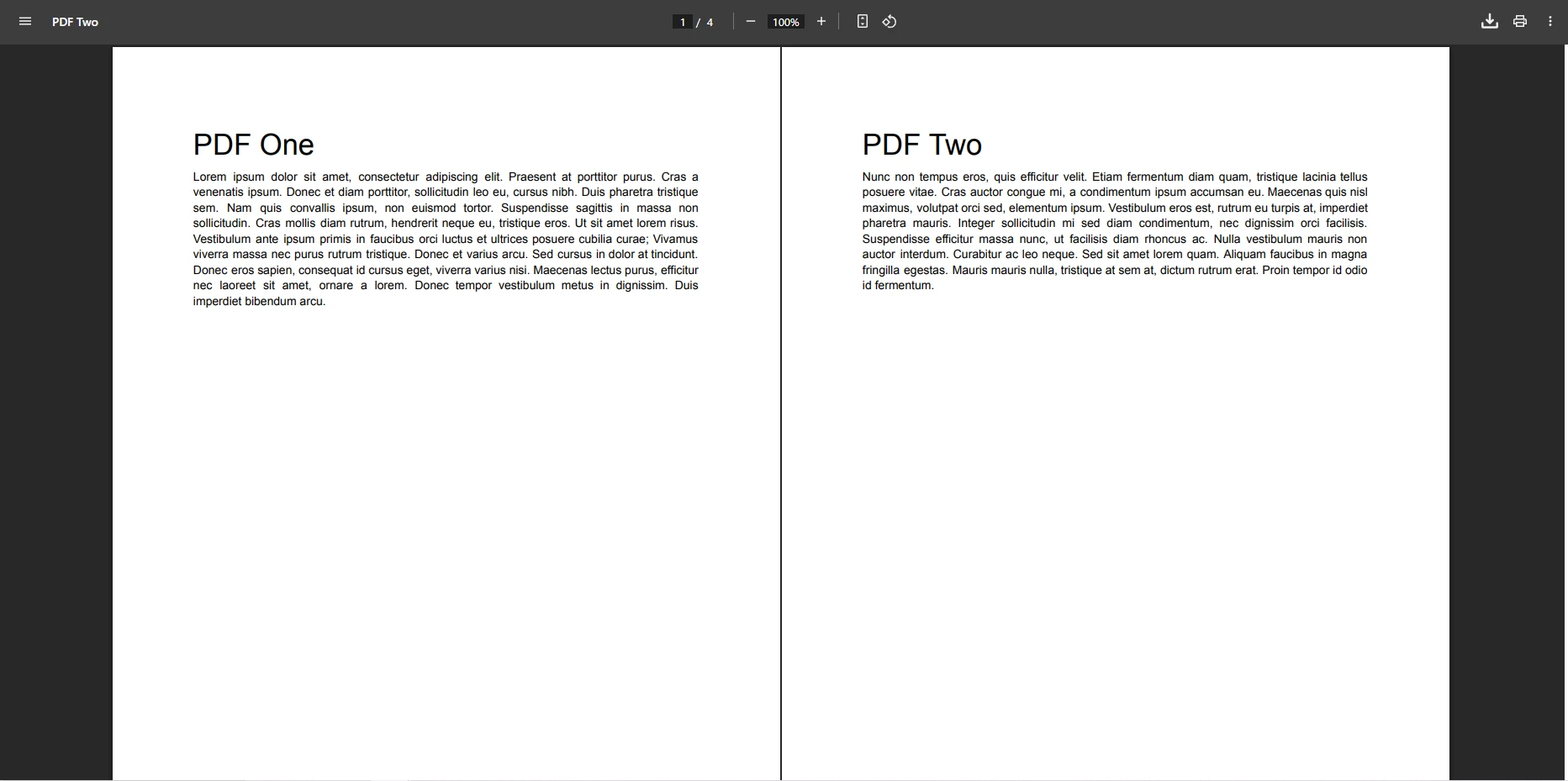
This loads two PDF files using `FromFile` from disk, combines them with the `Merge` static method, and saves the result. The merge preserves all formatting, embedded form fields, metadata, bookmarks, and annotations. The method works with PDFs created from various sources, whether converted from HTML, generated from URLs, or produced from images.
### What Does the Output PDF File Look Like?
## How Do You Merge Multiple PDF Files at Once?
When you need to combine more than two documents, pass an array of `PdfDocument` objects to the `Merge` method:
```csharp
using IronPdf;
string[] pdfFiles = { "January.pdf", "February.pdf", "March.pdf", "April.pdf" };
var pdfs = pdfFiles.Select(PdfDocument.FromFile).ToArray();
var merged = PdfDocument.Merge(pdfs);
merged.SaveAs("QuarterlyReport.pdf");
```
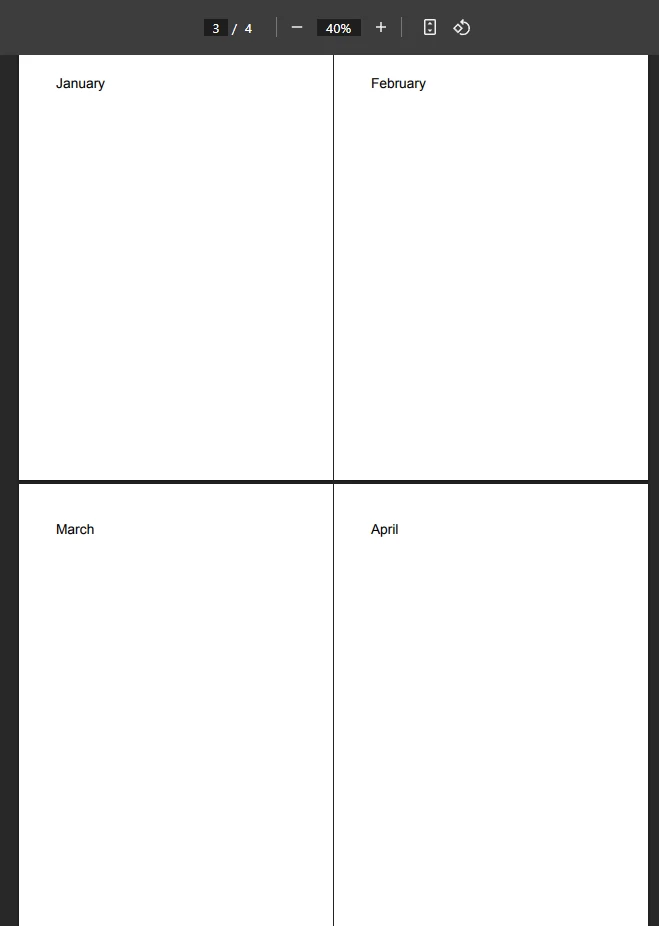
This loads multiple PDF files into `PdfDocument` objects and combines them in a single operation. The `Merge` static method accepts arrays for batch processing. A few lines of C# code are enough to process multiple PDFs at once.
For improved throughput when dealing with many files, consider [async operations](https://ironpdf.com/how-to/async/) or parallel processing. IronPDF's multithreading support maintains solid performance even with large document batches. When working with memory-intensive operations, proper resource management and disposal of `PdfDocument` objects is important.
### How Do You Merge an Entire Folder of PDFs with Error Handling?
The example below reads all PDF files from a directory, sorts them by name for consistent ordering, and merges them with per-file error handling:
```csharp
using IronPdf;
using System.IO;
string pdfDirectory = @"C:\Reports\Monthly\";
string[] pdfFiles = Directory.GetFiles(pdfDirectory, "*.pdf");
Array.Sort(pdfFiles);
var pdfs = new List<PdfDocument>();
foreach (var file in pdfFiles)
{
try
{
pdfs.Add(PdfDocument.FromFile(file));
Console.WriteLine($"Loaded: {Path.GetFileName(file)}");
}
catch (Exception ex)
{
Console.WriteLine($"Error loading {file}: {ex.Message}");
}
}
if (pdfs.Count > 0)
{
var merged = PdfDocument.Merge(pdfs.ToArray());
merged.MetaData.Author = "Report Generator";
merged.MetaData.CreationDate = DateTime.Now;
merged.MetaData.Title = "Consolidated Monthly Reports";
merged.SaveAs("ConsolidatedReports.pdf");
Console.WriteLine("Merge completed successfully!");
}
```
### What Does a Merged Multi-File PDF Look Like?
## How Do You Merge Specific Pages from PDF Documents?
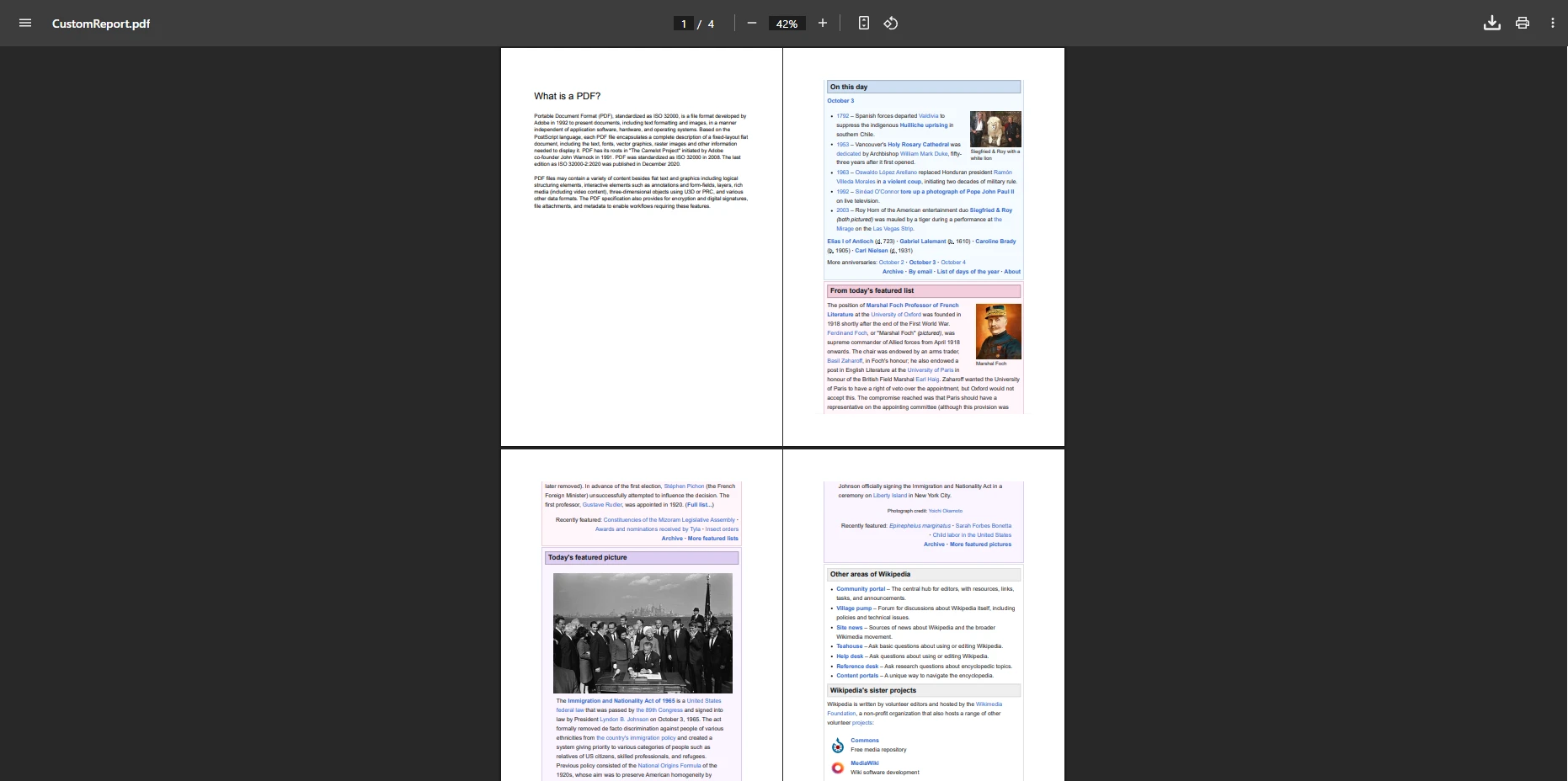
You can extract individual pages or page ranges before merging. `CopyPage` extracts one page by zero-based index, while `CopyPages` extracts a range:
```csharp
using IronPdf;
var doc1 = PdfDocument.FromFile("PdfOne.pdf");
var doc2 = PdfDocument.FromFile("PdfTwo.pdf");
var firstPage = doc2.CopyPage(0);
var selectedRange = doc1.CopyPages(2, 4);
var result = PdfDocument.Merge(firstPage, selectedRange);
result.SaveAs("CustomPdf.pdf");
```
This creates an output file with only the relevant pages from larger source documents. The [page manipulation API](https://ironpdf.com/how-to/add-copy-delete-pages-pdf/) gives you precise control over document structure. You can also rotate pages, add page numbers, or insert page breaks as needed.
### How Do You Assemble a Custom Document from Multiple Sources?
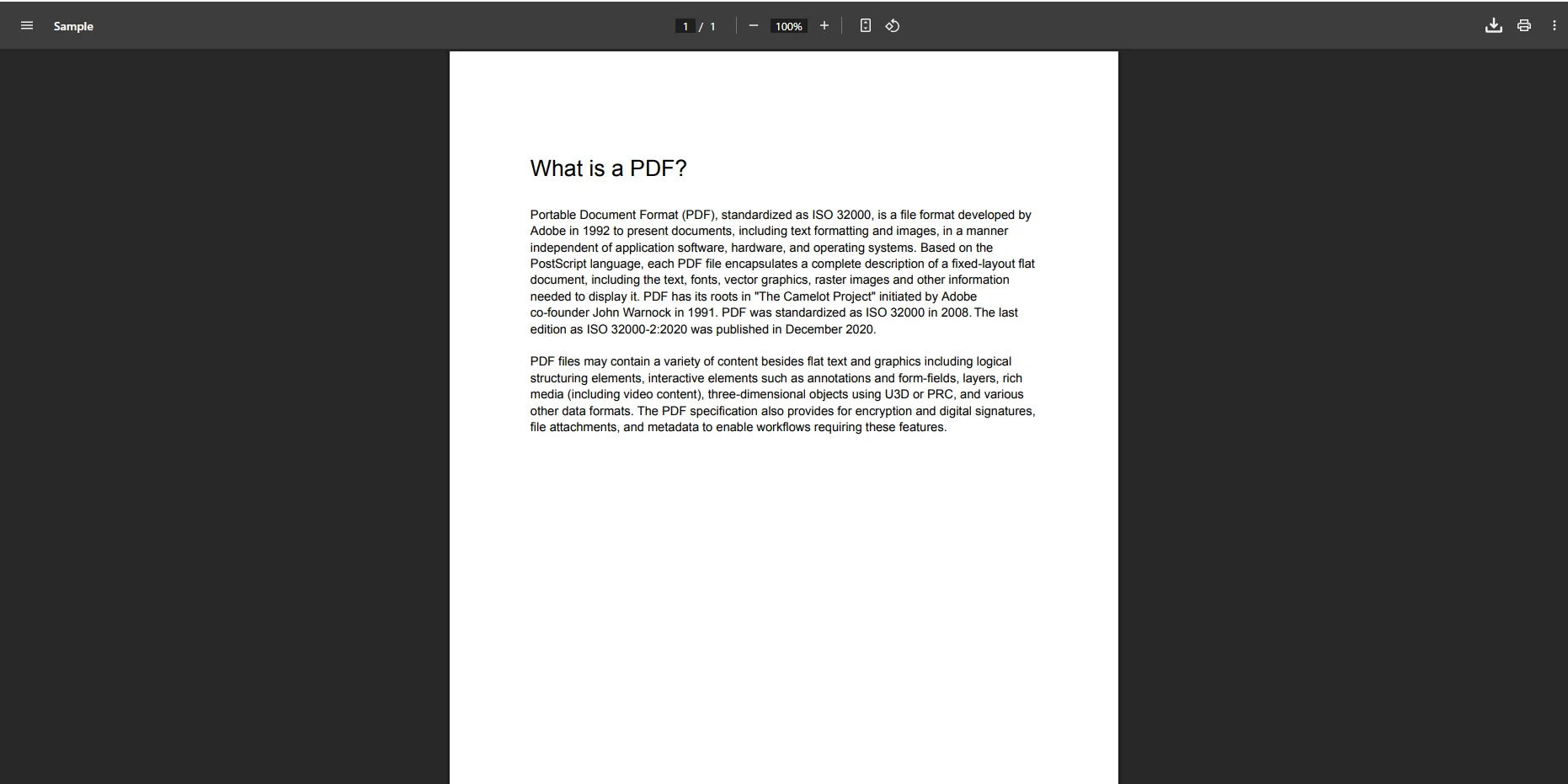
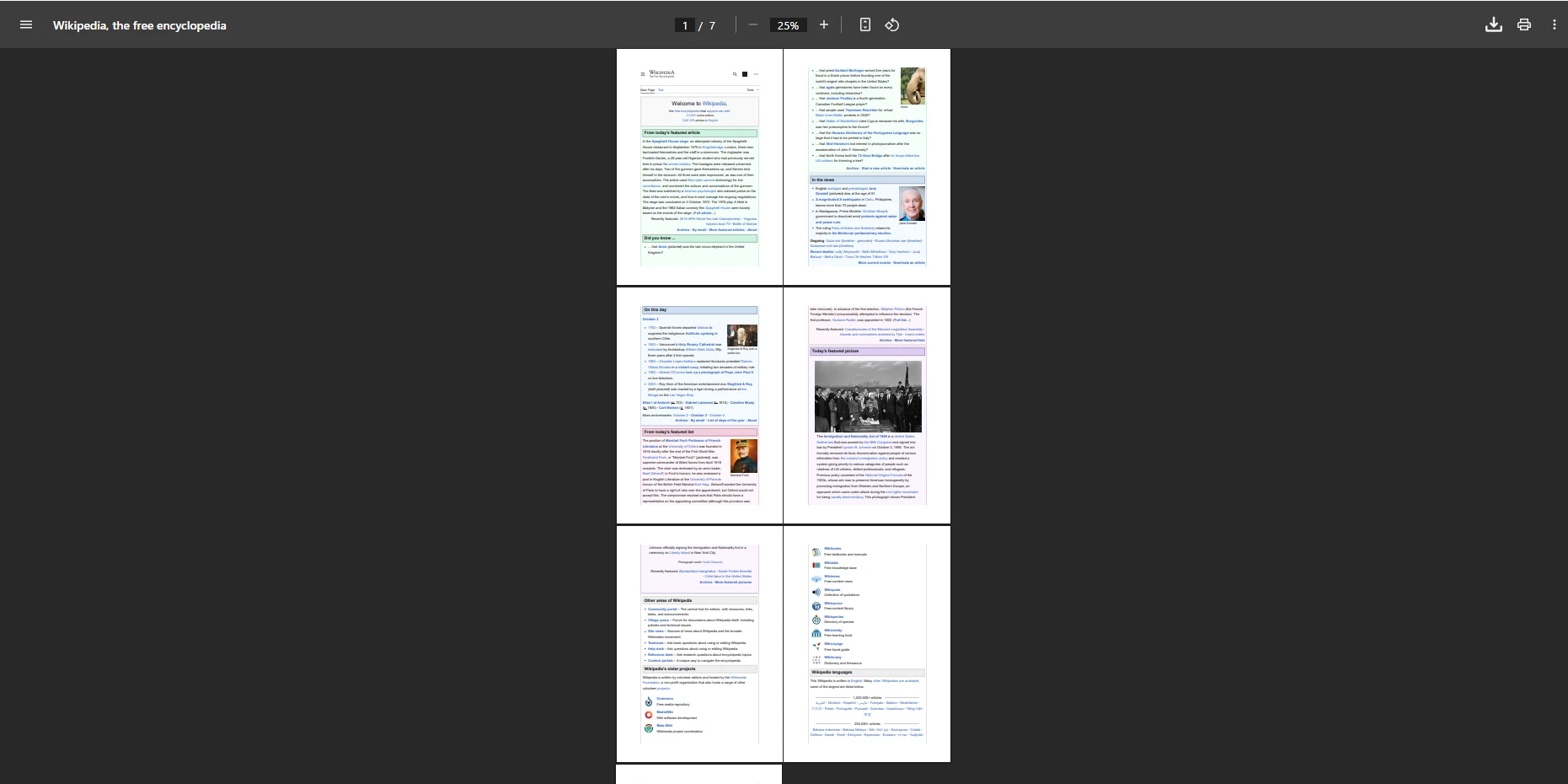
The following example extracts sections from three separate documents -- a contract, an appendix, and a terms file -- and combines them into a targeted package:
```csharp
using IronPdf;
var contract = PdfDocument.FromFile("Contract.pdf");
var appendix = PdfDocument.FromFile("Appendix.pdf");
var terms = PdfDocument.FromFile("Terms.pdf");
// Extract specific sections
var contractPages = contract.CopyPages(0, 5); // First 6 pages
var appendixCover = appendix.CopyPage(0); // Cover page only
var termsHighlight = terms.CopyPages(3, 4); // Pages 4-5
// Merge selected pages
var customDoc = PdfDocument.Merge(contractPages, appendixCover, termsHighlight);
customDoc.AddTextHeaders(
"Contract Package - {page} of {total-pages}",
IronPdf.Editing.FontFamily.Helvetica, 12);
customDoc.SaveAs("ContractPackage.pdf");
```
### What Do the Input PDF Files Look Like?
### How Does Page-Specific Merging Affect the Output?
## How Do You Merge PDF Documents from Memory Streams?
When your application receives PDF data as byte arrays -- from uploaded files, database records, or web service responses -- you can merge directly from memory without touching the file system:
```csharp
using IronPdf;
using System.IO;
using var stream1 = new MemoryStream(File.ReadAllBytes("Doc1.pdf"));
using var stream2 = new MemoryStream(File.ReadAllBytes("Doc2.pdf"));
var pdf1 = new PdfDocument(stream1);
var pdf2 = new PdfDocument(stream2);
var merged = PdfDocument.Merge(pdf1, pdf2);
merged.SaveAs("Output.pdf");
```
This pattern is well suited to ASP.NET applications that process uploaded files and to cloud deployments where direct file system access is restricted. The same approach works when retrieving files from Azure Blob Storage or calling external web services that return raw PDF bytes.
### When Should You Use Memory Streams for PDF Merging?
Memory streams are a good fit when:
- Working with uploaded files in web applications
- Processing PDFs retrieved from database BLOB fields
- Operating in containerized environments without a writable file system
- Implementing secure document handling without creating temporary files on disk
- Building microservices that process PDFs end-to-end in memory
## What Is a Real-World PDF Report Compilation Workflow?
The following example generates a dynamic HTML cover page, loads existing report sections, applies a confidential watermark, merges everything in order, and secures the output:
```csharp
using IronPdf;
using System;
var reportDate = DateTime.Now;
var quarter = $"Q{(int)Math.Ceiling(reportDate.Month / 3.0)}";
var coverHtml = $@"
<html>
<body style='text-align: center; padding-top: 200px;'>
<h1>Financial Report {quarter} {reportDate.Year}</h1>
<h2>{reportDate:MMMM yyyy}</h2>
<p>Confidential -- Internal Use Only</p>
</body>
</html>";
var renderer = new ChromePdfRenderer();
renderer.RenderingOptions.PaperSize = IronPdf.Rendering.PdfPaperSize.A4;
renderer.RenderingOptions.MarginTop = 40;
renderer.RenderingOptions.MarginBottom = 40;
var dynamicCover = renderer.RenderHtmlAsPdf(coverHtml);
var executive = PdfDocument.FromFile("ExecutiveSummary.pdf");
var financial = PdfDocument.FromFile("FinancialData.pdf");
var charts = PdfDocument.FromFile("Charts.pdf");
var appendix = PdfDocument.FromFile("Appendix.pdf");
financial.ApplyWatermark("<h2 style='color: red; opacity: 0.5;'>CONFIDENTIAL</h2>");
var fullReport = PdfDocument.Merge(dynamicCover, executive, financial, charts, appendix);
fullReport.MetaData.Title = $"Financial Report {quarter} {reportDate.Year}";
fullReport.MetaData.Author = "Finance Department";
fullReport.MetaData.Subject = "Quarterly Financial Performance";
fullReport.MetaData.CreationDate = reportDate;
fullReport.AddTextHeaders(
$"{quarter} Financial Report",
IronPdf.Editing.FontFamily.Arial, 10);
fullReport.AddTextFooters(
"Page {page} of {total-pages} | Confidential",
IronPdf.Editing.FontFamily.Arial, 8);
fullReport.SecuritySettings.UserPassword = "reader123";
fullReport.SecuritySettings.OwnerPassword = "admin456";
fullReport.SecuritySettings.AllowUserPrinting = true;
fullReport.SecuritySettings.AllowUserCopyPasteContent = false;
fullReport.CompressImages(90);
fullReport.SaveAs($"Financial_Report_{quarter}_{reportDate.Year}.pdf");
Console.WriteLine($"Report generated: {fullReport.PageCount} pages");
```
This demonstrates merging documents in a specific order, adding PDF metadata, applying watermarks, and securing the output with [password protection](https://ironpdf.com/how-to/pdf-permissions-passwords/). Metadata management is important for document organization and compliance. For archival-standard output, see the [PDF/A compliance guide](https://ironpdf.com/how-to/pdfa/).
### Why Does Document Order Matter When Merging?
Document order directly affects the reader's experience and technical structure:
- Navigation flow and table of contents accuracy depend on section sequence
- Page numbering continuity requires all sections to appear in the intended order
- Header and footer consistency across merged sections relies on proper ordering
- Bookmark hierarchy and reader navigation follow the merge sequence
- Form field tab order in interactive PDFs inherits document position
Always define a clear section order before calling `Merge` so the output reads logically from cover to appendix.
## What Are the Best Practices for Merging PDFs in C#?
Following a few guidelines ensures merged PDFs are reliable in production:
<table class="content__data-table" data-content-table>
<caption>PDF Merging Best Practices</caption>
<thead>
<tr>
<th>Practice</th>
<th>Why It Matters</th>
<th>Guidance</th>
</tr>
</thead>
<tbody>
<tr>
<td>Validate input files before loading</td>
<td>Prevents null reference exceptions on missing files</td>
<td>Use <code>File.Exists()</code> before calling <code>FromFile()</code></td>
</tr>
<tr>
<td>Dispose PdfDocument objects after use</td>
<td>Releases native memory held by the rendering engine</td>
<td>Wrap in <code>using</code> blocks or call <code>.Dispose()</code></td>
</tr>
<tr>
<td>Use batch processing for large collections</td>
<td>Avoids out-of-memory errors on large file sets</td>
<td>Merge in groups of 10-20 files, then merge the batch results</td>
</tr>
<tr>
<td>Compress images after merging</td>
<td>Reduces output file size without visible quality loss</td>
<td>Call <code>CompressImages(85)</code> on the merged document</td>
</tr>
<tr>
<td>Embed fonts in source documents</td>
<td>Prevents font substitution in the merged output</td>
<td>Verify source PDFs have embedded fonts before merging</td>
</tr>
<tr>
<td>Rename form fields before merging</td>
<td>Avoids field name collisions across source documents</td>
<td>Enumerate and rename duplicate field names programmatically</td>
</tr>
</tbody>
</table>
For industry standards on PDF structure and interchange, visit the [PDF Association](https://www.pdfa.org/). Community answers and code examples are available on [Stack Overflow](https://stackoverflow.com/questions/tagged/ironpdf). The [NuGet Gallery page for IronPDF](https://www.nuget.org/packages/IronPdf/) lists all available versions and release notes. For advanced configuration options and production licensing, see [IronPDF licensing](https://ironpdf.com/licensing/).
### How Do You Handle Common Merging Errors?
The five most frequent issues and their solutions:
1. **Memory issues with large files** -- Use memory streams and batch processing to keep heap usage manageable. Dispose each `PdfDocument` after it is no longer needed.
2. **Font problems in merged output** -- Ensure fonts are embedded in source PDFs before merging. Missing fonts cause substitution or missing characters in the output.
3. **Form field conflicts** -- Rename duplicate field names programmatically before calling `Merge`. Fields with the same name across documents will share values.
4. **Performance bottlenecks on large batches** -- Switch to async methods and process files in parallel where dependencies allow. See [IronPDF async documentation](https://ironpdf.com/how-to/async/) for examples.
5. **Security restrictions on source PDFs** -- Supply owner passwords before attempting to read and merge password-protected documents. See [PDF permissions documentation](https://ironpdf.com/how-to/pdf-permissions-passwords/).
## How Do You Get Started with IronPDF for Free?
IronPDF reduces PDF merging in C# to a handful of lines of code. Whether combining two files or processing entire folder trees, the library handles the complexity while you focus on your .NET 10 application. The [complete feature set](https://ironpdf.com/features/) includes HTML to PDF conversion, PDF editing, form handling, and digital signatures.
The straightforward API eliminates complex PDF manipulation, making it the right choice for developers who need reliable merging without deep document-format expertise. From simple two-file combinations to page-level selection across dozens of sources, IronPDF provides all the tools for professional document management. The cross-platform support ensures your solution works on Windows, Linux, macOS, and cloud platforms.
For production use, IronPDF offers [flexible licensing](https://ironpdf.com/licensing/) with transparent pricing. The [24/5 support team](https://ironpdf.com/troubleshooting/engineering-support-for-ironpdf/) and [extensive documentation](https://ironpdf.com/docs/) are available when you need help. Compare IronPDF with [other PDF libraries](https://ironpdf.com/competitors/itext-vs-ironpdf/) to see why development teams choose it for enterprise document generation.
[Start a free trial](https://ironpdf.com/licensing/) to test merging in your project -- no credit card required.
Merging PDF files in C# takes just a few lines of code with IronPDF -- load your PDFs using PdfDocument.FromFile() and combine them with the Merge() method, eliminating manual document handling and complex processing logic.
Dealing with separate document files and reports can slow down any workflow. Spending time manually combining PDF files or struggling with outdated tools wastes developer effort. This tutorial shows you how to merge PDF files programmatically in C# using the IronPDF library. The process is straightforward -- even for documents with complex formatting, embedded fonts, and interactive form fields.
Whether you're building ASP.NET applications, working with Windows Forms, or developing cloud-based solutions, IronPDF provides a production-ready solution for PDF manipulation and document management. The library's Chrome-based rendering engine ensures pixel-perfect fidelity when merging PDFs, preserving all formatting, fonts, and form data.
How Do You Install IronPDF for C#?
Download the NuGet package using the Package Manager Console or the .NET CLI:
PM > Install-Package IronPdf
Install-Package IronPdf
> dotnet add package IronPdf
dotnet add package IronPdf
IronPDF is compatible with .NET Framework, .NET Core, and .NET 10, as well as Linux, macOS, Azure, and AWS. This makes it suitable for modern cross-platform applications targeting .NET 10. For more details, see the installation overview.
Add the namespace at the top of your C# file to access all PDF controls and methods:
using IronPdf;
using IronPdf;
ImportsIronPdf
Imports IronPdf
First Step:
How Do You Merge Two PDF Files?
The following C# example loads two PDF documents and merges them into a single output file:
using IronPdf;

var pdf1 = PdfDocument.FromFile("Report1.pdf");
var pdf2 = PdfDocument.FromFile("Report2.pdf");

var mergedPdf = PdfDocument.Merge(pdf1, pdf2);
mergedPdf.SaveAs("MergedReport.pdf");
Imports IronPdf

Dim pdf1 = PdfDocument.FromFile("Report1.pdf")
Dim pdf2 = PdfDocument.FromFile("Report2.pdf")

Dim mergedPdf = PdfDocument.Merge(pdf1, pdf2)
mergedPdf.SaveAs("MergedReport.pdf")
This loads two PDF files using FromFile from disk, combines them with the Merge static method, and saves the result. The merge preserves all formatting, embedded form fields, metadata, bookmarks, and annotations. The method works with PDFs created from various sources, whether converted from HTML, generated from URLs, or produced from images.
What Does the Output PDF File Look Like?
How Do You Merge Multiple PDF Files at Once?
When you need to combine more than two documents, pass an array of PdfDocument objects to the Merge method:
Imports IronPdf

Dim pdfFiles As String() = {"January.pdf", "February.pdf", "March.pdf", "April.pdf"}

Dim pdfs = pdfFiles.Select(AddressOf PdfDocument.FromFile).ToArray()

Dim merged = PdfDocument.Merge(pdfs)
merged.SaveAs("QuarterlyReport.pdf")
This loads multiple PDF files into PdfDocument objects and combines them in a single operation. The Merge static method accepts arrays for batch processing. A few lines of C# code are enough to process multiple PDFs at once.
For improved throughput when dealing with many files, consider async operations or parallel processing. IronPDF's multithreading support maintains solid performance even with large document batches. When working with memory-intensive operations, proper resource management and disposal of PdfDocument objects is important.
How Do You Merge an Entire Folder of PDFs with Error Handling?
The example below reads all PDF files from a directory, sorts them by name for consistent ordering, and merges them with per-file error handling:
using IronPdf;
using System.IO;

string pdfDirectory = @"C:\Reports\Monthly\";
string[] pdfFiles = Directory.GetFiles(pdfDirectory, "*.pdf");
Array.Sort(pdfFiles);

var pdfs = new List<PdfDocument>();

foreach (var file in pdfFiles)
{
    try
    {
        pdfs.Add(PdfDocument.FromFile(file));
        Console.WriteLine($"Loaded: {Path.GetFileName(file)}");
    }
    catch (Exception ex)
    {
        Console.WriteLine($"Error loading {file}: {ex.Message}");
    }
}

if (pdfs.Count > 0)
{
    var merged = PdfDocument.Merge(pdfs.ToArray());
    merged.MetaData.Author = "Report Generator";
    merged.MetaData.CreationDate = DateTime.Now;
    merged.MetaData.Title = "Consolidated Monthly Reports";
    merged.SaveAs("ConsolidatedReports.pdf");
    Console.WriteLine("Merge completed successfully!");
}
ImportsIronPdfImportsSystem.IODim pdfDirectory AsString = "C:\Reports\Monthly\"Dim pdfFiles AsString() = Directory.GetFiles(pdfDirectory, "*.pdf")Array.Sort(pdfFiles)Dim pdfs As New List(OfPdfDocument)()For Each file In pdfFilesTry pdfs.Add(PdfDocument.FromFile(file))Console.WriteLine($"Loaded: {Path.GetFileName(file)}")Catch ex AsExceptionConsole.WriteLine($"Error loading {file}: {ex.Message}")EndTryNextIf pdfs.Count > 0 Then Dim merged AsPdfDocument = PdfDocument.Merge(pdfs.ToArray()) merged.MetaData.Author = "Report Generator" merged.MetaData.CreationDate = DateTime.Now merged.MetaData.Title = "Consolidated Monthly Reports" merged.SaveAs("ConsolidatedReports.pdf")Console.WriteLine("Merge completed successfully!")End If
Imports IronPdf
Imports System.IO

Dim pdfDirectory As String = "C:\Reports\Monthly\"
Dim pdfFiles As String() = Directory.GetFiles(pdfDirectory, "*.pdf")
Array.Sort(pdfFiles)

Dim pdfs As New List(Of PdfDocument)()

For Each file In pdfFiles
    Try
        pdfs.Add(PdfDocument.FromFile(file))
        Console.WriteLine($"Loaded: {Path.GetFileName(file)}")
    Catch ex As Exception
        Console.WriteLine($"Error loading {file}: {ex.Message}")
    End Try
Next

If pdfs.Count > 0 Then
    Dim merged As PdfDocument = PdfDocument.Merge(pdfs.ToArray())
    merged.MetaData.Author = "Report Generator"
    merged.MetaData.CreationDate = DateTime.Now
    merged.MetaData.Title = "Consolidated Monthly Reports"
    merged.SaveAs("ConsolidatedReports.pdf")
    Console.WriteLine("Merge completed successfully!")
End If
What Does a Merged Multi-File PDF Look Like?
How Do You Merge Specific Pages from PDF Documents?
You can extract individual pages or page ranges before merging. CopyPage extracts one page by zero-based index, while CopyPages extracts a range:
using IronPdf;var doc1 = PdfDocument.FromFile("PdfOne.pdf");var doc2 = PdfDocument.FromFile("PdfTwo.pdf");var firstPage = doc2.CopyPage(0);var selectedRange = doc1.CopyPages(2, 4);var result = PdfDocument.Merge(firstPage, selectedRange);result.SaveAs("CustomPdf.pdf");
using IronPdf;

var doc1 = PdfDocument.FromFile("PdfOne.pdf");
var doc2 = PdfDocument.FromFile("PdfTwo.pdf");

var firstPage = doc2.CopyPage(0);
var selectedRange = doc1.CopyPages(2, 4);

var result = PdfDocument.Merge(firstPage, selectedRange);
result.SaveAs("CustomPdf.pdf");
Imports IronPdf

Dim doc1 = PdfDocument.FromFile("PdfOne.pdf")
Dim doc2 = PdfDocument.FromFile("PdfTwo.pdf")

Dim firstPage = doc2.CopyPage(0)
Dim selectedRange = doc1.CopyPages(2, 4)

Dim result = PdfDocument.Merge(firstPage, selectedRange)
result.SaveAs("CustomPdf.pdf")
This creates an output file with only the relevant pages from larger source documents. The page manipulation API gives you precise control over document structure. You can also rotate pages, add page numbers, or insert page breaks as needed.
How Do You Assemble a Custom Document from Multiple Sources?
The following example extracts sections from three separate documents -- a contract, an appendix, and a terms file -- and combines them into a targeted package:
Imports IronPdf

Dim contract = PdfDocument.FromFile("Contract.pdf")
Dim appendix = PdfDocument.FromFile("Appendix.pdf")
Dim terms = PdfDocument.FromFile("Terms.pdf")

' Extract specific sections
Dim contractPages = contract.CopyPages(0, 5)   ' First 6 pages
Dim appendixCover = appendix.CopyPage(0)       ' Cover page only
Dim termsHighlight = terms.CopyPages(3, 4)     ' Pages 4-5

' Merge selected pages
Dim customDoc = PdfDocument.Merge(contractPages, appendixCover, termsHighlight)

customDoc.AddTextHeaders(
    "Contract Package - {page} of {total-pages}",
    IronPdf.Editing.FontFamily.Helvetica, 12)

customDoc.SaveAs("ContractPackage.pdf")
What Do the Input PDF Files Look Like?
How Does Page-Specific Merging Affect the Output?
How Do You Merge PDF Documents from Memory Streams?
When your application receives PDF data as byte arrays -- from uploaded files, database records, or web service responses -- you can merge directly from memory without touching the file system:
using IronPdf;using System.IO;using var stream1 = new MemoryStream(File.ReadAllBytes("Doc1.pdf"));using var stream2 = new MemoryStream(File.ReadAllBytes("Doc2.pdf"));var pdf1 = new PdfDocument(stream1);var pdf2 = new PdfDocument(stream2);var merged = PdfDocument.Merge(pdf1, pdf2);merged.SaveAs("Output.pdf");
using IronPdf;
using System.IO;

using var stream1 = new MemoryStream(File.ReadAllBytes("Doc1.pdf"));
using var stream2 = new MemoryStream(File.ReadAllBytes("Doc2.pdf"));

var pdf1 = new PdfDocument(stream1);
var pdf2 = new PdfDocument(stream2);

var merged = PdfDocument.Merge(pdf1, pdf2);
merged.SaveAs("Output.pdf");
ImportsIronPdfImportsSystem.IOUsing stream1 As New MemoryStream(File.ReadAllBytes("Doc1.pdf"))Using stream2 As New MemoryStream(File.ReadAllBytes("Doc2.pdf")) Dim pdf1 = New PdfDocument(stream1) Dim pdf2 = New PdfDocument(stream2) Dim merged = PdfDocument.Merge(pdf1, pdf2) merged.SaveAs("Output.pdf")EndUsingEndUsing
Imports IronPdf
Imports System.IO

Using stream1 As New MemoryStream(File.ReadAllBytes("Doc1.pdf"))
    Using stream2 As New MemoryStream(File.ReadAllBytes("Doc2.pdf"))
        Dim pdf1 = New PdfDocument(stream1)
        Dim pdf2 = New PdfDocument(stream2)

        Dim merged = PdfDocument.Merge(pdf1, pdf2)
        merged.SaveAs("Output.pdf")
    End Using
End Using
This pattern is well suited to ASP.NET applications that process uploaded files and to cloud deployments where direct file system access is restricted. The same approach works when retrieving files from Azure Blob Storage or calling external web services that return raw PDF bytes.
When Should You Use Memory Streams for PDF Merging?
Memory streams are a good fit when:
Working with uploaded files in web applications
Processing PDFs retrieved from database BLOB fields
Operating in containerized environments without a writable file system
Implementing secure document handling without creating temporary files on disk
Building microservices that process PDFs end-to-end in memory
What Is a Real-World PDF Report Compilation Workflow?
The following example generates a dynamic HTML cover page, loads existing report sections, applies a confidential watermark, merges everything in order, and secures the output:
using IronPdf;
using System;

var reportDate = DateTime.Now;
var quarter = $"Q{(int)Math.Ceiling(reportDate.Month / 3.0)}";

var coverHtml = $@"
<html>
<body style='text-align: center; padding-top: 200px;'>
    <h1>Financial Report {quarter} {reportDate.Year}</h1>
    <h2>{reportDate:MMMM yyyy}</h2>
    <p>Confidential -- Internal Use Only</p>
</body>
</html>";

var renderer = new ChromePdfRenderer();
renderer.RenderingOptions.PaperSize = IronPdf.Rendering.PdfPaperSize.A4;
renderer.RenderingOptions.MarginTop = 40;
renderer.RenderingOptions.MarginBottom = 40;

var dynamicCover = renderer.RenderHtmlAsPdf(coverHtml);

var executive = PdfDocument.FromFile("ExecutiveSummary.pdf");
var financial = PdfDocument.FromFile("FinancialData.pdf");
var charts = PdfDocument.FromFile("Charts.pdf");
var appendix = PdfDocument.FromFile("Appendix.pdf");

financial.ApplyWatermark("<h2 style='color: red; opacity: 0.5;'>CONFIDENTIAL</h2>");

var fullReport = PdfDocument.Merge(dynamicCover, executive, financial, charts, appendix);

fullReport.MetaData.Title = $"Financial Report {quarter} {reportDate.Year}";
fullReport.MetaData.Author = "Finance Department";
fullReport.MetaData.Subject = "Quarterly Financial Performance";
fullReport.MetaData.CreationDate = reportDate;

fullReport.AddTextHeaders(
    $"{quarter} Financial Report",
    IronPdf.Editing.FontFamily.Arial, 10);

fullReport.AddTextFooters(
    "Page {page} of {total-pages} | Confidential",
    IronPdf.Editing.FontFamily.Arial, 8);

fullReport.SecuritySettings.UserPassword = "reader123";
fullReport.SecuritySettings.OwnerPassword = "admin456";
fullReport.SecuritySettings.AllowUserPrinting = true;
fullReport.SecuritySettings.AllowUserCopyPasteContent = false;

fullReport.CompressImages(90);
fullReport.SaveAs($"Financial_Report_{quarter}_{reportDate.Year}.pdf");

Console.WriteLine($"Report generated: {fullReport.PageCount} pages");
ImportsIronPdfImportsSystemModuleProgram Sub Main() Dim reportDate AsDateTime = DateTime.Now Dim quarter AsString = $"Q{CInt(Math.Ceiling(reportDate.Month / 3.0))}" Dim coverHtml AsString = $"<html><body style='text-align: center; padding-top: 200px;'> <h1>Financial Report {quarter} {reportDate.Year}</h1> <h2>{reportDate:MMMM yyyy}</h2> <p>Confidential -- Internal Use Only</p></body></html>" Dim renderer As New ChromePdfRenderer() renderer.RenderingOptions.PaperSize = IronPdf.Rendering.PdfPaperSize.A4 renderer.RenderingOptions.MarginTop = 40 renderer.RenderingOptions.MarginBottom = 40 Dim dynamicCover AsPdfDocument = renderer.RenderHtmlAsPdf(coverHtml) Dim executive AsPdfDocument = PdfDocument.FromFile("ExecutiveSummary.pdf") Dim financial AsPdfDocument = PdfDocument.FromFile("FinancialData.pdf") Dim charts AsPdfDocument = PdfDocument.FromFile("Charts.pdf") Dim appendix AsPdfDocument = PdfDocument.FromFile("Appendix.pdf") financial.ApplyWatermark("<h2 style='color: red; opacity: 0.5;'>CONFIDENTIAL</h2>") Dim fullReport AsPdfDocument = PdfDocument.Merge(dynamicCover, executive, financial, charts, appendix) fullReport.MetaData.Title = $"Financial Report {quarter} {reportDate.Year}" fullReport.MetaData.Author = "Finance Department" fullReport.MetaData.Subject = "Quarterly Financial Performance" fullReport.MetaData.CreationDate = reportDate fullReport.AddTextHeaders($"{quarter} Financial Report", IronPdf.Editing.FontFamily.Arial, 10) fullReport.AddTextFooters("Page {page} of {total-pages} | Confidential", IronPdf.Editing.FontFamily.Arial, 8) fullReport.SecuritySettings.UserPassword = "reader123" fullReport.SecuritySettings.OwnerPassword = "admin456" fullReport.SecuritySettings.AllowUserPrinting = True fullReport.SecuritySettings.AllowUserCopyPasteContent = False fullReport.CompressImages(90) fullReport.SaveAs($"Financial_Report_{quarter}_{reportDate.Year}.pdf")Console.WriteLine($"Report generated: {fullReport.PageCount} pages") End SubEndModule
Imports IronPdf
Imports System

Module Program
    Sub Main()
        Dim reportDate As DateTime = DateTime.Now
        Dim quarter As String = $"Q{CInt(Math.Ceiling(reportDate.Month / 3.0))}"

        Dim coverHtml As String = $"
<html>
<body style='text-align: center; padding-top: 200px;'>
    <h1>Financial Report {quarter} {reportDate.Year}</h1>
    <h2>{reportDate:MMMM yyyy}</h2>
    <p>Confidential -- Internal Use Only</p>
</body>
</html>"

        Dim renderer As New ChromePdfRenderer()
        renderer.RenderingOptions.PaperSize = IronPdf.Rendering.PdfPaperSize.A4
        renderer.RenderingOptions.MarginTop = 40
        renderer.RenderingOptions.MarginBottom = 40

        Dim dynamicCover As PdfDocument = renderer.RenderHtmlAsPdf(coverHtml)

        Dim executive As PdfDocument = PdfDocument.FromFile("ExecutiveSummary.pdf")
        Dim financial As PdfDocument = PdfDocument.FromFile("FinancialData.pdf")
        Dim charts As PdfDocument = PdfDocument.FromFile("Charts.pdf")
        Dim appendix As PdfDocument = PdfDocument.FromFile("Appendix.pdf")

        financial.ApplyWatermark("<h2 style='color: red; opacity: 0.5;'>CONFIDENTIAL</h2>")

        Dim fullReport As PdfDocument = PdfDocument.Merge(dynamicCover, executive, financial, charts, appendix)

        fullReport.MetaData.Title = $"Financial Report {quarter} {reportDate.Year}"
        fullReport.MetaData.Author = "Finance Department"
        fullReport.MetaData.Subject = "Quarterly Financial Performance"
        fullReport.MetaData.CreationDate = reportDate

        fullReport.AddTextHeaders($"{quarter} Financial Report", IronPdf.Editing.FontFamily.Arial, 10)

        fullReport.AddTextFooters("Page {page} of {total-pages} | Confidential", IronPdf.Editing.FontFamily.Arial, 8)

        fullReport.SecuritySettings.UserPassword = "reader123"
        fullReport.SecuritySettings.OwnerPassword = "admin456"
        fullReport.SecuritySettings.AllowUserPrinting = True
        fullReport.SecuritySettings.AllowUserCopyPasteContent = False

        fullReport.CompressImages(90)
        fullReport.SaveAs($"Financial_Report_{quarter}_{reportDate.Year}.pdf")

        Console.WriteLine($"Report generated: {fullReport.PageCount} pages")
    End Sub
End Module
This demonstrates merging documents in a specific order, adding PDF metadata, applying watermarks, and securing the output with password protection. Metadata management is important for document organization and compliance. For archival-standard output, see the PDF/A compliance guide.
Why Does Document Order Matter When Merging?
Document order directly affects the reader's experience and technical structure:
Navigation flow and table of contents accuracy depend on section sequence
Page numbering continuity requires all sections to appear in the intended order
Header and footer consistency across merged sections relies on proper ordering
Bookmark hierarchy and reader navigation follow the merge sequence
Form field tab order in interactive PDFs inherits document position
Always define a clear section order before calling Merge so the output reads logically from cover to appendix.
What Are the Best Practices for Merging PDFs in C#?
Following a few guidelines ensures merged PDFs are reliable in production:
PDF Merging Best Practices
Practice
Why It Matters
Guidance
Validate input files before loading
Prevents null reference exceptions on missing files
Use File.Exists() before calling FromFile()
Dispose PdfDocument objects after use
Releases native memory held by the rendering engine
Wrap in using blocks or call .Dispose()
Use batch processing for large collections
Avoids out-of-memory errors on large file sets
Merge in groups of 10-20 files, then merge the batch results
Compress images after merging
Reduces output file size without visible quality loss
Call CompressImages(85) on the merged document
Embed fonts in source documents
Prevents font substitution in the merged output
Verify source PDFs have embedded fonts before merging
Rename form fields before merging
Avoids field name collisions across source documents
Enumerate and rename duplicate field names programmatically
For industry standards on PDF structure and interchange, visit the PDF Association. Community answers and code examples are available on Stack Overflow. The NuGet Gallery page for IronPDF lists all available versions and release notes. For advanced configuration options and production licensing, see IronPDF licensing.
How Do You Handle Common Merging Errors?
The five most frequent issues and their solutions:
Memory issues with large files -- Use memory streams and batch processing to keep heap usage manageable. Dispose each PdfDocument after it is no longer needed.
Font problems in merged output -- Ensure fonts are embedded in source PDFs before merging. Missing fonts cause substitution or missing characters in the output.
Form field conflicts -- Rename duplicate field names programmatically before calling Merge. Fields with the same name across documents will share values.
Performance bottlenecks on large batches -- Switch to async methods and process files in parallel where dependencies allow. See IronPDF async documentation for examples.
Security restrictions on source PDFs -- Supply owner passwords before attempting to read and merge password-protected documents. See PDF permissions documentation.
How Do You Get Started with IronPDF for Free?
IronPDF reduces PDF merging in C# to a handful of lines of code. Whether combining two files or processing entire folder trees, the library handles the complexity while you focus on your .NET 10 application. The complete feature set includes HTML to PDF conversion, PDF editing, form handling, and digital signatures.
The straightforward API eliminates complex PDF manipulation, making it the right choice for developers who need reliable merging without deep document-format expertise. From simple two-file combinations to page-level selection across dozens of sources, IronPDF provides all the tools for professional document management. The cross-platform support ensures your solution works on Windows, Linux, macOS, and cloud platforms.
Curtis Chau holds a Bachelor’s degree in Computer Science (Carleton University) and specializes in front-end development with expertise in Node.js, TypeScript, JavaScript, and React. Passionate about crafting intuitive and aesthetically pleasing user interfaces, Curtis enjoys working with modern frameworks and creating well-structured, visually appealing manuals.