The Problem With Manual Ticket and Badge Generation
 For a small private dinner with twenty guests, designing tickets in Figma or Canva and exporting them manually is manageable. For a tech conference with 3,000 attendees across five ticket tiers, it is not a process, it is a liability.
Generic ticketing platforms solve the distribution problem but constrain everything else. Branding options are limited to a logo upload and a color picker. Custom layouts for VIP passes, speaker badges, and staff credentials require separate exports from different tools. When a corporate summit needs a dinner seating badge that ties to a registration record and a session-specific QR code, most platforms have no answer.
Without a unique, scannable identifier on each ticket, check-in becomes a bottleneck. A printed list or a name lookup at the door slows entry for everyone and creates opportunities for fraud, a duplicated PDF with no unique encoding passes visual inspection and isn't caught until someone else tries to use the same ticket at the same time.
Attendees also notice the difference between a professional event document and a plain-text confirmation with a booking reference buried in the body. A music festival, a nonprofit gala, a corporate summit, each expects materials that reflect the event's brand, not a default template from a third-party system.
The Solution: Personalized C# PDF Tickets Generated Inside Your .NET Application
IronPDF lets .NET applications generate branded PDF tickets and badges from HTML and CSS templates populated with attendee data and embedded QR code images. Each registrant's details fill the same template, a QR code is generated per attendee encoding their unique ticket ID or check-in URL, ChromePdfRenderer handles the HTML to PDF process, and the application delivers it by email or makes it available for download in a registration portal.
There are no third-party ticketing API fees, no design tool exports, and no manual steps between registration confirmation and ticket delivery. The rendering runs inside the existing .NET application, one C# NuGet library for PDF processing (IronPDF), one for IronQR, and the pipeline is self-contained.
How It Works in Practice
1. Trigger Fires After Registration Closes
A BackgroundService, a Hangfire recurring job, or a webhook endpoint called by the registration system triggers ticket generation, either immediately after each registration confirms or in a batch run before the event date. The job queries the registration database for each confirmed attendee: name, email, ticket type, assigned sessions, seat or table number, and a unique ticket ID.
2. Create a PDF with QR Code Generated Per Attendee
Each attendee gets a QR code encoding either their ticket ID or a full check-in URL, for example, https://event.example.com/checkin/`{ticketId}`. The code is rendered as a PNG and converted to a base64 string for easy direct embedding in the HTML template, with no filesystem write required:
using IronQr;
using IronPdf;
// Generate QR code encoding the attendee's check-in URL
var qrCode = QrWriter.Write($"https://event.example.com/checkin/{attendee.TicketId}");
var qrImage = qrCode.Save();
// Convert to base64 for HTML embedding
string qrBase64 = Convert.ToBase64String(qrImage.ExportBytes());
string qrDataUri = $"data:image/png;base64,{qrBase64}";
// Populate HTML ticket template with attendee data and embedded QR code
string ticketHtml = $@"
<div style='font-family:sans-serif; border:2px solid #1a1a2e; padding:32px; max-width:600px;'>
<img src='/assets/event-logo.png' height='48' alt='Event Logo'/>
<h1 style='color:#1a1a2e;'>{attendee.FullName}</h1>
<p><strong>Ticket Type:</strong> {attendee.TicketType}</p>
<p><strong>Session:</strong> {attendee.AssignedSession}</p>
<p><strong>Seat:</strong> {attendee.SeatNumber} | <strong>ID:</strong> {attendee.TicketId}</p>
<img src='{qrDataUri}' width='160' height='160' alt='Entry QR Code'/>
<p style='font-size:11px; color:#666;'>Scan at entry. One use only.</p>
</div>";
var renderer = new ChromePdfRenderer();
renderer.RenderingOptions.PaperSize = IronPdf.Rendering.PdfPaperSize.A5;
renderer.RenderingOptions.MarginTop = 10;
renderer.RenderingOptions.MarginBottom = 10;
PdfDocument ticket = renderer.RenderHtmlAsPdf(ticketHtml);
using IronQr;
using IronPdf;
// Generate QR code encoding the attendee's check-in URL
var qrCode = QrWriter.Write($"https://event.example.com/checkin/{attendee.TicketId}");
var qrImage = qrCode.Save();
// Convert to base64 for HTML embedding
string qrBase64 = Convert.ToBase64String(qrImage.ExportBytes());
string qrDataUri = $"data:image/png;base64,{qrBase64}";
// Populate HTML ticket template with attendee data and embedded QR code
string ticketHtml = $@"
<div style='font-family:sans-serif; border:2px solid #1a1a2e; padding:32px; max-width:600px;'>
<img src='/assets/event-logo.png' height='48' alt='Event Logo'/>
<h1 style='color:#1a1a2e;'>{attendee.FullName}</h1>
<p><strong>Ticket Type:</strong> {attendee.TicketType}</p>
<p><strong>Session:</strong> {attendee.AssignedSession}</p>
<p><strong>Seat:</strong> {attendee.SeatNumber} | <strong>ID:</strong> {attendee.TicketId}</p>
<img src='{qrDataUri}' width='160' height='160' alt='Entry QR Code'/>
<p style='font-size:11px; color:#666;'>Scan at entry. One use only.</p>
</div>";
var renderer = new ChromePdfRenderer();
renderer.RenderingOptions.PaperSize = IronPdf.Rendering.PdfPaperSize.A5;
renderer.RenderingOptions.MarginTop = 10;
renderer.RenderingOptions.MarginBottom = 10;
PdfDocument ticket = renderer.RenderHtmlAsPdf(ticketHtml);Imports IronQr
Imports IronPdf
' Generate QR code encoding the attendee's check-in URL
Dim qrCode = QrWriter.Write($"https://event.example.com/checkin/{attendee.TicketId}")
Dim qrImage = qrCode.Save()
' Convert to base64 for HTML embedding
Dim qrBase64 As String = Convert.ToBase64String(qrImage.ExportBytes())
Dim qrDataUri As String = $"data:image/png;base64,{qrBase64}"
' Populate HTML ticket template with attendee data and embedded QR code
Dim ticketHtml As String = $"
<div style='font-family:sans-serif; border:2px solid #1a1a2e; padding:32px; max-width:600px;'>
<img src='/assets/event-logo.png' height='48' alt='Event Logo'/>
<h1 style='color:#1a1a2e;'>{attendee.FullName}</h1>
<p><strong>Ticket Type:</strong> {attendee.TicketType}</p>
<p><strong>Session:</strong> {attendee.AssignedSession}</p>
<p><strong>Seat:</strong> {attendee.SeatNumber} | <strong>ID:</strong> {attendee.TicketId}</p>
<img src='{qrDataUri}' width='160' height='160' alt='Entry QR Code'/>
<p style='font-size:11px; color:#666;'>Scan at entry. One use only.</p>
</div>"
Dim renderer As New ChromePdfRenderer()
renderer.RenderingOptions.PaperSize = IronPdf.Rendering.PdfPaperSize.A5
renderer.RenderingOptions.MarginTop = 10
renderer.RenderingOptions.MarginBottom = 10
Dim ticket As PdfDocument = renderer.RenderHtmlAsPdf(ticketHtml)
Imports IronQr
Imports IronPdf
' Generate QR code encoding the attendee's check-in URL
Dim qrCode = QrWriter.Write($"https://event.example.com/checkin/{attendee.TicketId}")
Dim qrImage = qrCode.Save()
' Convert to base64 for HTML embedding
Dim qrBase64 As String = Convert.ToBase64String(qrImage.ExportBytes())
Dim qrDataUri As String = $"data:image/png;base64,{qrBase64}"
' Populate HTML ticket template with attendee data and embedded QR code
Dim ticketHtml As String = $"
<div style='font-family:sans-serif; border:2px solid #1a1a2e; padding:32px; max-width:600px;'>
<img src='/assets/event-logo.png' height='48' alt='Event Logo'/>
<h1 style='color:#1a1a2e;'>{attendee.FullName}</h1>
<p><strong>Ticket Type:</strong> {attendee.TicketType}</p>
<p><strong>Session:</strong> {attendee.AssignedSession}</p>
<p><strong>Seat:</strong> {attendee.SeatNumber} | <strong>ID:</strong> {attendee.TicketId}</p>
<img src='{qrDataUri}' width='160' height='160' alt='Entry QR Code'/>
<p style='font-size:11px; color:#666;'>Scan at entry. One use only.</p>
</div>"
Dim renderer As New ChromePdfRenderer()
renderer.RenderingOptions.PaperSize = IronPdf.Rendering.PdfPaperSize.A5
renderer.RenderingOptions.MarginTop = 10
renderer.RenderingOptions.MarginBottom = 10
Dim ticket As PdfDocument = renderer.RenderHtmlAsPdf(ticketHtml)
Example Output
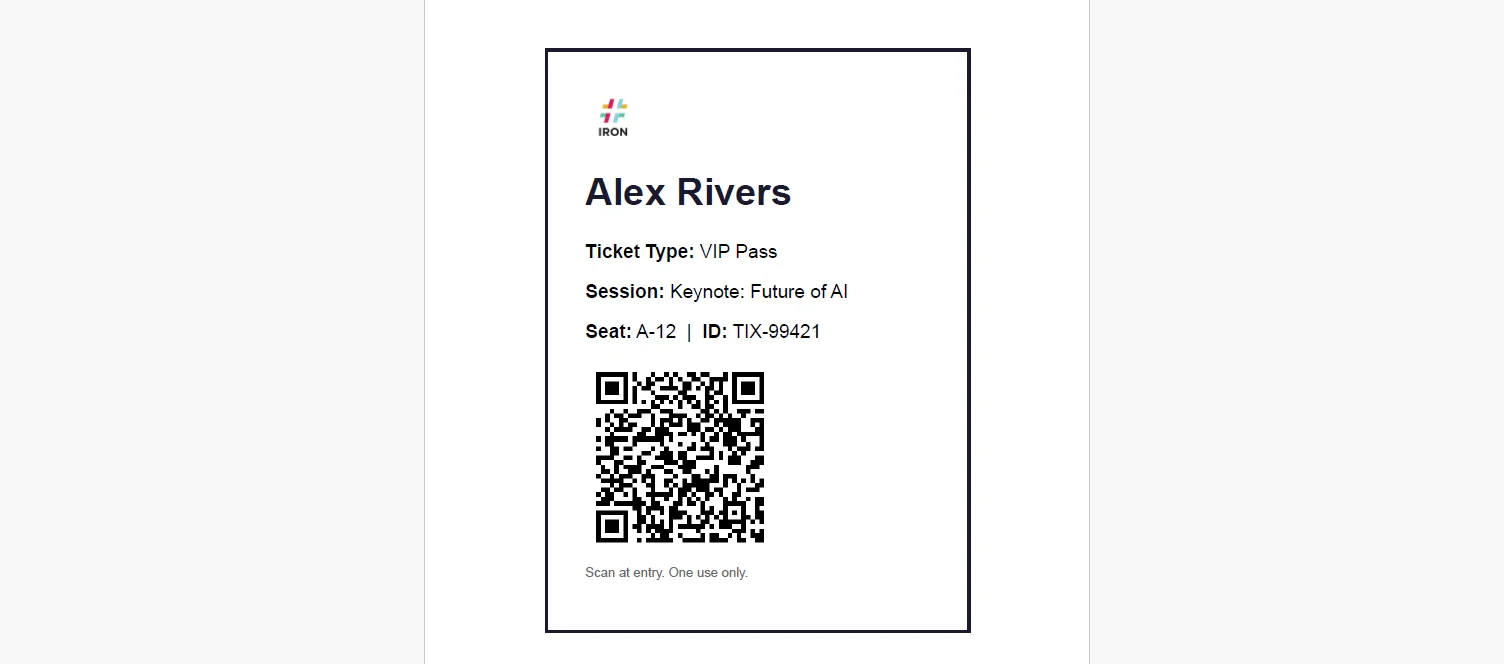 The base64 data URI embeds the QR image directly into the HTML, so the PDF content renders correctly regardless of where the application is deployed, no dependency on a file path or CDN being reachable at render time.
3. PDF Document Emailed and Stored for Portal Download
The rendered PdfDocument streams directly to a MemoryStream for email attachment, with a copy uploaded to blob storage for portal access and on-site reprinting:
using System.Net.Mail;
using System.IO;

var pdfBytes = ticket.BinaryData;

// Store for portal download and on-site reprint
await _blobStorage.UploadAsync(
    $"tickets/{attendee.TicketId}.pdf",
    new BinaryData(pdfBytes)
);

// Email ticket to attendee
using var stream = new MemoryStream(pdfBytes);
using var attachment = new Attachment(stream,
    $"Ticket-{attendee.TicketId}.pdf", "application/pdf");

var message = new MailMessage("tickets@yourevent.com", attendee.Email)
{
    Subject = $"Your Ticket — {eventName}",
    Body = $"Hi {attendee.FirstName}, your ticket is attached. See you there."
};

message.Attachments.Add(attachment);

using var smtp = new SmtpClient("smtp.yourprovider.com");

await smtp.SendMailAsync(message);
using System.Net.Mail;
using System.IO;

var pdfBytes = ticket.BinaryData;

// Store for portal download and on-site reprint
await _blobStorage.UploadAsync(
    $"tickets/{attendee.TicketId}.pdf",
    new BinaryData(pdfBytes)
);

// Email ticket to attendee
using var stream = new MemoryStream(pdfBytes);
using var attachment = new Attachment(stream,
    $"Ticket-{attendee.TicketId}.pdf", "application/pdf");

var message = new MailMessage("tickets@yourevent.com", attendee.Email)
{
    Subject = $"Your Ticket — {eventName}",
    Body = $"Hi {attendee.FirstName}, your ticket is attached. See you there."
};

message.Attachments.Add(attachment);

using var smtp = new SmtpClient("smtp.yourprovider.com");

await smtp.SendMailAsync(message);
Imports System.Net.Mail
Imports System.IO
Imports System.Threading.Tasks
Dim pdfBytes = ticket.BinaryData
' Store for portal download and on-site reprint
Await _blobStorage.UploadAsync(
$"tickets/{attendee.TicketId}.pdf",
New BinaryData(pdfBytes)
)
' Email ticket to attendee
Using stream As New MemoryStream(pdfBytes)
Using attachment As New Attachment(stream, $"Ticket-{attendee.TicketId}.pdf", "application/pdf")
Dim message As New MailMessage("tickets@yourevent.com", attendee.Email) With {
.Subject = $"Your Ticket — {eventName}",
.Body = $"Hi {attendee.FirstName}, your ticket is attached. See you there."
}
message.Attachments.Add(attachment)
Using smtp As New SmtpClient("smtp.yourprovider.com")
Await smtp.SendMailAsync(message)
End Using
End Using
End Using
Imports System.Net.Mail
Imports System.IO
Imports System.Threading.Tasks

Dim pdfBytes = ticket.BinaryData

' Store for portal download and on-site reprint
Await _blobStorage.UploadAsync(
    $"tickets/{attendee.TicketId}.pdf",
    New BinaryData(pdfBytes)
)

' Email ticket to attendee
Using stream As New MemoryStream(pdfBytes)
    Using attachment As New Attachment(stream, $"Ticket-{attendee.TicketId}.pdf", "application/pdf")
        Dim message As New MailMessage("tickets@yourevent.com", attendee.Email) With {
            .Subject = $"Your Ticket — {eventName}",
            .Body = $"Hi {attendee.FirstName}, your ticket is attached. See you there."
        }

        message.Attachments.Add(attachment)

        Using smtp As New SmtpClient("smtp.yourprovider.com")
            Await smtp.SendMailAsync(message)
        End Using
    End Using
End Using
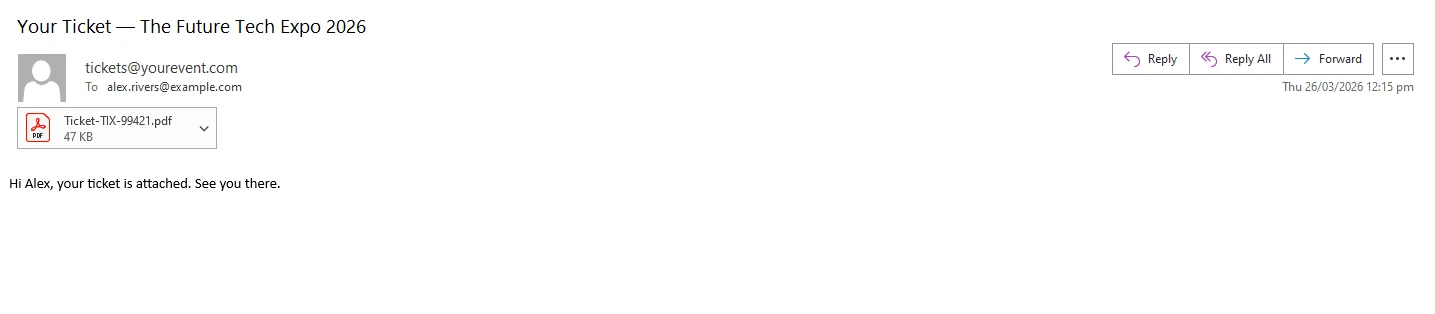
Example Email with attached ticket
 For events with thousands of registrants, the job partitions the attendee list and processes batches in parallel, one ChromePdfRenderer instance per thread, to complete the run well before the event date.
Real-World Benefits
Scale. IronPDF renders each ticket in milliseconds. A batch run for 3,000 attendees, parallelized across available cores, completes in minutes, not hours, and not the day before the event in a panic.
Brand consistency. Every ticket and badge carries the same event branding, sponsor logos, and typography. VIP passes, speaker badges, and general admission tickets all look like they came from the same design system, because they did, the same HTML content and CSS the team maintains.
Fraud prevention. Each QR code encodes a unique ticket ID tied to a specific registration record. When door staff scan it, the system validates against the database. A duplicated PDF produces a duplicate scan that the system flags immediately.
Fast check-in. Scanning a QR code and validating against a registration record takes under a second. No name lookups, no printed lists, no slow manual verification. Entry queues move faster and staff can manage exceptions instead of handling every entry manually.
Template flexibility. Different event roles get different layouts, VIP passes with lounge access details, speaker badges with schedule highlights, staff credentials with backstage indicators. One generation pipeline, multiple HTML templates, one deployment.
No per-ticket costs. The pipeline runs in-process. There are no API calls to a ticketing vendor, no usage metering, and no per-document fee that grows with registration count.
Closing
Ticket and badge generation is one of those problems that looks solved by existing platforms until the event has real customization requirements, a large attendee list, or integration needs that the platform doesn't support. Building the pipeline inside the .NET application gives the team full control, over layout, data, delivery timing, and cost.
IronPDF handles the full lifecycle of PDF generation in C# with key features ranging from pixel perfect rendering of HTML templates to saving them, applying digital signatures and encryption, streaming, and manipulating documents, all from ironpdf.com. If you're building a registration system or replacing an external ticketing dependency, the full library is available to test against your own event data, you can try IronPDF for free with the free trial.