using IronPdf;

// Disable local disk access or cross-origin requests
Installation.EnableWebSecurity = true;

// Instantiate Renderer
var renderer = new ChromePdfRenderer();

// Create a PDF from a HTML string using C#
var pdf = renderer.RenderHtmlAsPdf("<h1>Hello World</h1>");

// Export to a file or Stream
pdf.SaveAs("output.pdf");

// Advanced Example with HTML Assets
// Load external html assets: Images, CSS and JavaScript.
// An optional BasePath 'C:\site\assets\' is set as the file location to load assets from
var myAdvancedPdf = renderer.RenderHtmlAsPdf("<img src='icons/iron.png'>", @"C:\site\assets\");
myAdvancedPdf.SaveAs("html-with-assets.pdf");
using IronPdf;// Disable local disk access or cross-origin requestsInstallation.EnableWebSecurity = true;// Instantiate Renderervar renderer = new ChromePdfRenderer();// Create a PDF from a HTML string using C#var pdf = renderer.RenderHtmlAsPdf("<h1>Hello World</h1>");// Export to a file or Streampdf.SaveAs("output.pdf");// Advanced Example with HTML Assets// Load external html assets: Images, CSS and JavaScript.// An optional BasePath 'C:\site\assets\' is set as the file location to load assets fromvar myAdvancedPdf = renderer.RenderHtmlAsPdf("<img src='icons/iron.png'>", @"C:\site\assets\");myAdvancedPdf.SaveAs("html-with-assets.pdf");
PM >Install-Package IronPdf
Install-Package IronPdf
USING IRONPDF
ASP.NET MVC PDF Viewer: Build a Secure Server-Side Solution
Create a secure ASP.NET MVC PDF viewer by implementing server-side rendering with IronPDF, which provides professional security features, SOC2 compliance capabilities, and complete control over PDF display, generation, and access permissions without client-side vulnerabilities.
Building a reliable PDF viewer for ASP.NET MVC applications does not require complex JavaScript libraries or third-party viewer controls. With IronPDF, you can create an effective MVC PDF viewer control that handles everything from displaying PDF files to generating dynamic PDF documents directly from your views.
This article shows you how to implement a complete ASP.NET MVC PDF viewer solution that works across all major browsers. You will explore features like text selection, form filling, and responsive display for modern web applications. Before uploading and viewing your first file, check out the complete documentation.
Download IronPDF and see how easy it is to build your own .NET MVC PDF viewer control with just a few lines of code. For enterprise document security needs, also consider IronSecureDoc for additional protection layers.
How Do You Create an ASP.NET MVC PDF Viewer?
Setting up your ASP-based PDF viewer starts with installing IronPDF through NuGet Package Manager. This .NET PDF viewer control provides server-side processing capabilities that eliminate browser compatibility issues. For detailed installation guidance, refer to the IronPDF installation documentation and Windows-specific setup.
PM > Install-Package IronPdf
Install-Package IronPdf
> dotnet add package IronPdf
dotnet add package IronPdf
In your ASP.NET MVC controller, add the essential namespaces:
using IronPdf;using System.Web.Mvc;
using IronPdf;
using System.Web.Mvc;
ImportsIronPdfImportsSystem.Web.Mvc
Imports IronPdf
Imports System.Web.Mvc
These imports enable your web application to handle PDF rendering and display. The ChromePdfRenderer class serves as the core component for your MVC PDF viewer control, providing methods to create, manipulate, and display PDF files directly in users' browsers. Unlike client-side solutions, IronPDF processes everything on the server using its Chrome rendering engine, ensuring consistent rendering across all devices and browsers while maintaining control over your PDF documents. A key advantage is its security implementation.
Why Does Server-Side Processing Matter for Enterprise Security?
Server-side PDF processing eliminates client-side vulnerabilities like JavaScript injection and browser exploits. This architecture ensures all PDF operations occur within your secured infrastructure, maintaining data residency requirements for SOC2 and HIPAA compliance. Enterprise environments benefit from centralized audit logging and access control enforcement, which are critical for regulated industries.
What Security Certifications Does IronPDF Support?
IronPDF's architecture supports enterprise security frameworks including SOC2 Type II compliance requirements. The server-side processing model enables complete audit trails, encryption at rest, and controlled data flow patterns required for regulatory compliance in healthcare and financial services. The IronPDF licensing model includes professional support with SLAs designed for mission-critical applications.
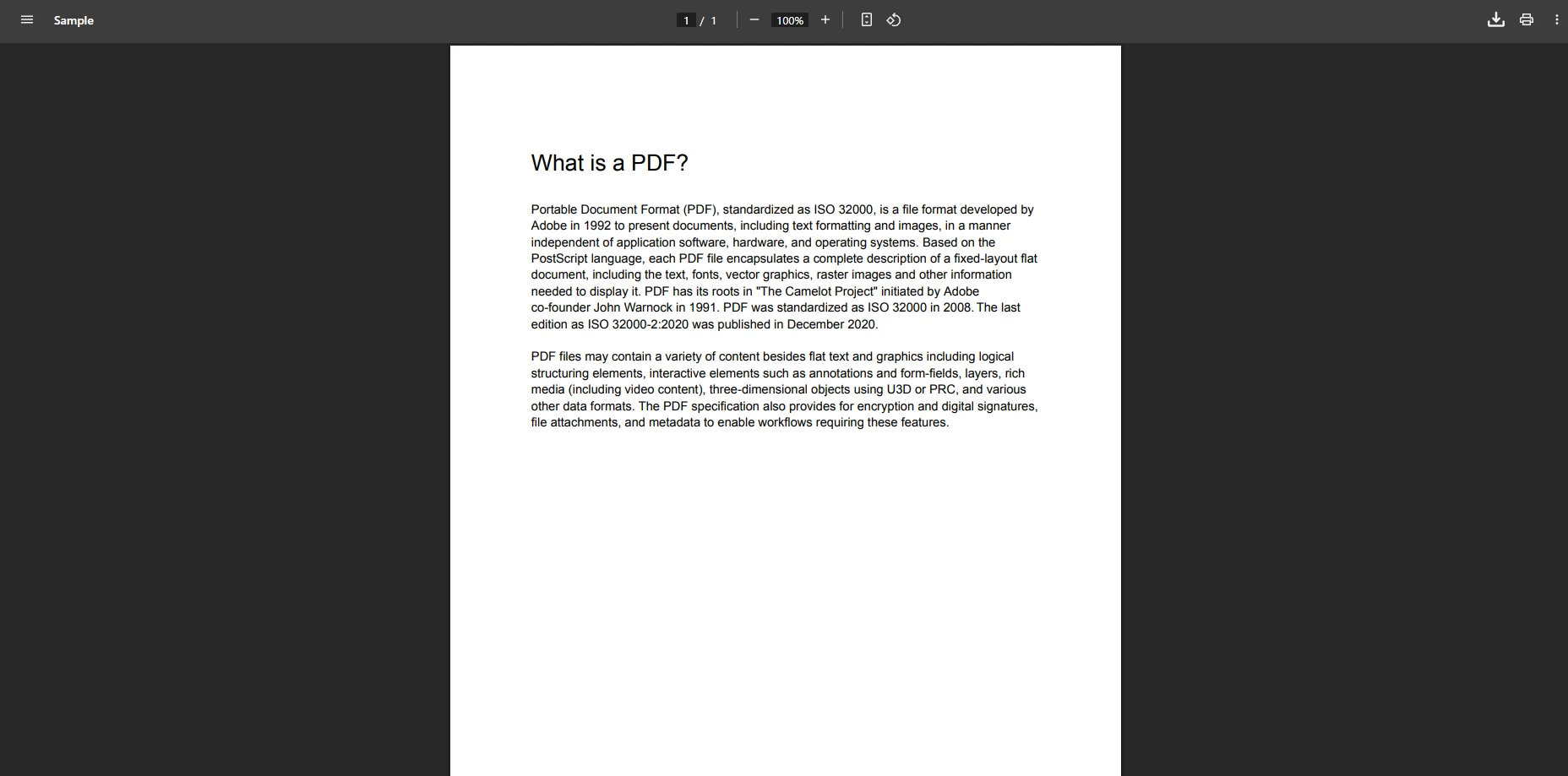
How Do You Display PDF Files in Your .NET MVC Web Application?
Creating a PDF viewer control that displays existing PDF files requires implementing a controller action that returns the document as a FileResult. This approach lets users view PDF pages directly in their browser without needing to upload or select files manually. For advanced scenarios, explore IronPDF's rendering options and viewport configuration.
// Load existing PDF and stream it inline to the browservar pdfPath = Server.MapPath($"~/Content/PDFs/{fileName}");PdfDocument pdf = PdfDocument.FromFile(pdfPath);// Set response headers to display in browser rather than downloadResponse.Headers.Add("Content-Disposition", "inline; filename=" + fileName);returnFile(pdf.BinaryData, "application/pdf");
// Load existing PDF and stream it inline to the browser
var pdfPath = Server.MapPath($"~/Content/PDFs/{fileName}");
PdfDocument pdf = PdfDocument.FromFile(pdfPath);

// Set response headers to display in browser rather than download
Response.Headers.Add("Content-Disposition", "inline; filename=" + fileName);

return File(pdf.BinaryData, "application/pdf");
' Load existing PDF and stream it inline to the browserDim pdfPath AsString = Server.MapPath($"~/Content/PDFs/{fileName}")Dim pdf AsPdfDocument = PdfDocument.FromFile(pdfPath)' Set response headers to display in browser rather than downloadResponse.Headers.Add("Content-Disposition", "inline; filename=" & fileName)ReturnFile(pdf.BinaryData, "application/pdf")
' Load existing PDF and stream it inline to the browser
Dim pdfPath As String = Server.MapPath($"~/Content/PDFs/{fileName}")
Dim pdf As PdfDocument = PdfDocument.FromFile(pdfPath)

' Set response headers to display in browser rather than download
Response.Headers.Add("Content-Disposition", "inline; filename=" & fileName)

Return File(pdf.BinaryData, "application/pdf")
This code loads a PDF document from your server's file system and sends it to the browser. The Content-Disposition: inline header tells the browser to display PDF files within the viewport rather than triggering a download. The PdfDocument.FromFile method reads the existing file, while pdf.BinaryData provides the byte array needed for streaming. For improved performance with large files, consider implementing PDF compression techniques.
This simple implementation creates a functional MVC PDF viewer that handles various file sizes efficiently. For responsive viewing, the browser automatically adjusts the display based on viewport dimensions, ensuring your PDF viewer works on mobile devices. According to Stack Overflow discussions, this server-side approach provides better control than embedding plugins.
How Do You Implement Access Control for PDF Documents?
Implement role-based access control by integrating with your existing authentication framework. Validate user permissions before serving PDF content, ensuring compliance with data access policies. This pattern supports audit requirements by logging all document access attempts with user identity and timestamp information. Use HTTPS and standard ASP.NET authentication middleware for added security.
What Are Common Performance Optimization Strategies?
Improve large PDF delivery through byte-range requests and caching strategies. Implement server-side caching for frequently accessed documents while maintaining security headers. For high-volume scenarios, consider async processing patterns and review the performance optimization guide.
What Does the PDF Display Output Look Like?
How Do You Convert Views to PDF Documents?
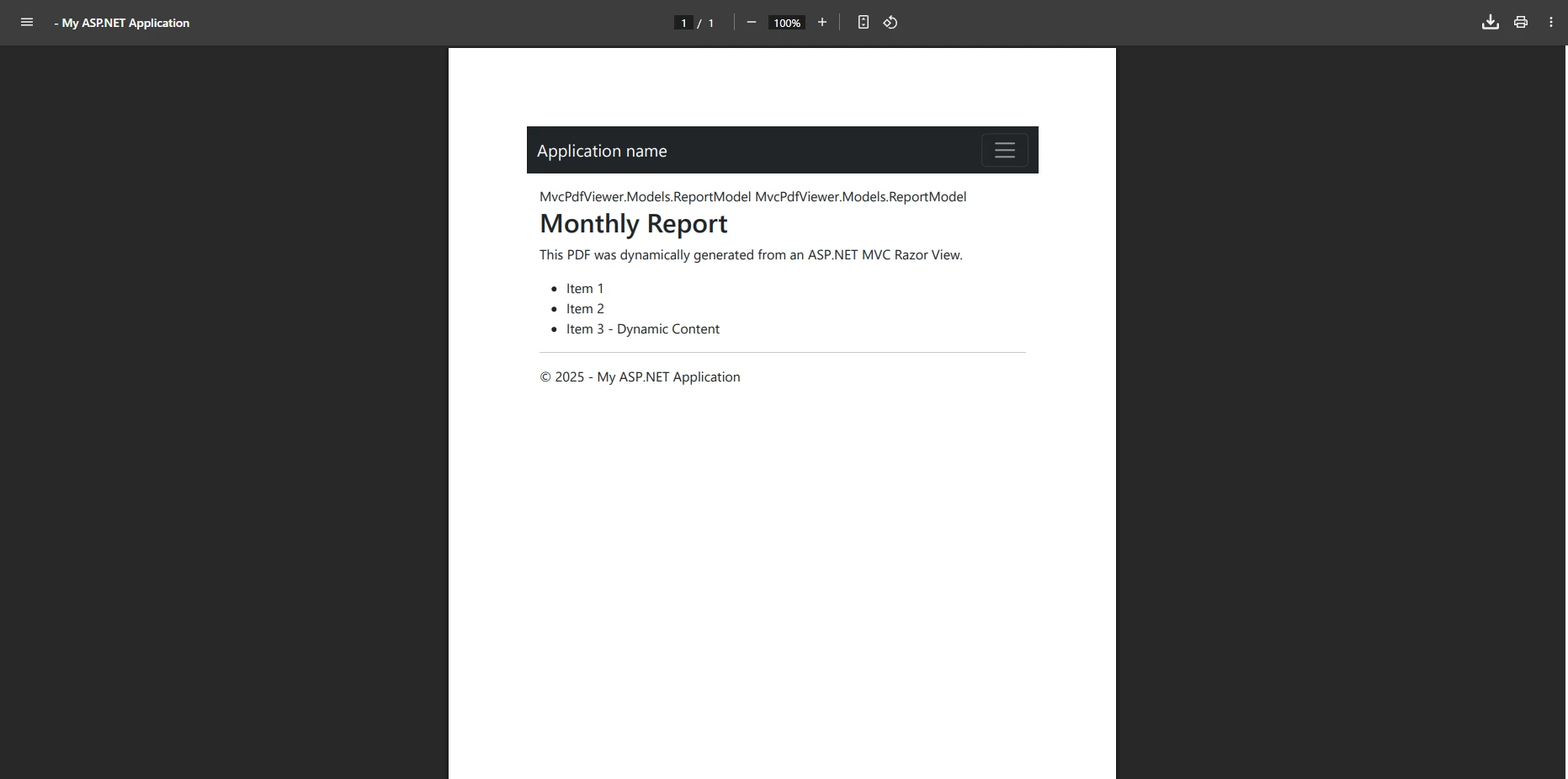
Your ASP.NET MVC PDF viewer can dynamically generate PDF documents from Razor views, enabling data-driven document creation. This feature lets you convert any view into professionally formatted PDFs. Learn more about converting CSHTML to PDF in both MVC Framework and MVC Core environments.
// Sample data for the viewvar model = new ReportModel{Title = "Monthly Report",Data = ReportModel.GetReportData()};// Initialize renderer and configure optionsvar renderer = new ChromePdfRenderer();renderer.RenderingOptions.MarginTop = 25;renderer.RenderingOptions.MarginBottom = 25;renderer.RenderingOptions.EnableJavaScript = true;// Render MVC Razor view to PDFvar pdf = renderer.RenderView(this.HttpContext, "~/Views/Reports/Monthly.cshtml", model);// Display inline in browserResponse.Headers.Add("Content-Disposition", "inline");returnFile(pdf.BinaryData, "application/pdf");
// Sample data for the view
var model = new ReportModel
{
    Title = "Monthly Report",
    Data = ReportModel.GetReportData()
};

// Initialize renderer and configure options
var renderer = new ChromePdfRenderer();
renderer.RenderingOptions.MarginTop = 25;
renderer.RenderingOptions.MarginBottom = 25;
renderer.RenderingOptions.EnableJavaScript = true;

// Render MVC Razor view to PDF
var pdf = renderer.RenderView(this.HttpContext,
                              "~/Views/Reports/Monthly.cshtml",
                              model);

// Display inline in browser
Response.Headers.Add("Content-Disposition", "inline");
return File(pdf.BinaryData, "application/pdf");
ImportsSystem.Web.Mvc' Sample data for the viewDim model As New ReportModelWith { .Title = "Monthly Report", .Data = ReportModel.GetReportData()}' Initialize renderer and configure optionsDim renderer As New ChromePdfRenderer()renderer.RenderingOptions.MarginTop = 25renderer.RenderingOptions.MarginBottom = 25renderer.RenderingOptions.EnableJavaScript = True' Render MVC Razor view to PDFDim pdf = renderer.RenderView(Me.HttpContext, "~/Views/Reports/Monthly.cshtml", model)' Display inline in browserResponse.Headers.Add("Content-Disposition", "inline")ReturnFile(pdf.BinaryData, "application/pdf")
Imports System.Web.Mvc

' Sample data for the view
Dim model As New ReportModel With {
    .Title = "Monthly Report",
    .Data = ReportModel.GetReportData()
}

' Initialize renderer and configure options
Dim renderer As New ChromePdfRenderer()
renderer.RenderingOptions.MarginTop = 25
renderer.RenderingOptions.MarginBottom = 25
renderer.RenderingOptions.EnableJavaScript = True

' Render MVC Razor view to PDF
Dim pdf = renderer.RenderView(Me.HttpContext,
                              "~/Views/Reports/Monthly.cshtml",
                              model)

' Display inline in browser
Response.Headers.Add("Content-Disposition", "inline")
Return File(pdf.BinaryData, "application/pdf")
The RenderView method converts your CSHTML view into a PDF document, maintaining all styling and layout. The RenderingOptions let you control margins, enable JavaScript execution, and configure other display properties. This server-side rendering ensures consistent output regardless of the user's browser or device, supporting UTF-8 encoding for international content. For advanced styling needs, explore CSS media type control and web font support within the rendering options.
The generated PDF pages preserve your view's responsive design elements, automatically adapting content for optimal display. For complex layouts, you can add headers and footers to create professional documents with page numbers. This lightweight solution also supports custom paper sizes and page orientation control.
// Generate PDF with advanced rendering optionsvar renderer = new ChromePdfRenderer();renderer.RenderingOptions.PaperSize = IronPdf.Rendering.PdfPaperSize.A4;renderer.RenderingOptions.PrintHtmlBackgrounds = true;renderer.RenderingOptions.CreatePdfFormsFromHtml = true;renderer.RenderingOptions.CssMediaType = IronPdf.Rendering.PdfCssMediaType.Print;renderer.RenderingOptions.WaitFor.RenderDelay = 500;// Add a watermark header for draft documentsrenderer.RenderingOptions.TextHeader = new TextHeaderFooter{CenterText = "DRAFT - CONFIDENTIAL",FontSize = 12,FontFamily = "Arial",DrawDividerLine = true};var html = RenderPartialViewToString("~/Views/Reports/Advanced.cshtml", GetAdvancedModel());var pdf = renderer.RenderHtmlAsPdf(html);returnFile(pdf.BinaryData, "application/pdf");
// Generate PDF with advanced rendering options
var renderer = new ChromePdfRenderer();

renderer.RenderingOptions.PaperSize = IronPdf.Rendering.PdfPaperSize.A4;
renderer.RenderingOptions.PrintHtmlBackgrounds = true;
renderer.RenderingOptions.CreatePdfFormsFromHtml = true;
renderer.RenderingOptions.CssMediaType = IronPdf.Rendering.PdfCssMediaType.Print;
renderer.RenderingOptions.WaitFor.RenderDelay = 500;

// Add a watermark header for draft documents
renderer.RenderingOptions.TextHeader = new TextHeaderFooter
{
    CenterText = "DRAFT - CONFIDENTIAL",
    FontSize = 12,
    FontFamily = "Arial",
    DrawDividerLine = true
};

var html = RenderPartialViewToString("~/Views/Reports/Advanced.cshtml", GetAdvancedModel());
var pdf = renderer.RenderHtmlAsPdf(html);

return File(pdf.BinaryData, "application/pdf");
ImportsIronPdf' Generate PDF with advanced rendering optionsDim renderer As New ChromePdfRenderer()renderer.RenderingOptions.PaperSize = IronPdf.Rendering.PdfPaperSize.A4renderer.RenderingOptions.PrintHtmlBackgrounds = Truerenderer.RenderingOptions.CreatePdfFormsFromHtml = Truerenderer.RenderingOptions.CssMediaType = IronPdf.Rendering.PdfCssMediaType.Printrenderer.RenderingOptions.WaitFor.RenderDelay = 500' Add a watermark header for draft documentsrenderer.RenderingOptions.TextHeader = New TextHeaderFooterWith { .CenterText = "DRAFT - CONFIDENTIAL", .FontSize = 12, .FontFamily = "Arial", .DrawDividerLine = True}Dim html AsString = RenderPartialViewToString("~/Views/Reports/Advanced.cshtml", GetAdvancedModel())Dim pdf = renderer.RenderHtmlAsPdf(html)ReturnFile(pdf.BinaryData, "application/pdf")
Imports IronPdf

' Generate PDF with advanced rendering options
Dim renderer As New ChromePdfRenderer()

renderer.RenderingOptions.PaperSize = IronPdf.Rendering.PdfPaperSize.A4
renderer.RenderingOptions.PrintHtmlBackgrounds = True
renderer.RenderingOptions.CreatePdfFormsFromHtml = True
renderer.RenderingOptions.CssMediaType = IronPdf.Rendering.PdfCssMediaType.Print
renderer.RenderingOptions.WaitFor.RenderDelay = 500

' Add a watermark header for draft documents
renderer.RenderingOptions.TextHeader = New TextHeaderFooter With {
    .CenterText = "DRAFT - CONFIDENTIAL",
    .FontSize = 12,
    .FontFamily = "Arial",
    .DrawDividerLine = True
}

Dim html As String = RenderPartialViewToString("~/Views/Reports/Advanced.cshtml", GetAdvancedModel())
Dim pdf = renderer.RenderHtmlAsPdf(html)

Return File(pdf.BinaryData, "application/pdf")
Why Is Server-Side Rendering Critical for Data Security?
Server-side rendering prevents sensitive data exposure in client-side code. All data processing occurs within your secure infrastructure, reducing attack surfaces for data breaches. This approach ensures compliance with data residency requirements and enables complete audit trails for regulatory reporting. For additional security, implement PDF sanitization to remove potentially harmful content. Consider digitally signing PDFs for document integrity verification.
How Do You Handle High-Volume PDF Generation?
Implement queue-based processing for high-volume scenarios using enterprise message brokers. This pattern prevents server overload while maintaining responsiveness. Configure worker processes with appropriate resource limits and implement monitoring for throughput optimization in production environments. Consider using Docker containers for flexible, scalable deployment.
How Does the Generated PDF Output Appear?
What Interactive Features Can You Add to Your PDF Viewer?
Modern PDF viewer controls require interactive features beyond basic display. IronPDF enables text selection and text search capabilities automatically when rendering PDF files. Users can highlight and copy content directly from displayed documents. These features improve user experience and make your ASP.NET MVC PDF viewer more functional, supporting annotation capabilities and form management.
// Load PDF and enable interactive featuresvar pdf = LoadPdfDocument(documentId);pdf.SecuritySettings.AllowUserFormData = true;pdf.Bookmarks.AddBookMarkAtStart("Table of Contents", 1);pdf.Bookmarks.AddBookMarkAtStart("Chapter 1", 5);// Configure viewer toolbar to show navigation controlsResponse.Headers.Add("Content-Disposition", "inline; filename=document.pdf#toolbar=1");returnFile(pdf.BinaryData, "application/pdf");
// Load PDF and enable interactive features
var pdf = LoadPdfDocument(documentId);

pdf.SecuritySettings.AllowUserFormData = true;
pdf.Bookmarks.AddBookMarkAtStart("Table of Contents", 1);
pdf.Bookmarks.AddBookMarkAtStart("Chapter 1", 5);

// Configure viewer toolbar to show navigation controls
Response.Headers.Add("Content-Disposition",
                    "inline; filename=document.pdf#toolbar=1");

return File(pdf.BinaryData, "application/pdf");
' Load PDF and enable interactive featuresDim pdf = LoadPdfDocument(documentId)pdf.SecuritySettings.AllowUserFormData = Truepdf.Bookmarks.AddBookMarkAtStart("Table of Contents", 1)pdf.Bookmarks.AddBookMarkAtStart("Chapter 1", 5)' Configure viewer toolbar to show navigation controlsResponse.Headers.Add("Content-Disposition", "inline; filename=document.pdf#toolbar=1")ReturnFile(pdf.BinaryData, "application/pdf")
' Load PDF and enable interactive features
Dim pdf = LoadPdfDocument(documentId)

pdf.SecuritySettings.AllowUserFormData = True
pdf.Bookmarks.AddBookMarkAtStart("Table of Contents", 1)
pdf.Bookmarks.AddBookMarkAtStart("Chapter 1", 5)

' Configure viewer toolbar to show navigation controls
Response.Headers.Add("Content-Disposition", "inline; filename=document.pdf#toolbar=1")

Return File(pdf.BinaryData, "application/pdf")
This implementation enables form filling functionality, allowing users to submit PDF form data directly in the browser. The bookmark additions create navigable structure for easy navigation through long documents. The built-in toolbar parameter in the Content-Disposition header ensures browser tools for zoom, print, and download are accessible to users.
These features transform basic display into a complete ASP.NET MVC PDF viewer that supports full document interaction. For advanced scenarios, explore IronPDF's annotation capabilities to add comments and highlights to your PDF pages. Consider implementing PDF/A compliance for long-term archival needs.
// Create an interactive PDF with embedded form fieldsvar renderer = new ChromePdfRenderer();var html = @" <html> <body> <h1>Interactive PDF Form</h1> <form> <label>Name: <input type='text' name='fullname'/></label><br/> <label>Email: <input type='email' name='email'/></label><br/> <label>Comments: <textarea name='comments'></textarea></label><br/> <input type='submit' value='Submit'/> </form> </body> </html>";// Enable HTML form-to-PDF-form conversionrenderer.RenderingOptions.CreatePdfFormsFromHtml = true;var pdf = renderer.RenderHtmlAsPdf(html);// Add an instructional annotationpdf.AddTextAnnotation("Please fill out all fields", 1, 100, 100, 200, 50);returnFile(pdf.BinaryData, "application/pdf");
// Create an interactive PDF with embedded form fields
var renderer = new ChromePdfRenderer();
var html = @"
    <html>
    <body>
        <h1>Interactive PDF Form</h1>
        <form>
            <label>Name: <input type='text' name='fullname'/></label><br/>
            <label>Email: <input type='email' name='email'/></label><br/>
            <label>Comments: <textarea name='comments'></textarea></label><br/>
            <input type='submit' value='Submit'/>
        </form>
    </body>
    </html>";

// Enable HTML form-to-PDF-form conversion
renderer.RenderingOptions.CreatePdfFormsFromHtml = true;
var pdf = renderer.RenderHtmlAsPdf(html);

// Add an instructional annotation
pdf.AddTextAnnotation("Please fill out all fields", 1, 100, 100, 200, 50);

return File(pdf.BinaryData, "application/pdf");
ImportsSystem.IO' Create an interactive PDF with embedded form fieldsDim renderer As New ChromePdfRenderer()Dim html AsString = " <html> <body> <h1>Interactive PDF Form</h1> <form> <label>Name: <input type='text' name='fullname'/></label><br/> <label>Email: <input type='email' name='email'/></label><br/> <label>Comments: <textarea name='comments'></textarea></label><br/> <input type='submit' value='Submit'/> </form> </body> </html>"' Enable HTML form-to-PDF-form conversionrenderer.RenderingOptions.CreatePdfFormsFromHtml = TrueDim pdf = renderer.RenderHtmlAsPdf(html)' Add an instructional annotationpdf.AddTextAnnotation("Please fill out all fields", 1, 100, 100, 200, 50)ReturnFile(pdf.BinaryData, "application/pdf")
Imports System.IO

' Create an interactive PDF with embedded form fields
Dim renderer As New ChromePdfRenderer()
Dim html As String = "
    <html>
    <body>
        <h1>Interactive PDF Form</h1>
        <form>
            <label>Name: <input type='text' name='fullname'/></label><br/>
            <label>Email: <input type='email' name='email'/></label><br/>
            <label>Comments: <textarea name='comments'></textarea></label><br/>
            <input type='submit' value='Submit'/>
        </form>
    </body>
    </html>"

' Enable HTML form-to-PDF-form conversion
renderer.RenderingOptions.CreatePdfFormsFromHtml = True
Dim pdf = renderer.RenderHtmlAsPdf(html)

' Add an instructional annotation
pdf.AddTextAnnotation("Please fill out all fields", 1, 100, 100, 200, 50)

Return File(pdf.BinaryData, "application/pdf")
What Compliance Features Are Available for Form Data?
Form data handling supports HIPAA-compliant workflows through encrypted transmission and audit logging. Implement field-level validation and data retention policies to meet regulatory requirements. Configure automatic form data sanitization to prevent injection attacks while maintaining compliance documentation. Use digital signatures for non-repudiation and metadata management for tracking document lifecycle.
How Do You Implement Document Workflow Capabilities?
Integrate approval workflows using IronPDF's annotation features combined with enterprise identity providers. Track document lifecycle states through metadata while maintaining version control. This enables compliance with ISO document management standards and regulatory audit requirements. This also makes it straightforward to package supporting documentation alongside approval records within a single PDF workflow.
What Does the Interactive PDF Viewer Interface Include?
How Do You Secure Your PDF Viewer Control?
Security is crucial when implementing a PDF viewer in your web application. IronPDF provides multiple layers of protection for sensitive PDF documents through complete security features. According to Microsoft's security best practices, server-side processing offers better control than client-side libraries.
// Apply security settings to restrict PDF accessvar pdf = GenerateConfidentialPdf();pdf.SecuritySettings.UserPassword = "MySecretPassword";pdf.SecuritySettings.OwnerPassword = "OwnerSecretPassword";pdf.SecuritySettings.AllowUserPrinting = PdfPrintSecurity.NoPrint;pdf.SecuritySettings.AllowUserCopyPasteContent = false;pdf.SecuritySettings.AllowUserEdits = IronPdf.Security.PdfEditSecurity.NoEdit;// Prevent unauthorized embedding in external sitesResponse.Headers.Add("X-Frame-Options", "SAMEORIGIN");Response.Headers.Add("Content-Security-Policy", "frame-ancestors 'self'");returnFile(pdf.BinaryData, "application/pdf");
// Apply security settings to restrict PDF access
var pdf = GenerateConfidentialPdf();

pdf.SecuritySettings.UserPassword = "MySecretPassword";
pdf.SecuritySettings.OwnerPassword = "OwnerSecretPassword";
pdf.SecuritySettings.AllowUserPrinting = PdfPrintSecurity.NoPrint;
pdf.SecuritySettings.AllowUserCopyPasteContent = false;
pdf.SecuritySettings.AllowUserEdits = IronPdf.Security.PdfEditSecurity.NoEdit;

// Prevent unauthorized embedding in external sites
Response.Headers.Add("X-Frame-Options", "SAMEORIGIN");
Response.Headers.Add("Content-Security-Policy",
                    "frame-ancestors 'self'");

return File(pdf.BinaryData, "application/pdf");
' Apply security settings to restrict PDF accessDim pdf = GenerateConfidentialPdf()pdf.SecuritySettings.UserPassword = "MySecretPassword"pdf.SecuritySettings.OwnerPassword = "OwnerSecretPassword"pdf.SecuritySettings.AllowUserPrinting = PdfPrintSecurity.NoPrintpdf.SecuritySettings.AllowUserCopyPasteContent = Falsepdf.SecuritySettings.AllowUserEdits = IronPdf.Security.PdfEditSecurity.NoEdit' Prevent unauthorized embedding in external sitesResponse.Headers.Add("X-Frame-Options", "SAMEORIGIN")Response.Headers.Add("Content-Security-Policy", "frame-ancestors 'self'")ReturnFile(pdf.BinaryData, "application/pdf")
' Apply security settings to restrict PDF access
Dim pdf = GenerateConfidentialPdf()

pdf.SecuritySettings.UserPassword = "MySecretPassword"
pdf.SecuritySettings.OwnerPassword = "OwnerSecretPassword"
pdf.SecuritySettings.AllowUserPrinting = PdfPrintSecurity.NoPrint
pdf.SecuritySettings.AllowUserCopyPasteContent = False
pdf.SecuritySettings.AllowUserEdits = IronPdf.Security.PdfEditSecurity.NoEdit

' Prevent unauthorized embedding in external sites
Response.Headers.Add("X-Frame-Options", "SAMEORIGIN")
Response.Headers.Add("Content-Security-Policy", "frame-ancestors 'self'")

Return File(pdf.BinaryData, "application/pdf")
These security measures protect your PDF files from unauthorized access and distribution. The password protection requires authentication before viewing, while permission settings prevent copying or printing sensitive content. Security headers prevent embedding your PDF viewer control in unauthorized external sites. For additional protection, explore redacting sensitive text for permanent removal of confidential information.
IronPDF password-protects documents with 128-bit RC4 by default, with AES-256 selectable for deployments that need to meet federal encryption standards. Document metadata is encrypted alongside content when AES is selected. This level of encryption satisfies requirements for healthcare, financial, and government sectors. Learn more about IronPDF's encryption capabilities for compatibility guidance.
How Do You Implement Zero-Trust Security Models?
Implement zero-trust principles by validating every document request against current permissions. Integrate with enterprise SSO providers for consistent authentication while maintaining detailed access logs. Configure time-based access tokens to prevent unauthorized long-term document access. Use custom logging for complete audit trails and request-level headers for additional security layers.
When Should You Use Digital Signatures?
Apply digital signatures for documents requiring non-repudiation and integrity verification. IronPDF supports PKI-based signatures compatible with enterprise certificate authorities. This enables compliance with electronic signature regulations like eIDAS and ESIGN Act requirements.
How Do the PDF Viewer Approaches Compare?
Choosing the right PDF display strategy depends on your application's security requirements, browser support targets, and infrastructure constraints. The table below summarizes the three main approaches available when building a .NET MVC PDF viewer.
Comparison of ASP.NET MVC PDF display approaches
Approach
Security
Browser Support
Complexity
Best For
Server-side stream (inline)
High -- full server control
All modern browsers
Low
General document display
Razor view to PDF
High -- no client data exposure
All modern browsers
Medium
Dynamic report generation
Interactive PDF with forms
High -- encrypted and signed
Desktop browsers
Medium-High
Data collection workflows
Approach
Security
Browser Support
Complexity
Best For
Server-side stream
High
All modern browsers
Low
General display
Razor view to PDF
High
All modern browsers
Medium
Report generation
Interactive PDF
High
Desktop browsers
Medium-High
Data collection
Each approach processes documents entirely on the server side, meaning users never have direct access to your source files or raw data. The choice comes down to whether you need static display, dynamic generation from Razor views, or full user interaction within the PDF itself. For a detailed breakdown of how IronPDF compares to alternative libraries, see the IronPDF vs iText comparison.
What Are the Key Benefits of Building with a Server-Side PDF Viewer?
IronPDF transforms ASP.NET MVC applications into effective document management systems with complete PDF viewer capabilities. From basic file display to advanced features like form filling and text search, you can build a professional MVC PDF viewer control that meets modern web application requirements. Server-side processing ensures consistent rendering across all platforms while maintaining security and control over your PDF documents.
Whether you need to display PDF files, create dynamic reports, or add interactive UI elements, IronPDF provides the tools and documentation to support your development process. For enterprise deployments, IronPDF offers extensive platform support including Linux and Docker containers.
Curtis Chau holds a Bachelor’s degree in Computer Science (Carleton University) and specializes in front-end development with expertise in Node.js, TypeScript, JavaScript, and React. Passionate about crafting intuitive and aesthetically pleasing user interfaces, Curtis enjoys working with modern frameworks and creating well-structured, visually appealing manuals.