using IronPdf;

// Disable local disk access or cross-origin requests
Installation.EnableWebSecurity = true;

// Instantiate Renderer
var renderer = new ChromePdfRenderer();

// Create a PDF from a HTML string using C#
var pdf = renderer.RenderHtmlAsPdf("<h1>Hello World</h1>");

// Export to a file or Stream
pdf.SaveAs("output.pdf");

// Advanced Example with HTML Assets
// Load external html assets: Images, CSS and JavaScript.
// An optional BasePath 'C:\site\assets\' is set as the file location to load assets from
var myAdvancedPdf = renderer.RenderHtmlAsPdf("<img src='icons/iron.png'>", @"C:\site\assets\");
myAdvancedPdf.SaveAs("html-with-assets.pdf");
using IronPdf;// Disable local disk access or cross-origin requestsInstallation.EnableWebSecurity = true;// Instantiate Renderervar renderer = new ChromePdfRenderer();// Create a PDF from a HTML string using C#var pdf = renderer.RenderHtmlAsPdf("<h1>Hello World</h1>");// Export to a file or Streampdf.SaveAs("output.pdf");// Advanced Example with HTML Assets// Load external html assets: Images, CSS and JavaScript.// An optional BasePath 'C:\site\assets\' is set as the file location to load assets fromvar myAdvancedPdf = renderer.RenderHtmlAsPdf("<img src='icons/iron.png'>", @"C:\site\assets\");myAdvancedPdf.SaveAs("html-with-assets.pdf");
PM >Install-Package IronPdf
Install-Package IronPdf
USING IRONPDF
How to Display, Save, and Print PDFs in an ASP.NET Core Viewer
# How to Display, Save, and Print PDFs in an ASP.NET Core Viewer
IronPDF enables seamless PDF viewing in ASP.NET Core applications by generating PDFs server-side and leveraging browsers' built-in PDF viewers, eliminating the need for plugins while supporting cross-platform deployment in Docker containers and cloud environments.
Displaying PDF documents directly in web browsers has become an essential requirement for modern ASP.NET Core web applications. Whether you're generating [invoices](https://ironpdf.com/how-to/csharp-pdf-reports/), reports, or contracts, users expect seamless PDF viewing without needing to download files or install Adobe Acrobat Reader. This tutorial demonstrates how [IronPDF](https://ironpdf.com/) simplifies PDF display, saving, and printing in your ASP.NET Core viewer through its powerful [Chrome-based rendering engine](https://ironpdf.com/how-to/ironpdf-2021-chrome-rendering-engine-eap/).
## How Do Browsers Handle PDF Viewing in ASP.NET Core?
Modern browsers include built-in PDF viewers that activate when they receive a PDF file with the correct MIME type (`application/pdf`). When your ASP.NET Core application returns a PDF document with appropriate headers, the browser automatically displays it inline. This eliminates the need for external plugins, Adobe Acrobat Reader, or complex JavaScript libraries. According to MDN Web Docs, proper [header configuration](https://ironpdf.com/how-to/http-request-header/) is essential for controlling how browsers handle file downloads and displays.
IronPDF leverages this browser capability by generating high-quality PDFs server-side using its [`ChromePdfRenderer` class](https://ironpdf.com/object-reference/api/). The renderer uses a complete Chrome engine under the hood, ensuring your documents display exactly as intended with full support for modern [CSS](https://ironpdf.com/how-to/html-to-pdf-responsive-css/), [JavaScript](https://ironpdf.com/how-to/javascript-to-pdf/), [digital signatures](https://ironpdf.com/how-to/signing/), and [web fonts](https://ironpdf.com/how-to/webfonts-webicons/). Unlike simple document viewers, IronPDF provides complete control over [PDF processing and rendering](https://ironpdf.com/how-to/rendering-options/).
## What Tools Do You Need to Display/View PDF Files in ASP.NET Core?
Setting up IronPDF in your ASP.NET Core project takes just a few steps. First, create a new project in Visual Studio or via the command line. Open Visual Studio and select the ASP.NET Core Web Application project template:
```bash
dotnet new mvc -n PdfViewerApp
cd PdfViewerApp
```
### How Do You Install IronPDF in Your .NET Project?
Install IronPDF via NuGet Package Manager in your project:
```shell
:ProductInstall
```
Or in Solution Explorer, right-click on your project and select "Manage NuGet Packages." Choose the appropriate package source and search for IronPDF.
That's all the setup required. IronPDF works seamlessly with ASP.NET Core 3.1 and later (long-term support versions), including .NET 6, 7, and 8. The library receives frequent updates to ensure [compatibility](https://ironpdf.com/product-updates/milestones-compatibility/) with the latest frameworks. For detailed installation instructions, visit the [IronPDF installation guide](https://ironpdf.com/get-started/installation-overview/). The package includes all necessary components for [PDF generation](https://ironpdf.com/how-to/create-new-pdfs/), [editing](https://ironpdf.com/tutorials/csharp-edit-pdf-complete-tutorial/), and processing. For [Docker deployments](https://ironpdf.com/get-started/ironpdf-docker/), IronPDF provides [optimized container images](https://ironpdf.com/get-started/ironpdfengine-docker/) that minimize deployment complexity - a critical consideration for `DevOps` engineers managing containerized environments.
## How Can You Display PDF Files in the Browser Using ASP.NET Core?
Creating and displaying PDFs in the browser requires just a few lines of code. Here's a complete controller action that generates a PDF from HTML and displays it inline:
```csharp
using IronPdf;
using Microsoft.AspNetCore.Mvc;
public class PdfController : Controller
{
public IActionResult ViewPdf()
{
var renderer = new ChromePdfRenderer();
// Configure rendering options for the PDF viewer
renderer.RenderingOptions.PrintHtmlBackgrounds = true;
renderer.RenderingOptions.CreatePdfFormsFromHtml = true;
renderer.RenderingOptions.EnableJavaScript = true;
// Generate PDF from HTML string
var html = @"
<html>
<head>
<style>
body { font-family: Arial, sans-serif; padding: 20px; }
h1 { color: #2c3e50; }
.content { line-height: 1.6; width: 100%; }
</style>
</head>
<body>
<h1>Invoice #12345</h1>
<div class='content'>
<p>Date: " + DateTime.Now.ToString("yyyy-MM-dd") + @"</p>
<p>Thank you for your business!</p>
</div>
</body>
</html>";
var pdf = renderer.RenderHtmlAsPdf(html);
// Return PDF for inline viewing in the browser
return File(pdf.BinaryData, "application/pdf");
}
}
```
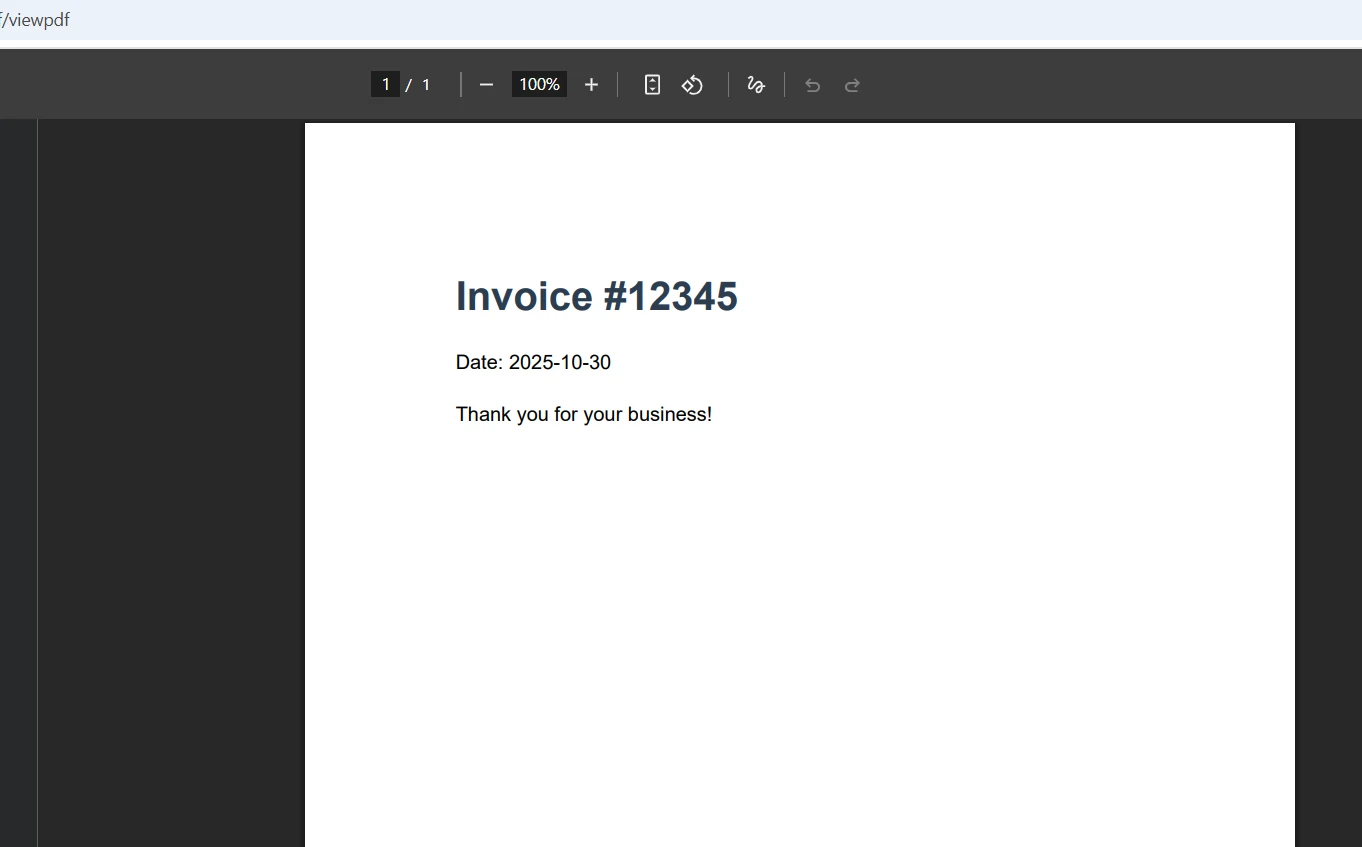
The code creates a `ChromePdfRenderer` instance and configures it to include [background colors](https://ironpdf.com/how-to/background-foreground/) and convert [HTML forms to PDF forms](https://ironpdf.com/how-to/create-forms/). The `RenderHtmlAsPdf` method transforms the HTML string into a PDF. Returning the PDF with the `application/pdf` MIME type tells the browser to display it inline rather than downloading it. This server-side approach ensures consistent rendering across all browsers and platforms - essential for maintaining reliability in [Azure deployments](https://ironpdf.com/get-started/azure/) and [AWS Lambda environments](https://ironpdf.com/get-started/aws/).
### Output
For existing HTML files or Razor pages, you can use alternative rendering methods:
```csharp
// Render from URL - useful for complex pages
var pdf = renderer.RenderUrlAsPdf("https://example.com/invoice");
// Render from HTML file in the same location
var pdf = renderer.RenderHtmlFileAsPdf("Views/Invoice.html");
// Render from wwwroot folder
var pdf = renderer.RenderHtmlFileAsPdf("wwwroot/templates/report.html");
// For containerized applications, use environment-specific paths
var basePath = Environment.GetEnvironmentVariable("APP_BASE_PATH") ?? "wwwroot";
var pdf = renderer.RenderHtmlFileAsPdf($"{basePath}/templates/report.html");
```
These methods provide flexibility in how you source your HTML content while maintaining high-quality PDF output. You can also [load existing PDF documents](https://ironpdf.com/how-to/pdf-memory-stream/), [edit PDFs](https://ironpdf.com/examples/editing-pdfs/), and work with [Word (DOCX files)](https://ironpdf.com/how-to/docx-to-pdf/) and Excel formats using IronPDF's comprehensive features. Learn more about [HTML to PDF conversion options](https://ironpdf.com/tutorials/html-to-pdf/) in the documentation. For advanced processing and [editing capabilities](https://ironpdf.com/features/edit/), check the [API reference](https://ironpdf.com/object-reference/api/).
For `DevOps` engineers managing microservices architectures, IronPDF's [native vs remote engine](https://ironpdf.com/get-started/ironpdfengine/) architecture provides deployment flexibility. The remote engine option allows you to separate PDF rendering into a dedicated service, improving resource utilization and enabling horizontal scaling.
## How Do Users Save PDF Documents from the Browser?
To enable users to download PDFs instead of viewing them inline, modify the `Content-Disposition` header. This feature is essential for applications where users need offline access:
```csharp
public IActionResult DownloadPdf()
{
var renderer = new ChromePdfRenderer();
// Create PDF with CSS styling and images
var html = @"<h1>Download Me</h1>
<img src='logo.png' width='100' />";
var pdf = renderer.RenderHtmlAsPdf(html, @"wwwroot/images");
// Force download with custom filename
return File(pdf.BinaryData, "application/pdf", "invoice-2024.pdf");
}
// Health check endpoint for container orchestration
[HttpGet("/health/pdf-generator")]
public IActionResult HealthCheck()
{
try
{
var renderer = new ChromePdfRenderer();
var pdf = renderer.RenderHtmlAsPdf("<p>Health Check</p>");
return Ok(new { status = "healthy", timestamp = DateTime.UtcNow });
}
catch (Exception ex)
{
return StatusCode(503, new { status = "unhealthy", error = ex.Message });
}
}
```
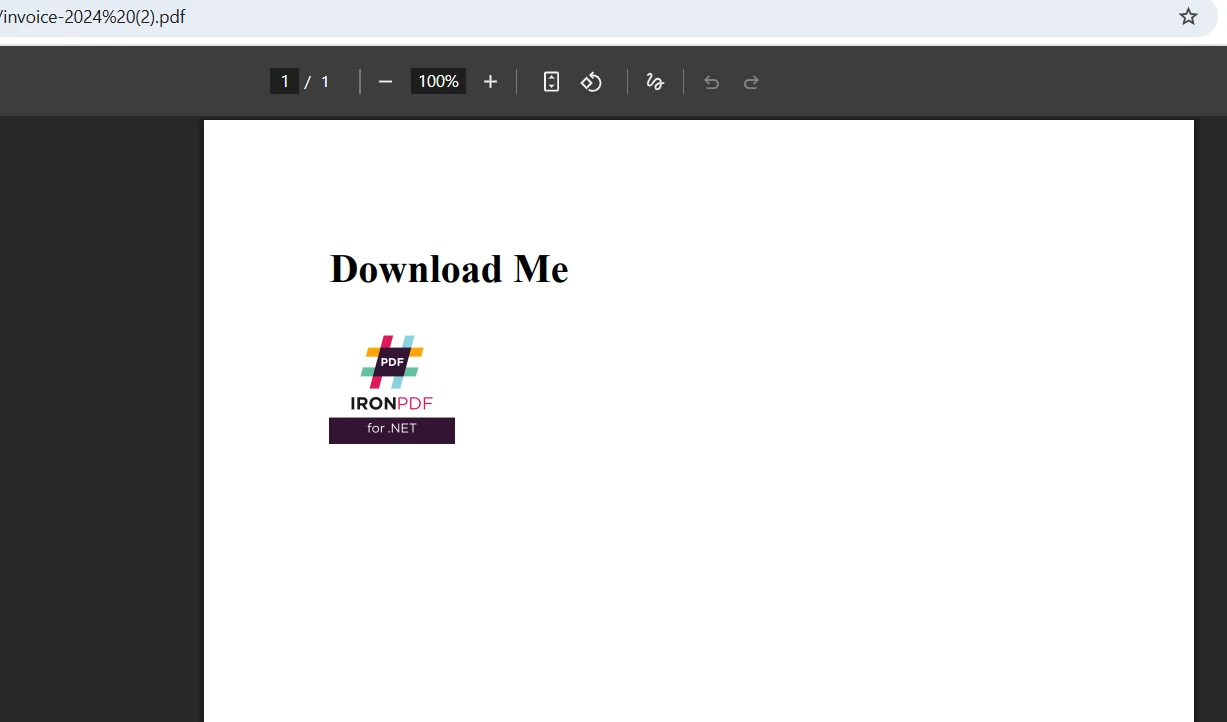
Adding the filename parameter automatically sets the `Content-Disposition` header to "attachment," prompting the browser to download the file. Users can also save PDFs displayed inline using their browser's save functionality (Ctrl+S or the PDF viewer toolbar). The health check endpoint shown above is crucial for Kubernetes deployments and container orchestration platforms, ensuring your PDF service remains responsive.
### Output
### Why Should You Use Streams for Large PDF Files?
For better memory efficiency with large documents, use streams:
```csharp
public IActionResult StreamPdf()
{
var renderer = new ChromePdfRenderer();
// Load and process HTML with images
var html = "<h1>Streamed Content</h1>";
var pdf = renderer.RenderHtmlAsPdf(html);
// Stream the PDF file to the browser
var stream = pdf.Stream;
stream.Position = 0;
return File(stream, "application/pdf", "document.pdf");
}
// Async streaming for better resource utilization
public async Task<IActionResult> StreamPdfAsync()
{
var renderer = new ChromePdfRenderer();
// Configure for optimal container performance
renderer.RenderingOptions.Timeout = 60000; // 60 seconds for complex documents
renderer.RenderingOptions.RenderDelay = 500; // Allow JS to execute
var html = await LoadHtmlTemplateAsync();
var pdf = await Task.Run(() => renderer.RenderHtmlAsPdf(html));
var stream = pdf.Stream;
stream.Position = 0;
return File(stream, "application/pdf", "async-document.pdf");
}
```
This approach reduces memory consumption by streaming PDFs directly to the response without creating intermediate byte arrays. You can also load existing PDFs from the wwwroot folder, [edit them](https://ironpdf.com/how-to/edit-forms/), and stream modified versions. For advanced [PDF document manipulation](https://ironpdf.com/how-to/add-copy-delete-pages-pdf/) and [image processing](https://ironpdf.com/how-to/add-images-to-pdfs/), explore the [PdfDocument API reference](https://ironpdf.com/object-reference/api/). The component supports various editing operations including [text selection](https://ironpdf.com/how-to/extract-text-and-images/), [form filling](https://ironpdf.com/examples/form-data/), and adding [digital signatures](https://ironpdf.com/examples/digitally-sign-a-pdf/).
For container deployments, the [async PDF generation](https://ironpdf.com/how-to/async/) approach prevents blocking threads and improves application throughput - critical for maintaining responsive services in orchestrated environments.
## Can Users Print PDF Documents Directly from ASP.NET Core Web Applications?
IronPDF optimizes PDFs for printing by configuring the appropriate CSS media type and page settings. This ensures professional output whether users print to physical printers or save as PDF:
```csharp
public IActionResult PrintablePdf()
{
var renderer = new ChromePdfRenderer();
// Configure printing options for the PDF viewer
renderer.RenderingOptions.CssMediaType = PdfCssMediaType.Print;
renderer.RenderingOptions.PaperOrientation = PdfPaperOrientation.Portrait;
renderer.RenderingOptions.MarginTop = 25;
renderer.RenderingOptions.MarginBottom = 25;
renderer.RenderingOptions.MarginLeft = 25;
renderer.RenderingOptions.MarginRight = 25;
// Load HTML with print-specific CSS
var html = @"<h1>Print-Optimized Document</h1>
<p>This document is optimized for printing.</p>";
var pdf = renderer.RenderHtmlAsPdf(html);
// Return the PDF file for viewing and printing
return File(pdf.BinaryData, "application/pdf");
}
// Container-optimized configuration
public IActionResult ConfigureForContainer()
{
var renderer = new ChromePdfRenderer();
// Disable GPU for container compatibility
renderer.RenderingOptions.EnableJavaScript = true;
renderer.RenderingOptions.RenderDelay = 0; // No artificial delays
renderer.RenderingOptions.Timeout = 30000; // 30 second timeout
// Use environment variables for configuration
var printDpi = int.Parse(Environment.GetEnvironmentVariable("PDF_PRINT_DPI") ?? "300");
renderer.RenderingOptions.PrintHtmlBackgrounds = true;
return Ok("Configured for container environment");
}
```
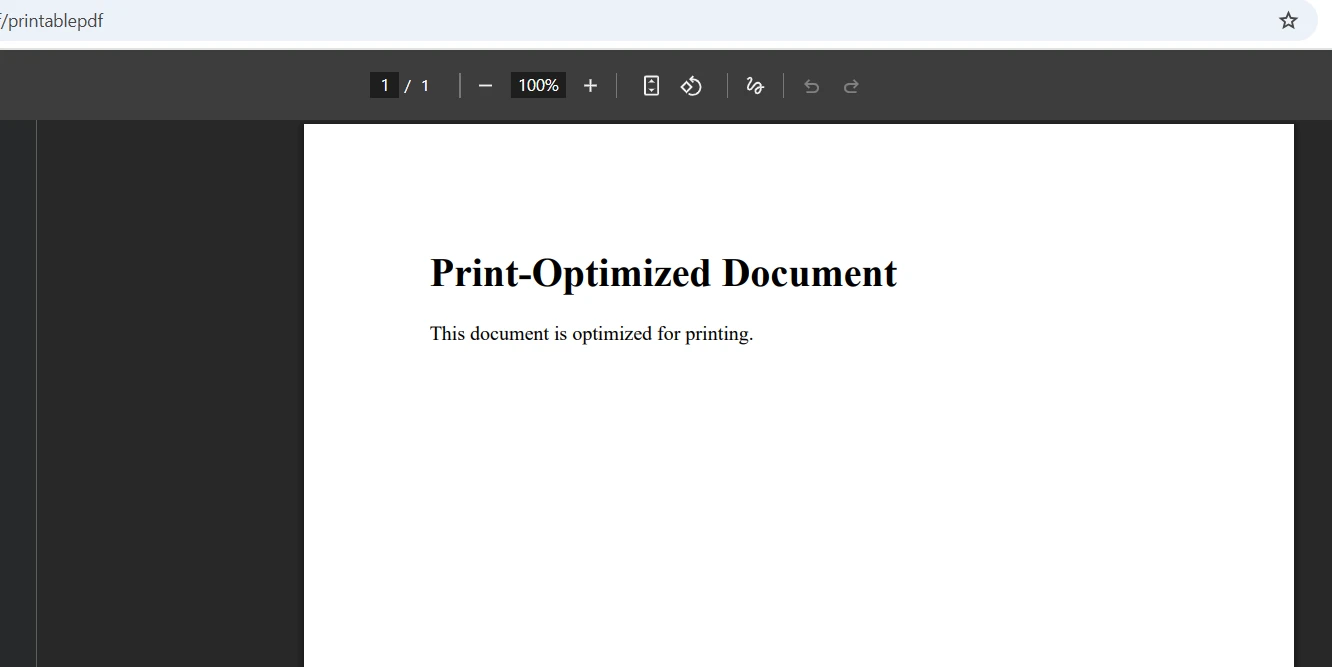
Setting `CssMediaType` to `Print` applies print-specific CSS styles, ensuring the document looks correct when printed. The margin settings provide proper spacing for physical paper. Users can [print PDFs](https://ironpdf.com/how-to/print-pdf/) directly from their browser's PDF viewer using the standard print dialog, maintaining full control over printer selection and settings. Learn more about [PDF rendering options](https://ironpdf.com/how-to/rendering-options/) to fine-tune your output.
## How Does IronPDF Support Cross-Platform and Container Deployments?
IronPDF runs seamlessly across Windows, Linux, macOS, Docker containers, and cloud platforms like Azure and AWS. This cross-platform compatibility ensures your ASP.NET Core PDF viewer solution works consistently regardless of deployment environment. The library handles platform-specific rendering details internally, so your code works everywhere without modification.
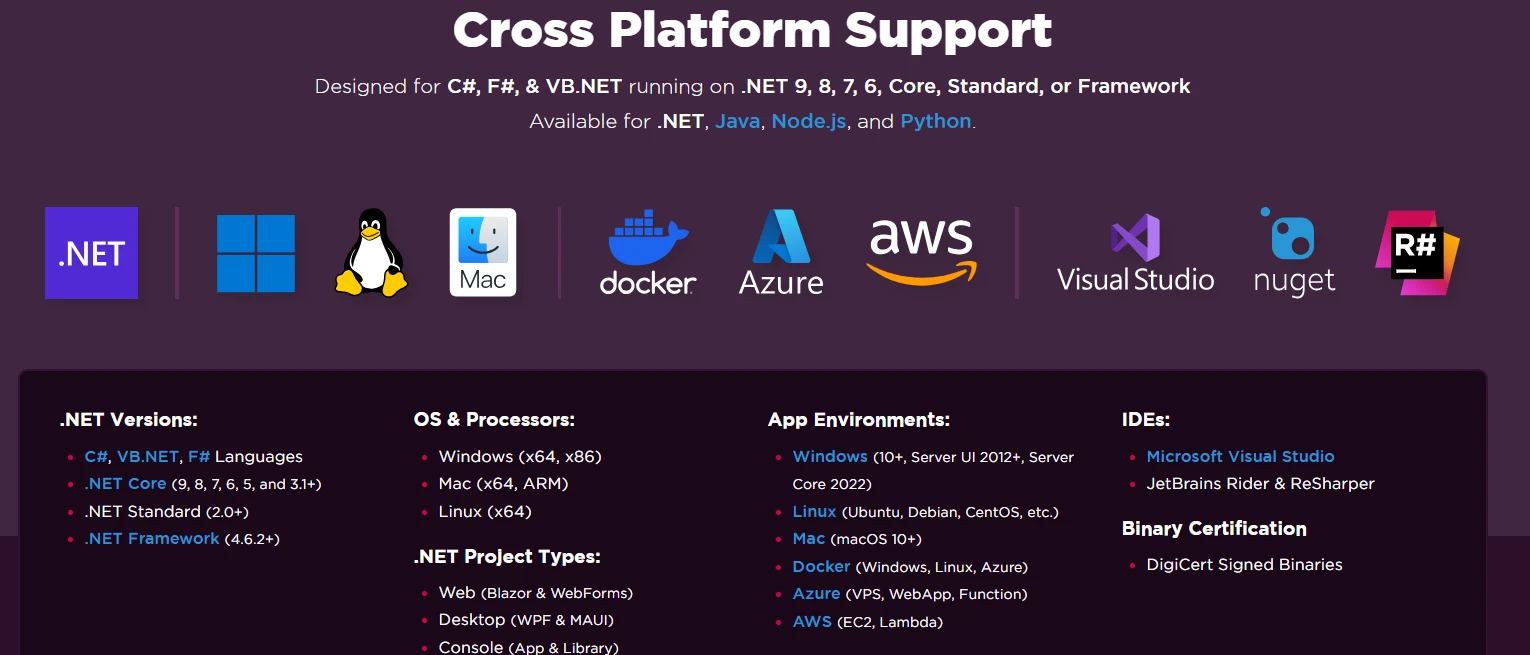
The server-side processing ensures consistent PDF generation across all platforms. Whether deployed on Windows servers or [Linux containers](https://ironpdf.com/get-started/linux/), the component maintains the same rendering quality. The library automatically manages path differences between operating systems, handling files in the wwwroot folder or other locations correctly. For containerized deployments, check the [Docker deployment guide](https://ironpdf.com/get-started/ironpdf-docker/). The package includes all necessary dependencies for each platform, requiring no additional configuration beyond standard ASP.NET Core requirements.
For production container deployments, consider this Dockerfile example:
```dockerfile
FROM mcr.microsoft.com/dotnet/aspnet:8.0 AS base
WORKDIR /app
EXPOSE 80
# Install IronPDF dependencies for Linux
RUN apt-get update && apt-get install -y \
libgdiplus \
libc6-dev \
libx11-6 \
&& rm -rf /var/lib/apt/lists/*
FROM mcr.microsoft.com/dotnet/sdk:8.0 AS build
WORKDIR /src
COPY ["PdfViewerApp.csproj", "./"]
RUN dotnet restore "PdfViewerApp.csproj"
COPY . .
RUN dotnet build "PdfViewerApp.csproj" -c Release -o /app/build
FROM build AS publish
RUN dotnet publish "PdfViewerApp.csproj" -c Release -o /app/publish
FROM base AS final
WORKDIR /app
COPY --from=publish /app/publish .
ENTRYPOINT ["dotnet", "PdfViewerApp.dll"]
```
Get started with a [free trial](https://ironpdf.com/licensing/) and transform your document viewer capabilities today.
## What Are the Key Benefits of Using IronPDF for ASP.NET Core PDF Viewing?
IronPDF transforms PDF handling in ASP.NET Core applications by combining server-side generation with browser-native viewing. With just a few lines of code, you can create professional PDFs from HTML, display them inline, enable downloads, and optimize for printing. The Chrome-based rendering engine ensures [pixel-perfect accuracy](https://ironpdf.com/how-to/pixel-perfect-html-to-pdf/) across all platforms, eliminating the need for Adobe Acrobat Reader or third-party viewers.
This ASP.NET Core PDF viewer solution provides comprehensive features including [form filling](https://ironpdf.com/how-to/create-forms/), [text selection](https://ironpdf.com/how-to/csharp-parse-pdf/), [digital signatures](https://ironpdf.com/how-to/signing/), and the ability to [edit PDFs](https://ironpdf.com/tutorials/csharp-edit-pdf-complete-tutorial/). The component also supports converting [Word documents (DOCX files)](https://ironpdf.com/how-to/docx-to-pdf/), Excel spreadsheets, and [images to PDF](https://ironpdf.com/how-to/image-to-pdf/). Whether you're building a simple document viewer or a complex document management system, IronPDF provides the tools you need.
The library's tag helper integration and extensive [documentation](https://ironpdf.com/docs/) make implementation straightforward. Your project can display PDFs directly while backend processing handles complex [PDF generation](https://ironpdf.com/features/create/) tasks. The viewer maintains consistent behavior whether loading from the wwwroot folder, generating dynamically, or retrieving from external sources. With built-in theme support and customizable width settings, you can match your application's design perfectly. For `DevOps` teams, the [IronPDF Slim package](https://ironpdf.com/troubleshooting/ironpdf-slim/) offers reduced deployment size, addressing container size constraints in orchestrated environments.
Ready to implement PDF viewing in your .NET Core Web Application?
For production use, [licenses](licensing) start at `$liteLicense` and include comprehensive support and updates. Visit the [documentation](/docs/) for detailed API references and advanced features. Refer to our [extensive code examples](/examples/using-html-to-create-a-pdf/) to quickly implement PDF functionality in your ASP.NET Core projects.
IronPDF enables seamless PDF viewing in ASP.NET Core applications by generating PDFs server-side and leveraging browsers' built-in PDF viewers, eliminating the need for plugins while supporting cross-platform deployment in Docker containers and cloud environments.
Displaying PDF documents directly in web browsers has become an essential requirement for modern ASP.NET Core web applications. Whether you're generating invoices, reports, or contracts, users expect seamless PDF viewing without needing to download files or install Adobe Acrobat Reader. This tutorial demonstrates how IronPDF simplifies PDF display, saving, and printing in your ASP.NET Core viewer through its powerful Chrome-based rendering engine.
How Do Browsers Handle PDF Viewing in ASP.NET Core?
Modern browsers include built-in PDF viewers that activate when they receive a PDF file with the correct MIME type (application/pdf). When your ASP.NET Core application returns a PDF document with appropriate headers, the browser automatically displays it inline. This eliminates the need for external plugins, Adobe Acrobat Reader, or complex JavaScript libraries. According to MDN Web Docs, proper header configuration is essential for controlling how browsers handle file downloads and displays.
IronPDF leverages this browser capability by generating high-quality PDFs server-side using its ChromePdfRenderer class. The renderer uses a complete Chrome engine under the hood, ensuring your documents display exactly as intended with full support for modern CSS, JavaScript, digital signatures, and web fonts. Unlike simple document viewers, IronPDF provides complete control over PDF processing and rendering.
What Tools Do You Need to Display/View PDF Files in ASP.NET Core?
Setting up IronPDF in your ASP.NET Core project takes just a few steps. First, create a new project in Visual Studio or via the command line. Open Visual Studio and select the ASP.NET Core Web Application project template:
dotnet new mvc -n PdfViewerAppcd PdfViewerApp
dotnet new mvc -n PdfViewerApp
cd PdfViewerApp
SHELL
How Do You Install IronPDF in Your .NET Project?
Install IronPDF via NuGet Package Manager in your project:
PM > Install-Package IronPdf
Install-Package IronPdf
Or in Solution Explorer, right-click on your project and select "Manage NuGet Packages." Choose the appropriate package source and search for IronPDF.
That's all the setup required. IronPDF works seamlessly with ASP.NET Core 3.1 and later (long-term support versions), including .NET 6, 7, and 8. The library receives frequent updates to ensure compatibility with the latest frameworks. For detailed installation instructions, visit the IronPDF installation guide. The package includes all necessary components for PDF generation, editing, and processing. For Docker deployments, IronPDF provides optimized container images that minimize deployment complexity - a critical consideration for DevOps engineers managing containerized environments.
How Can You Display PDF Files in the Browser Using ASP.NET Core?
Creating and displaying PDFs in the browser requires just a few lines of code. Here's a complete controller action that generates a PDF from HTML and displays it inline:
using IronPdf;using Microsoft.AspNetCore.Mvc;public class PdfController : Controller{ public IActionResultViewPdf() { var renderer = new ChromePdfRenderer(); // Configure rendering options for the PDF viewer renderer.RenderingOptions.PrintHtmlBackgrounds = true; renderer.RenderingOptions.CreatePdfFormsFromHtml = true; renderer.RenderingOptions.EnableJavaScript = true; // Generate PDF from HTML string var html = @" <html> <head> <style> body { font-family: Arial, sans-serif; padding: 20px; } h1 { color: #2c3e50; } .content { line-height: 1.6; width: 100%; } </style> </head> <body> <h1>Invoice #12345</h1> <div class='content'> <p>Date: " + DateTime.Now.ToString("yyyy-MM-dd") + @"</p> <p>Thank you for your business!</p> </div> </body> </html>"; var pdf = renderer.RenderHtmlAsPdf(html); // Return PDF for inline viewing in the browser returnFile(pdf.BinaryData, "application/pdf"); }}
using IronPdf;
using Microsoft.AspNetCore.Mvc;

public class PdfController : Controller
{
    public IActionResult ViewPdf()
    {
        var renderer = new ChromePdfRenderer();
        // Configure rendering options for the PDF viewer
        renderer.RenderingOptions.PrintHtmlBackgrounds = true;
        renderer.RenderingOptions.CreatePdfFormsFromHtml = true;
        renderer.RenderingOptions.EnableJavaScript = true;
        // Generate PDF from HTML string
        var html = @"
            <html>
            <head>
                <style>
                    body { font-family: Arial, sans-serif; padding: 20px; }
                    h1 { color: #2c3e50; }
                    .content { line-height: 1.6; width: 100%; }
                </style>
            </head>
            <body>
                <h1>Invoice #12345</h1>
                <div class='content'>
                    <p>Date: " + DateTime.Now.ToString("yyyy-MM-dd") + @"</p>
                    <p>Thank you for your business!</p>
                </div>
            </body>
            </html>";
        var pdf = renderer.RenderHtmlAsPdf(html);
        // Return PDF for inline viewing in the browser
        return File(pdf.BinaryData, "application/pdf");
    }
}
ImportsIronPdfImportsMicrosoft.AspNetCore.MvcPublic Class PdfControllerInheritsController Public Function ViewPdf() AsIActionResult Dim renderer = New ChromePdfRenderer() ' Configure rendering options for the PDF viewer renderer.RenderingOptions.PrintHtmlBackgrounds = True renderer.RenderingOptions.CreatePdfFormsFromHtml = True renderer.RenderingOptions.EnableJavaScript = True ' Generate PDF from HTML string Dim html = " <html> <head> <style> body { font-family: Arial, sans-serif; padding: 20px; } h1 { color: #2c3e50; } .content { line-height: 1.6; width: 100%; } </style> </head> <body> <h1>Invoice #12345</h1> <div class='content'> <p>Date: " & DateTime.Now.ToString("yyyy-MM-dd") & "</p> <p>Thank you for your business!</p> </div> </body> </html>" Dim pdf = renderer.RenderHtmlAsPdf(html) ' Return PDF for inline viewing in the browser ReturnFile(pdf.BinaryData, "application/pdf") End FunctionEnd Class
Imports IronPdf
Imports Microsoft.AspNetCore.Mvc

Public Class PdfController
    Inherits Controller

    Public Function ViewPdf() As IActionResult
        Dim renderer = New ChromePdfRenderer()
        ' Configure rendering options for the PDF viewer
        renderer.RenderingOptions.PrintHtmlBackgrounds = True
        renderer.RenderingOptions.CreatePdfFormsFromHtml = True
        renderer.RenderingOptions.EnableJavaScript = True
        ' Generate PDF from HTML string
        Dim html = "
            <html>
            <head>
                <style>
                    body { font-family: Arial, sans-serif; padding: 20px; }
                    h1 { color: #2c3e50; }
                    .content { line-height: 1.6; width: 100%; }
                </style>
            </head>
            <body>
                <h1>Invoice #12345</h1>
                <div class='content'>
                    <p>Date: " & DateTime.Now.ToString("yyyy-MM-dd") & "</p>
                    <p>Thank you for your business!</p>
                </div>
            </body>
            </html>"
        Dim pdf = renderer.RenderHtmlAsPdf(html)
        ' Return PDF for inline viewing in the browser
        Return File(pdf.BinaryData, "application/pdf")
    End Function
End Class
The code creates a ChromePdfRenderer instance and configures it to include background colors and convert HTML forms to PDF forms. The RenderHtmlAsPdf method transforms the HTML string into a PDF. Returning the PDF with the application/pdf MIME type tells the browser to display it inline rather than downloading it. This server-side approach ensures consistent rendering across all browsers and platforms - essential for maintaining reliability in Azure deployments and AWS Lambda environments.
Output
For existing HTML files or Razor pages, you can use alternative rendering methods:
// Render from URL - useful for complex pagesvar pdf = renderer.RenderUrlAsPdf("https://example.com/invoice");// Render from HTML file in the same locationvar pdf = renderer.RenderHtmlFileAsPdf("Views/Invoice.html");// Render from wwwroot foldervar pdf = renderer.RenderHtmlFileAsPdf("wwwroot/templates/report.html");// For containerized applications, use environment-specific pathsvar basePath = Environment.GetEnvironmentVariable("APP_BASE_PATH") ?? "wwwroot";var pdf = renderer.RenderHtmlFileAsPdf($"{basePath}/templates/report.html");
// Render from URL - useful for complex pages
var pdf = renderer.RenderUrlAsPdf("https://example.com/invoice");
// Render from HTML file in the same location
var pdf = renderer.RenderHtmlFileAsPdf("Views/Invoice.html");
// Render from wwwroot folder
var pdf = renderer.RenderHtmlFileAsPdf("wwwroot/templates/report.html");
// For containerized applications, use environment-specific paths
var basePath = Environment.GetEnvironmentVariable("APP_BASE_PATH") ?? "wwwroot";
var pdf = renderer.RenderHtmlFileAsPdf($"{basePath}/templates/report.html");
For DevOps engineers managing microservices architectures, IronPDF's native vs remote engine architecture provides deployment flexibility. The remote engine option allows you to separate PDF rendering into a dedicated service, improving resource utilization and enabling horizontal scaling.
How Do Users Save PDF Documents from the Browser?
To enable users to download PDFs instead of viewing them inline, modify the Content-Disposition header. This feature is essential for applications where users need offline access:
public IActionResultDownloadPdf(){ var renderer = new ChromePdfRenderer(); // Create PDF with CSS styling and images var html = @"<h1>Download Me</h1> <img src='logo.png' width='100' />"; var pdf = renderer.RenderHtmlAsPdf(html, @"wwwroot/images"); // Force download with custom filename returnFile(pdf.BinaryData, "application/pdf", "invoice-2024.pdf");}// Health check endpoint for container orchestration[HttpGet("/health/pdf-generator")]public IActionResultHealthCheck(){ try { var renderer = new ChromePdfRenderer(); var pdf = renderer.RenderHtmlAsPdf("<p>Health Check</p>"); returnOk(new { status = "healthy", timestamp = DateTime.UtcNow }); } catch (Exception ex) { returnStatusCode(503, new { status = "unhealthy", error = ex.Message }); }}
public IActionResult DownloadPdf()
{
    var renderer = new ChromePdfRenderer();
    // Create PDF with CSS styling and images
    var html = @"<h1>Download Me</h1>
                 <img src='logo.png' width='100' />";
    var pdf = renderer.RenderHtmlAsPdf(html, @"wwwroot/images");
    // Force download with custom filename
    return File(pdf.BinaryData, "application/pdf", "invoice-2024.pdf");
}

// Health check endpoint for container orchestration
[HttpGet("/health/pdf-generator")]
public IActionResult HealthCheck()
{
    try
    {
        var renderer = new ChromePdfRenderer();
        var pdf = renderer.RenderHtmlAsPdf("<p>Health Check</p>");
        return Ok(new { status = "healthy", timestamp = DateTime.UtcNow });
    }
    catch (Exception ex)
    {
        return StatusCode(503, new { status = "unhealthy", error = ex.Message });
    }
}
Public Function DownloadPdf() AsIActionResult Dim renderer = New ChromePdfRenderer() ' Create PDF with CSS styling and images Dim html = "<h1>Download Me</h1> <img src='logo.png' width='100' />" Dim pdf = renderer.RenderHtmlAsPdf(html, "wwwroot/images") ' Force download with custom filename ReturnFile(pdf.BinaryData, "application/pdf", "invoice-2024.pdf")End Function' Health check endpoint for container orchestration<HttpGet("/health/pdf-generator")>Public Function HealthCheck() AsIActionResultTry Dim renderer = New ChromePdfRenderer() Dim pdf = renderer.RenderHtmlAsPdf("<p>Health Check</p>") ReturnOk(New With {Key .status = "healthy", Key .timestamp = DateTime.UtcNow})Catch ex AsException ReturnStatusCode(503, New With {Key .status = "unhealthy", Key .error = ex.Message})EndTryEnd Function
Public Function DownloadPdf() As IActionResult
    Dim renderer = New ChromePdfRenderer()
    ' Create PDF with CSS styling and images
    Dim html = "<h1>Download Me</h1>
                <img src='logo.png' width='100' />"
    Dim pdf = renderer.RenderHtmlAsPdf(html, "wwwroot/images")
    ' Force download with custom filename
    Return File(pdf.BinaryData, "application/pdf", "invoice-2024.pdf")
End Function

' Health check endpoint for container orchestration
<HttpGet("/health/pdf-generator")>
Public Function HealthCheck() As IActionResult
    Try
        Dim renderer = New ChromePdfRenderer()
        Dim pdf = renderer.RenderHtmlAsPdf("<p>Health Check</p>")
        Return Ok(New With {Key .status = "healthy", Key .timestamp = DateTime.UtcNow})
    Catch ex As Exception
        Return StatusCode(503, New With {Key .status = "unhealthy", Key .error = ex.Message})
    End Try
End Function
Adding the filename parameter automatically sets the Content-Disposition header to "attachment," prompting the browser to download the file. Users can also save PDFs displayed inline using their browser's save functionality (Ctrl+S or the PDF viewer toolbar). The health check endpoint shown above is crucial for Kubernetes deployments and container orchestration platforms, ensuring your PDF service remains responsive.
Output
Why Should You Use Streams for Large PDF Files?
For better memory efficiency with large documents, use streams:
public IActionResultStreamPdf(){ var renderer = new ChromePdfRenderer(); // Load and process HTML with images var html = "<h1>Streamed Content</h1>"; var pdf = renderer.RenderHtmlAsPdf(html); // Stream the PDF file to the browser var stream = pdf.Stream; stream.Position = 0; returnFile(stream, "application/pdf", "document.pdf");}// Async streaming for better resource utilizationpublic async Task<IActionResult> StreamPdfAsync(){ var renderer = new ChromePdfRenderer(); // Configure for optimal container performance renderer.RenderingOptions.Timeout = 60000; // 60 seconds for complex documents renderer.RenderingOptions.RenderDelay = 500; // Allow JS to execute var html = awaitLoadHtmlTemplateAsync(); var pdf = awaitTask.Run(() => renderer.RenderHtmlAsPdf(html)); var stream = pdf.Stream; stream.Position = 0; returnFile(stream, "application/pdf", "async-document.pdf");}
public IActionResult StreamPdf()
{
    var renderer = new ChromePdfRenderer();
    // Load and process HTML with images
    var html = "<h1>Streamed Content</h1>";
    var pdf = renderer.RenderHtmlAsPdf(html);
    // Stream the PDF file to the browser
    var stream = pdf.Stream;
    stream.Position = 0;
    return File(stream, "application/pdf", "document.pdf");
}

// Async streaming for better resource utilization
public async Task<IActionResult> StreamPdfAsync()
{
    var renderer = new ChromePdfRenderer();
    // Configure for optimal container performance
    renderer.RenderingOptions.Timeout = 60000; // 60 seconds for complex documents
    renderer.RenderingOptions.RenderDelay = 500; // Allow JS to execute

    var html = await LoadHtmlTemplateAsync();
    var pdf = await Task.Run(() => renderer.RenderHtmlAsPdf(html));

    var stream = pdf.Stream;
    stream.Position = 0;
    return File(stream, "application/pdf", "async-document.pdf");
}
Public Function StreamPdf() AsIActionResult Dim renderer = New ChromePdfRenderer() ' Load and process HTML with images Dim html = "<h1>Streamed Content</h1>" Dim pdf = renderer.RenderHtmlAsPdf(html) ' Stream the PDF file to the browser Dim stream = pdf.Stream stream.Position = 0 ReturnFile(stream, "application/pdf", "document.pdf")End Function' Async streaming for better resource utilizationPublicAsync Function StreamPdfAsync() AsTask(OfIActionResult) Dim renderer = New ChromePdfRenderer() ' Configure for optimal container performance renderer.RenderingOptions.Timeout = 60000 ' 60 seconds for complex documents renderer.RenderingOptions.RenderDelay = 500 ' Allow JS to execute Dim html = AwaitLoadHtmlTemplateAsync() Dim pdf = AwaitTask.Run(Function() renderer.RenderHtmlAsPdf(html)) Dim stream = pdf.Stream stream.Position = 0 ReturnFile(stream, "application/pdf", "async-document.pdf")End Function
Public Function StreamPdf() As IActionResult
    Dim renderer = New ChromePdfRenderer()
    ' Load and process HTML with images
    Dim html = "<h1>Streamed Content</h1>"
    Dim pdf = renderer.RenderHtmlAsPdf(html)
    ' Stream the PDF file to the browser
    Dim stream = pdf.Stream
    stream.Position = 0
    Return File(stream, "application/pdf", "document.pdf")
End Function

' Async streaming for better resource utilization
Public Async Function StreamPdfAsync() As Task(Of IActionResult)
    Dim renderer = New ChromePdfRenderer()
    ' Configure for optimal container performance
    renderer.RenderingOptions.Timeout = 60000 ' 60 seconds for complex documents
    renderer.RenderingOptions.RenderDelay = 500 ' Allow JS to execute

    Dim html = Await LoadHtmlTemplateAsync()
    Dim pdf = Await Task.Run(Function() renderer.RenderHtmlAsPdf(html))

    Dim stream = pdf.Stream
    stream.Position = 0
    Return File(stream, "application/pdf", "async-document.pdf")
End Function
For container deployments, the async PDF generation approach prevents blocking threads and improves application throughput - critical for maintaining responsive services in orchestrated environments.
Can Users Print PDF Documents Directly from ASP.NET Core Web Applications?
IronPDF optimizes PDFs for printing by configuring the appropriate CSS media type and page settings. This ensures professional output whether users print to physical printers or save as PDF:
public IActionResultPrintablePdf(){ var renderer = new ChromePdfRenderer(); // Configure printing options for the PDF viewer renderer.RenderingOptions.CssMediaType = PdfCssMediaType.Print; renderer.RenderingOptions.PaperOrientation = PdfPaperOrientation.Portrait; renderer.RenderingOptions.MarginTop = 25; renderer.RenderingOptions.MarginBottom = 25; renderer.RenderingOptions.MarginLeft = 25; renderer.RenderingOptions.MarginRight = 25; // Load HTML with print-specific CSS var html = @"<h1>Print-Optimized Document</h1> <p>This document is optimized for printing.</p>"; var pdf = renderer.RenderHtmlAsPdf(html); // Return the PDF file for viewing and printing returnFile(pdf.BinaryData, "application/pdf");}// Container-optimized configurationpublic IActionResultConfigureForContainer(){ var renderer = new ChromePdfRenderer(); // Disable GPU for container compatibility renderer.RenderingOptions.EnableJavaScript = true; renderer.RenderingOptions.RenderDelay = 0; // No artificial delays renderer.RenderingOptions.Timeout = 30000; // 30 second timeout // Use environment variables for configuration var printDpi = int.Parse(Environment.GetEnvironmentVariable("PDF_PRINT_DPI") ?? "300"); renderer.RenderingOptions.PrintHtmlBackgrounds = true; returnOk("Configured for container environment");}
public IActionResult PrintablePdf()
{
    var renderer = new ChromePdfRenderer();
    // Configure printing options for the PDF viewer
    renderer.RenderingOptions.CssMediaType = PdfCssMediaType.Print;
    renderer.RenderingOptions.PaperOrientation = PdfPaperOrientation.Portrait;
    renderer.RenderingOptions.MarginTop = 25;
    renderer.RenderingOptions.MarginBottom = 25;
    renderer.RenderingOptions.MarginLeft = 25;
    renderer.RenderingOptions.MarginRight = 25;
    // Load HTML with print-specific CSS
    var html = @"<h1>Print-Optimized Document</h1>
                 <p>This document is optimized for printing.</p>";
    var pdf = renderer.RenderHtmlAsPdf(html);
    // Return the PDF file for viewing and printing
    return File(pdf.BinaryData, "application/pdf");
}

// Container-optimized configuration
public IActionResult ConfigureForContainer()
{
    var renderer = new ChromePdfRenderer();
    // Disable GPU for container compatibility
    renderer.RenderingOptions.EnableJavaScript = true;
    renderer.RenderingOptions.RenderDelay = 0; // No artificial delays
    renderer.RenderingOptions.Timeout = 30000; // 30 second timeout

    // Use environment variables for configuration
    var printDpi = int.Parse(Environment.GetEnvironmentVariable("PDF_PRINT_DPI") ?? "300");
    renderer.RenderingOptions.PrintHtmlBackgrounds = true;

    return Ok("Configured for container environment");
}
Public Function PrintablePdf() AsIActionResult Dim renderer = New ChromePdfRenderer() ' Configure printing options for the PDF viewer renderer.RenderingOptions.CssMediaType = PdfCssMediaType.Print renderer.RenderingOptions.PaperOrientation = PdfPaperOrientation.Portrait renderer.RenderingOptions.MarginTop = 25 renderer.RenderingOptions.MarginBottom = 25 renderer.RenderingOptions.MarginLeft = 25 renderer.RenderingOptions.MarginRight = 25 ' Load HTML with print-specific CSS Dim html = "<h1>Print-Optimized Document</h1><p>This document is optimized for printing.</p>" Dim pdf = renderer.RenderHtmlAsPdf(html) ' Return the PDF file for viewing and printing ReturnFile(pdf.BinaryData, "application/pdf")End Function' Container-optimized configurationPublic Function ConfigureForContainer() AsIActionResult Dim renderer = New ChromePdfRenderer() ' Disable GPU for container compatibility renderer.RenderingOptions.EnableJavaScript = True renderer.RenderingOptions.RenderDelay = 0 ' No artificial delays renderer.RenderingOptions.Timeout = 30000 ' 30 second timeout ' Use environment variables for configuration Dim printDpi = Integer.Parse(Environment.GetEnvironmentVariable("PDF_PRINT_DPI") OrElse"300") renderer.RenderingOptions.PrintHtmlBackgrounds = True ReturnOk("Configured for container environment")End Function
Public Function PrintablePdf() As IActionResult
    Dim renderer = New ChromePdfRenderer()
    ' Configure printing options for the PDF viewer
    renderer.RenderingOptions.CssMediaType = PdfCssMediaType.Print
    renderer.RenderingOptions.PaperOrientation = PdfPaperOrientation.Portrait
    renderer.RenderingOptions.MarginTop = 25
    renderer.RenderingOptions.MarginBottom = 25
    renderer.RenderingOptions.MarginLeft = 25
    renderer.RenderingOptions.MarginRight = 25
    ' Load HTML with print-specific CSS
    Dim html = "<h1>Print-Optimized Document</h1><p>This document is optimized for printing.</p>"
    Dim pdf = renderer.RenderHtmlAsPdf(html)
    ' Return the PDF file for viewing and printing
    Return File(pdf.BinaryData, "application/pdf")
End Function

' Container-optimized configuration
Public Function ConfigureForContainer() As IActionResult
    Dim renderer = New ChromePdfRenderer()
    ' Disable GPU for container compatibility
    renderer.RenderingOptions.EnableJavaScript = True
    renderer.RenderingOptions.RenderDelay = 0 ' No artificial delays
    renderer.RenderingOptions.Timeout = 30000 ' 30 second timeout

    ' Use environment variables for configuration
    Dim printDpi = Integer.Parse(Environment.GetEnvironmentVariable("PDF_PRINT_DPI") OrElse "300")
    renderer.RenderingOptions.PrintHtmlBackgrounds = True

    Return Ok("Configured for container environment")
End Function
Setting CssMediaType to Print applies print-specific CSS styles, ensuring the document looks correct when printed. The margin settings provide proper spacing for physical paper. Users can print PDFs directly from their browser's PDF viewer using the standard print dialog, maintaining full control over printer selection and settings. Learn more about PDF rendering options to fine-tune your output.
How Does IronPDF Support Cross-Platform and Container Deployments?
IronPDF runs seamlessly across Windows, Linux, macOS, Docker containers, and cloud platforms like Azure and AWS. This cross-platform compatibility ensures your ASP.NET Core PDF viewer solution works consistently regardless of deployment environment. The library handles platform-specific rendering details internally, so your code works everywhere without modification.
The server-side processing ensures consistent PDF generation across all platforms. Whether deployed on Windows servers or Linux containers, the component maintains the same rendering quality. The library automatically manages path differences between operating systems, handling files in the wwwroot folder or other locations correctly. For containerized deployments, check the Docker deployment guide. The package includes all necessary dependencies for each platform, requiring no additional configuration beyond standard ASP.NET Core requirements.
For production container deployments, consider this Dockerfile example:
FROM mcr.microsoft.com/dotnet/aspnet:8.0 AS baseWORKDIR /appEXPOSE 80# Install IronPDF dependencies for LinuxRUN apt-get update && apt-get install -y \ libgdiplus \ libc6-dev \ libx11-6 \ && rm -rf /var/lib/apt/lists/*FROM mcr.microsoft.com/dotnet/sdk:8.0 AS buildWORKDIR /srcCOPY ["PdfViewerApp.csproj", "./"]RUN dotnet restore "PdfViewerApp.csproj"COPY . .RUN dotnet build "PdfViewerApp.csproj" -c Release -o /app/buildFROM build AS publishRUN dotnet publish "PdfViewerApp.csproj" -c Release -o /app/publishFROM base AS finalWORKDIR /appCOPY --from=publish /app/publish .ENTRYPOINT ["dotnet", "PdfViewerApp.dll"]
FROM mcr.microsoft.com/dotnet/aspnet:8.0 AS base
WORKDIR /app
EXPOSE 80

# Install IronPDF dependencies for Linux
RUN apt-get update && apt-get install -y \
    libgdiplus \
    libc6-dev \
    libx11-6 \
    && rm -rf /var/lib/apt/lists/*

FROM mcr.microsoft.com/dotnet/sdk:8.0 AS build
WORKDIR /src
COPY ["PdfViewerApp.csproj", "./"]
RUN dotnet restore "PdfViewerApp.csproj"
COPY . .
RUN dotnet build "PdfViewerApp.csproj" -c Release -o /app/build

FROM build AS publish
RUN dotnet publish "PdfViewerApp.csproj" -c Release -o /app/publish

FROM base AS final
WORKDIR /app
COPY --from=publish /app/publish .
ENTRYPOINT ["dotnet", "PdfViewerApp.dll"]
Text
Get started with a free trial and transform your document viewer capabilities today.
What Are the Key Benefits of Using IronPDF for ASP.NET Core PDF Viewing?
IronPDF transforms PDF handling in ASP.NET Core applications by combining server-side generation with browser-native viewing. With just a few lines of code, you can create professional PDFs from HTML, display them inline, enable downloads, and optimize for printing. The Chrome-based rendering engine ensures pixel-perfect accuracy across all platforms, eliminating the need for Adobe Acrobat Reader or third-party viewers.
This ASP.NET Core PDF viewer solution provides comprehensive features including form filling, text selection, digital signatures, and the ability to edit PDFs. The component also supports converting Word documents (DOCX files), Excel spreadsheets, and images to PDF. Whether you're building a simple document viewer or a complex document management system, IronPDF provides the tools you need.
The library's tag helper integration and extensive documentation make implementation straightforward. Your project can display PDFs directly while backend processing handles complex PDF generation tasks. The viewer maintains consistent behavior whether loading from the wwwroot folder, generating dynamically, or retrieving from external sources. With built-in theme support and customizable width settings, you can match your application's design perfectly. For DevOps teams, the IronPDF Slim package offers reduced deployment size, addressing container size constraints in orchestrated environments.
Ready to implement PDF viewing in your .NET Core Web Application?
For production use, licenses start at $999 and include comprehensive support and updates. Visit the documentation for detailed API references and advanced features. Refer to our extensive code examples to quickly implement PDF functionality in your ASP.NET Core projects.
Curtis Chau holds a Bachelor’s degree in Computer Science (Carleton University) and specializes in front-end development with expertise in Node.js, TypeScript, JavaScript, and React. Passionate about crafting intuitive and aesthetically pleasing user interfaces, Curtis enjoys working with modern frameworks and creating well-structured, visually appealing manuals.



























