using IronPdf;

// Disable local disk access or cross-origin requests
Installation.EnableWebSecurity = true;

// Instantiate Renderer
var renderer = new ChromePdfRenderer();

// Create a PDF from a HTML string using C#
var pdf = renderer.RenderHtmlAsPdf("<h1>Hello World</h1>");

// Export to a file or Stream
pdf.SaveAs("output.pdf");

// Advanced Example with HTML Assets
// Load external html assets: Images, CSS and JavaScript.
// An optional BasePath 'C:\site\assets\' is set as the file location to load assets from
var myAdvancedPdf = renderer.RenderHtmlAsPdf("<img src='icons/iron.png'>", @"C:\site\assets\");
myAdvancedPdf.SaveAs("html-with-assets.pdf");
using IronPdf;// Disable local disk access or cross-origin requestsInstallation.EnableWebSecurity = true;// Instantiate Renderervar renderer = new ChromePdfRenderer();// Create a PDF from a HTML string using C#var pdf = renderer.RenderHtmlAsPdf("<h1>Hello World</h1>");// Export to a file or Streampdf.SaveAs("output.pdf");// Advanced Example with HTML Assets// Load external html assets: Images, CSS and JavaScript.// An optional BasePath 'C:\site\assets\' is set as the file location to load assets fromvar myAdvancedPdf = renderer.RenderHtmlAsPdf("<img src='icons/iron.png'>", @"C:\site\assets\");myAdvancedPdf.SaveAs("html-with-assets.pdf");
PM >Install-Package IronPdf
Install-Package IronPdf
USING IRONPDF
How to Convert ASP.NET MVC Views to PDF: IronPDF vs iTextSharp
Converting ASP.NET MVC views to PDF documents is a core requirement in modern web applications. Whether you're generating invoices, reports, or certificates, the challenge is clear: how do you transform Razor views into professional PDF files that preserve formatting and style? This guide compares the legacy iText library with [IronPDF](https://ironpdf.com/) -- the modern Chromium-powered solution -- so you can choose the right tool for your PDF generation workflow.
## Why Do You Need to Convert MVC Views to PDF?
Businesses depend on PDF generation for countless critical operations. Invoice systems need tamper-proof billing documents. HR departments generate employment certificates and contracts. Sales teams produce quotes and proposals. Educational platforms issue completion certificates. Each scenario demands server-side PDF generation that maintains consistent formatting across all devices and platforms.
According to ASP.NET [Core documentation](https://docs.microsoft.com/en-us/aspnet/core/mvc/views/overview), Razor views provide an excellent template system for generating dynamic content that can then be converted to PDF. The key question is which library gives you the most accurate, maintainable, and legally suitable solution.
## How Does iText Handle MVC to PDF Conversion?
iText has been a staple in .NET PDF generation for over a decade. Originally ported from the Java iText library, it provides low-level control over PDF creation. However, its approach to HTML conversion shows its age, particularly when dealing with modern web content.
### Installing iText
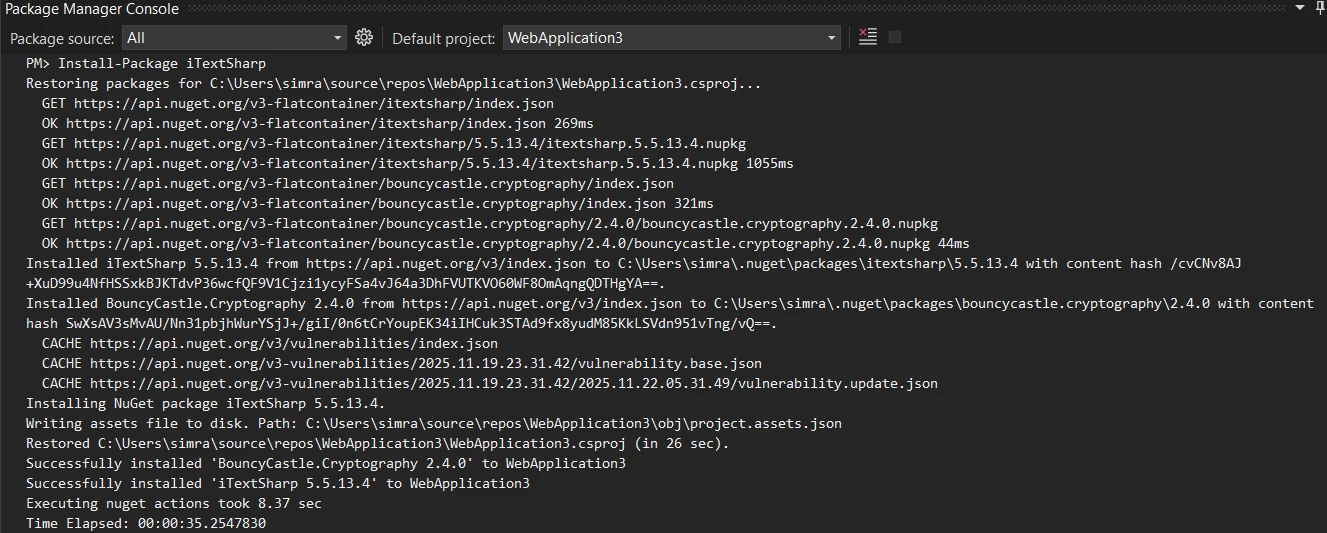
To add iText to your ASP.NET Core MVC project, install the NuGet package using the Package Manager Console:
```bash
Install-Package iTextSharp
```
### Basic Implementation with iText
Here is a complete example showing how to convert an MVC view to PDF using iText's `XMLWorkerHelper` class in your ASP.NET MVC project:
```csharp
using iTextSharp.text;
using iTextSharp.tool.xml;
using iTextSharp.text.pdf;
using System.IO;

public class HomeController : Controller
{
    public ActionResult Index()
    {
        return View();
    }

    public ActionResult GeneratePDF()
    {
        // Create a simple invoice HTML
        string invoiceHtml = @"
            <h1>Invoice #1001</h1>
            <p>Date: " + DateTime.Now.ToString("MM/dd/yyyy") + @"</p>
            <table border='1'>
                <tr><th>Item</th><th>Price</th></tr>
                <tr><td>Product A</td><td>$99.99</td></tr>
                <tr><td>Product B</td><td>$149.99</td></tr>
            </table>
            <p><strong>Total: $249.98</strong></p>";

        // Create PDF document using iTextSharp
        using var stream = new MemoryStream();
        var document = new Document(PageSize.A4);
        PdfWriter writer = PdfWriter.GetInstance(document, stream);
        document.Open();

        using (var srHtml = new StringReader(invoiceHtml))
        {
            XMLWorkerHelper.GetInstance().ParseXHtml(writer, document, srHtml);
        }

        document.Close();

        // Return the PDF file
        return new FileContentResult(stream.ToArray(), "application/pdf")
        {
            FileDownloadName = "invoice.pdf"
        };
    }
}
```
This example creates a basic PDF document from HTML content. The `XMLWorkerHelper` class processes the HTML string and adds elements to the PDF document using the object model. The `PdfWriter` handles the actual PDF generation process, while the `Document` manages the page structure.
### Output

### What Are iText's Key Limitations?
The `XMLWorkerHelper` class supports basic HTML tags and inline CSS. Modern CSS3 properties, flexbox layouts, and grid systems do not render. JavaScript-dependent content disappears entirely. Complex styling like gradients, shadows, and transforms are ignored. Even standard Bootstrap classes fail to apply, leaving carefully designed views looking plain and unprofessional.
Many developers have [reported these limitations on Stack Overflow](https://stackoverflow.com/questions/16517171/convert-html-to-pdf-in-mvc-with-itextsharp-in-mvc-razor), leading to frustration when trying to convert MVC views to PDF with iText.
Perhaps more concerning is iText's licensing model. The library uses the AGPL license, which requires you to open-source your entire application if you use the free version. Commercial licenses start at several thousand dollars per year, making it prohibitively expensive for many businesses. This licensing restriction has pushed many developers to seek alternatives that better align with commercial development needs. As discussed in [Microsoft's .NET documentation](https://docs.microsoft.com/en-us/dotnet/standard/library-guidance/dependencies#understand-license-implications), choosing libraries with appropriate licenses is critical for commercial projects.
## How Do You Convert MVC Views to PDF with a Modern Library?
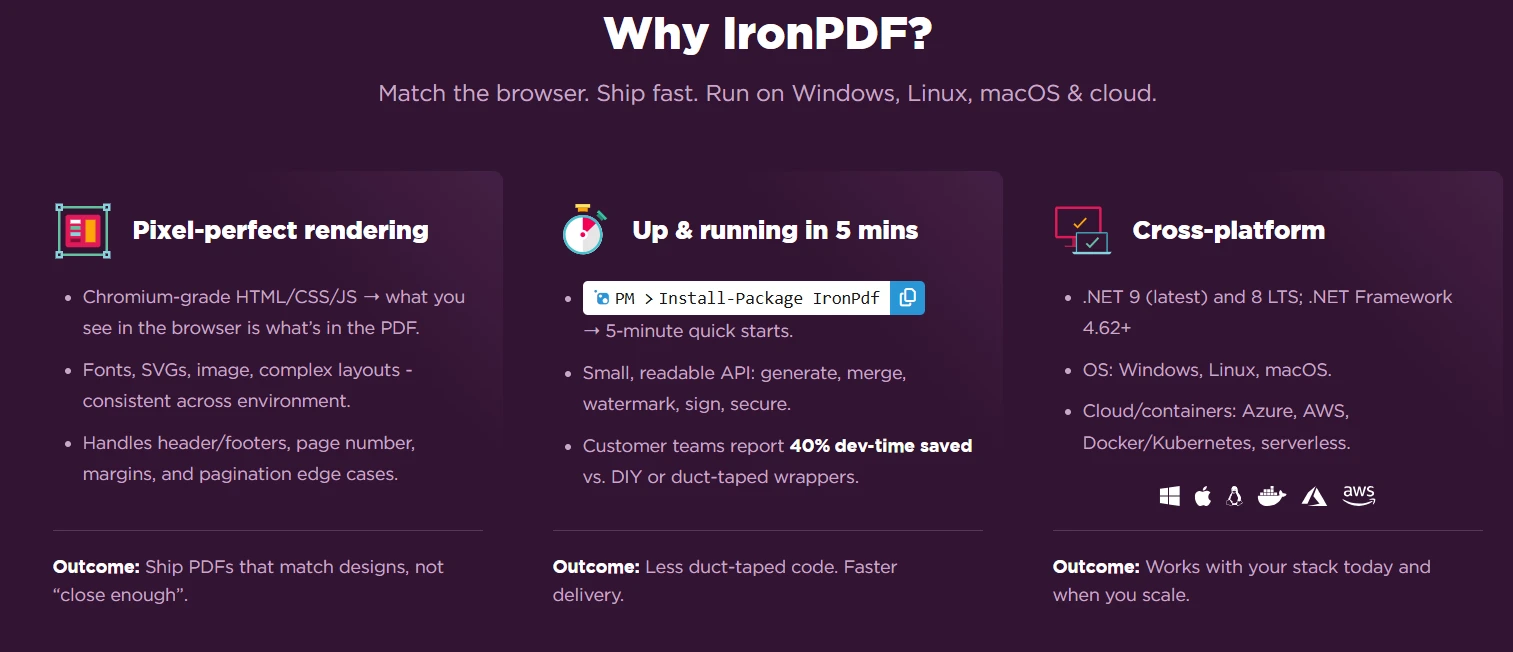
[IronPDF](https://ironpdf.com/) represents a modern approach to PDF generation in ASP.NET Core MVC. Built on the Chromium rendering engine, it converts HTML to PDF exactly as it appears in Google Chrome, preserving all styling, JavaScript execution, and responsive design elements.
### How Do You Install IronPDF?
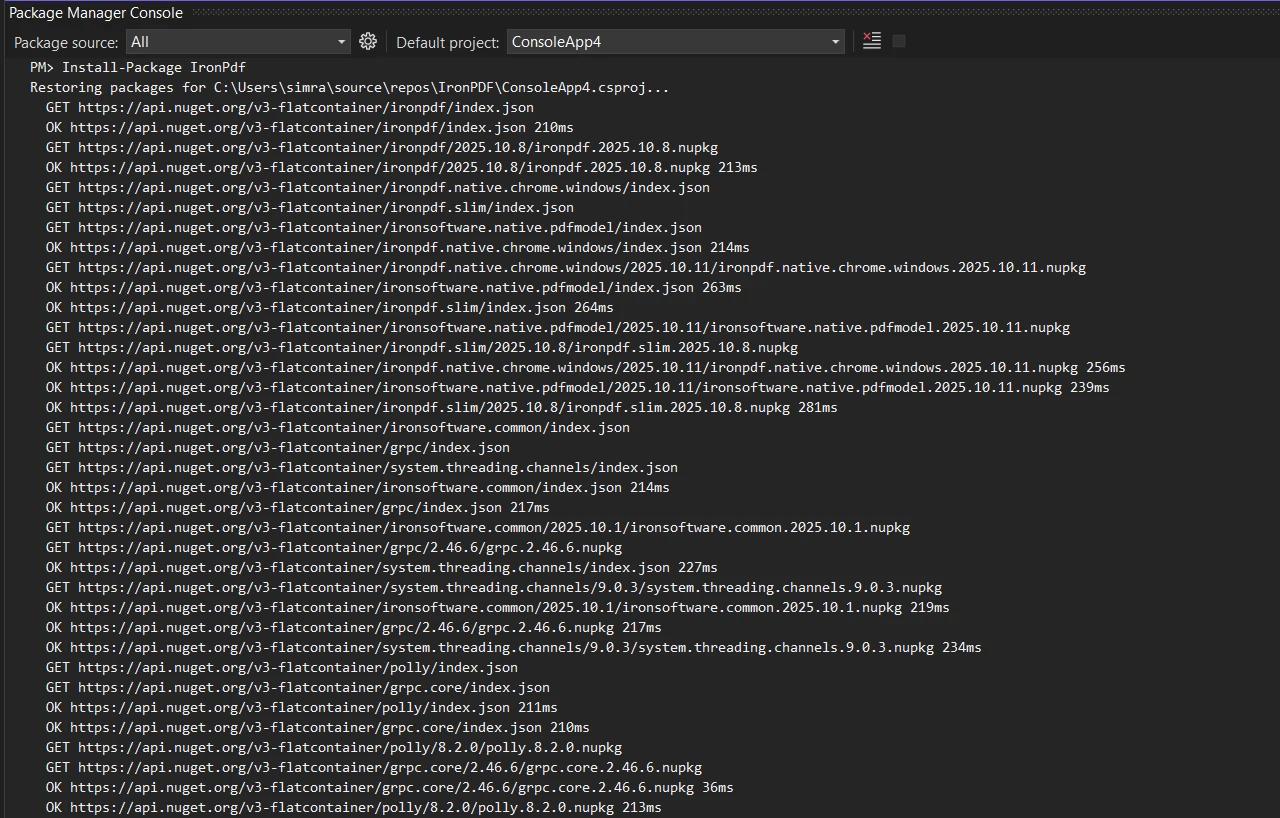
Add IronPDF to your project via the NuGet Package Manager Console:
```bash
:ProductInstall
```
### Modern Implementation with IronPDF
The same invoice created above now uses modern CSS and full HTML5 rendering with [IronPDF's ChromePdfRenderer](https://ironpdf.com/object-reference/api/IronPdf.ChromePdfRenderer.html):
```csharp
using IronPdf;
public class HomeController : Controller
{
public ActionResult Index()
{
return View();
}
public ActionResult GenerateModernPDF()
{
// Create a styled invoice HTML with modern CSS
string invoiceHtml = @"
<style>
body { font-family: 'Segoe UI', Arial; padding: 40px; }
.invoice-header {
background: linear-gradient(135deg, #667eea 0%, #764ba2 100%);
color: white;
padding: 30px;
border-radius: 10px;
}
table {
width: 100%;
border-collapse: collapse;
margin: 20px 0;
}
th {
background-color: #f3f4f6;
padding: 12px;
text-align: left;
}
td {
padding: 12px;
border-bottom: 1px solid #e5e7eb;
}
.total {
font-size: 24px;
color: #10b981;
text-align: right;
margin-top: 20px;
}
</style>
<div class='invoice-header'>
<h1>Invoice #1001</h1>
<p>Date: " + DateTime.Now.ToString("MMMM dd, yyyy") + @"</p>
</div>
<table>
<tr><th>Item</th><th>Quantity</th><th>Price</th></tr>
<tr><td>Premium Package</td><td>1</td><td>$99.99</td></tr>
<tr><td>Professional Services</td><td>2</td><td>$149.99</td></tr>
</table>
<div class='total'>Total: $249.98</div>
<p>Page numbers and additional content can be added to each page.</p>";
// Use Chromium engine for rendering
var renderer = new ChromePdfRenderer();
var pdf = renderer.RenderHtmlAsPdf(invoiceHtml);
// Set content disposition for download
Response.Headers.Append("Content-Disposition", "attachment; filename=modern-invoice.pdf");
// Return the PDF file with binary data
return new FileContentResult(pdf.BinaryData, "application/pdf");
}
}
```
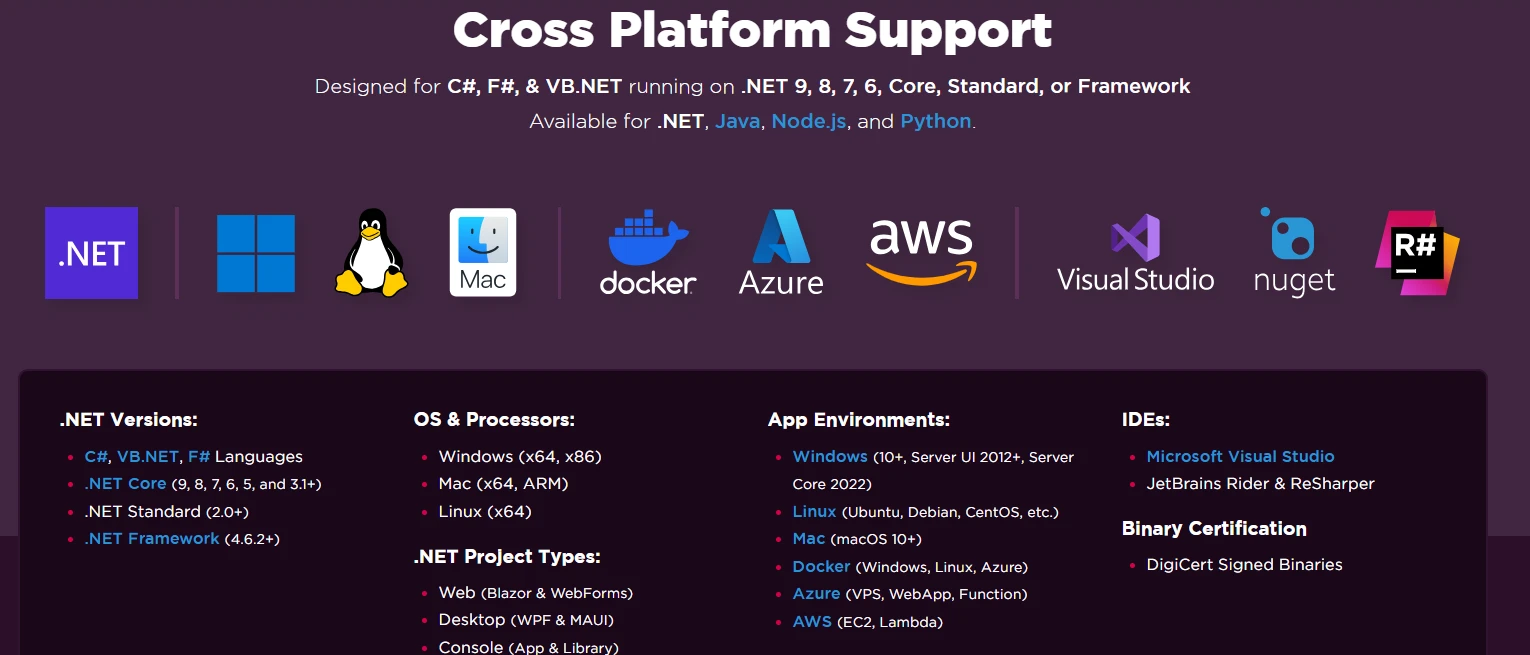
The [`ChromePdfRenderer`](https://ironpdf.com/object-reference/api/IronPdf.ChromePdfRenderer.html) converts the HTML exactly as Chrome would display it. Gradient backgrounds, modern fonts, and sophisticated styling all render accurately. The renderer handles complex CSS properties that iText cannot process, including flexbox, grid layouts, and CSS transforms rendered as static frames. The [`RenderHtmlAsPdf` method](https://ironpdf.com/how-to/html-string-to-pdf/) makes converting HTML to PDF in MVC straightforward.
### Output

[Start your free trial](trial-license) and experience modern PDF generation with the Chrome-powered rendering engine.
## How Do You Choose Between These Two PDF Libraries?
When comparing iText and IronPDF for .NET MVC view conversion, several factors clearly differentiate these libraries across rendering quality, developer experience, and licensing.
### Feature Comparison
<table class="content__data-table" data-content-table>
<caption>iText vs IronPDF Feature Comparison</caption>
<thead>
<tr>
<th>Feature</th>
<th>iText</th>
<th>IronPDF</th>
</tr>
</thead>
<tbody>
<tr>
<td>HTML5 Support</td>
<td>Limited</td>
<td>Full</td>
</tr>
<tr>
<td>CSS3 Rendering</td>
<td>Basic only</td>
<td>Complete</td>
</tr>
<tr>
<td>JavaScript Execution</td>
<td>No</td>
<td>Yes</td>
</tr>
<tr>
<td>Flexbox/Grid Support</td>
<td>No</td>
<td>Yes</td>
</tr>
<tr>
<td>Bootstrap Compatibility</td>
<td>Partial</td>
<td>Full</td>
</tr>
<tr>
<td>Web Font Support</td>
<td>Limited</td>
<td>Complete</td>
</tr>
<tr>
<td>SVG Graphics</td>
<td>No</td>
<td>Yes</td>
</tr>
<tr>
<td>Responsive Design</td>
<td>No</td>
<td>Yes</td>
</tr>
<tr>
<td>API Complexity</td>
<td>Low-level</td>
<td>High-level</td>
</tr>
</tbody>
</table>
### Licensing Considerations
The licensing difference between these libraries significantly impacts commercial development. iText's AGPL license creates legal obligations that many businesses cannot accept. Using the free version requires open-sourcing your entire application, including proprietary business logic. This restriction makes iText unsuitable for most commercial projects unless you purchase an expensive commercial license.
IronPDF offers [straightforward commercial licensing](https://ironpdf.com/licensing/) starting at `$liteLicense` for a single developer. The license includes one year of updates and support, with no obligation to open-source your application. This transparent pricing model aligns with typical software development budgets, making professional PDF generation accessible to businesses of all sizes when converting MVC views to PDF in C#.
### Output Quality Analysis
The rendering quality difference becomes immediately apparent when comparing outputs. iText produces basic PDFs that resemble documents from the early 2000s. Tables lack proper styling, fonts default to system standards, and modern design elements disappear entirely. The resulting PDFs look unprofessional and fail to match your application's branding.
IronPDF generates pixel-perfect PDFs that match your web design. Gradients render accurately, custom fonts display correctly, and complex layouts maintain their structure. The Chromium engine ensures that your PDFs look identical to the web view, preserving brand identity and professional appearance across all generated documents.
## What Advanced Features Does the PDF Renderer Offer?
Beyond basic HTML conversion, IronPDF provides enterprise-grade features that speed up professional PDF generation. The [complete API documentation](https://ironpdf.com/object-reference/api/) demonstrates the library's extensive capabilities for converting MVC views to PDF.
### Headers and Footers
Add professional headers and footers with dynamic content:
```csharp
var renderer = new ChromePdfRenderer
{
RenderingOptions = new ChromePdfRenderOptions
{
HtmlHeader = new HtmlHeaderFooter
{
MaxHeight = 25,
HtmlFragment = "<div style='text-align: center'>Company Name</div>"
},
HtmlFooter = new HtmlHeaderFooter
{
MaxHeight = 20,
HtmlFragment = "<center>Page {page} of {total-pages}</center>"
}
}
};
```
This configuration adds consistent branding to every page. The placeholders `{page}` and `{total-pages}` automatically populate with the correct values, ensuring accurate pagination throughout your document. For more configuration options, see the [headers and footers guide](https://ironpdf.com/how-to/headers-and-footers/).
### Security and Encryption
Protect sensitive documents with passwords and permissions using IronPDF's security features:
```csharp
var pdf = renderer.RenderHtmlAsPdf(html);
// Add password protection
pdf.SecuritySettings.UserPassword = "user123";
pdf.SecuritySettings.OwnerPassword = "owner456";
// Set permissions
pdf.SecuritySettings.AllowUserPrinting = IronPdf.Security.PdfPrintSecurity.FullPrintRights;
pdf.SecuritySettings.AllowUserCopyPasteContent = false;
```
These security settings prevent unauthorized access and control how recipients can interact with your PDFs when you convert MVC views to PDF. You can restrict printing, copying, and editing while maintaining full owner control. Learn more in the [PDF security documentation](https://ironpdf.com/how-to/pdf-permissions-passwords/).
### Output

### Form Field Handling
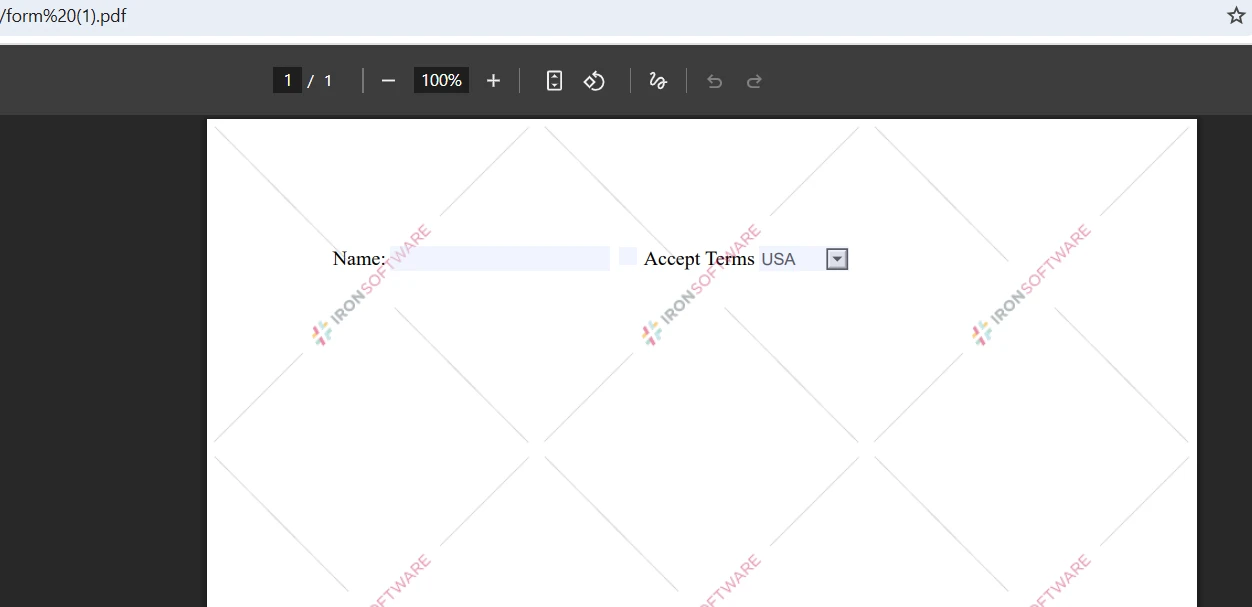
IronPDF converts HTML forms into interactive PDF forms with no extra tools required:
```csharp
string formHtml = @"
<form>
<label>Name:</label>
<input type='checkbox'> Accept Terms
<select name='country'>
<option>USA</option>
<option>Canada</option>
</select>
</form>";
var pdf = renderer.RenderHtmlAsPdf(formHtml);
```
The resulting PDF maintains form interactivity, allowing users to fill fields directly in their PDF reader. This feature eliminates the need for separate form creation tools, simplifying your document workflow. Explore the [forms documentation](https://ironpdf.com/tutorials/pdf-forms-csharp-article/) for further options.
### Output
## How Do You Resolve Common PDF Generation Issues?
Even with modern libraries, certain challenges require specific solutions to ensure optimal PDF output. The following patterns address the most frequent issues developers encounter when converting MVC views to PDF.
### CSS Rendering Optimization
For best results with complex CSS when you convert HTML files to PDF format, use print media queries:
```csharp
renderer.RenderingOptions.CssMediaType = IronPdf.Rendering.PdfCssMediaType.Print;
```
This setting applies print-specific CSS rules, optimizing layouts for PDF output rather than screen display. Combining this with print-optimized stylesheets gives you precise control over page breaks, margins, and typography. The [CSS media type guide](https://ironpdf.com/how-to/rendering-options/) explains additional rendering options.
### JavaScript Execution Timing
When converting dynamic content, allow time for JavaScript execution to complete before capturing the PDF. This ensures all AJAX calls and DOM manipulations finish:
```csharp
renderer.RenderingOptions.EnableJavaScript = true;
renderer.RenderingOptions.WaitFor.RenderDelay = 500; // milliseconds
```
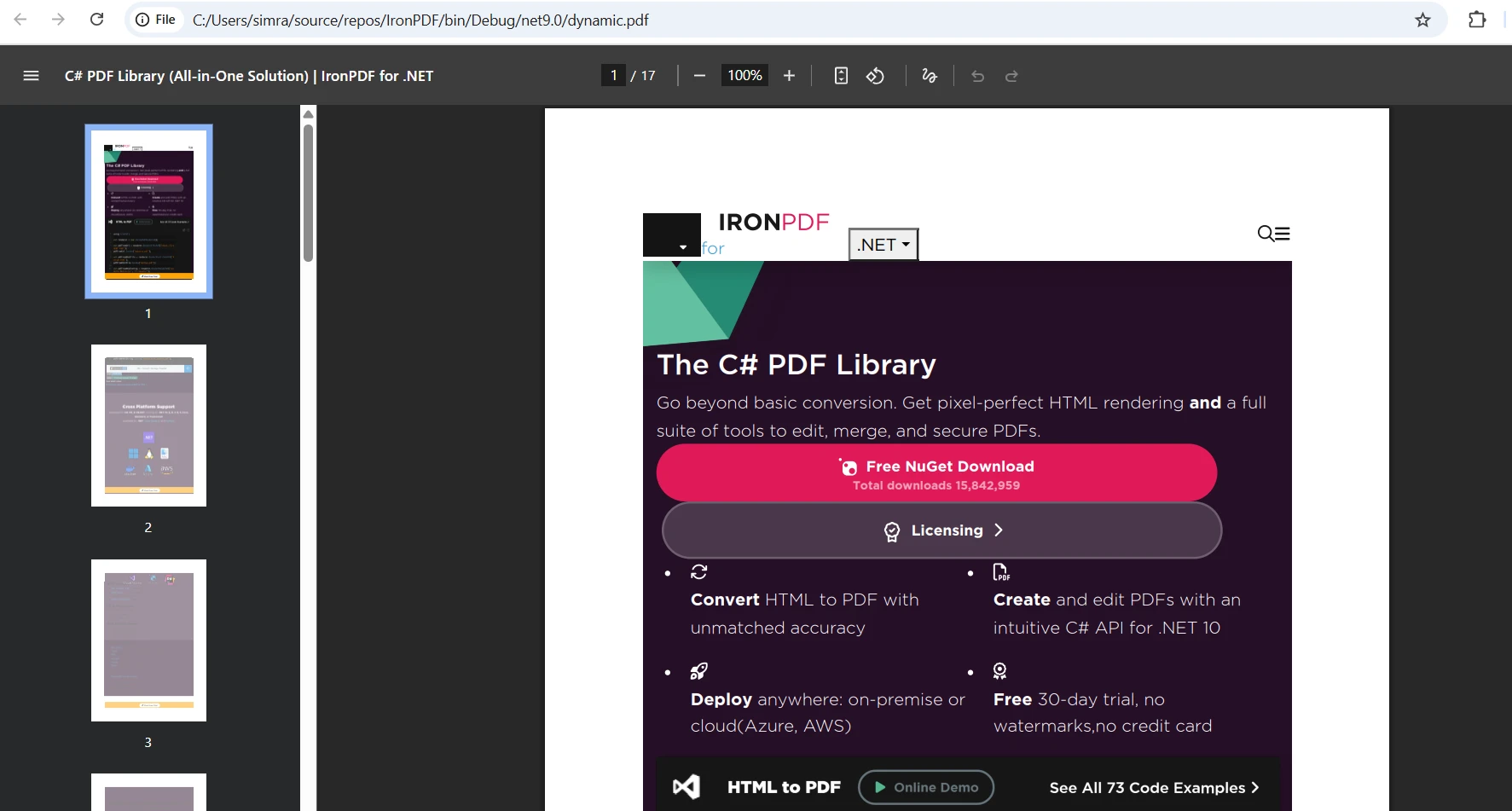
This configuration ensures that AJAX calls complete and DOM manipulations finish before PDF generation begins, capturing the fully rendered state of your MVC view. For chart libraries and other async-heavy content, you may need to increase the delay value.
### Output
### Font Embedding and Document Formatting
Ensure custom fonts render correctly by embedding them directly in your HTML using base64-encoded data URIs:
```css
@font-face {
font-family: 'CustomFont';
src: url(data:font/woff2;base64,[base64-encoded-font]) format('woff2');
}
```
Embedding fonts directly in the HTML guarantees consistent rendering across all environments, eliminating missing font issues in generated PDF documents. This approach works equally well whether you use a URL-based render via [`RenderUrlAsPdf`](https://ironpdf.com/how-to/url-to-pdf/) or a string-based render via `RenderHtmlAsPdf`.
For additional configuration patterns, including page size, orientation, and margin control, visit the [IronPDF rendering options documentation](https://ironpdf.com/how-to/rendering-options/). You can also review [example projects on GitHub](https://github.com/iron-software/IronPdf.Examples) that demonstrate common MVC integration patterns.
## What Are Your Next Steps?
While iText served the .NET community well for many years, modern web development demands more capable PDF generation. IronPDF's Chrome-based rendering engine delivers pixel-perfect accuracy and full CSS3 support that today's ASP.NET MVC applications require. Its high-level API, thorough documentation, and business-friendly licensing make it the practical choice for ASP.NET Core MVC projects.
To go further with PDF generation in your application:
- [Download the free trial](trial-license) and run the code examples from this guide in your own project
- Read the [IronPDF API reference](https://ironpdf.com/object-reference/api/) to explore the full feature set
- Check the [how-to guides](https://ironpdf.com/how-to/html-string-to-pdf/) for watermarks, digital signatures, and PDF merging
- Review [licensing options](https://ironpdf.com/licensing/) to find the right plan for your team
- Explore the [IronPDF blog](https://ironpdf.com/blog/) for more tutorials on PDF manipulation in .NET
Converting ASP.NET MVC views to PDF documents is a core requirement in modern web applications. Whether you're generating invoices, reports, or certificates, the challenge is clear: how do you transform Razor views into professional PDF files that preserve formatting and style? This guide compares the legacy iText library with IronPDF -- the modern Chromium-powered solution -- so you can choose the right tool for your PDF generation workflow.
Why Do You Need to Convert MVC Views to PDF?
Businesses depend on PDF generation for countless critical operations. Invoice systems need tamper-proof billing documents. HR departments generate employment certificates and contracts. Sales teams produce quotes and proposals. Educational platforms issue completion certificates. Each scenario demands server-side PDF generation that maintains consistent formatting across all devices and platforms.
According to ASP.NET Core documentation, Razor views provide an excellent template system for generating dynamic content that can then be converted to PDF. The key question is which library gives you the most accurate, maintainable, and legally suitable solution.
How Does iText Handle MVC to PDF Conversion?
iText has been a staple in .NET PDF generation for over a decade. Originally ported from the Java iText library, it provides low-level control over PDF creation. However, its approach to HTML conversion shows its age, particularly when dealing with modern web content.
Installing iText
To add iText to your ASP.NET Core MVC project, install the NuGet package using the Package Manager Console:
Install-Package iTextSharp
Install-Package iTextSharp
SHELL
Basic Implementation with iText
Here is a complete example showing how to convert an MVC view to PDF using iText's XMLWorkerHelper class in your ASP.NET MVC project:
using iTextSharp.text;using iTextSharp.tool.xml;using iTextSharp.text.pdf;using System.IO;public class HomeController : Controller{ public ActionResultIndex() { returnView(); } public ActionResultGeneratePDF() { // Create a simple invoice HTML string invoiceHtml = @" <h1>Invoice #1001</h1> <p>Date: " + DateTime.Now.ToString("MM/dd/yyyy") + @"</p> <table border='1'> <tr><th>Item</th><th>Price</th></tr> <tr><td>Product A</td><td>$99.99</td></tr> <tr><td>Product B</td><td>$149.99</td></tr> </table> <p><strong>Total: $249.98</strong></p>"; // Create PDF document using iTextSharp using var stream = new MemoryStream(); var document = new Document(PageSize.A4); PdfWriter writer = PdfWriter.GetInstance(document, stream); document.Open(); using (var srHtml = new StringReader(invoiceHtml)) {XMLWorkerHelper.GetInstance().ParseXHtml(writer, document, srHtml); } document.Close(); // Return the PDF file return new FileContentResult(stream.ToArray(), "application/pdf") {FileDownloadName = "invoice.pdf" }; }}
using iTextSharp.text;
using iTextSharp.tool.xml;
using iTextSharp.text.pdf;
using System.IO;

public class HomeController : Controller
{
    public ActionResult Index()
    {
        return View();
    }

    public ActionResult GeneratePDF()
    {
        // Create a simple invoice HTML
        string invoiceHtml = @"
            <h1>Invoice #1001</h1>
            <p>Date: " + DateTime.Now.ToString("MM/dd/yyyy") + @"</p>
            <table border='1'>
                <tr><th>Item</th><th>Price</th></tr>
                <tr><td>Product A</td><td>$99.99</td></tr>
                <tr><td>Product B</td><td>$149.99</td></tr>
            </table>
            <p><strong>Total: $249.98</strong></p>";

        // Create PDF document using iTextSharp
        using var stream = new MemoryStream();
        var document = new Document(PageSize.A4);
        PdfWriter writer = PdfWriter.GetInstance(document, stream);
        document.Open();

        using (var srHtml = new StringReader(invoiceHtml))
        {
            XMLWorkerHelper.GetInstance().ParseXHtml(writer, document, srHtml);
        }

        document.Close();

        // Return the PDF file
        return new FileContentResult(stream.ToArray(), "application/pdf")
        {
            FileDownloadName = "invoice.pdf"
        };
    }
}
Imports iTextSharp.textImports iTextSharp.tool.xmlImports iTextSharp.text.pdfImportsSystem.IOPublic Class HomeControllerInheritsController Public Function Index() AsActionResult ReturnView() End Function Public Function GeneratePDF() AsActionResult ' Create a simple invoice HTML Dim invoiceHtml AsString = " <h1>Invoice #1001</h1> <p>Date: " & DateTime.Now.ToString("MM/dd/yyyy") & "</p> <table border='1'> <tr><th>Item</th><th>Price</th></tr> <tr><td>Product A</td><td>$99.99</td></tr> <tr><td>Product B</td><td>$149.99</td></tr> </table> <p><strong>Total: $249.98</strong></p>" ' Create PDF document using iTextSharpUsing stream As New MemoryStream() Dim document As New Document(PageSize.A4) Dim writer AsPdfWriter = PdfWriter.GetInstance(document, stream) document.Open()Using srHtml As New StringReader(invoiceHtml)XMLWorkerHelper.GetInstance().ParseXHtml(writer, document, srHtml)EndUsing document.Close() ' Return the PDF file Return New FileContentResult(stream.ToArray(), "application/pdf") With { .FileDownloadName = "invoice.pdf" }EndUsing End FunctionEnd Class
Imports iTextSharp.text
Imports iTextSharp.tool.xml
Imports iTextSharp.text.pdf
Imports System.IO

Public Class HomeController
    Inherits Controller

    Public Function Index() As ActionResult
        Return View()
    End Function

    Public Function GeneratePDF() As ActionResult
        ' Create a simple invoice HTML
        Dim invoiceHtml As String = "
            <h1>Invoice #1001</h1>
            <p>Date: " & DateTime.Now.ToString("MM/dd/yyyy") & "</p>
            <table border='1'>
                <tr><th>Item</th><th>Price</th></tr>
                <tr><td>Product A</td><td>$99.99</td></tr>
                <tr><td>Product B</td><td>$149.99</td></tr>
            </table>
            <p><strong>Total: $249.98</strong></p>"

        ' Create PDF document using iTextSharp
        Using stream As New MemoryStream()
            Dim document As New Document(PageSize.A4)
            Dim writer As PdfWriter = PdfWriter.GetInstance(document, stream)
            document.Open()

            Using srHtml As New StringReader(invoiceHtml)
                XMLWorkerHelper.GetInstance().ParseXHtml(writer, document, srHtml)
            End Using

            document.Close()

            ' Return the PDF file
            Return New FileContentResult(stream.ToArray(), "application/pdf") With {
                .FileDownloadName = "invoice.pdf"
            }
        End Using
    End Function
End Class
This example creates a basic PDF document from HTML content. The XMLWorkerHelper class processes the HTML string and adds elements to the PDF document using the object model. The PdfWriter handles the actual PDF generation process, while the Document manages the page structure.
Output
What Are iText's Key Limitations?
The XMLWorkerHelper class supports basic HTML tags and inline CSS. Modern CSS3 properties, flexbox layouts, and grid systems do not render. JavaScript-dependent content disappears entirely. Complex styling like gradients, shadows, and transforms are ignored. Even standard Bootstrap classes fail to apply, leaving carefully designed views looking plain and unprofessional.
Perhaps more concerning is iText's licensing model. The library uses the AGPL license, which requires you to open-source your entire application if you use the free version. Commercial licenses start at several thousand dollars per year, making it prohibitively expensive for many businesses. This licensing restriction has pushed many developers to seek alternatives that better align with commercial development needs. As discussed in Microsoft's .NET documentation, choosing libraries with appropriate licenses is critical for commercial projects.
How Do You Convert MVC Views to PDF with a Modern Library?
IronPDF represents a modern approach to PDF generation in ASP.NET Core MVC. Built on the Chromium rendering engine, it converts HTML to PDF exactly as it appears in Google Chrome, preserving all styling, JavaScript execution, and responsive design elements.
How Do You Install IronPDF?
Add IronPDF to your project via the NuGet Package Manager Console:
PM > Install-Package IronPdf
Install-Package IronPdf
Modern Implementation with IronPDF
The same invoice created above now uses modern CSS and full HTML5 rendering with IronPDF's ChromePdfRenderer:
using IronPdf;public class HomeController : Controller{ public ActionResultIndex() { returnView(); } public ActionResultGenerateModernPDF() { // Create a styled invoice HTML with modern CSS string invoiceHtml = @" <style> body { font-family: 'Segoe UI', Arial; padding: 40px; } .invoice-header { background: linear-gradient(135deg, #667eea 0%, #764ba2 100%); color: white; padding: 30px; border-radius: 10px; } table { width: 100%; border-collapse: collapse; margin: 20px 0; } th { background-color: #f3f4f6; padding: 12px; text-align: left; } td { padding: 12px; border-bottom: 1px solid #e5e7eb; } .total { font-size: 24px; color: #10b981; text-align: right; margin-top: 20px; } </style> <div class='invoice-header'> <h1>Invoice #1001</h1> <p>Date: " + DateTime.Now.ToString("MMMM dd, yyyy") + @"</p> </div> <table> <tr><th>Item</th><th>Quantity</th><th>Price</th></tr> <tr><td>Premium Package</td><td>1</td><td>$99.99</td></tr> <tr><td>Professional Services</td><td>2</td><td>$149.99</td></tr> </table> <div class='total'>Total: $249.98</div> <p>Page numbers and additional content can be added to each page.</p>"; // Use Chromium engine for rendering var renderer = new ChromePdfRenderer(); var pdf = renderer.RenderHtmlAsPdf(invoiceHtml); // Set content disposition for downloadResponse.Headers.Append("Content-Disposition", "attachment; filename=modern-invoice.pdf"); // Return the PDF file with binary data return new FileContentResult(pdf.BinaryData, "application/pdf"); }}
using IronPdf;

public class HomeController : Controller
{
    public ActionResult Index()
    {
        return View();
    }

    public ActionResult GenerateModernPDF()
    {
        // Create a styled invoice HTML with modern CSS
        string invoiceHtml = @"
            <style>
                body { font-family: 'Segoe UI', Arial; padding: 40px; }
                .invoice-header {
                    background: linear-gradient(135deg, #667eea 0%, #764ba2 100%);
                    color: white;
                    padding: 30px;
                    border-radius: 10px;
                }
                table {
                    width: 100%;
                    border-collapse: collapse;
                    margin: 20px 0;
                }
                th {
                    background-color: #f3f4f6;
                    padding: 12px;
                    text-align: left;
                }
                td {
                    padding: 12px;
                    border-bottom: 1px solid #e5e7eb;
                }
                .total {
                    font-size: 24px;
                    color: #10b981;
                    text-align: right;
                    margin-top: 20px;
                }
            </style>
            <div class='invoice-header'>
                <h1>Invoice #1001</h1>
                <p>Date: " + DateTime.Now.ToString("MMMM dd, yyyy") + @"</p>
            </div>
            <table>
                <tr><th>Item</th><th>Quantity</th><th>Price</th></tr>
                <tr><td>Premium Package</td><td>1</td><td>$99.99</td></tr>
                <tr><td>Professional Services</td><td>2</td><td>$149.99</td></tr>
            </table>
            <div class='total'>Total: $249.98</div>
            <p>Page numbers and additional content can be added to each page.</p>";

        // Use Chromium engine for rendering
        var renderer = new ChromePdfRenderer();
        var pdf = renderer.RenderHtmlAsPdf(invoiceHtml);

        // Set content disposition for download
        Response.Headers.Append("Content-Disposition", "attachment; filename=modern-invoice.pdf");

        // Return the PDF file with binary data
        return new FileContentResult(pdf.BinaryData, "application/pdf");
    }
}
ImportsIronPdfImportsSystem.Web.MvcPublic Class HomeControllerInheritsController Public Function Index() AsActionResult ReturnView() End Function Public Function GenerateModernPDF() AsActionResult ' Create a styled invoice HTML with modern CSS Dim invoiceHtml AsString = " <style> body { font-family: 'Segoe UI', Arial; padding: 40px; } .invoice-header { background: linear-gradient(135deg, #667eea 0%, #764ba2 100%); color: white; padding: 30px; border-radius: 10px; } table { width: 100%; border-collapse: collapse; margin: 20px 0; } th { background-color: #f3f4f6; padding: 12px; text-align: left; } td { padding: 12px; border-bottom: 1px solid #e5e7eb; } .total { font-size: 24px; color: #10b981; text-align: right; margin-top: 20px; } </style> <div class='invoice-header'> <h1>Invoice #1001</h1> <p>Date: " & DateTime.Now.ToString("MMMM dd, yyyy") & "</p> </div> <table> <tr><th>Item</th><th>Quantity</th><th>Price</th></tr> <tr><td>Premium Package</td><td>1</td><td>$99.99</td></tr> <tr><td>Professional Services</td><td>2</td><td>$149.99</td></tr> </table> <div class='total'>Total: $249.98</div> <p>Page numbers and additional content can be added to each page.</p>" ' Use Chromium engine for rendering Dim renderer As New ChromePdfRenderer() Dim pdf = renderer.RenderHtmlAsPdf(invoiceHtml) ' Set content disposition for download Response.Headers.Append("Content-Disposition", "attachment; filename=modern-invoice.pdf") ' Return the PDF file with binary data Return New FileContentResult(pdf.BinaryData, "application/pdf") End FunctionEnd Class
Imports IronPdf
Imports System.Web.Mvc

Public Class HomeController
    Inherits Controller

    Public Function Index() As ActionResult
        Return View()
    End Function

    Public Function GenerateModernPDF() As ActionResult
        ' Create a styled invoice HTML with modern CSS
        Dim invoiceHtml As String = "
            <style>
                body { font-family: 'Segoe UI', Arial; padding: 40px; }
                .invoice-header {
                    background: linear-gradient(135deg, #667eea 0%, #764ba2 100%);
                    color: white;
                    padding: 30px;
                    border-radius: 10px;
                }
                table {
                    width: 100%;
                    border-collapse: collapse;
                    margin: 20px 0;
                }
                th {
                    background-color: #f3f4f6;
                    padding: 12px;
                    text-align: left;
                }
                td {
                    padding: 12px;
                    border-bottom: 1px solid #e5e7eb;
                }
                .total {
                    font-size: 24px;
                    color: #10b981;
                    text-align: right;
                    margin-top: 20px;
                }
            </style>
            <div class='invoice-header'>
                <h1>Invoice #1001</h1>
                <p>Date: " & DateTime.Now.ToString("MMMM dd, yyyy") & "</p>
            </div>
            <table>
                <tr><th>Item</th><th>Quantity</th><th>Price</th></tr>
                <tr><td>Premium Package</td><td>1</td><td>$99.99</td></tr>
                <tr><td>Professional Services</td><td>2</td><td>$149.99</td></tr>
            </table>
            <div class='total'>Total: $249.98</div>
            <p>Page numbers and additional content can be added to each page.</p>"

        ' Use Chromium engine for rendering
        Dim renderer As New ChromePdfRenderer()
        Dim pdf = renderer.RenderHtmlAsPdf(invoiceHtml)

        ' Set content disposition for download
        Response.Headers.Append("Content-Disposition", "attachment; filename=modern-invoice.pdf")

        ' Return the PDF file with binary data
        Return New FileContentResult(pdf.BinaryData, "application/pdf")
    End Function
End Class
The ChromePdfRenderer converts the HTML exactly as Chrome would display it. Gradient backgrounds, modern fonts, and sophisticated styling all render accurately. The renderer handles complex CSS properties that iText cannot process, including flexbox, grid layouts, and CSS transforms rendered as static frames. The RenderHtmlAsPdf method makes converting HTML to PDF in MVC straightforward.
Output
Start your free trial and experience modern PDF generation with the Chrome-powered rendering engine.
How Do You Choose Between These Two PDF Libraries?
When comparing iText and IronPDF for .NET MVC view conversion, several factors clearly differentiate these libraries across rendering quality, developer experience, and licensing.
Feature Comparison
iText vs IronPDF Feature Comparison
Feature
iText
IronPDF
HTML5 Support
Limited
Full
CSS3 Rendering
Basic only
Complete
JavaScript Execution
No
Yes
Flexbox/Grid Support
No
Yes
Bootstrap Compatibility
Partial
Full
Web Font Support
Limited
Complete
SVG Graphics
No
Yes
Responsive Design
No
Yes
API Complexity
Low-level
High-level
Licensing Considerations
The licensing difference between these libraries significantly impacts commercial development. iText's AGPL license creates legal obligations that many businesses cannot accept. Using the free version requires open-sourcing your entire application, including proprietary business logic. This restriction makes iText unsuitable for most commercial projects unless you purchase an expensive commercial license.
IronPDF offers straightforward commercial licensing starting at $999 for a single developer. The license includes one year of updates and support, with no obligation to open-source your application. This transparent pricing model aligns with typical software development budgets, making professional PDF generation accessible to businesses of all sizes when converting MVC views to PDF in C#.
Output Quality Analysis
The rendering quality difference becomes immediately apparent when comparing outputs. iText produces basic PDFs that resemble documents from the early 2000s. Tables lack proper styling, fonts default to system standards, and modern design elements disappear entirely. The resulting PDFs look unprofessional and fail to match your application's branding.
IronPDF generates pixel-perfect PDFs that match your web design. Gradients render accurately, custom fonts display correctly, and complex layouts maintain their structure. The Chromium engine ensures that your PDFs look identical to the web view, preserving brand identity and professional appearance across all generated documents.
What Advanced Features Does the PDF Renderer Offer?
Beyond basic HTML conversion, IronPDF provides enterprise-grade features that speed up professional PDF generation. The complete API documentation demonstrates the library's extensive capabilities for converting MVC views to PDF.
Headers and Footers
Add professional headers and footers with dynamic content:
var renderer = new ChromePdfRenderer{RenderingOptions = new ChromePdfRenderOptions {HtmlHeader = new HtmlHeaderFooter {MaxHeight = 25,HtmlFragment = "<div style='text-align: center'>Company Name</div>" },HtmlFooter = new HtmlHeaderFooter {MaxHeight = 20,HtmlFragment = "<center>Page {page} of {total-pages}</center>" } }};
var renderer = new ChromePdfRenderer
{
    RenderingOptions = new ChromePdfRenderOptions
    {
        HtmlHeader = new HtmlHeaderFooter
        {
            MaxHeight = 25,
            HtmlFragment = "<div style='text-align: center'>Company Name</div>"
        },
        HtmlFooter = new HtmlHeaderFooter
        {
            MaxHeight = 20,
            HtmlFragment = "<center>Page {page} of {total-pages}</center>"
        }
    }
};
Dim renderer = New ChromePdfRendererWith { .RenderingOptions = New ChromePdfRenderOptionsWith { .HtmlHeader = New HtmlHeaderFooterWith { .MaxHeight = 25, .HtmlFragment = "<div style='text-align: center'>Company Name</div>" }, .HtmlFooter = New HtmlHeaderFooterWith { .MaxHeight = 20, .HtmlFragment = "<center>Page {page} of {total-pages}</center>" } }}
Dim renderer = New ChromePdfRenderer With {
    .RenderingOptions = New ChromePdfRenderOptions With {
        .HtmlHeader = New HtmlHeaderFooter With {
            .MaxHeight = 25,
            .HtmlFragment = "<div style='text-align: center'>Company Name</div>"
        },
        .HtmlFooter = New HtmlHeaderFooter With {
            .MaxHeight = 20,
            .HtmlFragment = "<center>Page {page} of {total-pages}</center>"
        }
    }
}
This configuration adds consistent branding to every page. The placeholders {page} and {total-pages} automatically populate with the correct values, ensuring accurate pagination throughout your document. For more configuration options, see the headers and footers guide.
Security and Encryption
Protect sensitive documents with passwords and permissions using IronPDF's security features:
var pdf = renderer.RenderHtmlAsPdf(html);// Add password protectionpdf.SecuritySettings.UserPassword = "user123";pdf.SecuritySettings.OwnerPassword = "owner456";// Set permissionspdf.SecuritySettings.AllowUserPrinting = IronPdf.Security.PdfPrintSecurity.FullPrintRights;pdf.SecuritySettings.AllowUserCopyPasteContent = false;
var pdf = renderer.RenderHtmlAsPdf(html);

// Add password protection
pdf.SecuritySettings.UserPassword = "user123";
pdf.SecuritySettings.OwnerPassword = "owner456";

// Set permissions
pdf.SecuritySettings.AllowUserPrinting = IronPdf.Security.PdfPrintSecurity.FullPrintRights;
pdf.SecuritySettings.AllowUserCopyPasteContent = false;
Dim pdf = renderer.RenderHtmlAsPdf(html)' Add password protectionpdf.SecuritySettings.UserPassword = "user123"pdf.SecuritySettings.OwnerPassword = "owner456"' Set permissionspdf.SecuritySettings.AllowUserPrinting = IronPdf.Security.PdfPrintSecurity.FullPrintRightspdf.SecuritySettings.AllowUserCopyPasteContent = False
Dim pdf = renderer.RenderHtmlAsPdf(html)

' Add password protection
pdf.SecuritySettings.UserPassword = "user123"
pdf.SecuritySettings.OwnerPassword = "owner456"

' Set permissions
pdf.SecuritySettings.AllowUserPrinting = IronPdf.Security.PdfPrintSecurity.FullPrintRights
pdf.SecuritySettings.AllowUserCopyPasteContent = False
These security settings prevent unauthorized access and control how recipients can interact with your PDFs when you convert MVC views to PDF. You can restrict printing, copying, and editing while maintaining full owner control. Learn more in the PDF security documentation.
Output
Form Field Handling
IronPDF converts HTML forms into interactive PDF forms with no extra tools required:
Imports System

Dim formHtml As String = "
    <form>
        <label>Name:</label>
        <input type='checkbox'> Accept Terms
        <select name='country'>
            <option>USA</option>
            <option>Canada</option>
        </select>
    </form>"

Dim pdf = renderer.RenderHtmlAsPdf(formHtml)
The resulting PDF maintains form interactivity, allowing users to fill fields directly in their PDF reader. This feature eliminates the need for separate form creation tools, simplifying your document workflow. Explore the forms documentation for further options.
Output
How Do You Resolve Common PDF Generation Issues?
Even with modern libraries, certain challenges require specific solutions to ensure optimal PDF output. The following patterns address the most frequent issues developers encounter when converting MVC views to PDF.
CSS Rendering Optimization
For best results with complex CSS when you convert HTML files to PDF format, use print media queries:
This setting applies print-specific CSS rules, optimizing layouts for PDF output rather than screen display. Combining this with print-optimized stylesheets gives you precise control over page breaks, margins, and typography. The CSS media type guide explains additional rendering options.
JavaScript Execution Timing
When converting dynamic content, allow time for JavaScript execution to complete before capturing the PDF. This ensures all AJAX calls and DOM manipulations finish:
This configuration ensures that AJAX calls complete and DOM manipulations finish before PDF generation begins, capturing the fully rendered state of your MVC view. For chart libraries and other async-heavy content, you may need to increase the delay value.
Output
Font Embedding and Document Formatting
Ensure custom fonts render correctly by embedding them directly in your HTML using base64-encoded data URIs:
Embedding fonts directly in the HTML guarantees consistent rendering across all environments, eliminating missing font issues in generated PDF documents. This approach works equally well whether you use a URL-based render via RenderUrlAsPdf or a string-based render via RenderHtmlAsPdf.
While iText served the .NET community well for many years, modern web development demands more capable PDF generation. IronPDF's Chrome-based rendering engine delivers pixel-perfect accuracy and full CSS3 support that today's ASP.NET MVC applications require. Its high-level API, thorough documentation, and business-friendly licensing make it the practical choice for ASP.NET Core MVC projects.
To go further with PDF generation in your application:
Curtis Chau holds a Bachelor’s degree in Computer Science (Carleton University) and specializes in front-end development with expertise in Node.js, TypeScript, JavaScript, and React. Passionate about crafting intuitive and aesthetically pleasing user interfaces, Curtis enjoys working with modern frameworks and creating well-structured, visually appealing manuals.


































