using IronPdf;

// Disable local disk access or cross-origin requests
Installation.EnableWebSecurity = true;

// Instantiate Renderer
var renderer = new ChromePdfRenderer();

// Create a PDF from a HTML string using C#
var pdf = renderer.RenderHtmlAsPdf("<h1>Hello World</h1>");

// Export to a file or Stream
pdf.SaveAs("output.pdf");

// Advanced Example with HTML Assets
// Load external html assets: Images, CSS and JavaScript.
// An optional BasePath 'C:\site\assets\' is set as the file location to load assets from
var myAdvancedPdf = renderer.RenderHtmlAsPdf("<img src='icons/iron.png'>", @"C:\site\assets\");
myAdvancedPdf.SaveAs("html-with-assets.pdf");
using IronPdf;// Disable local disk access or cross-origin requestsInstallation.EnableWebSecurity = true;// Instantiate Renderervar renderer = new ChromePdfRenderer();// Create a PDF from a HTML string using C#var pdf = renderer.RenderHtmlAsPdf("<h1>Hello World</h1>");// Export to a file or Streampdf.SaveAs("output.pdf");// Advanced Example with HTML Assets// Load external html assets: Images, CSS and JavaScript.// An optional BasePath 'C:\site\assets\' is set as the file location to load assets fromvar myAdvancedPdf = renderer.RenderHtmlAsPdf("<img src='icons/iron.png'>", @"C:\site\assets\");myAdvancedPdf.SaveAs("html-with-assets.pdf");
PM >Install-Package IronPdf
Install-Package IronPdf
USING IRONPDF
How to Open PDF in New Windows with ASP.NET C# and IronPDF
[IronPDF](https://ironpdf.com/) enables ASP.NET developers to generate and display PDF files directly in browser tabs by correctly setting Content-Disposition headers to "inline" rather than "attachment", eliminating unwanted downloads while providing reliable [PDF viewing](https://ironpdf.com/how-to/pdf-viewing/) experiences.
## What Problem Does This Tutorial Solve?
Opening PDF files in a new window or browser tab is a common request in ASP.NET web applications. Developers often struggle with [PDF documents](https://ironpdf.com/how-to/create-new-pdfs/) that download automatically instead of displaying in the browser when users click a link. This frustrating behavior disrupts the user experience, especially when viewing reports, invoices, or documentation that users need to refer to while continuing their work on the current page.
[IronPDF](https://ironpdf.com/) provides an effective solution to this challenge, offering powerful [PDF generation](https://ironpdf.com/features/create/) and display capabilities that integrate reliably with [ASP.NET applications](https://ironpdf.com/how-to/aspx-to-pdf/). Rather than wrestling with Response headers and Content-Disposition settings manually, developers can use IronPDF's [ChromePdfRenderer](https://ironpdf.com/object-reference/api/IronPdf.ChromePdfRenderer.html) to create and serve PDF files that open consistently in new browser tabs.
### Why Should You Care About PDF Display Issues?
When serving PDF files through ASP.NET, the default behavior often results in downloads rather than browser display. This happens because of how the server sends the file to the browser through [HTTP response headers](https://ironpdf.com/how-to/http-request-header/). The Content-Disposition header controls whether a PDF file opens inline or downloads.
Traditional ASP.NET code using `Response.BinaryWrite` with a [byte array](https://ironpdf.com/how-to/pdf-memory-stream/) often sets headers that trigger downloads. Even when developers set `Response.ContentType = "application/pdf"`, missing or incorrect `Content-Disposition` values cause the browser to download rather than display the [PDF document](https://ironpdf.com/tutorials/organize-pdfs-complete-tutorial/). Different browsers also handle PDF files inconsistently -- while some desktop browsers may display files inline by default, mobile browsers often default to downloading.
### When Do These Problems Occur Most Often?
The server-side configuration becomes more complex when working with dynamically generated PDF documents from [HTML strings](https://ironpdf.com/how-to/html-string-to-pdf/) or database sources. Without the correct path and proper headers, achieving consistent cross-browser display is a real challenge. Many developers turn to [Stack Overflow](https://stackoverflow.com/questions/8294057/how-to-open-pdf-file-in-a-new-tab-or-window-instead-of-downloading-it-using-asp) seeking solutions to this persistent issue. The [MDN Web Docs entry on Content-Disposition](https://developer.mozilla.org/en-US/docs/Web/HTTP/Headers/Content-Disposition) is the authoritative reference for understanding the exact syntax and browser behavior for both inline and attachment values.
## How Does IronPDF Simplify PDF Display?
IronPDF transforms the task of [PDF generation](https://ironpdf.com/features/create/) and display into straightforward code. Using its [Chrome-based rendering engine](https://ironpdf.com/how-to/ironpdf-2021-chrome-rendering-engine-eap/), IronPDF generates [pixel-perfect PDF documents](https://ironpdf.com/tutorials/pixel-perfect-html-to-pdf/) from HTML content while automatically handling the technical details that often trip up developers.
### What Makes IronPDF's Approach Different?
The library's [`ChromePdfRenderer`](https://ironpdf.com/object-reference/api/IronPdf.ChromePdfRenderer.html) class provides a modern approach to PDF creation. Instead of manually managing byte arrays and response streams, developers can generate PDFs from [HTML strings](https://ironpdf.com/how-to/html-string-to-pdf/), HTML files, or URLs with simple method calls. IronPDF handles the rendering process internally, ensuring consistent output across different environments.
### Which Features Help the Most?
Beyond basic generation, IronPDF offers extensive [rendering options](https://ironpdf.com/how-to/rendering-options/) for customizing output, including paper size, margins, and JavaScript execution delays. This flexibility makes it suitable for creating everything from simple documents to complex reports with charts and dynamic content.
The rendering engine also supports custom headers and footers, watermarks, and page numbering -- all configured through a straightforward options object before calling the render method. For developers who need to match an existing brand style guide, this level of control over the output format is a significant advantage over manually constructing PDF binary data.
## How Do You Install IronPDF?
Install IronPDF through NuGet Package Manager to get started:
```bash
:ProductInstall
```
This single command adds IronPDF and all its dependencies to the project. Once installed, the `IronPdf` namespace becomes available throughout the application, giving access to `ChromePdfRenderer`, `PdfDocument`, and all related classes.
## How Do You Generate and Open PDF Files with IronPDF?
Here is a complete example for [ASP.NET Core](https://ironpdf.com/how-to/aspx-to-pdf/) that generates a PDF file and serves it to open in a browser tab:
```csharp
using IronPdf;
using Microsoft.AspNetCore.Mvc;

[Route("[controller]")]
public class PdfController : Controller
{
    [HttpGet("GeneratePdf")]
    public IActionResult GeneratePdf()
    {
        // Create a new ChromePdfRenderer instance
        var renderer = new ChromePdfRenderer();

        // Generate PDF from HTML string -- supports CSS and JavaScript
        string htmlContent = $@"
            <html>
                <body>
                    <h1>Sample PDF Document</h1>
                    <p>This PDF opens in a new browser tab.</p>
                    <p>Generated on: {DateTime.Now}</p>
                </body>
            </html>";

        // Render HTML to a PDF document
        var pdf = renderer.RenderHtmlAsPdf(htmlContent);

        // Get the binary data for streaming
        byte[] pdfBytes = pdf.BinaryData;

        // Set inline display -- this is the key header for browser display
        Response.Headers.Append("Content-Disposition", "inline; filename=document.pdf");
        Response.Headers.Append("Content-Length", pdfBytes.Length.ToString());

        return File(pdfBytes, "application/pdf");
    }
}
```
### What Does the Generated PDF Look Like?
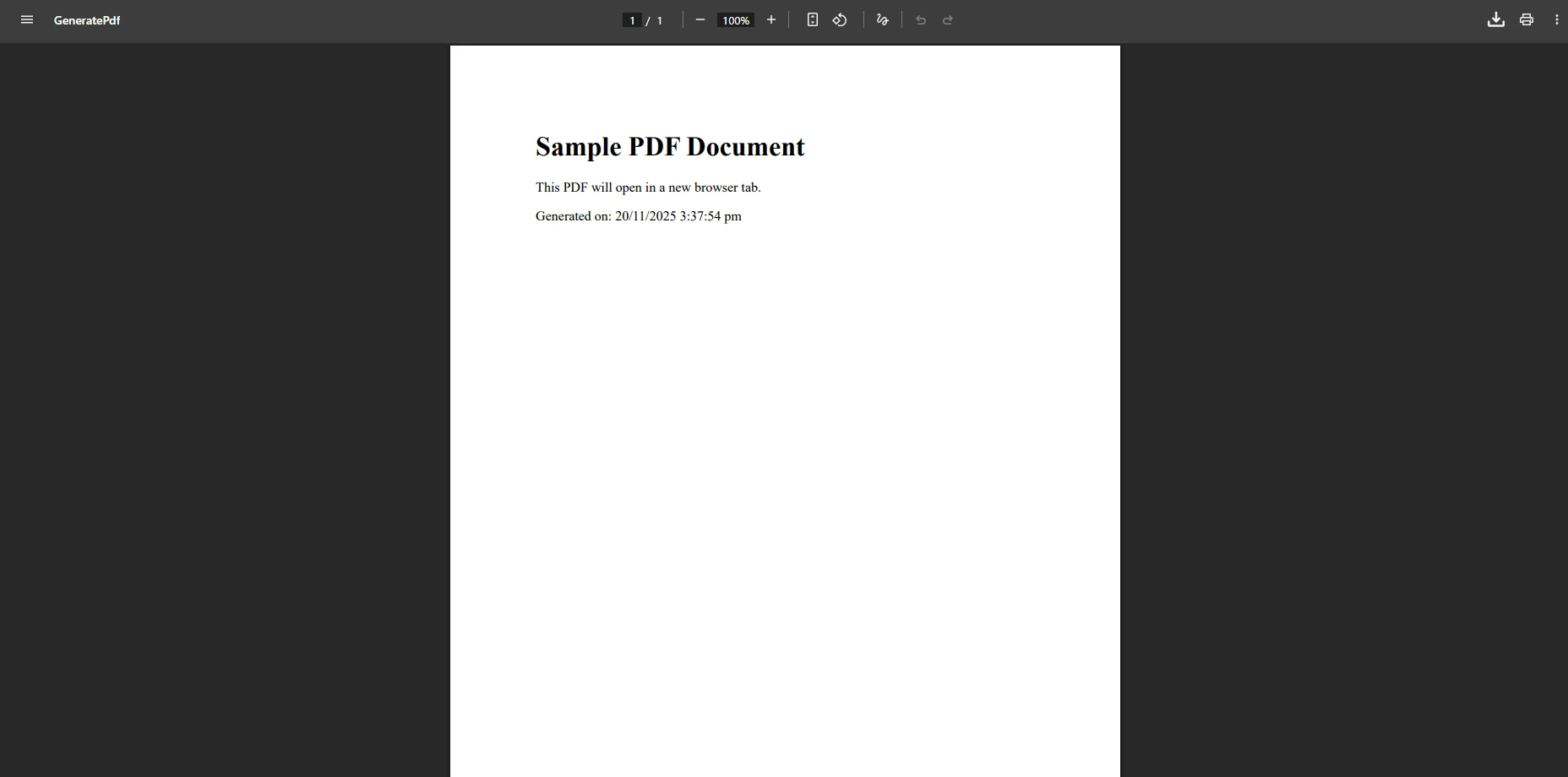
The code above uses `[HttpGet]`. When creating a PDF after a user submits a form, use the `[HttpPost]` attribute instead. This distinction matters: GET requests should be idempotent, while POST requests carry the submitted form data used to generate the personalized document.
Notice that `Response.Headers.Append` is used rather than `Response.Headers.Add`. In ASP.NET Core, the `Append` method is the preferred API for adding response headers because it does not throw if the header already exists. Using `Add` can cause exceptions in middleware pipelines where headers may have been partially set already.
### Why Does the Content-Disposition Header Matter?
The critical detail for opening PDF files in the browser is setting the Content-Disposition header to `"inline"` rather than `"attachment"`. The `"attachment"` value tells the browser to download the file and save it to disk. Setting it to `"inline"` instructs the browser to attempt to display the file within the browser window -- which modern browsers supporting native PDF rendering will do automatically.
### How Do You Implement This in WebForms?
For WebForms applications, you can serve the PDF directly through the HTTP response and trigger browser display from a button click event:
```csharp
using IronPdf;
protected void OpenPdf_Click(object sender, EventArgs e)
{
var renderer = new ChromePdfRenderer();
// Generate PDF from HTML content
var pdf = renderer.RenderHtmlAsPdf("<h1>Invoice</h1><p>Your order details</p>");
// Get byte array from the PDF document
byte[] data = pdf.BinaryData;
// Clear any existing response output
Response.Clear();
Response.ContentType = "application/pdf";
Response.AddHeader("Content-Length", data.Length.ToString());
Response.AddHeader("Content-Disposition", "inline; filename=invoice.pdf");
Response.BinaryWrite(data);
Response.End();
}
```
If you also need to [create PDF forms](https://ironpdf.com/how-to/create-forms/) or add [digital signatures](https://ironpdf.com/how-to/signing/), IronPDF provides built-in support for both of these advanced features.
## What Browser Tab Control Options Are Available?
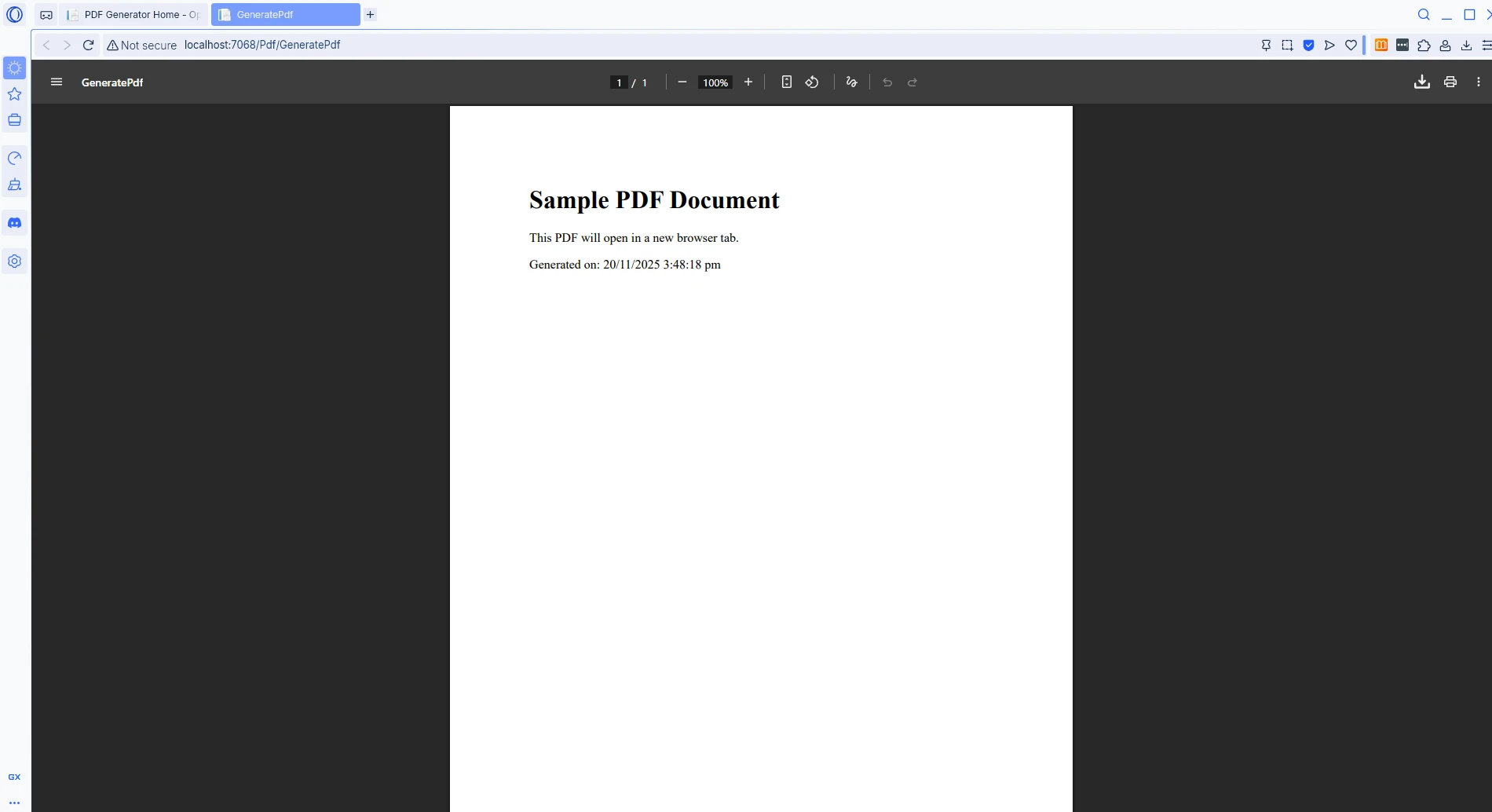
While server-side code determines whether a PDF displays inline, controlling whether it opens in the same tab or a new tab requires client-side HTML or JavaScript. The `target` attribute on HTML anchor tags provides the simplest approach:
```html
<a href="/Pdf/GeneratePdf" target="_blank">View PDF</a>
```
### How Does the PDF Display in a New Tab?
### When Should You Use JavaScript for More Control?
For scenarios where the URL is determined dynamically, JavaScript's `window.open` function gives precise control over when and how the PDF tab opens:
```js
function openPdfInNewTab() {
// Open the PDF endpoint in a new browser tab
window.open('/Pdf/GeneratePdf', '_blank');
return false; // Prevent default link or form submission behavior
}
```
### How Do You Combine JavaScript with ASP.NET Controls?
In ASP.NET WebForms applications, attach the JavaScript call directly to a button control using the `OnClientClick` attribute:
```csharp
<asp:Button ID="btnViewPdf" runat="server"
OnClientClick="window.open('/Pdf/GeneratePdf', '_blank'); return false;"
Text="Open PDF in New Tab" />
```
When using `window.open()`, the second argument `'_blank'` is the target parameter that opens the document in a new, separate window or tab. This mirrors the behavior of `target="_blank"` on a standard HTML anchor tag.
### What About Embedding PDFs Directly in the Page?
The HTML `<object>` tag provides another option for embedding [PDF documents](https://ironpdf.com/tutorials/html-to-pdf/) directly in the current page, useful when users need to read the document alongside other content:
```html
<object data="/Pdf/GeneratePdf" type="application/pdf" width="100%" height="600px">
<embed src="/Pdf/GeneratePdf" type="application/pdf" />
<p>Your browser does not support embedded PDF documents.
<a href="/Pdf/GeneratePdf" target="_blank">View the PDF file</a>
</p>
</object>
```
### How Does an Embedded PDF Look?
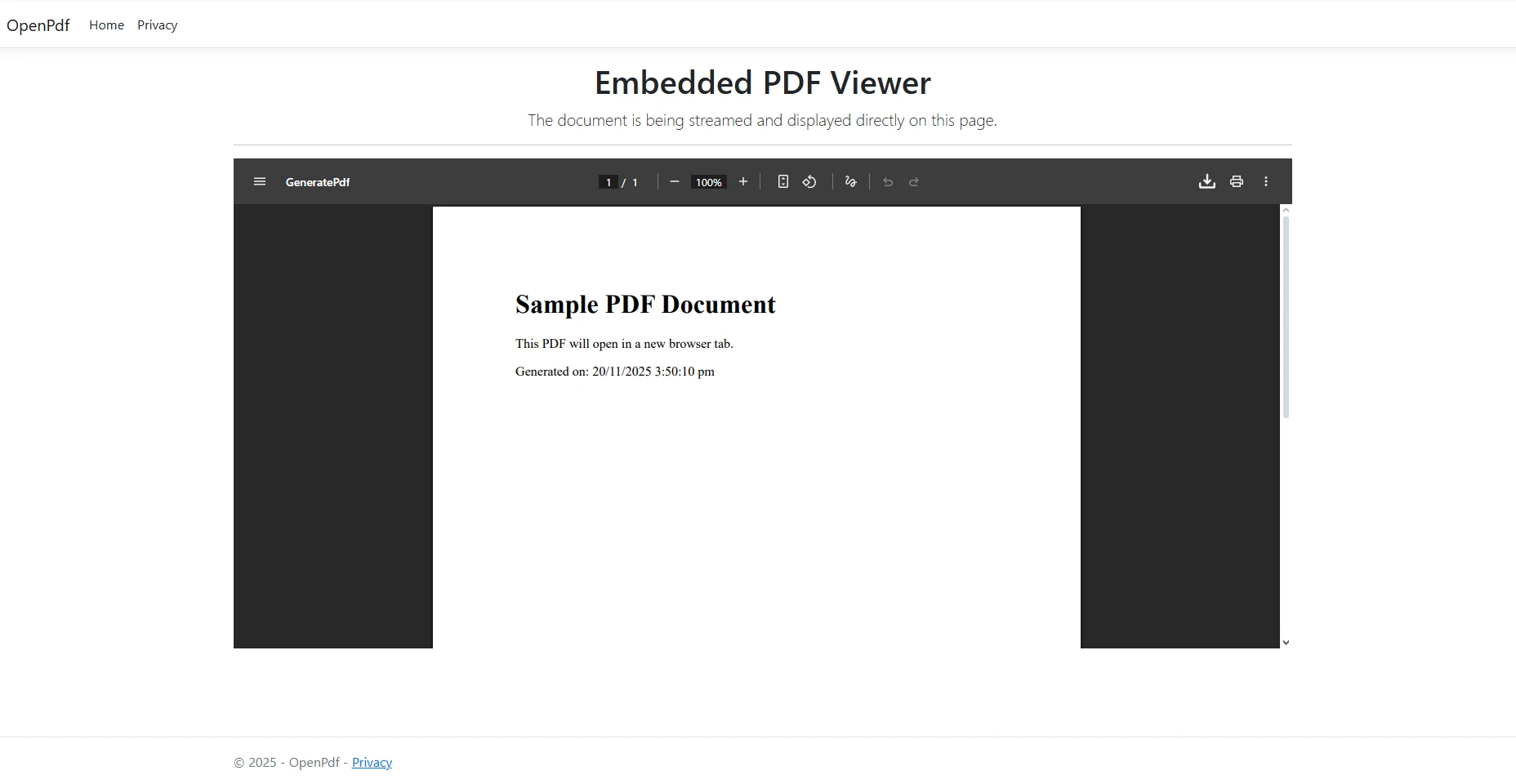
This approach works well in modern browsers that support native PDF rendering. According to [Microsoft's ASP.NET Core documentation](https://learn.microsoft.com/en-us/aspnet/core/), proper [HTTP headers](https://ironpdf.com/how-to/http-request-header/) combined with client-side code provide the most reliable cross-browser solution. Note that the `target="_blank"` attribute is essential on the fallback link.
## How Do You Handle Different PDF File Sources?
IronPDF handles various input sources beyond HTML strings. When working with existing PDF files or generating documents from different data formats, the library provides flexible options for serving PDF content to users.
Real-world applications rarely generate every PDF from scratch. Reports may be stored as PDF files in a shared drive, signed contracts might live in a blob storage container, and archived invoices are often retrieved as byte arrays from a relational database. The same Content-Disposition header strategy applies in all three cases -- the key difference is how the bytes are obtained before they are written to the response.
### How Do You Load Existing PDF Files?
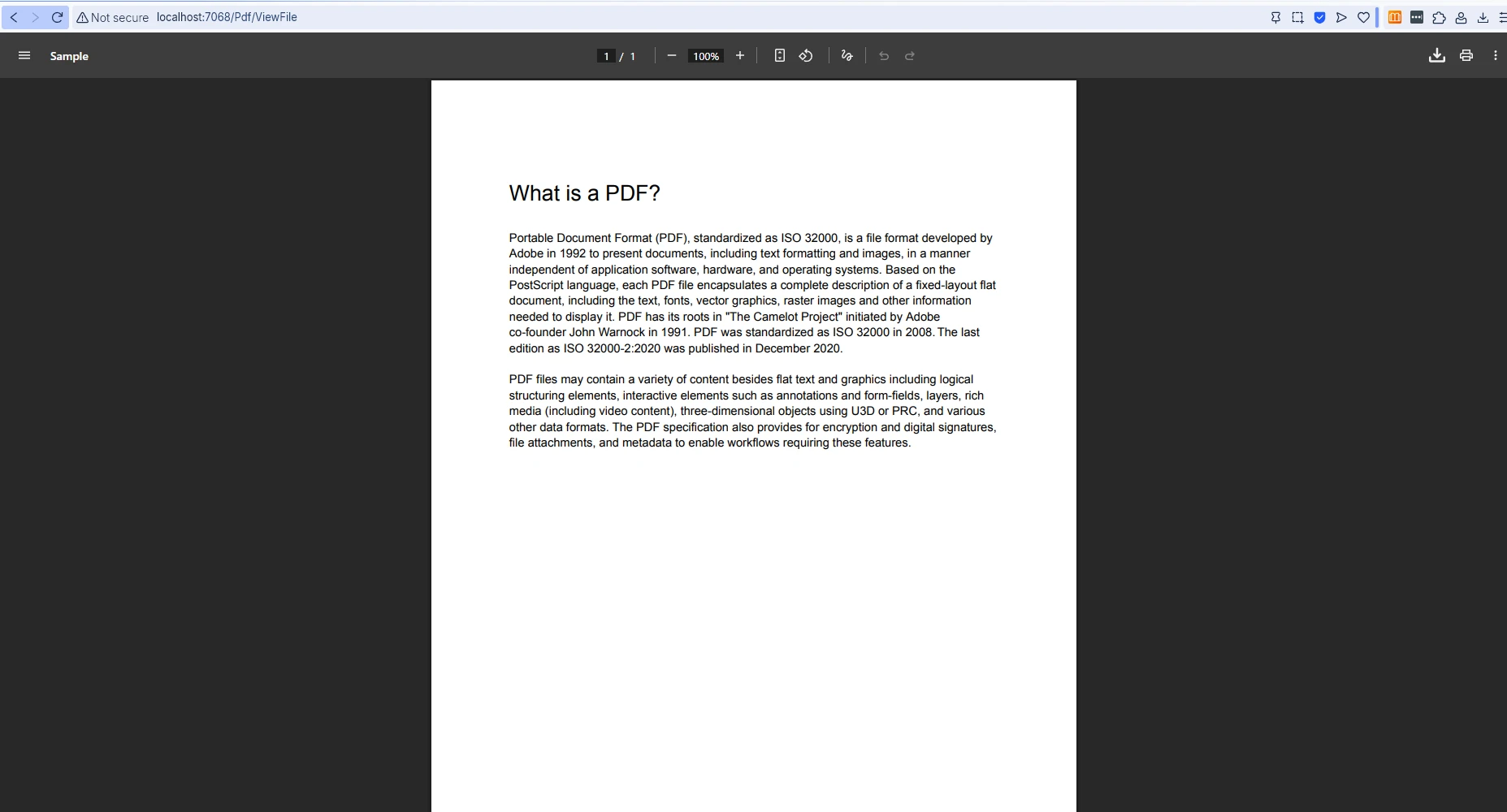
For loading existing [PDF documents](https://ironpdf.com/tutorials/csharp-edit-pdf-complete-tutorial/) from disk and serving them inline:
```csharp
using IronPdf;
using Microsoft.AspNetCore.Mvc;
[Route("[controller]")]
public class PdfController : Controller
{
private readonly IWebHostEnvironment _env;
public PdfController(IWebHostEnvironment env) => _env = env;
[HttpGet("ViewFile")]
public IActionResult ViewFile(string fileName)
{
// Build the full path to the PDF on disk
string path = Path.Combine(_env.WebRootPath, "pdfs", fileName);
// Load the existing PDF document
var pdf = PdfDocument.FromFile(path);
// Read the binary content from the PDF stream
byte[] bytes = pdf.Stream.ToArray();
// Serve inline so the browser displays it directly
Response.Headers.Append("Content-Disposition", $"inline; filename={fileName}");
Response.Headers.Append("Content-Length", bytes.Length.ToString());
return File(bytes, "application/pdf");
}
}
```
### What Does Opening an Existing PDF Look Like?
### How Do You Work with PDFs from Databases?
Working with [byte arrays](https://ironpdf.com/how-to/pdf-memory-stream/) retrieved from a database requires careful handling to load the document correctly before serving it:
```csharp
using IronPdf;
using Microsoft.AspNetCore.Mvc;
[Route("[controller]")]
public class PdfController : Controller
{
[HttpGet("DisplayFromDatabase/{documentId:int}")]
public IActionResult DisplayFromDatabase(int documentId)
{
// Retrieve the stored byte array from the database
byte[] pdfData = GetPdfFromDatabase(documentId);
// Load into an IronPDF document object for optional manipulation
var pdf = PdfDocument.FromBytes(pdfData);
// Set response headers for inline browser display
Response.Headers.Append(
"Content-Disposition",
$"inline; filename=document_{documentId}.pdf");
Response.Headers.Append("Content-Length", pdfData.Length.ToString());
return File(pdfData, "application/pdf");
}
private static byte[] GetPdfFromDatabase(int documentId)
{
// Replace with actual database retrieval logic
return Array.Empty<byte>();
}
}
```
### Which Rendering Options Can You Customize?
IronPDF supports [advanced HTML to PDF conversion](https://ironpdf.com/tutorials/html-to-pdf/) including CSS styling, images, and web fonts. The library also provides troubleshooting guides for achieving [pixel-perfect results](https://ironpdf.com/how-to/pixel-perfect-html-to-pdf/) in production environments.
The table below summarizes the main serving strategies and when to use each:
<table class="content__data-table" data-content-table>
<caption>PDF Serving Strategies in ASP.NET</caption>
<thead>
<tr>
<th>Strategy</th>
<th>Header Value</th>
<th>Tab Behavior</th>
<th>Best For</th>
</tr>
</thead>
<tbody>
<tr>
<td>Inline display</td>
<td><code>Content-Disposition: inline</code></td>
<td>Same tab</td>
<td>Quick preview without leaving the page</td>
</tr>
<tr>
<td>New tab via HTML</td>
<td><code>Content-Disposition: inline</code> + <code>target="_blank"</code></td>
<td>New tab</td>
<td>User reads PDF alongside the original page</td>
</tr>
<tr>
<td>File download</td>
<td><code>Content-Disposition: attachment</code></td>
<td>Download prompt</td>
<td>Saving reports or invoices to disk</td>
</tr>
<tr>
<td>Embedded object</td>
<td><code>Content-Disposition: inline</code> + <code><object></code></td>
<td>Embedded in page</td>
<td>Displaying PDF alongside other content</td>
</tr>
</tbody>
</table>
## What Are Your Next Steps?
Opening a PDF in a new window in ASP.NET C# becomes straightforward with [IronPDF](https://ironpdf.com/). By handling the details of PDF generation and correctly setting HTTP headers, developers can ensure consistent display across browsers while maintaining clean, maintainable code. Whether working with HTML strings, existing PDF documents, or byte arrays from databases, IronPDF provides the tools needed to deliver PDF content exactly how users expect it.
[Start a free trial](trial-license) of IronPDF today to add professional PDF functionality to any ASP.NET application. For production deployment, explore the [licensing options](https://ironpdf.com/licensing/) that include priority support and access to the full feature set for enterprise web applications.
IronPDF enables ASP.NET developers to generate and display PDF files directly in browser tabs by correctly setting Content-Disposition headers to "inline" rather than "attachment", eliminating unwanted downloads while providing reliable PDF viewing experiences.
What Problem Does This Tutorial Solve?
Opening PDF files in a new window or browser tab is a common request in ASP.NET web applications. Developers often struggle with PDF documents that download automatically instead of displaying in the browser when users click a link. This frustrating behavior disrupts the user experience, especially when viewing reports, invoices, or documentation that users need to refer to while continuing their work on the current page.
IronPDF provides an effective solution to this challenge, offering powerful PDF generation and display capabilities that integrate reliably with ASP.NET applications. Rather than wrestling with Response headers and Content-Disposition settings manually, developers can use IronPDF's ChromePdfRenderer to create and serve PDF files that open consistently in new browser tabs.
Why Should You Care About PDF Display Issues?
When serving PDF files through ASP.NET, the default behavior often results in downloads rather than browser display. This happens because of how the server sends the file to the browser through HTTP response headers. The Content-Disposition header controls whether a PDF file opens inline or downloads.
Traditional ASP.NET code using Response.BinaryWrite with a byte array often sets headers that trigger downloads. Even when developers set Response.ContentType = "application/pdf", missing or incorrect Content-Disposition values cause the browser to download rather than display the PDF document. Different browsers also handle PDF files inconsistently -- while some desktop browsers may display files inline by default, mobile browsers often default to downloading.
When Do These Problems Occur Most Often?
The server-side configuration becomes more complex when working with dynamically generated PDF documents from HTML strings or database sources. Without the correct path and proper headers, achieving consistent cross-browser display is a real challenge. Many developers turn to Stack Overflow seeking solutions to this persistent issue. The MDN Web Docs entry on Content-Disposition is the authoritative reference for understanding the exact syntax and browser behavior for both inline and attachment values.
The library's ChromePdfRenderer class provides a modern approach to PDF creation. Instead of manually managing byte arrays and response streams, developers can generate PDFs from HTML strings, HTML files, or URLs with simple method calls. IronPDF handles the rendering process internally, ensuring consistent output across different environments.
Which Features Help the Most?
Beyond basic generation, IronPDF offers extensive rendering options for customizing output, including paper size, margins, and JavaScript execution delays. This flexibility makes it suitable for creating everything from simple documents to complex reports with charts and dynamic content.
The rendering engine also supports custom headers and footers, watermarks, and page numbering -- all configured through a straightforward options object before calling the render method. For developers who need to match an existing brand style guide, this level of control over the output format is a significant advantage over manually constructing PDF binary data.
How Do You Install IronPDF?
Install IronPDF through NuGet Package Manager to get started:
PM > Install-Package IronPdf
Install-Package IronPdf
This single command adds IronPDF and all its dependencies to the project. Once installed, the IronPdf namespace becomes available throughout the application, giving access to ChromePdfRenderer, PdfDocument, and all related classes.
How Do You Generate and Open PDF Files with IronPDF?
Here is a complete example for ASP.NET Core that generates a PDF file and serves it to open in a browser tab:
using IronPdf;using Microsoft.AspNetCore.Mvc;[Route("[controller]")]public class PdfController : Controller{ [HttpGet("GeneratePdf")] public IActionResultGeneratePdf() { // Create a new ChromePdfRenderer instance var renderer = new ChromePdfRenderer(); // Generate PDF from HTML string -- supports CSS and JavaScript string htmlContent = $@" <html> <body> <h1>Sample PDF Document</h1> <p>This PDF opens in a new browser tab.</p> <p>Generated on: {DateTime.Now}</p> </body> </html>"; // Render HTML to a PDF document var pdf = renderer.RenderHtmlAsPdf(htmlContent); // Get the binary data for streaming byte[] pdfBytes = pdf.BinaryData; // Set inline display -- this is the key header for browser displayResponse.Headers.Append("Content-Disposition", "inline; filename=document.pdf");Response.Headers.Append("Content-Length", pdfBytes.Length.ToString()); returnFile(pdfBytes, "application/pdf"); }}
using IronPdf;
using Microsoft.AspNetCore.Mvc;

[Route("[controller]")]
public class PdfController : Controller
{
    [HttpGet("GeneratePdf")]
    public IActionResult GeneratePdf()
    {
        // Create a new ChromePdfRenderer instance
        var renderer = new ChromePdfRenderer();

        // Generate PDF from HTML string -- supports CSS and JavaScript
        string htmlContent = $@"
            <html>
                <body>
                    <h1>Sample PDF Document</h1>
                    <p>This PDF opens in a new browser tab.</p>
                    <p>Generated on: {DateTime.Now}</p>
                </body>
            </html>";

        // Render HTML to a PDF document
        var pdf = renderer.RenderHtmlAsPdf(htmlContent);

        // Get the binary data for streaming
        byte[] pdfBytes = pdf.BinaryData;

        // Set inline display -- this is the key header for browser display
        Response.Headers.Append("Content-Disposition", "inline; filename=document.pdf");
        Response.Headers.Append("Content-Length", pdfBytes.Length.ToString());

        return File(pdfBytes, "application/pdf");
    }
}
ImportsIronPdfImportsMicrosoft.AspNetCore.Mvc<Route("[controller]")>Public Class PdfControllerInheritsController <HttpGet("GeneratePdf")> Public Function GeneratePdf() AsIActionResult ' Create a new ChromePdfRenderer instance Dim renderer As New ChromePdfRenderer() ' Generate PDF from HTML string -- supports CSS and JavaScript Dim htmlContent AsString = $" <html> <body> <h1>Sample PDF Document</h1> <p>This PDF opens in a new browser tab.</p> <p>Generated on: {DateTime.Now}</p> </body> </html>" ' Render HTML to a PDF document Dim pdf = renderer.RenderHtmlAsPdf(htmlContent) ' Get the binary data for streaming Dim pdfBytes AsByte() = pdf.BinaryData ' Set inline display -- this is the key header for browser display Response.Headers.Append("Content-Disposition", "inline; filename=document.pdf") Response.Headers.Append("Content-Length", pdfBytes.Length.ToString()) ReturnFile(pdfBytes, "application/pdf") End FunctionEnd Class
Imports IronPdf
Imports Microsoft.AspNetCore.Mvc

<Route("[controller]")>
Public Class PdfController
    Inherits Controller

    <HttpGet("GeneratePdf")>
    Public Function GeneratePdf() As IActionResult
        ' Create a new ChromePdfRenderer instance
        Dim renderer As New ChromePdfRenderer()

        ' Generate PDF from HTML string -- supports CSS and JavaScript
        Dim htmlContent As String = $"
            <html>
                <body>
                    <h1>Sample PDF Document</h1>
                    <p>This PDF opens in a new browser tab.</p>
                    <p>Generated on: {DateTime.Now}</p>
                </body>
            </html>"

        ' Render HTML to a PDF document
        Dim pdf = renderer.RenderHtmlAsPdf(htmlContent)

        ' Get the binary data for streaming
        Dim pdfBytes As Byte() = pdf.BinaryData

        ' Set inline display -- this is the key header for browser display
        Response.Headers.Append("Content-Disposition", "inline; filename=document.pdf")
        Response.Headers.Append("Content-Length", pdfBytes.Length.ToString())

        Return File(pdfBytes, "application/pdf")
    End Function
End Class
What Does the Generated PDF Look Like?
The code above uses [HttpGet]. When creating a PDF after a user submits a form, use the [HttpPost] attribute instead. This distinction matters: GET requests should be idempotent, while POST requests carry the submitted form data used to generate the personalized document.
Notice that Response.Headers.Append is used rather than Response.Headers.Add. In ASP.NET Core, the Append method is the preferred API for adding response headers because it does not throw if the header already exists. Using Add can cause exceptions in middleware pipelines where headers may have been partially set already.
Why Does the Content-Disposition Header Matter?
The critical detail for opening PDF files in the browser is setting the Content-Disposition header to "inline" rather than "attachment". The "attachment" value tells the browser to download the file and save it to disk. Setting it to "inline" instructs the browser to attempt to display the file within the browser window -- which modern browsers supporting native PDF rendering will do automatically.
How Do You Implement This in WebForms?
For WebForms applications, you can serve the PDF directly through the HTTP response and trigger browser display from a button click event:
using IronPdf;protected voidOpenPdf_Click(object sender, EventArgs e){ var renderer = new ChromePdfRenderer(); // Generate PDF from HTML content var pdf = renderer.RenderHtmlAsPdf("<h1>Invoice</h1><p>Your order details</p>"); // Get byte array from the PDF document byte[] data = pdf.BinaryData; // Clear any existing response outputResponse.Clear();Response.ContentType = "application/pdf";Response.AddHeader("Content-Length", data.Length.ToString());Response.AddHeader("Content-Disposition", "inline; filename=invoice.pdf");Response.BinaryWrite(data);Response.End();}
using IronPdf;

protected void OpenPdf_Click(object sender, EventArgs e)
{
    var renderer = new ChromePdfRenderer();

    // Generate PDF from HTML content
    var pdf = renderer.RenderHtmlAsPdf("<h1>Invoice</h1><p>Your order details</p>");

    // Get byte array from the PDF document
    byte[] data = pdf.BinaryData;

    // Clear any existing response output
    Response.Clear();
    Response.ContentType = "application/pdf";
    Response.AddHeader("Content-Length", data.Length.ToString());
    Response.AddHeader("Content-Disposition", "inline; filename=invoice.pdf");
    Response.BinaryWrite(data);
    Response.End();
}
ImportsIronPdfProtected Sub OpenPdf_Click(sender AsObject, e AsEventArgs) Dim renderer As New ChromePdfRenderer() ' Generate PDF from HTML content Dim pdf = renderer.RenderHtmlAsPdf("<h1>Invoice</h1><p>Your order details</p>") ' Get byte array from the PDF document Dim data AsByte() = pdf.BinaryData ' Clear any existing response output Response.Clear() Response.ContentType = "application/pdf" Response.AddHeader("Content-Length", data.Length.ToString()) Response.AddHeader("Content-Disposition", "inline; filename=invoice.pdf") Response.BinaryWrite(data) Response.End()End Sub
Imports IronPdf

Protected Sub OpenPdf_Click(sender As Object, e As EventArgs)
    Dim renderer As New ChromePdfRenderer()

    ' Generate PDF from HTML content
    Dim pdf = renderer.RenderHtmlAsPdf("<h1>Invoice</h1><p>Your order details</p>")

    ' Get byte array from the PDF document
    Dim data As Byte() = pdf.BinaryData

    ' Clear any existing response output
    Response.Clear()
    Response.ContentType = "application/pdf"
    Response.AddHeader("Content-Length", data.Length.ToString())
    Response.AddHeader("Content-Disposition", "inline; filename=invoice.pdf")
    Response.BinaryWrite(data)
    Response.End()
End Sub
While server-side code determines whether a PDF displays inline, controlling whether it opens in the same tab or a new tab requires client-side HTML or JavaScript. The target attribute on HTML anchor tags provides the simplest approach:
For scenarios where the URL is determined dynamically, JavaScript's window.open function gives precise control over when and how the PDF tab opens:
function openPdfInNewTab() { // Open the PDF endpoint in a new browser tab window.open('/Pdf/GeneratePdf', '_blank'); return false; // Prevent default link or form submission behavior}
function openPdfInNewTab() {
    // Open the PDF endpoint in a new browser tab
    window.open('/Pdf/GeneratePdf', '_blank');
    return false; // Prevent default link or form submission behavior
}
JavaScript
How Do You Combine JavaScript with ASP.NET Controls?
In ASP.NET WebForms applications, attach the JavaScript call directly to a button control using the OnClientClick attribute:
<asp:ButtonID="btnViewPdf" runat="server"OnClientClick="window.open('/Pdf/GeneratePdf', '_blank'); return false;"Text="Open PDF in New Tab" />
<asp:Button ID="btnViewPdf" runat="server"
            OnClientClick="window.open('/Pdf/GeneratePdf', '_blank'); return false;"
            Text="Open PDF in New Tab" />
<asp:ButtonID="btnViewPdf" runat="server"OnClientClick="window.open('/Pdf/GeneratePdf', '_blank'); return false;"Text="Open PDF in New Tab" />
<asp:Button ID="btnViewPdf" runat="server"
            OnClientClick="window.open('/Pdf/GeneratePdf', '_blank'); return false;"
            Text="Open PDF in New Tab" />
When using window.open(), the second argument '_blank' is the target parameter that opens the document in a new, separate window or tab. This mirrors the behavior of target="_blank" on a standard HTML anchor tag.
What About Embedding PDFs Directly in the Page?
The HTML <object> tag provides another option for embedding PDF documents directly in the current page, useful when users need to read the document alongside other content:
<object data="/Pdf/GeneratePdf" type="application/pdf" width="100%" height="600px"> <embed src="/Pdf/GeneratePdf" type="application/pdf" /> <p>Your browser does not support embedded PDF documents. <a href="/Pdf/GeneratePdf" target="_blank">View the PDF file</a> </p></object>
<object data="/Pdf/GeneratePdf" type="application/pdf" width="100%" height="600px">
    <embed src="/Pdf/GeneratePdf" type="application/pdf" />
    <p>Your browser does not support embedded PDF documents.
       <a href="/Pdf/GeneratePdf" target="_blank">View the PDF file</a>
    </p>
</object>
HTML
How Does an Embedded PDF Look?
This approach works well in modern browsers that support native PDF rendering. According to Microsoft's ASP.NET Core documentation, proper HTTP headers combined with client-side code provide the most reliable cross-browser solution. Note that the target="_blank" attribute is essential on the fallback link.
How Do You Handle Different PDF File Sources?
IronPDF handles various input sources beyond HTML strings. When working with existing PDF files or generating documents from different data formats, the library provides flexible options for serving PDF content to users.
Real-world applications rarely generate every PDF from scratch. Reports may be stored as PDF files in a shared drive, signed contracts might live in a blob storage container, and archived invoices are often retrieved as byte arrays from a relational database. The same Content-Disposition header strategy applies in all three cases -- the key difference is how the bytes are obtained before they are written to the response.
How Do You Load Existing PDF Files?
For loading existing PDF documents from disk and serving them inline:
using IronPdf;using Microsoft.AspNetCore.Mvc;[Route("[controller]")]public class PdfController : Controller{ private readonly IWebHostEnvironment _env; publicPdfController(IWebHostEnvironment env) => _env = env; [HttpGet("ViewFile")] public IActionResultViewFile(string fileName) { // Build the full path to the PDF on disk string path = Path.Combine(_env.WebRootPath, "pdfs", fileName); // Load the existing PDF document var pdf = PdfDocument.FromFile(path); // Read the binary content from the PDF stream byte[] bytes = pdf.Stream.ToArray(); // Serve inline so the browser displays it directlyResponse.Headers.Append("Content-Disposition", $"inline; filename={fileName}");Response.Headers.Append("Content-Length", bytes.Length.ToString()); returnFile(bytes, "application/pdf"); }}
using IronPdf;
using Microsoft.AspNetCore.Mvc;

[Route("[controller]")]
public class PdfController : Controller
{
    private readonly IWebHostEnvironment _env;

    public PdfController(IWebHostEnvironment env) => _env = env;

    [HttpGet("ViewFile")]
    public IActionResult ViewFile(string fileName)
    {
        // Build the full path to the PDF on disk
        string path = Path.Combine(_env.WebRootPath, "pdfs", fileName);

        // Load the existing PDF document
        var pdf = PdfDocument.FromFile(path);

        // Read the binary content from the PDF stream
        byte[] bytes = pdf.Stream.ToArray();

        // Serve inline so the browser displays it directly
        Response.Headers.Append("Content-Disposition", $"inline; filename={fileName}");
        Response.Headers.Append("Content-Length", bytes.Length.ToString());

        return File(bytes, "application/pdf");
    }
}
ImportsIronPdfImportsMicrosoft.AspNetCore.Mvc<Route("[controller]")>Public Class PdfControllerInheritsController PrivateReadOnly _env AsIWebHostEnvironment Public Sub New(env AsIWebHostEnvironment) _env = env End Sub <HttpGet("ViewFile")> Public Function ViewFile(fileName AsString) AsIActionResult ' Build the full path to the PDF on disk Dim path AsString = Path.Combine(_env.WebRootPath, "pdfs", fileName) ' Load the existing PDF document Dim pdf = PdfDocument.FromFile(path) ' Read the binary content from the PDF stream Dim bytes AsByte() = pdf.Stream.ToArray() ' Serve inline so the browser displays it directly Response.Headers.Append("Content-Disposition", $"inline; filename={fileName}") Response.Headers.Append("Content-Length", bytes.Length.ToString()) ReturnFile(bytes, "application/pdf") End FunctionEnd Class
Imports IronPdf
Imports Microsoft.AspNetCore.Mvc

<Route("[controller]")>
Public Class PdfController
    Inherits Controller

    Private ReadOnly _env As IWebHostEnvironment

    Public Sub New(env As IWebHostEnvironment)
        _env = env
    End Sub

    <HttpGet("ViewFile")>
    Public Function ViewFile(fileName As String) As IActionResult
        ' Build the full path to the PDF on disk
        Dim path As String = Path.Combine(_env.WebRootPath, "pdfs", fileName)

        ' Load the existing PDF document
        Dim pdf = PdfDocument.FromFile(path)

        ' Read the binary content from the PDF stream
        Dim bytes As Byte() = pdf.Stream.ToArray()

        ' Serve inline so the browser displays it directly
        Response.Headers.Append("Content-Disposition", $"inline; filename={fileName}")
        Response.Headers.Append("Content-Length", bytes.Length.ToString())

        Return File(bytes, "application/pdf")
    End Function
End Class
What Does Opening an Existing PDF Look Like?
How Do You Work with PDFs from Databases?
Working with byte arrays retrieved from a database requires careful handling to load the document correctly before serving it:
using IronPdf;using Microsoft.AspNetCore.Mvc;[Route("[controller]")]public class PdfController : Controller{ [HttpGet("DisplayFromDatabase/{documentId:int}")] public IActionResultDisplayFromDatabase(int documentId) { // Retrieve the stored byte array from the database byte[] pdfData = GetPdfFromDatabase(documentId); // Load into an IronPDF document object for optional manipulation var pdf = PdfDocument.FromBytes(pdfData); // Set response headers for inline browser displayResponse.Headers.Append( "Content-Disposition", $"inline; filename=document_{documentId}.pdf");Response.Headers.Append("Content-Length", pdfData.Length.ToString()); returnFile(pdfData, "application/pdf"); } private static byte[] GetPdfFromDatabase(int documentId) { // Replace with actual database retrieval logic returnArray.Empty<byte>(); }}
using IronPdf;
using Microsoft.AspNetCore.Mvc;

[Route("[controller]")]
public class PdfController : Controller
{
    [HttpGet("DisplayFromDatabase/{documentId:int}")]
    public IActionResult DisplayFromDatabase(int documentId)
    {
        // Retrieve the stored byte array from the database
        byte[] pdfData = GetPdfFromDatabase(documentId);

        // Load into an IronPDF document object for optional manipulation
        var pdf = PdfDocument.FromBytes(pdfData);

        // Set response headers for inline browser display
        Response.Headers.Append(
            "Content-Disposition",
            $"inline; filename=document_{documentId}.pdf");
        Response.Headers.Append("Content-Length", pdfData.Length.ToString());

        return File(pdfData, "application/pdf");
    }

    private static byte[] GetPdfFromDatabase(int documentId)
    {
        // Replace with actual database retrieval logic
        return Array.Empty<byte>();
    }
}
ImportsIronPdfImportsMicrosoft.AspNetCore.Mvc<Route("[controller]")>Public Class PdfControllerInheritsController <HttpGet("DisplayFromDatabase/{documentId:int}")> Public Function DisplayFromDatabase(documentId AsInteger) AsIActionResult ' Retrieve the stored byte array from the database Dim pdfData AsByte() = GetPdfFromDatabase(documentId) ' Load into an IronPDF document object for optional manipulation Dim pdf = PdfDocument.FromBytes(pdfData) ' Set response headers for inline browser display Response.Headers.Append("Content-Disposition", $"inline; filename=document_{documentId}.pdf") Response.Headers.Append("Content-Length", pdfData.Length.ToString()) ReturnFile(pdfData, "application/pdf") End Function PrivateShared Function GetPdfFromDatabase(documentId AsInteger) AsByte() ' Replace with actual database retrieval logic ReturnArray.Empty(OfByte)() End FunctionEnd Class
Imports IronPdf
Imports Microsoft.AspNetCore.Mvc

<Route("[controller]")>
Public Class PdfController
    Inherits Controller

    <HttpGet("DisplayFromDatabase/{documentId:int}")>
    Public Function DisplayFromDatabase(documentId As Integer) As IActionResult
        ' Retrieve the stored byte array from the database
        Dim pdfData As Byte() = GetPdfFromDatabase(documentId)

        ' Load into an IronPDF document object for optional manipulation
        Dim pdf = PdfDocument.FromBytes(pdfData)

        ' Set response headers for inline browser display
        Response.Headers.Append("Content-Disposition", $"inline; filename=document_{documentId}.pdf")
        Response.Headers.Append("Content-Length", pdfData.Length.ToString())

        Return File(pdfData, "application/pdf")
    End Function

    Private Shared Function GetPdfFromDatabase(documentId As Integer) As Byte()
        ' Replace with actual database retrieval logic
        Return Array.Empty(Of Byte)()
    End Function
End Class
The table below summarizes the main serving strategies and when to use each:
PDF Serving Strategies in ASP.NET
Strategy
Header Value
Tab Behavior
Best For
Inline display
Content-Disposition: inline
Same tab
Quick preview without leaving the page
New tab via HTML
Content-Disposition: inline + target="_blank"
New tab
User reads PDF alongside the original page
File download
Content-Disposition: attachment
Download prompt
Saving reports or invoices to disk
Embedded object
Content-Disposition: inline + <object>
Embedded in page
Displaying PDF alongside other content
What Are Your Next Steps?
Opening a PDF in a new window in ASP.NET C# becomes straightforward with IronPDF. By handling the details of PDF generation and correctly setting HTTP headers, developers can ensure consistent display across browsers while maintaining clean, maintainable code. Whether working with HTML strings, existing PDF documents, or byte arrays from databases, IronPDF provides the tools needed to deliver PDF content exactly how users expect it.
Start a free trial of IronPDF today to add professional PDF functionality to any ASP.NET application. For production deployment, explore the licensing options that include priority support and access to the full feature set for enterprise web applications.
Curtis Chau holds a Bachelor’s degree in Computer Science (Carleton University) and specializes in front-end development with expertise in Node.js, TypeScript, JavaScript, and React. Passionate about crafting intuitive and aesthetically pleasing user interfaces, Curtis enjoys working with modern frameworks and creating well-structured, visually appealing manuals.