




已更新 2026年5月8日
生成每月账户报表(PDF 文档)
using IronPDF C# PDF 库,开发人员可以在 .NET 项目中将 HTML 转换为可靠的 PDF 文件,而无需依赖外部服务。
阅读更多

IronPDF 允许 ASP.NET 开发人员通过将 Content-Disposition 标头正确设置为"inline"(内联)而非"attachment"(附件),直接在浏览器标签页中生成并显示 PDF 文件,从而避免不必要的下载,同时提供可靠的 PDF 查看体验。
在新窗口或浏览器标签页中打开 PDF 文件是 ASP.NET 网络应用程序中的常见要求。 开发人员经常遇到这样的困扰:当用户点击链接时,PDF 文档会自动下载而非在浏览器中显示。 这种令人沮丧的行为破坏了用户体验,尤其是在查看报告、发票或文档时,用户需要在继续当前页面的工作时参考这些内容。
IronPDF 为这一挑战提供了有效的解决方案,其强大的 PDF 生成和显示功能可与 ASP.NET 应用程序可靠地集成。 开发者无需手动处理响应头和 Content-Disposition 设置,只需使用 IronPDF 的 ChromePdfRenderer 即可创建并提供 PDF 文件,这些文件将始终在新浏览器标签页中打开。
在通过 ASP.NET 提供 PDF 文件时,默认行为通常会导致下载而不是浏览器显示。 这是因为服务器是通过 HTTP 响应头将文件发送给浏览器的。 Content-Disposition 标头控制 PDF 文件是内联打开还是下载。
传统ASP.NET代码使用Response.BinaryWrite与字节数组时,通常会设置触发下载的标头。 即使开发人员设置了Content-Disposition值会导致浏览器下载而不是显示PDF文档。 不同浏览器对 PDF 文件的处理方式也不尽相同——虽然某些桌面浏览器默认会内联显示文件,但移动浏览器通常默认会下载文件。
当处理从 HTML 字符串或数据库源动态生成的 PDF 文档时,服务器端的配置会变得更加复杂。 如果没有正确的路径和适当的标头,要实现跨浏览器的显示一致性将是一项真正的挑战。 许多开发者会转向 Stack Overflow 寻求解决这一长期存在问题的方案。 MDN Web Docs 中关于 Content-Disposition 的条目是了解内联值和附件值确切语法及浏览器行为的权威参考。
IronPDF 将 PDF 的生成和显示任务转化为简单的代码。 IronPDF 利用其基于 Chrome 的渲染引擎,能够从 HTML 内容生成像素级精准的 PDF 文档,同时自动处理那些常令开发者头疼的技术细节。
该库的ChromePdfRenderer类提供了一种现代的PDF创建方法。 开发者无需手动管理字节数组和响应流,只需通过简单的函数调用,即可从 HTML 字符串、HTML 文件或 URL 生成 PDF 文件。 IronPDF 在内部处理渲染过程,确保在不同环境下输出一致。
除了基本的生成功能外,IronPDF 还提供了丰富的渲染选项以供自定义输出,包括纸张尺寸、页边距以及 JavaScript 执行延迟。 这种灵活性使其能够胜任从简单文档到包含图表和动态内容的复杂报告等各类文档的创建。
渲染引擎还支持自定义页眉和页脚、水印以及页码功能——所有这些均可在调用渲染方法前,通过一个直观的选项对象进行配置。 对于需要遵循现有品牌风格指南的开发者而言,这种对输出格式的精准控制,相较于手动构建 PDF 二进制数据,具有显著优势。
请通过 NuGet 包管理器安装 IronPDF 以开始使用:
这条单行命令将 IronPDF 及其所有依赖项添加到项目中。 安装后,PdfDocument及所有相关类。
以下是一个完整的 ASP.NET Core 示例,该示例生成 PDF 文件并将其提供给浏览器标签页以供打开:
using IronPdf;
using Microsoft.AspNetCore.Mvc;

[Route("[controller]")]
public class PdfController : Controller
{
    [HttpGet("GeneratePdf")]
    public IActionResult GeneratePdf()
    {
        // Create a new ChromePdfRenderer instance
        var renderer = new ChromePdfRenderer();

        // Generate PDF from HTML string -- supports CSS and JavaScript
        string htmlContent = $@"
            <html>
                <body>
                    <h1>Sample PDF Document</h1>
                    <p>This PDF opens in a new browser tab.</p>
                    <p>Generated on: {DateTime.Now}</p>
                </body>
            </html>";

        // Render HTML to a PDF document
        var pdf = renderer.RenderHtmlAsPdf(htmlContent);

        // Get the binary data for streaming
        byte[] pdfBytes = pdf.BinaryData;

        // Set inline display -- this is the key header for browser display
        Response.Headers.Append("Content-Disposition", "inline; filename=document.pdf");
        Response.Headers.Append("Content-Length", pdfBytes.Length.ToString());

        return File(pdfBytes, "application/pdf");
    }
}Imports IronPdf
Imports Microsoft.AspNetCore.Mvc
<Route("[controller]")>
Public Class PdfController
Inherits Controller
<HttpGet("GeneratePdf")>
Public Function GeneratePdf() As IActionResult
' Create a new ChromePdfRenderer instance
Dim renderer As New ChromePdfRenderer()
' Generate PDF from HTML string -- supports CSS and JavaScript
Dim htmlContent As String = $"
<html>
<body>
<h1>Sample PDF Document</h1>
<p>This PDF opens in a new browser tab.</p>
<p>Generated on: {DateTime.Now}</p>
</body>
</html>"
' Render HTML to a PDF document
Dim pdf = renderer.RenderHtmlAsPdf(htmlContent)
' Get the binary data for streaming
Dim pdfBytes As Byte() = pdf.BinaryData
' Set inline display -- this is the key header for browser display
Response.Headers.Append("Content-Disposition", "inline; filename=document.pdf")
Response.Headers.Append("Content-Length", pdfBytes.Length.ToString())
Return File(pdfBytes, "application/pdf")
End Function
End Class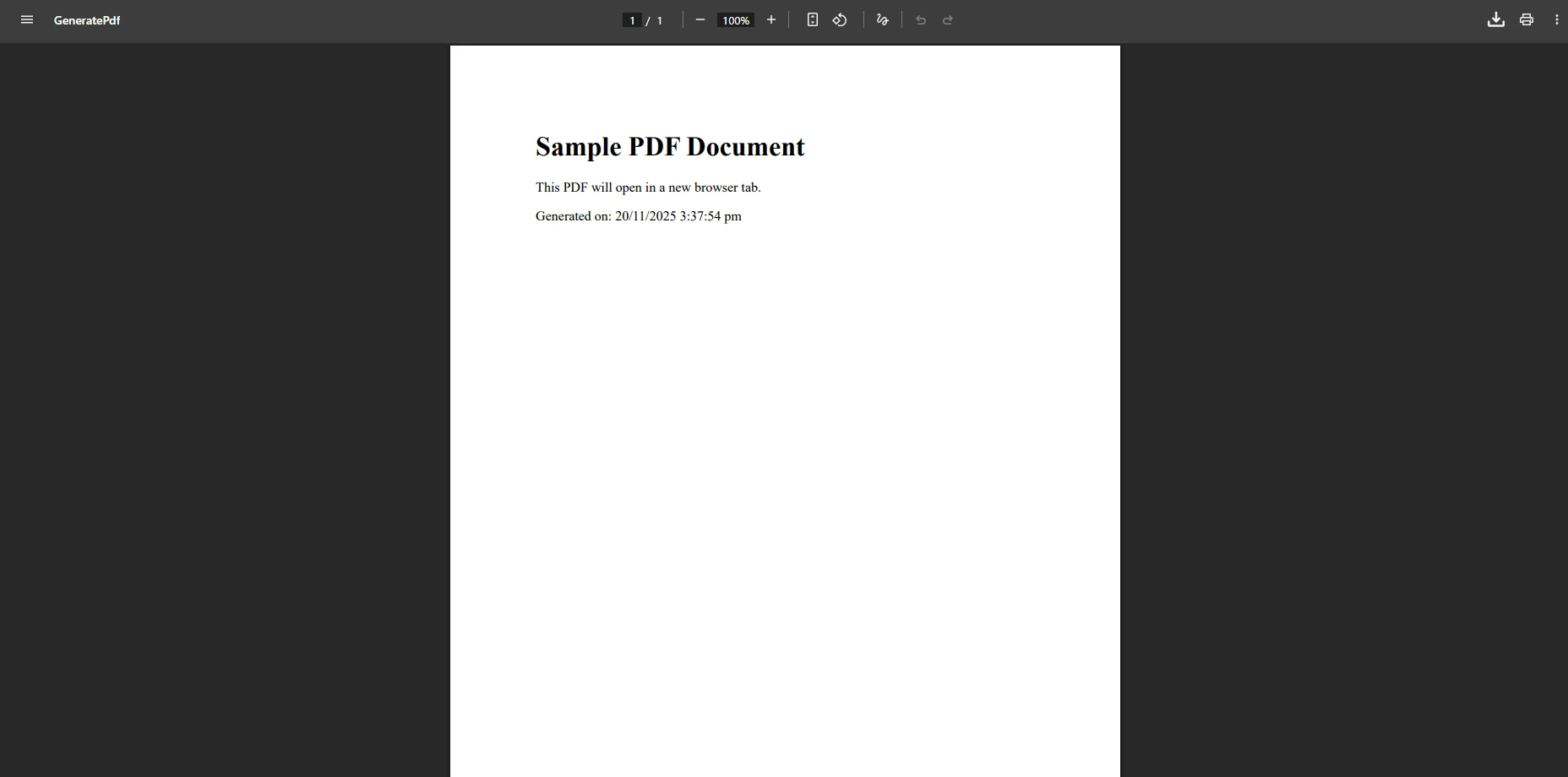
上面的代码使用了[HttpGet]。 在用户提交表单后创建PDF时,请使用[HttpPost]属性。 这一区别至关重要:GET 请求应具有幂等性,而 POST 请求则携带用于生成个性化文档的提交表单数据。
请注意,使用的是Response.Headers.Add。 在ASP.NET Core中,Append方法是添加响应标头的首选API,因为即使标头已存在也不会抛出异常。 使用Add可能会在中间件管道中导致异常,因为标头可能已部分设置。
在浏览器中打开PDF文件的关键细节是将Content-Disposition标头设置为"attachment"。 "attachment"值告知浏览器下载文件并将其保存到磁盘。 将其设置为"inline"指示浏览器尝试在浏览器窗口中显示文件 —— 现代浏览器支持本机PDF渲染,将自动执行此操作。
对于 WebForms 应用程序,您可以通过 HTTP 响应直接提供 PDF 文件,并通过按钮点击事件触发浏览器显示:
using IronPdf;

protected void OpenPdf_Click(object sender, EventArgs e)
{
    var renderer = new ChromePdfRenderer();

    // Generate PDF from HTML content
    var pdf = renderer.RenderHtmlAsPdf("<h1>Invoice</h1><p>Your order details</p>");

    // Get byte array from the PDF document
    byte[] data = pdf.BinaryData;

    // Clear any existing response output
    Response.Clear();
    Response.ContentType = "application/pdf";
    Response.AddHeader("Content-Length", data.Length.ToString());
    Response.AddHeader("Content-Disposition", "inline; filename=invoice.pdf");
    Response.BinaryWrite(data);
    Response.End();
}Imports IronPdf
Protected Sub OpenPdf_Click(sender As Object, e As EventArgs)
Dim renderer As New ChromePdfRenderer()
' Generate PDF from HTML content
Dim pdf = renderer.RenderHtmlAsPdf("<h1>Invoice</h1><p>Your order details</p>")
' Get byte array from the PDF document
Dim data As Byte() = pdf.BinaryData
' Clear any existing response output
Response.Clear()
Response.ContentType = "application/pdf"
Response.AddHeader("Content-Length", data.Length.ToString())
Response.AddHeader("Content-Disposition", "inline; filename=invoice.pdf")
Response.BinaryWrite(data)
Response.End()
End Sub如果您还需要创建 PDF 表单或添加数字签名,IronPDF 提供了对这两项高级功能的内置支持。
虽然服务器端代码决定了 PDF 是否内联显示,但控制其在同一标签页还是新标签页中打开,则需要客户端的 HTML 或 JavaScript 代码。 HTML锚点标签上的target属性提供了最简单的方法:
<a href="/Pdf/GeneratePdf" target="_blank">View PDF</a>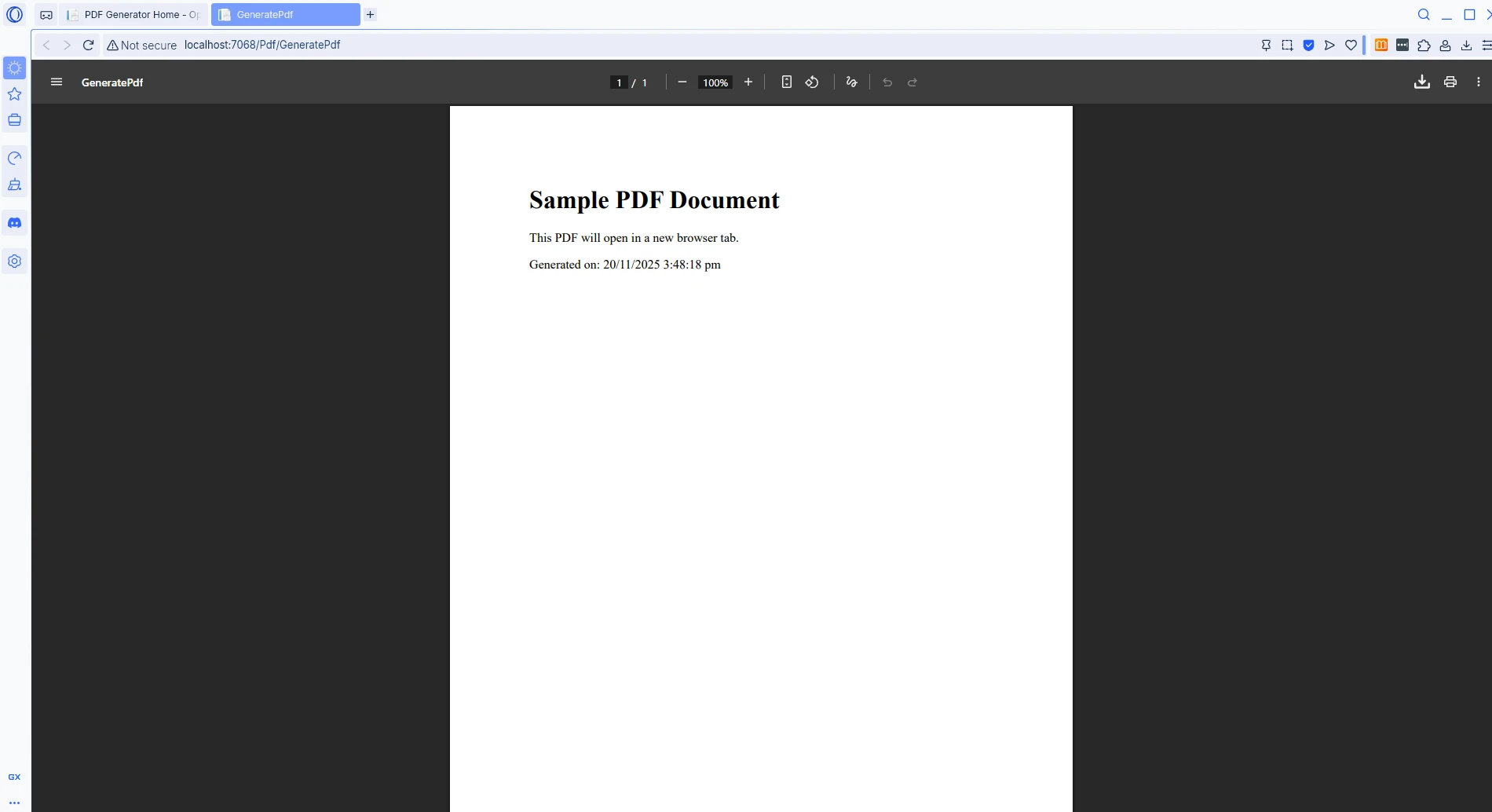
对于URL动态确定的场景,JavaScript的window.open函数提供了精确控制PDF标签何时和如何打开:
function openPdfInNewTab() {
    // Open the PDF endpoint in a new browser tab
    window.open('/Pdf/GeneratePdf', '_blank');
    return false; // Prevent default link or form submission behavior
}在ASP.NET WebForms应用程序中,使用OnClientClick属性将JavaScript调用直接附加到按钮控件:
<asp:Button ID="btnViewPdf" runat="server"
            OnClientClick="window.open('/Pdf/GeneratePdf', '_blank'); return false;"
            Text="Open PDF in New Tab" />
<asp:Button ID="btnViewPdf" runat="server"
OnClientClick="window.open('/Pdf/GeneratePdf', '_blank'); return false;"
Text="Open PDF in New Tab" />使用'_blank'是目标参数,它在新的独立窗口或标签页中打开文档。 这与标准HTML锚点标签上的target="_blank"行为一致。
HTML的<object>标签提供了另一种选项,可以直接在当前页面嵌入PDF文档,当用户需要查看文档同时查看其他内容时非常有用:
<object data="/Pdf/GeneratePdf" type="application/pdf" width="100%" height="600px">
    <embed src="/Pdf/GeneratePdf" type="application/pdf" />
    <p>Your browser does not support embedded PDF documents.
       <a href="/Pdf/GeneratePdf" target="_blank">View the PDF file</a>
    </p>
</object>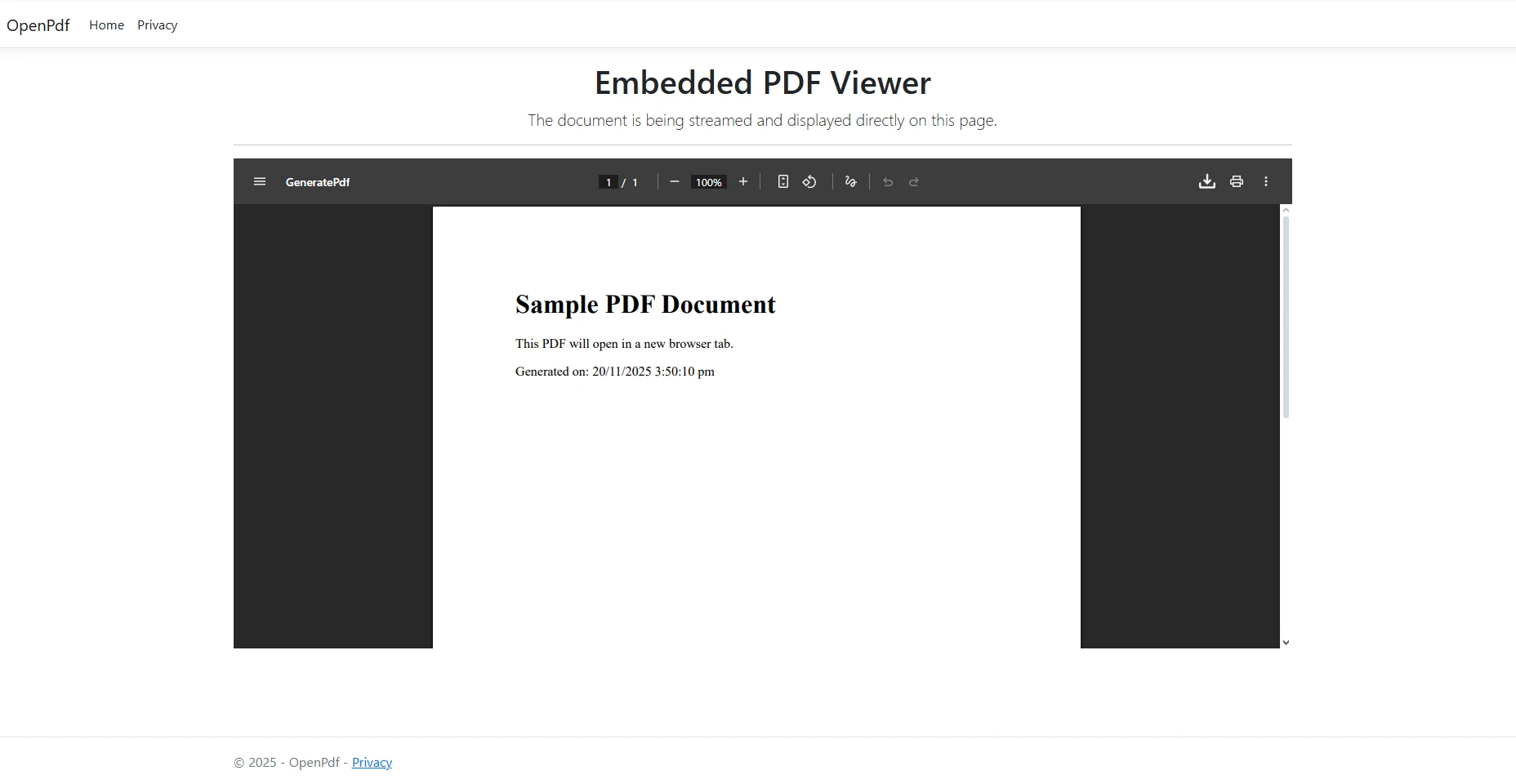
此方法在支持原生 PDF 渲染的现代浏览器中运行良好。 根据微软的 .NET Core 文档,正确的 HTTP 头部结合客户端代码可提供最可靠的跨浏览器解决方案。 请注意,target="_blank"属性在回退链接上必不可少。
IronPDF 支持处理 HTML 字符串以外的多种输入源。 在处理现有 PDF 文件或从不同数据格式生成文档时,该库为用户提供了灵活的选项,以便向用户提供 PDF 内容。
实际应用中,很少会从头开始生成每个 PDF 文件。 报告可能以 PDF 文件的形式存储在共享驱动器中,已签署的合同可能存放在 Blob 存储容器中,而归档的发票通常作为字节数组从关系型数据库中检索出来。 这三种情况均采用相同的 Content-Disposition 标头策略——关键区别在于将字节写入响应之前获取字节的方式。
关于从磁盘加载现有 PDF 文档并内联呈现:
using IronPdf;
using Microsoft.AspNetCore.Mvc;

[Route("[controller]")]
public class PdfController : Controller
{
    private readonly IWebHostEnvironment _env;

    public PdfController(IWebHostEnvironment env) => _env = env;

    [HttpGet("ViewFile")]
    public IActionResult ViewFile(string fileName)
    {
        // Build the full path to the PDF on disk
        string path = Path.Combine(_env.WebRootPath, "pdfs", fileName);

        // Load the existing PDF document
        var pdf = PdfDocument.FromFile(path);

        // Read the binary content from the PDF stream
        byte[] bytes = pdf.Stream.ToArray();

        // Serve inline so the browser displays it directly
        Response.Headers.Append("Content-Disposition", $"inline; filename={fileName}");
        Response.Headers.Append("Content-Length", bytes.Length.ToString());

        return File(bytes, "application/pdf");
    }
}Imports IronPdf
Imports Microsoft.AspNetCore.Mvc
<Route("[controller]")>
Public Class PdfController
Inherits Controller
Private ReadOnly _env As IWebHostEnvironment
Public Sub New(env As IWebHostEnvironment)
_env = env
End Sub
<HttpGet("ViewFile")>
Public Function ViewFile(fileName As String) As IActionResult
' Build the full path to the PDF on disk
Dim path As String = Path.Combine(_env.WebRootPath, "pdfs", fileName)
' Load the existing PDF document
Dim pdf = PdfDocument.FromFile(path)
' Read the binary content from the PDF stream
Dim bytes As Byte() = pdf.Stream.ToArray()
' Serve inline so the browser displays it directly
Response.Headers.Append("Content-Disposition", $"inline; filename={fileName}")
Response.Headers.Append("Content-Length", bytes.Length.ToString())
Return File(bytes, "application/pdf")
End Function
End Class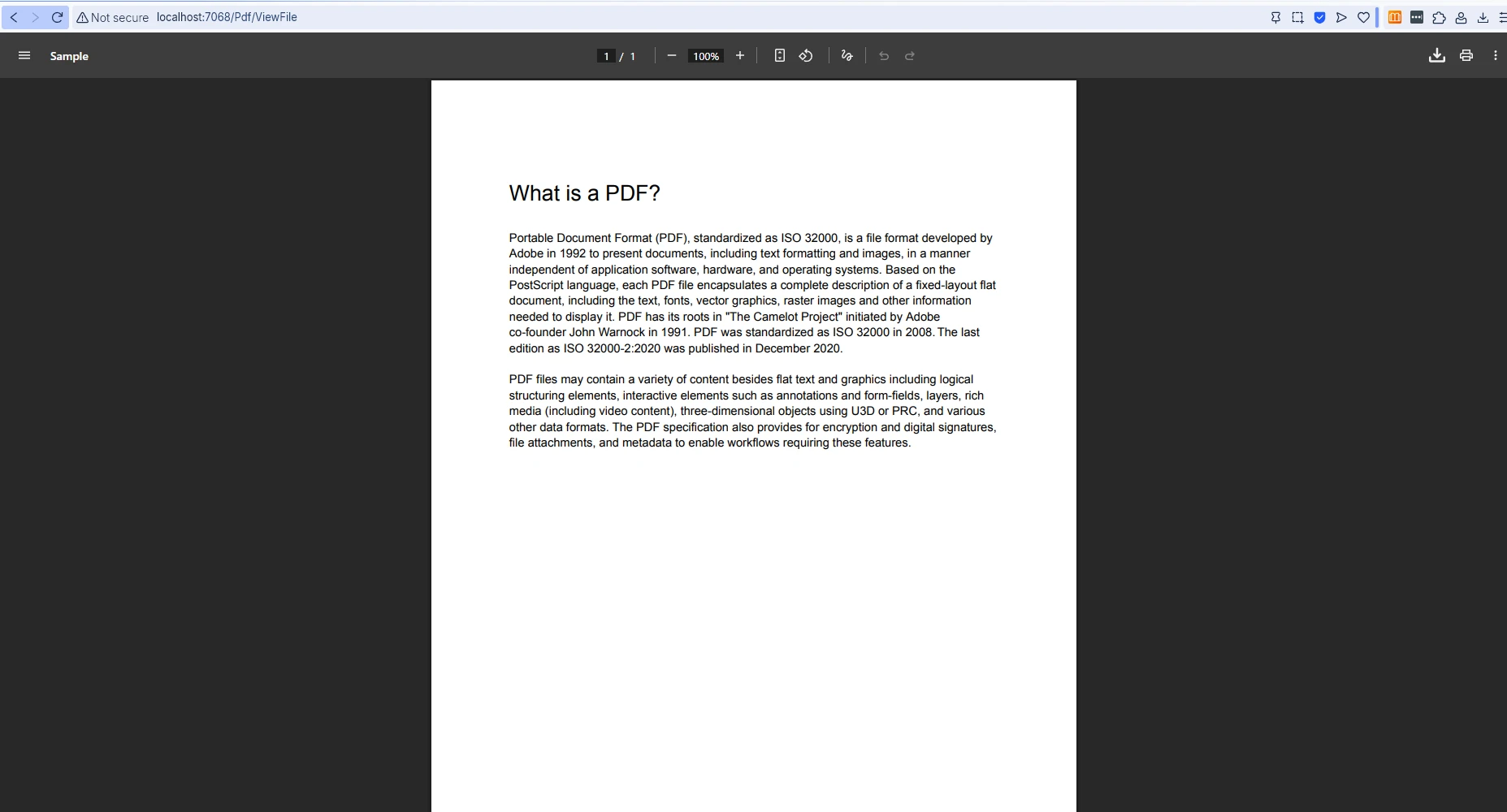
处理从数据库中检索到的字节数组时,需要谨慎操作,以确保在提供文档前正确加载文档:
using IronPdf;
using Microsoft.AspNetCore.Mvc;

[Route("[controller]")]
public class PdfController : Controller
{
    [HttpGet("DisplayFromDatabase/{documentId:int}")]
    public IActionResult DisplayFromDatabase(int documentId)
    {
        // Retrieve the stored byte array from the database
        byte[] pdfData = GetPdfFromDatabase(documentId);

        // Load into an IronPDF document object for optional manipulation
        var pdf = PdfDocument.FromBytes(pdfData);

        // Set response headers for inline browser display
        Response.Headers.Append(
            "Content-Disposition",
            $"inline; filename=document_{documentId}.pdf");
        Response.Headers.Append("Content-Length", pdfData.Length.ToString());

        return File(pdfData, "application/pdf");
    }

    private static byte[] GetPdfFromDatabase(int documentId)
    {
        // Replace with actual database retrieval logic
        return Array.Empty<byte>();
    }
}Imports IronPdf
Imports Microsoft.AspNetCore.Mvc
<Route("[controller]")>
Public Class PdfController
Inherits Controller
<HttpGet("DisplayFromDatabase/{documentId:int}")>
Public Function DisplayFromDatabase(documentId As Integer) As IActionResult
' Retrieve the stored byte array from the database
Dim pdfData As Byte() = GetPdfFromDatabase(documentId)
' Load into an IronPDF document object for optional manipulation
Dim pdf = PdfDocument.FromBytes(pdfData)
' Set response headers for inline browser display
Response.Headers.Append("Content-Disposition", $"inline; filename=document_{documentId}.pdf")
Response.Headers.Append("Content-Length", pdfData.Length.ToString())
Return File(pdfData, "application/pdf")
End Function
Private Shared Function GetPdfFromDatabase(documentId As Integer) As Byte()
' Replace with actual database retrieval logic
Return Array.Empty(Of Byte)()
End Function
End ClassIronPDF 支持高级 HTML 转 PDF 转换,包括 CSS 样式、图片和网络字体。 该库还提供了故障排除指南,以帮助用户在生产环境中实现像素级精准的效果。
下表总结了主要部署策略及其适用场景:
| 翻译策略 | 标题值 | Tab 行为 | 最适合 |
|---|---|---|---|
| 内联显示 | Content-Disposition: inline | 同一标签页 | 无需离开页面即可快速预览 |
| 通过 HTML 打开新标签页 | Content-Disposition: inline + target="_blank" | 新标签页 | 用户在阅读 PDF 时会同时参考原始网页 |
| 文件下载 | Content-Disposition: attachment | 下载提示 | 将报告或发票保存到磁盘 |
| 嵌入对象 | Content-Disposition: inline + <object> | 嵌入页面 | 与其他内容并排显示 PDF |
借助 IronPDF,在 ASP.NET C# 中将 PDF 文件在新窗口中打开变得轻而易举。 通过处理 PDF 生成的细节并正确设置 HTTP 头部,开发者既能确保跨浏览器显示的一致性,又能保持代码的简洁与可维护性。 无论是处理 HTML 字符串、现有 PDF 文档,还是来自数据库的字节数组,IronPDF 都能提供所需工具,确保 PDF 内容的呈现完全符合用户预期。
立即免费试用 IronPDF,为任何 ASP.NET 应用程序添加专业的 PDF 功能。 若用于生产环境部署,请了解包含优先支持及Enterprise级 Web 应用程序完整功能集的许可选项。

Curtis Chau 拥有卡尔顿大学的计算机科学学士学位,专注于前端开发,精通 Node.js、TypeScript、JavaScript 和 React。他热衷于打造直观且美观的用户界面,喜欢使用现代框架并创建结构良好、视觉吸引力强的手册。

IronPDF 是 IRONSUITE的一部分
10 个 .NET API 产品用于您的办公文档

当您需要PDF看起来像HTML时,速度快。




