




已更新 2026年9月4日
產生每月帳戶報表(PDF 文件)
using IronPDF C# PDF 庫,開發人員可以在 .NET 專案中將 HTML 轉換為可靠的 PDF 文件,而無需依賴外部服務。
閱讀更多

IronPDF 讓ASP.NET開發者能夠將PDF檔案直接在瀏覽器標籤中產生和顯示,通過正確設置Content-Disposition 標頭為"inline"而非"attachment",消除了不想要的下載,同時提供可靠的PDF查看體驗。
在ASP.NET網頁應用程式中,在新視窗或瀏覽器標籤中開啟PDF檔案是一個常見的要求。 開發者常常苦惱於PDF文件在使用者點擊鏈結時自動下載而不是在瀏覽器中顯示。 這種令人沮喪的行為破壞了使用者體驗,特別是當查看報告、發票或文件時,使用者需要在當前頁面上繼續工作時參照。
IronPDF 為這一挑戰提供了一個有效的解決方案,提供強大的PDF生成和顯示能力,能夠可靠地整合到ASP.NET應用程式中。 與其手動處理Response標頭和Content-Disposition設置,開發者可以使用IronPDF的ChromePdfRenderer來建立和提供在新瀏覽器標籤中一致開啟的PDF檔案。
通過ASP.NET提供PDF檔案時,預設行為經常會導致下載而不是在瀏覽器中顯示。 這是因為伺服器通過HTTP響應標頭向瀏覽器發送文件的方式。 Content-Disposition標頭控制PDF文件是內嵌開啟還是下載。
傳統的ASP.NET程式碼使用Response.BinaryWrite和字節陣列往往設置了觸發下載的標頭。 即使開發者設置了Content-Disposition值會導致瀏覽器下載而不是顯示PDF文件。 不同的瀏覽器也不一致地處理PDF文件——一些桌面瀏覽器可能預設內嵌顯示文件,而移動瀏覽器通常預設下載。
在從HTML字串或資料庫來源動態生成PDF文件時,伺服器端配置變得更加複雜。 若無正確的路徑和適當的標頭,實現一致的跨瀏覽器顯示是一項真正的挑戰。 許多開發者轉向Stack Overflow尋求解決這一持續問題的解決方案。 MDN Web Docs的Content-Disposition條目是理解內嵌和附件值的精確語法和瀏覽器行為的權威參考。
IronPDF將PDF生成和顯示的任務轉化為簡單的程式碼。 使用其基於Chrome的渲染引擎,IronPDF從HTML內容生成像素完美的PDF文件,同時自動處理常常讓開發者絆倒的技術細節。
該程式庫的ChromePdfRenderer類提供了一種現代的PDF建立方式。 開發者可以通過簡單的方法調用,從HTML字串、HTML文件或URL生成PDF,而不是手動管理字節陣列和響應流。 IronPDF在內部處理渲染過程,保證跨不同環境的一致輸出。
除了基本生成功能外,IronPDF提供豐富的渲染選項來定制輸出,包括紙張大小、邊距和JavaScript執行延遲。 這種靈活性使得它適合建立從簡單文件到帶有圖表和動態內容的複雜報告的所有內容。
渲染引擎還支持定制標頭和頁尾、水印和頁碼——全都通過簡單的選項物件配置,而後調用渲染方法。 對於需要遵循現有品牌樣式指南的開發者來說,這種對輸出格式的控制水平是一個重大優勢,比手動構建PDF二進位資料更具優勢。
通過NuGet套件管理器安裝IronPDF來開始:
這個單一命令將IronPDF及其所有依賴項新增到項目中。 安裝完成之後,PdfDocument和所有相關類別的存取。
這是一個完整的ASP.NET Core範例,它生成一個PDF文件並將其提供以在瀏覽器標籤中打開:
using IronPdf;
using Microsoft.AspNetCore.Mvc;

[Route("[controller]")]
public class PdfController : Controller
{
    [HttpGet("GeneratePdf")]
    public IActionResult GeneratePdf()
    {
        // Create a new ChromePdfRenderer instance
        var renderer = new ChromePdfRenderer();

        // Generate PDF from HTML string -- supports CSS and JavaScript
        string htmlContent = $@"
            <html>
                <body>
                    <h1>Sample PDF Document</h1>
                    <p>This PDF opens in a new browser tab.</p>
                    <p>Generated on: {DateTime.Now}</p>
                </body>
            </html>";

        // Render HTML to a PDF document
        var pdf = renderer.RenderHtmlAsPdf(htmlContent);

        // Get the binary data for streaming
        byte[] pdfBytes = pdf.BinaryData;

        // Set inline display -- this is the key header for browser display
        Response.Headers.Append("Content-Disposition", "inline; filename=document.pdf");
        Response.Headers.Append("Content-Length", pdfBytes.Length.ToString());

        return File(pdfBytes, "application/pdf");
    }
}Imports IronPdf
Imports Microsoft.AspNetCore.Mvc
<Route("[controller]")>
Public Class PdfController
Inherits Controller
<HttpGet("GeneratePdf")>
Public Function GeneratePdf() As IActionResult
' Create a new ChromePdfRenderer instance
Dim renderer As New ChromePdfRenderer()
' Generate PDF from HTML string -- supports CSS and JavaScript
Dim htmlContent As String = $"
<html>
<body>
<h1>Sample PDF Document</h1>
<p>This PDF opens in a new browser tab.</p>
<p>Generated on: {DateTime.Now}</p>
</body>
</html>"
' Render HTML to a PDF document
Dim pdf = renderer.RenderHtmlAsPdf(htmlContent)
' Get the binary data for streaming
Dim pdfBytes As Byte() = pdf.BinaryData
' Set inline display -- this is the key header for browser display
Response.Headers.Append("Content-Disposition", "inline; filename=document.pdf")
Response.Headers.Append("Content-Length", pdfBytes.Length.ToString())
Return File(pdfBytes, "application/pdf")
End Function
End Class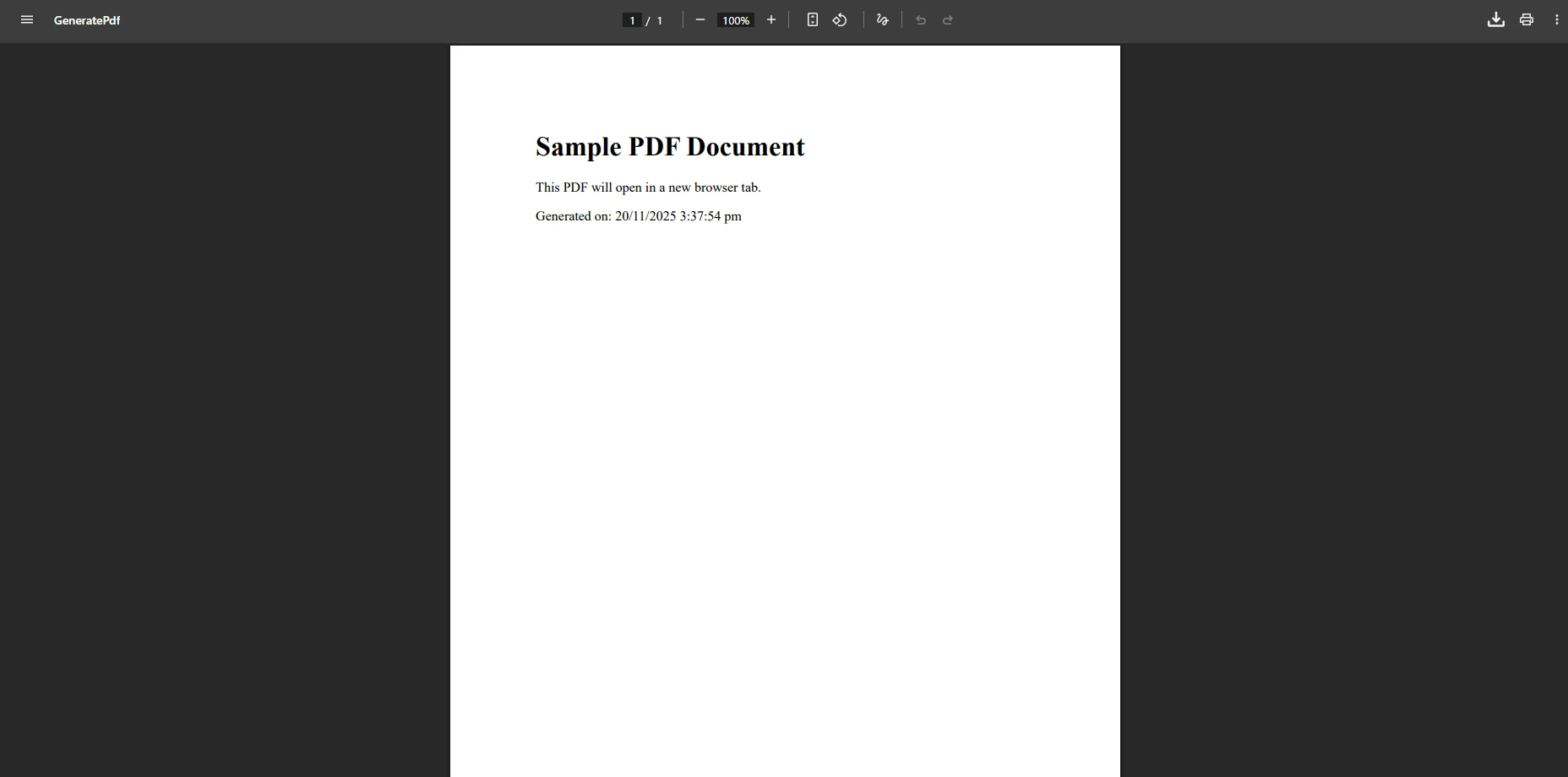
上面的程式碼使用了[HttpGet]。 在使用者提交表單後建立PDF時,請改用[HttpPost]屬性。 這區別很重要:GET請求應該是冪等的,而POST請求則攜帶用於生成個性化文件的提交表單資料。
請注意,使用的是Response.Headers.Add。 在ASP.NET Core中,Append方法是新增響應標頭的首選API,因為它不會在標頭已存在時拋出異常。 使用Add可能會導致中間件管道中的異常,這時標頭可能已部分設置。
在瀏覽器中打開PDF文件的關鍵細節是將Content-Disposition標頭設置為"attachment"。 "attachment"值指示瀏覽器下載文件並儲存到磁碟。 將其設置為"inline"指示瀏覽器嘗試在瀏覽器窗口中顯示文件——現代瀏覽器支持本地PDF渲染的話將自動執行此操作。
對於WebForms應用程式,您可以通過HTTP回應直接提供PDF並通過按鈕點擊事件觸發瀏覽器顯示:
using IronPdf;

protected void OpenPdf_Click(object sender, EventArgs e)
{
    var renderer = new ChromePdfRenderer();

    // Generate PDF from HTML content
    var pdf = renderer.RenderHtmlAsPdf("<h1>Invoice</h1><p>Your order details</p>");

    // Get byte array from the PDF document
    byte[] data = pdf.BinaryData;

    // Clear any existing response output
    Response.Clear();
    Response.ContentType = "application/pdf";
    Response.AddHeader("Content-Length", data.Length.ToString());
    Response.AddHeader("Content-Disposition", "inline; filename=invoice.pdf");
    Response.BinaryWrite(data);
    Response.End();
}Imports IronPdf
Protected Sub OpenPdf_Click(sender As Object, e As EventArgs)
Dim renderer As New ChromePdfRenderer()
' Generate PDF from HTML content
Dim pdf = renderer.RenderHtmlAsPdf("<h1>Invoice</h1><p>Your order details</p>")
' Get byte array from the PDF document
Dim data As Byte() = pdf.BinaryData
' Clear any existing response output
Response.Clear()
Response.ContentType = "application/pdf"
Response.AddHeader("Content-Length", data.Length.ToString())
Response.AddHeader("Content-Disposition", "inline; filename=invoice.pdf")
Response.BinaryWrite(data)
Response.End()
End Sub如果您還需要建立PDF表單或新增數位簽名,IronPDF提供了對這些高級功能的內建支持。
雖然伺服器端程式碼確定了PDF是內嵌顯示,控制它是在同一標籤中打開還是新標籤中打開需要使用客戶端HTML或JavaScript。 HTML錨標籤上的target屬性提供了最簡單的方法:
<a href="/Pdf/GeneratePdf" target="_blank">View PDF</a>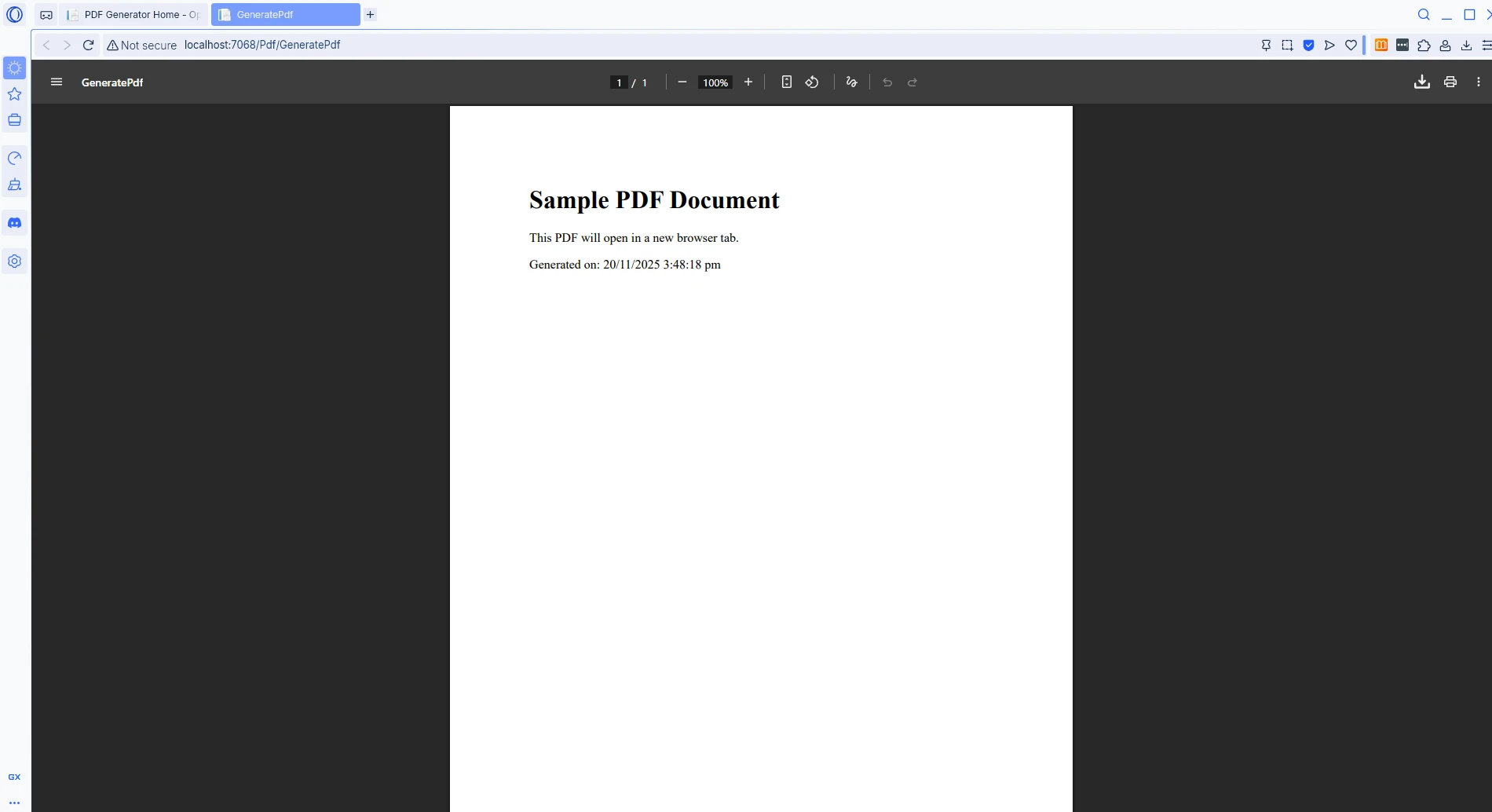
在URL動態確定的情況下,JavaScript的window.open函式可精確控制PDF標籤何時和如何打開:
function openPdfInNewTab() {
    // Open the PDF endpoint in a new browser tab
    window.open('/Pdf/GeneratePdf', '_blank');
    return false; // Prevent default link or form submission behavior
}在ASP.NET WebForms應用中,直接將JavaScript調用附加到按鈕控件上,使用OnClientClick屬性:
<asp:Button ID="btnViewPdf" runat="server"
            OnClientClick="window.open('/Pdf/GeneratePdf', '_blank'); return false;"
            Text="Open PDF in New Tab" />
<asp:Button ID="btnViewPdf" runat="server"
OnClientClick="window.open('/Pdf/GeneratePdf', '_blank'); return false;"
Text="Open PDF in New Tab" />僅在使用'_blank'是打開文件在新窗口或標籤中的目標參數。 這反映了標準HTML錨標籤上的target="_blank"行為。
HTML <object>標籤提供了另一個選項可以將PDF文件直接嵌入到當前頁面中,在使用者需要與其他內容一起閱讀文件時非常有用:
<object data="/Pdf/GeneratePdf" type="application/pdf" width="100%" height="600px">
    <embed src="/Pdf/GeneratePdf" type="application/pdf" />
    <p>Your browser does not support embedded PDF documents.
       <a href="/Pdf/GeneratePdf" target="_blank">View the PDF file</a>
    </p>
</object>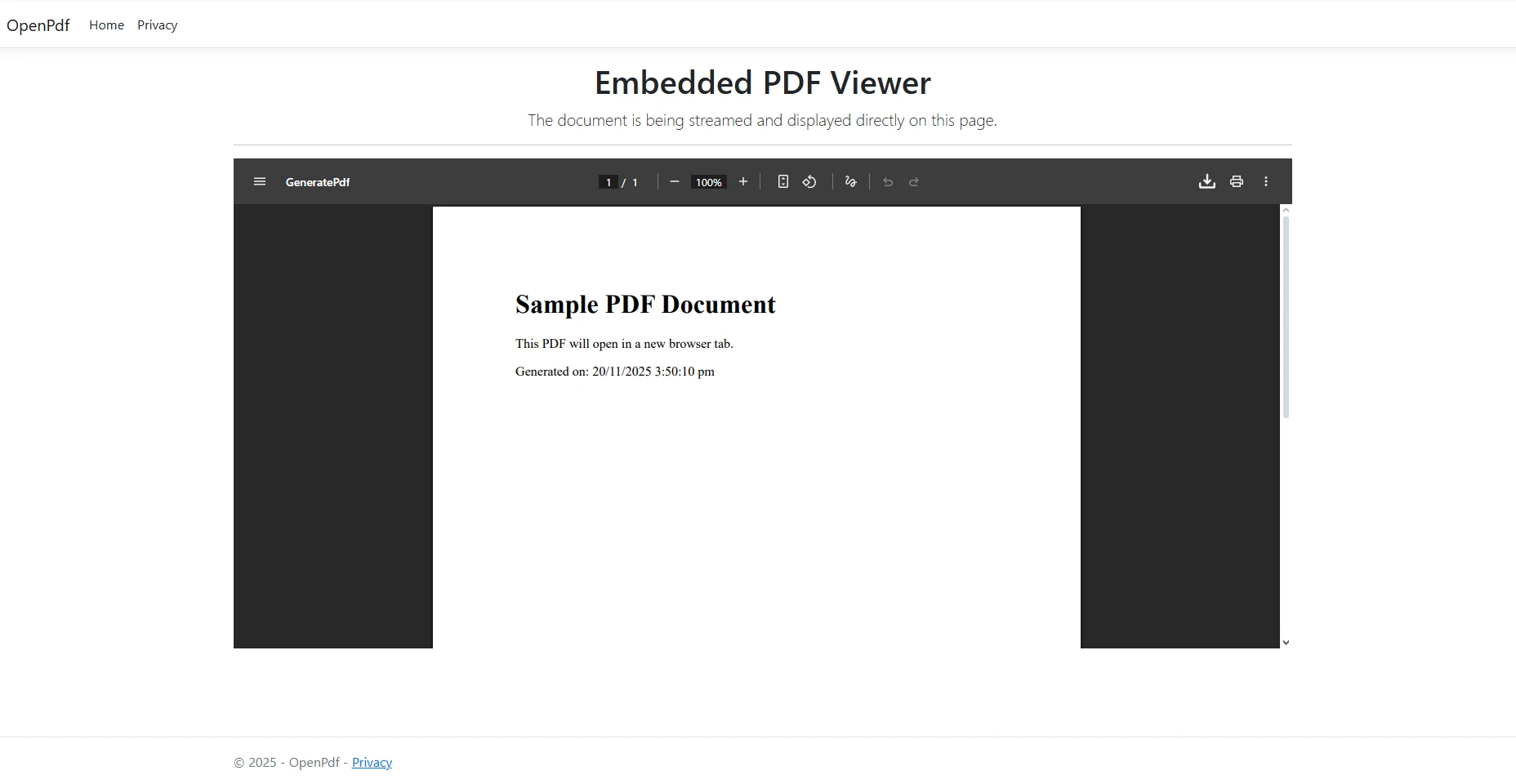
這種方法在支持本地PDF渲染的現代瀏覽器中效果良好。 根據微軟的ASP.NET Core文件,適當HTTP標頭結合客戶端程式碼提供最可靠的跨瀏覽器解決方案。 請注意,target="_blank"屬性在後備鏈結上是必需的。
IronPDF處理HTML字串之外的各種輸入來源。 在處理現有PDF文件或從不同資料格式生成文件時,程式庫提供靈活的選項,以供應PDF內容給使用者。
真實世界的應用很少從頭生成每個PDF。 報告可能以PDF文件的形式儲存在共享驅動器中,簽署的合同可能位於blob儲存容器中,歸檔的發票通常作為字節陣列從關聯資料庫中取回。 在所有這三個情況中都適用同一Content-Disposition標頭策略——關鍵區別在於在寫入回應之前如何獲得字節。
從磁碟中載入現有PDF文件並將其內嵌提供:
using IronPdf;
using Microsoft.AspNetCore.Mvc;

[Route("[controller]")]
public class PdfController : Controller
{
    private readonly IWebHostEnvironment _env;

    public PdfController(IWebHostEnvironment env) => _env = env;

    [HttpGet("ViewFile")]
    public IActionResult ViewFile(string fileName)
    {
        // Build the full path to the PDF on disk
        string path = Path.Combine(_env.WebRootPath, "pdfs", fileName);

        // Load the existing PDF document
        var pdf = PdfDocument.FromFile(path);

        // Read the binary content from the PDF stream
        byte[] bytes = pdf.Stream.ToArray();

        // Serve inline so the browser displays it directly
        Response.Headers.Append("Content-Disposition", $"inline; filename={fileName}");
        Response.Headers.Append("Content-Length", bytes.Length.ToString());

        return File(bytes, "application/pdf");
    }
}Imports IronPdf
Imports Microsoft.AspNetCore.Mvc
<Route("[controller]")>
Public Class PdfController
Inherits Controller
Private ReadOnly _env As IWebHostEnvironment
Public Sub New(env As IWebHostEnvironment)
_env = env
End Sub
<HttpGet("ViewFile")>
Public Function ViewFile(fileName As String) As IActionResult
' Build the full path to the PDF on disk
Dim path As String = Path.Combine(_env.WebRootPath, "pdfs", fileName)
' Load the existing PDF document
Dim pdf = PdfDocument.FromFile(path)
' Read the binary content from the PDF stream
Dim bytes As Byte() = pdf.Stream.ToArray()
' Serve inline so the browser displays it directly
Response.Headers.Append("Content-Disposition", $"inline; filename={fileName}")
Response.Headers.Append("Content-Length", bytes.Length.ToString())
Return File(bytes, "application/pdf")
End Function
End Class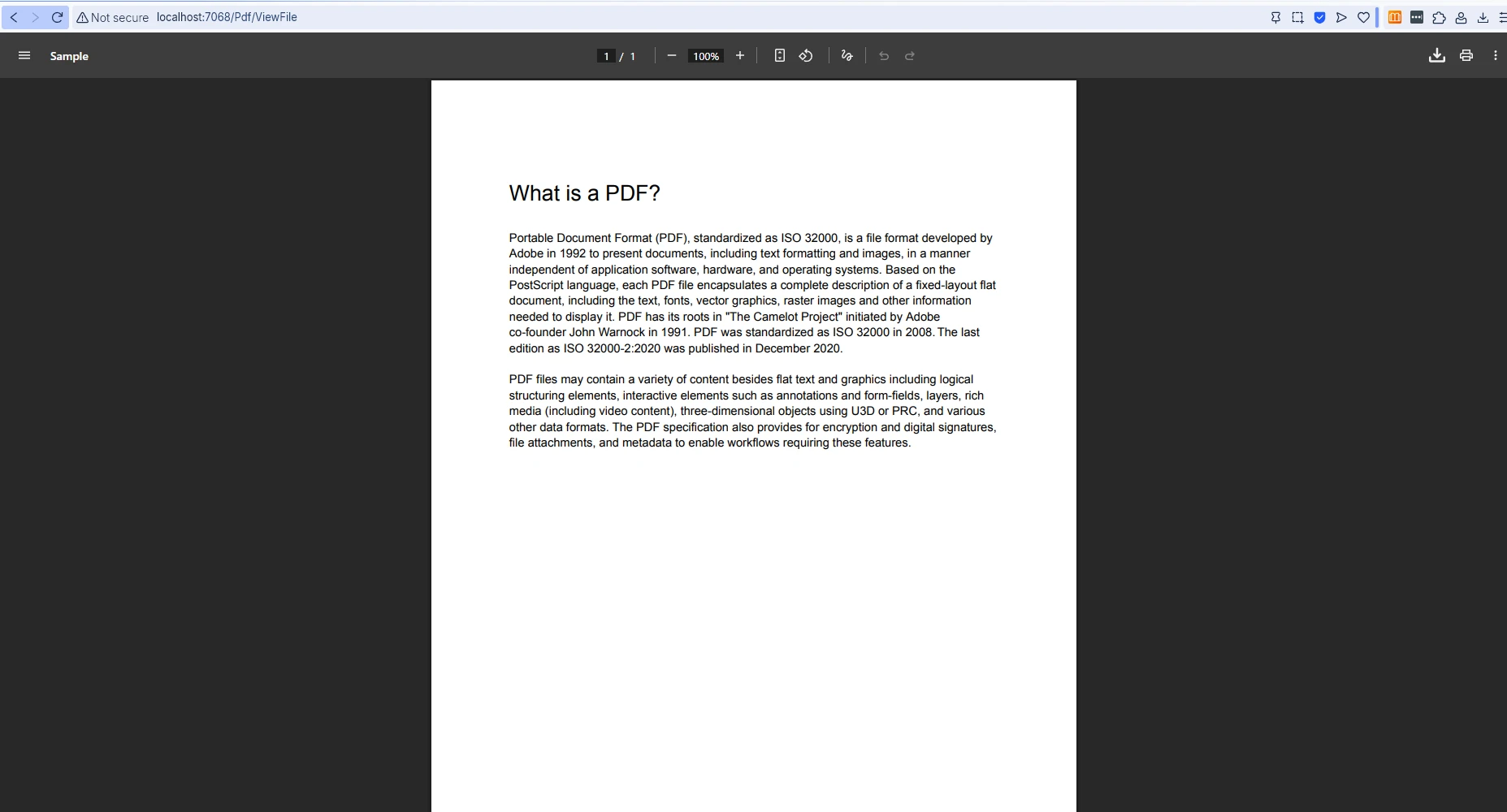
從資料庫中檢索的字節陣列需要仔細處理,正確載入文件以進行伺服器操作:
using IronPdf;
using Microsoft.AspNetCore.Mvc;

[Route("[controller]")]
public class PdfController : Controller
{
    [HttpGet("DisplayFromDatabase/{documentId:int}")]
    public IActionResult DisplayFromDatabase(int documentId)
    {
        // Retrieve the stored byte array from the database
        byte[] pdfData = GetPdfFromDatabase(documentId);

        // Load into an IronPDF document object for optional manipulation
        var pdf = PdfDocument.FromBytes(pdfData);

        // Set response headers for inline browser display
        Response.Headers.Append(
            "Content-Disposition",
            $"inline; filename=document_{documentId}.pdf");
        Response.Headers.Append("Content-Length", pdfData.Length.ToString());

        return File(pdfData, "application/pdf");
    }

    private static byte[] GetPdfFromDatabase(int documentId)
    {
        // Replace with actual database retrieval logic
        return Array.Empty<byte>();
    }
}Imports IronPdf
Imports Microsoft.AspNetCore.Mvc
<Route("[controller]")>
Public Class PdfController
Inherits Controller
<HttpGet("DisplayFromDatabase/{documentId:int}")>
Public Function DisplayFromDatabase(documentId As Integer) As IActionResult
' Retrieve the stored byte array from the database
Dim pdfData As Byte() = GetPdfFromDatabase(documentId)
' Load into an IronPDF document object for optional manipulation
Dim pdf = PdfDocument.FromBytes(pdfData)
' Set response headers for inline browser display
Response.Headers.Append("Content-Disposition", $"inline; filename=document_{documentId}.pdf")
Response.Headers.Append("Content-Length", pdfData.Length.ToString())
Return File(pdfData, "application/pdf")
End Function
Private Shared Function GetPdfFromDatabase(documentId As Integer) As Byte()
' Replace with actual database retrieval logic
Return Array.Empty(Of Byte)()
End Function
End ClassIronPDF支持高級HTML到PDF轉換,包括CSS樣式、圖片和網頁字體。 該程式庫還提供故障排除指南,以在生產環境中實現像素完美的結果。
下表總結了主要供應策略以及何時使用每種策略。
| 策略 | 標頭值 | 標籤行為 | 最佳適用於 |
|---|---|---|---|
| 內嵌顯示 | Content-Disposition: inline | 同標籤 | 沒有離開頁面的快速預覽 |
| 通過HTML新標籤 | Content-Disposition: inline + target="_blank" | 新標籤 | 使用者在原始頁面旁邊閱讀PDF |
| 文件下載 | Content-Disposition: attachment | 下載提示 | 將報告或發票保存到磁碟 |
| 嵌入物件 | Content-Disposition: inline + <object> | 頁面嵌入 | 與其他內容一起顯示PDF |
通過IronPDF,在ASP.NET C#中打開PDF在一個新窗口變得簡單。 通過處理PDF生成的細節和正確設置HTTP頭文件,開發者可以確保跨瀏覽器的一致顯示,同時保持乾淨、易於維護的程式碼。 無論是處理HTML字串、現有PDF文件,還是來自資料庫的字節陣列,IronPDF都提供了滿足使用者期望地提供PDF內容所需的工具。
立即開始免費試用IronPDF,以將專業的PDF功能新增到任何ASP.NET應用程式中。 在生產部署中,探索包括優先支援和存取企業網路應用程式完整功能集的授權選項。

Curtis Chau擁有Carleton大學的電腦科學學士學位,專精於前端開發,擁有Node.js、TypeScript、JavaScript和React的專業知識。Curtis熱衷於建立直觀且美觀的使用者介面,喜愛使用現代框架並建立結構良好、視覺吸引力的手冊。

IronPDF 是 IRONSUITE 的一部分
10 款適用於辦公室文件的 .NET API 產品

當您需要您的PDF看起來像HTML一樣快速。




