


PDF Viewer in ASP.NET Core: Display PDFs Inline with C#

Building a PDF viewer into an ASP.NET Core application is easier than most developers expect. By generating PDFs server-side and returning them with the correct MIME type, you can display documents directly in any modern browser -- no plugins, no Adobe Acrobat Reader required. IronPDF handles the rendering through its Chrome-based engine, turning HTML, CSS, and JavaScript into high-fidelity PDFs that appear inline in the browser's built-in viewer.
This tutorial walks you through every major scenario: displaying PDFs generated from HTML strings, rendering live URLs, converting Razor views, streaming large files, and wiring it all up in an ASP.NET Core MVC controller. Code examples target .NET 10 with top-level statements where applicable.
How Does Browser-Based PDF Viewing Work in ASP.NET?
Modern browsers ship with a built-in PDF viewer. When a server responds with the Content-Type: application/pdf header, the browser renders the document inline instead of triggering a file download. The key is pairing that header with Content-Disposition: inline.
On the server side, your job is to produce a valid PDF binary and return it through a FileResult. The browser handles pagination, zoom, text selection, search, printing, and downloading without any extra UI code on your part.
IronPDF fits into this pattern naturally. Its ChromePdfRenderer class converts HTML (or a live URL) into a PDF binary, and you pass that binary straight to ASP.NET's File() helper. The result is a fully featured document viewer that works across Chrome, Firefox, Edge, and Safari.
Modern browsers implement the W3C PDF rendering specification through their native viewer engines, which means any conformant PDF your server returns will display correctly without additional configuration. IronPDF's output is fully standards-compliant, so you can rely on consistent rendering across browser versions.
For containerized deployments, IronPDF provides official Docker images that pre-configure Chromium dependencies so you do not need to install Chrome manually on each node. Linux and Windows containers are both supported. If you need to scale PDF generation independently, the IronPDF Engine Docker image lets you run the rendering process as a separate microservice.
How Do You Install IronPDF in an ASP.NET Core Project?
Open your ASP.NET Core project in Visual Studio, then install IronPDF via the NuGet Package Manager Console:
Install-Package IronPdf
Or use the .NET CLI:
dotnet add package IronPdf
After installation, add your license key to Program.cs before calling any IronPDF APIs:
IronPdf.License.LicenseKey = "YOUR-LICENSE-KEY";IronPdf.License.LicenseKey = "YOUR-LICENSE-KEY";IronPdf.License.LicenseKey = "YOUR-LICENSE-KEY"If you are deploying to Azure, store the license key in Azure Key Vault or App Configuration rather than hard-coding it. For AWS Lambda deployments, use environment variables configured in your Lambda function settings.
That is the entire setup. IronPDF automatically detects and configures Chromium at runtime on Windows. On Linux, consult the Linux setup guide for the handful of system packages required.
You can start with a free trial to evaluate the full feature set before choosing a license tier for production.
How Do You Generate and Display a PDF from an HTML String?
The quickest way to put a PDF in front of a user is to render an HTML string and return it inline. Create a controller called PdfController and add an action like this:
using IronPdf;
using Microsoft.AspNetCore.Mvc;

var builder = WebApplication.CreateBuilder(args);
builder.Services.AddControllersWithViews();

var app = builder.Build();
app.MapControllerRoute(name: "default", pattern: "{controller=Home}/{action=Index}/{id?}");
app.Run();

public class PdfController : Controller
{
    private readonly ChromePdfRenderer _renderer;

    public PdfController()
    {
        _renderer = new ChromePdfRenderer();
        _renderer.RenderingOptions.WaitFor.RenderDelay(100);
        _renderer.RenderingOptions.Timeout = 30;
    }

    public IActionResult DisplayFromHtml()
    {
        string html = @"
            <html>
            <head>
                <style>
                    body { font-family: Arial, sans-serif; padding: 40px; }
                    h1   { color: #2c3e50; }
                    p    { line-height: 1.7; color: #444; }
                </style>
            </head>
            <body>
                <h1>Sample PDF Document</h1>
                <p>This PDF was generated using IronPDF in an ASP.NET Core application.</p>
            </body>
            </html>";

        PdfDocument pdf = _renderer.RenderHtmlAsPdf(html);

        Response.Headers.Append("Content-Disposition", "inline; filename=document.pdf");
        return File(pdf.BinaryData, "application/pdf");
    }
}
using IronPdf;
using Microsoft.AspNetCore.Mvc;
var builder = WebApplication.CreateBuilder(args);
builder.Services.AddControllersWithViews();
var app = builder.Build();
app.MapControllerRoute(name: "default", pattern: "{controller=Home}/{action=Index}/{id?}");
app.Run();
public class PdfController : Controller
{
private readonly ChromePdfRenderer _renderer;
public PdfController()
{
_renderer = new ChromePdfRenderer();
_renderer.RenderingOptions.WaitFor.RenderDelay(100);
_renderer.RenderingOptions.Timeout = 30;
}
public IActionResult DisplayFromHtml()
{
string html = @"
<html>
<head>
<style>
body { font-family: Arial, sans-serif; padding: 40px; }
h1 { color: #2c3e50; }
p { line-height: 1.7; color: #444; }
</style>
</head>
<body>
<h1>Sample PDF Document</h1>
<p>This PDF was generated using IronPDF in an ASP.NET Core application.</p>
</body>
</html>";
PdfDocument pdf = _renderer.RenderHtmlAsPdf(html);
Response.Headers.Append("Content-Disposition", "inline; filename=document.pdf");
return File(pdf.BinaryData, "application/pdf");
}
}Imports IronPdf
Imports Microsoft.AspNetCore.Mvc
Dim builder = WebApplication.CreateBuilder(args)
builder.Services.AddControllersWithViews()
Dim app = builder.Build()
app.MapControllerRoute(name:="default", pattern:="{controller=Home}/{action=Index}/{id?}")
app.Run()
Public Class PdfController
Inherits Controller
Private ReadOnly _renderer As ChromePdfRenderer
Public Sub New()
_renderer = New ChromePdfRenderer()
_renderer.RenderingOptions.WaitFor.RenderDelay(100)
_renderer.RenderingOptions.Timeout = 30
End Sub
Public Function DisplayFromHtml() As IActionResult
Dim html As String = "
<html>
<head>
<style>
body { font-family: Arial, sans-serif; padding: 40px; }
h1 { color: #2c3e50; }
p { line-height: 1.7; color: #444; }
</style>
</head>
<body>
<h1>Sample PDF Document</h1>
<p>This PDF was generated using IronPDF in an ASP.NET Core application.</p>
</body>
</html>"
Dim pdf As PdfDocument = _renderer.RenderHtmlAsPdf(html)
Response.Headers.Append("Content-Disposition", "inline; filename=document.pdf")
Return File(pdf.BinaryData, "application/pdf")
End Function
End ClassWhat Does the Rendered PDF Look Like in the Browser?
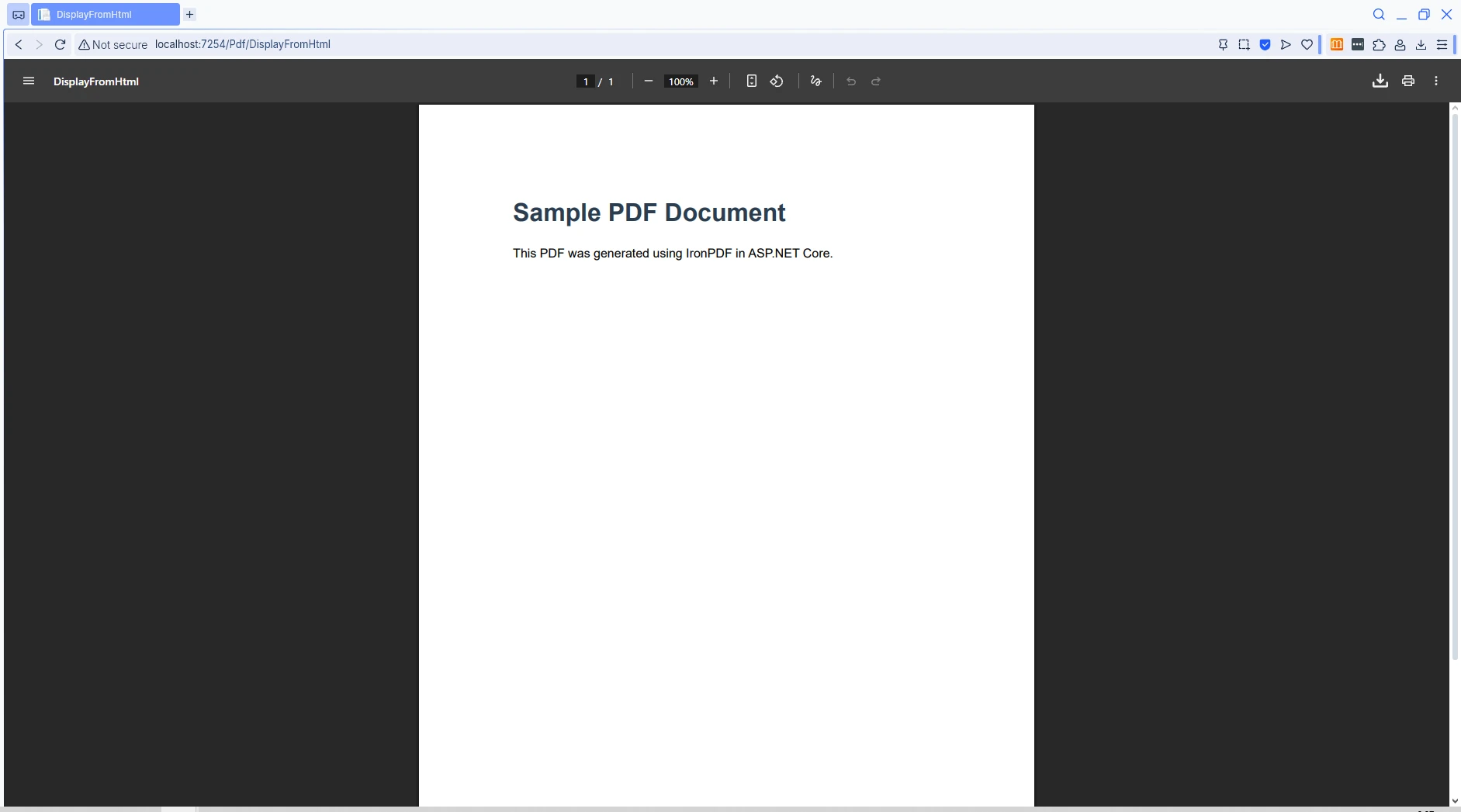
ChromePdfRenderer uses Chromium under the hood, so CSS grid, flexbox, web fonts, and modern CSS features all render accurately. Setting Content-Disposition to inline is what tells the browser to display the file rather than save it. If you change that value to attachment, the browser prompts the user to download instead.
For documents with intricate layouts, you can fine-tune output through rendering options such as custom paper sizes, margins, and print CSS media type. The WaitFor API is especially useful in containerized environments where network latency may delay external asset loading.
For a deeper look at HTML conversion options, see the HTML string to PDF guide.
How Do You Render PDF Files from URLs and Razor Views?
IronPDF can capture any live web page as a PDF -- ideal for archiving web content or generating reports from existing pages. The ASP.NET Core documentation covers how controller actions return results, which is the pattern used here.
public IActionResult RenderFromUrl(string url = "https://en.wikipedia.org/wiki/Main_Page")
{
    var renderer = new ChromePdfRenderer();
    renderer.RenderingOptions.EnableJavaScript = true;
    renderer.RenderingOptions.CssMediaType = IronPdf.Rendering.PdfCssMediaType.Print;
    renderer.RenderingOptions.WaitFor.NetworkIdle();

    PdfDocument pdf = renderer.RenderUrlAsPdf(url);

    Response.Headers.Append("Content-Disposition", "inline; filename=webpage.pdf");
    Response.Headers.Append("Cache-Control", "public, max-age=3600");
    return File(pdf.BinaryData, "application/pdf");
}
public IActionResult RenderFromUrl(string url = "https://en.wikipedia.org/wiki/Main_Page")
{
var renderer = new ChromePdfRenderer();
renderer.RenderingOptions.EnableJavaScript = true;
renderer.RenderingOptions.CssMediaType = IronPdf.Rendering.PdfCssMediaType.Print;
renderer.RenderingOptions.WaitFor.NetworkIdle();
PdfDocument pdf = renderer.RenderUrlAsPdf(url);
Response.Headers.Append("Content-Disposition", "inline; filename=webpage.pdf");
Response.Headers.Append("Cache-Control", "public, max-age=3600");
return File(pdf.BinaryData, "application/pdf");
}Public Function RenderFromUrl(Optional url As String = "https://en.wikipedia.org/wiki/Main_Page") As IActionResult
Dim renderer As New ChromePdfRenderer()
renderer.RenderingOptions.EnableJavaScript = True
renderer.RenderingOptions.CssMediaType = IronPdf.Rendering.PdfCssMediaType.Print
renderer.RenderingOptions.WaitFor.NetworkIdle()
Dim pdf As PdfDocument = renderer.RenderUrlAsPdf(url)
Response.Headers.Append("Content-Disposition", "inline; filename=webpage.pdf")
Response.Headers.Append("Cache-Control", "public, max-age=3600")
Return File(pdf.BinaryData, "application/pdf")
End FunctionHow Does URL-Based PDF Rendering Display?
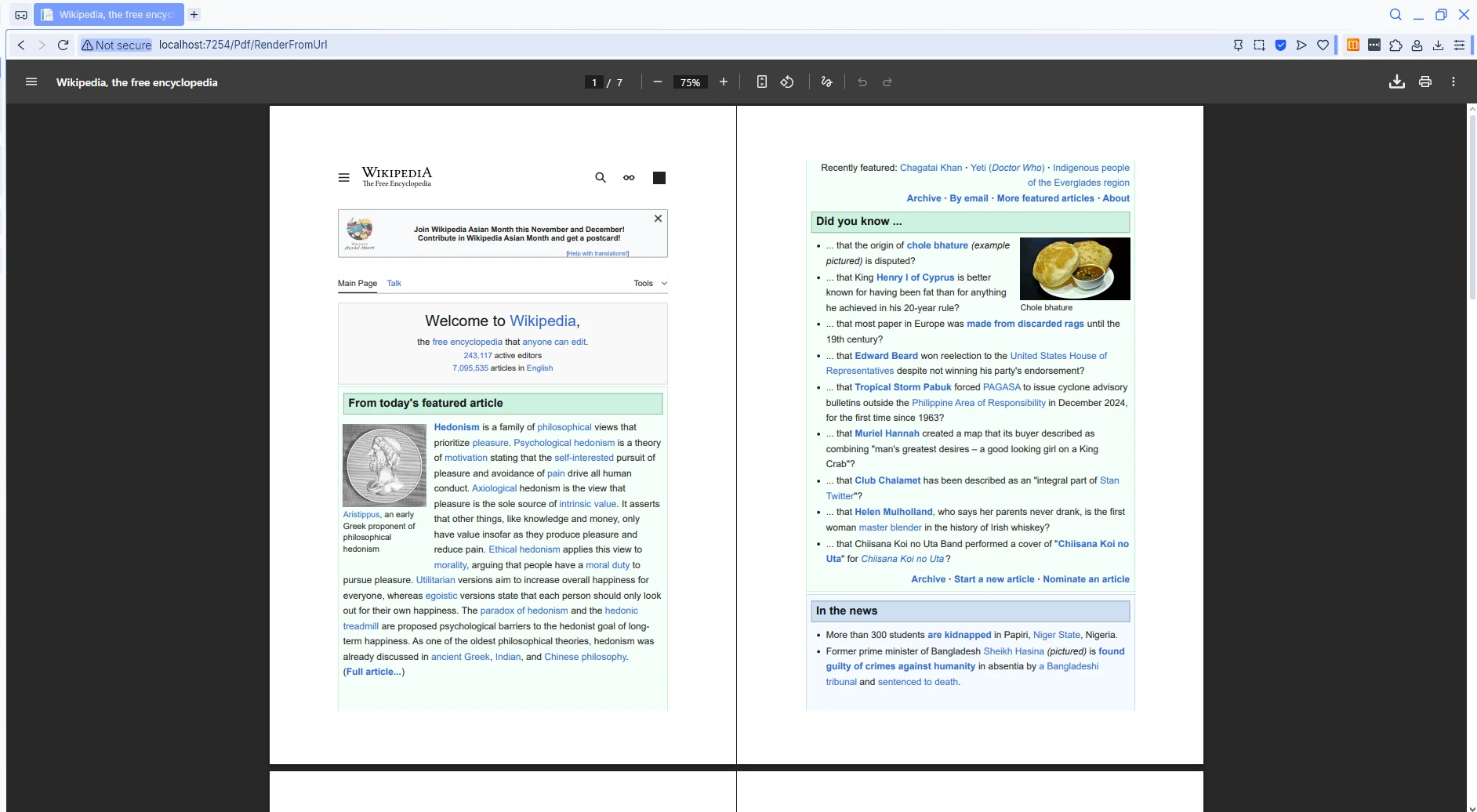
When you need to convert a Razor view -- such as an invoice or statement template -- you first render the view to an HTML string, then pass that string to IronPDF. This keeps your templates reusable across both web and PDF output:
public async Task<IActionResult> ViewToPdf()
{
    var model = new InvoiceModel
    {
        InvoiceNumber = 1001,
        InvoiceDate   = DateTime.Now,
        CustomerName  = "Acme Corp.",
        Items = new List<ItemModel>
        {
            new ItemModel { Description = "Product A", Quantity = 2, UnitPrice = 50.00m },
            new ItemModel { Description = "Service B", Quantity = 1, UnitPrice = 150.00m }
        }
    };
    model.TotalAmount = model.Items.Sum(i => i.LineTotal);

    string htmlContent = await RenderViewToStringAsync("Invoice", model);

    var renderer = new ChromePdfRenderer();
    renderer.RenderingOptions.MarginTop    = 40;
    renderer.RenderingOptions.MarginBottom = 40;

    string baseUrl = $"{HttpContext.Request.Scheme}://{HttpContext.Request.Host}";
    PdfDocument pdf = renderer.RenderHtmlAsPdf(htmlContent, baseUrl);

    return File(pdf.BinaryData, "application/pdf");
}

private async Task<string> RenderViewToStringAsync(string viewName, object model)
{
    var actionContext = new ActionContext(
        HttpContext, RouteData, ControllerContext.ActionDescriptor);

    var viewEngine      = HttpContext.RequestServices.GetRequiredService<IRazorViewEngine>();
    var tempDataFactory = HttpContext.RequestServices.GetRequiredService<ITempDataDictionaryFactory>();
    var tempData        = tempDataFactory.GetTempData(HttpContext);

    ViewData.Model = model;

    var viewResult = viewEngine.FindView(actionContext, viewName, isMainPage: false);
    if (!viewResult.Success)
    {
        string searched = string.Join(
            Environment.NewLine,
            viewResult.SearchedLocations ?? Array.Empty<string>());
        throw new InvalidOperationException(
            $"Could not find view '{viewName}'. Searched:{Environment.NewLine}{searched}");
    }

    await using var writer      = new StringWriter();
    var             viewContext = new ViewContext(
        actionContext, viewResult.View, ViewData, tempData,
        writer, new HtmlHelperOptions());

    await viewResult.View.RenderAsync(viewContext);
    return writer.ToString();
}
public async Task<IActionResult> ViewToPdf()
{
var model = new InvoiceModel
{
InvoiceNumber = 1001,
InvoiceDate = DateTime.Now,
CustomerName = "Acme Corp.",
Items = new List<ItemModel>
{
new ItemModel { Description = "Product A", Quantity = 2, UnitPrice = 50.00m },
new ItemModel { Description = "Service B", Quantity = 1, UnitPrice = 150.00m }
}
};
model.TotalAmount = model.Items.Sum(i => i.LineTotal);
string htmlContent = await RenderViewToStringAsync("Invoice", model);
var renderer = new ChromePdfRenderer();
renderer.RenderingOptions.MarginTop = 40;
renderer.RenderingOptions.MarginBottom = 40;
string baseUrl = $"{HttpContext.Request.Scheme}://{HttpContext.Request.Host}";
PdfDocument pdf = renderer.RenderHtmlAsPdf(htmlContent, baseUrl);
return File(pdf.BinaryData, "application/pdf");
}
private async Task<string> RenderViewToStringAsync(string viewName, object model)
{
var actionContext = new ActionContext(
HttpContext, RouteData, ControllerContext.ActionDescriptor);
var viewEngine = HttpContext.RequestServices.GetRequiredService<IRazorViewEngine>();
var tempDataFactory = HttpContext.RequestServices.GetRequiredService<ITempDataDictionaryFactory>();
var tempData = tempDataFactory.GetTempData(HttpContext);
ViewData.Model = model;
var viewResult = viewEngine.FindView(actionContext, viewName, isMainPage: false);
if (!viewResult.Success)
{
string searched = string.Join(
Environment.NewLine,
viewResult.SearchedLocations ?? Array.Empty<string>());
throw new InvalidOperationException(
$"Could not find view '{viewName}'. Searched:{Environment.NewLine}{searched}");
}
await using var writer = new StringWriter();
var viewContext = new ViewContext(
actionContext, viewResult.View, ViewData, tempData,
writer, new HtmlHelperOptions());
await viewResult.View.RenderAsync(viewContext);
return writer.ToString();
}Imports System
Imports System.Collections.Generic
Imports System.Linq
Imports System.Threading.Tasks
Imports Microsoft.AspNetCore.Mvc
Imports Microsoft.AspNetCore.Mvc.ViewEngines
Imports Microsoft.AspNetCore.Mvc.Rendering
Imports Microsoft.AspNetCore.Mvc.ViewFeatures
Imports Microsoft.Extensions.DependencyInjection
Imports IronPdf
Public Class YourController
Inherits Controller
Public Async Function ViewToPdf() As Task(Of IActionResult)
Dim model As New InvoiceModel With {
.InvoiceNumber = 1001,
.InvoiceDate = DateTime.Now,
.CustomerName = "Acme Corp.",
.Items = New List(Of ItemModel) From {
New ItemModel With {.Description = "Product A", .Quantity = 2, .UnitPrice = 50.0D},
New ItemModel With {.Description = "Service B", .Quantity = 1, .UnitPrice = 150.0D}
}
}
model.TotalAmount = model.Items.Sum(Function(i) i.LineTotal)
Dim htmlContent As String = Await RenderViewToStringAsync("Invoice", model)
Dim renderer As New ChromePdfRenderer()
renderer.RenderingOptions.MarginTop = 40
renderer.RenderingOptions.MarginBottom = 40
Dim baseUrl As String = $"{HttpContext.Request.Scheme}://{HttpContext.Request.Host}"
Dim pdf As PdfDocument = renderer.RenderHtmlAsPdf(htmlContent, baseUrl)
Return File(pdf.BinaryData, "application/pdf")
End Function
Private Async Function RenderViewToStringAsync(viewName As String, model As Object) As Task(Of String)
Dim actionContext As New ActionContext(HttpContext, RouteData, ControllerContext.ActionDescriptor)
Dim viewEngine As IRazorViewEngine = HttpContext.RequestServices.GetRequiredService(Of IRazorViewEngine)()
Dim tempDataFactory As ITempDataDictionaryFactory = HttpContext.RequestServices.GetRequiredService(Of ITempDataDictionaryFactory)()
Dim tempData As ITempDataDictionary = tempDataFactory.GetTempData(HttpContext)
ViewData.Model = model
Dim viewResult As ViewEngineResult = viewEngine.FindView(actionContext, viewName, isMainPage:=False)
If Not viewResult.Success Then
Dim searched As String = String.Join(Environment.NewLine, viewResult.SearchedLocations ?? Array.Empty(Of String)())
Throw New InvalidOperationException($"Could not find view '{viewName}'. Searched:{Environment.NewLine}{searched}")
End If
Await Using writer As New StringWriter()
Dim viewContext As New ViewContext(actionContext, viewResult.View, ViewData, tempData, writer, New HtmlHelperOptions())
Await viewResult.View.RenderAsync(viewContext)
Return writer.ToString()
End Using
End Function
End Class
Public Class InvoiceModel
Public Property InvoiceNumber As Integer
Public Property InvoiceDate As DateTime
Public Property CustomerName As String
Public Property Items As List(Of ItemModel)
Public Property TotalAmount As Decimal
End Class
Public Class ItemModel
Public Property Description As String
Public Property Quantity As Integer
Public Property UnitPrice As Decimal
Public ReadOnly Property LineTotal As Decimal
Get
Return Quantity * UnitPrice
End Get
End Property
End ClassWhat Results from Razor View PDF Generation?
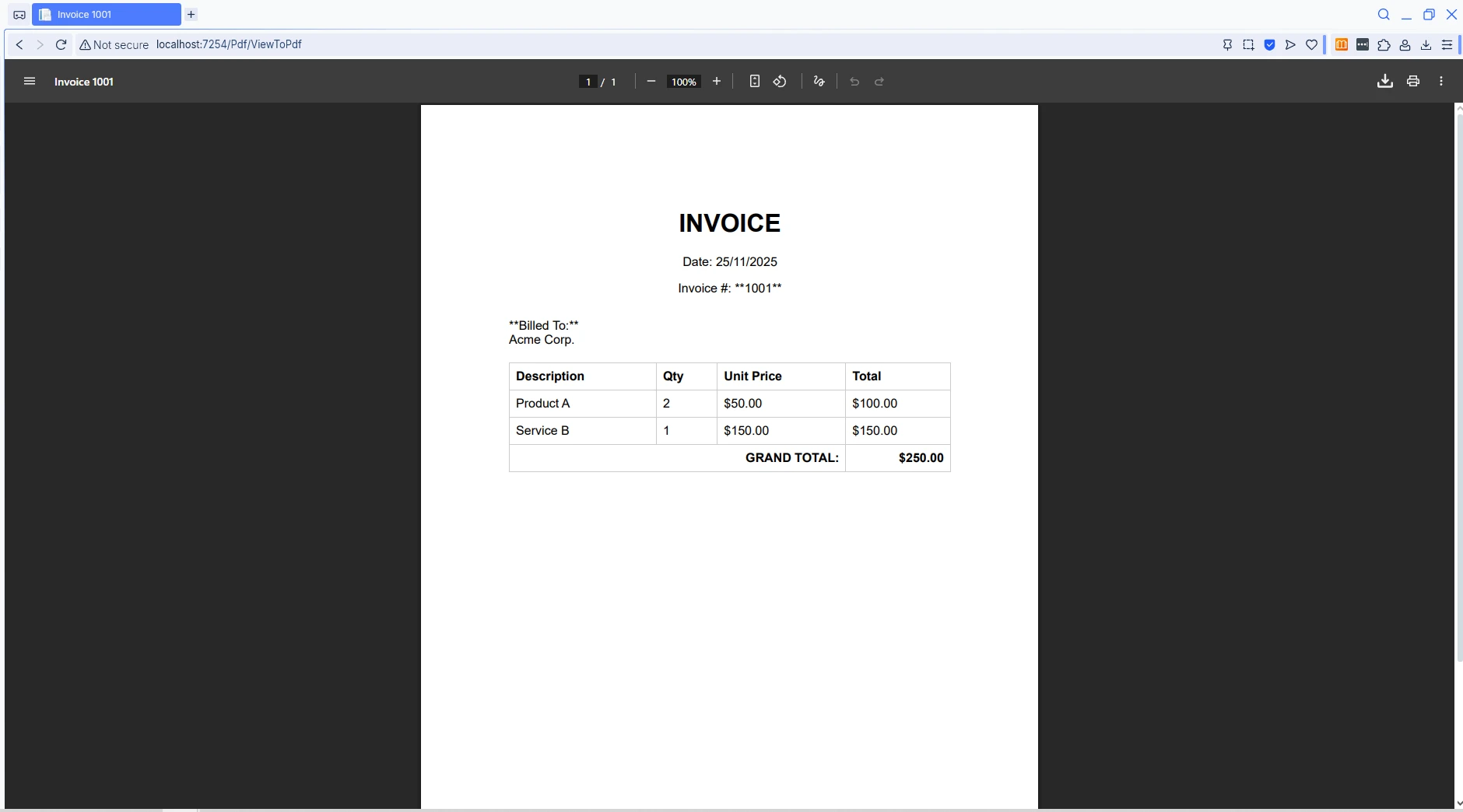
The baseUrl parameter matters when your Razor view references relative CSS or image paths. Passing the current host URL allows IronPDF to resolve those paths correctly. See the Razor to PDF tutorial for the complete walkthrough including Blazor application patterns.
How Do You Handle Large PDF Files with Streaming?
For documents that may be several megabytes in size, streaming reduces peak memory usage and starts delivering bytes to the client sooner. Use FileStreamResult instead of File() with a raw byte array:
public async Task<IActionResult> StreamLargePdf()
{
    var renderer = new ChromePdfRenderer();
    renderer.RenderingOptions.CreatePdfFormsFromHtml = false;

    PdfDocument pdf = await renderer.RenderHtmlAsPdfAsync(
        "<h1>Large Document</h1><p>Full content here...</p>");

    pdf.CompressImages(80);

    var stream = new MemoryStream(pdf.BinaryData);

    Response.Headers.Append("Content-Length", pdf.BinaryData.Length.ToString());
    Response.Headers.Append("Accept-Ranges",  "bytes");

    return new FileStreamResult(stream, "application/pdf");
}
public async Task<IActionResult> StreamLargePdf()
{
var renderer = new ChromePdfRenderer();
renderer.RenderingOptions.CreatePdfFormsFromHtml = false;
PdfDocument pdf = await renderer.RenderHtmlAsPdfAsync(
"<h1>Large Document</h1><p>Full content here...</p>");
pdf.CompressImages(80);
var stream = new MemoryStream(pdf.BinaryData);
Response.Headers.Append("Content-Length", pdf.BinaryData.Length.ToString());
Response.Headers.Append("Accept-Ranges", "bytes");
return new FileStreamResult(stream, "application/pdf");
}Imports System.IO
Imports System.Threading.Tasks
Imports Microsoft.AspNetCore.Mvc
Public Class YourController
Inherits Controller
Public Async Function StreamLargePdf() As Task(Of IActionResult)
Dim renderer As New ChromePdfRenderer()
renderer.RenderingOptions.CreatePdfFormsFromHtml = False
Dim pdf As PdfDocument = Await renderer.RenderHtmlAsPdfAsync("<h1>Large Document</h1><p>Full content here...</p>")
pdf.CompressImages(80)
Dim stream As New MemoryStream(pdf.BinaryData)
Response.Headers.Append("Content-Length", pdf.BinaryData.Length.ToString())
Response.Headers.Append("Accept-Ranges", "bytes")
Return New FileStreamResult(stream, "application/pdf")
End Function
End ClassCompressImages(80) reduces JPEG quality to 80%, which cuts file size significantly for image-heavy documents with minimal visible quality loss. Setting Accept-Ranges: bytes signals to the browser that it can request byte-range chunks, enabling faster seeking within large PDFs without downloading the whole file first.
The PDF/A specification from ISO defines archival-quality PDF requirements. If your application needs to produce long-term archival documents, IronPDF's PDF/A compliance mode ensures output meets those standards, which is particularly relevant for regulatory or legal workflows.
For legacy ASP.NET Web Forms projects, the pattern is slightly different because you write directly to the HTTP response:
protected void btnGeneratePdf_Click(object sender, EventArgs e)
{
    using var renderer = new ChromePdfRenderer();
    PdfDocument pdf    = renderer.RenderHtmlAsPdf("<h1>Web Form PDF</h1>");
    Response.ContentType = "application/pdf";
    Response.BinaryWrite(pdf.BinaryData);
    Response.End();
}
protected void btnGeneratePdf_Click(object sender, EventArgs e)
{
using var renderer = new ChromePdfRenderer();
PdfDocument pdf = renderer.RenderHtmlAsPdf("<h1>Web Form PDF</h1>");
Response.ContentType = "application/pdf";
Response.BinaryWrite(pdf.BinaryData);
Response.End();
}Protected Sub btnGeneratePdf_Click(sender As Object, e As EventArgs)
Using renderer As New ChromePdfRenderer()
Dim pdf As PdfDocument = renderer.RenderHtmlAsPdf("<h1>Web Form PDF</h1>")
Response.ContentType = "application/pdf"
Response.BinaryWrite(pdf.BinaryData)
Response.End()
End Using
End SubFor workloads that generate many PDFs concurrently, review the IronPDF async API guide and the performance optimization reference for settings that reduce memory overhead in high-throughput scenarios.
What Features Does a Browser-Based Viewer Give Your Users?
When a browser displays a PDF inline, it exposes a full-featured viewer automatically. Your users get text selection for copying content, a built-in search bar to locate specific words or numbers, print controls, and one-click download -- all without any front-end code on your part.
Beyond basic viewing, IronPDF supports a wide range of document features that affect what users see in the viewer:
- Headers and footers with dynamic text, page numbers, and dates
- Custom watermarks for draft or confidential markings
- Interactive form fields that users can fill in directly in the browser
- Digital signatures for document authentication
- PDF/A compliance for long-term archival requirements
- Encryption and password protection for restricted access
The following table summarizes the primary conversion methods available in the library and when to use each:
| Method | Input | Best For |
|---|---|---|
RenderHtmlAsPdf |
HTML string | Templated documents, invoices, reports |
RenderUrlAsPdf |
URL | Web page archiving, live content snapshots |
RenderHtmlAsPdf + Razor |
Rendered view HTML | Reusing existing MVC templates as PDFs |
RenderHtmlFileAsPdf |
Local HTML file | Static templates stored on disk |
For containerized deployments, IronPDF also provides remote engine support so you can run PDF generation as a dedicated microservice. Review the memory optimization guide for settings tuned to resource-constrained environments.
For a complete overview of capabilities, visit the IronPDF features page.
What Formatting and Editing Options Does IronPDF Support?
IronPDF goes well beyond basic rendering. You can add structure and branding to every document using the options below.
Page layout controls include custom paper sizes, orientation settings, and margin configuration. Typography support covers full web font rendering via CSS @font-face declarations, meaning documents match your brand fonts exactly. You can also embed and resize images within PDF pages, giving you complete control over visual fidelity.
For document manipulation, IronPDF lets you merge or split existing PDFs, add or remove individual pages, and extract text and images programmatically. JavaScript execution before capture supports dynamic charts and data visualizations -- useful when generating reports that rely on client-side rendering libraries like Chart.js or D3.js.
These capabilities mean you can produce polished, print-ready documents directly from your application without a separate document processing layer.
If you need to accept user-uploaded PDFs and display them alongside generated ones, IronPDF reads existing PDF binaries just as easily as it creates new ones. Load a file with PdfDocument.FromFile() and return its BinaryData through the same File() helper.
See the C# edit PDF tutorial for a detailed walkthrough of editing, annotating, and modifying existing documents.
How Does IronPDF Compare to Alternative Approaches?
The two most common alternatives to an IronPDF server-side approach are embedding a client-side PDF viewer library (such as PDF.js, Mozilla's open-source viewer) and routing users to a separate document management system.
Client-side viewers like PDF.js work well for straightforward display cases but require serving the viewer JavaScript bundle, handling CORS for external PDFs, and managing browser compatibility yourself. Server-side generation with IronPDF keeps the PDF pipeline entirely on the .NET stack, simplifying security policy and avoiding cross-origin complexity.
A dedicated document management system adds operational overhead that most web applications do not need. For teams already running ASP.NET Core, generating and streaming PDFs directly from the controller is the path of least resistance.
What Are Your Next Steps?
Displaying PDFs in an ASP.NET Core web application takes only a few lines of code. Generate the PDF with ChromePdfRenderer, set Content-Disposition: inline, and return a FileResult -- the browser's built-in viewer handles everything else.
For production deployments, consider these steps to prepare your setup:
- Configure custom logging to track PDF generation times and error rates
- Implement caching for frequently requested PDFs to reduce Chromium startup overhead
- Use the IronPDF Engine Docker image to scale rendering separately from your web layer
- Review PDF compression options to keep response sizes manageable
Ready to add PDF viewing to your project? Start with a free trial and run the examples above in minutes. When ready to deploy, review the licensing options that fit your team size and usage. To explore related conversions, browse how IronPDF handles DOCX to PDF, image to PDF, and other formats in the how-to guide library.

Frequently Asked Questions
How can I create a PDF viewer in an ASP.NET web application?
You can create a PDF viewer in an ASP.NET web application using IronPDF. It enables you to display PDF documents directly within your application, offering a seamless viewing experience without requiring external tools like Adobe Acrobat Reader.
What are the benefits of using IronPDF for PDF viewing in ASP.NET?
IronPDF provides a smooth and integrated PDF viewing experience in ASP.NET applications. It allows you to display documents inline, supports various file types, and eliminates the need for third-party PDF viewers, enhancing user experience.
Can I display interactive PDF forms in my ASP.NET web application?
Yes, with IronPDF, you can display interactive PDF forms within your ASP.NET web application. It supports the rendering of form fields and interactive elements, allowing users to interact with documents directly in the browser.
Is it possible to showcase invoices and reports using IronPDF in ASP.NET?
Absolutely, IronPDF is well-suited for displaying invoices, reports, and other document types in ASP.NET applications. It ensures your documents are rendered accurately and efficiently within the web application.
Do I need Adobe Acrobat Reader to view PDFs in ASP.NET applications using IronPDF?
No, you do not need Adobe Acrobat Reader to view PDFs in ASP.NET applications when using IronPDF. It allows you to render and view PDFs directly in the browser without third-party dependencies.










 Get started for FREE
 Get started for FREE
 Book Free Live Demo
















