using IronPdf;

// Disable local disk access or cross-origin requests
Installation.EnableWebSecurity = true;

// Instantiate Renderer
var renderer = new ChromePdfRenderer();

// Create a PDF from a HTML string using C#
var pdf = renderer.RenderHtmlAsPdf("<h1>Hello World</h1>");

// Export to a file or Stream
pdf.SaveAs("output.pdf");

// Advanced Example with HTML Assets
// Load external html assets: Images, CSS and JavaScript.
// An optional BasePath 'C:\site\assets\' is set as the file location to load assets from
var myAdvancedPdf = renderer.RenderHtmlAsPdf("<img src='icons/iron.png'>", @"C:\site\assets\");
myAdvancedPdf.SaveAs("html-with-assets.pdf");
using IronPdf;// Disable local disk access or cross-origin requestsInstallation.EnableWebSecurity = true;// Instantiate Renderervar renderer = new ChromePdfRenderer();// Create a PDF from a HTML string using C#var pdf = renderer.RenderHtmlAsPdf("<h1>Hello World</h1>");// Export to a file or Streampdf.SaveAs("output.pdf");// Advanced Example with HTML Assets// Load external html assets: Images, CSS and JavaScript.// An optional BasePath 'C:\site\assets\' is set as the file location to load assets fromvar myAdvancedPdf = renderer.RenderHtmlAsPdf("<img src='icons/iron.png'>", @"C:\site\assets\");myAdvancedPdf.SaveAs("html-with-assets.pdf");
PM >Install-Package IronPdf
Install-Package IronPdf
USING IRONPDF
How to Read PDF Files in Selenium WebDriver C# Without the Usual Complexity
**PDF documents present a unique challenge in automated testing: while Selenium WebDriver excels at interacting with web elements, it cannot read the content inside a PDF because the file renders as a binary stream rather than DOM elements.** This article shows how to solve that problem in C# by pairing Selenium with [IronPDF](https://ironpdf.com/), a production-ready .NET PDF library that lets you extract, validate, and process PDF content with just a few lines of code -- no complex Java-style dependency management required.
## Why Does Selenium Struggle with PDF Content?
When a PDF opens in a browser, Selenium can navigate to the page and interact with browser controls, but it cannot query the text or data inside the document. PDFs are rendered as embedded objects or plugins, not as HTML elements that the [WebDriver protocol](https://w3c.github.io/webdriver/) can traverse. The browser's PDF viewer renders the document visually, but there is no accessible DOM for Selenium to inspect -- every XPath query or CSS selector returns nothing.
Traditional workarounds require downloading the file to disk, invoking a separate parsing library, and wiring everything together manually. That multi-step process adds complexity, creates fragile test code, and complicates CI/CD pipelines where file paths and permissions are difficult to control. IronPDF eliminates all of those steps by letting you load a PDF from a URL or a local path and extract its text in a single call -- directly inside your existing .NET test project, without any intermediate files or configuration.
The practical result is that test code becomes shorter, easier to read, and far less likely to break when the test environment changes. For a broader look at everything IronPDF can do beyond text extraction, visit the [IronPDF documentation hub](https://ironpdf.com/docs/).

## How Do You Install IronPDF for Selenium Testing?
Getting the required packages in place takes less than a minute. Open the Package Manager Console in Visual Studio and run:
```shell
:ProductInstall
```
You will also need the Selenium packages if they are not already in your project:
```bash
Install-Package Selenium.WebDriver
Install-Package Selenium.WebDriver.ChromeDriver
```

Once the packages are installed, add these using directives at the top of your test file:
```csharp
using IronPdf;
using OpenQA.Selenium;
using OpenQA.Selenium.Chrome;
using System.IO;
```
IronPDF targets .NET 10 and works cross-platform on Windows, Linux, and macOS, so the same test code runs in every environment -- including Docker containers and cloud CI agents.
!!!--LIBRARY_GET_STARTED_WITH_PRODUCT_TRIAL_BLOCK--!!!
## How Do You Read a PDF Directly from a URL?
Reading PDF content from a URL skips the download step entirely. Selenium locates the link, IronPDF loads the document, and you have the full text available for assertions in just a handful of lines.
```csharp
// Initialize Chrome driver
var driver = new ChromeDriver();

// Navigate to a webpage containing a PDF link
driver.Navigate().GoToUrl("https://ironpdf.com/");

// Find and capture the PDF URL
IWebElement pdfLink = driver.FindElement(By.CssSelector("a[href$='.pdf']"));
string pdfUrl = pdfLink.GetAttribute("href");

// Load the PDF directly from the URL -- no download needed
var pdf = PdfDocument.FromUrl(new Uri(pdfUrl));
string extractedText = pdf.ExtractAllText();

// Assert expected content
if (extractedText.Contains("IronPDF"))
{
    Console.WriteLine("PDF validation passed!");
}

driver.Quit();
```
`PdfDocument.FromUrl()` fetches and parses the document in memory. The `ExtractAllText()` call returns all text from every page as a single string, ready for your assertions. For password-protected documents, pass credentials as an additional parameter so that protected files remain accessible during testing. To learn more about text extraction options, see the [IronPDF text extraction guide](https://ironpdf.com/how-to/extract-text-and-images/).
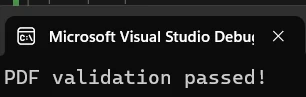
### Output
## How Do You Download and Process a PDF Automatically?
When a PDF is generated after authentication or through a dynamic workflow, downloading it first may be the only option. Configure Chrome to auto-download PDFs to a known directory, then hand the file path to IronPDF:
```csharp
// Configure Chrome to auto-download PDFs
var chromeOptions = new ChromeOptions();
chromeOptions.AddUserProfilePreference("download.default_directory", @"C:\PDFTests");
chromeOptions.AddUserProfilePreference("plugins.always_open_pdf_externally", true);
var driver = new ChromeDriver(chromeOptions);
string appUrl = "https://example.com/reports";
// Trigger the download
driver.Navigate().GoToUrl(appUrl);
driver.FindElement(By.Id("downloadReport")).Click();
// Wait for the download -- replace Thread.Sleep with a file-system watcher in production tests
System.Threading.Thread.Sleep(3000);
// Read the downloaded PDF
string pdfPath = @"C:\PDFTests\report.pdf";
var pdf = PdfDocument.FromFile(pdfPath);
string content = pdf.ExtractAllText();
// Validate specific data
bool hasExpectedData = content.Contains("Quarterly Revenue: $1.2M");
Console.WriteLine($"Revenue data found: {hasExpectedData}");
// Extract text from a specific page (zero-indexed)
string page2Content = pdf.ExtractTextFromPage(1);
// Clean up
File.Delete(pdfPath);
driver.Quit();
```
The `plugins.always_open_pdf_externally` preference bypasses Chrome's built-in PDF viewer so the file lands on disk instead of opening in the browser. `ExtractTextFromPage()` gives you page-level precision when different validation data appears on different pages of a multi-page report. For working with large documents efficiently, review the [IronPDF performance tips](https://ironpdf.com/how-to/async/).
## How Do You Validate PDF Content in Automated Tests?
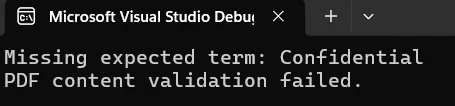
Checking that a document contains the right terms is the most common testing scenario. The following helper method accepts a file path and an array of required terms, then returns `false` the moment any expected term is missing:
```csharp
bool ValidatePdfContent(string pdfPath, string[] expectedTerms)
{
var pdf = PdfDocument.FromFile(pdfPath);
string fullText = pdf.ExtractAllText();
// Verify each required term
foreach (string term in expectedTerms)
{
if (!fullText.Contains(term, StringComparison.OrdinalIgnoreCase))
{
Console.WriteLine($"Missing expected term: {term}");
return false;
}
}
// Validate first-page structure
if (pdf.PageCount > 0)
{
string firstPageText = pdf.ExtractTextFromPage(0);
if (!firstPageText.Contains("Invoice #") && !firstPageText.Contains("Date:"))
{
Console.WriteLine("Header validation failed");
return false;
}
}
return true;
}
```
`StringComparison.OrdinalIgnoreCase` keeps tests from breaking due to capitalization differences in generated documents. IronPDF preserves text layout and formatting during extraction, so positional validation -- such as confirming header fields appear on page one -- works reliably across different PDF generators.
For more advanced scenarios such as [extracting tables from PDF files](https://ironpdf.com/blog/using-ironpdf/csharp-read-pdf-table-tutorial/), pulling out embedded images, or reading interactive form fields, IronPDF provides dedicated APIs for each task. You can also chain text extraction with [PDF merging](https://ironpdf.com/how-to/merge-or-split-pdfs/) or [splitting workflows](https://ironpdf.com/how-to/split-multipage-pdf/) when your test suite needs to assemble or disassemble documents before validation.
### Input
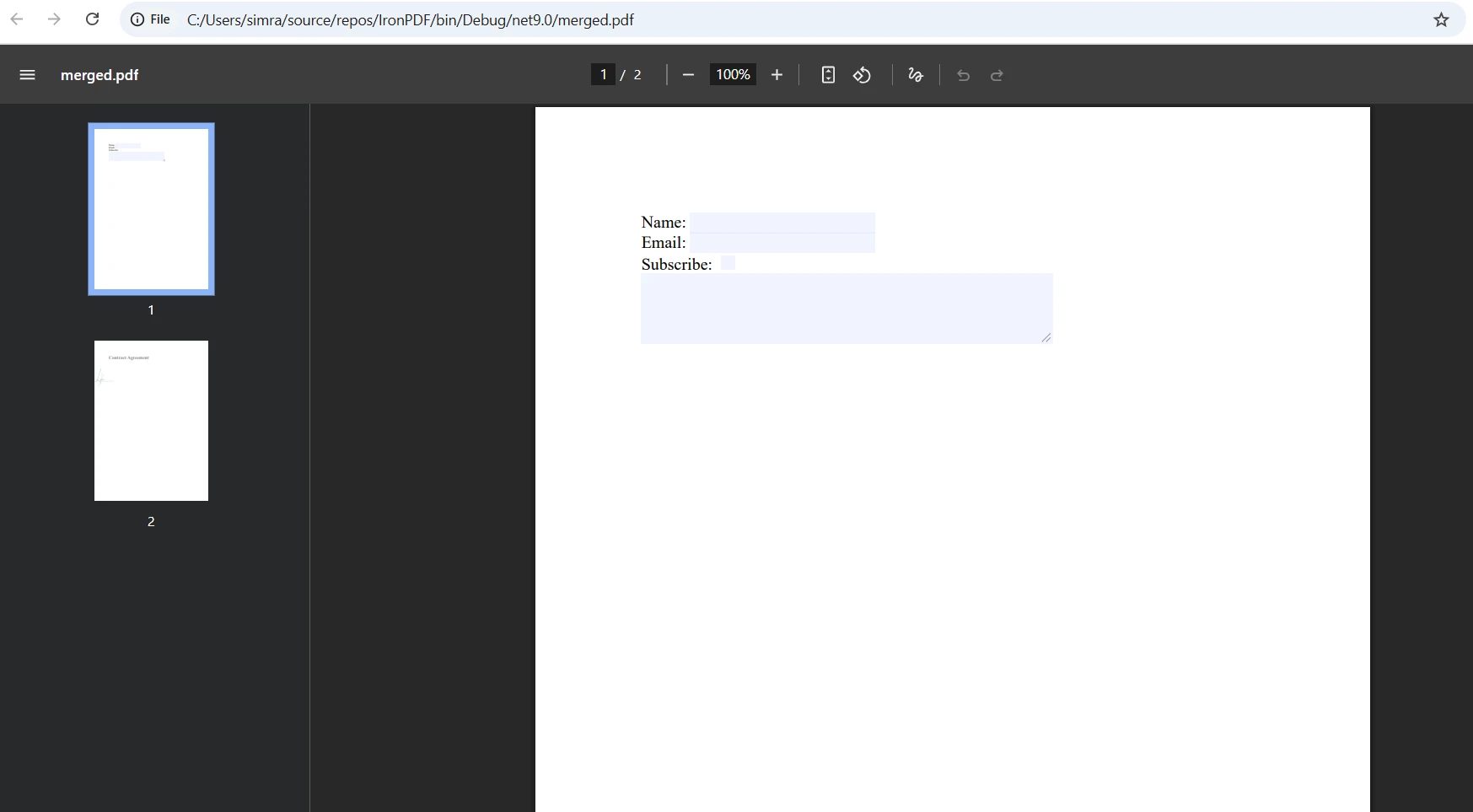
### Output
## What Are the Best Practices for PDF Testing with Selenium?
Applying a few patterns from the start will keep your PDF test suite maintainable as the project grows.
**Use explicit waits instead of fixed delays.** Replace `Thread.Sleep()` with a file-system watcher or a polling loop that checks for the file's existence. [Selenium's explicit wait documentation](https://www.selenium.dev/documentation/webdriver/waits/) covers browser-side waiting strategies, and the same principle applies to downloads. Fixed delays are fragile on slow CI machines.
**Centralize PDF operations in a base class.** Create a shared helper or base test class that exposes methods like `LoadPdfFromUrl`, `DownloadPdf`, and `ValidateTerms`. Individual tests then stay focused on assertions rather than PDF plumbing. This mirrors the pattern IronPDF itself follows for [HTML-to-PDF conversion](https://ironpdf.com/tutorials/html-to-pdf/) and other core operations.
**Clean up downloaded files after each test.** Call `File.Delete()` in a finally block or a teardown method so temporary PDFs do not accumulate on disk. This is especially important in parallel test runs where multiple files may land in the same directory simultaneously.
**Run tests cross-platform without changes.** IronPDF works on Windows, Linux, and macOS without conditional compilation. The same test assembly that runs locally will execute correctly on Linux-based CI agents. See the [cross-platform deployment guide](https://ironpdf.com/get-started/ironpdf-docker/) for Docker-specific configuration.
**Keep passwords out of source control.** When working with protected PDFs, read credentials from environment variables or a secrets manager rather than hard-coding them. IronPDF's `PdfDocument.FromFile(path, password)` overload accepts the password at load time, so the call site stays clean. The [IronPDF licensing page](https://ironpdf.com/licensing/) covers team and enterprise licensing for production deployments.
**Scope text extraction to the page you need.** `ExtractAllText()` is convenient for small documents, but for large multi-page PDFs consider calling `ExtractTextFromPage()` only for the pages that contain the data you are validating. This reduces memory use and speeds up test execution. Refer to the [API reference for text extraction](https://ironpdf.com/object-reference/api/IronPdf.PdfDocument.html) for the full method signatures.
## How Does IronPDF Compare to Other PDF Libraries for .NET?
<table class="content__data-table" data-content-table>
<caption>PDF Library Feature Comparison for .NET Test Automation</caption>
<thead>
<tr>
<th>Feature</th>
<th>IronPDF</th>
<th>iText</th>
<th>PdfPig</th>
</tr>
</thead>
<tbody>
<tr>
<td>Load PDF from URL</td>
<td>Yes -- single method call</td>
<td>Manual HTTP download required</td>
<td>Manual HTTP download required</td>
</tr>
<tr>
<td>Extract all text</td>
<td>Yes -- `ExtractAllText()`</td>
<td>Yes -- multi-step</td>
<td>Yes -- multi-step</td>
</tr>
<tr>
<td>Page-level extraction</td>
<td>Yes -- `ExtractTextFromPage(n)`</td>
<td>Yes</td>
<td>Yes</td>
</tr>
<tr>
<td>Password-protected PDFs</td>
<td>Yes -- parameter overload</td>
<td>Yes</td>
<td>Limited</td>
</tr>
<tr>
<td>.NET 10 support</td>
<td>Yes</td>
<td>Partial</td>
<td>Yes</td>
</tr>
<tr>
<td>HTML to PDF generation</td>
<td>Yes</td>
<td>Limited</td>
<td>No</td>
</tr>
<tr>
<td>Cross-platform (Linux, macOS)</td>
<td>Yes</td>
<td>Yes</td>
<td>Yes</td>
</tr>
<tr>
<td>License type</td>
<td>Commercial with free trial</td>
<td>AGPL / Commercial</td>
<td>MIT</td>
</tr>
</tbody>
</table>
IronPDF's direct URL loading and single-method text extraction give it a clear advantage in test automation contexts where speed of development matters. For teams that also need to [generate PDFs from HTML](https://ironpdf.com/tutorials/html-to-pdf/) or [manipulate existing documents](https://ironpdf.com/tutorials/csharp-edit-pdf-complete-tutorial/) within the same workflow, having one library handle both tasks simplifies the dependency tree considerably. Open-source alternatives like PdfPig are a reasonable fit for simple extraction needs, but they require more setup to handle URL loading and offer no built-in PDF generation.
## How Do You Get Started with a Free Trial?
IronPDF provides a full-featured free trial so you can validate the library in your test environment before committing to a license. No watermark limitations affect text extraction or validation workflows during the trial period.
To get started:
1. Install the NuGet package: `dotnet add package IronPdf`
2. Add `using IronPdf;` to your test file.
3. Call `PdfDocument.FromUrl()` or `PdfDocument.FromFile()` and start extracting text.
Visit the [IronPDF free trial page](trial-license) to download your trial key. For teams or enterprise deployments, review the [IronPDF licensing options](https://ironpdf.com/licensing/) to find the plan that fits your needs.
Additional resources to accelerate your setup:
- [IronPDF .NET quickstart guide](https://ironpdf.com/get-started/quickstart/)
- [Full API reference for PdfDocument](https://ironpdf.com/object-reference/api/IronPdf.PdfDocument.html)
- [IronPDF NuGet page](https://www.nuget.org/packages/IronPdf/)
- [Community support and examples](https://ironsoftware.com/contact-us/support/)
PDF documents present a unique challenge in automated testing: while Selenium WebDriver excels at interacting with web elements, it cannot read the content inside a PDF because the file renders as a binary stream rather than DOM elements. This article shows how to solve that problem in C# by pairing Selenium with IronPDF, a production-ready .NET PDF library that lets you extract, validate, and process PDF content with just a few lines of code -- no complex Java-style dependency management required.
Why Does Selenium Struggle with PDF Content?
When a PDF opens in a browser, Selenium can navigate to the page and interact with browser controls, but it cannot query the text or data inside the document. PDFs are rendered as embedded objects or plugins, not as HTML elements that the WebDriver protocol can traverse. The browser's PDF viewer renders the document visually, but there is no accessible DOM for Selenium to inspect -- every XPath query or CSS selector returns nothing.
Traditional workarounds require downloading the file to disk, invoking a separate parsing library, and wiring everything together manually. That multi-step process adds complexity, creates fragile test code, and complicates CI/CD pipelines where file paths and permissions are difficult to control. IronPDF eliminates all of those steps by letting you load a PDF from a URL or a local path and extract its text in a single call -- directly inside your existing .NET test project, without any intermediate files or configuration.
The practical result is that test code becomes shorter, easier to read, and far less likely to break when the test environment changes. For a broader look at everything IronPDF can do beyond text extraction, visit the IronPDF documentation hub.
How Do You Install IronPDF for Selenium Testing?
Getting the required packages in place takes less than a minute. Open the Package Manager Console in Visual Studio and run:
PM > Install-Package IronPdf
Install-Package IronPdf
You will also need the Selenium packages if they are not already in your project:
IronPDF targets .NET 10 and works cross-platform on Windows, Linux, and macOS, so the same test code runs in every environment -- including Docker containers and cloud CI agents.
First Step:
How Do You Read a PDF Directly from a URL?
Reading PDF content from a URL skips the download step entirely. Selenium locates the link, IronPDF loads the document, and you have the full text available for assertions in just a handful of lines.
// Initialize Chrome drivervar driver = new ChromeDriver();// Navigate to a webpage containing a PDF linkdriver.Navigate().GoToUrl("https://ironpdf.com/");// Find and capture the PDF URLIWebElement pdfLink = driver.FindElement(By.CssSelector("a[href$='.pdf']"));string pdfUrl = pdfLink.GetAttribute("href");// Load the PDF directly from the URL -- no download neededvar pdf = PdfDocument.FromUrl(new Uri(pdfUrl));string extractedText = pdf.ExtractAllText();// Assert expected contentif (extractedText.Contains("IronPDF")){Console.WriteLine("PDF validation passed!");}driver.Quit();
// Initialize Chrome driver
var driver = new ChromeDriver();

// Navigate to a webpage containing a PDF link
driver.Navigate().GoToUrl("https://ironpdf.com/");

// Find and capture the PDF URL
IWebElement pdfLink = driver.FindElement(By.CssSelector("a[href$='.pdf']"));
string pdfUrl = pdfLink.GetAttribute("href");

// Load the PDF directly from the URL -- no download needed
var pdf = PdfDocument.FromUrl(new Uri(pdfUrl));
string extractedText = pdf.ExtractAllText();

// Assert expected content
if (extractedText.Contains("IronPDF"))
{
    Console.WriteLine("PDF validation passed!");
}

driver.Quit();
ImportsOpenQA.SeleniumImportsOpenQA.Selenium.ChromeImportsIronPdf' Initialize Chrome driverDim driver AsIWebDriver = New ChromeDriver()' Navigate to a webpage containing a PDF linkdriver.Navigate().GoToUrl("https://ironpdf.com/")' Find and capture the PDF URLDim pdfLink AsIWebElement = driver.FindElement(By.CssSelector("a[href$='.pdf']"))Dim pdfUrl AsString = pdfLink.GetAttribute("href")' Load the PDF directly from the URL -- no download neededDim pdf AsPdfDocument = PdfDocument.FromUrl(New Uri(pdfUrl))Dim extractedText AsString = pdf.ExtractAllText()' Assert expected contentIf extractedText.Contains("IronPDF") ThenConsole.WriteLine("PDF validation passed!")End Ifdriver.Quit()
Imports OpenQA.Selenium
Imports OpenQA.Selenium.Chrome
Imports IronPdf

' Initialize Chrome driver
Dim driver As IWebDriver = New ChromeDriver()

' Navigate to a webpage containing a PDF link
driver.Navigate().GoToUrl("https://ironpdf.com/")

' Find and capture the PDF URL
Dim pdfLink As IWebElement = driver.FindElement(By.CssSelector("a[href$='.pdf']"))
Dim pdfUrl As String = pdfLink.GetAttribute("href")

' Load the PDF directly from the URL -- no download needed
Dim pdf As PdfDocument = PdfDocument.FromUrl(New Uri(pdfUrl))
Dim extractedText As String = pdf.ExtractAllText()

' Assert expected content
If extractedText.Contains("IronPDF") Then
    Console.WriteLine("PDF validation passed!")
End If

driver.Quit()
PdfDocument.FromUrl() fetches and parses the document in memory. The ExtractAllText() call returns all text from every page as a single string, ready for your assertions. For password-protected documents, pass credentials as an additional parameter so that protected files remain accessible during testing. To learn more about text extraction options, see the IronPDF text extraction guide.
Output
How Do You Download and Process a PDF Automatically?
When a PDF is generated after authentication or through a dynamic workflow, downloading it first may be the only option. Configure Chrome to auto-download PDFs to a known directory, then hand the file path to IronPDF:
// Configure Chrome to auto-download PDFsvar chromeOptions = new ChromeOptions();chromeOptions.AddUserProfilePreference("download.default_directory", @"C:\PDFTests");chromeOptions.AddUserProfilePreference("plugins.always_open_pdf_externally", true);var driver = new ChromeDriver(chromeOptions);string appUrl = "https://example.com/reports";// Trigger the downloaddriver.Navigate().GoToUrl(appUrl);driver.FindElement(By.Id("downloadReport")).Click();// Wait for the download -- replace Thread.Sleep with a file-system watcher in production testsSystem.Threading.Thread.Sleep(3000);// Read the downloaded PDFstring pdfPath = @"C:\PDFTests\report.pdf";var pdf = PdfDocument.FromFile(pdfPath);string content = pdf.ExtractAllText();// Validate specific databool hasExpectedData = content.Contains("Quarterly Revenue: $1.2M");Console.WriteLine($"Revenue data found: {hasExpectedData}");// Extract text from a specific page (zero-indexed)string page2Content = pdf.ExtractTextFromPage(1);// Clean upFile.Delete(pdfPath);driver.Quit();
// Configure Chrome to auto-download PDFs
var chromeOptions = new ChromeOptions();
chromeOptions.AddUserProfilePreference("download.default_directory", @"C:\PDFTests");
chromeOptions.AddUserProfilePreference("plugins.always_open_pdf_externally", true);

var driver = new ChromeDriver(chromeOptions);
string appUrl = "https://example.com/reports";

// Trigger the download
driver.Navigate().GoToUrl(appUrl);
driver.FindElement(By.Id("downloadReport")).Click();

// Wait for the download -- replace Thread.Sleep with a file-system watcher in production tests
System.Threading.Thread.Sleep(3000);

// Read the downloaded PDF
string pdfPath = @"C:\PDFTests\report.pdf";
var pdf = PdfDocument.FromFile(pdfPath);
string content = pdf.ExtractAllText();

// Validate specific data
bool hasExpectedData = content.Contains("Quarterly Revenue: $1.2M");
Console.WriteLine($"Revenue data found: {hasExpectedData}");

// Extract text from a specific page (zero-indexed)
string page2Content = pdf.ExtractTextFromPage(1);

// Clean up
File.Delete(pdfPath);
driver.Quit();
ImportsOpenQA.SeleniumImportsOpenQA.Selenium.ChromeImportsSystem.IOImportsSystem.Threading' Configure Chrome to auto-download PDFsDim chromeOptions As New ChromeOptions()chromeOptions.AddUserProfilePreference("download.default_directory", "C:\PDFTests")chromeOptions.AddUserProfilePreference("plugins.always_open_pdf_externally", True)Dim driver As New ChromeDriver(chromeOptions)Dim appUrl AsString = "https://example.com/reports"' Trigger the downloaddriver.Navigate().GoToUrl(appUrl)driver.FindElement(By.Id("downloadReport")).Click()' Wait for the download -- replace Thread.Sleep with a file-system watcher in production testsThread.Sleep(3000)' Read the downloaded PDFDim pdfPath AsString = "C:\PDFTests\report.pdf"Dim pdf = PdfDocument.FromFile(pdfPath)Dim content AsString = pdf.ExtractAllText()' Validate specific dataDim hasExpectedData AsBoolean = content.Contains("Quarterly Revenue: $1.2M")Console.WriteLine($"Revenue data found: {hasExpectedData}")' Extract text from a specific page (zero-indexed)Dim page2Content AsString = pdf.ExtractTextFromPage(1)' Clean upFile.Delete(pdfPath)driver.Quit()
Imports OpenQA.Selenium
Imports OpenQA.Selenium.Chrome
Imports System.IO
Imports System.Threading

' Configure Chrome to auto-download PDFs
Dim chromeOptions As New ChromeOptions()
chromeOptions.AddUserProfilePreference("download.default_directory", "C:\PDFTests")
chromeOptions.AddUserProfilePreference("plugins.always_open_pdf_externally", True)

Dim driver As New ChromeDriver(chromeOptions)
Dim appUrl As String = "https://example.com/reports"

' Trigger the download
driver.Navigate().GoToUrl(appUrl)
driver.FindElement(By.Id("downloadReport")).Click()

' Wait for the download -- replace Thread.Sleep with a file-system watcher in production tests
Thread.Sleep(3000)

' Read the downloaded PDF
Dim pdfPath As String = "C:\PDFTests\report.pdf"
Dim pdf = PdfDocument.FromFile(pdfPath)
Dim content As String = pdf.ExtractAllText()

' Validate specific data
Dim hasExpectedData As Boolean = content.Contains("Quarterly Revenue: $1.2M")
Console.WriteLine($"Revenue data found: {hasExpectedData}")

' Extract text from a specific page (zero-indexed)
Dim page2Content As String = pdf.ExtractTextFromPage(1)

' Clean up
File.Delete(pdfPath)
driver.Quit()
The plugins.always_open_pdf_externally preference bypasses Chrome's built-in PDF viewer so the file lands on disk instead of opening in the browser. ExtractTextFromPage() gives you page-level precision when different validation data appears on different pages of a multi-page report. For working with large documents efficiently, review the IronPDF performance tips.
How Do You Validate PDF Content in Automated Tests?
Checking that a document contains the right terms is the most common testing scenario. The following helper method accepts a file path and an array of required terms, then returns false the moment any expected term is missing:
boolValidatePdfContent(string pdfPath, string[] expectedTerms){ var pdf = PdfDocument.FromFile(pdfPath); string fullText = pdf.ExtractAllText(); // Verify each required term foreach (string term in expectedTerms) { if (!fullText.Contains(term, StringComparison.OrdinalIgnoreCase)) {Console.WriteLine($"Missing expected term: {term}"); return false; } } // Validate first-page structure if (pdf.PageCount > 0) { string firstPageText = pdf.ExtractTextFromPage(0); if (!firstPageText.Contains("Invoice #") && !firstPageText.Contains("Date:")) {Console.WriteLine("Header validation failed"); return false; } } return true;}
bool ValidatePdfContent(string pdfPath, string[] expectedTerms)
{
    var pdf = PdfDocument.FromFile(pdfPath);
    string fullText = pdf.ExtractAllText();

    // Verify each required term
    foreach (string term in expectedTerms)
    {
        if (!fullText.Contains(term, StringComparison.OrdinalIgnoreCase))
        {
            Console.WriteLine($"Missing expected term: {term}");
            return false;
        }
    }

    // Validate first-page structure
    if (pdf.PageCount > 0)
    {
        string firstPageText = pdf.ExtractTextFromPage(0);
        if (!firstPageText.Contains("Invoice #") && !firstPageText.Contains("Date:"))
        {
            Console.WriteLine("Header validation failed");
            return false;
        }
    }

    return true;
}
ImportsSystemFunctionValidatePdfContent(pdfPath AsString, expectedTerms AsString()) AsBoolean Dim pdf = PdfDocument.FromFile(pdfPath) Dim fullText AsString = pdf.ExtractAllText() ' Verify each required term For Each term AsStringIn expectedTerms IfNot fullText.Contains(term, StringComparison.OrdinalIgnoreCase) ThenConsole.WriteLine($"Missing expected term: {term}") Return False End If Next ' Validate first-page structure If pdf.PageCount > 0 Then Dim firstPageText AsString = pdf.ExtractTextFromPage(0) IfNot firstPageText.Contains("Invoice #") AndAlsoNot firstPageText.Contains("Date:") ThenConsole.WriteLine("Header validation failed") Return False End If End If Return TrueEnd Function
Imports System

Function ValidatePdfContent(pdfPath As String, expectedTerms As String()) As Boolean
    Dim pdf = PdfDocument.FromFile(pdfPath)
    Dim fullText As String = pdf.ExtractAllText()

    ' Verify each required term
    For Each term As String In expectedTerms
        If Not fullText.Contains(term, StringComparison.OrdinalIgnoreCase) Then
            Console.WriteLine($"Missing expected term: {term}")
            Return False
        End If
    Next

    ' Validate first-page structure
    If pdf.PageCount > 0 Then
        Dim firstPageText As String = pdf.ExtractTextFromPage(0)
        If Not firstPageText.Contains("Invoice #") AndAlso Not firstPageText.Contains("Date:") Then
            Console.WriteLine("Header validation failed")
            Return False
        End If
    End If

    Return True
End Function
StringComparison.OrdinalIgnoreCase keeps tests from breaking due to capitalization differences in generated documents. IronPDF preserves text layout and formatting during extraction, so positional validation -- such as confirming header fields appear on page one -- works reliably across different PDF generators.
For more advanced scenarios such as extracting tables from PDF files, pulling out embedded images, or reading interactive form fields, IronPDF provides dedicated APIs for each task. You can also chain text extraction with PDF merging or splitting workflows when your test suite needs to assemble or disassemble documents before validation.
Input
Output
What Are the Best Practices for PDF Testing with Selenium?
Applying a few patterns from the start will keep your PDF test suite maintainable as the project grows.
Use explicit waits instead of fixed delays. Replace Thread.Sleep() with a file-system watcher or a polling loop that checks for the file's existence. Selenium's explicit wait documentation covers browser-side waiting strategies, and the same principle applies to downloads. Fixed delays are fragile on slow CI machines.
Centralize PDF operations in a base class. Create a shared helper or base test class that exposes methods like LoadPdfFromUrl, DownloadPdf, and ValidateTerms. Individual tests then stay focused on assertions rather than PDF plumbing. This mirrors the pattern IronPDF itself follows for HTML-to-PDF conversion and other core operations.
Clean up downloaded files after each test. Call File.Delete() in a finally block or a teardown method so temporary PDFs do not accumulate on disk. This is especially important in parallel test runs where multiple files may land in the same directory simultaneously.
Run tests cross-platform without changes. IronPDF works on Windows, Linux, and macOS without conditional compilation. The same test assembly that runs locally will execute correctly on Linux-based CI agents. See the cross-platform deployment guide for Docker-specific configuration.
Keep passwords out of source control. When working with protected PDFs, read credentials from environment variables or a secrets manager rather than hard-coding them. IronPDF's PdfDocument.FromFile(path, password) overload accepts the password at load time, so the call site stays clean. The IronPDF licensing page covers team and enterprise licensing for production deployments.
Scope text extraction to the page you need.ExtractAllText() is convenient for small documents, but for large multi-page PDFs consider calling ExtractTextFromPage() only for the pages that contain the data you are validating. This reduces memory use and speeds up test execution. Refer to the API reference for text extraction for the full method signatures.
How Does IronPDF Compare to Other PDF Libraries for .NET?
PDF Library Feature Comparison for .NET Test Automation
Feature
IronPDF
iText
PdfPig
Load PDF from URL
Yes -- single method call
Manual HTTP download required
Manual HTTP download required
Extract all text
Yes -- ExtractAllText()
Yes -- multi-step
Yes -- multi-step
Page-level extraction
Yes -- ExtractTextFromPage(n)
Yes
Yes
Password-protected PDFs
Yes -- parameter overload
Yes
Limited
.NET 10 support
Yes
Partial
Yes
HTML to PDF generation
Yes
Limited
No
Cross-platform (Linux, macOS)
Yes
Yes
Yes
License type
Commercial with free trial
AGPL / Commercial
MIT
IronPDF's direct URL loading and single-method text extraction give it a clear advantage in test automation contexts where speed of development matters. For teams that also need to generate PDFs from HTML or manipulate existing documents within the same workflow, having one library handle both tasks simplifies the dependency tree considerably. Open-source alternatives like PdfPig are a reasonable fit for simple extraction needs, but they require more setup to handle URL loading and offer no built-in PDF generation.
How Do You Get Started with a Free Trial?
IronPDF provides a full-featured free trial so you can validate the library in your test environment before committing to a license. No watermark limitations affect text extraction or validation workflows during the trial period.
To get started:
Install the NuGet package: dotnet add package IronPdf
Add using IronPdf; to your test file.
Call PdfDocument.FromUrl() or PdfDocument.FromFile() and start extracting text.
Curtis Chau holds a Bachelor’s degree in Computer Science (Carleton University) and specializes in front-end development with expertise in Node.js, TypeScript, JavaScript, and React. Passionate about crafting intuitive and aesthetically pleasing user interfaces, Curtis enjoys working with modern frameworks and creating well-structured, visually appealing manuals.
































