Beim Arbeiten mit Daten in C# müssen Entwickler häufig textuelle Darstellungen von Zahlen in Ganzzahlen umwandeln. Diese Aufgabe, bekannt als "Parsen von Ganzzahlen", ist entscheidend für verschiedene Anwendungen, von der Verarbeitung von Benutzereingaben bis hin zum Extrahieren von Daten aus Dateien wie PDFs. Obwohl C# leistungsstarke Methoden zum Parsen von Ganzzahlen bietet, kann der Prozess komplizierter werden, wenn man mit unstrukturierten oder semistrukturierten Daten arbeitet, wie sie in PDFs gefunden werden.
Hier kommt IronPDF, eine robuste PDF-Bibliothek für .NET-Entwickler, ins Spiel. Mit IronPDF können Sie Text aus PDFs extrahieren und C#'s Parse-Fähigkeiten nutzen, um diesen Text in verwendbare numerische Daten umzuwandeln. Egal, ob Sie Rechnungen, Berichte oder Formulare analysieren, die Kombination der C#-Parstools mit IronPDF vereinfacht das Verarbeiten von PDF-Daten und ermöglicht Ihnen, Zeichenfolgeformatierte Zahlen in Ganzzahlen umzuwandeln.
In diesem Artikel gehen wir darauf ein, wie ParseInt in C# verwendet wird, um Zeichenfolgendarstellungen von Zahlen in Ganzzahlen zu konvertieren, und wie IronPDF den Prozess des Extrahierens und Parsens von numerischen Daten aus PDFs rationalisieren kann.
Was ist ParseInt in C#?
Grundlagen des Parsens von Ganzzahlen
In C# wird die Umwandlung eines String-Wertes (wie "123") in eine ganze Zahl üblicherweise mit int.Parse() oder Convert.ToInt32() durchgeführt. Diese Methoden helfen Entwicklern, textuelle Daten in verwendbare numerische Werte für Berechnungen und Validierungen umzuwandeln.
int.Parse(string s): Konvertiert eine Zeichenkette in eine Ganzzahl. Löst eine Ausnahme aus, wenn die Zeichenfolge keine gültige Ganzzahl ist.Convert.ToInt32(string s): Konvertiert eine Zeichenkette in eine Ganzzahl, wobei Nullwerte anders behandelt werden.
Hier ist ein Beispiel für die Umwandlung von Strings mit int.Parse():
string numberString = "123";
// Convert the string to an integer using int.Parse
int num = int.Parse(numberString);
Console.WriteLine(num); // Output: 123
string numberString = "123";
// Convert the string to an integer using int.Parse
int num = int.Parse(numberString);
Console.WriteLine(num); // Output: 123
Dim numberString As String = "123"
' Convert the string to an integer using int.Parse
Dim num As Integer = Integer.Parse(numberString)
Console.WriteLine(num) ' Output: 123
Dim numberString As String = "123"
' Convert the string to an integer using int.Parse
Dim num As Integer = Integer.Parse(numberString)
Console.WriteLine(num) ' Output: 123
Alternativ mit der Convert-Klasse:
string numericString = "123";
// Convert the string to an integer using Convert.ToInt32
int result = Convert.ToInt32(numericString);
Console.WriteLine(result); // Outputs: 123
string numericString = "123";
// Convert the string to an integer using Convert.ToInt32
int result = Convert.ToInt32(numericString);
Console.WriteLine(result); // Outputs: 123
Dim numericString As String = "123"
' Convert the string to an integer using Convert.ToInt32
Dim result As Integer = Convert.ToInt32(numericString)
Console.WriteLine(result) ' Outputs: 123
Dim numericString As String = "123"
' Convert the string to an integer using Convert.ToInt32
Dim result As Integer = Convert.ToInt32(numericString)
Console.WriteLine(result) ' Outputs: 123
Die Convert-Klasse ermöglicht es Ihnen, Zeichenfolgen und andere Datentypen sicher zu konvertieren. Es ist besonders nützlich, wenn die String-Variable möglicherweise einen null- oder ungültigen Wert darstellt, da Convert.ToInt32() einen Standardwert (0 in diesem Fall) zurückgibt, anstatt eine Ausnahme zu werfen.
Standardwert und Umgang mit Fehlern
Ein Problem, mit dem Entwickler häufig konfrontiert sind, wenn sie Zeichenfolgen in Ganzzahlen umwandeln, ist der Umgang mit ungültigen oder nicht numerischen Eingaben. Ist die String-Darstellung der Zahl nicht im richtigen Format, werfen Methoden wie int.Parse() eine Ausnahme. Jedoch hat Convert.ToInt32() einen integrierten Rückfallmechanismus für ungültige Strings.
Hier ist ein Beispiel, das zeigt, wie man mit Standardwerten beim Parsen umgeht:
string invalidString = "abc";
// Convert will return 0 instead of throwing an exception for invalid input
int result = Convert.ToInt32(invalidString);
Console.WriteLine(result); // Outputs: 0
string invalidString = "abc";
// Convert will return 0 instead of throwing an exception for invalid input
int result = Convert.ToInt32(invalidString);
Console.WriteLine(result); // Outputs: 0
Dim invalidString As String = "abc"
' Convert will return 0 instead of throwing an exception for invalid input
Dim result As Integer = Convert.ToInt32(invalidString)
Console.WriteLine(result) ' Outputs: 0
Dim invalidString As String = "abc"
' Convert will return 0 instead of throwing an exception for invalid input
Dim result As Integer = Convert.ToInt32(invalidString)
Console.WriteLine(result) ' Outputs: 0
Wenn Sie Zeichenfolgen mit mehr Kontrolle konvertieren möchten, können Sie int.TryParse() verwenden, das einen booleschen Wert zurückgibt, der angibt, ob die Konvertierung erfolgreich war oder nicht:
string invalidInput = "abc";
// Attempt to parse using TryParse, which avoids exceptions for invalid input
if (int.TryParse(invalidInput, out int result))
{
    Console.WriteLine(result);
}
else
{
    Console.WriteLine("Parsing failed.");
}
string invalidInput = "abc";
// Attempt to parse using TryParse, which avoids exceptions for invalid input
if (int.TryParse(invalidInput, out int result))
{
    Console.WriteLine(result);
}
else
{
    Console.WriteLine("Parsing failed.");
}
Dim invalidInput As String = "abc"
' Attempt to parse using TryParse, which avoids exceptions for invalid input
Dim result As Integer
If Integer.TryParse(invalidInput, result) Then
Console.WriteLine(result)
Else
Console.WriteLine("Parsing failed.")
End If
Dim invalidInput As String = "abc"
' Attempt to parse using TryParse, which avoids exceptions for invalid input
Dim result As Integer
If Integer.TryParse(invalidInput, result) Then
	Console.WriteLine(result)
Else
	Console.WriteLine("Parsing failed.")
End If
In diesem Fall nutzt TryParse() einen out-Parameter, um die konvertierte ganze Zahl zu speichern, was es der Methode ermöglicht, einen Wert zurückzugeben, ohne eine Ausnahme zu werfen. Falls die Konvertierung fehlschlägt, wird die else-Anweisung ausgeführt, anstatt Ihr Programm einfach zum Absturz zu bringen. Andernfalls zeigt das Programm das Ergebnis der erfolgreich geparsten Zahl aus der Eingabezeichenfolge an. Die Verwendung von int.TryParse kann in Fällen hilfreich sein, in denen Konvertierungsfehler erwartet werden und Sie vermeiden möchten, dass das Programm abstürzt.
Mit IronPDF Daten aus PDFs analysieren
Warum IronPDF für das Parsen von Daten verwenden?
Bei der Arbeit mit PDFs stößt man möglicherweise auf Tabellen oder unstrukturierten Text, der numerische Daten in Zeichenfolgen enthält. Um diese Daten zu extrahieren und zu verarbeiten, müssen Zeichenfolgen in Ganzzahlen konvertiert werden. IronPDF macht diesen Prozess einfach und bietet sowohl die Flexibilität als auch die Leistung, um PDF-Inhalte zu lesen und Operationen wie das Konvertieren von Zeichenfolgen in numerische Werte durchzuführen.
Hier sind einige der Hauptmerkmale, die IronPDF bietet:
- HTML-zu-PDF-Konvertierung: IronPDF kann HTML-Inhalte (einschließlich CSS, Bilder und JavaScript) in vollständig formatierte PDFs konvertieren. Dies ist besonders nützlich, um dynamische Webseiten oder Berichte als PDFs zu rendern.
- PDF-Bearbeitung: Mit IronPDF können Sie bestehende PDF-Dokumente bearbeiten, indem Sie Text, Bilder und Grafiken hinzufügen sowie den Inhalt bestehender Seiten ändern .
- Text- und Bildextraktion: Die Bibliothek ermöglicht es Ihnen, Text und Bilder aus PDFs zu extrahieren , wodurch das Parsen und Analysieren von PDF-Inhalten vereinfacht wird.
- Wasserzeichen: Es ist auch möglich, PDF-Dokumenten Wasserzeichen zum Zwecke der Markenbildung oder des Urheberrechtsschutzes hinzuzufügen.
Erste Schritte mit IronPDF
Um IronPDF zu verwenden, müssen Sie es zuerst installieren. Wenn es bereits installiert ist, können Sie zum nächsten Abschnitt übergehen, andernfalls behandeln die folgenden Schritte die Installation der IronPDF-Bibliothek.
Über die NuGet-Paketmanager-Konsole
Um IronPDF über die NuGet-Paketmanager-Konsole zu installieren, öffnen Sie Visual Studio und navigieren Sie zur Paketmanager-Konsole. Führen Sie dann den folgenden Befehl aus:
// Command to install IronPDF package via the Package Manager Console
Install-Package IronPdf
// Command to install IronPDF package via the Package Manager Console
Install-Package IronPdf
PowerShell
Über den NuGet Package Manager für Solution
Öffnen Sie Visual Studio, gehen Sie zu "Tools -> NuGet-Paket-Manager -> Verwalten von NuGet-Paketen für die Lösung" und suchen Sie nach IronPDF. Von hier aus müssen Sie nur Ihr Projekt auswählen und auf "Installieren" klicken, und IronPDF wird zu Ihrem Projekt hinzugefügt.
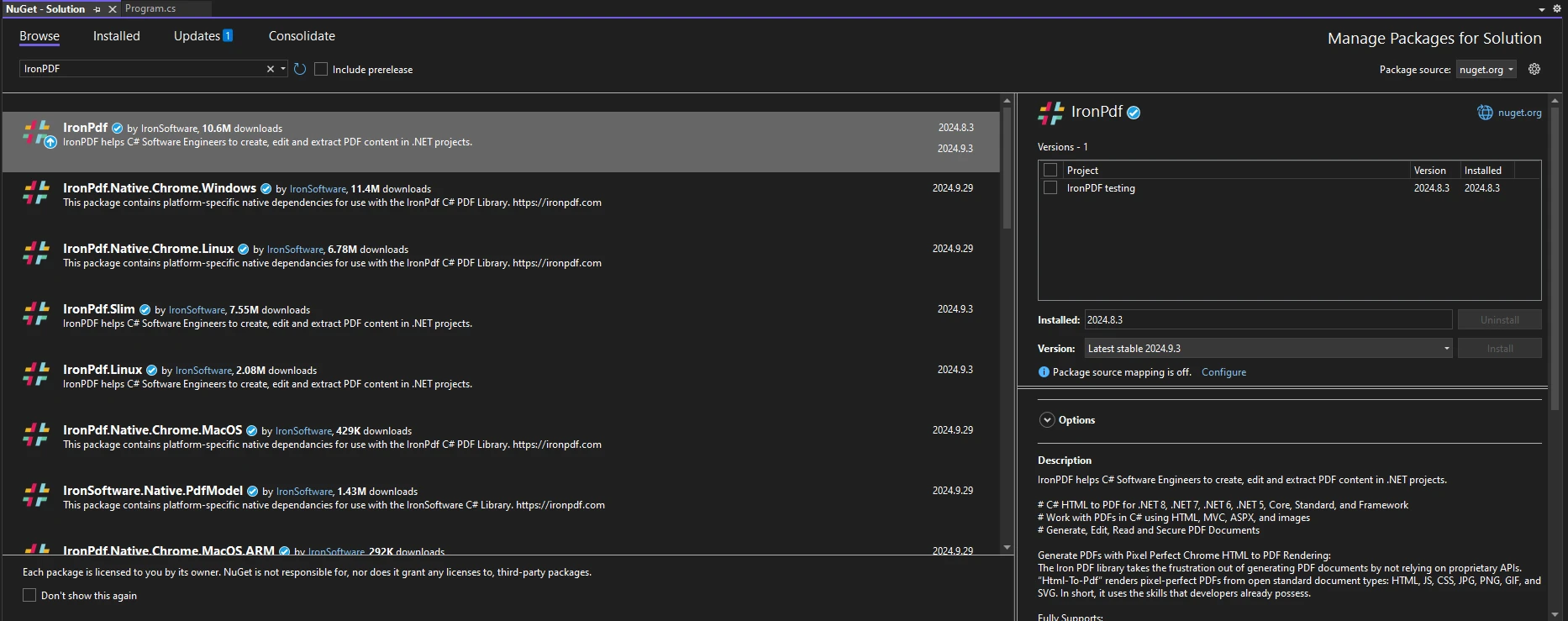
Sobald Sie IronPDF installiert haben, müssen Sie nur noch die richtige using-Anweisung zu Beginn Ihres Codes hinzufügen, um IronPDF verwenden zu können:
using IronPdf;
using IronPdf;
Imports IronPdf
Imports IronPdf
Die kostenlose Testversion freischalten
IronPDF bietet eine kostenlose Testversion mit vollem Zugriff auf seine Funktionen. Besuchen Sie die IronPDF-Website, um die Testversion herunterzuladen und fortschrittliches PDF-Handling in Ihre .NET-Projekte zu integrieren.
Der folgende C#-Code zeigt, wie man mit IronPDF Text aus einem PDF extrahiert und dann reguläre Ausdrücke verwendet, um alle numerischen Werte im extrahierten Text zu finden und zu parsen. Der Code verarbeitet sowohl Ganzzahlen als auch Dezimalzahlen und bereinigt nicht numerische Zeichen wie Währungssymbole.
using IronPdf;
using System.Text.RegularExpressions;

public class Program
{
    public static void Main(string[] args)
    {
        // Load a PDF file
        PdfDocument pdf = PdfDocument.FromFile("example.pdf");

        // Extract all text from the PDF
        string text = pdf.ExtractAllText();

        // Print the extracted text (for reference)
        Console.WriteLine("Extracted Text: ");
        Console.WriteLine(text);

        // Parse and print all numbers found in the extracted text
        Console.WriteLine("\nParsed Numbers:");

        // Use regular expression to find all number patterns, including integers and decimals
        var numberMatches = Regex.Matches(text, @"\d+(\.\d+)?");

        // Iterate through all matched numbers and print them
        foreach (Match match in numberMatches)
        {
            // Print each matched number
            Console.WriteLine($"{match.Value}");
        }
    }
}
using IronPdf;
using System.Text.RegularExpressions;

public class Program
{
    public static void Main(string[] args)
    {
        // Load a PDF file
        PdfDocument pdf = PdfDocument.FromFile("example.pdf");

        // Extract all text from the PDF
        string text = pdf.ExtractAllText();

        // Print the extracted text (for reference)
        Console.WriteLine("Extracted Text: ");
        Console.WriteLine(text);

        // Parse and print all numbers found in the extracted text
        Console.WriteLine("\nParsed Numbers:");

        // Use regular expression to find all number patterns, including integers and decimals
        var numberMatches = Regex.Matches(text, @"\d+(\.\d+)?");

        // Iterate through all matched numbers and print them
        foreach (Match match in numberMatches)
        {
            // Print each matched number
            Console.WriteLine($"{match.Value}");
        }
    }
}
Imports IronPdf
Imports System.Text.RegularExpressions
Public Class Program
Public Shared Sub Main(ByVal args As String())
' Load a PDF file
Dim pdf As PdfDocument = PdfDocument.FromFile("example.pdf")
' Extract all text from the PDF
Dim text As String = pdf.ExtractAllText()
' Print the extracted text (for reference)
Console.WriteLine("Extracted Text: ")
Console.WriteLine(text)
' Parse and print all numbers found in the extracted text
Console.WriteLine(vbCrLf & "Parsed Numbers:")
' Use regular expression to find all number patterns, including integers and decimals
Dim numberMatches As MatchCollection = Regex.Matches(text, "\d+(\.\d+)?")
' Iterate through all matched numbers and print them
For Each match As Match In numberMatches
' Print each matched number
Console.WriteLine($"{match.Value}")
Next
End Sub
End Class
Imports IronPdf
Imports System.Text.RegularExpressions

Public Class Program
    Public Shared Sub Main(ByVal args As String())
        ' Load a PDF file
        Dim pdf As PdfDocument = PdfDocument.FromFile("example.pdf")

        ' Extract all text from the PDF
        Dim text As String = pdf.ExtractAllText()

        ' Print the extracted text (for reference)
        Console.WriteLine("Extracted Text: ")
        Console.WriteLine(text)

        ' Parse and print all numbers found in the extracted text
        Console.WriteLine(vbCrLf & "Parsed Numbers:")

        ' Use regular expression to find all number patterns, including integers and decimals
        Dim numberMatches As MatchCollection = Regex.Matches(text, "\d+(\.\d+)?")

        ' Iterate through all matched numbers and print them
        For Each match As Match In numberMatches
            ' Print each matched number
            Console.WriteLine($"{match.Value}")
        Next
    End Sub
End Class
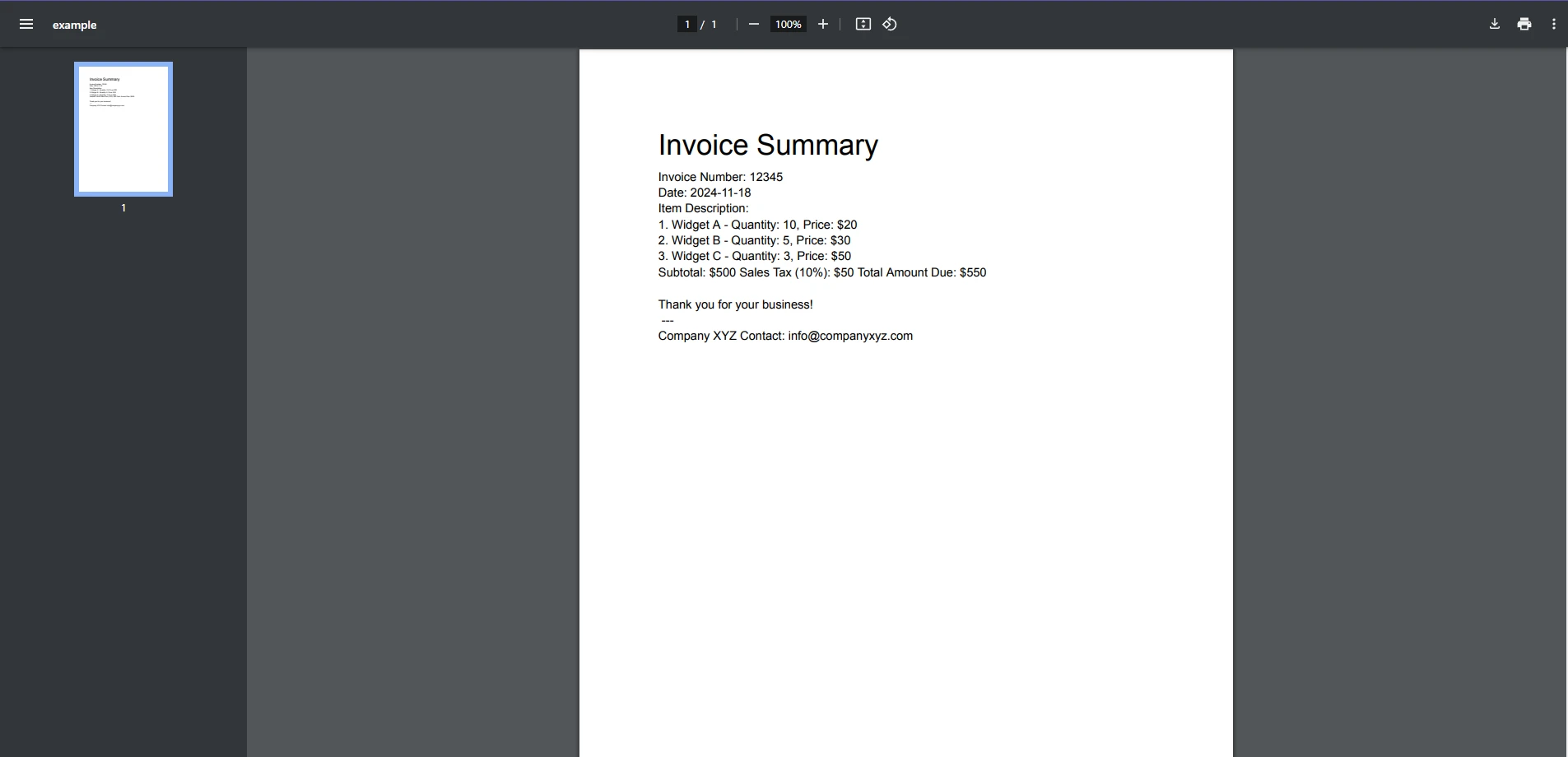
Eingabe-PDF
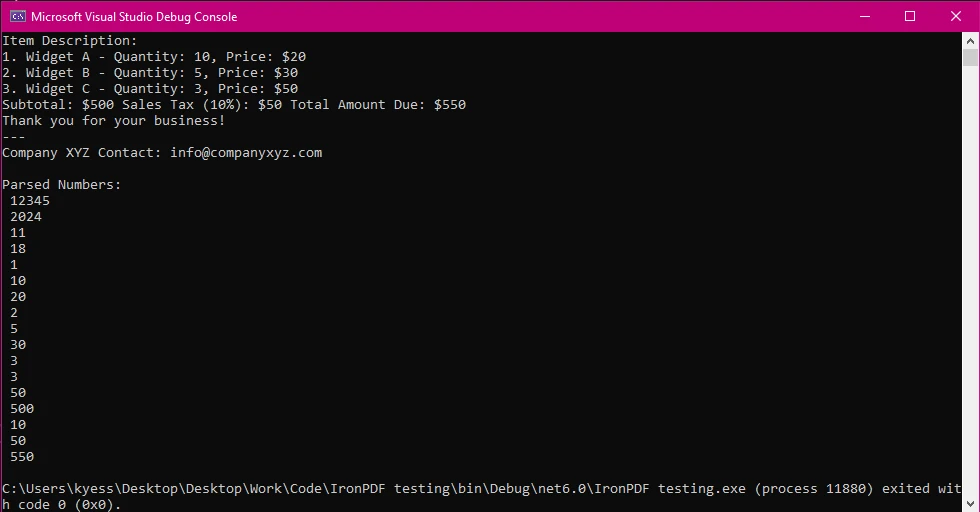
Konsolenausgabe
Erklärung des Codes
-
Text aus PDF extrahieren:
Der Code beginnt mit dem Laden einer PDF-Datei mithilfe von IronPDF. Dann extrahiert er den gesamten Text aus dem PDF.
-
Reguläre Ausdrücke verwenden, um Zahlen zu finden:
Der Code verwendet einen Regulären Ausdruck (ein Muster zur Textsuche), um im extrahierten Text nach Zahlen zu suchen. Der reguläre Ausdruck sucht sowohl nach ganzen Zahlen (z. B. 12345) als auch nach Dezimalzahlen (z. B. 50,75).
-
Zahlen analysieren und ausgeben:
Sobald die Zahlen gefunden sind, gibt das Programm jede einzelne in der Konsole aus. Dies umfasst Ganzzahlen und Dezimalzahlen.
-
Warum reguläre Ausdrücke:
Reguläre Ausdrücke werden verwendet, weil sie leistungsstarke Werkzeuge sind, um Muster im Text zu finden, wie Zahlen. Sie können Zahlen mit Symbolen (wie Währungssymbolen $) verarbeiten und machen den Prozess somit flexibler.
Gängige Herausforderungen und wie IronPDF sie löst
Beim Extrahieren sauberer Daten aus komplexen PDF-Strukturen entstehen häufig Zeichenfolgenwerte, die eine weitere Verarbeitung erfordern, wie das Konvertieren von Zeichenfolgen in Ganzzahlen. Hier sind einige häufige Herausforderungen und wie IronPDF helfen kann:
PDFs enthalten oft als Text formatierte Zahlen (z. B. "1,234.56" oder "12,345 USD"). Um diese korrekt zu verarbeiten, müssen Sie sicherstellen, dass die Zeichenfolgendarstellung der Zahl im korrekten Format für das Parsen vorliegt. IronPDF ermöglicht Ihnen, Text sauber zu extrahieren, und Sie können Methoden zur String-Manipulation (z. B. Replace()) verwenden, um das Format vor der Konvertierung anzupassen.
Beispiel:
string formattedNumber = "1,234.56"; // String value with commas
// Remove commas from the string to clean it
string cleanNumber = formattedNumber.Replace(",", "");
// Convert the cleaned string to an integer by first converting to double then to integer
int result = Convert.ToInt32(Convert.ToDouble(cleanNumber));
Console.WriteLine(result); // Outputs: 1234
string formattedNumber = "1,234.56"; // String value with commas
// Remove commas from the string to clean it
string cleanNumber = formattedNumber.Replace(",", "");
// Convert the cleaned string to an integer by first converting to double then to integer
int result = Convert.ToInt32(Convert.ToDouble(cleanNumber));
Console.WriteLine(result); // Outputs: 1234
Dim formattedNumber As String = "1,234.56" ' String value with commas
' Remove commas from the string to clean it
Dim cleanNumber As String = formattedNumber.Replace(",", "")
' Convert the cleaned string to an integer by first converting to double then to integer
Dim result As Integer = Convert.ToInt32(Convert.ToDouble(cleanNumber))
Console.WriteLine(result) ' Outputs: 1234
Dim formattedNumber As String = "1,234.56" ' String value with commas
' Remove commas from the string to clean it
Dim cleanNumber As String = formattedNumber.Replace(",", "")
' Convert the cleaned string to an integer by first converting to double then to integer
Dim result As Integer = Convert.ToInt32(Convert.ToDouble(cleanNumber))
Console.WriteLine(result) ' Outputs: 1234
Behandlung mehrerer numerischer Werte in einem Text
In einem komplexen PDF können numerische Werte in unterschiedlichen Formaten oder über verschiedene Bereiche verstreut auftreten. Mit IronPDF können Sie den gesamten Text extrahieren und dann reguläre Ausdrücke verwenden, um Zeichenfolgen effizient in Ganzzahlen zu konvertieren.
Abschluss
Das Parsen von Ganzzahlen in C# ist eine wesentliche Fähigkeit für Entwickler, insbesondere bei der Arbeit mit Benutzereingaben oder der Datenextraktion aus verschiedenen Quellen. Während integrierte Methoden wie int.Parse() und Convert.ToInt32() nützlich sind, kann das Handling von unstrukturierten oder halbstrukturierten Daten - wie den Texten in PDFs - zusätzliche Herausforderungen darstellen. Hier kommt IronPDF ins Spiel und bietet eine leistungsstarke und einfache Lösung zum Extrahieren von Text aus PDFs und zum Arbeiten damit in .NET-Anwendungen.
Durch die Nutzung von IronPDF erhalten Sie die Fähigkeit, Text aus komplexen PDFs, einschließlich gescannter Dokumente, einfach zu extrahieren und diese Daten in verwendbare numerische Werte umzuwandeln. Mit Funktionen wie OCR für gescannte PDFs und robusten Textextraktionstools ermöglicht IronPDF die Rationalisierung der Datenverarbeitung, selbst in herausfordernden Formaten.
Egal, ob Sie mit Rechnungen, Finanzberichten oder anderen Dokumenten mit numerischen Daten arbeiten, die Kombination von C#'s ParseInt-Methoden mit IronPDF hilft Ihnen, effizienter und präziser zu arbeiten.
Lassen Sie sich nicht von komplexen PDFs Ihren Entwicklungsprozess verlangsamen - beginnen Sie mit IronPDF, es ist die perfekte Gelegenheit, um zu erkunden, wie IronPDF Ihren Workflow verbessern kann. Warum probieren Sie es nicht aus und sehen, wie es Ihr nächstes Projekt rationalisieren kann?























