




更新日 2026年4月23日
Microsoft.Extensions.AIを使用した .NET での LLM 統合の簡素化
AI はソフトウェア開発を変革していますが、.NET への大規模言語モデル (LLM) の統合はこれまで複雑でした。IronPdf.AI を使用して AI 統合をさらに進め、OpenAI を活用した PDF 解析、データ抽出、およびコンテンツの要約を .NET アプリケーションにもたらします。
詳しく読む

現代のC#開発では、データを効率的に管理およびグループ化することが、堅牢なアプリケーションを作成するために重要です。 C#の特長の1つが名前付きタプルであり、これは完全なクラスを定義する複雑さなしに関連データを整理するシンプルかつ強力な方法を提供します。 名前付きタプルの力を活用することで、動的レポート生成、請求書作成などで使用できる複雑だが容易に読み取れるデータ構造を簡単に作成できます。 IronPDF、PDF生成のためのC#用の主要ライブラリと組み合わせることで、構造化されたデータから動的レポートや請求書を生成するプロセスを大幅に簡素化できます。
この記事では、名前付きタプルをC#で効率的にデータを管理し、IronPDFを使用してプロフェッショナルなPDFを生成する方法を探ります。
C#のタプルは、複数の値を単一のオブジェクトとしてグループ化できる軽量データ構造です。 C# 7.0で導入された名前付きタプルは、この概念をさらに進化させ、各値にラベルを付けることができるようになり、コードをより読みやすく、メンテナンスしやすくします。 タプルリテラルは名前付きタプルの近縁であるため、混同しないように注意してください。 タプルリテラルはデータを保存する別の簡単な方法ですが、名前のない要素を持つタプルであるため、アクセスするのには効率が低下する可能性があります。
名前付きタプルでは、複数のデータ要素を一緒に簡単に保存でき、軽量でアクセスが容易な変数処理の方法を提供します。 複雑なデータ構造を扱うとき、タプルの管理は難しくなる可能性がありますが、続けて読み進めることでタプルをプロ並みに活用する方法を学べます。
例えば、インデックスで要素にアクセスする代わりに、名前付きタプルではタプルフィールドを名前で参照できます。 これにより、特に複雑なデータを扱う際にコードに明確性が加わります。 タプル構文を使用して変数を定義する際には、camelCaseを使用することが良いプラクティスとされています。
// Declaration of a named tuple
(string firstName, string lastName, int age) person = ("Jane", "Doe", 25);

// Printing the tuple values to the console
Console.WriteLine($"Name: {person.firstName} {person.lastName}, Age: {person.age}");' Declaration of a named tuple
Dim person As (firstName As String, lastName As String, age As Integer) = ("Jane", "Doe", 25)
' Printing the tuple values to the console
Console.WriteLine($"Name: {person.firstName} {person.lastName}, Age: {person.age}")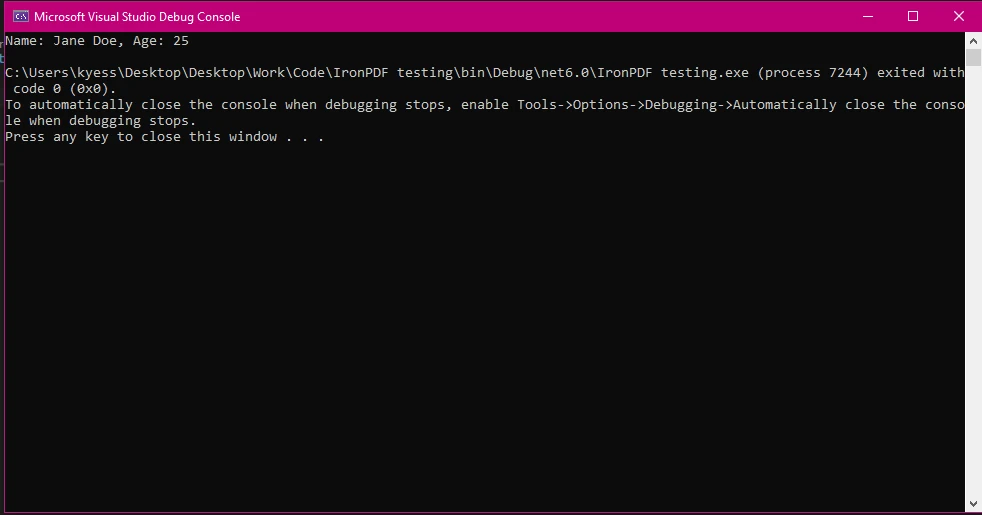
名前付きタプルは、C#アプリケーションにいくつかの利点を提供します:
person.lastNameを使用すると、コードがより直感的になります。
*完全なクラスは不要:名前付きタプルは、完全なクラスを定義したくない場合に、一時的にデータをグループ化するのに最適です。
*データ駆動型アプリケーションに多用途:レポートやデータ処理などの構造化データを扱う場合、名前付きタプルを使用すると、情報を整理および操作する効率的な方法が得られます。ここで名前付きタプルが報告シナリオでデータ処理を簡素化する例を示します:
// Using named tuples for reporting purposes
(string reportName, DateTime reportDate, decimal totalSales) salesReport = ("Q3 Sales Report", DateTime.Now, 15000.75m);

// Print the report details using the named tuple
Console.WriteLine($"{salesReport.reportName} generated on {salesReport.reportDate} with total sales: {salesReport.totalSales:C}");' Using named tuples for reporting purposes
Dim salesReport As (reportName As String, reportDate As DateTime, totalSales As Decimal) = ("Q3 Sales Report", DateTime.Now, 15000.75D)
' Print the report details using the named tuple
Console.WriteLine($"{salesReport.reportName} generated on {salesReport.reportDate} with total sales: {salesReport.totalSales:C}")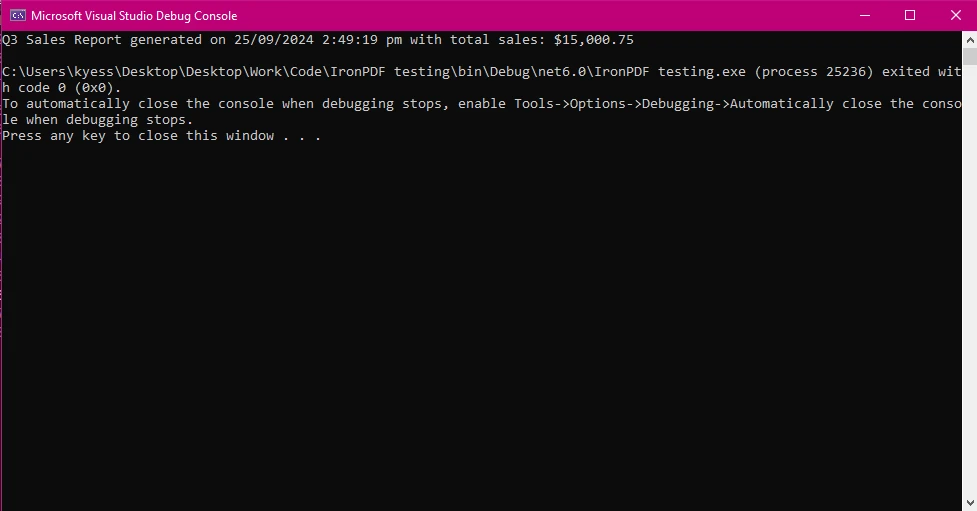
名前付きタプルを作成するには、各要素を特定の型とフィールド名で定義します:
(string productName, int id, decimal price) product = ("Laptop", 5, 799.99m);Dim product As (productName As String, id As Integer, price As Decimal) = ("Laptop", 5, 799.99D)値にアクセスするのは簡単です:
// Print product details using named tuple
Console.WriteLine($"Product: {product.productName}, Product ID: #{product.id}, Price: {product.price:C}");' Print product details using named tuple
Console.WriteLine($"Product: {product.productName}, Product ID: #{product.id}, Price: {product.price:C}")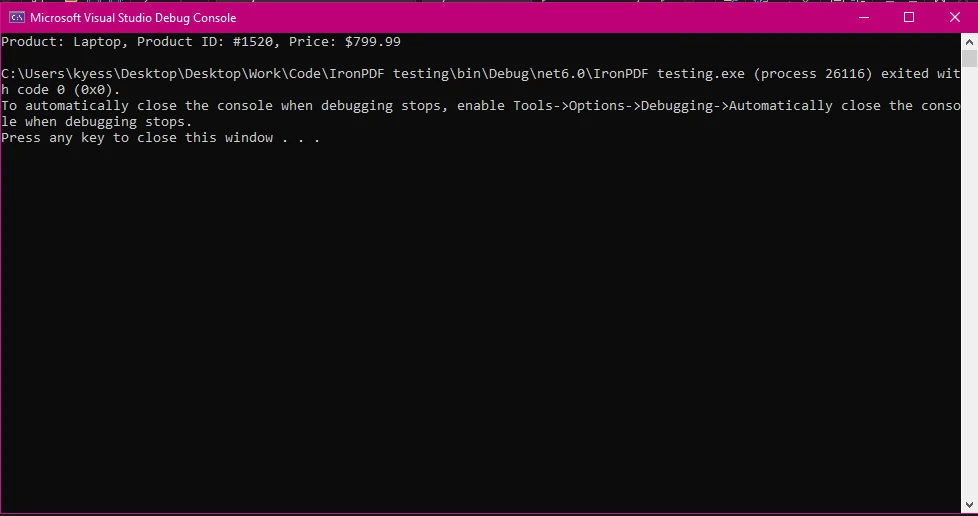
名前付きタプルはユーザー詳細、注文情報、レポート用データなどの関連情報をグループ化するのに理想的です。
IronPDFを使い始めるには、まずインストールする必要があります。 すでにインストールされている場合は、次のセクションに進むことができます。 そうでなければ、以下のステップではIronPDFライブラリのインストール方法を説明します。
NuGetパッケージマネージャーコンソールを使用してIronPDFをインストールするには、Visual Studioを開いてパッケージマネージャーコンソールに移動します。 その後、以下のコマンドを実行します。
IronPDFがプロジェクトに追加され、すぐに作業を開始できます。
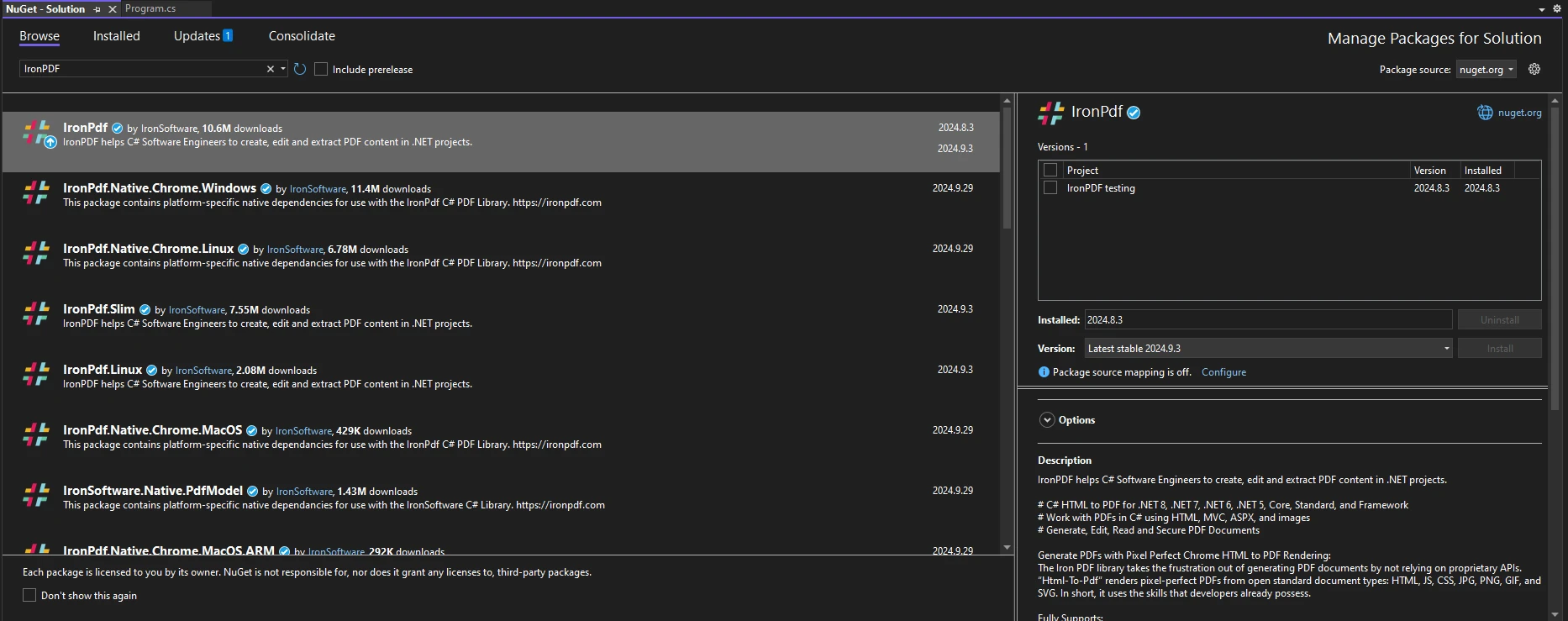
Visual Studio を開き、"ツール -> NuGet パッケージマネージャー -> NuGet パッケージの管理"を選択し、IronPDF を検索します。 ここから、プロジェクトを選択して"インストール"をクリックするだけで、IronPDFがプロジェクトに追加されます。
IronPDFをインストールしたら、使用を開始するにはコードの先頭に適切な使用ステートメントを追加するだけです:
using IronPdf;Imports IronPdfIronPDFを使用すると、構造化されたデータをシームレスにPDFに変換できます。 名前付きタプルをIronPDFと組み合わせて、請求書やレポートなど動的なコンテンツを生成できます。 以下は顧客データを名前付きタプルで保存し、IronPDFを使ってPDFを生成する方法です:
using IronPdf;

(string customerName, decimal orderTotal, DateTime orderDate) order = ("Jane Smith", 199.99m, DateTime.Now);

// Create HTML content using named tuple data
string htmlContent = $@"
<h1>Order Invoice</h1>
<p>Customer: {order.customerName}</p>
<p>Order Total: {order.orderTotal:C}</p>
<p>Order Date: {order.orderDate:d}</p>";

// Convert HTML to PDF using IronPDF's ChromePdfRenderer
ChromePdfRenderer Renderer = new ChromePdfRenderer();
PdfDocument pdf = Renderer.RenderHtmlAsPdf(htmlContent);
pdf.SaveAs("invoice.pdf");Imports IronPdf
Dim order As (customerName As String, orderTotal As Decimal, orderDate As DateTime) = ("Jane Smith", 199.99D, DateTime.Now)
' Create HTML content using named tuple data
Dim htmlContent As String = $"
<h1>Order Invoice</h1>
<p>Customer: {order.customerName}</p>
<p>Order Total: {order.orderTotal:C}</p>
<p>Order Date: {order.orderDate:d}</p>"
' Convert HTML to PDF using IronPDF's ChromePdfRenderer
Dim Renderer As New ChromePdfRenderer()
Dim pdf As PdfDocument = Renderer.RenderHtmlAsPdf(htmlContent)
pdf.SaveAs("invoice.pdf")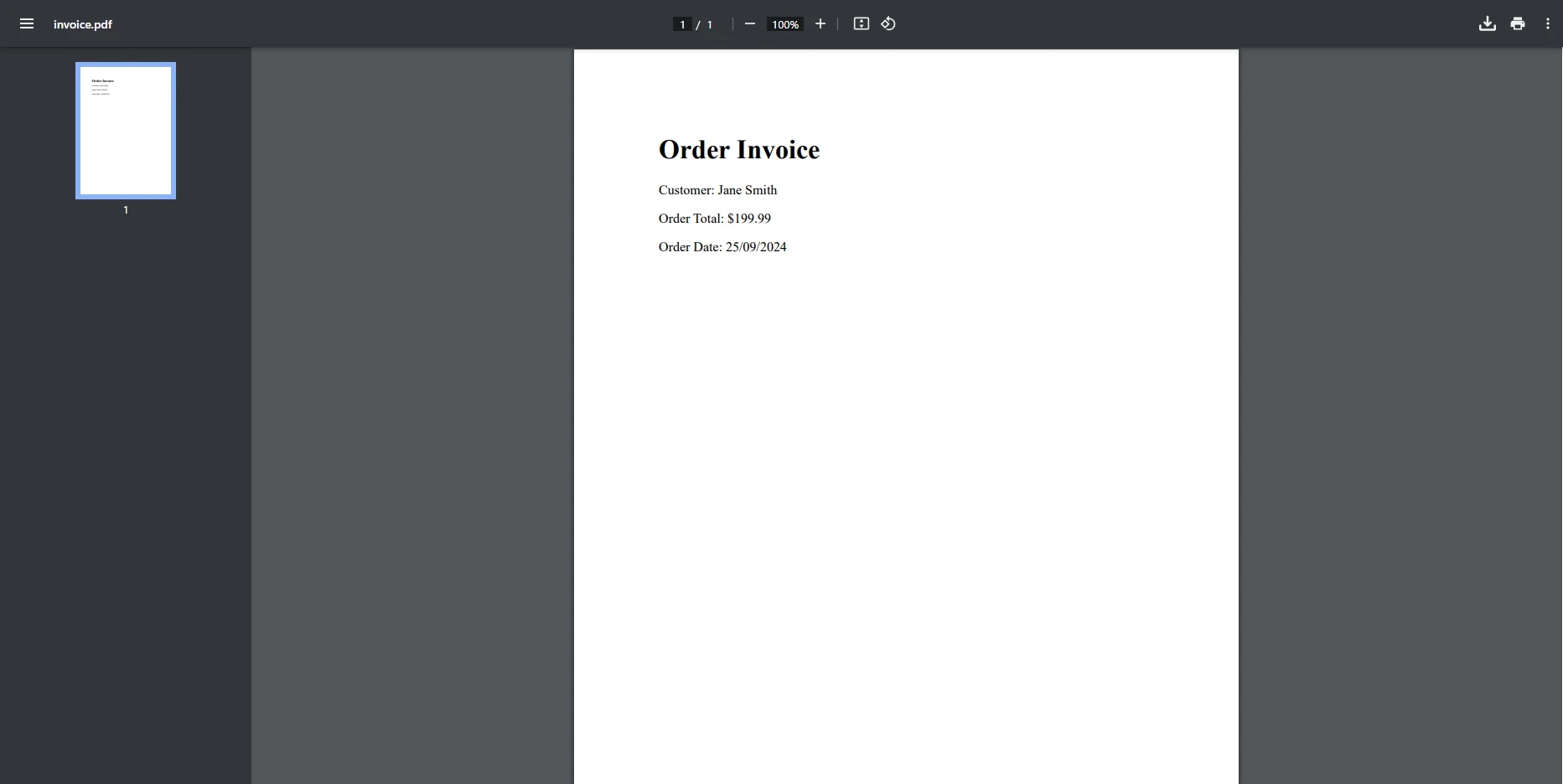
この例では、orderという名前のタプルを作成し、そのデータを使用してHTMLコンテンツを生成し、IronPDFの機能を使ってPDFに変換しています。 このプロセスでは、ChromePdfRendererクラスを利用し、RenderHtmlAsPdfメソッドを使用してHTMLコンテンツをPDFドキュメントにレンダリングし、SaveAsメソッドを使用して保存します。
複数のユーザーの情報を名前付きタプルに保存し、そのデータをIronPDFを使ってPDFレポートに変換したいとします。 以下は実用的な例です:
using IronPdf;
using System.Collections.Generic;

var userList = new List<(string Name, int Age, string Email)>
{
    ("Alice", 30, "alice@example.com"),
    ("Bob", 25, "bob@example.com"),
    ("Charlie", 35, "charlie@example.com")
};

string htmlReport = "<h1>User Report</h1><ul>";

// Loop through the list of named tuples to generate report content
foreach (var user in userList)
{
    htmlReport += $"<li>Name: {user.Name}, Age: {user.Age}, Email: {user.Email}</li>";
}
htmlReport += "</ul>";

// Convert the HTML report to PDF
ChromePdfRenderer Renderer = new ChromePdfRenderer();
PdfDocument pdf = Renderer.RenderHtmlAsPdf(htmlReport);
pdf.SaveAs("user_report.pdf");Imports IronPdf
Imports System.Collections.Generic
Private userList = New List(Of (Name As String, Age As Integer, Email As String)) From {("Alice", 30, "alice@example.com"), ("Bob", 25, "bob@example.com"), ("Charlie", 35, "charlie@example.com")}
Private htmlReport As String = "<h1>User Report</h1><ul>"
' Loop through the list of named tuples to generate report content
For Each user In userList
htmlReport &= $"<li>Name: {user.Name}, Age: {user.Age}, Email: {user.Email}</li>"
Next user
htmlReport &= "</ul>"
' Convert the HTML report to PDF
Dim Renderer As New ChromePdfRenderer()
Dim pdf As PdfDocument = Renderer.RenderHtmlAsPdf(htmlReport)
pdf.SaveAs("user_report.pdf")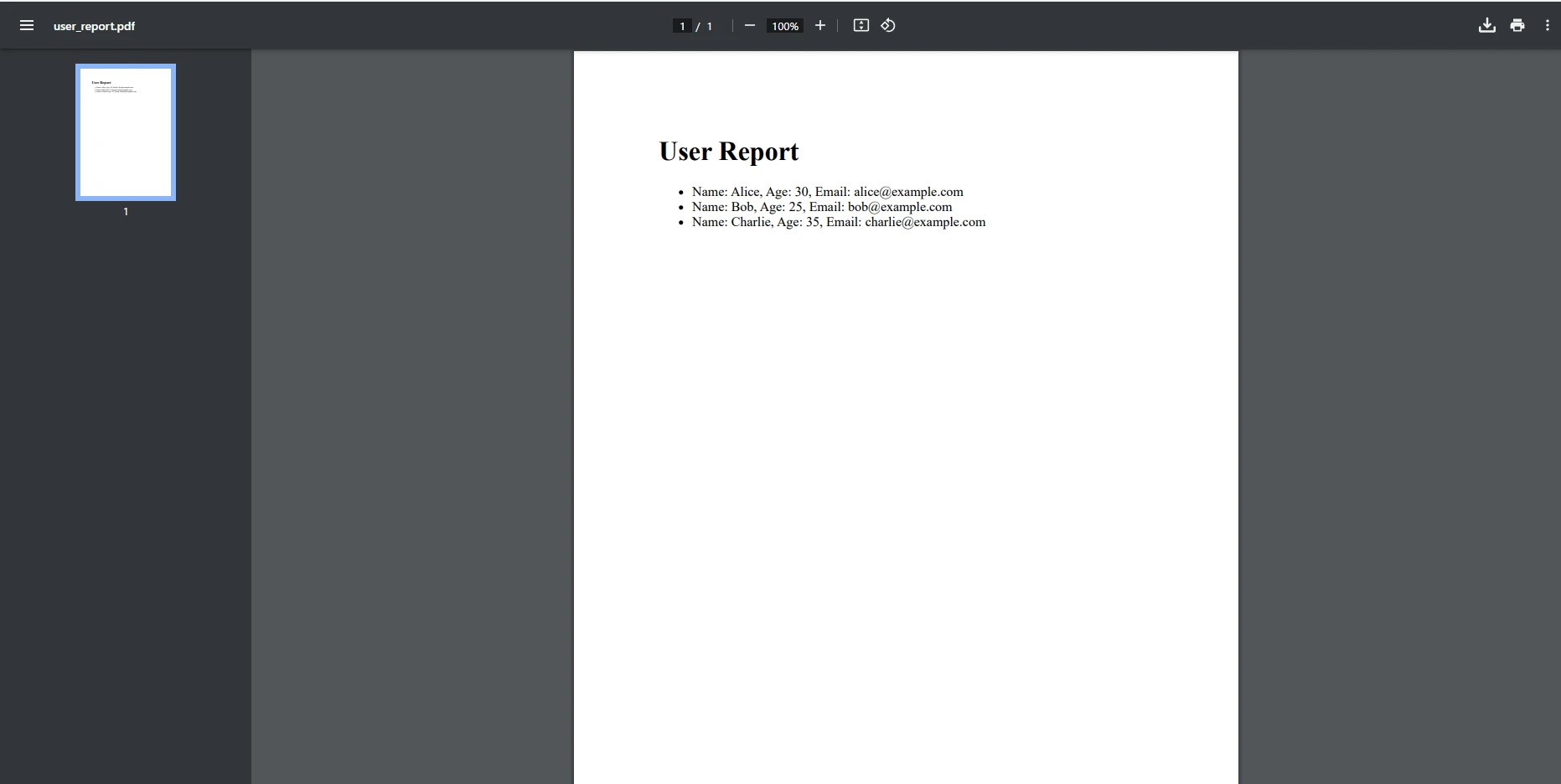
この例では、複数の名前付きタプルを含むリストが作成されます。 foreachループを使用してリストを反復処理し、データをHTMLレポートコンテンツに動的に追加してから、PDFに変換します。
名前付きタプルはループと組み合わせて複数のPDFを生成する際に特に有用です。例えば、注文リストの個々の請求書を作成する場合などです。 ここでは、名前付きタプルのリストを反復し、各エントリのPDFを生成する方法を示します:
using IronPdf;
using System.Collections.Generic;

var orders = new List<(string customerName, decimal orderTotal, DateTime orderDate)>
{
    ("Alice", 120.50m, DateTime.Now),
    ("Bob", 85.75m, DateTime.Now),
    ("Charlie", 199.99m, DateTime.Now)
};

// Iterate through the list of orders and generate a PDF for each
foreach (var order in orders)
{
    string htmlContent = $@"
        <h1>Order Invoice</h1>
        <p>Customer: {order.customerName}</p>
        <p>Order Total: {order.orderTotal:C}</p>
        <p>Order Date: {order.orderDate:d}</p>";

    ChromePdfRenderer Renderer = new ChromePdfRenderer();
    PdfDocument pdf = Renderer.RenderHtmlAsPdf(htmlContent);
    pdf.SaveAs($"{order.customerName}_invoice.pdf");
}Imports IronPdf
Imports System.Collections.Generic
Private orders = New List(Of (customerName As String, orderTotal As Decimal, orderDate As DateTime)) From {("Alice", 120.50D, DateTime.Now), ("Bob", 85.75D, DateTime.Now), ("Charlie", 199.99D, DateTime.Now)}
' Iterate through the list of orders and generate a PDF for each
For Each order In orders
Dim htmlContent As String = $"
<h1>Order Invoice</h1>
<p>Customer: {order.customerName}</p>
<p>Order Total: {order.orderTotal:C}</p>
<p>Order Date: {order.orderDate:d}</p>"
Dim Renderer As New ChromePdfRenderer()
Dim pdf As PdfDocument = Renderer.RenderHtmlAsPdf(htmlContent)
pdf.SaveAs($"{order.customerName}_invoice.pdf")
Next order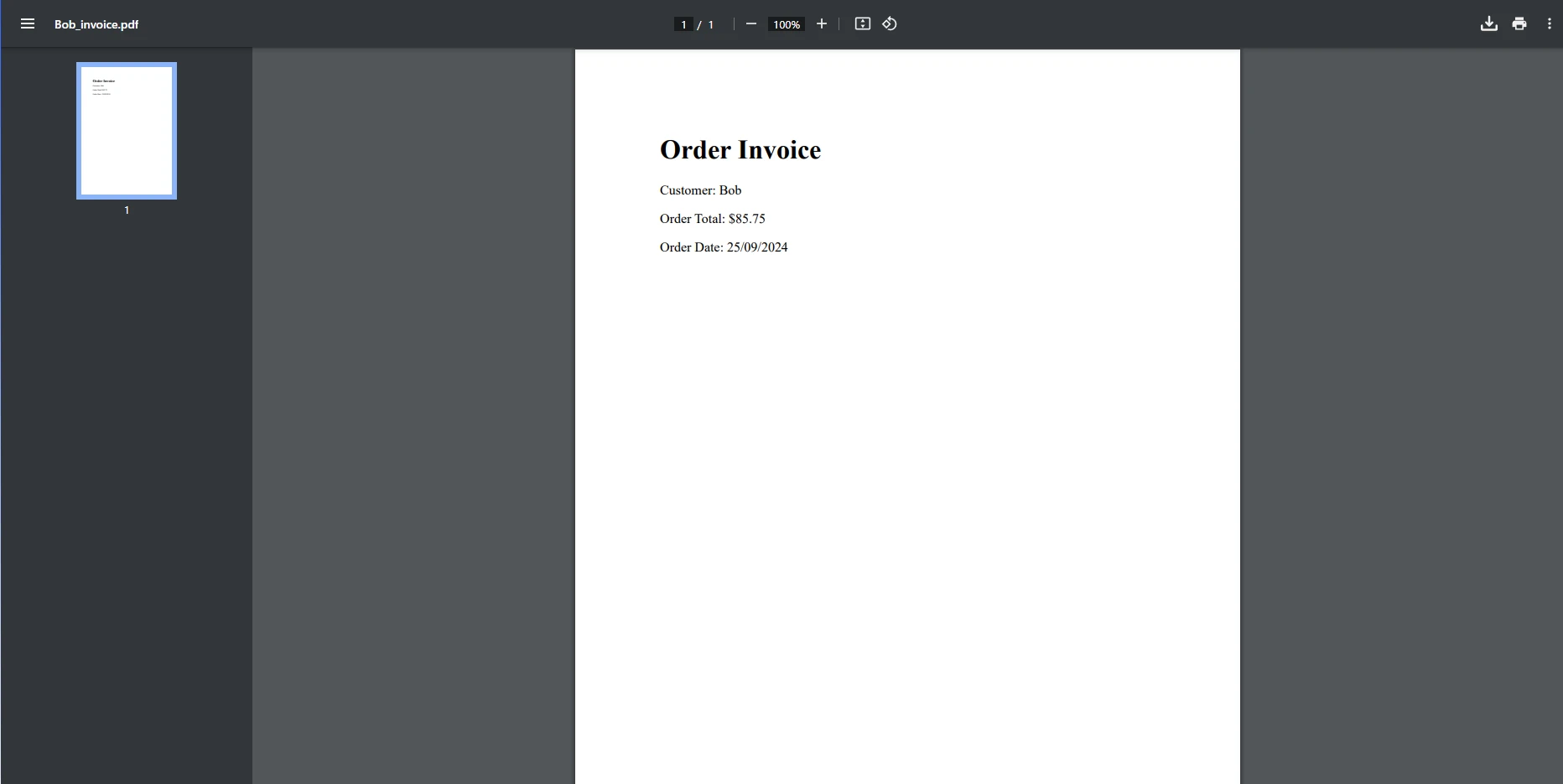
この例では、複数のタプルを含むリストが使用され、リストを反復処理する際に、各タプルに対して新しいPDFドキュメントが作成されます。 これは、ユニークなデータに対して個別の請求書またはレポートを生成する必要があるシナリオで特に有用です。
名前付きタプルはカスタムHTMLテンプレートにデータを動的に配置するためにも使用できます。 例えば、名前付きタプルにデータを保存し、そのデータをPDFに変換する前にHTMLテンプレートに挿入することができます:
using IronPdf;
using System.IO;

// Define a single named tuple with product data
(string productName, decimal price, int count) product = ("Laptop", 799.99m, 5);

// Read the HTML template from a file
string htmlTemplate = File.ReadAllText("template.html");

// Replace placeholders in the template with values from the named tuple
string filledTemplate = htmlTemplate
    .Replace("{0}", product.productName)
    .Replace("{1:C}", product.price.ToString("C"))
    .Replace("{2}", product.count.ToString());

// Convert the filled template to PDF
ChromePdfRenderer Renderer = new ChromePdfRenderer();
PdfDocument pdf = Renderer.RenderHtmlAsPdf(filledTemplate);
pdf.SaveAs("product_report.pdf");Imports IronPdf
Imports System.IO
' Define a single named tuple with product data
Dim product As (productName As String, price As Decimal, count As Integer) = ("Laptop", 799.99D, 5)
' Read the HTML template from a file
Dim htmlTemplate As String = File.ReadAllText("template.html")
' Replace placeholders in the template with values from the named tuple
Dim filledTemplate As String = htmlTemplate.Replace("{0}", product.productName).Replace("{1:C}", product.price.ToString("C")).Replace("{2}", product.count.ToString())
' Convert the filled template to PDF
Dim Renderer As New ChromePdfRenderer()
Dim pdf As PdfDocument = Renderer.RenderHtmlAsPdf(filledTemplate)
pdf.SaveAs("product_report.pdf")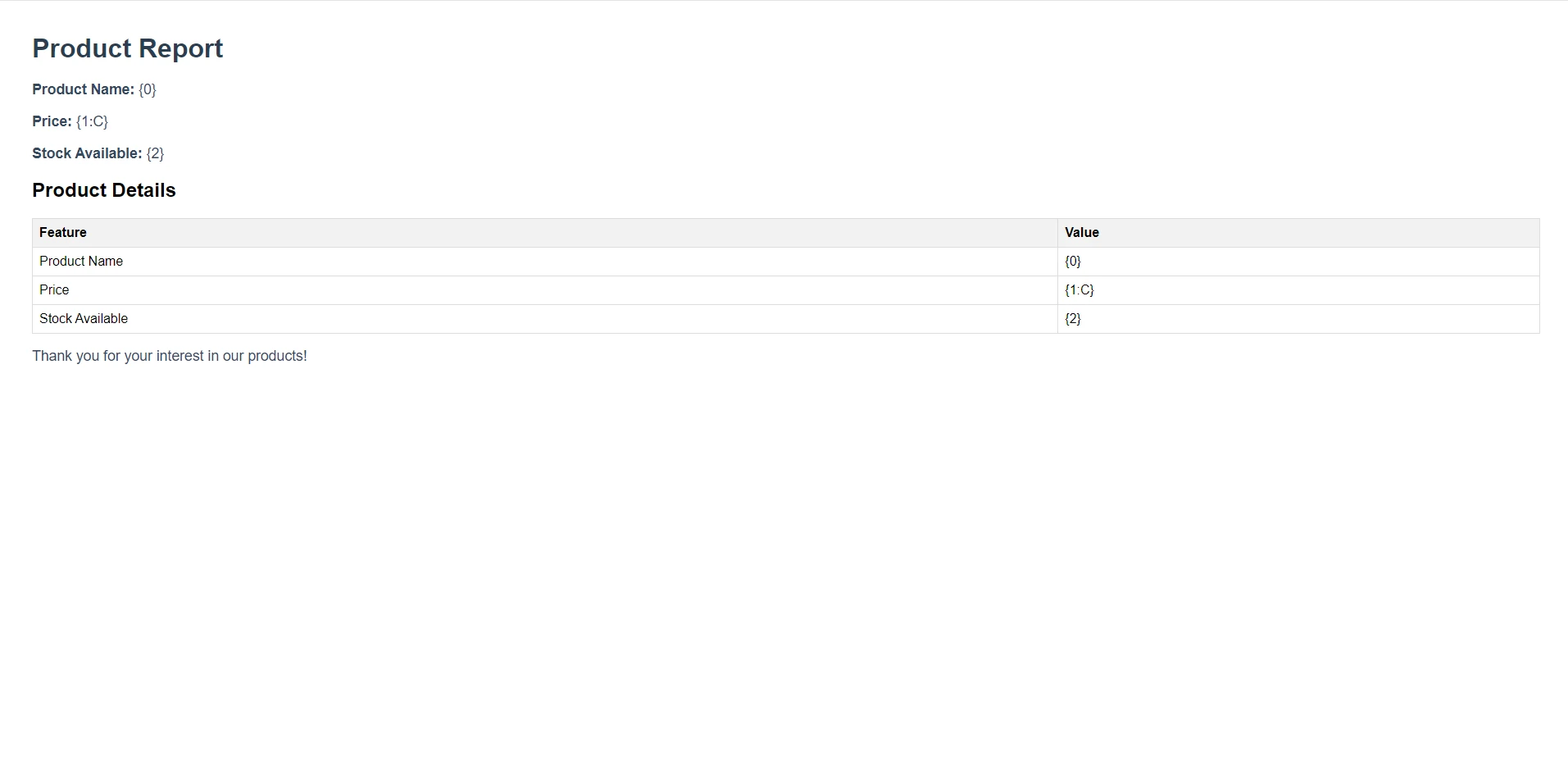
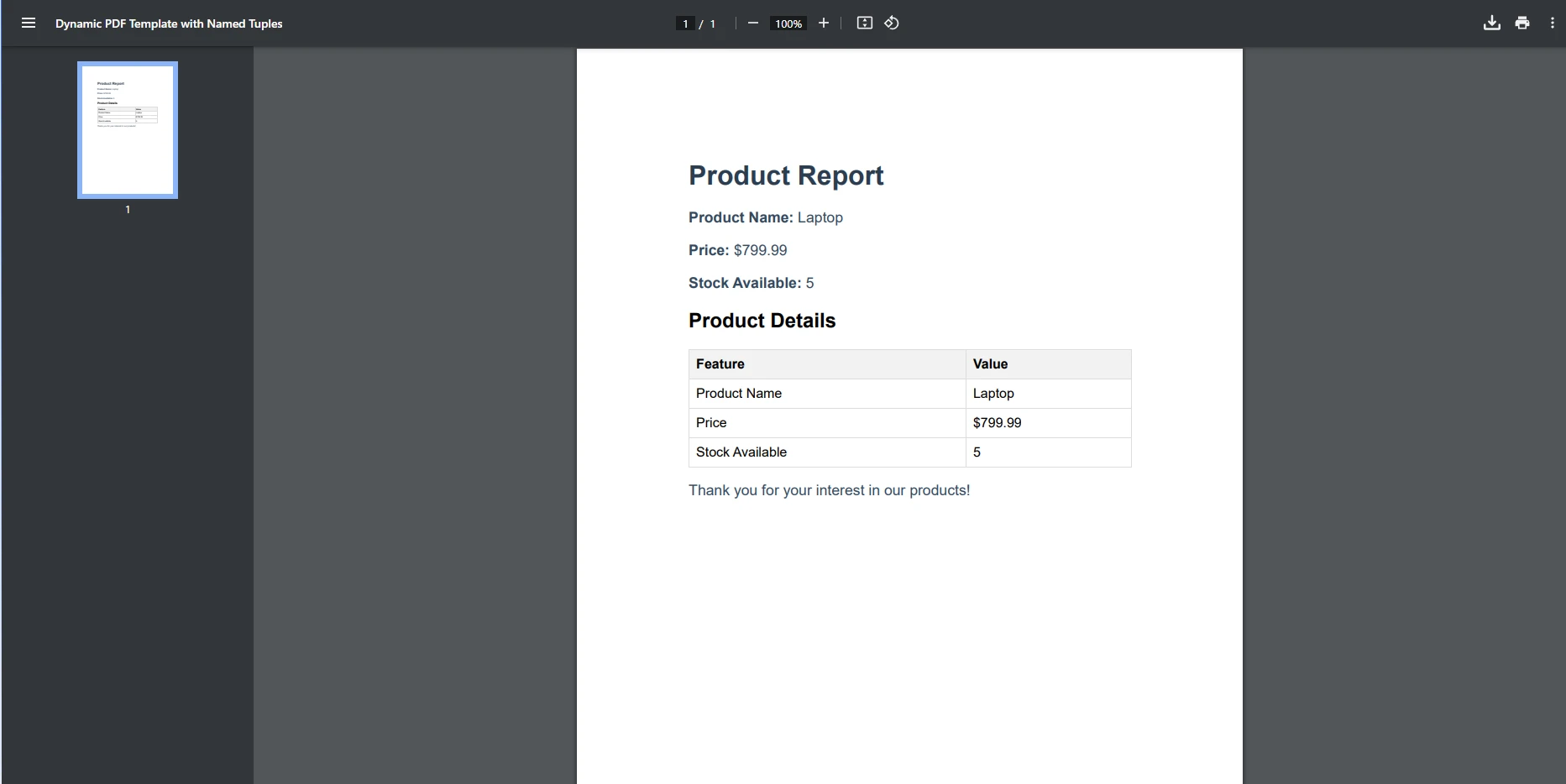
この例は、名前付きタプルを使用してHTMLテンプレートを動的に埋める方法を示しています。 HTML内のプレースホルダーがタプルからのデータで置き換えられ、更新されたテンプレートがPDFに変換されます。 この方法は、ループや追加の動的データを含むより高度なシナリオに拡張可能です。
IronPDFのHTMLからPDFへの変換、画像およびテキストスタンピング、PDF暗号化、カスタム透かしなどの強力な機能は、動的でデータ駆動のPDFを生成するための理想的な選択肢を提供します。 レポート、請求書、複雑な要約を構築する場合、IronPDFはシームレスなデータ統合でプロセスを簡素化します。
IronPDFは.NETの名前付きタプルを含むデータ構造とシームレスに統合されます。 これにより、直感的にデータを管理し、広範なコードを必要とせずに複雑なPDFを生成できます。 他のPDFライブラリと比較して、IronPDFは開発者にとってよりスムーズで効率的な体験を提供します。 タプルを使用することで、必要な数だけPDFを生成でき、タプルの力を活用してループが複数の値を返すことを保証します。
C#の名前付きタプルはデータを整理し管理するためのシンプルかつ効果的な方法を提供し、IronPDFは動的なドキュメント生成のためにその機能を活用する実用的なソリューションを提供します。 IronPDFの豊富な機能セットを名前付きタプルと組み合わせて、レポートと請求書生成のプロセスを効率化してみてください。

ジェイコブ・メラーはIron Softwareの最高技術責任者(CTO)であり、C# PDFテクノロジーを開拓する先見的なエンジニアです。Iron Softwareのコアコードベースを支えるオリジナル開発者として、彼は創業以来、会社の製品アーキテクチャを形成し、CEOのCameron Rimingtonとともに、会社をNASA、Tesla、および世界的な政府機関にサービスを提供する50人以上の会社に変えました。1999年にロンドンで最初のソフトウェアビジネスを開業し、2005年に最初 for .NETコンポーネントを作成した後、Microsoftのエコシステム全体で複雑な問題を解決することを専門としました。



IronPDF はIRONSUITEの一部です
オフィス文書向けの.NET API製品10個

PDFがHTMLのように見える必要があるとき、迅速に。


