


HttpListener C#(開発者向けの仕組み)

C#で基本的なスタンドアロンのWebサーバーを構築するために最も役立つツールの1つは、HttpListenerクラスです。 これはSystem.Net名前空間に含まれており、クライアントからのHTTPリクエストの受信および応答のためのメソッドを提供します。 これはデスクトッププログラムでのWebベースの通信を管理したり、軽量なオンラインサービスを構築したりするのに特に役立ちます。
IronPDF for PDFと呼ばれる.NETライブラリは、PDFファイルの生成、変更、コンテンツの抽出に使用されます。 これは、HTMLからのPDFの作成、既存のPDFのさまざまな形式への変換、プログラミングを使用したPDFの修正のための包括的な機能を提供します。
HttpListenerとIronPDFを組み合わせることで、HTTPリクエストに応じて動的にPDFドキュメントを作成し提供するWebサービスを設計できます。 ユーザー入力またはその他の動的データに応じてリアルタイムにPDFを生成する必要があるアプリケーションには非常に役立ちます。
HttpListener C#とは何ですか?
HttpListenerのドキュメントは、開発者がC#で簡単なHTTPサーバーを設計できるようにする.NET FrameworkのSystem.Net名前空間のシンプルで柔軟なクラスです。 その目的は、クライアントからのHTTPリクエストを受信し処理し、適切な情報で応答することです。 このクラスは、IISのようなフル機能のWebサーバーを必要としない軽量でスタンドアロンのWebサービスやデスクトッププログラムにWebベースの通信機能を統合するための優れたオプションです。
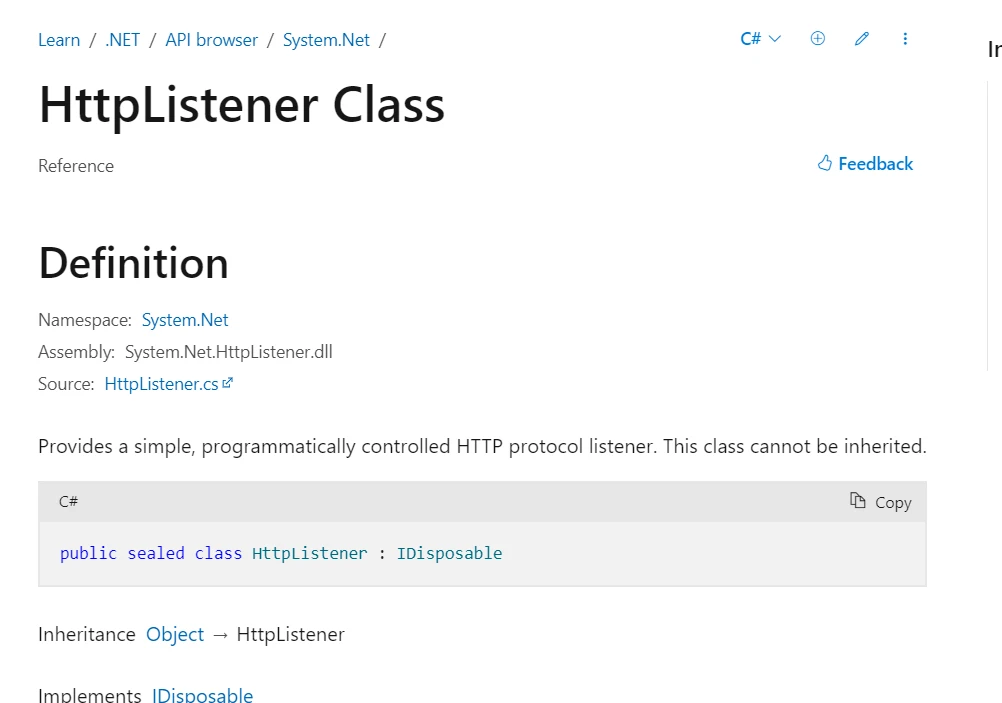
開発者はHttpListener を使用して、サーバーがリッスンすべきアドレスを決定するためのURIプレフィックスを設定できます。 リスナーが開始されると、すべての受信要求に応答し、HttpListenerContext を使用して要求と応答オブジェクトへのアクセスを提供します。 この設定により、アプリケーションの要件に特化したHTTPリクエスト処理ロジックの作成が可能になります。 HttpListener の使いやすさと適応力により、迅速で効果的かつ設定可能なHTTPサーバーが必要な状況で特に役立ちます。 HttpListener は、テスト用のローカルサーバーの開発、オンラインサービスのプロトタイピング、デスクトップアプリへの通信プロトコルの統合のためのオーバーヘッドのない安定したソリューションを提供します。
Features of HttpListener C
C#のHttpListenerは、HTTPサーバーを構築するための効果的なツールとなる多くの機能を備えています。 重要な要素には以下が含まれます:
- 使いやすさ:
HttpListenerは簡単に使えるライブラリであり、プログラマーが基本的なHTTPサーバーを確立するために少ないコードで済みます。 - URIプレフィックス: 複数のURIプレフィックスを指定して、さまざまなエンドポイントを柔軟に処理し、サーバーが関連するクエリにのみ応答することを保証します。
- 非同期操作:
HttpListenerは非同期メソッドをサポートしており、多くのリクエストを同時に効率的に処理でき、サーバーの拡張性と応答性を向上させます。 - 認証: Basic、Digest、NTLM、統合Windows認証など、多くの認証技術をサポートしている
HttpListenerで必要に応じてエンドポイントを保護できます。 - HTTPSサポート: 例えば
HttpListenerを設定して、HTTPSリクエストに応答し、安全なクライアント-サーバーデータ通信を可能にします。 - 要求と応答の処理:
HttpListenerにより、応答に新しいヘッダー、ステータスコード、コンテンツタイプを追加することで応答を変更したり、要求データやヘッダー、パラメータを読み取ることで、リクエストと応答プロセスを完全に制御できます。 - リスナー構成:
HttpListenerは、証明書管理(HTTPS用)、タイムアウト、その他のパラメータなど、サーバーの動作を調整するためのリスナー固有の構成オプションを提供します。 - ロギングと診断: ロギングと診断を可能にし、監視とトラブルシューティングを促進する包括的なリクエストおよびレスポンス情報を提供します。
- 互換性: 他 for .NETコンポーネントおよびライブラリとよく組み合わせて動作するため、現在 for .NETサービスおよびアプリケーションとのスムーズな統合を可能にします。
- クロスプラットフォーム:
HttpListenerはWindows、Linux、macOSと互換性があり、.NET Coreおよび.NET 5+で使用可能であり、クロスプラットフォーム開発の柔軟性を提供します。
Create and Config HttpListener C
C#でHttpListener を作成および構成するには、複数のステップがあります。 HTTPリクエストを処理するためのHttpListener の構成に関する詳細なチュートリアルを以下に示します。
新しい.NETプロジェクトを作成する
コマンドプロンプト、コンソール、またはターミナルを開きます。
新しく作成された.NETコンソールアプリケーションを起動するには、以下を入力します:
dotnet new console -n HttpListenerExample
cd HttpListenerExample
dotnet new console -n HttpListenerExample
cd HttpListenerExampleHttpListener インスタンスを作成する
まず、HttpListener クラスのインスタンスを作成します。
URIプレフィックスを設定する
リスナーが処理するアドレスを指定するためにURIプレフィックスを追加します。
リスナーを起動する
着信HTTPリクエストをリッスンするためにHttpListener を開始します。
受信リクエストを処理する
受信リクエストを処理し、応答を送信するためのループを作成します。
リスナーを停止する
必要がなくなった時点でHttpListener を優雅に停止させます。
これらのステージが実行される例を次に示します:
using System;
using System.Net;
using System.Text;

class Program
{
    public static string url = "http://localhost:8080/";
    public static HttpListener listener;

    public static void Main(string[] args)
    {
        // Step 1: Create an HttpListener instance
        listener = new HttpListener();

        // Step 2: Configure URI prefixes
        listener.Prefixes.Add(url);

        // Step 3: Start the listener
        listener.Start();
        Console.WriteLine("Listening for requests on " + url);

        // Step 4: Handle incoming requests
        // This server will handle requests in an infinite loop
        while (true)
        {
            // GetContext method blocks until a request is received
            HttpListenerContext context = listener.GetContext();
            HttpListenerRequest request = context.Request;

            // Process the request (e.g., log the request URL)
            Console.WriteLine($"Received request for {request.Url}");

            // Create a response
            HttpListenerResponse response = context.Response;

            // Add response content
            string responseString = "<html><body>Hello, world!</body></html>";
            byte[] buffer = Encoding.UTF8.GetBytes(responseString);

            // Set the content length and type
            response.ContentLength64 = buffer.Length;
            response.ContentType = "text/html";

            // Write the response to the output stream
            using (System.IO.Stream output = response.OutputStream)
            {
                output.Write(buffer, 0, buffer.Length);
            }

            // Close the response
            response.Close();
        }
        // Step 5: Stop the listener (this code is unreachable in the current loop structure)
        // listener.Stop();
    }
}
using System;
using System.Net;
using System.Text;
class Program
{
public static string url = "http://localhost:8080/";
public static HttpListener listener;
public static void Main(string[] args)
{
// Step 1: Create an HttpListener instance
listener = new HttpListener();
// Step 2: Configure URI prefixes
listener.Prefixes.Add(url);
// Step 3: Start the listener
listener.Start();
Console.WriteLine("Listening for requests on " + url);
// Step 4: Handle incoming requests
// This server will handle requests in an infinite loop
while (true)
{
// GetContext method blocks until a request is received
HttpListenerContext context = listener.GetContext();
HttpListenerRequest request = context.Request;
// Process the request (e.g., log the request URL)
Console.WriteLine($"Received request for {request.Url}");
// Create a response
HttpListenerResponse response = context.Response;
// Add response content
string responseString = "<html><body>Hello, world!</body></html>";
byte[] buffer = Encoding.UTF8.GetBytes(responseString);
// Set the content length and type
response.ContentLength64 = buffer.Length;
response.ContentType = "text/html";
// Write the response to the output stream
using (System.IO.Stream output = response.OutputStream)
{
output.Write(buffer, 0, buffer.Length);
}
// Close the response
response.Close();
}
// Step 5: Stop the listener (this code is unreachable in the current loop structure)
// listener.Stop();
}
}Imports System
Imports System.Net
Imports System.Text
Friend Class Program
Public Shared url As String = "http://localhost:8080/"
Public Shared listener As HttpListener
Public Shared Sub Main(ByVal args() As String)
' Step 1: Create an HttpListener instance
listener = New HttpListener()
' Step 2: Configure URI prefixes
listener.Prefixes.Add(url)
' Step 3: Start the listener
listener.Start()
Console.WriteLine("Listening for requests on " & url)
' Step 4: Handle incoming requests
' This server will handle requests in an infinite loop
Do
' GetContext method blocks until a request is received
Dim context As HttpListenerContext = listener.GetContext()
Dim request As HttpListenerRequest = context.Request
' Process the request (e.g., log the request URL)
Console.WriteLine($"Received request for {request.Url}")
' Create a response
Dim response As HttpListenerResponse = context.Response
' Add response content
Dim responseString As String = "<html><body>Hello, world!</body></html>"
Dim buffer() As Byte = Encoding.UTF8.GetBytes(responseString)
' Set the content length and type
response.ContentLength64 = buffer.Length
response.ContentType = "text/html"
' Write the response to the output stream
Using output As System.IO.Stream = response.OutputStream
output.Write(buffer, 0, buffer.Length)
End Using
' Close the response
response.Close()
Loop
' Step 5: Stop the listener (this code is unreachable in the current loop structure)
' listener.Stop();
End Sub
End Class含まれているC#コードは、基本的なHTTPサーバーとして機能するHttpListener を作成および構成するプロセスを説明します。 最初にHttpListener オブジェクトをインスタンス化し、その処理要求を定義するアドレスにURIプレフィックス (http://localhost:8080/) を追加します。 次に、Startメソッドを使用してリスナーを開始します。 無期限のwhileループを使用して、新しいHTTPリクエストのリッスンを続けます。 GetContextはループ中にリクエストを待機し、その後HttpListenerContext オブジェクトを返し、要求と応答オブジェクトを含みます。
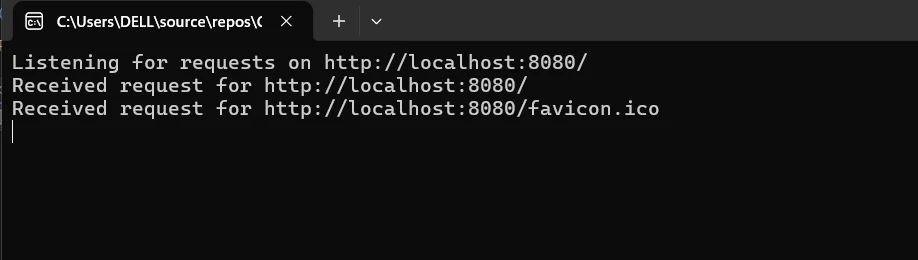
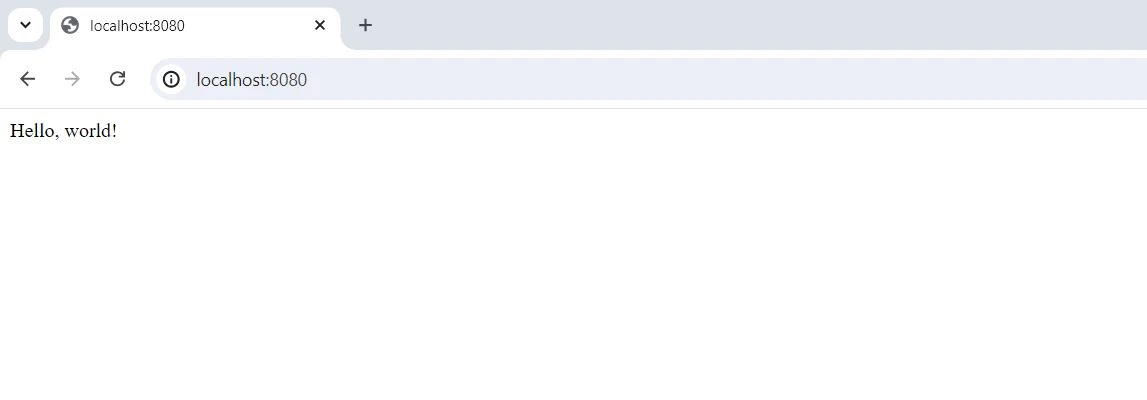
リクエストURLをログに記録した後、単純なHTMLレスポンスオブジェクトが作成され、バイト配列に変換され、レスポンス出力ストリームに送信されます。 クライアントに応答を返す前に、レスポンスのコンテンツタイプと長さが適切に指定されます。 無限ループは、サーバーが次々にリクエストを処理し続けることを意味します。 リスナーを停止するには、Stopメソッドを呼び出す必要がありますが、この場合、無限ループにより、それが到達するのを防ぎます。
開始方法
IronPDFは、.NETで高品質のPDFを作成および変更し、ドキュメントやレポートの作成に必要です。 HttpListener の組み込みHTTPサーバー機能は、小さなアプリやサービスでウェブリクエストを管理することができます。 どちらのツールも、それぞれの分野で.NETアプリケーションの有用性と速度を向上させます。 C#のHttpListener を使い始め、IronPDFと統合してPDFを作成するためには、次のアクションを実行します:
IronPDF とは何ですか?
機能豊富な.NETライブラリのIronPDF for C#は、C#プログラムがPDFドキュメントを作成、読み取り、編集することを可能にします。 このユーティリティを使用すると、開発者はHTML、CSS、JavaScriptの素材を迅速に高品質で印刷可能なPDFに変換できます。 最も重要なタスクには、ヘッダーとフッターの追加、PDFの分割と結合、ドキュメントへの透かしの追加、およびHTMLのPDFへの変換が含まれます。 IronPDFは.NET Frameworkと.NET Coreの両方をサポートしているため、さまざまなアプリケーションに便利です。
PDFは使いやすく多くの情報を含んでいるため、開発者は簡単に製品に組み込むことができます。 IronPDFは複雑なデータレイアウトとフォーマットを処理できるため、出力として生成されたPDFはクライアントや元のHTMLテキストと非常によく似ています。
IronPDF は HTML から PDF への変換に秀でており、元のレイアウトとスタイルを正確に保存します。 これは、レポート、請求書、ドキュメントなどの Web ベースのコンテンツから PDF を作成するのに最適です。 HTML ファイル、URL、または生の HTML 文字列のサポートにより、IronPDF は高品質な PDF ドキュメントを簡単に生成します。
using IronPdf;

class Program
{
    static void Main(string[] args)
    {
        var renderer = new ChromePdfRenderer();

        // 1. Convert HTML String to PDF
        var htmlContent = "<h1>Hello, IronPDF!</h1><p>This is a PDF from an HTML string.</p>";
        var pdfFromHtmlString = renderer.RenderHtmlAsPdf(htmlContent);
        pdfFromHtmlString.SaveAs("HTMLStringToPDF.pdf");

        // 2. Convert HTML File to PDF
        var htmlFilePath = "path_to_your_html_file.html"; // Specify the path to your HTML file
        var pdfFromHtmlFile = renderer.RenderHtmlFileAsPdf(htmlFilePath);
        pdfFromHtmlFile.SaveAs("HTMLFileToPDF.pdf");

        // 3. Convert URL to PDF
        var url = "http://ironpdf.com"; // Specify the URL
        var pdfFromUrl = renderer.RenderUrlAsPdf(url);
        pdfFromUrl.SaveAs("URLToPDF.pdf");
    }
}
using IronPdf;
class Program
{
static void Main(string[] args)
{
var renderer = new ChromePdfRenderer();
// 1. Convert HTML String to PDF
var htmlContent = "<h1>Hello, IronPDF!</h1><p>This is a PDF from an HTML string.</p>";
var pdfFromHtmlString = renderer.RenderHtmlAsPdf(htmlContent);
pdfFromHtmlString.SaveAs("HTMLStringToPDF.pdf");
// 2. Convert HTML File to PDF
var htmlFilePath = "path_to_your_html_file.html"; // Specify the path to your HTML file
var pdfFromHtmlFile = renderer.RenderHtmlFileAsPdf(htmlFilePath);
pdfFromHtmlFile.SaveAs("HTMLFileToPDF.pdf");
// 3. Convert URL to PDF
var url = "http://ironpdf.com"; // Specify the URL
var pdfFromUrl = renderer.RenderUrlAsPdf(url);
pdfFromUrl.SaveAs("URLToPDF.pdf");
}
}Imports IronPdf
Friend Class Program
Shared Sub Main(ByVal args() As String)
Dim renderer = New ChromePdfRenderer()
' 1. Convert HTML String to PDF
Dim htmlContent = "<h1>Hello, IronPDF!</h1><p>This is a PDF from an HTML string.</p>"
Dim pdfFromHtmlString = renderer.RenderHtmlAsPdf(htmlContent)
pdfFromHtmlString.SaveAs("HTMLStringToPDF.pdf")
' 2. Convert HTML File to PDF
Dim htmlFilePath = "path_to_your_html_file.html" ' Specify the path to your HTML file
Dim pdfFromHtmlFile = renderer.RenderHtmlFileAsPdf(htmlFilePath)
pdfFromHtmlFile.SaveAs("HTMLFileToPDF.pdf")
' 3. Convert URL to PDF
Dim url = "http://ironpdf.com" ' Specify the URL
Dim pdfFromUrl = renderer.RenderUrlAsPdf(url)
pdfFromUrl.SaveAs("URLToPDF.pdf")
End Sub
End Class
IronPDF の機能
HTML からの PDF 生成
JavaScript、HTML、CSSをPDFに変換します。 IronPDF は、メディア クエリとレスポンシブ デザインの 2 つの現代の Web 標準をサポートしています。 最新のWeb標準のサポートにより、動的にPDFレポート、請求書、ドキュメントをHTMLとCSSでデコレーションするのに便利です。
PDF編集
既存のPDFにテキスト、画像、およびその他のコンテンツを追加できます。 IronPDFを使用すると、開発者はPDFファイルからテキストと画像を抽出し、複数のPDFを一つのファイルに統合したり、PDFファイルを複数の別々のドキュメントに分割したり、PDFページに透かし、注釈、ヘッダー、フッターを追加することができます。
PDF変換
Word、Excel、画像ファイルをPDFに変換します。 IronPDFは、PDFから画像(PNG、JPEGなど)への変換もサポートしています。
パフォーマンスと信頼性
工業環境で高性能と信頼性が望まれる設計特性です。 開発者は、大規模な文書セットを簡単に管理できます。
IronPDFをインストールする
.NETプロジェクトでPDFを扱うために必要なツールを取得するには、IronPDFパッケージをインストールします:
Install-Package IronPdf
HttpListener C# とIronPDFを統合する
これは、IronPDFを使用してPDFドキュメントを作成し提供し、HttpListener を設定する方法を示す包括的な例です:
using System;
using System.Net;
using System.Text;
using IronPdf;

class Program
{
    static void Main(string[] args)
    {
        // Step 1: Create an HttpListener instance
        HttpListener listener = new HttpListener();

        // Step 2: Configure URI prefixes
        listener.Prefixes.Add("http://localhost:8080/");

        // Step 3: Start the listener
        listener.Start();
        Console.WriteLine("Listening for requests on");

        // Step 4: Handle incoming requests
        while (true)
        {
            // Wait for an incoming request
            HttpListenerContext context = listener.GetContext();
            HttpListenerRequest request = context.Request;

            // Process the request (e.g., log the request URL)
            Console.WriteLine($"Received request for {request.Url}");

            // Generate PDF using IronPDF
            var htmlContent = "<h1>PDF generated by IronPDF</h1><p>This is a sample PDF document.</p>";
            var pdf = IronPdf.HtmlToPdf.StaticRenderHtmlAsPdf(htmlContent);

            // Get the PDF as a byte array
            byte[] pdfBytes = pdf.BinaryData;

            // Create a response
            HttpListenerResponse response = context.Response;

            // Set the content length and type
            response.ContentLength64 = pdfBytes.Length;
            response.ContentType = "application/pdf";

            // Write the PDF to the response output stream
            using (System.IO.Stream output = response.OutputStream)
            {
                output.Write(pdfBytes, 0, pdfBytes.Length);
            }

            // Close the response
            response.Close();
        }
        // Step 5: Stop the listener (this code is unreachable in the current loop structure)
        // listener.Stop();
    }
}
using System;
using System.Net;
using System.Text;
using IronPdf;
class Program
{
static void Main(string[] args)
{
// Step 1: Create an HttpListener instance
HttpListener listener = new HttpListener();
// Step 2: Configure URI prefixes
listener.Prefixes.Add("http://localhost:8080/");
// Step 3: Start the listener
listener.Start();
Console.WriteLine("Listening for requests on");
// Step 4: Handle incoming requests
while (true)
{
// Wait for an incoming request
HttpListenerContext context = listener.GetContext();
HttpListenerRequest request = context.Request;
// Process the request (e.g., log the request URL)
Console.WriteLine($"Received request for {request.Url}");
// Generate PDF using IronPDF
var htmlContent = "<h1>PDF generated by IronPDF</h1><p>This is a sample PDF document.</p>";
var pdf = IronPdf.HtmlToPdf.StaticRenderHtmlAsPdf(htmlContent);
// Get the PDF as a byte array
byte[] pdfBytes = pdf.BinaryData;
// Create a response
HttpListenerResponse response = context.Response;
// Set the content length and type
response.ContentLength64 = pdfBytes.Length;
response.ContentType = "application/pdf";
// Write the PDF to the response output stream
using (System.IO.Stream output = response.OutputStream)
{
output.Write(pdfBytes, 0, pdfBytes.Length);
}
// Close the response
response.Close();
}
// Step 5: Stop the listener (this code is unreachable in the current loop structure)
// listener.Stop();
}
}Imports System
Imports System.Net
Imports System.Text
Imports IronPdf
Friend Class Program
Shared Sub Main(ByVal args() As String)
' Step 1: Create an HttpListener instance
Dim listener As New HttpListener()
' Step 2: Configure URI prefixes
listener.Prefixes.Add("http://localhost:8080/")
' Step 3: Start the listener
listener.Start()
Console.WriteLine("Listening for requests on")
' Step 4: Handle incoming requests
Do
' Wait for an incoming request
Dim context As HttpListenerContext = listener.GetContext()
Dim request As HttpListenerRequest = context.Request
' Process the request (e.g., log the request URL)
Console.WriteLine($"Received request for {request.Url}")
' Generate PDF using IronPDF
Dim htmlContent = "<h1>PDF generated by IronPDF</h1><p>This is a sample PDF document.</p>"
Dim pdf = IronPdf.HtmlToPdf.StaticRenderHtmlAsPdf(htmlContent)
' Get the PDF as a byte array
Dim pdfBytes() As Byte = pdf.BinaryData
' Create a response
Dim response As HttpListenerResponse = context.Response
' Set the content length and type
response.ContentLength64 = pdfBytes.Length
response.ContentType = "application/pdf"
' Write the PDF to the response output stream
Using output As System.IO.Stream = response.OutputStream
output.Write(pdfBytes, 0, pdfBytes.Length)
End Using
' Close the response
response.Close()
Loop
' Step 5: Stop the listener (this code is unreachable in the current loop structure)
' listener.Stop();
End Sub
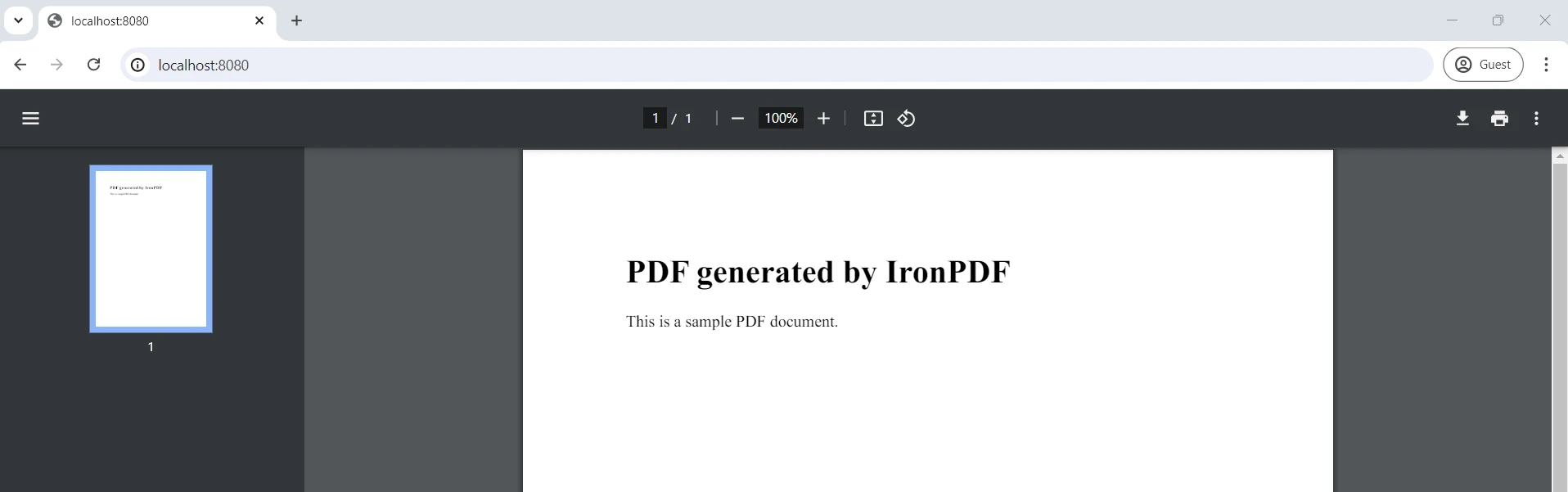
End Class含まれているC#コードは、IronPDFのHTMLからPDFへの変換をHttpListenerと接続して動的にPDFドキュメントを生成および配信し、基本的なHTTPメソッドサーバーとして機能するように設定する方法を示しています。 最初のステップはHttpListener のインスタンスを作成し、それをhttp://localhost:8080/ 上でHTTPリクエストをリッスンするように設定することです。
リスナーを開始した後は、受信するリクエストを処理するための無期限のループが続きます。 コードは各リクエストごとにリクエストURLをログに記録し、IronPDFを使用してHTMLテキストからPDFドキュメントを作成し、PDFをバイト配列に変換します。 次に、レスポンスは適切なMIMEタイプ(application/pdf)とコンテンツ長さで設定されます。
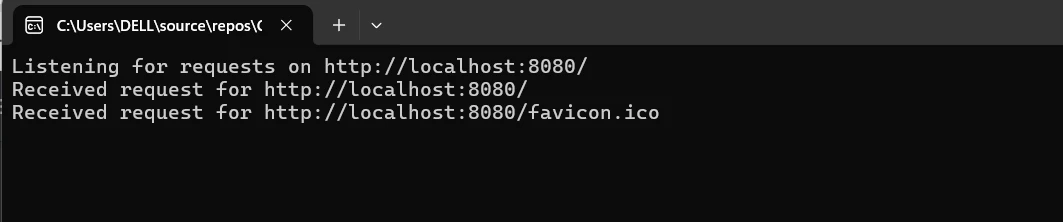
PDFバイト配列を書き込んだ後に最初のレスポンスストリームを閉じ、クライアントに返すためにレスポンスストリームを閉じます。 この構成により、サーバーはHTTPリクエストに応答してダイナミックに生成されたPDFドキュメントを効果的に返すことができます。
結論
要するに、C#のHttpListener と組み合わせてIronPDFを使用することで、HTTPを介してPDFファイルを動的に作成し提供する信頼性のある方法を提供します。 HttpListener の助けを借りて、C#アプリケーションは着信リクエストを処理し、柔軟な応答生成を提供する軽量なHTTPサーバーを作成できます。 IronPDFの動的なHTMLからPDFへの変換機能を利用することで、開発者はサーバーサイドロジックから直接、カスタマイズされたまたはデータ駆動型のPDFレポート、請求書、その他のドキュメントを効果的に作成できます。
WebインターフェースまたはAPIを使用してリアルタイムでドキュメントを生成および配信するアプリケーションに、この組み合わせは特に役立つ可能性があります。 開発者は、HttpListener とIronPDFを使用して、スケーラブルで応答性の高いソリューションを実装することで特定のビジネスニーズに対応できます。 これらのツールは、Web上でのシームレスなドキュメント生成と配信を促進することでユーザー体験を向上させます。
OCRの使用、バーコードの操作、PDFの作成、Excelとの連携などを利用して、.NET開発用ツールボックスを向上させることができます。 それは、その根本的な基盤を非常に柔軟なIron Softwareスイートと技術で組み合わせることによって達成されます。
プロジェクトに合わせたライセンスの選択肢を明示することで、最適なモデルの選択プロセスを開発者にとって簡素化します。 これらの利点により、開発者はさまざまな問題に効果的、迅速かつ組織的にソリューションを適用できるようになります。
よくある質問
C# で HttpListener を設定するにはどうすれば良いですか?
C# で HttpListener を設定するには、HttpListener クラスのインスタンスを作成し、リスニングする URI プレフィックスを設定し、リスナーを開始し、受信する HTTP リクエストを処理し、これらのリクエストに応答する必要があります。
HttpListener は安全な HTTPS 接続を処理できますか?
はい、HttpListener は HTTPS リクエストを処理するように設定でき、SSL/TLS プロトコルを利用してサーバーとクライアント間のデータ伝送を安全にします。
HttpListener を .NET アプリケーションで使用する利点は何ですか?
.NET アプリケーションで HttpListener を使用することには、使いやすさ、非同期操作のサポート、クロスプラットフォーム互換性、複数のエンドポイントや認証方法を処理する機能など、いくつかの利点があります。
.NET ライブラリを使用して HTML コンテンツを PDF に変換するにはどうすれば良いですか?
IronPDF などの .NET ライブラリを使用して HTML コンテンツを PDF に変換するには、RenderHtmlAsPdf メソッドを使用して HTML 文字列を直接 PDF 形式に変換するか、RenderUrlAsPdf を使用してウェブページを変換します。
HttpListener における URI プレフィックスの役割は何ですか?
HttpListener における URI プレフィックスは、リスナーが処理する特定の HTTP リクエストを定義します。これらのプレフィックスを設定することにより、リスナーが特定のエンドポイントを対象としたリクエストのみを処理することを保証できます。
HttpListener と C# の PDF 生成ライブラリをどのように統合できますか?
HttpListener を使用して受信する HTTP リクエストを処理し、その後 IronPDF を使用して HTML コンテンツから PDF ドキュメントを生成し、応答として送り返すことにより、HttpListener を IronPDF などの PDF 生成ライブラリと統合できます。
HttpListener に対応するプラットフォームは何ですか?
HttpListener は Windows、Linux、および macOS と互換性があり、.NET Core および .NET 5+ でのクロスプラットフォーム開発に適しています。
非同期操作のサポートは、HttpListener のパフォーマンスをどのように向上させますか?
HttpListener の非同期操作サポートにより、メインアプリケーションスレッドをブロックせずに複数のリクエストを同時に処理することができ、サーバーのスケーラビリティと応答性が向上します。
.NET ライブラリを使用してリアルタイムで PDF を生成することは可能ですか?
はい、IronPDF などの .NET ライブラリを使用して、ユーザーの入力や HTTP リクエストから受け取った動的データに基づいて、リアルタイムで PDF を生成することが可能で、オンデマンドのドキュメント生成を必要とするアプリケーションに理想的です。
PDF 操作のための .NET ライブラリをインストールするには、どのような手順が必要ですか?
プロジェクトにおいて IronPDF などの .NET ライブラリを PDF 操作のためにインストールするには、NuGet パッケージマネージャーのコマンド dotnet add package IronPDF を使用して、必要なツールを含めることができます。










 無料で始めましょう
 無料で始めましょう
 無料ライブデモを予約
















