


LiteDB .NET(開発者向けの仕組み)

LiteDB はシンプルで高速、軽量な埋め込み.NETドキュメントデータベースです。 LiteDB .NETはMongoDBデータベースに触発されており、そのAPIはMongoDBの公式.NET APIと非常に似ています。 LiteDBは小規模プロジェクトやモバイルアプリケーションに適したサーバーレスデータベースです。
この記事では、プロジェクトでLiteDBの機能を活用するための正確な指示を提供します。 また、Iron Softwareが作成した.NETライブラリであるIronPDFの使用を紹介し、PDFの生成と操作について説明します。また、LiteDBデータベースの内容をPDFとして出力し、表示および共有する方法についても紹介します。
LiteDBの主な特徴
- 埋め込みデータベース: 別々のサーバーは必要ありません。 LiteDBはアプリケーションのプロセス内で動作します。
- 単一のデータファイル: デプロイメントやバックアップを簡素化するために、すべてのデータを単一のファイルデータベースに保存できます。
- BSONフォーマット: 保存にBSONフォーマットを使用し、迅速な読み書き操作を保証します。
- LINQサポート: クエリのために完全にLINQをサポートし、.NET開発者にとって直感的です。
- ACIDトランザクション: ACIDトランザクションのサポートを通じてデータの整合性を確保します。
- クロスプラットフォーム: Windows 、Linux、およびmacOSで動作します。
.NETプロジェクトでのLiteDBのセットアップ
Visual Studioでプロジェクトを開きます。 次に、ソリューションエクスプローラーでプロジェクトを右クリックし、"NuGetパッケージの管理"を選択します。LiteDBを検索してプロジェクトに簡単にデータベースソリューションを組み込むためにインストールします。
または、パッケージマネージャーコンソールを使用してインストールすることもできます。 NuGetパッケージマネージャーコンソールでLiteDBをインストールするには、次のコマンドを使用します:
Install-Package LiteDB
LiteDBの始め方
インストールされたら、アプリケーションでLiteDBを使用し始めることができます。 その使用法を説明するためのいくつかの例を見てみましょう。
例1: データの作成と挿入
最初に、データを表現するためのシンプルなProductクラスを作成しましょう。
public class Product
{
    public int Id { get; set; }
    public string Name { get; set; }
    public decimal Price { get; set; }
}
public class Product
{
public int Id { get; set; }
public string Name { get; set; }
public decimal Price { get; set; }
}Public Class Product
Public Property Id As Integer
Public Property Name As String
Public Property Price As Decimal
End Class次に、データベースを作成していくつかの製品を挿入します:
using LiteDB;
using System;

class Program
{
    static void Main()
    {
        // Open the database (or create it if it doesn't exist)
        using (var db = new LiteDatabase(@"MyData.db"))
        {
            // Get a collection (or create, if it doesn't exist)
            var products = db.GetCollection<Product>("products");

            // Create a list of products to insert into the database
            var productList = new[]
            {
                new Product { Id = 201, Name = "Apple", Price = 0.99m },
                new Product { Id = 202, Name = "Banana", Price = 0.59m },
                new Product { Id = 203, Name = "Orange", Price = 0.79m },
                new Product { Id = 204, Name = "Grape", Price = 2.99m },
                new Product { Id = 205, Name = "Watermelon", Price = 4.99m }
            };

            // Insert each product into the collection
            foreach (var product in productList)
            {
                products.Insert(product);
            }

            Console.WriteLine("Product inserted successfully.");
        }
    }
}
using LiteDB;
using System;
class Program
{
static void Main()
{
// Open the database (or create it if it doesn't exist)
using (var db = new LiteDatabase(@"MyData.db"))
{
// Get a collection (or create, if it doesn't exist)
var products = db.GetCollection<Product>("products");
// Create a list of products to insert into the database
var productList = new[]
{
new Product { Id = 201, Name = "Apple", Price = 0.99m },
new Product { Id = 202, Name = "Banana", Price = 0.59m },
new Product { Id = 203, Name = "Orange", Price = 0.79m },
new Product { Id = 204, Name = "Grape", Price = 2.99m },
new Product { Id = 205, Name = "Watermelon", Price = 4.99m }
};
// Insert each product into the collection
foreach (var product in productList)
{
products.Insert(product);
}
Console.WriteLine("Product inserted successfully.");
}
}
}Imports LiteDB
Imports System
Friend Class Program
Shared Sub Main()
' Open the database (or create it if it doesn't exist)
Using db = New LiteDatabase("MyData.db")
' Get a collection (or create, if it doesn't exist)
Dim products = db.GetCollection(Of Product)("products")
' Create a list of products to insert into the database
Dim productList = {
New Product With {
.Id = 201,
.Name = "Apple",
.Price = 0.99D
},
New Product With {
.Id = 202,
.Name = "Banana",
.Price = 0.59D
},
New Product With {
.Id = 203,
.Name = "Orange",
.Price = 0.79D
},
New Product With {
.Id = 204,
.Name = "Grape",
.Price = 2.99D
},
New Product With {
.Id = 205,
.Name = "Watermelon",
.Price = 4.99D
}
}
' Insert each product into the collection
For Each product In productList
products.Insert(product)
Next product
Console.WriteLine("Product inserted successfully.")
End Using
End Sub
End Classコードの説明
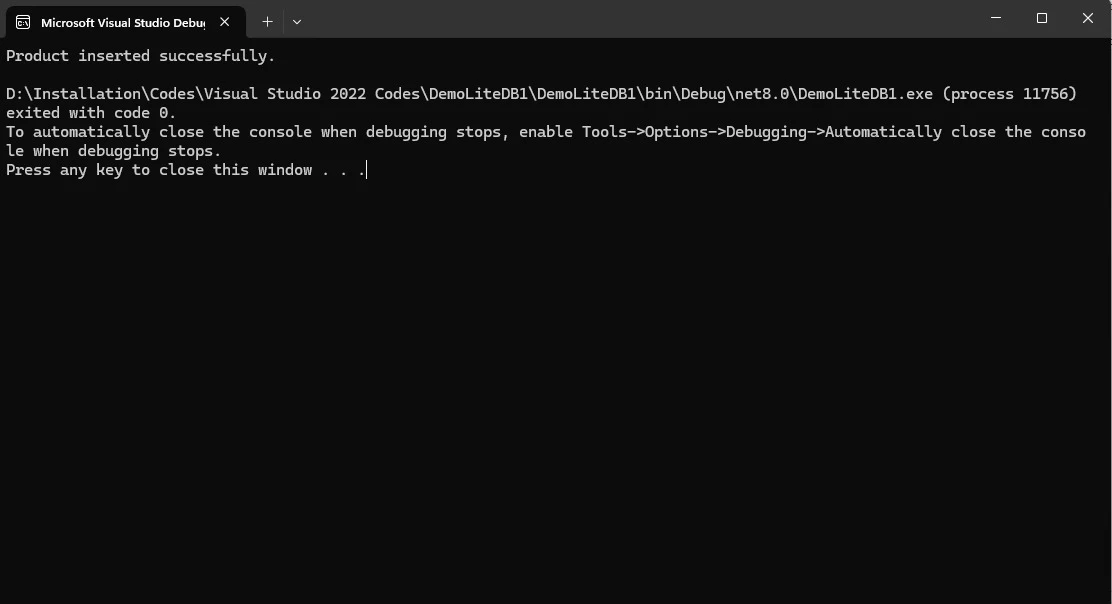
このコードは、"MyData.db"という名前のLiteDBデータベースへの接続を初期化し、"products"というコレクションを取得します。次に、ID、Name、Priceなどのさまざまなプロパティを持つProductオブジェクトの配列を作成し、その配列内の各製品をデータベース内の"products"コレクションに挿入します。 すべての製品を正常に挿入した後、確認メッセージをコンソールに表示します。
出力は次の通りです:
例: ユーザーデータ管理の効率化
ユーザーアカウントを管理するモバイルアプリケーションを開発していると想像してください。 各ユーザーには、その名前、メールアドレス、好み(JSONオブジェクトとして保存)、お気に入りのアイテムのリストを含むプロファイルがあります。 LiteDb.NETがどのようにあなたのデータストレージを簡素化することができるかを説明します:
このコードは、ユーザーデータを表現するUserManagerクラスを定義します。
using LiteDB;
using System.Collections.Generic;

public class User
{
    [BsonId]
    public string Id { get; set; }
    public string Name { get; set; }
    public string Email { get; set; }
    public Dictionary<string, string> Preferences { get; set; }
    public List<string> FavoriteItems { get; set; }
}

public class UserManager
{
    private readonly LiteDatabase db;

    public UserManager(string connectionString)
    {
       db = new LiteDatabase(connectionString);
    }

    public void SaveUser(User user)
    {
        var collection = db.GetCollection<User>("users");
        collection.Insert(user);
    }

    public User GetUser(string userId)
    {
        var collection = db.GetCollection<User>("users");
        return collection.FindById(userId);
    }

    public void UpdateUser(User user)
    {
        var collection = db.GetCollection<User>("users");
        collection.Update(user);
    }

    public void DeleteUser(string userId)
    {
        var collection = db.GetCollection<User>("users");
        collection.Delete(userId);
    }
}
using LiteDB;
using System.Collections.Generic;
public class User
{
[BsonId]
public string Id { get; set; }
public string Name { get; set; }
public string Email { get; set; }
public Dictionary<string, string> Preferences { get; set; }
public List<string> FavoriteItems { get; set; }
}
public class UserManager
{
private readonly LiteDatabase db;
public UserManager(string connectionString)
{
db = new LiteDatabase(connectionString);
}
public void SaveUser(User user)
{
var collection = db.GetCollection<User>("users");
collection.Insert(user);
}
public User GetUser(string userId)
{
var collection = db.GetCollection<User>("users");
return collection.FindById(userId);
}
public void UpdateUser(User user)
{
var collection = db.GetCollection<User>("users");
collection.Update(user);
}
public void DeleteUser(string userId)
{
var collection = db.GetCollection<User>("users");
collection.Delete(userId);
}
}Imports LiteDB
Imports System.Collections.Generic
Public Class User
<BsonId>
Public Property Id() As String
Public Property Name() As String
Public Property Email() As String
Public Property Preferences() As Dictionary(Of String, String)
Public Property FavoriteItems() As List(Of String)
End Class
Public Class UserManager
Private ReadOnly db As LiteDatabase
Public Sub New(ByVal connectionString As String)
db = New LiteDatabase(connectionString)
End Sub
Public Sub SaveUser(ByVal user As User)
Dim collection = db.GetCollection(Of User)("users")
collection.Insert(user)
End Sub
Public Function GetUser(ByVal userId As String) As User
Dim collection = db.GetCollection(Of User)("users")
Return collection.FindById(userId)
End Function
Public Sub UpdateUser(ByVal user As User)
Dim collection = db.GetCollection(Of User)("users")
collection.Update(user)
End Sub
Public Sub DeleteUser(ByVal userId As String)
Dim collection = db.GetCollection(Of User)("users")
collection.Delete(userId)
End Sub
End Classこの実装はユーザーデータ管理のためのLiteDb.NETの機能を効果的に活用します。 UserManagerクラスはデータベース内でユーザーを保存、取得、更新、削除するためのメソッドを提供します。
LiteDB、.NET用の埋め込みNoSQLデータベース
LiteDBはユーザーの同時性ニーズがない小規模から中規模のアプリケーションに最適です。 たとえば、データを簡単かつ迅速に保存したいパーソナルコンソールアプリに最適です。 C#でのみ開発され、軽量 (<450KB) で、外部依存関係に依存しません。
さらにいくつかのポイントは、彼らのGitHubページに記載されています:
- サーバーレスNoSQLドキュメントストア
- シンプルなAPI、MongoDBと類似
- スレッドセーフ
- 完全にC#で書かれており、LiteDBは.NET 4.5、NETStandard 1.3/2.0と互換性があり、450KB未満の単一DLLファイルにパッケージ化されています。
- ACIDと完全なトランザクションサポート
- 書き込みの失敗後のデータ復旧(WALログファイル)
- AES暗号を使用したデータファイルの暗号化
- 属性またはLiteDBが提供する流麗なマッパーAPIを使用して、Plain Old CLR Objects (POCO) クラスを容易にBsonDocumentにマッピングできます。
- ファイルを保存し、データをストリーミング (MongoDBのGridFSのように)
- 単一データファイルの保存 (SQLiteのように)
- 高速検索のためにドキュメントフィールドをインデックス化します
- クエリのためのLINQサポート
- データへのアクセス/変換のためのSQLライクなコマンド
- LiteDB Studio - データアクセス用の美しいUI
- 商業利用を含め、すべての人にオープンソースで無料
IronPDF入門:C# PDFライブラリ
IronPDF、主要なC# PDFライブラリは、.NETプロジェクトでのPDFの生成、編集、および操作のシームレスな実現を可能にします。 それはHTMLからPDFへの変換、動的なPDF生成、データ抽出のようなタスクに対する包括的なAPIを提供します。 HTMLをPDFファイルに正確にレンダリングする.NET Chromiumエンジンを使用し、.NET Core、.NET Standard、および.NET Frameworkでのさまざまなプロジェクトニーズに応えます。 IronPDFは、HTMLコンテンツからのPDFの生成において、精度、シンプルさ、および効率性を保証し、ウェブ、デスクトップ、コンソールアプリケーションに対応します。
IronPDFライブラリのインストール
プロジェクトでIronPDFを開始するには、Visual Studio内でNuGetパッケージマネージャーを介してライブラリをインストールします。 それから以下の簡単なステップに従ってください:
- Visual Studioを開いて、ソリューションエクスプローラーに移動します。
- 依存関係を右クリックして、"NuGetパッケージの管理"オプションを選択します。
- "Browse"タブを選択し、"IronPDF"を検索します。
- IronPDFを選択し、"インストール"をクリックします。
または、Visual Studio内で以下のコマンドを実行してライブラリをインストールするために、パッケージマネージャーコンソールを利用できます。
Install-Package IronPdf
LiteDBとIronPDFを使った使用例
HTMLコンテンツからPDFを生成するためにIronPDFを使用するコード例を示しますが、'using'文を使用して適切なリソースの処理を確実にしています。 LiteDB内のデータをPDFとして出力する方法を示すことで、LiteDBとIronPDFの機能を組み合わせます。
using LiteDB;
using System;
using System.Collections.Generic;
using System.Linq;
using System.Text;
using IronPdf;

class Program
{
    static void Main()
    {
        using (var db = new LiteDatabase(@"MyData.db"))
        {
            // Retrieve the 'products' collection or create it
            var products = db.GetCollection<Product>("products");

            // Add some initial products to the collection
            var productList = new[]
            {
                new Product { Id = 101, Name = "Apple", Price = 0.99m },
                new Product { Id = 102, Name = "Banana", Price = 0.59m },
                new Product { Id = 103, Name = "Orange", Price = 0.79m },
                new Product { Id = 104, Name = "Grape", Price = 2.99m },
                new Product { Id = 105, Name = "Watermelon", Price = 4.99m }
            };

            // Insert products into the LiteDB collection
            foreach (var product in productList)
            {
                products.Insert(product);
            }

            Console.WriteLine("Product inserted successfully.");

            // Fetch all products from the database
            var allProducts = GetAllProducts(db);

            // Generate HTML content from the product list
            string htmlContent = GenerateHtml(allProducts);

            // Generate the PDF from the HTML content
            GeneratePDF(htmlContent);

            Console.WriteLine("PDF generated successfully.");
        }
    }

    public static List<Product> GetAllProducts(LiteDatabase db)
    {
        var products = db.GetCollection<Product>("products");
        return products.FindAll().ToList();
    }

    public static void GeneratePDF(string data)
    {
        // Set your IronPDF license key here
        IronPdf.License.LicenseKey = "Your-License-Key";
        Console.WriteLine("PDF Generating Started...");

        // Create a PDF renderer
        var renderer = new ChromePdfRenderer();
        Console.WriteLine("PDF Processing ....");

        // Render the HTML as a PDF
        var pdf = renderer.RenderHtmlAsPdf(data);

        // Save the PDF to a file
        string filePath = "Data.pdf";
        pdf.SaveAs(filePath);

        Console.WriteLine($"PDF Generation Completed, File Saved as {filePath}");
    }

    public static string GenerateHtml(List<Product> products)
    {
        // Build HTML table from product list
        StringBuilder htmlBuilder = new StringBuilder();
        htmlBuilder.Append("<html><head><style>table { width: 100%; border-collapse: collapse; } th, td { border: 1px solid black; padding: 8px; text-align: left; }</style></head><body>");
        htmlBuilder.Append("<h1>Product List</h1>");
        htmlBuilder.Append("<table><tr><th>ID</th><th>Name</th><th>Price</th></tr>");

        // Add each product row to the HTML table
        foreach (var product in products)
        {
            htmlBuilder.Append($"<tr><td>{product.Id}</td><td>{product.Name}</td><td>{product.Price:C}</td></tr>");
        }

        htmlBuilder.Append("</table></body></html>");
        return htmlBuilder.ToString();
    }
}
using LiteDB;
using System;
using System.Collections.Generic;
using System.Linq;
using System.Text;
using IronPdf;
class Program
{
static void Main()
{
using (var db = new LiteDatabase(@"MyData.db"))
{
// Retrieve the 'products' collection or create it
var products = db.GetCollection<Product>("products");
// Add some initial products to the collection
var productList = new[]
{
new Product { Id = 101, Name = "Apple", Price = 0.99m },
new Product { Id = 102, Name = "Banana", Price = 0.59m },
new Product { Id = 103, Name = "Orange", Price = 0.79m },
new Product { Id = 104, Name = "Grape", Price = 2.99m },
new Product { Id = 105, Name = "Watermelon", Price = 4.99m }
};
// Insert products into the LiteDB collection
foreach (var product in productList)
{
products.Insert(product);
}
Console.WriteLine("Product inserted successfully.");
// Fetch all products from the database
var allProducts = GetAllProducts(db);
// Generate HTML content from the product list
string htmlContent = GenerateHtml(allProducts);
// Generate the PDF from the HTML content
GeneratePDF(htmlContent);
Console.WriteLine("PDF generated successfully.");
}
}
public static List<Product> GetAllProducts(LiteDatabase db)
{
var products = db.GetCollection<Product>("products");
return products.FindAll().ToList();
}
public static void GeneratePDF(string data)
{
// Set your IronPDF license key here
IronPdf.License.LicenseKey = "Your-License-Key";
Console.WriteLine("PDF Generating Started...");
// Create a PDF renderer
var renderer = new ChromePdfRenderer();
Console.WriteLine("PDF Processing ....");
// Render the HTML as a PDF
var pdf = renderer.RenderHtmlAsPdf(data);
// Save the PDF to a file
string filePath = "Data.pdf";
pdf.SaveAs(filePath);
Console.WriteLine($"PDF Generation Completed, File Saved as {filePath}");
}
public static string GenerateHtml(List<Product> products)
{
// Build HTML table from product list
StringBuilder htmlBuilder = new StringBuilder();
htmlBuilder.Append("<html><head><style>table { width: 100%; border-collapse: collapse; } th, td { border: 1px solid black; padding: 8px; text-align: left; }</style></head><body>");
htmlBuilder.Append("<h1>Product List</h1>");
htmlBuilder.Append("<table><tr><th>ID</th><th>Name</th><th>Price</th></tr>");
// Add each product row to the HTML table
foreach (var product in products)
{
htmlBuilder.Append($"<tr><td>{product.Id}</td><td>{product.Name}</td><td>{product.Price:C}</td></tr>");
}
htmlBuilder.Append("</table></body></html>");
return htmlBuilder.ToString();
}
}Imports LiteDB
Imports System
Imports System.Collections.Generic
Imports System.Linq
Imports System.Text
Imports IronPdf
Friend Class Program
Shared Sub Main()
Using db = New LiteDatabase("MyData.db")
' Retrieve the 'products' collection or create it
Dim products = db.GetCollection(Of Product)("products")
' Add some initial products to the collection
Dim productList = {
New Product With {
.Id = 101,
.Name = "Apple",
.Price = 0.99D
},
New Product With {
.Id = 102,
.Name = "Banana",
.Price = 0.59D
},
New Product With {
.Id = 103,
.Name = "Orange",
.Price = 0.79D
},
New Product With {
.Id = 104,
.Name = "Grape",
.Price = 2.99D
},
New Product With {
.Id = 105,
.Name = "Watermelon",
.Price = 4.99D
}
}
' Insert products into the LiteDB collection
For Each product In productList
products.Insert(product)
Next product
Console.WriteLine("Product inserted successfully.")
' Fetch all products from the database
Dim allProducts = GetAllProducts(db)
' Generate HTML content from the product list
Dim htmlContent As String = GenerateHtml(allProducts)
' Generate the PDF from the HTML content
GeneratePDF(htmlContent)
Console.WriteLine("PDF generated successfully.")
End Using
End Sub
Public Shared Function GetAllProducts(ByVal db As LiteDatabase) As List(Of Product)
Dim products = db.GetCollection(Of Product)("products")
Return products.FindAll().ToList()
End Function
Public Shared Sub GeneratePDF(ByVal data As String)
' Set your IronPDF license key here
IronPdf.License.LicenseKey = "Your-License-Key"
Console.WriteLine("PDF Generating Started...")
' Create a PDF renderer
Dim renderer = New ChromePdfRenderer()
Console.WriteLine("PDF Processing ....")
' Render the HTML as a PDF
Dim pdf = renderer.RenderHtmlAsPdf(data)
' Save the PDF to a file
Dim filePath As String = "Data.pdf"
pdf.SaveAs(filePath)
Console.WriteLine($"PDF Generation Completed, File Saved as {filePath}")
End Sub
Public Shared Function GenerateHtml(ByVal products As List(Of Product)) As String
' Build HTML table from product list
Dim htmlBuilder As New StringBuilder()
htmlBuilder.Append("<html><head><style>table { width: 100%; border-collapse: collapse; } th, td { border: 1px solid black; padding: 8px; text-align: left; }</style></head><body>")
htmlBuilder.Append("<h1>Product List</h1>")
htmlBuilder.Append("<table><tr><th>ID</th><th>Name</th><th>Price</th></tr>")
' Add each product row to the HTML table
For Each product In products
htmlBuilder.Append($"<tr><td>{product.Id}</td><td>{product.Name}</td><td>{product.Price:C}</td></tr>")
Next product
htmlBuilder.Append("</table></body></html>")
Return htmlBuilder.ToString()
End Function
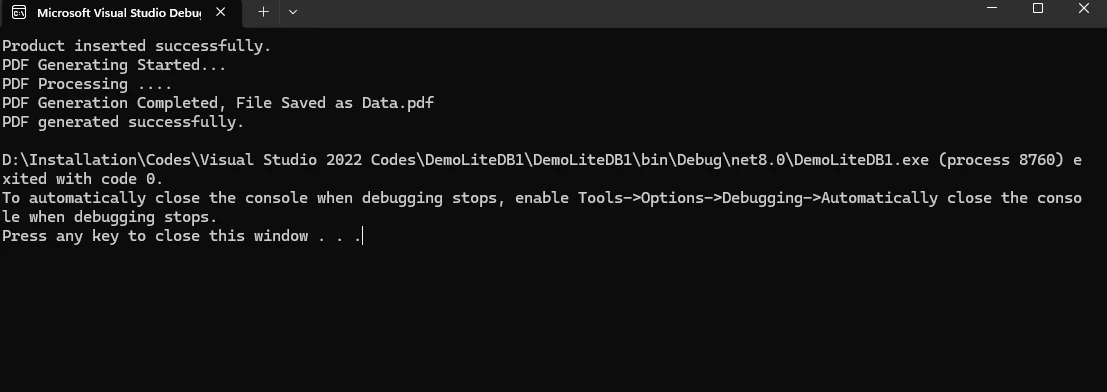
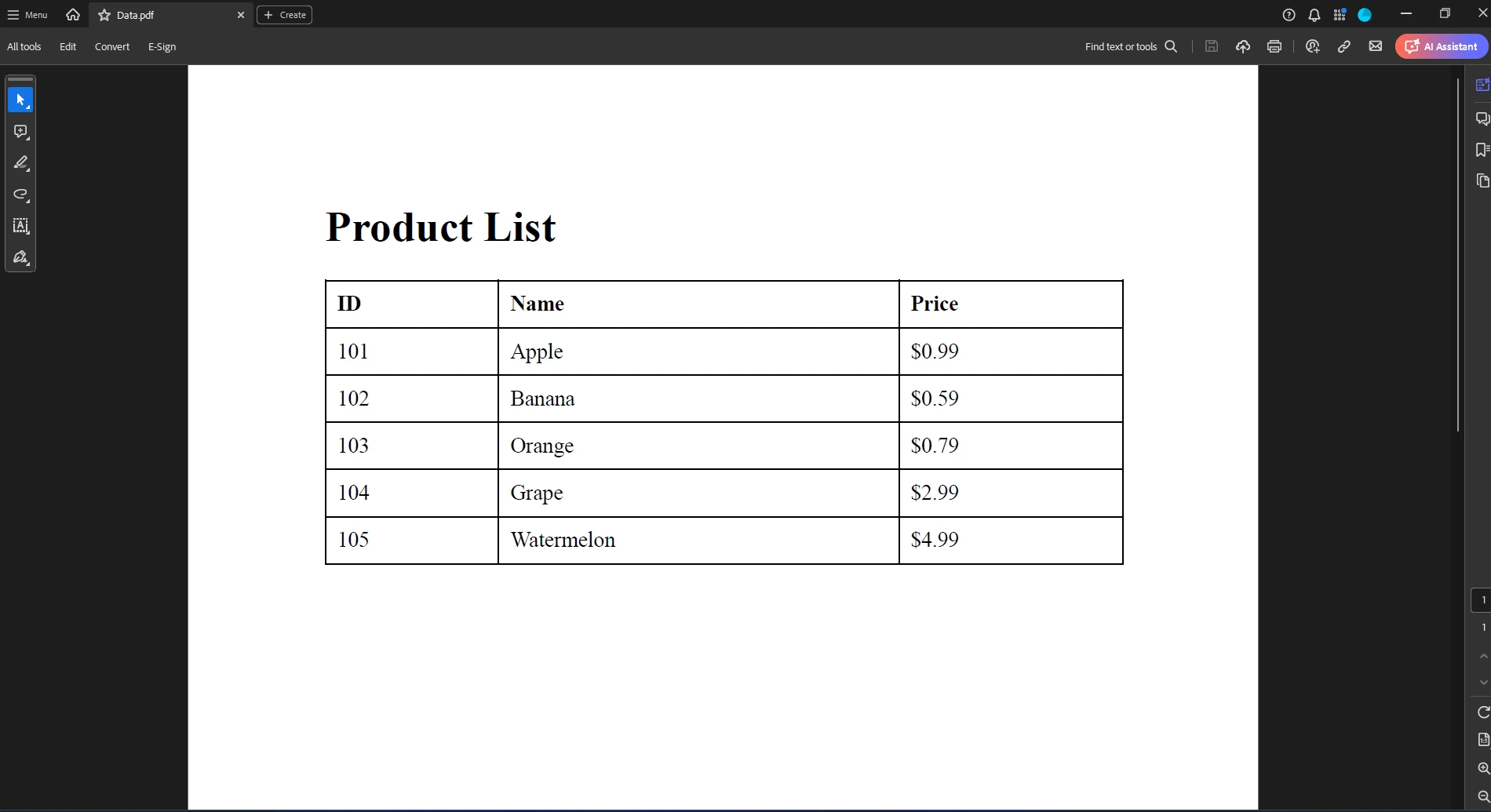
End ClassこのコードはLiteDBデータベースに接続し、製品のリストを追加し、すべての製品を取得し、製品リストのHTML表現を生成します。このHTMLコンテンツを使用してIronPDFライブラリを使用してPDFファイルを作成します。 このプロセスには、製品を追加し、それらをフェッチし、製品リストをHTMLに変換し、PDFを生成するためのメソッドが含まれています。
出力
PDFファイル出力
結論
LiteDBは、MongoDBに触発されたAPI、埋め込みデータベース、クロスプラットフォームの互換性を備えた小規模プロジェクトやモバイルアプリケーションに最適なC#開発者用の軽量なサーバーレス埋め込みドキュメントデータベースソリューションです。
同時に、IronPDFは、.NETプロジェクト内のPDFの生成および操作を簡素化し、HTMLからPDFへの変換およびNuGetの統合を備えた、主要なC# PDFライブラリとして浮上しています。 LiteDBとIronPDFの両方は開発者に貴重なツールを提供し、LiteDBはデータベース管理に、IronPDFはPDFハンドリングにおいて優れています。
IronPDFは、PDF生成と操作でその完全な潜在能力を解放するために無料トライアルを提供しています。
よくある質問
C# で HTML コンテンツを PDF に変換するにはどうすればいいですか?
IronPDFを使用すると、C#でHTMLコンテンツをPDFに変換できます。このライブラリは、RenderHtmlAsPdfのようなメソッドを提供しており、HTML文字列をPDFドキュメントに変換することができます。
LiteDBを.NETプロジェクトと統合する最良の方法は何ですか?
LiteDBを.NETプロジェクトと統合するには、Visual StudioのNuGetパッケージマネージャを使用してLiteDBをインストールできます。これにより、C#を使用してアプリケーション内でデータベースを直接管理できます。
LiteDBのデータからPDFを生成するにはどうすればよいですか?
LiteDBのデータからPDFを生成するには、IronPDFを使用できます。LiteDBからデータを抽出し、IronPDFの機能を使ってレンダリングすることで、レポートや共有目的のためにPDFドキュメントを作成できます。
C#で既存のPDFファイルを操作するためにIronPDFを使用できますか?
はい、IronPDFは既存のPDFファイルを操作するために使用できます。C#アプリケーション内でPDFを編集、結合、コンテンツの抽出が可能です。
LiteDBをモバイルアプリケーションで使用することは可能ですか?
はい、LiteDBは軽量でサーバーレスの特性および単一ファイルにデータを保存できる機能から、特にモバイルアプリケーションに適しています。
LiteDB統合の一般的なトラブルシューティング手順は何ですか?
LiteDB統合の一般的なトラブルシューティング手順には、NuGetを介した正しいインストールの確認、データベースファイルパスのアクセス性の確認、およびプロジェクト for .NETバージョンがLiteDBと互換性があることの確認が含まれます。
LiteDBを使用してデータの整合性を保証するにはどうすればよいですか?
LiteDBはデータの整合性と信頼性を保証するACIDトランザクションをサポートしています。トランザクションを使用して、一貫性を維持し、同時に行われるデータ変更を処理できます。
.NETでのPDF生成のためにIronPDFを使用する利点は何ですか?
IronPDFは、簡単なHTMLからPDFへの変換、高精度なレンダリング、および包括的なPDF操作機能などの利点を提供し、.NETアプリケーションでのPDF生成と処理に最適です。










 無料で始めましょう
 無料で始めましょう
 無料ライブデモを予約
















