




更新日 2026年4月23日
Microsoft.Extensions.AIを使用した .NET での LLM 統合の簡素化
AI はソフトウェア開発を変革していますが、.NET への大規模言語モデル (LLM) の統合はこれまで複雑でした。IronPdf.AI を使用して AI 統合をさらに進め、OpenAI を活用した PDF 解析、データ抽出、およびコンテンツの要約を .NET アプリケーションにもたらします。
詳しく読む

今日のデジタル環境では、データ管理が重要であり、圧縮および解凍の効率的なツールを持つことが重要です。 .NETエコシステムの中で際立っているツールの1つがSharpZipLibです。 この記事では、SharpZipLibを深く掘り下げ、その機能、アプリケーション、および.NETプロジェクトへの統合方法を探ります。
SharpZipLibは、C#で完全に書かれた.NET用の機能豊富なオープンソースの圧縮ライブラリです。 ZIP、GZip、Tarを含むさまざまな圧縮形式を包括的にサポートしています。 SharpZipLibは献身的なコミュニティによって開発され、ファイルの圧縮および解凍を効率的に行うためのさまざまな機能を提供します。
Visual Studioを開き、"新しいプロジェクトを作成"オプションをクリックします。
あなたの要件に合ったプロジェクトテンプレートを選択します(例:コンソールアプリケーション、Windows Formsアプリケーション)。
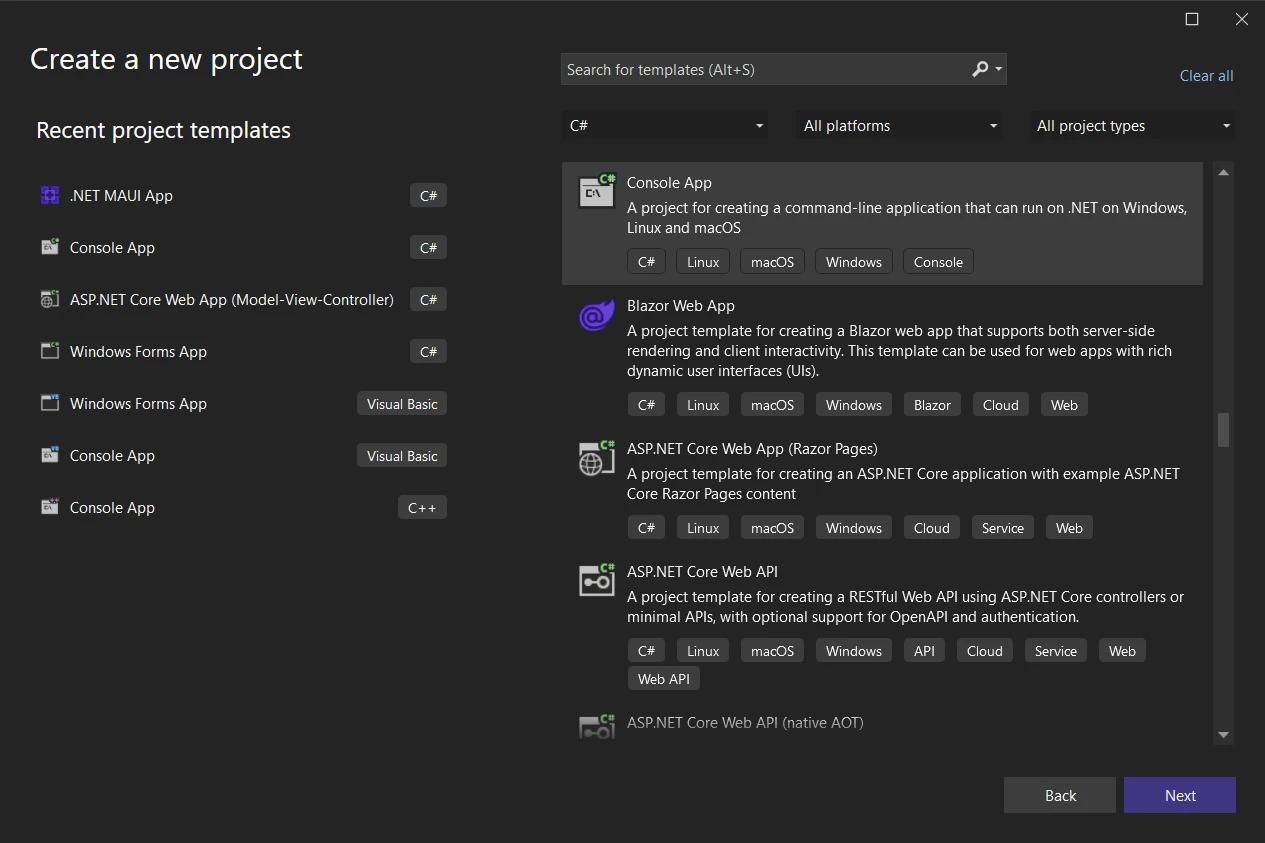
プロジェクト名と場所を指定し、"次へ"をクリックします。

追加情報から最新 for .NET Frameworkを選択します。 "Create"をクリックしてプロジェクトを作成します。
SharpZipLibを.NETプロジェクトに統合するには:
Visual Studio IDE のC# ConsoleAppで、ソリューションエクスプローラーでプロジェクトを右クリックし、"NuGetパッケージの管理..."を選択します。
NuGet パッケージマネージャウィンドウで"SharpZipLib"を検索します。
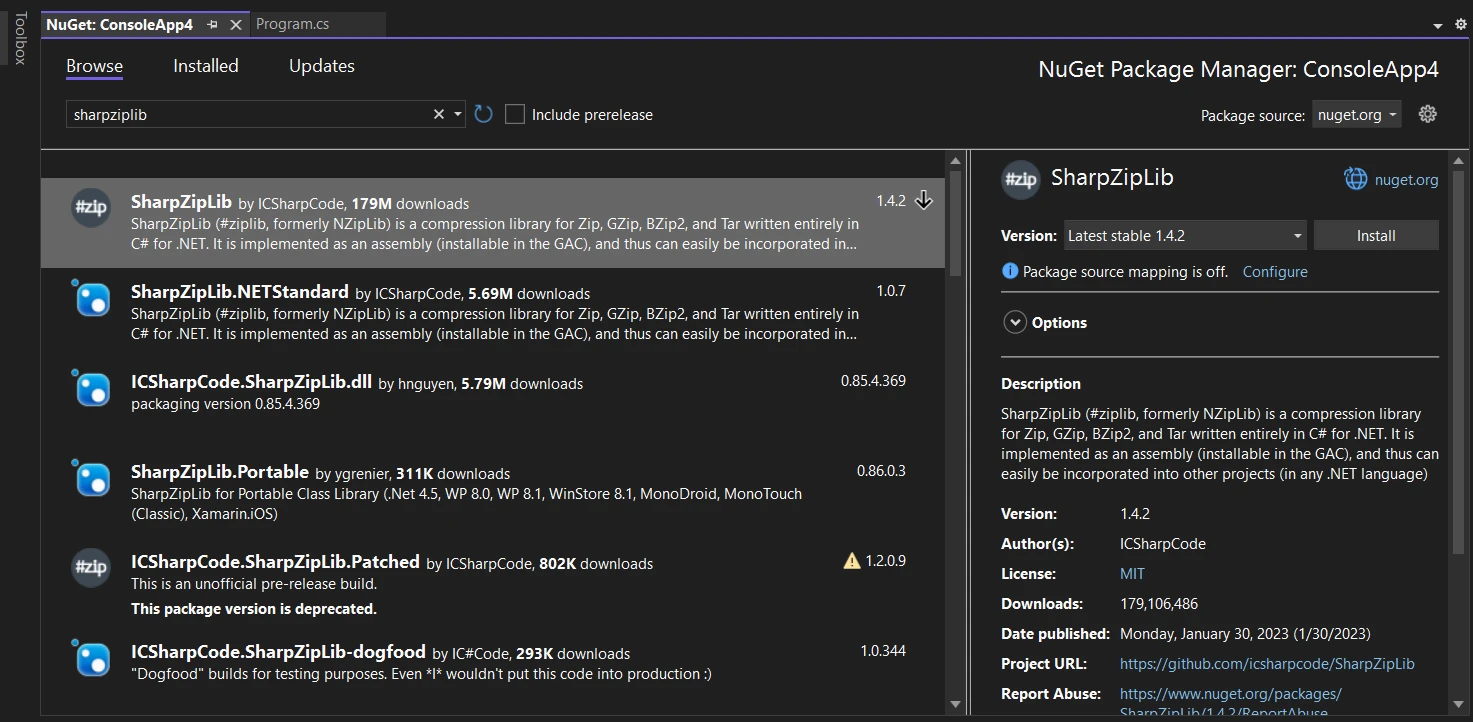
検索結果から"SharpZipLib"を選択し、"インストール"ボタンをクリックします。
NuGetは必要な依存関係を自動的にダウンロードしてプロジェクトに追加します。
SharpZipLibを使用してファイルを圧縮および解凍する方法を示す簡略化された例は次のとおりです:
using ICSharpCode.SharpZipLib.Zip;
using System;
using System.IO;

namespace SharpZipLibExample
{
    class Program
    {
        static void Main(string[] args)
        {
            string sourceDirectory = @"C:\SourceDirectory";     // Source directory containing files to compress
            string zipFilePath = @"C:\OutputDirectory\compressed.zip"; // Output path for the compressed ZIP file

            // Compress files from the source directory
            CompressDirectory(sourceDirectory, zipFilePath);
            Console.WriteLine("Files compressed successfully.");

            string extractPath = @"C:\OutputDirectory\extracted"; // Path to extract the decompressed files

            // Decompress files from the ZIP archive
            Decompress(zipFilePath, extractPath);
            Console.WriteLine("Files decompressed successfully.");
        }

        // Method to compress all files in a directory to a ZIP file
        static void CompressDirectory(string sourceDirectory, string zipFilePath)
        {
            using (var zipOutputStream = new ZipOutputStream(File.Create(zipFilePath)))
            {
                zipOutputStream.SetLevel(5); // Set compression level (0-9), 5 as a mid-range

                // Recursively add files in the source directory to the ZIP file
                AddDirectoryFilesToZip(sourceDirectory, zipOutputStream);

                zipOutputStream.Finish();
                zipOutputStream.Close();
            }
        }

        // Method to add files from a directory to a ZIP output stream
        static void AddDirectoryFilesToZip(string sourceDirectory, ZipOutputStream zipOutputStream)
        {
            // Get list of files in the directory
            string[] files = Directory.GetFiles(sourceDirectory);

            foreach (string file in files)
            {
                var entry = new ZipEntry(Path.GetFileName(file)); // Create a new entry for each file
                zipOutputStream.PutNextEntry(entry);

                using (var fileStream = File.OpenRead(file))
                {
                    // Buffer for reading files
                    byte[] buffer = new byte[4096];
                    int sourceBytes;

                    // Read file and write to ZIP stream
                    while ((sourceBytes = fileStream.Read(buffer, 0, buffer.Length)) > 0)
                    {
                        zipOutputStream.Write(buffer, 0, sourceBytes);
                    }
                }
            }

            // Handle subdirectories recursively
            string[] subdirectories = Directory.GetDirectories(sourceDirectory);
            foreach (string subdirectory in subdirectories)
            {
                AddDirectoryFilesToZip(subdirectory, zipOutputStream);
            }
        }

        // Method to decompress files from a ZIP file
        static void Decompress(string zipFilePath, string extractPath)
        {
            using (var zipInputStream = new ZipInputStream(File.OpenRead(zipFilePath)))
            {
                ZipEntry entry;
                // Read entries from the ZIP archive
                while ((entry = zipInputStream.GetNextEntry()) != null)
                {
                    string entryPath = Path.Combine(extractPath, entry.Name);

                    // Process files
                    if (entry.IsFile)
                    {
                        string directoryName = Path.GetDirectoryName(entryPath);
                        if (!Directory.Exists(directoryName))
                            Directory.CreateDirectory(directoryName);

                        using (var fileStream = File.Create(entryPath))
                        {
                            // Buffer for reading entries
                            byte[] buffer = new byte[4096];
                            int bytesRead;
                            // Read from ZIP stream and write to file
                            while ((bytesRead = zipInputStream.Read(buffer, 0, buffer.Length)) > 0)
                            {
                                fileStream.Write(buffer, 0, bytesRead);
                            }
                        }
                    }
                    else if (entry.IsDirectory) // Process directories
                    {
                        Directory.CreateDirectory(entryPath);
                    }
                }
            }
        }
    }
}Imports ICSharpCode.SharpZipLib.Zip
Imports System
Imports System.IO
Namespace SharpZipLibExample
Friend Class Program
Shared Sub Main(ByVal args() As String)
Dim sourceDirectory As String = "C:\SourceDirectory" ' Source directory containing files to compress
Dim zipFilePath As String = "C:\OutputDirectory\compressed.zip" ' Output path for the compressed ZIP file
' Compress files from the source directory
CompressDirectory(sourceDirectory, zipFilePath)
Console.WriteLine("Files compressed successfully.")
Dim extractPath As String = "C:\OutputDirectory\extracted" ' Path to extract the decompressed files
' Decompress files from the ZIP archive
Decompress(zipFilePath, extractPath)
Console.WriteLine("Files decompressed successfully.")
End Sub
' Method to compress all files in a directory to a ZIP file
Private Shared Sub CompressDirectory(ByVal sourceDirectory As String, ByVal zipFilePath As String)
Using zipOutputStream As New ZipOutputStream(File.Create(zipFilePath))
zipOutputStream.SetLevel(5) ' Set compression level (0-9), 5 as a mid-range
' Recursively add files in the source directory to the ZIP file
AddDirectoryFilesToZip(sourceDirectory, zipOutputStream)
zipOutputStream.Finish()
zipOutputStream.Close()
End Using
End Sub
' Method to add files from a directory to a ZIP output stream
Private Shared Sub AddDirectoryFilesToZip(ByVal sourceDirectory As String, ByVal zipOutputStream As ZipOutputStream)
' Get list of files in the directory
Dim files() As String = Directory.GetFiles(sourceDirectory)
For Each file As String In files
Dim entry = New ZipEntry(Path.GetFileName(file)) ' Create a new entry for each file
zipOutputStream.PutNextEntry(entry)
Using fileStream = System.IO.File.OpenRead(file)
' Buffer for reading files
Dim buffer(4095) As Byte
Dim sourceBytes As Integer
' Read file and write to ZIP stream
sourceBytes = fileStream.Read(buffer, 0, buffer.Length)
'INSTANT VB WARNING: An assignment within expression was extracted from the following statement:
'ORIGINAL LINE: while ((sourceBytes = fileStream.Read(buffer, 0, buffer.Length)) > 0)
Do While sourceBytes > 0
zipOutputStream.Write(buffer, 0, sourceBytes)
sourceBytes = fileStream.Read(buffer, 0, buffer.Length)
Loop
End Using
Next file
' Handle subdirectories recursively
Dim subdirectories() As String = Directory.GetDirectories(sourceDirectory)
For Each subdirectory As String In subdirectories
AddDirectoryFilesToZip(subdirectory, zipOutputStream)
Next subdirectory
End Sub
' Method to decompress files from a ZIP file
Private Shared Sub Decompress(ByVal zipFilePath As String, ByVal extractPath As String)
Using zipInputStream As New ZipInputStream(File.OpenRead(zipFilePath))
Dim entry As ZipEntry
' Read entries from the ZIP archive
entry = zipInputStream.GetNextEntry()
'INSTANT VB WARNING: An assignment within expression was extracted from the following statement:
'ORIGINAL LINE: while ((entry = zipInputStream.GetNextEntry()) != null)
Do While entry IsNot Nothing
Dim entryPath As String = Path.Combine(extractPath, entry.Name)
' Process files
If entry.IsFile Then
Dim directoryName As String = Path.GetDirectoryName(entryPath)
If Not Directory.Exists(directoryName) Then
Directory.CreateDirectory(directoryName)
End If
Using fileStream = File.Create(entryPath)
' Buffer for reading entries
Dim buffer(4095) As Byte
Dim bytesRead As Integer
' Read from ZIP stream and write to file
bytesRead = zipInputStream.Read(buffer, 0, buffer.Length)
'INSTANT VB WARNING: An assignment within expression was extracted from the following statement:
'ORIGINAL LINE: while ((bytesRead = zipInputStream.Read(buffer, 0, buffer.Length)) > 0)
Do While bytesRead > 0
fileStream.Write(buffer, 0, bytesRead)
bytesRead = zipInputStream.Read(buffer, 0, buffer.Length)
Loop
End Using
ElseIf entry.IsDirectory Then ' Process directories
Directory.CreateDirectory(entryPath)
End If
entry = zipInputStream.GetNextEntry()
Loop
End Using
End Sub
End Class
End NamespaceSharpZipLibは長い間、.NET言語開発コミュニティにおいて重要な存在であり、ZIP、GZip、Tar、BZip2などの圧縮アーカイブを扱うための基本的な機能を提供しています。しかし、技術が進化し、開発者がより高度なソリューションを求めるにつれて、SharpZipLibのいくつかの制限が明らかになってきました。
1.複雑さ: SharpZipLib の API は扱いにくく冗長になる可能性があり、開発者は ZIP アーカイブの作成や抽出などの単純なタスクを実行するために長いコードを記述する必要があります。 2.最新機能の欠如: SharpZipLib は最新 for .NET機能とプラットフォームをサポートしていないため、現代の開発環境にはあまり適していません。 3.限られたドキュメント: SharpZipLib は長い間存在してきましたが、そのドキュメントは乏しく古くなっていることが多く、開発者が使い始めたり、問題をトラブルシューティングしたりすることが困難になっています。 4.パフォーマンス: SharpZipLib のパフォーマンスは、特に大規模または複雑なアーカイブを扱う場合には、必ずしも開発者の期待に応えられるとは限りません。
IronZIPドキュメントは、Iron Softwareの概要によって開発されており、.NETアプリケーションでのZIPアーカイブ管理のための現代的かつ効率的なソリューションです。 IronZIPは、カスタマイズ可能な圧縮レベルやパスワード保護などの高度な機能を提供し、柔軟性とデータセキュリティを確保します。 IronZIP は、カスタマイズ可能な圧縮レベルやパスワード保護などの高度な機能を提供し、柔軟性とデータセキュリティを確保します。 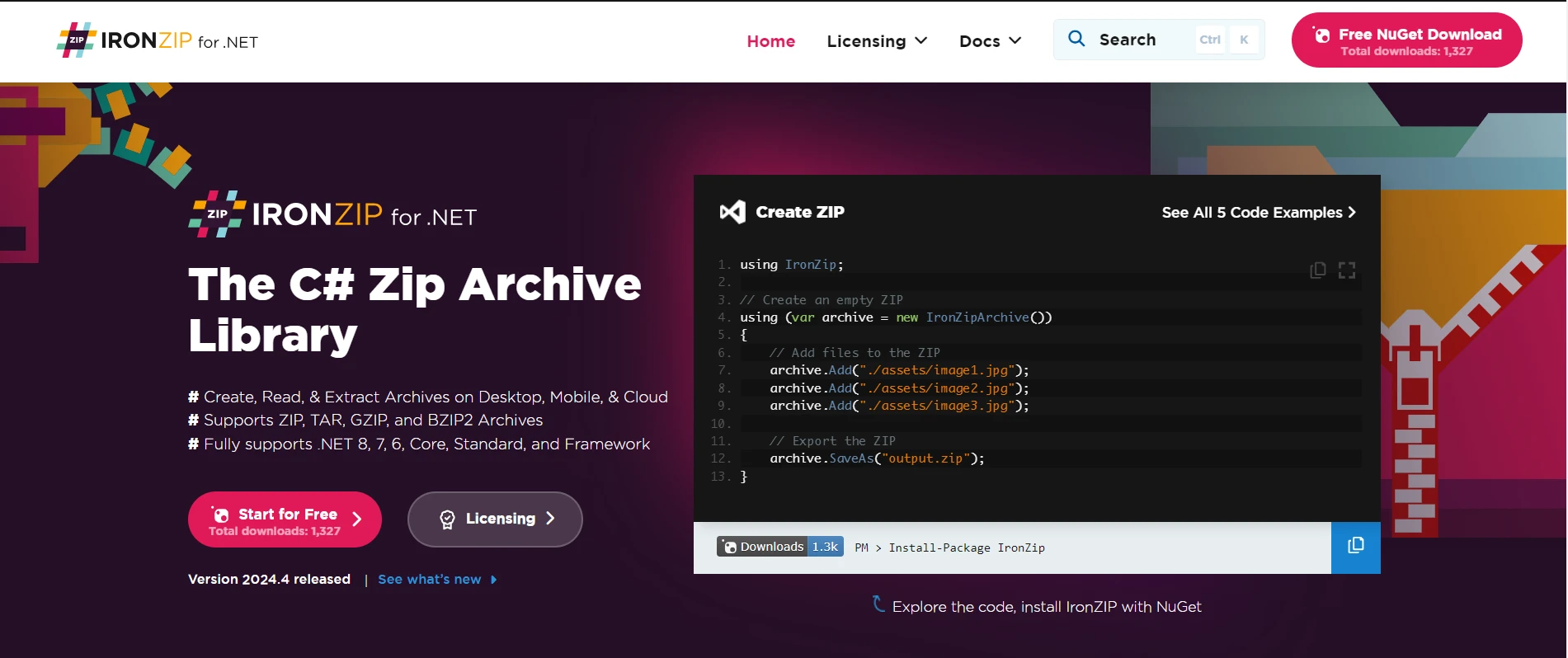
IronZIPの機能は、SharpZipLibの欠点に対処する堅牢で現代的なソリューションとして登場します。 1. 高度なAPI: IronZIPは直感的かつ開発者に優しいAPIを提供し、アーカイブ管理タスクを簡素化します。
1.高度な API: IronZIP は、アーカイブ管理タスクを簡素化する直感的で開発者に優しい API を提供します。 2. 完全な.NETサポート: IronZIPは、.NET Core、.NET Standard、および.NET Frameworkを含む最新 for .NETバージョンを完全にサポートし、現代の開発環境やプラットフォームに合わせた互換性を提供します。 2.完全な.NETサポート: IronZIP は、 .NET Core、 .NET Standard、 .NET Frameworkなどの最新 for .NETバージョンを完全にサポートし、最新の開発環境およびプラットフォームとの互換性を確保します。 3.包括的なドキュメント: IronZIPには包括的なドキュメントと例が付属しており、開発者がその機能と機能をすぐに理解できるようになります。 広範なドキュメントは、学習曲線をスムーズにし、プロジェクトへの迅速な統合を促進します。 4.圧縮レベルの制御: IronZIP は開発者に圧縮レベルの制御を提供し、開発者が要件に応じて圧縮レベルを調整できるようにします。 この機能により、開発者はファイルサイズの削減と圧縮速度のバランスを取ることができます。 5.パスワード保護: IronZIP はZIP アーカイブのパスワード保護をサポートし、機密データのセキュリティを強化します。 6. パフォーマンスの最適化: IronZIPはパフォーマンスが最適化されており、SharpZipLibと比較してより高速な圧縮および抽出速度を提供します。 6.パフォーマンスの最適化: IronZIPはパフォーマンスが最適化されており、SharpZipLib と比較して圧縮および抽出速度が速くなります。 この最適化により、開発者はパフォーマンスを損なうことなく、大量のデータを効率的に処理できることが保証されます。
詳細については、IronZIP ドキュメントを探索してください。IronZIP コードサンプルは、手間なく始めるのに役立ちます。
IronPDF に XDocument を統合する手順は次のとおりです:
Visual Studio IDEまたはお好みのIDEを開きます。
ツールメニューから、NuGet パッケージマネージャーコンソールに移動します。
次のコマンドを実行して IronZIP パッケージをインストールします:
NuGetの参照タブでIronZIPを選択し、インストールをクリックします:
NuGetのブラウズタブからIronZIPを選択し、インストールをクリックします:
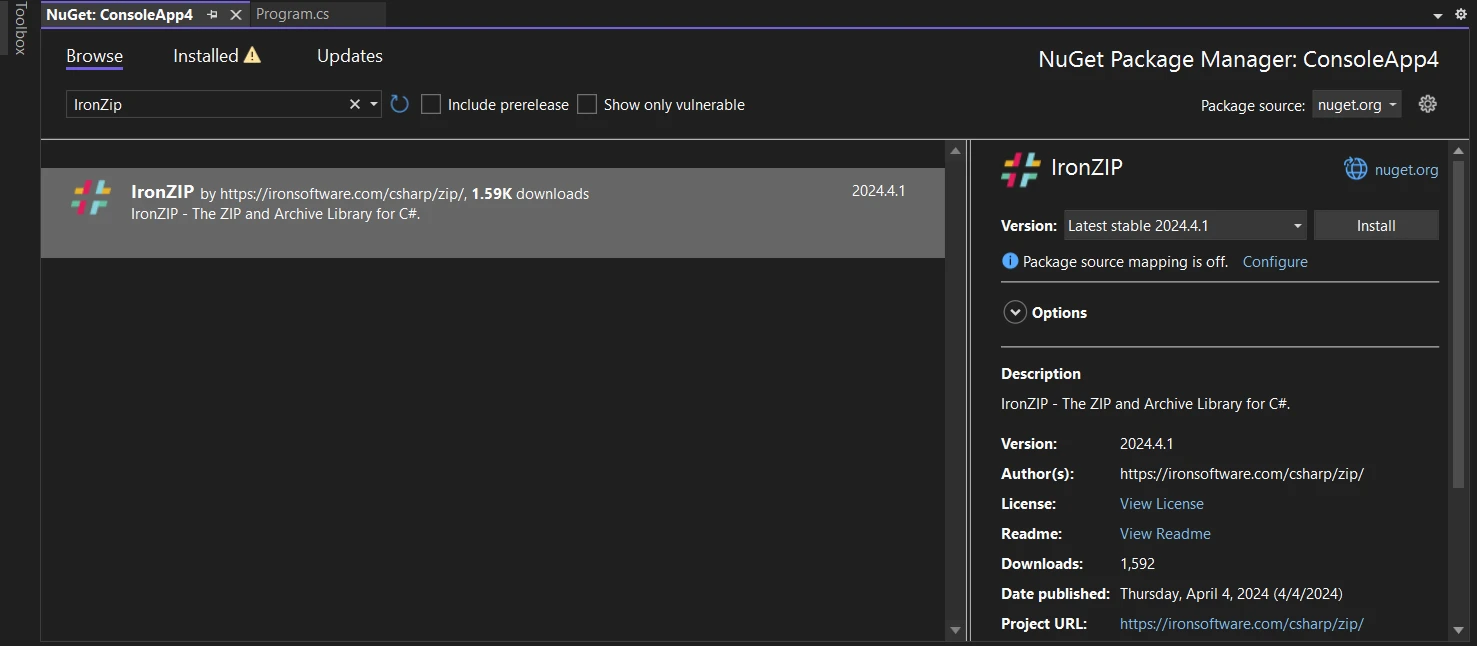
以下のソースコードは、IronZIP を使用してどのように効率的に ZIP ファイルを作成するかを示しており、簡単に数行のコードで実現できます。 ここでは、指定したフォルダー内のファイル名を提供することで、パスワード保護された ZIP アーカイブに複数のファイルを追加できます。 IronZipArchive オブジェクトを作成する際、出力ファイルのサイズを減らすために圧縮レベルを指定することもできます。
using IronZip;
using IronZip.Enum;

class Program
{
    static void Main()
    {
        // Create an empty ZIP with the highest compression
        using (var archive = new IronZipArchive(9))
        {
            // Password protect the ZIP (Support AES128 & AES256)
            archive.SetPassword("P@ssw0rd", EncryptionMethods.Traditional);
            archive.AddArchiveEntry("./assets/file1.txt");
            archive.AddArchiveEntry("./assets/file2.txt");
            // Export the ZIP
            archive.SaveAs("output.zip");
        }
    }
}Imports IronZip
Imports IronZip.Enum
Friend Class Program
Shared Sub Main()
' Create an empty ZIP with the highest compression
Using archive = New IronZipArchive(9)
' Password protect the ZIP (Support AES128 & AES256)
archive.SetPassword("P@ssw0rd", EncryptionMethods.Traditional)
archive.AddArchiveEntry("./assets/file1.txt")
archive.AddArchiveEntry("./assets/file2.txt")
' Export the ZIP
archive.SaveAs("output.zip")
End Using
End Sub
End Class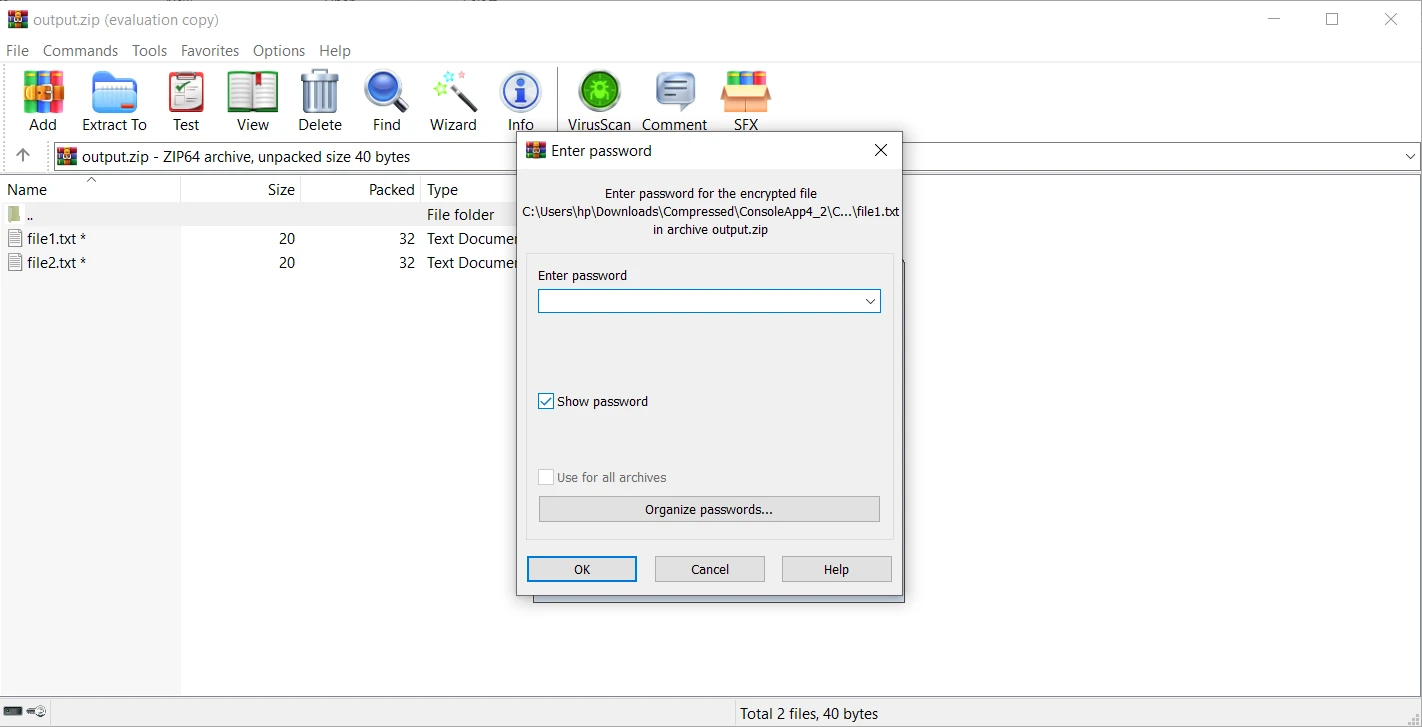
SharpZipLibの概要は、.NET用の強力な圧縮ライブラリとして登場し、圧縮ファイルを効率的に扱うための豊富な機能と能力を提供します。 オープンソースの性質、クロスプラットフォームの互換性、強力な機能により、SharpZipLibは.NETアプリケーションでの圧縮タスクに信頼できるソリューションを求める開発者にとって依然として最良の選択肢となっています。 SharpZipLibは.NETアプリケーションで圧縮アーカイブを操作する信頼性のある選択肢であり続けていますが、現代の開発環境ではその制限がますます明確になってきています。
IronZIP APIを探るは、SharpZipLibによって残されたギャップを埋めるために登場し、使いやすさ、パフォーマンス、互換性を優先する現代的で機能豊富な代替案を提供します。 IronZIP APIを探るは、SharpZipLibが残した隙間を埋め、使いやすさ、パフォーマンス、互換性を重視した現代的で機能豊富な代替手段を提供します。 IronZIPは無料試用版ライセンス概要を提供しています。
IronZIPダウンロードからライブラリをダウンロードして試してください。 IronZIPダウンロードからライブラリをダウンロードし、試してみてください。

ジェイコブ・メラーはIron Softwareの最高技術責任者(CTO)であり、C# PDFテクノロジーを開拓する先見的なエンジニアです。Iron Softwareのコアコードベースを支えるオリジナル開発者として、彼は創業以来、会社の製品アーキテクチャを形成し、CEOのCameron Rimingtonとともに、会社をNASA、Tesla、および世界的な政府機関にサービスを提供する50人以上の会社に変えました。1999年にロンドンで最初のソフトウェアビジネスを開業し、2005年に最初 for .NETコンポーネントを作成した後、Microsoftのエコシステム全体で複雑な問題を解決することを専門としました。



IronPDF はIRONSUITEの一部です
オフィス文書向けの.NET API製品10個

PDFがHTMLのように見える必要があるとき、迅速に。












