



更新日 2026年4月23日
deepstream io(開発者向けのしくみ)
この記事では、オープンリアルタイムサーバdeepstreamとIronPDFを使用してPDFを生成する方法を学びます。
詳しく読む

Pythonは、そのシンプルさと読みやすさで広く称賛されており、開発者の間でウェブスクレイピングやAPIとの連携において人気のある選択肢です。そのような連携を可能にする主要なライブラリの1つが、Python Requests ライブラリです。 Requests は、Python用のHTTPリクエストライブラリで、HTTPリクエストを簡潔に送信することができます。 この記事では、PythonのRequests ライブラリの機能を掘り下げ、実践的な例を用いてその使用方法を探り、IronPDFを紹介し、Requests と組み合わせてウェブデータからPDFを作成・操作する方法を示します。
Requests ライブラリの紹介PythonのRequests ライブラリは、HTTPリクエストをよりシンプルで人に優しい形で作成するために作られました。 それは単純なAPIの背後にリクエストを行う複雑さを抽象化し、Web上のサービスとデータとのやり取りに集中できるようにします。 ウェブページを取得したり、REST APIと連携したり、SSL証明書の検証を無効にしたり、サーバーにデータを送信したりする必要がある場合、Requests ライブラリがサポートします。
1.**シンプルさ:**使いやすく、理解しやすい構文。 2. HTTP メソッド: GET、POST、PUT、DELETE など、すべての HTTP メソッドをサポートします。 3.**セッション オブジェクト:**リクエスト間で Cookie を維持します。 4.**認証:**認証ヘッダーの追加を簡素化します。 5.プロキシ: HTTP プロキシのサポート。 6.**タイムアウト:**リクエストのタイムアウトを効果的に管理します。 7. **SSL 検証:**デフォルトで SSL 証明書を検証します。
Requests のインストールRequestsを使い始めるには、インストールが必要です。 これはpipを使って行うことができます。
pip install requestsこちらは、Requestsを使用してウェブページを取得する簡単な例です:
import requests

# Send a GET request to the specified URL
response = requests.get('https://www.example.com')

# Print the status code of the response (e.g., 200 for success)
print(response.status_code)

# Print the HTML content of the page
print(response.text)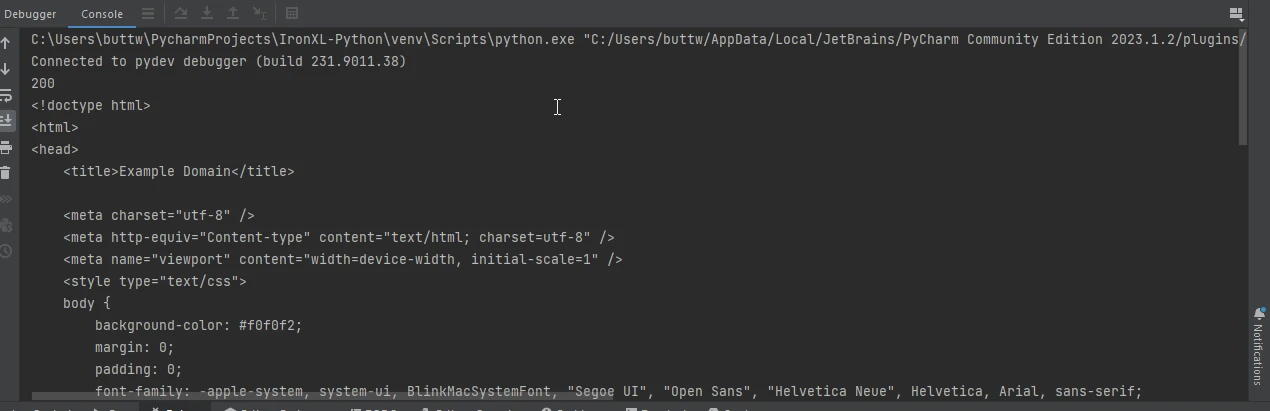
多くの場合、URLにパラメータを渡す必要があります。 Pythonのparamsキーワードでこれを簡単にします:
import requests

# Define the parameters to be sent in the URL
params = {'key1': 'value1', 'key2': 'value2'}

# Send a GET request with parameters
response = requests.get('https://www.example.com', params=params)

# Print the full URL including the parameters
print(response.url)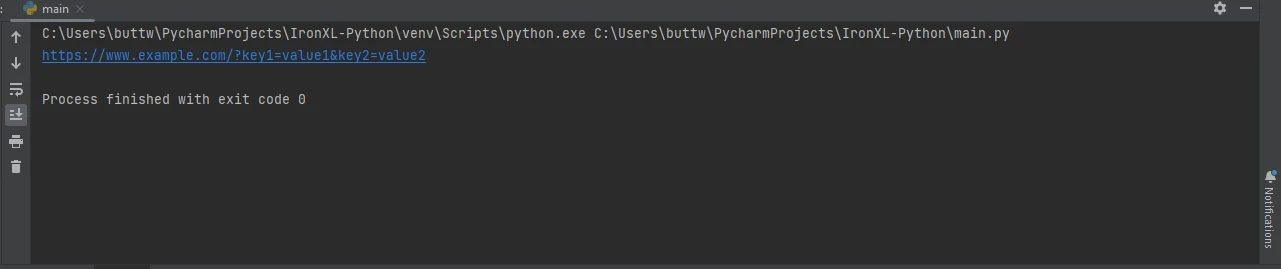
APIとのやり取りには通常JSONデータが含まれます。 Requestsは、組み込みのJSONサポートでこれを簡略化します:
import requests

# Send a GET request to retrieve JSON data
response = requests.get('https://jsonplaceholder.typicode.com/todos/1')

# Convert the JSON response to a Python dictionary
data = response.json()

# Print the JSON data
print(data)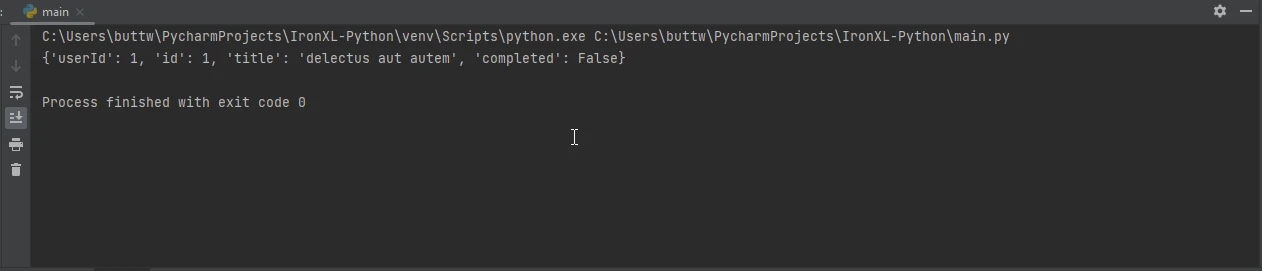
ヘッダーはHTTPリクエストにとって重要です。 このようにカスタムヘッダーをリクエストに追加できます:
import requests

# Define custom headers
headers = {'User-Agent': 'my-app/0.0.1'}

# Send a GET request with custom headers
response = requests.get('https://www.example.com', headers=headers)

# Print the response text
print(response.text)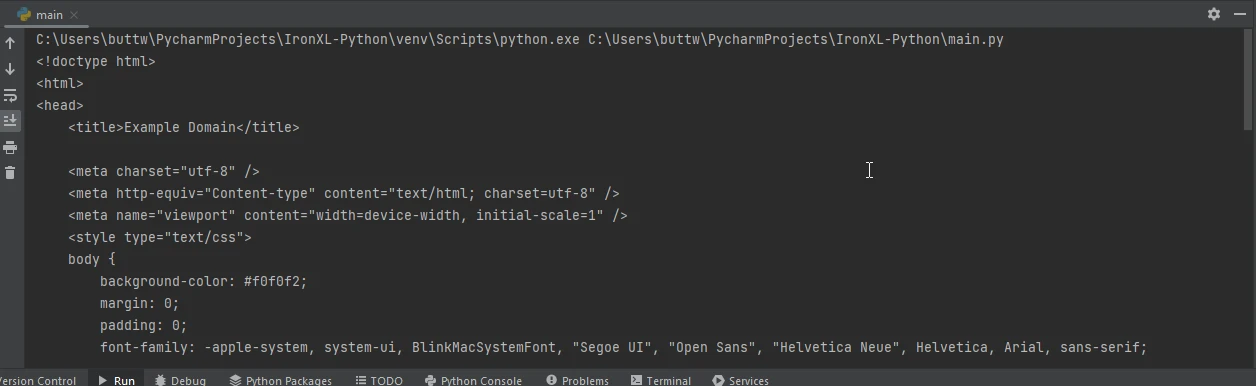
Requestsは、ファイルのアップロードもサポートしています。 ここではファイルをアップロードする方法です:
import requests

# Define the files to be uploaded
files = {'file': open('report.txt', 'rb')}

# Send a POST request with the file
response = requests.post('https://www.example.com/upload', files=files)

# Print the status code of the response
print(response.status_code)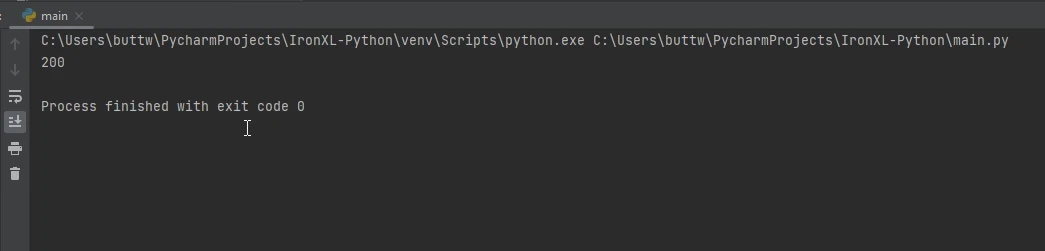
IronPDFは多用途なPDF生成ライブラリで、Pythonアプリケーション内でPDFを作成、編集、操作することができます。 特にHTMLコンテンツからPDFを生成する必要がある場合に役立ち、レポート、請求書、その他の配布が必要なドキュメントを作成するのに最適なツールです。
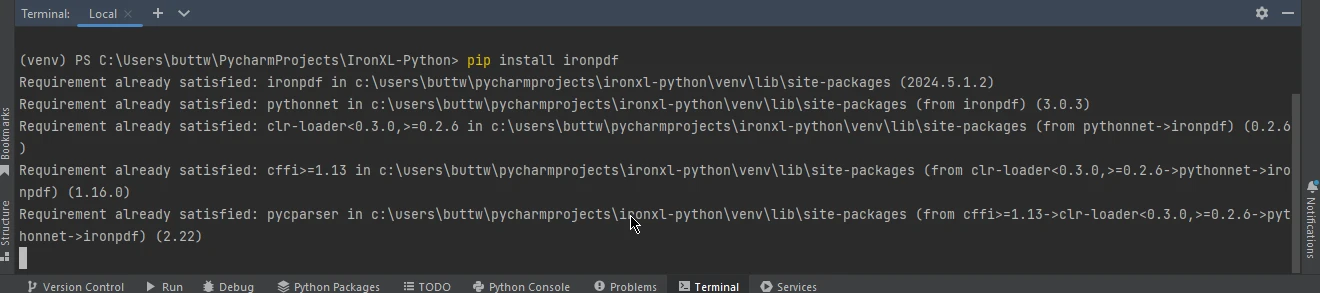
IronPDFをインストールするには、pipを使用します:
Requestsの使用方法RequestsとIronPDFを組み合わせることで、ウェブからデータを取得し、それを直接PDFドキュメントに変換できます。 これはWebデータからのレポートの作成や、WebページをPDFとして保存する際に特に有効です。
こちらは、Requestsを使ってウェブページを取得し、その後そのウェブページをIronPDFでPDFとして保存する例です:
import requests
from ironpdf import ChromePdfRenderer

# Fetch a web page
url = 'https://www.example.com'
response = requests.get(url)

if response.status_code == 200:
    # Extract the HTML content from the response
    html_content = response.text

    # Initialize the PDF renderer
    renderer = ChromePdfRenderer()

    # Render the HTML content as a PDF
    pdf = renderer.RenderHtmlAsPdf(html_content)

    # Save the generated PDF to a file
    pdf.save('output.pdf')
    print('PDF created successfully')
else:
    # Print an error message if the request was not successful
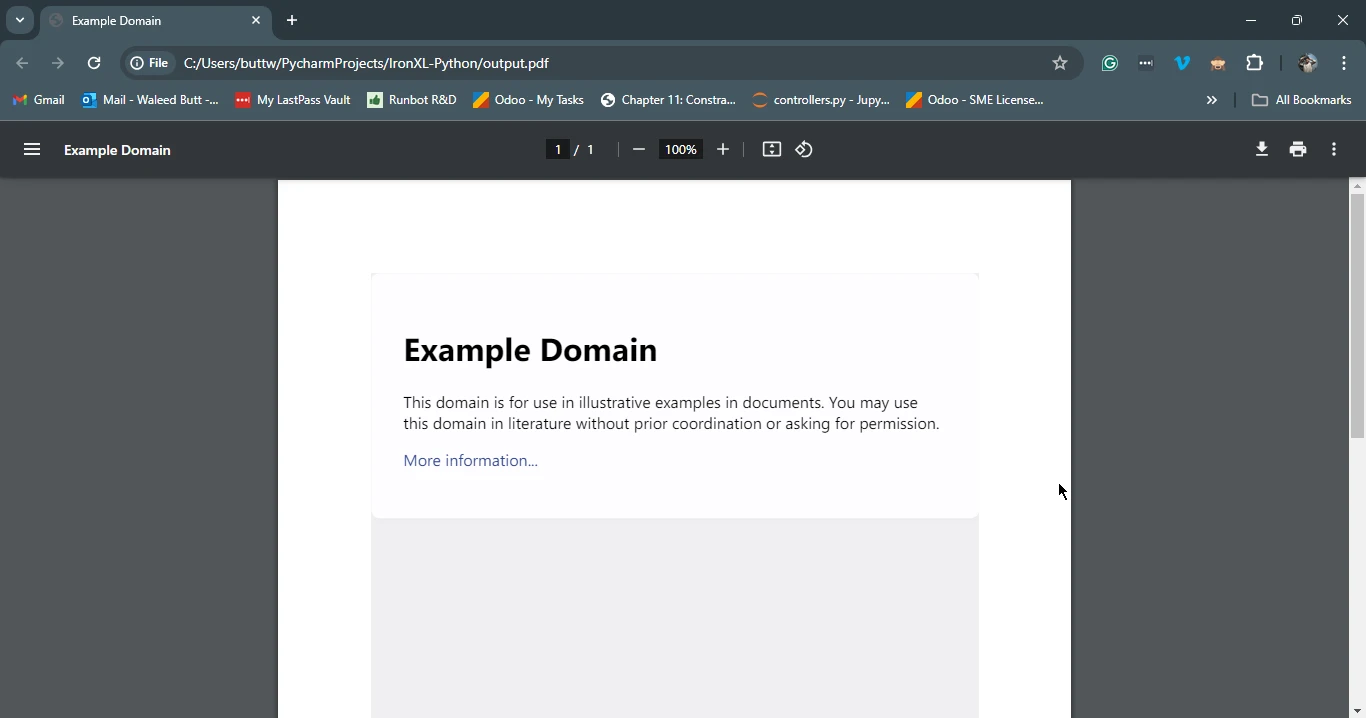
print(f'Failed to retrieve the webpage. Status code: {response.status_code}')このスクリプトは、指定されたURLのHTMLコンテンツをまずRequestsを使用して取得します。 その後、IronPDFを使用してこのレスポンスオブジェクトのHTMLコンテンツをPDFに変換し、結果のPDFをファイルとして保存します。
Requests ライブラリは、ウェブAPIと連携する必要があるすべて for Python開発者にとって不可欠なツールです。そのシンプルさと使いやすさが、HTTPリクエストを行う際の定番の選択肢となっています。 IronPDFと組み合わせることで、さらに多くの可能性が広がり、Webからデータを取得し、プロフェッショナルな品質のPDFドキュメントに変換することが可能です。 レポートや請求書の作成、ウェブコンテンツのアーカイブなど、RequestsとIronPDFの組み合わせは、PDF生成における強力なソリューションを提供します。
IronPDFのライセンスに関する詳細情報については、IronPDFのライセンスページを参照してください。 HTMLからPDFへの変換に関する詳細なチュートリアルもありますので、ぜひご覧ください。

Curtis Chauは、カールトン大学でコンピュータサイエンスの学士号を取得し、Node.js、TypeScript、JavaScript、およびReactに精通したフロントエンド開発を専門としています。直感的で美しいユーザーインターフェースを作成することに情熱を持ち、Curtisは現代のフレームワークを用いた開発や、構造の良い視覚的に魅力的なマニュアルの作成を楽しんでいます。


IronPDF はIRONSUITEの一部です
オフィス文書向けの.NET API製品10個

PDFがHTMLのように見える必要があるとき、迅速に。











