



Güncellendi 23 Nisan 2026
deepstream io (Geliştiriciler İçin Nasıl Çalışır)
Bu makalede, açık kaynakli gerçek zamanli sunucu deepstream ve IronPDF kullanarak PDF'ler oluşturmayi öğrenecegiz.
Daha Fazla Oku

Python, sadeliği ve okunabilirliği ile geniş çapta kutlanır ve geliştiriciler arasında web kazıma ve API'lerle etkileşim için popüler bir seçimdir. Bu tür etkileşimlerin sağlanmasına olanak tanıyan önemli kütüphanelerden biri Python Requests kütüphanesidir. Requests, HTTP isteklerini basit bir şekilde gönderebilmenize olanak tanıyan bir Python HTTP istek kütüphanesidir. Bu makalede, Python Requests kütüphanesinin özelliklerine derinlemesine dalacağız, pratik örneklerle kullanımını keşfedeceğiz ve IronPDF'i tanıtarak, nasıl Requests ile birleştirilerek web verilerinden PDF'ler oluşturup bunları nasıl manipüle edebileceğimizi göstereceğiz.
Requests Kütüphanesine GirişPython Requests kütüphanesi, HTTP isteklerini daha basit ve insan dostu hale getirmek için oluşturulmuştur. İstekleri yapmanın karmaşıklığını basit bir API'nin arkasında soyutlayarak web üzerinde servisler ve veri ile etkileşim kurmanıza odaklanmanızı sağlar. Web sayfalarını almak, REST API'lerle etkileşime girmek, SSL sertifika doğrulamasını devre dışı bırakmak veya bir sunucuya veri göndermek ihtiyacınız olsun, Requests kütüphanesi sizi kapsar.
Requests KurulumuRequests kullanmaya başlamak için, onu kurmanız gerekiyor. pip kullanılarak yapılabilir:
pip install requestsİşte Requests kullanarak bir web sayfasını nasıl alacağınızı gösteren basit bir örnek:
import requests

# Send a GET request to the specified URL
response = requests.get('https://www.example.com')

# Print the status code of the response (e.g., 200 for success)
print(response.status_code)

# Print the HTML content of the page
print(response.text)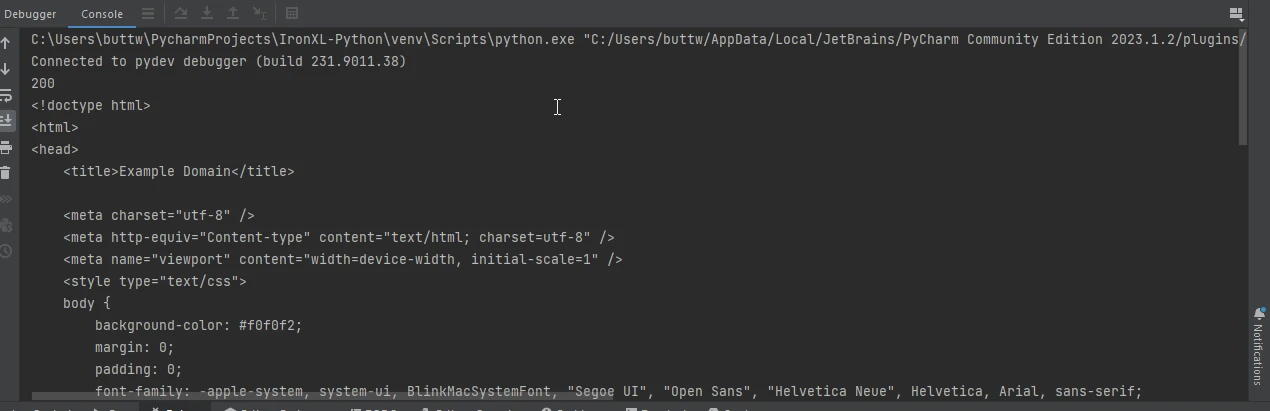
Çoğunlukla, URL'ye parametreler ile geçmeniz gerekir. Python Requests modülü params anahtar kelimesiyle bunu kolay hale getirir:
import requests

# Define the parameters to be sent in the URL
params = {'key1': 'value1', 'key2': 'value2'}

# Send a GET request with parameters
response = requests.get('https://www.example.com', params=params)

# Print the full URL including the parameters
print(response.url)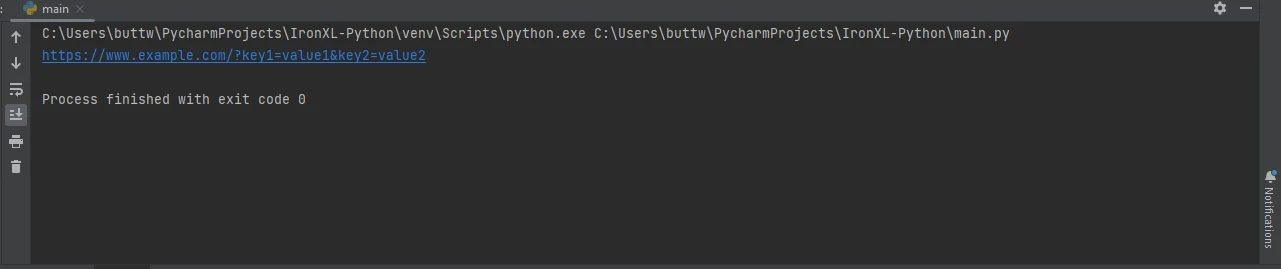
API'lerle etkileşim genellikle JSON verilerini içerir. Requests, yerleşik JSON desteği ile bunu basitleştirir:
import requests

# Send a GET request to retrieve JSON data
response = requests.get('https://jsonplaceholder.typicode.com/todos/1')

# Convert the JSON response to a Python dictionary
data = response.json()

# Print the JSON data
print(data)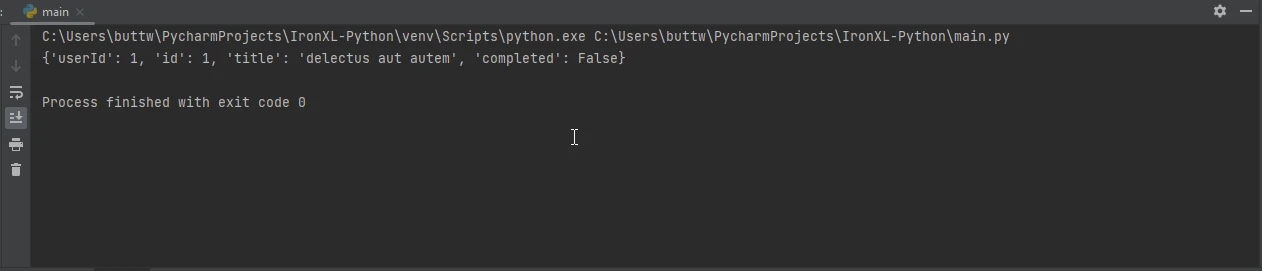
Başlıklar, HTTP istekleri için kritiktir. İsteklerinize özel başlıklar ekleyebilirsiniz:
import requests

# Define custom headers
headers = {'User-Agent': 'my-app/0.0.1'}

# Send a GET request with custom headers
response = requests.get('https://www.example.com', headers=headers)

# Print the response text
print(response.text)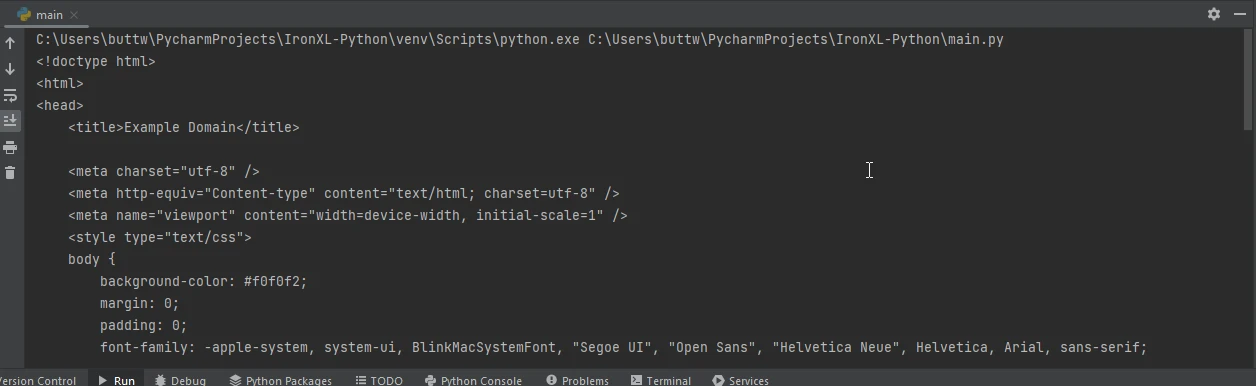
Requests, dosya yüklemelerini de destekler. İşte bir dosyanın nasıl yükleneceği:
import requests

# Define the files to be uploaded
files = {'file': open('report.txt', 'rb')}

# Send a POST request with the file
response = requests.post('https://www.example.com/upload', files=files)

# Print the status code of the response
print(response.status_code)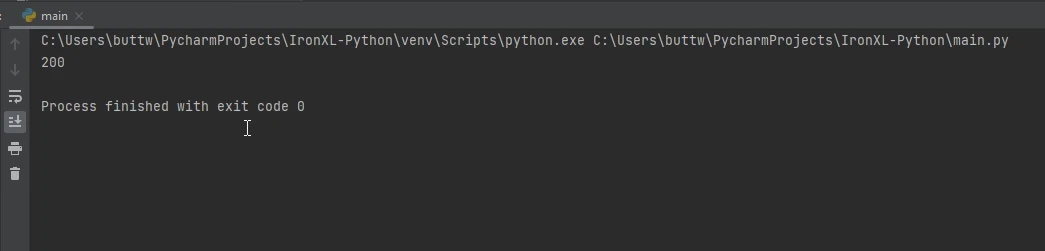
IronPDF, Python uygulamalarınızda PDF oluşturma, düzenleme ve manipüle etme işlemlerini gerçekleştirebileceğiniz çok yönlü bir PDF oluşturma kütüphanesidir. HTML içeriklerinden PDF oluşturmanız gerektiğinde özellikle kullanışlıdır, raporlar, faturalar veya dağıtılacak herhangi bir belge türü oluşturmak için harika bir araçtır.
IronPDF'yi yüklemek için pip kullanın:
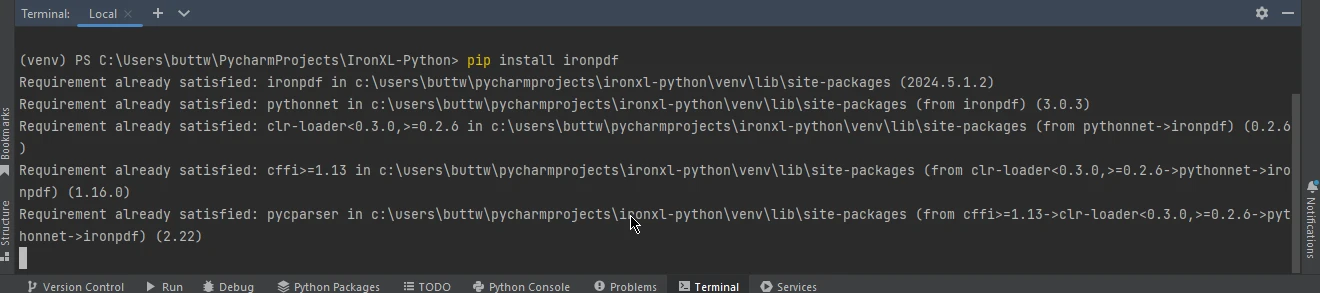
Requests ile IronPDF KullanımıRequests ve IronPDF'i birleştirmek, web'den veri almanıza ve doğrudan PDF belgelerine dönüştürmenize olanak tanır. Bu, web verilerinden raporlar oluşturmak veya web sayfalarını PDF olarak kaydetmek için özellikle kullanışlıdır.
İşte bir web sayfasını almak ve ardından IronPDF ile PDF olarak kaydetmek için Requests kullanımına bir örnek:
import requests
from ironpdf import ChromePdfRenderer

# Fetch a web page
url = 'https://www.example.com'
response = requests.get(url)

if response.status_code == 200:
    # Extract the HTML content from the response
    html_content = response.text

    # Initialize the PDF renderer
    renderer = ChromePdfRenderer()

    # Render the HTML content as a PDF
    pdf = renderer.RenderHtmlAsPdf(html_content)

    # Save the generated PDF to a file
    pdf.save('output.pdf')
    print('PDF created successfully')
else:
    # Print an error message if the request was not successful
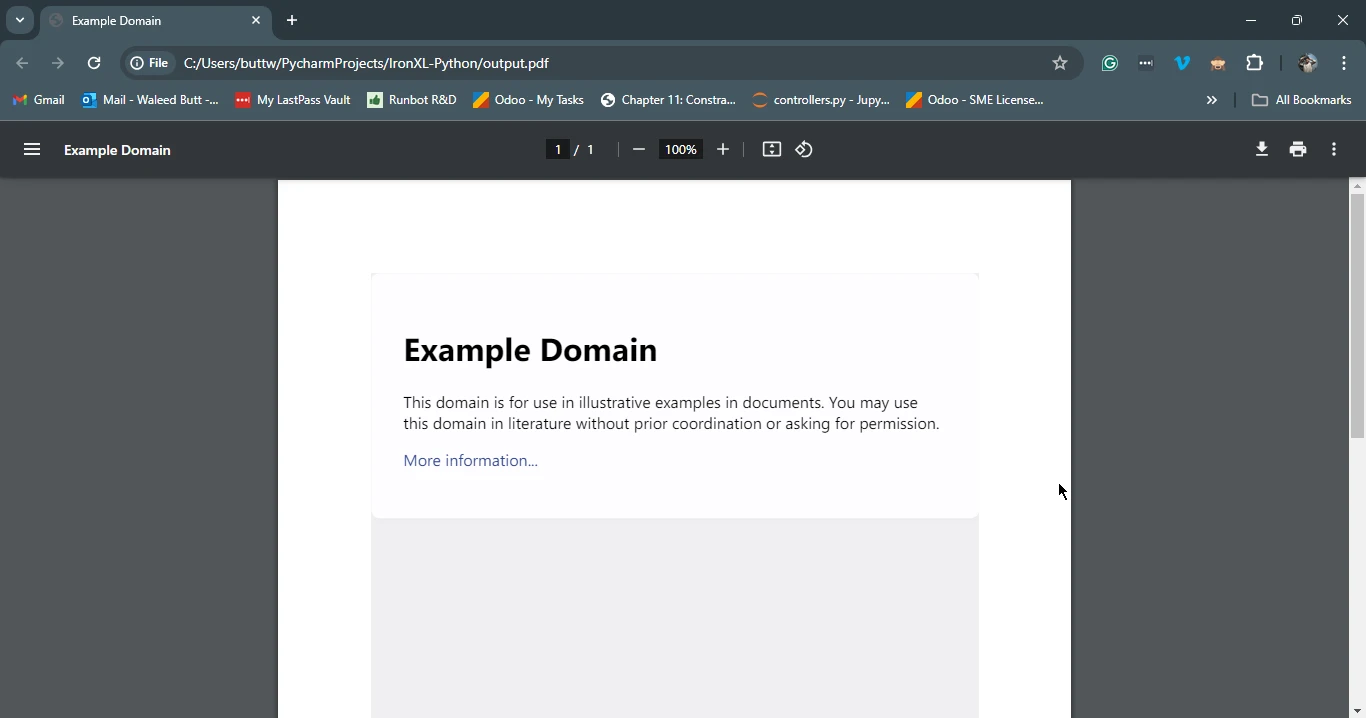
print(f'Failed to retrieve the webpage. Status code: {response.status_code}')Bu betik, önce belirtilen URL'in HTML içeriğini Requests kullanarak alır. Ardından IronPDF kullanarak bu yanıt nesnesinin HTML içeriğini bir PDF'ye dönüştürür ve kalıcı kılmak için çıktıyı bir dosyaya kaydeder.
Requests kütüphanesi, web API'leri ile etkileşimde bulunması gereken her Python geliştiricisi için önemli bir araçtır. Basitliği ve kullanım kolaylığı, HTTP istekleri yapmak için tercih edilen bir seçenek haline getirir. IronPDF ile birleştirildiğinde, web'den veri çekmek ve bunları profesyonel kalitede PDF belgelerine dönüştürmek de dahil olmak üzere daha fazla olasılığı açar. Raporlar, faturalar oluşturuyor veya web içeriğini arşivliyor olun, Requests ve IronPDF'in birleşimi, PDF oluşturma ihtiyaçlarınız için güçlü bir çözüm sunar.
IronPDF lisans bilgileri ile ilgili daha fazla bilgi için IronPDF lisans sayfasına bakın. Daha fazla içgörü için HTML to PDF Conversion hakkındaki ayrıntılı eğitimimize de göz atabilirsiniz.

Curtis Chau, Bilgisayar Bilimleri alanında Lisans Derecesine (Carleton Üniversitesi) sahip ve Node.js, TypeScript, JavaScript ve React konularında uzmanlaşmış ön uç geliştirmeyle ilgileniyor. Sezgisel ve estetik açıdan hoş kullanıcı arayüzleri oluşturma tutkunu, Curtis modern çerçevelerle çalışmayı ve iyi yapılandırılmış, görsel olarak çekici kılavuzlar oluşturmayı seviyor.


IronPDF, IRONSUITE'in bir parçasıdır
Ofis belgeleriniz için 10 .NET API ürünü











PDF'nizin HTML gibi görünmesine ihtiyaç duyduğunuzda, hızlı.

