



更新日 2026年4月21日
Scrapy in Python(開発者向けのしくみ)
ここにScrapy、PythonにおけるWebスクレイピングフレームワークとIronPDFが登場し、オンラインデータの抽出と動的PDFの作成を最適化するための2つの強力なライブラリが協力しています。
詳しく読む

IronPDF は、PDF ファイルを書き込んだり、アプリケーション内で PDF ファイルを操作したりしたい Python 開発者向けの純粋な Python PDF ファイル オブジェクト ライブラリです。 IronPDF はシンプルさと汎用性が際立っており、PDF の自動作成や PDF 生成のソフトウェア システムへの統合を必要とするタスクに最適です。
このガイドでは、純粋な Python PDF ライブラリである IronPDF を使用して、PDF ファイルまたは PDF ページ属性を作成したり、PDF ファイルを読み取る方法について説明します。 例と実用的なコード スニペットが含まれており、Python プロジェクトで IronPDF for Python の PdfWriter を使用して PDF ファイルを書き込んだり、新しい PDF ページを作成したりする方法の実践的な理解が得られます。
IronPDFを使用するには、Pythonパッケージインデックス経由でインストールする必要があります。 ターミナルで次のコマンドを実行します。
IronPDF は、新しい PDF ファイルの作成と既存の PDF の操作のプロセスを簡素化します。 シンプルな 1 ページの PDF から、ユーザー パスワードなどのさまざまな要素を含む複雑なドキュメントまで、ドキュメントを生成するためのわかりやすいインターフェイスを提供します。 この機能は、レポートの生成、請求書の作成などのタスクに不可欠です。
from ironpdf import ChromePdfRenderer, License, Logger

# Set the IronPDF license key
License.LicenseKey = "Your-License-Key"
# Enable logging for debugging purposes
Logger.EnableDebugging = True
Logger.LogFilePath = "Custom.log"
Logger.LoggingMode = Logger.LoggingModes.All

# Basic HTML content for the PDF
html = """
<html>
   <head>
      <title>IronPDF for Python!</title>
      <link rel='stylesheet' href='assets/style.css'>
   </head>
   <body>
      <h1>It's IronPDF World!!</h1>
      <a href="https://ironpdf.com/python/"><img src='assets/logo.png' /></a>
   </body>
</html>
"""

# Create a PDF renderer
renderer = ChromePdfRenderer()
# Render the HTML content as a PDF
pdf = renderer.RenderHtmlAsPdf(html)
# Save the rendered PDF to a file
pdf.SaveAs("New PDF File.pdf")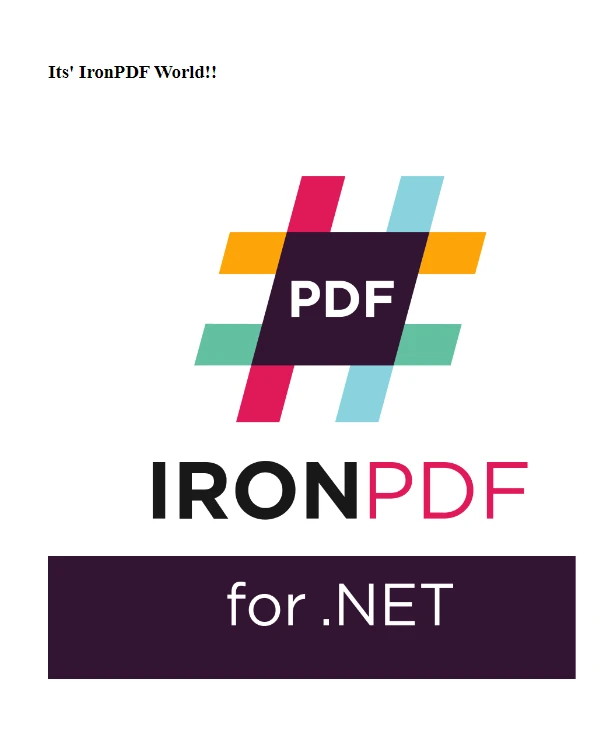 出力ファイル
IronPDF は、複数の PDF ファイルを 1 つに結合する作業を簡素化します。 この機能は、さまざまなレポートを集約したり、スキャンしたドキュメントをまとめたり、関連する情報を整理したりするのに役立ちます。 たとえば、複数のソースから包括的なレポートを作成するときや、一連のドキュメントを 1 つのファイルとして提示する必要があるときには、PDF ファイルを結合する必要がある場合があります。
from ironpdf import PdfDocument, License, Logger

# Set the IronPDF license key
License.LicenseKey = "Your-License-Key"
# Enable logging for debugging purposes
Logger.EnableDebugging = True
Logger.LogFilePath = "Custom.log"
Logger.LoggingMode = Logger.LoggingModes.All

# Load existing PDF documents
pdfOne = PdfDocument("Report First.pdf")
pdfTwo = PdfDocument("Report Second.pdf")
# Merge the PDFs into a single document
merged = PdfDocument.Merge(pdfOne, pdfTwo)
# Save the merged PDF
merged.SaveAs("Merged.pdf")既存の PDF ファイルを新しい PDF ファイルに結合する機能は、統合された PDF ドキュメントを AI モジュールのトレーニング用のデータセットとして使用できるデータ サイエンスなどの分野でも役立ちます。 IronPDF は、元のドキュメントの各ページの整合性とフォーマットを維持しながらこのタスクを簡単に処理し、シームレスで一貫性のある出力 PDF ファイルを生成します。
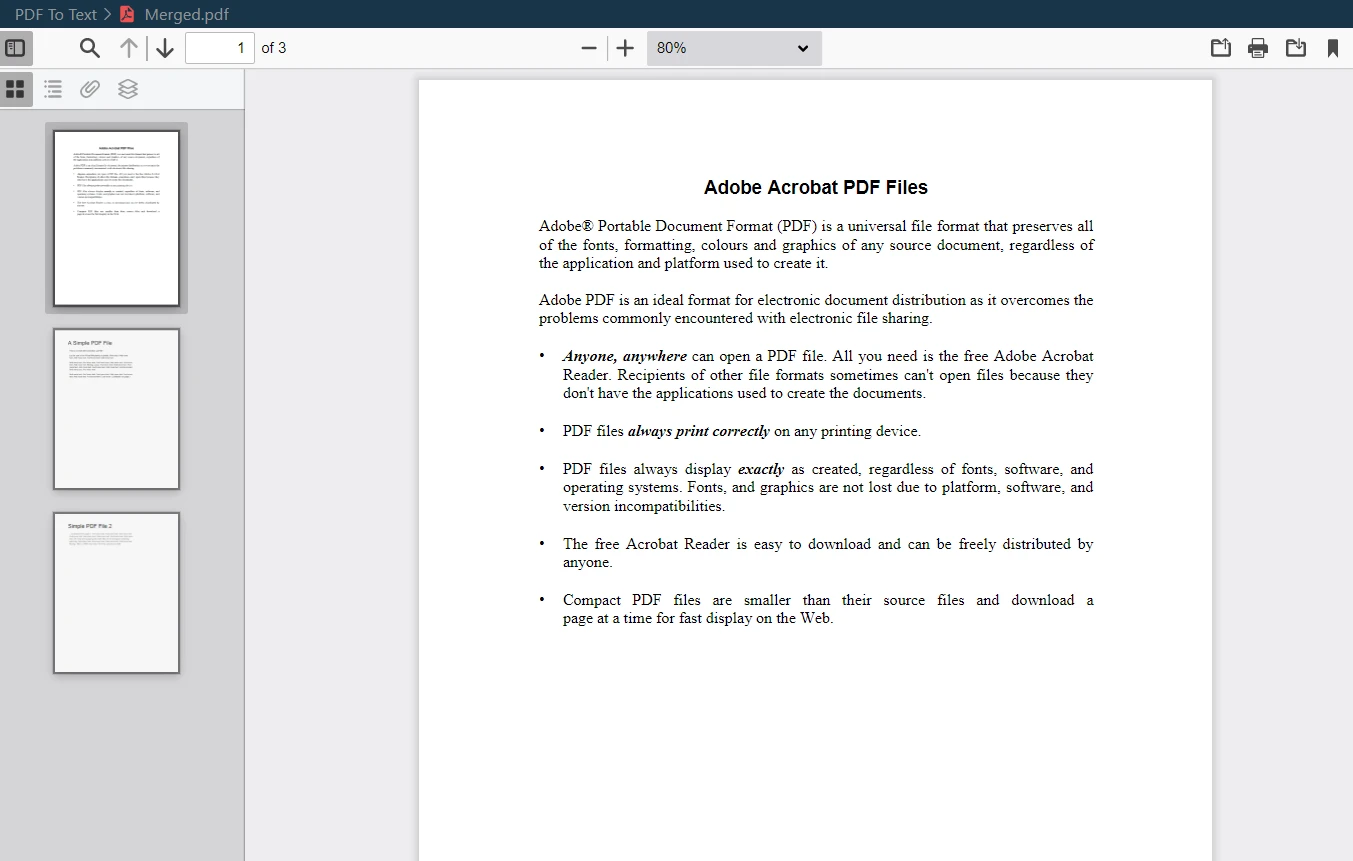 結合されたPDF出力
逆に、IronPDF は既存の PDF ファイルを複数の新しいファイルに分割することにも優れています。 この機能は、大きな PDF ドキュメントから特定のセクションを抽出する必要がある場合や、ドキュメントをより小さく管理しやすい部分に分割する必要がある場合に便利です。
from ironpdf import PdfDocument, License, Logger

# Set the IronPDF license key
License.LicenseKey = "Your-License-Key"
# Enable logging for debugging purposes
Logger.EnableDebugging = True
Logger.LogFilePath = "Custom.log"
Logger.LoggingMode = Logger.LoggingModes.All

# Load the PDF document
pdf = PdfDocument("Report.pdf")
# Extract the first page
page1doc = pdf.CopyPage(0)
# Save the extracted page as a new PDF
page1doc.SaveAs("Split1.pdf")たとえば、大きなレポートから特定の PDF ページを分離したり、本の異なる章から個別のドキュメントを作成したりする必要がある場合があります。 IronPDF を使用すると、必要な複数のページを選択して新しい PDF ファイルに変換できるため、必要に応じて PDF コンテンツを操作および管理できます。
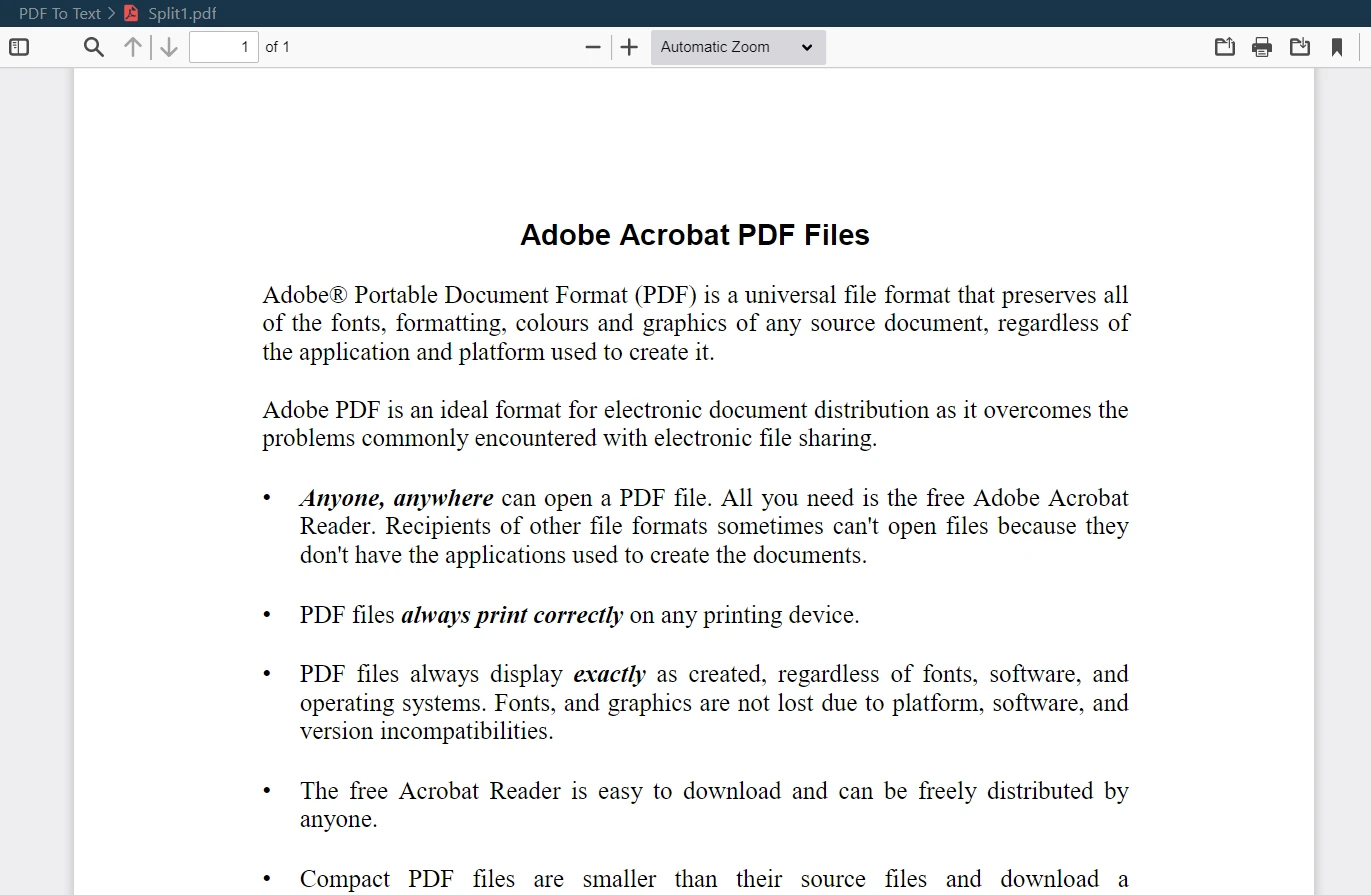 PDF出力の分割
機密情報や秘密情報を扱う場合、PDF ドキュメントのセキュリティ保護は最優先事項になります。 IronPDF は、ユーザー パスワードの保護や暗号化などの強力なセキュリティ機能を提供することで、このニーズに対応します。 これにより、PDF ファイルは安全に保たれ、許可されたユーザーのみがアクセスできるようになります。
from ironpdf import PdfDocument, License, Logger

# Set the IronPDF license key
License.LicenseKey = "Your-License-Key"
# Enable logging for debugging purposes
Logger.EnableDebugging = True
Logger.LogFilePath = "Custom.log"
Logger.LoggingMode = Logger.LoggingModes.All

# Load the PDF document
pdf = PdfDocument("Report.pdf")
# Adjust security settings to make the PDF read-only and set permissions
pdf.SecuritySettings.RemovePasswordsAndEncryption()
pdf.SecuritySettings.MakePdfDocumentReadOnly("secret-key")
pdf.SecuritySettings.AllowUserAnnotations = False
pdf.SecuritySettings.AllowUserCopyPasteContent = False
pdf.SecuritySettings.AllowUserFormData = False
pdf.SecuritySettings.AllowUserPrinting = PdfPrintSecurity.FullPrintRights
# Set the document encryption passwords
pdf.SecuritySettings.OwnerPassword = "top-secret"  # password to edit the PDF
pdf.SecuritySettings.UserPassword = "sharable"  # password to open the PDF
# Save the secured PDF
pdf.SaveAs("secured.pdf")ユーザー パスワードを実装することで、PDF ドキュメントを表示または編集できるユーザーを制御できます。 暗号化オプションによりセキュリティがさらに強化され、不正アクセスからデータが保護されるため、IronPDF は PDF 形式で機密情報を管理するための信頼できる選択肢となります。
IronPDF のもう 1 つの重要な機能は、PDF ドキュメントからテキストを抽出できることです。 この機能は、データの取得、コンテンツの分析、さらには既存の PDF のテキスト コンテンツを新しいドキュメントに再利用する場合に特に役立ちます。
from ironpdf import PdfDocument, License, Logger

# Set the IronPDF license key
License.LicenseKey = "Your-License-Key"
# Enable logging for debugging purposes
Logger.EnableDebugging = True
Logger.LogFilePath = "Custom.log"
Logger.LoggingMode = Logger.LoggingModes.All

# Load the PDF document
pdf = PdfDocument("Report.pdf")
# Extract all text from the PDF document
allText = pdf.ExtractAllText()
# Extract text from a specific page in the document
specificPage = pdf.ExtractTextFromPage(3)分析のためにデータを抽出する場合、大きなドキュメント内で特定の情報を検索する場合、または PDF からテキスト ファイルにコンテンツを移行してさらに処理する場合、IronPDF を使用すると簡単かつ効率的に作業できます。 ライブラリにより、抽出されたテキストは元の書式と構造を維持し、特定のニーズに合わせてすぐに使用できるようになります。
PDF の効率的な管理は、そのコンテンツだけにとどまりません。 IronPDF を使用すると、作成者名、ドキュメントのタイトル、作成日などのドキュメントのメタデータとプロパティを効果的に管理できます。 この機能は、特にドキュメントの由来とメタデータが重要な環境では、PDF ドキュメントを整理およびカタログ化するために不可欠です。
from ironpdf import PdfDocument, License, Logger
from datetime import datetime

# Set the IronPDF license key
License.LicenseKey = "Your-License-Key"
# Enable logging for debugging purposes
Logger.EnableDebugging = True
Logger.LogFilePath = "Custom.log"
Logger.LoggingMode = Logger.LoggingModes.All

# Load an existing PDF or create a new one
pdf = PdfDocument("Report.pdf")
# Edit file metadata
pdf.MetaData.Author = "Satoshi Nakamoto"
pdf.MetaData.Keywords = "SEO, Friendly"
pdf.MetaData.ModifiedDate = datetime.now()
# Save the PDF with updated metadata
pdf.SaveAs("MetaData Updated.pdf")たとえば、学術機関や企業の環境では、文書の作成日と作成者を追跡できることは、記録の保存や文書の検索に不可欠です。 IronPDF を使用すると、この情報の管理が容易になり、Python アプリケーション内でドキュメント情報を効率的に処理および更新できるようになります。
ライセンス
このチュートリアルでは、PDF 操作のために Python で IronPDF を使用する基本について説明しました。 新しい PDF ファイルの作成から既存の PDF ファイルの結合、セキュリティ機能の追加まで、IronPDF はあらゆる Python 開発者にとって多目的なツールです。
IronPDF for Python には次の機能も備わっています。
IronPDF for Python では、ユーザーがその機能を試すことができる無料トライアルを提供しています。 トライアルの継続利用には、ライセンスは$999から始まります。 この価格設定により、開発者はプロジェクトで IronPDF のあらゆる機能を活用できます。

Curtis Chauは、カールトン大学でコンピュータサイエンスの学士号を取得し、Node.js、TypeScript、JavaScript、およびReactに精通したフロントエンド開発を専門としています。直感的で美しいユーザーインターフェースを作成することに情熱を持ち、Curtisは現代のフレームワークを用いた開発や、構造の良い視覚的に魅力的なマニュアルの作成を楽しんでいます。



IronPDF はIRONSUITEの一部です
オフィス文書向けの.NET API製品10個

PDFがHTMLのように見える必要があるとき、迅速に。











