



업데이트됨 2026년 4월 21일
Python으로 Scrapy 사용하기 (개발자를 위한 작동 방식)
여기 Python 기반 웹 스크래핑 프레임워크인 Scrapy와 온라인 데이터 추출 및 동적 PDF 생성을 최적화하기 위해 함께 작동하는 강력한 라이브러리인 IronPDF가 있습니다.
더 읽어보기

IronPDF 는 PDF 파일을 작성 하거나 애플리케이션 내에서 PDF 파일을 조작하려는 Python 개발자를 위한 순수 Python PDF 파일 객체 라이브러리입니다. IronPDF 단순함과 다재다능함이 뛰어나 자동 PDF 생성이나 소프트웨어 시스템에 PDF 생성 기능을 통합해야 하는 작업에 이상적인 선택입니다.
이 가이드에서는 순수 Python PDF 라이브러리인 IronPDF 사용하여 PDF 파일이나 PDF 페이지 속성을 생성하고 PDF 파일을 읽는 방법을 살펴봅니다. 이 문서에는 예제와 실제 코드 조각이 포함되어 있어, Python 프로젝트에서 IronPDF for Python의 PdfWriter를 사용하여 PDF 파일을 작성하고 새 PDF 페이지를 만드는 방법을 실질적으로 이해할 수 있습니다.
IronPDF를 사용하려면 먼저 Python Package Index를 통해 설치해야 합니다. 터미널에서 다음 명령어를 실행하세요:
IronPDF 새로운 PDF 파일을 생성 하고 기존 PDF 파일을 편집하는 과정을 간소화합니다. 이 프로그램은 간단한 한 페이지짜리 PDF 문서부터 사용자 비밀번호와 같은 다양한 요소를 포함하는 복잡한 문서까지, 문서를 생성하기 위한 직관적인 인터페이스를 제공합니다. 이 기능은 보고서 생성, 송장 작성 등과 같은 작업에 필수적입니다.
from ironpdf import ChromePdfRenderer, License, Logger

# Set the IronPDF license key
License.LicenseKey = "Your-License-Key"
# Enable logging for debugging purposes
Logger.EnableDebugging = True
Logger.LogFilePath = "Custom.log"
Logger.LoggingMode = Logger.LoggingModes.All

# Basic HTML content for the PDF
html = """
<html>
   <head>
      <title>IronPDF for Python!</title>
      <link rel='stylesheet' href='assets/style.css'>
   </head>
   <body>
      <h1>It's IronPDF World!!</h1>
      <a href="https://ironpdf.com/python/"><img src='assets/logo.png' /></a>
   </body>
</html>
"""

# Create a PDF renderer
renderer = ChromePdfRenderer()
# Render the HTML content as a PDF
pdf = renderer.RenderHtmlAsPdf(html)
# Save the rendered PDF to a file
pdf.SaveAs("New PDF File.pdf")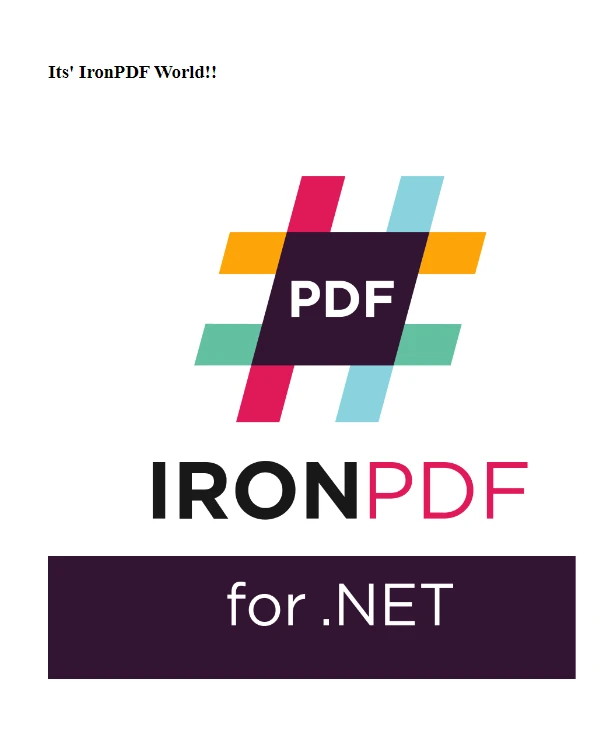 출력 파일
출력 파일
IronPDF 여러 PDF 파일을 하나로 병합하는 작업을 간소화합니다. 이 기능은 다양한 보고서를 취합하거나, 스캔한 문서를 모으거나, 서로 관련된 정보를 정리하는 데 유용합니다. 예를 들어, 여러 소스에서 가져온 자료를 바탕으로 종합 보고서를 작성하거나 여러 문서를 하나의 파일로 제시해야 할 때 PDF 파일을 병합해야 할 수 있습니다.
from ironpdf import PdfDocument, License, Logger

# Set the IronPDF license key
License.LicenseKey = "Your-License-Key"
# Enable logging for debugging purposes
Logger.EnableDebugging = True
Logger.LogFilePath = "Custom.log"
Logger.LoggingMode = Logger.LoggingModes.All

# Load existing PDF documents
pdfOne = PdfDocument("Report First.pdf")
pdfTwo = PdfDocument("Report Second.pdf")
# Merge the PDFs into a single document
merged = PdfDocument.Merge(pdfOne, pdfTwo)
# Save the merged PDF
merged.SaveAs("Merged.pdf")기존 PDF 파일을 새로운 PDF 파일로 병합하는 기능은 데이터 과학과 같은 분야에서도 유용할 수 있습니다. 통합된 PDF 문서는 AI 모듈 학습을 위한 데이터 세트로 활용될 수 있기 때문입니다. IronPDF 원본 문서의 각 페이지 형식과 무결성을 그대로 유지하여 이 작업을 손쉽게 처리하며, 매끄럽고 일관성 있는 PDF 출력 파일을 생성합니다.
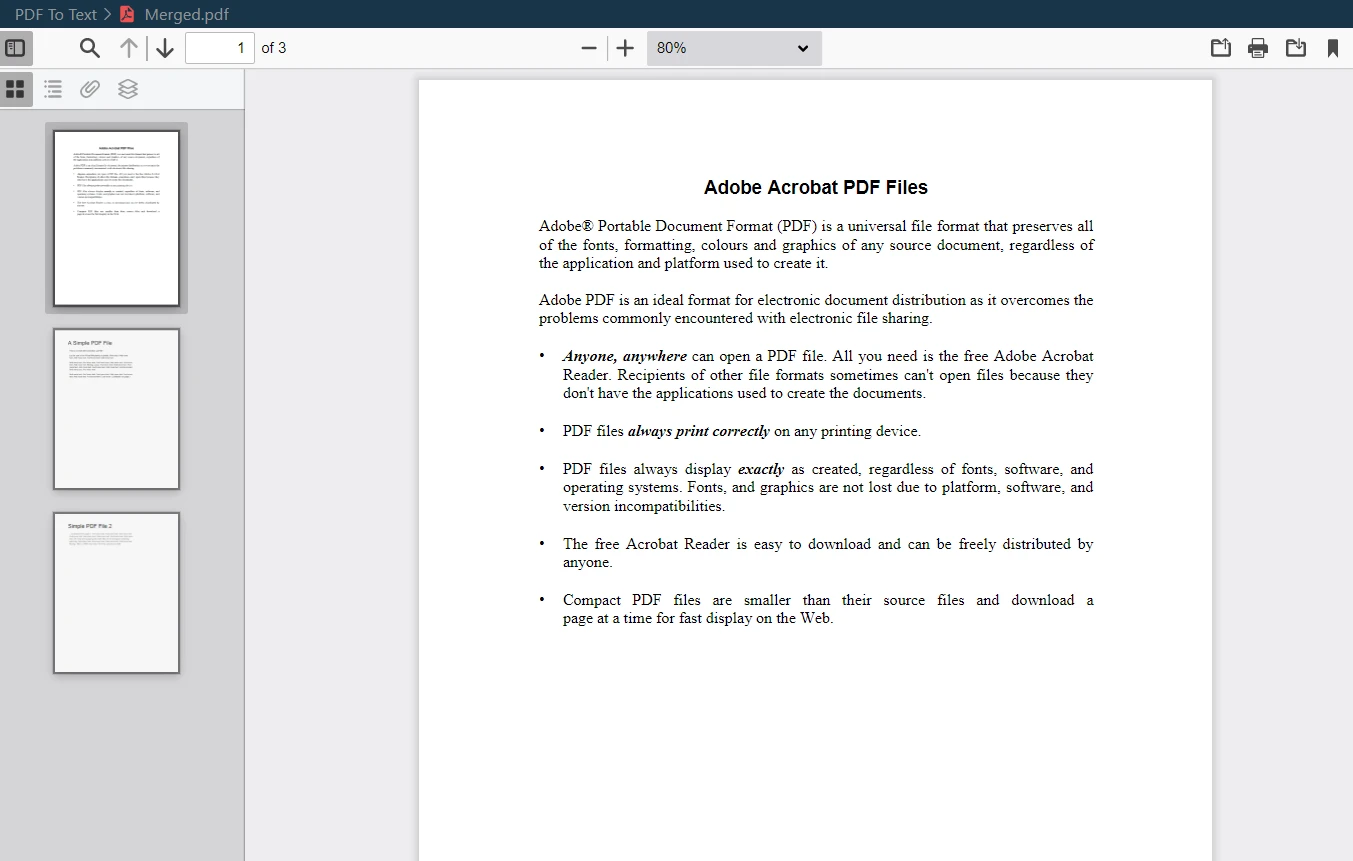 병합된 PDF 출력
반대로, IronPDF 기존 PDF 파일을 여러 개의 새 파일로 분할하는 데에도 탁월한 성능을 발휘합니다. 이 기능은 방대한 PDF 문서에서 특정 부분을 추출하거나 문서를 더 작고 관리하기 쉬운 부분으로 나눌 때 유용합니다.
from ironpdf import PdfDocument, License, Logger

# Set the IronPDF license key
License.LicenseKey = "Your-License-Key"
# Enable logging for debugging purposes
Logger.EnableDebugging = True
Logger.LogFilePath = "Custom.log"
Logger.LoggingMode = Logger.LoggingModes.All

# Load the PDF document
pdf = PdfDocument("Report.pdf")
# Extract the first page
page1doc = pdf.CopyPage(0)
# Save the extracted page as a new PDF
page1doc.SaveAs("Split1.pdf")예를 들어, 대규모 보고서에서 특정 PDF 페이지만 추출하거나 책의 각 장별로 개별 문서를 만들고 싶을 수 있습니다. IronPDF 사용하면 원하는 여러 페이지를 선택하여 새 PDF 파일로 변환할 수 있으므로 필요에 따라 PDF 콘텐츠를 조작하고 관리할 수 있습니다.
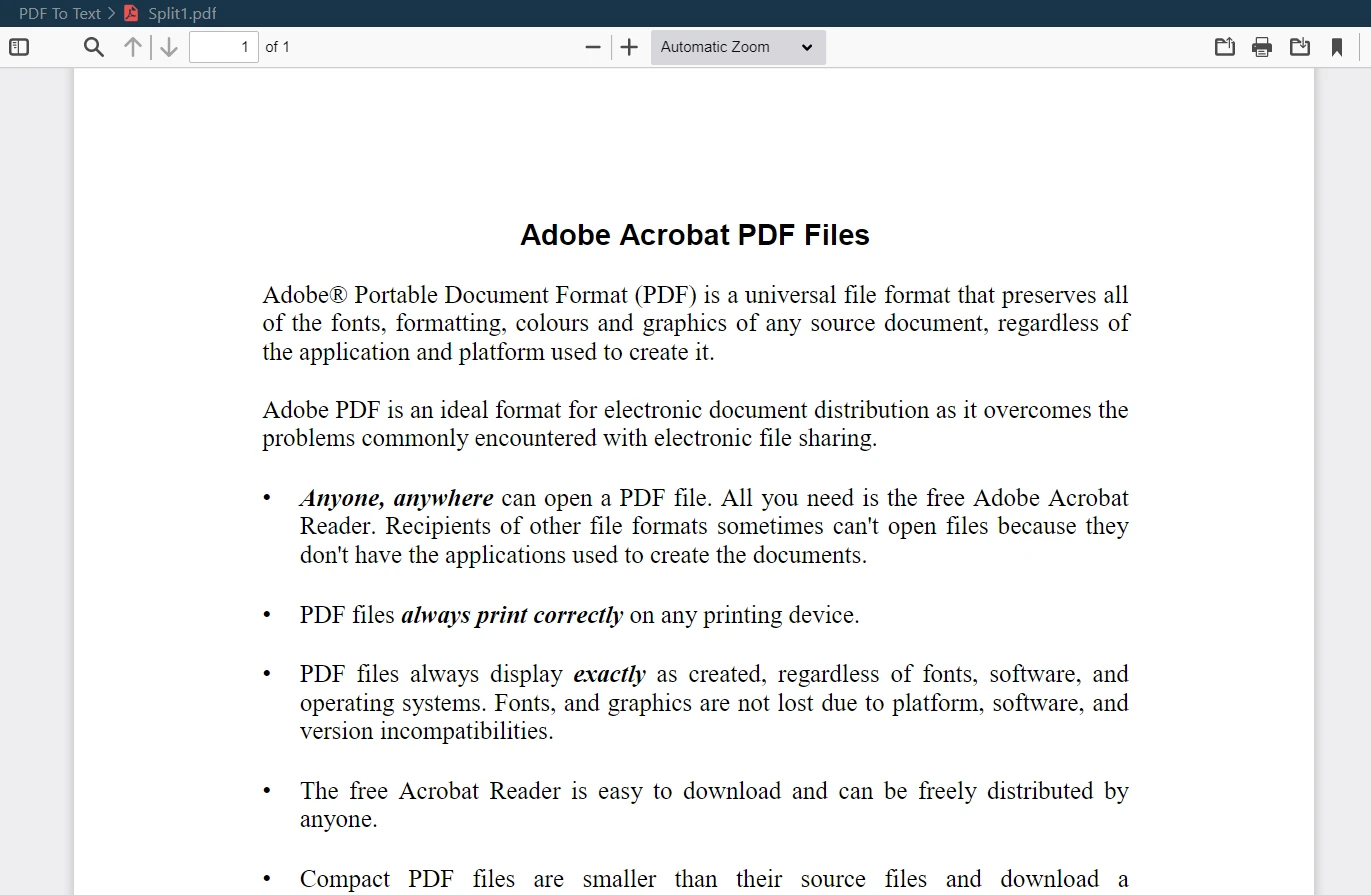 PDF 분할 출력
민감하거나 기밀 정보를 다룰 때는 PDF 문서 보안이 최우선 과제가 됩니다. IronPDF 사용자 비밀번호 보호 및 암호화를 포함한 강력한 보안 기능을 제공하여 이러한 요구 사항을 해결합니다. 이렇게 하면 PDF 파일이 안전하게 보호되고 승인된 사용자만 접근할 수 있게 됩니다.
from ironpdf import PdfDocument, License, Logger

# Set the IronPDF license key
License.LicenseKey = "Your-License-Key"
# Enable logging for debugging purposes
Logger.EnableDebugging = True
Logger.LogFilePath = "Custom.log"
Logger.LoggingMode = Logger.LoggingModes.All

# Load the PDF document
pdf = PdfDocument("Report.pdf")
# Adjust security settings to make the PDF read-only and set permissions
pdf.SecuritySettings.RemovePasswordsAndEncryption()
pdf.SecuritySettings.MakePdfDocumentReadOnly("secret-key")
pdf.SecuritySettings.AllowUserAnnotations = False
pdf.SecuritySettings.AllowUserCopyPasteContent = False
pdf.SecuritySettings.AllowUserFormData = False
pdf.SecuritySettings.AllowUserPrinting = PdfPrintSecurity.FullPrintRights
# Set the document encryption passwords
pdf.SecuritySettings.OwnerPassword = "top-secret"  # password to edit the PDF
pdf.SecuritySettings.UserPassword = "sharable"  # password to open the PDF
# Save the secured PDF
pdf.SaveAs("secured.pdf")사용자 암호를 설정하면 PDF 문서를 보고 편집할 수 있는 사람을 제어할 수 있습니다. 암호화 옵션은 보안을 한층 강화하여 무단 접근으로부터 데이터를 보호하므로 IronPDF PDF 형식의 민감한 정보를 관리하는 데 신뢰할 수 있는 선택입니다.
IronPDF 의 또 다른 중요한 기능은 PDF 문서에서 텍스트를 추출할 수 있다는 점입니다. 이 기능은 데이터 검색, 콘텐츠 분석, 또는 기존 PDF 파일의 텍스트 콘텐츠를 새 문서로 재활용하는 데 특히 유용합니다.
from ironpdf import PdfDocument, License, Logger

# Set the IronPDF license key
License.LicenseKey = "Your-License-Key"
# Enable logging for debugging purposes
Logger.EnableDebugging = True
Logger.LogFilePath = "Custom.log"
Logger.LoggingMode = Logger.LoggingModes.All

# Load the PDF document
pdf = PdfDocument("Report.pdf")
# Extract all text from the PDF document
allText = pdf.ExtractAllText()
# Extract text from a specific page in the document
specificPage = pdf.ExtractTextFromPage(3)분석을 위해 데이터를 추출하든, 방대한 문서에서 특정 정보를 검색하든, 또는 추가 처리를 위해 PDF 콘텐츠를 텍스트 파일로 변환하든, IronPDF 이러한 작업을 간편하고 효율적으로 수행할 수 있도록 지원합니다. 이 라이브러리는 추출된 텍스트가 원래의 형식과 구조를 유지하도록 보장하여 사용자의 특정 요구 사항에 즉시 사용할 수 있도록 합니다.
PDF를 효율적으로 관리하려면 콘텐츠 관리 그 이상의 노력이 필요합니다. IronPDF 작성자 이름, 문서 제목, 생성 날짜 등과 같은 문서 메타데이터 및 속성을 효과적으로 관리할 수 있도록 해줍니다. 이 기능은 특히 문서 출처 및 메타데이터가 중요한 환경에서 PDF 문서를 정리하고 분류하는 데 필수적입니다.
from ironpdf import PdfDocument, License, Logger
from datetime import datetime

# Set the IronPDF license key
License.LicenseKey = "Your-License-Key"
# Enable logging for debugging purposes
Logger.EnableDebugging = True
Logger.LogFilePath = "Custom.log"
Logger.LoggingMode = Logger.LoggingModes.All

# Load an existing PDF or create a new one
pdf = PdfDocument("Report.pdf")
# Edit file metadata
pdf.MetaData.Author = "Satoshi Nakamoto"
pdf.MetaData.Keywords = "SEO, Friendly"
pdf.MetaData.ModifiedDate = datetime.now()
# Save the PDF with updated metadata
pdf.SaveAs("MetaData Updated.pdf")예를 들어, 학술 기관이나 기업 환경에서 문서의 작성 날짜와 작성자를 추적하는 것은 기록 보관 및 문서 검색에 필수적일 수 있습니다. IronPDF 이러한 정보 관리를 간편하게 만들어주며, Python 애플리케이션 내에서 문서 정보를 처리하고 업데이트하는 효율적인 방법을 제공합니다.
특허
이 튜토리얼에서는 Python에서 IronPDF 사용하여 PDF를 조작하는 기본 사항을 다뤘습니다. IronPDF 새로운 PDF 파일 생성부터 기존 파일 병합, 보안 기능 추가에 이르기까지 모든 Python 개발자에게 유용한 다재다능한 도구입니다.
Python용 IronPDF 다음과 같은 기능도 제공합니다.
IronPDF for Python은 사용자가 기능을 살펴볼 수 있도록 무료 평가판을 제공합니다. 체험판 이후 지속적인 사용을 위해 라이선스는 $999에서 시작합니다. 이러한 가격 정책 덕분에 개발자들은 프로젝트에서 IronPDF의 모든 기능을 활용할 수 있습니다.

커티스 차우는 칼턴 대학교에서 컴퓨터 과학 학사 학위를 취득했으며, Node.js, TypeScript, JavaScript, React를 전문으로 하는 프론트엔드 개발자입니다. 직관적이고 미적으로 뛰어난 사용자 인터페이스를 만드는 데 열정을 가진 그는 최신 프레임워크를 활용하고, 잘 구성되고 시각적으로 매력적인 매뉴얼을 제작하는 것을 즐깁니다.



IronPDF는 IRON SUITE 의 일부입니다.
10개의 .NET API 제품, 당신의 사무 문서를 위해











PDF 파일을 HTML처럼 빠르게 변환해야 할 때.

