

Python으로 스캔한 PDF에서 텍스트를 추출하는 방법

Extracting text from PDF files, especially scanned ones, can be challenging. However, this process can be simplified with the right tools and techniques. This tutorial will guide you in using IronPDF, a Python library, to extract text from a scanned PDF file. This article will cover how to set up your environment, apply optical character recognition (OCR), and perform text extraction effectively.
1. Introduction to IronPDF
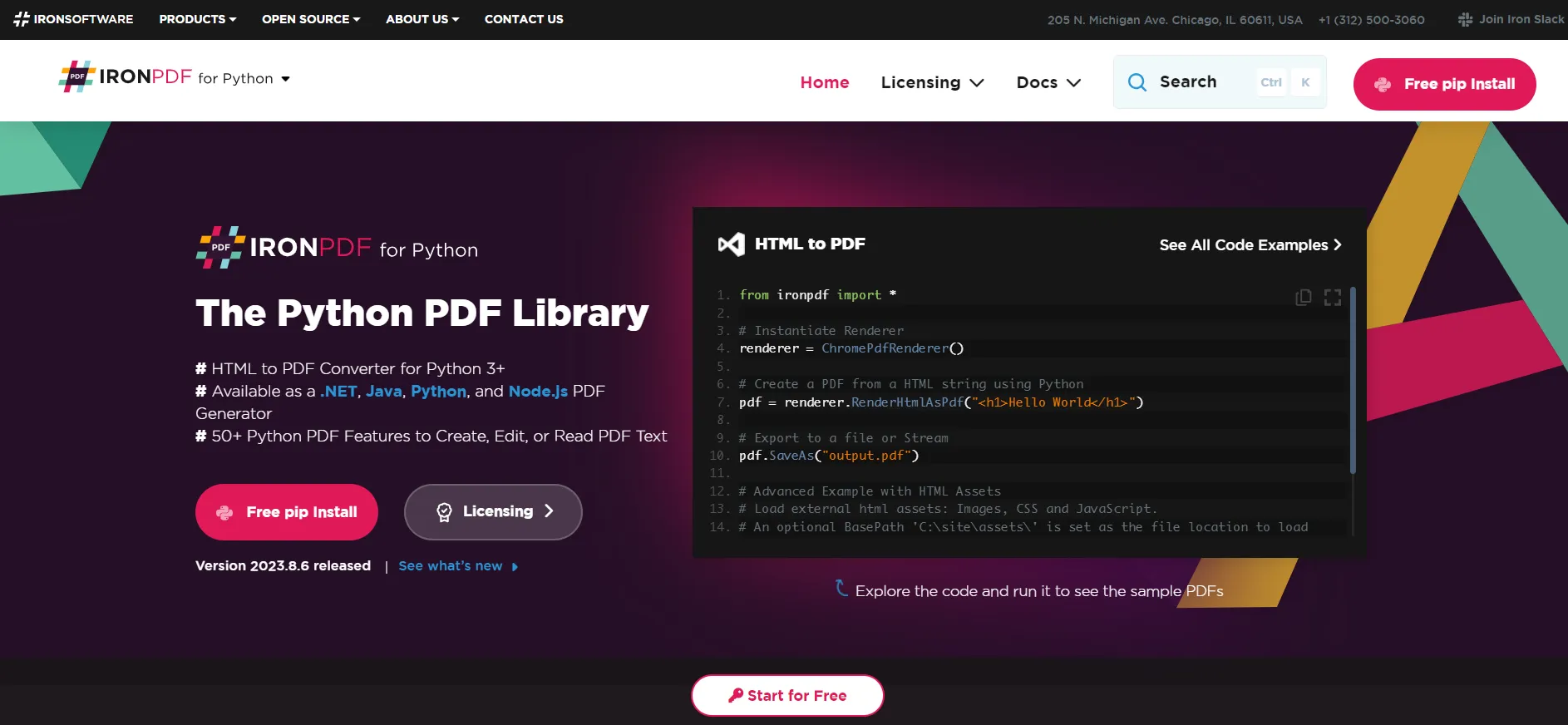 The Python PDF Library
IronPDF is a versatile and powerful library designed for PDF manipulation and processing within the Python environment. Renowned for its ability to seamlessly integrate with Python applications, IronPDF offers a range of functionalities that extend beyond essential PDF reading and writing. It stands out for its ability to convert HTML to PDF, render PDF documents from web pages or raw HTML codes, and edit existing PDF files.
Moreover, its Optical Character Recognition (OCR) feature is handy for extracting text from scanned PDF documents. It is a go-to tool for developers dealing with various PDF-related tasks. Whether it's for creating, modifying, or extracting data from PDF files, IronPDF is a robust and reliable solution, catering to the diverse needs of Python developers in various applications.
2. Prerequisites
Before delving into the text extraction process from PDFs, it's essential to have a few prerequisites and necessary libraries in place. This will ensure a smooth and effective workflow as you proceed.
- Python Environment: Ensure that you have Python installed on your computer system. Python is a versatile programming language, and its extensive library support makes it ideal for tasks like text extraction. If you haven't installed Python, you can download it from the official Python website. Make sure to download a Python version that is compatible with your operating system.
- .NET 6.0 SDK Installation: Since IronPDF for Python leverages the IronPDF .NET library, which is built on .NET 6.0, it's crucial to have the .NET 6.0 SDK installed on your system. This SDK provides the necessary runtime and libraries for the IronPDF library to function correctly. You can download and install the .NET 6.0 SDK from the official Microsoft .NET website.
- IronPDF for Python Library: IronPDF is a robust library for working with PDF documents in Python. It not only facilitates text extraction but also offers functionalities like PDF creation, editing, and conversion.
- Scanned PDF Document: Have a scanned PDF document ready for text extraction. This document should ideally be clear and legible, as the quality of the scanned PDF can significantly impact the accuracy of the OCR and the extracted text.
- Understanding of Basic Python: A basic understanding of Python programming is beneficial. Familiarity with concepts like variables, loops, and basic file operations will help you navigate through the code and understand the text extraction process more effectively.
- A Suitable Development Environment: While not strictly necessary, having a development environment like Visual Studio Code, PyCharm, or even a Jupyter Notebook can make your coding experience more manageable. These environments provide features like syntax highlighting, code completion, and debugging tools that are extremely helpful when working with Python scripts.
With these prerequisites, you are well-prepared to start extracting text from scanned PDF documents using the IronPDF for Python library. The subsequent steps will guide you through installing IronPDF, loading your PDF document, applying OCR, extracting text, and utilizing the extracted data for your specific needs.
3. Step-by-Step Guide for Extracting Text From Scanned PDF
Step 1: Install IronPDF
First, you must install the IronPDF Python library in your Python environment. This is typically done using Python's package manager, pip. Open your command line interface and run the following command:
pip install ironpdf
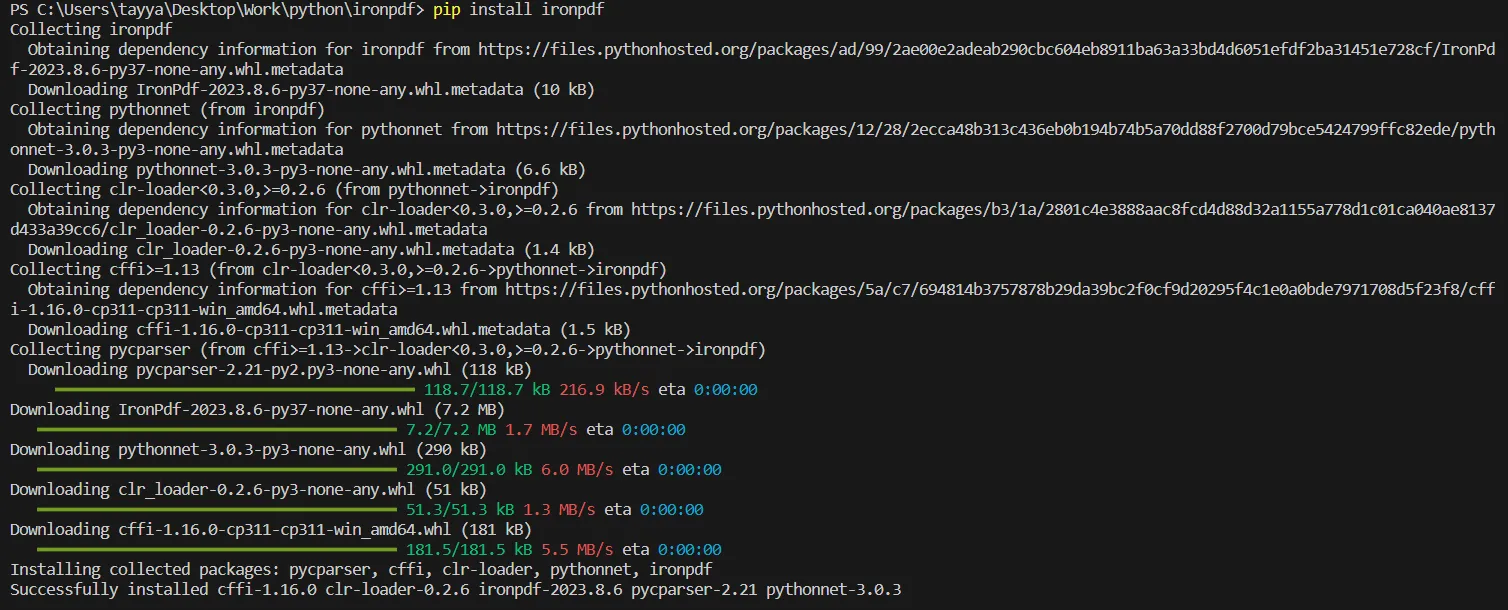 Install the IronPDF package
Step 2: Import IronPDF
After installation, import the IronPDF library into your Python script. This step is crucial to access the functionalities provided by IronPDF:
import ironpdfimport ironpdfBy importing IronPDF, you can now use its classes and methods in your script.
Step 3: Apply Your License Key
IronPDF requires a license key for full functionality. If you have purchased a license, apply your license key as follows:
ironpdf.License.LicenseKey = "YOUR-LICENSE-KEY-HERE"ironpdf.License.LicenseKey = "YOUR-LICENSE-KEY-HERE"Replace "YOUR-LICENSE-KEY-HERE" with your actual IronPDF license key. This step is essential to unlock all the features of IronPDF without any limitations.
Step 4: Load the Scanned PDF File
To extract text, start by loading the PDF document into your script:
pdf = ironpdf.PdfDocument.FromFile("scannedpdf.pdf")pdf = ironpdf.PdfDocument.FromFile("scannedpdf.pdf")Here, "scannedpdf.pdf" should be replaced with the actual file path of the PDF document you intend to process. This command reads the PDF file and prepares it for text extraction.
Step 5: Extract Text from PDF File
With the PDF loaded, you can now extract text using IronPDF's ExtractAllText() method as shown in the following code:
text = pdf.ExtractAllText()text = pdf.ExtractAllText()This line of code processes the entire PDF document and extracts its text content, storing it in the text variable.
Step 6: Process and Utilize the Extracted Text
After extraction, the text data is available in the text variable. You can print this text to the console or process it further according to your needs:
print(text)
# Additional code here to process or utilize the extracted text
print(text)
# Additional code here to process or utilize the extracted textThis step can involve various operations like saving the extracted text to a file, performing text data analysis, or integrating it into a database or a web application. Here, you can see the output of the above code.
OUTPUT Text
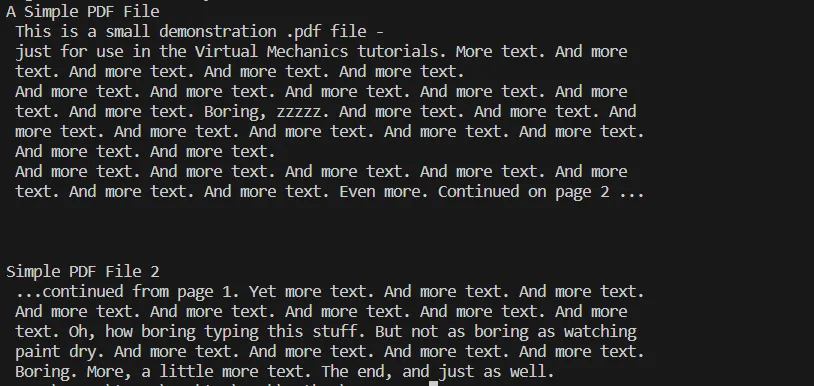 Console output of the above process of extracting text from PDF file
Step 7: Additional Operations (Optional)
IronPDF's capabilities extend beyond text extraction. Depending on your project's requirements, you can explore additional features such as editing PDFs, converting PDFs to different formats, or even generating PDFs from HTML.
4. Advanced Techniques
4.1 Handling Non-Text Elements
Scanned PDFs often contain non-text elements like images or graphs. While OCR focuses on text, you may want to handle these elements differently. You might need additional Python libraries to process or ignore non-text content.
4.2 Improving OCR Accuracy
The accuracy of text extraction can vary based on the quality of the scanned documents. To improve the OCR results, ensure that your scanned PDF is high quality and that the text is as clear as possible.
4.3 Converting to Other Formats
After extracting text from PDF, you may want to convert it into other formats like CSV, JSON, or XML for further processing. IronPDF allows for such conversions, providing you with flexible data handling options.
5. Troubleshooting Common Issues
When working with OCR and text extraction, you may encounter issues such as:
- Poor OCR accuracy due to low-quality scans.
- Missing text if the OCR fails to recognize some characters.
- Errors in loading large PDF files.
To troubleshoot these issues, ensure your scanned PDF files are clear and of high quality, consider breaking large files into smaller ones, and verify that your IronPDF library is up to date.
Conclusion
Extracting text from a scanned PDF file can be seamlessly accomplished using the IronPDF Python library. Following the steps outlined in this tutorial, you can convert a non-searchable scanned document into a text-rich format that can be quickly processed and analyzed. Remember to handle each PDF page carefully and apply OCR to turn your scanned PDF into a searchable PDF file. With the extracted text, the possibilities for data manipulation and utilization are vast, paving the way for innovative solutions and streamlined workflows.
In summary, this article covered the installation and setup of IronPDF, loading PDF files, applying OCR technology to make a scanned PDF searchable, the actual text extraction process, and handling multiple PDF pages. It also touched upon advanced techniques and troubleshooting common issues. With this knowledge, you can extract text data from PDF documents using Python.
IronPDF offers a free trial for full-feature access, allowing users to assess PDF manipulation and text extraction capabilities. After the trial, a paid license starts at $799, catering to professional and commercial use with a comprehensive feature set. IronPDF is free for development, enabling developers to integrate and test its functionalities without cost during the application development phase.
자주 묻는 질문
Python을 사용하여 스캔한 PDF에서 텍스트를 추출하기 위한 환경을 설정하려면 어떻게 해야 하나요?
환경을 설정하려면 Python의 패키지 관리자를 사용하여 pip install ironpdf로 .NET 6.0 SDK 및 IronPDF 라이브러리를 설치합니다. Python 환경과 Visual Studio Code 또는 PyCharm과 같은 적절한 개발 환경이 있는지 확인하세요.
광학 문자 인식(OCR)이란 무엇이며 Python에서 어떻게 적용되나요?
광학 문자 인식(OCR)은 스캔한 종이 문서나 PDF와 같은 다양한 유형의 문서를 편집 및 검색 가능한 데이터로 변환하는 데 사용되는 기술입니다. Python에서는 스캔한 PDF를 로드하고 라이브러리의 OCR 기능을 사용하여 텍스트를 추출함으로써 IronPDF를 사용하여 OCR을 적용할 수 있습니다.
스캔한 PDF에서 정확한 텍스트 추출을 보장하려면 어떻게 해야 하나요?
정확한 텍스트 추출을 보장하려면 더 선명하고 품질이 좋은 스캔을 통해 OCR 정확도가 향상되므로 고품질 스캔 PDF를 사용하세요. IronPDF를 사용하면 OCR을 적용하여 텍스트를 추출하고 필요에 따라 추가 처리할 수 있습니다.
IronPDF를 사용하여 스캔한 PDF에서 텍스트를 추출하려면 어떤 단계를 거쳐야 하나요?
단계에는 IronPDF 설치, 라이브러리 가져오기, 라이선스 키 적용, 스캔한 PDF 로드, OCR 적용, ExtractAllText() 메서드를 사용하여 텍스트 추출이 포함됩니다.
추출된 텍스트를 CSV, JSON 또는 XML과 같은 형식으로 변환할 수 있나요?
예, IronPDF를 사용하여 스캔한 PDF에서 텍스트를 추출한 후에는 추가 분석이나 데이터 조작을 위해 CSV, JSON 또는 XML과 같은 다양한 형식으로 변환할 수 있습니다.
텍스트 추출에 실패할 경우 일반적인 문제 해결 단계는 무엇인가요?
텍스트 추출에 실패하면 스캔한 PDF의 품질을 확인하세요. IronPDF가 올바르게 설치되어 있고 개발 환경이 올바르게 설정되어 있는지 확인하세요. 또한 올바른 방법과 OCR 기능이 사용되고 있는지 확인하세요.
IronPDF에 대한 평가판이 있나요?
예, IronPDF는 사용자가 기능을 테스트할 수 있는 무료 평가판을 제공합니다. 평가판 기간이 지난 후 모든 기능을 사용하려면 유료 라이선스가 필요합니다.










 무료로 시작하세요
 무료로 시작하세요
 무료 라이브 데모 예약하기



 신용카드나 계정 생성은 필요하지 않습니다.









