




업데이트됨 2026년 4월 23일
.NET에서 Microsoft.Extensions.AI로 LLM 통합 간소화
AI는 소프트웨어 개발을 변혁하고 있으나, 대규모 언어 모델(LLM)을 .NET에 통합하는 것은 지금까지 복잡했습니다. 현대에는 OpenAI 기반 PDF 파싱, 데이터 추출 및 콘텐츠 요약을 .NET 애플리케이션에 가져오는 IronPdf.AI로 AI 통합을 더욱 확장하세요.
더 읽어보기

C# DataTables에 대한 튜토리얼에 오신 것을 환영합니다. .NET framework에서 제공하는 DataTable은 데이터를 표 형식으로 저장, 조작 및 쿼리할 수 있는 강력한 데이터 구조입니다. 이 튜토리얼에서는 C#에서의 DataTables의 기본 사항, DataTables 생성 및 수정, 열과 행 추가, 데이터 쿼리, DataView을 사용한 필터링 및 정렬 등을 탐구할 것입니다.
이 튜토리얼이 끝나면 C# 애플리케이션에서 DataTables을 사용하는 방법에 대한 충분한 이해를 얻게 될 것입니다. 시작해봅시다!
C#에서 DataTable을 생성하려면 먼저 System.Data 네임스페이스를 가져와야 합니다. 이 네임스페이스에는 DataTable 클래스를 포함하여 데이터 조작과 관련된 다양한 클래스와 메소드가 포함되어 있습니다.
using System.Data;Imports System.Data다음으로, DataTable 클래스의 인스턴스를 생성할 수 있습니다. 이 작업을 수행하는 가장 간단한 방법은 기본 생성자를 사용하는 것입니다:
DataTable dt = new DataTable();Dim dt As New DataTable()생성자에 문자열 매개변수를 전달하여 특정 이름을 가진 DataTable을 생성할 수도 있습니다:
DataTable dt = new DataTable("Employees");Dim dt As New DataTable("Employees")DataTable을 생성한 후, 열을 추가할 수 있습니다. 열을 추가하려면 먼저 DataColumn 클래스의 인스턴스를 생성하고 ColumnName 및 DataType과 같은 속성을 설정해야 합니다.
DataTable에 세 개의 열을 추가하는 방법의 예를 보여 드립니다:
DataColumn idColumn = new DataColumn("Id", typeof(int));
DataColumn nameColumn = new DataColumn("Name", typeof(string));
DataColumn ageColumn = new DataColumn("Age", typeof(int));

dt.Columns.Add(idColumn);
dt.Columns.Add(nameColumn);
dt.Columns.Add(ageColumn);Dim idColumn As New DataColumn("Id", GetType(Integer))
Dim nameColumn As New DataColumn("Name", GetType(String))
Dim ageColumn As New DataColumn("Age", GetType(Integer))
dt.Columns.Add(idColumn)
dt.Columns.Add(nameColumn)
dt.Columns.Add(ageColumn)데이터 테이블에 있는 Id 열과 같은 여러 열을 추가할 수 있습니다.
열 정의가 완료되면 DataTable에 행을 추가하기 시작할 수 있습니다. 행을 추가하려면 DataRow 클래스의 새 인스턴스를 생성하고 필요한 데이터로 필드를 채워야 합니다.
다음은 DataTable에 새로운 행을 추가하는 방법의 예시입니다:
DataRow newRow = dt.NewRow();

newRow["Id"] = 1;
newRow["Name"] = "John Doe";
newRow["Age"] = 30;

dt.Rows.Add(newRow);Dim newRow As DataRow = dt.NewRow()
newRow("Id") = 1
newRow("Name") = "John Doe"
newRow("Age") = 30
dt.Rows.Add(newRow)반복문 내에서 동일한 메소드를 사용하여 여러 DataTable 행을 한 번에 추가할 수도 있습니다.
for (int i = 1; i <= 3; i++)
{
    DataRow row = dt.NewRow();
    row["Id"] = i;
    row["Name"] = "Employee " + i;
    row["Age"] = 20 + i;
    dt.Rows.Add(row);
}For i As Integer = 1 To 3
Dim row As DataRow = dt.NewRow()
row("Id") = i
row("Name") = "Employee " & i
row("Age") = 20 + i
dt.Rows.Add(row)
Next i위의 코드에서는 세 개의 데이터 행을 추가했습니다.
DataTable에 저장된 데이터에 접근하려면 Rows 및 Columns 컬렉션을 반복하면서 접근할 수 있습니다. 다음은 콘솔에서 DataTable의 내용을 표시하는 방법에 대한 예시입니다:
foreach (DataRow row in dt.Rows)
{
    foreach (DataColumn col in dt.Columns)
    {
        Console.Write(row[col] + "\t");
    }
    Console.WriteLine();
}Imports Microsoft.VisualBasic
For Each row As DataRow In dt.Rows
For Each col As DataColumn In dt.Columns
Console.Write(row(col) & vbTab)
Next col
Console.WriteLine()
Next rowDataTable의 데이터를 수정하려면 DataRow 오브젝트의 값을 업데이트하여 수정할 수 있습니다. 특정 직원의 나이를 업데이트하는 방법의 예를 보여 드립니다:
var primaryKey = 1;
DataRow employeeRow = dt.Rows.Find(primaryKey); // Find the row with the specified primary key
if (employeeRow != null)
{
    employeeRow["Age"] = 35;
}Dim primaryKey = 1
Dim employeeRow As DataRow = dt.Rows.Find(primaryKey) ' Find the row with the specified primary key
If employeeRow IsNot Nothing Then
employeeRow("Age") = 35
End IfDataTable에서 행을 삭제하려면 DataRow 객체에서 Delete 메소드를 호출해야 합니다:
DataRow employeeRow = dt.Rows.Find(1);
if (employeeRow != null)
{
    employeeRow.Delete();
    dt.AcceptChanges(); // Commit the deletion
}Dim employeeRow As DataRow = dt.Rows.Find(1)
If employeeRow IsNot Nothing Then
employeeRow.Delete()
dt.AcceptChanges() ' Commit the deletion
End IfDelete을(를) DataRow에서 호출하면 해당 행이 삭제 대상으로만 표시됩니다. 삭제된 행을 영구적으로 제거하려면 DataTable에서 AcceptChanges 메소드를 호출해야 합니다.
일부 경우에는 여러 데이터 테이블을 동시에 작업해야 할 수 있습니다. 여러 DataTable 객체를 저장하고 그들 간의 관계를 관리하기 위해 데이터셋 변수를 만들 수 있습니다.
LINQ (Language Integrated Query)는 DataTable 객체를 포함하여 다양한 데이터 소스에서 데이터를 쿼리할 수 있는 C#의 강력한 기능입니다. DataTables와 함께 LINQ를 사용하려면 System.Linq 네임스페이스를 가져와야 합니다. LINQ를 사용하여 25세 이상 직원들을 필터링하는 방법의 예를 보여 드립니다:
using System.Linq;

var filteredRows = dt.AsEnumerable().Where(row => row.Field<int>("Age") > 25);

foreach (DataRow row in filteredRows)
{
    Console.WriteLine(row["Name"]);
}Imports System.Linq
Private filteredRows = dt.AsEnumerable().Where(Function(row) row.Field(Of Integer)("Age") > 25)
For Each row As DataRow In filteredRows
Console.WriteLine(row("Name"))
Next rowDataView은 System.Data 네임스페이스에서 제공하는 또 다른 유용한 클래스이며, DataTable의 정렬된 뷰나 필터링된 뷰를 생성할 수 있습니다. 이는 DataGridView 같은 UI 컨트롤에 데이터를 표시해야 할 때 특히 유용합니다. 또한, 데이터 바인딩을 수행하여 DataTable에서 DataGridView 컨트롤에 데이터를 추가할 수 있습니다.
직원의 나이에 따라 필터링하고 정렬할 DataView를 만드는 예시입니다:
DataView view = new DataView(dt);

// Filter employees older than 25
view.RowFilter = "Age > 25";

// Sort by age in descending order
view.Sort = "Age DESC";

// Display the filtered and sorted data
foreach (DataRowView rowView in view)
{
    DataRow row = rowView.Row;
    Console.WriteLine(row["Name"]);
}Dim view As New DataView(dt)
' Filter employees older than 25
view.RowFilter = "Age > 25"
' Sort by age in descending order
view.Sort = "Age DESC"
' Display the filtered and sorted data
For Each rowView As DataRowView In view
Dim row As DataRow = rowView.Row
Console.WriteLine(row("Name"))
Next rowViewIronPDF는 사용자 친화적인 PDF 조작 기능이 풍부한 강력한 HTML to PDF 변환기이며, 개발자가 .NET 애플리케이션 내에서 PDF 문서를 생성, 읽기 및 편집할 수 있게 해줍니다.
using IronPdf;

class Program
{
    static void Main(string[] args)
    {
        var renderer = new ChromePdfRenderer();

        // Convert HTML String to PDF
        var htmlContent = "<h1>Hello, IronPDF!</h1><p>This is a PDF from an HTML string.</p>";
        var pdfFromHtmlString = renderer.RenderHtmlAsPdf(htmlContent);
        pdfFromHtmlString.SaveAs("HTMLStringToPDF.pdf");

        // Convert HTML File to PDF
        var htmlFilePath = "path_to_your_html_file.html"; // Specify the path to your HTML file
        var pdfFromHtmlFile = renderer.RenderHtmlFileAsPdf(htmlFilePath);
        pdfFromHtmlFile.SaveAs("HTMLFileToPDF.pdf");

        // Convert URL to PDF
        var url = "http://ironpdf.com"; // Specify the URL
        var pdfFromUrl = renderer.RenderUrlAsPdf(url);
        pdfFromUrl.SaveAs("URLToPDF.pdf");
    }
}Imports IronPdf
Friend Class Program
Shared Sub Main(ByVal args() As String)
Dim renderer = New ChromePdfRenderer()
' Convert HTML String to PDF
Dim htmlContent = "<h1>Hello, IronPDF!</h1><p>This is a PDF from an HTML string.</p>"
Dim pdfFromHtmlString = renderer.RenderHtmlAsPdf(htmlContent)
pdfFromHtmlString.SaveAs("HTMLStringToPDF.pdf")
' Convert HTML File to PDF
Dim htmlFilePath = "path_to_your_html_file.html" ' Specify the path to your HTML file
Dim pdfFromHtmlFile = renderer.RenderHtmlFileAsPdf(htmlFilePath)
pdfFromHtmlFile.SaveAs("HTMLFileToPDF.pdf")
' Convert URL to PDF
Dim url = "http://ironpdf.com" ' Specify the URL
Dim pdfFromUrl = renderer.RenderUrlAsPdf(url)
pdfFromUrl.SaveAs("URLToPDF.pdf")
End Sub
End Class이 섹션에서는 IronPDF를 사용하여 DataTable을 PDF 문서로 내보내는 방법을 배우겠습니다.
먼저 IronPDF NuGet 패키지를 설치해야 합니다. Visual Studio에서 패키지 관리자 콘솔을 열고 다음 명령어를 실행하세요:
패키지가 설치되면 코드에서 필요한 네임스페이스를 가져오는 것으로 시작할 수 있습니다:
using IronPdf;
using System.IO;Imports IronPdf
Imports System.IO다음으로, DataTable을 HTML 테이블로 변환하는 도우미 메서드를 만드세요. IronPDF는 HTML을 사용하여 PDF 문서의 콘텐츠를 렌더링합니다:
public static string ConvertDataTableToHtml(DataTable dt)
{
    StringBuilder htmlBuilder = new StringBuilder();

    htmlBuilder.AppendLine("<table border='1' cellpadding='5' cellspacing='0'>");
    htmlBuilder.AppendLine("<tr>");

    // Add column headers
    foreach (DataColumn col in dt.Columns)
    {
        htmlBuilder.AppendFormat("<th>{0}</th>", col.ColumnName);
    }

    htmlBuilder.AppendLine("</tr>");

    // Add rows
    foreach (DataRow row in dt.Rows)
    {
        htmlBuilder.AppendLine("<tr>");

        foreach (DataColumn col in dt.Columns)
        {
            htmlBuilder.AppendFormat("<td>{0}</td>", row[col]);
        }

        htmlBuilder.AppendLine("</tr>");
    }

    htmlBuilder.AppendLine("</table>");

    return htmlBuilder.ToString();
}Public Shared Function ConvertDataTableToHtml(dt As DataTable) As String
Dim htmlBuilder As New StringBuilder()
htmlBuilder.AppendLine("<table border='1' cellpadding='5' cellspacing='0'>")
htmlBuilder.AppendLine("<tr>")
' Add column headers
For Each col As DataColumn In dt.Columns
htmlBuilder.AppendFormat("<th>{0}</th>", col.ColumnName)
Next
htmlBuilder.AppendLine("</tr>")
' Add rows
For Each row As DataRow In dt.Rows
htmlBuilder.AppendLine("<tr>")
For Each col As DataColumn In dt.Columns
htmlBuilder.AppendFormat("<td>{0}</td>", row(col))
Next
htmlBuilder.AppendLine("</tr>")
Next
htmlBuilder.AppendLine("</table>")
Return htmlBuilder.ToString()
End Function이제 IronPDF에서 제공하는 HtmlToPdf class을 사용하여 HTML 테이블을 렌더링하고 PDF 파일로 저장할 수 있습니다:
public static void ExportDataTableToPdf(DataTable dt, string outputPath)
{
    // Convert DataTable to HTML
    string htmlTable = ConvertDataTableToHtml(dt);

    // Create a new HTML to PDF renderer
    var renderer = new ChromePdfRenderer();

    // Set global styles for the table
    renderer.RenderingOptions.CssMediaType = PdfPrintOptions.PdfCssMediaType.Print;
    renderer.RenderingOptions.FirstPageNumber = 1;

    // Render the HTML table as a PDF document
    PdfDocument pdf = renderer.RenderHtmlAsPdf(htmlTable);

    // Save the PDF file
    pdf.SaveAs(outputPath);
}Public Shared Sub ExportDataTableToPdf(dt As DataTable, outputPath As String)
' Convert DataTable to HTML
Dim htmlTable As String = ConvertDataTableToHtml(dt)
' Create a new HTML to PDF renderer
Dim renderer As New ChromePdfRenderer()
' Set global styles for the table
renderer.RenderingOptions.CssMediaType = PdfPrintOptions.PdfCssMediaType.Print
renderer.RenderingOptions.FirstPageNumber = 1
' Render the HTML table as a PDF document
Dim pdf As PdfDocument = renderer.RenderHtmlAsPdf(htmlTable)
' Save the PDF file
pdf.SaveAs(outputPath)
End SubExportDataTableToPdf 메소드는 HTML 테이블에서 DataTable을(를) 생성하고 그것을 PDF 파일에 저장합니다.
마지막으로 적절한 매개변수를 사용하여 ExportDataTableToPdf 메소드를 호출하여 DataTable을(를) 내보내십시오:
string pdfOutputPath = "Employees.pdf";
ExportDataTableToPdf(dt, pdfOutputPath);Dim pdfOutputPath As String = "Employees.pdf"
ExportDataTableToPdf(dt, pdfOutputPath)이는 DataTable의 내용을 표 형식으로 포함한 "Employees.pdf"라는 이름의 PDF 파일을 생성할 것입니다.
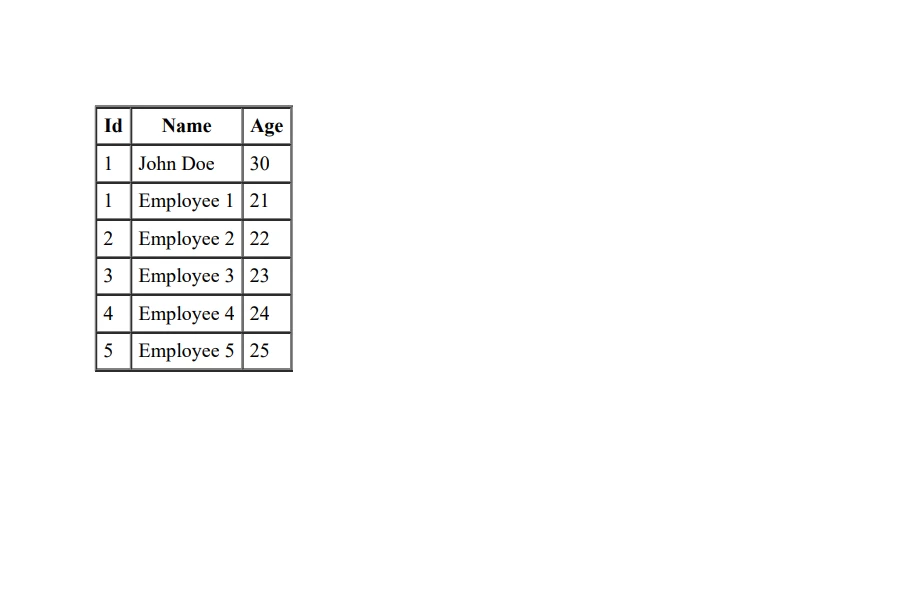
이 튜토리얼에서 C#의 DataTables 기본 사항과 IronPDF 라이브러리를 사용하여 DataTable을(를) PDF 문서로 내보내는 방법을 배웠습니다. 기본 키 열, 데이터셋 변수 및 필터링과 정렬을 위한 DataView를 포함함으로써 데이터에 대해 더 큰 제어와 유연성을 가질 수 있습니다. 이제 C# 애플리케이션에서 전문적인 모양의 PDF 보고서를 생성하기 위해 DataTables와 IronPDF를 함께 사용하는 방법에 대한 좋은 이해를 가지고 있어야 합니다.
IronPDF는 기능을 무료로 체험할 수 있는 체험판을 제공하며 구매를 결정하기 전에 능력을 탐색할 수 있습니다.

제이콥 멜러는 Iron Software의 최고 기술 책임자(CTO)이자 C# PDF 기술을 개척한 선구적인 엔지니어입니다. Iron Software의 핵심 코드베이스를 최초로 개발한 그는 창립 초기부터 회사의 제품 아키텍처를 설계해 왔으며, CEO인 캐머런 리밍턴과 함께 회사를 NASA, 테슬라, 그리고 전 세계 정부 기관에 서비스를 제공하는 50명 이상의 직원을 보유한 기업으로 성장시켰습니다.



IronPDF는 IRON SUITE 의 일부입니다.
10개의 .NET API 제품, 당신의 사무 문서를 위해

PDF 파일을 HTML처럼 빠르게 변환해야 할 때.


