


DataTable em C# (Tutorial para desenvolvedores: como funciona)

Bem-vindo(a) a este tutorial sobre DataTables em C#. O DataTable é uma poderosa estrutura de dados fornecida pelo .NET Framework, que permite armazenar, manipular e consultar dados em formato tabular. Neste tutorial, exploraremos os conceitos básicos de DataTables em C#, incluindo a criação e modificação de DataTables, adição de colunas e linhas, consulta de dados e uso de DataView para filtragem e ordenação.
Ao final deste tutorial, você terá uma boa compreensão de como usar DataTables em suas aplicações C#. Vamos começar!
Criando uma tabela de dados
Para criar um DataTable em C#, você primeiro precisa importar o namespace System.Data. Este namespace contém várias classes e métodos relacionados à manipulação de dados, incluindo a classe DataTable.
using System.Data;using System.Data;Imports System.DataEm seguida, você pode criar uma instância da classe DataTable. A maneira mais simples de fazer isso é usando o construtor padrão, assim:
DataTable dt = new DataTable();DataTable dt = new DataTable();Dim dt As New DataTable()Você também pode criar um DataTable com um nome específico, passando um parâmetro string para o construtor:
DataTable dt = new DataTable("Employees");DataTable dt = new DataTable("Employees");Dim dt As New DataTable("Employees")Métodos DataTable
Adicionando colunas
Depois de criar uma DataTable, você pode começar a adicionar colunas a ela. Para adicionar uma coluna, você primeiro precisa criar uma instância da classe DataColumn e definir suas propriedades, como ColumnName e DataType.
Aqui está um exemplo de como adicionar três colunas a um DataTable:
DataColumn idColumn = new DataColumn("Id", typeof(int));
DataColumn nameColumn = new DataColumn("Name", typeof(string));
DataColumn ageColumn = new DataColumn("Age", typeof(int));

dt.Columns.Add(idColumn);
dt.Columns.Add(nameColumn);
dt.Columns.Add(ageColumn);
DataColumn idColumn = new DataColumn("Id", typeof(int));
DataColumn nameColumn = new DataColumn("Name", typeof(string));
DataColumn ageColumn = new DataColumn("Age", typeof(int));
dt.Columns.Add(idColumn);
dt.Columns.Add(nameColumn);
dt.Columns.Add(ageColumn);Dim idColumn As New DataColumn("Id", GetType(Integer))
Dim nameColumn As New DataColumn("Name", GetType(String))
Dim ageColumn As New DataColumn("Age", GetType(Integer))
dt.Columns.Add(idColumn)
dt.Columns.Add(nameColumn)
dt.Columns.Add(ageColumn)Você pode adicionar múltiplas colunas como a coluna Id na tabela de dados.
Adicionando linhas de dados
Após definir as colunas, você pode começar a adicionar linhas ao DataTable. Para adicionar uma linha, você precisa criar uma nova instância da classe DataRow e preencher seus campos com os dados necessários.
Aqui está um exemplo de como adicionar uma nova linha a um DataTable:
DataRow newRow = dt.NewRow();

newRow["Id"] = 1;
newRow["Name"] = "John Doe";
newRow["Age"] = 30;

dt.Rows.Add(newRow);
DataRow newRow = dt.NewRow();
newRow["Id"] = 1;
newRow["Name"] = "John Doe";
newRow["Age"] = 30;
dt.Rows.Add(newRow);Dim newRow As DataRow = dt.NewRow()
newRow("Id") = 1
newRow("Name") = "John Doe"
newRow("Age") = 30
dt.Rows.Add(newRow)Você também pode adicionar múltiplas linhas DataTable de uma vez usando o mesmo método em um loop.
for (int i = 1; i <= 3; i++)
{
    DataRow row = dt.NewRow();
    row["Id"] = i;
    row["Name"] = "Employee " + i;
    row["Age"] = 20 + i;
    dt.Rows.Add(row);
}
for (int i = 1; i <= 3; i++)
{
DataRow row = dt.NewRow();
row["Id"] = i;
row["Name"] = "Employee " + i;
row["Age"] = 20 + i;
dt.Rows.Add(row);
}For i As Integer = 1 To 3
Dim row As DataRow = dt.NewRow()
row("Id") = i
row("Name") = "Employee " & i
row("Age") = 20 + i
dt.Rows.Add(row)
Next iNo código acima, adicionamos três linhas de dados.
Acesso a dados
Você pode acessar os dados armazenados em um DataTable iterando através de suas coleções Rows e Columns. Aqui está um exemplo de como exibir o conteúdo de um DataTable no console:
foreach (DataRow row in dt.Rows)
{
    foreach (DataColumn col in dt.Columns)
    {
        Console.Write(row[col] + "\t");
    }
    Console.WriteLine();
}
foreach (DataRow row in dt.Rows)
{
foreach (DataColumn col in dt.Columns)
{
Console.Write(row[col] + "\t");
}
Console.WriteLine();
}Imports Microsoft.VisualBasic
For Each row As DataRow In dt.Rows
For Each col As DataColumn In dt.Columns
Console.Write(row(col) & vbTab)
Next col
Console.WriteLine()
Next rowModificando dados
Você pode modificar os dados em um DataTable atualizando os valores em seus objetos DataRow. Aqui está um exemplo de como atualizar a idade de um funcionário específico:
var primaryKey = 1;
DataRow employeeRow = dt.Rows.Find(primaryKey); // Find the row with the specified primary key
if (employeeRow != null)
{
    employeeRow["Age"] = 35;
}
var primaryKey = 1;
DataRow employeeRow = dt.Rows.Find(primaryKey); // Find the row with the specified primary key
if (employeeRow != null)
{
employeeRow["Age"] = 35;
}Dim primaryKey = 1
Dim employeeRow As DataRow = dt.Rows.Find(primaryKey) ' Find the row with the specified primary key
If employeeRow IsNot Nothing Then
employeeRow("Age") = 35
End IfExcluindo linhas
Você pode excluir uma linha de um DataTable chamando o método Delete em um objeto DataRow:
DataRow employeeRow = dt.Rows.Find(1);
if (employeeRow != null)
{
    employeeRow.Delete();
    dt.AcceptChanges(); // Commit the deletion
}
DataRow employeeRow = dt.Rows.Find(1);
if (employeeRow != null)
{
employeeRow.Delete();
dt.AcceptChanges(); // Commit the deletion
}Dim employeeRow As DataRow = dt.Rows.Find(1)
If employeeRow IsNot Nothing Then
employeeRow.Delete()
dt.AcceptChanges() ' Commit the deletion
End IfLembre-se de que chamar Delete em um DataRow apenas marca a linha para exclusão. Você precisa chamar o método AcceptChanges no DataTable para remover permanentemente as linhas excluídas.
Gerenciando várias tabelas
Em alguns casos, você pode precisar trabalhar com várias tabelas de dados simultaneamente. Você pode criar uma variável de conjunto de dados para armazenar vários objetos DataTable e gerenciar os relacionamentos entre eles.
Consultando dados com LINQ
LINQ (Language Integrated Query) é um recurso poderoso em C# que permite consultar dados de várias fontes de dados, incluindo objetos DataTable. Para usar o LINQ com DataTables, você precisa importar o namespace System.Linq. Aqui está um exemplo de como filtrar funcionários com mais de 25 anos usando LINQ:
using System.Linq;

var filteredRows = dt.AsEnumerable().Where(row => row.Field<int>("Age") > 25);

foreach (DataRow row in filteredRows)
{
    Console.WriteLine(row["Name"]);
}
using System.Linq;
var filteredRows = dt.AsEnumerable().Where(row => row.Field<int>("Age") > 25);
foreach (DataRow row in filteredRows)
{
Console.WriteLine(row["Name"]);
}Imports System.Linq
Private filteredRows = dt.AsEnumerable().Where(Function(row) row.Field(Of Integer)("Age") > 25)
For Each row As DataRow In filteredRows
Console.WriteLine(row("Name"))
Next rowDataView: Classificação e Filtragem
DataView é outra classe útil fornecida pelo namespace System.Data que permite criar uma visão ordenada ou filtrada de um DataTable. Isso é especialmente útil quando você precisa exibir os dados em um controle de interface de usuário como um DataGridView. Também podemos fazer a vinculação de dados para adicionar dados ao controle DataGridView a partir de um DataTable.
Aqui está um exemplo de como criar um DataView para filtrar e classificar os funcionários com base na idade:
DataView view = new DataView(dt);

// Filter employees older than 25
view.RowFilter = "Age > 25";

// Sort by age in descending order
view.Sort = "Age DESC";

// Display the filtered and sorted data
foreach (DataRowView rowView in view)
{
    DataRow row = rowView.Row;
    Console.WriteLine(row["Name"]);
}
DataView view = new DataView(dt);
// Filter employees older than 25
view.RowFilter = "Age > 25";
// Sort by age in descending order
view.Sort = "Age DESC";
// Display the filtered and sorted data
foreach (DataRowView rowView in view)
{
DataRow row = rowView.Row;
Console.WriteLine(row["Name"]);
}Dim view As New DataView(dt)
' Filter employees older than 25
view.RowFilter = "Age > 25"
' Sort by age in descending order
view.Sort = "Age DESC"
' Display the filtered and sorted data
For Each rowView As DataRowView In view
Dim row As DataRow = rowView.Row
Console.WriteLine(row("Name"))
Next rowViewExportando DataTable para PDF com IronPDF
O IronPDF é um poderoso conversor de HTML para PDF , repleto de recursos de manipulação de PDF fáceis de usar, permitindo que os desenvolvedores criem, leiam e editem documentos PDF em aplicativos .NET .
using IronPdf;

class Program
{
    static void Main(string[] args)
    {
        var renderer = new ChromePdfRenderer();

        // Convert HTML String to PDF
        var htmlContent = "<h1>Hello, IronPDF!</h1><p>This is a PDF from an HTML string.</p>";
        var pdfFromHtmlString = renderer.RenderHtmlAsPdf(htmlContent);
        pdfFromHtmlString.SaveAs("HTMLStringToPDF.pdf");

        // Convert HTML File to PDF
        var htmlFilePath = "path_to_your_html_file.html"; // Specify the path to your HTML file
        var pdfFromHtmlFile = renderer.RenderHtmlFileAsPdf(htmlFilePath);
        pdfFromHtmlFile.SaveAs("HTMLFileToPDF.pdf");

        // Convert URL to PDF
        var url = "http://ironpdf.com"; // Specify the URL
        var pdfFromUrl = renderer.RenderUrlAsPdf(url);
        pdfFromUrl.SaveAs("URLToPDF.pdf");
    }
}
using IronPdf;
class Program
{
static void Main(string[] args)
{
var renderer = new ChromePdfRenderer();
// Convert HTML String to PDF
var htmlContent = "<h1>Hello, IronPDF!</h1><p>This is a PDF from an HTML string.</p>";
var pdfFromHtmlString = renderer.RenderHtmlAsPdf(htmlContent);
pdfFromHtmlString.SaveAs("HTMLStringToPDF.pdf");
// Convert HTML File to PDF
var htmlFilePath = "path_to_your_html_file.html"; // Specify the path to your HTML file
var pdfFromHtmlFile = renderer.RenderHtmlFileAsPdf(htmlFilePath);
pdfFromHtmlFile.SaveAs("HTMLFileToPDF.pdf");
// Convert URL to PDF
var url = "http://ironpdf.com"; // Specify the URL
var pdfFromUrl = renderer.RenderUrlAsPdf(url);
pdfFromUrl.SaveAs("URLToPDF.pdf");
}
}Imports IronPdf
Friend Class Program
Shared Sub Main(ByVal args() As String)
Dim renderer = New ChromePdfRenderer()
' Convert HTML String to PDF
Dim htmlContent = "<h1>Hello, IronPDF!</h1><p>This is a PDF from an HTML string.</p>"
Dim pdfFromHtmlString = renderer.RenderHtmlAsPdf(htmlContent)
pdfFromHtmlString.SaveAs("HTMLStringToPDF.pdf")
' Convert HTML File to PDF
Dim htmlFilePath = "path_to_your_html_file.html" ' Specify the path to your HTML file
Dim pdfFromHtmlFile = renderer.RenderHtmlFileAsPdf(htmlFilePath)
pdfFromHtmlFile.SaveAs("HTMLFileToPDF.pdf")
' Convert URL to PDF
Dim url = "http://ironpdf.com" ' Specify the URL
Dim pdfFromUrl = renderer.RenderUrlAsPdf(url)
pdfFromUrl.SaveAs("URLToPDF.pdf")
End Sub
End ClassNesta seção, aprenderemos como exportar um DataTable para um documento PDF usando IronPDF.
Primeiro, você precisa instalar o pacote NuGet IronPDF . Abra o Console do Gerenciador de Pacotes no Visual Studio e execute o seguinte comando:
Install-Package IronPdf
Após a instalação do pacote, você pode começar importando os namespaces necessários em seu código:
using IronPdf;
using System.IO;
using IronPdf;
using System.IO;Imports IronPdf
Imports System.IOEm seguida, crie um método auxiliar que converta o DataTable em uma tabela HTML, já que o IronPDF usa HTML para renderizar o conteúdo em documentos PDF:
public static string ConvertDataTableToHtml(DataTable dt)
{
    StringBuilder htmlBuilder = new StringBuilder();

    htmlBuilder.AppendLine("<table border='1' cellpadding='5' cellspacing='0'>");
    htmlBuilder.AppendLine("<tr>");

    // Add column headers
    foreach (DataColumn col in dt.Columns)
    {
        htmlBuilder.AppendFormat("<th>{0}</th>", col.ColumnName);
    }

    htmlBuilder.AppendLine("</tr>");

    // Add rows
    foreach (DataRow row in dt.Rows)
    {
        htmlBuilder.AppendLine("<tr>");

        foreach (DataColumn col in dt.Columns)
        {
            htmlBuilder.AppendFormat("<td>{0}</td>", row[col]);
        }

        htmlBuilder.AppendLine("</tr>");
    }

    htmlBuilder.AppendLine("</table>");

    return htmlBuilder.ToString();
}
public static string ConvertDataTableToHtml(DataTable dt)
{
StringBuilder htmlBuilder = new StringBuilder();
htmlBuilder.AppendLine("<table border='1' cellpadding='5' cellspacing='0'>");
htmlBuilder.AppendLine("<tr>");
// Add column headers
foreach (DataColumn col in dt.Columns)
{
htmlBuilder.AppendFormat("<th>{0}</th>", col.ColumnName);
}
htmlBuilder.AppendLine("</tr>");
// Add rows
foreach (DataRow row in dt.Rows)
{
htmlBuilder.AppendLine("<tr>");
foreach (DataColumn col in dt.Columns)
{
htmlBuilder.AppendFormat("<td>{0}</td>", row[col]);
}
htmlBuilder.AppendLine("</tr>");
}
htmlBuilder.AppendLine("</table>");
return htmlBuilder.ToString();
}Public Shared Function ConvertDataTableToHtml(ByVal dt As DataTable) As String
Dim htmlBuilder As New StringBuilder()
htmlBuilder.AppendLine("<table border='1' cellpadding='5' cellspacing='0'>")
htmlBuilder.AppendLine("<tr>")
' Add column headers
For Each col As DataColumn In dt.Columns
htmlBuilder.AppendFormat("<th>{0}</th>", col.ColumnName)
Next col
htmlBuilder.AppendLine("</tr>")
' Add rows
For Each row As DataRow In dt.Rows
htmlBuilder.AppendLine("<tr>")
For Each col As DataColumn In dt.Columns
htmlBuilder.AppendFormat("<td>{0}</td>", row(col))
Next col
htmlBuilder.AppendLine("</tr>")
Next row
htmlBuilder.AppendLine("</table>")
Return htmlBuilder.ToString()
End FunctionAgora, você pode usar o HtmlToPdf class fornecido pelo IronPDF para renderizar a tabela HTML e salvá-la como um arquivo PDF:
public static void ExportDataTableToPdf(DataTable dt, string outputPath)
{
    // Convert DataTable to HTML
    string htmlTable = ConvertDataTableToHtml(dt);

    // Create a new HTML to PDF renderer
    var renderer = new ChromePdfRenderer();

    // Set global styles for the table
    renderer.RenderingOptions.CssMediaType = PdfPrintOptions.PdfCssMediaType.Print;
    renderer.RenderingOptions.FirstPageNumber = 1;

    // Render the HTML table as a PDF document
    PdfDocument pdf = renderer.RenderHtmlAsPdf(htmlTable);

    // Save the PDF file
    pdf.SaveAs(outputPath);
}
public static void ExportDataTableToPdf(DataTable dt, string outputPath)
{
// Convert DataTable to HTML
string htmlTable = ConvertDataTableToHtml(dt);
// Create a new HTML to PDF renderer
var renderer = new ChromePdfRenderer();
// Set global styles for the table
renderer.RenderingOptions.CssMediaType = PdfPrintOptions.PdfCssMediaType.Print;
renderer.RenderingOptions.FirstPageNumber = 1;
// Render the HTML table as a PDF document
PdfDocument pdf = renderer.RenderHtmlAsPdf(htmlTable);
// Save the PDF file
pdf.SaveAs(outputPath);
}Public Shared Sub ExportDataTableToPdf(ByVal dt As DataTable, ByVal outputPath As String)
' Convert DataTable to HTML
Dim htmlTable As String = ConvertDataTableToHtml(dt)
' Create a new HTML to PDF renderer
Dim renderer = New ChromePdfRenderer()
' Set global styles for the table
renderer.RenderingOptions.CssMediaType = PdfPrintOptions.PdfCssMediaType.Print
renderer.RenderingOptions.FirstPageNumber = 1
' Render the HTML table as a PDF document
Dim pdf As PdfDocument = renderer.RenderHtmlAsPdf(htmlTable)
' Save the PDF file
pdf.SaveAs(outputPath)
End SubO método ExportDataTableToPdf cria um DataTable a partir da tabela HTML e a salva no arquivo PDF.
Finalmente, chame o método ExportDataTableToPdf com os parâmetros apropriados para exportar seu DataTable:
string pdfOutputPath = "Employees.pdf";
ExportDataTableToPdf(dt, pdfOutputPath);
string pdfOutputPath = "Employees.pdf";
ExportDataTableToPdf(dt, pdfOutputPath);Dim pdfOutputPath As String = "Employees.pdf"
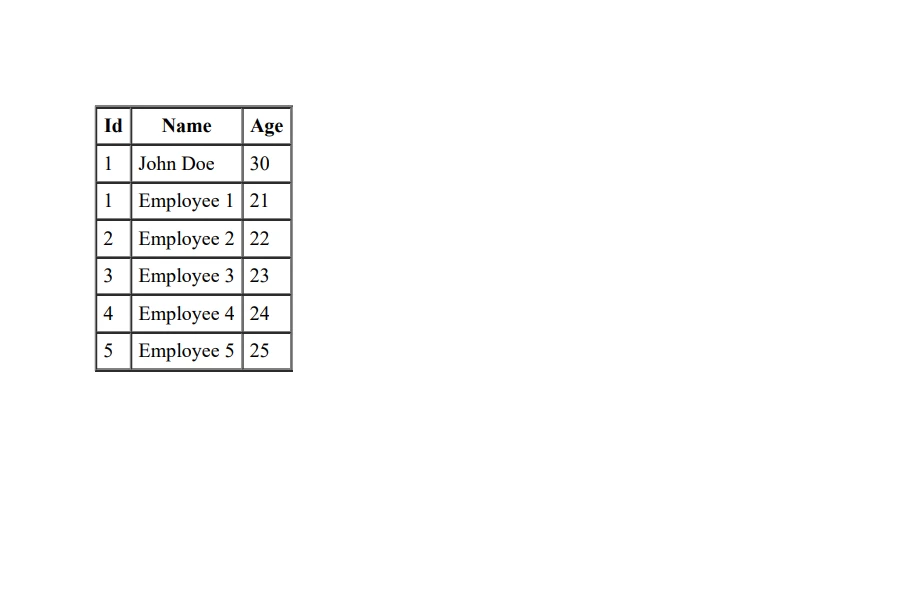
ExportDataTableToPdf(dt, pdfOutputPath)Isso criará um arquivo PDF chamado 'Employees.pdf' contendo o conteúdo do seu DataTable em formato tabular.
Conclusão
Neste tutorial, você aprendeu o básico de DataTables em C# e como exportar um DataTable para um documento PDF usando a biblioteca IronPDF. Ao incorporar a coluna de chave primária, variáveis de conjunto de dados e DataView para filtragem e classificação, você terá maior controle e flexibilidade sobre seus dados. Agora você deve ter um bom entendimento do DataTables e de como usar o IronPDF em conjunto com o DataTables para criar relatórios em PDF com aparência profissional em seus aplicativos C#.
O IronPDF oferece um período de teste gratuito de seus recursos , permitindo que você explore suas funcionalidades antes de se comprometer com a compra.
Perguntas frequentes
O que é um DataTable em C#?
Um DataTable é uma estrutura de dados versátil no framework .NET que permite aos desenvolvedores armazenar, manipular e consultar dados em formato tabular, tornando-se essencial para o tratamento de dados estruturados em aplicações.
Como posso converter um DataTable em um documento PDF em C#?
Para converter um DataTable em um documento PDF em C#, primeiro transforme o DataTable em uma tabela HTML. Use a classe HtmlToPdf do IronPDF para renderizar o HTML como um documento PDF e salve o arquivo resultante.
Como criar um DataTable em C#?
Criar um DataTable em C# envolve importar o namespace System.Data e instanciar a classe DataTable usando seu construtor, opcionalmente fornecendo um nome específico para o DataTable.
Quais são os passos para adicionar colunas a um DataTable?
Para adicionar colunas a um DataTable, crie instâncias da classe DataColumn, configure propriedades como ColumnName e DataType e adicione-as à coleção Columns do DataTable.
Como posso exportar dados de um DataTable para um PDF para fins de relatório?
Você pode exportar dados de um DataTable para um PDF convertendo o DataTable em um formato de tabela HTML e, em seguida, usando o IronPDF para renderizar esse HTML em um documento PDF, criando relatórios de nível profissional.
Como adicionar linhas a um DataTable em C#?
Para adicionar linhas a um DataTable em C#, crie uma nova instância de DataRow, preencha-a com dados e adicione-a à coleção Rows do DataTable. Esse processo pode ser repetido para várias linhas usando um loop.
O que é LINQ e como ele pode ser usado com DataTables?
LINQ (Language Integrated Query) é uma poderosa ferramenta de consulta em C# que permite filtrar, classificar e manipular dados de várias fontes, incluindo DataTables, para agilizar as operações de dados.
Como posso filtrar e classificar um DataTable usando um DataView?
Um DataView oferece uma maneira prática de criar uma visualização filtrada ou classificada de um DataTable. Ao definir as propriedades RowFilter e Sort, você pode controlar como os dados são exibidos, o que é especialmente útil em componentes de interface do usuário.
Como instalo a biblioteca necessária para exportar DataTables para PDF?
Para instalar a biblioteca IronPDF necessária para exportar DataTables para PDF, use o Console do Gerenciador de Pacotes no Visual Studio e execute o comando: Install-Package IronPDF .










 Comece GRATUITAMENTE
 Comece GRATUITAMENTE
 Agende uma demonstração ao vivo gratuita





 Não é necessário cartão de crédito nem criação de conta.










