



업데이트됨 2026년 4월 23일
.NET에서 Microsoft.Extensions.AI로 LLM 통합 간소화
AI는 소프트웨어 개발을 변혁하고 있으나, 대규모 언어 모델(LLM)을 .NET에 통합하는 것은 지금까지 복잡했습니다. 현대에는 OpenAI 기반 PDF 파싱, 데이터 추출 및 콘텐츠 요약을 .NET 애플리케이션에 가져오는 IronPdf.AI로 AI 통합을 더욱 확장하세요.
더 읽어보기

이 문서는 C#의 FileStream 클래스에 초점을 맞추며, 파일에서 읽기 및 쓰기 작업을 수행하는 데 어떻게 도움이 되는지 설명합니다. 실용적인 예제를 탐구하고, FileStream이 기본적으로 어떻게 작동하는지 이해하며, 파일 데이터를 효율적으로 관리하는 방법을 배웁니다. 이 가이드는 C#에서 파일 처리에 익숙하지 않은 사람들을 대상으로 하므로, C#의 파일 작업에 대한 자세한 지침과 IronPDF 라이브러리 소개를 제공하면서도 쉬운 언어를 사용합니다.
C#의 FileStream 클래스는 바이트를 사용하여 파일을 처리하는 방법을 제공합니다. 파일의 읽기 및 쓰기 작업과 함께 작동하며 파일 내용을 직접 상호작용할 수 있습니다. 이는 특히 바이트 배열을 조작할 때 입/출력 작업을 위해 파일을 처리할 때 특히 유용합니다.
FileStream은 다음에 이상적입니다:
다음은 파일을 열고 데이터를 기록한 후 FileStream을 사용하여 읽는 간단한 예제입니다:
using System;
using System.IO;

public class Example
{
    public static void Main()
    {
        string path = "example.txt";

        // Creating a FileStream object to handle the file. The file handle is acquired here.
        using (FileStream fileStream = new FileStream(path, FileMode.Create, FileAccess.Write))
        {
            byte[] data = System.Text.Encoding.UTF8.GetBytes("Hello, FileStream!");
            // Write data to file
            fileStream.Write(data, 0, data.Length);
        }

        // Read from the file
        using (FileStream fileStream = new FileStream(path, FileMode.Open, FileAccess.Read))
        {
            byte[] buffer = new byte[1024];
            int bytesRead = fileStream.Read(buffer, 0, buffer.Length);
            string text = System.Text.Encoding.UTF8.GetString(buffer, 0, bytesRead);
            Console.WriteLine(text);
        }
    }
}Imports System
Imports System.IO
Public Class Example
Public Shared Sub Main()
Dim path As String = "example.txt"
' Creating a FileStream object to handle the file. The file handle is acquired here.
Using fileStream As New FileStream(path, FileMode.Create, FileAccess.Write)
Dim data As Byte() = System.Text.Encoding.UTF8.GetBytes("Hello, FileStream!")
' Write data to file
fileStream.Write(data, 0, data.Length)
End Using
' Read from the file
Using fileStream As New FileStream(path, FileMode.Open, FileAccess.Read)
Dim buffer As Byte() = New Byte(1023) {}
Dim bytesRead As Integer = fileStream.Read(buffer, 0, buffer.Length)
Dim text As String = System.Text.Encoding.UTF8.GetString(buffer, 0, bytesRead)
Console.WriteLine(text)
End Using
End Sub
End Class이 예제는 파일 읽기 및 쓰기 작업을 처리하기 위해 FileStream 개체를 생성하는 방법을 보여줍니다. FileStream 클래스는 바이트를 직접 읽고 쓰기 때문에 대형 파일이나 바이너리 데이터를 처리하기에 적합합니다. 우리는 Encoding을(를) 사용하여 텍스트와 바이트 간에 변환했습니다.
파일에 데이터를 쓰려면 Write 메소드를 사용합니다. 여기서는 그것이 어떻게 작동하는지를 자세히 설명하는 예제를 보여줍니다:
using System;
using System.IO;

public class FileWriteExample
{
    public static void Main()
    {
        string path = "output.txt";

        // Creating a FileStream object to write data to the file
        using (FileStream fileStream = new FileStream(path, FileMode.Create, FileAccess.Write))
        {
            byte[] buffer = System.Text.Encoding.UTF8.GetBytes("Writing data to FileStream.");
            int offset = 0;
            int count = buffer.Length;

            // Writing data to the file
            fileStream.Write(buffer, offset, count);
        }
    }
}Imports System
Imports System.IO
Public Class FileWriteExample
Public Shared Sub Main()
Dim path As String = "output.txt"
' Creating a FileStream object to write data to the file
Using fileStream As New FileStream(path, FileMode.Create, FileAccess.Write)
Dim buffer As Byte() = System.Text.Encoding.UTF8.GetBytes("Writing data to FileStream.")
Dim offset As Integer = 0
Dim count As Integer = buffer.Length
' Writing data to the file
fileStream.Write(buffer, offset, count)
End Using
End Sub
End Class이 코드에서는 문자열을 UTF8 인코딩을 사용하여 바이트 배열로 변환합니다. Write 메소드는 지정된 바이트 수와 오프셋으로 결정된 현재 위치에서 파일에 바이트 배열을 씁니다.
이제 FileStream을 사용하여 파일에서 데이터를 읽는 방법을 탐색해봅시다.
using System;
using System.IO;

public class FileReadExample
{
    public static void Main()
    {
        // File path
        string path = "output.txt";

        // File Stream Object
        using (FileStream fileStream = new FileStream(path, FileMode.Open, FileAccess.Read))
        {
            byte[] buffer = new byte[1024];
            int bytesRead = fileStream.Read(buffer, 0, buffer.Length);
            // Output Stream
            string output = System.Text.Encoding.UTF8.GetString(buffer, 0, bytesRead);
            Console.WriteLine(output);
        }
    }
}Imports System
Imports System.IO
Public Class FileReadExample
Public Shared Sub Main()
' File path
Dim path As String = "output.txt"
' File Stream Object
Using fileStream As New FileStream(path, FileMode.Open, FileAccess.Read)
Dim buffer(1023) As Byte
Dim bytesRead As Integer = fileStream.Read(buffer, 0, buffer.Length)
' Output Stream
Dim output As String = System.Text.Encoding.UTF8.GetString(buffer, 0, bytesRead)
Console.WriteLine(output)
End Using
End Sub
End Class이 예시에서는 다음과 같습니다.
Encoding.UTF8.GetString을(를) 사용하여 바이트 데이터를 문자열로 다시 변환합니다.FileStream 클래스는 파일의 접근을 제어하여 세밀한 파일 핸들 및 시스템 리소스 관리를 허용합니다. FileStream을 사용할 때, 스트림을 사용 후 적절히 해제하는 것이 중요한데, 수동으로 Close()을(를) 호출하거나 자동으로 스트림을 해제하는 using 문을 사용하는 방법이 있습니다.
파일에서 읽기 또는 쓰기할 때마다 FileStream은 파일 내의 현재 위치를 추적합니다. 이 위치는 Position 속성을 사용하여 액세스할 수 있습니다:
fileStream.Position = 0; // Move to the beginning of the filefileStream.Position = 0 ' Move to the beginning of the fileFileStream은 비동기 읽기 및 쓰기 작업에 사용될 수 있으며, 파일 작업이 수행되는 동안 다른 프로세스가 실행될 수 있도록 하여 성능을 향상시킵니다. 다음은 비동기 읽기의 기본 예입니다:
using System;
using System.IO;
using System.Threading.Tasks;

public class AsyncReadExample
{
    public static async Task Main()
    {
        // Specified Path
        string path = "output.txt";

        using (FileStream fileStream = new FileStream(path, FileMode.Open, FileAccess.Read, FileShare.None, 4096, true))
        {
            byte[] buffer = new byte[1024];
            int bytesRead = await fileStream.ReadAsync(buffer, 0, buffer.Length);
            string result = System.Text.Encoding.UTF8.GetString(buffer, 0, bytesRead);
            Console.WriteLine(result);
        }
    }
}Imports System
Imports System.IO
Imports System.Threading.Tasks
Public Class AsyncReadExample
Public Shared Async Function Main() As Task
' Specified Path
Dim path As String = "output.txt"
Using fileStream As New FileStream(path, FileMode.Open, FileAccess.Read, FileShare.None, 4096, True)
Dim buffer(1023) As Byte
Dim bytesRead As Integer = Await fileStream.ReadAsync(buffer, 0, buffer.Length)
Dim result As String = System.Text.Encoding.UTF8.GetString(buffer, 0, bytesRead)
Console.WriteLine(result)
End Using
End Function
End ClassReadAsync 메소드는 데이터를 비동기적으로 읽습니다. FileAccess.Read 및 FileMode.Open 매개변수는 파일이 어떻게 액세스되는지를 제어합니다.
FileStream을 사용할 때 예외를 적절히 처리하여 런타임 오류를 피하고 시스템 리소스를 적절히 관리하는 것이 중요합니다. 다음은 파일을 읽거나 쓸 때 예외를 처리하기 위한 패턴입니다:
using System;
using System.IO;

public class ExceptionHandlingExample
{
    public static void Main()
    {
        string path = "nonexistentfile.txt";

        try
        {
            using (FileStream fileStream = new FileStream(path, FileMode.Open, FileAccess.Read))
            {
                byte[] buffer = new byte[1024];
                int bytesRead = fileStream.Read(buffer, 0, buffer.Length);
                Console.WriteLine("Bytes Read: " + bytesRead);
            }
        }
        catch (FileNotFoundException e)
        {
            Console.WriteLine($"Exception: {e.Message}");
        }
    }
}Imports System
Imports System.IO
Public Class ExceptionHandlingExample
Public Shared Sub Main()
Dim path As String = "nonexistentfile.txt"
Try
Using fileStream As New FileStream(path, FileMode.Open, FileAccess.Read)
Dim buffer(1023) As Byte
Dim bytesRead As Integer = fileStream.Read(buffer, 0, buffer.Length)
Console.WriteLine("Bytes Read: " & bytesRead)
End Using
Catch e As FileNotFoundException
Console.WriteLine($"Exception: {e.Message}")
End Try
End Sub
End ClassFileStream 클래스에는 대용량 파일 작업 시 특히 성능을 빠르게 향상시키는 버퍼링 메커니즘이 포함되어 있습니다. 버퍼를 사용하면 데이터가 메모리에 일시적으로 저장되어, 지속적인 디스크 접근이 줄어듭니다.
using System;
using System.IO;

public class BufferingExample
{
    public static void Main()
    {
        string path = "bufferedfile.txt";
        byte[] data = System.Text.Encoding.UTF8.GetBytes("Buffered FileStream example.");

        using (FileStream fileStream = new FileStream(path, FileMode.Create, FileAccess.Write, FileShare.None, 4096, FileOptions.WriteThrough))
        {
            fileStream.Write(data, 0, data.Length);
        }
    }
}Imports System
Imports System.IO
Public Class BufferingExample
Public Shared Sub Main()
Dim path As String = "bufferedfile.txt"
Dim data As Byte() = System.Text.Encoding.UTF8.GetBytes("Buffered FileStream example.")
Using fileStream As New FileStream(path, FileMode.Create, FileAccess.Write, FileShare.None, 4096, FileOptions.WriteThrough)
fileStream.Write(data, 0, data.Length)
End Using
End Sub
End Class여기서 FileOptions.WriteThrough은(는) 추가 버퍼링을 우회하여 데이터를 직접 파일에 쓰도록 보장합니다. 하지만 성능 조정을 위해 버퍼 크기를 제어할 수 있습니다.
IronPDF는 .NET 응용 프로그램 내에서 PDF 문서를 생성, 편집 및 조작하기 위한 강력한 C# PDF 라이브러리입니다. 개발자는 IronPDF를 사용하여 HTML과 같은 다양한 입력에서 PDF를 생성할 수 있으며, 이미지와 심지어 원시 텍스트로도 가능합니다. 워터마킹, 병합, 분할, 비밀번호 보호와 같은 기능이 있는 IronPDF는 웹 및 데스크톱 응용 프로그램에 이상적이며 PDF 출력에 대한 정밀한 제어를 제공합니다.
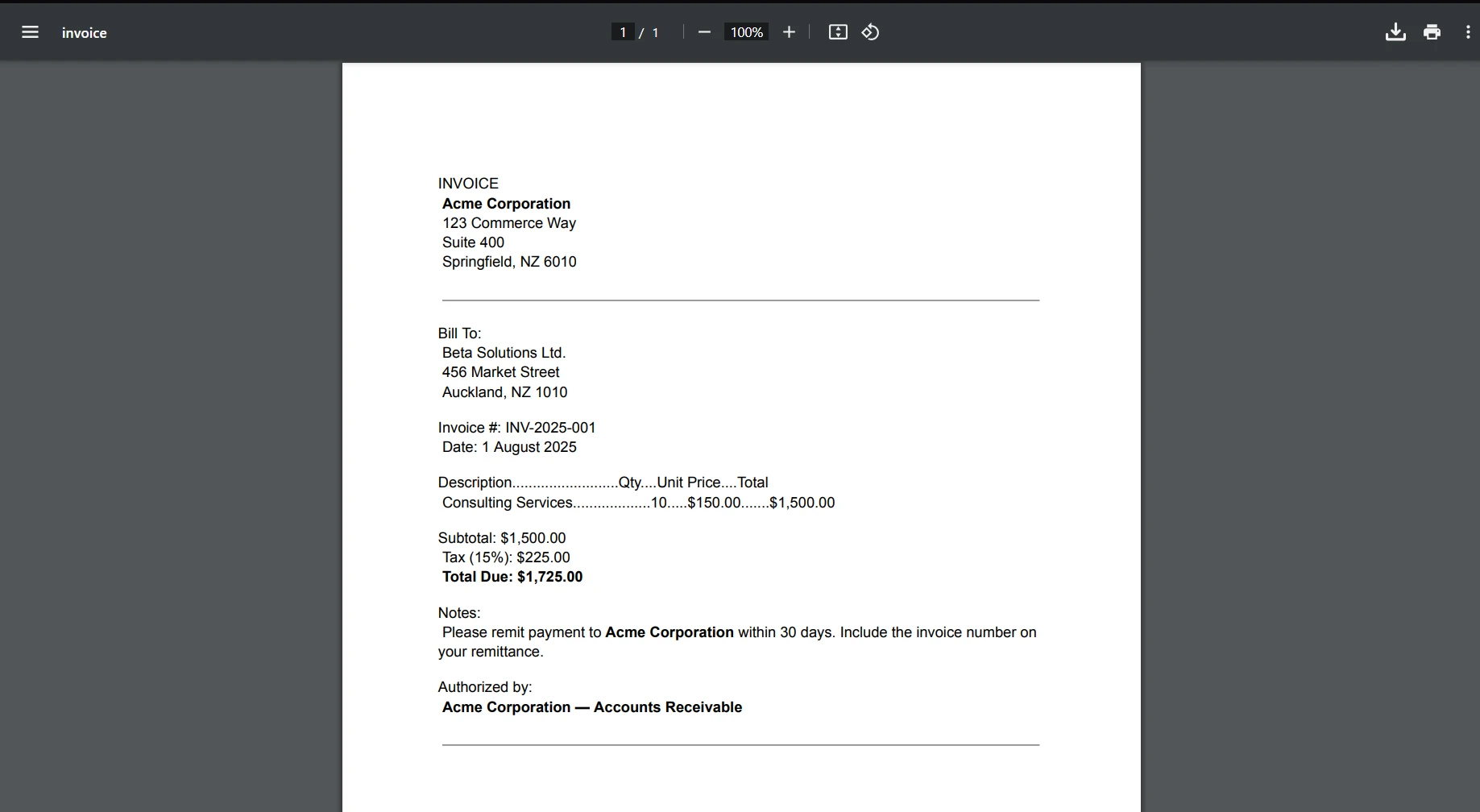
여기 IronPDF를 사용하여 PDF를 생성하고 FileStream에 저장하는 예시가 있습니다. IronPDF는 FileStream과 원활하게 통합되어 개발자가 PDF 생성 및 저장을 코드로 제어할 수 있음을 보여줍니다.
using System;
using System.IO;
using IronPdf;

public class IronPDFExample
{
    public static void Main()
    {
        // Define the file path
        string path = "output.pdf";

        // Create an HTML string that we want to convert to PDF
        var htmlContent = "<h1>IronPDF Example</h1><p>This PDF was generated using IronPDF and saved with FileStream.</p>";

        // Initialize IronPDF's ChromePdfRenderer to render HTML as PDF
        var renderer = new ChromePdfRenderer();

        // Generate the PDF from the HTML string
        var pdfDocument = renderer.RenderHtmlAsPdf(htmlContent);

        // Use FileStream to save the generated PDF
        using (FileStream fileStream = new FileStream(path, FileMode.Create, FileAccess.Write))
        {
            pdfDocument.SaveAs(fileStream);
        }

        Console.WriteLine("PDF created and saved successfully.");
    }
}Imports System
Imports System.IO
Imports IronPdf
Public Class IronPDFExample
Public Shared Sub Main()
' Define the file path
Dim path As String = "output.pdf"
' Create an HTML string that we want to convert to PDF
Dim htmlContent = "<h1>IronPDF Example</h1><p>This PDF was generated using IronPDF and saved with FileStream.</p>"
' Initialize IronPDF's ChromePdfRenderer to render HTML as PDF
Dim renderer = New ChromePdfRenderer()
' Generate the PDF from the HTML string
Dim pdfDocument = renderer.RenderHtmlAsPdf(htmlContent)
' Use FileStream to save the generated PDF
Using fileStream As New FileStream(path, FileMode.Create, FileAccess.Write)
pdfDocument.SaveAs(fileStream)
End Using
Console.WriteLine("PDF created and saved successfully.")
End Sub
End ClassC#의 FileStream 클래스는 파일 입출력을 관리하는 강력한 기능을 제공합니다. 개발자는 효율적으로 데이터를 읽고 쓰고, 파일 내 현재 위치를 제어하며, 비동기적으로 작업해 바이트 배열, 파일 경로, 스트림 처리가 어떻게 함께 작동하는지 이해할 수 있습니다. IronPDF와 FileStream을 함께 사용하면 .NET 응용 프로그램 내에서 PDF를 효율적으로 처리할 수 있는 유연성을 개발자에게 제공합니다. 보고서 생성, 파일 저장, 동적 콘텐츠 핸들링 여부에 상관없이 이 조합은 PDF 문서 생성 및 저장에 대한 세밀한 제어를 제공합니다.
IronPDF는 무료 체험과 $999 라이선스 비용을 제공하여, 전문적인 PDF 생성 요구에 경쟁력 있는 솔루션을 제공합니다.

제이콥 멜러는 Iron Software의 최고 기술 책임자(CTO)이자 C# PDF 기술을 개척한 선구적인 엔지니어입니다. Iron Software의 핵심 코드베이스를 최초로 개발한 그는 창립 초기부터 회사의 제품 아키텍처를 설계해 왔으며, CEO인 캐머런 리밍턴과 함께 회사를 NASA, 테슬라, 그리고 전 세계 정부 기관에 서비스를 제공하는 50명 이상의 직원을 보유한 기업으로 성장시켰습니다.

IronPDF는 IRON SUITE 의 일부입니다.
10개의 .NET API 제품, 당신의 사무 문서를 위해

PDF 파일을 HTML처럼 빠르게 변환해야 할 때.


