




업데이트됨 2026년 4월 23일
.NET에서 Microsoft.Extensions.AI로 LLM 통합 간소화
AI는 소프트웨어 개발을 변혁하고 있으나, 대규모 언어 모델(LLM)을 .NET에 통합하는 것은 지금까지 복잡했습니다. 현대에는 OpenAI 기반 PDF 파싱, 데이터 추출 및 콘텐츠 요약을 .NET 애플리케이션에 가져오는 IronPdf.AI로 AI 통합을 더욱 확장하세요.
더 읽어보기

데이터 표현은 웹 개발의 중요한 측면이며, 표 형식의 데이터를 다룰 때 인터랙티브하고 기능이 풍부한 표가 필수적입니다. jQuery DataTables는 동적이고 반응형 테이블 생성을 위한 고급 기능을 제공하는 강력한 JavaScript 라이브러리입니다. 이 기사에서는 표 형식 데이터의 표현을 향상시키기 위해 ASP.NET 웹 애플리케이션에서 jQuery DataTables를 통합하고 사용하는 방법을 살펴볼 것입니다.
jQuery DataTables는 표 형식 데이터를 처리하기 위한 가볍고 유연하며 기능이 풍부한 jQuery 플러그인입니다. 이 플러그인은 정렬, 검색, 페이지 매김 등의 다양한 기능을 제공하여 대량의 데이터를 사용자 친화적으로 표시하는 데 이상적인 선택입니다.
클라이언트 측 처리에서는 브라우저가 로컬에서 데이터셋을 처리할 수 있는 힘을 갖습니다. jQuery DataTables는 강력한 기능을 통해 사용자의 브라우저 내에서 데이터를 동적으로 상호작용하고 조작할 수 있게 합니다. 이 접근 방식은 작은 데이터셋에는 원활히 작동하지만, 대규모 데이터셋을 처리할 때는 성능 병목 현상과 리소스 소모 증가로 인한 문제가 발생할 수 있습니다.
이 기사에서는 ASP.NET Razor Page 애플리케이션에서 클라이언트 측 처리를 탐구하며, 작은 데이터셋에 대해 제공되는 이점과 원활하고 반응적인 사용자 경험을 보장하기 위한 고려사항과 최적화에 대한 통찰력을 제공합니다.
이 글에서는 .NET Framework 4.8을 대상으로 하는 ASP.NET Razor Page 웹 애플리케이션을 사용할 것입니다. 필요에 따라 Blazor, MVC 또는 웹 양식을 사용할 수 있습니다.
이 기사에서는 Code-First 접근 방식을 사용할 것입니다. 선호에 따라 Database First 접근 방식을 사용할 수 있습니다. Code First 방식을 사용하기 위해 다음 패키지를 설치해야 합니다.
NuGet 패키지 관리자 콘솔에서 Install-Package 명령을 사용하여 위의 패키지를 설치하거나, NuGet 패키지 관리자 솔루션에서 검색하여 설치하세요.
프로젝트를 설정하기 위해 Program.cs에 모델 클래스, ApplicationDbContext 클래스, 컨트롤러, 연결 문자열 및 서비스 구성을 추가합니다.
이 예제에서는 Employee 모델 클래스를 사용합니다. 필요에 따라 사용할 수 있습니다.
public class Employee
{
    public int Id { get; set; }
    public string FirstName { get; set; } = string.Empty;
    public string LastName { get; set; } = string.Empty;
    public string Email { get; set; } = string.Empty;
    public string PhoneNumber { get; set; } = string.Empty;
    public string Gender { get; set; } = string.Empty;
    public string Designation { get; set; } = string.Empty;
}Public Class Employee
Public Property Id() As Integer
Public Property FirstName() As String = String.Empty
Public Property LastName() As String = String.Empty
Public Property Email() As String = String.Empty
Public Property PhoneNumber() As String = String.Empty
Public Property Gender() As String = String.Empty
Public Property Designation() As String = String.Empty
End ClassEntity Framework을 설정하기 위해 ApplicationDbContext 클래스를 추가해야 합니다.
public class ApplicationDbContext : DbContext
{
    public ApplicationDbContext(DbContextOptions<ApplicationDbContext> options) : base(options)
    {
    }

    public DbSet<Employee> Employees { get; set; }
}Public Class ApplicationDbContext
Inherits DbContext
Public Sub New(ByVal options As DbContextOptions(Of ApplicationDbContext))
MyBase.New(options)
End Sub
Public Property Employees() As DbSet(Of Employee)
End Class엔드포인트를 생성하기 위해 EmployeeController를 추가하세요.
[Route("api/[controller]")]
[ApiController]
public class EmployeeController : ControllerBase
{
    private readonly ApplicationDbContext _context;

    public EmployeeController(ApplicationDbContext context)
    {
        _context = context;
    }

    [HttpGet]
    public IActionResult GetEmployees()
    {
        try
        {
            var employeeData = _context.Employees.ToList();
            var jsonData = new { data = employeeData };
            return Ok(jsonData);
        }
        catch (Exception ex)
        {
            // Log exception here
            throw;
        }
    }
}<Route("api/[controller]")>
<ApiController>
Public Class EmployeeController
Inherits ControllerBase
Private ReadOnly _context As ApplicationDbContext
Public Sub New(ByVal context As ApplicationDbContext)
_context = context
End Sub
<HttpGet>
Public Function GetEmployees() As IActionResult
Try
Dim employeeData = _context.Employees.ToList()
Dim jsonData = New With {Key .data = employeeData}
Return Ok(jsonData)
Catch ex As Exception
' Log exception here
Throw
End Try
End Function
End Class여기에서는 서버 측의 전체 데이터를 클라이언트 측에서 받아옵니다. 그리고 클라이언트 측에서 페이지 매김, 검색, 정렬을 구현하기 위해 HttpGet 메서드를 사용합니다. 이는 클라이언트 측에 렌더링되는 JSON 배열을 반환합니다.
appsettings.json 파일에 다음 연결 문자열을 추가합니다.
"ConnectionStrings": {
  "EmployeeDB": "Server=localserver\\SQLEXPRESS;Database=EmployeeDB;Trusted_Connection=True;MultipleActiveResultSets=true;TrustServerCertificate=True;"
}SQL Server와 연결하기 위해 프로그램.cs 클래스의 webApplication.CreateBuilder() 줄 아래에 다음 줄을 추가하세요.
builder.Services.AddDbContext<ApplicationDbContext>(options =>
{
    options.UseSqlServer(builder.Configuration.GetConnectionString("EmployeeDB"));
});builder.Services.AddDbContext(Of ApplicationDbContext)(Sub(options)
options.UseSqlServer(builder.Configuration.GetConnectionString("EmployeeDB"))
End Sub)다음 단계는 Code First 접근 방식을 사용하고 있으므로 마이그레이션을 실행하는 것입니다. 패키지 관리자 콘솔에서 다음 명령을 실행하세요.
Add-Migration init이 명령은 마이그레이션을 생성합니다. 이제 이 마이그레이션을 데이터베이스에 적용하기 위해 다음 명령을 실행하십시오.
update-database이제 프로젝트가 설정되었고 데이터베이스가 준비되었으므로 jQuery 라이브러리와 HTML 테이블을 추가하여 UI를 준비하기만 하면 됩니다. 이 예에서 데이터 소스로 SQL Server를 사용했지만, 다른 데이터베이스를 사용할 수 있습니다.
프로젝트에서 jQuery JavaScript 라이브러리를 위한 테이블 향상 플러그인인 jQuery DataTables 라이브러리를 추가해야 합니다. 프로젝트를 오른쪽 클릭하고 "추가"를 선택한 다음 "클라이언트 측 라이브러리 추가"를 선택하여 추가할 수 있습니다. 작은 창이 나타나며, 여기에서 'jquery datatables'을 검색하고 설치할 수 있습니다. 아래에 표시된 것처럼:
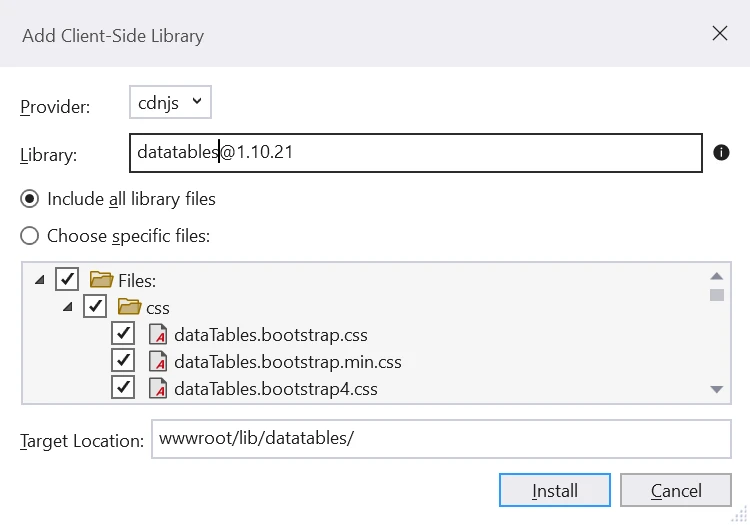
빈 테이블 본문과 함께 HTML 테이블을 추가합시다. jQuery DataTable을 설정하면서 필요한 열 헤더를 추가하겠습니다. 다음 코드를 Index.cshtml 파일에 추가하세요.
@page
@model IndexModel
@{
    ViewData["Title"] = "Home page";
}
<link href="~/lib/datatables/css/dataTables.bootstrap4.min.css" rel="stylesheet" />
<div class="container">
    <br />
    <div style="width:90%; margin:0 auto;">
        <table id="employeeDatatable" class="table table-striped table-bordered dt-responsive nowrap" width="100%" cellspacing="0">
        </table>
    </div>
</div>
@section Scripts
{
    <script src="~/lib/datatables/js/jquery.dataTables.min.js"></script>
    <script src="~/lib/datatables/js/dataTables.bootstrap4.min.js"></script>
    <script src="~/js/EmployeeDatatable.js"></script>
}wwwroot/Js 폴더 내에 EmployeeDatatable.js 파일을 추가해야 합니다. 이 파일에는 Ajax 호출과 필터링, 페이지 네이션, 검색, 정렬 등과 같은 jQuery DataTable의 고급 기능이 포함될 것입니다.
wwwroot/Js 폴더 내에 EmployeeDatatable.js 파일을 생성하세요. 다음 코드를 추가하세요.
$(document).ready(function () {
    $("#employeeDatatable").DataTable({
        "processing": true,
        "serverSide": false,
        "filter": true,
        "ajax": {
            "url": "/api/Employee",
            "type": "GET",
            "datatype": "json"
        },
        "columnDefs": [{
            "targets": [0],
            "visible": false,
            "searchable": false
        }],
        "columns": [
            { "data": "id", "title": "Employee ID", "name": "Employee ID", "autoWidth": true },
            { "data": "firstName", "title": "First Name", "name": "First Name", "autoWidth": true },
            { "data": "lastName", "title": "Last Name", "name": "Last Name", "autoWidth": true },
            { "data": "email", "title": "Email", "name": "Email", "autoWidth": true },
            { "data": "phoneNumber", "title": "Phone Number", "name": "Phone Number", "autoWidth": true },
            { "data": "gender", "title": "Gender", "name": "Gender", "autoWidth": true },
            { "data": "designation", "title": "Designation", "name": "Designation", "autoWidth": true }
        ]
    });
});기능이 풍부한 jQuery DataTables 라이브러리를 활용하였습니다. 이 강력한 jQuery 플러그인은 최소한의 노력으로 클라이언트 측에서 고급 기능을 구현할 수 있게 합니다.
이제 이 애플리케이션을 빌드하고 실행하세요.
ASP.NET에서 jQuery의 도움으로 매우 상호작용적인 UI가 준비된 것을 볼 수 있습니다. 표시된 데이터는 다음과 같습니다:
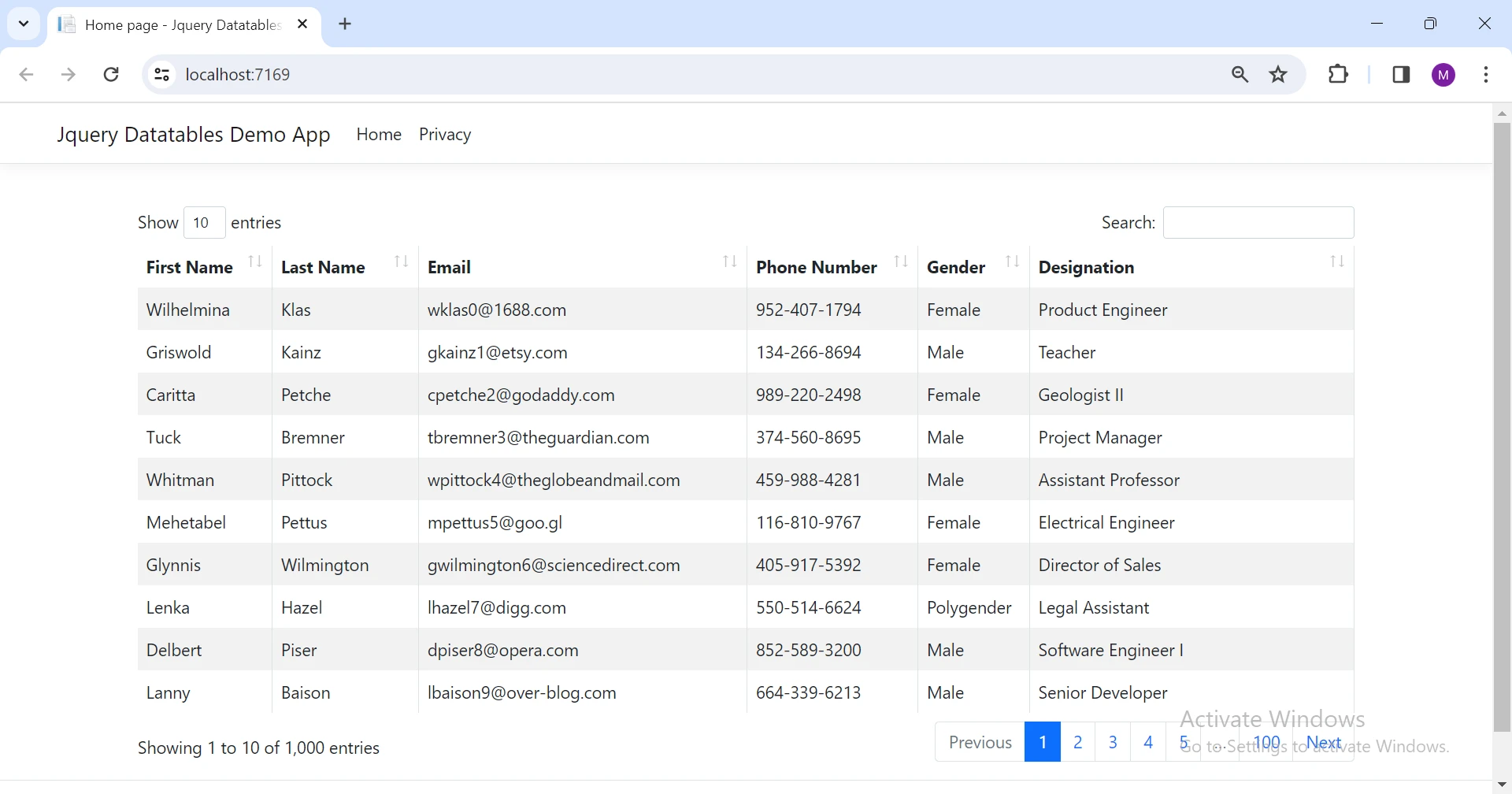
이제 페이지 네이션이 클라이언트 측에 구현되었기 때문에, 아래와 같이 서버에서 전체 데이터를 보냅니다:
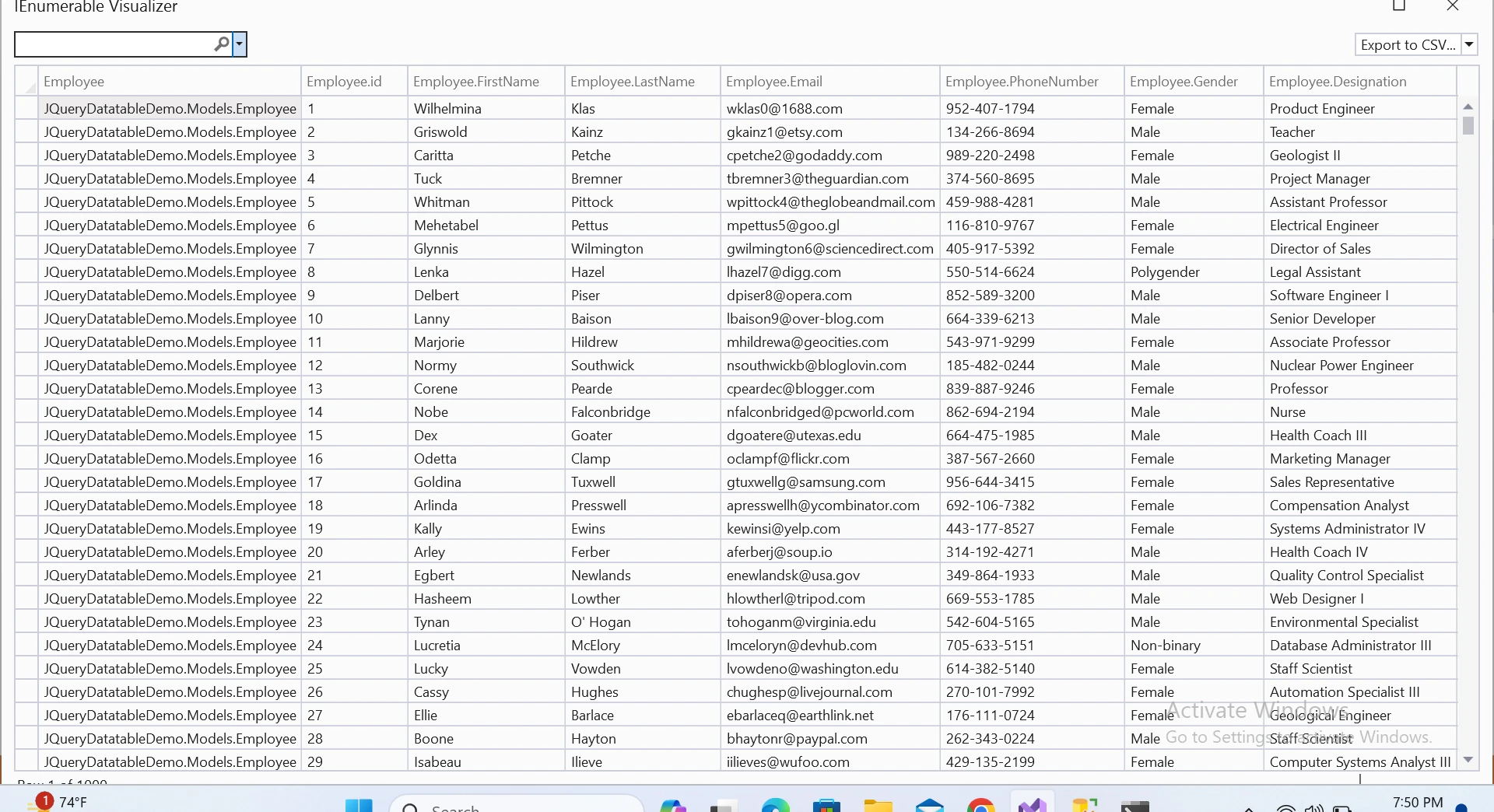
우리는 검색, 정렬, 페이지 변경을 할 수 있으며, 모두 클라이언트 측에서 수행됩니다. 아래에 표시된 것처럼:
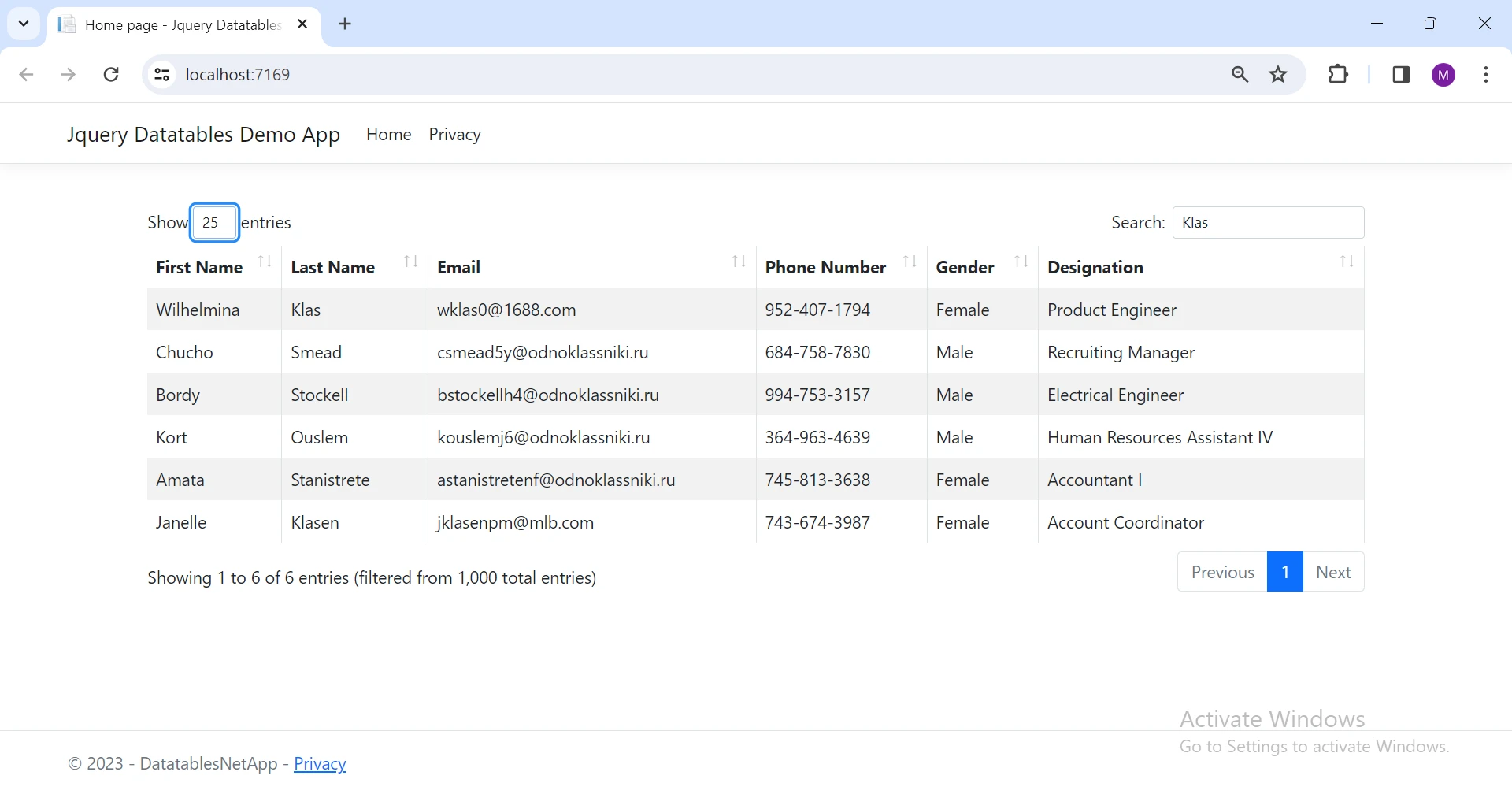
IronXL .NET용 Excel File Manipulation은 .NET 응용 프로그램에서 Excel 파일을 처리할 수 있는 라이브러리입니다. XLS, XLSX, CSV, TSV 등 다양한 형식의 Excel 문서를 생성, 읽기, 편집, 저장할 수 있습니다. Microsoft Office나 Excel Interop 설치가 필요하지 않습니다. NET 5, Core, Framework, Azure를 지원합니다.
종종 데이터를 엑셀 또는 CSV 파일로 내보내야 할 필요가 있습니다. 이 경우 IronXL이 가장 좋은 선택입니다. 이제 데이터를 Excel 파일로 내보내기 위한 코드를 작성합시다.
패키지 관리자 콘솔에서 다음 명령을 입력하여 프로젝트에 IronXL 라이브러리를 설치하세요.
이는 프로젝트에 IronXL 및 필요한 종속성들을 설치할 것입니다. IronXL NuGet Package에서 직접 다운로드할 수도 있습니다.
직원의 목록을 Excel 파일로 변환하는 코드를 작성합시다.
public void ExportToExcel(List<Employee> employeeList)
{
    // Create a new workbook instance
    WorkBook wb = WorkBook.Create(ExcelFileFormat.XLSX);
    // Get the default worksheet
    WorkSheet ws = wb.DefaultWorkSheet;

    // Add Header Row
    ws["A1"].Value = "Employee ID";
    ws["B1"].Value = "First Name";
    ws["C1"].Value = "Last Name";
    ws["D1"].Value = "Designation";
    ws["E1"].Value = "Gender";
    ws["F1"].Value = "Phone Number";
    ws["G1"].Value = "Email";

    int rowCount = 2;

    // Add Data Rows
    foreach (Employee employee in employeeList)
    {
        ws["A" + rowCount].Value = employee.Id.ToString();
        ws["B" + rowCount].Value = employee.FirstName;
        ws["C" + rowCount].Value = employee.LastName;
        ws["D" + rowCount].Value = employee.Designation;
        ws["E" + rowCount].Value = employee.Gender;
        ws["F" + rowCount].Value = employee.PhoneNumber;
        ws["G" + rowCount].Value = employee.Email;

        rowCount++;
    }

    // Save the workbook as an Excel file
    wb.SaveAs("Employee.xlsx");
}Public Sub ExportToExcel(ByVal employeeList As List(Of Employee))
' Create a new workbook instance
Dim wb As WorkBook = WorkBook.Create(ExcelFileFormat.XLSX)
' Get the default worksheet
Dim ws As WorkSheet = wb.DefaultWorkSheet
' Add Header Row
ws("A1").Value = "Employee ID"
ws("B1").Value = "First Name"
ws("C1").Value = "Last Name"
ws("D1").Value = "Designation"
ws("E1").Value = "Gender"
ws("F1").Value = "Phone Number"
ws("G1").Value = "Email"
Dim rowCount As Integer = 2
' Add Data Rows
For Each employee As Employee In employeeList
ws("A" & rowCount).Value = employee.Id.ToString()
ws("B" & rowCount).Value = employee.FirstName
ws("C" & rowCount).Value = employee.LastName
ws("D" & rowCount).Value = employee.Designation
ws("E" & rowCount).Value = employee.Gender
ws("F" & rowCount).Value = employee.PhoneNumber
ws("G" & rowCount).Value = employee.Email
rowCount += 1
Next employee
' Save the workbook as an Excel file
wb.SaveAs("Employee.xlsx")
End Sub간단하고 쉬운 방법으로 목록에서 Excel 파일을 생성하였습니다.
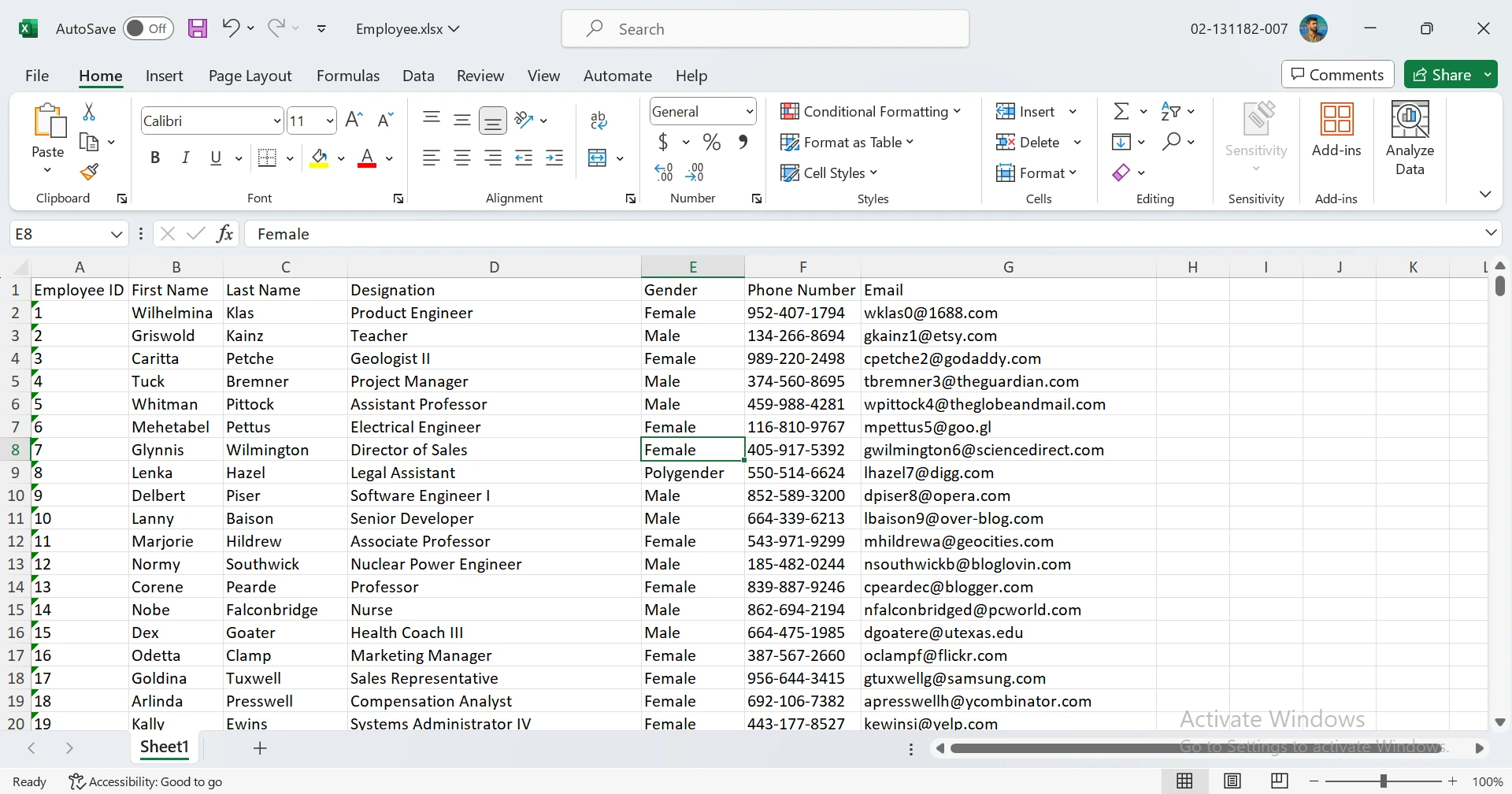
IronXL은 XLSX 파일 생성 튜토리얼, Excel 파일 읽기에 대한 코드 예제, 상세한 문서를 제공하여 종합적인 API를 가장 잘 활용할 수 있도록 도와줍니다.
결론적으로, jQuery DataTables는 ASP.NET 웹 응용 프로그램에서 표 형식 데이터를 변환하는 강력한 자산으로 떠올랐습니다. 가볍지만 기능이 풍부한 특성으로 상호작용적인 테이블을 생성할 수 있어 정렬, 검색, 페이지 네이션을 전면에 배치합니다. 클라이언트 측 처리를 활용하면서 브라우저의 능력을 활용하여 데이터 세트가 작을 때의 세부사항을 탐구하였으나 데이터가 많을 때의 잠재적 문제도 인정해야 합니다. ASP.NET Razor Page 응용 프로그램을 설정하고 jQuery DataTables를 통합하는 단계별 가이드가 개발자에게 실전적인 통찰력을 제공합니다. 또한 Excel 관련 작업에 매끄럽게 해결책을 제공하는 IronXL의 도입으로 효율적인 데이터 내보내기가 가능한 도구 모음에 가치 있는 레이어를 더해줍니다. 이러한 도구를 통해 개발자는 데이터를 장려적이고 접근 가능하게 제시하여 사용자 경험을 높일 수 있습니다.
IronXL은 개발자 수, 프로젝트 및 재배포 요구 사항에 따라 다양한 라이선스 옵션을 제공합니다. 라이선스는 영구적이며 무료 지원 및 업데이트를 포함합니다.

제이콥 멜러는 Iron Software의 최고 기술 책임자(CTO)이자 C# PDF 기술을 개척한 선구적인 엔지니어입니다. Iron Software의 핵심 코드베이스를 최초로 개발한 그는 창립 초기부터 회사의 제품 아키텍처를 설계해 왔으며, CEO인 캐머런 리밍턴과 함께 회사를 NASA, 테슬라, 그리고 전 세계 정부 기관에 서비스를 제공하는 50명 이상의 직원을 보유한 기업으로 성장시켰습니다.



IronPDF는 IRON SUITE 의 일부입니다.
10개의 .NET API 제품, 당신의 사무 문서를 위해











PDF 파일을 HTML처럼 빠르게 변환해야 할 때.


