




업데이트됨 2026년 4월 23일
.NET에서 Microsoft.Extensions.AI로 LLM 통합 간소화
AI는 소프트웨어 개발을 변혁하고 있으나, 대규모 언어 모델(LLM)을 .NET에 통합하는 것은 지금까지 복잡했습니다. 현대에는 OpenAI 기반 PDF 파싱, 데이터 추출 및 콘텐츠 요약을 .NET 애플리케이션에 가져오는 IronPdf.AI로 AI 통합을 더욱 확장하세요.
더 읽어보기

MS Graph .NET은 Microsoft Graph API와 상호작용하기 위한 데이터 액세스 도구로서 Azure Active Directory(Azure AD) 생태계의 중심 요소입니다. Microsoft Graph는 Microsoft 365의 데이터와 인텔리전스로의 게이트웨이입니다. 개발자는 다양한 Microsoft 서비스에 걸쳐 데이터를 액세스, 관리 및 분석할 수 있습니다. Microsoft Graph 클라이언트 라이브러리는 API와 쉽게 상호작용할 수 있는 일련의 메서드들을 제공하여 이 과정을 단순화합니다.
IronPDF는 .NET 애플리케이션에서 PDF 문서를 생성하기 위한 라이브러리입니다. HTML을 PDF로 변환하므로 자동으로 보고서, 청구서 및 문서를 생성하는 데 유용합니다. IronPDF는 .NET 애플리케이션과 잘 작동하여 PDF 생성을 위한 간단한 접근 방식을 제공합니다.
MS Graph .NET과 IronPDF를 결합하면 개발자가 Microsoft 365 데이터를 조작하고 PDF 문서를 생성할 수 있는 응용 프로그램을 만들 수 있습니다. 이 조합은 Microsoft 서비스에서 데이터를 필요로 하며 그 데이터를 표준 문서 형식으로 제시할 필요가 있는 비즈니스 애플리케이션을 개발하는 데 강력합니다.
특히 .NET Core 프로젝트에서 사용자 ID를 다룰 때 MS Graph .NET을 효과적으로 사용하려면 .NET 프로젝트를 설정하는 것이 첫 번째 단계입니다. 단계는 다음과 같습니다:
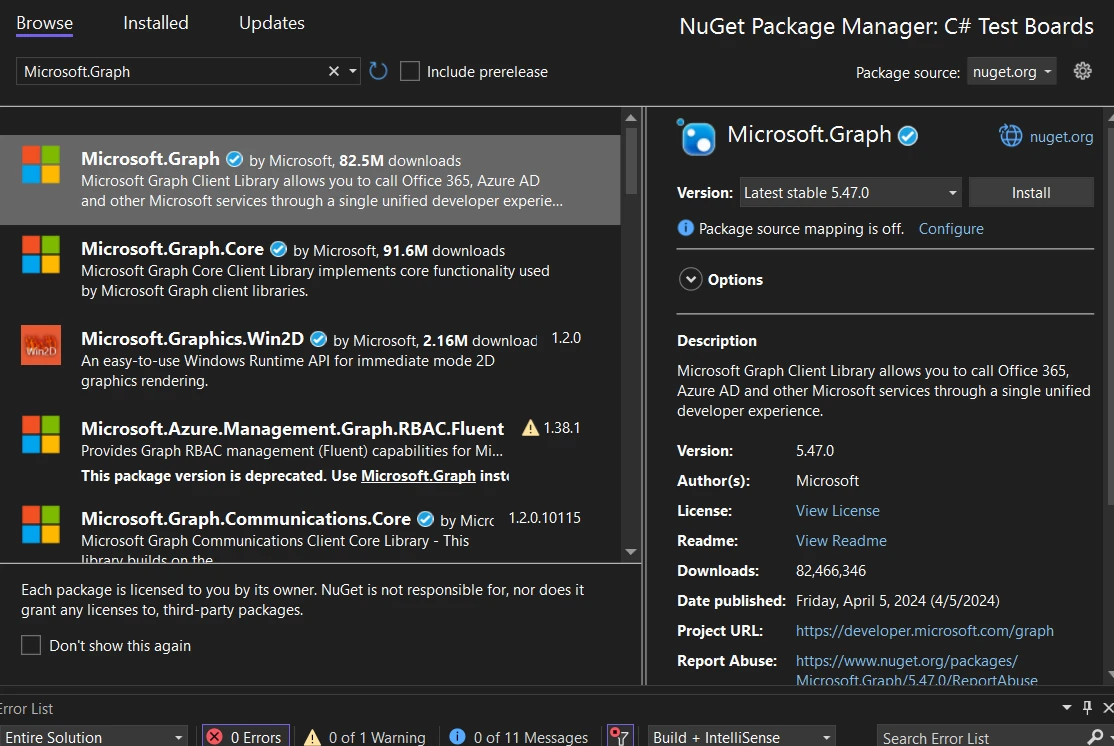
이 과정은 프로젝트에 MS Graph .NET을 추가합니다. 이제 코딩을 시작할 준비가 되었습니다.
현재 사용자의 프로필 정보를 검색하려고 한다고 가정해봅시다. 여기 간단한 코드 예제가 있습니다:
// Required namespaces
using Azure.Identity;
using Microsoft.Graph;

// Defining necessary credentials and scope
var clientId = "Your_Application_Id";
var tenantId = "Your_Tenant_Id";
var clientSecret = "Your_Client_Secret";
var scopes = new[] { "User.Read" };

// Configuring TokenCredentialOptions for Azure Public Cloud
var options = new TokenCredentialOptions
{
    AuthorityHost = AzureAuthorityHosts.AzurePublicCloud
};

// Authenticating using client credentials
var clientSecretCredential = new ClientSecretCredential(
    tenantId, clientId, clientSecret, options);

// Creating a new instance of GraphServiceClient
var graphClient = new GraphServiceClient(clientSecretCredential, scopes);

// Fetching current user's profile information
var user = await graphClient.Me
    .Request()
    .GetAsync();

// Printing user's display name
Console.WriteLine($"Hello, {user.DisplayName}!");' Required namespaces
Imports Azure.Identity
Imports Microsoft.Graph
' Defining necessary credentials and scope
Private clientId = "Your_Application_Id"
Private tenantId = "Your_Tenant_Id"
Private clientSecret = "Your_Client_Secret"
Private scopes = { "User.Read" }
' Configuring TokenCredentialOptions for Azure Public Cloud
Private options = New TokenCredentialOptions With {.AuthorityHost = AzureAuthorityHosts.AzurePublicCloud}
' Authenticating using client credentials
Private clientSecretCredential = New ClientSecretCredential(tenantId, clientId, clientSecret, options)
' Creating a new instance of GraphServiceClient
Private graphClient = New GraphServiceClient(clientSecretCredential, scopes)
' Fetching current user's profile information
Private user = await graphClient.Me.Request().GetAsync()
' Printing user's display name
Console.WriteLine($"Hello, {user.DisplayName}!")이 코드 스니펫은 Azure AD 인증을 위한 클라이언트 비밀을 활용하여 GraphServiceClient의 새 인스턴스를 생성하는 방법을 보여줍니다. 클라이언트 자격 증명을 사용하여 인증합니다. 그런 다음 현재 사용자의 표시 이름을 검색합니다. 이후 MS Graph .NET과 인증 공급자 구성을 프로젝트에 추가했는지 확인하십시오.
사용자의 Microsoft 계정 메일박스에서 이메일을 검색하려면 Mail.Read 권한을 사용합니다. 가장 최근의 이메일을 나열하는 방법은 다음과 같습니다:
// Retrieving the top 10 messages from the user's mailbox
var messages = await graphClient.Me.Messages
    .Request()
    .Top(10)
    .GetAsync();

// Iterating through the messages and printing their subjects
foreach (var message in messages)
{
    Console.WriteLine($"Subject: {message.Subject}");
}' Retrieving the top 10 messages from the user's mailbox
Dim messages = Await graphClient.Me.Messages.Request().Top(10).GetAsync()
' Iterating through the messages and printing their subjects
For Each message In messages
Console.WriteLine($"Subject: {message.Subject}")
Next message이 코드는 사용자의 받은 편지함 상위 10개의 이메일 제목을 나열합니다.
이메일 보내기는 Message 객체를 생성하고 보내는 것을 포함합니다:
// Creating a message to be sent
var message = new Message
{
    Subject = "Hello from MS Graph .NET",
    Body = new ItemBody
    {
        ContentType = BodyType.Text,
        Content = "Hello, this is a test email."
    },
    ToRecipients = new List<Recipient>()
    {
        new Recipient
        {
            EmailAddress = new EmailAddress
            {
                Address = "recipient@example.com"
            }
        }
    }
};

// Sending the email
await graphClient.Me.SendMail(message, null)
    .Request()
.PostAsync();' Creating a message to be sent
Dim message As New Message With {
.Subject = "Hello from MS Graph .NET",
.Body = New ItemBody With {
.ContentType = BodyType.Text,
.Content = "Hello, this is a test email."
},
.ToRecipients = New List(Of Recipient)() From {
New Recipient With {
.EmailAddress = New EmailAddress With {.Address = "recipient@example.com"}
}
}
}
' Sending the email
Await graphClient.Me.SendMail(message, Nothing).Request().PostAsync()간단한 텍스트 본문과 함께 이메일을 보냅니다.
사용자의 캘린더에 이벤트를 추가하려면:
// Creating a calendar event
var @event = new Event
{
    Subject = "Team Meeting",
    Body = new ItemBody
    {
        ContentType = BodyType.Html,
        Content = "Discuss project updates."
    },
    Start = new DateTimeTimeZone
    {
        DateTime = "2024-04-15T12:00:00",
        TimeZone = "Pacific Standard Time"
    },
    End = new DateTimeTimeZone
    {
        DateTime = "2024-04-15T14:00:00",
        TimeZone = "Pacific Standard Time"
    },
    Location = new Location
    {
        DisplayName = "Conference Room 1"
    }
};

// Adding the event to the user's calendar
await graphClient.Me.Events
    .Request()
.AddAsync(@event);' Creating a calendar event
Dim [event] As [Event] = New [Event] With {
.Subject = "Team Meeting",
.Body = New ItemBody With {
.ContentType = BodyType.Html,
.Content = "Discuss project updates."
},
.Start = New DateTimeTimeZone With {
.DateTime = "2024-04-15T12:00:00",
.TimeZone = "Pacific Standard Time"
},
.End = New DateTimeTimeZone With {
.DateTime = "2024-04-15T14:00:00",
.TimeZone = "Pacific Standard Time"
},
.Location = New Location With {.DisplayName = "Conference Room 1"}
}
' Adding the event to the user's calendar
Await graphClient.Me.Events.Request().AddAsync([event])이 코드는 캘린더에 새로운 이벤트를 일정 잡습니다.
사용자 OneDrive의 루트에서 파일을 나열하려면:
// Retrieving files from the root OneDrive folder
var files = await graphClient.Me.Drive.Root.Children
    .Request()
    .GetAsync();

// Printing each file's name
foreach (var file in files)
{
    Console.WriteLine(file.Name);
}' Retrieving files from the root OneDrive folder
Dim files = Await graphClient.Me.Drive.Root.Children.Request().GetAsync()
' Printing each file's name
For Each file In files
Console.WriteLine(file.Name)
Next file이 코드는 OneDrive 루트 디렉토리의 파일 이름을 출력합니다.
사용자가 속한 팀 목록을 검색하려면:
// Retrieving teams that the user is part of
var teams = await graphClient.Me.JoinedTeams
    .Request()
    .GetAsync();

// Printing each team's display name
foreach (var team in teams)
{
    Console.WriteLine($"Team name: {team.DisplayName}");
}' Retrieving teams that the user is part of
Dim teams = Await graphClient.Me.JoinedTeams.Request().GetAsync()
' Printing each team's display name
For Each team In teams
Console.WriteLine($"Team name: {team.DisplayName}")
Next team이 코드는 사용자가 속한 팀의 이름을 나열합니다.
각각의 이러한 기능은 MS Graph .NET의 강력함과 다재다능함을 보여줍니다. 그들은 Microsoft 365 서비스를 애플리케이션에 통합하는 방법을 보여줍니다.
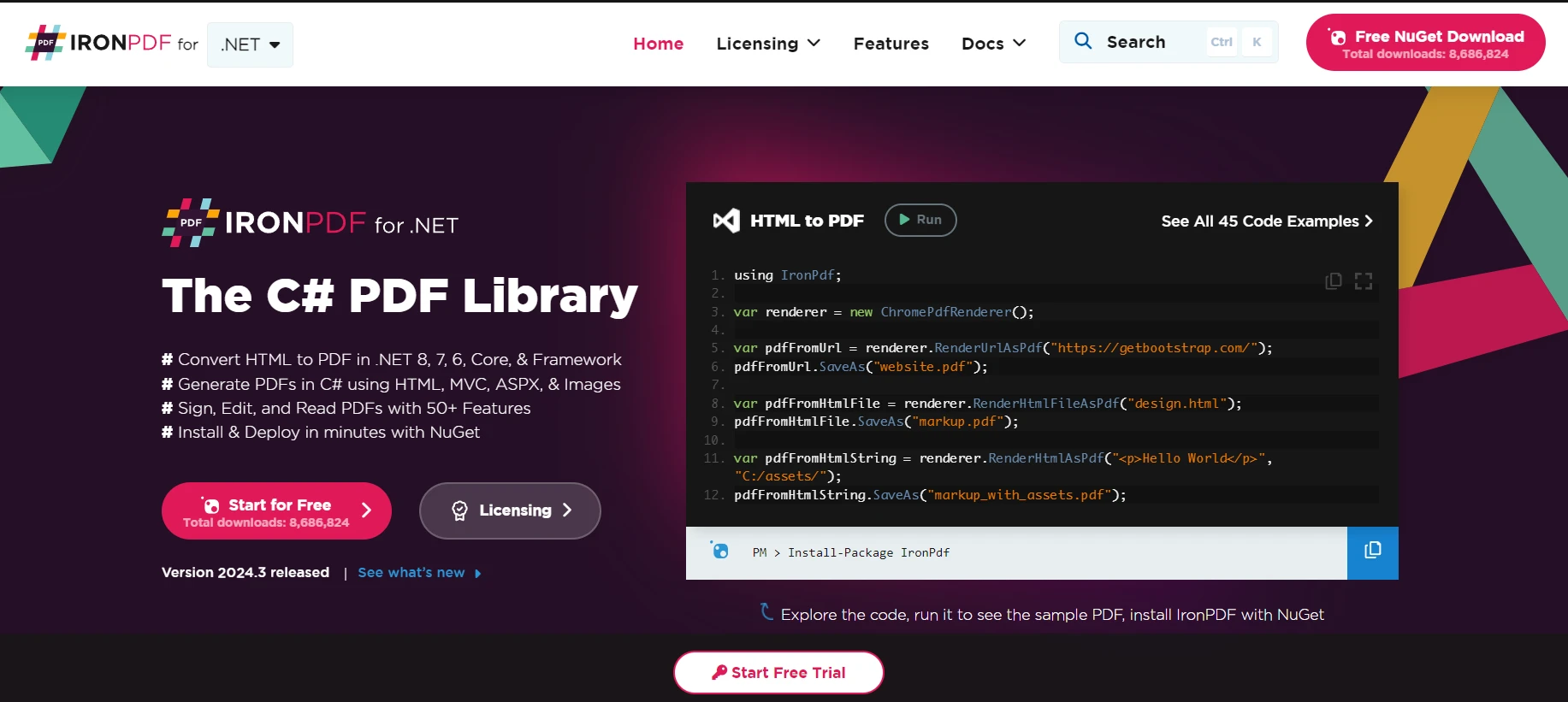
.NET 애플리케이션에서 PDF와 작업하려는 경우 .NET 개발자를 위한 IronPDF 라이브러리가 확실한 선택입니다. 이는 라이브러리로, 추가 외부 PDF 도구나 소프트웨어 없이 애플리케이션이 PDF 파일을 읽고 생성하며 조작할 수 있도록 합니다.
Microsoft 365에서 문서, 예를 들어 보고서나 청구서를 가져와 PDF로 변환해야 하는 애플리케이션을 구축한다고 상상해보십시오. MS Graph .NET은 OneDrive나 SharePoint에 저장된 파일을 포함하여 Microsoft 365 리소스와 상호작용할 수 있도록 합니다. 그 후 IronPDF를 사용하여 이러한 문서를 PDF로 변환할 수 있습니다. 이 조합은 특히 자동 보고서 생성이나 이메일 및 첨부 파일을 PDF 형식으로 아카이빙하여 쉽게 배포하는 데 유용합니다.
간단한 예제를 살펴보겠습니다. MS Graph .NET을 사용하여 OneDrive에서 문서를 가져온 다음 IronPDF를 사용하여 해당 문서를 PDF로 변환합니다. MSGraph 인증을 이미 설정했다고 가정하겠습니다. 그렇지 않다면, Microsoft 사이트에 시작하는 데 도움이 될 많은 문서가 있습니다.
// Simplified example, ensure to handle exceptions and errors appropriately.
using Microsoft.Graph;
using IronPdf;
using System.IO;
using System.Threading.Tasks;

class Program
{
    static async Task Main(string[] args)
    {
        // Setting up the GraphServiceClient with a DelegateAuthenticationProvider
        var graphClient = new GraphServiceClient(
            new DelegateAuthenticationProvider(
                async (requestMessage) =>
                {
                    // Insert code to acquire token
                    string accessToken = await GetAccessTokenAsync();
                    requestMessage.Headers.Authorization = new System.Net.Http.Headers.AuthenticationHeaderValue("Bearer", accessToken);
                }));

        // Replace 'itemId' with the ID of your document in OneDrive
        var stream = await graphClient.Me.Drive.Items["itemId"].Content.Request().GetAsync();

        // IronPDF setup to convert the fetched file to PDF
        var renderer = new HtmlToPdf();
        var pdfDocument = renderer.RenderHtmlAsPdf(StreamToString(stream));

        // Save the PDF to a file
        pdfDocument.SaveAs("YourDocument.pdf");
    }

    // Method to convert a Stream to a String
    static string StreamToString(Stream stream)
    {
        using (var reader = new StreamReader(stream))
        {
            return reader.ReadToEnd();
        }
    }

    // Method to obtain the access token
    static async Task<string> GetAccessTokenAsync()
    {
        // Implement your authentication logic here to return the access token
        return "your_access_token";
    }
}' Simplified example, ensure to handle exceptions and errors appropriately.
Imports Microsoft.Graph
Imports IronPdf
Imports System.IO
Imports System.Threading.Tasks
Friend Class Program
Shared Async Function Main(ByVal args() As String) As Task
' Setting up the GraphServiceClient with a DelegateAuthenticationProvider
Dim graphClient = New GraphServiceClient(New DelegateAuthenticationProvider(Async Sub(requestMessage)
' Insert code to acquire token
Dim accessToken As String = Await GetAccessTokenAsync()
requestMessage.Headers.Authorization = New System.Net.Http.Headers.AuthenticationHeaderValue("Bearer", accessToken)
End Sub))
' Replace 'itemId' with the ID of your document in OneDrive
Dim stream = Await graphClient.Me.Drive.Items("itemId").Content.Request().GetAsync()
' IronPDF setup to convert the fetched file to PDF
Dim renderer = New HtmlToPdf()
Dim pdfDocument = renderer.RenderHtmlAsPdf(StreamToString(stream))
' Save the PDF to a file
pdfDocument.SaveAs("YourDocument.pdf")
End Function
' Method to convert a Stream to a String
Private Shared Function StreamToString(ByVal stream As Stream) As String
Using reader = New StreamReader(stream)
Return reader.ReadToEnd()
End Using
End Function
' Method to obtain the access token
Private Shared Async Function GetAccessTokenAsync() As Task(Of String)
' Implement your authentication logic here to return the access token
Return "your_access_token"
End Function
End Class이 코드에서 주목할 만한 몇 가지 사항:
이것은 단순화된 예제라는 점을 기억하세요. 실제 애플리케이션에서는 인증을 보다 안정적으로 처리하고, 오류를 관리하며, 다수의 파일 형식을 더 우아하게 처리해야 할 것입니다. 하지만 이것은 .NET 프로젝트에서 MSGraph와 IronPDF를 통합하기 위한 좋은 출발점이 될 것입니다.
C# 애플리케이션에 Microsoft 365 기능을 통합하려는 개발자에게 MS Graph .NET SDK는 필수 도구입니다. MS Graph .NET SDK 라이선스 및 가격 정보 $999에서 시작하여 탐색을 시작하세요.

제이콥 멜러는 Iron Software의 최고 기술 책임자(CTO)이자 C# PDF 기술을 개척한 선구적인 엔지니어입니다. Iron Software의 핵심 코드베이스를 최초로 개발한 그는 창립 초기부터 회사의 제품 아키텍처를 설계해 왔으며, CEO인 캐머런 리밍턴과 함께 회사를 NASA, 테슬라, 그리고 전 세계 정부 기관에 서비스를 제공하는 50명 이상의 직원을 보유한 기업으로 성장시켰습니다.



IronPDF는 IRON SUITE 의 일부입니다.
10개의 .NET API 제품, 당신의 사무 문서를 위해











PDF 파일을 HTML처럼 빠르게 변환해야 할 때.


