


MS Graph .NET(對於開發者的運行原理)

MS Graph .NET 是與 Microsoft Graph API 互動的 存取資料工具,是 Azure Active Directory (Azure AD) 生態系統的核心部分。 Microsoft Graph 是 Microsoft 365 中的資料和智慧的閘道。它允許開發人員存取、管理和分析各種 Microsoft 服務的資料。 Microsoft Graph 客戶端函式庫透過提供一系列方法,讓您輕鬆與 API 進行互動,從而簡化這個過程。
IronPDF 是用於在 .NET 應用程式中產生 PDF 文件的函式庫。 它可將 HTML 轉換為 PDF,因此對於自動建立報告、發票和文件非常有用。 IronPDF 可與 .NET 應用程式完美搭配,提供直接的 PDF 產生方式。
將 MS Graph .NET 和 IronPDF 結合使用,可以讓開發者創建能操作 Microsoft 365 資料並生成 PDF 文檔的應用程式。 對於需要 Microsoft 服務提供的資料,並需要以標準文件格式呈現這些資料的商業應用程式開發而言,這種組合非常強大。
開始使用 MS Graph .NET
在 .NET 專案中設定 MS Graph .NET
要有效地使用 MS Graph .NET,特別是在 .NET Core 專案中使用 user IDs 時,設定您的 .NET 專案是第一步。以下是步驟:
1.開啟 NuGet 套件管理員。 2.搜尋 Microsoft.Graph。 3.安裝 Microsoft.Graph 套件。
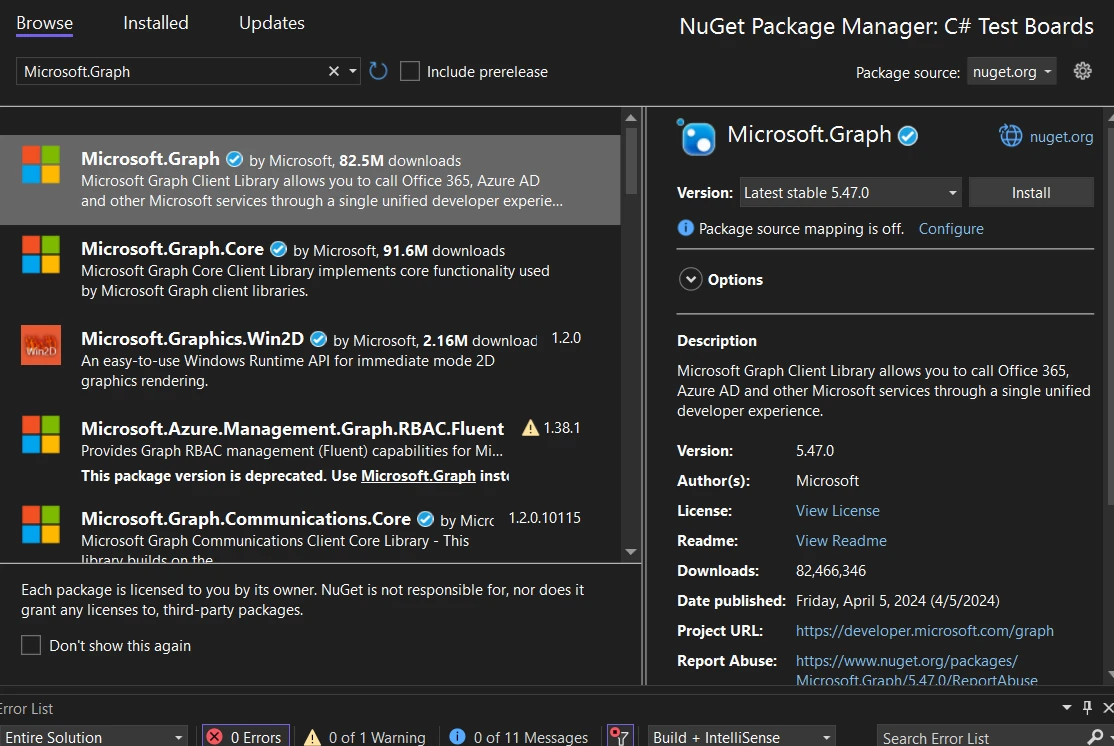
此流程將 MS Graph .NET 加入您的專案中。 現在,您可以開始使用它進行編碼了。
基本程式碼範例
比方說,您想要擷取目前使用者的個人資料資訊。 以下是一個簡單的程式碼範例:
// Required namespaces
using Azure.Identity;
using Microsoft.Graph;

// Defining necessary credentials and scope
var clientId = "Your_Application_Id";
var tenantId = "Your_Tenant_Id";
var clientSecret = "Your_Client_Secret";
var scopes = new[] { "User.Read" };

// Configuring TokenCredentialOptions for Azure Public Cloud
var options = new TokenCredentialOptions
{
    AuthorityHost = AzureAuthorityHosts.AzurePublicCloud
};

// Authenticating using client credentials
var clientSecretCredential = new ClientSecretCredential(
    tenantId, clientId, clientSecret, options);

// Creating a new instance of GraphServiceClient
var graphClient = new GraphServiceClient(clientSecretCredential, scopes);

// Fetching current user's profile information
var user = await graphClient.Me
    .Request()
    .GetAsync();

// Printing user's display name
Console.WriteLine($"Hello, {user.DisplayName}!");
// Required namespaces
using Azure.Identity;
using Microsoft.Graph;
// Defining necessary credentials and scope
var clientId = "Your_Application_Id";
var tenantId = "Your_Tenant_Id";
var clientSecret = "Your_Client_Secret";
var scopes = new[] { "User.Read" };
// Configuring TokenCredentialOptions for Azure Public Cloud
var options = new TokenCredentialOptions
{
AuthorityHost = AzureAuthorityHosts.AzurePublicCloud
};
// Authenticating using client credentials
var clientSecretCredential = new ClientSecretCredential(
tenantId, clientId, clientSecret, options);
// Creating a new instance of GraphServiceClient
var graphClient = new GraphServiceClient(clientSecretCredential, scopes);
// Fetching current user's profile information
var user = await graphClient.Me
.Request()
.GetAsync();
// Printing user's display name
Console.WriteLine($"Hello, {user.DisplayName}!");' Required namespaces
Imports Azure.Identity
Imports Microsoft.Graph
' Defining necessary credentials and scope
Private clientId = "Your_Application_Id"
Private tenantId = "Your_Tenant_Id"
Private clientSecret = "Your_Client_Secret"
Private scopes = { "User.Read" }
' Configuring TokenCredentialOptions for Azure Public Cloud
Private options = New TokenCredentialOptions With {.AuthorityHost = AzureAuthorityHosts.AzurePublicCloud}
' Authenticating using client credentials
Private clientSecretCredential = New ClientSecretCredential(tenantId, clientId, clientSecret, options)
' Creating a new instance of GraphServiceClient
Private graphClient = New GraphServiceClient(clientSecretCredential, scopes)
' Fetching current user's profile information
Private user = await graphClient.Me.Request().GetAsync()
' Printing user's display name
Console.WriteLine($"Hello, {user.DisplayName}!")此程式碼片段示範如何使用用戶端金鑰進行 Azure AD 驗證來建立 GraphServiceClient 的新執行個體。 它使用客戶端憑證進行驗證。 然後擷取目前使用者的顯示名稱。 接下來,請確認 MS Graph .NET 以及您的驗證提供者組態已加入您的專案。
MS Graph .NET 的特點
擷取使用者電子郵件
若要從使用者的 Microsoft 帳戶信箱擷取電子郵件,您必須使用 Mail.Read權限。 以下是如何列出最近的電子郵件:
// Retrieving the top 10 messages from the user's mailbox
var messages = await graphClient.Me.Messages
    .Request()
    .Top(10)
    .GetAsync();

// Iterating through the messages and printing their subjects
foreach (var message in messages)
{
    Console.WriteLine($"Subject: {message.Subject}");
}
// Retrieving the top 10 messages from the user's mailbox
var messages = await graphClient.Me.Messages
.Request()
.Top(10)
.GetAsync();
// Iterating through the messages and printing their subjects
foreach (var message in messages)
{
Console.WriteLine($"Subject: {message.Subject}");
}' Retrieving the top 10 messages from the user's mailbox
Dim messages = Await graphClient.Me.Messages.Request().Top(10).GetAsync()
' Iterating through the messages and printing their subjects
For Each message In messages
Console.WriteLine($"Subject: {message.Subject}")
Next message此代碼列出使用者收件匣中排名前 10 的電子郵件主題。
傳送電子郵件
傳送電子郵件包括建立 Message 物件並傳送它:
// Creating a message to be sent
var message = new Message
{
    Subject = "Hello from MS Graph .NET",
    Body = new ItemBody
    {
        ContentType = BodyType.Text,
        Content = "Hello, this is a test email."
    },
    ToRecipients = new List<Recipient>()
    {
        new Recipient
        {
            EmailAddress = new EmailAddress
            {
                Address = "recipient@example.com"
            }
        }
    }
};

// Sending the email
await graphClient.Me.SendMail(message, null)
    .Request()
    .PostAsync();
// Creating a message to be sent
var message = new Message
{
Subject = "Hello from MS Graph .NET",
Body = new ItemBody
{
ContentType = BodyType.Text,
Content = "Hello, this is a test email."
},
ToRecipients = new List<Recipient>()
{
new Recipient
{
EmailAddress = new EmailAddress
{
Address = "recipient@example.com"
}
}
}
};
// Sending the email
await graphClient.Me.SendMail(message, null)
.Request()
.PostAsync();' Creating a message to be sent
Dim message As New Message With {
.Subject = "Hello from MS Graph .NET",
.Body = New ItemBody With {
.ContentType = BodyType.Text,
.Content = "Hello, this is a test email."
},
.ToRecipients = New List(Of Recipient)() From {
New Recipient With {
.EmailAddress = New EmailAddress With {.Address = "recipient@example.com"}
}
}
}
' Sending the email
Await graphClient.Me.SendMail(message, Nothing).Request().PostAsync()這會傳送一封電子郵件,內容很簡單。
管理行事曆事件
將事件新增至使用者的行事曆:
// Creating a calendar event
var @event = new Event
{
    Subject = "Team Meeting",
    Body = new ItemBody
    {
        ContentType = BodyType.Html,
        Content = "Discuss project updates."
    },
    Start = new DateTimeTimeZone
    {
        DateTime = "2024-04-15T12:00:00",
        TimeZone = "Pacific Standard Time"
    },
    End = new DateTimeTimeZone
    {
        DateTime = "2024-04-15T14:00:00",
        TimeZone = "Pacific Standard Time"
    },
    Location = new Location
    {
        DisplayName = "Conference Room 1"
    }
};

// Adding the event to the user's calendar
await graphClient.Me.Events
    .Request()
    .AddAsync(@event);
// Creating a calendar event
var @event = new Event
{
Subject = "Team Meeting",
Body = new ItemBody
{
ContentType = BodyType.Html,
Content = "Discuss project updates."
},
Start = new DateTimeTimeZone
{
DateTime = "2024-04-15T12:00:00",
TimeZone = "Pacific Standard Time"
},
End = new DateTimeTimeZone
{
DateTime = "2024-04-15T14:00:00",
TimeZone = "Pacific Standard Time"
},
Location = new Location
{
DisplayName = "Conference Room 1"
}
};
// Adding the event to the user's calendar
await graphClient.Me.Events
.Request()
.AddAsync(@event);' Creating a calendar event
Dim [event] As [Event] = New [Event] With {
.Subject = "Team Meeting",
.Body = New ItemBody With {
.ContentType = BodyType.Html,
.Content = "Discuss project updates."
},
.Start = New DateTimeTimeZone With {
.DateTime = "2024-04-15T12:00:00",
.TimeZone = "Pacific Standard Time"
},
.End = New DateTimeTimeZone With {
.DateTime = "2024-04-15T14:00:00",
.TimeZone = "Pacific Standard Time"
},
.Location = New Location With {.DisplayName = "Conference Room 1"}
}
' Adding the event to the user's calendar
Await graphClient.Me.Events.Request().AddAsync([event])此代碼會在行事曆中排程一個新事件。
存取 OneDrive 檔案
從使用者 OneDrive 的根目錄列出檔案:
// Retrieving files from the root OneDrive folder
var files = await graphClient.Me.Drive.Root.Children
    .Request()
    .GetAsync();

// Printing each file's name
foreach (var file in files)
{
    Console.WriteLine(file.Name);
}
// Retrieving files from the root OneDrive folder
var files = await graphClient.Me.Drive.Root.Children
.Request()
.GetAsync();
// Printing each file's name
foreach (var file in files)
{
Console.WriteLine(file.Name);
}' Retrieving files from the root OneDrive folder
Dim files = Await graphClient.Me.Drive.Root.Children.Request().GetAsync()
' Printing each file's name
For Each file In files
Console.WriteLine(file.Name)
Next file此程式碼會列印 OneDrive 根目錄中的檔案名稱。
與團隊合作
檢索使用者所屬的團隊清單:
// Retrieving teams that the user is part of
var teams = await graphClient.Me.JoinedTeams
    .Request()
    .GetAsync();

// Printing each team's display name
foreach (var team in teams)
{
    Console.WriteLine($"Team name: {team.DisplayName}");
}
// Retrieving teams that the user is part of
var teams = await graphClient.Me.JoinedTeams
.Request()
.GetAsync();
// Printing each team's display name
foreach (var team in teams)
{
Console.WriteLine($"Team name: {team.DisplayName}");
}' Retrieving teams that the user is part of
Dim teams = Await graphClient.Me.JoinedTeams.Request().GetAsync()
' Printing each team's display name
For Each team In teams
Console.WriteLine($"Team name: {team.DisplayName}")
Next team這裡列出使用者所屬的團隊名稱。
每項功能都展現了 MS Graph .NET 的強大功能和多樣性。 它們展示了如何將 Microsoft 365 服務整合到您的應用程式中。
將 MS Graph .NET 與 IronPDF 整合。
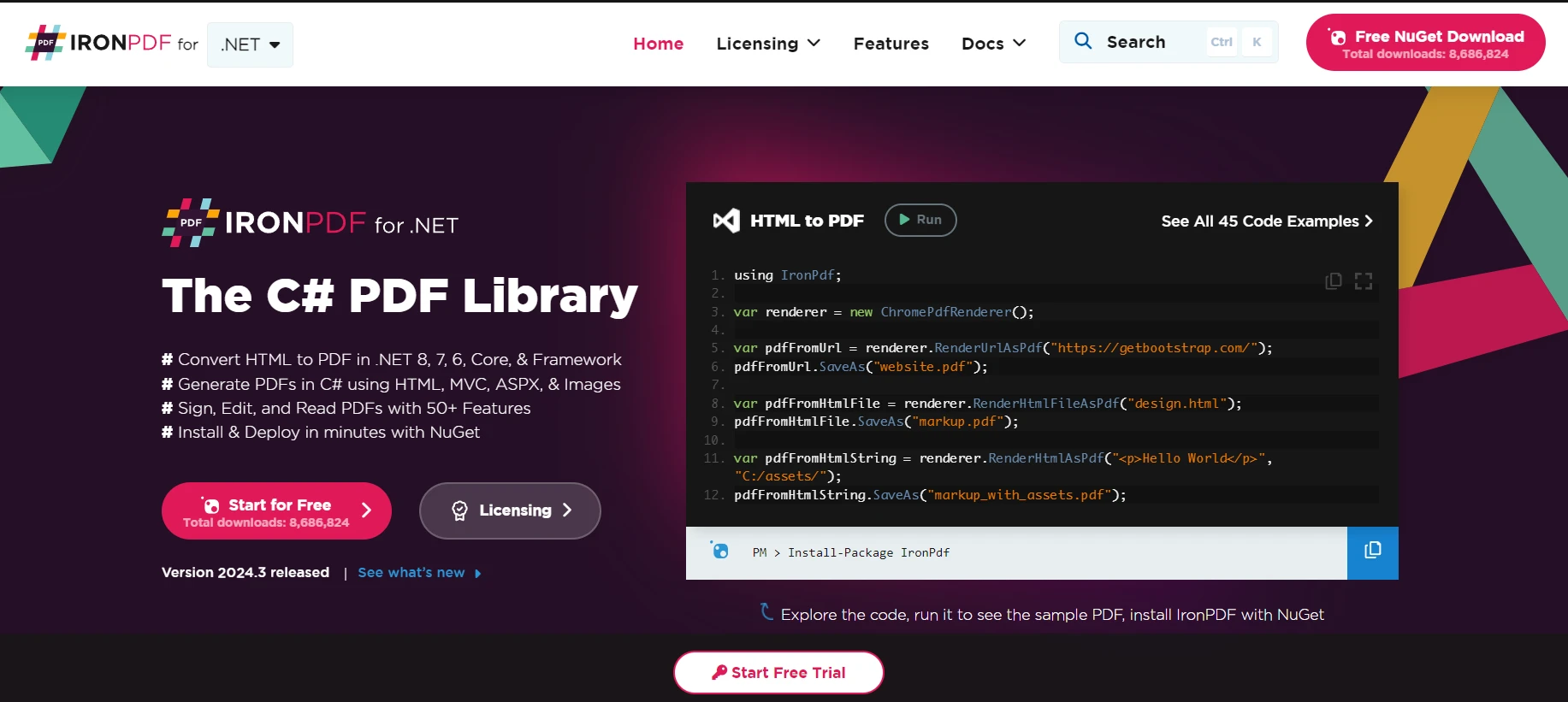
如果您希望在 .NET 應用程式中使用 PDF,The IronPDF Library 適用於 .NET Developers 是一個可靠的選擇。這個函式庫讓您的應用程式能夠讀取、建立和處理 PDF 檔案,而不需要任何其他外部 PDF 工具或軟體。
使用案例:將 IronPDF 與 MS Graph .NET 合併。
假設您正在建立一個應用程式,需要從 Microsoft 365 取得文件,例如報告或發票,並將它們轉換成 PDF。 MS Graph .NET 可讓您與 Microsoft 365 資源互動,包括儲存於 OneDrive 或 SharePoint 的檔案。 接下來就可以使用 IronPDF 將這些文件轉換成 PDF。 這種組合特別適用於自動產生報告,或以 PDF 格式將電子郵件和附件歸檔,以便於分發。
程式碼範例:從 MS Graph 到 PDF
讓我們舉一個簡單的例子。 我們要使用 MS Graph .NET 從 OneDrive 取得一份文件,然後再使用 IronPDF 將該文件轉換為 PDF。 我假設您已經設定了 MSGraph 的驗證; 如果沒有,Microsoft 的網站上有大量的說明文件可以幫助您入門。
// Simplified example, ensure to handle exceptions and errors appropriately.
using Microsoft.Graph;
using IronPdf;
using System.IO;
using System.Threading.Tasks;

class Program
{
    static async Task Main(string[] args)
    {
        // Setting up the GraphServiceClient with a DelegateAuthenticationProvider
        var graphClient = new GraphServiceClient(
            new DelegateAuthenticationProvider(
                async (requestMessage) =>
                {
                    // Insert code to acquire token
                    string accessToken = await GetAccessTokenAsync();
                    requestMessage.Headers.Authorization = new System.Net.Http.Headers.AuthenticationHeaderValue("Bearer", accessToken);
                }));

        // Replace 'itemId' with the ID of your document in OneDrive
        var stream = await graphClient.Me.Drive.Items["itemId"].Content.Request().GetAsync();

        // IronPDF setup to convert the fetched file to PDF
        var renderer = new HtmlToPdf();
        var pdfDocument = renderer.RenderHtmlAsPdf(StreamToString(stream));

        // Save the PDF to a file
        pdfDocument.SaveAs("YourDocument.pdf");
    }

    // Method to convert a Stream to a String
    static string StreamToString(Stream stream)
    {
        using (var reader = new StreamReader(stream))
        {
            return reader.ReadToEnd();
        }
    }

    // Method to obtain the access token
    static async Task<string> GetAccessTokenAsync()
    {
        // Implement your authentication logic here to return the access token
        return "your_access_token";
    }
}
// Simplified example, ensure to handle exceptions and errors appropriately.
using Microsoft.Graph;
using IronPdf;
using System.IO;
using System.Threading.Tasks;
class Program
{
static async Task Main(string[] args)
{
// Setting up the GraphServiceClient with a DelegateAuthenticationProvider
var graphClient = new GraphServiceClient(
new DelegateAuthenticationProvider(
async (requestMessage) =>
{
// Insert code to acquire token
string accessToken = await GetAccessTokenAsync();
requestMessage.Headers.Authorization = new System.Net.Http.Headers.AuthenticationHeaderValue("Bearer", accessToken);
}));
// Replace 'itemId' with the ID of your document in OneDrive
var stream = await graphClient.Me.Drive.Items["itemId"].Content.Request().GetAsync();
// IronPDF setup to convert the fetched file to PDF
var renderer = new HtmlToPdf();
var pdfDocument = renderer.RenderHtmlAsPdf(StreamToString(stream));
// Save the PDF to a file
pdfDocument.SaveAs("YourDocument.pdf");
}
// Method to convert a Stream to a String
static string StreamToString(Stream stream)
{
using (var reader = new StreamReader(stream))
{
return reader.ReadToEnd();
}
}
// Method to obtain the access token
static async Task<string> GetAccessTokenAsync()
{
// Implement your authentication logic here to return the access token
return "your_access_token";
}
}' Simplified example, ensure to handle exceptions and errors appropriately.
Imports Microsoft.Graph
Imports IronPdf
Imports System.IO
Imports System.Threading.Tasks
Friend Class Program
Shared Async Function Main(ByVal args() As String) As Task
' Setting up the GraphServiceClient with a DelegateAuthenticationProvider
Dim graphClient = New GraphServiceClient(New DelegateAuthenticationProvider(Async Sub(requestMessage)
' Insert code to acquire token
Dim accessToken As String = Await GetAccessTokenAsync()
requestMessage.Headers.Authorization = New System.Net.Http.Headers.AuthenticationHeaderValue("Bearer", accessToken)
End Sub))
' Replace 'itemId' with the ID of your document in OneDrive
Dim stream = Await graphClient.Me.Drive.Items("itemId").Content.Request().GetAsync()
' IronPDF setup to convert the fetched file to PDF
Dim renderer = New HtmlToPdf()
Dim pdfDocument = renderer.RenderHtmlAsPdf(StreamToString(stream))
' Save the PDF to a file
pdfDocument.SaveAs("YourDocument.pdf")
End Function
' Method to convert a Stream to a String
Private Shared Function StreamToString(ByVal stream As Stream) As String
Using reader = New StreamReader(stream)
Return reader.ReadToEnd()
End Using
End Function
' Method to obtain the access token
Private Shared Async Function GetAccessTokenAsync() As Task(Of String)
' Implement your authentication logic here to return the access token
Return "your_access_token"
End Function
End Class本代碼中需要注意的幾點:
- 我們使用 MSGraph 來存取儲存在 OneDrive 中的檔案。您需要該項目的 ID,您可以透過 Graph API 取得 ID。
- 本範例中,我們將檔案串流轉換為字串。 這對 HTML 文件非常有效。 如果您要處理的是二進位檔案(如 Word 文件),您需要使用不同的方法將這些檔案轉換為 PDF。
- 這裡使用 IronPDF 的 RenderHtmlAsPdf 方法從 HTML 字串建立 PDF。 如果您的源文件不是 HTML,IronPDF 也提供了處理其他格式的方法。
請記住,這是一個簡化的範例。 在實際應用中,您需要更穩健地處理驗證、管理錯誤,並可能更優雅地處理不同的檔案格式。 但這應該能為您在 .NET 專案中整合 MSGraph 和 IronPDF 提供一個良好的起點。
結論
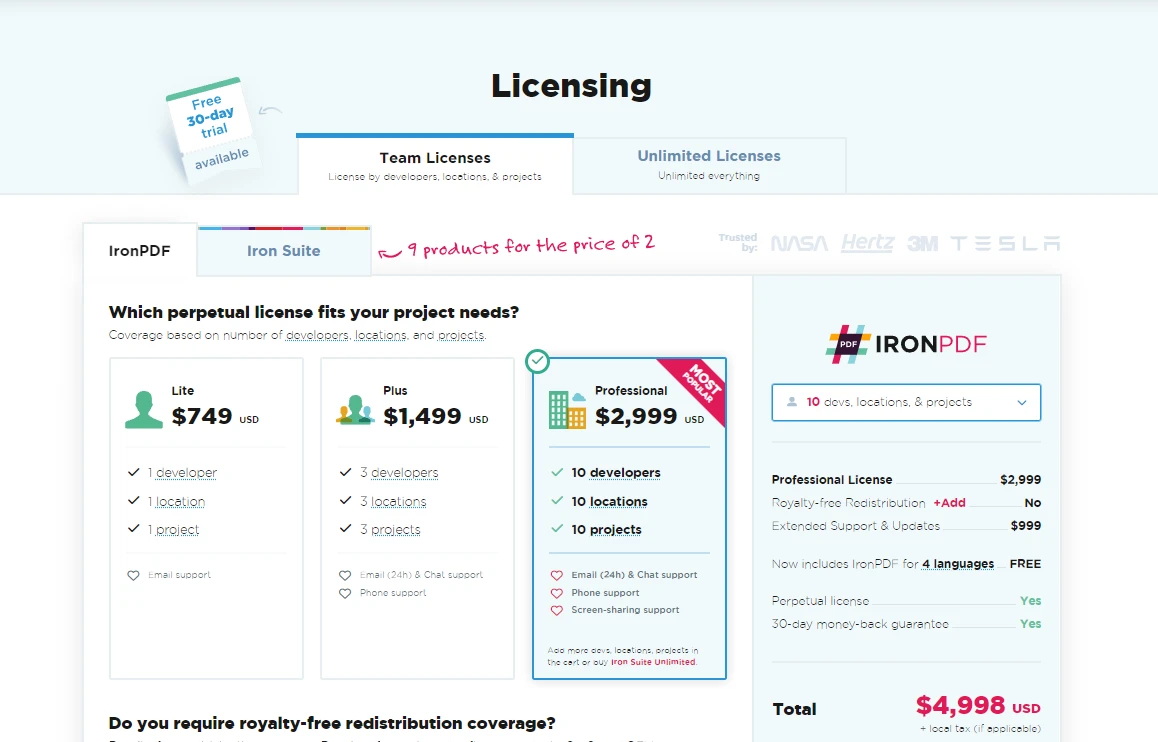
對於希望將 Microsoft 365 功能整合至 C# 應用程式的開發人員而言,MS Graph .NET SDK 是不可或缺的工具。 首先,請瀏覽MS Graph .NET SDK 許可和定價信息,從 $999 開始。
常見問題解答
MS Graph .NET 如何幫助開發人員訪問 Microsoft 365 數據?
MS Graph .NET 作為開發人員訪問和管理 Microsoft 365 數據的門戶,通過 Azure Active Directory 生態系統的一部分,提供簡化數據互動過程的方法。
開發人員如何在 .NET 中使用 Microsoft 365 數據生成 PDF 文檔?
開發人員可以使用 IronPDF 將 HTML 和其他文檔格式轉換為 PDF,從而在 .NET 應用程序中生成 PDF 文檔,利用通過 MS Graph .NET 訪問的數據。
開始在項目中使用 MS Graph .NET 需要什麼?
要開始使用 MS Graph .NET,您需要通過 NuGet 包管理器安裝 Microsoft.Graph 包,並設置使用客戶端憑證進行身份驗證以與 Microsoft 365 服務互動。
開發人員如何使用 MS Graph .NET 發送電子郵件?
開發人員可以通過創建帶有所需內容和接收者詳細信息的 `Message` 對象,然後利用 `GraphServiceClient` 的 `SendMail` 方法來使用 MS Graph .NET 發送電子郵件。
MS Graph .NET 可以管理 Microsoft 365 帳戶中的日曆事件嗎?
是的,MS Graph .NET 允許通過創建 `Event` 對象和使用例如 `Me.Events.Request().AddAsync(event)` 這樣的方法來添加事件到用戶的日曆中來管理日曆事件。
如何在 .NET 應用程序中將 OneDrive 文檔轉換為 PDF?
要將 OneDrive 文檔轉換為 PDF,可以使用 MS Graph .NET 獲取文檔,然後使用 IronPDF 將文檔內容轉換為 PDF 格式。
將 MS Graph .NET 與 IronPDF 整合時應考慮哪些因素?
在將 MS Graph .NET 與 IronPDF 整合時,考慮強健的身份驗證、錯誤處理以及不同文件格式的兼容性,以確保無縫轉換和數據管理。
將 MS Graph .NET 與 IronPDF 結合使用的一些實際應用是什麼?
結合使用 MS Graph .NET 和 IronPDF 可以生成 PDF 報告、將郵件存檔為 PDF,或從 Microsoft 365 數據創建標準化業務文檔。
MS Graph .NET 如何提高 .NET 應用程序的效率?
MS Graph .NET 通過提供簡化的 Microsoft 365 服務訪問來提高效率,使開發人員能夠以最少的代碼檢索、管理和操作數據,從而提高生產力和應用程序的能力。


















 免費開始使用
 免費開始使用
 預約免費現場演示





 無需信用卡或創建帳戶










