


Livecharts C#(對於開發者的運行原理)

LiveCharts 是為 .NET 開發人員設計的程式庫。 LiveCharts 幫助在 C# 應用程式中建立動態且美觀的圖表。 這意味著當您的資料發生變化時,圖表會自動刷新。 LiveCharts 不僅限於傳統應用程式; 它支援 Windows Presentation Foundation (WPF),使它成為桌面應用程式中的多功能工具。
主要特色和好處
尋找資料可視化需求的解答? LiveCharts 提供了具有廣泛功能的全面解決方案。 以下是一些關鍵點:
- 自動動畫: 圖表會自動動態化,無需額外程式碼即可平滑更新,使您的資料視覺化更有吸引力。
- 支援 WPF: 您可以在 WPF 應用程式中使用 LiveCharts,允許豐富的使用者介面。
- 高性能: 設計旨在提高性能、速度和效率,特別是對於大型資料集。
- 靈活性: 從一開始就簡單、靈活、互動且易於使用,也允許根據專案需求進行複雜的自定義。
- 互動式圖表: 使用者可以與圖表互動,增強資料探索。
- 廣泛的圖表型別: 無論您的資料可視化需求是什麼,LiveCharts 都有相應的圖表型別。
LiveCharts 將複雜資料轉換為互動且引人入勝的視圖。 它的易用性和靈活性使其成為開發人員的強大工具。 利用強大的 LiveCharts 功能,開發人員可以將複雜資料轉換為互動且引人入勝的視覺呈現。 我們將探索 LiveCharts 的功能及其與 IronPDF 程式庫的整合。
開始使用 LiveCharts
設置您的開發環境以使用 LiveCharts 是直觀的,存取其源碼可以增強自定義和理解。 本節將引導您完成初始步驟,幫助您建立第一個圖表。
設置您的環境
要使用 LiveCharts,請確保您已安裝 Visual Studio。 然後,將 LiveCharts 套件,一個專為動態資料可視化設計的套件,新增到您的專案中。 您可以通過 NuGet 套件管理器來完成此操作。 搜尋 LiveCharts 並安裝最新版本。 此過程會將所有必要的引用新增到您的專案中。
使用 LiveCharts 建立您的第一個圖表
建立您的第一個圖表涉及一些簡單的步驟。 首先,將圖表控制項新增到您的應用程式 UI 中。 如果您正在使用 WPF,您可以在 XAML 中或通過 C# 程式化完成這一操作。
以下是 XAML 中的一個基本範例:
<lvc:CartesianChart Series="{Binding MySeries}"/><lvc:CartesianChart Series="{Binding MySeries}"/>在您的 C# 程式碼中,準備您的圖表資料。 對於基本折線圖,您需要一個 SeriesCollection。 您可以用 LineSeries 填充此集合,將 Values 設定為您的資料點。
public SeriesCollection MySeries { get; set; }

public MainWindow()
{
    InitializeComponent();
    // Initialize the series collection and bind data
    MySeries = new SeriesCollection
    {
        new LineSeries
        {
            Values = new ChartValues<double> { 4, 6, 5, 2, 7 }
        }
    };
    // Bind the data context to this instance
    DataContext = this;
}
public SeriesCollection MySeries { get; set; }
public MainWindow()
{
InitializeComponent();
// Initialize the series collection and bind data
MySeries = new SeriesCollection
{
new LineSeries
{
Values = new ChartValues<double> { 4, 6, 5, 2, 7 }
}
};
// Bind the data context to this instance
DataContext = this;
}Public Property MySeries() As SeriesCollection
'INSTANT VB WARNING: The following constructor is declared outside of its associated class:
'ORIGINAL LINE: public MainWindow()
Public Sub New()
InitializeComponent()
' Initialize the series collection and bind data
MySeries = New SeriesCollection
From {
New LineSeries With {
.Values = New ChartValues(Of Double) From {4, 6, 5, 2, 7}
}
}
' Bind the data context to this instance
DataContext = Me
End Sub此程式碼片段建立了一個簡單的折線圖。 它在笛卡兒圖表上顯示一系列值。 請記得設置您的窗口或控制項的 DataContext,以確保圖表與您的資料綁定。
通過遵循這些步驟,您將擁有一個基本的運行中圖表。 這僅僅是個開始。 LiveCharts 允許更複雜和互動的資料可視化。
探索 LiveCharts 功能
LiveCharts 不只是顯示靜態資料。 它的真正強大之處在於能夠即時更新、對資料變化做出反應,並提供廣泛的圖表型別。 本節深入探討這些功能,提供範例以幫助您掌握這些概念。
理解資料綁定和更新
資料綁定是 LiveCharts 的核心概念。 它允許您的圖表自動反映資料的變化。 此功能對於處理動態資料源的應用程式特別有用。
想像一個跟蹤股票價格的應用程式。 隨著新資料進來,您希望圖表更新。 使用 LiveCharts,您只需更新資料來源,圖表就會檢測到這些變更並相應更新。
以下是如何將圖表綁定到資料來源:
var myValues = new ChartValues<double> { 3, 4, 6, 3, 2 };
var lineSeries = new LineSeries
{
    Values = myValues
};

// Add the line series to the series collection
mySeries.Add(lineSeries);

// When data changes
myValues.Add(5); // The chart updates automatically
var myValues = new ChartValues<double> { 3, 4, 6, 3, 2 };
var lineSeries = new LineSeries
{
Values = myValues
};
// Add the line series to the series collection
mySeries.Add(lineSeries);
// When data changes
myValues.Add(5); // The chart updates automaticallyDim myValues = New ChartValues(Of Double) From {3, 4, 6, 3, 2}
Dim lineSeries As New LineSeries With {.Values = myValues}
' Add the line series to the series collection
mySeries.Add(lineSeries)
' When data changes
myValues.Add(5) ' The chart updates automatically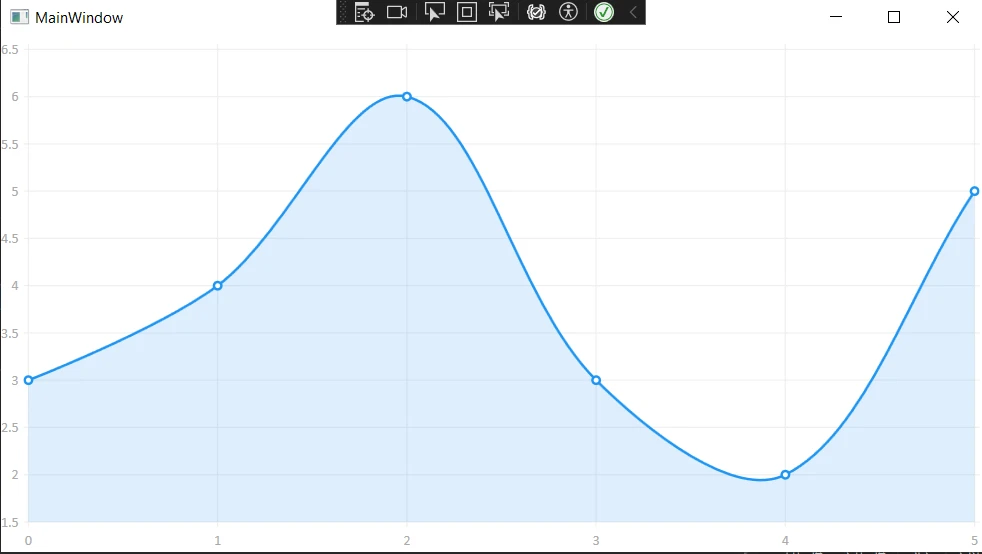
深入了解圖表型別
LiveCharts 支援各種圖表型別,每種型別都適合不同型別的資料可視化需求。 以下是一些範例:
- 折線系列: 理想的用於顯示隨時間的趨勢。
- 圓餅圖: 最適合顯示資料集中各部分的比例。
- 柱狀圖: 用於比較不同類別之間的數量。
要建立圓餅圖,您可以使用 PieSeries 類。 這裡有個快速範例:
public SeriesCollection MyPieSeries { get; set; }

public MainWindow()
{
    InitializeComponent();
    // Initialize the pie series collection and bind data
    MyPieSeries = new SeriesCollection
    {
        new PieSeries
        {
            Values = new ChartValues<double> { 4, 6, 5 },
            Title = "Series 1"
        },
        new PieSeries
        {
            Values = new ChartValues<double> { 7, 8, 6 },
            Title = "Series 2"
        }
    };
    // Bind the data context to this instance
    DataContext = this;
}
public SeriesCollection MyPieSeries { get; set; }
public MainWindow()
{
InitializeComponent();
// Initialize the pie series collection and bind data
MyPieSeries = new SeriesCollection
{
new PieSeries
{
Values = new ChartValues<double> { 4, 6, 5 },
Title = "Series 1"
},
new PieSeries
{
Values = new ChartValues<double> { 7, 8, 6 },
Title = "Series 2"
}
};
// Bind the data context to this instance
DataContext = this;
}Public Property MyPieSeries() As SeriesCollection
'INSTANT VB WARNING: The following constructor is declared outside of its associated class:
'ORIGINAL LINE: public MainWindow()
Public Sub New()
InitializeComponent()
' Initialize the pie series collection and bind data
MyPieSeries = New SeriesCollection
From {
New PieSeries With {
.Values = New ChartValues(Of Double) From {4, 6, 5},
.Title = "Series 1"
},
New PieSeries With {
.Values = New ChartValues(Of Double) From {7, 8, 6},
.Title = "Series 2"
}
}
' Bind the data context to this instance
DataContext = Me
End Sub此程式碼片段設定了具有兩個資料系列的基本圓餅圖。 如同折線圖範例一樣,它將 PieSeries 綁定到 Values 屬性。
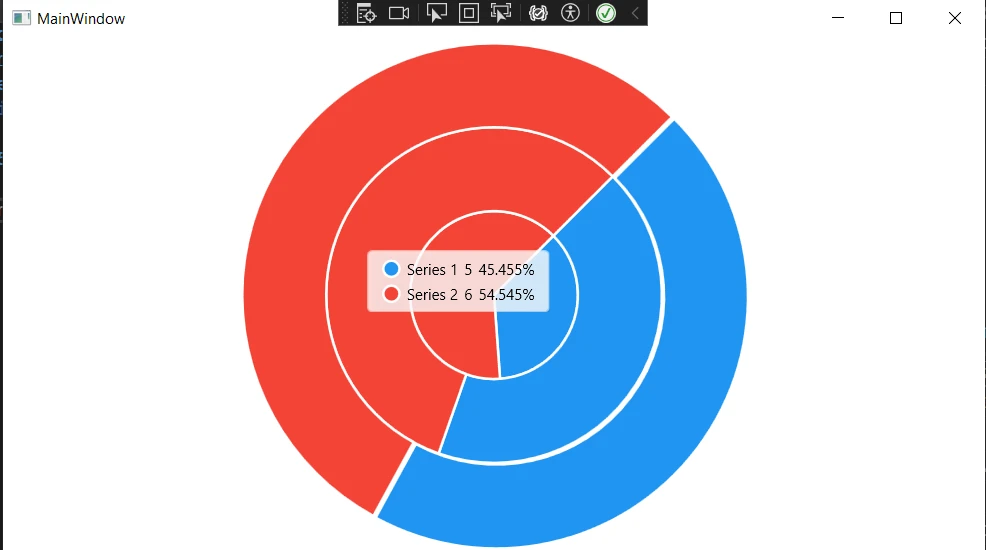
LiveCharts 還提供了對圖表外觀和行為的靈活性和控制。 您可以幾乎自定義每一個方面,從顏色和標籤到動畫和互動性。 這使您能夠完美地調整圖表的外觀以符合您的應用程式風格。
簡介 IronPDF
將 LiveCharts 與 IronPDF 結合,縮短了動態資料可視化和靜態報告生成之間的距離。 IronPDF 是一個功能強大的 C# 程式庫,允許開發人員以程式化方式建立、操作和轉換 PDF 文件。
將它與 LiveCharts 結合,可以建立包含互動式圖表的 PDF 報告。 本節介紹 IronPDF 並指導您如何在專案中進行設定。
為什麼選擇 IronPDF?
IronPDF 的 HTML 到 PDF 轉換能力 在其他 PDF 程式庫無法做到的地方表現出色,尤其是在將 HTML 渲染為 PDF 的功能上。 此功能在處理 LiveCharts 時特別有用,因為您可以將您的圖表渲染到 HTML 畫布中,然後將這些畫布轉換為 PDF 文件。 IronPDF 支援全 CSS3、JavaScript 和 HTML5,確保您的圖表在 PDF 輸出中呈現如預期。
使用 LiveCharts 與 IronPDF
這裡有一個詳細的程式碼範例,說明如何使用 LiveCharts 建立圖表、導出它,然後使用 IronPDF 生成包含此圖表的 PDF 報告。 此範例假設您對 LiveCharts 和 IronPDF 的基本操作已有了解。
首先,確保您已透過 NuGet 在專案中安裝 LiveCharts 和 IronPDF 套件。
步驟 1: 使用 LiveCharts 生成圖表
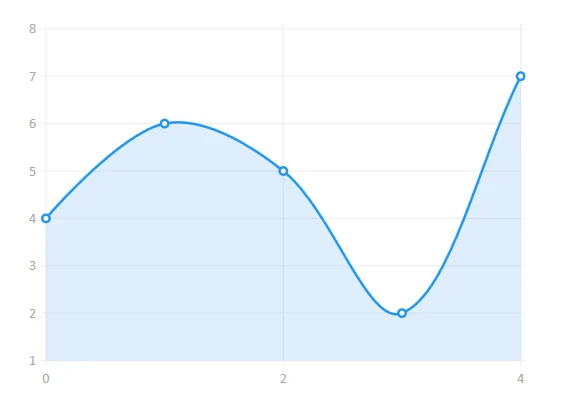
讓我們從使用 LiveCharts 建立一個簡單的折線圖開始。 為了簡便,此範例將專注於生成圖表並將其保存為圖像,稍後將包含在我們的 PDF 中。
private void GenerateChartButton_Click(object sender, RoutedEventArgs e)
{
    CreateAndSaveChartImage();
}

public void CreateAndSaveChartImage()
{
    // Create the series collection for the chart
    var seriesCollection = new SeriesCollection
    {
        new LineSeries
        {
            Values = new ChartValues<double> { 4, 6, 5, 2, 7 },
            Title = "Sample Series"
            // You can set other properties like color, point geometry, etc.
        }
    };

    // Initialize the CartesianChart
    var chart = new CartesianChart
    {
        Series = seriesCollection,
        Width = 400,
        Height = 300,
        Background = Brushes.White
    };

    // Add chart to the UI
    ChartContainer.Child = chart;

    // Force the chart to update
    chart.Update(true, true);

    // Save the rendered chart as an image
    SaveChartToImage(chart);
}

private void SaveChartToImage(CartesianChart chart)
{
    // Measure and arrange the chart to ensure correct layout
    chart.Measure(new Size(chart.Width, chart.Height));
    chart.Arrange(new Rect(0, 0, chart.Width, chart.Height));

    // Create a render target bitmap and render the chart on it
    var renderTargetBitmap = new RenderTargetBitmap(
        (int)chart.ActualWidth, (int)chart.ActualHeight,
        96, 96, PixelFormats.Pbgra32);

    renderTargetBitmap.Render(chart);

    // Encode the rendered image to a PNG format
    var encoder = new PngBitmapEncoder();
    encoder.Frames.Add(BitmapFrame.Create(renderTargetBitmap));

    // Define the path where the chart will be saved
    string path = "chart.png";

    // Save the encoded PNG to the file system
    using (var stream = File.Create(path))
    {
        encoder.Save(stream);
    }

    // Inform the user of the successful save
    MessageBox.Show($"Chart saved as {path}");
}
private void GenerateChartButton_Click(object sender, RoutedEventArgs e)
{
CreateAndSaveChartImage();
}
public void CreateAndSaveChartImage()
{
// Create the series collection for the chart
var seriesCollection = new SeriesCollection
{
new LineSeries
{
Values = new ChartValues<double> { 4, 6, 5, 2, 7 },
Title = "Sample Series"
// You can set other properties like color, point geometry, etc.
}
};
// Initialize the CartesianChart
var chart = new CartesianChart
{
Series = seriesCollection,
Width = 400,
Height = 300,
Background = Brushes.White
};
// Add chart to the UI
ChartContainer.Child = chart;
// Force the chart to update
chart.Update(true, true);
// Save the rendered chart as an image
SaveChartToImage(chart);
}
private void SaveChartToImage(CartesianChart chart)
{
// Measure and arrange the chart to ensure correct layout
chart.Measure(new Size(chart.Width, chart.Height));
chart.Arrange(new Rect(0, 0, chart.Width, chart.Height));
// Create a render target bitmap and render the chart on it
var renderTargetBitmap = new RenderTargetBitmap(
(int)chart.ActualWidth, (int)chart.ActualHeight,
96, 96, PixelFormats.Pbgra32);
renderTargetBitmap.Render(chart);
// Encode the rendered image to a PNG format
var encoder = new PngBitmapEncoder();
encoder.Frames.Add(BitmapFrame.Create(renderTargetBitmap));
// Define the path where the chart will be saved
string path = "chart.png";
// Save the encoded PNG to the file system
using (var stream = File.Create(path))
{
encoder.Save(stream);
}
// Inform the user of the successful save
MessageBox.Show($"Chart saved as {path}");
}Imports System
Private Sub GenerateChartButton_Click(ByVal sender As Object, ByVal e As RoutedEventArgs)
CreateAndSaveChartImage()
End Sub
Public Sub CreateAndSaveChartImage()
' Create the series collection for the chart
Dim seriesCollection As New SeriesCollection
From {
New LineSeries With {
.Values = New ChartValues(Of Double) From {4, 6, 5, 2, 7},
.Title = "Sample Series"
}
}
' Initialize the CartesianChart
Dim chart = New CartesianChart With {
.Series = seriesCollection,
.Width = 400,
.Height = 300,
.Background = Brushes.White
}
' Add chart to the UI
ChartContainer.Child = chart
' Force the chart to update
chart.Update(True, True)
' Save the rendered chart as an image
SaveChartToImage(chart)
End Sub
Private Sub SaveChartToImage(ByVal chart As CartesianChart)
' Measure and arrange the chart to ensure correct layout
chart.Measure(New Size(chart.Width, chart.Height))
chart.Arrange(New Rect(0, 0, chart.Width, chart.Height))
' Create a render target bitmap and render the chart on it
Dim renderTargetBitmap As New RenderTargetBitmap(CInt(Math.Truncate(chart.ActualWidth)), CInt(Math.Truncate(chart.ActualHeight)), 96, 96, PixelFormats.Pbgra32)
renderTargetBitmap.Render(chart)
' Encode the rendered image to a PNG format
Dim encoder = New PngBitmapEncoder()
encoder.Frames.Add(BitmapFrame.Create(renderTargetBitmap))
' Define the path where the chart will be saved
Dim path As String = "chart.png"
' Save the encoded PNG to the file system
Using stream = File.Create(path)
encoder.Save(stream)
End Using
' Inform the user of the successful save
MessageBox.Show($"Chart saved as {path}")
End Sub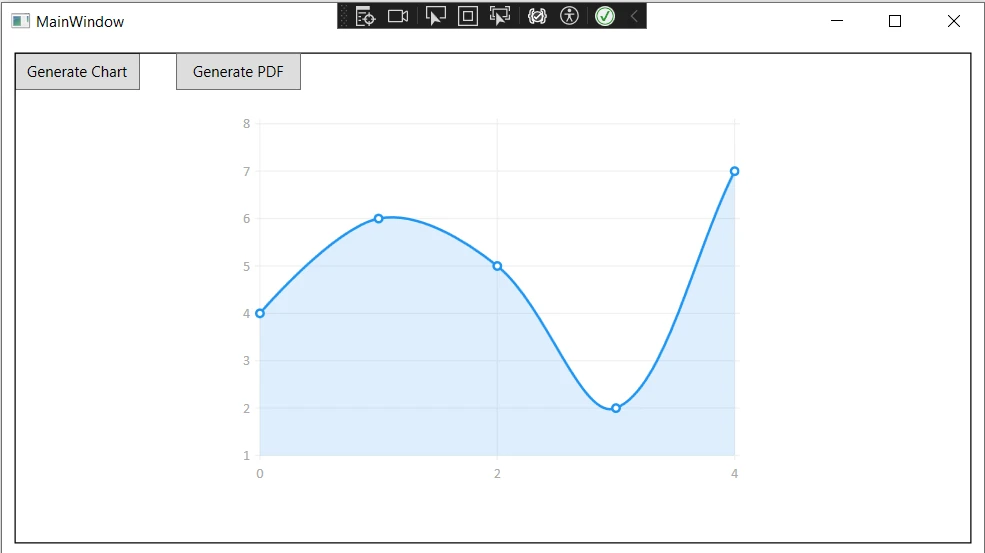
步驟 2:建立 HTML 樣板並插入圖表
現在,我們將準備 HTML 內容,將我們剛保存的圖表作為圖像嵌入其中。
string htmlContent = @"
<html>
<body>
    <h1>Chart Report</h1>
    <img src='chart.png' alt='Chart'>
    <p>This is a report generated by combining LiveCharts and IronPDF.</p>
</body>
</html>";
步驟 3:使用 IronPDF 將 HTML 轉換為 PDF
最後,我們將使用 IronPDF 將包括嵌入式圖表圖像的 HTML 內容轉換為 PDF 文件。
using IronPdf;

public void CreatePdfReport(string htmlContent)
{
    // Initialize the HTML to PDF converter
    var renderer = new ChromePdfRenderer();

    // Render the HTML content as a PDF
    var pdf = renderer.RenderHtmlAsPdf(htmlContent);

    // Save the rendered PDF to the file system
    pdf.SaveAs("Report.pdf");
}
using IronPdf;
public void CreatePdfReport(string htmlContent)
{
// Initialize the HTML to PDF converter
var renderer = new ChromePdfRenderer();
// Render the HTML content as a PDF
var pdf = renderer.RenderHtmlAsPdf(htmlContent);
// Save the rendered PDF to the file system
pdf.SaveAs("Report.pdf");
}Imports IronPdf
Public Sub CreatePdfReport(ByVal htmlContent As String)
' Initialize the HTML to PDF converter
Dim renderer = New ChromePdfRenderer()
' Render the HTML content as a PDF
Dim pdf = renderer.RenderHtmlAsPdf(htmlContent)
' Save the rendered PDF to the file system
pdf.SaveAs("Report.pdf")
End Sub確保在 htmlContent 字串中以正確的路徑替換 "chart.png",如果圖表圖像不在您的應用程式執行檔所在的同一目錄中。
此範例涵蓋了一個基本場景,以說明過程。 根據您的具體需求,您可能需要調整程式碼,特別是關於如何處理和來源圖表的圖像。
高級技巧和建議
為了進一步增強整合:
- 優化性能: 對於大資料集或複雜圖表,請考慮優化 LiveCharts 和 IronPDF 的性能,以確保快速載入和流暢運行。
- 互動式 PDF: 雖然 PDF 是靜態的,新增超連結或書籤可以提高導航性,使報告更方便使用者使用。
- 自定義樣式: 在 HTML 模板中使用 CSS,確保報告符合您的企業品牌或設計指南。
結論
總之,將 LiveCharts 與 IronPDF 結合對於尋求建立動態、美觀圖表並將它們納入專業風格 PDF 報告的 .NET 開發人員而言,提供了一個強大的組合。 這種協同作用不僅增強了資料的呈現,也通過促進從動態資料集生成靜態報告的功能,擴展了應用程式的實用性。
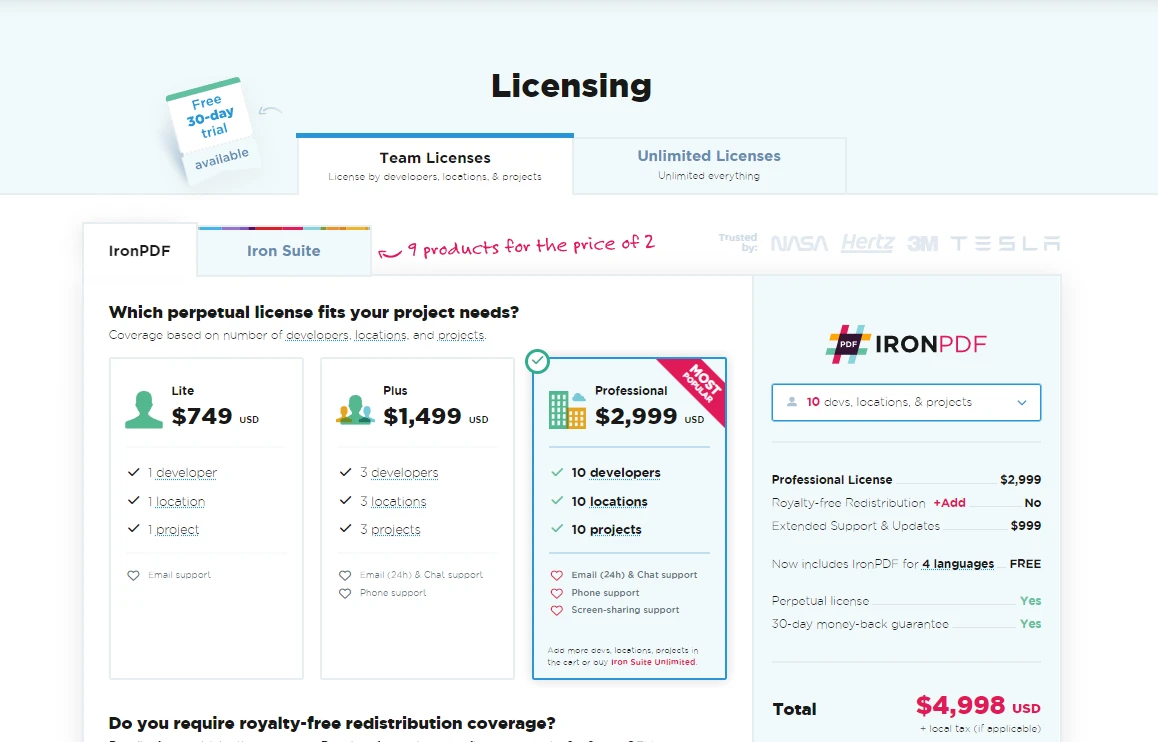
IronPDF 能夠將 HTML 渲染為 PDF,並完全支援 CSS3、JavaScript 和 HTML5,確保您的圖表從螢幕無縫過渡到印刷頁面。 對於有興趣探索此功能的人而言,IronPDF 提供免費試用版,起始於 $999,為 .NET 應用程式中的高品質報告生成提供具成本效率的解決方案。
常見問題
我可以如何在C#中將LiveCharts與PDF程式庫整合?
要將LiveCharts與PDF程式庫整合,您可以將圖表渲染為圖片,將它們納入HTML文件,然後使用IronPDF將此HTML文件轉換為PDF。這樣您就可以在PDF報告中加入動態圖表視覺效果。
我可以在C#中將HTML圖表轉換為PDF嗎?
可以,您可以使用IronPDF將HTML圖表轉換為PDF。IronPDF可以將包含圖表渲染的HTML內容轉換為PDF文件,保留其中的互動和視覺元素。
使用LiveCharts對C#應用程式有什麼好處?
LiveCharts提供幾項優勢,包括自動動畫、支持即時資料更新、在大型資料集上的高效能,以及多種圖表型別。它也相容WPF,這增強了桌面應用程式的開發。
如何確保我在C#應用程式中的圖表自動更新?
LiveCharts支持資料繫結,這允許圖表在底層資料變更時自動更新。此功能對需要即時資料視覺化的應用程式特別有用,如股價追踪。
使PDF程式庫適合圖表整合的功能是什麼?
像IronPDF這樣適合圖表整合的PDF程式庫應支持HTML到PDF的轉換,允許CSS3和JavaScript樣式,並在圖表渲染成PDF格式時維持其視覺完整性。它還應提供嵌入圖片和其他互動元素的選項。
如何使用C#建立互動式PDF報告?
您可以使用IronPDF將包含JavaScript驅動的互動元素和圖表的HTML內容轉換為PDF格式來建立互動式PDF報告。這種方法保持了結果PDF的互動性和視覺吸引力。
在.NET專案中設置LiveCharts的過程是什麼?
要在.NET專案中設置LiveCharts,您需要通過Visual Studio中的NuGet安裝LiveCharts套件。安裝後,您可以將圖表控制項新增到應用程式的UI,並使用C#程式碼將資料繫結到這些控制項。
如何優化C#應用程式中圖表和PDF的效能?
為了優化效能,最小化渲染的資料集大小,利用硬體加速進行圖表動畫,並使用非同步處理。對於PDF,優化轉換前的HTML內容,並利用IronPDF中可用的壓縮功能。
LiveCharts可以產生哪些型別的圖表?
LiveCharts可以生成多種型別的圖表,包括線形圖、圓餅圖、條形圖等複雜系列。這種多樣性使開發人員可以根據特定的資料視覺化需求選擇最合適的圖表型別。
是否可以免費試用PDF程式庫?
可以,IronPDF提供免費試用,允許開發人員評估其從HTML內容生成高品質PDF文件的能力,包括圖表和其他視覺元素。










 免費開始
免費開始 免費開始
免費開始 預訂免費直播演示
















