




업데이트됨 2026년 4월 23일
.NET에서 Microsoft.Extensions.AI로 LLM 통합 간소화
AI는 소프트웨어 개발을 변혁하고 있으나, 대규모 언어 모델(LLM)을 .NET에 통합하는 것은 지금까지 복잡했습니다. 현대에는 OpenAI 기반 PDF 파싱, 데이터 추출 및 콘텐츠 요약을 .NET 애플리케이션에 가져오는 IronPdf.AI로 AI 통합을 더욱 확장하세요.
더 읽어보기

Npgsql은 .NET 애플리케이션이 PostgreSQL 데이터베이스에 원활히 접근하고 상호작용할 수 있도록 만들어진 기능이 풍부하고 안정적인 오픈 소스 데이터 제공자입니다. 이는 PostgreSQL과 .NET 프로그램 간의 강력한 연결책 역할을 하며, 데이터를 효과적으로 접근하고 처리할 수 있는 광범위한 기능, 도구 및 최적화를 제공합니다.
오픈 소스 프로젝트는 발전함에 따라 GitHub의 개발 팀 또는 기여자가 변할 수 있으며, 새로운 사람들이 소프트웨어 유지 보수와 개선을 돕기 위해 자주 참여합니다. 결과적으로, 프로젝트와 관련된 GitHub 또는 다른 관련 커뮤니티 채널에서 최신 정보를 확인하기 위해 공식 Npgsql 저장소를 확인하는 것이 좋습니다.
아래 지침을 사용하여 PostgreSQL for .NET 데이터 제공자인 Npgsql을 설치할 수 있습니다:
Npgsql은 C# 및 기타 .NET 언어 개발자가 PostgreSQL 데이터베이스에 연결하여 접근하고 관리할 수 있는 .NET 데이터 제공자입니다. PostgreSQL용 Entity Framework Core 제공자와 ADO.NET 데이터 제공자의 기능을 활용함으로써, 개발자가 애플리케이션에서 PostgreSQL을 완전히 활용할 수 있도록 돕습니다. 이 문서에서는 Npgsql에 대한 자세한 내용을 확인하겠습니다.
Npgsql의 중요한 특징은 다음과 같습니다:
개발자는 종종 .NET 애플리케이션에서 Npgsql를 사용하여 연결을 만들고, SQL 쿼리를 실행하고, 트랜잭션을 처리하고, CRUD 작업을 수행하고, 데이터베이스 스키마를 유지 관리합니다. 이는 개발자가 PostgreSQL 데이터베이스와 잘 작동하는 안정적이고 확장 가능하며 고성능의 응용 프로그램을 만들 수 있게 해 줍니다.
그 광범위한 기능 세트와 정기적인 업데이트 덕분에, Npgsql은 C# 또는 .NET 애플리케이션에서 PostgreSQL의 강력함과 안정성을 활용하고자 하는 .NET 개발자들에게 유연하고 잘 관리되는 데이터 소스를 제공하는 최상위 선택 사항입니다.
개발자는 Npgsql를 사용하여 PostgreSQL 데이터베이스에 연결하고, SQL 쿼리를 실행하고, CRUD (Create, Read, Update, Delete) 작업을 수행하고, 트랜잭션을 관리할 수 있습니다.
다음은 Npgsql를 사용하여 PostgreSQL 데이터베이스에 연결하는 기본 코드 스니펫입니다:
using Npgsql;
using System;

class Program
{
    static void Main(string[] args)
    {
        // Define the connection string with placeholder values
        var connectionString = "Host=myhost;Username=myuser;Password=mypassword;Database=mydb";

        // Create a connection object using the connection string
        using var connection = new NpgsqlConnection(connectionString);

        try
        {
            // Open the connection to the PostgreSQL database
            connection.Open();
            Console.WriteLine("Connected to PostgreSQL database!");

            // Perform database operations here...
        }
        catch (Exception ex)
        {
            // Handle any exceptions that occur during connection
            Console.WriteLine($"Error: {ex.Message}");
        }
        finally
        {
            // Ensure the connection is closed
            connection.Close();
        }
    }
}Imports Npgsql
Imports System
Friend Class Program
Shared Sub Main(ByVal args() As String)
' Define the connection string with placeholder values
Dim connectionString = "Host=myhost;Username=myuser;Password=mypassword;Database=mydb"
' Create a connection object using the connection string
Dim connection = New NpgsqlConnection(connectionString)
Try
' Open the connection to the PostgreSQL database
connection.Open()
Console.WriteLine("Connected to PostgreSQL database!")
' Perform database operations here...
Catch ex As Exception
' Handle any exceptions that occur during connection
Console.WriteLine($"Error: {ex.Message}")
Finally
' Ensure the connection is closed
connection.Close()
End Try
End Sub
End ClassPostgreSQL 서버에 대한 정보로 연결 문자열 값(Host, Username, Password, Database)을 교체하십시오. Npgsql의 명령 실행 기능을 사용하여 SQL 명령, 쿼리 또는 다른 데이터베이스 작업을 try 블록 내부에서 실행할 수 있습니다.
Npgsql은 C#에서 PostgreSQL 데이터베이스와 연결할 수 있는 폭넓은 기능을 제공하기 때문에 PostgreSQL을 다루는 .NET 개발자들에게 인기 있는 선택입니다. 애플리케이션 코드에서 항상 연결, 예외 및 기타 오류 사례를 효과적으로 처리하도록 하십시오.
IronPDF는 HTML을 PDF로 변환하는 능력에 탁월하여 모든 레이아웃과 스타일이 보존되도록 보장합니다. 이를 통해 보고서, 인쇄물, 문서화에 적합한 웹 콘텐츠를 PDF로 변환합니다. HTML 파일, URL 및 HTML 문자열은 손쉽게 PDF로 변환할 수 있습니다.
using IronPdf;

class Program
{
    static void Main(string[] args)
    {
        // Create a new Chrome PDF renderer
        var renderer = new ChromePdfRenderer();

        // 1. Convert HTML String to PDF
        var htmlContent = "<h1>Hello, IronPDF!</h1><p>This is a PDF from an HTML string.</p>";
        var pdfFromHtmlString = renderer.RenderHtmlAsPdf(htmlContent);
        pdfFromHtmlString.SaveAs("HTMLStringToPDF.pdf");

        // 2. Convert HTML File to PDF
        var htmlFilePath = "path_to_your_html_file.html"; // Specify the path to your HTML file
        var pdfFromHtmlFile = renderer.RenderHtmlFileAsPdf(htmlFilePath);
        pdfFromHtmlFile.SaveAs("HTMLFileToPDF.pdf");

        // 3. Convert URL to PDF
        var url = "http://ironpdf.com"; // Specify the URL
        var pdfFromUrl = renderer.RenderUrlAsPdf(url);
        pdfFromUrl.SaveAs("URLToPDF.pdf");
    }
}Imports IronPdf
Friend Class Program
Shared Sub Main(ByVal args() As String)
' Create a new Chrome PDF renderer
Dim renderer = New ChromePdfRenderer()
' 1. Convert HTML String to PDF
Dim htmlContent = "<h1>Hello, IronPDF!</h1><p>This is a PDF from an HTML string.</p>"
Dim pdfFromHtmlString = renderer.RenderHtmlAsPdf(htmlContent)
pdfFromHtmlString.SaveAs("HTMLStringToPDF.pdf")
' 2. Convert HTML File to PDF
Dim htmlFilePath = "path_to_your_html_file.html" ' Specify the path to your HTML file
Dim pdfFromHtmlFile = renderer.RenderHtmlFileAsPdf(htmlFilePath)
pdfFromHtmlFile.SaveAs("HTMLFileToPDF.pdf")
' 3. Convert URL to PDF
Dim url = "http://ironpdf.com" ' Specify the URL
Dim pdfFromUrl = renderer.RenderUrlAsPdf(url)
pdfFromUrl.SaveAs("URLToPDF.pdf")
End Sub
End ClassNpgsql를 IronPDF와 통합하려면 다음 단계에 따라 진행하십시오:
필요한 NuGet 패키지를 설치하십시오:
Install-Package Npgsql
Install-Package IronPdf코드에서 필요한 네임스페이스를 가져오십시오:
using Npgsql;
using IronPdf;Imports Npgsql
Imports IronPdfNpgsql 연결을 생성하고 PostgreSQL 데이터베이스에서 데이터를 검색하십시오:
string connectionString = "Host=myhost;Username=myuser;Password=mypassword;Database=mydb";
string query = "SELECT * FROM mytable";

using (NpgsqlConnection connection = new NpgsqlConnection(connectionString))
{
    connection.Open();

    using (NpgsqlCommand command = new NpgsqlCommand(query, connection))
    {
        NpgsqlDataReader dataReader = command.ExecuteReader();

        if (dataReader.HasRows)
        {
            while (dataReader.Read())
            {
                // Process each row of data here
            }
        }

        dataReader.Close();
    }

    connection.Close();
}Dim connectionString As String = "Host=myhost;Username=myuser;Password=mypassword;Database=mydb"
Dim query As String = "SELECT * FROM mytable"
Using connection As New NpgsqlConnection(connectionString)
connection.Open()
Using command As New NpgsqlCommand(query, connection)
Dim dataReader As NpgsqlDataReader = command.ExecuteReader()
If dataReader.HasRows Then
Do While dataReader.Read()
' Process each row of data here
Loop
End If
dataReader.Close()
End Using
connection.Close()
End UsingIronPDF를 사용하여 검색한 데이터를 기반으로 PDF 문서를 생성하십시오:
HtmlToPdf Renderer = new HtmlToPdf();
HtmlDocument Html = new HtmlDocument("<html><body><h1>My Data</h1></body></html>");

PdfDocument PDF = Renderer.RenderHtmlAsPdf(Html);

PDF.SaveAs("result.pdf");Dim Renderer As New HtmlToPdf()
Dim Html As New HtmlDocument("<html><body><h1>My Data</h1></body></html>")
Dim PDF As PdfDocument = Renderer.RenderHtmlAsPdf(Html)
PDF.SaveAs("result.pdf")자신의 특정 요구 사항과 데이터베이스 스키마에 맞게 코드를 맞춤 설정해야 할 수도 있음을 유의하십시오.
이 단계를 따르면 Npgsql과 IronPDF의 강력한 기능을 결합하여 PostgreSQL 데이터베이스에서 데이터를 검색하고 해당 데이터를 기반으로 PDF 문서를 생성할 수 있습니다.
NuGet 패키지 관리자를 사용하여 IronPDF를 NpgSQL C# 프로젝트에 통합하려면 다음 단계를 수행하세요:
IronPDF를 프로젝트에 패키지 관리자 콘솔을 통해 포함하려면, 패키지 관리자 콘솔에서 다음 명령어를 실행하세요:
이는 프로젝트에 IronPDF를 가져와 설치합니다.
IronPDF의 기능, 호환성 및 추가 다운로드 옵션을 포함한 자세한 개요는 NuGet의 IronPDF 목록을 방문하세요.
또한 IronPDF를 DLL 파일로 직접 프로젝트에 통합할 수 있습니다. 이 IronPDF ZIP 다운로드 링크에서 DLL이 포함된 ZIP 파일을 다운로드하세요. 압축을 풀고, DLL을 프로젝트에 포함하세요.
2022년 1월 기준으로 Npgsql 및 IronPDF는 .NET 앱에서 다양한 용도로 사용됩니다. Npgsql은 .NET 프로그램이 PostgreSQL 데이터베이스에 쉽게 연결할 수 있도록 해주는 데이터 공급자이며, IronPDF는 PDF 문서를 생성, 수정, 표시하기 위한 C# 라이브러리입니다.
Npgsql과 IronPDF는 .NET 환경 내에서 각각의 기능을 제공하지만, 두 라이브러리 간의 직접적인 연결이나 의존성은 없습니다. 그러나 하나의 애플리케이션에서 PDF 생성 또는 조작을 위해 IronPDF를, 데이터베이스 작업을 위해 Npgsql을 사용하는 경우가 많습니다.
이것은 C# 애플리케이션에서 IronPDF로 PDF를 생성하고 Npgsql로 데이터베이스 작업을 수행하는 방법의 예입니다:
using IronPdf;
using Npgsql;
using System;
using System.Text;
using System.Threading.Tasks;

class Program
{
    static async Task Main(string[] args)
    {
        StringBuilder sb = new StringBuilder();
        var connectionString = "Host=myhost;Username=myuser;Password=mypassword;Database=mydb";

        // Connecting to PostgreSQL using Npgsql
        await using var connection = new NpgsqlConnection(connectionString);
        try
        {
            await connection.OpenAsync();
            Console.WriteLine("Connected to PostgreSQL!");

            // Execute a database query using Npgsql
            await using var cmd = new NpgsqlCommand("SELECT username FROM my_table WHERE userid='005'", connection);
            await using var reader = await cmd.ExecuteReaderAsync();

            while (await reader.ReadAsync())
            {
                // Process database query results
                sb.Append(reader.GetString(0));
            }

            // Generate a PDF document using IronPDF
            var Renderer = new IronPdf.HtmlToPdf();
            var PDF = Renderer.RenderHtmlAsPdf($"<h1>Hello, {sb.ToString()}</h1>");
            PDF.SaveAs("Output.pdf");

            Console.WriteLine("PDF generated successfully.");
        }
        catch (Exception ex)
        {
            Console.WriteLine($"Error: {ex.Message}");
        }
        finally
        {
            connection.Close();
        }
    }
}Imports IronPdf
Imports Npgsql
Imports System
Imports System.Text
Imports System.Threading.Tasks
Friend Class Program
Shared Async Function Main(ByVal args() As String) As Task
Dim sb As New StringBuilder()
Dim connectionString = "Host=myhost;Username=myuser;Password=mypassword;Database=mydb"
' Connecting to PostgreSQL using Npgsql
Await var connection = New NpgsqlConnection(connectionString)
Try
Await connection.OpenAsync()
Console.WriteLine("Connected to PostgreSQL!")
' Execute a database query using Npgsql
Await var cmd = New NpgsqlCommand("SELECT username FROM my_table WHERE userid='005'", connection)
Await var reader = Await cmd.ExecuteReaderAsync()
Do While Await reader.ReadAsync()
' Process database query results
sb.Append(reader.GetString(0))
Loop
' Generate a PDF document using IronPDF
Dim Renderer = New IronPdf.HtmlToPdf()
Dim PDF = Renderer.RenderHtmlAsPdf($"<h1>Hello, {sb.ToString()}</h1>")
PDF.SaveAs("Output.pdf")
Console.WriteLine("PDF generated successfully.")
Catch ex As Exception
Console.WriteLine($"Error: {ex.Message}")
Finally
connection.Close()
End Try
End Function
End Class이 예는 IronPDF를 사용하여 기본 PDF 문서를 생성하고 Npgsql을 사용하여 PostgreSQL 데이터베이스에 연결하여 샘플 쿼리를 실행하는 시나리오를 보여줍니다. 두 라이브러리를 C# 애플리케이션에 통합하면 개발자는 동일한 코드베이스 내에서 데이터베이스 상호작용 및 문서 생성 관리를 독립적으로 수행할 수 있습니다.
고유한 데이터베이스 쿼리, PDF 생성 요구 사항, 오류 처리, Npgsql 및 IronPDF 사용에 대한 애플리케이션별 최적의 관행에 맞추어 코드를 맞춤화하는 것을 잊지 마세요. IronPDF 라이브러리에 대한 자세한 정보는 IronPDF 문서를 방문하세요.
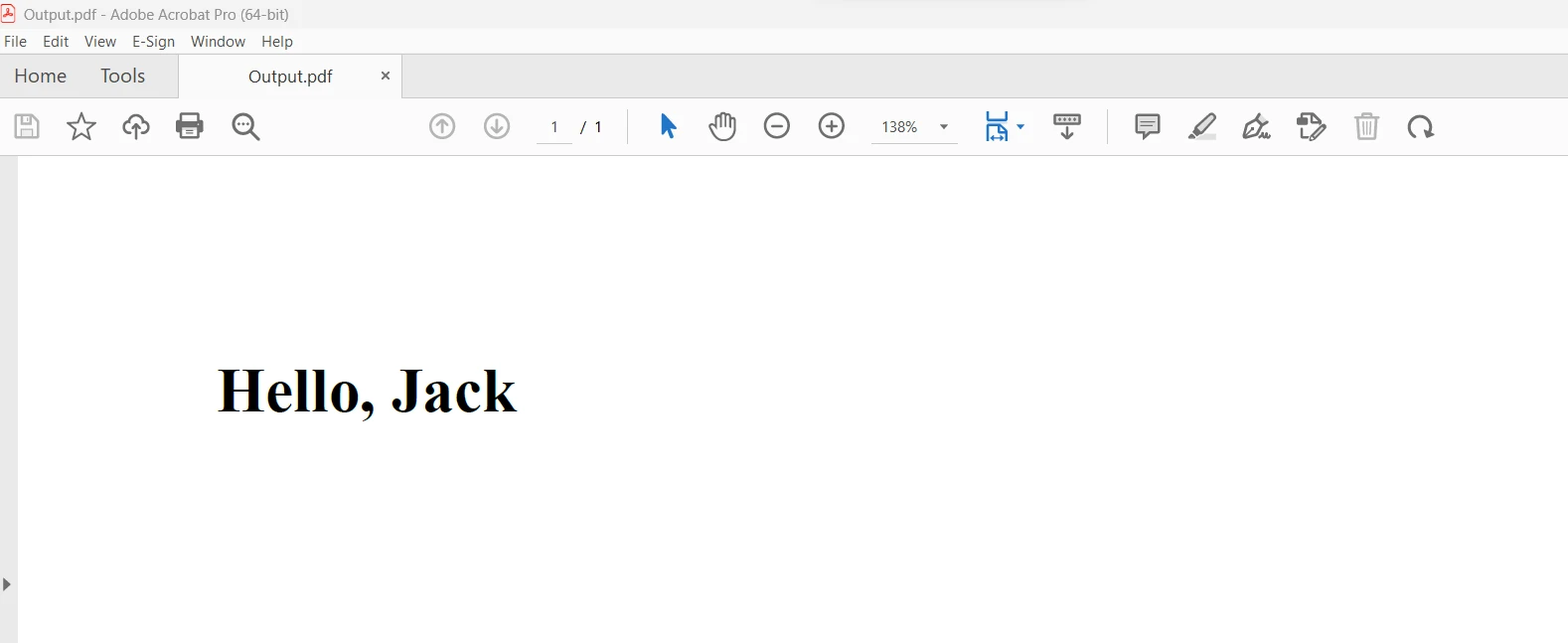
Npgsql과 IronPDF 간에 직접적인 연결이나 의존성이 없지만, 개발자는 종종 동일한 애플리케이션 환경에서 두 가지 도구를 사용합니다. 예를 들어 C# 프로그램은 Npgsql을 활용하여 PostgreSQL 데이터베이스에서 데이터를 검색하는 등의 데이터베이스 작업을 처리한 다음 IronPDF를 사용하여 검색된 데이터를 기반으로 PDF 문서나 보고서를 생성할 수 있습니다.
Npgsql과 IronPDF가 제공하는 유연성과 기능을 활용하여 개발자는 PostgreSQL 데이터베이스 및 다양한 보고, 문서 관리, 프레젠테이션 요구사항을 위한 동적 PDF 생성과 데이터 처리 통합을 원활히 지원하는 기능이 풍부한 애플리케이션을 구축할 수 있습니다.
IronPDF의 라이트 번들은 영구 라이선스, 업그레이드 옵션, 1년 간의 소프트웨어 유지보수, 30일 환불 보장을 포함합니다. 체험판 기간 동안 사용자는 워터마크가 포함된 실제 응용 프로그램 시나리오에서 제품을 평가할 수 있습니다. IronPDF의 비용, 라이선스 및 체험판에 대한 더 많은 정보를 보려면 IronPDF 라이선스 페이지를 방문하세요. Iron Software에 대해 더 알고 싶다면 공식 웹사이트를 방문하세요.

제이콥 멜러는 Iron Software의 최고 기술 책임자(CTO)이자 C# PDF 기술을 개척한 선구적인 엔지니어입니다. Iron Software의 핵심 코드베이스를 최초로 개발한 그는 창립 초기부터 회사의 제품 아키텍처를 설계해 왔으며, CEO인 캐머런 리밍턴과 함께 회사를 NASA, 테슬라, 그리고 전 세계 정부 기관에 서비스를 제공하는 50명 이상의 직원을 보유한 기업으로 성장시켰습니다.



IronPDF는 IRON SUITE 의 일부입니다.
10개의 .NET API 제품, 당신의 사무 문서를 위해











PDF 파일을 HTML처럼 빠르게 변환해야 할 때.


