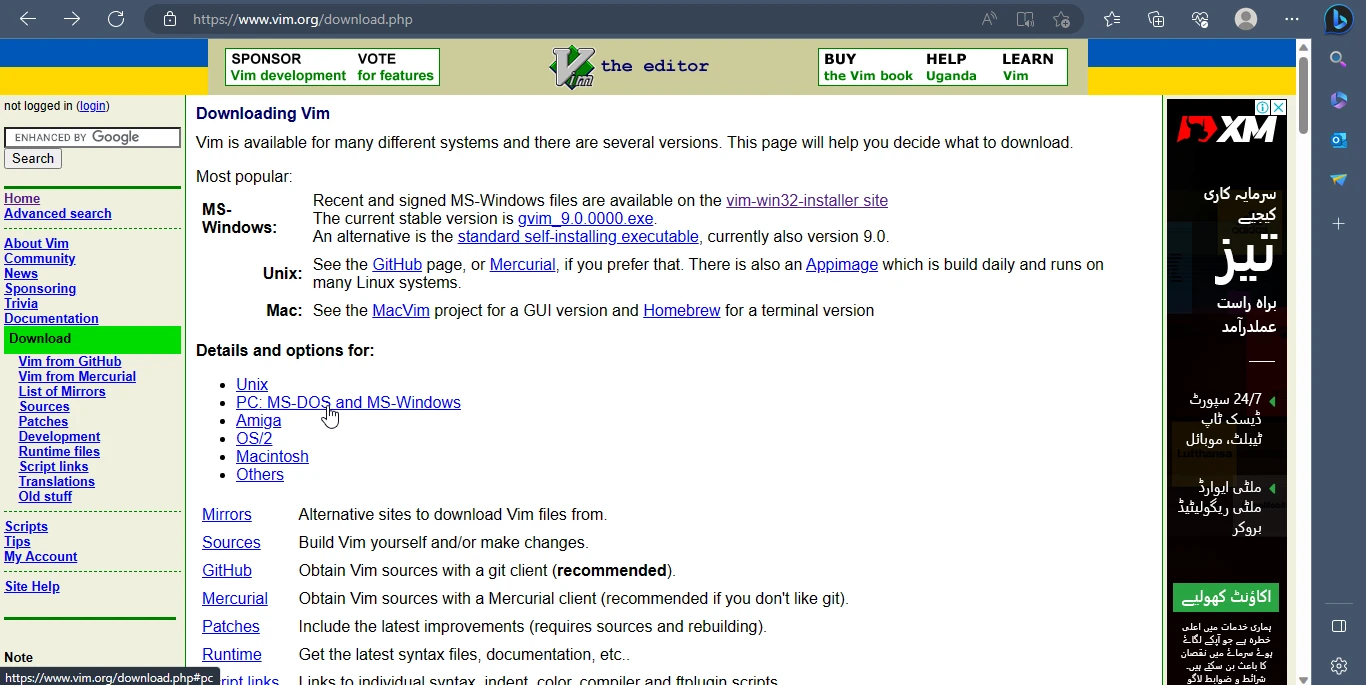
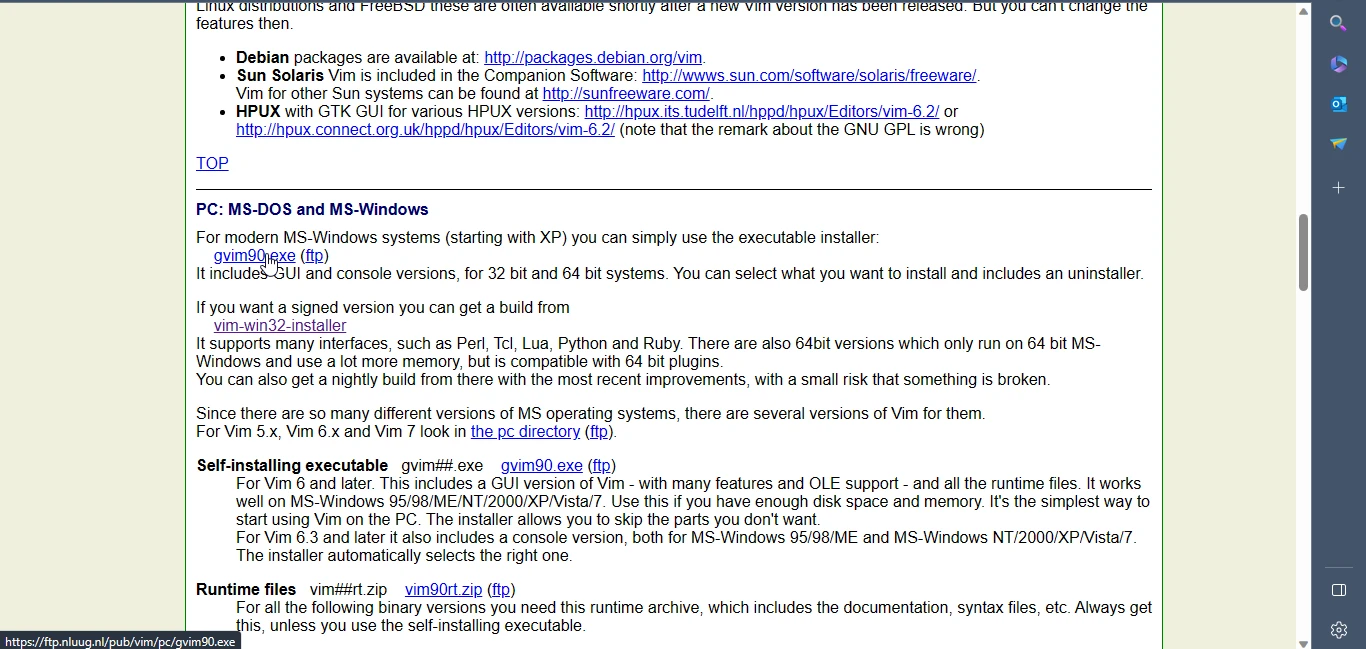
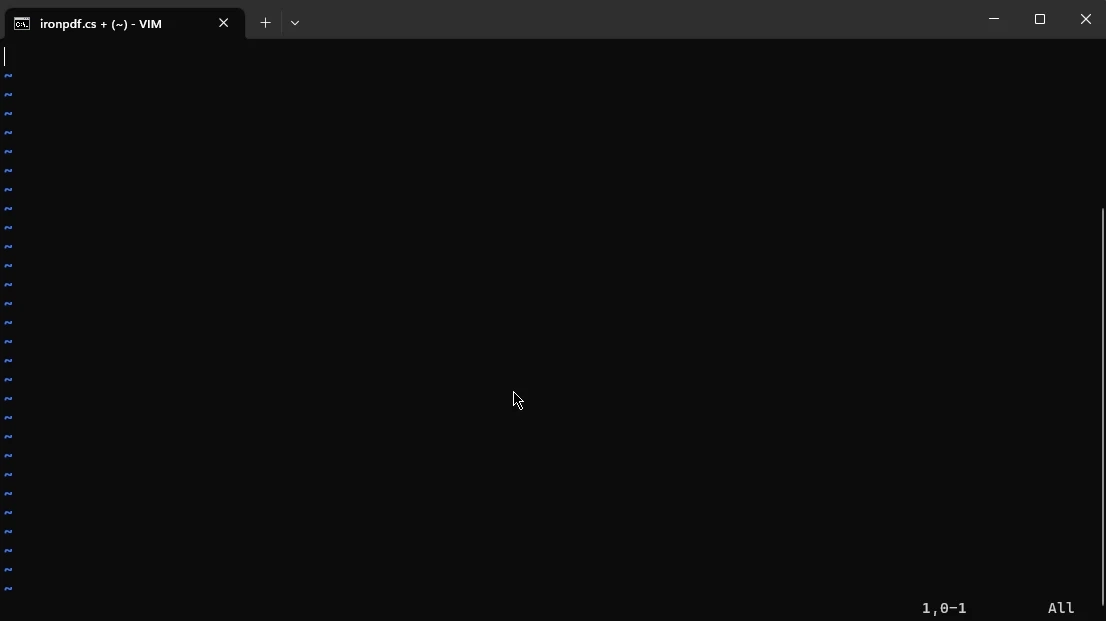
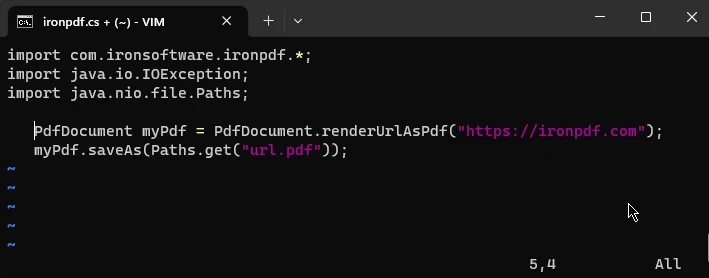
.NET 도움말 Vim For Windows (How it Works for Developers) 커티스 차우 업데이트됨:7월 28, 2025 다운로드 IronPDF NuGet 다운로드 DLL 다운로드 윈도우 설치 프로그램 무료 체험 시작하기 LLM용 사본 LLM용 사본 LLM용 마크다운 형식으로 페이지를 복사하세요 ChatGPT에서 열기 ChatGPT에 이 페이지에 대해 문의하세요 제미니에서 열기 제미니에게 이 페이지에 대해 문의하세요 Grok에서 열기 Grok에게 이 페이지에 대해 문의하세요 혼란 속에서 열기 Perplexity에게 이 페이지에 대해 문의하세요 공유하다 페이스북에 공유하기 트위터에 공유하기 LinkedIn에 공유하기 URL 복사 이메일로 기사 보내기 Vim, short for ‘Vi Improved’, is a powerful and highly customizable text editor. Originally released in 1991, and developed as a successor to the traditional Unix text editor Vi, Vim has gained popularity among programmers, system administrators, and other professionals who work extensively with text-based files. While Vim is primarily associated with Unix-based systems, it is also available for Windows. Vim for Windows offers the same set of features and functionality as its Unix counterpart, allowing users to harness its extensive capabilities and take more control over their text-based projects. What Can Vim Do? From basic text editing to entire system admin, Vim is the perfect program for power users. Known as the 'programmer’s editor', Vim is such a powerful tool that some developers even use it as an entire IDE. So what makes Vim so useful? Here are just some of the many features it has which gives you complete control over your text projects: Modal Editing Vim follows a unique editing model known as modal editing. It has different modes, including Normal mode, Insert mode, Visual mode, and Command-line mode. This approach allows users to perform various editing tasks efficiently, using keyboard shortcuts and commands specific to each mode. Extensive Customization Vim is highly customizable, allowing users to personalize their editing environment to suit their preferences and workflow. Users can customize key mappings, create macros, define abbreviations, and install plugins to extend Vim's functionality. With a vast ecosystem of community-developed plugins, Vim can be tailored to meet specific programming languages and development needs. Efficient Editing Vim offers numerous features that streamline the editing process. It supports syntax highlighting, code folding, search and replace with regular expressions, multiple undo/redo levels, split windows for multitasking, and many other advanced editing capabilities. These features make it easier to navigate and manipulate text, resulting in increased efficiency and productivity. Command-Line Interface Vim for Windows retains the command-line interface, allowing users to perform file operations, execute shell commands, and automate tasks using Vimscript. This interface provides advanced users with powerful scripting capabilities, making Vim a versatile tool for automation and integration with other command-line tools. Portable and Lightweight Vim for Windows is a portable application that can be easily installed and run on any Windows system. It has a small footprint and does not require significant system resources, ensuring that it runs smoothly even on older hardware. Install Vim Editor on Windows While not developed primarily for Windows, it is straightforward to get Vim up and running on your Windows system. First of all, visit the Vim download section on the Vim website and click on either the 32-bit or 64-bit installer, depending on your Windows version. Run the .EXE file and follow the installation instructions. You can accept the default settings or make changes at each step depending on your preferences — such as choosing a different installation directory. And that's it! You have successfully installed Vim editor on your Windows system. You can now start using Vim to write text files, write code, and take advantage of its powerful editing features and customization options. How to Use Vim Text Editor Vim is an incredibly powerful text editor which is highly customizable and suitable for all kinds of projects. The downside of this versatility is that it can be quite intimidating to get started. Below is a basic guide on how to use Vim to ease you in. Opening Vim Open a terminal or command prompt on your system. Type vim followed by the name of the program files you want to edit, e.g., vim myfile.txt. If the file doesn't exist, Vim will create a new file with that name. Here, we create a new file called IronPDF.cs which opens a new project with that name. Modes Vim comes equipped with a variety of modes used for all kinds of operations. Normal Mode is the default mode when you open Vim. It’s used for navigating and executing commands, like so: Insert Mode is used for inserting and editing text. To use insert mode, press i on your keyboard (to go back to Normal Mode, press Esc). Command-Line Mode is used for executing various commands. Navigation and Editing Normal Mode When in Normal Mode, you can use the following keys to easily navigate within a file: h: Move cursor left j: Move cursor down k: Move cursor up l: Move cursor right To save and exit: :w: Save the changes (write) :q: Quit Vim :wq: Save and quit Insert Mode In Insert Mode, you can just directly type and edit text as you would in any other program. Command-Line Mode Begin a line with a colon in Normal Mode to enter Command-Line Mode — as you saw in the instructions to save and exit your work above. Here are some more options for Command Mode: :e: Open a different file :set number: Show line numbers :set syntax=python: Set syntax highlighting for Python (replace "python" with the desired language) This is just a quick overview of Vim's functionality. Vim has an incredible range of features and customization options, and you can find a lot more information on the website’s detailed Vim documentation resources. And if you ever need some quick help while using Vim, just enter :help to find out more. Conclusion We’ve barely scratched the surface of what’s possible in Vim. With its modal editing, extensive customization options, efficient editing features, command-line interface, and portability, Vim offers a versatile and efficient tool for programmers working with text-based files. While this guide provides a basic overview, Vim's capabilities go beyond the essentials — offering a vast range of advanced features and possibilities. Whether you are a seasoned Vim user or just getting started, embracing Vim on Windows can greatly enhance your productivity and text editing experience. Looking for even more coding fun? IronPDF is a robust and flexible .NET library specifically developed for handling PDF files. It offers developers a wide range of tools and functionalities to programmatically read, write, and manipulate PDF documents. IronPDF is a part of our Iron Software Suite containing .NET libraries for PDF, Barcode, Excel, OCR, and more. You can even write code for Iron Suite products in Vim. You can get your hands on all of our products with a 30-day free trial of Iron Software Suite. They’re also completely free to use for development purposes so you can really get to see what it’s made of. 자주 묻는 질문 Windows 시스템에 Vim을 설치하려면 어떻게 해야 하나요? Windows에 Vim을 설치하려면 Vim 다운로드 페이지로 이동하여 사용 중인 Windows 버전에 적합한 설치 프로그램을 선택합니다. 다운로드한 .EXE 파일을 실행하고 설정 지침에 따라 필요한 구성을 변경합니다. Vim의 주요 편집 모드는 무엇인가요? Vim에는 몇 가지 주요 모드가 있습니다: 명령 실행 및 텍스트 탐색을 위한 일반 모드, 텍스트 편집을 위한 삽입 모드, 텍스트를 시각적으로 선택하는 시각 모드, 복잡한 명령 실행을 위한 명령줄 모드가 있습니다. Vim을 Windows 개발용 IDE로 사용할 수 있나요? 예, Vim은 광범위한 사용자 지정 옵션으로 인해 통합 개발 환경(IDE) 역할을 할 수 있습니다. 사용자는 플러그인, 키 매핑 및 매크로를 사용하여 Vim을 강화하여 .NET 라이브러리를 비롯한 특정 프로그래밍 언어 및 프레임워크에 맞게 조정할 수 있습니다. Vim은 어떤 사용자 지정 옵션을 제공하나요? Vim은 사용자 정의가 가능하여 사용자 지정 키 매핑, 매크로, 플러그인 및 약어를 사용하여 편집 환경을 수정할 수 있습니다. 이러한 유연성 덕분에 개발자는 특정 요구 사항에 맞게 Vim을 최적화하여 생산성과 워크플로 효율성을 향상시킬 수 있습니다. Vim의 모달 편집은 생산성을 어떻게 향상시키나요? Vim의 모달 편집은 일반, 삽입 및 명령줄 모드와 같은 다양한 모드를 사용하여 텍스트 편집 및 명령 실행을 간소화합니다. 이러한 접근 방식은 마우스 입력의 필요성을 최소화하여 사용자가 키보드 단축키와 명령어를 사용하여 보다 효율적으로 작업을 수행할 수 있도록 합니다. Vim은 개발자를 위해 어떤 고급 기능을 제공하나요? Vim은 구문 강조 표시, 코드 접기, 정규식 검색 및 바꾸기, 다중 실행 취소/다시 실행 수준, 멀티태스킹을 위한 창 분할 등의 고급 편집 기능을 제공하여 개발 프로세스를 개선하고 생산성을 높입니다. .NET 라이브러리를 Vim과 통합할 수 있는 방법이 있나요? Vim 자체는 .NET 라이브러리와 직접 통합되지는 않지만 개발자는 Vim을 사용하여 .NET 애플리케이션용 코드를 작성하고 편집할 수 있습니다. Vim의 확장성과 플러그인 에코시스템을 통해 사용자는 .NET 개발 작업을 효과적으로 지원하도록 Vim을 구성할 수 있습니다. Vim의 명령줄 인터페이스는 개발자에게 어떤 이점이 있나요? Vim의 명령줄 인터페이스는 강력한 스크립팅 및 자동화 기능을 제공합니다. 개발자는 복잡한 명령을 실행하고, 반복적인 작업을 자동화하고, 사용자 지정 스크립트를 만들어 코딩 효율성을 높이고 워크플로 프로세스를 간소화할 수 있습니다. 커티스 차우 지금 바로 엔지니어링 팀과 채팅하세요 기술 문서 작성자 커티스 차우는 칼턴 대학교에서 컴퓨터 과학 학사 학위를 취득했으며, Node.js, TypeScript, JavaScript, React를 전문으로 하는 프론트엔드 개발자입니다. 직관적이고 미적으로 뛰어난 사용자 인터페이스를 만드는 데 열정을 가진 그는 최신 프레임워크를 활용하고, 잘 구성되고 시각적으로 매력적인 매뉴얼을 제작하는 것을 즐깁니다. 커티스는 개발 분야 외에도 사물 인터넷(IoT)에 깊은 관심을 가지고 있으며, 하드웨어와 소프트웨어를 통합하는 혁신적인 방법을 연구합니다. 여가 시간에는 게임을 즐기거나 디스코드 봇을 만들면서 기술에 대한 애정과 창의성을 결합합니다. 관련 기사 업데이트됨 12월 11, 2025 Bridging CLI Simplicity & .NET : Using Curl DotNet with IronPDF Jacob Mellor has bridged this gap with CurlDotNet, a library created to bring the familiarity of cURL to the .NET ecosystem. 더 읽어보기 업데이트됨 12월 20, 2025 RandomNumberGenerator C# Using the RandomNumberGenerator C# class can help take your PDF generation and editing projects to the next level 더 읽어보기 업데이트됨 12월 20, 2025 C# String Equals (How it Works for Developers) When combined with a powerful PDF library like IronPDF, switch pattern matching allows you to build smarter, cleaner logic for document processing 더 읽어보기 C# Concurrent List (How it Works for Developers)Razor C# (How It Works For Developers)
업데이트됨 12월 11, 2025 Bridging CLI Simplicity & .NET : Using Curl DotNet with IronPDF Jacob Mellor has bridged this gap with CurlDotNet, a library created to bring the familiarity of cURL to the .NET ecosystem. 더 읽어보기
업데이트됨 12월 20, 2025 RandomNumberGenerator C# Using the RandomNumberGenerator C# class can help take your PDF generation and editing projects to the next level 더 읽어보기
업데이트됨 12월 20, 2025 C# String Equals (How it Works for Developers) When combined with a powerful PDF library like IronPDF, switch pattern matching allows you to build smarter, cleaner logic for document processing 더 읽어보기