PDF 문서는 이제 매우 인기가 있으며 전 세계적으로 사용됩니다. 사람들은 PDF 문서가 사용 및 전송이 용이하기 때문에 작업을 선택합니다. 사용자는 필요에 따라 하나 이상의 PDF 페이지를 삭제해야 할 수도 있으며, 때로는 효율적으로 수행할 수 있는 방법을 찾기 어려울 수 있습니다. 걱정하지 마세요, 이 기사에서 해결책을 제공합니다. PDF 파일에서 페이지를 제거하는 가장 쉬운 방법들을 보여드리겠습니다. 모든 방법을 알려드리기 위해 끝까지 읽어주세요.
IronPDF: PDF 파일 편집을 위한 C# 라이브러리
IronPDF 라이선스 정보는 PDF를 생성 및 편집하는 데 도움이 되는 C# 라이브러리입니다. 개발자이고 PDF 페이지를 삭제하기 위해 PDF 파일을 온라인 PDF 편집기에 업로드하고 싶지 않다면, 효율적으로 PDF 페이지 제거기를 만들 수 있습니다. 필요한 모든 문서와 함께 관련 코드 예제를 모두 제공하여 쉽게 이해할 수 있도록 도와줍니다. 무료 체험 키를 활용하여 그 기능을 테스트할 수 있습니다.
IronPDF는 PDF 파일을 자주 사용하는 개발자들에게 탁월한 도구입니다. PDF 문서 편집 기능을 지원하는 다양한 독특한 기능을 제공합니다. IronPDF는 PDF 페이지를 제거하는 효율적인 방법을 제공하여 주어진 PDF 파일에서 하나 이상의 페이지를 쉽게 삭제할 수 있습니다. 코드 작성에 대한 도움말과 함께 C# PDF 조작 치트시트를 다운로드할 수 있습니다. 몇 줄의 간단한 코드로 PDF 파일에서 삭제할 페이지를 프로그래밍 방식으로 선택할 수 있습니다. IronPDF는 PDF 문서에서 여러 페이지를 삭제하는 데 도움을 주는 RemovePage() 및 RemovePages() 함수를 제공합니다. IronPDF를 사용하면 SaveAs() 함수를 사용하여 수정된 파일을 시스템 내의 원하는 위치에 쉽게 저장할 수 있습니다.
-
먼저 Visual Studio에서 .NET Core 프로젝트를 만들어야 합니다.
-
IronPDF 라이브러리를 사용하여 PdfDocument 클래스를 시작하고 매개변수에 파일 경로를 제공합니다.
// Initialize the PdfDocument class and pass the file path as a parameter.
PdfDocument PDF = new PdfDocument("File path");
// Initialize the PdfDocument class and pass the file path as a parameter.
PdfDocument PDF = new PdfDocument("File path");
' Initialize the PdfDocument class and pass the file path as a parameter.
Dim PDF As New PdfDocument("File path")
' Initialize the PdfDocument class and pass the file path as a parameter.
Dim PDF As New PdfDocument("File path")
-
PDF 페이지 하나 이상을 삭제하려면 RemovePage() 또는 RemovePages() 함수를 적용하십시오.
// Use the RemovePage method to delete a specific page by its page number.
PDF.RemovePage(PageNumber);
// Use the RemovePage method to delete a specific page by its page number.
PDF.RemovePage(PageNumber);
' Use the RemovePage method to delete a specific page by its page number.
PDF.RemovePage(PageNumber)
' Use the RemovePage method to delete a specific page by its page number.
PDF.RemovePage(PageNumber)
-
새 파일을 저장하려면 수정된 파일을 원하는 위치에 저장하기 위해 SaveAs() 함수를 적용하십시오.
// Save the modified PDF to a specified path.
PDF.SaveAs("Path to save new file");
// Save the modified PDF to a specified path.
PDF.SaveAs("Path to save new file");
' Save the modified PDF to a specified path.
PDF.SaveAs("Path to save new file")
' Save the modified PDF to a specified path.
PDF.SaveAs("Path to save new file")
IronPDF로 PDF 파일을 편집하기 위한 완전히 작동하는 샘플은 우리 사이트에서 찾을 수 있습니다.
IronPDF는 Microsoft Windows, Mac, Linux, Docker 환경 설정 (Linux용), 및 Azure Function 서비스에서 PDF 생성을 포함한 Azure 운영 체제를 지원합니다.
Windows에서 PDF 파일의 페이지 삭제 방법
Windows에서 PDF 페이지를 삭제하는 방법이 여러 가지 있습니다. PDF 문서에서 페이지를 삭제하는 데 도움이 되는 무료 및 유료 소프트웨어가 인터넷에서 널리 사용 가능합니다.
1. PDF 페이지 삭제
PDF Page Delete 다운로드는 PDF 페이지를 빠르게 제거하고 선택한 경로에 새 PDF 파일로 저장하는 무료 오프라인 도구입니다. 이 소프트웨어를 사용하여 PDF 문서에서 페이지를 삭제하는 방법을 살펴보겠습니다.
단계:
- PDF Page Delete 소프트웨어에서 PDF 파일을 엽니다.
- 왼쪽 사이드바의 체크박스를 사용하여 페이지를 선택하십시오.
- 그런 다음 선택된 페이지 삭제를 클릭합니다.
- 수정된 파일을 저장하려면 저장 버튼을 클릭합니다.
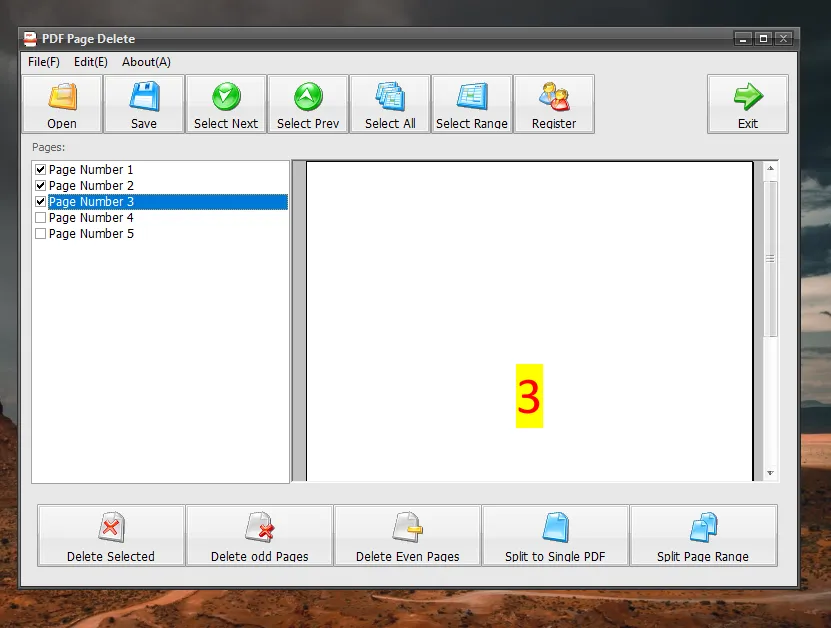 PDF 페이지 삭제
2. Adobe Acrobat Document Cloud (Adobe Acrobat DC)
Adobe Document Cloud는 모든 유형의 Adobe PDF 관련 작업을 위한 완벽한 패키지입니다. 매우 합리적인 가격에 인상적인 기능을 제공합니다. 고급 기능에 액세스하려면 구독을 구매해야 합니다. Adobe Acrobat Pro DC를 사용하여 PDF 문서에서 페이지를 삭제하는 방법을 살펴보겠습니다.
단계:
- Adobe Acrobat Pro DC 애플리케이션을 엽니다. 다음으로, 파일 메뉴를 클릭하고 열기를 선택하여 Adobe Acrobat PDF 파일을 엽니다. (파일 > 열기)
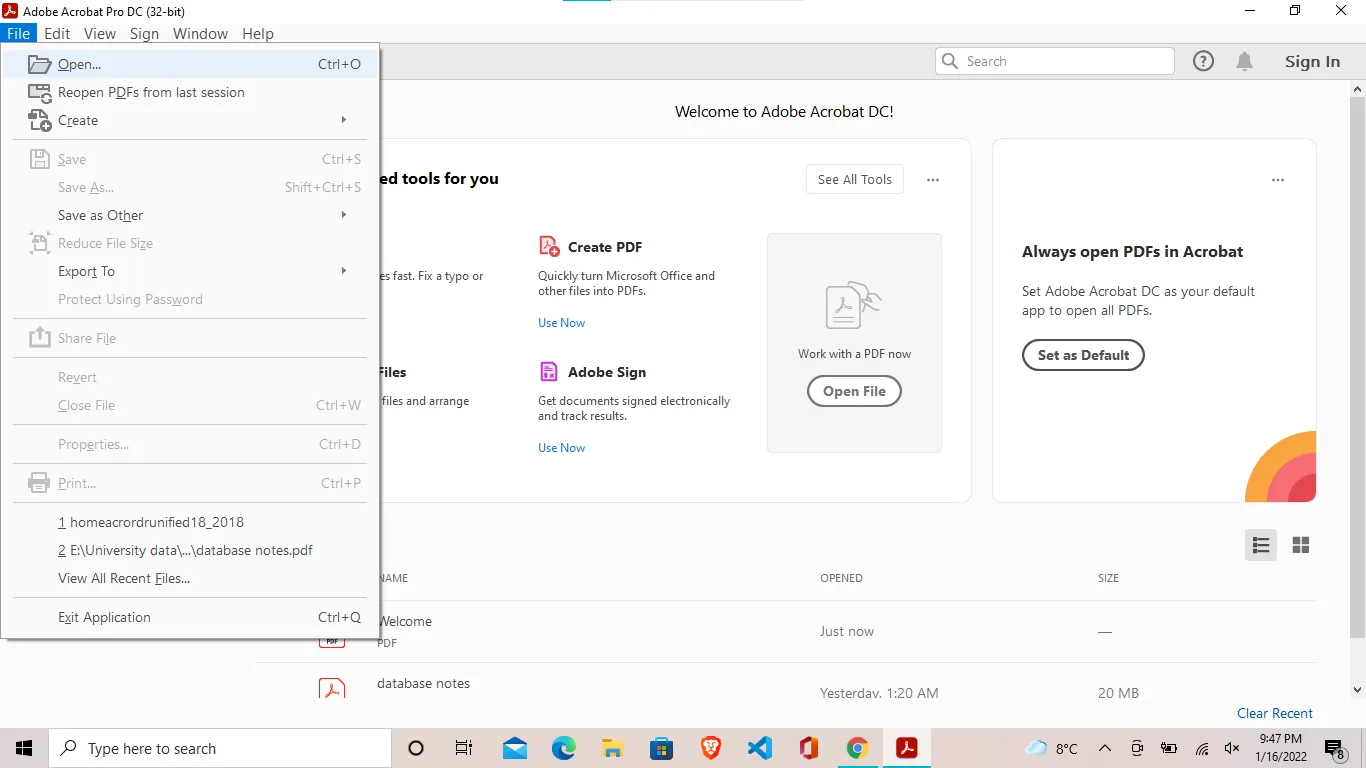 Adobe Acrobat Pro DC 메뉴 열기
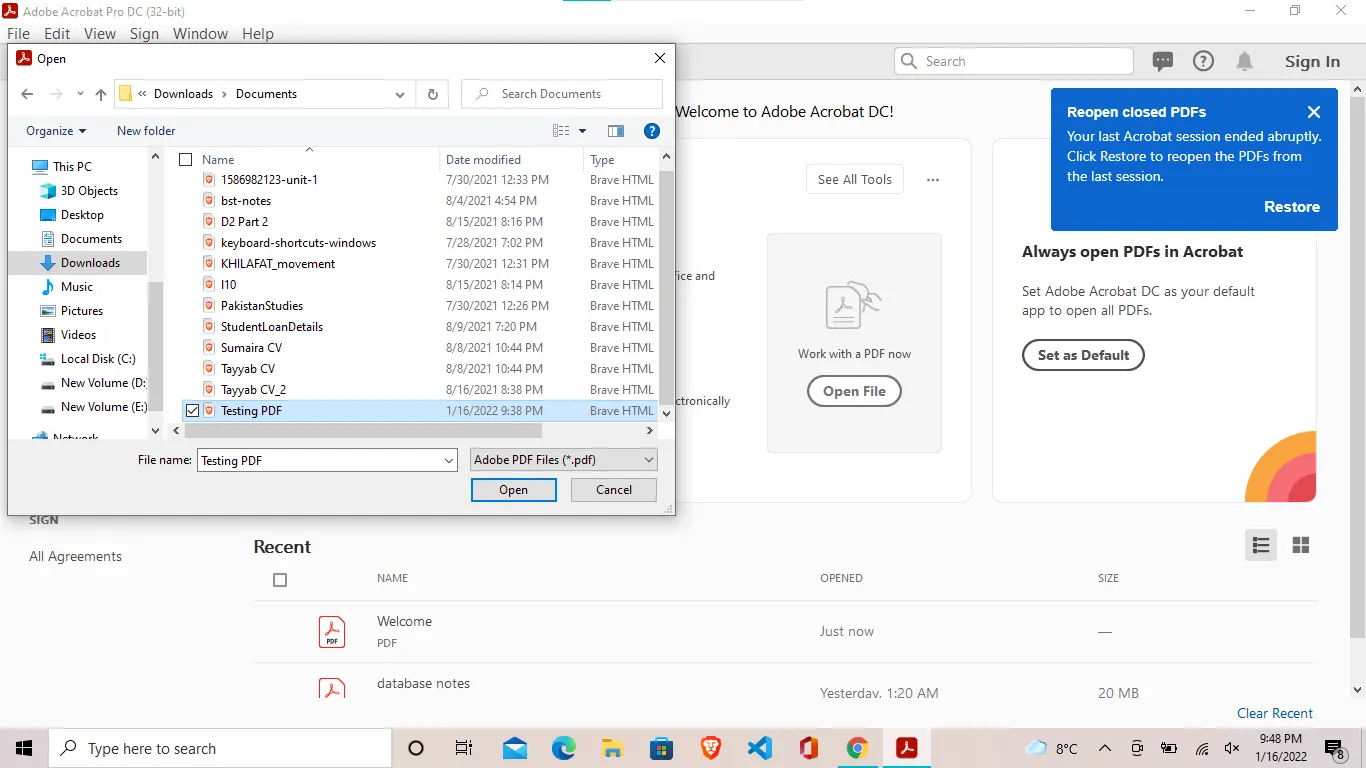 Adobe Acrobat Pro DC 파일 선택
- 문서의 오른쪽 패널에서 페이지 구성을 선택합니다.
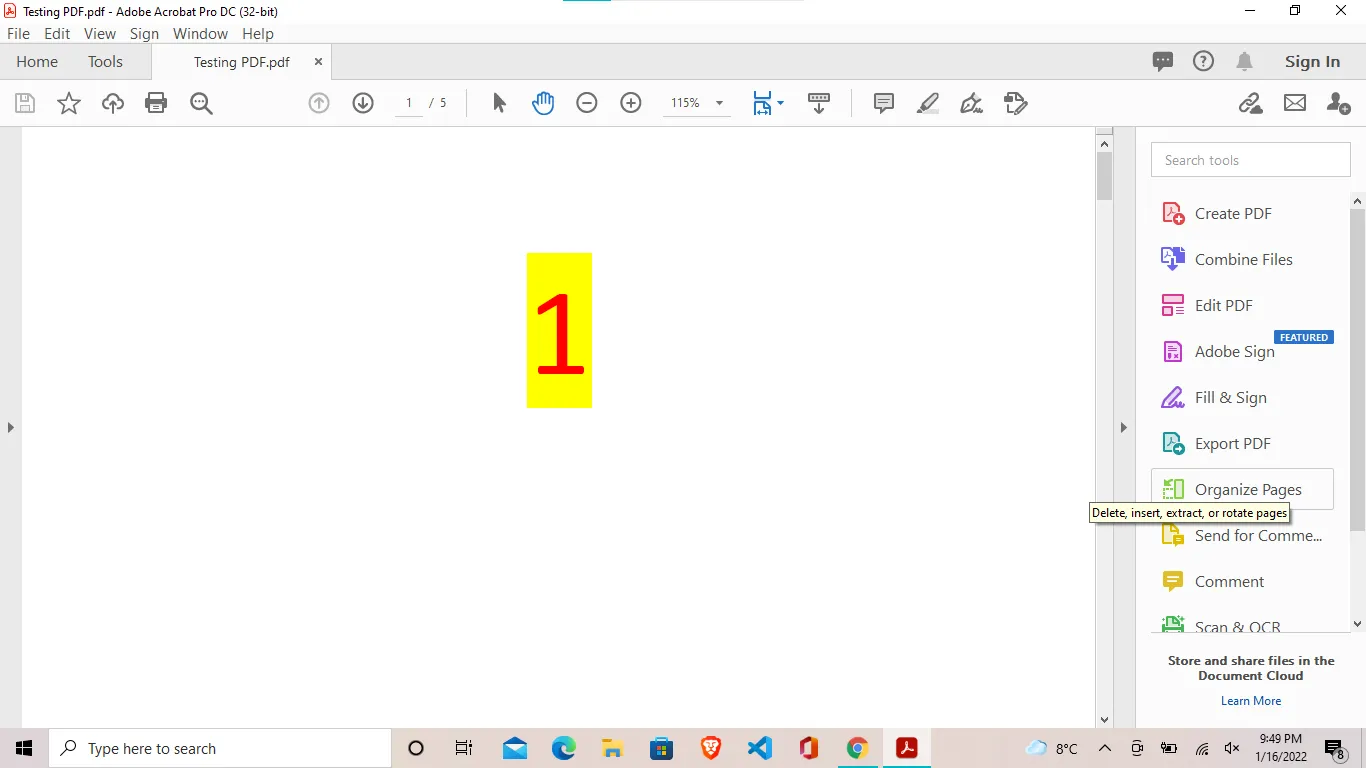 페이지 구성 기능 위치
- 삭제할 페이지의 썸네일에 커서를 올리고 휴지통 아이콘을 누릅니다. 또는 ctrl 키를 누르고 여러 페이지를 선택한 다음, 보조 도구 모음의 삭제 키나 휴지통 아이콘을 누릅니다.
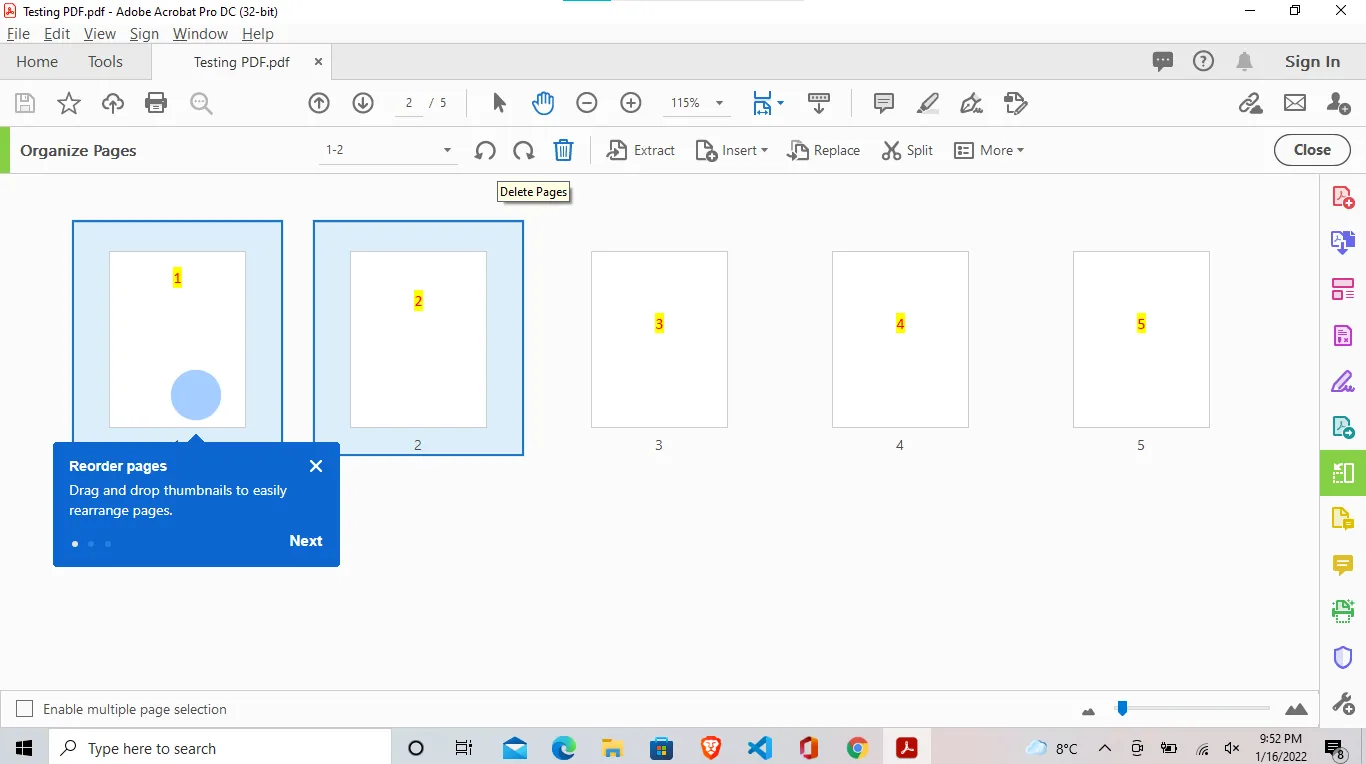 페이지 삭제 인터랙티브 인터페이스
- 마지막으로 삭제를 확인하려면 확인을 누릅니다.
Mac에서 PDF 페이지 삭제 방법
Mac에서 기본 무료 미리보기 응용 프로그램을 사용하여 PDF의 페이지를 삭제하는 것은 매우 간단합니다.
Mac의 미리보기에서 PDF의 페이지 삭제
- 미리보기 응용 프로그램에서 PDF를 엽니다.
- 보기 메뉴에서 사이드바 숨기기 옵션이 선택 해제되어 있는지 확인합니다.
- 보기 메뉴에서 썸네일을 선택합니다 (보기 > 썸네일). 문서의 왼쪽에 썸네일이 표시됩니다.
- 사이드바에서 페이지 썸네일을 클릭하여 삭제할 페이지를 선택합니다.
- 편집 메뉴를 클릭하고 삭제 옵션 (편집 > 삭제)을 선택하세요. 또는 삭제 키를 눌러 페이지를 삭제할 수 있습니다.
Mac에서 미리보기를 사용하여 다음 단계를 수행하여 페이지를 빠르게 삭제할 수 있습니다. 그러나 미리보기를 사용하는 사람들은 페이지를 제거하는 데 여러 가지 문제가 있을 수 있습니다.
미리보기에서 PDF의 페이지를 삭제할 수 없는 이유는 무엇인가요?
미리보기에서 PDF의 페이지를 삭제할 때 자주 묻는 질문은 "왜 미리보기에서 페이지를 삭제할 수 없나요?"입니다. 이런 일이 발생할 수 있는 몇 가지 이유가 있습니다. 원인과 그 해결책을 살펴보겠습니다.
삭제하기 전에 축소판을 클릭하지 않음
축소판을 선택한 후 다른 작업을 수행하면 삭제 기능이 활성화되지 않습니다. 페이지를 삭제하기 전 마지막 단계가 축소판 선택이라는 것을 확실히 해야 합니다. 이 문제를 해결하려면, 축소판 이미지를 선택한 후 다른 작업을 수행하지 않고 편집 > 삭제로 이동해야 합니다. 원하는 페이지의 축소판을 선택한 후에는 문서 영역에서 다른 작업을 수행하지 마세요.
PDF 문서에서 페이지를 삭제하기 위한 무료 온라인 PDF 도구
PDF 문서에서 페이지를 제거하기 위한 많은 온라인 PDF 도구가 제공됩니다. 우리는 PDF에서 페이지를 빠르게 삭제하는 데 도움이 되는 사용하기 쉬운 몇 가지 온라인 도구를 선택했습니다. 이 온라인 도구들에 대해 이야기해 봅시다.
1. Smallpdf
SmallPDF PDF 페이지 삭제 도구는 온라인에서 PDF 파일을 편집하기 위한 온라인 도구입니다. 이 PDF 도구를 사용하여 온라인에서 PDF 페이지를 삭제하는 방법을 살펴보겠습니다.
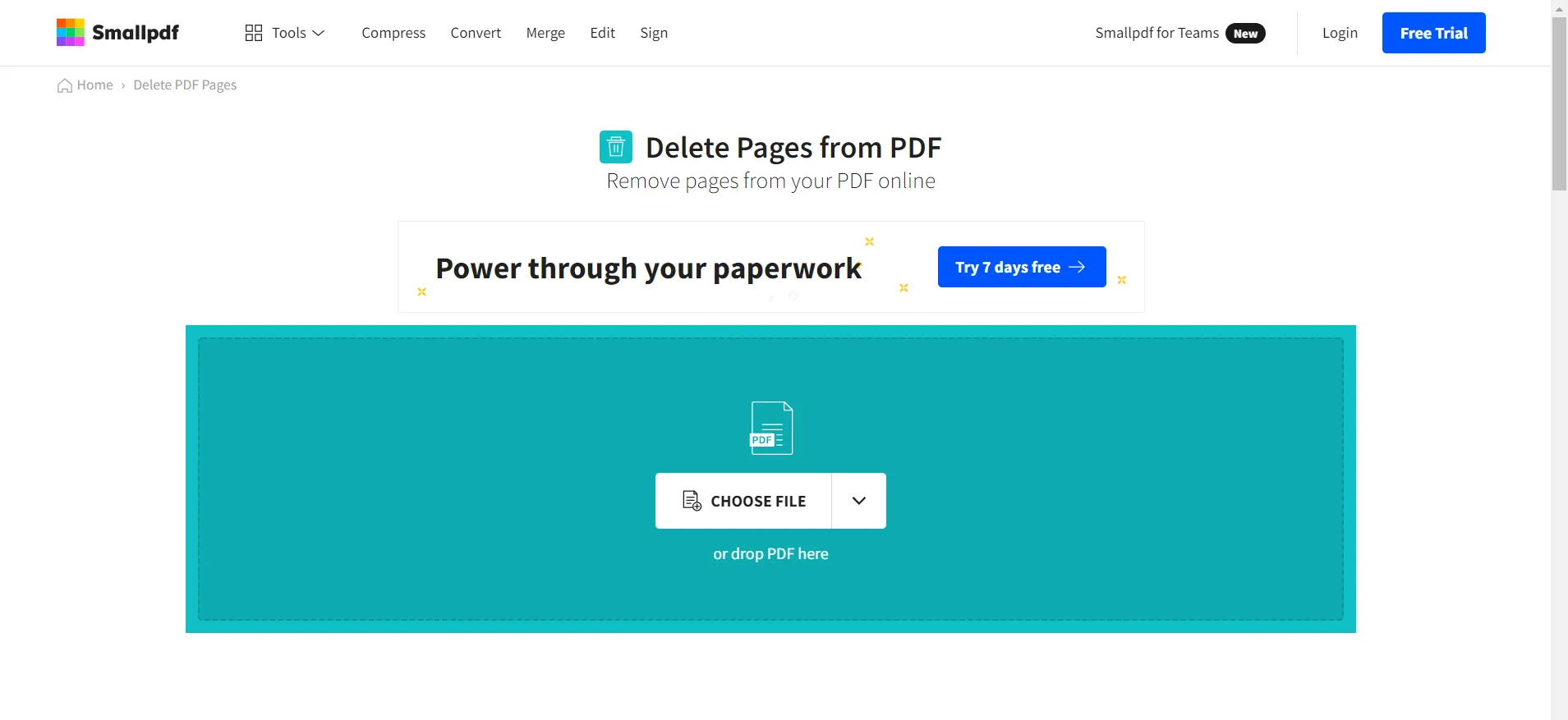 PDF 파일에서 페이지 삭제
- 파일 선택을 클릭하고 원하는 문서를 선택한 후 열기를 클릭하세요.
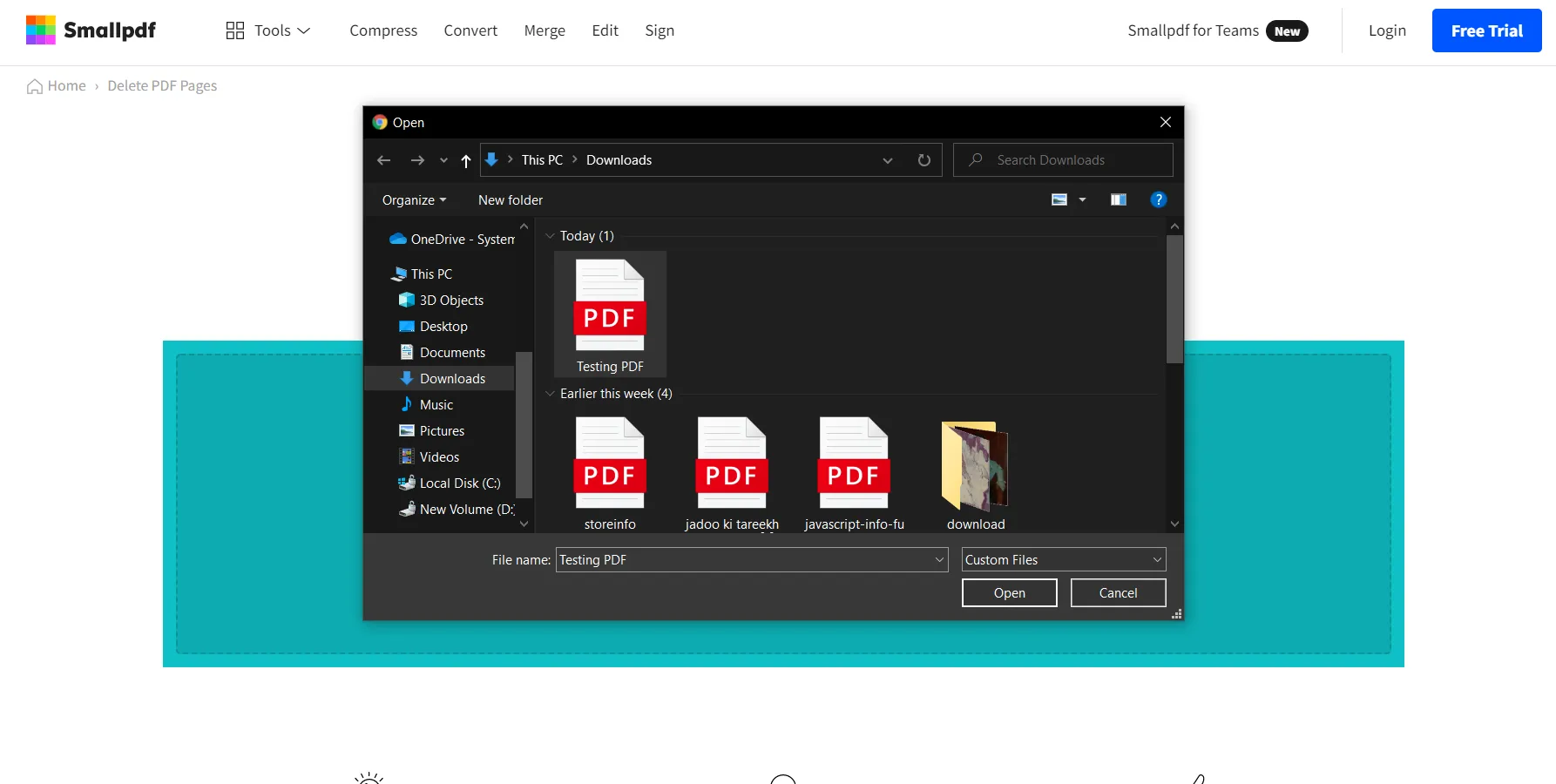 Smallpdf 삭제 페이지 기능을 위한 파일 업로드
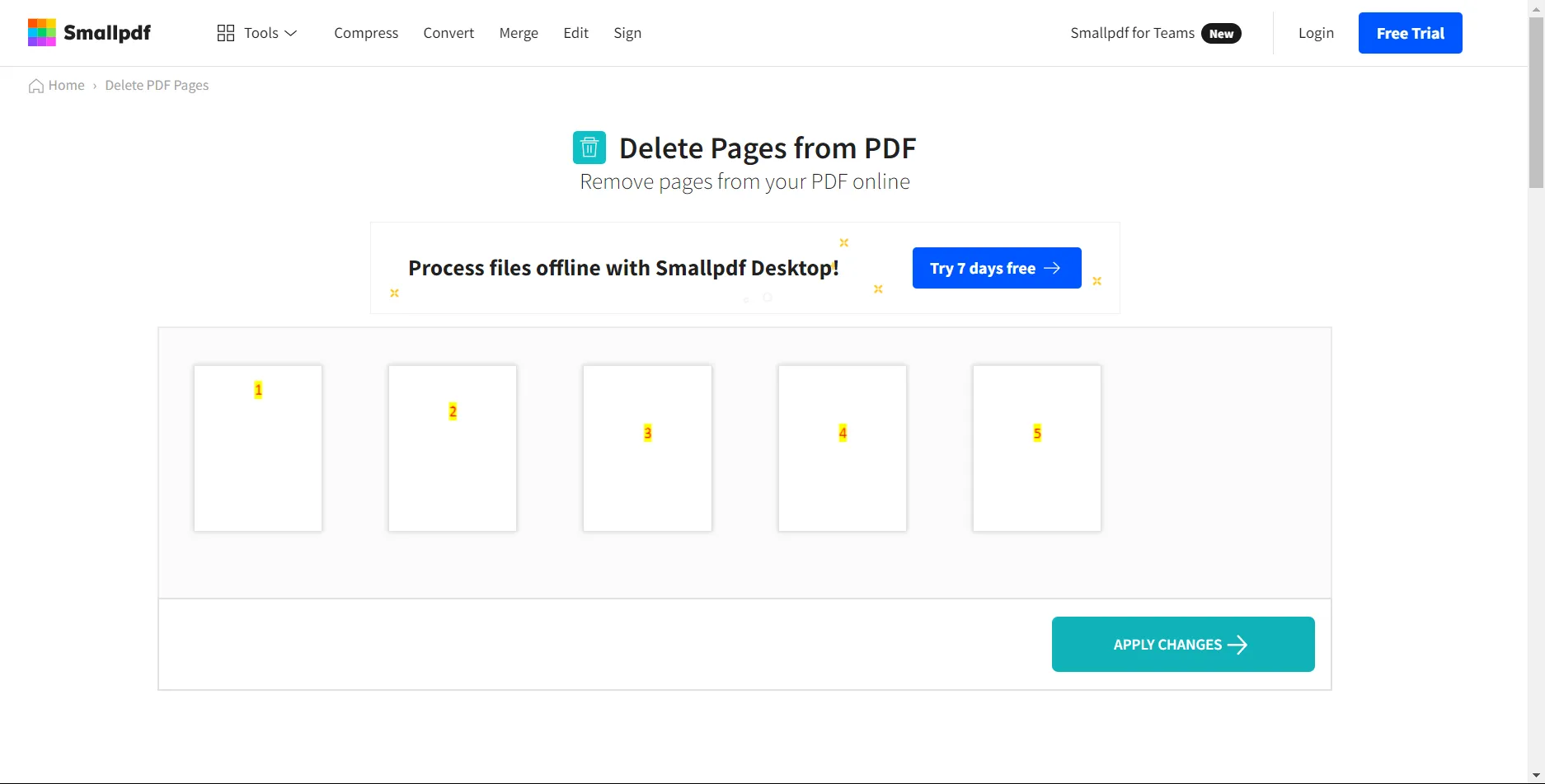 쉬운 편집을 위한 축소판 화면
- 삭제하려는 축소판 위에 마우스를 올리고 휴지통 아이콘을 클릭하세요.
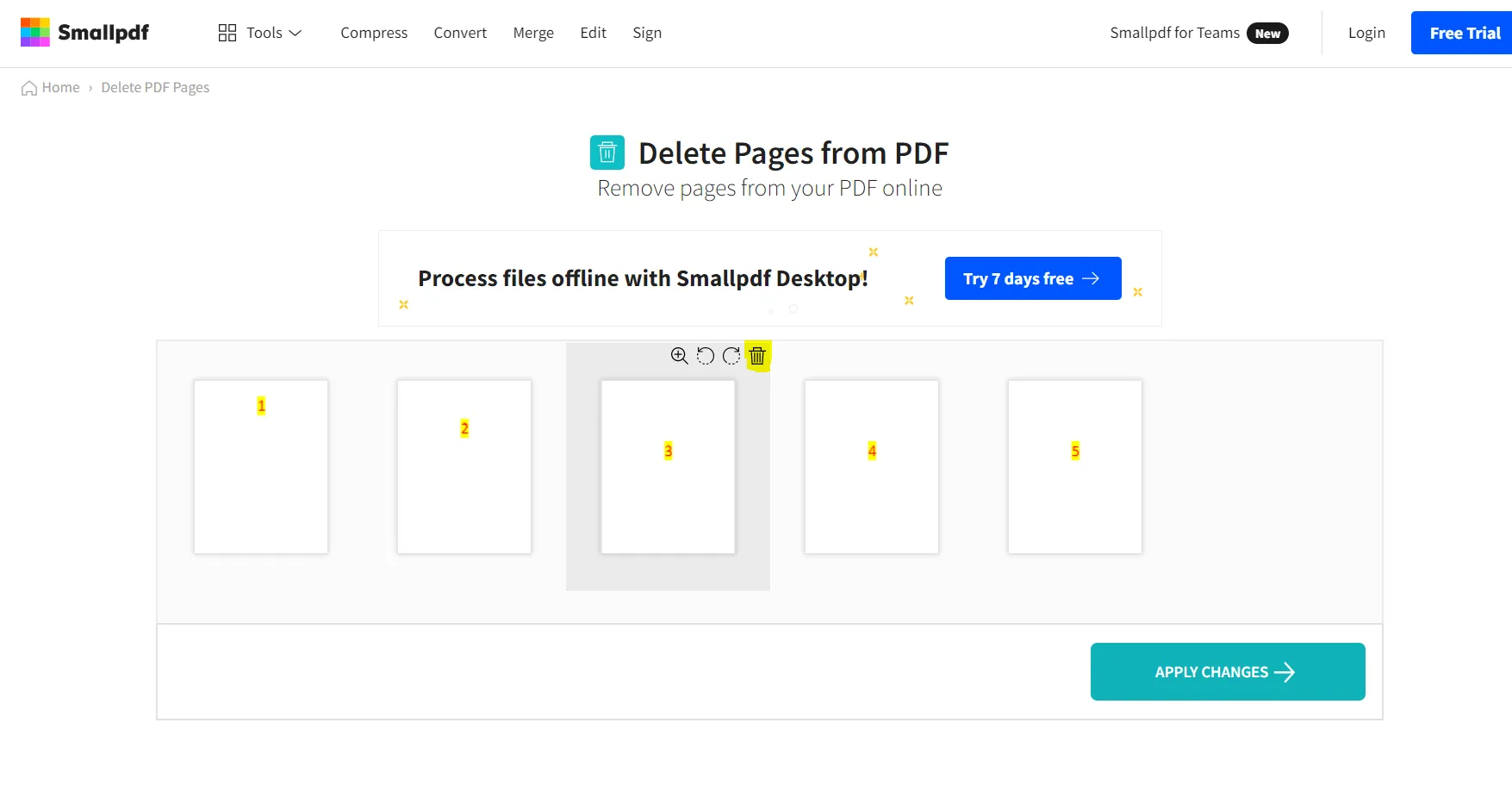 페이지 삭제
- 페이지를 삭제한 후 변경 사항 적용을 클릭하세요. 그리고 나서, 새로운 파일들을 장치로 다운로드하세요.
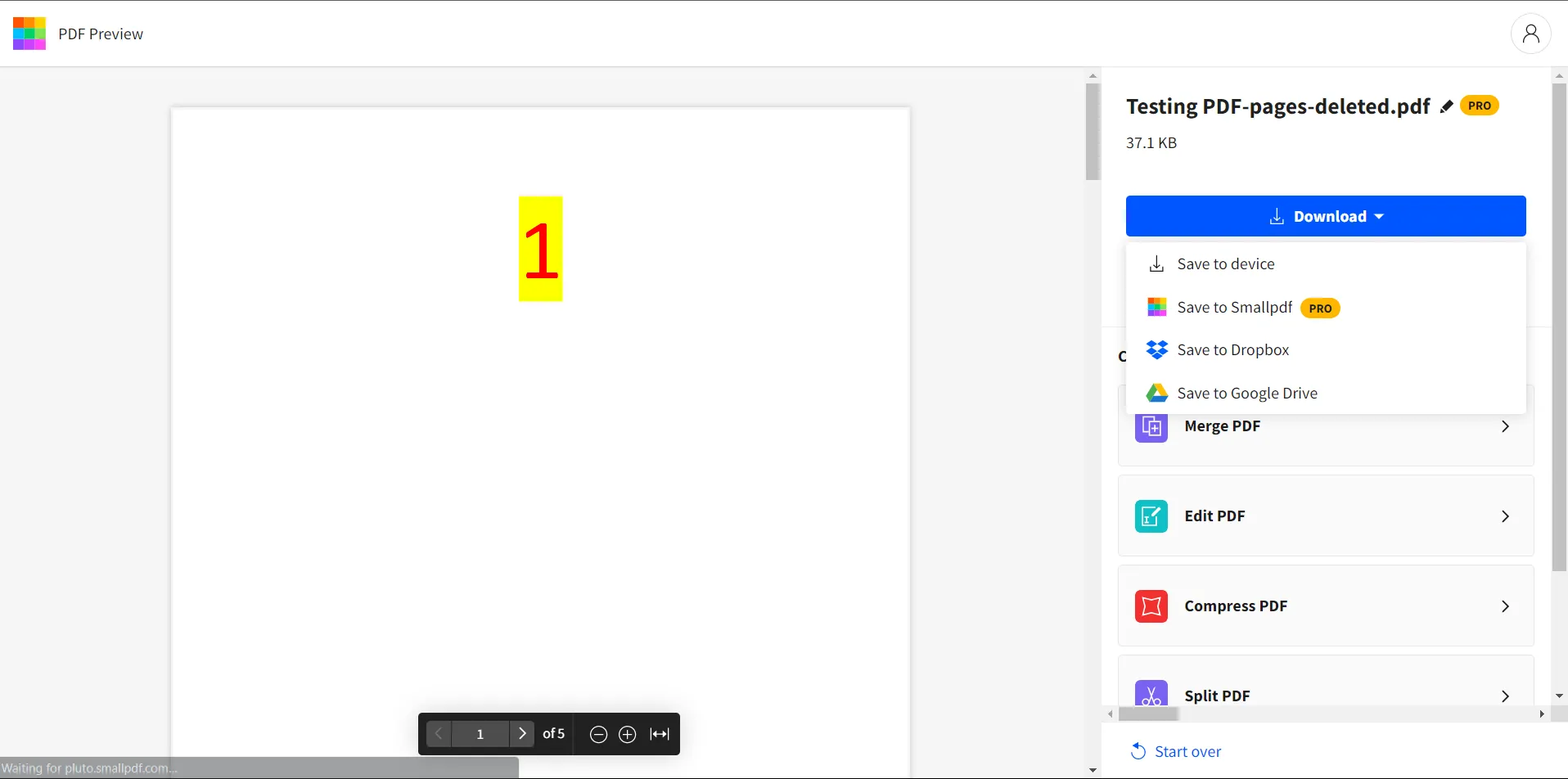 변경 사항 적용 및 새로운 파일 다운로드
2. ILovePDF
ILovePDF PDF 페이지 삭제 도구는 모든 종류의 PDF 문서 커스터마이징 기능을 제공하는 또 다른 온라인 도구입니다. PDF 편집기를 사용하여 PDF에 서명하고, PDF를 변환하고, PDF 페이지를 제거하는 등 여러 고급 옵션을 사용할 수 있습니다. 무료로 사용할 수 있으며 귀하의 디지털 파일을 완벽하게 보안합니다. 사용하기 쉬우며, 새로운 파일을 시스템으로 쉽게 다운로드할 수 있습니다.
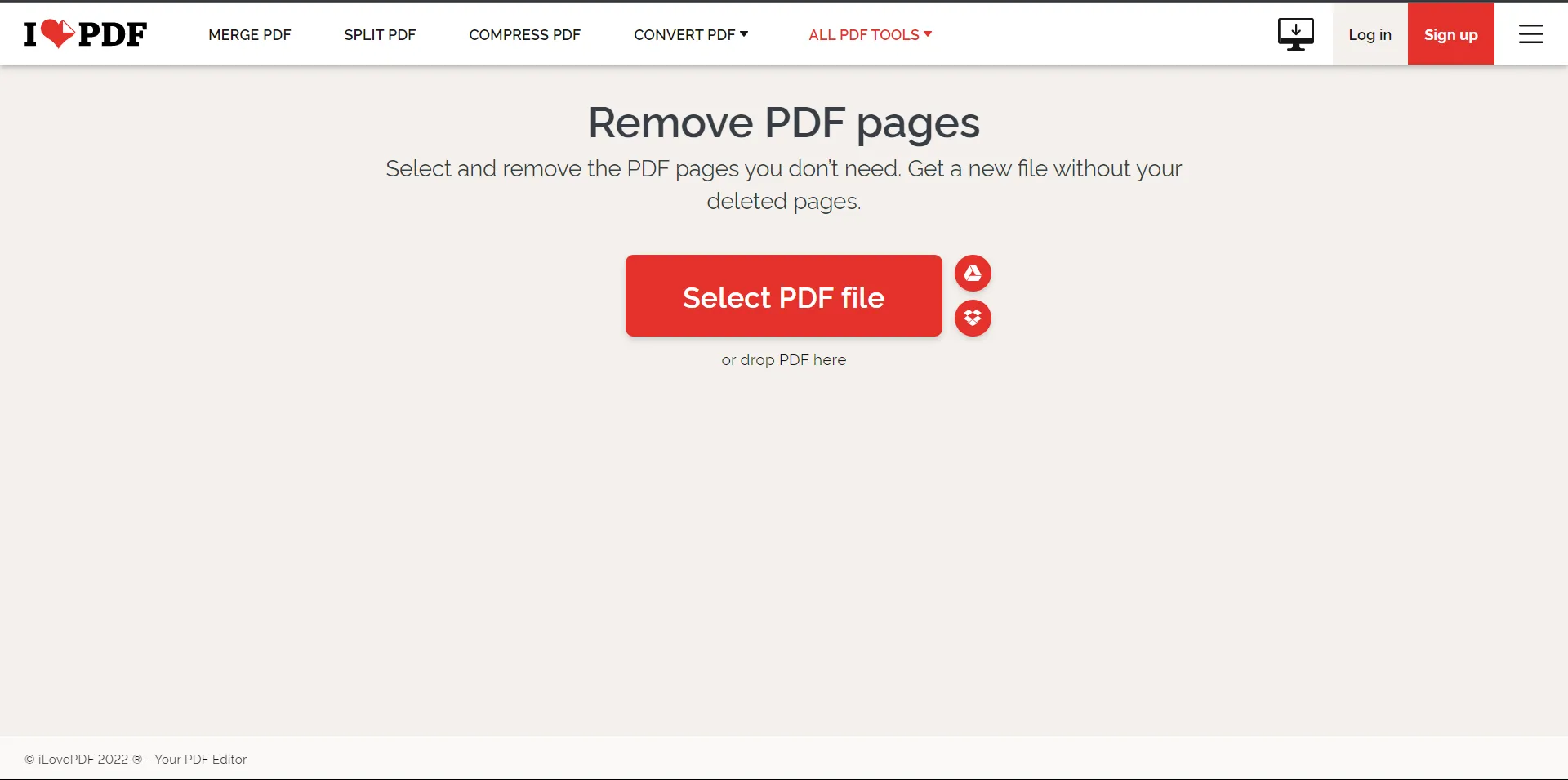 ILovePDF에서 PDF 페이지 제거
단계:
- ILovePDF 웹사이트로 이동하세요.
- PDF 파일 선택 버튼을 클릭하여 파일을 업로드하세요.
- 키보드에서 Ctrl 키를 누른 상태로 하나 이상의 페이지를 선택하세요.
- 선택 후, 페이지 제거를 클릭하세요. 페이지 제거가 시작됩니다.
- PDF 다운로드를 클릭하여 새로운 파일을 다운로드하세요.























