현대 시대에는 실제 종이 문서가 다소 구식이 되었습니다. 디지털 사본은 이제 업무 및 학습에 일반적으로 사용되며, 컴퓨터, 노트북 및 휴대폰은 우리의 삶에서 중요한 역할을 합니다. 디지털 PDF 파일과 함께 PDF 뷰어 애플리케이션을 사용하는 것이 파일을 관리하는 가장 효율적인 방법입니다. 이 기사에서는 Google에서 추가로 검색할 필요 없이 최고의 PDF 뷰어 앱을 나열할 것입니다.
추천 온라인 및 데스크톱 PDF 뷰어 앱
1. SodaPDF 온라인 앱
SodaPDF 온라인 PDF 리더는 무료 온라인 PDF 뷰어 도구입니다. 사용자는 무료 Soda PDF 뷰어 애플리케이션에서 Adobe PDF 문서와 같은 디지털 만화, 책, 기타 전자 읽기 자료를 업로드하여 읽을 수 있습니다. 컴퓨터의 폴더나 Google Drive와 같은 클라우드 저장소에서 파일을 업로드하여 보고자 하는 문서 또는 PDF를 선택하세요.
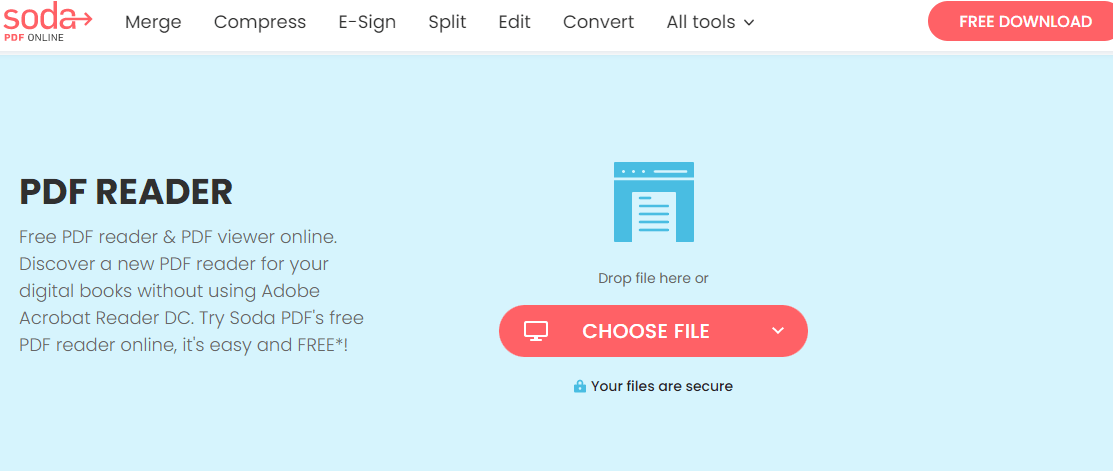
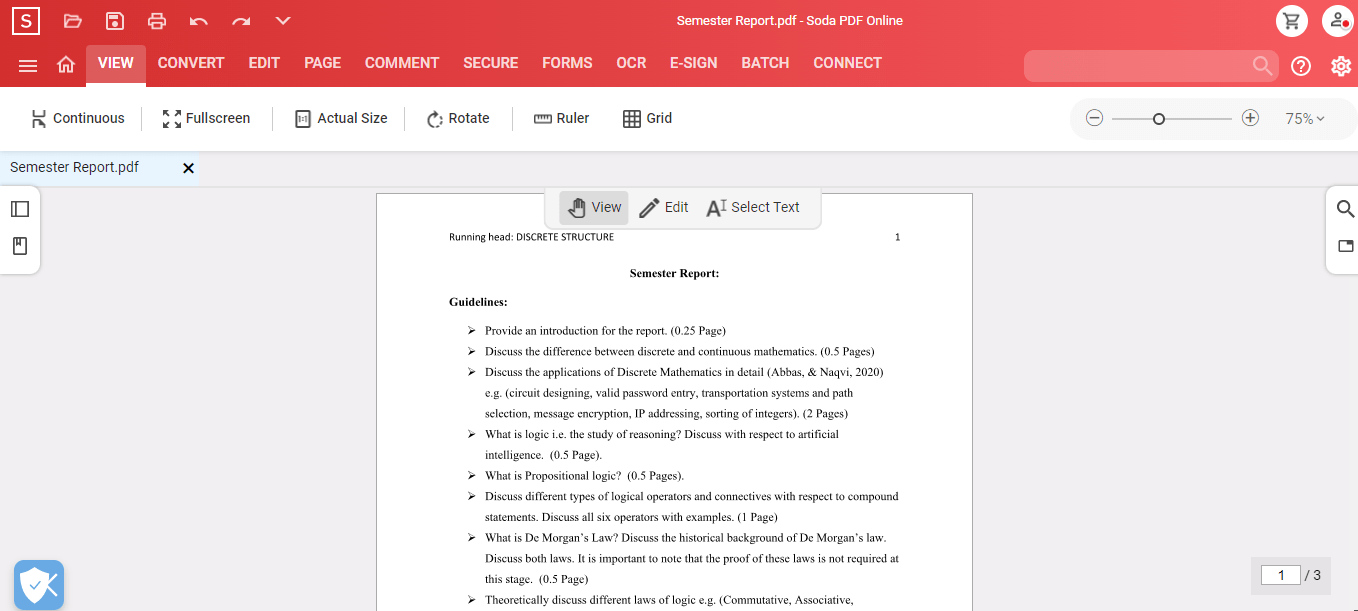
파일을 무료로 전체 화면에서 보고 전체적인 경험에 몰입할 수 있습니다. 또한 3D 뷰 기능을 사용하여 실제 책을 넘기는 것처럼 페이지 가장자리를 잡아 넘길 수 있는 옵션도 있습니다. 즉, 인쇄에서처럼 PDF 문서와 상호 작용하고 참여할 수 있습니다.
2. SmallPDF 온라인 PDF 문서 뷰어 앱
Smallpdf PDF 리더는 사용자가 모든 PDF 파일을 간단히 드래그 앤 드롭하여 빠르게 보고 관리할 수 있도록 합니다. 툴 내에서 다른 사람과 PDF를 공유할 수도 있습니다.
PDF 보기 외에도 SmallPDF의 PDF 뷰어 및 편집기는 양식 작성과 마크업 추가에 도움을 줍니다. PDF를 인쇄하거나 Dropbox 또는 Google Suite로 내보낼 수도 있습니다.
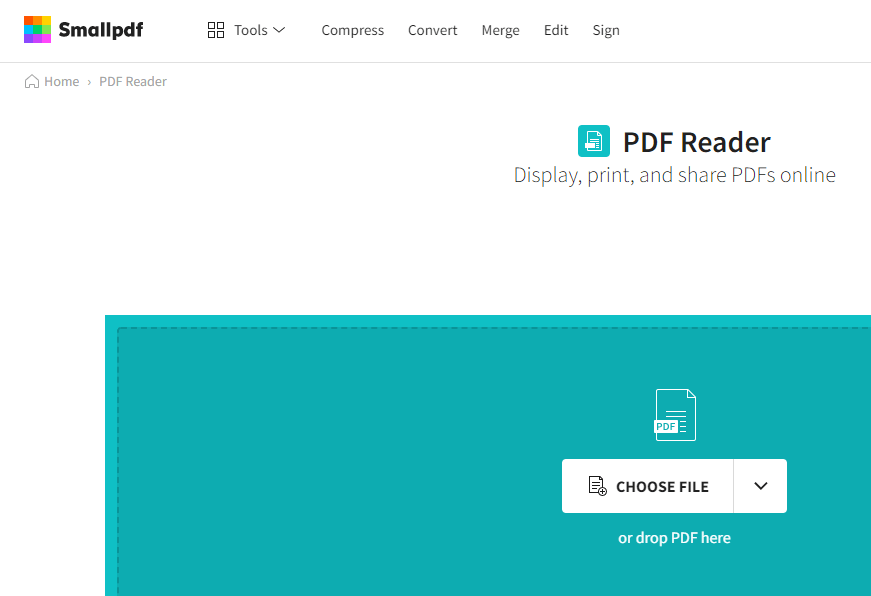
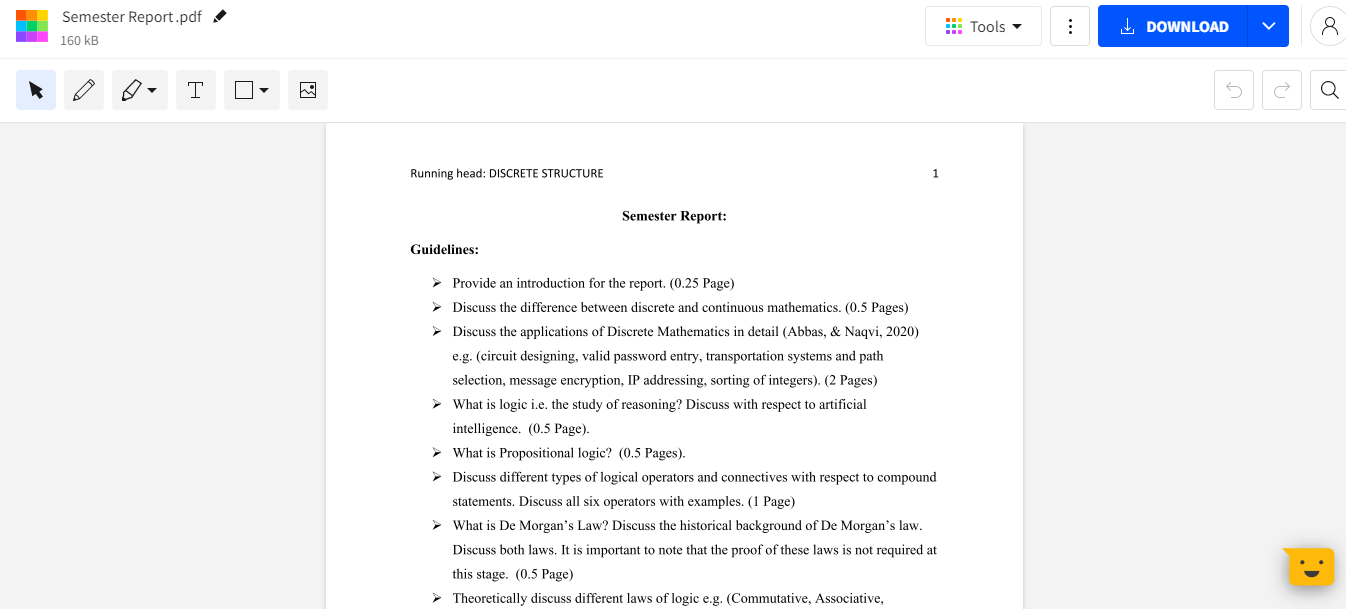
SmallPDF는 모든 파일 전송의 안전한 환경을 보장하기 위해 SSL 암호화를 사용합니다. 모든 웹 브라우저나 운영 체제, 모바일 장치에서 이 PDF 뷰어를 온라인으로 사용할 수 있습니다. 자동 저장이 활성화되어 작업을 잃지 않도록 보장합니다.
3. DocFly PDF 뷰어 앱
DocFly PDF 뷰어는 인터넷에 연결된 모든 장치에서 접근 가능한 온라인 서비스입니다. 사용자는 PDF 뷰어를 사용하여 집, 사무실, 또는 클라우드 저장소에서 파일에 접근할 수 있습니다. 모든 파일 업로드는 HTTPS를 통해 암호화되어 콘텐츠를 보호합니다. 파일은 아마존 클라우드 호스팅이 관리하는 안전한 데이터베이스에 저장됩니다. 시스템에서 언제든지 파일을 삭제할 수 있습니다.
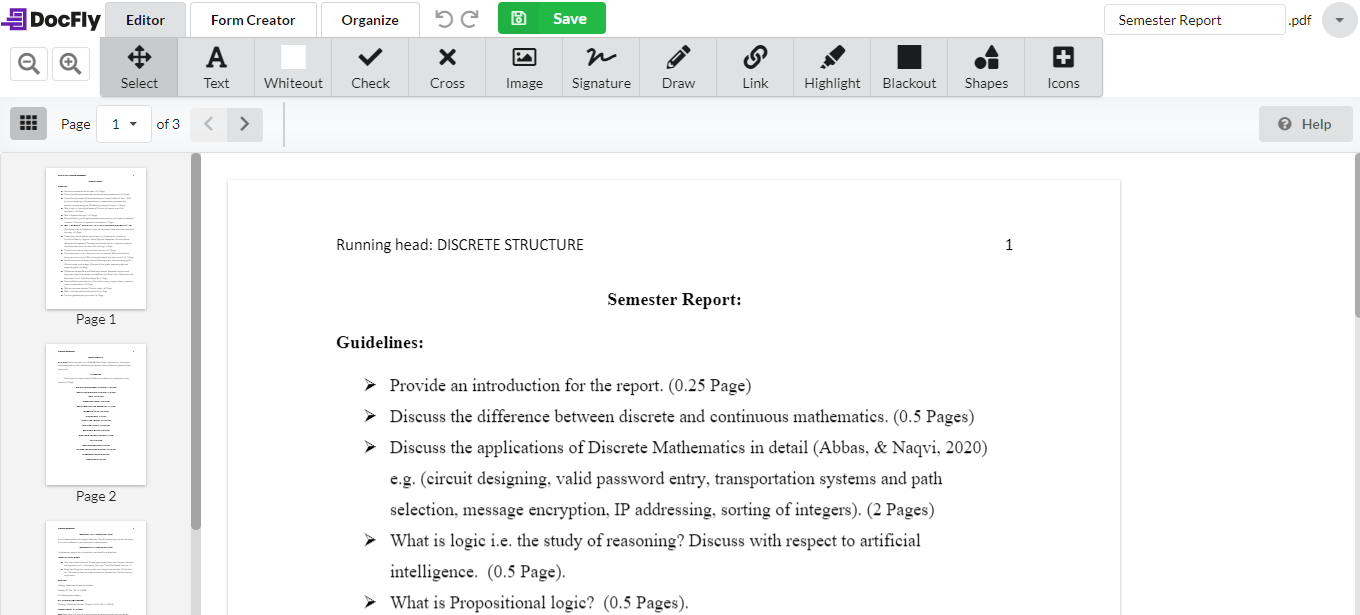
DocFly는 브라우저 기반이기 때문에 항상 최신 상태이며, 사이트에 접속할 때마다 항상 최신 버전의 소프트웨어에 접속하게 됩니다. 긴 업데이트 또는 소프트웨어 다운로드가 필요하지 않습니다.
4. Foxit 리더
Foxit Reader PDF 애플리케이션은 Windows용 데스크톱 애플리케이션이며 Mac에서도 사용할 수 있습니다. PDF 뷰어의 Google Docs와 비슷합니다. 모든 PDF를 클라우드에서 공유하고 안전하게 보호할 수 있습니다. PDF를 생성하려면 스캔을 업로드하거나, Word 문서, PowerPoint 프레젠테이션, Excel 시트를 변환하거나, 여러 PDF를 새 파일로 결합할 수 있습니다.
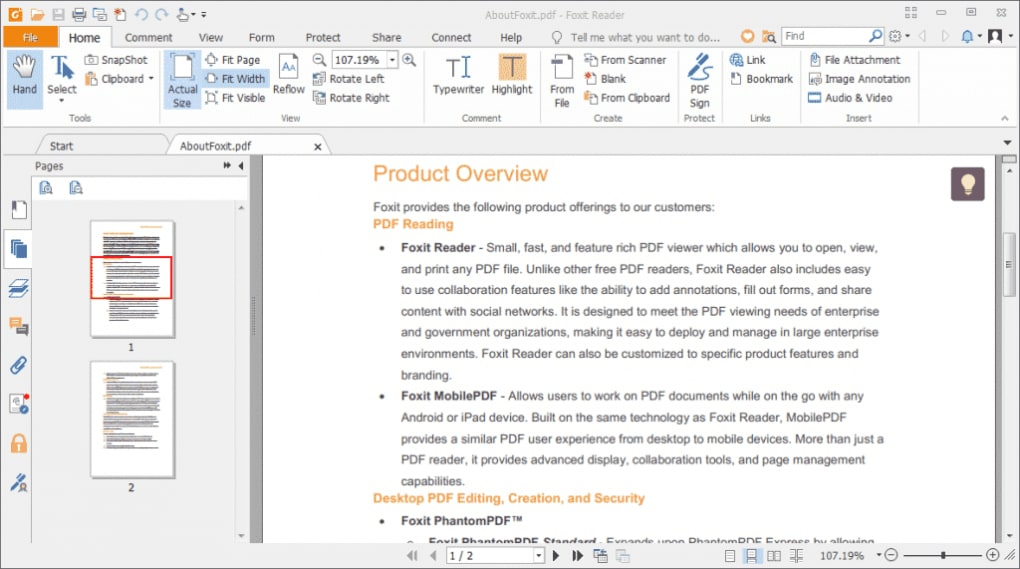
Foxit Reader는 암호, 디지털 서명, 암호화와 같은 여러 보안 옵션을 제공하여 PDF를 안전하게 보호합니다. 정기적으로 PDF를 생성해야 하고 동일한 파일을 공동 작업해야 하는 경우 Foxit이 좋은 옵션이 될 것입니다.
또한 PDF에서 누군가와 협업해야 한다면, 문서 접근 권한을 부여하고 취소하며, 누가 문서를 여는지 추적하고 그들의 활동을 볼 수 있으며, 편집, 댓글 달기, PDF에 대한 새로운 업데이트를 독자에게 알릴 수 있습니다.
5. Adobe Acrobat Reader DC
Adobe Acrobat Reader DC PDF 도구는 Microsoft Windows 및 Mac을 위한 완전한 PDF 생산성 솔루션입니다. PDF 인쇄, 서명 및 주석 달기를 위한 선도적인 PDF 뷰어입니다. Adobe Acrobat Reader DC를 사용하면 PDF 보기, 텍스트 및 이미지 편집, 양식 작성, 서명 및 전송, 지능적인 자동 완성, 변경 사항 저장, 주석 달기 및 리뷰 전송을 모든 장치에서 어디서든지 할 수 있습니다. 더 나은 관리가 가능하도록 여러 문서 및 파일 형식을 단일 PDF로 결합할 수 있습니다.
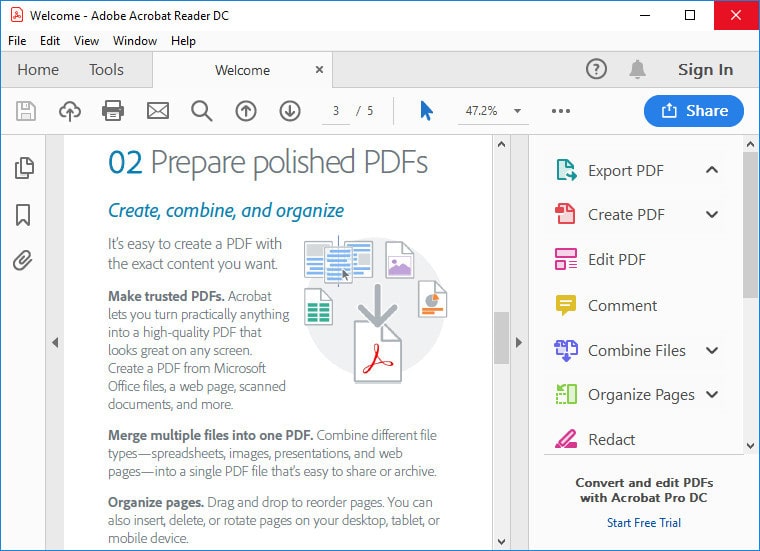
Adobe Acrobat Reader DC의 가장 두드러진 기능은 도전적인 문서를 읽으면서 안내해주는 텍스트를 소리 내어 읽을 수 있다는 점입니다. Adobe의 무료 PDF 뷰어는 PDF 파일에 주석을 달아야 하는바쁜 전문가에게 적합합니다.
IronPDF — C# PDF 파일 리더 라이브러리
IronPDF C# 라이브러리 탐색은 C# 또는 VB .NET 언어를 사용하는 소프트웨어 엔지니어의 모든 PDF 관련 작업에 적합한 도구입니다. IronPDF는 개발자가 PDF 파일을 이미지로 렌더링하고, PDF에서 텍스트와 콘텐츠를 추출하고, 검색 가능한 PDF 파일을 만들고, 특정 항목을 검색하거나 PDF 파일의 주석 검토자로 작동할 수 있도록 지원합니다.
IronPDF는 전통적인 PDF 뷰어로 작동하지 않지만, .NET 애플리케이션에서 검토를 위한 데이터로 PDF 콘텐츠 또는 주석을 읽을 수 있도록 지원합니다.
C# .NET 애플리케이션에서 PDF 파일 문서를 보는 것을 선호하는 경우, IronPDF 라이브러리의 PdfDocument.ExtractAllText 메서드를 쉽게 사용할 수 있습니다. 다음 코드는 IronPDF를 사용하여 C#에서 PDF를 볼 수 있습니다.
// This is a Windows Forms Application that demonstrates how to use IronPDF to work with PDF documents in C#
public Form1()
{
    InitializeComponent();

    // Load the desired PDF file using IronPDF
    PdfDocument PDF = PdfDocument.FromFile("any.pdf");

    // Extract all text from the loaded PDF document
    string AllText = PDF.ExtractAllText();

    // Display the extracted text in a Label or Textbox
    label2.Text = AllText;

    // Extract all images from the PDF document
    IEnumerable<Image> AllImages = PDF.ExtractAllImages();

    // Display the first extracted image in a PictureBox
    pictureBox1.Image = AllImages.First();

    // Loop through each page of the PDF document
    for (var index = 0; index < PDF.PageCount; index++)
    {
        int PageNumber = index + 1;

        // Extract text from each specific page
        string Text = PDF.ExtractTextFromPage(index);

        // Extract images from each specific page
        IEnumerable<Image> Images = PDF.ExtractImagesFromPage(index);

        // Additional processing can be done with Text and Images as needed
    }
}
// This is a Windows Forms Application that demonstrates how to use IronPDF to work with PDF documents in C#
public Form1()
{
    InitializeComponent();

    // Load the desired PDF file using IronPDF
    PdfDocument PDF = PdfDocument.FromFile("any.pdf");

    // Extract all text from the loaded PDF document
    string AllText = PDF.ExtractAllText();

    // Display the extracted text in a Label or Textbox
    label2.Text = AllText;

    // Extract all images from the PDF document
    IEnumerable<Image> AllImages = PDF.ExtractAllImages();

    // Display the first extracted image in a PictureBox
    pictureBox1.Image = AllImages.First();

    // Loop through each page of the PDF document
    for (var index = 0; index < PDF.PageCount; index++)
    {
        int PageNumber = index + 1;

        // Extract text from each specific page
        string Text = PDF.ExtractTextFromPage(index);

        // Extract images from each specific page
        IEnumerable<Image> Images = PDF.ExtractImagesFromPage(index);

        // Additional processing can be done with Text and Images as needed
    }
}
' This is a Windows Forms Application that demonstrates how to use IronPDF to work with PDF documents in C#
'INSTANT VB WARNING: The following constructor is declared outside of its associated class:
'ORIGINAL LINE: public Form1()
Public Sub New()
InitializeComponent()
' Load the desired PDF file using IronPDF
Dim PDF As PdfDocument = PdfDocument.FromFile("any.pdf")
' Extract all text from the loaded PDF document
Dim AllText As String = PDF.ExtractAllText()
' Display the extracted text in a Label or Textbox
label2.Text = AllText
' Extract all images from the PDF document
Dim AllImages As IEnumerable(Of Image) = PDF.ExtractAllImages()
' Display the first extracted image in a PictureBox
pictureBox1.Image = AllImages.First()
' Loop through each page of the PDF document
For index = 0 To PDF.PageCount - 1
Dim PageNumber As Integer = index + 1
' Extract text from each specific page
Dim Text As String = PDF.ExtractTextFromPage(index)
' Extract images from each specific page
Dim Images As IEnumerable(Of Image) = PDF.ExtractImagesFromPage(index)
' Additional processing can be done with Text and Images as needed
Next index
End Sub
' This is a Windows Forms Application that demonstrates how to use IronPDF to work with PDF documents in C#
'INSTANT VB WARNING: The following constructor is declared outside of its associated class:
'ORIGINAL LINE: public Form1()
Public Sub New()
	InitializeComponent()

	' Load the desired PDF file using IronPDF
	Dim PDF As PdfDocument = PdfDocument.FromFile("any.pdf")

	' Extract all text from the loaded PDF document
	Dim AllText As String = PDF.ExtractAllText()

	' Display the extracted text in a Label or Textbox
	label2.Text = AllText

	' Extract all images from the PDF document
	Dim AllImages As IEnumerable(Of Image) = PDF.ExtractAllImages()

	' Display the first extracted image in a PictureBox
	pictureBox1.Image = AllImages.First()

	' Loop through each page of the PDF document
	For index = 0 To PDF.PageCount - 1
		Dim PageNumber As Integer = index + 1

		' Extract text from each specific page
		Dim Text As String = PDF.ExtractTextFromPage(index)

		' Extract images from each specific page
		Dim Images As IEnumerable(Of Image) = PDF.ExtractImagesFromPage(index)

		' Additional processing can be done with Text and Images as needed
	Next index
End Sub
다음은 PDF 파일의 간단한 출력입니다:
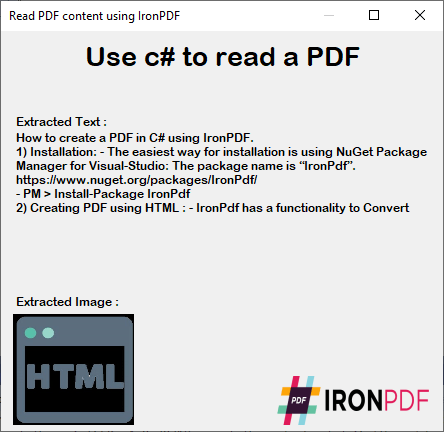
IronPDF C# 라이브러리는 유니코드와 UTF-8 문자를 포함한 문서에서 텍스트를 추출하는 것을 포함하여 다양한 작업의 원활한 실행을 보장하는 여러 기능을 제공합니다.
C# PDF 읽기 및 구문 분석 라이브러리는 거의 모든 PDF 버전을 읽는 데 탁월합니다. 비밀번호로 보호된 PDF 문서를 열고 읽는 과정을 간소화합니다. 다재다능한 솔루션으로서 IronPDF는 PDF 읽기 및 조작에 필요한 모든 기능을 제공합니다. PDF를 읽는 것 뿐만 아니라 새로운 페이지를 생성하고, 기존 페이지를 편집하고, 주석을 추가하고, 심지어 .NET 애플리케이션 내에서 문서를 디지털 서명하는 것을 지원합니다.
라이브러리는 무료 다운로드 및 체험판으로 이용 가능하며, 무료 체험해볼 수 있는 옵션이 있습니다.























