PDF(Portable Document Format)는 가장 인기 있고 널리 사용되는 디지털 문서 형식 중 하나입니다. PDF 파일은 이미지 및 텍스트 형태로 콘텐츠를 표시하고, 송장, 은행 명세서 및 기타 항목을 인쇄하는 데 사용됩니다. PDF 문서는 형식을 보존하면서 인터넷에서 간단하게 생성하고 전송할 수 있습니다. PDF는 모든 저장 미디어에 저장할 수 있으며 사용자가 PDF 문서를 편집하는 것을 방지합니다. 또한 PDF는 사용자가 문서를 디지털 서명하고 안전한 인증을 제공할 수 있게 합니다. 그러나 때때로 PDF를 문서 서명을 위해 편집 가능하게 하거나 작성 가능한 PDF 폼을 편집할 필요가 있습니다. 이를 위해 PDF는 편집 가능한 형식으로 열려야 합니다. 이 기사에서는 PDF 파일을 변환하고 편집하기 위한 무료 온라인 도구를 살펴볼 것입니다.
PDF를 편집하는 방법
1. 어도비 아크로뱃 - 온라인 PDF 편집기
어도비 아크로뱃 PDF 편집은 온라인 PDF 편집기로, PDF 파일에 텍스트, 그림, 이미지, 노트 등을 추가하는 데 도움을 줍니다. PDF 편집 도구는 주석이 있는 텍스트 상자를 추가하거나 제거할 수 있게 합니다. PDF 문서를 강조 표시, 취소선 터치 또는 밑줄로 주석을 추가할 수 있습니다. 어도비 아크로뱃은 원을 그리거나, 화살표 또는 다양한 모양을 그리기 위한 무료 그림 도구를 제공합니다. 모든 웹 브라우저에서 열 수 있으며, PDF 파일을 편집 가능한 PDF로 변환하는 속도는 매우 빠릅니다.
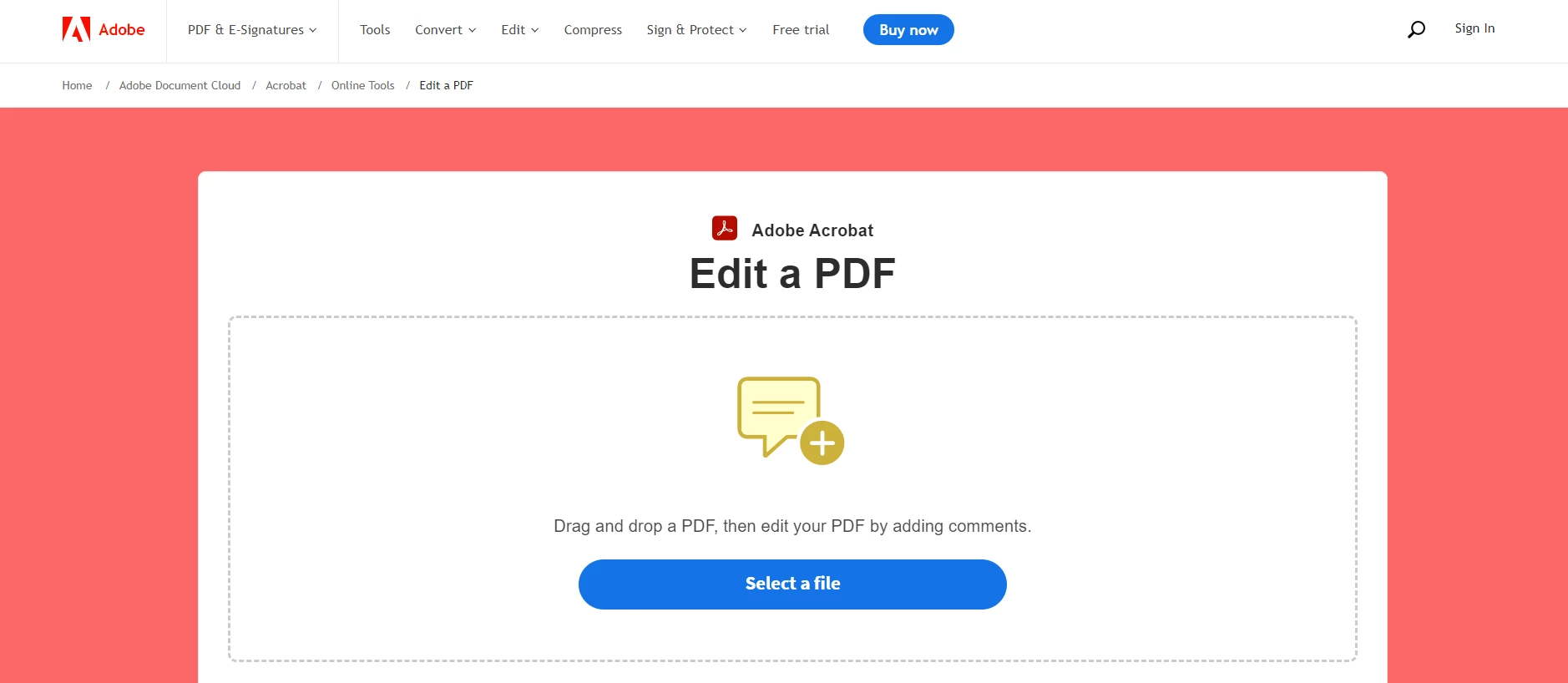
어도비 아크로뱃
다음은 PDF를 편집하고 주석을 추가하는 방법입니다:
- 파일 선택을 클릭하거나 PDF를 드래그 앤 드롭하여 편집합니다.
- 파일이 업로드되면 편집을 위해 로그인합니다.
- PDF 파일에 텍스트, 그림 등을 추가합니다.
- 파일을 다운로드하거나 공유할 링크를 받습니다.
2. SmallPDF
SmallPDF는 PDF 파일을 편집하는 데 도움을 주는 무료 온라인 PDF 편집기입니다. 텍스트, 이미지, 도형, 자유형 그림, 강조 표시, 주석 추가 등을 손쉽게 할 수 있습니다. 양식을 작성할 수 있도록 합니다. 클라우드 기반 플랫폼으로 파일은 모든 웹 브라우저에서 변환할 수 있습니다. SmallPDF는 투명한 플랫폼으로 개인 데이터를 저장, 처리 및 수집하는 방법을 공개합니다. 문서 보안을 유지하기 위해 첨단 TLS 암호화를 구현합니다. SmallPDF 플랫폼에서 PDF 파일을 변환하거나 생성할 수도 있습니다.
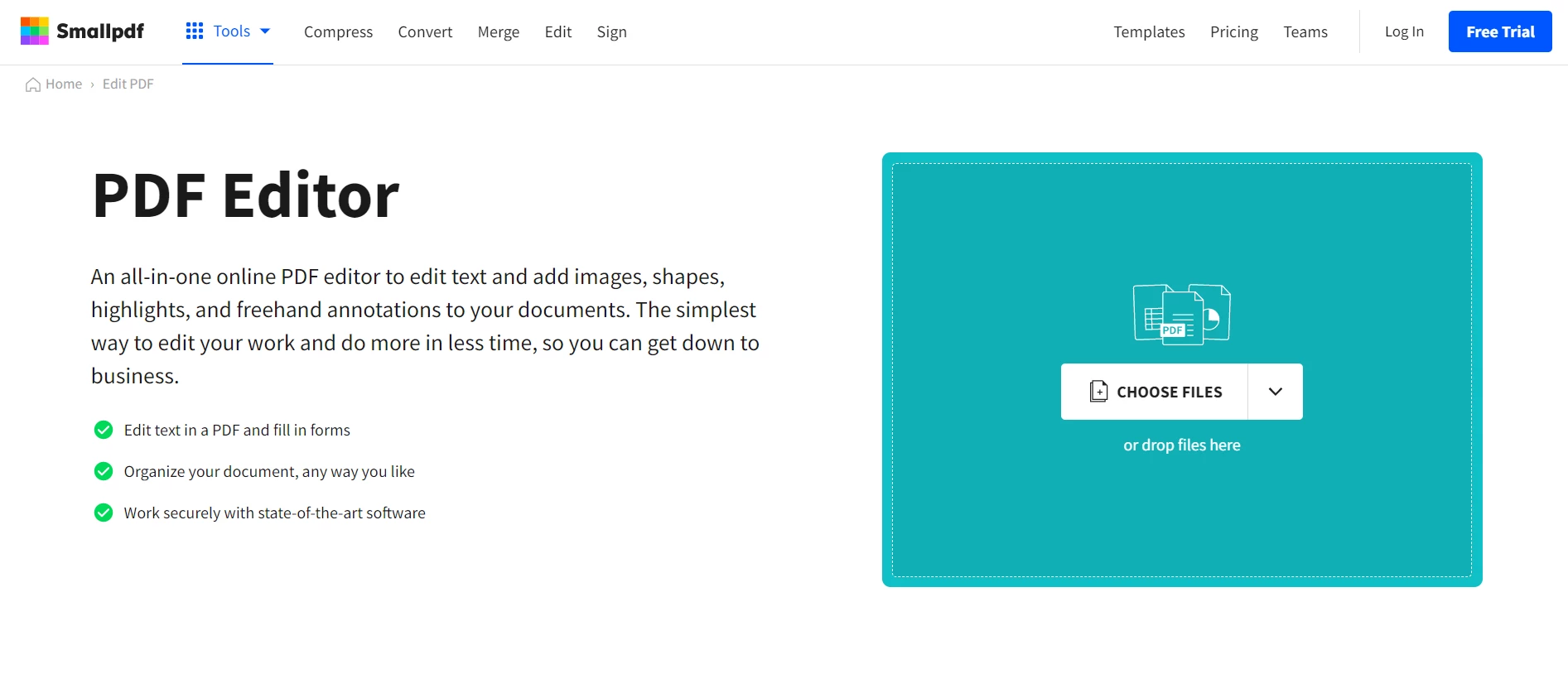
SmallPDF
SmallPDF 편집기는 PDF 파일에서 텍스트를 재배열, 병합, 분할 및 추출할 수 있는 조직 모드를 제공합니다. 문서가 스캔된 PDF인 경우 이미지 텍스트 인식을 위한 OCR 기능을 구현하는 SmallPDF PDF to Word 변환기를 사용할 수 있습니다.
3. 소다 PDF
소다 PDF는 PDF 문서를 편집하기 위한 온라인 PDF 편집 도구를 제공합니다. PDF 페이지의 순서를 변경하거나 새 페이지를 추가하거나 제거하는 데 도움이 됩니다. 페이지 레이아웃, 여백, 페이지 크기 및 배경과 같은 유용한 PDF 편집 옵션을 제공합니다. 문서 어디에나 원하는 글꼴 스타일로 텍스트를 추가할 수 있습니다. 소다 PDF 편집기는 시각적 매력을 위해 이미지 추가 또는 자유양식 그림 도구에서 이미지를 생성하는 데 도움을 줍니다. 눈금자와 그리드 도구를 사용하여 텍스트와 함께 이미지를 정렬할 수 있습니다.
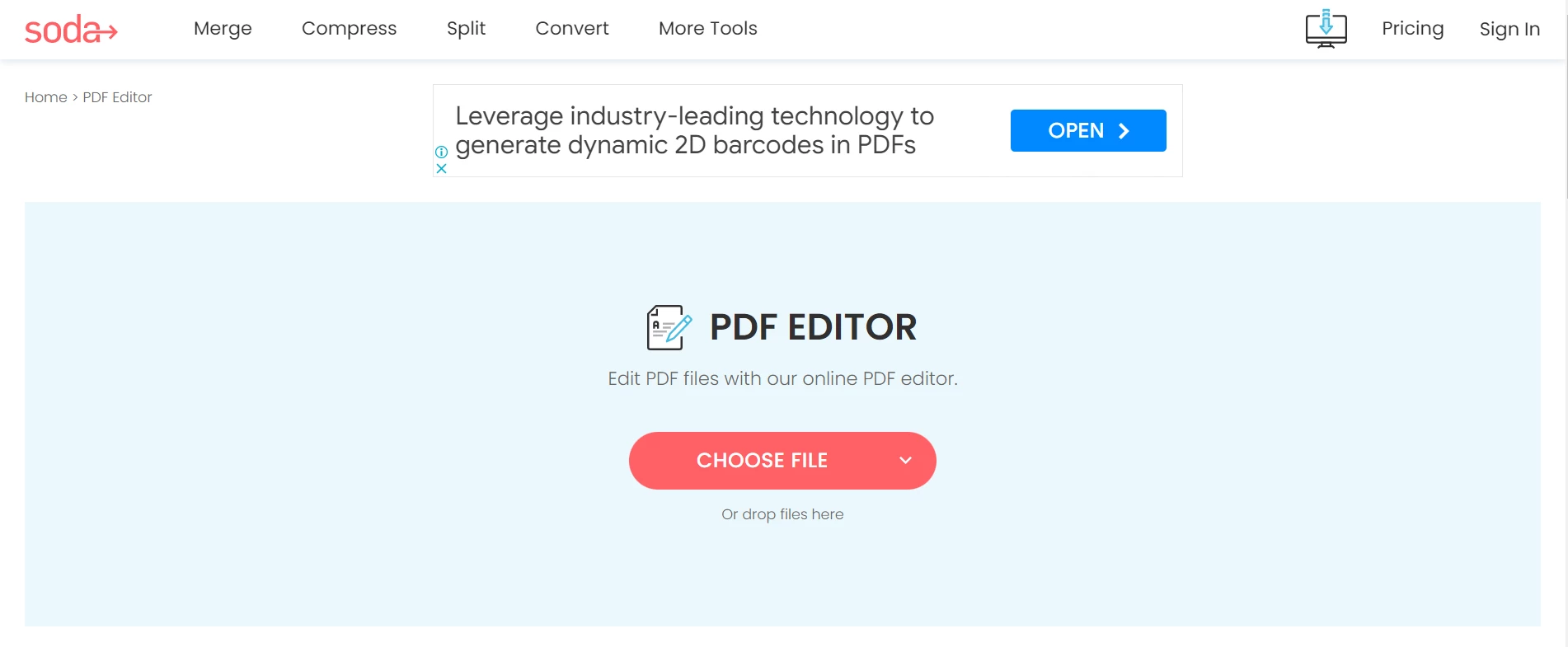
소다 PDF
4. DocFly - 온라인 PDF 편집기
DocFly는 클라우드 저장소에서 PDF 파일을 편집할 수 있는 온라인 PDF 편집기입니다. PDF를 편집 가능하게 만들어 문서 내에서 텍스트 추가 및 제거, 텍스트 강조, 이미지 추가, 도형 및 자유로운 그림을 추가할 수 있습니다. 백지화 도구는 편집 가능한 문서에서 일부를 제거하는 데 도움이 됩니다. 텍스트 상자를 추가하여 원하는 위치에 새 텍스트 또는 이미지를 삽입할 수 있습니다. 모든 파일은 안전한 HTTPS를 통해 암호화되어 PDF 문서를 보호하고 보안합니다. 업로드한 문서를 언제든지 액세스하고 더 이상 필요하지 않은 경우 삭제할 수 있습니다.
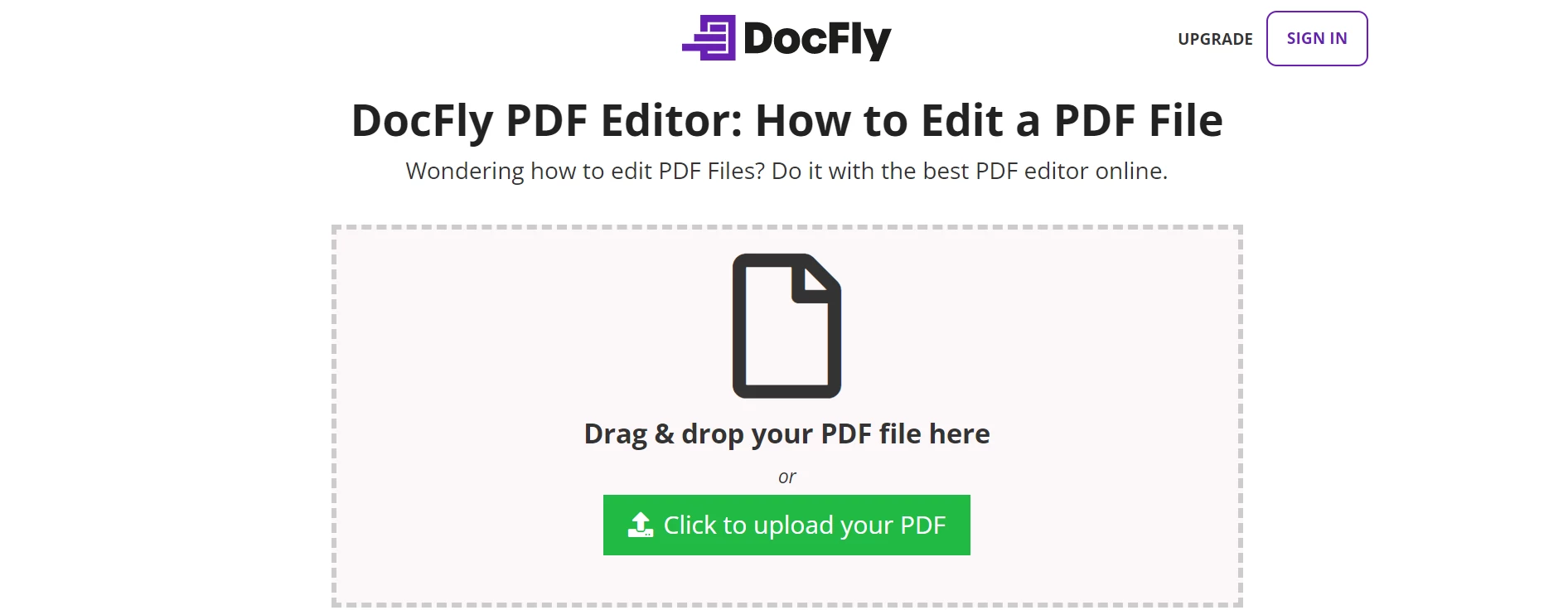
DocFly
IronPDF - .NET PDF 라이브러리
C# 프로그래머는 IronPDF .NET PDF 라이브러리 덕분에 .NET 프로그램 내에서 PDF 문서를 쉽게 생성, 편집, 수정할 수 있습니다. IronPDF는 뛰어난 렌더링 기능을 제공하며 HTML을 PDF로, URL을 PDF로, SVG를 이미지로, HTML 파일을 PDF로 변환하는 등 다양한 형식을 지원합니다. IronPDF는 특히 보고서, 송장, 명세서 및 영수증을 위한 웹 페이지 또는 기존 HTML/CSS 템플릿에서 PDF를 생성하는 데 능숙합니다.
IronPDF의 중요한 기능 중 하나는 기존 PDF 양식을 채우거나 처음부터 새로운 PDF 양식을 생성하는 기능입니다. 이를 통해 기업의 문서 워크플로를 자동화하여 양식 생성 및 완료를 간소화할 수 있습니다. IronPDF는 또한 사용자에게 PDF 파일에 머리글, 바닥글, 페이지 번호 및 워터마크를 추가할 수 있는 기능을 제공하여 전문적이고 깔끔한 PDF를 제작하는 데 훌륭한 선택이 됩니다. 이 기사에서는 PowerPoint 프레젠테이션을 PDF 파일로 변환하기 위해 IronPDF .NET 라이브러리를 사용하는 방법을 탐구할 것입니다.
필수 조건
PDF 파일을 편집하여 편집 가능한 PDF 문서로 전환하려면 다음 전제 조건이 필요합니다:
- Visual Studio 2022
- 최신 .NET Framework로 실행되는 .NET 콘솔 애플리케이션
- PDF 변환을 위한 IronPDF .NET 라이브러리를 다운로드하고 설치하기 위한 안정적인 인터넷 연결.
Step 1: IronPDF 추가
IronPDF는 Visual Studio NuGet 패키지 관리자 또는 NuGet 패키지 관리자 콘솔에서 다운로드하고 설치할 수 있습니다. NuGet 패키지 관리자 콘솔 방법을 사용하여 IronPDF를 설치합시다.
메뉴 툴바에서 '도구'로 이동하고 아래 그림과 같이 NuGet 패키지 관리자에서 '패키지 관리자 콘솔' 옵션을 선택하십시오:
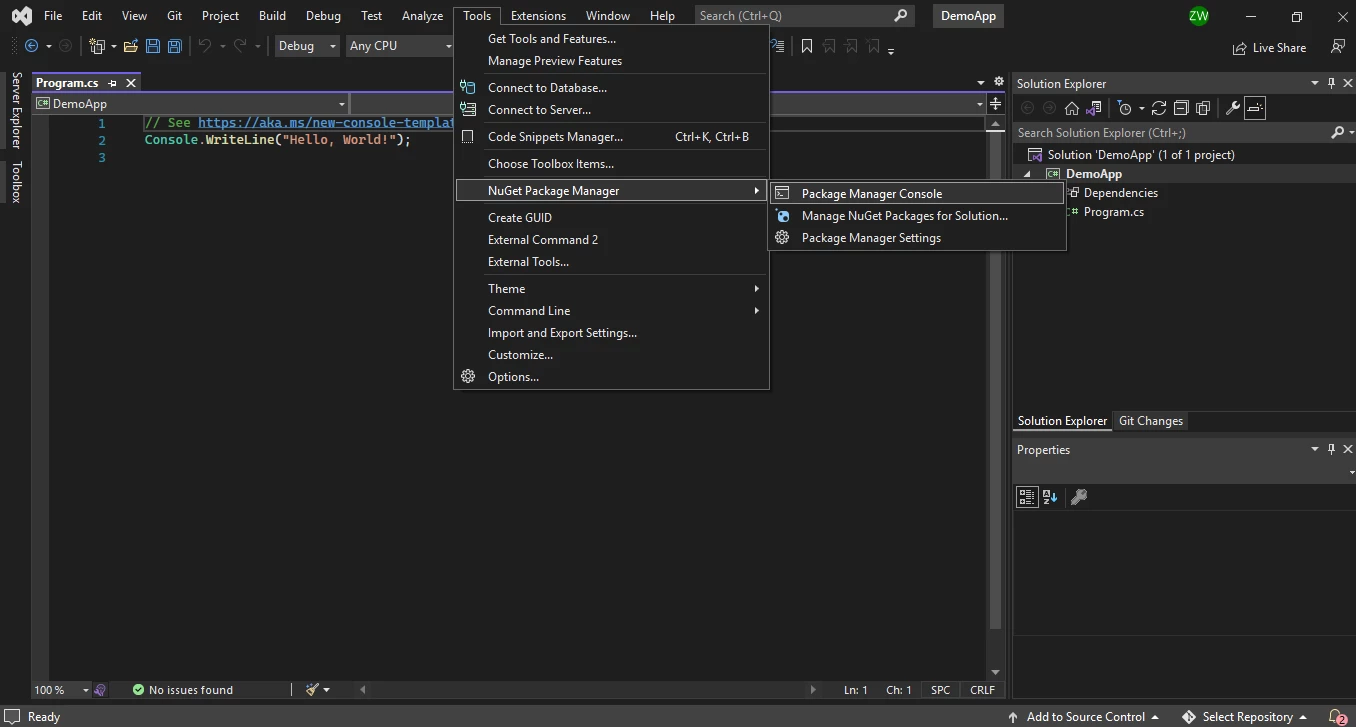
NuGet 패키지 관리자
Step 2: PDF 파일 로드하여 PDF 편집 가능하게 하기
Step 1에서 IronPDF를 다운로드하고 설치했습니다. 이제 PDF 파일을 변환하고 압축하는 데 사용할 것입니다.
IronPDF 네임스페이스 추가
먼저, IronPDF를 가져오기 위해 다음 코드를 Program.cs 소스 파일의 상단에 추가합니다.
using IronPdf;
using IronPdf;
Imports IronPdf
Imports IronPdf
PDF 파일 불러오기
여기에서는 편집이 필요한 기존 PDF 파일을 열 것입니다. 코드는 다음과 같습니다:
PdfDocument pdf = new PdfDocument("document.pdf");
PdfDocument pdf = new PdfDocument("document.pdf");Dim pdf As New PdfDocument("document.pdf")
Dim pdf As New PdfDocument("document.pdf")
오래된 텍스트에서 새로운 텍스트로 교체하기
여기에서 열린 PDF를 편집하고 특정 페이지 범위의 오래된 텍스트를 새로운 텍스트로 교체할 것입니다.
const int pageIndex = 1;
const string oldText = ".NET 6"; // Old text to remove
const string newText = ".NET 7"; // New text to add

// Replace Text on Page
pdf.ReplaceTextOnPage(pageIndex, oldText, newText);
const int pageIndex = 1;
const string oldText = ".NET 6"; // Old text to remove
const string newText = ".NET 7"; // New text to add

// Replace Text on Page
pdf.ReplaceTextOnPage(pageIndex, oldText, newText);
Const pageIndex As Integer = 1
Const oldText As String = ".NET 6" ' Old text to remove
Const newText As String = ".NET 7" ' New text to add

' Replace Text on Page
pdf.ReplaceTextOnPage(pageIndex, oldText, newText)
Const pageIndex As Integer = 1
Const oldText As String = ".NET 6" ' Old text to remove
Const newText As String = ".NET 7" ' New text to add

' Replace Text on Page
pdf.ReplaceTextOnPage(pageIndex, oldText, newText)
우리는 성공적으로 편집 가능한 문서에서 텍스트를 교체했습니다.
PDF에 주석 추가하기
열린 PDF에 편집 가능한 형식으로 주석을 추가할 수도 있습니다.
// Create a new PDF or load and edit an existing document.
var pdf = PdfDocument.FromFile("existing.pdf");

// Create a PDF annotation object
var annotation = new IronPdf.Annotations.TextAnnotation()
{
    Title = "This is the major title",
    Subject = "This is a subtitle",
    Contents = "This is the long 'sticky note' comment content...",
    Icon = IronPdf.Annotations.TextAnnotation.AnnotationIcon.Help,
    Opacity = 0.9,
    Printable = false,
    Hidden = false,
    OpenByDefault = true,
    ReadOnly = false,
    Rotateable = true
};

// Add the annotation "sticky note" to a specific page and location within any new or existing PDF.
pdf.AddTextAnnotation(annotation, 1, 150, 250);
// Create a new PDF or load and edit an existing document.
var pdf = PdfDocument.FromFile("existing.pdf");

// Create a PDF annotation object
var annotation = new IronPdf.Annotations.TextAnnotation()
{
    Title = "This is the major title",
    Subject = "This is a subtitle",
    Contents = "This is the long 'sticky note' comment content...",
    Icon = IronPdf.Annotations.TextAnnotation.AnnotationIcon.Help,
    Opacity = 0.9,
    Printable = false,
    Hidden = false,
    OpenByDefault = true,
    ReadOnly = false,
    Rotateable = true
};

// Add the annotation "sticky note" to a specific page and location within any new or existing PDF.
pdf.AddTextAnnotation(annotation, 1, 150, 250);
' Create a new PDF or load and edit an existing document.
Dim pdf = PdfDocument.FromFile("existing.pdf")
' Create a PDF annotation object
Dim annotation = New IronPdf.Annotations.TextAnnotation() With {
.Title = "This is the major title",
.Subject = "This is a subtitle",
.Contents = "This is the long 'sticky note' comment content...",
.Icon = IronPdf.Annotations.TextAnnotation.AnnotationIcon.Help,
.Opacity = 0.9,
.Printable = False,
.Hidden = False,
.OpenByDefault = True,
.ReadOnly = False,
.Rotateable = True
}
' Add the annotation "sticky note" to a specific page and location within any new or existing PDF.
pdf.AddTextAnnotation(annotation, 1, 150, 250)
' Create a new PDF or load and edit an existing document.
Dim pdf = PdfDocument.FromFile("existing.pdf")

' Create a PDF annotation object
Dim annotation = New IronPdf.Annotations.TextAnnotation() With {
    .Title = "This is the major title",
    .Subject = "This is a subtitle",
    .Contents = "This is the long 'sticky note' comment content...",
    .Icon = IronPdf.Annotations.TextAnnotation.AnnotationIcon.Help,
    .Opacity = 0.9,
    .Printable = False,
    .Hidden = False,
    .OpenByDefault = True,
    .ReadOnly = False,
    .Rotateable = True
}

' Add the annotation "sticky note" to a specific page and location within any new or existing PDF.
pdf.AddTextAnnotation(annotation, 1, 150, 250)
Step 3: 편집 가능한 PDF 저장하기
이제 유효한 경로로 PDF 파일을 시스템에 저장할 시간입니다. SaveAs 메소드는 PDF 파일을 저장하는 데 사용됩니다.
pdf.SaveAs("edited_pdf.pdf");
pdf.SaveAs("edited_pdf.pdf");pdf.SaveAs("edited_pdf.pdf")
pdf.SaveAs("edited_pdf.pdf")
IronPDF를 사용하여 C#에서 PDF를 편집하는 것에 대한 자세한 내용은 IronPDF C# PDF 편집 예제를 방문하십시오.
결론
이 기사에서는 자신만의 장점과 한계를 가진 여러 가지 무료 온라인 PDF 편집 도구를 탐구했습니다. 이 도구들은 PDF 문서를 편집하고 저장할 수 있는 다양한 옵션을 제공하며 PDF를 다른 편집 가능한 형식으로 변환하는 데 사용할 수 있습니다. 또한, IronPDF라는 C# PDF 라이브러리를 논의하였는데, 개발자들이 자체적인 PDF 도구를 생성할 수 있도록 하며, 다른 파일 형식의 변환 및 PDF 최적화를 포함합니다. IronPDF를 사용하면 원본 구조를 유지하면서 PDF 파일을 편집할 수 있으며, 심지어 HTML 문자열이나 URL에서 새로운 PDF를 생성할 수도 있습니다.
전체 기능을 체험하기 위해 IronPDF는 무료 체험을 제공하며, 소프트웨어의 라이선스 및 다운로드에 대한 자세한 정보는 IronPDF 라이선스 페이지에서 찾을 수 있습니다.













