using IronPdf;

// Disable local disk access or cross-origin requests
Installation.EnableWebSecurity = true;

// Instantiate Renderer
var renderer = new ChromePdfRenderer();

// Create a PDF from a HTML string using C#
var pdf = renderer.RenderHtmlAsPdf("<h1>Hello World</h1>");

// Export to a file or Stream
pdf.SaveAs("output.pdf");

// Advanced Example with HTML Assets
// Load external html assets: Images, CSS and JavaScript.
// An optional BasePath 'C:\site\assets\' is set as the file location to load assets from
var myAdvancedPdf = renderer.RenderHtmlAsPdf("<img src='icons/iron.png'>", @"C:\site\assets\");
myAdvancedPdf.SaveAs("html-with-assets.pdf");
using IronPdf;// Disable local disk access or cross-origin requestsInstallation.EnableWebSecurity = true;// Instantiate Renderervar renderer = new ChromePdfRenderer();// Create a PDF from a HTML string using C#var pdf = renderer.RenderHtmlAsPdf("<h1>Hello World</h1>");// Export to a file or Streampdf.SaveAs("output.pdf");// Advanced Example with HTML Assets// Load external html assets: Images, CSS and JavaScript.// An optional BasePath 'C:\site\assets\' is set as the file location to load assets fromvar myAdvancedPdf = renderer.RenderHtmlAsPdf("<img src='icons/iron.png'>", @"C:\site\assets\");myAdvancedPdf.SaveAs("html-with-assets.pdf");
오래된 Mac 사용자들은 PDF 파일 작업에 적합한 도구를 찾는 데 어려움을 겪은 경험이 있을 수 있습니다. 효율적이면서도 사용자의 필요에 맞춘 PDF 편집기를 찾는 것은 쉽지 않습니다.
이 기사는 PDF 편집기의 세계를 탐구하며, 무료 및 유료 옵션 모두에 초점을 맞출 것입니다. Mac에서 사용할 수 있는 6가지 최고의 PDF 편집기를 탐구하고 효과적으로 활용하는 방법을 배우겠습니다.
## Adobe Acrobat (유료)
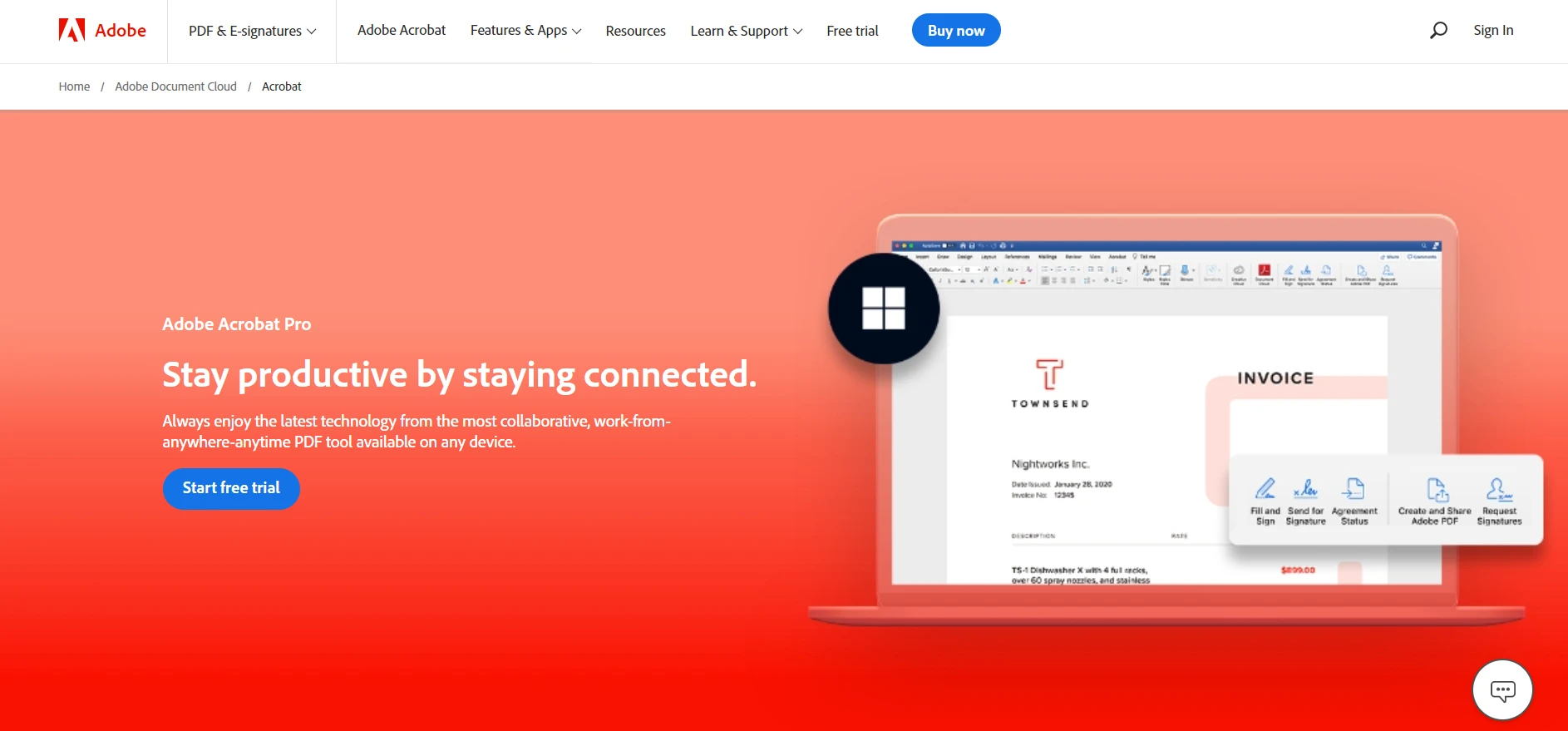
강력한 PDF 편집기인 [Adobe Acrobat](https://www.adobe.com/acrobat/acrobat-pro.html)은 PDF 문서의 세계에서 오랫동안 표준이 되어 왔습니다. 이 포괄적인 도구는 사용자가 PDF 문서를 편집하고, 다양한 파일 형식으로 전환하며, 작성 가능한 PDF 양식도 만들 수 있도록 합니다.
Adobe Acrobat은 텍스트, 이미지 및 PDF 페이지 순서를 수정할 수 있는 다양한 편집 도구를 제공합니다. 사용자 친화적인 인터페이스는 자주 PDF 문서를 다루는 전문가들 사이에서 최고의 선택으로 자리잡고 있습니다.
Adobe Acrobat은 또한 온라인 PDF 편집기의 많은 포괄적인 기능을 가지고 있는 온라인 버전을 제공하여 다른 온라인 PDF 편집기 중에서 돋보이게 합니다.
### Adobe Acrobat 사용 방법
**1단계:** Adobe Acrobat을 설치한 후 소프트웨어 내에서 PDF 파일을 엽니다.
**2단계:** 오른쪽 창에서 'Edit PDF' 도구를 선택합니다.
**3단계:** 편집하려는 텍스트나 이미지를 클릭하면 편집 도구가 나타납니다.
**4단계:** 이 도구를 사용해 텍스트를 추가, 형식 지정 또는 삭제합니다.
**5단계:** 이미지를 필요에 따라 재배열, 교체 또는 크기를 조정할 수도 있습니다.
**6단계:** PDF 파일을 다른 파일 형식으로 변환하려면 '파일 > 다른 형식으로 저장'으로 이동하고 원하는 파일 형식을 선택합니다.
## PDF Expert (유료)
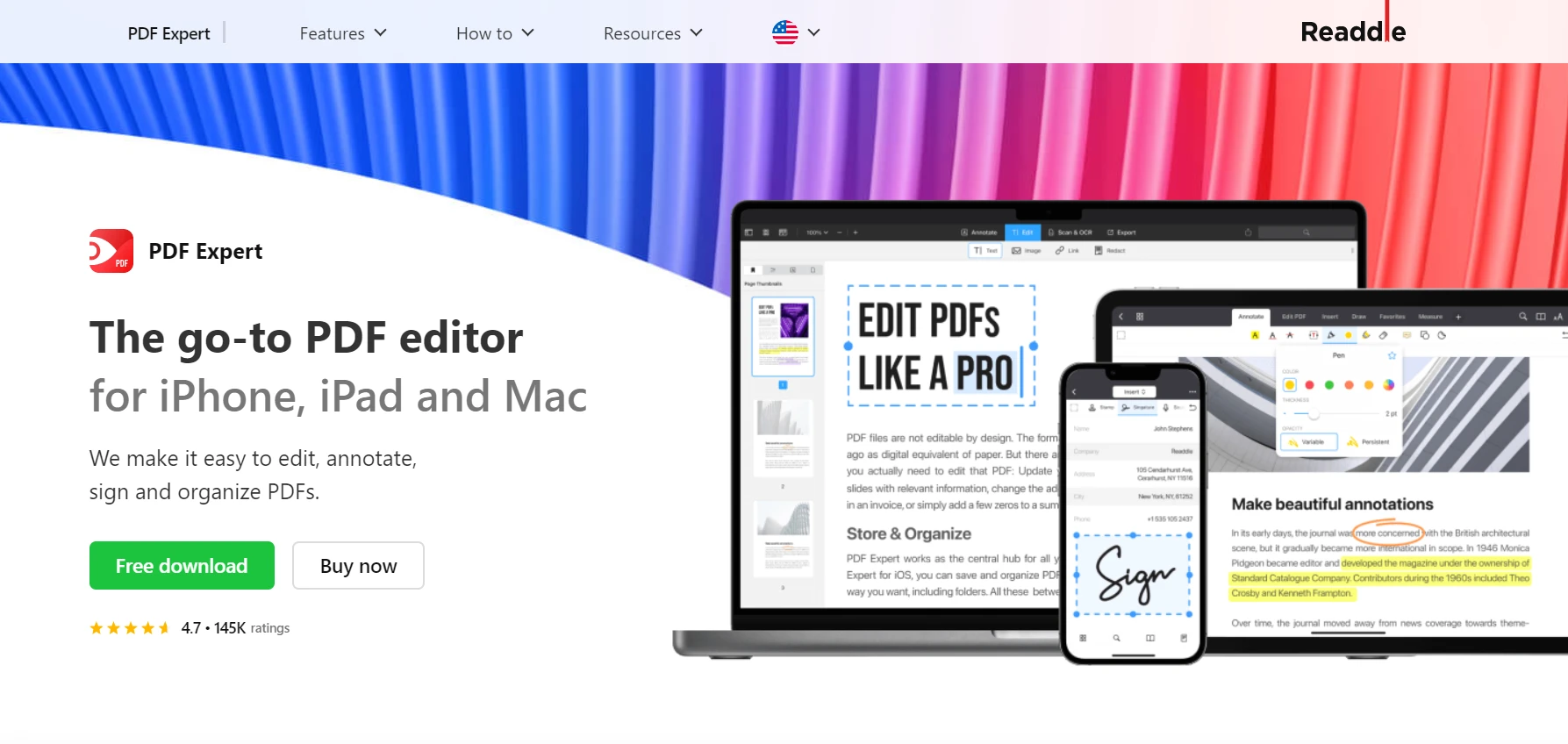
[PDF Expert](https://pdfexpert.com/)는 Mac 사용자를 위한 또 다른 강력한 선택입니다. 가격이 있지만, macOS와의 매끄러운 통합과 PDF 파일 편집 및 PDF 문서 변환 기능이 포함된 다양한 기능 덕에 투자가치가 있습니다.
이 Mac용 PDF 편집기는 사용자 친화적이며, 초보 사용자도 문제 없이 PDF를 편집할 수 있도록 합니다. 구매 전 기능을 체험해볼 수 있는 무료 체험판도 제공됩니다.
### PDF Expert 사용 방법
**1단계:** PDF Expert에서 PDF 문서를 엽니다.
**2단계:** 상단 도구 모음에서 '편집' 버튼을 클릭한 후 수정하려는 것이 텍스트인지 이미지인지에 따라 '텍스트' 또는 '이미지'를 선택합니다.
**3단계:** 쉽게 텍스트와 이미지를 추가하거나 삭제하거나 편집할 수 있습니다.
**4단계:** PDF 파일을 다른 파일 형식으로 변환하려면 "파일 > 다른 형식으로 내보내기"로 이동하고 올바른 형식을 선택합니다.
## Wondershare PDFelement (유료)
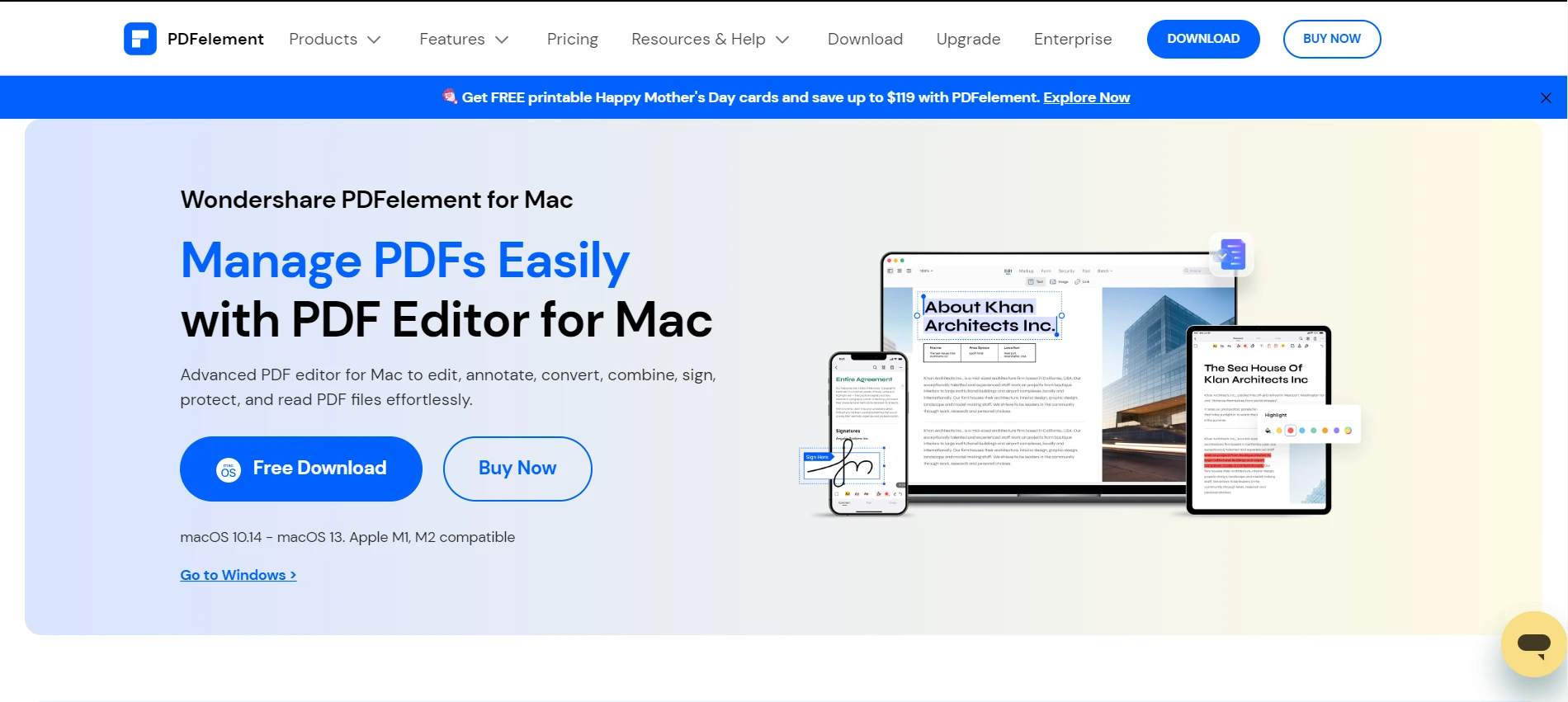
[Wondershare PDFelement](https://pdf.wondershare.com/pdfelement-mac.html)는 Mac 사용자를 위한 전문 기능을 갖춘 강력한 PDF 편집기입니다. 이는 PDF 문서를 쉽게 작성, 편집, 변환 및 서명할 수 있도록 도와줍니다. 직관적인 인터페이스와 편집 도구는 PDF 파일 관리를 매우 간편하게 해줍니다.
### Wondershare PDFelement 사용법
**1단계:** PDFelement를 실행하여 PDF 파일을 엽니다.
**2단계:** '편집' 버튼을 클릭한 후 텍스트, 이미지, 링크 중 편집할 항목을 선택합니다.
**3단계:** PDF 문서를 변환하려면 '파일 > 변환'으로 이동하여 원하는 포맷을 선택합니다.
## 미리보기 (무료)
[Apple 미리보기](https://support.apple.com/en-gb/guide/preview/welcome/mac)는 Mac 사용자를 위한 다재다능하고 무료인 네이티브 macOS PDF 편집기입니다. 유료 옵션만큼 많은 기능을 제공하지는 않지만, 간단한 PDF 문서 편집에는 훌륭한 도구입니다. PDF 문서를 쉽게 주석 달기, PDF 양식 작성, 다른 형식으로 PDF 변환이 가능합니다.
### 미리보기 사용법
**1단계:** 미리보기를 통해 PDF를 엽니다.
**2단계:** 텍스트를 편집하려면 '텍스트' 도구를 선택하고 편집할 영역을 클릭합니다.
**3단계:** 주석 달기나 강조 표시를 위해 '마크업 도구 모음'을 사용합니다.
**4단계:** PDF 파일을 변환하려면 '파일 > 내보내기'를 선택하고 원하는 파일 형식을 선택합니다.
## LibreOffice (무료)
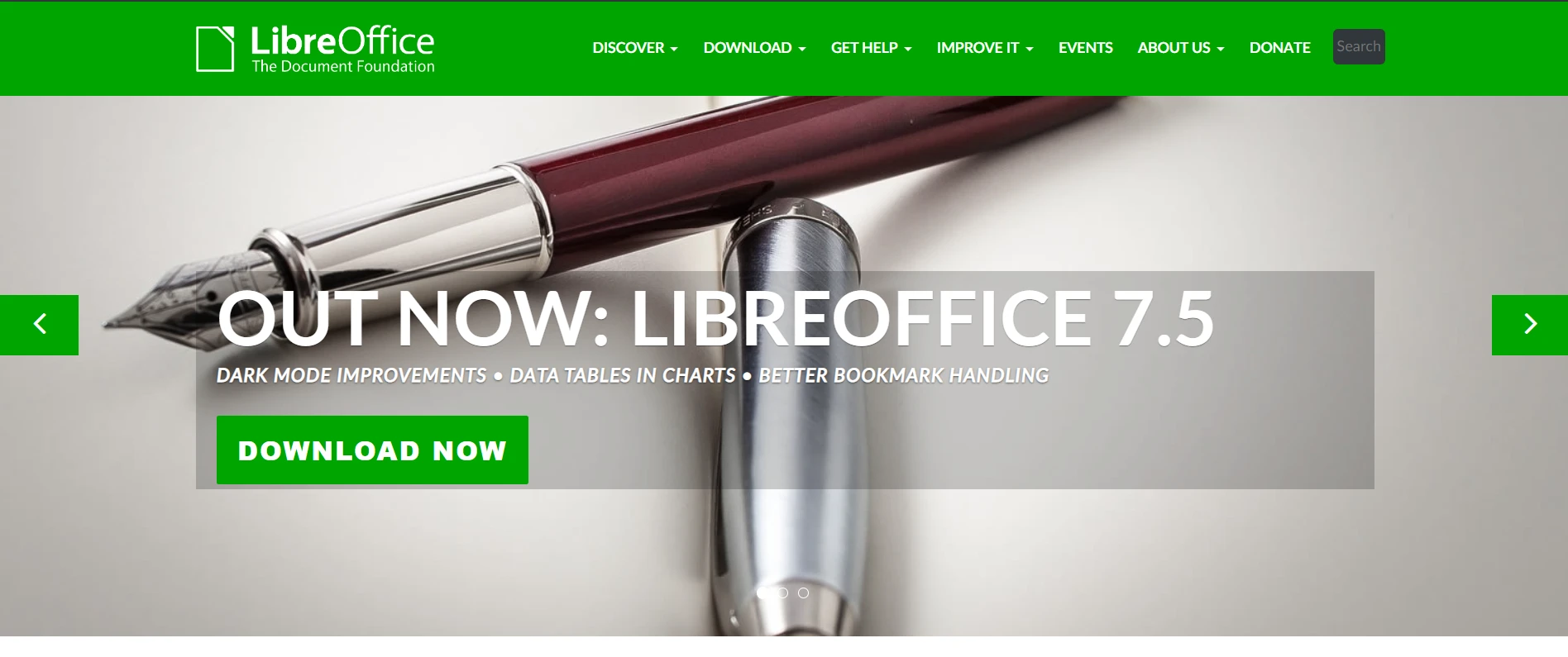
[LibreOffice](https://www.libreoffice.org/)는 또 다른 훌륭한 무료 PDF 편집기입니다. Mac 사용자는 PDF 문서를 쉽게 편집하고, 이미지와 텍스트를 조작하며, PDF 파일을 다른 형식으로 변환할 수 있습니다. 비용이 많이 들지 않는 간단한 편집 도구가 필요한 사람들에게 좋은 옵션입니다.
### LibreOffice 사용법
**1단계:** 먼저 LibreOffice Draw를 열고 PDF 파일을 엽니다.
**2단계:** 텍스트를 편집하려면 'T' 아이콘을 클릭하고 수정할 텍스트를 클릭합니다.
**3단계:** 이미지를 선택하여 크기 조정, 이동 또는 삭제와 같은 편집 도구를 사용합니다.
**4단계:** 문서를 변환하려면 '파일 > 내보내기'로 이동하여 원하는 형식을 선택합니다.
## IronPDF C#
[.NET 개발자를 위한 IronPDF](/)는 PDF 문서를 다루는 개발자에게 최고의 .NET PDF 라이브러리인 C# PDF 라이브러리입니다. 일반적인 PDF 편집기가 아닙니다. .NET 애플리케이션 내에서 PDF 파일을 생성하고 [편집할 수 있는](/examples/editing-pdfs/) 포괄적인 라이브러리입니다.
IronPDF는 .NET 애플리케이션에 PDF 기능을 통합하려는 개발자를 위해 만들어졌습니다. 개발자 친화적인 특성 덕분에 HTML에서 직접 PDF 파일을 생성하고 조작할 수 있어 개발 분야에서 매우 유용한 도구입니다.
### IronPDF 사용법
IronPDF를 사용하려면 우선 .NET 프로젝트에 설치해야 합니다. 다음 명령으로 NuGet 패키지 관리자를 통해 설치할 수 있습니다.
```shell
:ProductInstall
```
설치가 완료되면 HTML, 이미지 또는 기존 PDF에서 PDF를 생성할 수 있습니다.
PDF를 편집하려면 `PdfDocument` 클래스를 사용하여 파일을 열고 변경하세요. 이는 텍스트, 이미지, [주석 기능](/examples/annotations/) 추가 및 [여러 PDF 병합](/examples/merge-pdfs/)을 포함할 수 있습니다. 자세한 API 문서는 [IronPDF API 문서](/object-reference/api/)에서 찾을 수 있습니다.
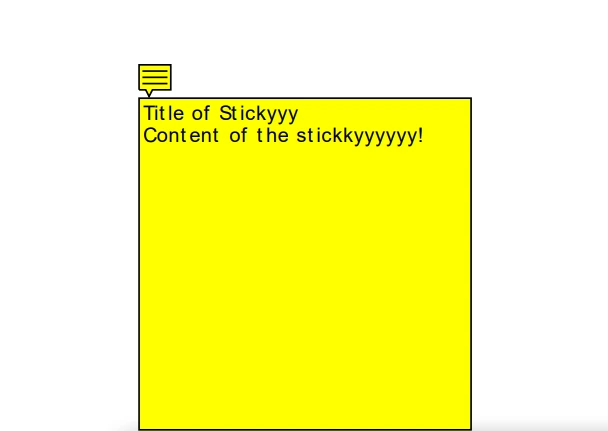
다음은 주석 추가에 대한 코드 예시입니다:
```csharp
using IronPdf;

// Create a new PDF or load and edit an existing document
var pdf = PdfDocument.FromFile("sample.pdf");

// Create a PDF annotation object
var annotation = new IronPdf.Annotations.TextAnnotation()
{
    Title = "Title",
    Subject = "Subject",
    Contents = "Content of the sticky note!",
    Icon = IronPdf.Annotations.TextAnnotation.AnnotationIcon.Help,
    Opacity = 1,
    Printable = false,
    Hidden = false
};

// Add the annotation "sticky note" to a specific page and location within any new or existing PDF
pdf.AddTextAnnotation(annotation, 0, 150, 250);

// Save the annotated PDF to a file
pdf.SaveAs("annotated.pdf");
```
### IronPDF의 출력은 PDF 문서에 주석을 추가합니다
## 결론
결론적으로, Mac 사용자를 위한 적절한 PDF 편집기를 찾기 위해서는 자신의 필요를 평가하고 가장 잘 충족하는 도구를 선택해야 합니다. 강력한 편집 도구와 전문 기능을 위해 Adobe Acrobat, PDF Expert, Wondershare PDFelement 및 IronPDF는 고려할 가치가 있습니다. 예산이 제한적이거나 간단한 요구사항을 가진 사람들을 위해, 무료 PDF 편집기인 미리보기, LibreOffice Draw 및 Google 문서는 기본적인 편집 및 변환 작업을 충분히 처리할 수 있습니다.
IronPDF는 [무료 체험판](trial-license)을 제공하여 강력한 기능을 충분히 탐색할 수 있는 기회를 제공합니다. 필요에 맞다면, 라이선스는 `$liteLicense`부터 시작합니다.
오래된 Mac 사용자들은 PDF 파일 작업에 적합한 도구를 찾는 데 어려움을 겪은 경험이 있을 수 있습니다. 효율적이면서도 사용자의 필요에 맞춘 PDF 편집기를 찾는 것은 쉽지 않습니다.
이 기사는 PDF 편집기의 세계를 탐구하며, 무료 및 유료 옵션 모두에 초점을 맞출 것입니다. Mac에서 사용할 수 있는 6가지 최고의 PDF 편집기를 탐구하고 효과적으로 활용하는 방법을 배우겠습니다.
Adobe Acrobat (유료)
강력한 PDF 편집기인 Adobe Acrobat은 PDF 문서의 세계에서 오랫동안 표준이 되어 왔습니다. 이 포괄적인 도구는 사용자가 PDF 문서를 편집하고, 다양한 파일 형식으로 전환하며, 작성 가능한 PDF 양식도 만들 수 있도록 합니다.
Adobe Acrobat은 텍스트, 이미지 및 PDF 페이지 순서를 수정할 수 있는 다양한 편집 도구를 제공합니다. 사용자 친화적인 인터페이스는 자주 PDF 문서를 다루는 전문가들 사이에서 최고의 선택으로 자리잡고 있습니다.
Adobe Acrobat은 또한 온라인 PDF 편집기의 많은 포괄적인 기능을 가지고 있는 온라인 버전을 제공하여 다른 온라인 PDF 편집기 중에서 돋보이게 합니다.
Adobe Acrobat 사용 방법
1단계: Adobe Acrobat을 설치한 후 소프트웨어 내에서 PDF 파일을 엽니다.
2단계: 오른쪽 창에서 'Edit PDF' 도구를 선택합니다.
3단계: 편집하려는 텍스트나 이미지를 클릭하면 편집 도구가 나타납니다.
4단계: 이 도구를 사용해 텍스트를 추가, 형식 지정 또는 삭제합니다.
5단계: 이미지를 필요에 따라 재배열, 교체 또는 크기를 조정할 수도 있습니다.
6단계: PDF 파일을 다른 파일 형식으로 변환하려면 '파일 > 다른 형식으로 저장'으로 이동하고 원하는 파일 형식을 선택합니다.
PDF Expert (유료)
PDF Expert는 Mac 사용자를 위한 또 다른 강력한 선택입니다. 가격이 있지만, macOS와의 매끄러운 통합과 PDF 파일 편집 및 PDF 문서 변환 기능이 포함된 다양한 기능 덕에 투자가치가 있습니다.
이 Mac용 PDF 편집기는 사용자 친화적이며, 초보 사용자도 문제 없이 PDF를 편집할 수 있도록 합니다. 구매 전 기능을 체험해볼 수 있는 무료 체험판도 제공됩니다.
PDF Expert 사용 방법
1단계: PDF Expert에서 PDF 문서를 엽니다.
2단계: 상단 도구 모음에서 '편집' 버튼을 클릭한 후 수정하려는 것이 텍스트인지 이미지인지에 따라 '텍스트' 또는 '이미지'를 선택합니다.
3단계: 쉽게 텍스트와 이미지를 추가하거나 삭제하거나 편집할 수 있습니다.
4단계: PDF 파일을 다른 파일 형식으로 변환하려면 "파일 > 다른 형식으로 내보내기"로 이동하고 올바른 형식을 선택합니다.
Wondershare PDFelement (유료)
Wondershare PDFelement는 Mac 사용자를 위한 전문 기능을 갖춘 강력한 PDF 편집기입니다. 이는 PDF 문서를 쉽게 작성, 편집, 변환 및 서명할 수 있도록 도와줍니다. 직관적인 인터페이스와 편집 도구는 PDF 파일 관리를 매우 간편하게 해줍니다.
Wondershare PDFelement 사용법
1단계: PDFelement를 실행하여 PDF 파일을 엽니다.
2단계: '편집' 버튼을 클릭한 후 텍스트, 이미지, 링크 중 편집할 항목을 선택합니다.
3단계: PDF 문서를 변환하려면 '파일 > 변환'으로 이동하여 원하는 포맷을 선택합니다.
미리보기 (무료)
Apple 미리보기는 Mac 사용자를 위한 다재다능하고 무료인 네이티브 macOS PDF 편집기입니다. 유료 옵션만큼 많은 기능을 제공하지는 않지만, 간단한 PDF 문서 편집에는 훌륭한 도구입니다. PDF 문서를 쉽게 주석 달기, PDF 양식 작성, 다른 형식으로 PDF 변환이 가능합니다.
미리보기 사용법
1단계: 미리보기를 통해 PDF를 엽니다.
2단계: 텍스트를 편집하려면 '텍스트' 도구를 선택하고 편집할 영역을 클릭합니다.
3단계: 주석 달기나 강조 표시를 위해 '마크업 도구 모음'을 사용합니다.
4단계: PDF 파일을 변환하려면 '파일 > 내보내기'를 선택하고 원하는 파일 형식을 선택합니다.
LibreOffice (무료)
LibreOffice는 또 다른 훌륭한 무료 PDF 편집기입니다. Mac 사용자는 PDF 문서를 쉽게 편집하고, 이미지와 텍스트를 조작하며, PDF 파일을 다른 형식으로 변환할 수 있습니다. 비용이 많이 들지 않는 간단한 편집 도구가 필요한 사람들에게 좋은 옵션입니다.
LibreOffice 사용법
1단계: 먼저 LibreOffice Draw를 열고 PDF 파일을 엽니다.
2단계: 텍스트를 편집하려면 'T' 아이콘을 클릭하고 수정할 텍스트를 클릭합니다.
3단계: 이미지를 선택하여 크기 조정, 이동 또는 삭제와 같은 편집 도구를 사용합니다.
4단계: 문서를 변환하려면 '파일 > 내보내기'로 이동하여 원하는 형식을 선택합니다.
IronPDF C#
.NET 개발자를 위한 IronPDF는 PDF 문서를 다루는 개발자에게 최고의 .NET PDF 라이브러리인 C# PDF 라이브러리입니다. 일반적인 PDF 편집기가 아닙니다. .NET 애플리케이션 내에서 PDF 파일을 생성하고 편집할 수 있는 포괄적인 라이브러리입니다.
IronPDF는 .NET 애플리케이션에 PDF 기능을 통합하려는 개발자를 위해 만들어졌습니다. 개발자 친화적인 특성 덕분에 HTML에서 직접 PDF 파일을 생성하고 조작할 수 있어 개발 분야에서 매우 유용한 도구입니다.
IronPDF 사용법
IronPDF를 사용하려면 우선 .NET 프로젝트에 설치해야 합니다. 다음 명령으로 NuGet 패키지 관리자를 통해 설치할 수 있습니다.
PM > Install-Package IronPdf
Install-Package IronPdf
설치가 완료되면 HTML, 이미지 또는 기존 PDF에서 PDF를 생성할 수 있습니다.
PDF를 편집하려면 PdfDocument 클래스를 사용하여 파일을 열고 변경하세요. 이는 텍스트, 이미지, 주석 기능 추가 및 여러 PDF 병합을 포함할 수 있습니다. 자세한 API 문서는 IronPDF API 문서에서 찾을 수 있습니다.
다음은 주석 추가에 대한 코드 예시입니다:
using IronPdf;// Create a new PDF or load and edit an existing documentvar pdf = PdfDocument.FromFile("sample.pdf");// Create a PDF annotation objectvar annotation = new IronPdf.Annotations.TextAnnotation(){Title = "Title",Subject = "Subject",Contents = "Content of the sticky note!",Icon = IronPdf.Annotations.TextAnnotation.AnnotationIcon.Help,Opacity = 1,Printable = false,Hidden = false};// Add the annotation "sticky note" to a specific page and location within any new or existing PDFpdf.AddTextAnnotation(annotation, 0, 150, 250);// Save the annotated PDF to a filepdf.SaveAs("annotated.pdf");
using IronPdf;

// Create a new PDF or load and edit an existing document
var pdf = PdfDocument.FromFile("sample.pdf");

// Create a PDF annotation object
var annotation = new IronPdf.Annotations.TextAnnotation()
{
    Title = "Title",
    Subject = "Subject",
    Contents = "Content of the sticky note!",
    Icon = IronPdf.Annotations.TextAnnotation.AnnotationIcon.Help,
    Opacity = 1,
    Printable = false,
    Hidden = false
};

// Add the annotation "sticky note" to a specific page and location within any new or existing PDF
pdf.AddTextAnnotation(annotation, 0, 150, 250);

// Save the annotated PDF to a file
pdf.SaveAs("annotated.pdf");
ImportsIronPdf' Create a new PDF or load and edit an existing documentPrivate pdf = PdfDocument.FromFile("sample.pdf")' Create a PDF annotation objectPrivate annotation = New IronPdf.Annotations.TextAnnotation() With { .Title = "Title", .Subject = "Subject", .Contents = "Content of the sticky note!", .Icon = IronPdf.Annotations.TextAnnotation.AnnotationIcon.Help, .Opacity = 1, .Printable = False, .Hidden = False}' Add the annotation "sticky note" to a specific page and location within any new or existing PDFpdf.AddTextAnnotation(annotation, 0, 150, 250)' Save the annotated PDF to a filepdf.SaveAs("annotated.pdf")
Imports IronPdf

' Create a new PDF or load and edit an existing document
Private pdf = PdfDocument.FromFile("sample.pdf")

' Create a PDF annotation object
Private annotation = New IronPdf.Annotations.TextAnnotation() With {
	.Title = "Title",
	.Subject = "Subject",
	.Contents = "Content of the sticky note!",
	.Icon = IronPdf.Annotations.TextAnnotation.AnnotationIcon.Help,
	.Opacity = 1,
	.Printable = False,
	.Hidden = False
}

' Add the annotation "sticky note" to a specific page and location within any new or existing PDF
pdf.AddTextAnnotation(annotation, 0, 150, 250)

' Save the annotated PDF to a file
pdf.SaveAs("annotated.pdf")
IronPDF의 출력은 PDF 문서에 주석을 추가합니다
결론
결론적으로, Mac 사용자를 위한 적절한 PDF 편집기를 찾기 위해서는 자신의 필요를 평가하고 가장 잘 충족하는 도구를 선택해야 합니다. 강력한 편집 도구와 전문 기능을 위해 Adobe Acrobat, PDF Expert, Wondershare PDFelement 및 IronPDF는 고려할 가치가 있습니다. 예산이 제한적이거나 간단한 요구사항을 가진 사람들을 위해, 무료 PDF 편집기인 미리보기, LibreOffice Draw 및 Google 문서는 기본적인 편집 및 변환 작업을 충분히 처리할 수 있습니다.
IronPDF는 무료 체험판을 제공하여 강력한 기능을 충분히 탐색할 수 있는 기회를 제공합니다. 필요에 맞다면, 라이선스는 $999부터 시작합니다.
커티스 차우는 칼턴 대학교에서 컴퓨터 과학 학사 학위를 취득했으며, Node.js, TypeScript, JavaScript, React를 전문으로 하는 프론트엔드 개발자입니다. 직관적이고 미적으로 뛰어난 사용자 인터페이스를 만드는 데 열정을 가진 그는 최신 프레임워크를 활용하고, 잘 구성되고 시각적으로 매력적인 매뉴얼을 제작하는 것을 즐깁니다.



















