




업데이트됨 2026년 5월 8일
월별 계정 명세서를 PDF 문서로 생성하기
개발자는 IronPDF C# PDF 라이브러리를 사용하여 외부 서비스에 의존하지 않고도 .NET 프로젝트 내에서 HTML을 신뢰할 수 있는 PDF 파일로 변환할 수 있습니다.
더 읽어보기

현대 .NET 개발자에게 C#에서 PDF를 생성하는 것은 필수 기술입니다. 재무 보고서를 작성하든, 의료 문서를 생성하든, 또는 전자 상거래 영수증을 생성하든, 적절한 .NET PDF 라이브러리를 사용하면 HTML 컨텐츠를 전문적인 PDF 문서로 변환할 수 있습니다.
IronPDF는 PDF 생성을 분 단위가 아닌 Rht0j Chec)/ Sie (c( Rorn ((Ps' ToT فرآیند ایجاد PDF 쉽게 배울 수 있는 곡선을 가지고 있습니다. 이 포괄적인 가이드는 IronPDF를 사용하여 PDF 문서를 만드는 방법을 정확하게 보여줄 것입니다. 이 강력한 C# PDF 생성기는 픽셀 완벽한 결과를 생성하고 다가오는 2025년 11월 .NET 10 릴리스를 포함한 모든 현대 .NET 플랫폼을 지원합니다. 이 튜토리얼은 가장 간단한 사용 사례부터 가장 고급 PDF 생성 시나리오까지 다루지만, 겁먹지 마세요 - 시작부터 앞으로 나아가세요. 여러 PDF를 생성하는 방법을 배우고, 간단한 HTML 문자열에서 복잡한 다중 페이지 보고서까지, 공통 문제를 해결하고 다양한 PDF 생성 작업의 성능을 최적화하는 방법을 배웁니다.
무엇을 배우게 될까요?When you need help, IronPDF's support team consists of actual engineers who understand your challenges. With 24/7 live chat support and typical response times under 30 seconds, you're never stuck waiting for answers. This level of support is why developers consistently rate IronPDF as having the best support in the industry. The support team can help with everything fr# How to Create PDFs in C# - The Complete Guide to PDF Generation in .NET
지금 바로 PDF를 생성하고 싶으세요? .NET에서의 현대적인 PDF 생성 능력을 보여주는 단순하지만 기능적인 PDF 문서를 만들어 봅시다. 먼저, IronPDF를 설치하세요 - NuGet 패키지 관리자를 통해 이 단일 패키지를 설치하면 바로 PDF를 생성할 수 있는 모든 것이 포함됩니다. IronPDF는 개발에 무료이므로, 라이선스를 결정하기 전에 모든 기능을 실험할 수 있습니다.
이제 C#을 사용하여 PDF 컨텐츠를 생성해 봅시다:
using IronPdf;

// Instantiate the PDF generator - this is your gateway to PDF creation
var renderer = new ChromePdfRenderer();

// Create a PDF from HTML string - yes, it's really this simple!
var pdf = renderer.RenderHtmlAsPdf("<h1>Hello World</h1><p>PDF generated successfully!</p>");

// Save your newly created PDF document
pdf.SaveAs("my-first-pdf.pdf");

Console.WriteLine("PDF generated successfully!");Imports IronPdf
' Instantiate the PDF generator - this is your gateway to PDF creation
Private renderer = New ChromePdfRenderer()
' Create a PDF from HTML string - yes, it's really this simple!
Private pdf = renderer.RenderHtmlAsPdf("<h1>Hello World</h1><p>PDF generated successfully!</p>")
' Save your newly created PDF document
pdf.SaveAs("my-first-pdf.pdf")
Console.WriteLine("PDF generated successfully!")이게 다입니다! 방금 첫 번째 PDF 문서를 C#에서 생성했습니다. 복잡한 PDF API를 배우지 않아도 되고, 설치할 서버 종속성도 필요 없으며, 저수준의 PDF 명령을 숙달하지 않아도 됩니다. 그냥 HTML로 입력하고, PDF로 출력 - PDF 생성은 이렇게 되어야 합니다. 하지만 이것은 시작에 불과합니다 - 이 접근 방식이 왜 강력한지, 더 복잡한 PDF 문서를 어떻게 만들 수 있는지 탐구해 봅시다.
C#에서 PDF를 생성하려면 IronPDF, QuestPDF, PDFSharp과 같은 서드파티 라이브러리를 활용할 수 있습니다. 이러한 라이브러리는 PDF를 처음부터 생성하고, HTML을 PDF로 변환하는 등의 다양한 기능을 제공합니다.
다음은 일반적인 프로세스의 개요입니다:
여기 IronPDF를 사용한 예가 있습니다:
using IronPdf;

public class Example
{
    public static void CreatePdf()
    {
        // Create a new PDF document
        var pdf = new ChromePdfRenderer();

        // Add some text
        string htmlContent = "<h1>Hello, PDF!</h1><p>This is a dynamically created PDF.</p>";

        // Render HTML to PDF
        var pdfDocument = pdf.RenderHtmlAsPdf(htmlContent);

        // Save the PDF
        pdfDocument.SaveAs("MyDynamicPdf.pdf");
    }
}Imports IronPdf
Public Class Example
Public Shared Sub CreatePdf()
' Create a new PDF document
Dim pdf = New ChromePdfRenderer()
' Add some text
Dim htmlContent As String = "<h1>Hello, PDF!</h1><p>This is a dynamically created PDF.</p>"
' Render HTML to PDF
Dim pdfDocument = pdf.RenderHtmlAsPdf(htmlContent)
' Save the PDF
pdfDocument.SaveAs("MyDynamicPdf.pdf")
End Sub
End Class이제 개발자가 왜 PDF를 생성해야 하는지에 대해 더 깊이 탐구하고, IronPDF가 이 프로세스를 단순하고 강력하게 만드는 다양한 방법을 살펴봅시다.
C#에서 프로그래밍적으로 PDF를 생성하는 것은 문서 생성 자동화 및 비즈니스 프로세스를 간소화하는 데 무한한 가능성을 열어줍니다. IronPDF는 전 세계적으로 1400만 명 이상의 개발자가 신뢰하여 이러한 작업을 수행하도록 도와줍니다. 이는 ** .NET에서 PDF를 생성**하는 데에 대한 신뢰할 수 있는 기능과 사용의 용이성을 제공합니다. 재무에서, 개발자는 요구된 형식과 보안 기능이 필요한 PDF 송장, 명세서 및 규제 보고서를 생성하기 위해 C#을 사용합니다. 의료 기관은 PDF로 환자 기록, 실험실 결과, 보험 양식을 생성하여 문서 무결성 및 HIPAA 준수를 보장합니다. 전자 상거래 플랫폼은 QR 코드가 직접 PDF에 포함된 PDF 영수증, 배송 레이블 및 티켓을 생성합니다 (IronQR과 같은 도구 사용). 프로그래밍적으로 PDF 문서를 조작하는 것은 수작업 없이 대규모로 문서를 생성, 수정 및 보호할 수 있음을 의미합니다.
IronPDF와 같은 현대 .NET PDF 라이브러리가 조직의 기존 워크플로우에 매끄럽게 통합됨으로써 얻을 수 있는 아름다움은 그것입니다. 비즈니스 사용자로부터 Word 문서를 변환하거나 개발 팀으로부터 Markdown 문서를 변환하거나 웹 기반 보고서에서 PDF를 생성하든지 간에, IronPDF가 모든 것을 처리합니다. 이와 같은 조직적 유연성 덕분에 기업들이 .NET에서 프로그래머블 PDF 생성을 선택합니다 - 이는 수동 문서 생성을 제거하고, 오류를 줄이며, 생성된 모든 PDF의 일관성을 보장하고, 수많은 직원 시간을 절약합니다. 독점적인 PDF 문법을 배우거나 각 요소를 수동으로 배치하는 대신, HTML과 CSS를 사용하여 문서를 설계할 수 있습니다. 이 접근 방식은 개발 시간을 크게 줄이고, 생성된 모든 PDF에서 일관된 브랜드를 쉽게 유지할 수 있게 합니다. 단일 페이지 청구서를 만들든 복잡한 다중 장 보고서를 만들든 원칙은 동일합니다 - HTML로 설계하고, C#로 PDF를 생성하세요.
PDF 생성을 시작하기 전에, 개발 환경이 최적의 PDF 생성을 위해 적절하게 구성되어 있는지 확인해 봅시다. IronPDF는 .NET 8, .NET 9를 포함한 모든 최신 .NET 버전을 지원하며, 2025년 11월 예정인 .NET 10 출시와의 준수도 이미 확보되었습니다 (Iron Software는 .NET Foundation 및 Microsoft와 긴밀히 협력하여 첫날 호환성을 보장합니다). 설정 과정은 간단하지만, 옵션을 이해하면 특정 필요에 가장 적합한 접근 방법을 선택하는 데 도움이 됩니다.
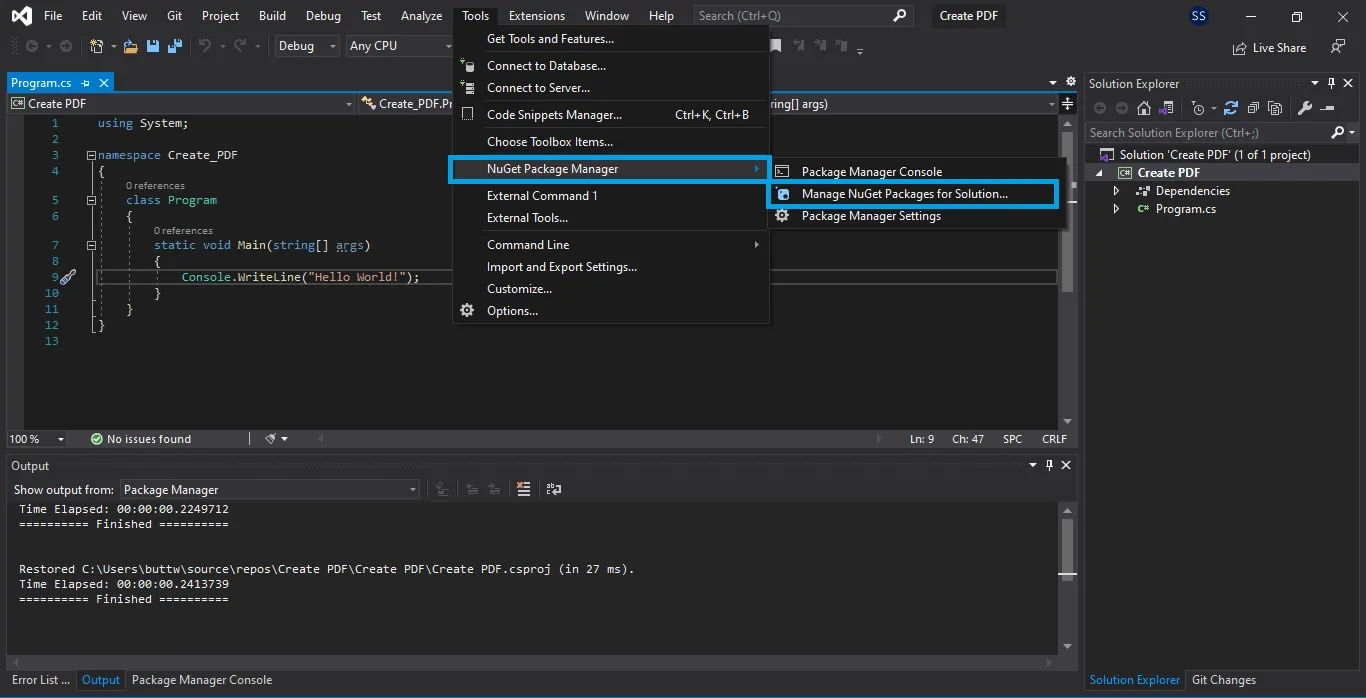
IronPDF를 시작하는 가장 쉬운 방법은 Visual Studio의 내장된 NuGet 패키지 관리자를 사용하는 것입니다. 이 그래픽 인터페이스를 통해 PDF 생성 종속성을 쉽게 탐색하고, 설치하고, 관리할 수 있습니다:
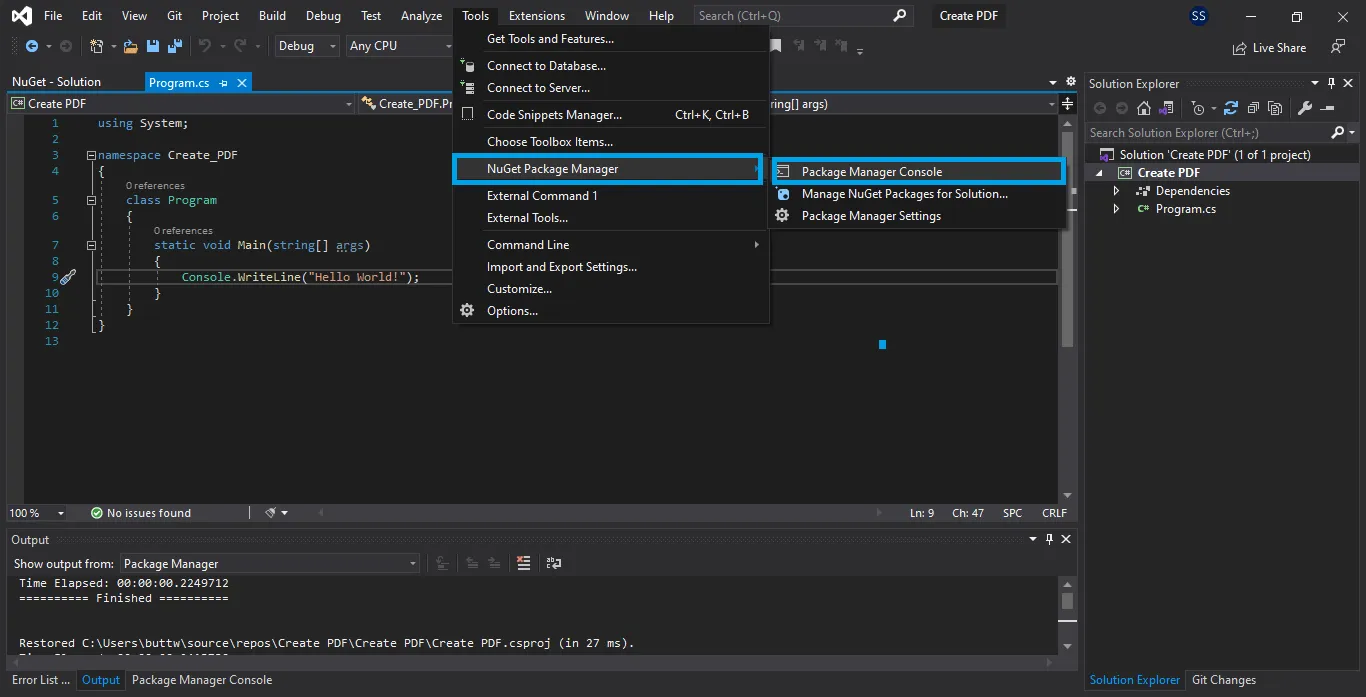
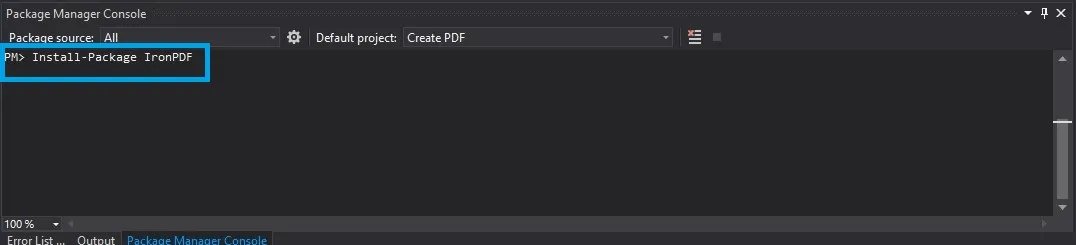
명령줄 도구를 선호하는 개발자에게는 패키지 관리자 콘솔을 통해 IronPDF를 빠르게 설치할 수 있는 방법을 제공합니다:
macOS, Linux에서 작업 중이거나 .NET CLI를 선호하는 경우 프로젝트 디렉토리에서 이 명령을 사용하세요:
IronPDF는 다양한 배포 시나리오에 최적화된 서로 다른 NuGet 패키지를 제공합니다. 이 옵션을 이해하면 배포 크기를 최소화하고 성능을 최적화할 수 있습니다:
IronPdf: Windows, macOS, Linux에서 필요한 모든 것을 포함하는 표준 패키지입니다. 대부분의 애플리케이션에 적합합니다.IronPdf.Slim: 플랫폼 특정 구성 요소를 런타임에 다운로드하는 경량 베이스 패키지입니다. 패키지 크기가 중요한 클라우드 배포에 이상적입니다.IronPdf.Linux: 모든 필수 종속성이 사전 패키지화되어 Linux 배포에 최적화되었습니다.IronPdf.MacOs: Apple Silicon 지원이 포함된 macOS 환경에 맞춤 제작되었습니다.설치 후, 새 문서를 생성하는 간단한 테스트로 모든 것이 제대로 작동하는지 확인하세요.
using IronPdf;
using System.IO;

// Test your IronPDF installation
var renderer = new ChromePdfRenderer();
var testPdf = renderer.RenderHtmlAsPdf("<p>Installation test successful!</p>");
testPdf.SaveAs("test.pdf");

if (File.Exists("test.pdf"))
{
    Console.WriteLine("IronPDF installed and working correctly!");
}Imports IronPdf
Imports System.IO
' Test your IronPDF installation
Private renderer = New ChromePdfRenderer()
Private testPdf = renderer.RenderHtmlAsPdf("<p>Installation test successful!</p>")
testPdf.SaveAs("test.pdf")
If File.Exists("test.pdf") Then
Console.WriteLine("IronPDF installed and working correctly!")
End IfIronPDF는 서로 다른 시나리오와 요구에 적합한 여러 가지 PDF 문서 빌드 접근 방법을 제공합니다. 이 방법들을 이해하면 .NET에서 PDF를 생성해야 할 때 특정 사용 사례에 가장 효율적인 접근 방법을 선택할 수 있습니다. HTML 문자열로 PDF를 처음부터 생성하거나, 기존 파일을 변환하거나, 실시간 웹 콘텐츠를 캡처하는 등, IronPDF는 포괄적인 C# PDF 생성기로서 필요한 모든 것을 제공합니다. 각 방법을 자세히 살펴보고, C#에서 PDF 생성을 위한 실제 응용 사례를 보여주는 실제 예제로 탐험해봅시다.
HTML 문자열로 PDF를 생성하면 최종 문서의 콘텐츠와 스타일링에 대한 완전한 제어 권한을 가질 수 있으며, HTML 콘텐츠를 PDF 형식으로 변환할 때 유용합니다. 이 방법은 데이터에 따라 콘텐츠가 변경되는 동적 보고서, 청구서, 혹은 어떠한 문서를 생성하기에 완벽합니다. flexbox 및 그리드 레이아웃을 포함한 최신 HTML5 및 CSS3 기능을 사용하여 전문적인 PDF로 HTML 콘텐츠를 변환할 수 있습니다. HTML 콘텐츠를 동적으로 변환할 수 있는 기능으로 인해, C#에서 PDF 생성에 가장 다재다능한 접근 방법입니다:
using IronPdf;
using System;
using System.Linq;

var renderer = new ChromePdfRenderer();

// Build dynamic content with data
var customerName = "Acme Corporation";
var orderDate = DateTime.Now;
var items = new[] {
    new { Name = "Widget Pro", Price = 99.99m },
    new { Name = "Gadget Plus", Price = 149.99m }
};

// Create HTML with embedded data and modern CSS
var html = $@"
    <html>
    <head>
        <style>
            body {{font-family: 'Segoe UI', Arial, sans-serif;
                margin: 40px;
                color: #333;}}
            .invoice-header {{display: flex;
                justify-content: space-between;
                border-bottom: 2px solid #0066cc;
                padding-bottom: 20px;}}
            .items-table {{width: 100%;
                margin-top: 30px;
                border-collapse: collapse;}}
            .items-table th {{background: #f0f0f0;
                padding: 10px;
                text-align: left;}}
        </style>
    </head>
    <body>
        <div class='invoice-header'>
            <div>
                <h1>Invoice</h1>
                <p>Customer: {customerName}</p>
            </div>
            <div>
                <p>Date: {orderDate:yyyy-MM-dd}</p>
                <p>Invoice #: INV-{orderDate:yyyyMMdd}-001</p>
            </div>
        </div>

        <table class='items-table'>
            <thead>
                <tr>
                    <th>Item</th>
                    <th>Price</th>
                </tr>
            </thead>
            <tbody>";

foreach (var item in items)
{
    html += $@"
                <tr>
                    <td>{item.Name}</td>
                    <td>${item.Price:F2}</td>
                </tr>";
}

html += @"
            </tbody>
        </table>
    </body>
    </html>";

// Generate the PDF document
var pdf = renderer.RenderHtmlAsPdf(html);
pdf.SaveAs($"invoice-{orderDate:yyyyMMdd}.pdf");기존 웹 페이지를 PDF 문서로 변환해야 할 때가 있습니다 - 아카이브, 보고서 생성, 온라인 콘텐츠의 오프라인 버전을 만드는 데 적합합니다. IronPDF의 URL에서 PDF로의 변환은 실제 Chromium 엔진을 사용하여 복잡한 JavaScript 중점 사이트가 올바르게 렌더링되도록 보장합니다. 이 방법은 대시보드의 스냅샷을 생성하거나, 온라인 영수증을 저장하거나, 웹 기반 보고서를 문서화하는 데 귀중합니다:
using IronPdf;

var renderer = new ChromePdfRenderer();

// Configure rendering options for optimal capture
renderer.RenderingOptions.PaperSize = PdfPaperSize.A4;
renderer.RenderingOptions.MarginTop = 25;
renderer.RenderingOptions.MarginBottom = 25;

// Wait for JavaScript to fully load (important for SPAs)
renderer.RenderingOptions.RenderDelay = 2000; // 2 seconds

// Enable JavaScript execution
renderer.RenderingOptions.EnableJavaScript = true;

// Capture a web page as PDF
var pdf = renderer.RenderUrlAsPdf("https://example.com/dashboard");
pdf.SaveAs("dashboard-capture.pdf");

// For authenticated pages, you can set cookies
var cookieManager = renderer.RenderingOptions.CustomCookies;
cookieManager["session_id"] = "your-session-token";

// Capture authenticated content
var securePdf = renderer.RenderUrlAsPdf("https://app.example.com/private/report");
securePdf.SaveAs("private-report.pdf");Imports IronPdf
Private renderer = New ChromePdfRenderer()
' Configure rendering options for optimal capture
renderer.RenderingOptions.PaperSize = PdfPaperSize.A4
renderer.RenderingOptions.MarginTop = 25
renderer.RenderingOptions.MarginBottom = 25
' Wait for JavaScript to fully load (important for SPAs)
renderer.RenderingOptions.RenderDelay = 2000 ' 2 seconds
' Enable JavaScript execution
renderer.RenderingOptions.EnableJavaScript = True
' Capture a web page as PDF
Dim pdf = renderer.RenderUrlAsPdf("https://example.com/dashboard")
pdf.SaveAs("dashboard-capture.pdf")
' For authenticated pages, you can set cookies
Dim cookieManager = renderer.RenderingOptions.CustomCookies
cookieManager("session_id") = "your-session-token"
' Capture authenticated content
Dim securePdf = renderer.RenderUrlAsPdf("https://app.example.com/private/report")
securePdf.SaveAs("private-report.pdf")템플릿 기반 PDF 생성은 디자이너가 애플리케이션 코드와 별도로 유지할 수 있는 복잡한 레이아웃을 가지고 있을 때 이상적입니다. HTML 템플릿을 파일로 저장함으로써 디자인과 논리를 명확하게 분리할 수 있습니다. 이 접근 방식은 인증서, 계약서, 표준화된 보고서처럼 일관된 문서를 생성하는 데 특히 효과적입니다:
using IronPdf;
using System.IO;
using System;

var renderer = new ChromePdfRenderer();

// Basic file conversion
var pdf = renderer.RenderHtmlFileAsPdf("Templates/certificate-template.html");
pdf.SaveAs("certificate.pdf");

// Advanced: Using templates with asset directories
// Perfect when your HTML references images, CSS, or JavaScript files
var basePath = Path.Combine(Directory.GetCurrentDirectory(), "Templates", "Assets");
var pdfWithAssets = renderer.RenderHtmlFileAsPdf(
    "Templates/report-template.html",
    basePath  // IronPDF will resolve relative paths from here
);

// Even better: Template with placeholders
var templateHtml = File.ReadAllText("Templates/contract-template.html");
templateHtml = templateHtml
    .Replace("{{ClientName}}", "Tech Innovations Inc.")
    .Replace("{{ContractDate}}", DateTime.Now.ToString("MMMM dd, yyyy"))
    .Replace("{{ContractValue}}", "$50,000");

var contractPdf = renderer.RenderHtmlAsPdf(templateHtml);
contractPdf.SaveAs("contract-final.pdf");Imports IronPdf
Imports System.IO
Imports System
Private renderer = New ChromePdfRenderer()
' Basic file conversion
Private pdf = renderer.RenderHtmlFileAsPdf("Templates/certificate-template.html")
pdf.SaveAs("certificate.pdf")
' Advanced: Using templates with asset directories
' Perfect when your HTML references images, CSS, or JavaScript files
Dim basePath = Path.Combine(Directory.GetCurrentDirectory(), "Templates", "Assets")
Dim pdfWithAssets = renderer.RenderHtmlFileAsPdf("Templates/report-template.html", basePath)
' Even better: Template with placeholders
Dim templateHtml = File.ReadAllText("Templates/contract-template.html")
templateHtml = templateHtml.Replace("{{ClientName}}", "Tech Innovations Inc.").Replace("{{ContractDate}}", DateTime.Now.ToString("MMMM dd, yyyy")).Replace("{{ContractValue}}", "$50,000")
Dim contractPdf = renderer.RenderHtmlAsPdf(templateHtml)
contractPdf.SaveAs("contract-final.pdf")Markdown은 기술 문서, README 파일, 콘텐츠 관리 시스템의 표준이 되었습니다. IronPDF는 Markdown 콘텐츠를 직접 PDF로 변환하여 형식을 그대로 유지하면서 전문가 수준의 문서를 생성하기 쉽게 만듭니다. Markdown 형식으로 문서를 유지하는 조직에 특히 유용한 기능이며, 개발자가 선호하는 형식으로 문서를 작성하고, 시스템이 고객 또는 이해관계자에게 배포할 수 있도록 자동으로 PDF를 생성할 수 있습니다.
using IronPdf;

var renderer = new ChromePdfRenderer();

// Convert Markdown string to PDF
string markdownContent = @"
# Project Documentation

## Overview
This project demonstrates **PDF generation** from _Markdown_ content.

### Features
- Easy conversion
- Preserves formatting
- Supports lists and tables

| Feature | Status |
|---------|--------|
| Markdown Support | |
| Table Rendering | |
| Code Blocks | |

```csharp
// Code blocks are preserved
var pdf = RenderMarkdownAsPdf(markdown);
\`\`\`
";

// Render Markdown as PDF
var pdfFromMarkdown = renderer.RenderMarkdownStringAsPdf(markdownContent);
pdfFromMarkdown.SaveAs("documentation.pdf");

// Convert Markdown file to PDF
var pdfFromFile = renderer.RenderMarkdownFileAsPdf("README.md");
pdfFromFile.SaveAs("readme-pdf.pdf");Imports IronPdf
Dim renderer As New ChromePdfRenderer()
' Convert Markdown string to PDF
Dim markdownContent As String = "
# Project Documentation
## Overview
This project demonstrates **PDF generation** from _Markdown_ content.
### Features
- Easy conversion
- Preserves formatting
- Supports lists and tables
| Feature | Status |
|---------|--------|
| Markdown Support | |
| Table Rendering | |
| Code Blocks | |
```csharp
// Code blocks are preserved
var pdf = RenderMarkdownAsPdf(markdown);
\`\`\`
"
' Render Markdown as PDF
Dim pdfFromMarkdown = renderer.RenderMarkdownStringAsPdf(markdownContent)
pdfFromMarkdown.SaveAs("documentation.pdf")
' Convert Markdown file to PDF
Dim pdfFromFile = renderer.RenderMarkdownFileAsPdf("README.md")
pdfFromFile.SaveAs("readme-pdf.pdf")Markdown에서 PDF로의 변환은 Git과 같은 버전 관리 시스템을 사용하는 조직에 특히 유용합니다. 귀하의 전체 문서화 워크플로는 자동화될 수 있습니다 - 개발자는 Markdown 파일을 업데이트하고 CI/CD 파이프라인은 수동 개입 없이 전문적으로 형식화된 문서를 자동으로 PDF 문서로 생성하며 이해관계자는 이를 수령합니다. 기존 워크플로에 이러한 매끄러운 통합이 되어 있기 때문에 많은 개발 팀이 문서화 요구 사항에 IronPDF를 선택합니다.
많은 기업에서는 배포 또는 아카이빙을 위해 PDF로 변환해야 하는 기존의 워드 문서를 보유하고 있습니다. IronPDF는 서식, 이미지 및 메일 머지 같은 복잡한 기능까지 보존하여 DOCX를 PDF로 매끄럽게 변환할 수 있는 기능을 제공합니다. 이 기능은 조직에 혁신적입니다 - 비즈니스 사용자는 친숙한 Microsoft Word로 계속 작업할 수 있으며 시스템은 자동으로 외부 배포를 위한 PDF를 생성합니다. DOCX를 PDF로 변환하는 기능은 Word를 선호하는 비즈니스 사용자와 안전하고 편집 불가능한 PDF 문서의 필요성 사이의 격차를 해소합니다.
using IronPDF;
using System.Collections.Generic;

// Simple DOCX to PDF conversion
var docxRenderer = new DocxToPdfRenderer();
var pdfFromDocx = docxRenderer.RenderDocxAsPdf("proposal.docx");
pdfFromDocx.SaveAs("proposal.pdf");

// Advanced: Mail merge functionality for mass document generation
var recipients = new List<Dictionary<string, string>>
{
    new() { ["Name"] = "John Smith", ["Company"] = "Tech Corp", ["Date"] = "March 15, 2024" },
    new() { ["Name"] = "Jane Doe", ["Company"] = "Innovation Inc", ["Date"] = "March 15, 2024" }
};

// Configure mail merge options
var options = new DocxPdfRenderOptions
{
    MailMergeDataSource = recipients,
    MailMergePrintAllInOnePdfDocument = false // Creates separate PDFs
};

// Generate personalized PDFs from template
foreach (var recipient in recipients)
{
    var personalizedPdf = docxRenderer.RenderDocxAsPdf("letter-template.docx", options);
    personalizedPdf.SaveAs($"letter-{recipient["Name"].Replace(" ", "-")}.pdf");
}Imports IronPDF
Imports System.Collections.Generic
' Simple DOCX to PDF conversion
Dim docxRenderer As New DocxToPdfRenderer()
Dim pdfFromDocx = docxRenderer.RenderDocxAsPdf("proposal.docx")
pdfFromDocx.SaveAs("proposal.pdf")
' Advanced: Mail merge functionality for mass document generation
Dim recipients As New List(Of Dictionary(Of String, String)) From {
New Dictionary(Of String, String) From {{"Name", "John Smith"}, {"Company", "Tech Corp"}, {"Date", "March 15, 2024"}},
New Dictionary(Of String, String) From {{"Name", "Jane Doe"}, {"Company", "Innovation Inc"}, {"Date", "March 15, 2024"}}
}
' Configure mail merge options
Dim options As New DocxPdfRenderOptions With {
.MailMergeDataSource = recipients,
.MailMergePrintAllInOnePdfDocument = False ' Creates separate PDFs
}
' Generate personalized PDFs from template
For Each recipient In recipients
Dim personalizedPdf = docxRenderer.RenderDocxAsPdf("letter-template.docx", options)
personalizedPdf.SaveAs($"letter-{recipient("Name").Replace(" ", "-")}.pdf")
Next이 DOCX 변환 기능은 조직 내에서 문서 워크플로의 자동화에 매우 유용합니다. IronPDF를 사용하면 워드에서 제안서를 작성하는 영업팀은 이러한 제안서를 자동으로 PDF로 변환할 수 있으며, 워터마크, 보안 설정 및 디지털 서명이 프로그램에 의해 적용됩니다. 메일 병합 기능은 수천 개의 맞춤형 편지, 증명서 또는 계약서를 수동 개입 없이 만들 수 있는 대량 개인화된 PDF 문서 생성을 가능하게 합니다. 이 통합 기능은 문서 자동화 요구를 처리하기 위해 전 세계의 기업들이 IronPDF를 신뢰하는 이유입니다.
이미지를 PDF로 변환하는 것은 사진 앨범, 스캔된 문서 모음, 이미지 기반 보고서를 만드는 데 필수적입니다. IronPDF는 모든 주요 이미지 형식을 지원하고, 레이아웃 및 품질을 제어할 수 있는 옵션을 제공합니다:
using IronPDF;
using IronPdf.Imaging; // `Install-Package IronPdf`
using System.IO;

var renderer = new ChromePdfRenderer();

// Convert single image to PDF
var imagePath = "product-photo.jpg";
var imageHtml = @"
    <html>
    <body style='margin: 0; padding: 0;'>
        <img src='{imagePath}' style='width: 100%; height: auto;' />
    </body>
    </html>";

var imagePdf = renderer.RenderHtmlAsPdf(imageHtml, Path.GetDirectoryName(imagePath));
imagePdf.SaveAs("product-catalog-page.pdf");

// Create multi-page PDF from multiple images
var imageFiles = Directory.GetFiles("ProductImages", "*.jpg");
var catalogHtml = "<html><body style='margin: 0;'>";

foreach (var image in imageFiles)
{
    catalogHtml += @"
        <div style='page-break-after: always;'>
            <img src='{Path.GetFileName(image)}' style='width: 100%; height: auto;' />
            <p style='text-align: center;'>{Path.GetFileNameWithoutExtension(image)}</p>
        </div>";
}

catalogHtml += "</body></html>";

var catalogPdf = renderer.RenderHtmlAsPdf(catalogHtml, "ProductImages");
catalogPdf.SaveAs("product-catalog.pdf");Imports IronPDF
Imports IronPdf.Imaging ' `Install-Package IronPdf`
Imports System.IO
Dim renderer As New ChromePdfRenderer()
' Convert single image to PDF
Dim imagePath As String = "product-photo.jpg"
Dim imageHtml As String = "
<html>
<body style='margin: 0; padding: 0;'>
<img src='" & imagePath & "' style='width: 100%; height: auto;' />
</body>
</html>"
Dim imagePdf = renderer.RenderHtmlAsPdf(imageHtml, Path.GetDirectoryName(imagePath))
imagePdf.SaveAs("product-catalog-page.pdf")
' Create multi-page PDF from multiple images
Dim imageFiles = Directory.GetFiles("ProductImages", "*.jpg")
Dim catalogHtml As String = "<html><body style='margin: 0;'>"
For Each image In imageFiles
catalogHtml &= "
<div style='page-break-after: always;'>
<img src='" & Path.GetFileName(image) & "' style='width: 100%; height: auto;' />
<p style='text-align: center;'>" & Path.GetFileNameWithoutExtension(image) & "</p>
</div>"
Next
catalogHtml &= "</body></html>"
Dim catalogPdf = renderer.RenderHtmlAsPdf(catalogHtml, "ProductImages")
catalogPdf.SaveAs("product-catalog.pdf")웹 응용 프로그램의 경우, 기존 뷰에서 PDF를 생성하는 것은 웹 콘텐츠의 다운로드 가능한 버전을 만드는 매끄러운 방법을 제공합니다. 고객 포털에서 명세서를 생성하거나, 관리자 대시보드가 보고서를 작성하거나, e-러닝 플랫폼이 증명서를 생성하는 등 웹 응용 프로그램에서 PDF를 생성할 필요가 있는 조직에 이 통합 기능은 매우 중요합니다. IronPDF는 MVC, Razor Pages, Blazor를 포함한 모든 ASP.NET 기술과 함께 작동하여 이미 Microsoft 생태계에 투자한 조직에 완벽한 선택을 제공합니다:
// Namespace: Microsoft.AspNetCore.Mvc
using Microsoft.AspNetCore.Mvc;
// Namespace: IronPDF
using IronPDF;
// Namespace: System.Threading.Tasks
using System.Threading.Tasks;
// Namespace: System.IO
using System.IO;
// Namespace: System
using System;

// ASP.NET Core MVC Controller
public class ReportController : Controller
{
    private readonly ChromePdfRenderer _pdfRenderer;

    public ReportController()
    {
        _pdfRenderer = new ChromePdfRenderer();
    }

    public async Task<IActionResult> DownloadReport(int reportId)
    {
        // Get your report data
        var reportData = await GetReportData(reportId);

        // Render view to HTML string
        var html = await RenderViewToStringAsync("Reports/MonthlyReport", reportData);

        // Convert HTML content to PDF
        var pdf = _pdfRenderer.RenderHtmlAsPdf(html);

        // Return as file download
        return File(
            pdf.BinaryData,
            "application/pdf",
            $"report-{reportId}-{DateTime.Now:yyyy-MM}.pdf"
        );
    }

    private async Task<string> RenderViewToStringAsync(string viewName, object model)
    {
        ViewData.Model = model;
        using var sw = new StringWriter();
        var viewResult = ViewEngines.Engines.FindPartialView(ControllerContext, viewName);
        var viewContext = new ViewContext(
            ControllerContext,
            viewResult.View,
            ViewData,
            TempData,
            sw,
            new HtmlHelperOptions()
        );
        viewResult.View.Render(viewContext, sw);
        return sw.GetStringBuilder().ToString();
    }
}PDF를 생성하는 것과 전문적으로 보이게 만드는 것은 완전히 다른 이야기입니다 - .NET에서 PDF를 생성할 때 귀하의 응용 프로그램을 돋보이게 하는 것입니다. 전문적인 PDF 문서는 레이아웃, 타이포그래피, 브랜드 일관성에 대한 세심한 주의를 필요로 하며, 심도 있는 인상을 만듭니다. IronPDF의 포괄적인 스타일링 옵션과 고급 PDF 기능을 통해 귀사의 기업 정체성에 완벽하게 맞는 문서를 이 강력한 C# PDF 생성기를 사용하여 만들 수 있습니다. HTML을 PDF로 변환하는 기능을 통해 생성된 스타일의 문서들이 PDF 형태로 만들어질 때 시각적인 매력을 유지하도록 합니다. 고객 및 이해관계자를 감동시키는 세련되고 전문적인 문서로 기본 PDF를 변환하는 기능을 탐색해 봅시다.
전문 문서에는 맥락과 탐색을 제공하는 일관된 헤더와 푸터가 필요합니다. IronPDF는 헤더와 푸터에 대한 간단한 텍스트 기반 및 복잡한 HTML 기반 옵션을 모두 제공합니다. 이 유연성 때문에 대규모로 브랜드화된 PDF 문서를 생성해야 하는 조직이 IronPDF를 선택합니다. 페이지 번호, 날짜 및 문서 제목과 같은 동적 콘텐츠를 포함할 수 있으며, 모든 생성된 PDF가 전문 표준을 유지하도록 보장합니다:
using IronPDF;
using System;

var renderer = new ChromePdfRenderer();

// Simple text header and footer with page numbers
renderer.RenderingOptions.TextHeader = new TextHeaderFooter
{
    Text = "Confidential Report - {date}",
    DrawDividerLine = true,
    Font = "Arial",
    FontSize = 12
};

renderer.RenderingOptions.TextFooter = new TextHeaderFooter
{
    Text = "Page {page} of {total-pages}",
    DrawDividerLine = true,
    Font = "Arial",
    FontSize = 10,
    CenterText = true
};

// HTML headers for complex layouts with logos
renderer.RenderingOptions.HtmlHeader = new HtmlHeaderFooter
{
    Html = @"
        <div style='display: flex; justify-content: space-between; align-items: center; padding: 10px 40px;'>
            <img src='logo.png' style='height: 40px;' />
            <div style='text-align: center;'>
                <h2 style='margin: 0; color: #333;'>Annual Report 2024</h2>
                <p style='margin: 0; font-size: 12px; color: #666;'>Confidential</p>
            </div>
            <div style='text-align: right; font-size: 11px; color: #666;'>
                Generated: {date}<br/>
                Department: Finance
            </div>
        </div>",
    Height = 80,
    LoadStylesAndCSSFromMainHtmlDocument = true
};

// Create your PDF with professional headers/footers
var html = @"<h1>Financial Overview</h1><p>Report content here...</p>";
var pdf = renderer.RenderHtmlAsPdf(html);
pdf.SaveAs("professional-report.pdf");Imports IronPDF
Imports System
Dim renderer As New ChromePdfRenderer()
' Simple text header and footer with page numbers
renderer.RenderingOptions.TextHeader = New TextHeaderFooter With {
.Text = "Confidential Report - {date}",
.DrawDividerLine = True,
.Font = "Arial",
.FontSize = 12
}
renderer.RenderingOptions.TextFooter = New TextHeaderFooter With {
.Text = "Page {page} of {total-pages}",
.DrawDividerLine = True,
.Font = "Arial",
.FontSize = 10,
.CenterText = True
}
' HTML headers for complex layouts with logos
renderer.RenderingOptions.HtmlHeader = New HtmlHeaderFooter With {
.Html = "
<div style='display: flex; justify-content: space-between; align-items: center; padding: 10px 40px;'>
<img src='logo.png' style='height: 40px;' />
<div style='text-align: center;'>
<h2 style='margin: 0; color: #333;'>Annual Report 2024</h2>
<p style='margin: 0; font-size: 12px; color: #666;'>Confidential</p>
</div>
<div style='text-align: right; font-size: 11px; color: #666;'>
Generated: {date}<br/>
Department: Finance
</div>
</div>",
.Height = 80,
.LoadStylesAndCSSFromMainHtmlDocument = True
}
' Create your PDF with professional headers/footers
Dim html As String = "<h1>Financial Overview</h1><p>Report content here...</p>"
Dim pdf = renderer.RenderHtmlAsPdf(html)
pdf.SaveAs("professional-report.pdf")이러한 헤더 및 푸터 옵션을 통해 조직은 모든 생성된 PDF에서 브랜드 일관성을 유지할 수 있습니다. 재무 보고서나 기술 문서를 만들 때 전문적인 헤더와 푸터는 귀사의 문서가 기업 표준을 준수하도록 보장합니다.
페이지 레이아웃에 대한 제어는 인쇄가 제대로 되고 모든 장치에서 전문적으로 보이는 문서를 만드는 데 필수적입니다. IronPDF는 맞춤형 크기, 방향 및 여백을 포함하여 페이지 설정을 위한 광범위한 옵션을 제공합니다:
var renderer = new ChromePdfRenderer();

// Configure page setup for professional printing
renderer.RenderingOptions.PaperSize = PdfPaperSize.A4;
renderer.RenderingOptions.PaperOrientation = PdfPaperOrientation.Portrait;

// Set margins in millimeters for precise control
renderer.RenderingOptions.MarginTop = 25;
renderer.RenderingOptions.MarginBottom = 25;
renderer.RenderingOptions.MarginLeft = 20;
renderer.RenderingOptions.MarginRight = 20;

// Enable background colors and images (important for branding)
renderer.RenderingOptions.PrintHtmlBackgrounds = true;

// Use screen media type for vibrant colors
renderer.RenderingOptions.CssMediaType = PdfCssMediaType.Screen;

// Custom page size for special documents
renderer.RenderingOptions.SetCustomPaperSizeinMilimeters(210, 297); // A4

// Enable high-quality rendering
renderer.RenderingOptions.RenderQuality = 100; // 0-100 scaleDim renderer = New ChromePdfRenderer()
' Configure page setup for professional printing
renderer.RenderingOptions.PaperSize = PdfPaperSize.A4
renderer.RenderingOptions.PaperOrientation = PdfPaperOrientation.Portrait
' Set margins in millimeters for precise control
renderer.RenderingOptions.MarginTop = 25
renderer.RenderingOptions.MarginBottom = 25
renderer.RenderingOptions.MarginLeft = 20
renderer.RenderingOptions.MarginRight = 20
' Enable background colors and images (important for branding)
renderer.RenderingOptions.PrintHtmlBackgrounds = True
' Use screen media type for vibrant colors
renderer.RenderingOptions.CssMediaType = PdfCssMediaType.Screen
' Custom page size for special documents
renderer.RenderingOptions.SetCustomPaperSizeinMilimeters(210, 297) ' A4
' Enable high-quality rendering
renderer.RenderingOptions.RenderQuality = 100 ' 0-100 scale타이포그래피는 문서의 전문성에 중요한 역할을 합니다. IronPDF는 웹 폰트, 사용자 정의 폰트 및 고급 타이포그래피 기능을 지원합니다:
var renderer = new ChromePdfRenderer();

// HTML with custom fonts and typography
var html = @"
    <html>
    <head>
        <link href='https://fonts.googleapis.com/css2?family=Roboto:wght@300;400;700&display=swap' rel='stylesheet'>
        <style>
            @font-face {
                font-family: 'CustomBrand';
                src: url('BrandFont.ttf') format('truetype');
            }

            body {
                font-family: 'Roboto', Arial, sans-serif;
                font-size: 11pt;
                line-height: 1.6;
                color: #333;
            }

            h1 {
                font-family: 'CustomBrand', Georgia, serif;
                font-size: 28pt;
                color: #0066cc;
                letter-spacing: -0.5px;
            }

            .quote {
                font-style: italic;
                font-size: 14pt;
                color: #666;
                border-left: 4px solid #0066cc;
                padding-left: 20px;
                margin: 20px 0;
            }
        </style>
    </head>
    <body>
        # Professional Document
        <p>This document demonstrates professional typography.</p>
        <div class='quote'>
            "Excellence in typography enhances readability and professionalism."
        </div>
    </body>
    </html>";

var pdf = renderer.RenderHtmlAsPdf(html, "Assets/Fonts");
pdf.SaveAs("typography-demo.pdf");실제 응용 프로그램에서 PDF 문서를 생성하는 모범 사례를 보여주는 완벽하고, 프로덕션 준비가 된 청구서 생성기를 만들어 봅시다. 이 예제는 수천 개의 비즈니스가 청구서 생성 요구를 위해 IronPDF를 C# PDF 생성기로 선택하는 이유를 보여줍니다 - 이는 데이터 바인딩, 전문적인 스타일링, 적절한 문서 구조를 결합하여 강력하면서도 유연한 방법을 제공합니다. 유사한 구현은 전자 상거래 플랫폼에서 매월 수백만 개의 청구서를 생성하는데 사용되어 .NET에서 프로그램적으로 PDF 생성의 확장 가능성을 보여줍니다. 이 코드를 자신의 PDF 생성 작업에 맞게 조정할 수 있습니다:
using IronPDF;
using System;
using System.Collections.Generic;
using System.Globalization;
using System.Linq;

public class InvoiceGenerator
{
    private readonly ChromePdfRenderer _renderer;

    public InvoiceGenerator()
    {
        _renderer = new ChromePdfRenderer();
        ConfigureRenderer();
    }

    private void ConfigureRenderer()
    {
        // Professional page setup
        _renderer.RenderingOptions.PaperSize = PdfPaperSize.A4;
        _renderer.RenderingOptions.MarginTop = 25;
        _renderer.RenderingOptions.MarginBottom = 25;
        _renderer.RenderingOptions.MarginLeft = 25;
        _renderer.RenderingOptions.MarginRight = 25;
        _renderer.RenderingOptions.PrintHtmlBackgrounds = true;

        // Add footer with page numbers
        _renderer.RenderingOptions.TextFooter = new TextHeaderFooter
        {
            Text = "Page {page} of {total-pages} | Invoice generated on {date}",
            FontSize = 9,
            Font = "Arial",
            CenterText = true
        };
    }

    public void CreateInvoice(Invoice invoice)
    {
        var html = GenerateInvoiceHtml(invoice);
        var pdf = _renderer.RenderHtmlAsPdf(html);

        // Add metadata to the final document
        pdf.MetaData.Title = $"Invoice {invoice.Number}";
        pdf.MetaData.Author = "Your Company Name";
        pdf.MetaData.Subject = $"Invoice for {invoice.CustomerName}";
        pdf.MetaData.Keywords = "invoice, billing, payment";
        pdf.MetaData.CreationDate = DateTime.Now;

        // Save the PDF document
        var fileName = $"Invoice-{invoice.Number}.pdf";
        pdf.SaveAs(fileName);

        Console.WriteLine($"PDF generated successfully: {fileName}");
    }

    private string GenerateInvoiceHtml(Invoice invoice)
    {
        var itemsHtml = string.Join("", invoice.Items.Select(item => @"
            <tr>
                <td style='padding: 12px; border-bottom: 1px solid #eee;'>{item.Description}</td>
                <td style='padding: 12px; border-bottom: 1px solid #eee; text-align: center;'>{item.Quantity}</td>
                <td style='padding: 12px; border-bottom: 1px solid #eee; text-align: right;'>${item.UnitPrice:F2}</td>
                <td style='padding: 12px; border-bottom: 1px solid #eee; text-align: right;'>${item.Total:F2}</td>
            </tr>"));

        return @"
            <html>
            <head>
                <style>
                    * {{box-sizing: border-box;}}
                    body {{font-family: 'Segoe UI', Arial, sans-serif;
                        line-height: 1.6;
                        color: #333;
                        margin: 0;
                        padding: 0;}}
                    .invoice-container {{max-width: 800px;
                        margin: 0 auto;
                        padding: 40px;}}
                    .invoice-header {{display: flex;
                        justify-content: space-between;
                        margin-bottom: 40px;
                        padding-bottom: 20px;
                        border-bottom: 3px solid #0066cc;}}
                    .company-details {{flex: 1;}}
                    .company-details h1 {{color: #0066cc;
                        margin: 0 0 10px 0;
                        font-size: 28px;}}
                    .invoice-details {{flex: 1;
                        text-align: right;}}
                    .invoice-details h2 {{margin: 0 0 10px 0;
                        color: #666;
                        font-size: 24px;}}
                    .invoice-number {{font-size: 18px;
                        color: #0066cc;
                        font-weight: bold;}}
                    .billing-section {{display: flex;
                        justify-content: space-between;
                        margin-bottom: 40px;}}
                    .billing-box {{flex: 1;
                        padding: 20px;
                        background: #f8f9fa;
                        border-radius: 8px;
                        margin-right: 20px;}}
                    .billing-box:last-child {{margin-right: 0;}}
                    .billing-box h3 {{margin: 0 0 15px 0;
                        color: #0066cc;
                        font-size: 16px;
                        text-transform: uppercase;
                        letter-spacing: 1px;}}
                    .items-table {{width: 100%;
                        border-collapse: collapse;
                        margin-bottom: 40px;}}
                    .items-table th {{background: #0066cc;
                        color: white;
                        padding: 12px;
                        text-align: left;
                        font-weight: 600;}}
                    .items-table th:last-child {{text-align: right;}}
                    .totals-section {{display: flex;
                        justify-content: flex-end;
                        margin-bottom: 40px;}}
                    .totals-box {{width: 300px;}}
                    .total-row {{display: flex;
                        justify-content: space-between;
                        padding: 8px 0;
                        border-bottom: 1px solid #eee;}}
                    .total-row.final {{border-bottom: none;
                        border-top: 2px solid #0066cc;
                        margin-top: 10px;
                        padding-top: 15px;
                        font-size: 20px;
                        font-weight: bold;
                        color: #0066cc;}}
                    .payment-terms {{background: #f8f9fa;
                        padding: 20px;
                        border-radius: 8px;
                        margin-bottom: 30px;}}
                    .payment-terms h3 {{margin: 0 0 10px 0;
                        color: #0066cc;}}
                    .footer-note {{text-align: center;
                        color: #666;
                        font-size: 14px;
                        margin-top: 40px;
                        padding-top: 20px;
                        border-top: 1px solid #eee;}}
                </style>
            </head>
            <body>
                <div class='invoice-container'>
                    <div class='invoice-header'>
                        <div class='company-details'>
                            <h1>{invoice.CompanyName}</h1>
                            <p>{invoice.CompanyAddress}<br>
                            {invoice.CompanyCity}, {invoice.CompanyState} {invoice.CompanyZip}<br>
                            Phone: {invoice.CompanyPhone}<br>
                            Email: {invoice.CompanyEmail}</p>
                        </div>
                        <div class='invoice-details'>
                            <h2>INVOICE</h2>
                            <p class='invoice-number'>#{invoice.Number}</p>
                            <p><strong>Date:</strong> {invoice.Date:MMMM dd, yyyy}<br>
                            <strong>Due Date:</strong> {invoice.DueDate:MMMM dd, yyyy}</p>
                        </div>
                    </div>

                    <div class='billing-section'>
                        <div class='billing-box'>
                            <h3>Bill To</h3>
                            <p><strong>{invoice.CustomerName}</strong><br>
                            {invoice.CustomerAddress}<br>
                            {invoice.CustomerCity}, {invoice.CustomerState} {invoice.CustomerZip}<br>
                            {invoice.CustomerEmail}</p>
                        </div>
                        <div class='billing-box'>
                            <h3>Payment Information</h3>
                            <p><strong>Payment Terms:</strong> {invoice.PaymentTerms}<br>
                            <strong>Invoice Status:</strong> <span style='color: #ff6b6b;'>Unpaid</span><br>
                            <strong>Amount Due:</strong> ${invoice.Total:F2}</p>
                        </div>
                    </div>

                    <table class='items-table'>
                        <thead>
                            <tr>
                                <th>Description</th>
                                <th style='text-align: center;'>Quantity</th>
                                <th style='text-align: right;'>Unit Price</th>
                                <th style='text-align: right;'>Total</th>
                            </tr>
                        </thead>
                        <tbody>
                            {itemsHtml}
                        </tbody>
                    </table>

                    <div class='totals-section'>
                        <div class='totals-box'>
                            <div class='total-row'>
                                <span>Subtotal:</span>
                                <span>${invoice.Subtotal:F2}</span>
                            </div>
                            <div class='total-row'>
                                <span>Tax ({invoice.TaxRate:F0}%):</span>
                                <span>${invoice.Tax:F2}</span>
                            </div>
                            <div class='total-row final'>
                                <span>Total Due:</span>
                                <span>${invoice.Total:F2}</span>
                            </div>
                        </div>
                    </div>

                    <div class='payment-terms'>
                        <h3>Payment Terms & Conditions</h3>
                        <p>Payment is due within {invoice.PaymentTerms}. Late payments are subject to a 1.5% monthly service charge.
                        Please make checks payable to {invoice.CompanyName} or pay online at {invoice.CompanyWebsite}.</p>
                    </div>

                    <div class='footer-note'>
                        <p>Thank you for your business! This invoice was generated automatically using our C# PDF generation system.</p>
                        <p>Questions? Contact us at {invoice.CompanyEmail} or {invoice.CompanyPhone}</p>
                    </div>
                </div>
            </body>
            </html>";
    }
}

// Invoice model classes
public class Invoice
{
    public string Number { get; set; }
    public DateTime Date { get; set; }
    public DateTime DueDate { get; set; }
    public string CompanyName { get; set; }
    public string CompanyAddress { get; set; }
    public string CompanyCity { get; set; }
    public string CompanyState { get; set; }
    public string CompanyZip { get; set; }
    public string CompanyPhone { get; set; }
    public string CompanyEmail { get; set; }
    public string CompanyWebsite { get; set; }
    public string CustomerName { get; set; }
    public string CustomerAddress { get; set; }
    public string CustomerCity { get; set; }
    public string CustomerState { get; set; }
    public string CustomerZip { get; set; }
    public string CustomerEmail { get; set; }
    public string PaymentTerms { get; set; }
    public List<InvoiceItem> Items { get; set; }
    public decimal Subtotal => Items.Sum(i => i.Total);
    public decimal TaxRate { get; set; }
    public decimal Tax => Subtotal * (TaxRate / 100);
    public decimal Total => Subtotal + Tax;
}

public class InvoiceItem
{
    public string Description { get; set; }
    public int Quantity { get; set; }
    public decimal UnitPrice { get; set; }
    public decimal Total => Quantity * UnitPrice;
}

// Usage example
var generator = new InvoiceGenerator();
var invoice = new Invoice
{
    Number = "INV-2024-001",
    Date = DateTime.Now,
    DueDate = DateTime.Now.AddDays(30),
    CompanyName = "Your Company Name",
    CompanyAddress = "123 Business Street",
    CompanyCity = "New York",
    CompanyState = "NY",
    CompanyZip = "10001",
    CompanyPhone = "(555) 123-4567",
    CompanyEmail = "billing@yourcompany.com",
    CompanyWebsite = "www.yourcompany.com",
    CustomerName = "Acme Corporation",
    CustomerAddress = "456 Client Avenue",
    CustomerCity = "Los Angeles",
    CustomerState = "CA",
    CustomerZip = "90001",
    CustomerEmail = "accounts@acmecorp.com",
    PaymentTerms = "Net 30",
    TaxRate = 8.5m,
    Items = new List<InvoiceItem>
    {
        new() { Description = "Professional Services - March 2024", Quantity = 40, UnitPrice = 125.00m },
        new() { Description = "Software License (Annual)", Quantity = 1, UnitPrice = 2400.00m },
        new() { Description = "Technical Support", Quantity = 10, UnitPrice = 150.00m }
    }
};

generator.CreateInvoice(invoice);IronPDF는 C#에서의 기본 PDF 생성을 넘어서 복잡한 문서 워크플로우 및 Enterprise급 기능을 가능하게 하는 정교한 기능을 제공합니다. 이 고급 기능들을 통해 .NET에서 PDF를 구축할 때 대화형 양식을 만들고, 민감한 문서를 보호하며, 기존 PDF를 정밀하게 조작할 수 있습니다. 이러한 기능 때문에 전 세계 1400만 명 이상의 개발자가 임무에 필수적인 PDF 생성 요구를 위해 IronPDF를 신뢰합니다. 이러한 기능을 이해하면 작성 가능 양식 만들기부터 C# PDF 생성 프로젝트에서 Enterprise급 보안을 구현하는 데 이르기까지 가장 까다로운 요구 사항도 충족하는 포괄적인 PDF 솔루션을 구축할 수 있습니다.
작성 가능한 PDF 양식을 프로그래밍 방식으로 작성하면 데이터 수집 및 문서 워크플로 자동화의 가능성이 열립니다. IronPDF는 HTML 양식을 모든 PDF 리더에서 사용자가 작성할 수 있는 대화형 PDF 양식으로 변환할 수 있습니다:
// Namespace: IronPDF
using IronPDF;
// Namespace: System
using System;

var renderer = new ChromePdfRenderer();

// Enable form creation from HTML
renderer.RenderingOptions.CreatePdfFormsFromHtml = true;

// Create an interactive form with various input types
var formHtml = @"
    <html>
    <head>
        <style>
            body { font-family: Arial, sans-serif; padding: 40px; }
            .form-group { margin-bottom: 20px; }
            label { display: block; margin-bottom: 5px; font-weight: bold; }
            input[type='text'], input[type='email'], select, textarea {
                width: 100%;
                padding: 8px;
                border: 1px solid #ccc;
                border-radius: 4px;
                font-size: 14px;
            }
            .checkbox-group { margin: 10px 0; }
            .submit-section {
                margin-top: 30px;
                padding-top: 20px;
                border-top: 2px solid #0066cc;
            }
        </style>
    </head>
    <body>
        # Application Form
        <form>
            <div class='form-group'>
                <label for='fullName'>Full Name:</label>
                <input type='text' id='fullName' name='fullName' required />
            </div>

            <div class='form-group'>
                <label for='email'>Email Address:</label>
                <input type='email' id='email' name='email' required />
            </div>

            <div class='form-group'>
                <label for='department'>Department:</label>
                <select id='department' name='department'>
                    <option value=''>Select Department</option>
                    <option value='sales'>Sales</option>
                    <option value='marketing'>Marketing</option>
                    <option value='engineering'>Engineering</option>
                    <option value='hr'>Human Resources</option>
                </select>
            </div>

            <div class='form-group'>
                <label>Interests:</label>
                <div class='checkbox-group'>
                    <label><input type='checkbox' name='interests' value='training' /> Professional Training</label>
                    <label><input type='checkbox' name='interests' value='conferences' /> Industry Conferences</label>
                    <label><input type='checkbox' name='interests' value='certification' /> Certification Programs</label>
                </div>
            </div>

            <div class='form-group'>
                <label for='comments'>Additional Comments:</label>
                <textarea id='comments' name='comments' rows='4'></textarea>
            </div>

            <div class='submit-section'>
                <p><em>Please save this form and email to hr@company.com</em></p>
            </div>
        </form>
    </body>
    </html>";

// Create the PDF with form fields
var formPdf = renderer.RenderHtmlAsPdf(formHtml);

// Optionally pre-fill form fields programmatically
formPdf.Form.FindFormField("fullName").Value = "John Smith";
formPdf.Form.FindFormField("email").Value = "john.smith@example.com";
formPdf.Form.FindFormField("department").Value = "engineering";

// Save the interactive form
formPdf.SaveAs("application-form.pdf");

// You can also read and process submitted forms
var submittedPdf = PdfDocument.FromFile("submitted-form.pdf");
var name = submittedPdf.Form.FindFormField("fullName").Value;
var email = submittedPdf.Form.FindFormField("email").Value;
Console.WriteLine($"Form submitted by: {name} ({email})");민감한 문서를 처리할 때 보안은 가장 중요합니다. IronPDF는 PDF를 무단 액세스나 수정으로부터 보호하기 위한 종합 보안 기능을 제공합니다:
// Namespace: IronPDF
using IronPDF;
// Namespace: IronPdf.Editing
using IronPdf.Editing;

var renderer = new ChromePdfRenderer();
var pdf = renderer.RenderHtmlAsPdf("<h1>Confidential Document</h1><p>Sensitive information...</p>");

// Apply password protection
pdf.SecuritySettings.UserPassword = "user123";      // Required to open
pdf.SecuritySettings.OwnerPassword = "owner456";    // Required to modify

// Set detailed permissions
pdf.SecuritySettings.AllowUserCopyPasteContent = false;
pdf.SecuritySettings.AllowUserAnnotations = false;
pdf.SecuritySettings.AllowUserFormData = true;
pdf.SecuritySettings.AllowUserPrinting = PrintPermissions.LowQualityPrint;

// Add digital signature for authenticity
pdf.SignWithFile(
    certificatePath: "certificate.pfx",
    certificatePassword: "certpass123",
    signingReason: "Document Approval",
    signingLocation: "New York, NY",
    signatureImage: new Signature("signature.png")
    {
        Width = 150,
        Height = 50
    }
);

// Apply redaction to hide sensitive information
pdf.RedactTextOnPage(
    pageIndex: 0,
    searchText: "SSN: ***-**-****",
    replacementText: "[REDACTED]",
    caseSensitive: false
);

// Save the secured PDF
pdf.SaveAs("secure-confidential.pdf");Imports IronPDF
Imports IronPdf.Editing
Dim renderer As New ChromePdfRenderer()
Dim pdf = renderer.RenderHtmlAsPdf("<h1>Confidential Document</h1><p>Sensitive information...</p>")
' Apply password protection
pdf.SecuritySettings.UserPassword = "user123" ' Required to open
pdf.SecuritySettings.OwnerPassword = "owner456" ' Required to modify
' Set detailed permissions
pdf.SecuritySettings.AllowUserCopyPasteContent = False
pdf.SecuritySettings.AllowUserAnnotations = False
pdf.SecuritySettings.AllowUserFormData = True
pdf.SecuritySettings.AllowUserPrinting = PrintPermissions.LowQualityPrint
' Add digital signature for authenticity
pdf.SignWithFile(
certificatePath:="certificate.pfx",
certificatePassword:="certpass123",
signingReason:="Document Approval",
signingLocation:="New York, NY",
signatureImage:=New Signature("signature.png") With {
.Width = 150,
.Height = 50
}
)
' Apply redaction to hide sensitive information
pdf.RedactTextOnPage(
pageIndex:=0,
searchText:="SSN: ***-**-****",
replacementText:="[REDACTED]",
caseSensitive:=False
)
' Save the secured PDF
pdf.SaveAs("secure-confidential.pdf")여러 PDF를 결합하거나 특정 페이지를 추출하는 것은 문서 관리 워크플로우에서 필수적입니다:
// Namespace: IronPDF
using IronPDF;
// Namespace: System
using System;

// Merge multiple PDFs into one document
var coverPage = new ChromePdfRenderer().RenderHtmlAsPdf("<h1>Annual Report 2024</h1>");
var introduction = PdfDocument.FromFile("introduction.pdf");
var financials = PdfDocument.FromFile("financials.pdf");
var appendix = PdfDocument.FromFile("appendix.pdf");

// Merge all documents
var completeReport = PdfDocument.Merge(coverPage, introduction, financials, appendix);

// Add page numbers to the merged document
for (int i = 0; i < completeReport.PageCount; i++)
{
    completeReport.AddTextFooterToPage(i,
        $"Page {i + 1} of {completeReport.PageCount}",
        IronPdf.Font.FontTypes.Arial,
        10);
}

completeReport.SaveAs("annual-report-complete.pdf");

// Extract specific pages
var executiveSummary = completeReport.CopyPages(0, 4); // First 5 pages
executiveSummary.SaveAs("executive-summary.pdf");

// Split a large PDF into chapters
var sourcePdf = PdfDocument.FromFile("large-document.pdf");
var chaptersPerFile = 50;

for (int i = 0; i < sourcePdf.PageCount; i += chaptersPerFile)
{
    var endPage = Math.Min(i + chaptersPerFile - 1, sourcePdf.PageCount - 1);
    var chapter = sourcePdf.CopyPages(i, endPage);
    chapter.SaveAs($"chapter-{(i / chaptersPerFile) + 1}.pdf");
}Imports IronPDF
Imports System
' Merge multiple PDFs into one document
Dim coverPage = New ChromePdfRenderer().RenderHtmlAsPdf("<h1>Annual Report 2024</h1>")
Dim introduction = PdfDocument.FromFile("introduction.pdf")
Dim financials = PdfDocument.FromFile("financials.pdf")
Dim appendix = PdfDocument.FromFile("appendix.pdf")
' Merge all documents
Dim completeReport = PdfDocument.Merge(coverPage, introduction, financials, appendix)
' Add page numbers to the merged document
For i As Integer = 0 To completeReport.PageCount - 1
completeReport.AddTextFooterToPage(i, $"Page {i + 1} of {completeReport.PageCount}", IronPdf.Font.FontTypes.Arial, 10)
Next
completeReport.SaveAs("annual-report-complete.pdf")
' Extract specific pages
Dim executiveSummary = completeReport.CopyPages(0, 4) ' First 5 pages
executiveSummary.SaveAs("executive-summary.pdf")
' Split a large PDF into chapters
Dim sourcePdf = PdfDocument.FromFile("large-document.pdf")
Dim chaptersPerFile As Integer = 50
For i As Integer = 0 To sourcePdf.PageCount - 1 Step chaptersPerFile
Dim endPage = Math.Min(i + chaptersPerFile - 1, sourcePdf.PageCount - 1)
Dim chapter = sourcePdf.CopyPages(i, endPage)
chapter.SaveAs($"chapter-{(i \ chaptersPerFile) + 1}.pdf")
NextPDF 워터마킹은 문서 관리와 브랜드 보호에 중요한 역할을 합니다. IronPDF는 텍스트 워터마크와 이미지 워터마크를 모두 지원합니다:
// Namespace: IronPDF
using IronPDF;
// Namespace: System
using System;

var pdf = PdfDocument.FromFile("document.pdf");

// Add text watermark
pdf.ApplyWatermark(
    html: "<h1 style='color: #ff0000; opacity: 0.5; font-size: 100px;'>DRAFT</h1>",
    rotation: 45,
    opacity: 50,
    verticalAlignment: VerticalAlignment.Middle,
    horizontalAlignment: HorizontalAlignment.Center
);

// Add image watermark (company logo)
pdf.ApplyWatermark(
    html: "<img src='logo-watermark.png' style='width: 300px;' />",
    rotation: 0,
    opacity: 30,
    verticalAlignment: VerticalAlignment.Bottom,
    horizontalAlignment: HorizontalAlignment.Right
);

// Add stamps for document status
pdf.StampHtml(
    Html: @"<div style='border: 3px solid green; padding: 10px;
            background: white; font-weight: bold; color: green;'>
            APPROVED<br/>
            " + DateTime.Now.ToString("MM/dd/yyyy") + @"
            </div>",
    X: 400,
    Y: 100,
    Width: 150,
    Height: 60,
    PageIndex: 0
);

pdf.SaveAs("watermarked-document.pdf");Imports IronPDF
Imports System
Dim pdf = PdfDocument.FromFile("document.pdf")
' Add text watermark
pdf.ApplyWatermark(
html:="<h1 style='color: #ff0000; opacity: 0.5; font-size: 100px;'>DRAFT</h1>",
rotation:=45,
opacity:=50,
verticalAlignment:=VerticalAlignment.Middle,
horizontalAlignment:=HorizontalAlignment.Center
)
' Add image watermark (company logo)
pdf.ApplyWatermark(
html:="<img src='logo-watermark.png' style='width: 300px;' />",
rotation:=0,
opacity:=30,
verticalAlignment:=VerticalAlignment.Bottom,
horizontalAlignment:=HorizontalAlignment.Right
)
' Add stamps for document status
pdf.StampHtml(
Html:="<div style='border: 3px solid green; padding: 10px;
background: white; font-weight: bold; color: green;'>
APPROVED<br/>" & DateTime.Now.ToString("MM/dd/yyyy") & "
</div>",
X:=400,
Y:=100,
Width:=150,
Height:=60,
PageIndex:=0
)
pdf.SaveAs("watermarked-document.pdf")대규모로 PDF를 생성할 때 성능이 매우 중요해집니다. 수천 개의 청구서를 생성하거나 대형 배치 작업을 처리할 때, PDF 생성 코드를 최적화하면 처리량을 크게 개선하고 자원 소비를 줄일 수 있습니다. 현대적 애플리케이션에서는 스레드를 차단하거나 과도한 메모리를 소비하지 않는 효율적인 C#의 PDF 생성이 필요합니다. 여러 PDF 생성 작업에서 성능을 극대화해야 할 때 .NET에서 PDF를 효율적으로 생성하기 위한 검증된 전략입니다.
현대 애플리케이션은 응답성을 유지하기 위해 비차단 연산이 필요합니다. IronPDF는 모든 주요 작업에 대한 비동기 메서드를 제공합니다:
// Namespace: IronPDF
using IronPDF;
// Namespace: System.Threading.Tasks
using System.Threading.Tasks;
// Namespace: System.Collections.Generic
using System.Collections.Generic;
// Namespace: System.Linq
using System.Linq;
// Namespace: System
using System;
// Namespace: System.Threading
using System.Threading;

public class AsyncPdfService
{
    private readonly ChromePdfRenderer _renderer;

    public AsyncPdfService()
    {
        _renderer = new ChromePdfRenderer();
        // Configure renderer once for reuse
        _renderer.RenderingOptions.PaperSize = PdfPaperSize.A4;
    }

    public async Task<byte[]> GeneratePdfAsync(string html)
    {
        // Non-blocking PDF generation
        var pdf = await _renderer.RenderHtmlAsPdfAsync(html);
        return pdf.BinaryData;
    }

    public async Task GenerateBatchAsync(List<string> htmlDocuments)
    {
        // Process multiple PDFs concurrently
        var tasks = htmlDocuments.Select(async (html, index) =>
        {
            var pdf = await _renderer.RenderHtmlAsPdfAsync(html);
            await pdf.SaveAsAsync($"document-{index}.pdf");
        });

        await Task.WhenAll(tasks);
    }

    // Async with cancellation support
    public async Task<PdfDocument> GenerateWithTimeoutAsync(string html, int timeoutSeconds)
    {
        using var cts = new CancellationTokenSource(TimeSpan.FromSeconds(timeoutSeconds));

        try
        {
            return await _renderer.RenderHtmlAsPdfAsync(html, cts.Token);
        }
        catch (OperationCanceledException)
        {
            throw new TimeoutException("PDF generation exceeded timeout");
        }
    }
}여러 PDF를 처리할 때 적절한 자원 관리와 병렬 처리가 성능을 크게 향상시킬 수 있습니다:
using IronPDF;
using System.Threading.Tasks.Dataflow;

public class BatchPdfProcessor
{
    private readonly ChromePdfRenderer _renderer;
    private readonly ActionBlock<PdfJob> _processingBlock;

    public BatchPdfProcessor(int maxConcurrency = 4)
    {
        _renderer = new ChromePdfRenderer();

        // Create a processing pipeline with controlled concurrency
        _processingBlock = new ActionBlock<PdfJob>(
            async job => await ProcessPdfAsync(job),
            new ExecutionDataflowBlockOptions
            {
                MaxDegreeOfParallelism = maxConcurrency,
                BoundedCapacity = maxConcurrency * 2
            });
    }

    private async Task ProcessPdfAsync(PdfJob job)
    {
        try
        {
            var pdf = await _renderer.RenderHtmlAsPdfAsync(job.Html);
            await pdf.SaveAsAsync(job.OutputPath);
            job.OnSuccess?.Invoke();
        }
        catch (Exception ex)
        {
            job.OnError?.Invoke(ex);
        }
    }

    public async Task<bool> QueuePdfAsync(PdfJob job)
    {
        return await _processingBlock.SendAsync(job);
    }

    public async Task CompleteAsync()
    {
        _processingBlock.Complete();
        await _processingBlock.Completion;
    }
}

public class PdfJob
{
    public string Html { get; set; }
    public string OutputPath { get; set; }
    public Action OnSuccess { get; set; }
    public Action<Exception> OnError { get; set; }
}대규모 PDF 또는 대량 처리의 경우 메모리 관리는 필수적입니다:
using IronPDF;

public class MemoryEfficientPdfGenerator
{
    private readonly ChromePdfRenderer _renderer;

    public MemoryEfficientPdfGenerator()
    {
        _renderer = new ChromePdfRenderer();

        // Optimize for memory usage
        _renderer.RenderingOptions.RenderQuality = 90; // Slightly lower quality for smaller size
        _renderer.RenderingOptions.ImageQuality = 85; // Compress images
    }

    // Stream large PDFs instead of loading into memory
    public async Task GenerateLargePdfToStreamAsync(string html, Stream outputStream)
    {
        var pdf = await _renderer.RenderHtmlAsPdfAsync(html);

        // Write directly to stream without keeping in memory
        using (pdf)
        {
            var bytes = pdf.BinaryData;
            await outputStream.WriteAsync(bytes, 0, bytes.Length);
        }
    }

    // Process large HTML in chunks
    public async Task<PdfDocument> GenerateFromChunksAsync(List<string> htmlChunks)
    {
        var pdfs = new List<PdfDocument>();

        try
        {
            // Generate each chunk separately
            foreach (var chunk in htmlChunks)
            {
                var chunkPdf = await _renderer.RenderHtmlAsPdfAsync(chunk);
                pdfs.Add(chunkPdf);
            }

            // Merge all chunks
            return PdfDocument.Merge(pdfs.ToArray());
        }
        finally
        {
            // Ensure all temporary PDFs are disposed
            foreach (var pdf in pdfs)
            {
                pdf?.Dispose();
            }
        }
    }
}공통 요소를 캐싱하고 템플릿을 최적화하여 렌더링 시간을 줄입니다:
using IronPDF;
using Microsoft.Extensions.Caching.Memory;

public class CachedPdfService
{
    private readonly ChromePdfRenderer _renderer;
    private readonly IMemoryCache _cache;
    private readonly Dictionary<string, string> _compiledTemplates;

    public CachedPdfService(IMemoryCache cache)
    {
        _renderer = new ChromePdfRenderer();
        _cache = cache;
        _compiledTemplates = new Dictionary<string, string>();

        // Pre-compile common templates
        PrecompileTemplates();
    }

    private void PrecompileTemplates()
    {
        // Load and cache common CSS
        var commonCss = File.ReadAllText("Templates/common.css");
        _compiledTemplates["commonCss"] = commonCss;

        // Cache logo as Base64
        var logoBytes = File.ReadAllBytes("Assets/logo.png");
        var logoBase64 = Convert.ToBase64String(logoBytes);
        _compiledTemplates["logoData"] = $"data:image/png;base64,{logoBase64}";
    }

    public async Task<byte[]> GenerateInvoicePdfAsync(string invoiceId, InvoiceData data)
    {
        // Check cache first
        var cacheKey = $"invoice_{invoiceId}";
        if (_cache.TryGetValue<byte[]>(cacheKey, out var cachedPdf))
        {
            return cachedPdf;
        }

        // Generate PDF with cached templates
        var html = BuildHtmlWithCache(data);
        var pdf = await _renderer.RenderHtmlAsPdfAsync(html);
        var pdfBytes = pdf.BinaryData;

        // Cache for 1 hour
        _cache.Set(cacheKey, pdfBytes, TimeSpan.FromHours(1));

        return pdfBytes;
    }

    private string BuildHtmlWithCache(InvoiceData data)
    {
        return @"
            <html>
            <head>
                <style>{_compiledTemplates["commonCss"]}</style>
            </head>
            <body>
                <img src='{_compiledTemplates["logoData"]}' />
                <!-- Rest of invoice HTML -->
            </body>
            </html>";
    }
}강력한 .NET PDF 라이브러리인 IronPDF를 사용하더라도, C#에서 PDF를 구축할 때 개발 또는 배포 중에 문제에 직면할 수 있습니다. 일반적인 문제와 그 해결책을 이해하면 문제를 신속하게 해결하여 매끄러운 PDF 생성 작업을 유지할 수 있습니다. 1천4백만 이상의 개발자가 IronPDF를 C# PDF 생성기로 사용하고 있어 대부분의 문제는 이미 경험되고 해결되었습니다. 이 문제 해결 가이드에는 .NET에서 PDF를 생성할 때 개발자가 직면하는 가장 빈번한 문제와 실제 경험을 기반으로 한 실용적인 솔루션이 포함되어 있습니다. 즉각적인 도움이 필요하면 언제나 24/7 지원을 기억하세요.
가장 일반적인 문제 중 하나는 PDF가 빈 화면으로 나타나거나 올바르게 렌더링되지 않는 것입니다. 일반적으로 자산이 제때 로드되지 않거나 JavaScript 타이밍 문제가 있을 때 발생합니다:
// Namespace: IronPDF
using IronPDF;
// Namespace: System.IO
using System.IO;
// Namespace: System
using System;

// Problem: PDF is blank or missing content
var renderer = new ChromePdfRenderer();
var pdf = renderer.RenderHtmlAsPdf(complexHtml); // Results in blank PDF

// Solution 1: Add render delay for JavaScript-heavy content
renderer.RenderingOptions.RenderDelay = 3000; // Wait 3 seconds
renderer.RenderingOptions.EnableJavaScript = true;

// Solution 2: Wait for specific elements
renderer.RenderingOptions.WaitFor = new WaitFor()
{
    JavaScriptQuery = "document.querySelector('#chart-loaded') !== null",
    WaitForType = WaitForType.JavaScript,
    Timeout = 30000 // 30 second timeout
};

// Solution 3: Use base path for local assets
var basePath = Path.GetFullPath("Assets");
var pdf = renderer.RenderHtmlAsPdf(htmlWithImages, basePath);

// Solution 4: Embed assets as Base64
var imageBase64 = Convert.ToBase64String(File.ReadAllBytes("logo.png"));
var htmlWithEmbedded = $@"<img src='data:image/png;base64,{imageBase64}' />";Imports IronPDF
Imports System.IO
Imports System
' Problem: PDF is blank or missing content
Dim renderer As New ChromePdfRenderer()
Dim pdf = renderer.RenderHtmlAsPdf(complexHtml) ' Results in blank PDF
' Solution 1: Add render delay for JavaScript-heavy content
renderer.RenderingOptions.RenderDelay = 3000 ' Wait 3 seconds
renderer.RenderingOptions.EnableJavaScript = True
' Solution 2: Wait for specific elements
renderer.RenderingOptions.WaitFor = New WaitFor() With {
.JavaScriptQuery = "document.querySelector('#chart-loaded') !== null",
.WaitForType = WaitForType.JavaScript,
.Timeout = 30000 ' 30 second timeout
}
' Solution 3: Use base path for local assets
Dim basePath As String = Path.GetFullPath("Assets")
pdf = renderer.RenderHtmlAsPdf(htmlWithImages, basePath)
' Solution 4: Embed assets as Base64
Dim imageBase64 As String = Convert.ToBase64String(File.ReadAllBytes("logo.png"))
Dim htmlWithEmbedded As String = $"<img src='data:image/png;base64,{imageBase64}' />"지속적인 렌더링 문제의 경우, 진단을 위해 로깅을 활성화하세요:
// Enable detailed logging
IronPdf.Logging.Logger.EnableDebugging = true;
IronPdf.Logging.Logger.LogFilePath = "IronPdf.log";
IronPdf.Logging.Logger.LoggingMode = IronPdf.Logging.Logger.LoggingModes.All;' Enable detailed logging
IronPdf.Logging.Logger.EnableDebugging = True
IronPdf.Logging.Logger.LogFilePath = "IronPdf.log"
IronPdf.Logging.Logger.LoggingMode = IronPdf.Logging.Logger.LoggingModes.All초기 PDF 생성은 초기화 오버헤드로 인해 느려질 수 있습니다. IronPDF의 초기 렌더링은 실행하는데 2~3초가 걸릴 수 있으며, 이는 데스크톱 환경에서 Chrome을 여는 것과 유사한 정상 시작 시간입니다:
// Problem: First PDF takes too long to generate
public class PdfService
{
    private ChromePdfRenderer _renderer;

    // Solution 1: Initialize renderer at startup
    public void Initialize()
    {
        _renderer = new ChromePdfRenderer();

        // Warm up the renderer
        _ = _renderer.RenderHtmlAsPdf("<p>Warm up</p>");
    }

    // Solution 2: Use IronPdf.Native packages for faster initialization
    // `Install-Package IronPdf.Native.Windows.X64`
    // This includes pre-loaded binaries for your platform

    // Solution 3: For cloud deployments, use appropriate packages
    // For Linux: `Install-Package IronPdf.Linux`
    // For Docker: Use IronPdf.Linux with proper dependencies
}

// Solution 4: Skip initialization checks in production
IronPdf.Installation.SkipInitialization = true; // Use only with persistent storageIronPDF는 최소한의 Docker 이미지에 존재하지 않을 수 있는 특정 Linux 종속성을 요구합니다. 일반적인 배포 문제 해결 방법은 다음과 같습니다:
# Dockerfile for IronPDF on Linux
FROM mcr.microsoft.com/dotnet/aspnet:8.0

# Install required dependencies
RUN apt-get update && apt-get install -y \
    libglib2.0-0 \
    libnss3 \
    libatk1.0-0 \
    libatk-bridge2.0-0 \
    libcups2 \
    libxkbcommon0 \
    libxcomposite1 \
    libxdamage1 \
    libxrandr2 \
    libgbm1 \
    libpango-1.0-0 \
    libcairo2 \
    libasound2 \
    libxshmfence1 \
    libx11-xcb1

# Copy and run your application
WORKDIR /app
COPY . .
ENTRYPOINT [".NET", "YourApp.dll"]Google Cloud Run의 경우 특히:
// Use 2nd generation execution environment
// Deploy with: gcloud run deploy --execution-environment gen2

// In your code, ensure compatibility
IronPdf.Installation.LinuxAndDockerDependenciesAutoConfig = true;
IronPdf.Installation.ChromeGpuMode = IronPdf.Engines.Chrome.ChromeGpuModes.Disabled;' Use 2nd generation execution environment
' Deploy with: gcloud run deploy --execution-environment gen2
' In your code, ensure compatibility
IronPdf.Installation.LinuxAndDockerDependenciesAutoConfig = True
IronPdf.Installation.ChromeGpuMode = IronPdf.Engines.Chrome.ChromeGpuModes.Disabled대량 PDF 생성의 경우 메모리 사용과 성능을 최적화합니다:
// Problem: High memory usage or slow batch processing
public class OptimizedPdfService
{
    private readonly ChromePdfRenderer _renderer;

    public OptimizedPdfService()
    {
        _renderer = new ChromePdfRenderer();

        // Optimize for performance
        _renderer.RenderingOptions.RenderQuality = 90;
        _renderer.RenderingOptions.ImageQuality = 85;

        // Disable features you don't need
        _renderer.RenderingOptions.EnableJavaScript = false; // If not needed
        _renderer.RenderingOptions.RenderDelay = 0; // If content is static
    }

    // Solution 1: Process large documents in chunks
    public async Task<PdfDocument> GenerateLargeReportAsync(List<ReportSection> sections)
    {
        var pdfs = new List<PdfDocument>();

        foreach (var section in sections)
        {
            var sectionHtml = GenerateSectionHtml(section);
            var sectionPdf = await _renderer.RenderHtmlAsPdfAsync(sectionHtml);
            pdfs.Add(sectionPdf);

            // Force garbage collection after each section
            if (pdfs.Count % 10 == 0)
            {
                GC.Collect();
                GC.WaitForPendingFinalizers();
            }
        }

        return PdfDocument.Merge(pdfs.ToArray());
    }

    // Solution 2: Use streaming for large files
    public async Task StreamLargePdfAsync(string html, HttpResponse response)
    {
        response.ContentType = "application/pdf";
        response.Headers.Add("Content-Disposition", "attachment; filename=report.pdf");

        var pdf = await _renderer.RenderHtmlAsPdfAsync(html);
        var bytes = pdf.BinaryData;

        await response.Body.WriteAsync(bytes, 0, bytes.Length);
        await response.Body.FlushAsync();
    }
}국제 콘텐츠 또는 사용자 정의 폰트를 다룰 때:
// Problem: Fonts not rendering correctly
var renderer = new ChromePdfRenderer();

// Solution 1: Install fonts on the server
// For Linux/Docker, add to Dockerfile:
// RUN apt-get install -y fonts-liberation fonts-noto

// Solution 2: Embed fonts in HTML
var html = @"
<html>
<head>
    <style>
        @font-face {
            font-family: 'CustomFont';
            src: url('data:font/woff2;base64,[base64-encoded-font]') format('woff2');
        }
        body { font-family: 'CustomFont', Arial, sans-serif; }
    </style>
</head>
<body>
    <p>Content with custom font</p>
</body>
</html>";

// Solution 3: Use web fonts
var htmlWithWebFont = @"
<html>
<head>
    <link href='https://fonts.googleapis.com/css2?family=Noto+Sans+JP' rel='stylesheet'>
    <style>
        body { font-family: 'Noto Sans JP', sans-serif; }
    </style>
</head>
<body>
    <p>日本語のテキスト</p>
</body>
</html>";

// Ensure proper encoding
renderer.RenderingOptions.InputEncoding = Encoding.UTF8;' Problem: Fonts not rendering correctly
Dim renderer = New ChromePdfRenderer()
' Solution 1: Install fonts on the server
' For Linux/Docker, add to Dockerfile:
' RUN apt-get install -y fonts-liberation fonts-noto
' Solution 2: Embed fonts in HTML
Dim html = "
<html>
<head>
<style>
@font-face {
font-family: 'CustomFont';
src: url('data:font/woff2;base64,[base64-encoded-font]') format('woff2');
}
body { font-family: 'CustomFont', Arial, sans-serif; }
</style>
</head>
<body>
<p>Content with custom font</p>
</body>
</html>"
' Solution 3: Use web fonts
Dim htmlWithWebFont = "
<html>
<head>
<link href='https://fonts.googleapis.com/css2?family=Noto+Sans+JP' rel='stylesheet'>
<style>
body { font-family: 'Noto Sans JP', sans-serif; }
</style>
</head>
<body>
<p>日本語のテキスト</p>
</body>
</html>"
' Ensure proper encoding
renderer.RenderingOptions.InputEncoding = Encoding.UTF8여기에 포함되지 않은 문제에 직면한 경우, IronPDF는 훌륭한 지원 리소스를 제공합니다:
지원 요청 시에는 다음을 포함하세요:
IronPDF의 크로스 플랫폼 지원은 PDF 생성 코드를 다양한 환경에서 일관되게 작동할 수 있게 보장합니다. Windows 서버, Linux 컨테이너, 클라우드 플랫폼 배포 여부에 상관없이 IronPDF는 귀하의 C# PDF 생성기의 프로덕션 배포에 필요한 유연성과 신뢰성을 제공합니다. 이러한 범용 호환성은 50개국 이상의 조직이 매일 수백만 개의 PDF를 생성하기 위해 IronPDF를 신뢰하는 이유 중 하나입니다. Fortune 500 기업의 재무 보고서 작성부터 스타트업의 고객 송장 생성까지, IronPDF는 .NET에서의 PDF 생성에 대한 모든 수요를 충족시킵니다. 플랫폼별 고려 사항을 이해하면 C#로 PDF를 구축해야 하는 온프레미스 서버나 클라우드 환경 등 인프라 전반에 걸쳐 원활한 배포를 보장하는 데 도움이 됩니다.
IronPDF는 모든 최신 .NET 버전을 지원하며 최신 릴리스를 지원하기 위해 지속적으로 업데이트됩니다:
모든 주요 운영 체제에서 PDF 생성 솔루션을 배포하세요:
IronPDF는 모든 주요 클라우드 플랫폼에서 원활히 작동합니다:
// Azure App Service configuration
// Use at least B1 tier for optimal performance
// Enable 64-bit platform in Configuration settings

// For Azure Functions
public static class PdfFunction
{
    [FunctionName("GeneratePdf")]
    public static async Task<IActionResult> Run(
        [HttpTrigger(AuthorizationLevel.Function, "post")] HttpRequest req)
    {
        var renderer = new ChromePdfRenderer();
        var html = await new StreamReader(req.Body).ReadToEndAsync();
        var pdf = await renderer.RenderHtmlAsPdfAsync(html);

        return new FileContentResult(pdf.BinaryData, "application/pdf");
    }
}
// AWS Lambda configuration
// Use custom runtime or container deployment
// Ensure Lambda has at least 512MB memory
public class PdfLambdaFunction
{
private readonly ChromePdfRenderer _renderer;
public PdfLambdaFunction()
{
_renderer = new ChromePdfRenderer();
// Configure for Lambda environment
IronPdf.Installation.ChromeGpuMode = IronPdf.Engines.Chrome.ChromeGpuModes.Disabled;
}
public async Task<APIGatewayProxyResponse> FunctionHandler(
APIGatewayProxyRequest request,
ILambdaContext context)
{
var pdf = await _renderer.RenderHtmlAsPdfAsync(request.Body);
return new APIGatewayProxyResponse
{
StatusCode = 200,
Headers = new Dictionary<string, string>
{
{ "Content-Type", "application/pdf" }
},
Body = Convert.ToBase64String(pdf.BinaryData),
IsBase64Encoded = true
};
}
}# app.yaml for App Engine
runtime: aspnetcore
env: flex
# Use 2nd generation for Cloud Run
# Deploy with: gcloud run deploy --execution-environment gen2IronPDF는 Docker 및 Kubernetes의 전체 지원으로 컨테이너 준비 완료입니다:
# Multi-stage Dockerfile for optimal size
FROM mcr.microsoft.com/dotnet/sdk:8.0 AS build
WORKDIR /src
COPY ["YourApp.csproj", "./"]
RUN .NET restore
COPY . .
RUN .NET publish -c Release -o /app/publish

FROM mcr.microsoft.com/dotnet/aspnet:8.0 AS final
WORKDIR /app

# Install IronPDF dependencies
RUN apt-get update && apt-get install -y \
    libglib2.0-0 libnss3 libatk1.0-0 libatk-bridge2.0-0 \
    libcups2 libxkbcommon0 libxcomposite1 libxdamage1 \
    libxrandr2 libgbm1 libpango-1.0-0 libcairo2 libasound2

COPY --from=build /app/publish .
ENTRYPOINT [".NET", "YourApp.dll"]IronPDF는 모든 주요 .NET 데스크톱 프레임워크와 함께 작동합니다:
public partial class MainWindow : Window
{
    private async void GeneratePdfButton_Click(object sender, RoutedEventArgs e)
    {
        var renderer = new ChromePdfRenderer();
        var html = HtmlEditor.Text;

        var pdf = await renderer.RenderHtmlAsPdfAsync(html);

        var saveDialog = new SaveFileDialog
        {
            Filter = "PDF files (*.pdf)|*.pdf",
            DefaultExt = "pdf"
        };

        if (saveDialog.ShowDialog() == true)
        {
            pdf.SaveAs(saveDialog.FileName);
            MessageBox.Show("PDF saved successfully!");
        }
    }
}
public partial class PdfGeneratorForm : Form
{
private void btnGeneratePdf_Click(object sender, EventArgs e)
{
var renderer = new ChromePdfRenderer();
var pdf = renderer.RenderHtmlAsPdf(txtHtml.Text);
using (var saveDialog = new SaveFileDialog())
{
saveDialog.Filter = "PDF files|*.pdf";
if (saveDialog.ShowDialog() == DialogResult.OK)
{
pdf.SaveAs(saveDialog.FileName);
MessageBox.Show($"PDF saved to {saveDialog.FileName}");
}
}
}
}public partial class MainPage : ContentPage
{
public async Task GeneratePdfAsync()
{
var renderer = new ChromePdfRenderer();
var pdf = await renderer.RenderHtmlAsPdfAsync(HtmlContent);
// Save to app's document directory
var documentsPath = FileSystem.Current.AppDataDirectory;
var filePath = Path.Combine(documentsPath, "output.pdf");
await File.WriteAllBytesAsync(filePath, pdf.BinaryData);
await DisplayAlert("Success", $"PDF saved to {filePath}", "OK");
}
}C# 애플리케이션에서 PDF 생성 시작 준비가 되셨나요? 설치에서 첫 번째 PDF 생성까지 진행하는 단계별 가이드를 따르십시오. IronPDF는 시작하기 쉬우며, 모든 단계에서 광범위한 리소스와 지원을 제공합니다.
개발 환경에 가장 적합한 설치 방법을 선택하십시오:
NuGet 패키지에는 Windows, Linux, macOS에서 PDF 생성에 필요한 모든 것이 포함되어 있습니다. 특정 배포에 대해서는 크기와 성능을 최적화하는 플랫폼별 패키지를 고려하십시오:
IronPdf.Linux - Linux 환경에 최적화IronPdf.MacOs - 네이티브 Apple Silicon 지원IronPdf.Slim - 런타임에 종속성을 다운로드하는 최소 패키지모든 것이 잘 작동하는지 확인하기 위해 간단한 예제를 시작하십시오:
using IronPDF;

class Program
{
    static void Main()
    {
        // Create a new PDF generator instance
        var renderer = new ChromePdfRenderer();

        // Generate PDF from HTML
        var pdf = renderer.RenderHtmlAsPdf(@"
            # Welcome to IronPDF!
            <p>This is your first generated PDF document.</p>
            <p>Created on: " + DateTime.Now + "</p>"
        );

        // Save the PDF
        pdf.SaveAs("my-first-pdf.pdf");

        Console.WriteLine("PDF created successfully!");
    }
}IronPDF는 PDF 생성 마스터를 도와줄 광범위한 리소스를 제공합니다:
IronPDF는 성공을 보장하기 위해 다양한 지원 채널을 제공합니다:
IronPDF는 개발 및 테스트에 무료입니다. 개발 중에는 아무런 제한 없이 모든 기능을 탐색할 수 있습니다. 개발 모드에서 생성된 PDF에는 워터마크가 표시되지만 기능에는 영향을 주지 않습니다.
프로덕션에 배포할 준비가 되었을 때, IronPDF는 유연한 라이센스를 제공합니다:
코드에 라이센스를 적용하기 위해:
IronPdf.License.LicenseKey = "YOUR-LICENSE-KEY";IronPdf.License.LicenseKey = "YOUR-LICENSE-KEY"PDF 생성 기능을 최신 상태로 유지하십시오:
정기 업데이트는 최신 .NET 버전과의 호환성을 보장하며 성능 향상, 새로운 기능 및 보안 업데이트를 포함합니다.
C#에서 PDF를 생성하는 다양한 접근 방식을 탐색한 후, IronPDF가 많은 개발자들에게 선호되는 선택인 이유가 궁금할 수 있습니다. 기능뿐만 아니라, 처음 구현부터 .NET에서 PDF를 생성할 때 장기 유지보수까지 포함한 전체 개발자 경험이 중요합니다. 전 세계 1,400만 명 이상의 개발자들이 C# PDF 생성기로서 IronPDF를 사용하며, .NET 애플리케이션에서 PDF 생성의 사실상 표준이 되었습니다. IronPDF가 C#에서 PDF 생성 요구를 충족하는 이유를 살펴보겠습니다.
HTML 디자인의 근사치를 만드는 다른 PDF 라이브러리와 달리, IronPDF는 진짜 Chromium 엔진을 사용하여 PDF가 최신 웹 브라우저에서 보이는 모습과 정확히 같게 합니다. 이 픽셀 완벽 렌더링 기능은 금융 기관이 정밀함이 중요한 규제 보고서를 생성하기 위해 IronPDF를 신뢰하는 이유입니다. 당신의 CSS Grid 레이아웃, 플렉스박스 디자인, 그리고 JavaScript로 렌더링된 콘텐츠가 모두 완벽하게 작동합니다. 프로프라이어터리 레이아웃 엔진과 씨름하거나 PDF 문서를 생성할 때 "충분히 가까운" 결과를 받아들이지 마세요.
IronPDF의 API는 개발자에 의한, 개발자를 위한 설계입니다. API의 간단함 덕분에 스타트업은 PDF 생성을 며칠이 아닌 몇 시간 만에 작동시킬 수 있습니다. 복잡한 PDF 사양을 배우는 대신에, 익숙한 개념들로 작업하십시오.
using IronPDF;
// Other libraries might require this:
// document.Add(new Paragraph("Hello World"));
// document.Add(new Table(3, 2));
// cell.SetBackgroundColor(ColorConstants.LIGHT_GRAY);
// With IronPDF, just use HTML:
var renderer = new ChromePdfRenderer();
var pdf = renderer.RenderHtmlAsPdf(@"
<h1>Hello World</h1>
<table>
<tr style='background: lightgray;'>
<td>Simple</td>
<td>Intuitive</td>
</tr>
</table>
");
### 엔터프라이즈에 최적화된 기능
IronPDF는 **엔터프라이즈 애플리케이션이 요구하는** 기능을 제공하며, 바로 이것이 포춘 500대 기업이 미션 크리티컬한 *문서 생성*에 IronPDF를 신뢰하는 이유입니다:
- **보안:** 암호화, 디지털 서명, 권한 제어로 민감한 문서를 보호합니다
- **규정 준수:** [PDF/A](/how-to/pdfa/) 및 [PDF/UA](/how-to/pdfua/) 지원으로 *생성된 PDF*가 규제 요건을 충족하도록 보장합니다
- **성능:** 비동기 작업과 일괄 처리로 수백만 개의 문서를 효율적으로 처리합니다
- **안정성:** 광범위한 오류 처리 및 로깅으로 프로덕션 환경에서 가동 시간을 유지하는 데 도움을 줍니다
### 뛰어난 지원
도움이 필요할 때, IronPDF의 지원팀은 여러분의 어려움을 이해하는 **실제 엔지니어**로 구성되어 있습니다. **연중무휴 24시간 라이브 채팅 지원**과 일반적으로 **30초 이내**의 응답 시간 덕분에 답변을 기다리며 발이 묶이는 일이 없습니다. 이러한 수준의 지원이 바로 개발자들이 IronPDF를 업계 최고의 지원을 제공하는 제품으로 꾸준히 평가하는 이유입니다. 지원팀은 기본적인 질문부터 복잡한 구현 과제까지 모든 것을 도와 여러분의 *PDF 생성* 프로젝트가 성공하도록 지원합니다.
### 투명한 가격 정책
**숨겨진 요금 없음**, **예상치 못한 비용 없음**, **서버별 라이선스로 인한 복잡함 없음**. IronPDF의 간단명료한 라이선스 모델 덕분에 지불하는 비용을 정확히 알 수 있습니다. 개발은 **항상 무료**이며, 프로덕션 라이선스는 **영구적**이어서 한 번 구매하면 영원히 소유합니다. 복잡한 라이선스 체계로 잘 알려진 업계에서 이러한 투명성은 신선하게 다가옵니다.
### 활발한 개발
IronPDF는 기능을 추가하고, 성능을 향상시키며, 최신 .NET 릴리스와의 호환성을 보장하는 월간 업데이트를 통해 **지속적으로 개선**됩니다. 팀은 고객 피드백을 적극적으로 모니터링하고 요청된 기능을 정기적으로 구현합니다. 최근 추가된 기능으로는 [향상된 양식 처리](/examples/form-data/), 개선된 [PDF 편집 기능](/examples/editing-pdfs/), 클라우드 배포 최적화 등이 있습니다.
### 실제 성공 사례
여러 산업 분야의 **수천 개 기업**이 미션 크리티컬한 ***PDF 생성***에 IronPDF를 신뢰합니다:
- **금융:** 은행은 IronPDF의 보안 문서 기능을 사용하여 매월 *수백만 건의 명세서*와 보고서를 생성합니다
- **의료:** 병원은 HIPAA를 준수하는 보안 설정으로 ***환자 기록***과 검사 결과를 생성합니다
- **전자상거래:** 온라인 소매업체는 대규모로 송장과 배송 라벨을 생산하며 최대 부하도 손쉽게 처리합니다
- **정부:** 정부 기관은 디지털 서명과 암호화를 적용하여 ***공식 문서***와 양식을 생성합니다
이러한 조직들이 IronPDF를 선택하는 이유는 단일 송장을 *생성*하든 매일 수백만 개의 문서를 처리하든 규모와 관계없이 일관된 결과를 제공하기 때문입니다.
## IronPDF는 다른 C# PDF 라이브러리와 어떻게 비교될까요?
***C#에서 PDF를 생성***해야 할 때, 프로젝트의 성공을 위해서는 올바른 **PDF 라이브러리**를 선택하는 것이 매우 중요합니다. IronPDF가 **PDF 생성**을 위한 **.NET 생태계**의 다른 인기 옵션들과 어떻게 비교되는지 살펴보겠습니다. 이 비교는 실제 사용 경험, 개발자 피드백, 그리고 **.NET에서 PDF를 구축**하려는 사용자를 위한 기술적 역량을 기반으로 합니다. 이러한 차이점을 이해하면 특정 요구 사항에 가장 적합한 **C# PDF 생성기**를 선택하는 데 도움이 됩니다.
### 비교 표
<div class='comparison-platform-pricing-table'>
<div class="card">
<div class="scroll">
<table id="t">
<colgroup>
<col class="c0"/>
<col class="c1"/>
<col class="cx"/><col class="cx"/><col class="cx"/>
<col class="cx"/><col class="cx"/><col class="cx"/>
<col class="cx"/><col class="cx"/><col class="cx"/>
<col class="cx"/>
</colgroup>
<thead id="thead"></thead>
<tbody id="tbody"></tbody>
</table>
</div>
</div>
</div>
### 상세 비교
#### IronPDF와 wkhtmltopdf 비교
- wkhtmltopdf는 무료이지만 2020년에 개발이 중단되어 결과물이 다소 구식으로 보입니다
- 플랫폼별 실행 파일이 필요해 배포 과정이 복잡해집니다
- JavaScript를 지원하지 않아 최신 웹 애플리케이션이 올바르게 렌더링되지 않습니다
- IronPDF는 외부 종속성 없이 최신 렌더링을 제공합니다
#### IronPDF와 QuestPDF 비교
- QuestPDF는 HTML을 지원하지 않으며, PDF 전체를 C# 코드로 작성해야 합니다
- 프로그래밍 방식의 PDF 생성에는 적합하지만, 복잡한 레이아웃을 구현하려면 시간이 많이 걸립니다
- 최근 MIT 라이선스에서 상용 라이선스로 전환되었습니다
- IronPDF를 사용하면 이미 보유한 HTML/CSS 기술을 그대로 활용할 수 있습니다
#### IronPDF와 iText 비교
- iText는 AGPL 라이선스를 사용하며, 이는 코드베이스에 "전염"될 수 있습니다
- 상용 라이선스는 $1,999부터 시작하며 가격 체계가 복잡합니다
- HTML을 PDF로 변환하는 기능이 제한적이고 CSS 지원도 취약합니다
- IronPDF는 더 낮은 가격으로 더 뛰어난 HTML 렌더링을 제공합니다
#### IronPDF와 PDFSharp 비교
- PDFSharp는 저수준 PDF 조작에는 훌륭하지만 HTML을 전혀 지원하지 않습니다
- 페이지의 모든 요소를 수동으로 배치해야 합니다
- 무료 오픈 소스이지만 기능이 매우 제한적입니다
- IronPDF는 고수준 HTML 처리와 저수준 PDF 작업을 모두 지원합니다
#### IronPDF와 Syncfusion/Aspose.PDF 비교
- 두 제품 모두 기능이 우수한 엔터프라이즈용 솔루션이지만 가격이 더 높습니다
- Syncfusion은 $2,995부터, Aspose는 $2,499부터 시작합니다
- 두 제품 모두 IronPDF와 같은 픽셀 단위의 정확한 HTML 렌더링을 구현하지 못합니다
- IronPDF는 동등한 엔터프라이즈급 기능을 더 나은 가치로 제공합니다
### 마이그레이션 사례
많은 개발자가 다른 라이브러리에서 IronPDF로 전환하고 있습니다. 그 이유는 다음과 같습니다.
#### wkhtmltopdf에서 전환
- "플랫폼별 바이너리와 낡은 렌더링 방식을 다루는 데 지쳐 있었습니다"
- "IronPDF는 최신 CSS 지원을 제공했고, Docker 관련 골칫거리도 해결해 주었습니다"
#### iText/iText 7에서 전환
- "가파른 학습 곡선이 생산성을 크게 떨어뜨리고 있었는데, IronPDF 덕분에 HTML을 대신 사용할 수 있게 되었습니다"
- "AGPL 라이선스는 저희 상용 제품에 있어 절대 받아들일 수 없는 조건이었습니다"
#### PDFSharp에서 전환
- "HTML을 PDF로 변환하는 기능이 필요했지만, PDFSharp는 이를 전혀 지원하지 않았습니다"
- "모든 요소를 일일이 수동으로 배치하는 데 너무 오랜 시간이 걸렸습니다"
#### QuestPDF에서 전환
- "HTML/CSS를 사용하는 것에 비해 C# 코드로 레이아웃을 만드는 작업은 번거로웠습니다"
- "최근의 라이선스 변경으로 인해 다른 선택지를 다시 검토하게 되었습니다"
## 결론
***C#에서 PDF를 만드는 일***은 복잡할 필요가 없습니다. IronPDF를 사용하면 이미 보유한 HTML 및 CSS 기술을 활용해 **전문적인 PDF 문서를 생성**할 수 있습니다. 간단한 보고서를 만들든, 차트와 양식이 포함된 복잡한 문서를 만들든, IronPDF가 번거로운 작업을 처리해 주므로 **애플리케이션 로직에 집중**할 수 있습니다. IronPDF를 신뢰할 수 있는 **C# PDF 생성기**로 선택해 안정적이고 효율적으로 ***PDF를 생성***하는 전 세계 **1,400만 명의 개발자** 대열에 합류해 보세요.
이 가이드에서는 HTML 문자열과 URL부터 Word 문서, Markdown 등 기존 파일을 변환하는 방법까지, ***PDF 문서를 생성***하는 다양한 방법을 살펴보았습니다. IronPDF의 **최신 Chromium 기반 렌더링 엔진**이 어떻게 웹 디자인을 그대로 재현하는 **픽셀 단위의 정확한 결과물**을 만들어내는지, 낡은 프린터 출력물과는 전혀 다른 결과를 확인했습니다. 프로그래밍 방식으로 **PDF 문서를 조작**하고, 보안 기능을 추가하고, 성능을 최적화할 수 있는 능력 덕분에 IronPDF는 .NET 환경에서 모든 ***PDF 생성 작업***을 위한 **완전한 솔루션**이 됩니다.
IronPDF를 차별화하는 요소는 바로 **개발자 우선 접근 방식**입니다. 단 세 줄의 코드만으로 ***첫 번째 PDF를 생성***할 수 있습니다. 직관적인 API 덕분에 독자적인 PDF 문법을 익히는 데 **드는 시간은 줄이고**, **기능 구현에 더 많은 시간**을 쏟을 수 있습니다. [실제 엔지니어](#live-chat-support)가 제공하는 **뛰어난 지원**, **투명한 가격 정책**, 그리고 (.NET 10에 대한 사전 출시 지원을 포함한) **지속적인 업데이트**까지 더해져, IronPDF는 지금은 물론 앞으로도 ***C#에서의 PDF 생성***이 문제없이 동작할 것이라는 확신을 줍니다.
지금 바로 ***PDF 생성***을 시작해 보세요. **[무료 평가판 라이선스를 받고](trial-license)** 애플리케이션에서 ***.NET PDF 생성***이 얼마나 쉬운지 직접 확인해 보세요. IronPDF를 사용하면 몇 시간이 아닌 단 몇 분 만에 ***전문적인 PDF를 생성***할 수 있습니다.
**첫 번째 PDF를 만들 준비가 되셨나요?** **[IronPDF로 시작하기](trial-license)** — 개발 환경에서는 무료로 사용할 수 있으며, 몇 분 만에 ***C#으로 PDF를 생성***할 수 있습니다.
<Callout type="i">Aspose, iText, wkhtmltopdf, QuestPDF, PDFSharp, Syncfusion은 각 소유자의 등록 상표입니다. 본 사이트는 Aspose, iText, wkhtmltopdf, QuestPDF, PDFSharp, Syncfusion과 제휴, 보증 또는 후원 관계가 없습니다. 모든 제품명, 로고, 브랜드는 각 소유자의 자산입니다. 비교 정보는 참고용으로만 제공되며, 작성 시점에 공개적으로 확인 가능한 정보를 기반으로 합니다.</Callout>

제이콥 멜러는 Iron Software의 최고 기술 책임자(CTO)이자 C# PDF 기술을 개척한 선구적인 엔지니어입니다. Iron Software의 핵심 코드베이스를 최초로 개발한 그는 창립 초기부터 회사의 제품 아키텍처를 설계해 왔으며, CEO인 캐머런 리밍턴과 함께 회사를 NASA, 테슬라, 그리고 전 세계 정부 기관에 서비스를 제공하는 50명 이상의 직원을 보유한 기업으로 성장시켰습니다.



IronPDF는 IRON SUITE 의 일부입니다.
10개의 .NET API 제품, 당신의 사무 문서를 위해











PDF 파일을 HTML처럼 빠르게 변환해야 할 때.


