




업데이트됨 2026년 9월 4일
월별 계정 명세서를 PDF 문서로 생성하기
개발자는 IronPDF C# PDF 라이브러리를 사용하여 외부 서비스에 의존하지 않고도 .NET 프로젝트 내에서 HTML을 신뢰할 수 있는 PDF 파일로 변환할 수 있습니다.
더 읽어보기

.NET Multi-platform App UI (.NET MAUI)는 C# 및 XAML을 사용하여 네이티브 모바일 및 데스크톱 앱을 만드는 플랫폼 간 프레임워크입니다. .NET MAUI를 사용하여 단일 코드 베이스를 통해 Android, iOS, macOS 및 Windows에서 작업할 수 있습니다. .NET MAUI는 오픈 소스이며 Xamarin Forms보다 개선되었습니다. UI 컨트롤은 성능과 확장성을 위해 처음부터 다시 작성되었습니다. 또한 모바일 플랫폼에서 확장하여 데스크톱 사용 사례를 포함하게 되었습니다. Xamarin Forms를 사용하여 플랫폼 간 사용자 인터페이스를 만들어본 적이 있다면 .NET MAUI 프레임워크가 많은 점에서 유사하다는 것을 알게 될 것입니다.
그렇지만 몇 가지 차이점이 있습니다. .NET MAUI 프레임워크를 사용하여 단일 프로젝트로 여러 플랫폼에서 애플리케이션을 구축할 수 있지만, 필요한 경우 플랫폼별 코드와 리소스를 추가할 수 있습니다. .NET MAUI의 주요 목표 중 하나는 가능한 한 많은 앱 로직과 UI 레이아웃을 단일 코드 베이스로 작성할 수 있도록 하는 것입니다. .NET MAUI는 모든 플랫폼에서 사용 가능하며 기존 MVVM 및 XAML 패턴을 지원할 것입니다.
.NET MAUI는 모바일 개발 및 Windows 플랫폼과 같은 다양한 플랫폼에서 개발자가 작업할 수 있도록 합니다.
IronPDF는 거의 모든 브라우저가 처리할 수 있는 작업을 처리할 수 있는 강력한 PDF 변환기입니다. 개발자를 위한 .NET 라이브러리는 PDF 파일을 생성, 읽기, 조작하는 것을 간단하게 만듭니다. IronPDF는 Google Chrome 엔진을 사용하여 HTML을 PDF 파일로 변환합니다. 다른 웹 기술 중에서, IronPDF는 HTML, ASPX, Razor 페이지를 PDF로 변환하기 IronPDF, MVC View를 지원합니다. IronPDF는 Microsoft .NET 애플리케이션(ASP.NET 웹 애플리케이션 및 전통적인 Windows 애플리케이션 모두)를 지원합니다. IronPDF를 사용하여 매력적인 PDF 문서를 만들 수도 있습니다.
IronPDF는 JavaScript와 CSS를 포함한 HTML 파일에서 PDF 파일을 생성할 수 있습니다.
HTML 파일을 IronPDF로 PDF로 변환할 수 있을 뿐만 아니라, 이미지 파일을 PDF로 변환할 수도 있습니다.
IronPDF는 대화형 PDF 문서를 생성하고, IronPDF를 사용하여 대화형 양식을 작성하고 제출, PDF 문서를 병합 및 분할, PDF 문서에서 텍스트와 이미지를 추출하고, PDF 문서 내 텍스트를 검색하고, PDF 페이지를 이미지로 래스터화하고, PDF를 HTML로 변환하고 IronPrint를 사용하여 PDF 문서를 인쇄할 수 있습니다.
IronPDF는 URL에서 문서를 생성할 수 있습니다. HTML 로그인 양식에 IronPDF를 사용하여 로그인할 때, 사용자 지정 네트워크 로그인 자격 증명, 사용자 에이전트, 프록시, 쿠키, HTTP 헤더, 양식 변수를 사용할 수 있습니다.
IronPDF는 PDF 문서를 읽고 작성할 수 있는 라이브러리이며, 문서에서 이미지를 추출할 수 있습니다. PDF 파일에 헤더와 푸터를 추가하고, 문서에 텍스트, 사진, 탐색을 쉽게 하기 위한 책갈피, 워터마크 등을 추가할 수 있습니다. 새로운 문서나 기존 문서에서 페이지를 병합하고 분할할 수도 있습니다. IronPDF는 Adobe Acrobat 뷰어를 사용하지 않고 문서를 PDF 객체로 변환할 수 있습니다. CSS 파일을 PDF 문서로 변환할 수도 있으며, CSS 미디어 유형 파일을 문서로 변환할 수 있습니다.
ChromePdfRenderer.RenderHtmlAsPdf 메서드를 사용하여 PDF 파일을 생성하세요.먼저 Visual Studio Code와 Visual Studio를 사용하여 프로젝트를 생성합니다. Visual Studio Code를 사용할 때는 프로젝트 유형 템플릿을 설치하기 위해 명령 줄 도구를 사용해야 합니다.
Microsoft Visual Studio 소프트웨어를 열고 파일 메뉴로 이동합니다. "새 프로젝트"를 선택하고 새로운 프로젝트 창에서 ".NET MAUI 앱"을 선택합니다. 이 글에서는 .NET MAUI 앱을 사용하여 PDF 문서를 생성하고 적절한 위치에 저장할 것입니다.
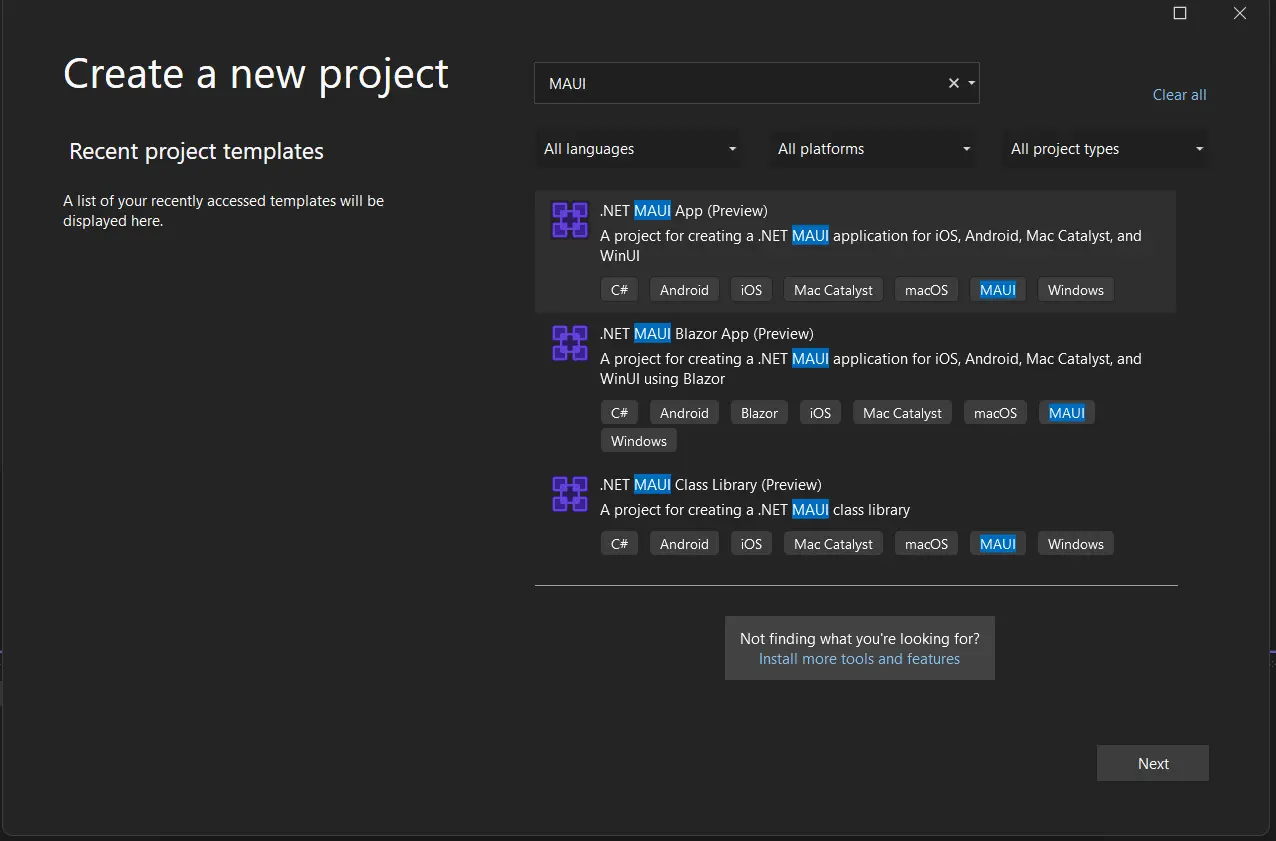 Visual Studio에서 새 프로젝트 생성
프로젝트 이름을 입력하고 적절한 텍스트 상자에서 파일 경로를 선택합니다. 아래 스크린샷과 같이 생성 버튼을 클릭하세요.
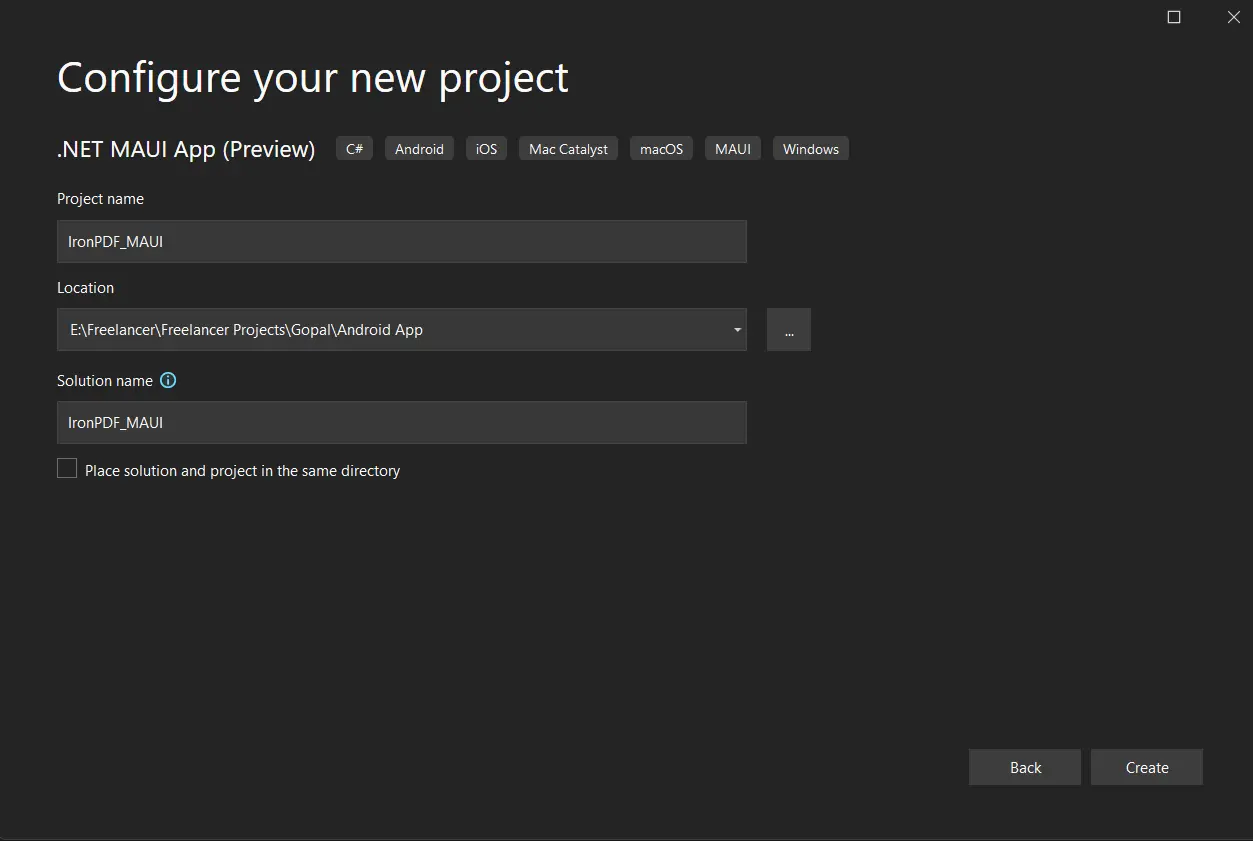 프로젝트를 구성하세요
Visual Studio 프로젝트는 이제 .NET MAUI 앱 플랫폼에 따라 선택한 응용 프로그램의 구조를 생성할 것입니다. 이제 MainPage.cs 파일을 열어 코드를 추가하고 애플리케이션을 빌드/실행합니다.
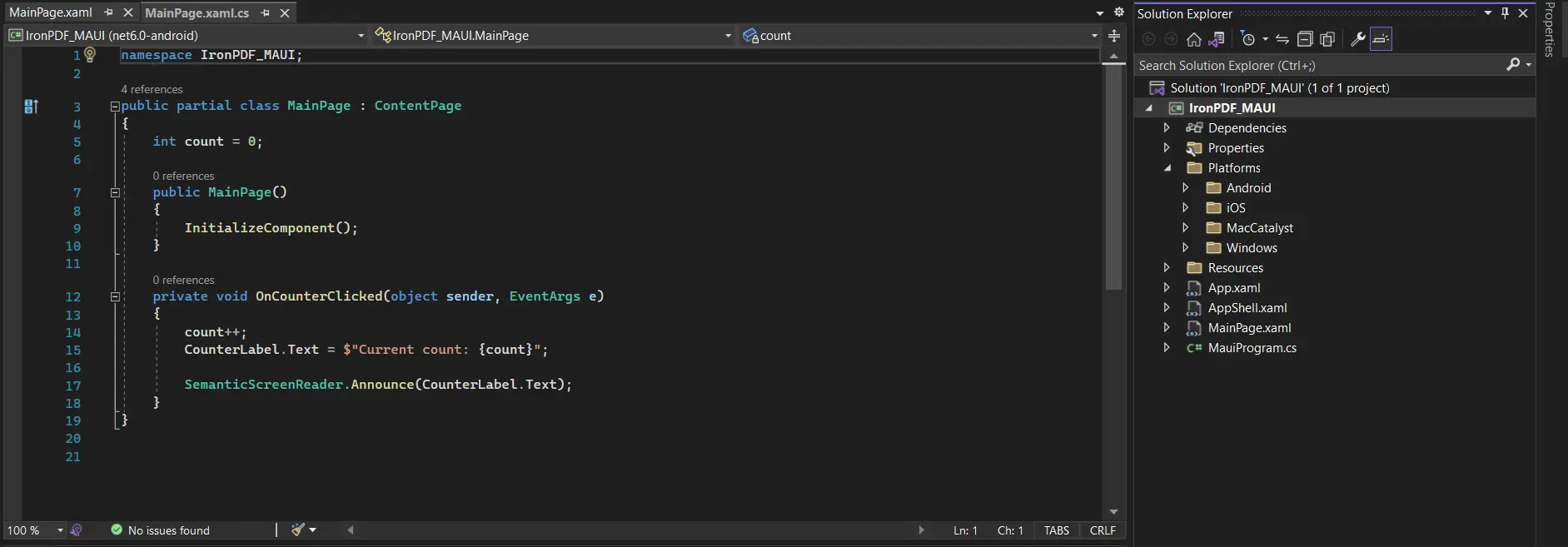 MainPage.cs 파일에 코드 추가하기
다음으로, 코드를 테스트하기 위해 라이브러리를 설치합니다.
IronPDF 라이브러리는 네 가지 방법으로 다운로드하고 설치할 수 있습니다.
다음과 같습니다:
Visual Studio 소프트웨어는 솔루션에 패키지를 직접 설치하기 위한 NuGet 패키지 관리자 옵션을 제공합니다. 아래 스크린샷은 NuGet 패키지 관리자를 여는 방법을 보여줍니다.
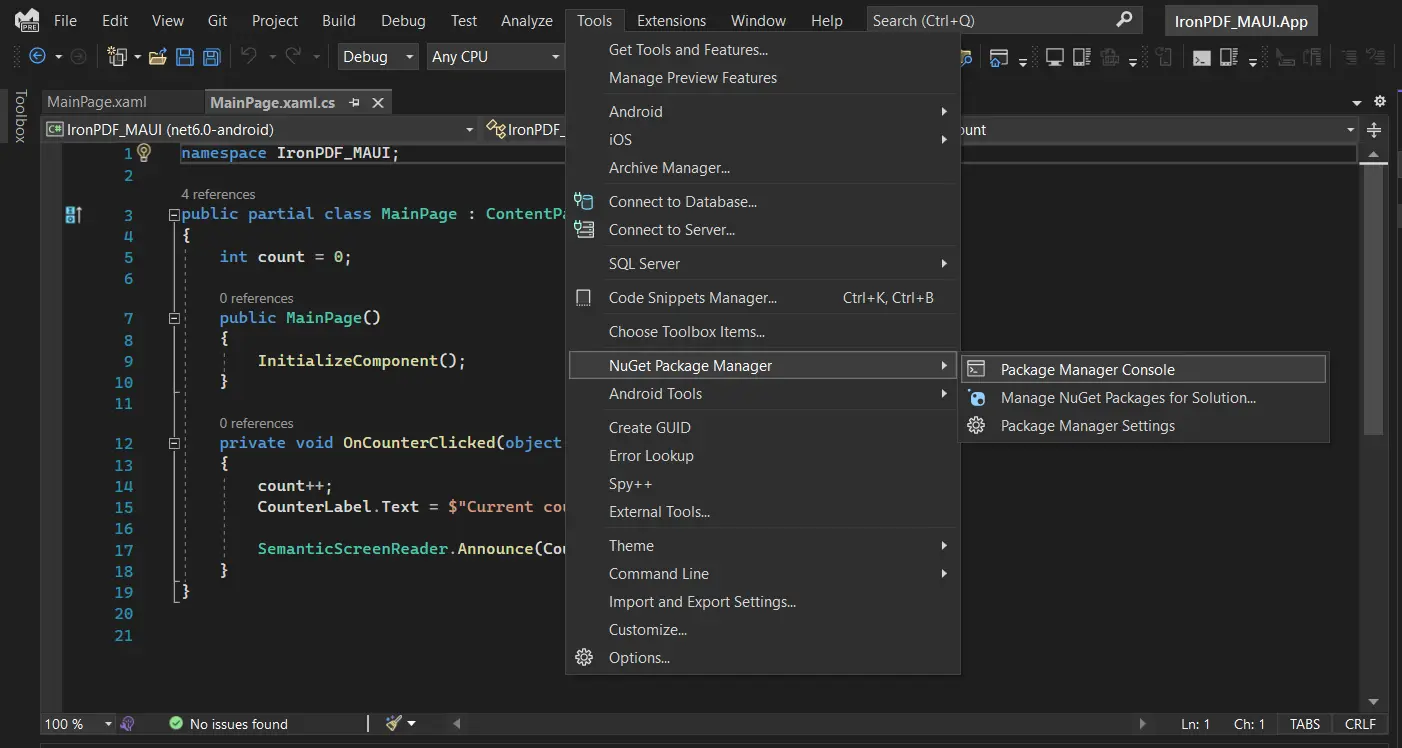 NuGet 패키지 관리자 UI로 이동하기
이는 NuGet 웹사이트에서 패키지 목록을 보여주는 검색 상자를 제공합니다. NuGet 패키지 관리자에서 아래 스크린샷과 같이 "IronPDF"라는 키워드로 검색합니다.
 NuGet 패키지 관리자 UI에서 IronPDF 패키지 선택하기
위 이미지에서 관련 검색 항목이 나열되며, 첫 번째 옵션을 선택하여 솔루션에 패키지를 설치합니다. Android, iOS, Windows 플랫폼과 같은 모든 .NET MAUI 애플리케이션 플랫폼에 설치됩니다.
Visual Studio에서 도구 > NuGet 패키지 관리자 > 패키지 관리자 콘솔로 이동합니다.
패키지 관리자 콘솔 탭에 다음 줄을 입력하세요:
이제 패키지가 현재 프로젝트의 모든 .NET MAUI 플랫폼에 다운로드/설치되어 사용할 준비가 됩니다.
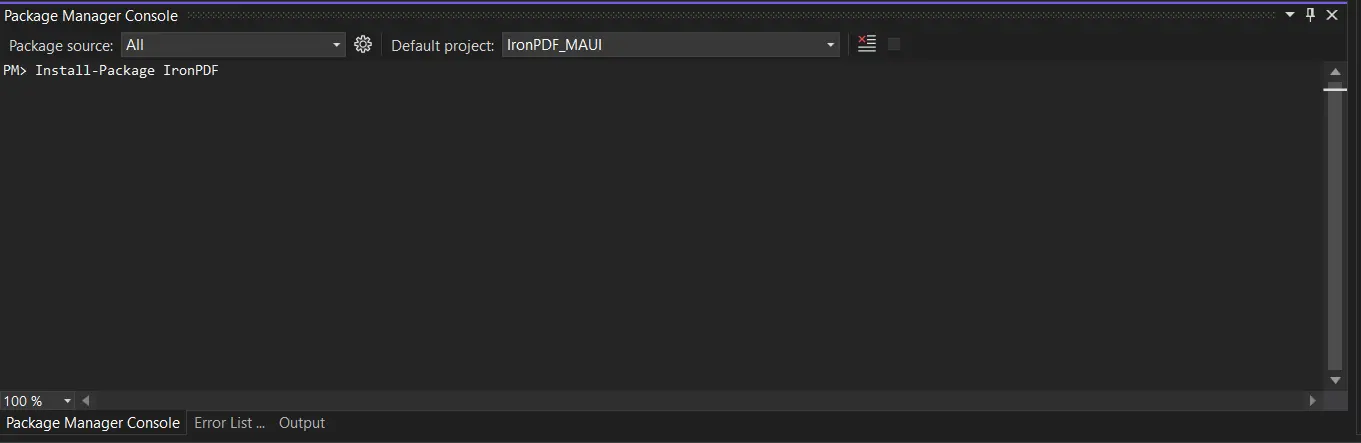 패키지 관리자 콘솔에서 Install-Package하기
세 번째 방법은 이 IronPDF NuGet repository page에 접근하여 웹사이트에서 NuGet 패키지를 직접 다운로드하는 것입니다.
그들의 웹사이트에서 최신 IronPDF ZIP 패키지를 직접 다운로드하세요. 다운로드가 완료된 후 아래 단계를 따라 프로젝트에 패키지를 추가하세요.
.NET MAUI가 지원하는 모든 플랫폼에 대한 참조도 추가해야 합니다.
프로젝트가 생성되면 MainPage.xaml라는 자동 생성 파일이 생성됩니다. 이곳이 .NET MAUI 애플리케이션의 UI를 넣을 위치입니다.
아래 코드를 따르십시오.
<?xml version="1.0" encoding="utf-8" ?>
<ContentPage xmlns="http://schemas.microsoft.com/dotnet/2021/maui"
             xmlns:x="http://schemas.microsoft.com/winfx/2009/xaml"
             x:Class="MAUI_PDF.MainPage"
            >

    <ScrollView>
        <VerticalStackLayout
            Spacing="25"
            Padding="30,0"
            VerticalOptions="Center">

            <Image
                Source="dotnet_bot.png"
                SemanticProperties.Description="Cute .NET bot waving hi to you!"
                HeightRequest="200"
                HorizontalOptions="Center" />

            <Label
                Text="Welcome to IronPDF!"
                SemanticProperties.HeadingLevel="Level1"
                FontSize="32"
                HorizontalOptions="Center" />

            <Button
                x:Name="PdfBtn"
                Text="Click me to generate PDF"
                SemanticProperties.Hint="Click button to generate PDF"
                Clicked="GeneratePDF"
                HorizontalOptions="Center" />
        </VerticalStackLayout>
    </ScrollView>

</ContentPage>위의 코드를 MainPage.xaml 파일에 추가한 후, MainPage.xaml.cs 파일을 열고 MainPage 클래스에 다음 메서드를 포함시킵니다:
private void GeneratePDF(object sender, EventArgs e)
{
    ChromePdfRenderer renderer = new ChromePdfRenderer();
    var doc = renderer.RenderHtmlAsPdf("<h1>Hello IronPDF!</h1> <p>I'm using IronPDF MAUI!</p>");

    // Saves the memory stream as file.
    SaveService saveService = new SaveService();
    saveService.SaveAndView("IronPDF HTML string.pdf", "application/pdf", doc.Stream);
}Private Sub GeneratePDF(ByVal sender As Object, ByVal e As EventArgs)
Dim renderer As New ChromePdfRenderer()
Dim doc = renderer.RenderHtmlAsPdf("<h1>Hello IronPDF!</h1> <p>I'm using IronPDF MAUI!</p>")
' Saves the memory stream as file.
Dim saveService As New SaveService()
saveService.SaveAndView("IronPDF HTML string.pdf", "application/pdf", doc.Stream)
End SubGeneratePDF 메서드는 "Hello, IronPDF!..."라는 텍스트를 포함한 새로운 PDF 문서를 생성하고 지정된 위치에 사용자의 컴퓨터에 저장합니다.
위의 메서드에서는 새 ChromePdfRenderer 객체를 생성하고 RenderHtmlAsPdf 메서드를 호출하여 "Hello IronPDF!"라는 단어를 포함한 새로운 PDF 문서를 생성합니다. ..." HTML 마크업 문자열에서. 다음으로 SaveService라는 별도의 클래스에 파일을 사용자의 장치에 저장하는 작업이 위임됩니다. 이 클래스는 다음 단계에서 생성됩니다.
완전한 MainPage.xaml.cs 파일은 아래에 제공됩니다. 다음 단계로 계속하기 전에 아래에 표시된 것과 파일 내용이 일치하는지 확인하십시오:
// Change the namespace as desired, but make sure that all source files use this same namespace,
// or there will be errors!
namespace MAUI_IronPDF;
// This namespace is required to make use of IronPDF functionality
using IronPdf;
public partial class MainPage : ContentPage
{
public MainPage()
{
InitializeComponent();
}
private void GeneratePDF(object sender, EventArgs e)
{
    ChromePdfRenderer renderer = new ChromePdfRenderer();
    var doc = renderer.RenderHtmlAsPdf("<h1>Hello IronPDF!</h1> <p>I'm using IronPDF MAUI!</p>");

    // Saves the memory stream as file.
    SaveService saveService = new SaveService();
    saveService.SaveAndView("IronPDF HTML string.pdf", "application/pdf", doc.Stream);
}
}Imports IronPdf
' Change the namespace as desired, but make sure that all source files use this same namespace,
' or there will be errors!
Namespace MAUI_IronPDF
' This namespace is required to make use of IronPDF functionality
Partial Public Class MainPage
Inherits ContentPage
Public Sub New()
InitializeComponent()
End Sub
Private Sub GeneratePDF(ByVal sender As Object, ByVal e As EventArgs)
	Dim renderer As New ChromePdfRenderer()
	Dim doc = renderer.RenderHtmlAsPdf("<h1>Hello IronPDF!</h1> <p>I'm using IronPDF MAUI!</p>")

	' Saves the memory stream as file.
	Dim saveService As New SaveService()
	saveService.SaveAndView("IronPDF HTML string.pdf", "application/pdf", doc.Stream)
End Sub
End Class
End Namespace이제 프로젝트의 루트에 SaveService.cs라는 새 클래스 파일을 만들고 다음 소스 코드를 추가합니다:
// Change the namespace as desired, but make sure that all source files use this same namespace,
// or there will be errors!
namespace MAUI_IronPDF
{
    // SaveService partial class declaration ... this allows a layer of abstraction
    // as we implement the save file details specially for each platform on which this app will
    // operate!
    public partial class SaveService
    {
        public void SaveAndView(string filename, string contentType, MemoryStream stream)
        {
            SaveFile(filename, contentType, stream);
        }

        // Additional partial files will provide implementations for this method specifically.
        partial void SaveFile(string filename, string contentType, MemoryStream stream);
    }
}' Change the namespace as desired, but make sure that all source files use this same namespace,
' or there will be errors!
Namespace MAUI_IronPDF
' SaveService partial class declaration ... this allows a layer of abstraction
' as we implement the save file details specially for each platform on which this app will
' operate!
Partial Public Class SaveService
Public Sub SaveAndView(ByVal filename As String, ByVal contentType As String, ByVal stream As MemoryStream)
SaveFile(filename, contentType, stream)
End Sub
' Additional partial files will provide implementations for this method specifically.
Partial Private Sub SaveFile(ByVal filename As String, ByVal contentType As String, ByVal stream As MemoryStream)
End Sub
End Class
End Namespace사용자 장치에 콘텐츠를 저장하는 구현 세부 사항은 각 플랫폼(Windows, Android, macOS 등)에 따라 다르므로, 애플리케이션이 지원할 각 장치 유형에 대한 플랫폼별 코드를 작성해야 합니다. 이를 가능하게 하기 위해, SaveService를 하나의 부분 메서드 SaveAndView를 포함하는 부분 클래스(추상화를 위한)로 정의합니다. 이후, 이 메서드의 구현은 솔루션 탐색기 내 플랫폼 폴더에 중첩된 하나 이상의 폴더에 대해 별도의 SaveService.cs 부분 클래스에서 정의됩니다(아래 이미지 참조):
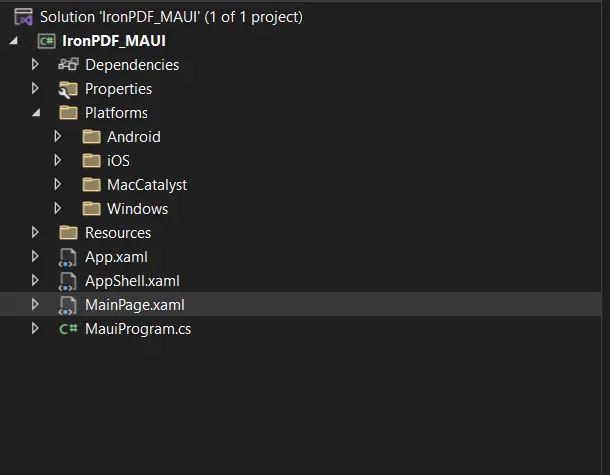 크로스 플랫폼을 구현하는 폴더 구조
간단히 하기 위해, 이 튜토리얼에서는 언급한 부분 파일을 Windows 플랫폼에 대해서만 정의합니다. Windows 플랫폼 폴더 아래에 아래에 표시된 코드가 포함된 새 SaveService.cs 파일을 만듭니다:
using Windows.Storage;
using Windows.Storage.Pickers;
using Windows.Storage.Streams;
using Windows.UI.Popups;

namespace MAUI_IronPDF;

public partial class SaveService
{
    async partial void SaveFile(string filename, string contentType, MemoryStream stream)
    {
        StorageFile stFile;
        string extension = Path.GetExtension(filename);
        // Gets process windows handle to open the dialog in application process.
        IntPtr windowHandle = System.Diagnostics.Process.GetCurrentProcess().MainWindowHandle;
        if (!Windows.Foundation.Metadata.ApiInformation.IsTypePresent("Windows.Phone.UI.Input.HardwareButtons"))
        {
            // Creates file save picker to save a file.
            FileSavePicker savePicker = new();
            savePicker.DefaultFileExtension = ".pdf";
            savePicker.SuggestedFileName = filename;
            // Saves the file as PDF file.
            savePicker.FileTypeChoices.Add("PDF", new List<string>() { ".pdf" });

            WinRT.Interop.InitializeWithWindow.Initialize(savePicker, windowHandle);
            stFile = await savePicker.PickSaveFileAsync();
        }
        else
        {
            StorageFolder local = ApplicationData.Current.LocalFolder;
            stFile = await local.CreateFileAsync(filename, CreationCollisionOption.ReplaceExisting);
        }
        if (stFile != null)
        {
            using (IRandomAccessStream zipStream = await stFile.OpenAsync(FileAccessMode.ReadWrite))
            {
                // Writes compressed data from memory to file.
                using Stream outstream = zipStream.AsStreamForWrite();
                outstream.SetLength(0);
                // Saves the stream as file.
                byte [] buffer = stream.ToArray();
                outstream.Write(buffer, 0, buffer.Length);
                outstream.Flush();
            }
            // Create message dialog box.
            MessageDialog msgDialog = new("Do you want to view the document?", "File has been created successfully");
            UICommand yesCmd = new("Yes");
            msgDialog.Commands.Add(yesCmd);
            UICommand noCmd = new("No");
            msgDialog.Commands.Add(noCmd);

            WinRT.Interop.InitializeWithWindow.Initialize(msgDialog, windowHandle);

            // Showing a dialog box.
            IUICommand cmd = await msgDialog.ShowAsync();
            if (cmd.Label == yesCmd.Label)
            {
                // Launch the saved file.
                await Windows.System.Launcher.LaunchFileAsync(stFile);
            }
        }
    }
}Imports Windows.Storage
Imports Windows.Storage.Pickers
Imports Windows.Storage.Streams
Imports Windows.UI.Popups
Namespace MAUI_IronPDF
Partial Public Class SaveService
Private Async Sub SaveFile(ByVal filename As String, ByVal contentType As String, ByVal stream As MemoryStream)
Dim stFile As StorageFile
Dim extension As String = Path.GetExtension(filename)
' Gets process windows handle to open the dialog in application process.
Dim windowHandle As IntPtr = System.Diagnostics.Process.GetCurrentProcess().MainWindowHandle
If Not Windows.Foundation.Metadata.ApiInformation.IsTypePresent("Windows.Phone.UI.Input.HardwareButtons") Then
' Creates file save picker to save a file.
Dim savePicker As New FileSavePicker()
savePicker.DefaultFileExtension = ".pdf"
savePicker.SuggestedFileName = filename
' Saves the file as PDF file.
savePicker.FileTypeChoices.Add("PDF", New List(Of String)() From {".pdf"})
WinRT.Interop.InitializeWithWindow.Initialize(savePicker, windowHandle)
stFile = Await savePicker.PickSaveFileAsync()
Else
Dim local As StorageFolder = ApplicationData.Current.LocalFolder
stFile = Await local.CreateFileAsync(filename, CreationCollisionOption.ReplaceExisting)
End If
If stFile IsNot Nothing Then
Using zipStream As IRandomAccessStream = Await stFile.OpenAsync(FileAccessMode.ReadWrite)
' Writes compressed data from memory to file.
Using outstream As Stream = zipStream.AsStreamForWrite()
outstream.SetLength(0)
' Saves the stream as file.
Dim buffer() As Byte = stream.ToArray()
outstream.Write(buffer, 0, buffer.Length)
outstream.Flush()
End Using
End Using
' Create message dialog box.
Dim msgDialog As New MessageDialog("Do you want to view the document?", "File has been created successfully")
Dim yesCmd As New UICommand("Yes")
msgDialog.Commands.Add(yesCmd)
Dim noCmd As New UICommand("No")
msgDialog.Commands.Add(noCmd)
WinRT.Interop.InitializeWithWindow.Initialize(msgDialog, windowHandle)
' Showing a dialog box.
Dim cmd As IUICommand = Await msgDialog.ShowAsync()
If cmd.Label = yesCmd.Label Then
' Launch the saved file.
Await Windows.System.Launcher.LaunchFileAsync(stFile)
End If
End If
End Sub
End Class
End NamespaceMAUI 애플리케이션을 빌드하고 실행하십시오. 아래에 표시된 인터페이스가 포함된 창이 나타납니다:
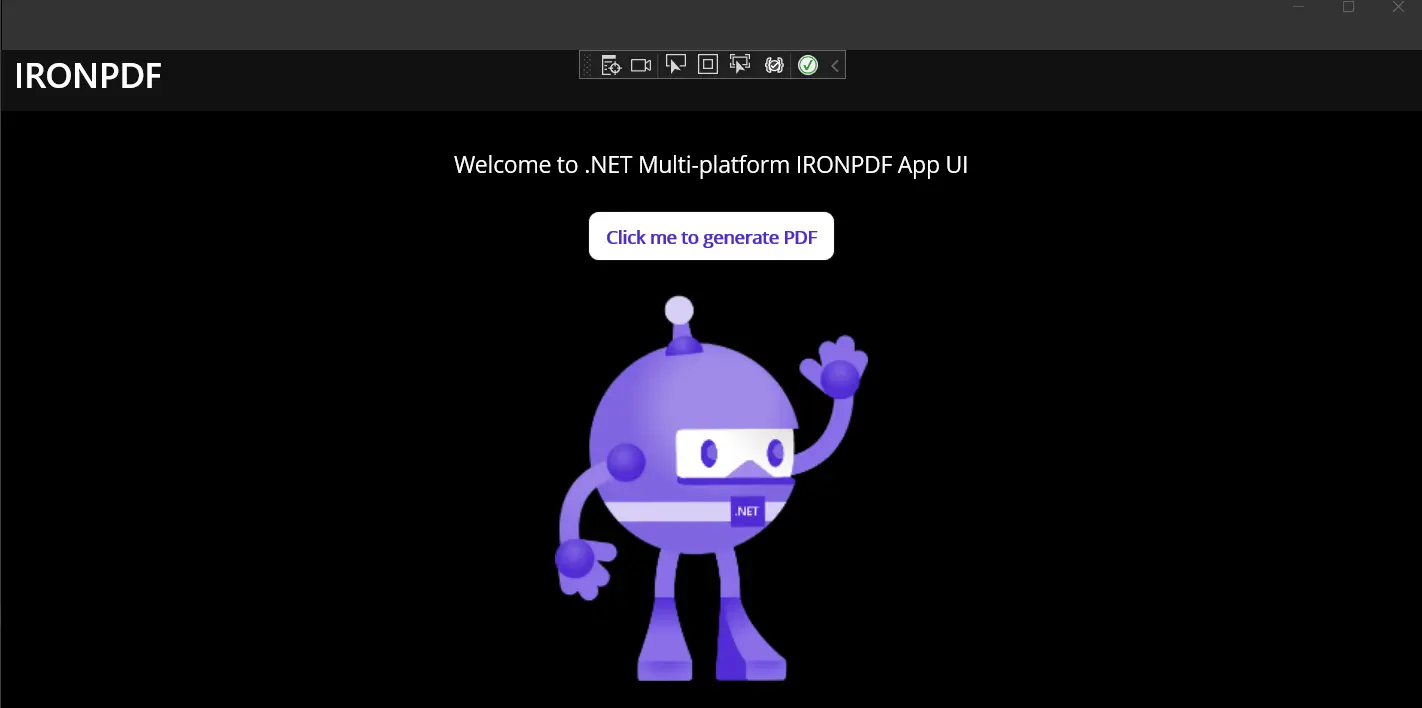 MAUI 앱의 UI
"Generate PDF" 버튼을 클릭하십시오. 잠시 후에 생성된 PDF 파일의 저장 위치를 선택하는 팝업이 나타납니다.
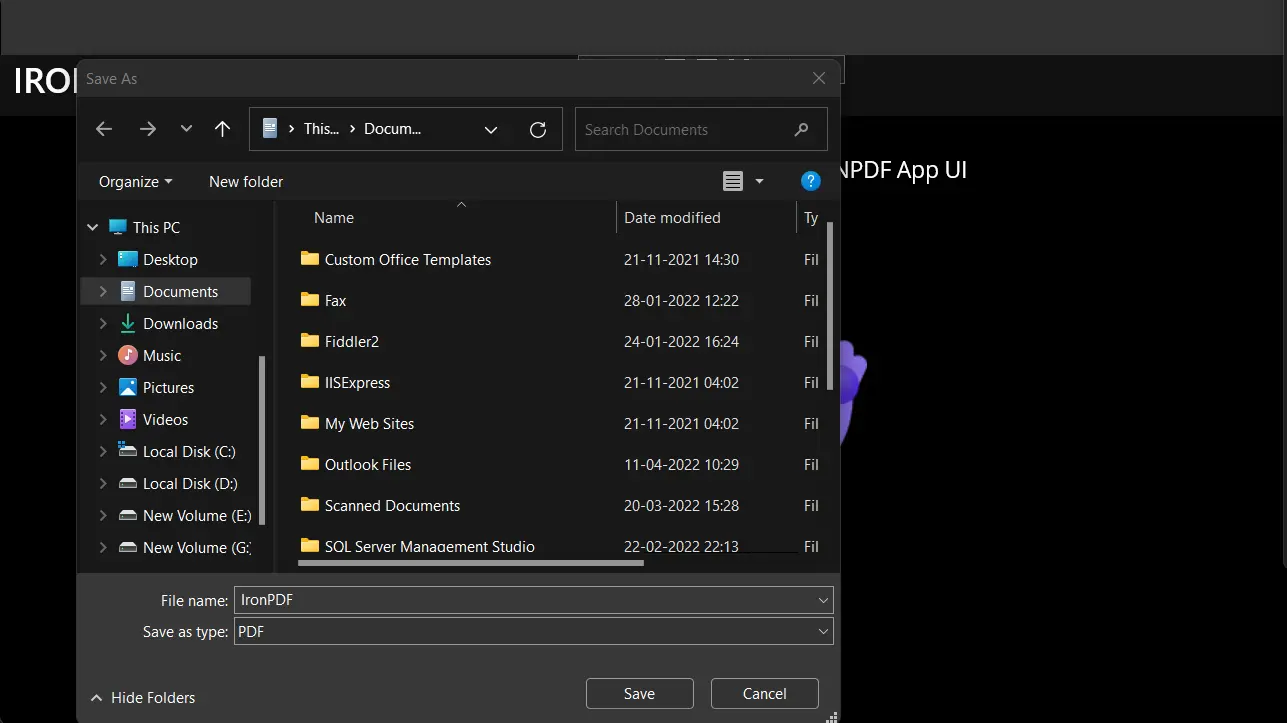 PDF 파일을 저장할 위치 선택
IronPDF는 PDF를 생성, 읽기, 편집, 포맷할 수 있는 가장 일반적으로 사용되는 PDF 변환 라이브러리 중 하나입니다. IronPDF 라이브러리는 주어진 URL을 PDF 파일로 변환하는 데 도움이 되는 브라우저 엔진을 제공하며, HTML 문자열에 CSS를 추가하고 이를 PDF 파일로 변환할 수 있게 하며, PDF 양식을 작성할 수도 있습니다. IronPDF의 모든 기능이 하나의 라이브러리에 포함되어 있습니다.
IronPDF는 다양한 가격 구조를 가지고 있습니다. IronPDF의 기본 가격은 $999에서 시작합니다. 제품 지원 및 업데이트는 1년간의 요금으로 제공됩니다. 로열티 프리 재배포 커버리지는 추가 기능으로 구매할 수 있습니다.
요약하면, IronPDF는 PDF 작업을 하는 개발자에게 뛰어난 성능과 다양한 기능을 제공하기 때문에 추천됩니다. 그것은 .NET MAUI와 같은 범용 플랫폼을 지원합니다. 또한 훌륭한 지원과 문서가 함께 제공되어 IronPDF 라이브러리의 광범위한 기능을 최대한 활용할 수 있게 합니다.

커티스 차우는 칼턴 대학교에서 컴퓨터 과학 학사 학위를 취득했으며, Node.js, TypeScript, JavaScript, React를 전문으로 하는 프론트엔드 개발자입니다. 직관적이고 미적으로 뛰어난 사용자 인터페이스를 만드는 데 열정을 가진 그는 최신 프레임워크를 활용하고, 잘 구성되고 시각적으로 매력적인 매뉴얼을 제작하는 것을 즐깁니다.



IronPDF는 IRON SUITE 의 일부입니다.
10개의 .NET API 제품, 당신의 사무 문서를 위해

PDF 파일을 HTML처럼 빠르게 변환해야 할 때.


