푸터 콘텐츠로 바로가기
IRONPDF 사용

How to Password Protect a PDF Document

A PDF file is a document that has been created and saved in the "Portable Document Format". It is a popular digital file format supported by most word processors and computer operating systems. PDF files can be edited, printed, and shared just like any other document file type. PDF stands for "portable document format".

PDF files are widely used nowadays. They can be found in many places, such as company websites, social media pages, and even on the internet. This is because PDFs are versatile and can store all types of information.

However, with the rise of technology comes the rise of cybercrimes. That is why it is essential to protect PDF documents from unauthorized users who want to steal your data or leak confidential information about your company. Here are some benefits of protecting your PDF files:

  • Prevent unauthorized access to sensitive information
  • Prevent data leaks
  • Protect intellectual property
  • Ensure compliance with regulations

A Different Type of Protection

PDF files are a popular format for distributing documents. But, like any other file type, they can be susceptible to hacking and unauthorized access. There are several ways to protect PDF files from unauthorized access.

  • Password Protection
  • Digital Signature Protection
  • Encryption Protection
  • Watermark Protection

Password Protection

A common way to protect PDF files is by password protecting them. This is the most basic form of protection, and it's often the easiest for users to understand. The downside is that this protection can be hacked or bypassed by someone who has the right skillset.

Encryption Protection

Another option for protecting PDF files is encrypting them with an encryption key that only authorized people can access. This key should only be known by authorized people to ensure that no one else can decrypt the file without authorization.

Offline Tools for the Password Protection of PDF Files:

The best offline tools for protecting PDF files are:

1) Adobe Acrobat Pro DC

The Adobe Acrobat software is a powerful tool that you can use to create, edit, and convert PDF files. You can also create forms and fill them out with information from the document. It also allows you to convert paper documents into PDFs so they can be shared online or emailed without having to worry about losing the formatting of your document. Let's look at how to protect our PDF file using Adobe Acrobat Pro DC. There are different ways to secure PDFs with passwords:

Open a PDF File

Open the PDF file you want to protect with Adobe Acrobat Reader. You can open files by using the shortcut Ctrl+O or drop files directly in the Adobe Acrobat application.

Method 1

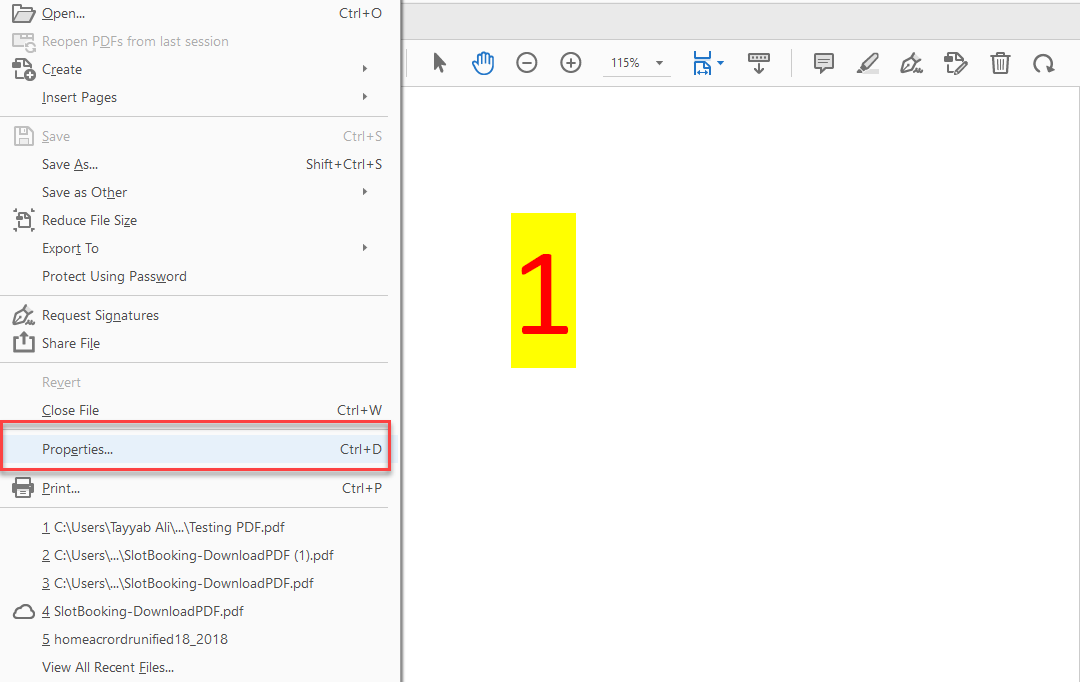
Click on the file menu and select properties.

How To Password Protect A Pdf 1 related to Method 1

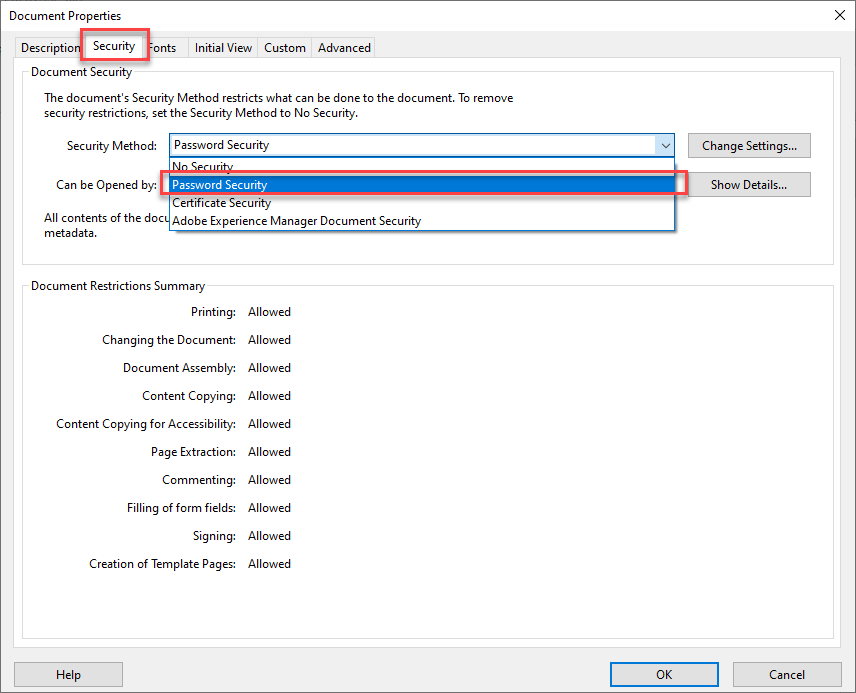
From the properties dialogue box, go to the Security tab.

From the Security Method drop-down menu, select Password Security. It will open the password security settings.

How To Password Protect A Pdf 2 related to Method 1

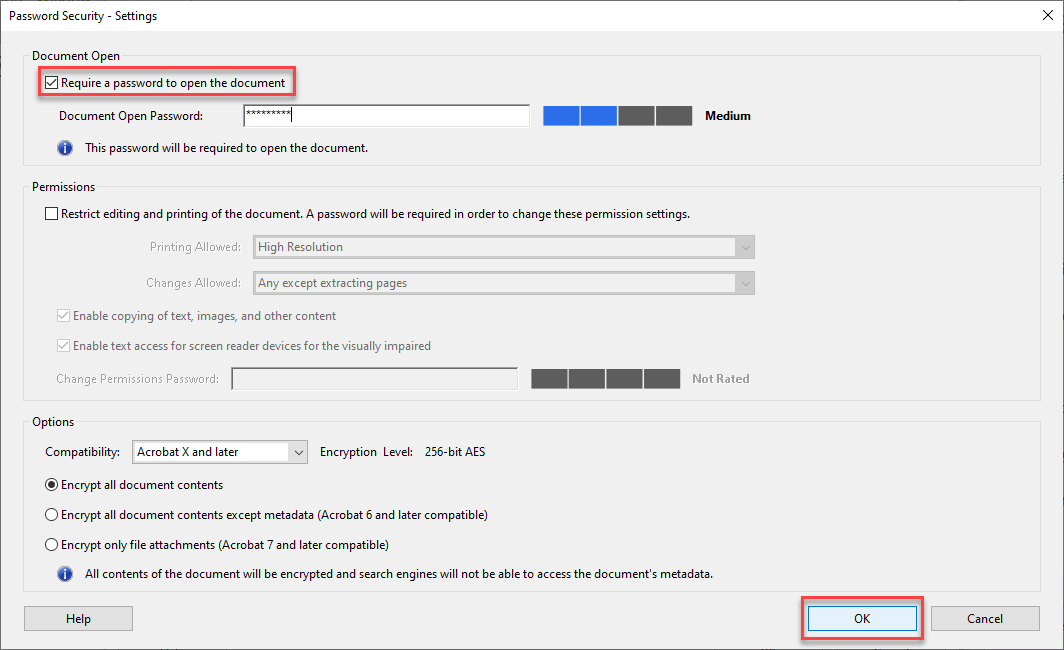
Check the "Require a password to open document" option.

Enter the password you want to use and press the OK button.

How To Password Protect A Pdf 3 related to Method 1

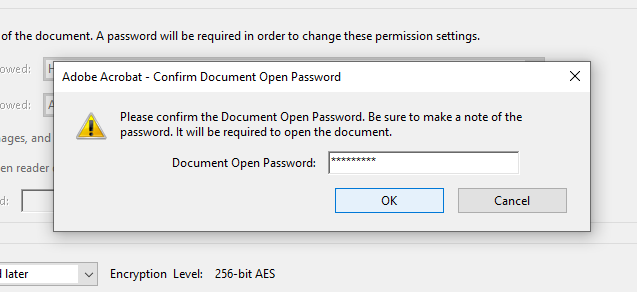
It will prompt you to retype the correct password to confirm the password. Enter the password again and press the OK button to apply changes.

How To Password Protect A Pdf 4 related to Method 1

Press Ctrl+S to save the modified security settings.

Method 2

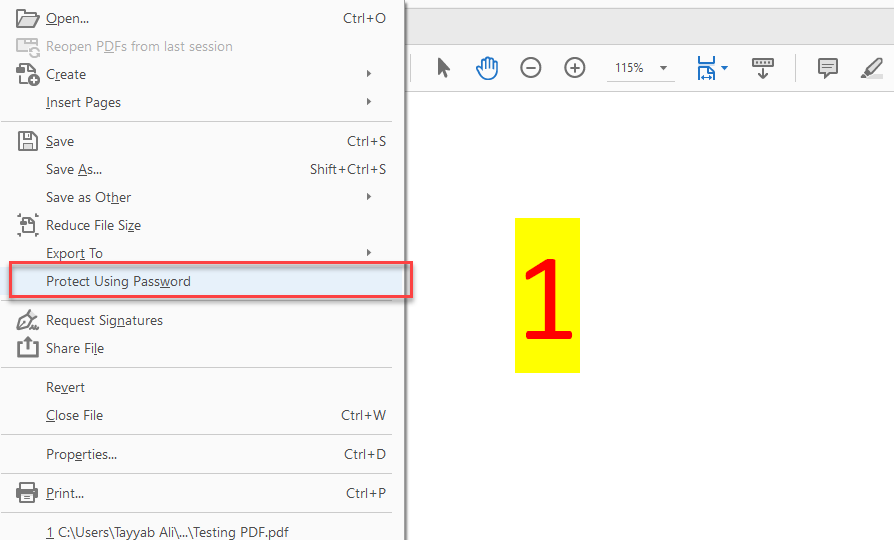
Click on the file menu and select the "Protect Using Password" option from the drop-down menu.

How To Password Protect A Pdf 5 related to Method 2

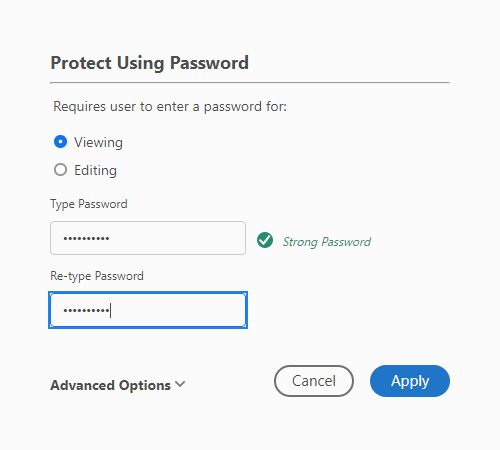
It will open a dialogue box. Select the "Viewing" option if you want to restrict viewing options without a password, or select the "Editing" option if you want to prevent editing.

How To Password Protect A Pdf 6 related to Method 2

Online Tools for the Password Protection of PDF Files:

The best way to lock PDFs with passwords is to use an online tool. Many tools are available on the internet for locking PDFs with passwords. The top three best online tools are:

  • ILovePDF
  • SmallPDF
  • PDF2GO

1) ILovePDF

ILovePDF is an online PDF tool that provides the facility to perform all PDF-related operations on one website. It is fully secured because it has an SSL certificate, meaning that no third party will access your documents. Let's see how we can protect PDF documents using the ILovePDF protect PDF feature.

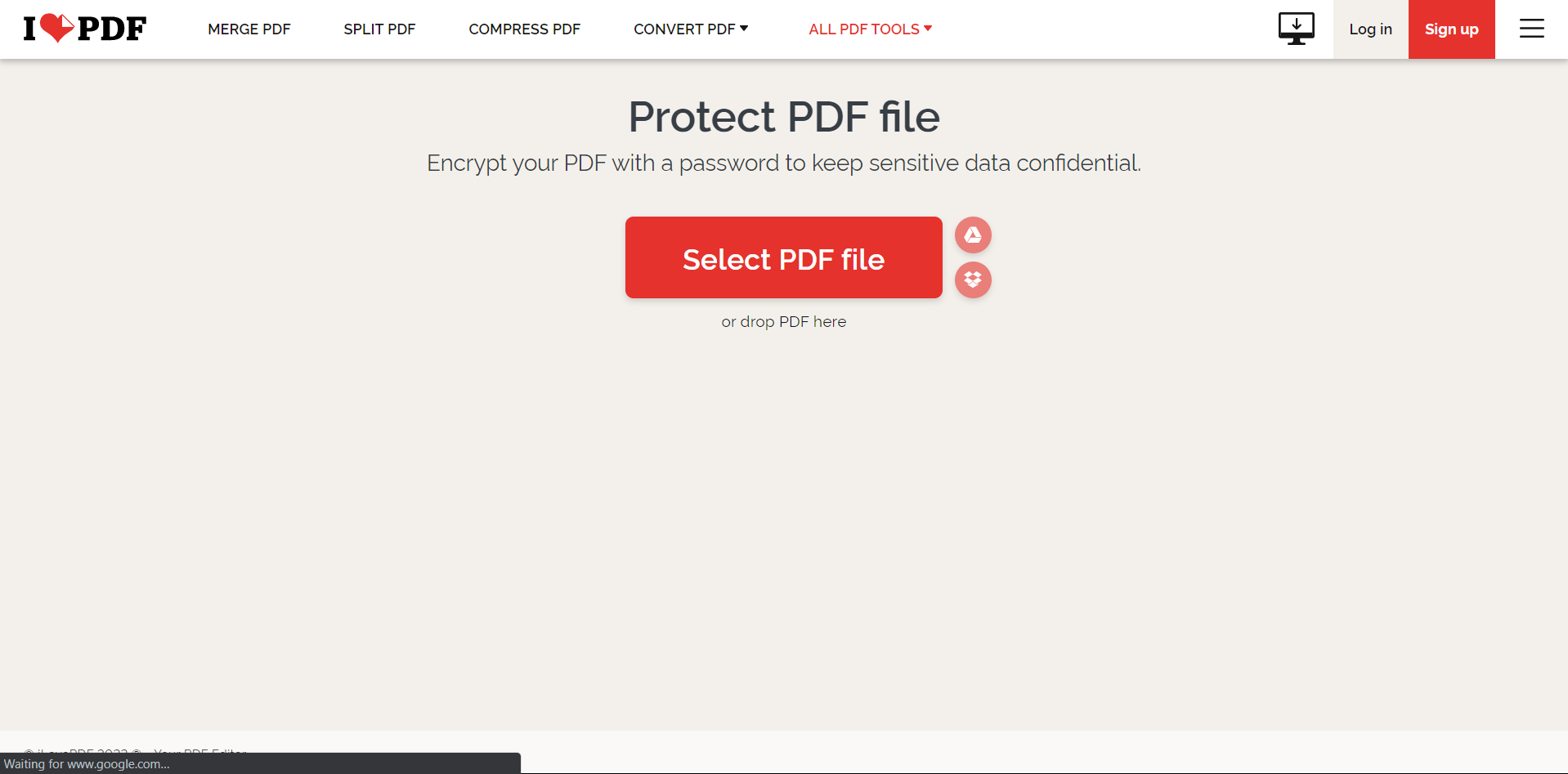
Go to the ILovePDF website.

How To Password Protect A Pdf 7 related to 1) ILovePDF

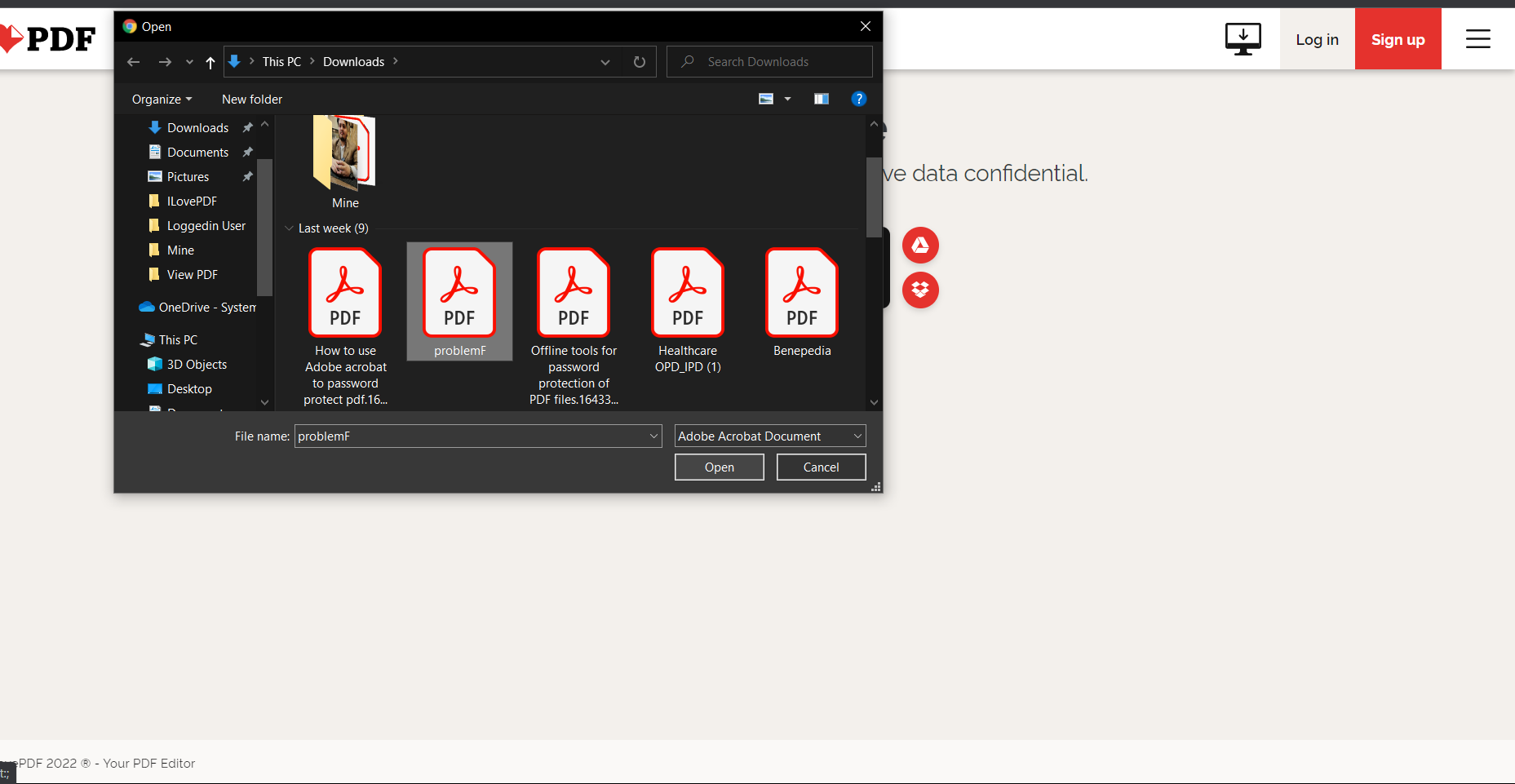
Click on "Select PDF File" and choose the file you want to protect with a password.

How To Password Protect A Pdf 8 related to 1) ILovePDF

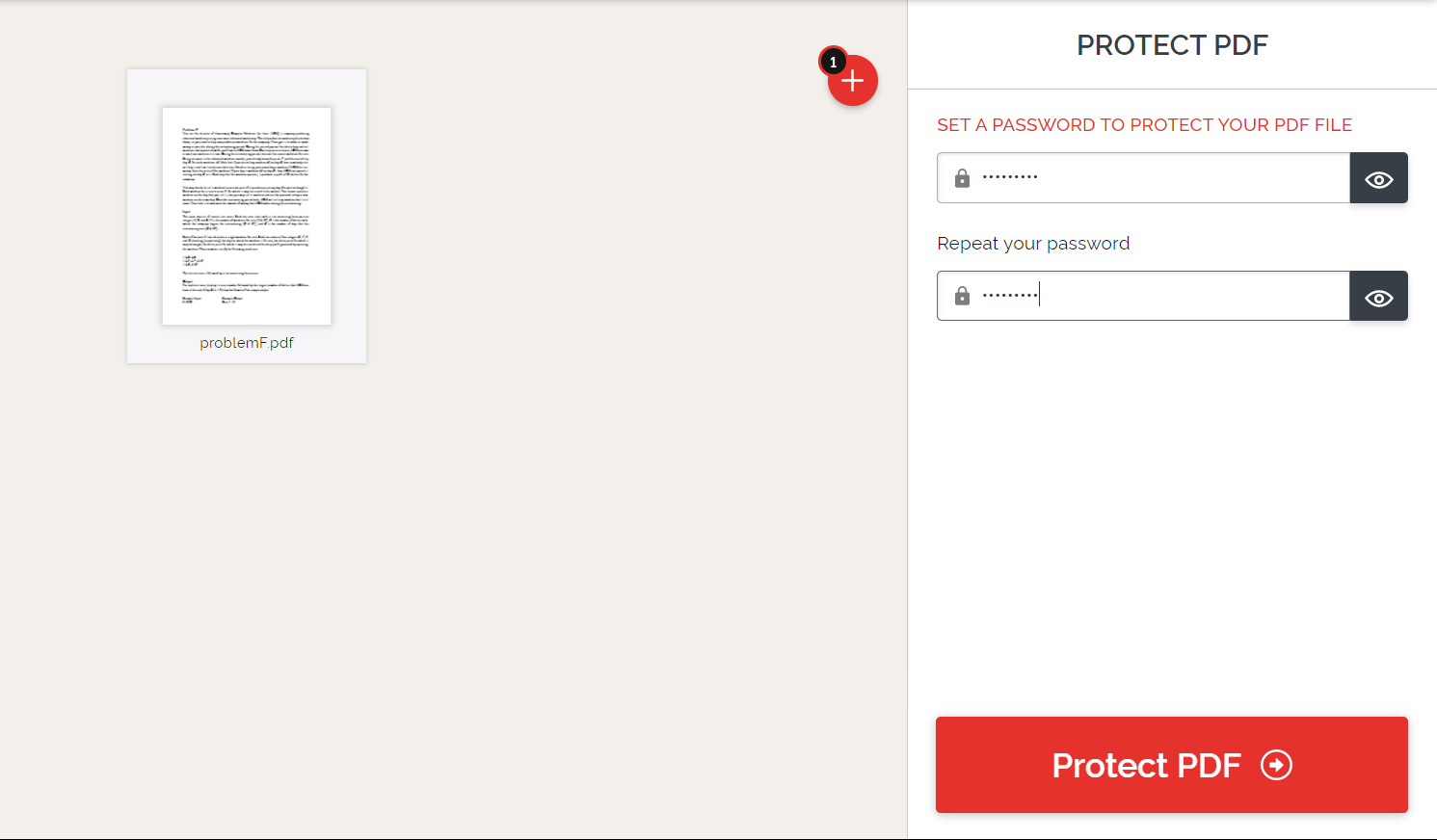
Type the password and retype the password to confirm it.

How To Password Protect A Pdf 9 related to 1) ILovePDF

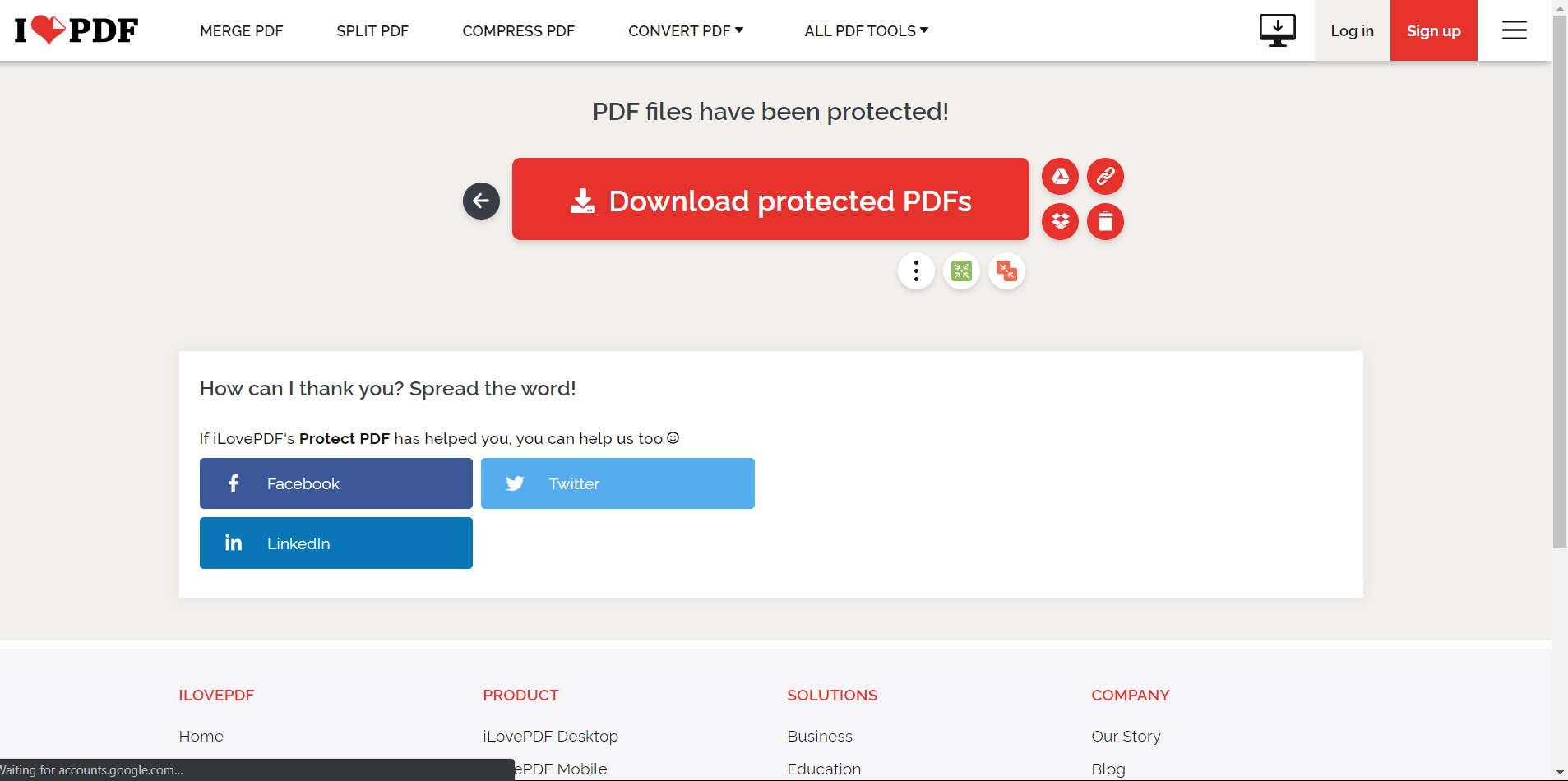
Click on Protect PDF. Your password-protected PDF will be ready to download.

How To Password Protect A Pdf 10 related to 1) ILovePDF

2) Smallpdf

Smallpdf is a free online PDF editor that allows you to edit your PDF with easy steps. It has an easy user interface and is entirely secure. It can convert PDFs to a different format. You can sign documents using Smallpdf. Smallpdf is a web-based tool website with unique features for all PDF operations. You don't need to pay anything to use the special features. The software is entirely free to use, and it can be accessed from any device with internet access. Internet connection, therefore, becomes a key element to using this editor. Let's see how to add password protection to PDF documents using SmallPDF:

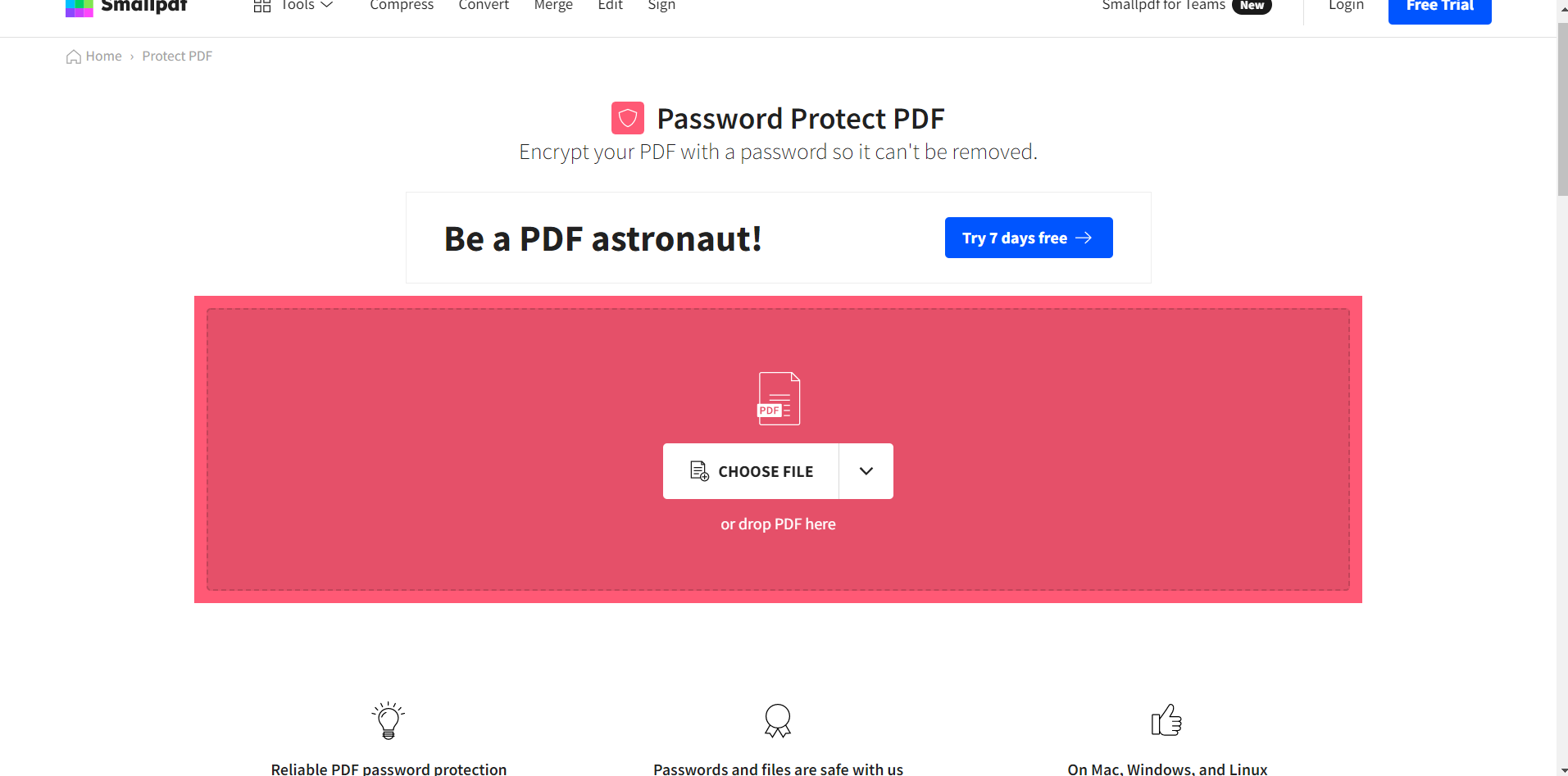
Go to the Smallpdf website.

How To Password Protect A Pdf 11 related to 2) Smallpdf

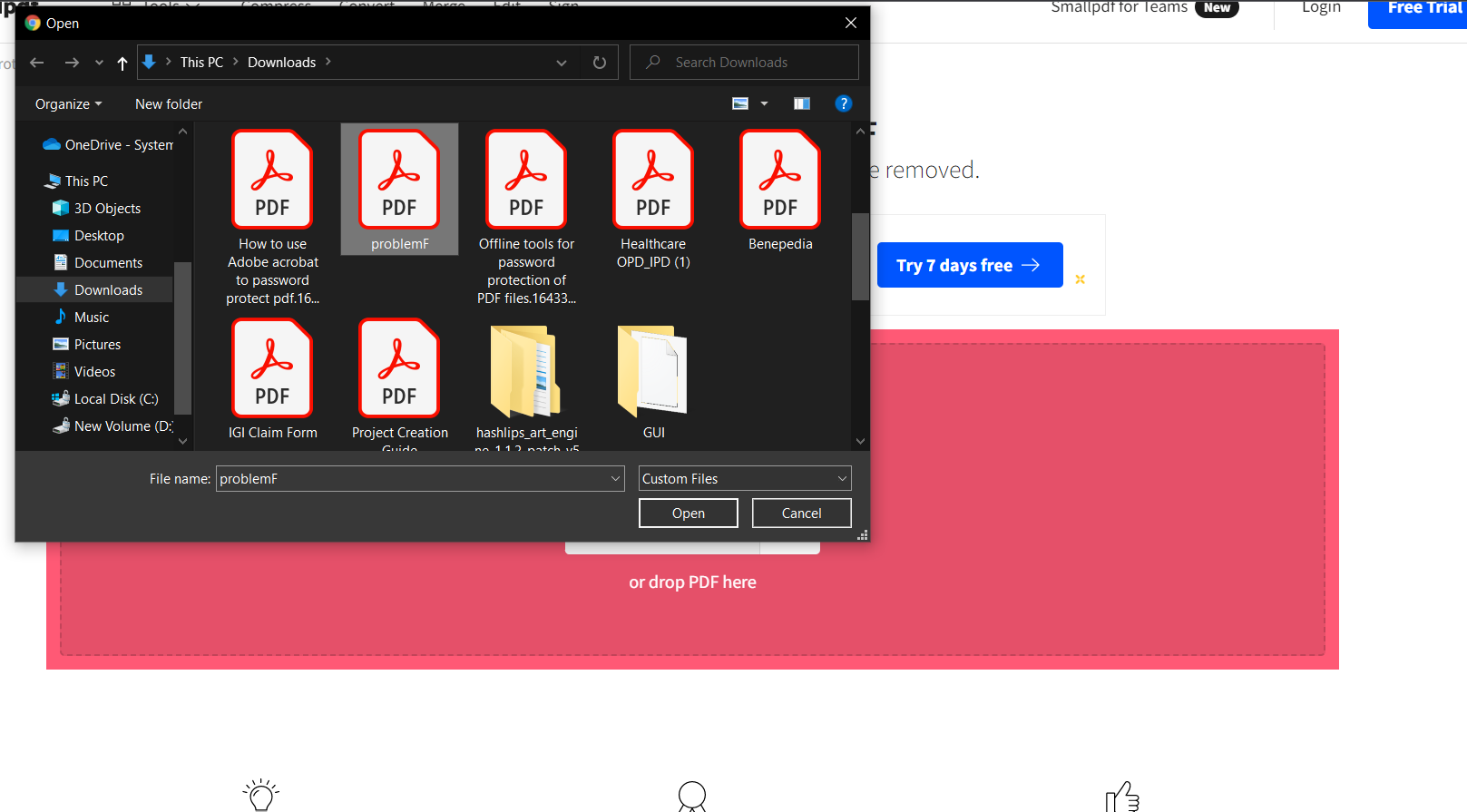
Click on "Choose File" and select the PDF file you want to be protected.

How To Password Protect A Pdf 12 related to 2) Smallpdf

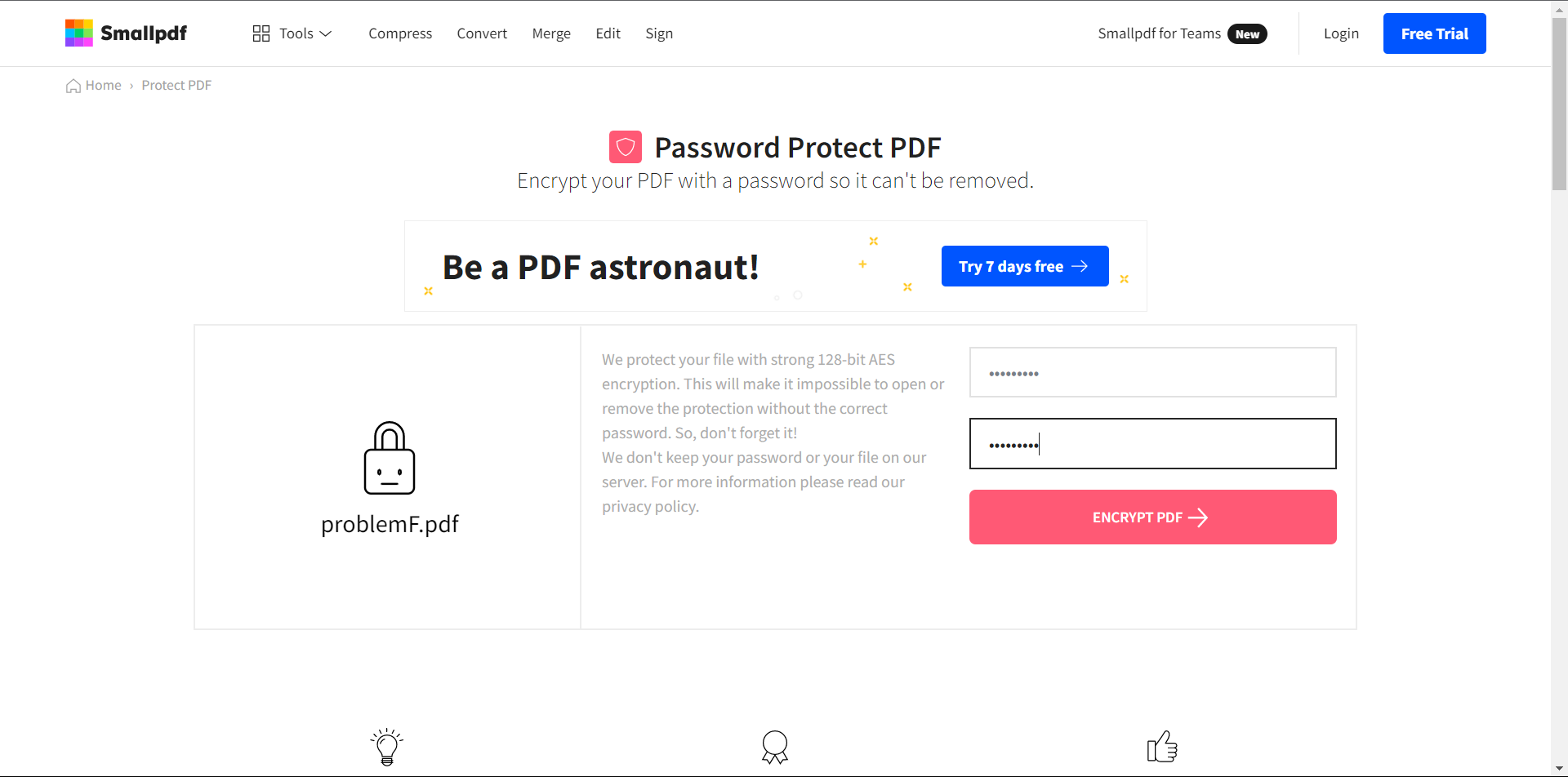
Write a password and retype it to confirm your password. Click on the "Encrypt PDF" button to encrypt the PDF document with a password.

How To Password Protect A Pdf 13 related to 2) Smallpdf

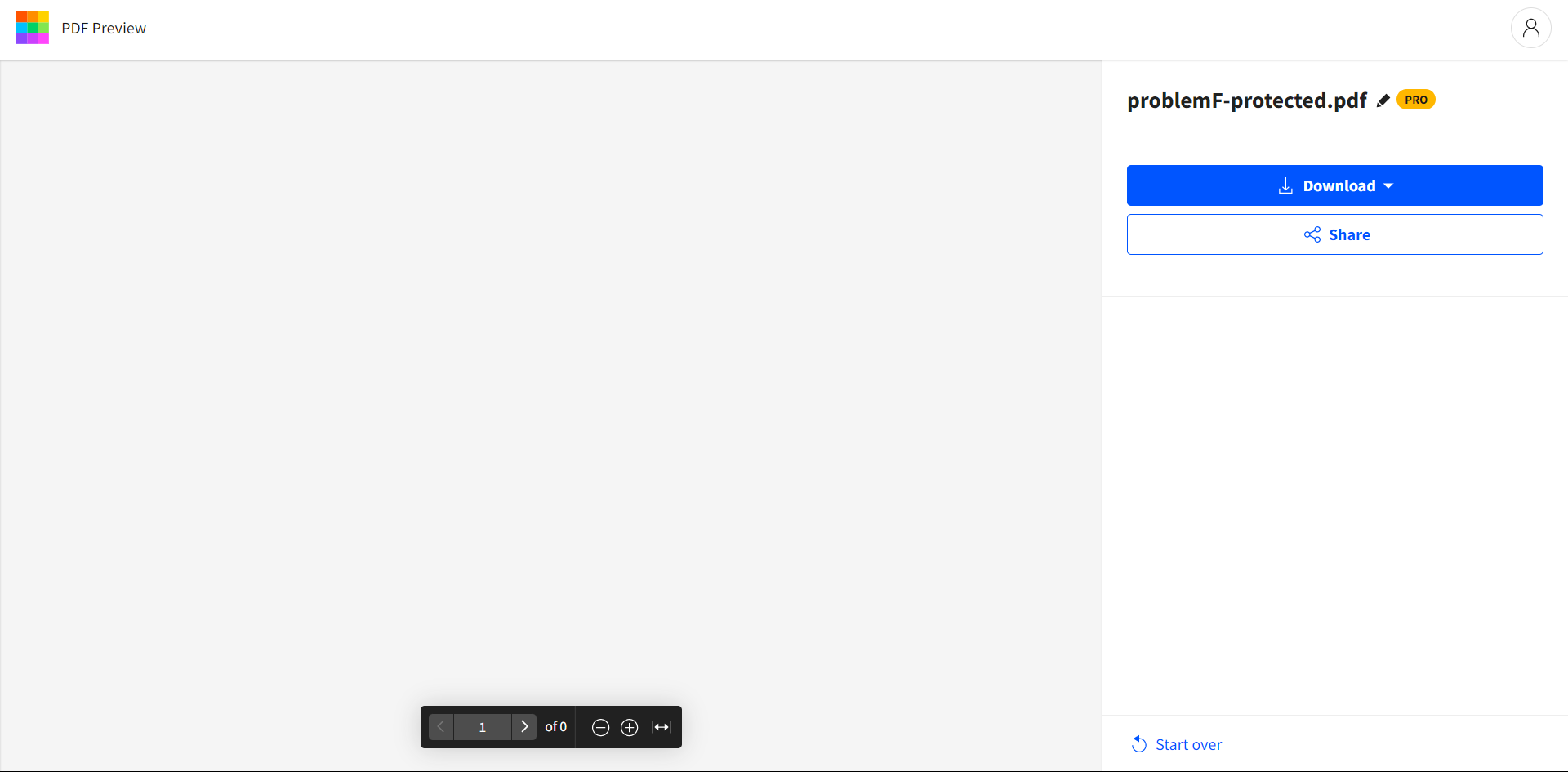
Your password-protected PDF will be ready to download. Download it by clicking on the "Download" button on the left sidebar.

How To Password Protect A Pdf 14 related to 2) Smallpdf

3) Pdf2Go

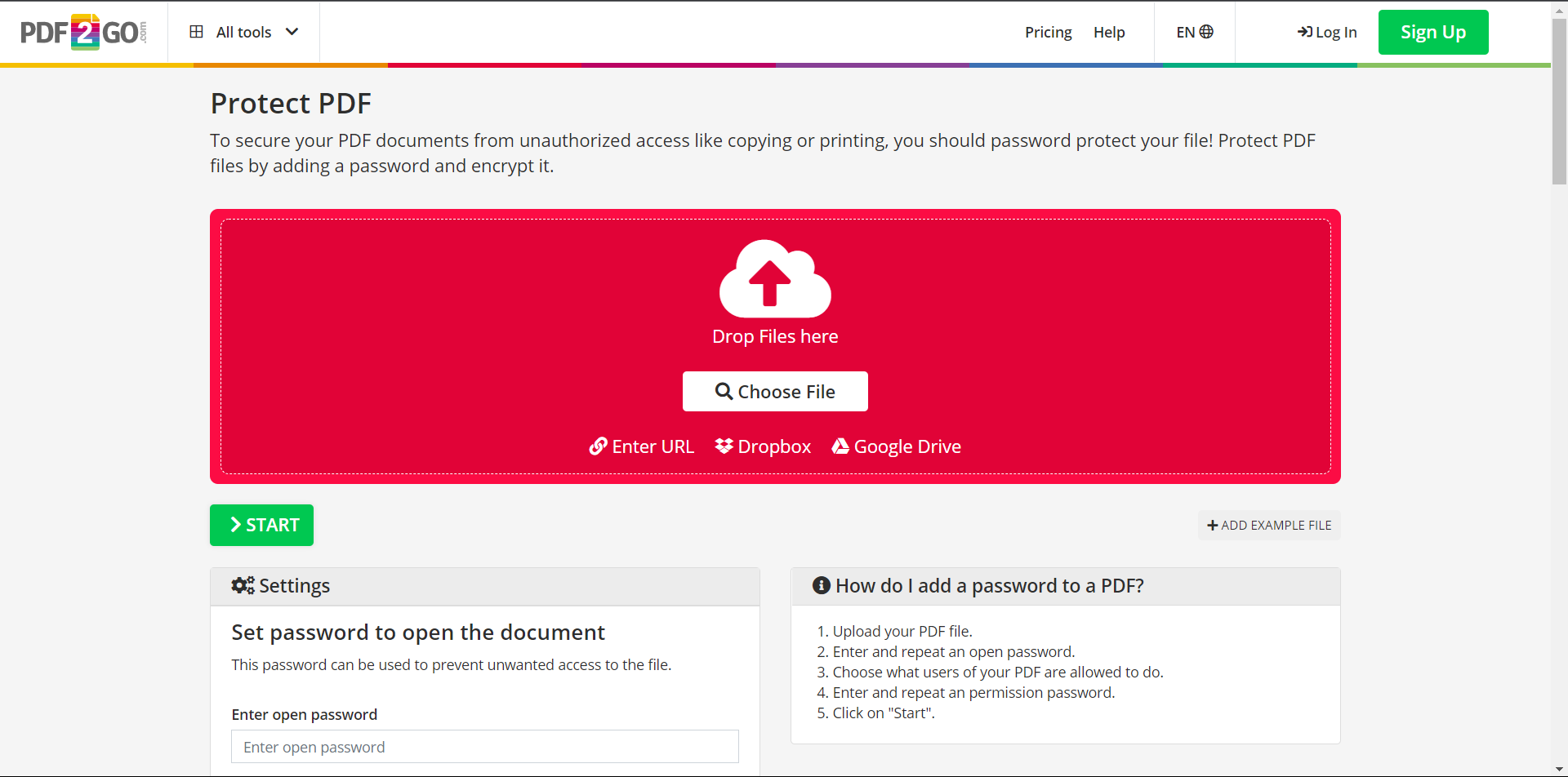
Pdf2Go is a web-based PDF tools website. Its easy interface and simple processes make it different from other websites. It has all the essential tools required to perform all types of PDF operations. It is entirely free. Let's see how we can protect PDFs using the Pdf2Go website:

Go to the Pdf2Go Website.

How To Password Protect A Pdf 15 related to 3) Pdf2Go

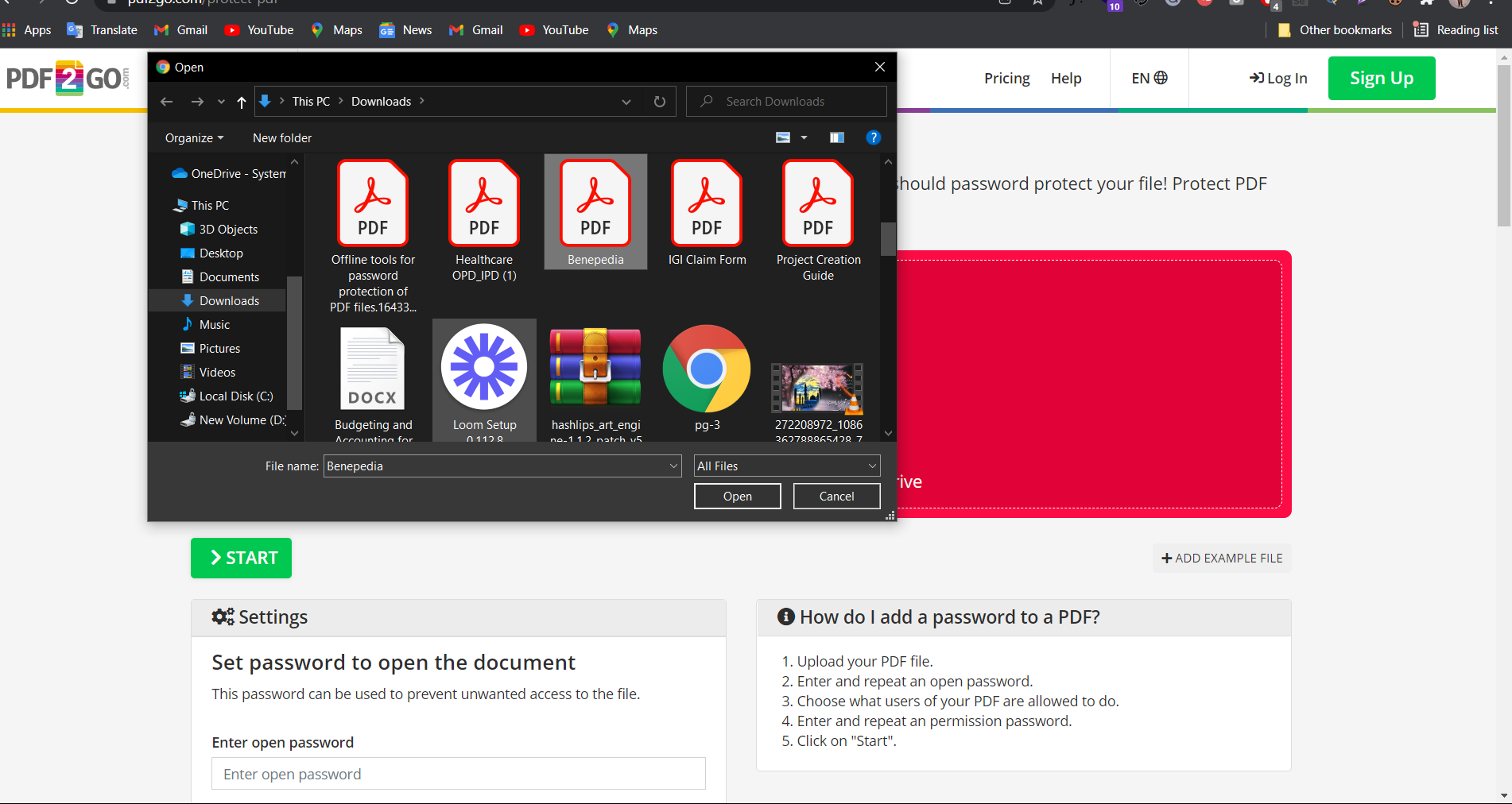
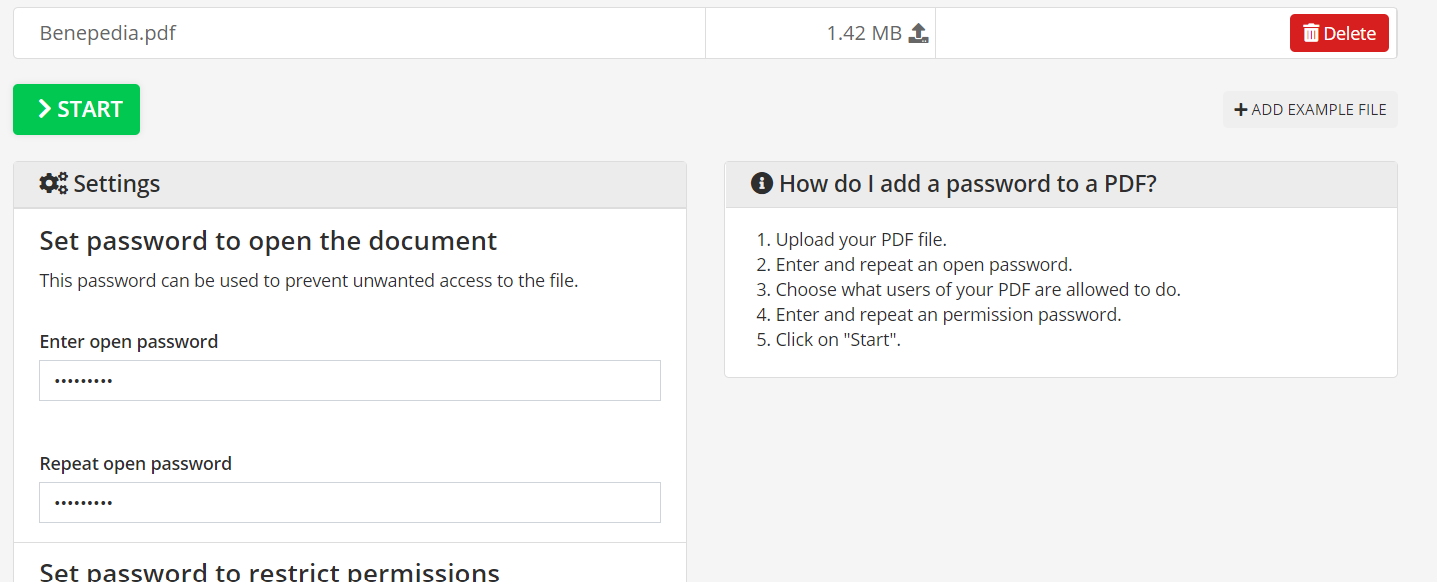
Click on "choose file" and select the desired file you wish to lock.

How To Password Protect A Pdf 16 related to 3) Pdf2Go

When the PDF loads, enter the password and retype the password to confirm.

How To Password Protect A Pdf 17 related to 3) Pdf2Go

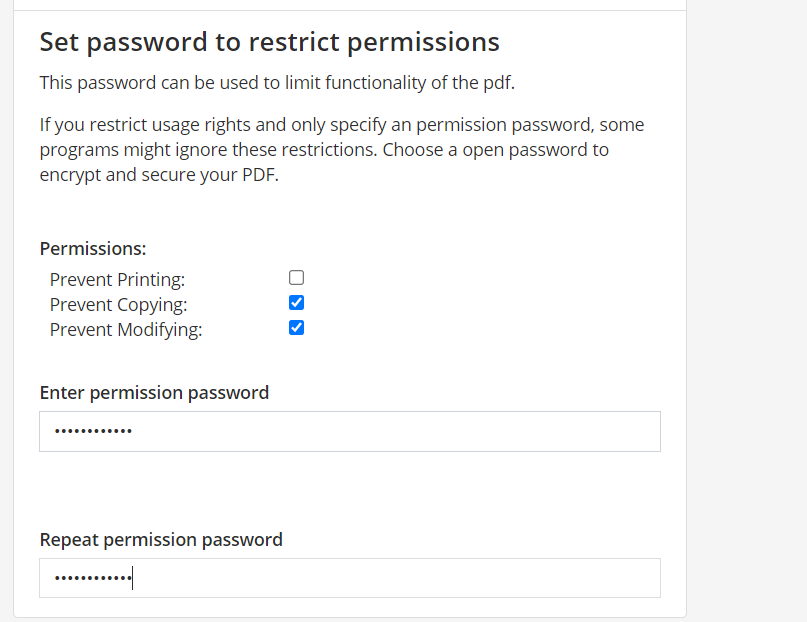
If you want to restrict editing and copying, enter the permission password. Check the box for those restrictions you wish to be applied. Then, click on the "Apply" button.

How To Password Protect A Pdf 18 related to 3) Pdf2Go

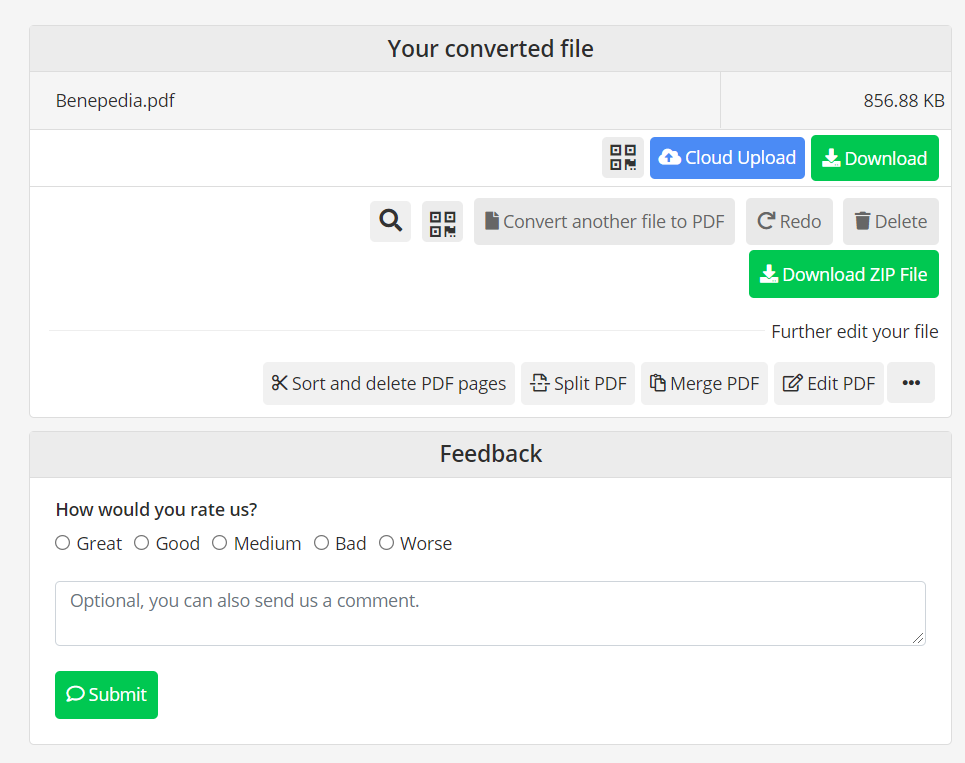
Your password-protected file will be ready to download. You can upload it to Google Drive and Dropbox.

How To Password Protect A Pdf 19 related to 3) Pdf2Go

IronPDF: a C# Library

IronPDF is a C# library that provides functions to perform various actions on PDF files. IronPDF allows you to work with PDF documents without installing any PDF software on your system. This is a fantastic feature in itself — you don't need to worry about interfering with the system settings you are working with. If you still have doubts, read the IronPDF Documentation on the IronPDF Website. If you are developing software and you need to perform operations on a PDF file, then IronPDF is an excellent choice for you. It works quickly and easily.

You will have to import the IronPDF DLL file into the project or install it with NuGet Package Manager. There is a Free Trial Version that you can use for testing all the capabilities and functions you need. The trial version is free and doesn't require the entering of any payment method in order to be downloaded.

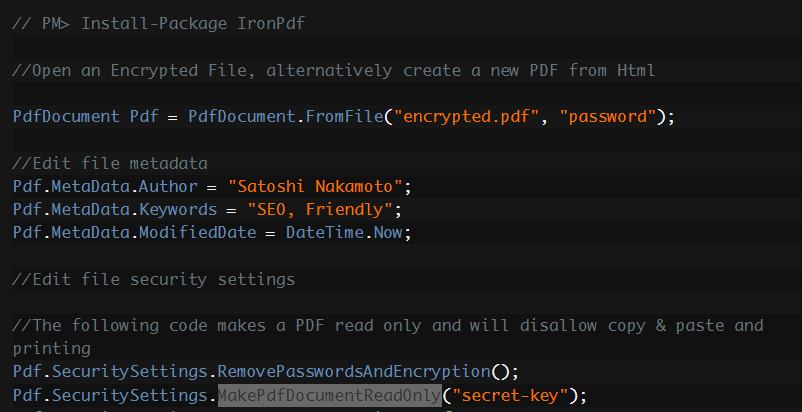
You can easily protect your PDF file with the IronPDF library. It has many available functions such as MakePdfDocumentReadOnly(), etc. These functions help you protect your PDF files easily. You can also follow this IronPDF Security Tutorial to protect a PDF.

How To Password Protect A Pdf 20 related to IronPDF: a C# Library

IronPDF is the perfect tool for completing all your PDF-related tasks — quick, efficient, and easy to use.

You can download a file project from this Project Download Link.

자주 묻는 질문

C#에서 PDF 문서를 비밀번호로 보호하려면 어떻게 해야 하나요?

IronPDF의 ProtectWithPassword() 메서드를 사용하여 C#에서 PDF 문서를 안전하게 비밀번호로 보호할 수 있습니다. 이 메서드를 사용하면 올바른 비밀번호를 가진 사용자만 PDF의 콘텐츠에 액세스할 수 있습니다.

PDF 보호를 위해 C# 라이브러리를 사용하면 어떤 이점이 있나요?

개발자는 PDF 보호를 위해 IronPDF와 같은 C# 라이브러리를 사용하면 추가적인 PDF 소프트웨어 없이도 암호 보호, 암호화, 워터마킹과 같은 보안 기능을 프로그래밍 방식으로 적용할 수 있습니다.

C# 라이브러리가 PDF 문서 암호화에 어떻게 도움이 되나요?

IronPDF는 Encrypt()와 같은 메서드를 제공하여 PDF 문서에 암호화를 추가하여 권한이 있는 사용자만 콘텐츠를 해독하고 볼 수 있도록 합니다.

IronPDF는 PDF를 읽기 전용으로 만들기 위해 어떤 방법을 제공하나요?

IronPDF는 PDF에 읽기 전용 제한을 적용하여 무단 수정을 방지하는 데 사용할 수 있는 MakePdfDocumentReadOnly() 메서드를 제공합니다.

IronPDF의 PDF 보호 기능을 사용할 수 있는 무료 평가판이 있나요?

예, IronPDF는 결제 정보를 입력하지 않고도 비밀번호 보호 및 암호화를 포함한 모든 PDF 보호 기능을 실험해 볼 수 있는 무료 평가판을 제공합니다.

온라인과 오프라인 PDF 보호 도구 중에서 선택할 때 고려해야 할 사항은 무엇인가요?

온라인과 오프라인 PDF 보호 도구 중에서 선택할 때는 보안(IronPDF와 같은 오프라인 도구는 강력한 보안을 제공함), 사용 편의성, 디지털 서명 및 암호화와 같은 추가 기능의 필요 여부와 같은 요소를 고려하세요.

비밀번호 보호가 PDF 보안을 위한 기본적인 방법인 이유는 무엇인가요?

비밀번호 보호는 문서에 대한 무단 액세스를 방지하는 기본적인 보안 계층을 제공하기 때문에 기본입니다. 그러나 더 강력한 보안을 위해 암호화로 보완해야 합니다.

IronSecureDoc이란 무엇이며 PDF 보호와 어떤 관련이 있나요?

IronSecureDoc은 연간 구독에 대한 비용 효율적인 대안으로, 디지털 서명, 편집, 암호화 및 PDF 문서 보호를 관리할 수 있는 일회성 결제 솔루션을 제공합니다.

PDF 보안을 보장하기 위한 모범 사례는 무엇인가요?

PDF 보안을 보장하는 모범 사례에는 강력한 비밀번호 사용, 암호화 적용, 편집 및 복사 제한, 디지털 서명 활용 등이 포함됩니다. IronPDF와 같은 도구는 이러한 모범 사례를 프로그래밍 방식으로 구현하는 데 도움이 될 수 있습니다.

IronPDF를 사용하여 PDF 보안 기능을 구현하는 데 사용할 수 있는 문서가 있나요?

예, IronPDF는 비밀번호 보호 및 암호화를 포함한 다양한 PDF 보안 기능을 C#에서 구현하는 방법에 대한 포괄적인 문서와 튜토리얼을 제공합니다.

.NET 10 호환성: .NET 10을 대상으로 하는 프로젝트에서 IronPDF의 비밀번호 보호 기능을 사용할 수 있나요?

예, IronPDF는 .NET 10과 완벽하게 호환되며 모든 비밀번호 보호 및 보안 기능을 지원합니다. 추가 구성 없이 .NET 10 프로젝트에서 ProtectWithPassword()SecuritySettings API와 같은 메서드를 사용할 수 있습니다.

커티스 차우
기술 문서 작성자

커티스 차우는 칼턴 대학교에서 컴퓨터 과학 학사 학위를 취득했으며, Node.js, TypeScript, JavaScript, React를 전문으로 하는 프론트엔드 개발자입니다. 직관적이고 미적으로 뛰어난 사용자 인터페이스를 만드는 데 열정을 가진 그는 최신 프레임워크를 활용하고, 잘 구성되고 시각적으로 매력적인 매뉴얼을 제작하는 것을 즐깁니다.


커티스는 개발 분야 외에도 사물 인터넷(IoT)에 깊은 관심을 가지고 있으며, 하드웨어와 소프트웨어를 통합하는 혁신적인 방법을 연구합니다. 여가 시간에는 게임을 즐기거나 디스코드 봇을 만들면서 기술에 대한 애정과 창의성을 결합합니다.