




업데이트됨 2026년 5월 8일
월별 계정 명세서를 PDF 문서로 생성하기
개발자는 IronPDF C# PDF 라이브러리를 사용하여 외부 서비스에 의존하지 않고도 .NET 프로젝트 내에서 HTML을 신뢰할 수 있는 PDF 파일로 변환할 수 있습니다.
더 읽어보기

귀하의 비즈니스는 PDF 보안과 준수를 위한 연간 구독에 너무 많은 비용을 지출하고 있습니다. 디지털 서명, 편집, 암호화 및 보호와 같은 SaaS 서비스를 관리할 수 있는 솔루션을 제공하는 IronSecureDoc을 고려해보세요, 이는 일회성 결제로 가능합니다. IronSecureDoc 문서 탐색
이 기사는 PDF 파일에서 비밀번호를 빠르게 제거하는 데 필요한 도구를 평가할 것입니다. 비밀번호를 제거하는 방법을 알려드리기 전에, 이 기사는 PDF 파일에 더 쉽게 접근할 수 있도록 도와주기 위한 것임을 유념해 주십시오. PDF 파일의 비밀번호 제거에 문제가 있는 경우, 해당 비밀번호를 이미 알고 있는지 확인하십시오. PDF 파일에서 비밀번호를 제거하는 방법에 대해 더 알아보려면 아래의 튜토리얼을 따라 주십시오.
Adobe Acrobat은 PDF 파일을 위한 시장에서 가장 인기 있는 도구 중 하나입니다. Adobe Acrobat DC로 PDF 파일을 보고, 편집하며, 심지어 새 PDF 파일을 생성할 수 있습니다. 이 프로그램은 Mac, Windows 및 Android 장치와 호환됩니다. 모든 플랫폼에서 파일에 접근할 수 있습니다. Adobe Acrobat은 PDF 문서를 설계하고 그들을 최종 완료 형태로 출력하기 위한 인상적인 기능을 가지고 있습니다. 다양한 편집 도구뿐 아니라, Adobe Reader는 매우 효율적이며 PDF 파일에서 비밀번호를 빠르게 제거할 수 있습니다.
Adobe Reader는 PDF 파일에서 비밀번호를 제거할 수 있는 소프트웨어 프로그램입니다. 이는 Adobe Acrobat과 같은 도구가 시장에 거의 없기 때문에 드문 발견입니다. Adobe Acrobat을 사용하여 PDF 비밀번호를 제거하는 방법을 살펴보겠습니다.
정확한 비밀번호를 입력하여 Adobe Acrobat에서 비밀번호로 보호된 PDF 파일을 엽니다.
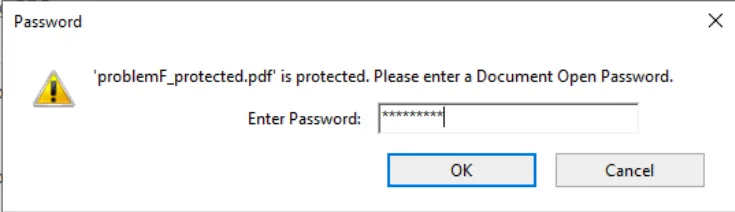 PDF 비밀번호
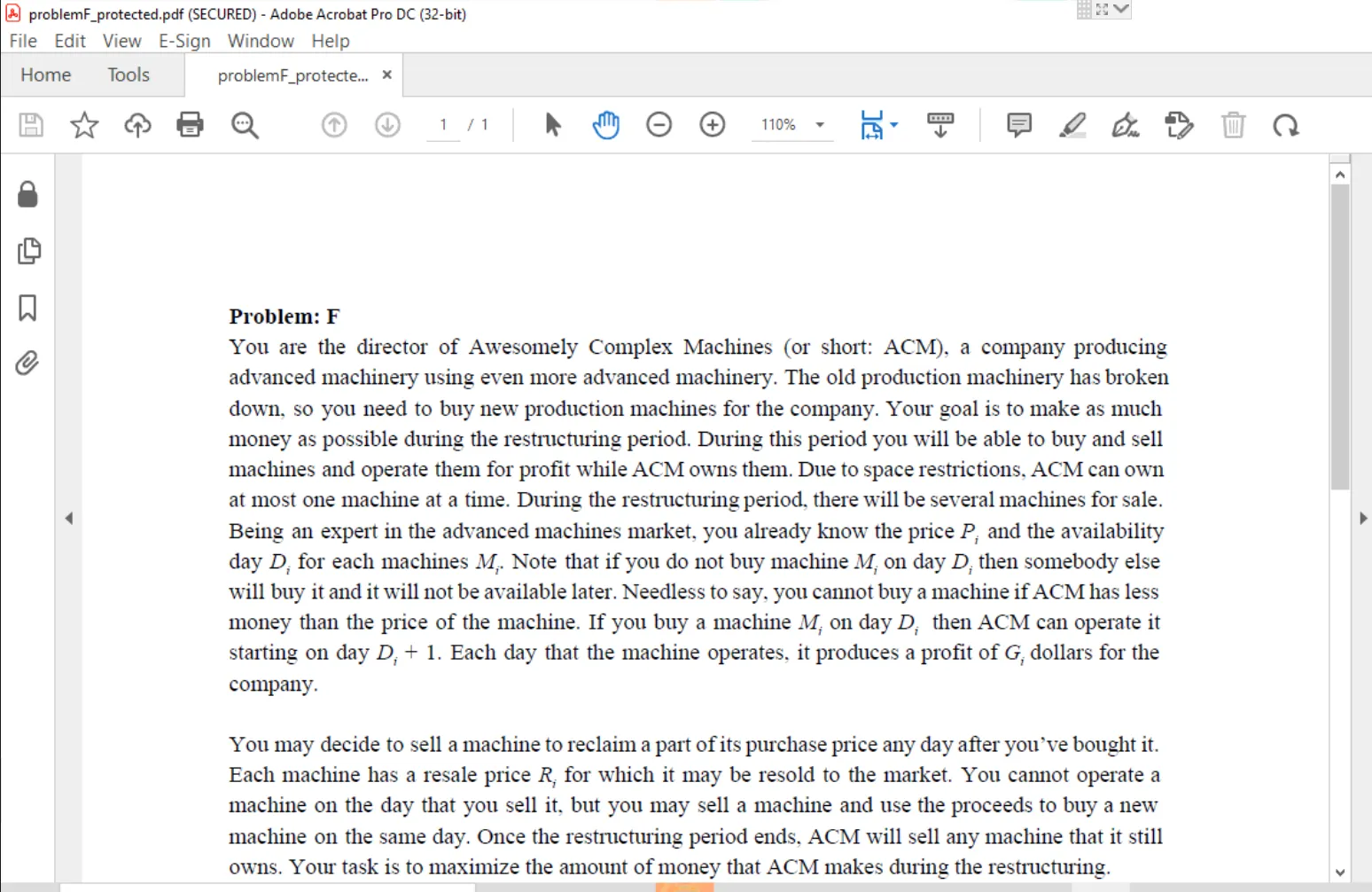 비밀번호로 보호된 PDF
메인 메뉴에서 도구 옵션으로 이동하세요. 보호 및 표준화 섹션으로 이동하여 보호 옵션을 선택하세요.
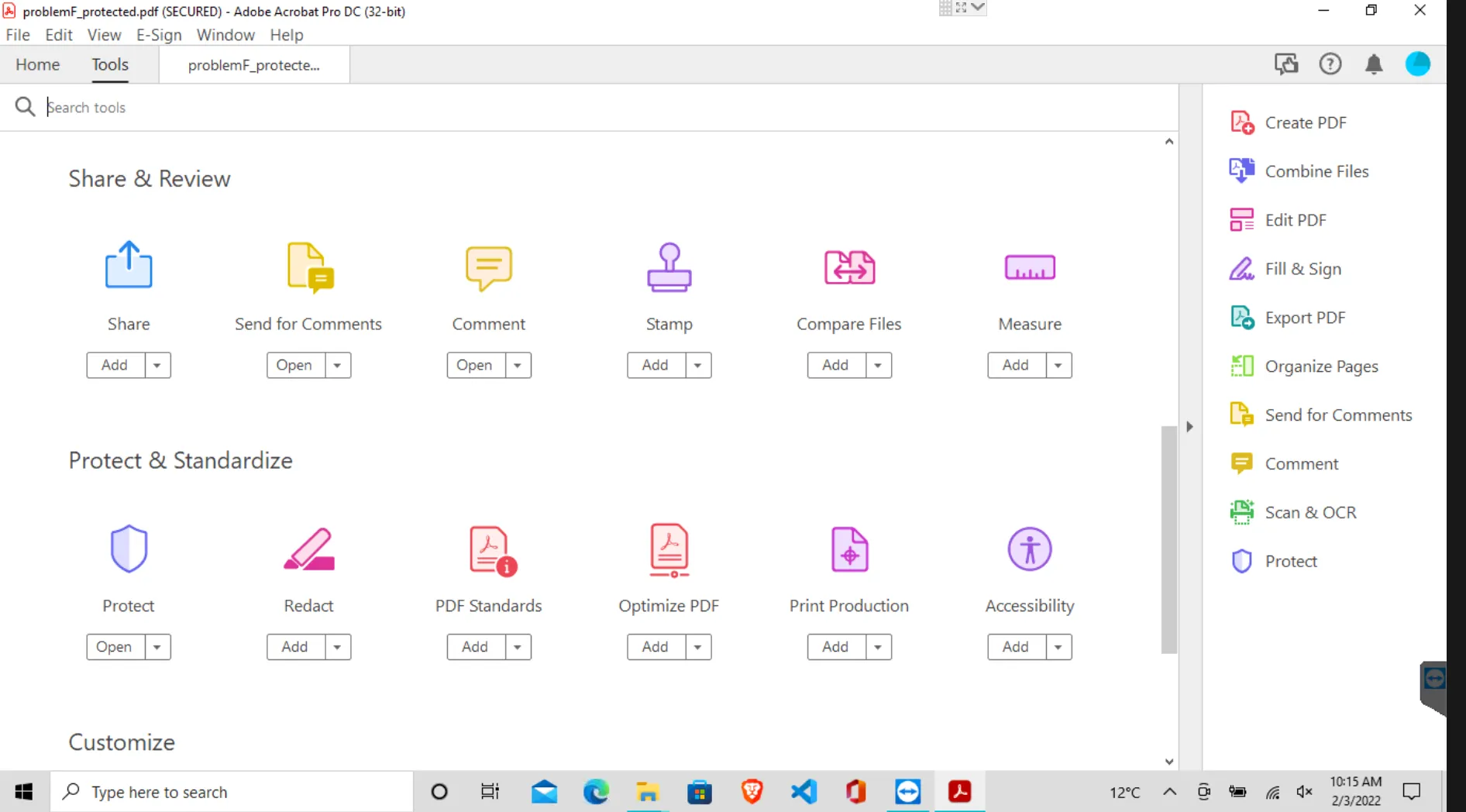 보호 옵션
보호 옵션
고급 옵션에서 "보안 제거" 옵션을 선택하세요. 확인 메시지 상자가 열립니다. 보안을 제거하려면 "확인" 버튼을 클릭하세요.
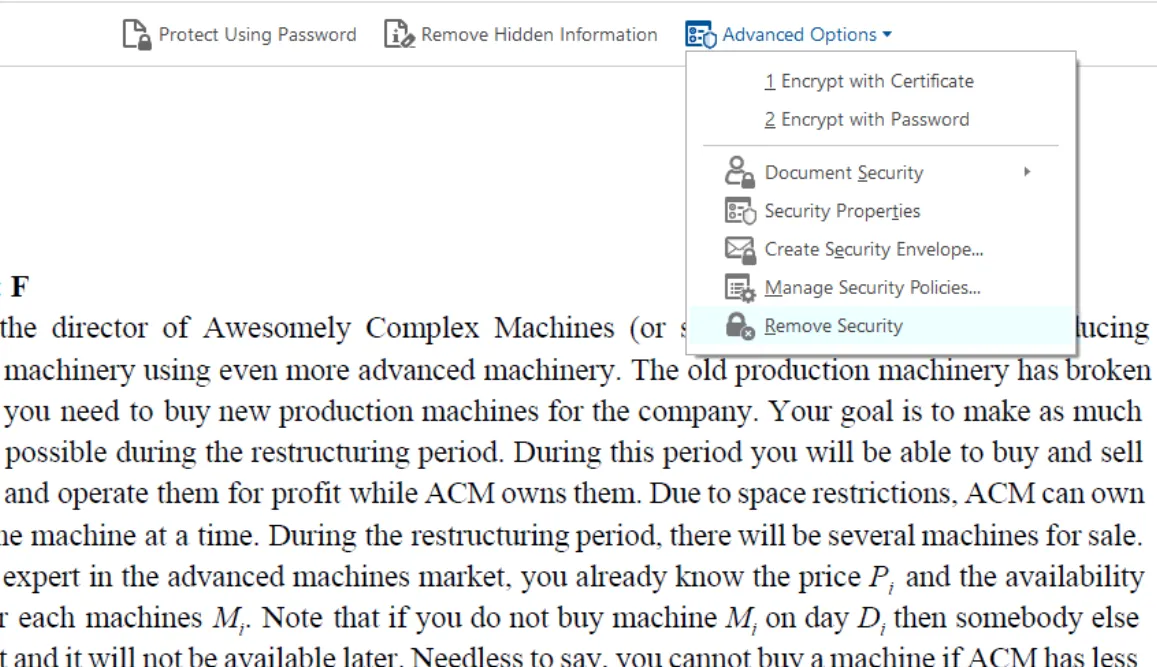 고급 옵션
고급 옵션
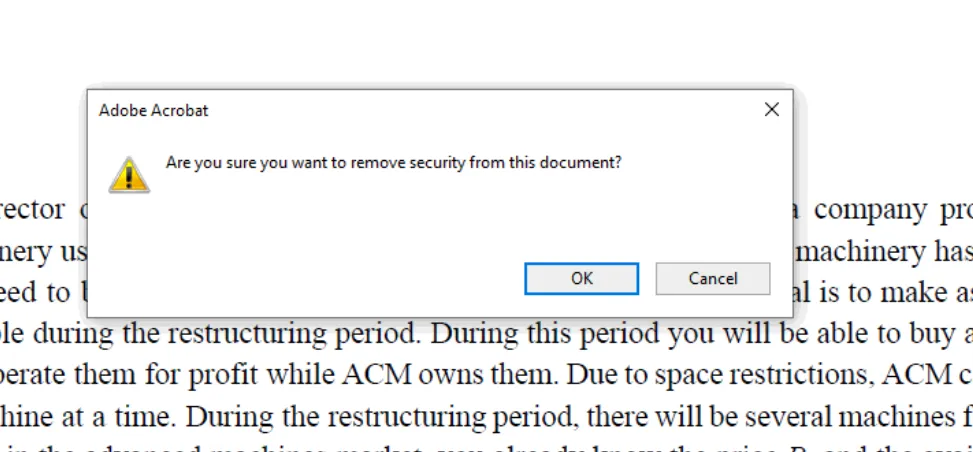 보안 제거
보안 제거
보안이 성공적으로 제거되었습니다. 이제 비밀번호 없이 이 PDF를 사용할 수 있습니다.
Google Chrome은 현대적인 웹 브라우저입니다. PDF 뷰어로 사용할 수 있으며, PDF 파일의 암호를 제거하는 데 사용할 수 있습니다. 먼저, 기기에 Google Chrome을 설치해야 합니다. PDF 파일에서 암호를 제거하는 방법을 살펴보겠습니다.
PDF 파일을 드래그하여 Google Chrome에 놓으면 Google Chrome에서 PDF 문서를 열립니다. 보호된 PDF 파일을 열려면 비밀번호를 입력해야 합니다.
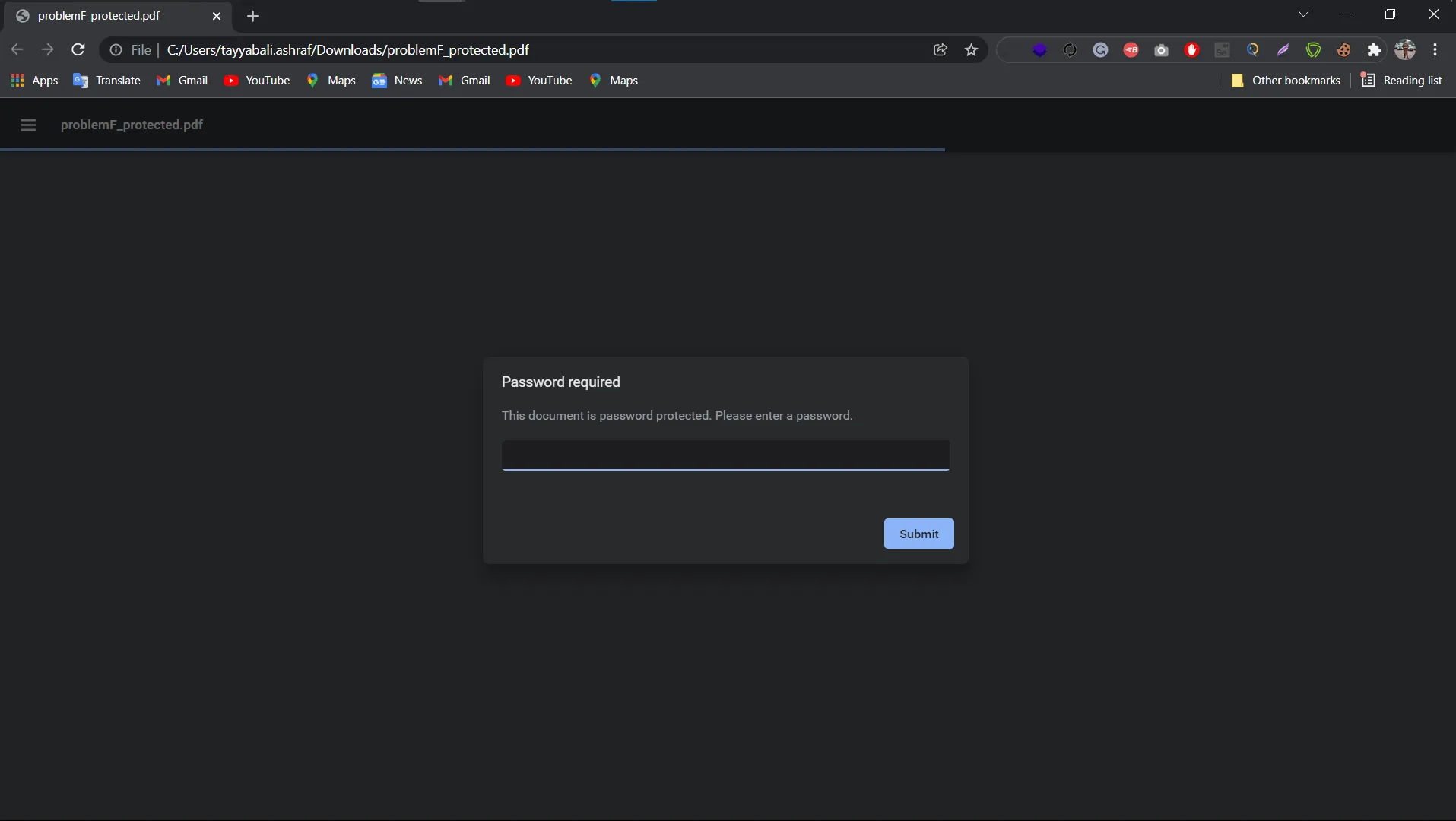 PDF 열기
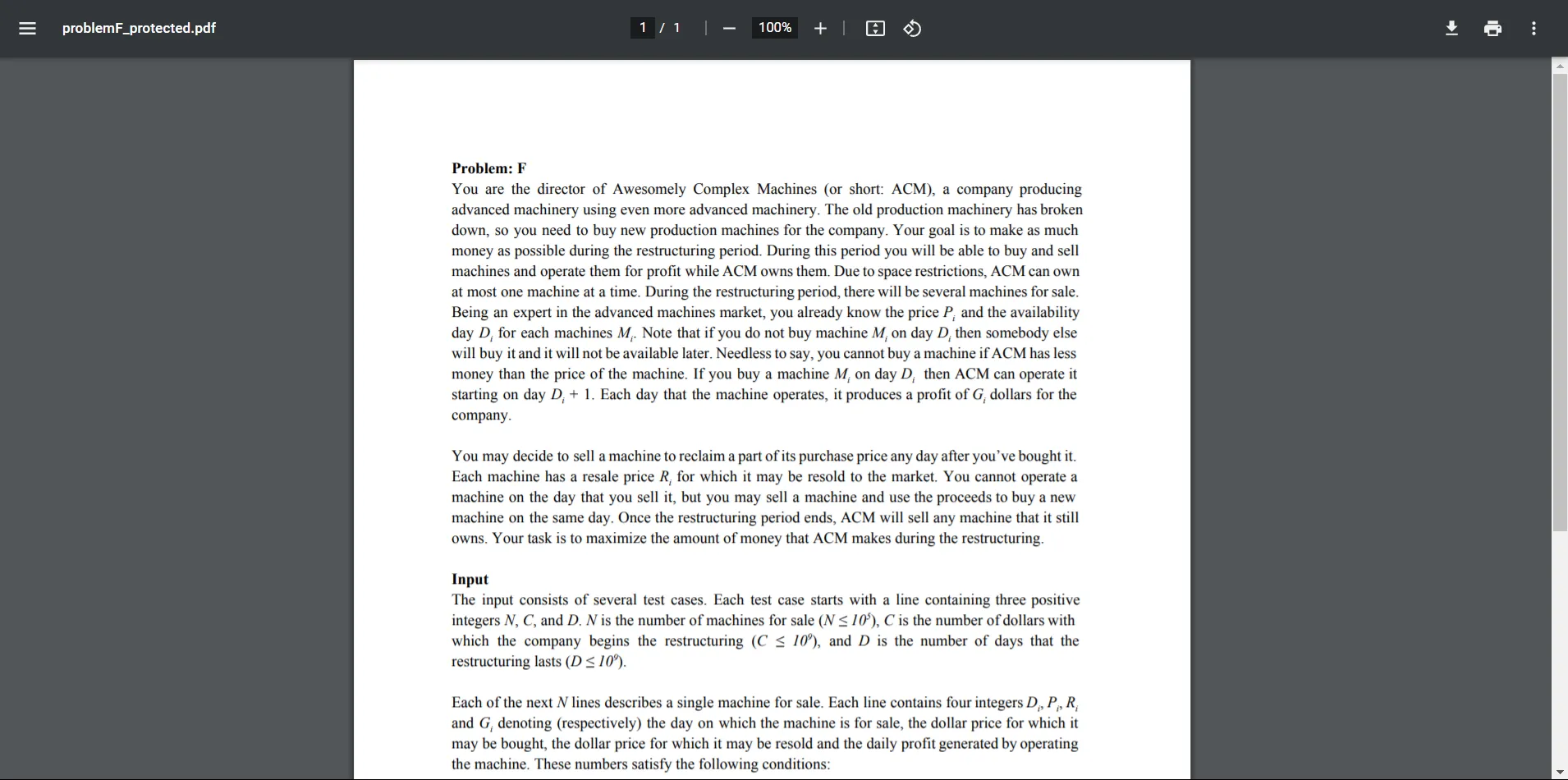 Chrome에서 PDF 열기
PDF 파일이 열립니다. 다음으로, 상단 바의 오른쪽에 있는 프린터 옵션을 클릭하거나 Ctrl+P 단축키를 클릭하여 인쇄 대화 상자를 엽니다.
인쇄 대화 상자에서 "Microsoft Print to PDF" 옵션을 선택하고 "인쇄" 버튼을 클릭하십시오.
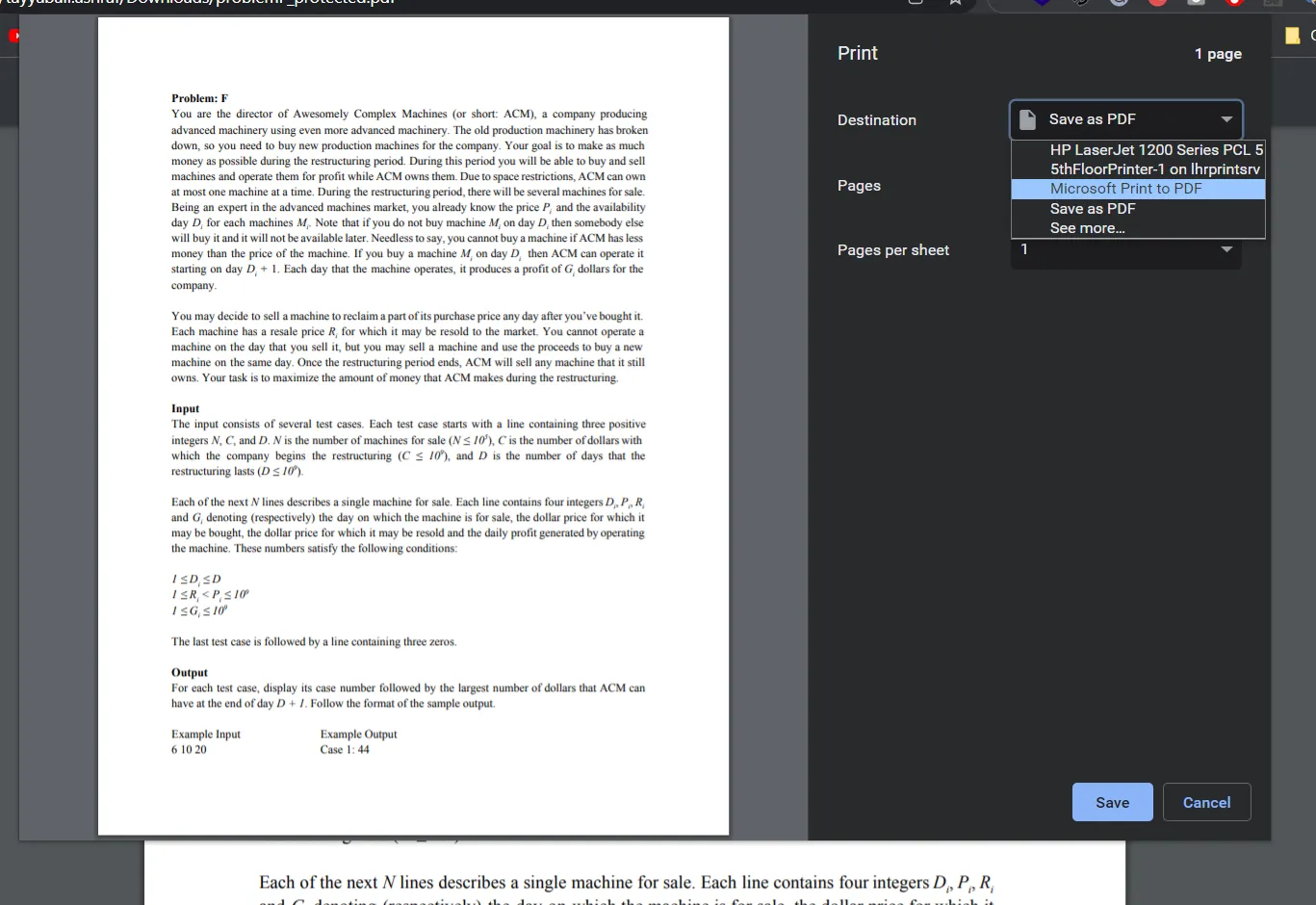 PDF 인쇄
"인쇄" 버튼을 클릭한 후 "인쇄 출력 저장" 대화 상자가 열립니다. 잠금 해제된 새 PDF 파일의 이름을 입력하고 "저장" 버튼을 클릭하십시오. 비밀번호 없이 새 PDF 파일을 저장합니다.
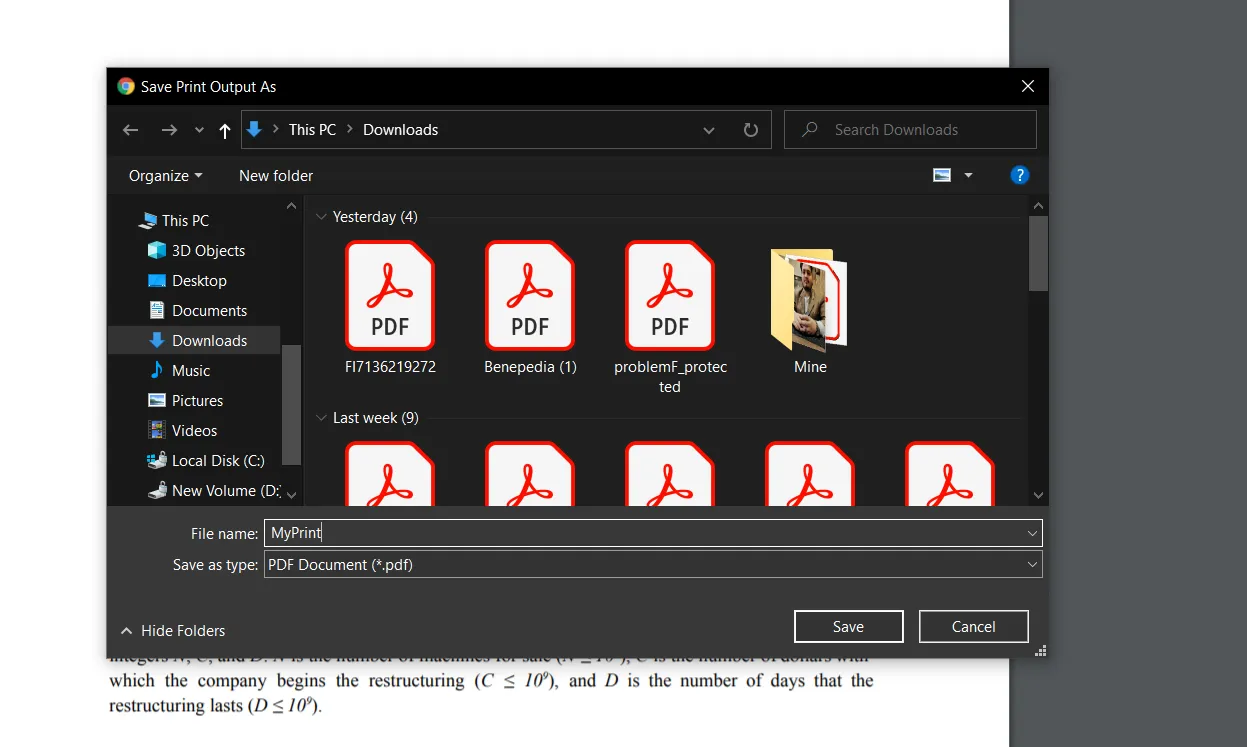 출력 저장
출력 저장
Google Chrome을 사용하는 것이 비밀번호로 보호된 PDF 파일에서 비밀번호를 제거하는 가장 쉬운 방법입니다.
Mac 사용자인 경우 외부 소프트웨어 없이 PDF 파일을 잠금 해제할 수 있습니다. macOS에는 "미리보기"라는 기본 PDF 소프트웨어가 있습니다. Mac 사용자에게 완벽한 PDF 패키지입니다. 미리보기는 Mac에 기본적으로 설치된 훌륭한 앱입니다. PDF 문서로 많은 멋진 작업을 할 수 있으니 한 번 시도해 보세요! macOS에서 PDF의 비밀번호 보호를 제거하는 것은 빠르고 간단합니다. 방법은 다음과 같습니다.
미리보기 앱에서 비밀번호로 보호된 PDF 파일을 엽니다. 파일을 열려면 비밀번호를 입력해야 합니다.
메뉴 막대에서 "파일"을 클릭하고 드롭다운 목록에서 "PDF로 내보내기"를 선택합니다.
방금 저장한 PDF 문서는 비밀번호로 보호되지 않습니다. 그것은 매번 비밀번호를 다시 입력할 필요 없이 필요할 때마다 사용할 수 있다는 것을 의미합니다.
인터넷에는 PDF 파일을 잠금 해제하는 데 도움이 되는 많은 도구가 있습니다. 이 도구들을 사용하여 PDF 파일을 쉽게 열 수 있습니다.
Smallpdf는 온라인 웹 기반 PDF 도구입니다. Adobe Acrobat 없이도 PDF 파일을 보고, 인쇄하고, 저장할 수 있습니다. Smallpdf는 브라우저에서 실행되며 모든 주요 브라우저와 호환됩니다. Smallpdf는 Chrome과 Firefox의 무료 브라우저 확장을 제공합니다. 사용하려면 Chrome 웹 스토어나 Firefox 부가 기능 스토어에서 다운로드해야 합니다. 설치하면 추가 단계 없이 브라우저에서 여는 모든 PDF 파일에 대해 자동으로 작동을 시작합니다. PDF 파일을 업로드하면 Smallpdf가 자동으로 잠금을 해제합니다. 비밀번호를 입력하기만 하면 준비 완료입니다. 프로세스가 완료되면 PDF를 컴퓨터, Dropbox 또는 Google Drive에 저장할 수 있습니다.
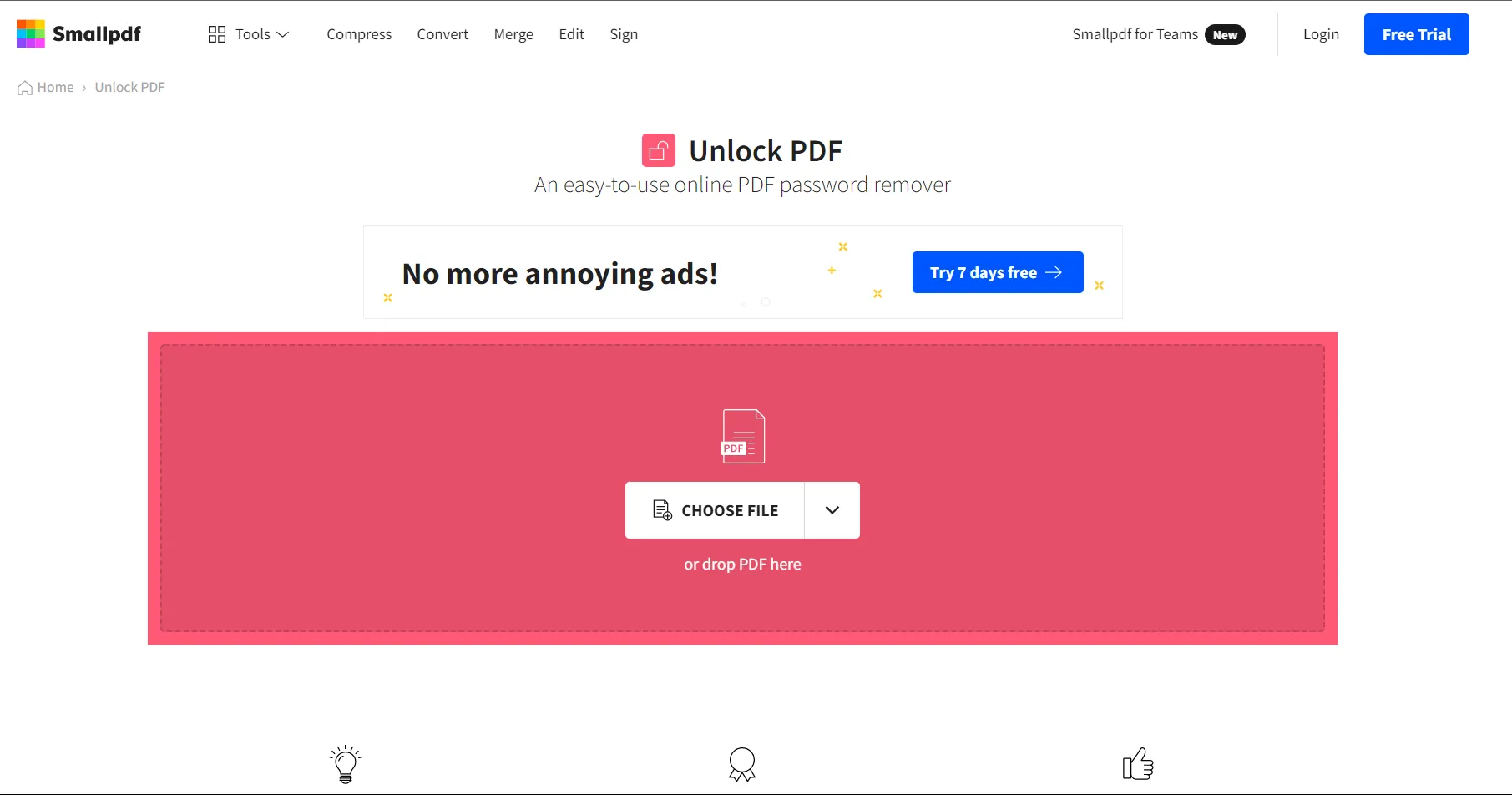 Smallpdf
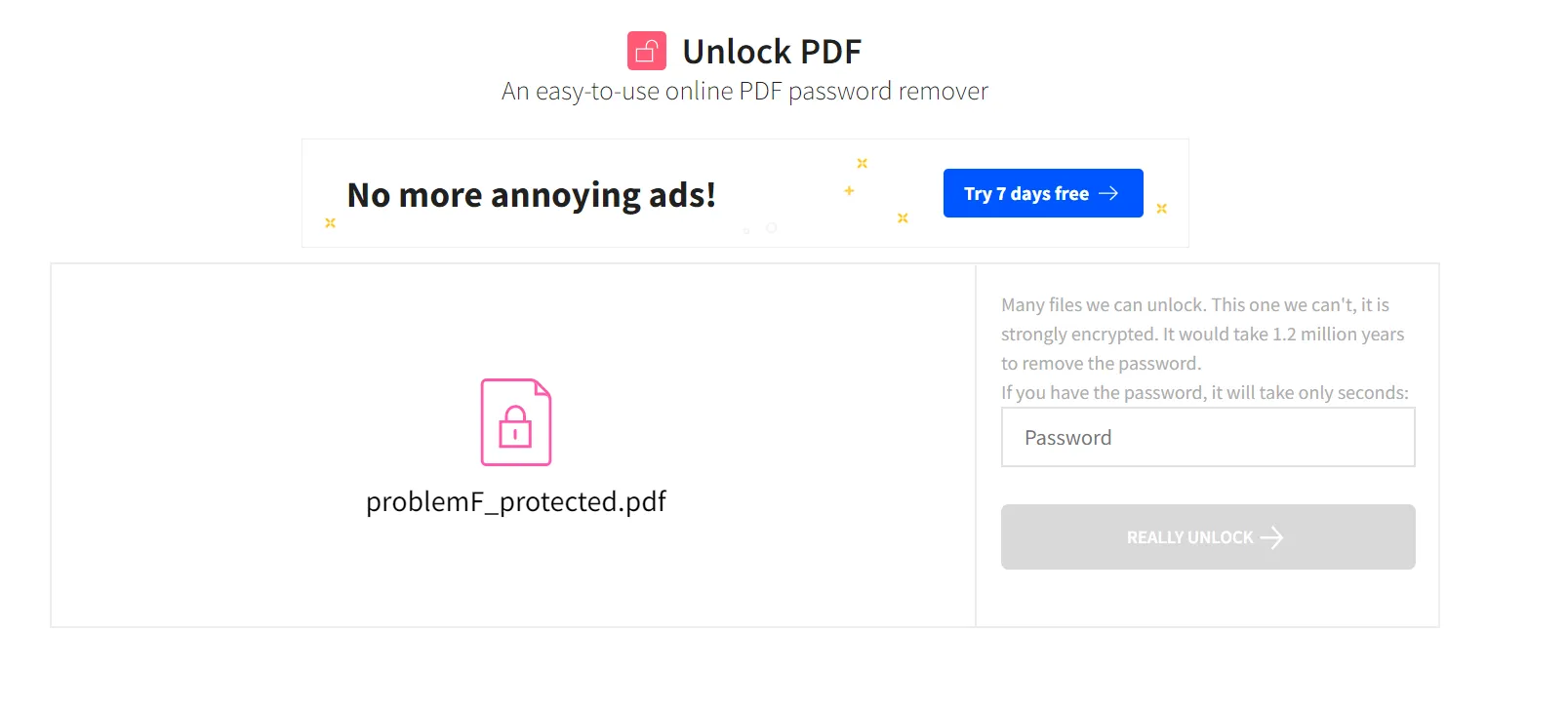 PDF 잠금 해제
Soda PDF는 많은 장점을 가진 강력한 온라인 도구입니다. Soda PDF는 무료로 제공되며 PDF를 생성, 변환, 편집 및 공유할 수 있습니다. Soda PDF는 여러 가지 방법으로 사용할 수 있습니다. 스캔한 문서를 PDF로 변환하고, PDF 문서의 텍스트를 편집하고, 주석을 추가하는 등의 작업을 수행할 수 있습니다. 파일을 동료들과 공유하는 데에도 사용할 수 있습니다. 이것은 특히 팀원이나 고객과 협력해야 하는 원격 근무자들에게 매우 유용합니다. PDF 파일을 업로드한 후에 해야 할 일은 비밀번호를 입력하는 것입니다. Soda PDF는 자동으로 PDF 잠금을 해제합니다. 작업이 완료되면 PDF를 컴퓨터에 저장하여 다운로드할 수 있습니다.
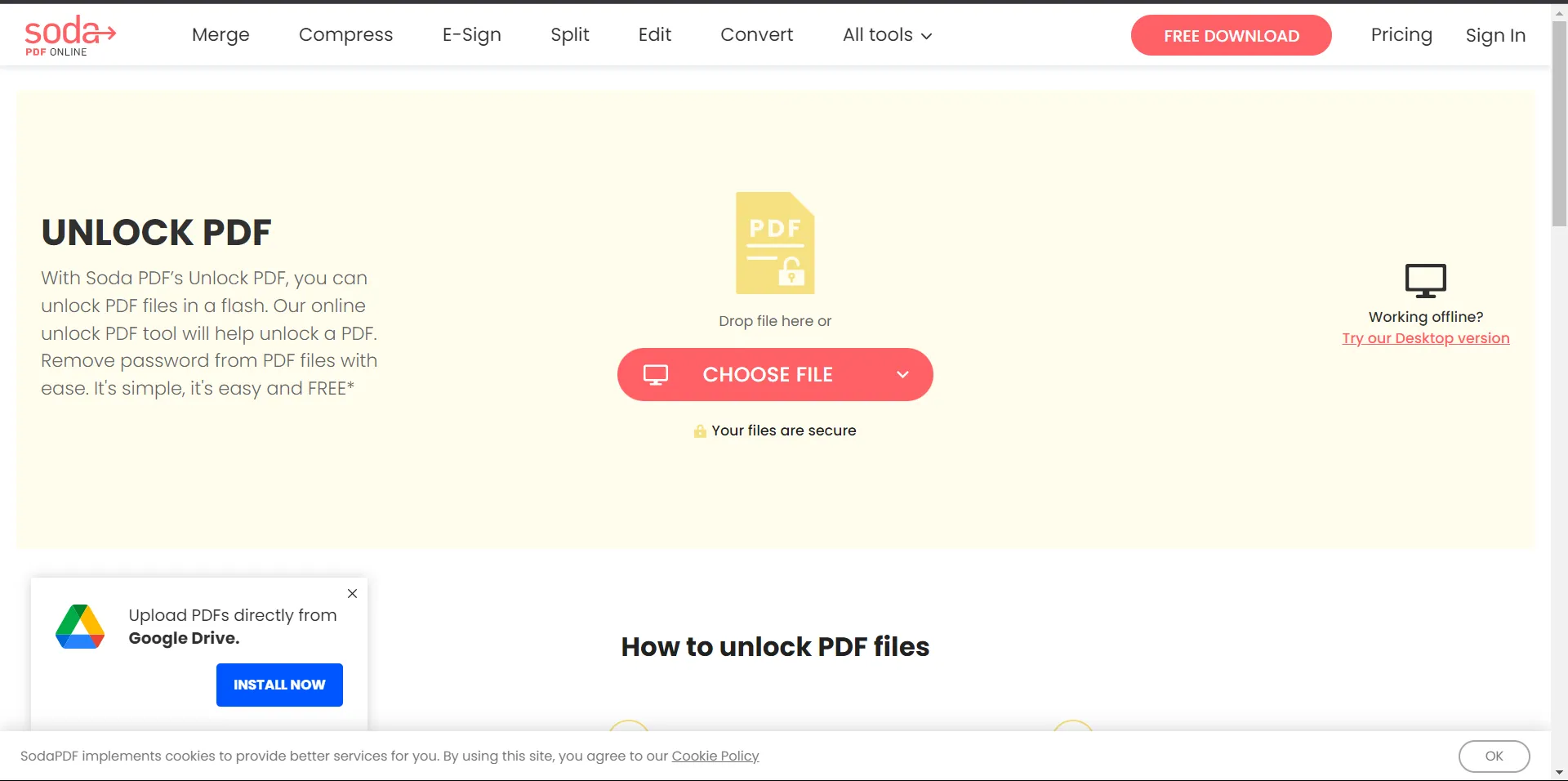 Soda PDF
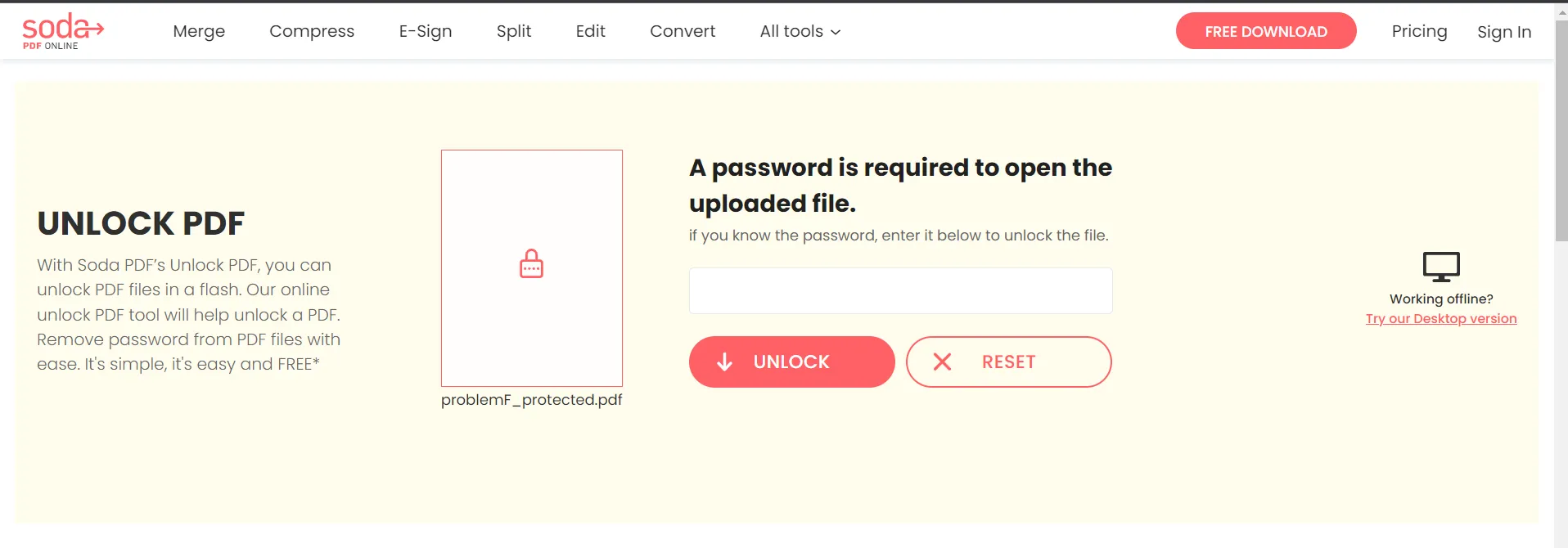 잠금 해제
잠금 해제
ILovePDF는 여러 PDF 파일 관리 작업을 무료로 제공하는 PDF 도구입니다. PDF 파일을 DOC, TXT, JPG, PNG 등 다른 형식으로 변환할 수 있습니다. 또한 무료로 PDF 파일의 잠금을 해제할 수 있는 온라인 PDF 잠금 해제기가 있으며, ILovePDF 웹사이트에 보호된 PDF 파일을 업로드하고 비밀번호를 입력하면 됩니다. PDF가 자동으로 열립니다. 열린 후에는 잠금이 해제된 PDF 파일을 컴퓨터에 직접 다운로드할 수 있습니다.
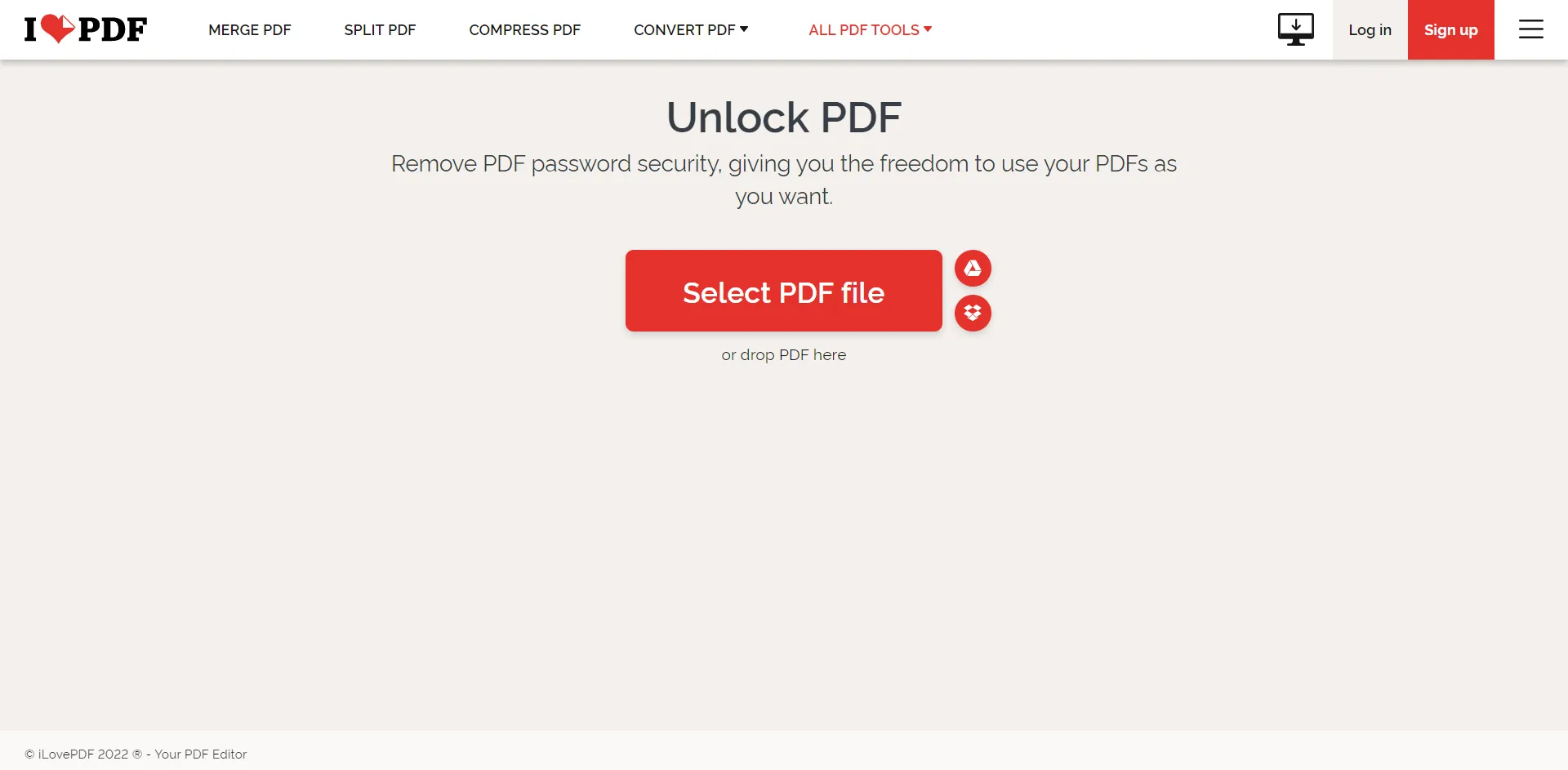 ILovePDF
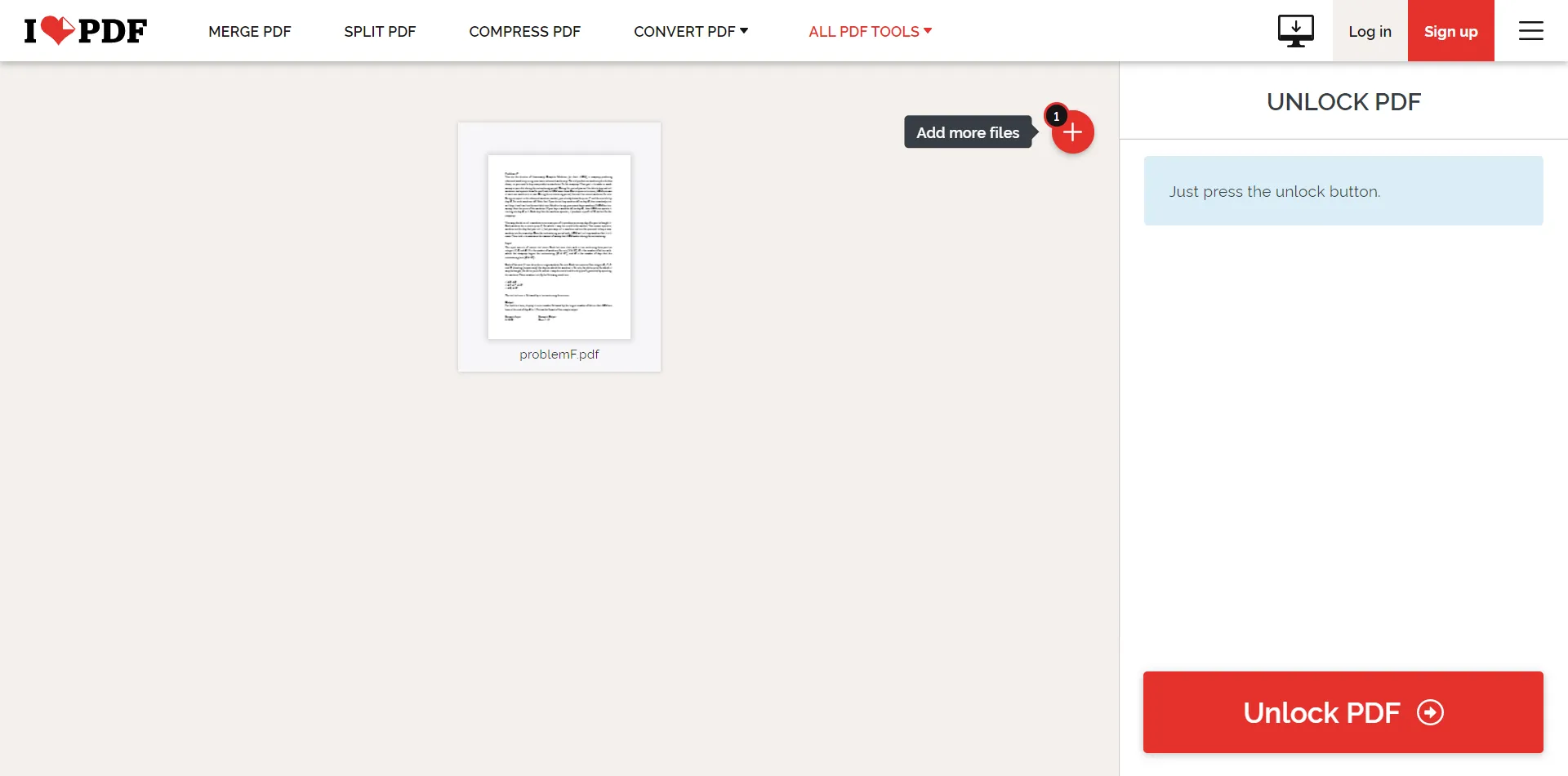 PDF 잠금 해제
IronPDF 공식 사이트는 C# 또는 VB.NET 언어를 사용하여 PDF 관련 작업을 수행하는데 완벽한 도구입니다. IronPDF는 개발자에게 PDF 문서를 이미지로 렌더링, PDF에서 텍스트와 콘텐츠를 추출, 검색 가능한 PDF 파일을 만들고 특정 항목을 검색하거나 PDF 파일의 주석 검사기 역할을 하는 방법을 제공합니다. IronPDF는 일반적인 PDF 뷰어와는 다릅니다. PDF 콘텐츠를 단순히 보이게 하는 것이 아니라 주석을 읽고 스캔하며 양식을 채우고 추출된 데이터를 .NET 응용 프로그램에서 바로 사용할 수 있게 합니다.
IronPDF 무료 체험판을 사용하여 자신의 필요에 맞게 IronPDF의 모든 기능을 확인할 수 있습니다. 쉽게 이해할 수 있도록 잘 작성된 IronPDF 문서도 있습니다. IronPDF는 또한 보호된 PDF 파일의 잠금을 해제하는 기능도 제공합니다. IronPDF의 내장 기능을 사용하여 보호된 PDF 파일의 잠금을 해제하는 것은 매우 쉽습니다. 예를 들어 RemovePasswordsAndEncryption()과 같은 기능을 사용할 수 있습니다. 추가적으로, 같은 설정에서 암호화 및 메타데이터도 처리할 수 있습니다. C# 또는 VB.NET 응용 프로그램에서 PDF 파일의 잠금을 해제하려면 다음 코드를 작성하십시오:
// First, ensure IronPdf is installed via NuGet Package Manager
// PM> Install-Package IronPdf

// Open an encrypted PDF file using its password
PdfDocument pdf = PdfDocument.FromFile("encrypted.pdf", "password");

// You can edit file metadata, if required
pdf.MetaData.Author = "Satoshi Nakamoto"; // Set the author name
pdf.MetaData.Keywords = "SEO, Friendly"; // Add keywords for SEO purposes
pdf.MetaData.ModifiedDate = DateTime.Now; // Update the modified date

// Edit file security settings to remove passwords and make it read-only
pdf.SecuritySettings.RemovePasswordsAndEncryption(); // Remove all passwords and encryption
pdf.SecuritySettings.MakePdfDocumentReadOnly("secret-key"); // Make the document read-only
pdf.SecuritySettings.AllowUserAnnotations = false; // Disallow user annotations
pdf.SecuritySettings.AllowUserCopyPasteContent = false; // Disallow copy-paste content
pdf.SecuritySettings.AllowUserFormData = false; // Disallow form data entry
pdf.SecuritySettings.AllowUserPrinting = IronPdf.Security.PdfPrintSecurity.FullPrintRights; // Allow full printing rights

// Change or set the document encryption password
pdf.SecuritySettings.OwnerPassword = "top-secret"; // Password to edit the PDF
pdf.SecuritySettings.UserPassword = "sharable"; // Password to open the PDF

// Save changes to a new file
pdf.SaveAs("secured.pdf");' First, ensure IronPdf is installed via NuGet Package Manager
' PM> Install-Package IronPdf
' Open an encrypted PDF file using its password
Dim pdf As PdfDocument = PdfDocument.FromFile("encrypted.pdf", "password")
' You can edit file metadata, if required
pdf.MetaData.Author = "Satoshi Nakamoto" ' Set the author name
pdf.MetaData.Keywords = "SEO, Friendly" ' Add keywords for SEO purposes
pdf.MetaData.ModifiedDate = DateTime.Now ' Update the modified date
' Edit file security settings to remove passwords and make it read-only
pdf.SecuritySettings.RemovePasswordsAndEncryption() ' Remove all passwords and encryption
pdf.SecuritySettings.MakePdfDocumentReadOnly("secret-key") ' Make the document read-only
pdf.SecuritySettings.AllowUserAnnotations = False ' Disallow user annotations
pdf.SecuritySettings.AllowUserCopyPasteContent = False ' Disallow copy-paste content
pdf.SecuritySettings.AllowUserFormData = False ' Disallow form data entry
pdf.SecuritySettings.AllowUserPrinting = IronPdf.Security.PdfPrintSecurity.FullPrintRights ' Allow full printing rights
' Change or set the document encryption password
pdf.SecuritySettings.OwnerPassword = "top-secret" ' Password to edit the PDF
pdf.SecuritySettings.UserPassword = "sharable" ' Password to open the PDF
' Save changes to a new file
pdf.SaveAs("secured.pdf")
커티스 차우는 칼턴 대학교에서 컴퓨터 과학 학사 학위를 취득했으며, Node.js, TypeScript, JavaScript, React를 전문으로 하는 프론트엔드 개발자입니다. 직관적이고 미적으로 뛰어난 사용자 인터페이스를 만드는 데 열정을 가진 그는 최신 프레임워크를 활용하고, 잘 구성되고 시각적으로 매력적인 매뉴얼을 제작하는 것을 즐깁니다.



IronPDF는 IRON SUITE 의 일부입니다.
10개의 .NET API 제품, 당신의 사무 문서를 위해











PDF 파일을 HTML처럼 빠르게 변환해야 할 때.


