




업데이트됨 2026년 9월 4일
월별 계정 명세서를 PDF 문서로 생성하기
개발자는 IronPDF C# PDF 라이브러리를 사용하여 외부 서비스에 의존하지 않고도 .NET 프로젝트 내에서 HTML을 신뢰할 수 있는 PDF 파일로 변환할 수 있습니다.
더 읽어보기

ASP.NET MVC 뷰를 PDF 문서로 변환하는 것은 현대 웹 애플리케이션의 핵심 요구 사항입니다. 인보이스, 보고서 또는 증명서를 생성하든, 도전 과제는 명확합니다: Razor 뷰를 형식과 스타일을 유지하는 전문가 수준의 PDF 파일로 어떻게 변환할 것인가? 이 가이드는 구식 iText 라이브러리와 ChromePdfRenderer -- 최신 Chrome 기반 솔루션 -- 를 비교하여 PDF 생성 워크플로우에 적합한 도구를 선택하도록 도와줍니다.
기업은 수많은 중요한 작업을 위해 PDF 생성에 의존합니다. 송장 시스템은 변조 방지 송장 문서가 필요합니다. HR 부서는 채용 증명서와 계약서를 생성합니다. 영업팀은 견적과 제안을 작성합니다. 교육 플랫폼은 수료 증명서를 발행합니다. 각 시나리오는 모든 장치 및 플랫폼에서 일관된 형식을 유지하는 서버 측 PDF 생성을 필수로 요구합니다.
ASP.NET 코어 문서에 따르면, Razor 뷰는 PDF로 변환할 수 있는 동적 콘텐츠를 생성하기 위한 훌륭한 템플릿 시스템을 제공합니다. 중요한 질문은 어느 라이브러리가 가장 정확하고 유지 가능하며 법적 적합한 솔루션을 제공하느냐입니다.
iText는 10년 넘게 .NET의 PDF 생성에서 중요한 위치를 차지하고 있었습니다. Java iText 라이브러리에서 포팅된 이 라이브러리는 PDF 생성에 대한 저수준 제어를 제공합니다. 하지만, HTML 변환에 대한 접근 방식은 특히 현대 웹 콘텐츠를 다룰 때 그 한계를 드러냅니다.
ASP.NET Core MVC 프로젝트에 iText를 추가하려면 패키지 관리자 콘솔을 사용하여 NuGet 패키지를 설치하십시오.
Install-Package iTextSharp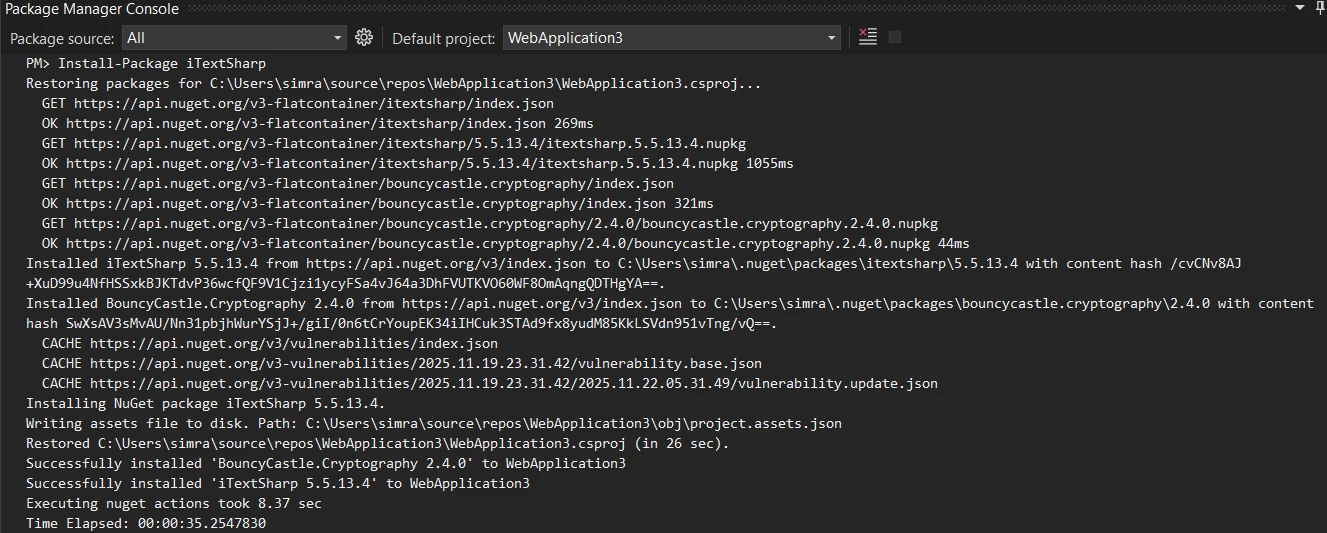
ASP.NET MVC 프로젝트에서 iText의 XMLWorkerHelper 클래스를 사용하여 MVC 뷰를 PDF로 변환하는 완전한 예제가 있습니다:
using iTextSharp.text;
using iTextSharp.tool.xml;
using iTextSharp.text.pdf;
using System.IO;

public class HomeController : Controller
{
    public ActionResult Index()
    {
        return View();
    }

    public ActionResult GeneratePDF()
    {
        // Create a simple invoice HTML
        string invoiceHtml = @"
            <h1>Invoice #1001</h1>
            <p>Date: " + DateTime.아니요w.ToString("MM/dd/yyyy") + @"</p>
            <table border='1'>
                <tr><th>Item</th><th>Price</th></tr>
                <tr><td>Product A</td><td>$99.99</td></tr>
                <tr><td>Product B</td><td>$149.99</td></tr>
            </table>
            <p><strong>Total: $249.98</strong></p>";

        // Create PDF document using iTextSharp
        using var stream = new MemoryStream();
        var document = new Document(PageSize.A4);
        PdfWriter writer = PdfWriter.GetInstance(document, stream);
        document.Open();

        using (var srHtml = new StringReader(invoiceHtml))
        {
            XMLWorkerHelper.GetInstance().ParseXHtml(writer, document, srHtml);
        }

        document.Close();

        // Return the PDF file
        return new FileContentResult(stream.ToArray(), "application/pdf")
        {
            FileDownloadName = "invoice.pdf"
        };
    }
}Imports iTextSharp.text
Imports iTextSharp.tool.xml
Imports iTextSharp.text.pdf
Imports System.IO
Public Class HomeController
Inherits Controller
Public Function Index() As ActionResult
Return View()
End Function
Public Function GeneratePDF() As ActionResult
' Create a simple invoice HTML
Dim invoiceHtml As String = "
<h1>Invoice #1001</h1>
<p>Date: " & DateTime.Now.ToString("MM/dd/yyyy") & "</p>
<table border='1'>
<tr><th>Item</th><th>Price</th></tr>
<tr><td>Product A</td><td>$99.99</td></tr>
<tr><td>Product B</td><td>$149.99</td></tr>
</table>
<p><strong>Total: $249.98</strong></p>"
' Create PDF document using iTextSharp
Using stream As New MemoryStream()
Dim document As New Document(PageSize.A4)
Dim writer As PdfWriter = PdfWriter.GetInstance(document, stream)
document.Open()
Using srHtml As New StringReader(invoiceHtml)
XMLWorkerHelper.GetInstance().ParseXHtml(writer, document, srHtml)
End Using
document.Close()
' Return the PDF file
Return New FileContentResult(stream.ToArray(), "application/pdf") With {
.FileDownloadName = "invoice.pdf"
}
End Using
End Function
End Class이 예제는 HTML 콘텐츠로부터 기본 PDF 문서를 생성합니다. XMLWorkerHelper 클래스는 HTML 문자열을 처리하여 객체 모델을 사용해 PDF 문서에 요소를 추가합니다. PdfWriter는 실제 PDF 생성 과정을 처리하며, Document는 페이지 구조를 관리합니다.

XMLWorkerHelper 클래스는 기본 HTML 태그와 인라인 CSS를 지원합니다. 최신 CSS3 속성, 플렉스박스 레이아웃 및 그리드 시스템은 렌더링되지 않습니다. JavaScript 기반 콘텐츠는 완전히 사라집니다. 그래디언트, 그림자, 변환과 같은 복잡한 스타일은 무시됩니다. 표준 Bootstrap 클래스조차 적용되지 않아, 신중하게 디자인된 뷰가 평범하고 비전문적으로 보입니다.
많은 개발자들이 MVC 뷰를 iText로 PDF로 변환할 때 이 제한 사항을 Stack Overflow에 보고했으며, 이는 좌절로 이어졌습니다.
더 걱정스러운 것은 iText의 라이선스 모델입니다. 라이브러리는 AGPL 라이센스를 사용하며, 무료 버전을 사용하려면 전체 애플리케이션을 오픈 소스로 제공해야 합니다. 상업용 라이센스는 연간 수천 달러부터 시작하여 많은 기업에 비싸게 느껴질 수 있습니다. 이 라이선스 제한 사항은 많은 개발자들이 상업적 개발 요구에 더 잘 맞는 대안을 찾게 했습니다. Microsoft의 .NET 문서에서 논의된 바와 같이, 상업 프로젝트에서 적절한 라이센스를 가진 라이브러리를 선택하는 것은 매우 중요합니다.
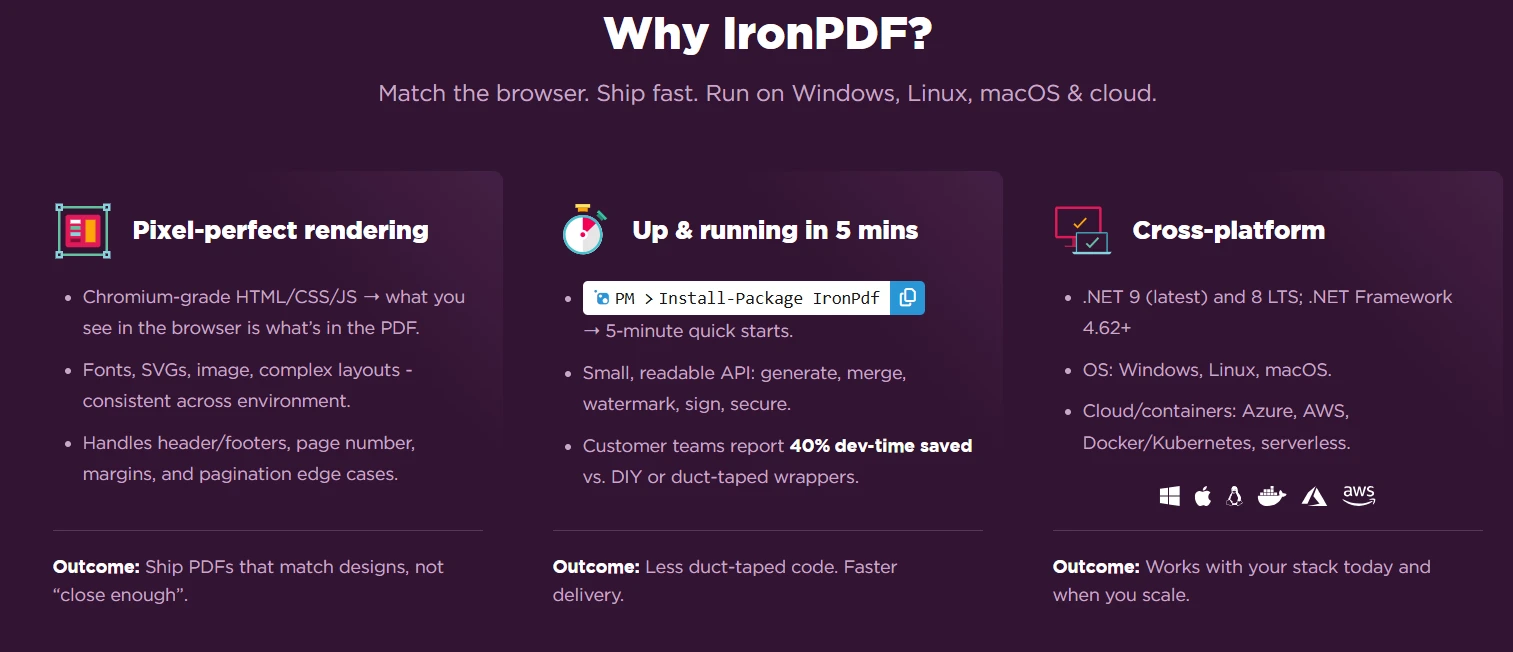
ChromePdfRenderer는 ASP.NET Core MVC에서 PDF 생성에 대한 현대적인 접근 방식을 제공합니다. Chromium 렌더링 엔진을 기반으로 하여, Google Chrome에서 보이는 그대로 HTML을 PDF로 변환하며, 모든 스타일링, JavaScript 실행, 반응형 디자인 요소를 보존합니다.
NuGet 패키지 관리자 콘솔을 통해 ChromePdfRenderer를 프로젝트에 추가하십시오:
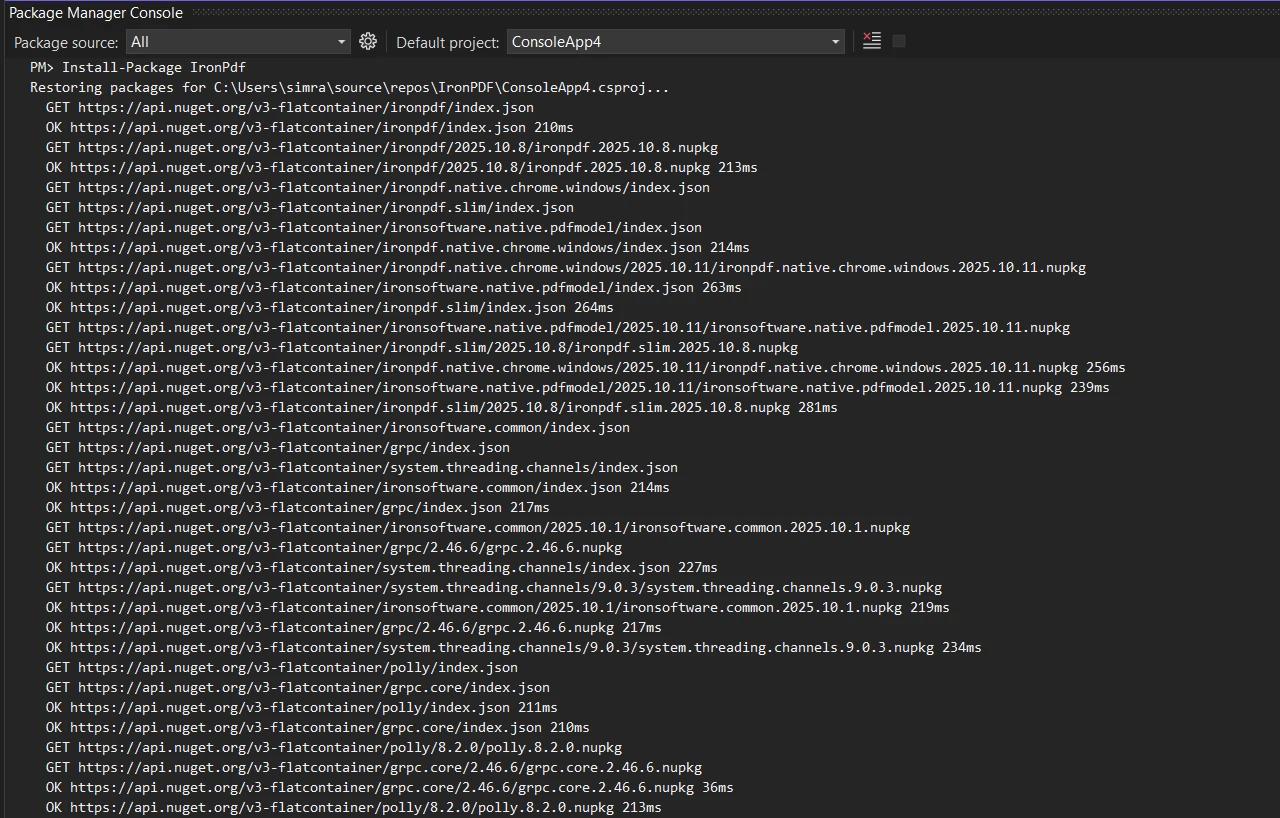
위에서 생성된 동일한 송장은 이제 ChromePdfRenderer의 ChromePdfRenderer를 사용하여 최신 CSS와 전체 HTML5 렌더링을 이용합니다:
using IronPdf;

public class HomeController : Controller
{
    public ActionResult Index()
    {
        return View();
    }

    public ActionResult GenerateModernPDF()
    {
        // Create a styled invoice HTML with modern CSS
        string invoiceHtml = @"
            <style>
                body { font-family: 'Segoe UI', Arial; padding: 40px; }
                .invoice-header {
                    background: linear-gradient(135deg, #667eea 0%, #764ba2 100%);
                    color: white;
                    padding: 30px;
                    border-radius: 10px;
                }
                table {
                    width: 100%;
                    border-collapse: collapse;
                    margin: 20px 0;
                }
                th {
                    background-color: #f3f4f6;
                    padding: 12px;
                    text-align: left;
                }
                td {
                    padding: 12px;
                    border-bottom: 1px solid #e5e7eb;
                }
                .total {
                    font-size: 24px;
                    color: #10b981;
                    text-align: right;
                    margin-top: 20px;
                }
            </style>
            <div class='invoice-header'>
                <h1>Invoice #1001</h1>
                <p>Date: " + DateTime.아니요w.ToString("MMMM dd, yyyy") + @"</p>
            </div>
            <table>
                <tr><th>Item</th><th>Quantity</th><th>Price</th></tr>
                <tr><td>Premium Package</td><td>1</td><td>$99.99</td></tr>
                <tr><td>Professional Services</td><td>2</td><td>$149.99</td></tr>
            </table>
            <div class='total'>Total: $249.98</div>
            <p>Page numbers and additional content can be added to each page.</p>";

        // Use Chromium engine for rendering
        var renderer = new ChromePdfRenderer();
        var pdf = renderer.RenderHtmlAsPdf(invoiceHtml);

        // Set content disposition for download
        Response.Headers.Append("Content-Disposition", "attachment; filename=modern-invoice.pdf");

        // Return the PDF file with binary data
        return new FileContentResult(pdf.BinaryData, "application/pdf");
    }
}Imports IronPdf
Public Class HomeController
Inherits Controller
Public Function Index() As ActionResult
Return View()
End Function
Public Function GenerateModernPDF() As ActionResult
' Create a styled invoice HTML with modern CSS
Dim invoiceHtml As String = "
<style>
body { font-family: 'Segoe UI', Arial; padding: 40px; }
.invoice-header {
background: linear-gradient(135deg, #667eea 0%, #764ba2 100%);
color: white;
padding: 30px;
border-radius: 10px;
}
table {
width: 100%;
border-collapse: collapse;
margin: 20px 0;
}
th {
background-color: #f3f4f6;
padding: 12px;
text-align: left;
}
td {
padding: 12px;
border-bottom: 1px solid #e5e7eb;
}
.total {
font-size: 24px;
color: #10b981;
text-align: right;
margin-top: 20px;
}
</style>
<div class='invoice-header'>
<h1>Invoice #1001</h1>
<p>Date: " & DateTime.Now.ToString("MMMM dd, yyyy") & "</p>
</div>
<table>
<tr><th>Item</th><th>Quantity</th><th>Price</th></tr>
<tr><td>Premium Package</td><td>1</td><td>$99.99</td></tr>
<tr><td>Professional Services</td><td>2</td><td>$149.99</td></tr>
</table>
<div class='total'>Total: $249.98</div>
<p>Page numbers and additional content can be added to each page.</p>"
' Use Chromium engine for rendering
Dim renderer As New ChromePdfRenderer()
Dim pdf = renderer.RenderHtmlAsPdf(invoiceHtml)
' Set content disposition for download
Response.Headers.Append("Content-Disposition", "attachment; filename=modern-invoice.pdf")
' Return the PDF file with binary data
Return New FileContentResult(pdf.BinaryData, "application/pdf")
End Function
End ClassChromePdfRenderer는 Chrome이 표시하는 방식대로 정확하게 HTML을 변환합니다. 그래디언트 배경, 최신 글꼴, 정교한 스타일링은 모두 정확하게 렌더링됩니다. 렌더러는 플렉스박스, 그리드 레이아웃 및 CSS 변환을 정적 프레임으로 렌더링하는 등 iText가 처리할 수 없는 복잡한 CSS 속성을 처리합니다. RenderHtmlAsPdf 메서드는 MVC에서 HTML을 PDF로 변환하는 과정을 간소화합니다.

무료 체험판을 시작하십시오 그리고 Chrome 기반 렌더링 엔진으로 현대적인 PDF 생성을 경험하십시오.
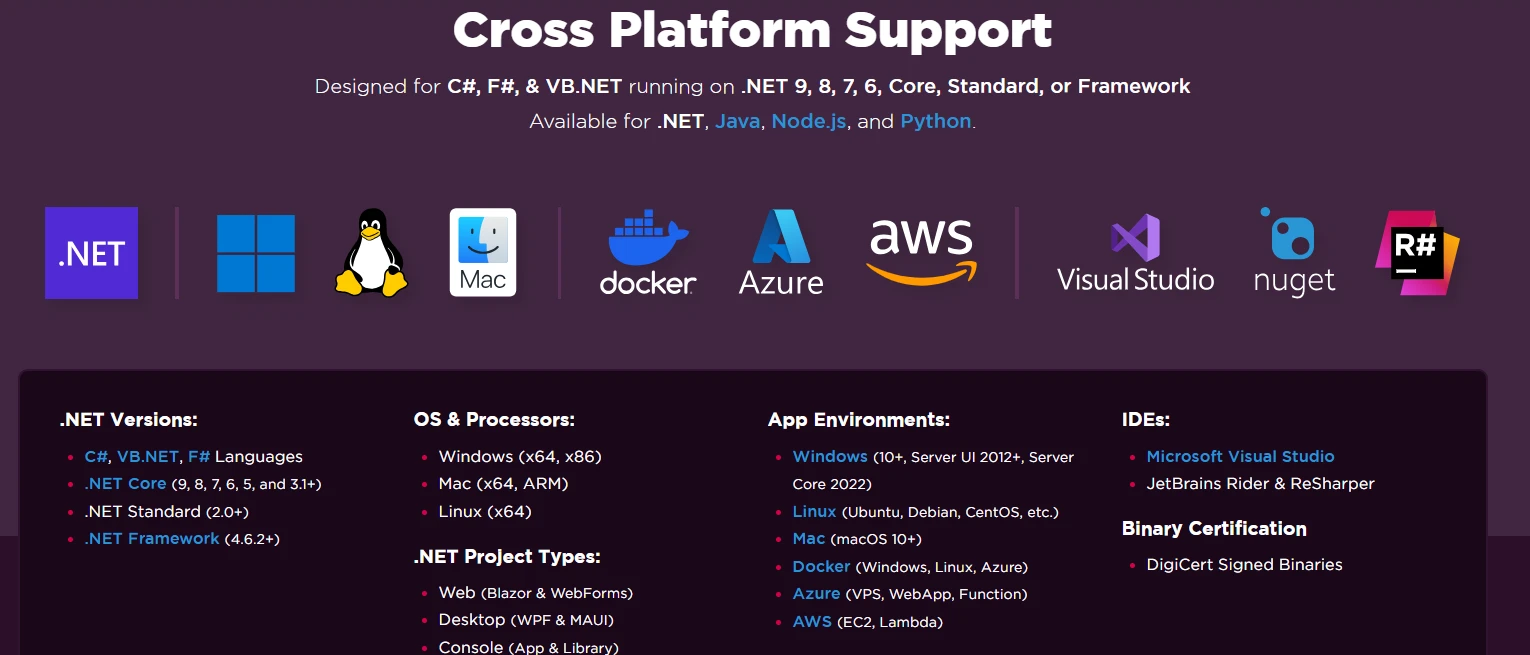
.NET MVC 뷰 변환을 위한 iText와 ChromePdfRenderer의 비교에서는 렌더링 품질, 개발자 경험, 라이선싱과 같은 여러 요소가 명확하게 차별화됩니다.
| 특징 | iText | ChromePdfRenderer |
|---|---|---|
| HTML5 지원 | 제한된 | 전체 |
| CSS3 렌더링 | 기본만 | 완전함 |
| JavaScript 실행 | 아니요 | 예 |
| 플렉스박스/그리드 지원 | 아니요 | 예 |
| Bootstrap 호환성 | 부분적 | 전체 |
| 웹 글꼴 지원 | 제한된 | 완전함 |
| SVG 그래픽 | 아니요 | 예 |
| 반응형 디자인 | 아니요 | 예 |
| API 복잡성 | 저수준 | 고급 |
이들 라이브러리 간의 라이선스 차이는 상업용 개발에 크게 영향을 미칩니다. iText의 AGPL 라이선스는 많은 기업이 수용할 수 없는 법적 의무를 만들어냅니다. 무료 버전을 사용하면 자체 비즈니스 로직을 포함하여 애플리케이션 전체를 오픈 소싱해야 합니다. 이 제한은 고가의 상업용 라이선스를 구입하지 않는 한 대부분의 상업 프로젝트에 iText가 적합하지 않게 만듭니다.
ChromePdfRenderer는 간단한 상업용 라이선스를 $999부터 제공하여 단일 개발자에게 적합합니다. 라이센스는 1년 간의 업데이트 및 지원을 포함하며, 애플리케이션을 오픈 소싱해야 할 의무는 없습니다. 이 투명한 요금 모델은 일반적인 소프트웨어 개발 예산과 일치하며, C#에서 MVC 뷰를 PDF로 변환할 때 모든 규모의 기업이 전문 PDF 생성을 액세스할 수 있도록 합니다.
출력을 비교할 때 렌더링 품질 차이는 즉시 명확해집니다. iText는 2000년대 초반의 문서와 유사한 기본 PDF를 생성합니다. 테이블에는 적절한 스타일이 부족하고, 글꼴은 시스템 표준으로 기본 설정되며, 현대적인 디자인 요소들은 완전히 사라집니다. 결과적인 PDF는 비전문적으로 보이며 응용 프로그램의 브랜딩과 일치하지 않습니다.
ChromePdfRenderer는 웹 디자인과 일치하는 픽셀 완벽한 PDF를 생성합니다. 그라디언트는 정확하게 렌더링되고, 사용자 정의 글꼴은 올바르게 표시되며, 복잡한 레이아웃은 구조를 유지합니다. Chromium 엔진은 모든 생성된 문서에서 브랜딩 정체성과 전문성을 유지하여 웹 보기와 동일한 모습의 PDF를 보장합니다.
기본적인 HTML 변환을 넘어, ChromePdfRenderer는 전문가적인 PDF 생성 속도를 높이는 Enterprise급 기능을 제공합니다. 완전한 API 문서은 MVC 뷰를 PDF로 변환하기 위한 라이브러리의 광범위한 기능을 보여줍니다.
동적인 콘텐츠가 포함된 전문 헤더와 푸터를 추가합니다:
var renderer = new ChromePdfRenderer
{
    RenderingOptions = new ChromePdfRenderOptions
    {
        HtmlHeader = new HtmlHeaderFooter
        {
            MaxHeight = 25,
            HtmlFragment = "<div style='text-align: center'>Company Name</div>"
        },
        HtmlFooter = new HtmlHeaderFooter
        {
            MaxHeight = 20,
            HtmlFragment = "<center>Page {page} of {total-pages}</center>"
        }
    }
};Dim renderer = New ChromePdfRenderer With {
.RenderingOptions = New ChromePdfRenderOptions With {
.HtmlHeader = New HtmlHeaderFooter With {
.MaxHeight = 25,
.HtmlFragment = "<div style='text-align: center'>Company Name</div>"
},
.HtmlFooter = New HtmlHeaderFooter With {
.MaxHeight = 20,
.HtmlFragment = "<center>Page {page} of {total-pages}</center>"
}
}
}이 구성은 모든 페이지에 일관된 브랜딩을 추가합니다. 플레이스홀더 {page}와 {total-pages}는 올바른 값으로 자동으로 채워져 문서 전체에서 정확한 페이지 매김을 보장합니다. 더 많은 구성 옵션은 헤더 및 푸터 가이드를 참조하십시오.
ChromePdfRenderer의 보안 기능을 사용하여 비밀번호 및 권한으로 민감한 문서를 보호합니다:
var pdf = renderer.RenderHtmlAsPdf(html);

// Add password protection
pdf.SecuritySettings.UserPassword = "user123";
pdf.SecuritySettings.OwnerPassword = "owner456";

// Set permissions
pdf.SecuritySettings.AllowUserPrinting = IronPdf.Security.PdfPrintSecurity.FullPrintRights;
pdf.SecuritySettings.AllowUserCopyPasteContent = false;Dim pdf = renderer.RenderHtmlAsPdf(html)
' Add password protection
pdf.SecuritySettings.UserPassword = "user123"
pdf.SecuritySettings.OwnerPassword = "owner456"
' Set permissions
pdf.SecuritySettings.AllowUserPrinting = IronPdf.Security.PdfPrintSecurity.FullPrintRights
pdf.SecuritySettings.AllowUserCopyPasteContent = False이러한 보안 설정은 무단 액세스를 방지하고 MVC 뷰를 PDF로 변환할 때 수신자가 PDF와 상호작용할 수 있는 방식을 제어합니다. 전체 소유자 통제를 유지하면서 인쇄, 복사 및 편집을 제한할 수 있습니다. 자세한 내용은 PDF 보안 문서를 참조하십시오.

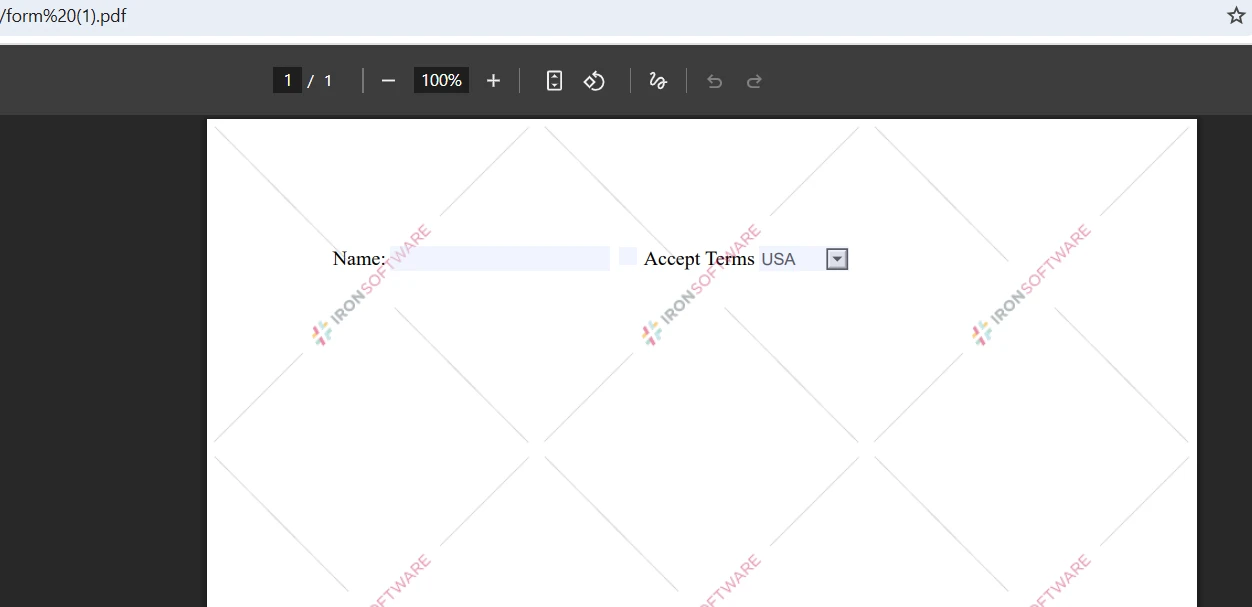
ChromePdfRenderer는 별도의 도구 없이 HTML 양식을 대화형 PDF 양식으로 변환합니다:
string formHtml = @"
    <form>
        <label>Name:</label>
        <input type='checkbox'> Accept Terms
        <select name='country'>
            <option>USA</option>
            <option>Canada</option>
        </select>
    </form>";

var pdf = renderer.RenderHtmlAsPdf(formHtml);Imports System
Dim formHtml As String = "
<form>
<label>Name:</label>
<input type='checkbox'> Accept Terms
<select name='country'>
<option>USA</option>
<option>Canada</option>
</select>
</form>"
Dim pdf = renderer.RenderHtmlAsPdf(formHtml)결과적인 PDF는 양식의 상호작용성을 유지하여 사용자가 PDF 리더에서 직접 필드를 채울 수 있게 합니다. 이 기능은 별도의 양식 생성 도구가 필요 없게 하여 문서 작업 흐름을 단순화합니다. 양식 문서에서 추가 옵션을 확인하세요.
현대적인 라이브러리를 사용하더라도 최적의 PDF 출력을 보장하기 위해 특정 솔루션이 필요한 특정 문제가 있습니다. 다음 패턴은 MVC 뷰를 PDF로 변환할 때 개발자가 직면하는 가장 빈번한 문제를 해결합니다.
HTML 파일을 PDF 형식으로 변환할 때 복잡한 CSS와의 최상의 결과를 위해 인쇄 미디어 쿼리를 사용합니다:
renderer.RenderingOptions.CssMediaType = IronPdf.Rendering.PdfCssMediaType.Print;renderer.RenderingOptions.CssMediaType = IronPdf.Rendering.PdfCssMediaType.Print이 설정은 화면 표시가 아닌 PDF 출력을 위해 레이아웃을 최적화하는 인쇄 전용 CSS 규칙을 적용합니다. 이것을 인쇄 최적화 스타일시트와 결합하면 페이지 나누기, 여백, 타이포그래피에 대한 정확한 제어를 할 수 있습니다. CSS 미디어 타입 가이드는 추가 렌더링 옵션을 설명합니다.
동적 콘텐츠를 변환할 때 PDF를 캡처하기 전에 JavaScript 실행이 완료되도록 시간을 허용합니다. 이렇게 하면 모든 AJAX 호출과 DOM 조작이 완료됩니다:
renderer.RenderingOptions.EnableJavaScript = true;
renderer.RenderingOptions.WaitFor.RenderDelay = 500; // millisecondsnet이 구성은 PDF 생성이 시작되기 전에 AJAX 호출이 완료되고 DOM 조작이 끝나 MVC 보기의 완전히 렌더링된 상태를 캡처합니다. 차트 라이브러리 및 기타 비동기 콘텐츠의 경우 지연 값을 증가시킬 필요가 있을 수 있습니다.
사용자 정의 글꼴이 올바르게 렌더링되도록 base64로 인코딩된 데이터 URI를 사용하여 HTML에 직접 임베딩합니다:
@font-face {
    font-family: 'CustomFont';
    src: url(data:font/woff2;base64,[base64-encoded-font]) format('woff2');
}HTML에 글꼴을 직접 임베딩하면 모든 환경에서 일관된 렌더링을 보장하여 생성된 PDF 문서에서 누락된 글꼴 문제를 제거합니다. 이 방법은 RenderUrlAsPdf를 통한 URL 기반 렌더링이나 RenderHtmlAsPdf를 통한 문자열 기반 렌더링을 사용하든 똑같이 잘 작동합니다.
페이지 크기, 방향 및 여백 제어를 포함한 추가 구성 패턴은 ChromePdfRenderer 렌더링 옵션 문서를 참조하십시오. GitHub의 샘플 프로젝트를 검토하여 일반적인 MVC 통합 패턴을 보여줍니다.
iText가 오랜 시간 동안 .NET 커뮤니티를 잘 지원했으나, 현대 웹 개발은 더 유능한 PDF 생성을 요구합니다. ChromePdfRenderer의 Chrome 기반 렌더링 엔진은 오늘날의 ASP.NET MVC 응용 프로그램이 요구하는 픽셀 완벽한 정확성과 전체 CSS3 지원을 제공합니다. 그 고급 API, 철저한 문서 및 비즈니스 친화적인 라이선스는 ASP.NET Core MVC 프로젝트에 실용적인 선택이 되게 합니다.
응용 프로그램에서 PDF 생성을 더욱 진행하려면:

커티스 차우는 칼턴 대학교에서 컴퓨터 과학 학사 학위를 취득했으며, Node.js, TypeScript, JavaScript, React를 전문으로 하는 프론트엔드 개발자입니다. 직관적이고 미적으로 뛰어난 사용자 인터페이스를 만드는 데 열정을 가진 그는 최신 프레임워크를 활용하고, 잘 구성되고 시각적으로 매력적인 매뉴얼을 제작하는 것을 즐깁니다.



IronPDF는 IRON SUITE 의 일부입니다.
10개의 .NET API 제품, 당신의 사무 문서를 위해

PDF 파일을 HTML처럼 빠르게 변환해야 할 때.


