
AWS에서 IronPDF for Java 설정 방법

이 가이드는 Docker와 AWS SAM을 사용하여 AWS Lambda에 Java용 IronPDF를 배포하는 방법을 안내합니다. IronPDF는 본래의 Chrome 기반 렌더링 엔진에 의존하기 때문에 표준 Zip 배포 Lambda에서는 실행할 수 없습니다 - Docker만이 지원되는 배포 모델입니다. 아래 단계는 필요한 도구 설치, pom.xml 의존성 구성 및 Lambda 핸들러 작성부터 컨테이너 이미지를 생성하고 SAM CLI를 통해 배포하는 것까지 모든 것을 다룹니다.
Start using IronPDF in your project today with a free trial.

목차
- 필수 사전 준비사항
- 왜 Zip 배포 대신 Docker를 사용해야 합니까?
- Maven 의존성을 어떻게 구성합니까?
- Lambda 핸들러를 어떻게 작성합니까?
- SAM 템플릿을 어떻게 구성합니까?
- Dockerfile을 어떻게 작성합니까?
- Lambda 함수를 어떻게 작성하고 배포합니까?
- 다음 단계는 무엇입니까?
필수 사전 준비사항
시작하기 전에, 다음 도구들이 개발 머신에 설치되어 있는지 확인하십시오. 각 도구는 빌드 및 배포 파이프라인에서 특정 역할을 담당합니다.
- IntelliJ IDEA - 이 가이드에서 사용되는 IDE입니다. jetbrains.com/idea에서 다운로드하십시오.
- AWS Toolkit for JetBrains - IntelliJ 내에서 SAM 프로젝트 마법사 및 Lambda 실행 구성을 제공합니다. AWS Toolkit for JetBrains 문서 페이지에서 설정 지침 확인
- AWS SAM CLI - Docker 이미지를 빌드하고 Lambda 함수를 배포하는 커맨드 라인 도구입니다. SAM CLI 설치 가이드를 따라 설치하십시오.
- Docker Desktop - Lambda 함수가 Zip 아카이브가 아닌 컨테이너 이미지로 패키지되므로 필요합니다. Docker Community Edition을 다운로드하십시오.
AWS에 배포하기 전에 로컬 호출 테스트를 위해서도 다음을 설치하십시오:
- Java 8 JDK - Oracle JDK 8 다운로드 페이지에서 사용할 수 있습니다.
- Apache Maven - Maven 설치 가이드를 따르십시오.
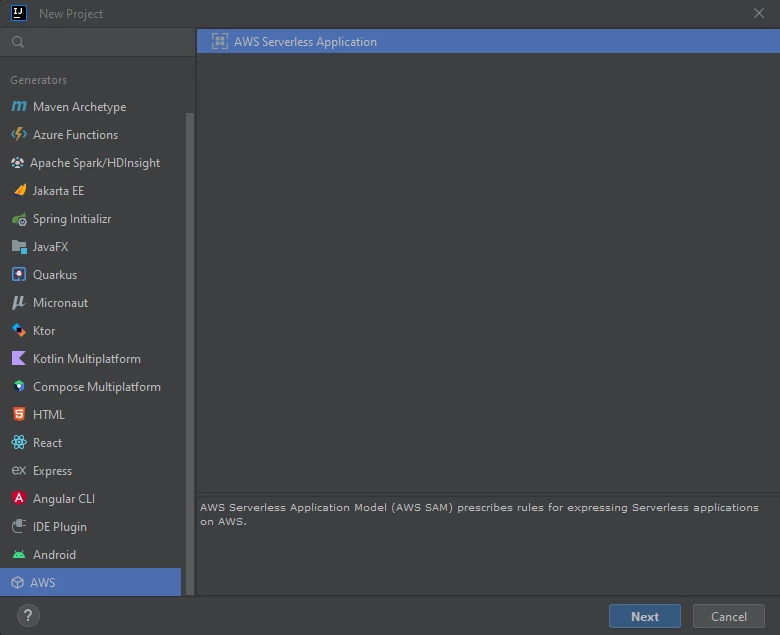
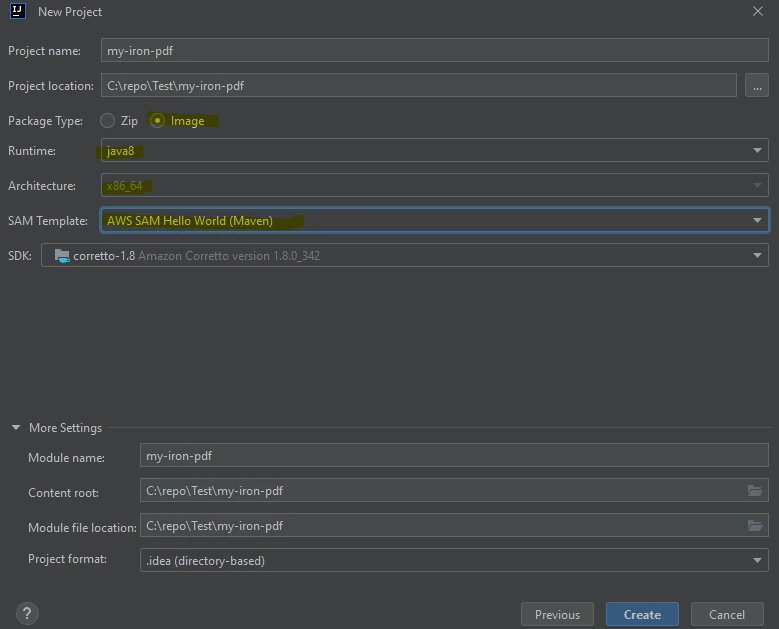
모든 도구가 준비된 후, IntelliJ IDEA를 열고 파일 → 새로 만들기 → 프로젝트를 통해 새 프로젝트를 생성합니다. 프로젝트 마법사에서 AWS Lambda 템플릿을 선택하고 다음 옵션을 선택하십시오:
- 패키지 유형:
Image - 런타임:
java8또는java11 - SAM 템플릿:
Maven
왜 Zip 배포 대신 Docker를 사용해야 합니까?
AWS Lambda는 두 가지 배포 패키지 유형을 지원합니다: Zip 아카이브와 컨테이너 이미지. Zip 배포는 경량 Java 함수에 적합합니다. 왜냐하면 실행 환경이 AWS에 의해 완전히 관리되기 때문입니다. 그러나 IronPDF는 네이티브 바이너리(Chrome 기반 PDF 렌더링 엔진)을 배송하므로 런타임 시 추출 및 실행되어야 합니다. Zip 배포의 Lambda 실행 환경은 /tmp에 파일 시스템 쓰기를 제한하고, Zip 패키지 레이어 한계는 대형 네이티브 바이너리의 추출을 방지합니다.
컨테이너 이미지 배포는 이러한 제약을 제거합니다. Docker 이미지를 정의하면 기본 운영 체제, 설치된 시스템 패키지, 디렉토리 레이아웃을 제어할 수 있습니다. IronPDF의 렌더링 엔진은 시작 시 /tmp에 추출할 수 있고, 필요한 시스템 라이브러리는 이미지에 사전 설치될 수 있으며, 컨테이너 크기 제한(10 GB)은 전체 엔진을 수용할 만큼 충분히 큽니다.
실질적인 결과는 간단합니다: PackageType: Image 을 template.yaml 에 설정하고 Docker 인식 베이스 이미지를 사용하여 빌드하십시오. SAM CLI가 나머지를 처리합니다.
Maven 의존성을 어떻게 구성합니까?
표준 Lambda SDK 외에도 세 가지 추가 종속성이 필요한 pom.xml 파일: IronPDF Java 라이브러리, IronPDF Linux x64 렌더링 엔진, IronPDF 엔진에서 내부적으로 사용되는 gRPC 전송입니다.
pom.xml 을 열고 <dependencies> 내부에 다음 종속성을 추가하세요:
//:path=pom.xml
<dependency>
    <groupId>com.ironsoftware</groupId>
    <artifactId>ironpdf</artifactId>
    <version>2024.9.1</version>
</dependency>
<dependency>
    <groupId>com.ironsoftware</groupId>
    <artifactId>ironpdf-engine-linux-x64</artifactId>
    <version>2024.9.1</version>
</dependency>
<dependency>
    <groupId>org.slf4j</groupId>
    <artifactId>slf4j-simple</artifactId>
    <version>2.0.3</version>
</dependency>
<dependency>
    <groupId>io.perfmark</groupId>
    <artifactId>perfmark-api</artifactId>
    <version>0.26.0</version>
</dependency>
<dependency>
    <groupId>io.grpc</groupId>
    <artifactId>grpc-okhttp</artifactId>
    <version>1.50.2</version>
</dependency>
<dependency>
    <groupId>io.grpc</groupId>
    <artifactId>grpc-netty-shaded</artifactId>
    <version>1.50.2</version>
</dependency>ironpdf-engine-linux-x64 아티팩트는 64비트 Linux용 사전 컴파일된 Chromium 기반 렌더링 엔진을 번들로 제공합니다. 이것이 IronPDF가 Lambda 컨테이너 내에서 HTML을 PDF로 렌더링할 수 있도록 합니다. 이것이 없다면, 렌더링 호출들은 누락된 바이너리 에러로 실패할 것입니다. gRPC 종속성(grpc-okhttp, grpc-netty-shaded, perfmark-api)는 IronPDF가 gRPC 로컬 채널을 통해 렌더링 엔진과 통신하기 때문에 필요합니다. slf4j-simple 종속성은 최소한의 로깅 구현을 제공하며, IronPDF의 내부 로그가 CloudWatch에 표시됩니다.
항상 ironpdf 와 ironpdf-engine-linux-x64 버전 번호를 맞추십시오. 혼합된 버전은 시작 실패를 유발합니다. Maven Central에서 Java용 IronPDF에서 최신 버전 문자열 확인
Lambda 핸들러를 어떻게 작성합니까?
Lambda 핸들러 클래스는 APIGatewayProxyRequestEvent를 수신하고, PDF를 생성하여 APIGatewayProxyResponseEvent을 반환합니다. 첫 번째 렌더링 작업 전에 두 가지 IronPDF 구성 호출이 필요합니다: 작업 디렉터리를 /tmp로 설정하고, 선택적으로 디버그 로깅을 활성화하는 것입니다.
App.java의 내용을 다음 내용으로 대체하세요:
//:path=App.java
import com.amazonaws.services.lambda.runtime.Context;
import com.amazonaws.services.lambda.runtime.events.APIGatewayProxyRequestEvent;
import com.amazonaws.services.lambda.runtime.events.APIGatewayProxyResponseEvent;
import com.ironsoftware.ironpdf.PdfDocument;
import com.ironsoftware.ironpdf.Settings;

import java.nio.file.Paths;
import java.util.HashMap;
import java.util.Map;

public class App {
    public APIGatewayProxyResponseEvent handleRequest(
            final APIGatewayProxyRequestEvent input,
            final Context context) {

        APIGatewayProxyResponseEvent response = new APIGatewayProxyResponseEvent();

        // IronPDF must write its engine binaries and temporary files to /tmp.
        // This is the only writable path available in the Lambda execution environment.
        Settings.setIronPdfEngineWorkingDirectory(Paths.get("/tmp/"));

        // Enable debug logging to CloudWatch during initial testing.
        Settings.setDebug(true);

        try {
            context.getLogger().log("Starting PDF render");

            // Render a PDF from a live URL. Replace with your own HTML or URL as needed.
            PdfDocument pdf = PdfDocument.renderUrlAsPdf("https://www.google.com");

            context.getLogger().log("PDF render complete");

            // Save the rendered PDF to /tmp. Files in /tmp persist for the lifetime
            // of the Lambda execution environment (warm instance).
            pdf.saveAs("/tmp/output.pdf");

            Map<String, String> headers = new HashMap<>();
            headers.put("Content-Type", "application/json");

            return response
                    .withStatusCode(200)
                    .withHeaders(headers)
                    .withBody("PDF generated successfully.");

        } catch (Exception e) {
            context.getLogger().log("PDF render failed: " + e.getMessage());
            return response
                    .withStatusCode(500)
                    .withBody("{\"error\": \"" + e.getMessage() + "\"}");
        }
    }
}Settings.setIronPdfEngineWorkingDirectory(Paths.get("/tmp/")) 호출은 필수입니다. AWS Lambda의 실행 환경은 함수 코드를 읽기 전용 디렉토리에 마운트합니다. IronPDF 엔진은 지원 파일을 추출하고 시작 시 소켓을 생성해야 합니다 - 이는 쓰기 권한이 필요합니다. Lambda는 파일 쓰기를 허용하는 유일한 디렉터리가 /tmp 이므로, 렌더링 개시 전 IronPDF가 이곳을 가리키도록 해야 합니다. 이 설정을 누락하면 엔진이 시작되지 못하고 모든 렌더링 호출은 예외를 던질 것입니다.
pdf.saveAs("/tmp/output.pdf") 호출은 렌더된 파일을 임시 /tmp 파일시스템에 저장합니다. 만약 Lambda 함수가 PDF를 바이너리 응답으로 반환하거나 S3에 업로드해야 한다면, 디스크에 쓰는 대신 pdf.getBinaryData()를 사용하여 바이트를 가져오십시오. 대규모 작업 부하의 경우, Amazon S3에 업로드하고 사전 서명된 URL을 반환하는 것이 권장 패턴입니다.
SAM 템플릿을 어떻게 구성합니까?
template.yaml 파일은 Lambda 함수의 자원 할당을 제어합니다. IronPDF가 성공적으로 작동할 수 있는지 여부에 직접 영향을 미치는 세 가지 설정이 있습니다: Timeout, MemorySize, EphemeralStorage.Size.
다음과 같이 template.yaml 의 Globals 섹션을 업데이트하세요:
//:path=template.yaml
Globals:
  Function:
    Timeout: 400
    MemorySize: 2048
    EphemeralStorage:
Size: 1024시간 제한은 400초로 설정됩니다. 콜드 스타트 시, IronPDF는 렌더링 엔진을 /tmp 에 추출해야 하고, 로컬 Chromium 프로세스를 시작해야 합니다. 초기 호출시 이 추출은 30–60초가 소요될 수 있습니다. 330초보다 짧은 시간 제한은 콜드 스타트 호출을 작업 시간 초과 오류로 실패하게 합니다. 따뜻한 호출은 훨씬 빠릅니다 - 간단한 HTML-to-PDF 변환의 경우 일반적으로 5초 이내입니다.
메모리 크기는 2048 MB로 설정됩니다. Chromium 렌더러는 메모리 집약적입니다. AWS Lambda의 IronPDF에 대한 최소 구동 가능한 메모리는 1024MB이지만, 2048MB는 복잡한 페이지에서 메모리 부족 오류의 위험을 줄이고, Lambda가 메모리와 비례하여 CPU 할당을 조정하기 때문에 눈에 띄게 빠른 렌더링 시간을 제공합니다.
일시적 저장소 크기는 1024 MB로 설정됩니다. 기본 Lambda /tmp 할당은 512 MB입니다. IronPDF는 렌더링 엔진 바이너리, 폰트 캐시 및 임시 렌더링 파일을 /tmp에 씁니다. 이 자산은 콜드 스타트 시 512 MB를 초과할 수 있으며, 이는 엔진 추출을 실패하게 만듭니다. 일시적 저장소를 최소한 1024 MB로 설정하면 이러한 실패 모드를 방지합니다.
Dockerfile을 어떻게 작성합니까?
Dockerfile은 이 배포의 핵심입니다. 멀티 스테이지 빌드를 수행합니다: 첫 번째 단계는 Maven 빌드 이미지를 사용하여 Java 프로젝트를 컴파일합니다; 두 번째 단계는 Amazon Linux 2를 기반으로 최종 Lambda 런타임 이미지를 생성하고, IronPDF의 Chromium 엔진에 필요한 시스템 패키지를 설치하고, 컴파일된 아티팩트를 복사합니다.
프로젝트의 Dockerfile을 열고 그 내용을 다음으로 바꾸세요:
//:path=Dockerfile
# Stage 1: Build the Maven project
FROM public.ecr.aws/sam/build-java8.al2:latest AS build-image
WORKDIR /task
COPY src/src/
COPY pom.xml ./
RUN mvn -q clean install
RUN mvn dependency:copy-dependencies -DincludeScope=compile

# Stage 2: Create the Lambda runtime image
FROM public.ecr.aws/lambda/java:8.al2

# Update the package index and install system libraries required by Chromium.
# These packages provide font rendering, graphics, audio, GTK3, and input
# method support — all needed by the headless browser inside IronPDF.
RUN yum update -y && \
    yum install -y \
        pango.x86_64 \
        libXcomposite.x86_64 \
        libXcursor.x86_64 \
        libXdamage.x86_64 \
        libXext.x86_64 \
        libXi.x86_64 \
        libXtst.x86_64 \
        cups-libs.x86_64 \
        libXScrnSaver.x86_64 \
        libXrandr.x86_64 \
        GConf2.x86_64 \
        alsa-lib.x86_64 \
        atk.x86_64 \
        gtk3.x86_64 \
        ipa-gothic-fonts \
        xorg-x11-fonts-100dpi \
        xorg-x11-fonts-75dpi \
        xorg-x11-utils \
        xorg-x11-fonts-cyrillic \
        xorg-x11-fonts-Type1 \
        xorg-x11-fonts-misc \
        glibc-devel.x86_64 \
        at-spi2-atk.x86_64 \
        mesa-libgbm.x86_64 \
        libxkbcommon \
        amazon-linux-extras && \
    amazon-linux-extras install epel -y && \
    yum install -y libgdiplus

# Ensure /tmp is writable by the Lambda execution user.
RUN chmod 777 /tmp/

# Copy the compiled classes and dependencies from the build stage.
COPY --from=build-image /task/target/classes /var/task/
COPY --from=build-image /task/target/dependency /var/task/lib

# Entry point: package.ClassName::methodName
CMD ["helloworld.App::handleRequest"]모든 단계의 베이스 이미지는 단순 java8 대신 java8.al2 태그를 사용합니다. .al2 접미사는 IronPDF에 필요한 Amazon Linux 2를 나타냅니다. 오래된 java8 이미지는 오리지널 Amazon Linux 1에서 실행되며, IronPDF가 의존하는 여러 패키지가 없는 yum 저장소를 사용하여 더는 업데이트를 받지 않습니다. Java 8에서 IronPDF를 배포할 때 .al2 이미지를 항상 사용하세요.
yum install 블록은 페이지 렌더링에 필요한 X11, GTK3, Pango 및 폰트 관련 라이브러리를 설치합니다. 이러한 패키지를 생략하면 PDF 출력이 불완전하게 되거나 렌더링 엔진이 누락된 공유 라이브러리 오류로 충돌할 수 있습니다. libgdiplus 패키지는 일부 IronPDF 그래픽 렌더링 작업에 사용되는 GDI+ 호환성을 제공합니다.
당신의 실제 패키지 및 클래스 이름이 helloworld.App와 다를 경우 CMD 명령어를 업데이트하세요.
Lambda 함수를 어떻게 작성하고 배포합니까?
Dockerfile, template.yaml, pom.xml, 그리고 App.java 모두 구성된 상태에서, 프로젝트 루트에서 다음 SAM CLI 명령 두 개를 실행하세요.
1단계 - 컨테이너 이미지 빌드:
//:path=build.sh
sam build -u-u 플래그는 SAM에게 Docker('컨테이너 사용' 모드)를 사용하도록 지시합니다. SAM은 Maven 프로젝트를 컴파일하고 최종 Lambda 이미지를 생성하는 다단계 Dockerfile을 실행합니다. 이 단계에서 Docker가 기본 이미지를 가져오는 동안, 처음 실행 시 몇 분이 걸릴 수 있습니다.
2단계 - AWS에 배포:
//:path=deploy.sh
sam deploy --guidedSAM이 상호작용적인 프롬프트를 시작하여 스택 이름, AWS 지역, 아티팩트용 S3 버킷 및 배포 전에 변화 집합을 확인할 것인지 묻는 프롬프트를 출력하는 --guided 플래그입니다. 프롬프트에 응답하면, SAM이 컨테이너 이미지를 Amazon ECR으로 푸시하고, template.yaml에 정의된 Lambda 함수, API Gateway 및 IAM 역할을 생성합니다.
배포 완료 후, SAM CLI는 API 엔드포인트 URL을 출력합니다. AWS Lambda 콘솔을 열어 배포된 함수를 확인하고 테스트 호출을 실행하며 IronPDF 디버그 출력을 위한 CloudWatch 로그를 확인합니다.
첫 호출(콜드 스타트) 시, Lambda 실행 환경이 시작되고 IronPDF가 렌더링 엔진을 /tmp에 추출하므로 60-120초간의 응답 시간을 예상하세요. 동일한 웜 인스턴스에서 후속 호출은 몇 초 이내에 반환됩니다. 콜드 스타트 지연이 실생산 워크로드에서 문제가 된다면, 인스턴스를 계속 웜 상태로 유지하기 위해 Lambda Provisioned Concurrency를 사용하는 것을 고려하십시오.
테스트 이벤트 페이로드로 sam local invoke를 실행하여 배포 전에 로컬에서 함수 테스트 또한 가능합니다, 다만 개발 머신에서 Docker가 작동해야 합니다.
다음 단계는 무엇인가요?
이제 Lambda 함수가 배포되어 PDF를 렌더링합니다. 다음 가이드는 IronPDF 배포 후의 가장 일반적인 다음 단계에 대해 설명합니다:
- IronPDF for Java - 시작하기 - HTML-to-PDF, URL-to-PDF 및 PDF 스탬핑을 포함한 전체 IronPDF Java API 개요.
- Java에서 HTML에서 PDF 생성하는 방법 - HTML 문자열, 파일 및 템플릿을 PDF로 렌더링.
- Java에서 PDF에 헤더와 푸터 적용하는 방법 - Lambda가 생성한 PDF에 페이지 번호, 로고 및 텍스트 헤더를 추가.
- Java에서 PDF에 워터마크 추가하는 방법 - 텍스트나 이미지 워터마크로 PDF 출력을 스탬핑하고 호출자에게 반환하기 전에.
- IronPDF 라이선싱 - 실행 단계 Lambda 배포를 위한 라이선스 옵션, 배포 수 라이선싱 포함.
IronPDF for Java 무료 체험판을 시작하여 평가 기간 동안 람다 함수에서 제한 없이 PDF를 생성하고 편집하십시오. 실행 환경에 배포할 준비가 되면 IronPDF 라이선스 옵션 보기를 클릭하여 서버리스 워크로드에 적합한 플랜을 찾으십시오.
자주 묻는 질문
IronPDF를 AWS Lambda에서 Zip 배포를 사용할 수 없는 이유는?
IronPDF는 실행 시 추출하고 실행해야 하는 네이티브 Chromium 기반 렌더링 엔진을 포함합니다. Zip 배포는 쓰기 접근을 제한하고 패키지 크기를 제한하는 관리되는 런타임 환경에서 실행됩니다. 컨테이너 이미지 배포는 파일 시스템, 설치된 시스템 라이브러리, 이미지 크기에 대한 완전한 제어를 제공하며 IronPDF에는 이러한 것이 요구됩니다.
IronPDF 엔진 작업 디렉터리를 /tmp/로 설정해야 하는 이유는?
Lambda 실행 환경은 함수 코드 디렉터리를 읽기 전용으로 마운트합니다. IronPDF는 엔진 바이너리, 소켓 파일 및 임시 렌더링 자산을 기록 가능한 위치에 작성해야 합니다. Lambda 함수에서 유일하게 기록 가능한 경로는 /tmp/이므로 모든 렌더링 작업 전에 Settings.setIronPdfEngineWorkingDirectory(Paths.get("/tmp/"))를 호출해야 합니다.
Lambda 함수에 필요한 최소 메모리는 얼마입니까?
메모리 크기를 최소 1024 MB로 설정하세요. Chromium 렌더러는 메모리를 많이 소모하며, 메모리가 부족하면 OutOfMemory 예외가 발생할 수 있습니다. AWS는 메모리에 비례하여 CPU 할당도 확장되므로 2048 MB는 프로덕션 워크로드에 권장됩니다. 이는 렌더링 시간을 줄여줍니다.
EphemeralStorage 크기를 1024 MB로 설정한 이유는?
기본 Lambda 임시 스토리지 할당은 512 MB입니다. 콜드 스타트 시, IronPDF는 렌더링 엔진 바이너리와 폰트 캐시를 /tmp/로 추출합니다. 이러한 자산은 512 MB를 초과하여 추출이 실패할 수 있으므로 EphemeralStorage를 1024 MB로 설정하여 이 실패를 방지합니다.
java8.al2 기반 이미지를 사용하는 이유는 무엇인가요?
java8 기본 이미지는 패키지 리포지토리가 오래되고 IronPDF가 필요로 하는 여러 라이브러리가 누락된 Amazon Linux 1에서 실행됩니다. java8.al2 이미지는 최신 패키지가 있는 Amazon Linux 2를 사용하며, Chromium 렌더러에 필요한 X11, GTK3 및 Pango 라이브러리에 대한 완전한 지원을 가지고 있습니다.
IronPDF에 필요한 Lambda 타임아웃은 얼마인가요?
타임아웃을 최소 330초로 설정하세요. 콜드 스타트 시, IronPDF는 렌더링 엔진을 추출하고 Chromium 프로세스를 시작해야 하며, 이는 30-60초가 걸릴 수 있습니다. 짧은 타임아웃은 콜드 스타트 호출이 작업 시간 초과 오류로 실패하게 합니다. 따뜻한 호출은 훨씬 빨리 완료되며 일반적으로 몇 초 내에 완료됩니다.
배포 전에 로컬에서 Lambda 함수를 테스트할 수 있나요?
예. 개발 머신에서 Docker를 실행한 채 테스트 이벤트 페이로드로 sam local invoke를 실행하여 로컬에서 컨테이너 이미지를 시작하고 핸들러 함수를 호출할 수 있습니다. AWS에 배포하지 않고 PDF 생성을 확인할 수 있습니다.
프로덕션에서 IronPDF의 콜드 스타트 지연 시간을 줄이는 방법은?
AWS Lambda Provisioned Concurrency를 사용하여 요청을 처리할 준비가 된 인스턴스의 지정된 수를 초기화된 상태로 유지하세요. 이는 해당 인스턴스에 대한 콜드 스타트를 제거하나, 예약 용량에 대한 추가 비용이 발생합니다.
AWS Lambda에 필요한 IronPDF Maven 아티팩트는 무엇입니까?
Java API용 ironpdf와 네이티브 렌더링 엔진용 ironpdf-engine-linux-x64, 그리고 gRPC 전송 종속성 grpc-okhttp, grpc-netty-shaded, perfmark-api가 필요합니다. ironpdf와 ironpdf-engine-linux-x64 버전은 일치해야 합니다.
생성된 PDF를 바이너리 HTTP 응답으로 반환하는 방법은?
pdf.saveAs()를 호출하는 대신 pdf.getBinaryData()로 원시 바이트를 가져와 Base64로 인코딩하세요. API 게이트웨이 응답에 isBase64Encoded: true 및 Content-Type: application/pdf를 설정하세요. 큰 파일의 경우, Amazon S3에 업로드하고 미리 서명된 URL을 반환하는 것이 더 실용적인 접근 방식입니다.

커티스 차우는 칼턴 대학교에서 컴퓨터 과학 학사 학위를 취득했으며, Node.js, TypeScript, JavaScript, React를 전문으로 하는 프론트엔드 개발자입니다. 직관적이고 미적으로 뛰어난 사용자 인터페이스를 만드는 데 열정을 가진 그는 최신 프레임워크를 활용하고, 잘 구성되고 시각적으로 매력적인 매뉴얼을 제작하는 것을 즐깁니다.



