
How to Set Up IronPDF for Java on AWS

This guide walks through deploying IronPDF for Java on AWS Lambda using Docker and AWS SAM. Because IronPDF depends on a native Chrome-based rendering engine, it cannot run on standard Zip-deployed Lambda functions; Docker is the only supported deployment model. The steps below cover everything from installing the required tools, configuring pom.xml dependencies, and writing the Lambda handler, through to building the container image and deploying it with the SAM CLI.
Start using IronPDF in your project today with a free trial.

Table of Contents
- What Are the Prerequisites?
- Why Must You Use Docker Instead of Zip Deployment?
- How Do You Configure the Maven Dependencies?
- How Do You Write the Lambda Handler?
- How Do You Configure the SAM Template?
- How Do You Build the Dockerfile?
- How Do You Build and Deploy the Lambda Function?
- What Are the Next Steps?
What Are the Prerequisites?
Before starting, confirm that the following tools are installed on the development machine. Each tool plays a specific role in the build-and-deploy pipeline.
- IntelliJ IDEA: the IDE used in this guide. Download from jetbrains.com/idea.
- AWS Toolkit for JetBrains: provides the SAM project wizard and Lambda run configurations inside IntelliJ. Setup instructions are on the AWS Toolkit for JetBrains documentation page.
- AWS SAM CLI: the command-line tool that builds Docker images and deploys Lambda functions. Install it by following the SAM CLI installation guide.
- Docker Desktop: required because the Lambda function is packaged as a container image, not a Zip archive. Download Docker Community Edition.
For local invocation testing before deploying to AWS, also install:
- Java 8 JDK: available from the Oracle JDK 8 downloads page.
- Apache Maven: follow the Maven installation guide.
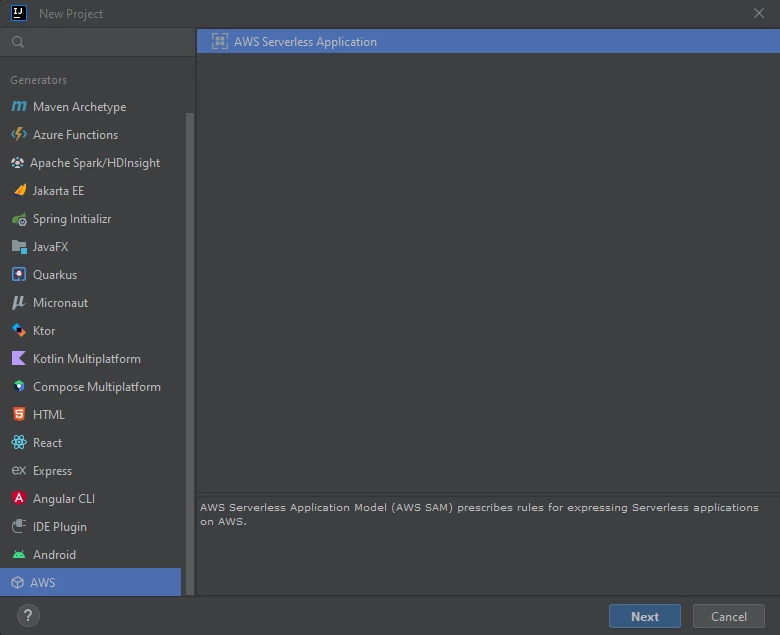
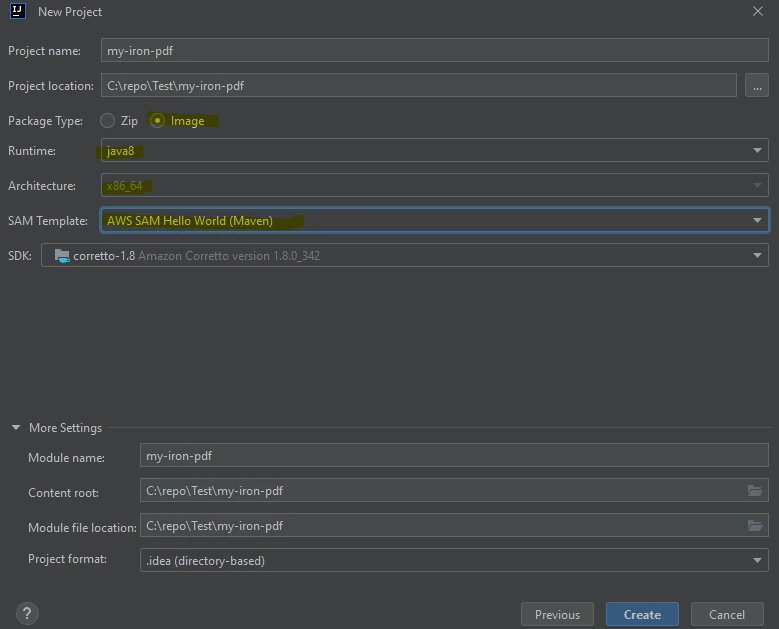
Once all tools are in place, open IntelliJ IDEA and create a new project via File → New → Project. In the project wizard, select the AWS Lambda template and choose the following options:
- Package Type:
Image - Runtime:
java8orjava11 - SAM Template:
Maven
Why Must You Use Docker Instead of Zip Deployment?
AWS Lambda supports two deployment package types: Zip archives and container images. Zip deployment works well for lightweight Java functions because the runtime environment is entirely managed by AWS. IronPDF, however, ships a native binary, a Chrome-based PDF rendering engine, that must be extracted and executed at runtime. The Lambda execution environment for Zip deployments restricts file system writes to /tmp, and the Zip package layer limits prevent the extraction of large native binaries.
Container image deployment removes these restrictions. When you define your own Docker image, you control the base operating system, the installed system packages, and the directory layout. IronPDF's rendering engine can be extracted to /tmp at startup, the required system libraries can be pre-installed in the image, and the container size limit (10 GB) is large enough to accommodate the full engine.
The practical consequence is simple: set PackageType: Image in template.yaml and build using a Docker-aware base image. The SAM CLI handles the rest.
How Do You Configure the Maven Dependencies?
The pom.xml file needs three categories of additional dependencies beyond the standard Lambda SDK: the IronPDF Java library, the IronPDF Linux x64 rendering engine, and the gRPC transport used internally by the IronPDF engine.
Open pom.xml and add the following dependencies inside <dependencies>:
<dependency>
    <groupId>com.ironsoftware</groupId>
    <artifactId>ironpdf</artifactId>
    <version>2024.9.1</version>
</dependency>
<dependency>
    <groupId>com.ironsoftware</groupId>
    <artifactId>ironpdf-engine-linux-x64</artifactId>
    <version>2024.9.1</version>
</dependency>
<dependency>
    <groupId>org.slf4j</groupId>
    <artifactId>slf4j-simple</artifactId>
    <version>2.0.3</version>
</dependency>
<dependency>
    <groupId>io.perfmark</groupId>
    <artifactId>perfmark-api</artifactId>
    <version>0.26.0</version>
</dependency>
<dependency>
    <groupId>io.grpc</groupId>
    <artifactId>grpc-okhttp</artifactId>
    <version>1.50.2</version>
</dependency>
<dependency>
    <groupId>io.grpc</groupId>
    <artifactId>grpc-netty-shaded</artifactId>
    <version>1.50.2</version>
</dependency>The ironpdf-engine-linux-x64 artifact bundles the pre-compiled Chromium-based rendering engine for 64-bit Linux. This is what enables IronPDF to render HTML to PDF inside the Lambda container. Without it, rendering calls will fail with a missing binary error. The gRPC dependencies (grpc-okhttp, grpc-netty-shaded, perfmark-api) are required because IronPDF communicates with its rendering engine over a local gRPC channel. The slf4j-simple dependency provides a minimal logging implementation so that IronPDF's internal logs are visible in CloudWatch.
Always align the ironpdf and ironpdf-engine-linux-x64 version numbers; mixing versions will cause a startup failure. Check IronPDF for Java on Maven Central for the latest version string.
How Do You Write the Lambda Handler?
The Lambda handler class receives an APIGatewayProxyRequestEvent, generates a PDF, and returns an APIGatewayProxyResponseEvent. Two IronPDF configuration calls must appear before the first rendering operation: setting the working directory to /tmp and optionally enabling debug logging.
Replace the contents of App.java with the following:
import com.amazonaws.services.lambda.runtime.Context;
import com.amazonaws.services.lambda.runtime.events.APIGatewayProxyRequestEvent;
import com.amazonaws.services.lambda.runtime.events.APIGatewayProxyResponseEvent;
import com.ironsoftware.ironpdf.PdfDocument;
import com.ironsoftware.ironpdf.Settings;

import java.nio.file.Paths;
import java.util.HashMap;
import java.util.Map;

public class App {
    public APIGatewayProxyResponseEvent handleRequest(
            final APIGatewayProxyRequestEvent input,
            final Context context) {

        APIGatewayProxyResponseEvent response = new APIGatewayProxyResponseEvent();

        // IronPDF must write its engine binaries and temporary files to /tmp.
        // This is the only writable path available in the Lambda execution environment.
        Settings.setIronPdfEngineWorkingDirectory(Paths.get("/tmp/"));

        // Enable debug logging to CloudWatch during initial testing.
        Settings.setDebug(true);

        try {
            context.getLogger().log("Starting PDF render");

            // Render a PDF from a live URL. Replace with your own HTML or URL as needed.
            PdfDocument pdf = PdfDocument.renderUrlAsPdf("https://www.google.com");

            context.getLogger().log("PDF render complete");

            // Save the rendered PDF to /tmp. Files in /tmp persist for the lifetime
            // of the Lambda execution environment (warm instance).
            pdf.saveAs("/tmp/output.pdf");

            Map<String, String> headers = new HashMap<>();
            headers.put("Content-Type", "application/json");

            return response
                    .withStatusCode(200)
                    .withHeaders(headers)
                    .withBody("PDF generated successfully.");

        } catch (Exception e) {
            context.getLogger().log("PDF render failed: " + e.getMessage());
            return response
                    .withStatusCode(500)
                    .withBody("{\"error\": \"" + e.getMessage() + "\"}");
        }
    }
}The call to Settings.setIronPdfEngineWorkingDirectory(Paths.get("/tmp/")) is mandatory. AWS Lambda's execution environment mounts the function code in a read-only directory. The IronPDF engine must extract supporting files and create sockets at startup, activities that require write access. The /tmp directory is the only location Lambda permits for file writes, so IronPDF must be pointed there before any rendering begins. If this setting is omitted, the engine will fail to start and every rendering call will throw an exception.
The pdf.saveAs("/tmp/output.pdf") call stores the rendered file in the ephemeral /tmp filesystem. If the Lambda function needs to return the PDF as a binary response or upload it to S3, retrieve the bytes with pdf.getBinaryData() instead of writing to disk. For large-scale workloads, uploading to Amazon S3 and returning a pre-signed URL is the recommended pattern.
How Do You Configure the SAM Template?
The template.yaml file controls the Lambda function's resource allocation. Three settings directly affect whether IronPDF runs successfully: Timeout, MemorySize, and EphemeralStorage.Size.
Update the Globals section of template.yaml as follows:
Globals:
  Function:
    Timeout: 400
    MemorySize: 2048
    EphemeralStorage:
Size: 1024Timeout is set to 400 seconds. On a cold start, IronPDF must extract the rendering engine to /tmp and launch a local Chromium process. This extraction can take 30-60 seconds on the first invocation. A timeout shorter than 330 seconds will cause cold-start invocations to fail with a task timeout error. Warm invocations are much faster, typically under 5 seconds for simple HTML-to-PDF conversions.
MemorySize is set to 2048 MB. The Chromium renderer is memory-intensive. AWS Lambda's minimum viable memory for IronPDF is 1024 MB, but 2048 MB reduces the risk of out-of-memory failures for complex pages and produces noticeably faster render times because Lambda also scales CPU allocation proportionally with memory.
EphemeralStorage.Size is set to 1024 MB. The default Lambda /tmp allocation is 512 MB. IronPDF writes the rendering engine binaries, font cache, and temporary rendering files to /tmp. These assets can exceed 512 MB on a cold start, which causes the engine extraction to fail. Setting ephemeral storage to at least 1024 MB prevents this failure mode.
How Do You Build the Dockerfile?
The Dockerfile is the heart of this deployment. It performs a multi-stage build: the first stage compiles the Java project using a Maven build image; the second stage creates the final Lambda runtime image based on Amazon Linux 2, installs the system packages that IronPDF's Chromium engine requires, and copies the compiled artifacts.
Open the project's Dockerfile and replace its contents with the following:
# Stage 1: Build the Maven project
FROM public.ecr.aws/sam/build-java8.al2:latest AS build-image
WORKDIR /task
COPY src/ src/
COPY pom.xml ./
RUN mvn -q clean install
RUN mvn dependency:copy-dependencies -DincludeScope=compile

# Stage 2: Create the Lambda runtime image
FROM public.ecr.aws/lambda/java:8.al2

# Update the package index and install system libraries required by Chromium.
# These packages provide font rendering, graphics, audio, GTK3, and input
# method support — all needed by the headless browser inside IronPDF.
RUN yum update -y && \
    yum install -y \
        pango.x86_64 \
        libXcomposite.x86_64 \
        libXcursor.x86_64 \
        libXdamage.x86_64 \
        libXext.x86_64 \
        libXi.x86_64 \
        libXtst.x86_64 \
        cups-libs.x86_64 \
        libXScrnSaver.x86_64 \
        libXrandr.x86_64 \
        GConf2.x86_64 \
        alsa-lib.x86_64 \
        atk.x86_64 \
        gtk3.x86_64 \
        ipa-gothic-fonts \
        xorg-x11-fonts-100dpi \
        xorg-x11-fonts-75dpi \
        xorg-x11-utils \
        xorg-x11-fonts-cyrillic \
        xorg-x11-fonts-Type1 \
        xorg-x11-fonts-misc \
        glibc-devel.x86_64 \
        at-spi2-atk.x86_64 \
        mesa-libgbm.x86_64 \
        libxkbcommon \
        amazon-linux-extras && \
    amazon-linux-extras install epel -y && \
    yum install -y libgdiplus

# Ensure /tmp is writable by the Lambda execution user.
RUN chmod 777 /tmp/

# Copy the compiled classes and dependencies from the build stage.
COPY --from=build-image /task/target/classes /var/task/
COPY --from=build-image /task/target/dependency /var/task/lib

# Entry point: package.ClassName::methodName
CMD ["helloworld.App::handleRequest"]The base images for both stages use the java8.al2 tag rather than plain java8. The .al2 suffix indicates Amazon Linux 2, which is required for IronPDF. The older java8 image runs on the original Amazon Linux 1, which uses yum repositories that no longer receive updates and lacks several packages IronPDF depends on. Always use .al2 images when deploying IronPDF on Java 8.
The yum install block installs the X11, GTK3, Pango, and font-related libraries that Chromium needs to render pages. Omitting any of these packages can produce incomplete PDF output or cause the rendering engine to crash with a missing shared library error. The libgdiplus package is needed for GDI+ compatibility, which is used by some IronPDF drawing operations.
Update the CMD instruction to match your actual package and class name if they differ from helloworld.App.
How Do You Build and Deploy the Lambda Function?
With the Dockerfile, template.yaml, pom.xml, and App.java all configured, run the following two SAM CLI commands from the project root.
Step 1: Build the container image:
sam build -uThe -u flag instructs SAM to use Docker (the "use container" mode). SAM executes the multi-stage Dockerfile, which compiles the Maven project and produces the final Lambda image. Expect this step to take several minutes on the first run while Docker pulls the base images.
Step 2: Deploy to AWS:
sam deploy --guidedThe --guided flag launches an interactive prompt that asks for the stack name, AWS region, S3 bucket for artifacts, and whether to confirm changesets before deployment. Answer the prompts, and SAM will push the container image to Amazon ECR and create the Lambda function, API Gateway, and IAM role defined in template.yaml.
After deployment completes, the SAM CLI outputs the API endpoint URL. Open the AWS Lambda Console to view the deployed function, run test invocations, and inspect CloudWatch logs for IronPDF debug output.
On the first invocation (cold start), expect a response time of 60-120 seconds as the Lambda execution environment starts and IronPDF extracts its rendering engine to /tmp. Subsequent invocations on the same warm instance will return within a few seconds. If cold-start latency is a concern for production workloads, consider using Lambda Provisioned Concurrency to keep instances warm.
You can also test the function locally before deploying by running sam local invoke with a test event payload, provided Docker is running on the development machine.
What Are the Next Steps?
The Lambda function is now deployed and rendering PDFs. The following guides cover the most common next steps after a successful IronPDF deployment:
- IronPDF for Java, Getting Started: overview of the full IronPDF Java API, including HTML-to-PDF, URL-to-PDF, and PDF stamping.
- How to Generate PDFs from HTML in Java: rendering HTML strings, files, and templates to PDF.
- How to Apply Headers and Footers to PDFs in Java: adding page numbers, logos, and text headers to Lambda-generated PDFs.
- How to Add Watermarks to PDFs in Java: stamping PDF output with text or image watermarks before returning to the caller.
- IronPDF Licensing: license options for production Lambda deployments, including deployment-count licensing.
Start an IronPDF for Java free trial to generate and edit PDFs in your Lambda function without restrictions during evaluation. When ready to deploy to production, view IronPDF licensing options to find the plan that fits your serverless workload.
Frequently Asked Questions
What tools are required to deploy IronPDF for Java on AWS Lambda?
To deploy IronPDF for Java on AWS Lambda, you need IntelliJ IDEA, AWS Toolkit for JetBrains, AWS SAM CLI, Docker Desktop, Java 8 JDK, and Apache Maven. Each tool plays a specific role in the development pipeline.
Why is Docker necessary for deploying IronPDF on AWS Lambda?
Docker is necessary because IronPDF depends on a native Chrome-based rendering engine that cannot run on standard Zip-deployed Lambda functions. Docker allows you to define your own image, which includes IronPDF's rendering engine and required libraries.
How do you configure Maven dependencies for IronPDF?
You must update `pom.xml` to include dependencies for the IronPDF Java library, the IronPDF Linux x64 rendering engine, and gRPC transport libraries. These are crucial for IronPDF to function correctly in a Lambda environment.
What is important about the Lambda handler when using IronPDF?
The Lambda handler must configure IronPDF by setting the working directory to `/tmp` as this is the only writable path in AWS Lambda's execution environment. This configuration is essential for IronPDF to successfully render PDF documents.
Which settings in the SAM template are critical for IronPDF?
In the `template.yaml`, the `Timeout`, `MemorySize`, and `EphemeralStorage.Size` settings are crucial. They should be set to 400 seconds, 2048 MB, and 1024 MB, respectively, to prevent execution failures and optimize IronPDF's performance.
How does the Dockerfile enhance IronPDF deployment on AWS Lambda?
The Dockerfile is configured to compile the Java project and create a runtime image with all the necessary system packages and IronPDF dependencies. This setup ensures IronPDF's rendering engine has all it needs within the Lambda environment.
How do you deploy the IronPDF Lambda function using SAM CLI?
Run `sam build -u` to build the container image followed by `sam deploy --guided` which walks you through deployment options. This process creates a Lambda function hosted on AWS with IronPDF capabilities.
What are some recommended next steps after deploying IronPDF to AWS Lambda?
After deployment, consider further exploring IronPDF's Java API, learning about HTML-to-PDF conversion, applying headers, footers, and watermarks, and reviewing IronPDF licensing options for production use.
How can you test an IronPDF Lambda function locally?
You can use the command `sam local invoke` with a test event payload to simulate invocation locally, enabling you to test IronPDF features without deploying to the AWS cloud.
What is the role of Provisioned Concurrency in AWS Lambda with IronPDF?
Provisioned Concurrency keeps Lambda instances warm, reducing cold start latency, which is beneficial for IronPDF's resource-intensive operations, ensuring faster response times during PDF generation.

Curtis Chau holds a Bachelor’s degree in Computer Science (Carleton University) and specializes in front-end development with expertise in Node.js, TypeScript, JavaScript, and React. Passionate about crafting intuitive and aesthetically pleasing user interfaces, Curtis enjoys working with modern frameworks and creating well-structured, visually appealing manuals.













