Node.js에서 PDF 문서를 파싱하는 방법
This article will demonstrate how to parse PDFs using Node.js with the IronPDF, PDF parser Node.js library.
What is Node?
The cross-platform, open-source Node.js JavaScript runtime environment allows JavaScript code to be executed outside a web browser. Programmers may create network applications that are scalable, quick, and effective by enabling server-side JavaScript or JS module execution. Because Node.js is an event-driven, non-blocking I/O model, it is ideal for developing real-time applications that manage multiple connections at once with interactive form elements.
Node.js is frequently used to create a wide range of applications, including web servers, APIs, data structure streaming applications, real-time chat applications, Internet of Things (IoT) devices, and more. All things considered, Node.js is growing in popularity because of its effectiveness, speed, and JavaScript compatibility on both the front end and back end, providing a single language for full-stack development. Check this explanation website for documentation pages to learn more about Node.js.
How to Parse PDF Document in Node.js
- To parse PDFs for a readable stream, download the Node.js package.
- Install IronPDF for Node.js library.
- Create a new PDF or import an existing one with the parsed document data.
- To extract every line of text, use the
extractTextmethod. - View Parsed PDF Content for raw PDF reading.
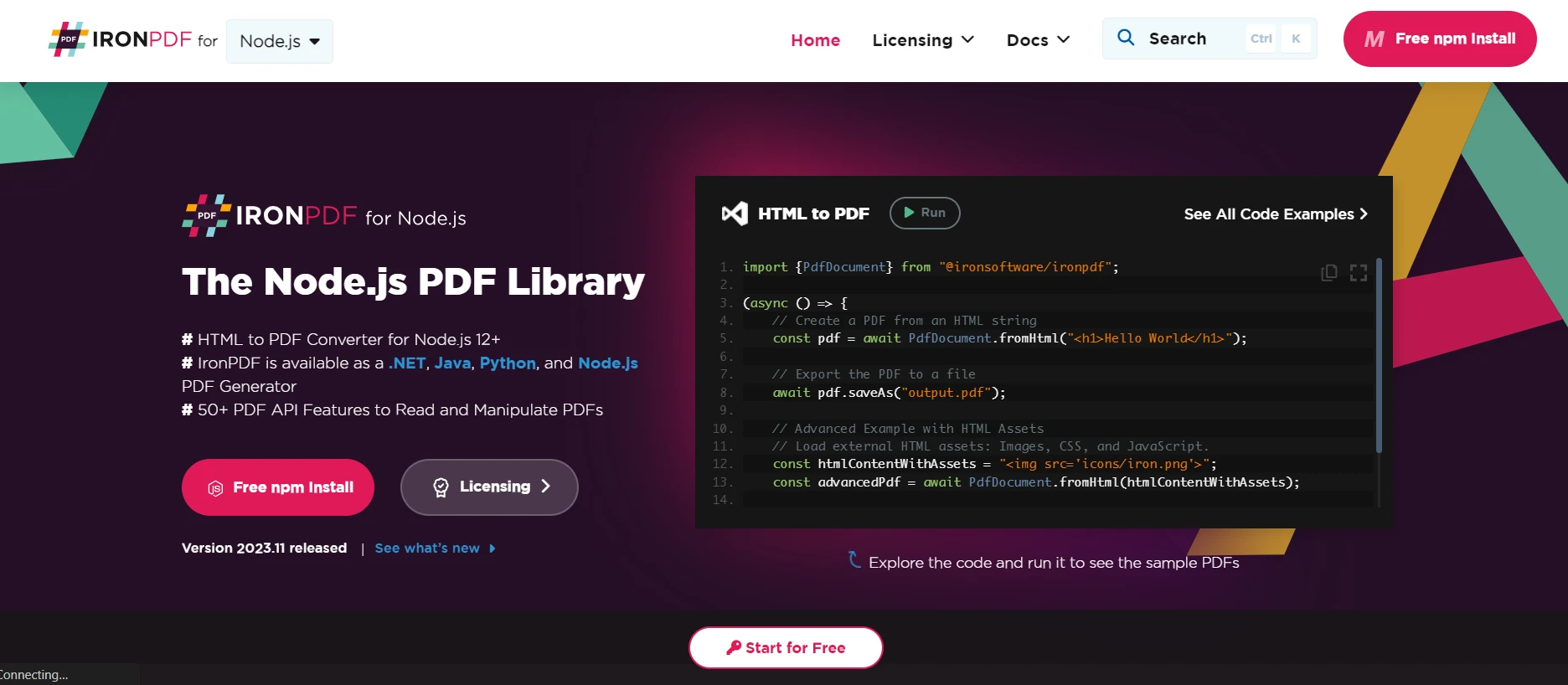
IronPDF for Node.js
As of my last knowledge update in January 2022, IronPDF was largely a .NET library built to work within the .NET Framework, enabling developers to work with PDF documents using C# or VB.NET. However, there was no native or direct version of IronPDF made just for Node.js.
As IronPDF has expanded to support and include bindings for Node.js, this likely means that tools for creating, editing, and processing PDF documents in Node.js applications are now available in IronPDF for Node.js.
Features of IronPDF
- HTML to PDF Generation: The ability to convert HTML content into PDF documents.
- The addition, alteration, or removal of text, shapes, images, and other elements from PDF files is referred to as text and image manipulation.
- Combining, extracting pages from PDF files, splitting PDF files, and encrypting and decrypting them are all examples of PDF document alteration.
- Form handling encompasses completing forms, acquiring form data, and leveraging PDF forms through programming.
- PDF security is the use of digital signatures, encryption, and password protection for PDF documents.
- Retrieving and modifying PDF files is known as page metadata handling.
If IronPDF has expanded its range of products to include a Node.js version, this could provide a way for developers making Node.js apps to use IronPDF's PDF manipulation functionality. This could be helpful for developers who would prefer to work with a library that offers features akin to those of IronPDF in the .NET environment.
The official documentation, release notes, or updates from the IronPDF team should always be consulted for the most current and up-to-date information regarding IronPDF's features, compatibility, and support for Node.js. Go here to learn more about the IronPDF and new features in each release. To know more about the IronPDF refer to this official documentation page.
Package Requirement
- Visual Studio Code as the IDE
- Node.js
- Yarn or npm can be used for package management, which is necessary for package installations.
Install IronPDF Package for Node.js
Launch the Command Prompt or Terminal: Open the command prompt or terminal. There are various ways to access it based on your operating system:
- Windows: PowerShell or Command Prompt
- Terminal on macOS
- Terminal on Linux
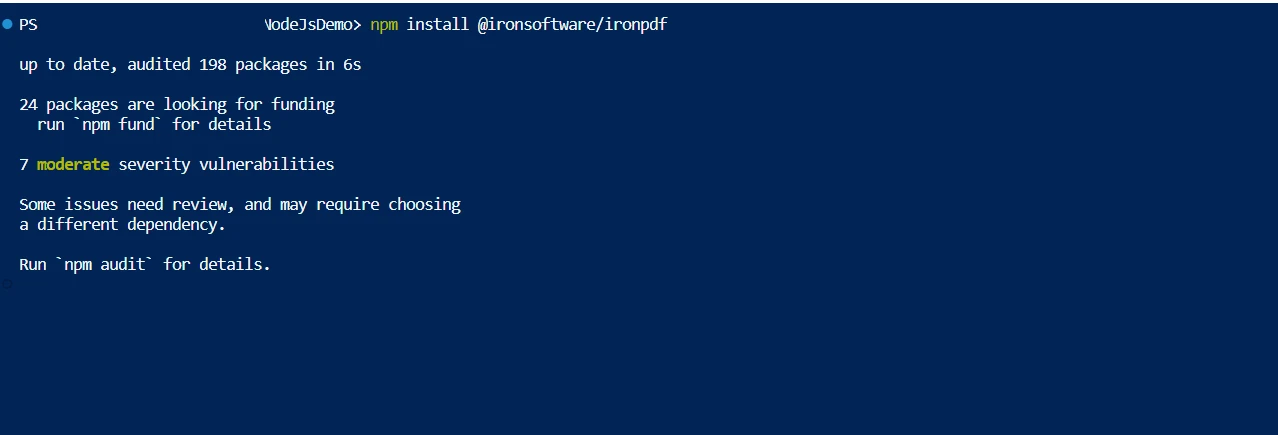
To install a package, use the package name and the npm install command. For instance, to install the package @ironsoftware/ironpdf, run the following command in the terminal:
npm install @ironsoftware/ironpdfnpm install @ironsoftware/ironpdfReplace @ironsoftware/ironpdf with the name of the package you want to install if it is different.
Install IronPDF
Parse PDF File to Extract Data
From experimenting, you can see that IronPDF offers a lot of features to facilitate dealing with PDF in Node.js. It is focused on generating, viewing, and modifying any PDF document in the required formats. PDF files are quite simple to parse.
const { PdfDocument } = require("@ironsoftware/ironpdf");
const pdfProcess = async () => {
// Load the existing PDF document
const pdf = await PdfDocument.fromFile("Demo.pdf");
// Extract text data from the loaded PDF
const data = await pdf.extractText();
// Output the extracted text to the console
console.log(data);
};
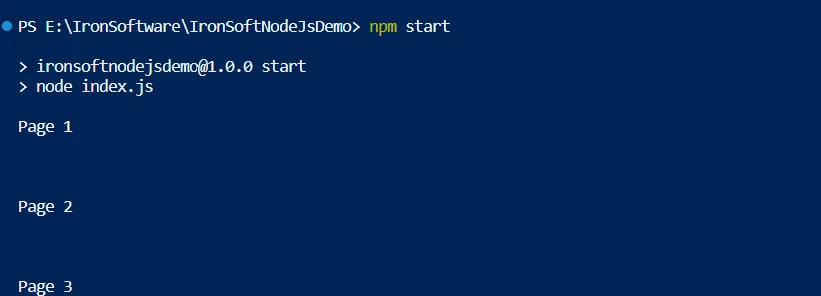
pdfProcess();The importance of the fromFile function is demonstrated by the code above. The fromFile method reads PDF documents and converts the PDF file into PdfDocument objects, loading the file from an existing file system. Thus PdfDocument holds the PDF's metadata. The file metadata in the pdf object can be used as the user desires. This object parsed document data is the text and graphics contained within the PDF page object. The extractText function is used to extract all of the text from the provided PDF file. After that, the retrieved text is stored as a string and prepared for additional processing such as creating a JSON format.
Page-by-Page Text Extraction
Below is the code for another approach, which explicitly extracts text from each page of the PDF file.
const pdf = await PdfDocument.fromFile("Demo.pdf");
// Get the total number of pages in the PDF
const pageCount = await pdf.getPageCount();
// Loop through each page to extract text
for (let i = 0; i < pageCount; i++) {
const pageText = await pdf.extractText(i);
// Output the text of each page
console.log(pageText);
}The raw PDF reading from a PDF already in memory is loaded from the specified directory in its entirety by this sample code, which then creates a PdfDocument object named pdf. A PDF document is a data structure made up of several fundamental data object types. Every page data in the PDF file is retrieved using its page number or page index in the PDF object to guarantee that it is processed one after the other. First, we use the getPageCount method of its PDF object to find the total number of pages in the supplied PDF.
The for loop iterates across each page using this page count, invoking the extractText function to retrieve text from each PDF page. Either the extracted text can be shown on the user's screen or saved in a string variable. This technique makes it possible to extract text from individual PDF pages in an organized manner. These techniques demonstrate how IronPDF, a Node.js library made specifically for PDF tasks, can easily and thoroughly extract text from PDF files. This accessibility enhances PDFs' usefulness in a variety of contexts and has numerous practical applications.
Read PDF Page By Page
Both codes above achieve the same output, but the only difference is in the implementation of the code based on user requirements. To know more about IronPDF refer to this detailed documentation pages.
Conclusion
The IronPDF library offers robust security measures to lower risks and ensure data security. It is compatible with all popular browsers and is not limited to any one of them. To accommodate the various demands of developers, the library offers a wide range of licensing options, including a free developer license and additional development licenses that can be purchased.
In addition to a permanent license, one year of software maintenance, and a thirty-day money-back guarantee, the $799 Lite bundle includes upgrade possibilities. Users have the opportunity to evaluate the product in practical application circumstances throughout the watermarked trial period. Please check the provided licensing page for more details about IronPDF's cost, licensing, and trial version. To know about other products offered by Iron Software, check the official website.
Iron Software pricing
자주 묻는 질문
Node.js를 사용하여 PDF를 파싱하려면 어떻게 하나요?
Node.js를 사용하여 PDF를 구문 분석하려면 IronPDF 라이브러리를 활용할 수 있습니다. 먼저 npm install @ironsoftware/ironpdf로 IronPDF 패키지를 설치합니다. 그런 다음 fromFile 메서드를 사용하여 PDF를 로드하고 extractText 메서드를 사용하여 텍스트를 추출합니다.
Node.js에서 HTML을 PDF로 변환하는 단계는 무엇인가요?
IronPDF를 사용하여 Node.js에서 HTML을 PDF로 변환할 수 있습니다. HTML 문자열의 경우 RenderHtmlAsPdf 메서드를, HTML 파일의 경우 RenderHtmlFileAsPdf를 사용하여 효율적으로 PDF를 생성할 수 있습니다.
Node.js를 사용하여 PDF의 각 페이지에서 텍스트를 추출하려면 어떻게 해야 하나요?
IronPDF를 사용하면 페이지를 반복하여 PDF의 각 페이지에서 텍스트를 추출할 수 있습니다. 페이지 수를 확인하려면 getPageCount 메서드를 사용하고 각 페이지에서 텍스트를 추출하려면 extractText 함수를 사용하세요.
IronPDF 라이브러리는 Node.js에 어떤 기능을 제공하나요?
Node.js용 IronPDF는 HTML을 PDF로 변환, 텍스트 및 이미지 조작, PDF 병합 및 분할, 암호화, 디지털 서명, 양식 처리 등 다양한 기능을 제공합니다.
Node.js에서 PDF 문서의 보안을 어떻게 보장할 수 있나요?
IronPDF는 디지털 서명, 암호화, 비밀번호 보호와 같은 포괄적인 보안 기능을 제공하여 Node.js 애플리케이션에서 PDF 문서를 안전하게 보호합니다.
Node.js용 PDF 라이브러리를 선택할 때 고려해야 할 사항은 무엇인가요?
Node.js용 PDF 라이브러리를 선택할 때는 다양한 브라우저와의 호환성, 보안 옵션, 사용 편의성, 포괄적인 문서, 라이선스 유연성 등의 기능을 고려하세요. IronPDF는 이러한 기능을 제공하므로 개발자를 위한 강력한 선택입니다.
Node.js에서 IronPDF에 사용할 수 있는 라이선스 옵션은 무엇인가요?
IronPDF는 무료 개발자 라이선스, 영구 라이선스, 1년간의 소프트웨어 유지보수 등 다양한 라이선스 옵션을 제공합니다. 또한 다양한 개발자의 요구 사항을 충족하는 워터마크 버전으로 평가판 기간도 제공합니다.
Node.js를 사용하여 PDF 내의 이미지를 조작할 수 있나요?
예, IronPDF를 사용하면 Node.js 애플리케이션에서 PDF 내의 이미지를 조작할 수 있습니다. 여기에는 PDF 문서에 포함된 이미지를 추가, 추출 또는 수정하는 작업이 포함됩니다.