

Python을 사용하여 PDF 페이지를 추가하거나 제거하는 방법

This article will demonstrate how to add or remove PDF pages using Python and a PDF library named IronPDF for Python.
1. IronPDF for Python
IronPDF is a market-leading PDF Python library that provides developers with the capability to effortlessly generate, manipulate, and work with PDF documents in their applications. With IronPDF, developers can seamlessly integrate PDF functionality into their Python projects, whether it be for creating dynamic reports, generating invoices, or converting web content into PDF files. This library offers a user-friendly and efficient way to handle PDF-related tasks, enabling you to create and manipulate PDFs with ease.
Whether you're building web applications, desktop software, or automating document workflows, IronPDF is a valuable tool that empowers you to work with PDFs in the Python environment, making it an essential addition to any developer's toolkit. This introductory guide will explore the key features and capabilities of IronPDF for Python. Using IronPDF, developers can merge several PDF files into a single document, extract text from a particular page, add watermarks, and perform other operations such as deleting pages, removing a blank page, rotating pages, adding pages, and reading PDF files.
2. Installing IronPDF
To install IronPDF, just open PyCharm or any other Python compiler, and create a new Python project or open an existing one. Once the project is created or opened, open the terminal.
IronPDF for Python can be easily installed using the terminal command. Just run the following command in the terminal, and IronPDF should be installed in a minute.
pip install ironpdf
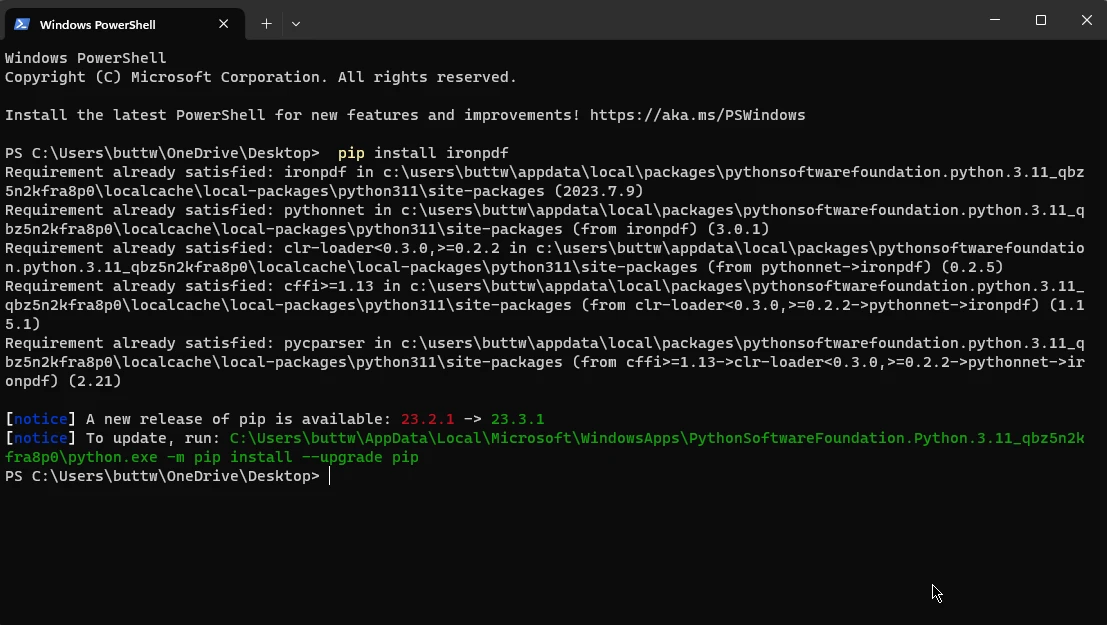 Install IronPDF package
Once the installation is completed, you are all set to start playing with the code.
3. Code Examples
Before adding and removing PDF pages from a PDF document, let's create a 4-page simple PDF file using HTML to PDF conversion. The code below creates PDF files to use as an input PDF document for the upcoming code examples.
from ironpdf import *

# HTML content to be converted to PDF
html = """
<p> Hello Iron</p>
<p> This is 1st Page </p>
<div style='page-break-after: always;'></div>
<p> This is 2nd Page</p>
<div style='page-break-after: always;'></div>
<p> This is 3rd Page</p>
<div style='page-break-after: always;'></div>
<p> This is 4th Page</p>
"""

# Initialize the renderer
renderer = ChromePdfRenderer()

# Render the HTML as a PDF document
pdf = renderer.RenderHtmlAsPdf(html)

# Save the PDF to a file
pdf.SaveAs("Page1And4.pdf")
from ironpdf import *
# HTML content to be converted to PDF
html = """
<p> Hello Iron</p>
<p> This is 1st Page </p>
<div style='page-break-after: always;'></div>
<p> This is 2nd Page</p>
<div style='page-break-after: always;'></div>
<p> This is 3rd Page</p>
<div style='page-break-after: always;'></div>
<p> This is 4th Page</p>
"""
# Initialize the renderer
renderer = ChromePdfRenderer()
# Render the HTML as a PDF document
pdf = renderer.RenderHtmlAsPdf(html)
# Save the PDF to a file
pdf.SaveAs("Page1And4.pdf")This Python code uses the IronPDF library to create a PDF document from HTML content. The HTML content is defined as a string, containing paragraphs and "page-break-after" div tags, indicating page breaks. It's structured to have four pages. The code then uses the ChromePdfRenderer to convert this HTML into a PDF document. Finally, it saves the resulting PDF as "Page1And4.pdf".
Essentially, this code generates a PDF with multiple pages, where each page corresponds to the content between two consecutive "page-break" div tags in the HTML, and it saves this HTML content to a PDF file.
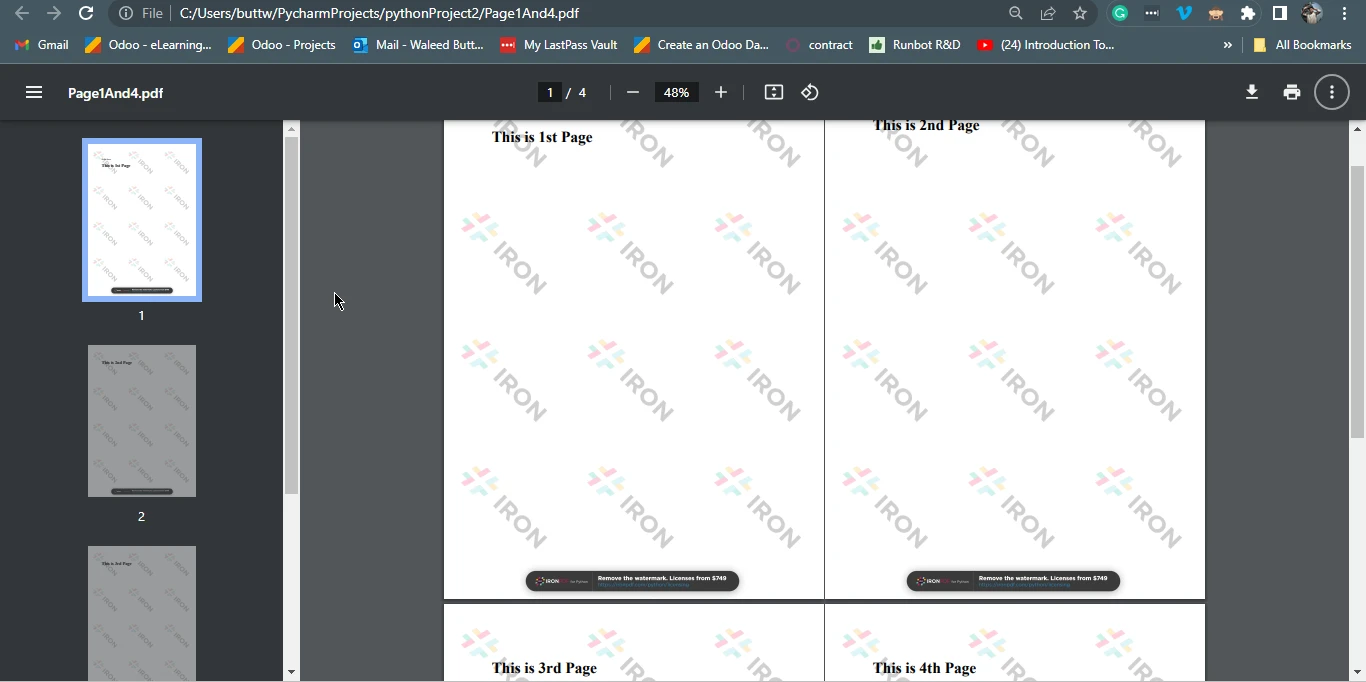 Page1And4.pdf
3.1. Removing Specific Page From PDF Files Using IronPDF
This section will remove pages from a PDF created earlier. The following code will remove a page from the PDF file.
from ironpdf import *

# Load the existing PDF document
pdf = PdfDocument.FromFile("Page1And4.pdf")

# Remove the page at index 1 (second page)
pdf.RemovePage(1)

# Save the modified PDF to a new file
pdf.SaveAs("removed.pdf")
from ironpdf import *
# Load the existing PDF document
pdf = PdfDocument.FromFile("Page1And4.pdf")
# Remove the page at index 1 (second page)
pdf.RemovePage(1)
# Save the modified PDF to a new file
pdf.SaveAs("removed.pdf")The above code utilizes the IronPDF library to manipulate a PDF document. It begins by importing the necessary components and then loads an existing PDF document called "Page1And4.pdf" using the FromFile() method. It proceeds to delete a page from the PDF, identified by its index '1', and subsequently calls the SaveAs method that saves the modified document as a new PDF file named removed.pdf. In essence, the code performs the task of removing the second page from the original PDF document and saving the resulting document as a separate file.
3.1.1. Output PDF file
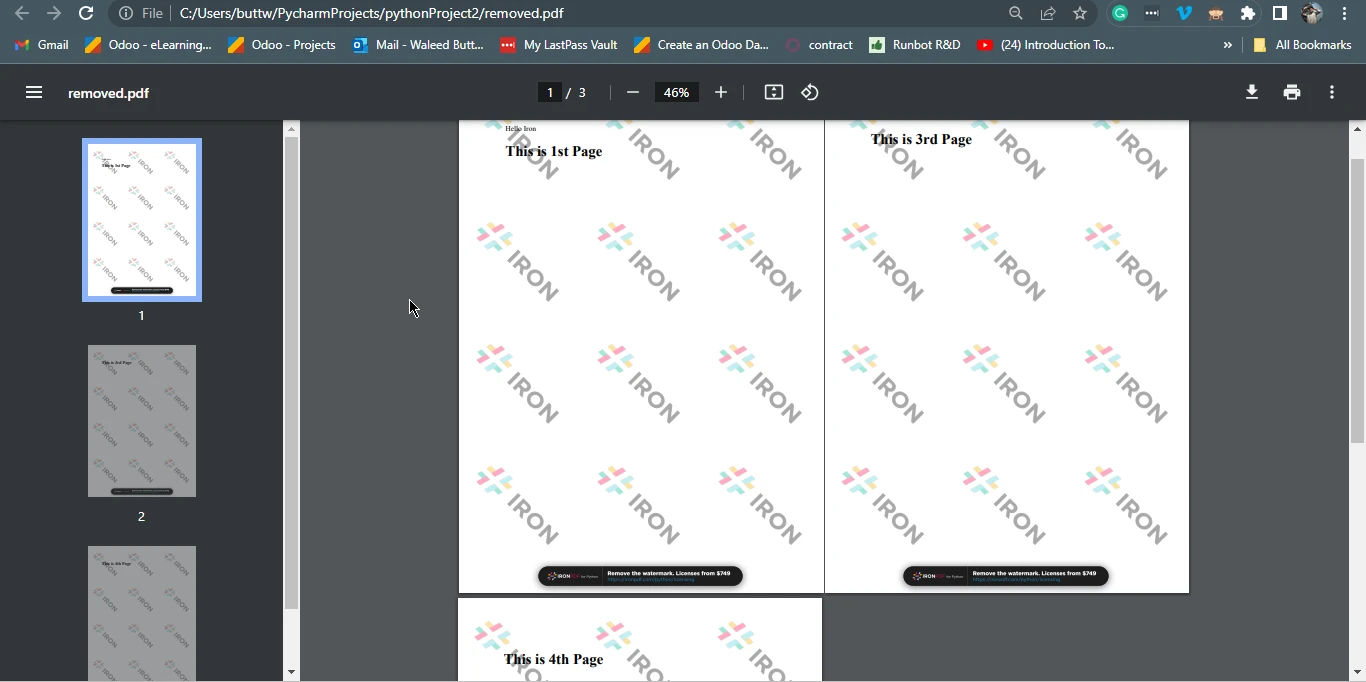 Output file
3.2. Add A Page in PDF Document Using IronPDF
This section will discuss how to add a new page in existing PDF files. For this, let's create a new PDF file and then add the newly created PDF to the previously created PDF file using page numbers with just a few lines of code.
Below is the sample code of adding a new PDF page into the original document.
from ironpdf import *

# HTML content to represent a new page
pdf_page = """
# Cover Page
"""

# Initialize the renderer and render the new PDF page
renderer = ChromePdfRenderer()
pdfdoc_a = renderer.RenderHtmlAsPdf(pdf_page)

# Load the existing PDF file
pdf = PdfDocument.FromFile("removed.pdf")

# Prepend the new page to the beginning of the existing PDF
pdf.PrependPdf(pdfdoc_a)

# Save the combined PDF to a new file
pdf.SaveAs("addPage.pdf")
from ironpdf import *
# HTML content to represent a new page
pdf_page = """
# Cover Page
"""
# Initialize the renderer and render the new PDF page
renderer = ChromePdfRenderer()
pdfdoc_a = renderer.RenderHtmlAsPdf(pdf_page)
# Load the existing PDF file
pdf = PdfDocument.FromFile("removed.pdf")
# Prepend the new page to the beginning of the existing PDF
pdf.PrependPdf(pdfdoc_a)
# Save the combined PDF to a new file
pdf.SaveAs("addPage.pdf")This Python code snippet leverages the IronPDF library to manipulate PDF documents. Initially, it defines an HTML content snippet representing a cover page with a title. Then, it employs the ChromePdfRenderer() method to convert this HTML into a PDF document, storing it in pdfdoc_a.
Then, it loads an existing PDF document, "removed.pdf," using PdfDocument.FromFile("removed.pdf"). The code proceeds to prepend the content of pdfdoc_a to this existing PDF using the pdf.PrependPdf(pdfdoc_a) method. Essentially, this code combines the cover page PDF with the "removed.pdf", creating a new PDF document named "addPage.pdf", effectively adding the cover page to the beginning of the original PDF.
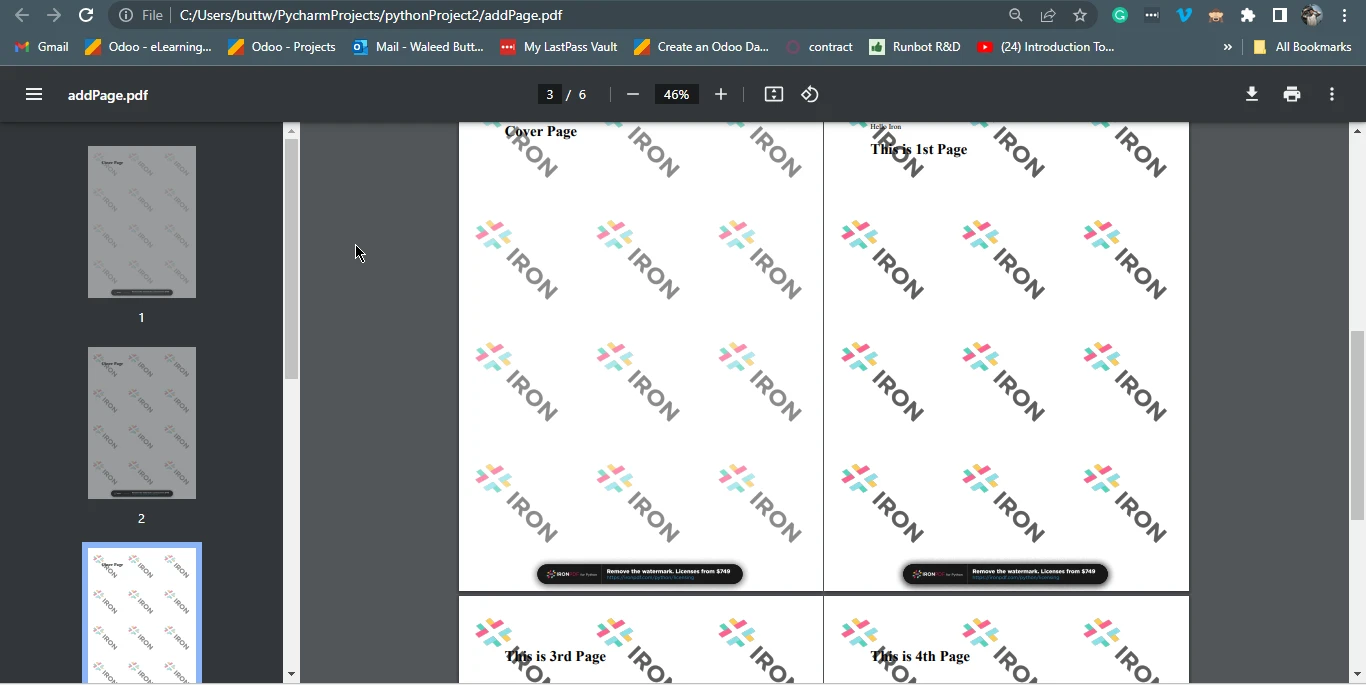 Output file
4. Conclusion
This article explored the world of PDF manipulation using Python, with a focus on the IronPDF library. The ability to add or remove pages from PDF documents is a valuable skill in today's digital landscape, and Python offers an accessible and powerful way to achieve these tasks. The article covered the essential steps for installing IronPDF and provided code examples to illustrate the process of creating, removing, and adding pages in PDFs.
With IronPDF, Python developers can efficiently work with PDF documents, whether for generating reports, customizing content, or improving document workflows. As the digital world continues to rely on PDFs for various purposes, mastering these techniques empowers developers to meet a wide range of needs, making Python and IronPDF a dynamic combination for PDF manipulation.
The code example of removing PDF pages can be found at the following sample code. The code example of adding PDF pages can be found in another Python code example. Also, if you are curious about how HTML to PDF conversion works, please visit this tutorial page.
Explore the versatile features of IronPDF for Python library and experience the transformation by opting for a free trial today.
자주 묻는 질문
Python으로 PDF에 새 표지를 추가하려면 어떻게 해야 하나요?
Python에서 PDF 문서에 새 표지를 추가하려면 IronPDF의 ChromePdfRenderer를 사용하여 HTML 콘텐츠로 새 페이지를 만들 수 있습니다. 그런 다음 PrependPdf 메서드를 사용하여 이 새 페이지를 기존 PDF 문서의 앞부분에 추가합니다.
IronPDF를 사용하여 PDF에서 페이지를 제거하려면 어떤 단계를 거쳐야 하나요?
IronPDF를 사용하여 PDF에서 페이지를 제거하려면 먼저 PdfDocument.FromFile를 사용하여 PDF를 로드합니다. 색인으로 제거하려는 페이지를 식별하고 RemovePage 메서드를 사용하여 삭제합니다.
Python에서 PDF 라이브러리를 사용하여 여러 PDF 파일을 병합할 수 있나요?
예, Python용 IronPDF를 사용하면 PDF를 매끄럽게 결합하는 MergePdf와 같은 방법을 사용하여 여러 PDF 파일을 단일 문서로 쉽게 병합할 수 있습니다.
Python에서 PDF를 편집하기 위해 IronPDF는 어떤 기능을 제공하나요?
IronPDF는 페이지 추가 및 제거, 문서 병합, 텍스트 추출, 워터마크 추가, 페이지 회전 등 PDF 편집을 위한 다양한 기능을 제공하여 PDF 조작을 위한 종합적인 도구입니다.
IronPDF를 사용하여 HTML 콘텐츠를 PDF 문서로 변환하려면 어떻게 해야 하나요?
IronPDF를 사용하여 HTML 콘텐츠를 PDF 문서로 변환하려면 HTML 문자열을 처리하여 PDF 파일로 출력하는 RenderHtmlAsPdf 메서드를 활용하세요.
IronPDF 라이브러리에 대한 평가판이 있나요?
예, IronPDF의 무료 평가판을 사용할 수 있으며, 이를 통해 사용자는 Python 애플리케이션 내에서 PDF 문서를 처리하는 라이브러리의 기능과 성능을 살펴볼 수 있습니다.
IronPDF를 사용하여 PDF를 조작하면 어떤 유형의 애플리케이션이 혜택을 받을 수 있나요?
웹 플랫폼에서 데스크톱 소프트웨어에 이르기까지 다양한 애플리케이션에서 IronPDF를 사용한 PDF 조작의 이점을 누릴 수 있습니다. 보고서 생성, 문서 워크플로우 자동화, PDF 콘텐츠 사용자 지정과 같은 작업을 지원합니다.
PDF 페이지 추가 또는 제거를 위한 Python 코드 예제는 어디에서 찾을 수 있나요?
IronPDF를 사용하여 PDF 페이지를 추가하거나 제거하는 코드 예제는 이러한 작업에 대한 실용적인 Python 코드 스니펫을 제공하는 IronPDF 웹사이트의 문서에서 찾을 수 있습니다.
디지털 워크플로우에서 PDF 페이지 관리가 중요한 이유는 무엇인가요?
문서 레이아웃을 사용자 지정하고, 불필요한 콘텐츠를 제거하고, 보고서 생성을 자동화하여 문서 관리의 효율성과 적응성을 향상시키는 디지털 워크플로우에서 PDF 페이지 관리는 매우 중요합니다.










 무료로 시작하세요
 무료로 시작하세요
 무료 라이브 데모 예약하기



 신용카드나 계정 생성은 필요하지 않습니다.









