푸터 콘텐츠로 바로가기
PYTHON용 IRONPDF 사용

Python에서 PDF 양식을 생성하는 방법

This tutorial will explore how to use this library to create PDF forms, create new PDF files, and explicitly group interactive forms with data.

Creating Interactive PDF Forms in Python

  1. Install the PDF library to generate PDF forms.
  2. Create a PDF form from an HTML string and save the PDF document.
  3. Upload the created PDF file using the PdfDocument class.
  4. Update the PDF document fields.
  5. Save the document to a new location.

IronPDF

Python is a programming language that aids in the quick and simple creation of graphical user interfaces. For programmers, Python is also far more dynamic than other languages. Because of this, adding the IronPDF library to Python is a simple process. A large range of pre-installed tools, such as PyQt, wxWidgets, Kivy, and many other packages and libraries, can be used to quickly and safely construct a fully complete GUI.

IronPDF for Python combines a number of capabilities from other frameworks like .NET Core. For more information, click on the following official webpage of IronPDF for Python.

Python web design and development are made easier using IronPDF. As a result, three Python web development paradigms--Django, Flask, and Pyramid--have gained widespread recognition. Websites and online services such as Reddit, Mozilla, and Spotify have utilized these frameworks.

IronPDF Features

  • With IronPDF, PDFs can be produced from a variety of formats, including HTML, HTML5, ASPX, and Razor/MVC View. It offers the choice to convert images into PDF formats and HTML pages into PDF files.
  • Creating interactive PDFs, completing and submitting interactive forms, merging and dividing PDF files, extracting text and images, searching text within PDF files, rasterizing PDFs to images, changing font size, border and background color, and converting PDF files are all tasks that the IronPDF toolkit can help with.
  • IronPDF offers HTML login form validation with support for user-agents, proxies, cookies, HTTP headers, and form variables.
  • IronPDF uses usernames and passwords to allow users access to secured documents.
  • With just a few lines of code, we can print a PDF file from a variety of sources, including a string, stream, or URL.
  • IronPDF allows us to create flattened PDF documents.

Setup Python

Environment Configuration

Verify that Python is set up on your computer. To download and install the most recent version of Python that is compatible with your operating system, go to the official Python website. After installing Python, create a virtual environment to separate the requirements for your project. Your conversion project can have a tidy, independent workspace thanks to the venv module, which enables you to create and manage virtual environments.

New Project in PyCharm

For this article, PyCharm is recommended as an IDE for developing Python code.

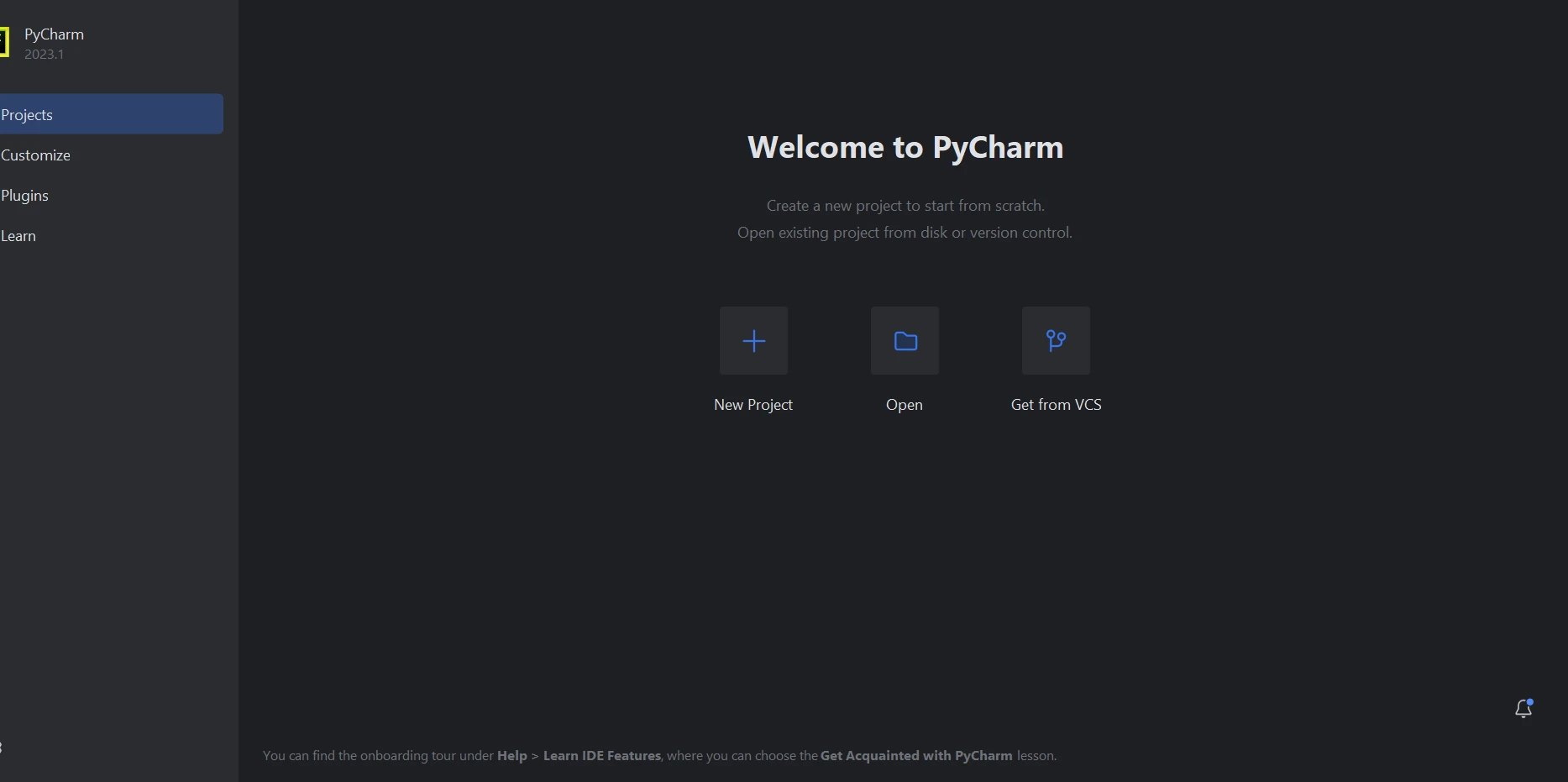
Once PyCharm IDE has started, choose "New Project".

How to Generate PDF Forms in Python, Figure 1: PyCharm PyCharm

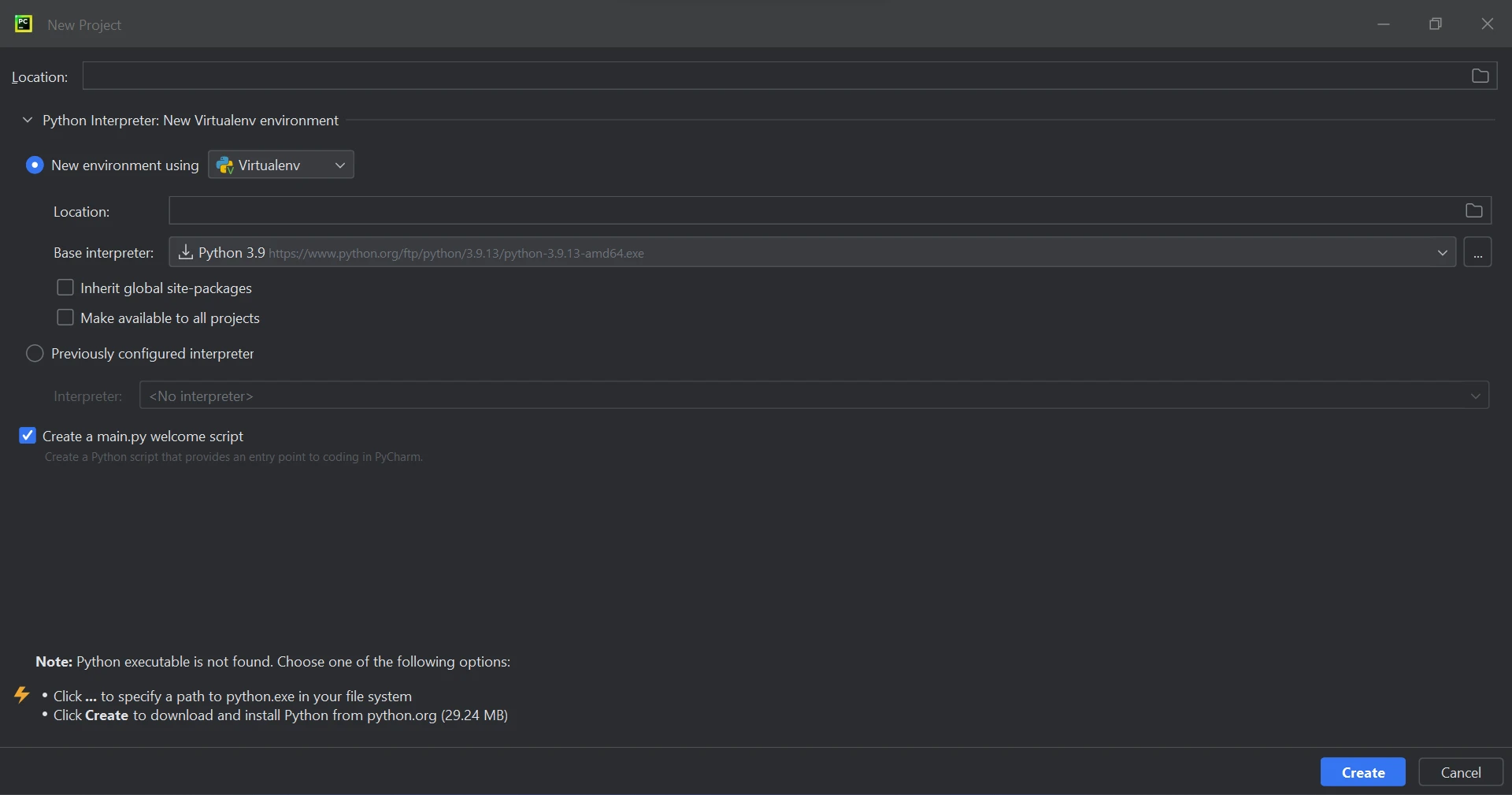
When you choose "New Project," a new window will open where you can specify the environment and location of the project. You might find it easier to understand this in the image below.

How to Generate PDF Forms in Python, Figure 2: New Project New Project

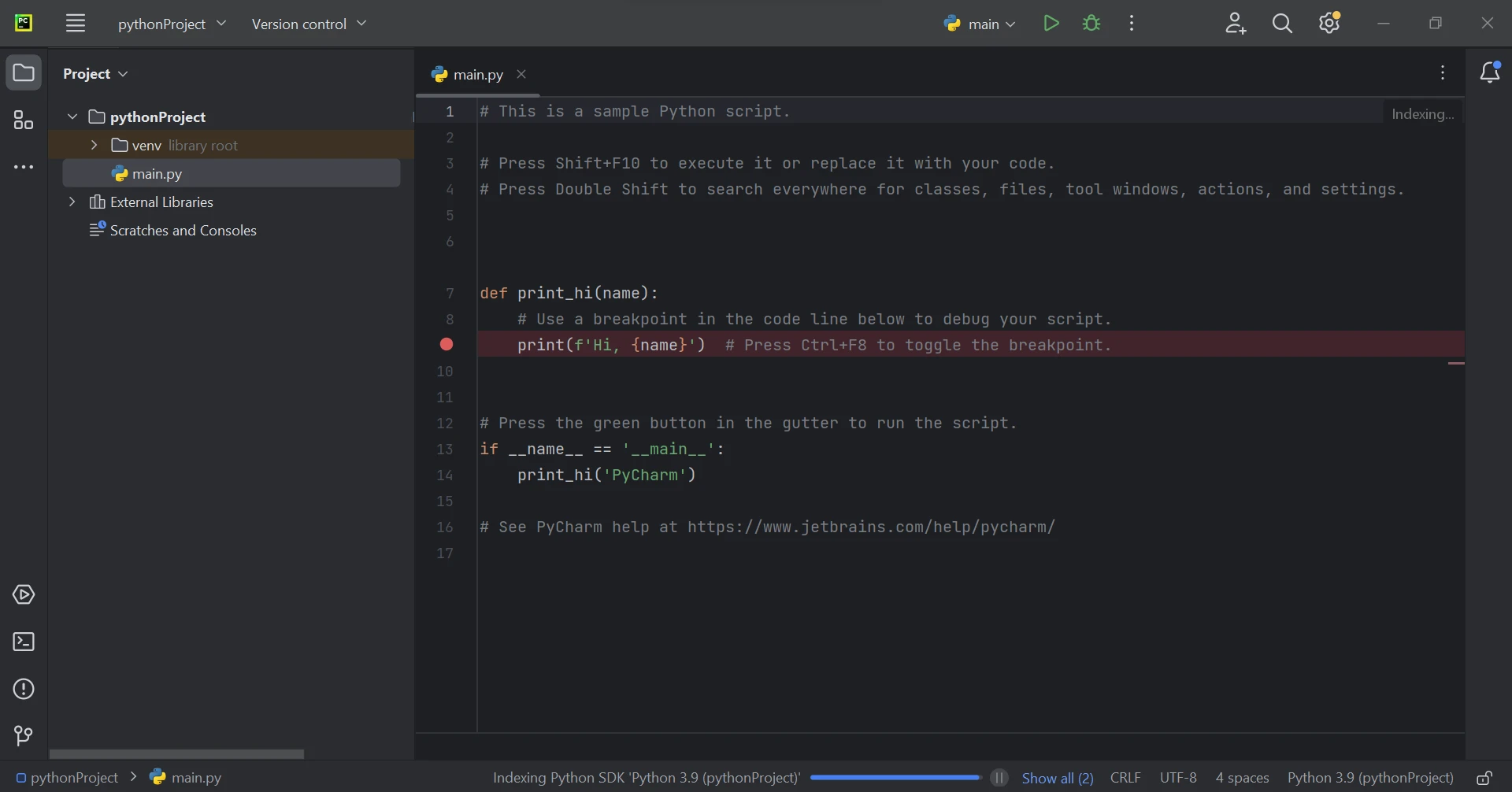
After choosing the project location and environment path, click the Create button to launch a new project. The subsequent new window that appears can then be used to construct the software. Python 3.9 is used in this guide.

How to Generate PDF Forms in Python, Figure 3: Create Project Create Project

IronPDF Library Requirement

Most of the time, the Python module IronPDF uses .NET 6.0. As a result, the .NET 6.0 runtime must be installed on your computer in order to use IronPDF with Python. It might be necessary to install .NET before this Python module can be used by Linux and Mac users. Visit this page to get the needed runtime environment.

IronPDF Library Setup

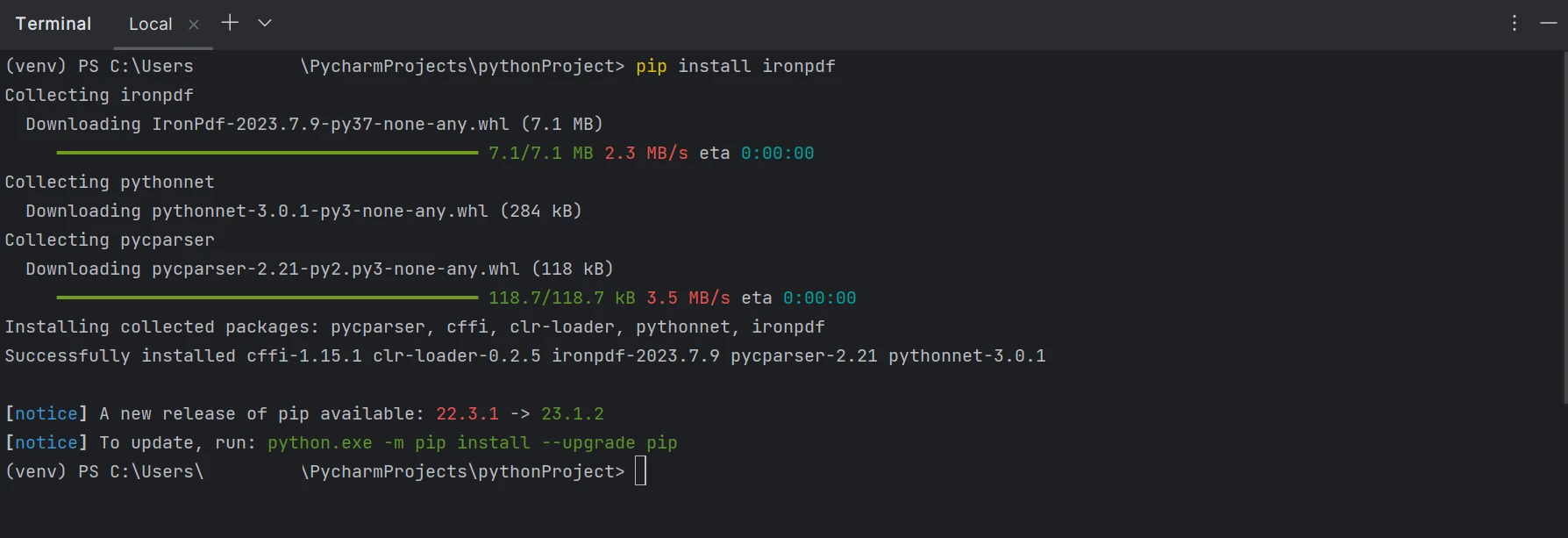
To generate, modify, and open files with the ".pdf" extension, the "ironpdf" package must be installed. Open a terminal window and enter the following command to install the package in PyCharm:

 pip install ironpdf

The installation of the 'ironpdf' package is shown in the screenshot below.

How to Generate PDF Forms in Python, Figure 4: IronPDF IronPDF

Generate PDF Forms

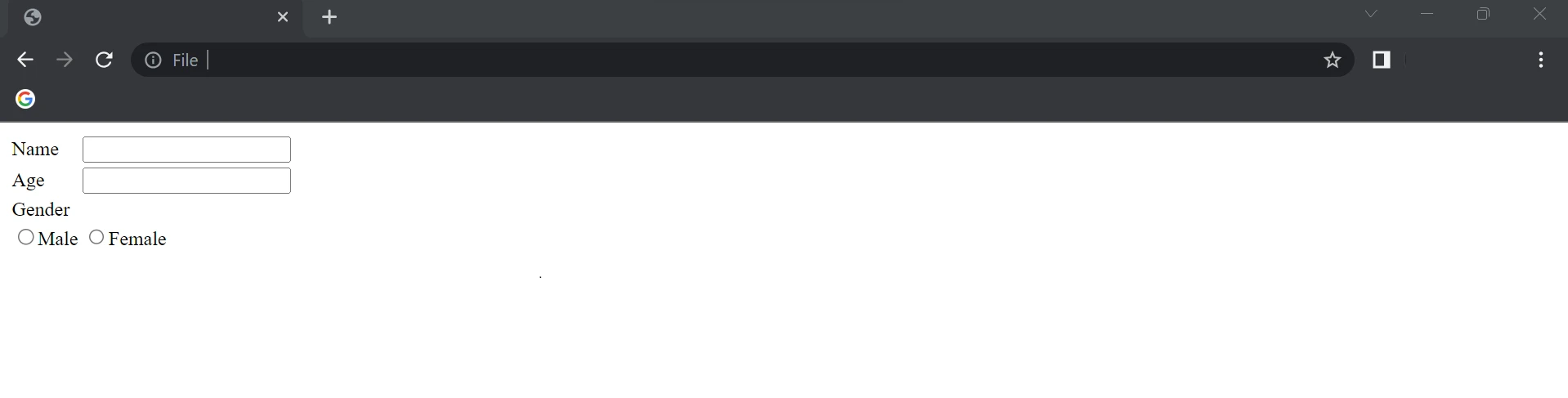
Interactive PDF Forms can be created with ease with the help of IronPDF. With a few lines of code, the sample PDF Form with a radio demo is shown below.

How to Generate PDF Forms in Python, Figure 5: Sample PDF Form First Page Sample PDF Form First Page

The above HTML is used as a string to create PDF Forms in the following code.

from ironpdf import ChromePdfRenderer, PdfDocument

# Define HTML string to construct the form
form_data = """
<html>
    <body>
        <table>
            <tr>
                <td>Name</td>
                <td><input name="name" type="text"/></td>
            </tr>
            <tr>
                <td>Age</td>
                <td><input name="age" type="text"/></td>
            </tr>
            <tr>
                <td>Gender</td>
            </tr>
            <tr>
                <td><input name="Gender" type="radio">Male</input></td>
                <td><input name="Gender" type="radio">Female</input></td>
            </tr>
        </table>
    </body>
</html>"""

# Step 1: Create PDF Form from HTML string
renderer = ChromePdfRenderer()
renderer.RenderingOptions.CreatePdfFormsFromHtml = True
# Render HTML to PDF and save it
renderer.RenderHtmlAsPdf(form_data).SaveAs("DemoForm.pdf")

# Step 2: Reading and Writing PDF form values
form_document = PdfDocument.FromFile("DemoForm.pdf")

# Find the 'name' field and update its value
name_field = form_document.Form.FindFormField("name")
name_field.Value = "Mike"
print(f"NameField value: {name_field.Value}")

# Find the 'age' field and update its value
age_field = form_document.Form.FindFormField("age")
age_field.Value = "21"
print(f"AgeField value: {age_field.Value}")

# Update the first 'Gender' radio field, assuming it's the male option
gender_field = form_document.Form.Fields[3]
gender_field.Value = "On"

# Save the updated PDF to a new file
form_document.SaveAs("UpdatedForm.pdf")
from ironpdf import ChromePdfRenderer, PdfDocument

# Define HTML string to construct the form
form_data = """
<html>
    <body>
        <table>
            <tr>
                <td>Name</td>
                <td><input name="name" type="text"/></td>
            </tr>
            <tr>
                <td>Age</td>
                <td><input name="age" type="text"/></td>
            </tr>
            <tr>
                <td>Gender</td>
            </tr>
            <tr>
                <td><input name="Gender" type="radio">Male</input></td>
                <td><input name="Gender" type="radio">Female</input></td>
            </tr>
        </table>
    </body>
</html>"""

# Step 1: Create PDF Form from HTML string
renderer = ChromePdfRenderer()
renderer.RenderingOptions.CreatePdfFormsFromHtml = True
# Render HTML to PDF and save it
renderer.RenderHtmlAsPdf(form_data).SaveAs("DemoForm.pdf")

# Step 2: Reading and Writing PDF form values
form_document = PdfDocument.FromFile("DemoForm.pdf")

# Find the 'name' field and update its value
name_field = form_document.Form.FindFormField("name")
name_field.Value = "Mike"
print(f"NameField value: {name_field.Value}")

# Find the 'age' field and update its value
age_field = form_document.Form.FindFormField("age")
age_field.Value = "21"
print(f"AgeField value: {age_field.Value}")

# Update the first 'Gender' radio field, assuming it's the male option
gender_field = form_document.Form.Fields[3]
gender_field.Value = "On"

# Save the updated PDF to a new file
form_document.SaveAs("UpdatedForm.pdf")
PYTHON

In the above example, a ChromePdfRenderer() object is created, and the RenderingOptions.CreatePdfFormsFromHtml value is set to True, which enables the forms in the PDF file. The RenderHtmlAsPdf method is used to pass the HTML string as a parameter.

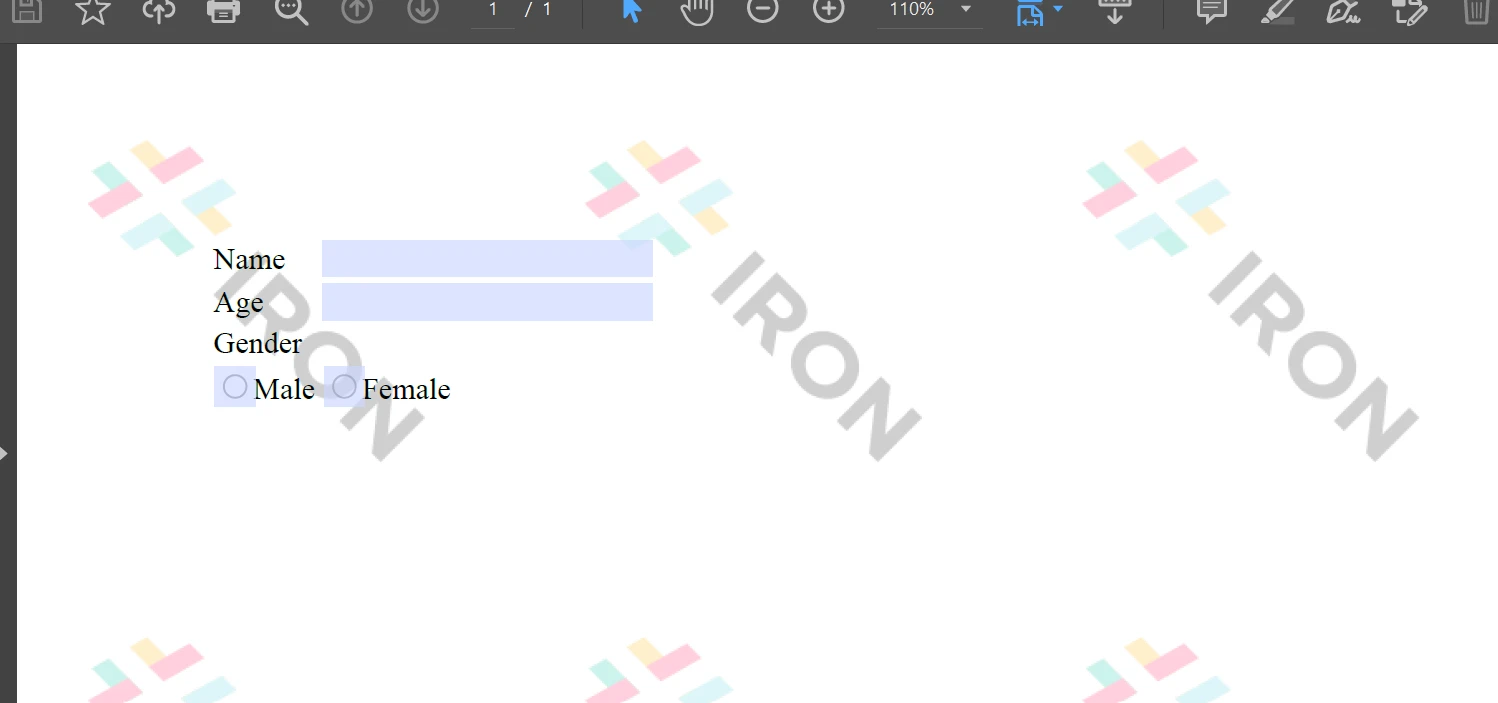
With the help of the SaveAs method, PDF files are created from the HTML string with a PDF form, which will look like the image below and is initially empty. IronPDF again updates the fields in the PDF forms. In the PDF, the first two fields are a text input and the other field is radio buttons.

How to Generate PDF Forms in Python, Figure 6: PDF Form PDF Form

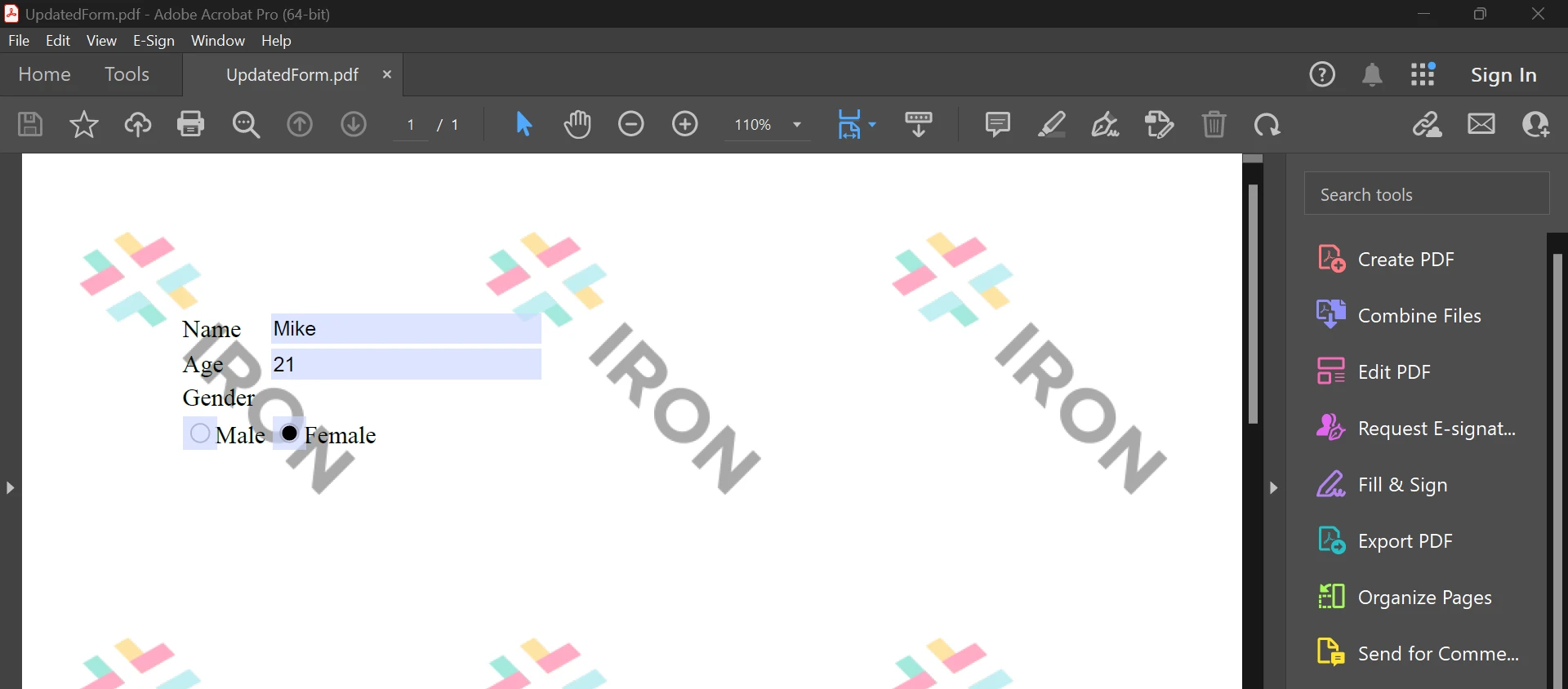
Next, the same PdfDocument object is used to upload the existing PDF Form. With the Form.FindFormField method, it allows you to get the value from the name of the element, or Form.Fields[] can be used by passing the element index into the array value. Those properties allow you to get and set the value of the element in the PDF Forms. Finally, the SaveAs function is triggered to save the updated/new PDF file to a location.

How to Generate PDF Forms in Python, Figure 7: Upload PDF Form Upload PDF Form

The above is the result from the code, which helps to fill PDF Forms. To learn more about PDF Forms, refer to the following example page.

Conclusion

The IronPDF library offers strong security techniques to reduce risks and guarantee data security. It is not restricted to any particular browser and is compatible with all popular ones. With just a few lines of code, IronPDF enables programmers to quickly generate and read PDF files. The IronPDF library offers a range of licensing options to meet the diverse demands of developers, including a free developer license and additional development licenses that can be purchased.

The $799 Lite package includes a perpetual license, a 30-day money-back guarantee, a year of software maintenance, and upgrade options. There are no additional expenses after the initial purchase. These licenses can be used in development, staging, and production settings. Additionally, IronPDF provides free licenses with some time and redistribution restrictions. Users can assess the product in actual use during the free trial period without a watermark. Please click the following licensing page to learn more about the cost of the IronPDF trial edition and how to license it.

자주 묻는 질문

Python을 사용하여 PDF 양식을 생성하려면 어떻게 해야 하나요?

IronPDF를 사용하여 양식 구조를 정의하는 HTML 문자열을 작성하고 이 HTML을 PDF 양식으로 변환하는 ChromePdfRenderer를 사용하여 Python에서 PDF 양식을 생성할 수 있습니다. 양식을 대화형 양식으로 만들려면 CreatePdfFormsFromHtml 옵션을 활성화해야 합니다.

Python에서 PDF 양식의 필드를 업데이트하는 프로세스는 무엇인가요?

IronPDF를 사용하여 PDF 양식의 필드를 업데이트하려면 PDF를 PdfDocument 개체에 로드합니다. 그런 다음 Form.FindFormField 또는 Form.Fields를 사용하여 특정 양식 필드를 찾습니다. 이러한 필드에 원하는 값을 설정하고 수정된 문서를 저장합니다.

Python의 PDF 라이브러리와 호환되는 웹 개발 프레임워크는 무엇인가요?

IronPDF는 장고, 플라스크, 파이라미드 등 널리 사용되는 Python 웹 프레임워크와 호환되므로 다양한 웹 애플리케이션에 원활하게 통합할 수 있습니다.

웹 개발에서 PDF 라이브러리를 사용하면 어떤 이점이 있나요?

웹 개발에서 IronPDF와 같은 PDF 라이브러리를 사용하면 HTML, 이미지 및 기타 형식을 PDF로 변환하고, 대화형 양식을 처리하고, 문서를 병합 및 분할하고, 텍스트를 추출하고, 안전한 문서 액세스를 보장하여 웹 애플리케이션의 전반적인 기능을 향상시킬 수 있습니다.

Python PDF 라이브러리에는 어떤 설치 단계가 필요하나요?

Python 환경에 IronPDF를 설치하려면 먼저 Python과 .NET 6.0 런타임이 설치되어 있는지 확인하세요. 그런 다음 pip를 사용하여 프로젝트에 IronPDF 패키지를 추가하고, 가급적이면 PyCharm과 같은 IDE를 사용하세요.

PDF 라이브러리를 안전하게 사용할 수 있나요?

예, IronPDF에는 PDF 문서를 보호하기 위한 비밀번호 보호 및 액세스 자격 증명과 같은 보안 기능이 포함되어 있어 보안 환경에서 사용하기에 적합합니다.

Python PDF 라이브러리는 어떤 라이선스 옵션을 제공하나요?

IronPDF는 개발, 스테이징 및 프로덕션 환경에 적합한 무료 개발자 라이선스, 30일 환불 보장이 적용되는 영구 라이선스, 유지 관리 옵션 등 유연한 라이선스 옵션을 제공합니다.

Python에서 PDF 라이브러리로 작업하는 데 권장되는 IDE는 무엇인가요?

PyCharm은 프로젝트 관리 및 코드 개발을 용이하게 하는 기능을 갖춘 강력한 환경을 제공하는 Python에서 IronPDF로 작업하는 데 권장됩니다.

Python PDF 라이브러리에 대한 평가판이 있나요?

예, IronPDF는 워터마크가 없는 무료 평가판을 제공하므로 개발자가 구매하기 전에 실제 시나리오에서 기능을 평가할 수 있습니다.

커티스 차우
기술 문서 작성자

커티스 차우는 칼턴 대학교에서 컴퓨터 과학 학사 학위를 취득했으며, Node.js, TypeScript, JavaScript, React를 전문으로 하는 프론트엔드 개발자입니다. 직관적이고 미적으로 뛰어난 사용자 인터페이스를 만드는 데 열정을 가진 그는 최신 프레임워크를 활용하고, 잘 구성되고 시각적으로 매력적인 매뉴얼을 제작하는 것을 즐깁니다.


커티스는 개발 분야 외에도 사물 인터넷(IoT)에 깊은 관심을 가지고 있으며, 하드웨어와 소프트웨어를 통합하는 혁신적인 방법을 연구합니다. 여가 시간에는 게임을 즐기거나 디스코드 봇을 만들면서 기술에 대한 애정과 창의성을 결합합니다.