푸터 콘텐츠로 바로가기
PYTHON용 IRONPDF 사용

PDF에서 한 줄씩 텍스트를 추출하는 방법

This guide will show the nuances of using IronPDF to extract text sequentially from PDF documents in Python. It will cover everything from setting up your Python environment to executing your first Python program for PDF text extraction.

How to Extract Text from PDF Line by Line

  1. Download and install the PDF library using Python to extract text from the PDF file line.
  2. Create a Python project in your preferred IDE.
  3. Load the desired PDF file for retrieving textual content.
  4. Loop through the PDF and extract text sequentially using the built-in library's function.
  5. Save the extracted text to a file.

IronPDF PDF Python Library

IronPDF is a handy tool that lets you work with PDF files in Python. Think of it as a helpful assistant that makes reading, creating, and editing PDF files accessible. Whether you aim to extract content from a PDF document, include fresh information, or transform a web page into a PDF format, IronPDF offers comprehensive solutions. It's a paid software package, but they offer a trial version for you to explore before committing to a purchase.

Before diving into the script, setting up your Python environment is essential. This step-by-step guide will help you configure your environment, create a new Python project in Visual Studio Code, and set up the IronPDF library environment configuration.

Download and Install Python: If you haven't installed Python, download the most recent release from the official Python website. Follow the installation instructions for your specific operating system.

Check Python Installation: Open your terminal or command prompt and type python --version. This command should print the installed Python version, confirming the installation was successful.

Update pip: Pip is the Python package installer. Make sure it's up to date by running pip install --upgrade pip.

Creating a New Python Project in Visual Studio Code

Download Visual Studio Code: If you don't have it, download it from the official website.

Install Python Extension: Open Visual Studio Code and head to the Extensions Marketplace. Search for the Python extension by Microsoft and install it.

Create a New Folder: Create a new folder where you want to house your Python project. Name it something relevant, like PDF_Text_Extractor.

Open the Folder in VS Code: Drag the folder into Visual Studio Code or use the File > Open Folder menu option to open the folder.

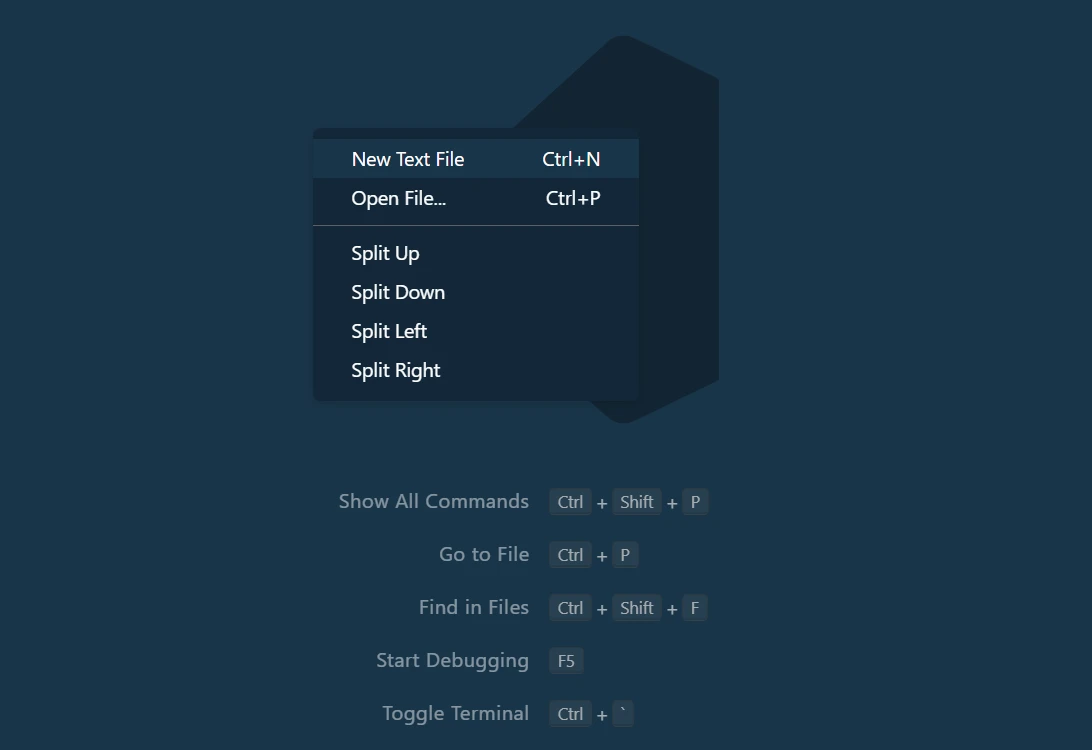
Create a Python File: Right-click in the VS Code Explorer panel and choose New File. Name the file main.py or something similar. This file will hold your Python program.

How to Extract Text From PDF Line By Line, Figure 1: Create new Python file in Visual Studio Code Create new Python file in Visual Studio Code

IronPDF Library Requirement and Setup

IronPDF is essential for retrieving textual content from PDFs. Here's how to install it:

Open Terminal in VS Code: You can open a terminal inside VS Code by going to Terminal > New Terminal.

Install IronPDF: In the terminal, execute the following to install the latest version of IronPDF:

 pip install ironpdf

This process retrieves and installs the IronPDF library along with any required modules.

How to Extract Text From PDF Line By Line, Figure 2: Install IronPDF package Install IronPDF package

And there you have it! You've now successfully set up your Python environment, created a new project in Visual Studio Code, and installed the IronPDF library.

Extract Text From PDF Line By Line

Applying License Key

Before you proceed, make sure you apply your IronPDF license key.

from ironpdf import PdfDocument

# Apply your license key to unlock library features
License.LicenseKey = "YOUR-LICENSE-KEY-HERE"
from ironpdf import PdfDocument

# Apply your license key to unlock library features
License.LicenseKey = "YOUR-LICENSE-KEY-HERE"
PYTHON

Replace YOUR-LICENSE-KEY-HERE with your actual IronPDF license key. This license allows you to unlock all library features for your project.

Loading the PDF File Format

You need to load an existing PDF file into your Python program. You can achieve this with the PdfDocument.FromFile method from IronPDF.

pdfFileObj = PdfDocument.FromFile("content.pdf")
PYTHON

"content.pdf" refers to the PDF file you wish to read. This loaded PDF file is stored in the pdfFileObj variable, used as a PDF reader or the PDF file object pdfFileObj.

Extracting Text from the Entire PDF Document

If you want to grab all the text data from the PDF file at once, you can use the ExtractAllText method.

all_text = pdfFileObj.ExtractAllText()
PYTHON

The ExtractAllText method is used here for demonstration purposes. This method extracts all the text from the PDF file and stores it in a variable called all_text.

Extracting Text from a Specific PDF Page

IronPDF enables text extraction from a specific page using the ExtractTextFromPage method. This method is useful when you only need text from some pages.

page_2_text = pdfFileObj.ExtractTextFromPage(1)
PYTHON

Here, we're extracting text from the second page, corresponding to an index of 1.

Initializing a Text File for Writing Extracted Text

with open("extracted_text.txt", "w", encoding='utf-8') as text_file:
PYTHON

Open a file named "extracted_text.txt," to save the text data. The Python's built-in open function is used for this, setting the file mode to "write" ("w"), with encoding='utf-8' to handle Unicode characters.

Loop Through Each Page for Line by Line Text Extraction

for i in range(0, pdfFileObj.get_Pages().Count):
PYTHON

The above code loops through each page in the PDF file using IronPDF's get_Pages().Count to get the total number of pages.

Extract Text and Segment It into Lines

page_text = pdf.ExtractTextFromPage(i)
lines = page_text.split('\n')
page_text = pdf.ExtractTextFromPage(i)
lines = page_text.split('\n')
PYTHON

For each page, the ExtractTextFromPage method is used to get all the text and then use Python's split method to break it into lines. This results in a list of lines that can be looped through.

Write Extracted Lines to Text File

for eachline in lines:
    print(eachline)
    text_file.write(eachline + '\n')
for eachline in lines:
    print(eachline)
    text_file.write(eachline + '\n')
PYTHON

Here, the code iterates through each line in the list of lines, printing it to the console, and writing it to the file by adding a newline character (\n) after each line to properly format this text.

Complete Code

Here is the comprehensive implementation:

from ironpdf import PdfDocument

# Apply your license key
License.LicenseKey = "Your-License-Key-Here"

# Load an existing PDF file
pdfFileObj = PdfDocument.FromFile("content.pdf")

# Extract text from the entire PDF file
all_text = pdfFileObj.ExtractAllText()

# Extract text from a specific page in the file (Page 2)
page_2_text = pdfFileObj.ExtractTextFromPage(1)

# Initialize a file object for writing the extracted text
with open("extracted_text.txt", "w", encoding='utf-8') as text_file:
    # Get the number of pages in the PDF document
    num_of_pages = pdfFileObj.get_Pages().Count
    print("Number of pages in given document are ", num_of_pages)

    # Loop through each page using the Count property
    for i in range(0, num_of_pages):
        # Extract text from the current page
        page_text = pdfFileObj.ExtractTextFromPage(i)

        # Split the text by lines from this page object
        lines = page_text.split('\n')

        # Loop through the lines and print/write them
        for eachline in lines:
            print(eachline)  # Print each line to the console
            # Write each line to the text document
            text_file.write(eachline + '\n')
from ironpdf import PdfDocument

# Apply your license key
License.LicenseKey = "Your-License-Key-Here"

# Load an existing PDF file
pdfFileObj = PdfDocument.FromFile("content.pdf")

# Extract text from the entire PDF file
all_text = pdfFileObj.ExtractAllText()

# Extract text from a specific page in the file (Page 2)
page_2_text = pdfFileObj.ExtractTextFromPage(1)

# Initialize a file object for writing the extracted text
with open("extracted_text.txt", "w", encoding='utf-8') as text_file:
    # Get the number of pages in the PDF document
    num_of_pages = pdfFileObj.get_Pages().Count
    print("Number of pages in given document are ", num_of_pages)

    # Loop through each page using the Count property
    for i in range(0, num_of_pages):
        # Extract text from the current page
        page_text = pdfFileObj.ExtractTextFromPage(i)

        # Split the text by lines from this page object
        lines = page_text.split('\n')

        # Loop through the lines and print/write them
        for eachline in lines:
            print(eachline)  # Print each line to the console
            # Write each line to the text document
            text_file.write(eachline + '\n')
PYTHON

Output

Run the Python file by writing the following command in the Visual Studio Code terminal:

python main.py
python main.py
SHELL

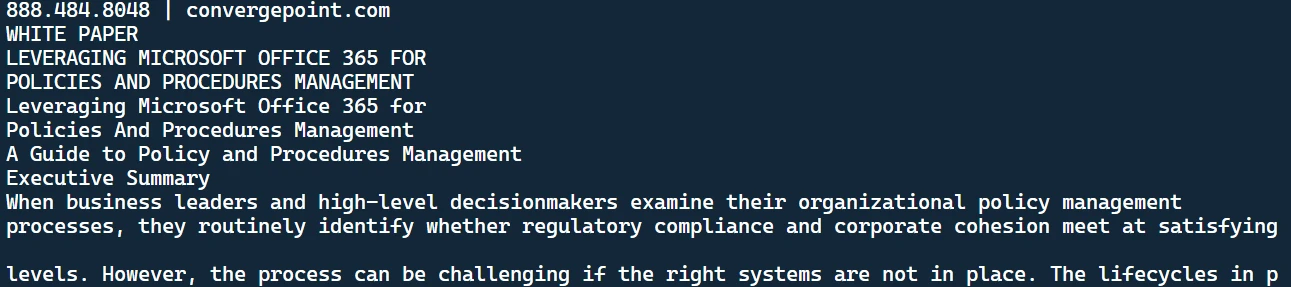
This outcome will show on the terminal:

How to Extract Text From PDF Line By Line, Figure 3: The extracted text The extracted text

It is the retrieved text from the PDF file. You'll also notice a text document created in your directory.

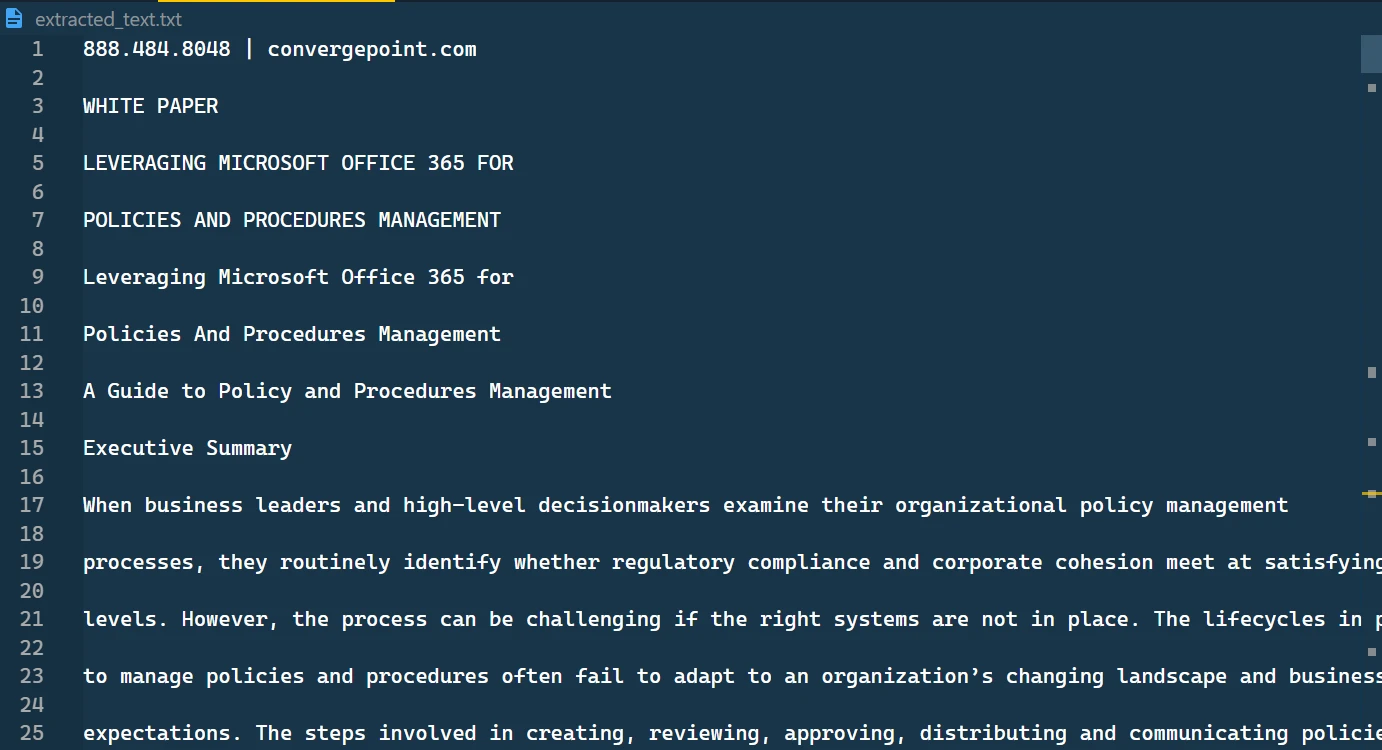
How to Extract Text From PDF Line By Line, Figure 4: The extracted text stored in TXT file The extracted text stored in TXT file

In this text file, you'll find the text format that has been retrieved, presented sequentially.

How to Extract Text From PDF Line By Line, Figure 5: The extracted text file content The extracted text file content

Conclusion

In conclusion, using IronPDF and Python to extract text from PDF files is a robust and straightforward approach, whether pulling text from the entire document, specific pages, or even line by line. The added benefit of saving this retrieved text into a text file enables you to efficiently manage and utilize the data for future processing. IronPDF proves to be an invaluable tool in handling PDFs, offering a range of functionalities beyond just text extraction. You can also convert PDF to Text in Python using IronPDF.

Additionally, creating interactive PDFs, completing and submitting interactive forms, merging and dividing PDF files, extracting text and images, searching text within PDF files, rasterizing PDFs to images, changing font size, border and background color, and converting PDF files are all tasks that the IronPDF toolkit can help with.

IronPDF is not an open-source Python library. If you're considering using IronPDF for your projects, the license for the package starts at $799. However, if you need clarification on the investment, IronPDF offers a free trial to explore its features thoroughly.

How to Extract Text From PDF Line By Line, Figure 6: The licensing page

자주 묻는 질문

Python을 사용하여 PDF에서 텍스트를 추출하려면 어떻게 해야 하나요?

IronPDF를 사용하여 Python에서 PDF 파일에서 텍스트를 추출할 수 있습니다. 여기에는 PdfDocument.FromFile 메서드를 사용하여 PDF를 로드하고 페이지를 반복하여 한 줄씩 텍스트를 추출하는 작업이 포함됩니다.

Python에서 PDF에서 텍스트 추출을 시작하려면 무엇이 필요하나요?

Python으로 PDF에서 텍스트를 추출하려면 Python이 설치되어 있어야 하며, pip를 통해 설치할 수 있는 IronPDF 라이브러리가 필요합니다. 스크립트를 작성하고 실행하려면 Visual Studio Code와 같은 IDE를 사용하는 것이 좋습니다.

IronPDF는 PDF의 특정 페이지에서 텍스트를 추출할 수 있나요?

예, IronPDF를 사용하면 페이지 인덱스를 지정하여 ExtractTextFromPage 메서드를 사용하여 PDF의 특정 페이지에서 텍스트를 추출할 수 있습니다.

추출한 텍스트를 Python의 파일에 저장하려면 어떻게 해야 하나요?

IronPDF를 사용하여 텍스트를 추출한 후 Python의 파일 처리 방법을 사용하여 추출한 텍스트 줄을 텍스트 파일에 작성하여 파일에 저장할 수 있습니다.

IronPDF는 텍스트 추출 외에 어떤 추가 기능을 제공하나요?

IronPDF는 PDF 생성, 편집, 변환, PDF 문서 병합 및 분할, 이미지 추출, PDF를 다른 파일 형식으로 변환하는 등 다양한 기능을 제공합니다.

Python 프로젝트에서 IronPDF에 라이선스를 부여하려면 어떻게 해야 하나요?

IronPDF에 라이선스를 부여하려면 Python 스크립트에서 License.LicenseKey 속성을 사용하여 라이선스 키를 설정하면 라이브러리의 모든 기능을 잠금 해제할 수 있습니다.

구매하기 전에 IronPDF를 평가할 수 있나요?

예, IronPDF는 정식 라이선스 구매를 결정하기 전에 기능을 평가할 수 있는 평가판을 제공합니다.

PDF 텍스트 추출 중에 문제가 발생하면 어떻게 해야 하나요?

IronPDF가 올바르게 설치되고 라이선스가 부여되었는지, Python 환경이 올바르게 설정되었는지 확인하세요. 일반적인 문제 해결을 위해 설명서 또는 지원 리소스를 참조하세요.

IronPDF를 사용하여 PDF를 이미지로 변환할 수 있나요?

예, IronPDF는 PDF를 이미지로 래스터화하는 기능을 제공하여 전체 문서 또는 특정 페이지를 이미지 파일로 변환할 수 있습니다.

PDF 텍스트 추출을 위한 Python 스크립트를 실행하려면 어떻게 해야 하나요?

스크립트를 작성한 후 IDE의 터미널에서 python main.py를 실행하여 실행할 수 있으며, 여기서 main.py는 스크립트 파일의 이름입니다.

커티스 차우
기술 문서 작성자

커티스 차우는 칼턴 대학교에서 컴퓨터 과학 학사 학위를 취득했으며, Node.js, TypeScript, JavaScript, React를 전문으로 하는 프론트엔드 개발자입니다. 직관적이고 미적으로 뛰어난 사용자 인터페이스를 만드는 데 열정을 가진 그는 최신 프레임워크를 활용하고, 잘 구성되고 시각적으로 매력적인 매뉴얼을 제작하는 것을 즐깁니다.


커티스는 개발 분야 외에도 사물 인터넷(IoT)에 깊은 관심을 가지고 있으며, 하드웨어와 소프트웨어를 통합하는 혁신적인 방법을 연구합니다. 여가 시간에는 게임을 즐기거나 디스코드 봇을 만들면서 기술에 대한 애정과 창의성을 결합합니다.