




已更新 2026年4月23日
简化 .NET 与 Microsoft.Extensions.AI 的 LLM 集成
AI正在改变软件开发,但将大型语言模型(LLM)集成到.NET中直到现在一直很复杂。通过IronPdf.AI,将AI集成更进一步,该产品为.NET应用程序带来了OpenAI驱动的PDF解析、数据提取和内容摘要。
阅读更多

对话气泡是突出文本、注释文档或在PDF中创建漫画风格效果的好方法。 无论是为报告添加评论、生成说明指南还是创建交互式文档,对话气泡都可以增强PDF的可读性和视觉吸引力。
在本文中,我们将探讨如何使用IronPDF在C#中将字符串变量转换为对话气泡。 IronPDF是一个强大的.NET库,可轻松将HTML和CSS转换为PDF,非常适合从任何给定的C# 字符串动态渲染样式对话气泡。 让我们深入了解!
那么,为什么是IronPDF呢? IronPDF是一个强大的C#库,旨在使程序化地处理PDF文件变得轻松。 使用它,您可以轻松从HTML、图像、DOCX文件等生成PDF文档。 或者,也许您正在寻找一个可以高效处理PDF安全性或编辑现有PDF文档的工具。 无论任务是什么,IronPDF都能满足您的需求,作为一个全方位的库,几乎可以为任何与PDF相关的任务提供解决方案,而无需第三方库。
首先,通过NuGet安装IronPDF。 在Visual Studio中打开Package Manager Console并运行:
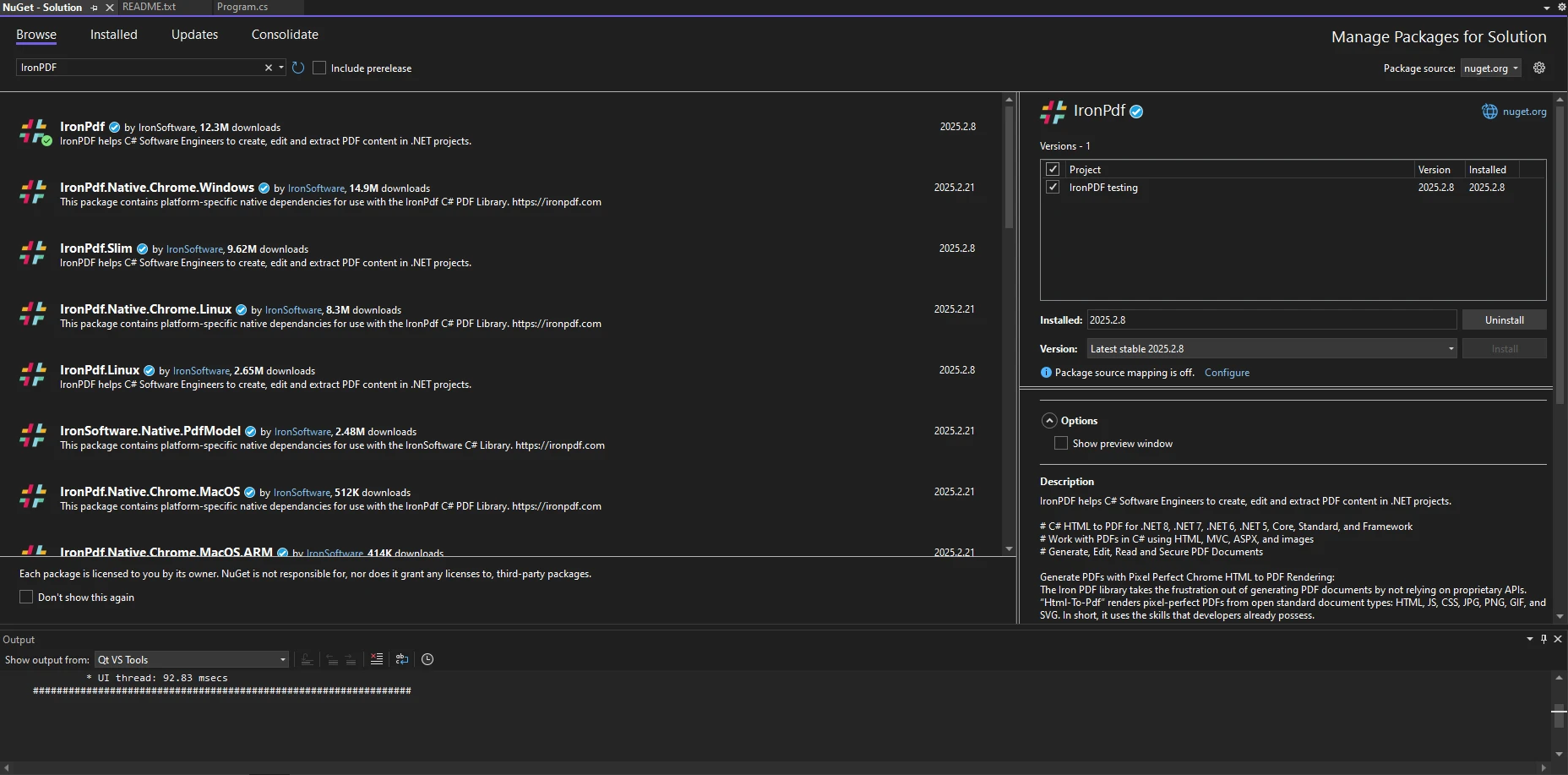
或者,您可以通过在Visual Studio的NuGet包管理器中搜索IronPDF并点击"安装"来安装它。
安装后,确保在C#文件中包含以下命名空间:
using IronPdf;Imports IronPdf对话气泡通常使用HTML和CSS创建。 它们由一个带有圆角的文本容器和一个指向演讲者的小尾部组成。 使用IronPDF,我们可以将这些对话气泡生成为HTML元素并在PDF中呈现。
有时,我们可能需要将用户输入转换为双精度值,以动态设置对话气泡的尺寸。 我们可以使用解析方法来实现这一点:
string widthInput = "150.5";
double bubbleWidth = double.Parse(widthInput);Dim widthInput As String = "150.5"
Dim bubbleWidth As Double = Double.Parse(widthInput)这允许根据用户输入动态调整气泡的大小。
一个布尔值可以用于切换对话气泡是否可见:
bool showBubble = true;
if (showBubble)
{
    Console.WriteLine("Speech bubble is visible");
}Dim showBubble As Boolean = True
If showBubble Then
Console.WriteLine("Speech bubble is visible")
End If由于IronPDF支持HTML到PDF的转换,我们可以使用HTML和CSS创建一个简单的对话气泡。 要将字符串变量转换为PDF文档,您需要确保首先创建一个新的ChromePdfRenderer实例。
using IronPdf;

class Program
{
    static void Main()
    {
        // Create a new PDF renderer instance
        ChromePdfRenderer renderer = new ChromePdfRenderer();

        // HTML and CSS content for the speech bubble
        string htmlContent =
            "<div class='bubble'>Hello, this is a speech bubble!</div>" +
            "<style>" +
            ".bubble { display: inline-block; background: #f0f0f0; border-radius: 10px; padding: 10px 15px; position: relative; font-family: Arial, sans-serif; }" +
            ".bubble::after { content: ''; position: absolute; bottom: -10px; left: 20px; border-width: 10px; border-style: solid; border-color: #f0f0f0 transparent transparent transparent; }" +
            "</style>";

        // Render the HTML to a PDF
        PdfDocument pdf = renderer.RenderHtmlAsPdf(htmlContent);

        // Save the PDF file
        pdf.SaveAs("speechBubble.pdf");
    }
}Imports IronPdf
Friend Class Program
Shared Sub Main()
' Create a new PDF renderer instance
Dim renderer As New ChromePdfRenderer()
' HTML and CSS content for the speech bubble
Dim htmlContent As String = "<div class='bubble'>Hello, this is a speech bubble!</div>" & "<style>" & ".bubble { display: inline-block; background: #f0f0f0; border-radius: 10px; padding: 10px 15px; position: relative; font-family: Arial, sans-serif; }" & ".bubble::after { content: ''; position: absolute; bottom: -10px; left: 20px; border-width: 10px; border-style: solid; border-color: #f0f0f0 transparent transparent transparent; }" & "</style>"
' Render the HTML to a PDF
Dim pdf As PdfDocument = renderer.RenderHtmlAsPdf(htmlContent)
' Save the PDF file
pdf.SaveAs("speechBubble.pdf")
End Sub
End Class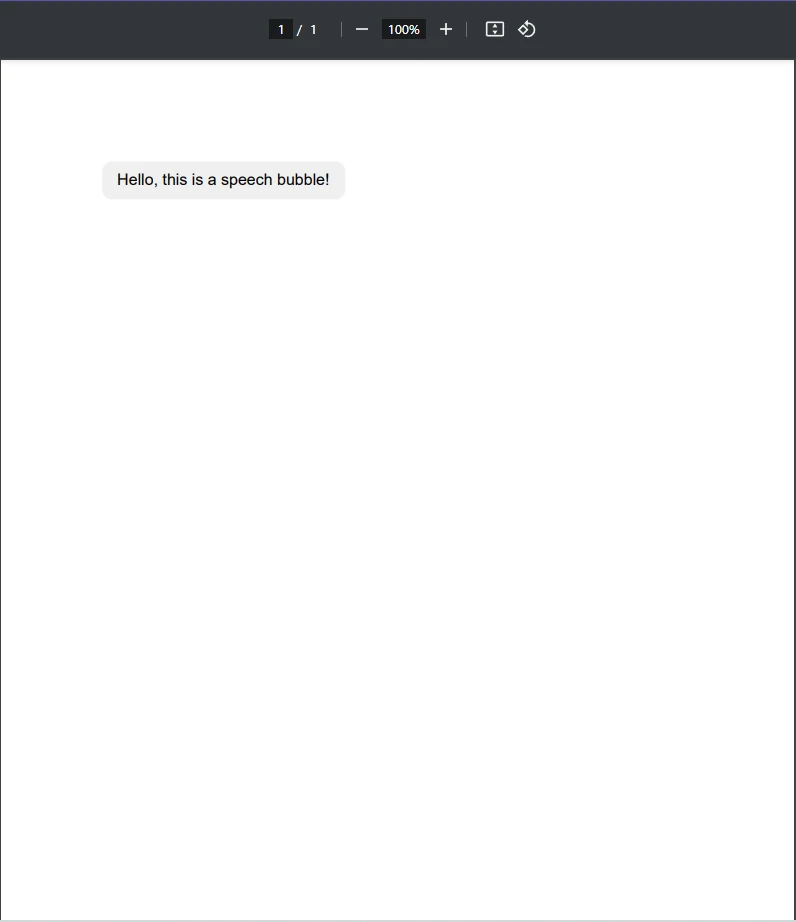
正如您所见,我们创建了一个字符串变量,其中包含将用于在我们的PDF文档中呈现对话气泡的HTML和CSS内容。 然后,使用ChromePdfRenderer类的RenderHtmlAsPdf方法,将此字符串呈现为PDF文档,然后保存它。
通过遵循这些步骤,您将生成一个新PDF文档,其中包含文本**"您好,这是一个对话气泡!"**,并掌握从简单字符串生成PDF的基础知识。
如果您想在PDF中添加的不仅仅是一个基本的对话气泡怎么办? 让我们看看如何使用CSS自定义对话气泡。 您可以通过调整CSS来修改气泡的颜色、大小和位置。 以下是一个示例,我们更改背景颜色和文本大小:
.bubble {
  background: #ffcc00;
  color: #333;
  font-size: 16px;
}如果您需要动态文本,可以将静态文本替换为C#变量,最终代码类似于这样:
using IronPdf;

class Program
{
    static void Main()
    {
        // Create a new PDF renderer instance
        ChromePdfRenderer renderer = new ChromePdfRenderer();

        // User input for the dynamic speech bubble content
        string userInput = "This is a custom speech bubble!";

        // HTML and CSS content for the speech bubble with dynamic text
        string dynamicHtml =
            $"<div class='bubble'>{userInput}</div>" +
            "<style>" +
            ".bubble {background: #ffcc00; color: #333; font-size: 16px; }" +
            "</style>";

        // Render the HTML to a PDF
        PdfDocument pdf = renderer.RenderHtmlAsPdf(dynamicHtml);

        // Save the PDF file
        pdf.SaveAs("speechBubble.pdf");
    }
}Imports IronPdf
Friend Class Program
Shared Sub Main()
' Create a new PDF renderer instance
Dim renderer As New ChromePdfRenderer()
' User input for the dynamic speech bubble content
Dim userInput As String = "This is a custom speech bubble!"
' HTML and CSS content for the speech bubble with dynamic text
Dim dynamicHtml As String = $"<div class='bubble'>{userInput}</div>" & "<style>" & ".bubble {background: #ffcc00; color: #333; font-size: 16px; }" & "</style>"
' Render the HTML to a PDF
Dim pdf As PdfDocument = renderer.RenderHtmlAsPdf(dynamicHtml)
' Save the PDF file
pdf.SaveAs("speechBubble.pdf")
End Sub
End Class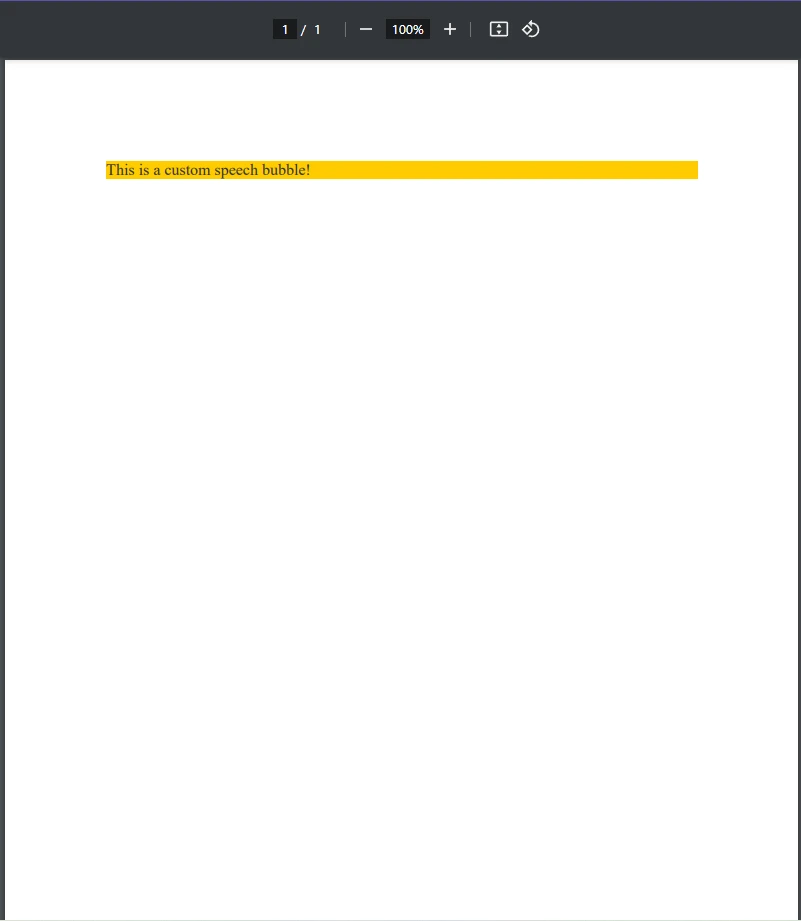
有时候,您可能希望将对话气泡添加到现有的PDF中,而不是生成一个新的。 IronPDF允许您以水印的形式将HTML元素叠加到现有的PDF上。
using IronPdf;

class Program
{
    public static void Main()
    {
        // Load an existing PDF document
        PdfDocument pdf = PdfDocument.FromFile("existing.pdf");

        // HTML and CSS content for the new speech bubble
        string newBubble =
            "<div class='bubble'>New Comment</div>" +
            "<style>" +
            ".bubble { display: inline-block; background: #f0f0f0; border-radius: 10px; padding: 10px 15px; position: relative; font-family: Arial, sans-serif; }" +
            ".bubble::after { content: ''; position: absolute; bottom: -10px; left: 20px; border-width: 10px; border-style: solid; border-color: #f0f0f0 transparent transparent transparent; }" +
            "</style>";

        // Apply the speech bubble as a watermark on the existing PDF
        pdf.ApplyWatermark(newBubble);

        // Save the updated PDF file
        pdf.SaveAs("updated.pdf");
    }
}Imports IronPdf
Friend Class Program
Public Shared Sub Main()
' Load an existing PDF document
Dim pdf As PdfDocument = PdfDocument.FromFile("existing.pdf")
' HTML and CSS content for the new speech bubble
Dim newBubble As String = "<div class='bubble'>New Comment</div>" & "<style>" & ".bubble { display: inline-block; background: #f0f0f0; border-radius: 10px; padding: 10px 15px; position: relative; font-family: Arial, sans-serif; }" & ".bubble::after { content: ''; position: absolute; bottom: -10px; left: 20px; border-width: 10px; border-style: solid; border-color: #f0f0f0 transparent transparent transparent; }" & "</style>"
' Apply the speech bubble as a watermark on the existing PDF
pdf.ApplyWatermark(newBubble)
' Save the updated PDF file
pdf.SaveAs("updated.pdf")
End Sub
End Class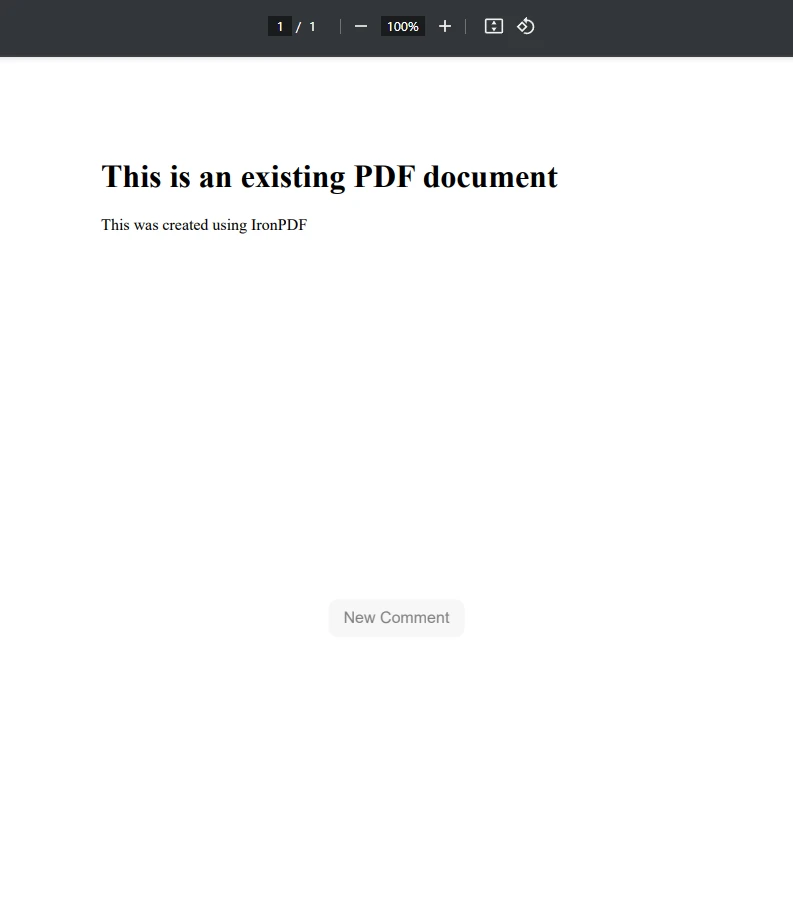
正如您在上述代码示例中所见,我们首先使用**PdfDocument.FromFile()加载了一个现有的PDF文档,我们计划在其上添加新的对话气泡。 然后,使用简单的HTML和CSS,我们在我们的newBubble字符串HTML内容表示中创建了对话气泡。 最后,我们只需利用ApplyWatermark**方法将这个新气泡应用到PDF上。
使用IronPDF的水印工具等工具,开发人员可以轻松地将HTML内容应用到现有的PDF文档中。
如果您需要根据用户输入、数据库或API动态创建对话气泡,您可以遍历数据并生成多个对话气泡。
using IronPdf;

class Program
{
    static void Main()
    {
        // Create a new PDF renderer instance
        ChromePdfRenderer renderer = new ChromePdfRenderer();

        // List of messages to convert into speech bubbles
        List<string> messages = new List<string> { "Hello!", "How are you?", "This is IronPDF!" };
        string htmlBubbles = "";

        // Generate HTML for each message
        foreach (var msg in messages)
        {
            htmlBubbles += $"<div class='bubble'>{msg}</div>";
        }

        // Render the HTML to a PDF
        var pdf = renderer.RenderHtmlAsPdf(htmlBubbles);

        // Save the PDF file
        pdf.SaveAs("updated.pdf");
    }
}Imports IronPdf
Friend Class Program
Shared Sub Main()
' Create a new PDF renderer instance
Dim renderer As New ChromePdfRenderer()
' List of messages to convert into speech bubbles
Dim messages As New List(Of String) From {"Hello!", "How are you?", "This is IronPDF!"}
Dim htmlBubbles As String = ""
' Generate HTML for each message
For Each msg In messages
htmlBubbles &= $"<div class='bubble'>{msg}</div>"
Next msg
' Render the HTML to a PDF
Dim pdf = renderer.RenderHtmlAsPdf(htmlBubbles)
' Save the PDF file
pdf.SaveAs("updated.pdf")
End Sub
End Class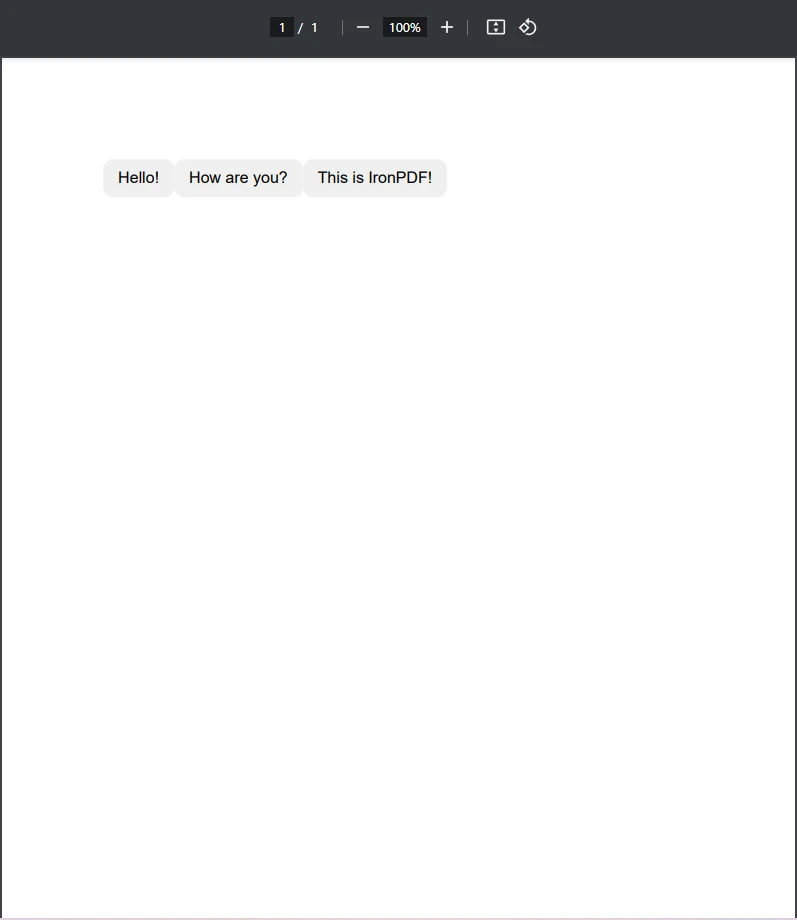
此代码通过使用foreach循环将字符串列表转换为对话气泡。通过使用这样的方法将字符串转换为PDF文档上的对话气泡,您可以轻松地将数据(如聊天日志、通知甚至自动报告)转换为易于显示的对话气泡。
在解析用户输入时,我们可能需要考虑特定文化的格式化信息,尤其是对于数值。
using System.Globalization;

string value = "1,234.56";
double number = double.Parse(value, CultureInfo.InvariantCulture);Imports System.Globalization
Private value As String = "1,234.56"
Private number As Double = Double.Parse(value, CultureInfo.InvariantCulture)这确保了无论区域设置如何,数字格式都保持一致。
我们可以声明一个int变量来存储对话气泡的计数器:
int i = 0;
for (i = 0; i < 5; i++)
{
    Console.WriteLine($"Generating speech bubble {i + 1}");
}Dim i As Integer = 0
For i = 0 To 4
Console.WriteLine($"Generating speech bubble {i + 1}")
Next i如果我们需要将字符串输入解析为整数结果,我们可以使用parse 方法:
string input = "42";
int result = int.Parse(input);Dim input As String = "42"
Dim result As Integer = Integer.Parse(input)这确保文本输入转换为有效格式,即可用的数值格式变量。
为了使我们的代码结构化,我们可以定义一个公共类用于生成对话气泡:
public class SpeechBubbleGenerator
{
    // Method to generate HTML for a speech bubble
    public string GenerateBubble(string text)
    {
        return $"<div class='bubble'>{text}</div>";
    }
}Public Class SpeechBubbleGenerator
' Method to generate HTML for a speech bubble
Public Function GenerateBubble(ByVal text As String) As String
Return $"<div class='bubble'>{text}</div>"
End Function
End Class使用此类,我们可以高效地创建多个对话气泡。
对话气泡为PDF增添了清晰度和风格,使其成为注释、评论和交互式文档的理想选择。 通过使用IronPDF,您可以轻松生成这些带有HTML和CSS的气泡,同时利用C#进行自定义和自动化。 无论您是将它们叠加到现有的PDF上还是创建动态文档,IronPDF都提供了一种灵活且高效的方法,使字符串转换为可读的PDF文档中的对话气泡变得轻而易举。
如果您正在寻找.NET中的强大PDF解决方案,请尝试IronPDF并开始使用动态、吸引人的内容增强您的PDF!

Jacob Mellor 是 Iron Software 的首席技术官,也是一位开创 C# PDF 技术的有远见的工程师。作为 Iron Software 核心代码库的原始开发者,他从公司成立之初就开始塑造公司的产品架构,与首席执行官 Cameron Rimington 一起将公司转变为一家拥有 50 多名员工的公司,为 NASA、特斯拉和全球政府机构提供服务。



当您需要PDF看起来像HTML时,速度快。













