


如何在ASP.NET Core中使用C#上传和下载PDF文件

在 .NET 应用程序中构建 PDF 工作流时,保护敏感文档是一项关键要求。 财务报告、法律合同和合规记录在缺乏访问控制的情况下分发时,均存在风险。 任何人都能打开、复制或编辑的 PDF 文件并非安全文档——它反而会带来责任。
IronPDF 提供了一个直接 API,用于加密 PDF 文件、强制密码访问,并限制打印和内容复制等权限。 本教程通过针对 .NET 10 的可运行 C# 代码示例,详细介绍了每项安全机制。
开始免费试用,跟随下面的代码示例学习。

如何在 .NET 中开始使用 PDF 安全功能?
在应用安全设置之前,请先将 IronPDF 安装到您的 .NET 项目中。 打开 NuGet 包管理器控制台并运行:
Install-Package IronPdf
或通过 .NET CLI 添加:
dotnet add package IronPdf
安装后,添加SecuritySettings属性,控制所有加密和权限选项。 无需额外配置——当您设置密码时,该库会自动启用 128 位加密。
IronPDF 可在 Windows、macOS 和 Linux 上运行,无需额外的原生依赖项,因此其安全 API 在容器化环境中也能以完全相同的方式运行。 您无需进行平台特定的配置即可部署到 Azure 和 Docker。除了 .NET 10 之外,IronPDF 还支持 .NET 8 和 .NET 9,以及用于处理安全文档工作流的旧版应用程序所需的 .NET Framework 4.6.2 及以上版本。
在 PDF 安全设置中,用户密码与所有者密码有何区别?
PDF 规范定义了两种不同的密码类型,它们在文档访问控制中发挥着不同的作用。 了解每种工具的工作原理,有助于您为具体应用场景设计合适的安全模型。
打开并查看该 PDF 文件需要用户密码(也称为打开密码)。 任何试图访问该文件的人,必须先输入此密码,才能查看内容。 当目标是完全阻止未经授权的第三方阅读文档时,应采用此控制措施。
所有者密码(也称为权限密码)用于控制文档打开后允许执行的操作。 即使用户密码授予了读取权限,是否允许PRINT、复制内容、编辑或填写表单,仍由所有者密码决定。 将两个密码设置为不同的值,意味着查看者无法在没有所有者凭据的情况下修改安全配置。
以下代码示例演示了如何将这两种密码类型应用于新的 PDF 文件:
using IronPdf;

// Create a new PDF document from HTML content
var renderer = new ChromePdfRenderer();
var pdf = renderer.RenderHtmlAsPdf("<h1>Confidential Report</h1><p>Sensitive financial data inside.</p>");

// Set owner password to control editing permissions
pdf.SecuritySettings.OwnerPassword = "owner-secret-123";

// Set user password required to open the document
pdf.SecuritySettings.UserPassword = "user-access-456";

// Save the encrypted PDF
pdf.SaveAs("protected-report.pdf");
using IronPdf;
// Create a new PDF document from HTML content
var renderer = new ChromePdfRenderer();
var pdf = renderer.RenderHtmlAsPdf("<h1>Confidential Report</h1><p>Sensitive financial data inside.</p>");
// Set owner password to control editing permissions
pdf.SecuritySettings.OwnerPassword = "owner-secret-123";
// Set user password required to open the document
pdf.SecuritySettings.UserPassword = "user-access-456";
// Save the encrypted PDF
pdf.SaveAs("protected-report.pdf");Imports IronPdf
' Create a new PDF document from HTML content
Dim renderer As New ChromePdfRenderer()
Dim pdf = renderer.RenderHtmlAsPdf("<h1>Confidential Report</h1><p>Sensitive financial data inside.</p>")
' Set owner password to control editing permissions
pdf.SecuritySettings.OwnerPassword = "owner-secret-123"
' Set user password required to open the document
pdf.SecuritySettings.UserPassword = "user-access-456"
' Save the encrypted PDF
pdf.SaveAs("protected-report.pdf")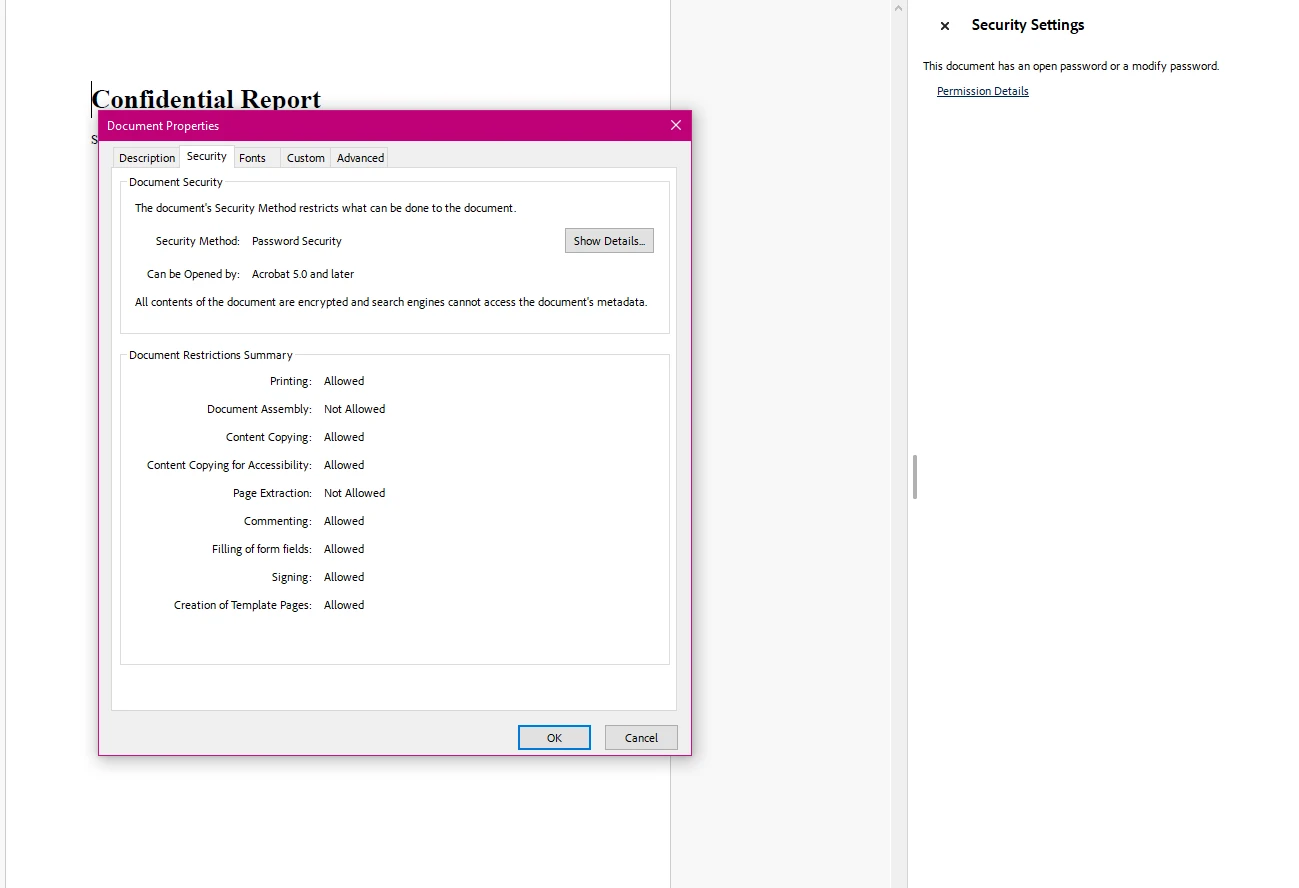
SecuritySettings属性提供对所有加密和权限控制的统一访问。 设置OwnerPassword在文档上激活128位加密。 设置UserPassword在打开文件时创建访问屏障。两个属性可以独立设置——仅用所有者密码保护的文档依然可被任何人阅读,但限制他们的操作。
有关完整SecuritySettings API的更多详细信息,请参阅PdfSecuritySettings类参考。
如何对现有 PDF 文档进行加密?
许多工作流程需要对现有 PDF 文件添加安全保护,而非从 HTML 或模板生成新文件。 这适用于接收来自外部源的文档、处理 Web 应用程序中的上传,或在归档前对文件进行加密保护。
IronPDF通过同一个SecuritySettings API处理这个问题。 使用PdfDocument.FromFile加载文件,应用安全配置,然后保存结果:
using IronPdf;

// Load an existing PDF document from disk
var pdf = PdfDocument.FromFile("financial-statement.pdf");

// Apply both passwords
pdf.SecuritySettings.OwnerPassword = "admin-key-789";
pdf.SecuritySettings.UserPassword = "reader-key-321";

// Restrict printing and content copying
pdf.SecuritySettings.AllowUserPrinting = IronPdf.Security.PdfPrintSecurity.NoPrint;
pdf.SecuritySettings.AllowUserCopyPasteContent = false;

// Save the secured version
pdf.SaveAs("financial-statement-secured.pdf");
using IronPdf;
// Load an existing PDF document from disk
var pdf = PdfDocument.FromFile("financial-statement.pdf");
// Apply both passwords
pdf.SecuritySettings.OwnerPassword = "admin-key-789";
pdf.SecuritySettings.UserPassword = "reader-key-321";
// Restrict printing and content copying
pdf.SecuritySettings.AllowUserPrinting = IronPdf.Security.PdfPrintSecurity.NoPrint;
pdf.SecuritySettings.AllowUserCopyPasteContent = false;
// Save the secured version
pdf.SaveAs("financial-statement-secured.pdf");Imports IronPdf
' Load an existing PDF document from disk
Dim pdf = PdfDocument.FromFile("financial-statement.pdf")
' Apply both passwords
pdf.SecuritySettings.OwnerPassword = "admin-key-789"
pdf.SecuritySettings.UserPassword = "reader-key-321"
' Restrict printing and content copying
pdf.SecuritySettings.AllowUserPrinting = IronPdf.Security.PdfPrintSecurity.NoPrint
pdf.SecuritySettings.AllowUserCopyPasteContent = False
' Save the secured version
pdf.SaveAs("financial-statement-secured.pdf")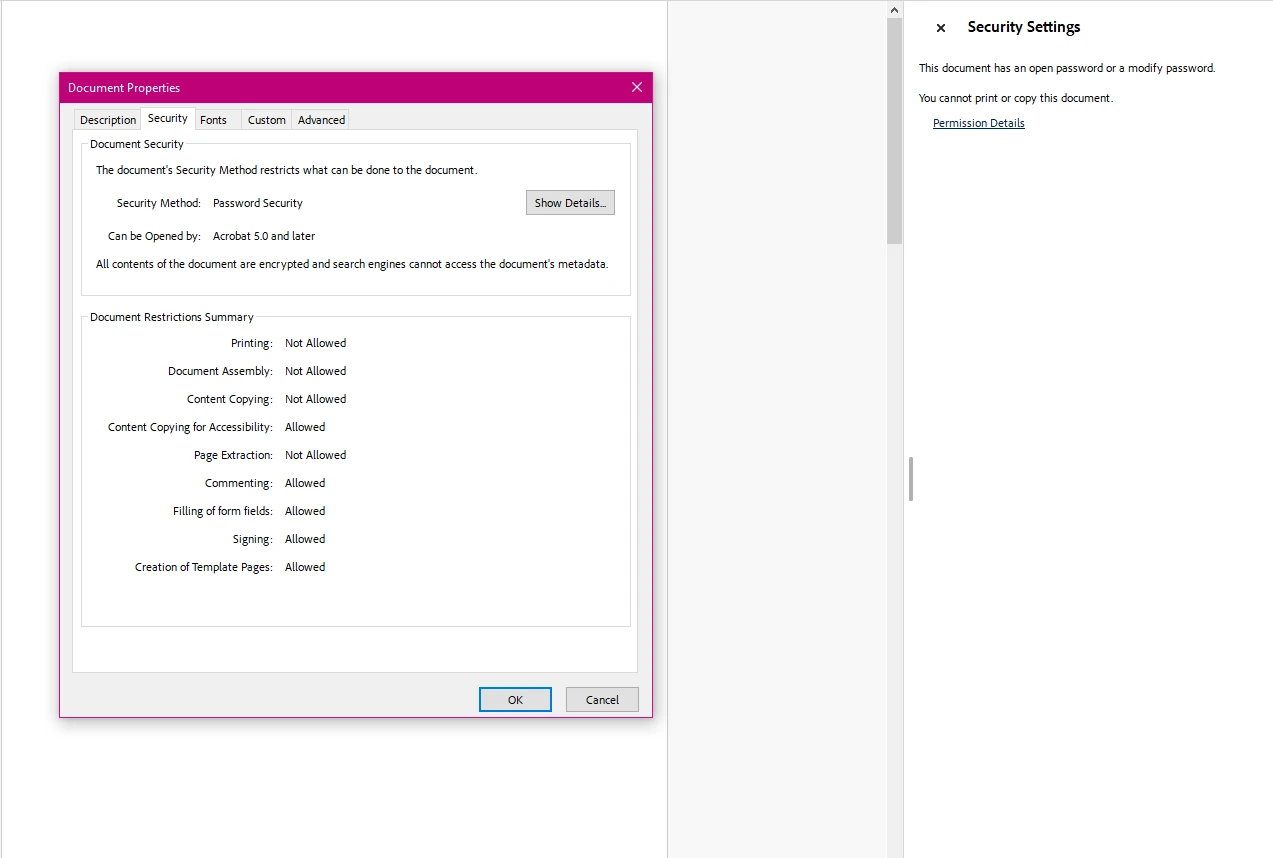
此方法适用于任何有效的 PDF 文件,无论其最初是如何创建的。 该库处理输入文档,并生成一份应用了所有指定安全设置的加密副本。 将文件保存到其他路径时,原始文件不会被修改。
如需查看将加密与解密结合于单一工作流的完整示例,请参阅 PDF 加密与解密代码示例。
可以控制哪些文档权限?
除了密码保护外,PDF 安全功能还包括对用户打开文档后可执行操作的精细控制。 PDF 规范中的权限标志允许您独立地阻止或允许打印、内容复制、编辑、注释以及表单数据输入。
必须设置所有者密码,权限限制才能生效。 否则,使用兼容 PDF 阅读器的用户可能会绕过权限标记。
以下示例演示了如何为合同文档配置权限,使其可查看和填写,但不可编辑或打印:
using IronPdf;

// Load a contract document
var pdf = PdfDocument.FromFile("contract.pdf");

// Owner password is required for permissions enforcement
pdf.SecuritySettings.OwnerPassword = "contract-admin";

// Allow printing with full print quality
pdf.SecuritySettings.AllowUserPrinting = IronPdf.Security.PdfPrintSecurity.FullPrintRights;

// Prevent content extraction (protects against copy/paste attacks)
pdf.SecuritySettings.AllowUserCopyPasteContent = false;

// Lock down editing
pdf.SecuritySettings.AllowUserEdits = IronPdf.Security.PdfEditSecurity.NoEdit;

// Disable comment additions
pdf.SecuritySettings.AllowUserAnnotations = false;

// Allow form completion while blocking other modifications
pdf.SecuritySettings.AllowUserFormData = true;

// Save with all restrictions
pdf.SaveAs("contract-restricted.pdf");
using IronPdf;
// Load a contract document
var pdf = PdfDocument.FromFile("contract.pdf");
// Owner password is required for permissions enforcement
pdf.SecuritySettings.OwnerPassword = "contract-admin";
// Allow printing with full print quality
pdf.SecuritySettings.AllowUserPrinting = IronPdf.Security.PdfPrintSecurity.FullPrintRights;
// Prevent content extraction (protects against copy/paste attacks)
pdf.SecuritySettings.AllowUserCopyPasteContent = false;
// Lock down editing
pdf.SecuritySettings.AllowUserEdits = IronPdf.Security.PdfEditSecurity.NoEdit;
// Disable comment additions
pdf.SecuritySettings.AllowUserAnnotations = false;
// Allow form completion while blocking other modifications
pdf.SecuritySettings.AllowUserFormData = true;
// Save with all restrictions
pdf.SaveAs("contract-restricted.pdf");Imports IronPdf
' Load a contract document
Dim pdf = PdfDocument.FromFile("contract.pdf")
' Owner password is required for permissions enforcement
pdf.SecuritySettings.OwnerPassword = "contract-admin"
' Allow printing with full print quality
pdf.SecuritySettings.AllowUserPrinting = IronPdf.Security.PdfPrintSecurity.FullPrintRights
' Prevent content extraction (protects against copy/paste attacks)
pdf.SecuritySettings.AllowUserCopyPasteContent = False
' Lock down editing
pdf.SecuritySettings.AllowUserEdits = IronPdf.Security.PdfEditSecurity.NoEdit
' Disable comment additions
pdf.SecuritySettings.AllowUserAnnotations = False
' Allow form completion while blocking other modifications
pdf.SecuritySettings.AllowUserFormData = True
' Save with all restrictions
pdf.SaveAs("contract-restricted.pdf")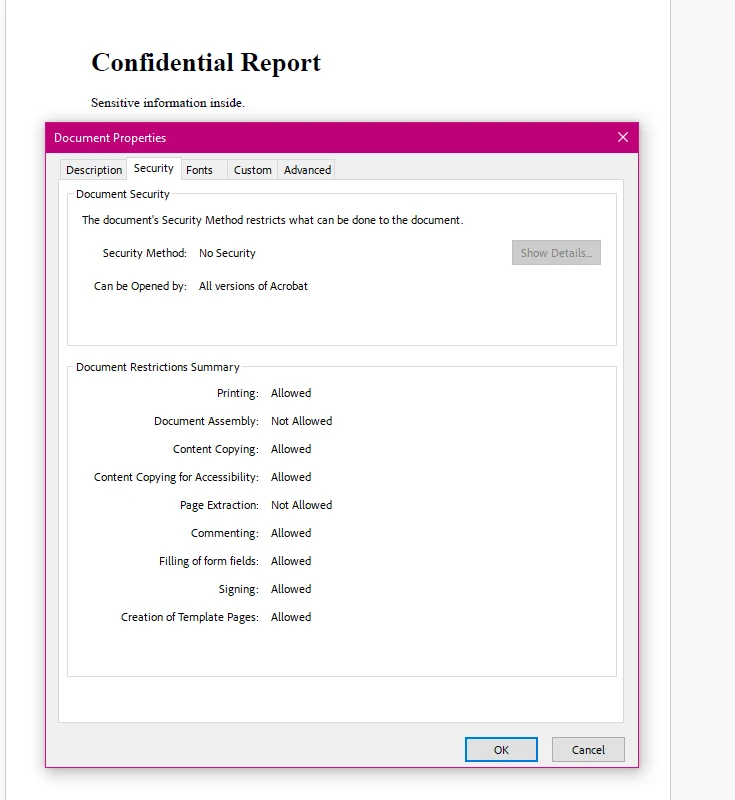
下表总结了所有可用的权限属性及其常见应用场景:
| 属性 | 翻译类型 | 说明 | 常见使用场景 |
|---|---|---|---|
AllowUserPrinting | PdfPrintSecurity | 控制打印权限:NoPrint 或 FullPrintRights | 防止打印机打印机密文档 |
AllowUserCopyPasteContent | 布尔 | 启用或禁用文本和图像提取 | 保护知识产权免遭窃取 |
允许用户编辑 | PdfEditSecurity | 编辑权限控制:NoEdit 或 edit-allowed 值 | 锁定合同和法律文件以防止修改 |
AllowUserAnnotations | 布尔 | 允许或禁止添加注释和标记 | 控制文档审核工作流 |
AllowUserFormData | 布尔 | 启用或禁用表单字段自动填充 | 允许填写 PDF 表单,同时阻止其他编辑操作 |
AllowUserCopyPasteContentForAccessibility | 布尔 | 管理屏幕阅读器的内容提取 | 在限制一般性复制的同时,确保符合无障碍标准 |
如需查看更多关于权限标志实际应用的代码示例,请参阅 IronPDF 的安全与元数据示例。
如何快速应用只读保护?
当目标是一次性锁定所有用户修改——复制、打印、编辑和注释——MakePdfDocumentReadOnly便捷方法可以通过一个调用处理。 这适用于需要最大程度限制访问权限,且无需逐一配置权限的最终版本文档。
using IronPdf;

// Load the document to make read-only
var pdf = PdfDocument.FromFile("final-report.pdf");

// Apply full read-only protection with one method call
// This sets owner password and blocks all modification capabilities
pdf.SecuritySettings.MakePdfDocumentReadOnly("owner-readonly-password");

// Save the protected document
pdf.SaveAs("final-report-readonly.pdf");
using IronPdf;
// Load the document to make read-only
var pdf = PdfDocument.FromFile("final-report.pdf");
// Apply full read-only protection with one method call
// This sets owner password and blocks all modification capabilities
pdf.SecuritySettings.MakePdfDocumentReadOnly("owner-readonly-password");
// Save the protected document
pdf.SaveAs("final-report-readonly.pdf");Imports IronPdf
' Load the document to make read-only
Dim pdf = PdfDocument.FromFile("final-report.pdf")
' Apply full read-only protection with one method call
' This sets owner password and blocks all modification capabilities
pdf.SecuritySettings.MakePdfDocumentReadOnly("owner-readonly-password")
' Save the protected document
pdf.SaveAs("final-report-readonly.pdf")MakePdfDocumentReadOnly方法设置您提供的所有者密码,并同时禁用所有修改权限。 生成的文档无需密码即可打开和阅读,但打印、复制、编辑和批注功能均受限制。 当无需单独调整权限时,这是使文档完全锁定的最快途径。 对于需要保留一些权限的情况(例如,允许打印但阻止复制),请按照上面的权限部分中所示配置各个SecuritySettings属性。
如何破解并移除 PDF 密码保护?
在通过编程方式处理加密的 PDF 文件时,您需要提供正确的密码才能访问内容。 PdfDocument.FromFile方法接受一个可选的密码参数来实现这一目的。
以下示例演示了如何打开受密码保护的文件,并可选地完全移除其加密:
using IronPdf;

// Open a password-protected PDF by supplying the user password
var pdf = PdfDocument.FromFile("protected-report.pdf", "user-access-456");

// Extract text content from the decrypted document
string content = pdf.ExtractAllText();

// Remove all passwords and encryption when you need an unprotected version
pdf.SecuritySettings.RemovePasswordsAndEncryption();

// Save the unencrypted copy
pdf.SaveAs("report-unlocked.pdf");
using IronPdf;
// Open a password-protected PDF by supplying the user password
var pdf = PdfDocument.FromFile("protected-report.pdf", "user-access-456");
// Extract text content from the decrypted document
string content = pdf.ExtractAllText();
// Remove all passwords and encryption when you need an unprotected version
pdf.SecuritySettings.RemovePasswordsAndEncryption();
// Save the unencrypted copy
pdf.SaveAs("report-unlocked.pdf");Imports IronPdf
' Open a password-protected PDF by supplying the user password
Dim pdf = PdfDocument.FromFile("protected-report.pdf", "user-access-456")
' Extract text content from the decrypted document
Dim content As String = pdf.ExtractAllText()
' Remove all passwords and encryption when you need an unprotected version
pdf.SecuritySettings.RemovePasswordsAndEncryption()
' Save the unencrypted copy
pdf.SaveAs("report-unlocked.pdf")RemovePasswordsAndEncryption方法从文档中删除所有安全性,并将其保存为标准的、未受保护的PDF。 这在处理用于归档、进一步转换或再分发的文档时非常有用,此时针对最终用户的限制已不再适用。
如果PDF包含数字签名,传递RemovePasswordsAndEncryption(true)以同时移除签名,或者省略参数以保留它们。
若需同时了解加密和解密的工作流程,PDF 加密与解密示例通过单个可执行文件演示了这两种操作。
还有哪些其他 PDF 安全功能可用?
密码加密和权限标记涵盖了最常见的 PDF 安全需求,但 IronPDF 还为更专业的场景提供了额外的文档保护层。
数字签名:IronPDF 支持使用 X.509 证书对 PDF 文档进行签名,以验证真实性并检测篡改。 已签名的文档会显示一个可视化签名区域,并提供签名者身份的加密证明。 有关实现细节和证书配置,请参阅 PDF 签名操作指南。
合规标准:对于受 HIPAA、GDPR 或金融法规约束的应用程序,文档加密通常是必需的控制措施。 IronPDF 的 128 位加密技术,结合适当的密钥管理实践,可满足大多数合规框架的基本要求。 请查阅与您具体合规范围相关的监管指南。
IronSecureDoc:针对企业级文档安全需求——包括信息遮盖、高级数字签名工作流以及多文档处理——IronSecureDoc 提供了一款采用一次性授权模式的专用安全产品。
PDF 规范文档中的外部参考资料有助于理解权限模型。 Adobe 开发者网站上的 PDF 规范概述详细说明了加密和权限在格式层面的实现方式。 NIST 特别出版物 800-111《存储加密指南》为受监管环境中的加密技术选型提供了参考依据。 若需更全面了解 .NET 中的文档安全最佳实践,请参阅微软的 .NET 加密模型文档,其中详细阐述了 PDF 库所基于的底层平台加密机制。
下一步计划是什么?
.NET 中的 PDF 安全功能涵盖三个关键领域:通过用户密码控制文档的打开权限,通过权限标志限制用户操作,以及通过数字签名验证文档真实性。 IronPDF通过SecuritySettings API和签名工作流处理所有三者,而无需手动实施加密。
更多阅读资料及实用代码:
- PDF 密码保护操作指南——包含所有 SecuritySettings 选项的完整 API 详解
- PDF 签名操作指南 -- 基于证书的数字签名
- 安全与元数据代码示例——可直接复制粘贴运行的示例代码
- PdfSecuritySettings API 参考文档 -- 完整的属性和方法文档
立即开始免费试用 IronPDF,在您的应用程序中测试这些安全功能。 如需进行生产环境部署,请查看 IronPDF 许可选项,以选择适合您项目规模的许可层级。
常见问题解答
PDF中的用户密码和所有者密码有什么区别?
用户密码(打开密码)是打开PDF文档所需的密码。所有者密码(权限密码)控制在文档打开后允许的操作,如打印、复制和编辑。您可以独立设置这两个密码——只有所有者密码的文档任何人都可以阅读,但限制了允许的操作。
如何在C# .NET中加密PDF文档?
加载或创建一个PdfDocument,然后设置pdf.SecuritySettings.OwnerPassword和/或pdf.SecuritySettings.UserPassword。当设置任意密码时,IronPDF会自动应用128位加密。调用pdf.SaveAs将加密文件写入磁盘。
如何在.NET中防止用户打印或复制PDF?
设置pdf.SecuritySettings.AllowUserPrinting = IronPdf.Security.PdfPrintSecurity.NoPrint以阻止打印,并设置pdf.SecuritySettings.AllowUserCopyPasteContent = false以防止内容提取。这些限制必须设置所有者密码才能生效。
如何使用IronPDF在C#中打开受密码保护的PDF?
使用PdfDocument.FromFile并将密码作为第二个参数:var pdf = PdfDocument.FromFile('file.pdf', 'user-password')。这将解密内存中的文档以便进一步处理。
如何在.NET中删除PDF的密码保护?
在使用密码加载PDF后,调用pdf.SecuritySettings.RemovePasswordsAndEncryption()并保存结果。这将从文档中去除所有加密和权限限制。
IronPDF中的MakePdfDocumentReadOnly是什么?
MakePdfDocumentReadOnly是SecuritySettings中的便利方法,设置所有者密码并在一次调用中禁用所有修改权限(打印、复制、编辑和注释)。文档仍可在无需密码的情况下阅读,但不可修改。
IronPDF是否支持PDF文档的数字签名?
是的。IronPDF支持使用X.509证书签署PDF文档。签名的文档包含可视签名字段,并提供签署者身份的加密证明。有关实现细节,请参阅IronPDF PDF签名指南。
IronPDF PDF加密是否符合HIPAA或GDPR要求?
IronPDF的128位加密符合大多数合规框架的基础加密要求。然而,监管合规涉及除加密外的其他控制,包括密钥管理、访问日志和数据处理策略。请检查您的监管范围的具体要求。










 免费开始
免费开始 免费开始
免费开始 预定免费现场演示
















