




已更新 2026年5月8日
生成每月账户报表(PDF 文档)
using IronPDF C# PDF 库,开发人员可以在 .NET 项目中将 HTML 转换为可靠的 PDF 文件,而无需依赖外部服务。
阅读更多

在 Windows Forms 应用程序中显示 PDF 页面是文档管理工具、报表查看器和文件预览实用程序的常见需求。 由于PictureBox控件已经在您的表单中处理图像渲染,因此它是一个天然的候选者。 问题在于 PDF 文件不是图像——它们需要经过专门的渲染才能被任何标准图像控件显示。 本指南介绍如何使用IronPDF将PDF页面转换为位图图像,并将其显示在PictureBox控件内,包括页面导航、打印和节省支持。

Windows Forms中的PictureBox控件专为BMP、PNG、JPG、GIF、TIFF和其他少数图像格式设计。 当您尝试将PDF文件路径分配给PictureBox.Image时,该控件会抛出异常,因为PDF二进制格式不是已识别的图像格式。
有些方法试图通过 COM 互操作嵌入 Adobe Acrobat 来规避这个问题。但这会造成对运行应用程序的每台机器都必须安装 Adobe Reader 的硬性依赖——这种部署限制在企业环境中难以管理。 它还会将渲染引擎锁定为用户所安装的 Acrobat 版本,这可能会导致不同机器之间的兼容性问题。
一种更简洁的方法是使用.NET PDF库,它在运行时将PDF页面转换为位图图像。IronPDF通过其AnyBitmap对象。 然后,您可以将该对象转换为标准PictureBox.Image。 无需安装 Adobe 产品,无需进行 COM 注册,也无需在应用程序窗口中嵌入外部查看器。
该技术适用于 .NET Framework 4.6.2 及更高版本,以及 Windows 上的 .NET 6、8 和 10。 IronPDF 内部的渲染引擎基于 Chrome,这意味着即使对于具有复杂布局、嵌入式字体和混合图像/文本内容的 PDF,它也能生成高保真输出。
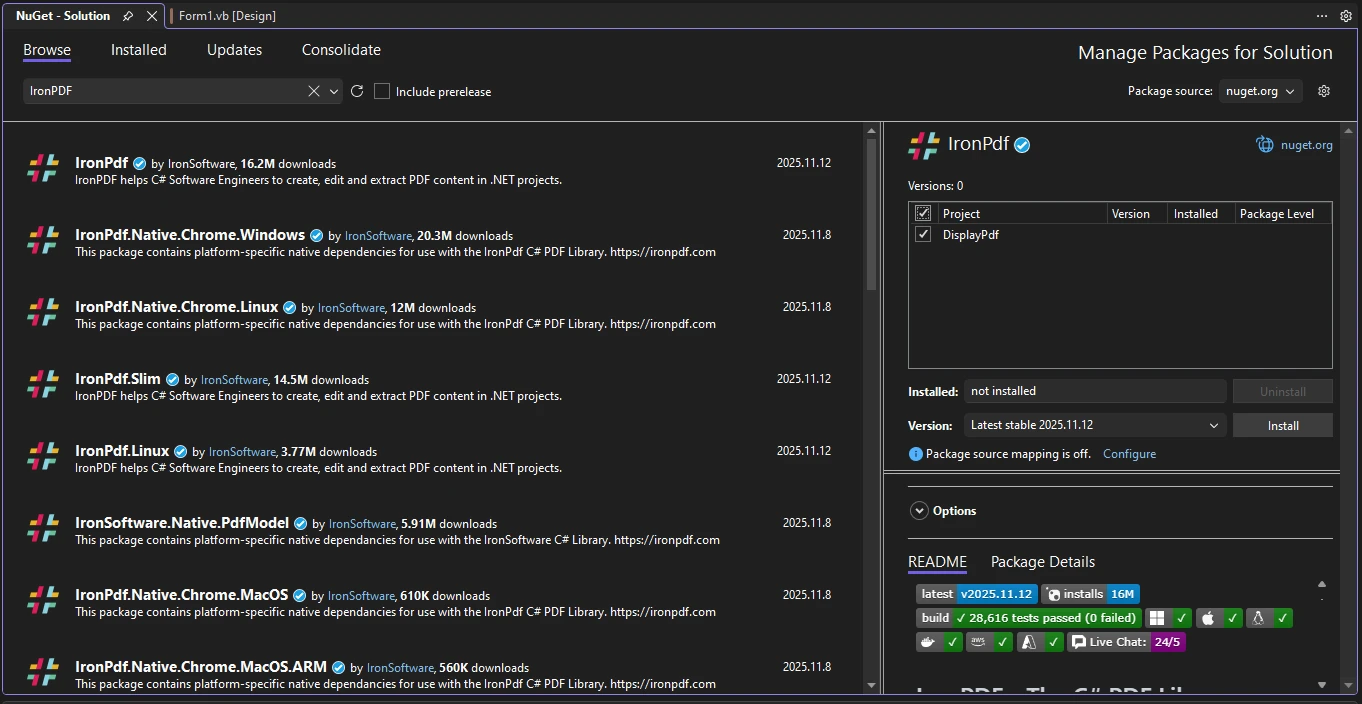
在编写任何代码之前,您需要将 IronPDF 添加到您的项目中。 最快的方法是通过 NuGet 包管理器 CLI:
或者,使用 Visual Studio 包管理器控制台:
安装后,确认包引用出现在您的.csproj文件中。IronPDF定位于.NET 6及更高版本的Windows,因此如果您在项目文件中使用跨平台目标,请为Windows添加<Platforms>限制。 对于 Windows Forms 项目,在 Visual Studio 中创建项目模板时,通常已经配置好了。
对于生产环境中的许可,请将您的许可证密钥放在应用程序启动代码中,且位于所有 IronPDF 调用之前:
IronPdf.License.LicenseKey = "YOUR-LICENSE-KEY";IronPdf.License.LicenseKey = "YOUR-LICENSE-KEY"在开发和评估过程中,IronPDF 以试用模式运行,这会在渲染输出中添加水印。 免费试用许可证会移除水印,用于测试目的。
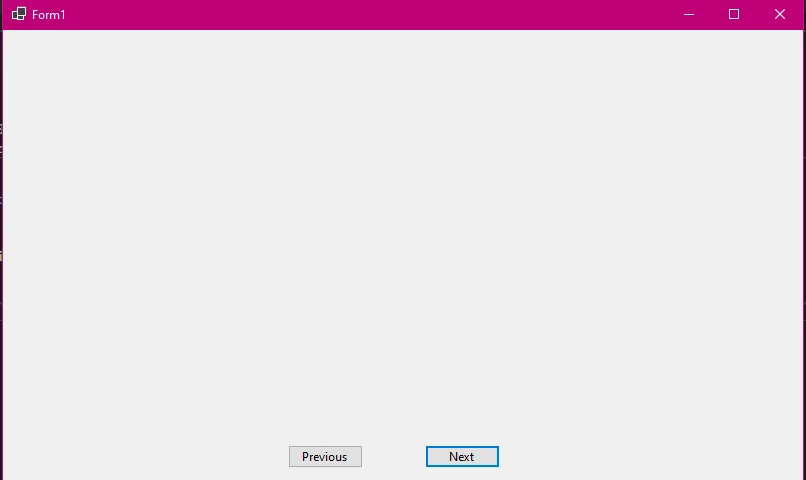
打开Visual Studio,创建一个针对.NET 10的新Windows Forms应用程序项目。项目模板生成一个Program.cs入口点。
在设计器界面中,将以下控件添加到表单中:
ZoomButton,文本为"打开PDF"Button,文本为"上一页"Button,文本为"下一页"Button,文本为"保存页面"Button,文本为"打印"Label,用于显示当前页码SizeMode = Zoom设置确保PDF页面按比例缩放以适合控件,而不会扭曲纵横比。 这一点很重要,因为 PDF 页面的大小各不相同——信纸、A4 和法律格式的尺寸都不同,您希望查看器能够优雅地处理所有这些尺寸。
以下是PDF查看器应用程序的完整表单代码。 这在Form1.cs中:
using IronPdf;
using IronSoftware.Drawing;
using System.Drawing;

public partial class Form1 : Form
{
    private PdfDocument? currentPdf;
    private AnyBitmap[]? pageImages;
    private int currentPageIndex = 0;

    public Form1()
    {
        InitializeComponent();
        pictureBoxPdf.SizeMode = PictureBoxSizeMode.Zoom;
        UpdateNavigationState();
    }

    private void UpdateNavigationState()
    {
        bool hasPdf = pageImages != null && pageImages.Length > 0;
        btnPrevious.Enabled = hasPdf && currentPageIndex > 0;
        btnNext.Enabled = hasPdf && currentPageIndex < (pageImages?.Length - 1 ?? 0);
        btnSave.Enabled = hasPdf;
        btnPrint.Enabled = hasPdf;
        lblPageInfo.Text = hasPdf
            ? $"Page {currentPageIndex + 1} of {pageImages!.Length}"
            : "No document loaded";
    }
}Imports IronPdf
Imports IronSoftware.Drawing
Imports System.Drawing
Public Partial Class Form1
Inherits Form
Private currentPdf As PdfDocument
Private pageImages As AnyBitmap()
Private currentPageIndex As Integer = 0
Public Sub New()
InitializeComponent()
pictureBoxPdf.SizeMode = PictureBoxSizeMode.Zoom
UpdateNavigationState()
End Sub
Private Sub UpdateNavigationState()
Dim hasPdf As Boolean = pageImages IsNot Nothing AndAlso pageImages.Length > 0
btnPrevious.Enabled = hasPdf AndAlso currentPageIndex > 0
btnNext.Enabled = hasPdf AndAlso currentPageIndex < If(pageImages?.Length - 1, 0)
btnSave.Enabled = hasPdf
btnPrint.Enabled = hasPdf
lblPageInfo.Text = If(hasPdf, $"Page {currentPageIndex + 1} of {pageImages.Length}", "No document loaded")
End Sub
End ClassUpdateNavigationState辅助方法基于是否已加载PDF以及当前查看器显示的页面来禁用或启用导航和操作按钮。 这样可以防止用户在加载文档之前点击按钮时出现空引用错误。
加载PDF并将其渲染到ToBitmap将所有页面转换为位图对象数组。
PDF到图像转换方法ToBitmap在请求的DPI下渲染PDF中的每一页。 更高的DPI可以产生更清晰的图像,但会占用更多内存。 对于文档查看器来说,150 DPI 通常是一个不错的平衡点——既能在屏幕上清晰阅读,又不会因为显示大型文档而占用大量内存。
private void btnOpen_Click(object sender, EventArgs e)
{
    using OpenFileDialog openDialog = new OpenFileDialog();
    openDialog.Filter = "PDF Files|*.pdf";
    openDialog.Title = "Select a PDF Document";

    if (openDialog.ShowDialog() == DialogResult.OK)
    {
        LoadPdfDocument(openDialog.FileName);
    }
}

private void LoadPdfDocument(string filePath)
{
    currentPdf?.Dispose();
    currentPdf = PdfDocument.FromFile(filePath);

    // Render all pages as bitmaps at 150 DPI
    pageImages = currentPdf.ToBitmap(150);
    currentPageIndex = 0;

    DisplayCurrentPage();
    UpdateNavigationState();
}

private void DisplayCurrentPage()
{
    if (pageImages == null || pageImages.Length == 0) return;

    // Convert AnyBitmap to System.Drawing.Bitmap for PictureBox
    System.Drawing.Bitmap bitmap = pageImages[currentPageIndex].ToImage<System.Drawing.Bitmap>();
    pictureBoxPdf.Image?.Dispose();
    pictureBoxPdf.Image = bitmap;

    UpdateNavigationState();
}Private Sub btnOpen_Click(sender As Object, e As EventArgs) Handles btnOpen.Click
Using openDialog As New OpenFileDialog()
openDialog.Filter = "PDF Files|*.pdf"
openDialog.Title = "Select a PDF Document"
If openDialog.ShowDialog() = DialogResult.OK Then
LoadPdfDocument(openDialog.FileName)
End If
End Using
End Sub
Private Sub LoadPdfDocument(filePath As String)
currentPdf?.Dispose()
currentPdf = PdfDocument.FromFile(filePath)
' Render all pages as bitmaps at 150 DPI
pageImages = currentPdf.ToBitmap(150)
currentPageIndex = 0
DisplayCurrentPage()
UpdateNavigationState()
End Sub
Private Sub DisplayCurrentPage()
If pageImages Is Nothing OrElse pageImages.Length = 0 Then Return
' Convert AnyBitmap to System.Drawing.Bitmap for PictureBox
Dim bitmap As System.Drawing.Bitmap = pageImages(currentPageIndex).ToImage(Of System.Drawing.Bitmap)()
pictureBoxPdf.Image?.Dispose()
pictureBoxPdf.Image = bitmap
UpdateNavigationState()
End SubPdfDocument.FromFile方法将PDF从磁盘加载到内存中。 调用带有DPI参数的AnyBitmap对象数组,每个页面一个。 System.Drawing.Bitmap类型。
请注意,在分配新对象之前,先删除先前的PictureBox.Image。 这很重要——每个Bitmap对象持有非托管的GDI+资源,未能处理掉旧位图会导致长时间运行应用程序中的内存泄漏。
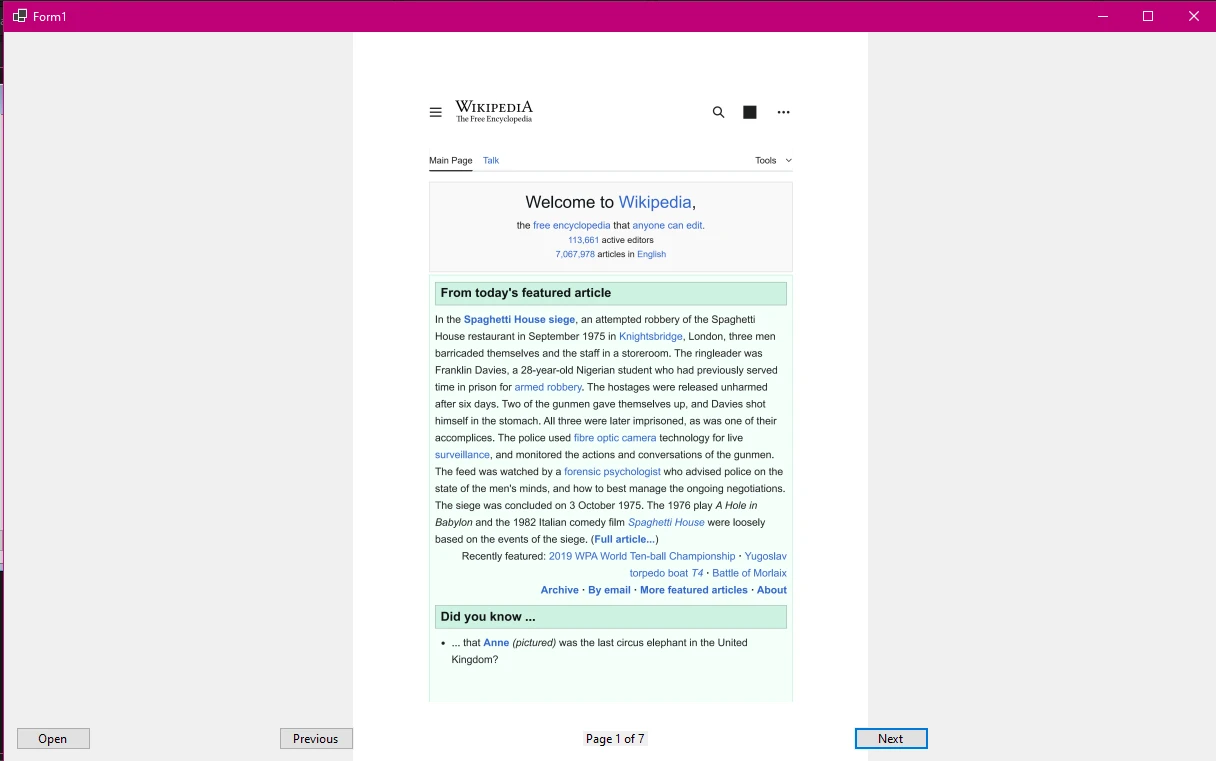
加载完成后,查看器立即显示第一页。 lblPageInfo标签更新以显示当前页码和总页数。
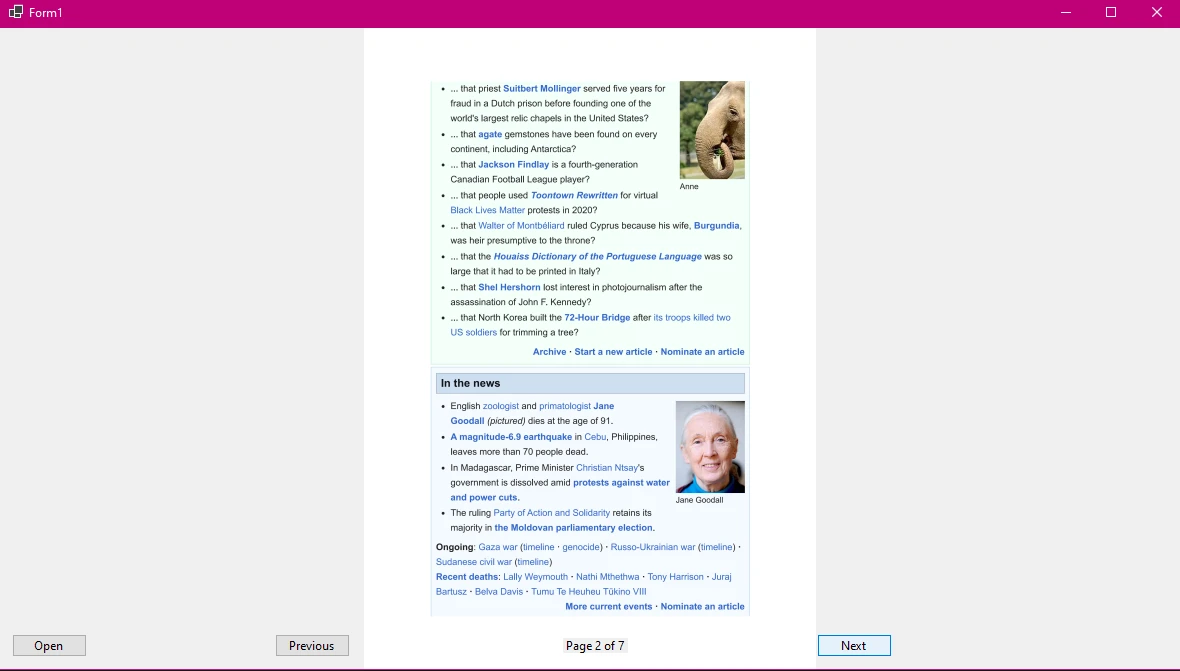
只能显示第一页的 PDF 查看器对于多页文档来说并不实用。 导航按钮允许用户在已渲染的页面数组中向前和向后移动:
private void btnPrevious_Click(object sender, EventArgs e)
{
    if (currentPageIndex > 0)
    {
        currentPageIndex--;
        DisplayCurrentPage();
    }
}

private void btnNext_Click(object sender, EventArgs e)
{
    if (pageImages != null && currentPageIndex < pageImages.Length - 1)
    {
        currentPageIndex++;
        DisplayCurrentPage();
    }
}Private Sub btnPrevious_Click(sender As Object, e As EventArgs)
If currentPageIndex > 0 Then
currentPageIndex -= 1
DisplayCurrentPage()
End If
End Sub
Private Sub btnNext_Click(sender As Object, e As EventArgs)
If pageImages IsNot Nothing AndAlso currentPageIndex < pageImages.Length - 1 Then
currentPageIndex += 1
DisplayCurrentPage()
End If
End Sub每个点击处理程序调整UpdateNavigationState也会在按钮将超出范围时禁用它们。
对于较大的文档,您可能还考虑添加一个页码输入字段,用户可以输入特定页码以直接跳转到该页,或在侧面添加一个可滚动的缩略图条。DisplayCurrentPage。
文档查看器通常需要支持将当前页面保存为图像文件以及将文档发送到打印机这两个功能。 IronPDF 让这两件事都变得简单易行。
当前页面已作为System.Drawing.Bitmap可用。 使用Image.Save保存它,并从用户选择的文件扩展名推断格式:
private void btnSave_Click(object sender, EventArgs e)
{
    if (pictureBoxPdf.Image == null) return;

    using SaveFileDialog saveDialog = new SaveFileDialog();
    saveDialog.Filter = "PNG Image|*.png|JPEG Image|*.jpg|TIFF Image|*.tif";
    saveDialog.Title = "Save Page As Image";
    saveDialog.FileName = $"page_{currentPageIndex + 1}";

    if (saveDialog.ShowDialog() == DialogResult.OK)
    {
        pictureBoxPdf.Image.Save(saveDialog.FileName);
    }
}Private Sub btnSave_Click(sender As Object, e As EventArgs)
If pictureBoxPdf.Image Is Nothing Then Return
Using saveDialog As New SaveFileDialog()
saveDialog.Filter = "PNG Image|*.png|JPEG Image|*.jpg|TIFF Image|*.tif"
saveDialog.Title = "Save Page As Image"
saveDialog.FileName = $"page_{currentPageIndex + 1}"
If saveDialog.ShowDialog() = DialogResult.OK Then
pictureBoxPdf.Image.Save(saveDialog.FileName)
End If
End Using
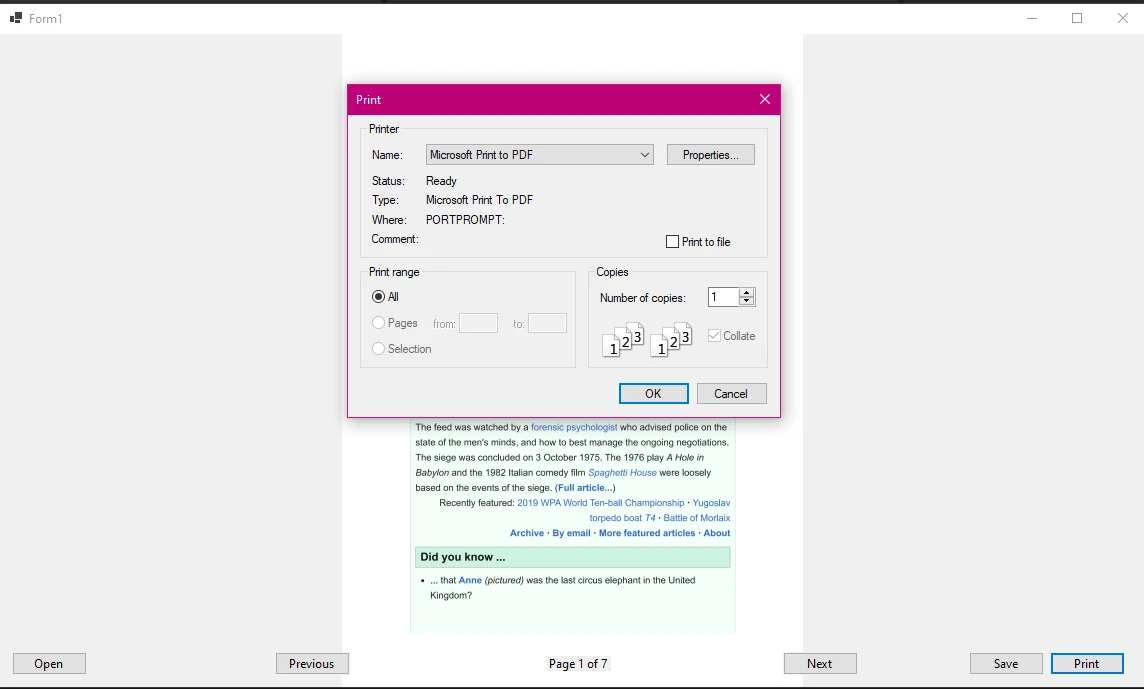
End Sub对于打印,请使用 IronPDF 的Print 方法,该方法会将 PDF 直接发送到 Windows 打印基础架构——而不是渲染后的图像,而是实际的 PDF 内容。 与打印位图相比,这种方式可以产生更清晰的输出,因为打印机驱动程序接收的是矢量 PDF 指令,而不是栅格化图像:
private void btnPrint_Click(object sender, EventArgs e)
{
    if (currentPdf == null) return;

    using PrintDialog printDialog = new PrintDialog();
    if (printDialog.ShowDialog() == DialogResult.OK)
    {
        currentPdf.Print();
    }
}Private Sub btnPrint_Click(sender As Object, e As EventArgs)
If currentPdf Is Nothing Then Return
Using printDialog As New PrintDialog()
If printDialog.ShowDialog() = DialogResult.OK Then
currentPdf.Print()
End If
End Using
End SubPrintDialog允许用户选择目标打印机并在打印开始前配置设置。 实际的打印作业由 IronPDF 的内部渲染引擎处理,该引擎与 Windows 打印后台处理程序集成。
PDF 文档和渲染的位图会占用大量内存,尤其是在 DPI 设置较高或文档较大时。 如果没有妥善处置,长时间运行的查看器应用程序会逐渐耗尽可用内存。
此模式下正确处置的关键点如下:
currentPdf?.Dispose()。 IDisposable并持有非托管资源。pictureBoxPdf.Image?.Dispose()。 每个渲染后的页面都是一个独立的非托管 GDI+ 对象。AnyBitmap对象。 当您从页码导航离开并不再需要旧位图时,AnyBitmap对象。重写Form1.Dispose在表单关闭时进行清理:
protected override void Dispose(bool disposing)
{
    if (disposing)
    {
        currentPdf?.Dispose();
        pictureBoxPdf.Image?.Dispose();

        if (pageImages != null)
        {
            foreach (var bitmap in pageImages)
                bitmap.Dispose();
        }

        components?.Dispose();
    }
    base.Dispose(disposing);
}Protected Overrides Sub Dispose(disposing As Boolean)
If disposing Then
currentPdf?.Dispose()
pictureBoxPdf.Image?.Dispose()
If pageImages IsNot Nothing Then
For Each bitmap In pageImages
bitmap.Dispose()
Next
End If
components?.Dispose()
End If
MyBase.Dispose(disposing)
End Sub这种模式确保在表单关闭时释放所有 IronPDF 和 GDI+ 资源,从而防止生产部署中出现内存泄漏。
对于具有数十或数百页的大型PDF,提前渲染所有页面会很慢且占用大量内存。更有效的方法是按需渲染用户想查看的页面。
IronPDF的RasterizeToImageFiles方法支持按页渲染,但对于内存中的使用,您还可以使用PageCount,一次渲染一页:
private void DisplayPageLazy(int pageIndex)
{
    if (currentPdf == null) return;

    // Render only the requested page
    AnyBitmap[] singlePage = currentPdf.ToBitmap(150, pageIndex, pageIndex);

    System.Drawing.Bitmap bitmap = singlePage[0].ToImage<System.Drawing.Bitmap>();
    pictureBoxPdf.Image?.Dispose();
    pictureBoxPdf.Image = bitmap;

    singlePage[0].Dispose();

    lblPageInfo.Text = $"Page {pageIndex + 1} of {currentPdf.PageCount}";
    UpdateNavigationState();
}Private Sub DisplayPageLazy(pageIndex As Integer)
If currentPdf Is Nothing Then Return
' Render only the requested page
Dim singlePage As AnyBitmap() = currentPdf.ToBitmap(150, pageIndex, pageIndex)
Dim bitmap As System.Drawing.Bitmap = singlePage(0).ToImage(Of System.Drawing.Bitmap)()
pictureBoxPdf.Image?.Dispose()
pictureBoxPdf.Image = bitmap
singlePage(0).Dispose()
lblPageInfo.Text = $"Page {pageIndex + 1} of {currentPdf.PageCount}"
UpdateNavigationState()
End SubToBitmap(dpi, startPage, endPage)重载渲染特定页范围。 通过为endPage传递相同的索引,每次只渲染一页。这在每次导航渲染时间上进行了权衡,以降低内存使用的峰值,这对于非常大的文档来说可能是值得的。
有关 IronPDF 图像输出功能的更多信息,请参阅PDF 转图像文档和PDF 光栅化指南。
一个实用的PDF查看器还应该允许用户放大内容和旋转页面。 对于缩放,动态调整传递给currentDpi字段(起始值为150),在缩放按钮点击时增加或减少50,然后使用更新的DPI调用懒加载页面渲染器。 更高的DPI产生更大的图像,Zoom模式中缩放以适合控件。 使用Math.Max将范围限制在72到400 DPI之间,以避免低端的模糊输出或高端的内存消耗过大。
有关更高级的渲染选项,包括从 PDF 中提取文本以及图像渲染,请参阅PDF 文本提取指南和PDF 图像提取文档。
您还可以探索 IronPDF 对合并 PDF 文档、添加水印、旋转 PDF 页面和添加注释等功能的支持,这些功能在更高级的查看器中也能实现。
在为 Windows Forms 选择 PDF 渲染库时,有多种选择。以下是一个简单的比较,可帮助您评估各种选项:
| 选项 | 外部依赖 | .NET支持 | 商业许可 | 图像输出 |
|---|---|---|---|---|
| IronPDF | 无(独立式) | .NET 4.6.2 -- .NET 10 | 是的(提供试用) | 可配置DPI下的高保真度 |
| Adobe Acrobat COM | 已安装 Adobe Reader/Acrobat | 仅限 Windows .NET Framework | Adobe 许可 | 取决于已安装的版本 |
| PDFium.NET | PDFium 原生二进制文件 | .NET 5+ | BSD(开源) | 质量好,可手动调节DPI |
| GhostScript 封装器 | 已安装 GhostScript | 任何方式(通过 CLI 或 COM) | AGPL 或商业用途 | 画质好,但渲染速度较慢 |
IronPDF 在 Windows Forms 用例中的主要优势在于它是完全独立的——无需在最终用户的计算机上安装任何外部软件。 IronPDF 的许可页面详细介绍了定价和免费试用选项。 您可以在NuGet.org上找到该软件包,以及下载统计信息和版本历史记录。 要深入了解 PDF 规范如何定义页面渲染,ISO 发布的ISO 32000-2 PDF 标准描述了 IronPDF 和其他渲染器必须实现的格式。
要了解 IronPDF 除了图像渲染之外的其他功能,请参阅IronPDF 文档主页,其中涵盖了 PDF 创建、HTML 到 PDF 的转换、表单处理、数字签名等等。
本教程中显示的模式——使用PictureBox中显示,使用基于索引的控件导航——为您提供了一个在Windows Forms中功能齐全且无依赖的PDF查看器。 从这里出发,根据您的应用程序需求,有几个方向值得探索。
对于生产级查看器,可以考虑使用延迟页面渲染来高效处理大型文档,在主查看器旁边添加可滚动缩略图面板,并显示与 DPI 参数关联的缩放控件。 对于文档管理应用程序,将查看器与 IronPDF 的文本提取和表单字段读取功能相结合,以构建可搜索的文档索引。
如果您的工作流程涉及在显示 PDF 之前以编程方式生成 PDF,IronPDF 还支持HTML 到 PDF 的转换以及从头开始创建 PDF ,因此同一个库可以处理生成和查看。
开始免费试用以获取开发用的无水印许可证密钥,或查看完整的API参考以了解在AnyBitmap和支持渲染类上可用的完整方法集。 IronPDF 示例库还提供了可直接运行的代码示例,涵盖了 C# 中的常见 PDF 任务。

Curtis Chau 拥有卡尔顿大学的计算机科学学士学位,专注于前端开发,精通 Node.js、TypeScript、JavaScript 和 React。他热衷于打造直观且美观的用户界面,喜欢使用现代框架并创建结构良好、视觉吸引力强的手册。

IronPDF 是 IRONSUITE的一部分
10 个 .NET API 产品用于您的办公文档

当您需要PDF看起来像HTML时,速度快。




