



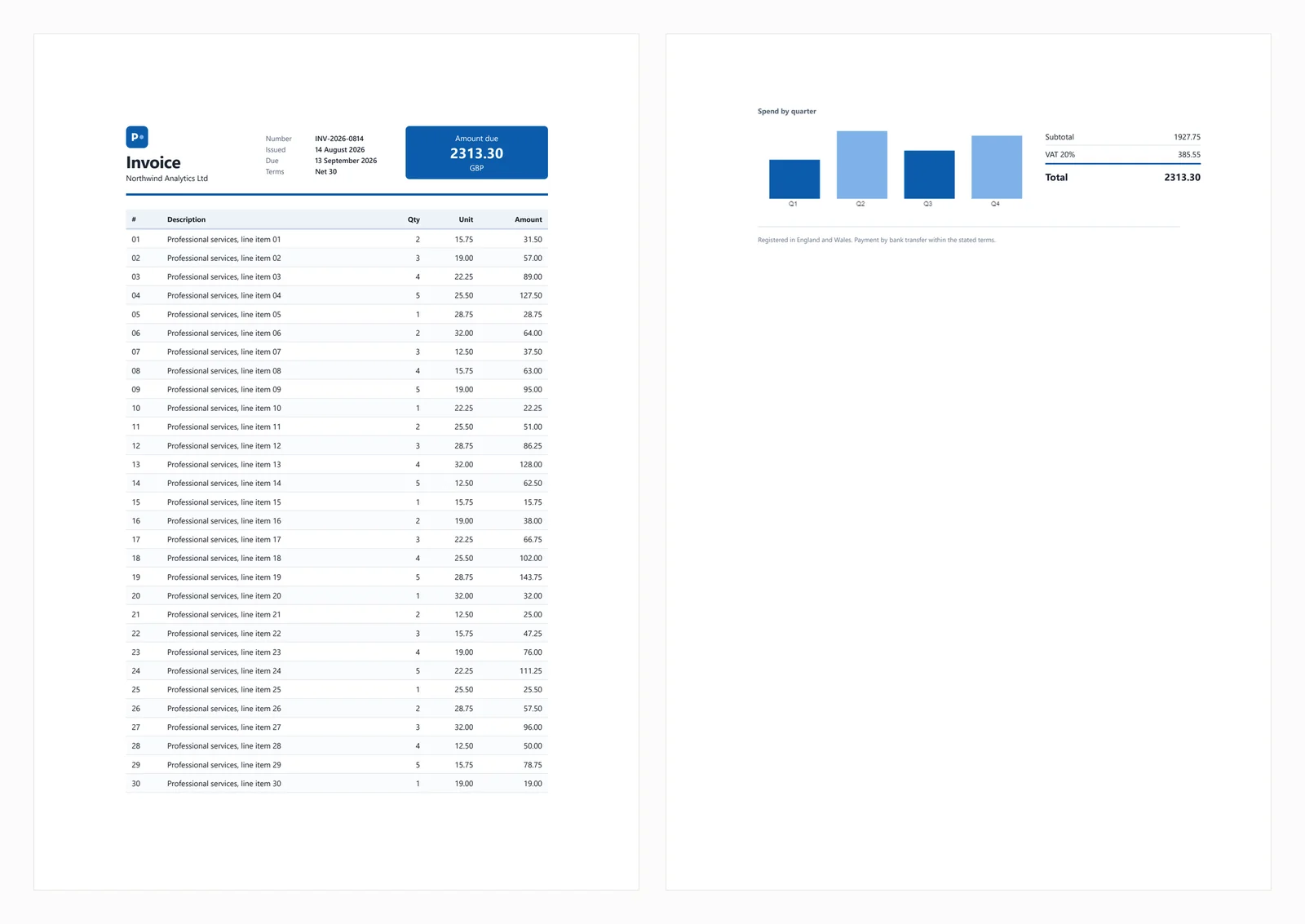
Updated September 2, 2026
HTML to PDF in C#: Benchmarking 7 .NET Libraries (2026)
Compare 7 C# HTML to PDF libraries on .NET 10 for cold start, throughput, memory and rendering accuracy. Only 3 rendered the test invoice correctly.
Read More

Looking for the right PDF library for your .NET project? This comprehensive comparison between IronPDF and PDFTron (now Apryse) analyzes features, pricing, performance, and developer experience to help you make an informed decision. Whether you're building web applications, desktop software, or cloud services, choosing the right PDF toolkit can significantly impact your development speed and project success.
| Category | Feature/Aspect | IronPDF | PDFTron (Apryse) | Key Advantage |
|---|---|---|---|---|
| Core Architecture | Design Philosophy | Simplicity-first, Chrome V8 engine | Enterprise-focused, custom engine | IronPDF: Faster development |
| API Complexity | Simple methods like RenderHtmlAsPdf() | Multi-class approach, granular control | IronPDF: Significantly less boilerplate code | |
| Learning Curve | 1-2 days typical | 1-2 weeks typical | IronPDF: Quicker adoption | |
| Platform Support | Cross-Platform | Native support, single package | Multiple packages/modules required | IronPDF: Simpler deployment |
| .NET Versions | .NET 10, 9, 8, 7, 6, 5, Core 3.1+, Framework 4.6.2+ | Similar support with additional setup | Both: Modern framework support | |
| HTML to PDF | Rendering Engine | Full Chrome V8 engine | Custom engine (via HTML2PDF module) | IronPDF: 98%+ browser fidelity |
| JavaScript Support | Full support with render delays | Limited support | IronPDF: Dynamic content ready | |
| MS Office Support | DOCX to PDF | Built-in DocxToPdfRenderer | Native Office conversion support | PDFTron: Better Office fidelity |
| CAD Support | Not available | DWG, DXF, DGN to PDF | PDFTron: CAD workflows | |
| Performance | HTML Rendering Speed | Chrome-engine rendering; varies by content complexity | Custom-engine rendering; contact Apryse for benchmarks | Varies by use case |
| Memory Usage | Higher due to embedded Chrome process; supports async/parallel rendering | Lower overhead for simple conversions (custom engine) | Apryse: Lower memory for basic use | |
| Licensing & Pricing | Entry Level | Lite: $999 (1 dev, 1 project) | Contact sales for pricing | IronPDF: Transparent pricing |
| Enterprise | Professional: $2,399 (10 devs) | Contact sales for pricing | IronPDF: Transparent published pricing | |
| Support | Support Included | Yes, 24/5 engineering support | Varies by license tier | IronPDF: Support included |
| Best For | Use Cases | Modern web apps, HTML reports, rapid development | Document-heavy workflows, CAD/Office conversion | Context-dependent |
IronPDF is a comprehensive .NET PDF library that simplifies PDF creation, editing, and manipulation for developers. Built on a Chrome rendering engine, it excels at converting HTML, CSS, and JavaScript into pixel-perfect PDF documents. The library's straightforward API design allows developers to integrate PDF functionality with minimal code, making it ideal for web applications, reporting systems, and document automation.
PDFTron, rebranded as Apryse in February 2023, is an enterprise-focused PDF SDK that provides extensive document processing capabilities. Originally developed for complex document workflows, it offers robust support for various file formats including Microsoft Office, CAD drawings, and specialized document types. PDFTron Systems Inc., a global leader in document processing technology, announced its rebranding as Apryse; bringing 13 companies including iText, Windward, Eversign, and more together.
Setting up an ASP.NET project for PDF generation requires proper configuration regardless of which library you choose. Follow these steps to create a foundation for either IronPDF or PDFTron integration:
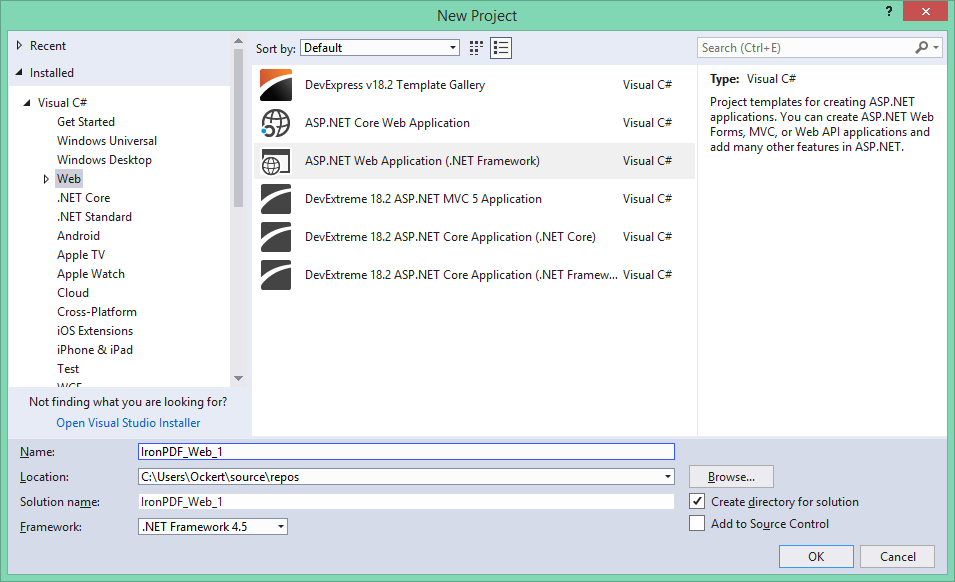 Visual Studio's New Project dialog box displaying ASP.NET project templates for PDF library integration
For Web Forms applications:
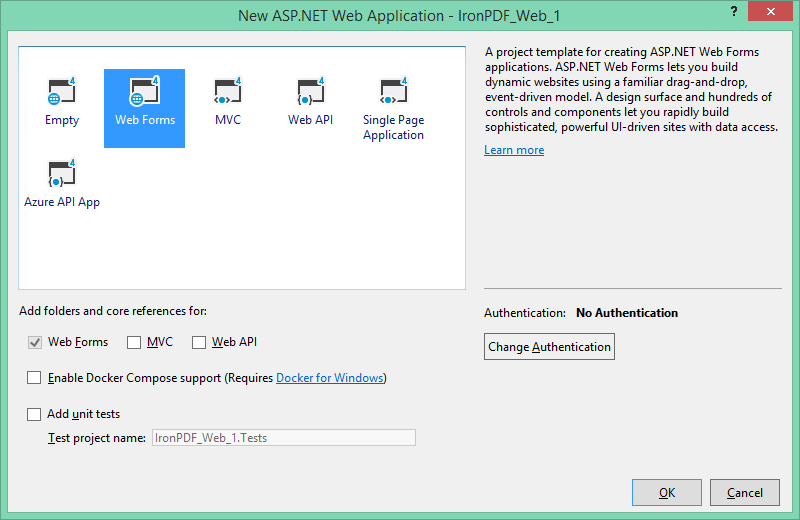 Selecting Web Forms template for traditional ASP.NET applications with PDF capabilities
IronPDF offers multiple installation methods to suit different development workflows. In Visual Studio, right-click on your project in the Solution Explorer and select "Manage NuGet Packages...". From there, simply search for IronPDF and install the latest version.
The most straightforward approach uses Visual Studio's built-in NuGet Package Manager:
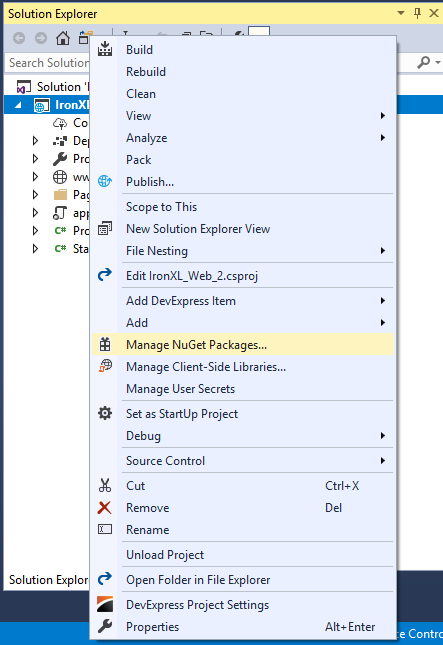 Accessing NuGet Package Manager through Visual Studio's Solution Explorer for IronPDF installation
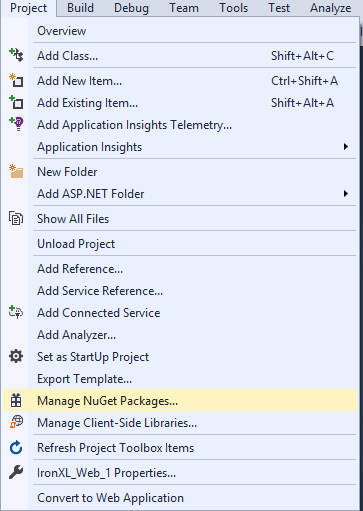 Alternative access to NuGet Package Manager via Visual Studio's Project menu
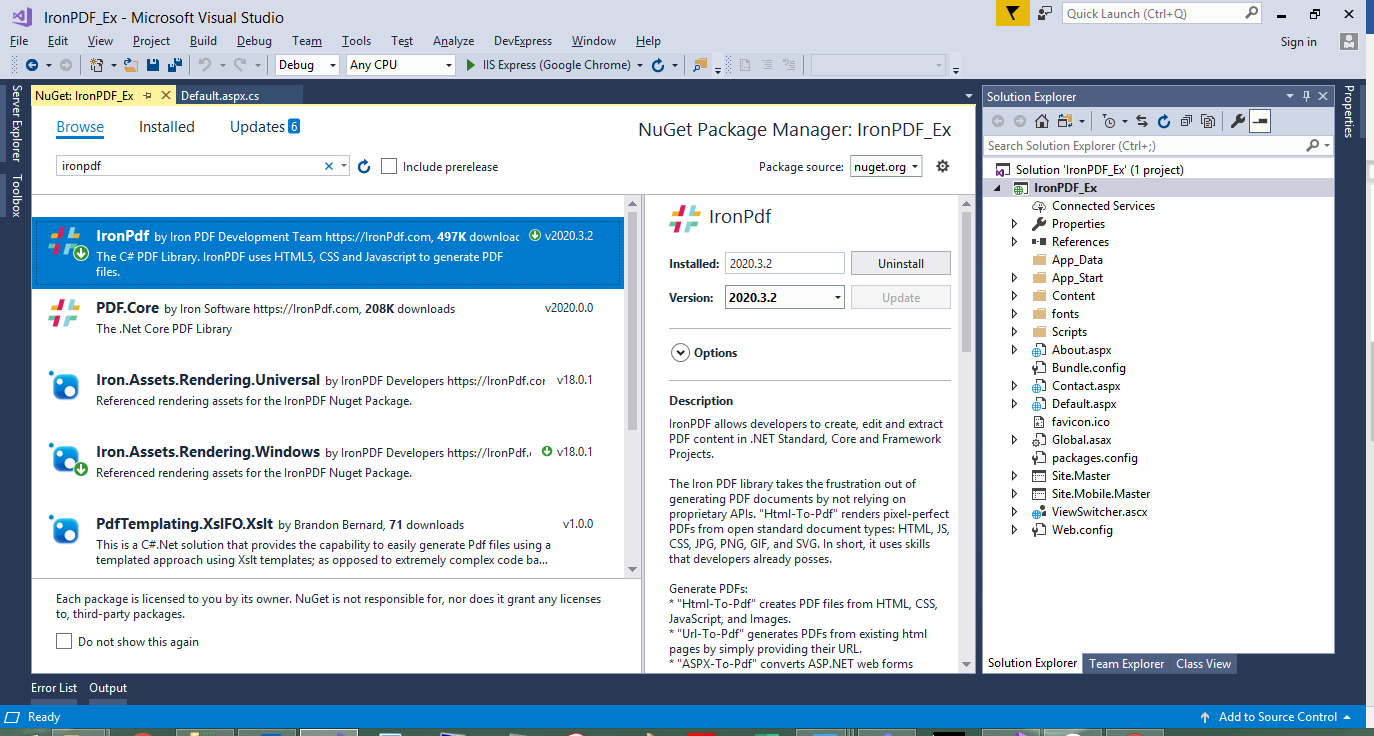 Installing IronPDF through NuGet Package Manager with version information and dependencies
For developers who prefer command-line tools:
# Open Package Manager Console in Visual Studio
# Tools > NuGet Package Manager > Package Manager Console
Install-Package IronPdf

# For specific version installation
Install-Package IronPdf -Version 2025.7.0For environments without NuGet access:
IronPdf.dllFor command-line enthusiasts and CI/CD pipelines:
# Navigate to your project directory
cd MyProject

# Install IronPDF
dotnet add package IronPdf

# Restore packages
dotnet restorePDFTron installation involves more steps due to its modular architecture and enterprise focus. The process varies depending on your target platform and required features.
Extract the SDK
# Example extraction path
PDFNET_BASE = C:/PDFTron/PDFNetDotNet4/Initialize with License Key
// Initialize PDFTron with your license key
pdftron.PDFNet.Initialize("your-license-key-here");

// Note: Demo keys expire after evaluation period
// Contact Apryse sales for production licenses' Initialize PDFTron with your license key
pdftron.PDFNet.Initialize("your-license-key-here")
' Note: Demo keys expire after evaluation period
' Contact Apryse sales for production licensesCopy Required Libraries
Lib folder from PDFNET_BASE to your project directoryPDFNetLoader.dll and platform-specific PDFNet.dllConfigure Copy Local Property
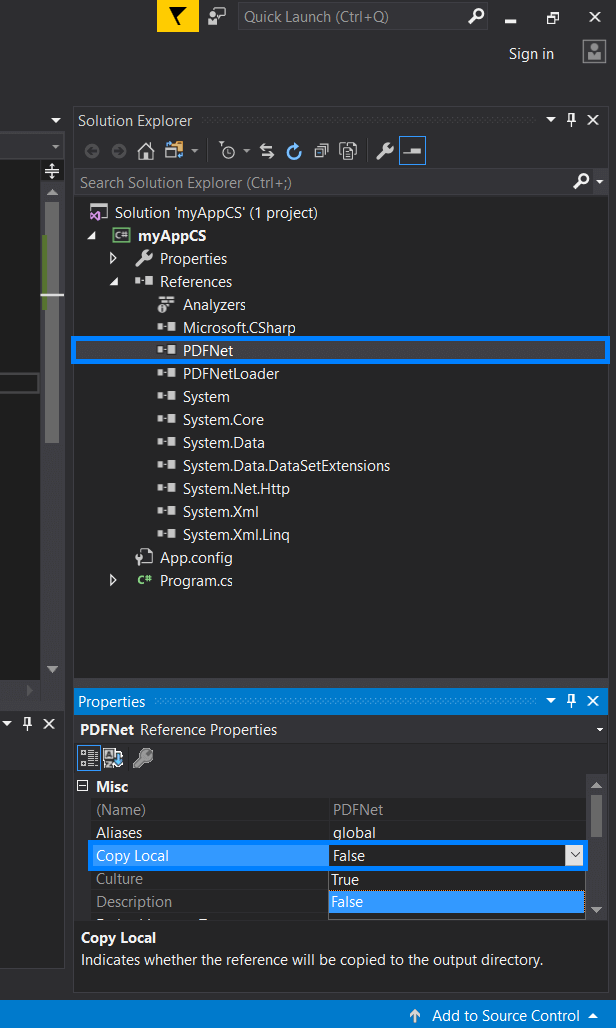 Setting PDFNet.dll's Copy Local property to False for proper PDFTron deployment
Update App.config
<configuration>
    <runtime>
        <loadFromRemoteSources enabled="true" />
    </runtime>
</configuration>Configure Post-Build Events
xcopy $(ProjectDir)Lib\PDFNet $(TargetDir)PDFNet /S /I /YFor a more streamlined approach:
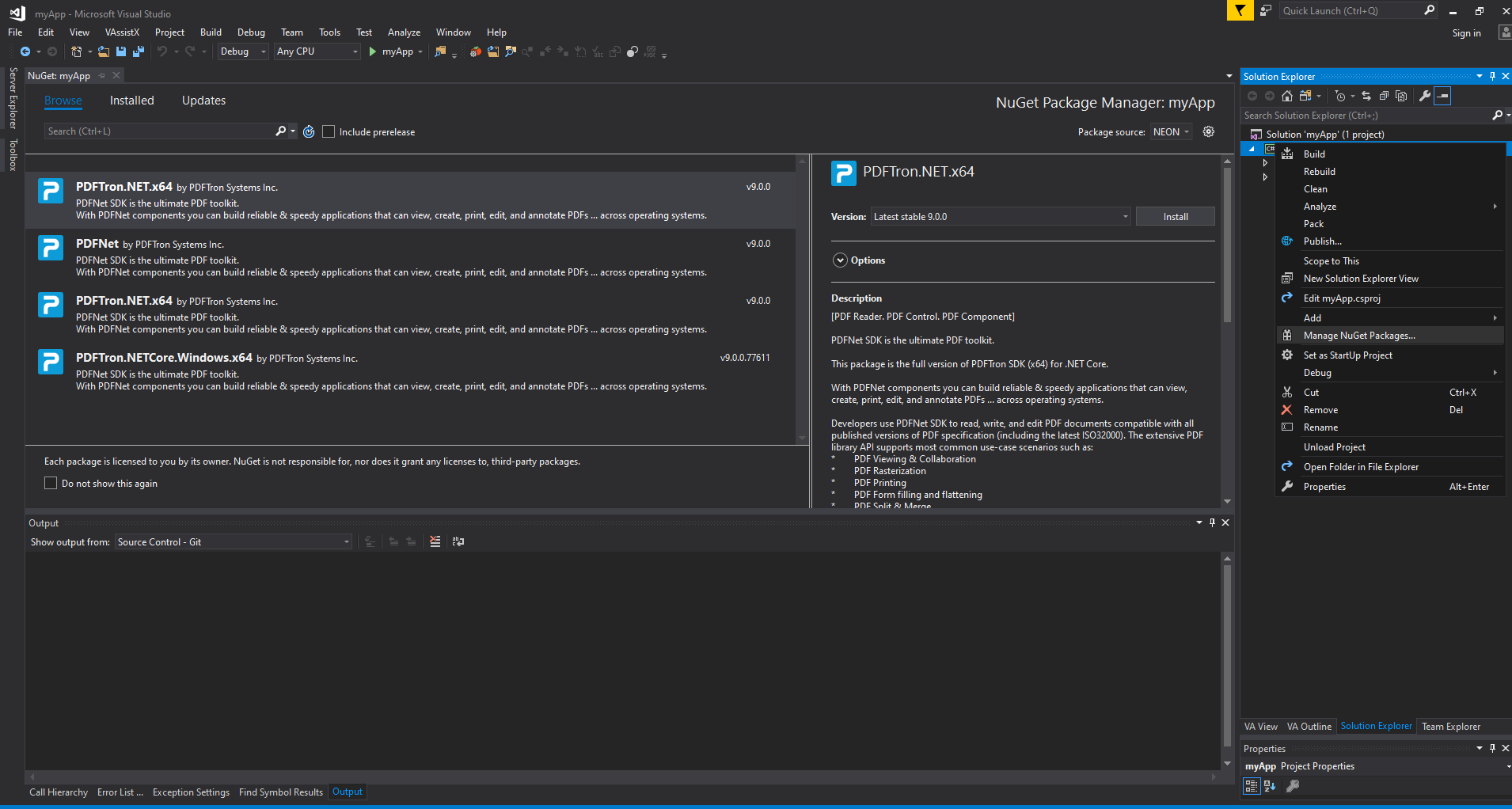 Installing PDFTron through NuGet Package Manager with platform-specific packages
PDFTron offers a wider variety of over 30 annotation types compared to ComPDFKit's 10+ types. However, this extensive feature set requires careful module selection during installation.
Both libraries provide URL to PDF conversion, but with different approaches and capabilities. Let's examine the implementation details and performance characteristics of each.
IronPDF's Chrome rendering engine provides exceptional support for modern web standards:
using IronPdf;

// Initialize the Chrome renderer with advanced options
var renderer = new ChromePdfRenderer();

// Configure rendering for optimal results
renderer.RenderingOptions.PaperSize = PdfPaperSize.A4;
renderer.RenderingOptions.MarginTop = 20;
renderer.RenderingOptions.MarginBottom = 20;
renderer.RenderingOptions.CssMediaType = PdfCssMediaType.Print;
renderer.RenderingOptions.EnableJavaScript = true;
renderer.RenderingOptions.RenderDelay = 1000; // Wait for JS execution

// Handle authentication if needed
renderer.LoginCredentials = new ChromeHttpLoginCredentials() {
    Username = "user@domain.com",
    Password = "secure_password"
};

// Render URL to PDF with full browser capabilities
var pdf = renderer.RenderUrlAsPdf("https://ironpdf.com/");

// Add metadata for document management
pdf.MetaData.Author = "Development Team";
pdf.MetaData.Title = "Website Export - " + DateTime.Now.ToString("yyyy-MM-dd");

// Save with compression
pdf.CompressImages(90);
pdf.SaveAs("website-export.pdf");Imports IronPdf
' Initialize the Chrome renderer with advanced options
Private renderer = New ChromePdfRenderer()
' Configure rendering for optimal results
renderer.RenderingOptions.PaperSize = PdfPaperSize.A4
renderer.RenderingOptions.MarginTop = 20
renderer.RenderingOptions.MarginBottom = 20
renderer.RenderingOptions.CssMediaType = PdfCssMediaType.Print
renderer.RenderingOptions.EnableJavaScript = True
renderer.RenderingOptions.RenderDelay = 1000 ' Wait for JS execution
' Handle authentication if needed
renderer.LoginCredentials = New ChromeHttpLoginCredentials() With {
.Username = "user@domain.com",
.Password = "secure_password"
}
' Render URL to PDF with full browser capabilities
Dim pdf = renderer.RenderUrlAsPdf("https://ironpdf.com/")
' Add metadata for document management
pdf.MetaData.Author = "Development Team"
pdf.MetaData.Title = "Website Export - " & DateTime.Now.ToString("yyyy-MM-dd")
' Save with compression
pdf.CompressImages(90)
pdf.SaveAs("website-export.pdf")The Chrome renderer in IronPDF handles complex scenarios including:
IronPDF supports these rendering scenarios out of the box: nuget.org/packages/IronPdf. Recent performance improvements have enhanced rendering speed, especially for complex web applications.
PDFTron requires the HTML2PDF module for web content conversion:
using pdftron;
using pdftron.PDF;
using pdftron.SDF;

class UrlToPdfConverter
{
    public static void ConvertUrlToPdf(string url, string outputPath)
    {
        // Initialize PDFTron with license
        PDFNet.Initialize("your-license-key");

        // Create a new PDF document
        using (PDFDoc doc = new PDFDoc())
        {
            // Initialize HTML2PDF converter
            HTML2PDF converter = new HTML2PDF();

            // Configure conversion settings
            HTML2PDF.WebPageSettings settings = new HTML2PDF.WebPageSettings();
            settings.SetPrintBackground(true);
            settings.SetLoadImages(true);

            // Set page dimensions
            converter.SetPaperSize(PrinterMode.PaperSize.e_letter);
            converter.SetMargins(0.5, 0.5, 0.5, 0.5);

            // Insert URL content
            converter.InsertFromURL(url);

            // Perform conversion
            if (converter.Convert(doc))
            {
                // Save the resulting PDF
                doc.Save(outputPath, SDFDoc.SaveOptions.e_linearized);
                Console.WriteLine($"Successfully converted {url} to {outputPath}");
            }
            else
            {
                Console.WriteLine("Conversion failed");
            }
        }
    }
}Imports pdftron
Imports pdftron.PDF
Imports pdftron.SDF
Class UrlToPdfConverter
Public Shared Sub ConvertUrlToPdf(ByVal url As String, ByVal outputPath As String)
' Initialize PDFTron with license
PDFNet.Initialize("your-license-key")
' Create a new PDF document
Using doc As New PDFDoc()
' Initialize HTML2PDF converter
Dim converter As New HTML2PDF()
' Configure conversion settings
Dim settings As New HTML2PDF.WebPageSettings()
settings.SetPrintBackground(True)
settings.SetLoadImages(True)
' Set page dimensions
converter.SetPaperSize(PrinterMode.PaperSize.e_letter)
converter.SetMargins(0.5, 0.5, 0.5, 0.5)
' Insert URL content
converter.InsertFromURL(url)
' Perform conversion
If converter.Convert(doc) Then
' Save the resulting PDF
doc.Save(outputPath, SDFDoc.SaveOptions.e_linearized)
Console.WriteLine($"Successfully converted {url} to {outputPath}")
Else
Console.WriteLine("Conversion failed")
End If
End Using
End Sub
End ClassImportant considerations for PDFTron HTML2PDF:
Creating PDFs from HTML strings is essential for generating dynamic reports, invoices, and documents. Both libraries handle this differently.
IronPDF excels at rendering complex HTML with full CSS3 and JavaScript support:
using IronPdf;
using System.Text;

public class HtmlStringToPdfConverter
{
    public static PdfDocument GenerateInvoice(InvoiceData data)
    {
        // Build dynamic HTML with modern CSS
        var html = new StringBuilder();
        html.Append(@"
        <!DOCTYPE html>
        <html>
        <head>
            <meta charset='UTF-8'>
            <style>
                @import url('https://fonts.googleapis.com/css2?family=Roboto:wght@300;400;700&display=swap');

                body {
                    font-family: 'Roboto', sans-serif;
                    margin: 0;
                    padding: 20px;
                    color: #333;
                }

                .invoice-header {
                    display: flex;
                    justify-content: space-between;
                    border-bottom: 2px solid #007bff;
                    padding-bottom: 20px;
                    margin-bottom: 30px;
                }

                .company-logo {
                    width: 150px;
                    height: auto;
                }

                .invoice-details {
                    text-align: right;
                }

                .invoice-number {
                    font-size: 24px;
                    font-weight: 700;
                    color: #007bff;
                }

                table {
                    width: 100%;
                    border-collapse: collapse;
                    margin-top: 20px;
                }

                th {
                    background-color: #f8f9fa;
                    padding: 12px;
                    text-align: left;
                    border-bottom: 2px solid #dee2e6;
                }

                td {
                    padding: 12px;
                    border-bottom: 1px solid #dee2e6;
                }

                .total-row {
                    font-weight: 700;
                    font-size: 18px;
                    background-color: #e9ecef;
                }

                @media print {
                    body { margin: 0; }
                    .no-print { display: none; }
                }
            </style>
        </head>
        <body>
        ");

        // Add invoice header
        html.Append($@"
            <div class='invoice-header'>
                <div>
                    <img src='data:image/png;base64,{data.CompanyLogoBase64}' class='company-logo' alt='Company Logo'>
                    <h2>{data.CompanyName}</h2>
                    <p>{data.CompanyAddress}</p>
                </div>
                <div class='invoice-details'>
                    <div class='invoice-number'>Invoice #{data.InvoiceNumber}</div>
                    <p>Date: {data.InvoiceDate:yyyy-MM-dd}</p>
                    <p>Due: {data.DueDate:yyyy-MM-dd}</p>
                </div>
            </div>
        ");

        // Add line items table
        html.Append(@"
            <table>
                <thead>
                    <tr>
                        <th>Description</th>
                        <th>Quantity</th>
                        <th>Unit Price</th>
                        <th>Total</th>
                    </tr>
                </thead>
                <tbody>
        ");

        foreach (var item in data.LineItems)
        {
            html.Append($@"
                <tr>
                    <td>{item.Description}</td>
                    <td>{item.Quantity}</td>
                    <td>${item.UnitPrice:F2}</td>
                    <td>${item.Total:F2}</td>
                </tr>
            ");
        }

        html.Append($@"
                </tbody>
                <tfoot>
                    <tr class='total-row'>
                        <td colspan='3'>Total</td>
                        <td>${data.Total:F2}</td>
                    </tr>
                </tfoot>
            </table>
        </body>
        </html>
        ");

        // Configure renderer for optimal output
        var renderer = new ChromePdfRenderer();
        renderer.RenderingOptions.CssMediaType = PdfCssMediaType.Print;
        renderer.RenderingOptions.EnableJavaScript = true;
        renderer.RenderingOptions.CreatePdfFormsFromHtml = true;

        // Generate PDF with proper base path for assets
        var pdf = renderer.RenderHtmlAsPdf(html.ToString());

        // Add security if needed
        pdf.SecuritySettings.UserPassword = data.CustomerEmail;
        pdf.SecuritySettings.AllowUserPrinting = true;
        pdf.SecuritySettings.AllowUserCopyPasteContent = false;

        return pdf;
    }
}Imports IronPdf
Imports System.Text
Public Class HtmlStringToPdfConverter
Public Shared Function GenerateInvoice(data As InvoiceData) As PdfDocument
' Build dynamic HTML with modern CSS
Dim html = New StringBuilder()
html.Append("
<!DOCTYPE html>
<html>
<head>
<meta charset='UTF-8'>
<style>
@import url('https://fonts.googleapis.com/css2?family=Roboto:wght@300;400;700&display=swap');
body {
font-family: 'Roboto', sans-serif;
margin: 0;
padding: 20px;
color: #333;
}
.invoice-header {
display: flex;
justify-content: space-between;
border-bottom: 2px solid #007bff;
padding-bottom: 20px;
margin-bottom: 30px;
}
.company-logo {
width: 150px;
height: auto;
}
.invoice-details {
text-align: right;
}
.invoice-number {
font-size: 24px;
font-weight: 700;
color: #007bff;
}
table {
width: 100%;
border-collapse: collapse;
margin-top: 20px;
}
th {
background-color: #f8f9fa;
padding: 12px;
text-align: left;
border-bottom: 2px solid #dee2e6;
}
td {
padding: 12px;
border-bottom: 1px solid #dee2e6;
}
.total-row {
font-weight: 700;
font-size: 18px;
background-color: #e9ecef;
}
@media print {
body { margin: 0; }
.no-print { display: none; }
}
</style>
</head>
<body>
")
' Add invoice header
html.Append($"
<div class='invoice-header'>
<div>
<img src='data:image/png;base64,{data.CompanyLogoBase64}' class='company-logo' alt='Company Logo'>
<h2>{data.CompanyName}</h2>
<p>{data.CompanyAddress}</p>
</div>
<div class='invoice-details'>
<div class='invoice-number'>Invoice #{data.InvoiceNumber}</div>
<p>Date: {data.InvoiceDate:yyyy-MM-dd}</p>
<p>Due: {data.DueDate:yyyy-MM-dd}</p>
</div>
</div>
")
' Add line items table
html.Append("
<table>
<thead>
<tr>
<th>Description</th>
<th>Quantity</th>
<th>Unit Price</th>
<th>Total</th>
</tr>
</thead>
<tbody>
")
For Each item In data.LineItems
html.Append($"
<tr>
<td>{item.Description}</td>
<td>{item.Quantity}</td>
<td>${item.UnitPrice:F2}</td>
<td>${item.Total:F2}</td>
</tr>
")
Next
html.Append($"
</tbody>
<tfoot>
<tr class='total-row'>
<td colspan='3'>Total</td>
<td>${data.Total:F2}</td>
</tr>
</tfoot>
</table>
</body>
</html>
")
' Configure renderer for optimal output
Dim renderer = New ChromePdfRenderer()
renderer.RenderingOptions.CssMediaType = PdfCssMediaType.Print
renderer.RenderingOptions.EnableJavaScript = True
renderer.RenderingOptions.CreatePdfFormsFromHtml = True
' Generate PDF with proper base path for assets
Dim pdf = renderer.RenderHtmlAsPdf(html.ToString())
' Add security if needed
pdf.SecuritySettings.UserPassword = data.CustomerEmail
pdf.SecuritySettings.AllowUserPrinting = True
pdf.SecuritySettings.AllowUserCopyPasteContent = False
Return pdf
End Function
End ClassKey advantages of IronPDF's HTML rendering:
PDFTron's approach to HTML string conversion:
using pdftron;
using pdftron.PDF;
using pdftron.SDF;

public class PdfTronHtmlConverter
{
    public static void ConvertHtmlString(string htmlContent, string outputPath)
    {
        PDFNet.Initialize("your-license-key");

        using (PDFDoc doc = new PDFDoc())
        {
            // Create HTML2PDF converter instance
            HTML2PDF converter = new HTML2PDF();

            // Configure page settings
            converter.SetPaperSize(PrinterMode.PaperSize.e_letter);
            converter.SetLandscape(false);
            converter.SetMargins(1.0, 1.0, 1.0, 1.0, HTML2PDF.e_inches);

            // Enable images and backgrounds
            HTML2PDF.WebPageSettings settings = new HTML2PDF.WebPageSettings();
            settings.SetPrintBackground(true);
            settings.SetLoadImages(true);
            settings.SetJavaScriptDelay(1000); // Limited JS support

            // Insert HTML content
            converter.InsertFromHtmlString(htmlContent);

            // Convert to PDF
            if (converter.Convert(doc))
            {
                // Post-processing options
                doc.Save(outputPath, SDFDoc.SaveOptions.e_linearized);
            }
        }
    }
}Imports pdftron
Imports pdftron.PDF
Imports pdftron.SDF
Public Class PdfTronHtmlConverter
Public Shared Sub ConvertHtmlString(htmlContent As String, outputPath As String)
PDFNet.Initialize("your-license-key")
Using doc As New PDFDoc()
' Create HTML2PDF converter instance
Dim converter As New HTML2PDF()
' Configure page settings
converter.SetPaperSize(PrinterMode.PaperSize.e_letter)
converter.SetLandscape(False)
converter.SetMargins(1.0, 1.0, 1.0, 1.0, HTML2PDF.e_inches)
' Enable images and backgrounds
Dim settings As New HTML2PDF.WebPageSettings()
settings.SetPrintBackground(True)
settings.SetLoadImages(True)
settings.SetJavaScriptDelay(1000) ' Limited JS support
' Insert HTML content
converter.InsertFromHtmlString(htmlContent)
' Convert to PDF
If converter.Convert(doc) Then
' Post-processing options
doc.Save(outputPath, SDFDoc.SaveOptions.e_linearized)
End If
End Using
End Sub
End ClassPDFTron HTML limitations to consider:
Converting ASPX pages to PDF is a common requirement for ASP.NET applications. IronPDF provides native support, while PDFTron requires workarounds.
IronPDF offers seamless ASPX conversion with a single line of code:
using IronPdf;

public partial class InvoicePage : System.Web.UI.Page
{
    protected void Page_Load(object sender, EventArgs e)
    {
        // Render the current ASPX page as PDF on page load
        if (Request.QueryString["pdf"] == "true")
        {
            // Configure PDF output options
            AspxToPdf.RenderThisPageAsPdf(
                AspxToPdf.FileBehavior.InBrowser,
                "Invoice_" + DateTime.Now.ToString("yyyyMMdd") + ".pdf");
        }
    }

    protected void ExportToPdfButton_Click(object sender, EventArgs e)
    {
        // Advanced configuration for ASPX to PDF
        IronPdf.AspxToPdf.RenderThisPageAsPdf(
            IronPdf.AspxToPdf.FileBehavior.Attachment,
            "Invoice.pdf",
            new ChromePdfRenderOptions()
            {
                PaperSize = PdfPaperSize.A4,
                MarginTop = 20,
                MarginBottom = 20,
                CssMediaType = PdfCssMediaType.Print,
                EnableJavaScript = true,
                CreatePdfFormsFromHtml = true,
                FitToPaper = true
            });
    }
}Imports IronPdf
Partial Public Class InvoicePage
Inherits System.Web.UI.Page
Protected Sub Page_Load(sender As Object, e As EventArgs)
' Render the current ASPX page as PDF on page load
If Request.QueryString("pdf") = "true" Then
' Configure PDF output options
AspxToPdf.RenderThisPageAsPdf(AspxToPdf.FileBehavior.InBrowser, "Invoice_" & DateTime.Now.ToString("yyyyMMdd") & ".pdf")
End If
End Sub
Protected Sub ExportToPdfButton_Click(sender As Object, e As EventArgs)
' Advanced configuration for ASPX to PDF
IronPdf.AspxToPdf.RenderThisPageAsPdf(IronPdf.AspxToPdf.FileBehavior.Attachment, "Invoice.pdf", New ChromePdfRenderOptions() With {
.PaperSize = PdfPaperSize.A4,
.MarginTop = 20,
.MarginBottom = 20,
.CssMediaType = PdfCssMediaType.Print,
.EnableJavaScript = True,
.CreatePdfFormsFromHtml = True,
.FitToPaper = True
})
End Sub
End ClassFor more control over the rendering process:
// In Global.asax.cs or Startup.cs
public static void ConfigureAspxToPdf()
{
    // Set global defaults for all ASPX to PDF conversions
    AspxToPdf.GlobalSettings.PaperSize = PdfPaperSize.A4;
    AspxToPdf.GlobalSettings.PrintHtmlBackgrounds = true;
    AspxToPdf.GlobalSettings.EnableJavaScript = true;
    AspxToPdf.GlobalSettings.CssMediaType = PdfCssMediaType.Screen;

    // Custom headers and footers
    AspxToPdf.GlobalSettings.HtmlHeader = new HtmlHeaderFooter()
    {
        HtmlFragment = "<div style='text-align: center; font-size: 12px;'>{page} of {total-pages}</div>",
        Height = 25
    };
}' In Global.asax.vb or Startup.vb
Public Shared Sub ConfigureAspxToPdf()
' Set global defaults for all ASPX to PDF conversions
AspxToPdf.GlobalSettings.PaperSize = PdfPaperSize.A4
AspxToPdf.GlobalSettings.PrintHtmlBackgrounds = True
AspxToPdf.GlobalSettings.EnableJavaScript = True
AspxToPdf.GlobalSettings.CssMediaType = PdfCssMediaType.Screen
' Custom headers and footers
AspxToPdf.GlobalSettings.HtmlHeader = New HtmlHeaderFooter() With {
.HtmlFragment = "<div style='text-align: center; font-size: 12px;'>{page} of {total-pages}</div>",
.Height = 25
}
End SubIronPDF's ASPX to PDF feature preserves:
ViewState and form valuesApryse (PDFTron) does not provide a built-in ASPX-to-PDF renderer equivalent to IronPDF's AspxToPdf class. Developers typically work around this by capturing the ASPX page output as an HTML string first:
// Capture ASPX output as HTML, then convert
public void ConvertAspxWithPdfTron()
{
    // Render ASPX to string first
    StringWriter sw = new StringWriter();
    HtmlTextWriter hw = new HtmlTextWriter(sw);

    // Render the page to HTML
    this.RenderControl(hw);
    string htmlContent = sw.ToString();

    // Then use PDFTron's HTML2PDF
    PDFNet.Initialize("your-license-key");

    using (PDFDoc doc = new PDFDoc())
    {
        HTML2PDF converter = new HTML2PDF();
        converter.InsertFromHtmlString(htmlContent);
        converter.Convert(doc);

        // Send to browser
        byte[] pdfBytes = doc.Save(SDFDoc.SaveOptions.e_linearized);
        Response.ContentType = "application/pdf";
        Response.BinaryWrite(pdfBytes);
        Response.End();
    }
}' Capture ASPX output as HTML, then convert
Public Sub ConvertAspxWithPdfTron()
' Render ASPX to string first
Dim sw As New StringWriter()
Dim hw As New HtmlTextWriter(sw)
' Render the page to HTML
Me.RenderControl(hw)
Dim htmlContent As String = sw.ToString()
' Then use PDFTron's HTML2PDF
PDFNet.Initialize("your-license-key")
Using doc As New PDFDoc()
Dim converter As New HTML2PDF()
converter.InsertFromHtmlString(htmlContent)
converter.Convert(doc)
' Send to browser
Dim pdfBytes As Byte() = doc.Save(SDFDoc.SaveOptions.e_linearized)
Response.ContentType = "application/pdf"
Response.BinaryWrite(pdfBytes)
Response.End()
End Using
End SubImage to PDF conversion is essential for document archiving and portfolio creation. Both libraries offer this functionality with different approaches.
IronPDF provides a dedicated ImageToPdfConverter class for efficient batch processing:
using IronPdf;
using System.IO;
using System.Linq;

public class ImagePdfGenerator
{
    public static void CreatePhotoAlbum(string imageFolder, string outputPath)
    {
        // Get all supported image files
        var supportedExtensions = new[] { ".jpg", ".jpeg", ".png", ".gif", ".bmp", ".tiff", ".svg" };
        var imageFiles = Directory.GetFiles(imageFolder)
            .Where(f => supportedExtensions.Contains(Path.GetExtension(f).ToLower()))
            .OrderBy(f => f);

        // Convert images to PDF with options
        var pdf = ImageToPdfConverter.ImageToPdf(imageFiles, ImageBehavior.FitToPage);

        // Add metadata
        pdf.MetaData.Title = "Photo Album";
        pdf.MetaData.Author = "Photography Department";
        pdf.MetaData.CreationDate = DateTime.Now;

        // Apply compression for smaller file size
        pdf.CompressImages(80); // 80% quality

        // Save the PDF
        pdf.SaveAs(outputPath);
    }

    public static void CreateThumbnailCatalog(List<ProductImage> images)
    {
        var renderer = new ChromePdfRenderer();

        // Build HTML with image grid
        var html = @"
        <html>
        <head>
            <style>
                .image-grid {
                    display: grid;
                    grid-template-columns: repeat(3, 1fr);
                    gap: 20px;
                    padding: 20px;
                }
                .image-item {
                    text-align: center;
                }
                .image-item img {
                    max-width: 100%;
                    height: 200px;
                    object-fit: cover;
                    border: 1px solid #ddd;
                }
                .image-caption {
                    margin-top: 10px;
                    font-size: 12px;
                }
            </style>
        </head>
        <body>
            <h1>Product Catalog</h1>
            <div class='image-grid'>";

        foreach (var image in images)
        {
            html += $@"
                <div class='image-item'>
                    <img src='data:image/jpeg;base64,{image.Base64Data}' />
                    <div class='image-caption'>{image.ProductName}</div>
                </div>";
        }

        html += "</div></body></html>";

        // Render with optimal settings for images
        renderer.RenderingOptions.CssMediaType = PdfCssMediaType.Print;
        var pdf = renderer.RenderHtmlAsPdf(html);
        pdf.SaveAs("product-catalog.pdf");
    }
}Imports IronPdf
Imports System.IO
Imports System.Linq
Public Class ImagePdfGenerator
Public Shared Sub CreatePhotoAlbum(imageFolder As String, outputPath As String)
' Get all supported image files
Dim supportedExtensions = {".jpg", ".jpeg", ".png", ".gif", ".bmp", ".tiff", ".svg"}
Dim imageFiles = Directory.GetFiles(imageFolder) _
.Where(Function(f) supportedExtensions.Contains(Path.GetExtension(f).ToLower())) _
.OrderBy(Function(f) f)
' Convert images to PDF with options
Dim pdf = ImageToPdfConverter.ImageToPdf(imageFiles, ImageBehavior.FitToPage)
' Add metadata
pdf.MetaData.Title = "Photo Album"
pdf.MetaData.Author = "Photography Department"
pdf.MetaData.CreationDate = DateTime.Now
' Apply compression for smaller file size
pdf.CompressImages(80) ' 80% quality
' Save the PDF
pdf.SaveAs(outputPath)
End Sub
Public Shared Sub CreateThumbnailCatalog(images As List(Of ProductImage))
Dim renderer = New ChromePdfRenderer()
' Build HTML with image grid
Dim html = "
<html>
<head>
<style>
.image-grid {
display: grid;
grid-template-columns: repeat(3, 1fr);
gap: 20px;
padding: 20px;
}
.image-item {
text-align: center;
}
.image-item img {
max-width: 100%;
height: 200px;
object-fit: cover;
border: 1px solid #ddd;
}
.image-caption {
margin-top: 10px;
font-size: 12px;
}
</style>
</head>
<body>
<h1>Product Catalog</h1>
<div class='image-grid'>"
For Each image In images
html += $"
<div class='image-item'>
<img src='data:image/jpeg;base64,{image.Base64Data}' />
<div class='image-caption'>{image.ProductName}</div>
</div>"
Next
html += "</div></body></html>"
' Render with optimal settings for images
renderer.RenderingOptions.CssMediaType = PdfCssMediaType.Print
Dim pdf = renderer.RenderHtmlAsPdf(html)
pdf.SaveAs("product-catalog.pdf")
End Sub
End ClassAdvanced image handling features:
PDFTron uses its conversion API for image handling:
using pdftron;
using pdftron.PDF;
using pdftron.SDF;

public class PdfTronImageConverter
{
    public static void ConvertImageToPdf(string imagePath, string outputPath)
    {
        PDFNet.Initialize("your-license-key");

        using (PDFDoc doc = new PDFDoc())
        {
            // Use Convert API for image to PDF
            pdftron.PDF.Convert.ToPdf(doc, imagePath);

            // Additional image processing
            PageIterator itr = doc.GetPageIterator();
            while (itr.HasNext())
            {
                Page page = itr.Current();

                // Adjust page size to image
                Rect crop_box = page.GetCropBox();
                page.SetMediaBox(crop_box);

                itr.Next();
            }

            // Save optimized PDF
            doc.Save(outputPath, SDFDoc.SaveOptions.e_linearized);
        }
    }

    public static void CreateMultiPageImagePdf(string[] imagePaths, string outputPath)
    {
        PDFNet.Initialize("your-license-key");

        using (PDFDoc doc = new PDFDoc())
        {
            ElementBuilder builder = new ElementBuilder();
            ElementWriter writer = new ElementWriter();

            foreach (string imagePath in imagePaths)
            {
                // Create a new page for each image
                Page page = doc.PageCreate();
                writer.Begin(page);

                // Add image to page
                Image img = Image.Create(doc, imagePath);
                Element element = builder.CreateImage(img, 0, 0, 612, 792);
                writer.WritePlacedElement(element);

                writer.End();
                doc.PagePushBack(page);
            }

            doc.Save(outputPath, SDFDoc.SaveOptions.e_linearized);
        }
    }
}Imports pdftron
Imports pdftron.PDF
Imports pdftron.SDF
Public Class PdfTronImageConverter
Public Shared Sub ConvertImageToPdf(ByVal imagePath As String, ByVal outputPath As String)
PDFNet.Initialize("your-license-key")
Using doc As New PDFDoc()
' Use Convert API for image to PDF
pdftron.PDF.Convert.ToPdf(doc, imagePath)
' Additional image processing
Dim itr As PageIterator = doc.GetPageIterator()
While itr.HasNext()
Dim page As Page = itr.Current()
' Adjust page size to image
Dim crop_box As Rect = page.GetCropBox()
page.SetMediaBox(crop_box)
itr.Next()
End While
' Save optimized PDF
doc.Save(outputPath, SDFDoc.SaveOptions.e_linearized)
End Using
End Sub
Public Shared Sub CreateMultiPageImagePdf(ByVal imagePaths() As String, ByVal outputPath As String)
PDFNet.Initialize("your-license-key")
Using doc As New PDFDoc()
Dim builder As New ElementBuilder()
Dim writer As New ElementWriter()
For Each imagePath As String In imagePaths
' Create a new page for each image
Dim page As Page = doc.PageCreate()
writer.Begin(page)
' Add image to page
Dim img As Image = Image.Create(doc, imagePath)
Dim element As Element = builder.CreateImage(img, 0, 0, 612, 792)
writer.WritePlacedElement(element)
writer.End()
doc.PagePushBack(page)
Next
doc.Save(outputPath, SDFDoc.SaveOptions.e_linearized)
End Using
End Sub
End ClassUnderstanding licensing is crucial for budgeting and compliance. The two libraries have vastly different pricing models.
IronPDF has 3 pricing edition(s), from $999 to $2,399. A free trial of IronPDF is also available. IronPDF offers transparent, published pricing (as of April 2026):
License Tiers:
Additional Options:
All Team Licenses are non-transferable and sharing of licenses outside an organization or agency/client relationship is prohibited.
Apryse's (formerly PDFTron) licensing is quote-based with no published pricing. Contact Apryse sales directly for a quote at apryse.com/pricing.
Key licensing characteristics:
Key Differences:
Developer support can make or break project timelines. Here's how each vendor approaches customer assistance.
IronPDF includes professional support with all licenses:
The IronPDF library works in Azure WebApps, Functions and WebJobs. It works in both Linux and Windows variants, although I would recommend Windows variant Functions and WebApps as significantly better tested and easier to install.
PDFTron's support varies by license tier:
Performance impacts user experience and server costs. Let's examine real-world performance data.
Recent improvements have enhanced IronPDF's performance significantly:
// Optimized batch processing example
public async Task BatchConvertWithPerformanceMonitoring()
{
    var renderer = new ChromePdfRenderer();

    // Configure for performance
    renderer.RenderingOptions.CssMediaType = PdfCssMediaType.Screen;
    renderer.RenderingOptions.RenderDelay = 0; // No delay for static content
    renderer.RenderingOptions.Timeout = 30; // 30 second timeout

    // Enable parallel processing
    var tasks = new List<Task<PdfDocument>>();
    var urls = GetUrlsToConvert();

    // Process in parallel with throttling
    using (var semaphore = new SemaphoreSlim(4)) // Max 4 concurrent
    {
        foreach (var url in urls)
        {
            await semaphore.WaitAsync();

            tasks.Add(Task.Run(async () =>
            {
                try
                {
                    return await renderer.RenderUrlAsPdfAsync(url);
                }
                finally
                {
                    semaphore.Release();
                }
            }));
        }

        var results = await Task.WhenAll(tasks);

        // Merge results if needed
        var merged = PdfDocument.Merge(results);
        merged.SaveAs("batch-output.pdf");
    }
}' Optimized batch processing example
Public Async Function BatchConvertWithPerformanceMonitoring() As Task
Dim renderer = New ChromePdfRenderer()
' Configure for performance
renderer.RenderingOptions.CssMediaType = PdfCssMediaType.Screen
renderer.RenderingOptions.RenderDelay = 0 ' No delay for static content
renderer.RenderingOptions.Timeout = 30 ' 30 second timeout
' Enable parallel processing
Dim tasks = New List(Of Task(Of PdfDocument))()
Dim urls = GetUrlsToConvert()
' Process in parallel with throttling
Using semaphore = New SemaphoreSlim(4) ' Max 4 concurrent
For Each url In urls
Await semaphore.WaitAsync()
tasks.Add(Task.Run(Async Function()
Try
Return Await renderer.RenderUrlAsPdfAsync(url)
Finally
semaphore.Release()
End Try
End Function))
Next
Dim results = Await Task.WhenAll(tasks)
' Merge results if needed
Dim merged = PdfDocument.Merge(results)
merged.SaveAs("batch-output.pdf")
End Using
End FunctionPerformance characteristics:
Parallel.ForEach was the highest performing strategy for batch rendering Html To PDF for my use caseApryse's custom engine generally has lower overhead for simple document conversions:
However, users report issues with complex scenarios:
As enterprise applications increasingly adopt modern CSS frameworks like Bootstrap, Tailwind, and Foundation, the ability to accurately convert these frameworks to PDF becomes a critical selection criterion for PDF libraries.
IronPDF's Chrome V8 rendering engine provides comprehensive support for all modern CSS frameworks and web standards:
Production validation: The Bootstrap homepage and official templates convert with 98%+ browser fidelity.
Code Example: Enterprise Dashboard with Data Tables
using IronPdf;

var renderer = new ChromePdfRenderer();

string bootstrapDashboard = @"
<!DOCTYPE html>
<html>
<head>
    <link href='https://cdn.jsdelivr.net/npm/bootstrap@5.3.0/dist/css/bootstrap.min.css' rel='stylesheet'>
</head>
<body>
    <div class='container-fluid py-4'>
        <div class='d-flex justify-content-between align-items-center mb-4'>
            <h1>Sales Dashboard - Q1 2025</h1>
            <span class='badge bg-success fs-5'>+15.3% YoY</span>
        </div>

        <div class='row g-4 mb-4'>
            <div class='col-md-3'>
                <div class='card text-center'>
                    <div class='card-body'>
                        <h6 class='text-muted'>Total Revenue</h6>
                        <h2 class='text-primary'>$1.2M</h2>
                        <small class='text-success'>↑ 12%</small>
                    </div>
                </div>
            </div>
            <div class='col-md-3'>
                <div class='card text-center'>
                    <div class='card-body'>
                        <h6 class='text-muted'>New Customers</h6>
                        <h2 class='text-info'>1,847</h2>
                        <small class='text-success'>↑ 8%</small>
                    </div>
                </div>
            </div>
            <div class='col-md-3'>
                <div class='card text-center'>
                    <div class='card-body'>
                        <h6 class='text-muted'>Avg Order Value</h6>
                        <h2 class='text-warning'>$649</h2>
                        <small class='text-danger'>↓ 3%</small>
                    </div>
                </div>
            </div>
            <div class='col-md-3'>
                <div class='card text-center'>
                    <div class='card-body'>
                        <h6 class='text-muted'>Conversion Rate</h6>
                        <h2 class='text-success'>3.2%</h2>
                        <small class='text-success'>↑ 0.4%</small>
                    </div>
                </div>
            </div>
        </div>

        <div class='card'>
            <div class='card-header bg-primary text-white'>
                <h5 class='mb-0'>Top Products by Revenue</h5>
            </div>
            <div class='card-body p-0'>
                <table class='table table-striped table-hover mb-0'>
                    <thead class='table-light'>
                        <tr>
                            <th>Product</th>
                            <th>Category</th>
                            <th>Units Sold</th>
                            <th class='text-end'>Revenue</th>
                            <th class='text-end'>Growth</th>
                        </tr>
                    </thead>
                    <tbody>
                        <tr>
                            <td><strong>Professional License</strong></td>
                            <td><span class='badge bg-primary'>Software</span></td>
                            <td>1,234</td>
                            <td class='text-end'>$369,000</td>
                            <td class='text-end'><span class='badge bg-success'>+18%</span></td>
                        </tr>
                        <tr>
                            <td><strong>Plus License</strong></td>
                            <td><span class='badge bg-primary'>Software</span></td>
                            <td>2,891</td>
                            <td class='text-end'>$289,000</td>
                            <td class='text-end'><span class='badge bg-success'>+15%</span></td>
                        </tr>
                        <tr>
                            <td><strong>Support Package</strong></td>
                            <td><span class='badge bg-info'>Services</span></td>
                            <td>892</td>
                            <td class='text-end'>$178,000</td>
                            <td class='text-end'><span class='badge bg-success'>+22%</span></td>
                        </tr>
                        <tr>
                            <td><strong>Training Program</strong></td>
                            <td><span class='badge bg-info'>Services</span></td>
                            <td>456</td>
                            <td class='text-end'>$91,000</td>
                            <td class='text-end'><span class='badge bg-warning'>+5%</span></td>
                        </tr>
                    </tbody>
                </table>
            </div>
        </div>
    </div>
</body>
</html>";

var pdf = renderer.RenderHtmlAsPdf(bootstrapDashboard);
pdf.SaveAs("sales-dashboard.pdf");Imports IronPdf
Dim renderer As New ChromePdfRenderer()
Dim bootstrapDashboard As String = "
<!DOCTYPE html>
<html>
<head>
<link href='https://cdn.jsdelivr.net/npm/bootstrap@5.3.0/dist/css/bootstrap.min.css' rel='stylesheet'>
</head>
<body>
<div class='container-fluid py-4'>
<div class='d-flex justify-content-between align-items-center mb-4'>
<h1>Sales Dashboard - Q1 2025</h1>
<span class='badge bg-success fs-5'>+15.3% YoY</span>
</div>
<div class='row g-4 mb-4'>
<div class='col-md-3'>
<div class='card text-center'>
<div class='card-body'>
<h6 class='text-muted'>Total Revenue</h6>
<h2 class='text-primary'>$1.2M</h2>
<small class='text-success'>↑ 12%</small>
</div>
</div>
</div>
<div class='col-md-3'>
<div class='card text-center'>
<div class='card-body'>
<h6 class='text-muted'>New Customers</h6>
<h2 class='text-info'>1,847</h2>
<small class='text-success'>↑ 8%</small>
</div>
</div>
</div>
<div class='col-md-3'>
<div class='card text-center'>
<div class='card-body'>
<h6 class='text-muted'>Avg Order Value</h6>
<h2 class='text-warning'>$649</h2>
<small class='text-danger'>↓ 3%</small>
</div>
</div>
</div>
<div class='col-md-3'>
<div class='card text-center'>
<div class='card-body'>
<h6 class='text-muted'>Conversion Rate</h6>
<h2 class='text-success'>3.2%</h2>
<small class='text-success'>↑ 0.4%</small>
</div>
</div>
</div>
</div>
<div class='card'>
<div class='card-header bg-primary text-white'>
<h5 class='mb-0'>Top Products by Revenue</h5>
</div>
<div class='card-body p-0'>
<table class='table table-striped table-hover mb-0'>
<thead class='table-light'>
<tr>
<th>Product</th>
<th>Category</th>
<th>Units Sold</th>
<th class='text-end'>Revenue</th>
<th class='text-end'>Growth</th>
</tr>
</thead>
<tbody>
<tr>
<td><strong>Professional License</strong></td>
<td><span class='badge bg-primary'>Software</span></td>
<td>1,234</td>
<td class='text-end'>$369,000</td>
<td class='text-end'><span class='badge bg-success'>+18%</span></td>
</tr>
<tr>
<td><strong>Plus License</strong></td>
<td><span class='badge bg-primary'>Software</span></td>
<td>2,891</td>
<td class='text-end'>$289,000</td>
<td class='text-end'><span class='badge bg-success'>+15%</span></td>
</tr>
<tr>
<td><strong>Support Package</strong></td>
<td><span class='badge bg-info'>Services</span></td>
<td>892</td>
<td class='text-end'>$178,000</td>
<td class='text-end'><span class='badge bg-success'>+22%</span></td>
</tr>
<tr>
<td><strong>Training Program</strong></td>
<td><span class='badge bg-info'>Services</span></td>
<td>456</td>
<td class='text-end'>$91,000</td>
<td class='text-end'><span class='badge bg-warning'>+5%</span></td>
</tr>
</tbody>
</table>
</div>
</div>
</div>
</body>
</html>"
Dim pdf = renderer.RenderHtmlAsPdf(bootstrapDashboard)
pdf.SaveAs("sales-dashboard.pdf")Output: A professional enterprise dashboard with Bootstrap's flexbox metrics cards, responsive grid layout, and styled data tables - all rendered with perfect fidelity in the PDF.
PDFTron's HTML-to-PDF conversion is provided through the HTML2PDF module, which uses a custom rendering engine with specific limitations for modern CSS frameworks:
According to developer reports, PDFTron users working with Bootstrap encounter:
Enterprise consideration: For applications built on modern Bootstrap versions (4+), PDFTron may require significant additional development effort to handle layout conversions, potentially offsetting its other performance advantages. The custom engine approach means you're not getting the same rendering fidelity as a real browser.
For comprehensive Bootstrap framework support and testing guidance, see the Bootstrap & Flexbox CSS Guide.
Making the right choice depends on your specific requirements and constraints.
Both IronPDF and PDFTron (Apryse) are capable PDF libraries, but they serve different market segments and use cases.
IronPDF excels in:
PDFTron (Apryse) strengths include:
For most .NET developers building modern applications, IronPDF offers a strong combination of features, ease of use, and transparent pricing. Its Chrome-based rendering engine ensures high-fidelity HTML to PDF conversion, while the straightforward API accelerates development.
PDFTron remains viable for enterprises with specific requirements around CAD conversion, complex form processing, or when working with legacy document formats. However, the lack of pricing transparency and modular licensing structure can significantly increase total costs.
Try IronPDF:
Explore PDFTron:
Remember to thoroughly evaluate both options with your specific use cases before making a decision. Consider factors like long-term costs, support quality, and feature roadmaps alongside technical capabilities.


Jacob Mellor is Chief Technology Officer at Iron Software and a visionary engineer pioneering C# PDF technology. As the original developer behind Iron Software's core codebase, he has shaped the company's product architecture since its inception, transforming it alongside CEO Cameron Rimington into a 50+ person company serving NASA, Tesla, and global government agencies.

IronPDF is a part of IRONSUITE
10 .NET API products for your office documents











When you need your PDF to look like HTML, fast.


